

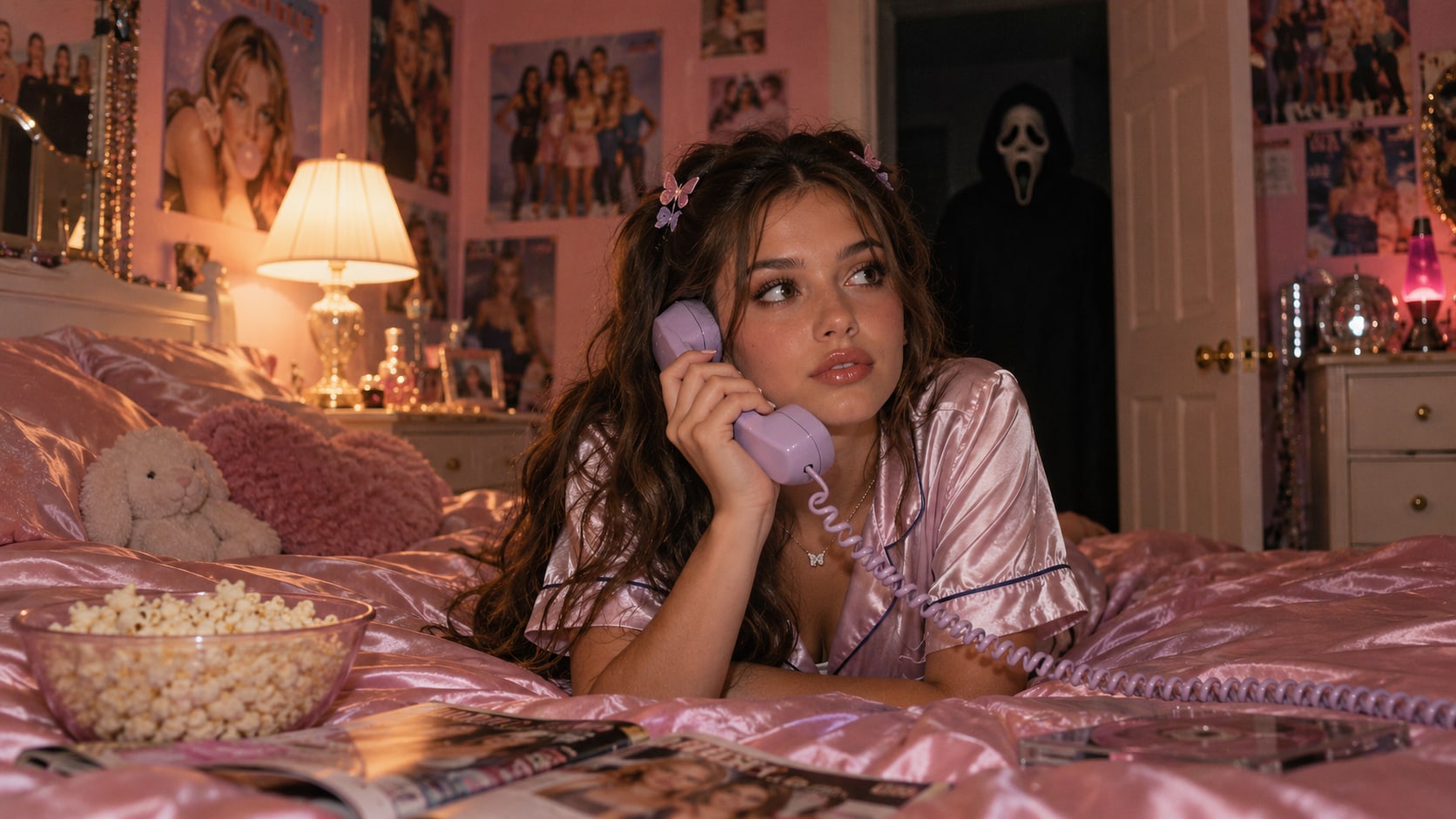
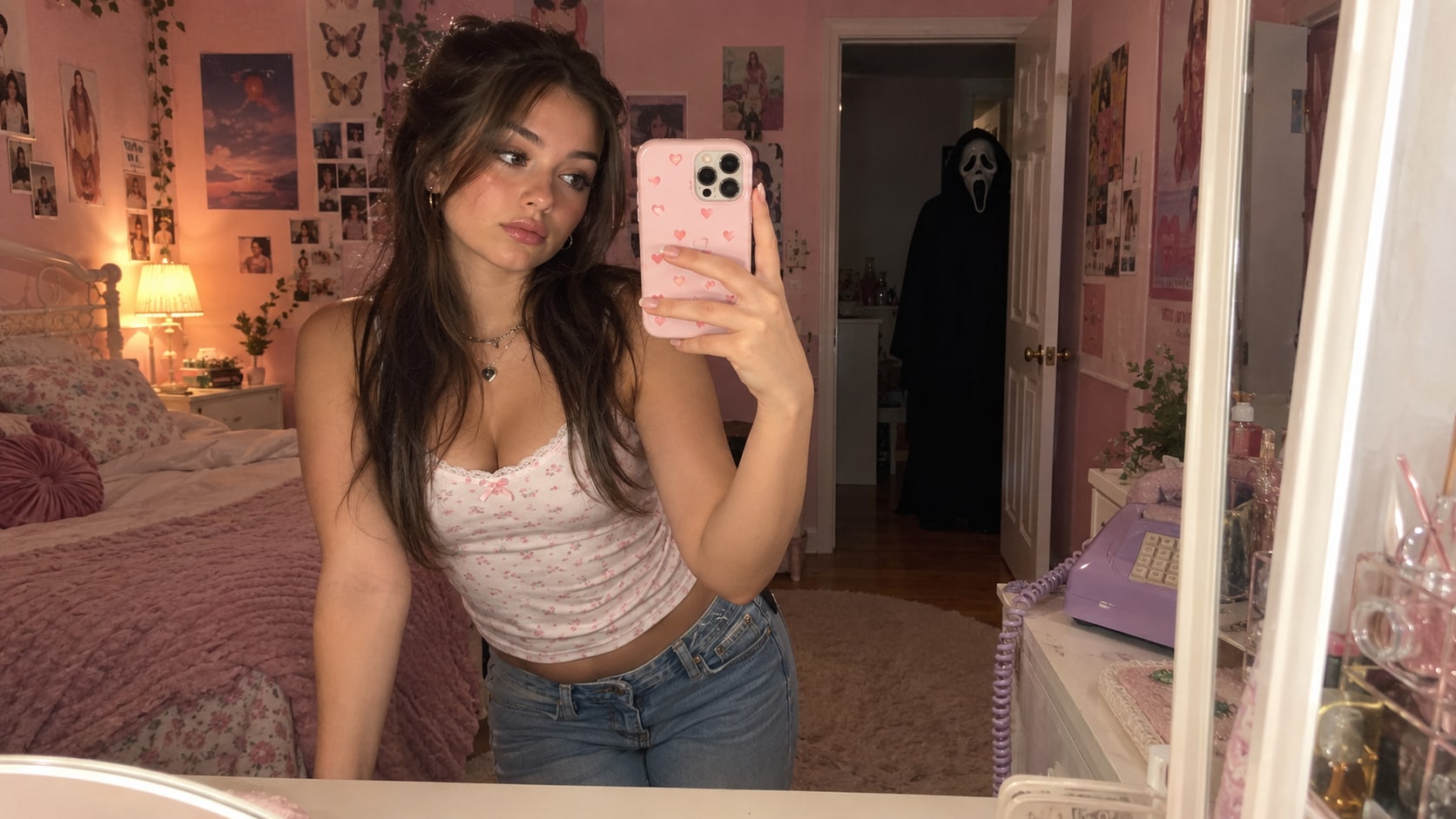
The viral Ghostface AI look pairs a playful late-1990s or Y2K bedroom with a horror-movie intruder in the background. You can generate a fictional scene from text in a browser. If the goal is to place yourself in that scene, start with a photo reference in the desktop app instead; a text-only prompt cannot reliably preserve your face.
Try the online AI Image Generator
In this article
Part 1. What Is the Ghostface AI Trend?
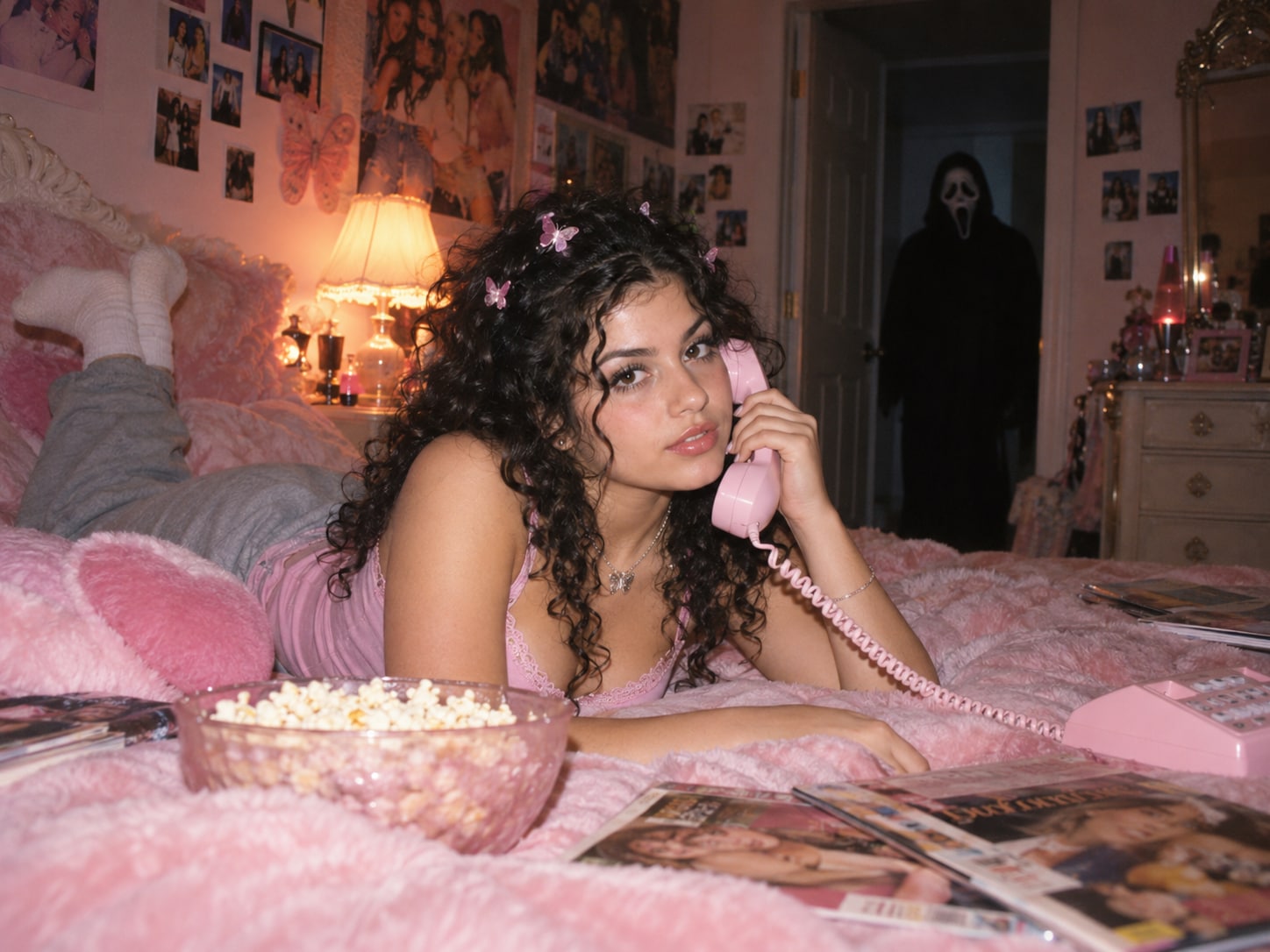
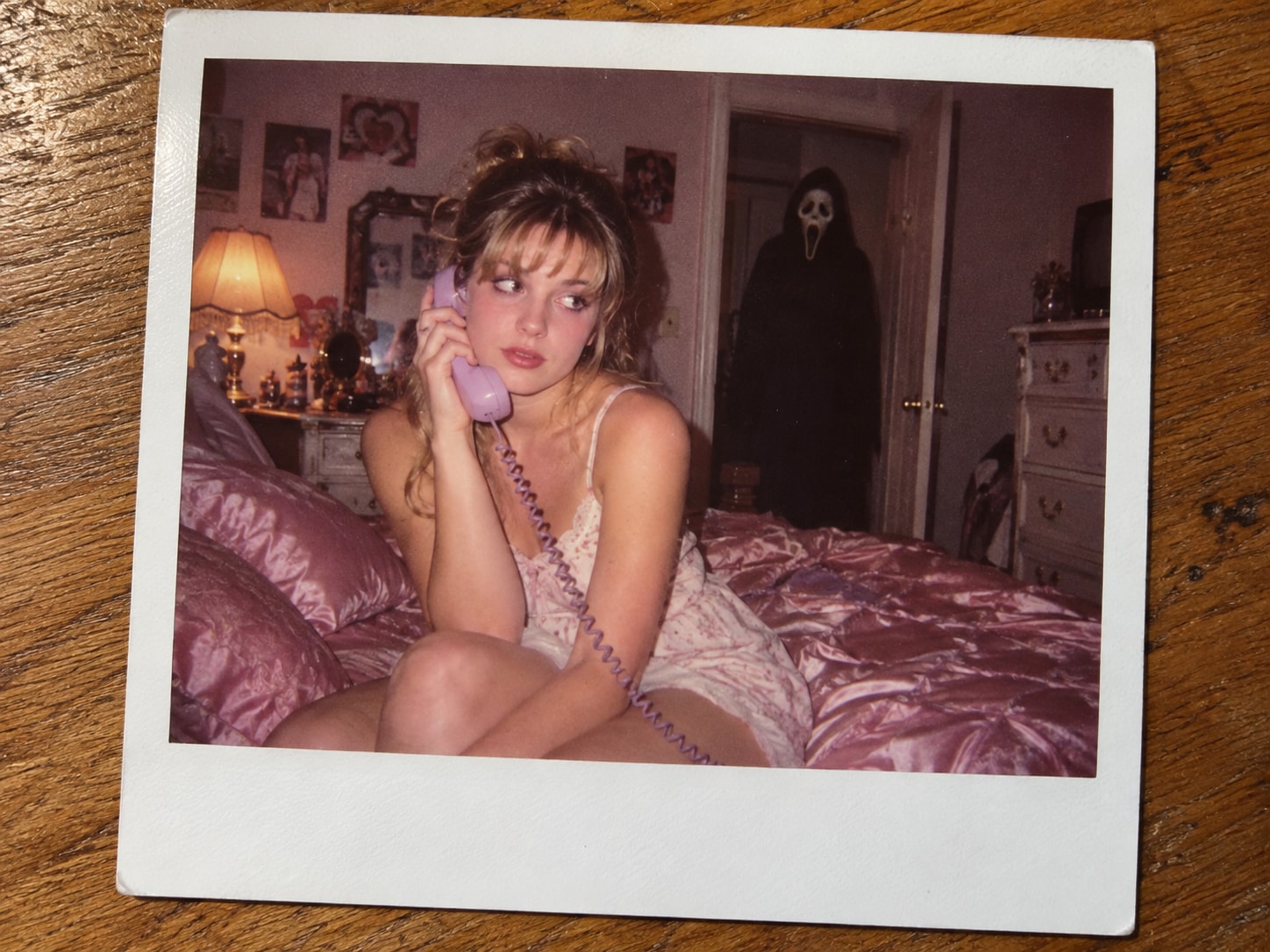
“Ghostface AI” commonly refers to AI-made horror photos that contrast a bright, nostalgic scene with a recognizable long white masked figure. The popular setup places an adult subject on a pink bed with a corded telephone while the figure waits in a shadowy doorway. Flash glare, film grain, butterfly clips, posters, and a popcorn bowl make the scene feel like a late-1990s or early-2000s snapshot.
It is a visual prompt trend, not a separate image model. Different generators can interpret the same prompt differently; a reference photo is useful when the person in the result matters.
| What you want | Best starting point | What to expect |
|---|---|---|
| A new character in the trend scene | Online text-to-image | Fast prompt experiments; the person is invented by the model. |
| A scene featuring your face | Desktop Image Generator with a photo reference | A reference can guide the look, but likeness still needs checking. |
Part 2. How to Create a Ghostface AI Image Online
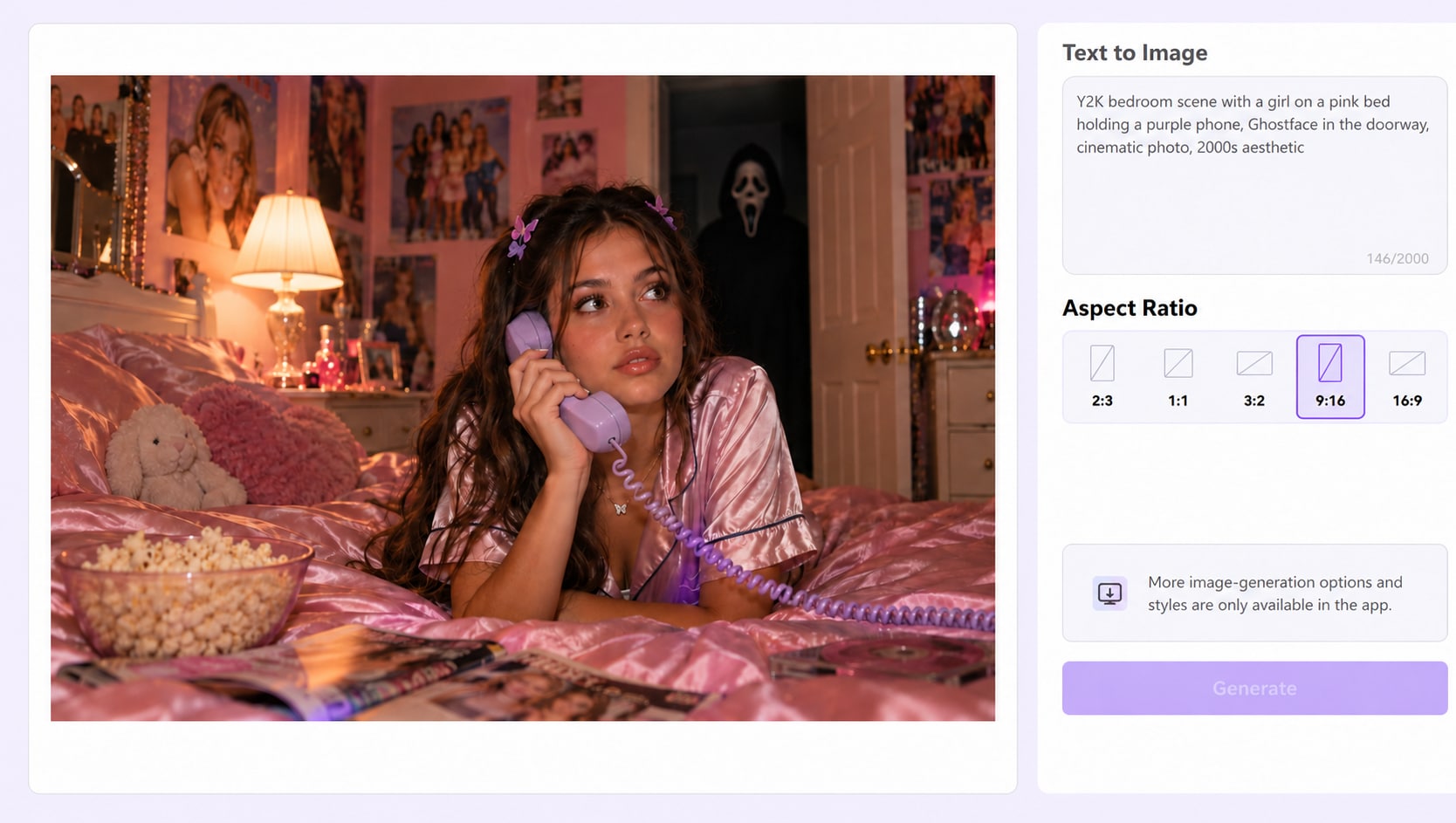
Step 1. Enter a scene prompt. Open UniConverter's online AI Image Generator and type a prompt into the text field. Specify the adult subject, phone, room, background figure, camera treatment, and lighting. For example: “An adult woman on a pink satin bed, holding a pastel corded phone; a black-robed, long-white-masked figure stands in the dark doorway; Y2K flash photo, subtle film grain.”
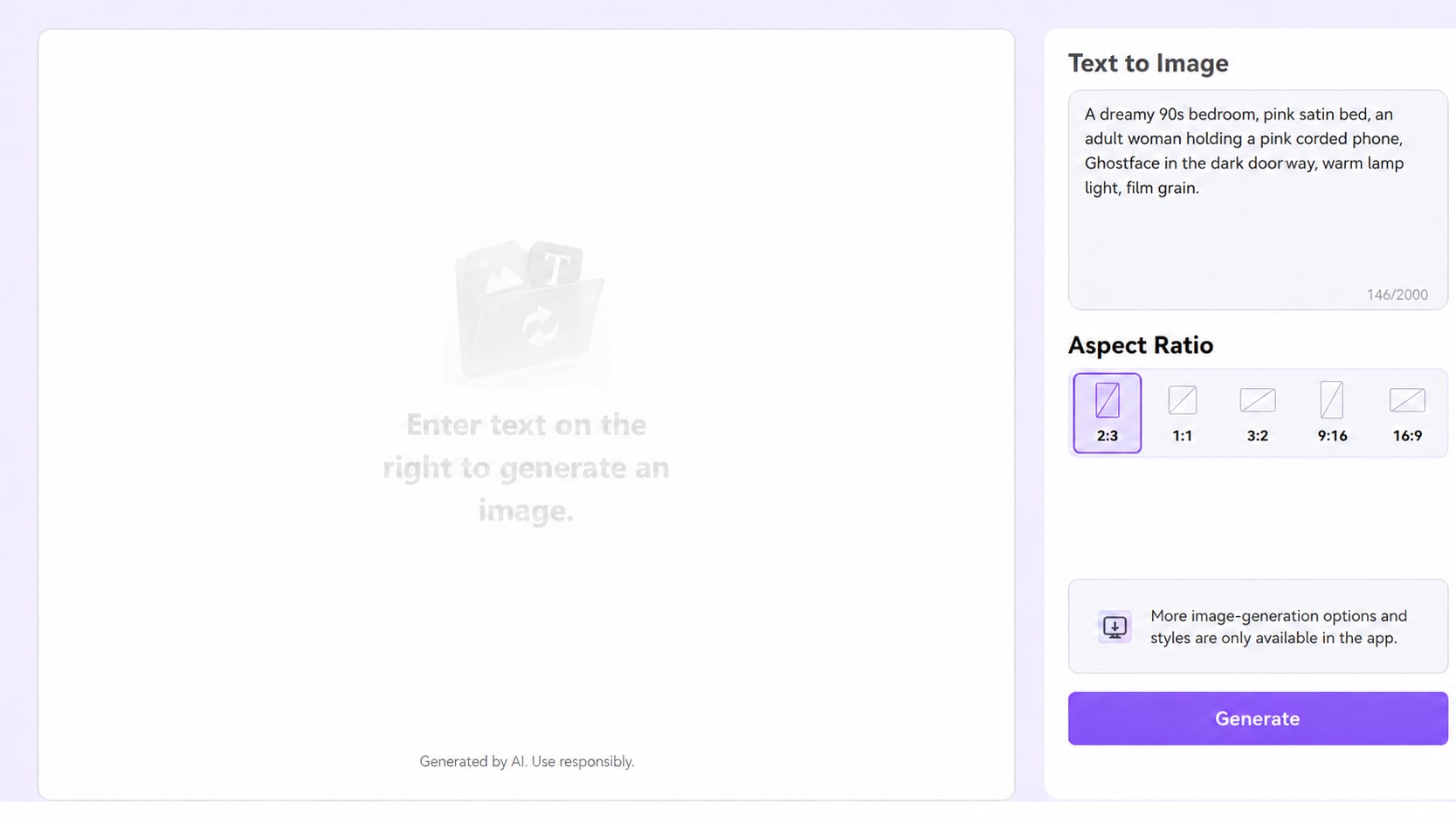
Step 2. Pick the ratio. Choose 9:16 for a vertical story or short-video cover, 1:1 for a square post, or 16:9 for a wide scene. The visible online interface also offers 2:3 and 3:2. Keep the doorway in frame so the background figure does not disappear in the crop.
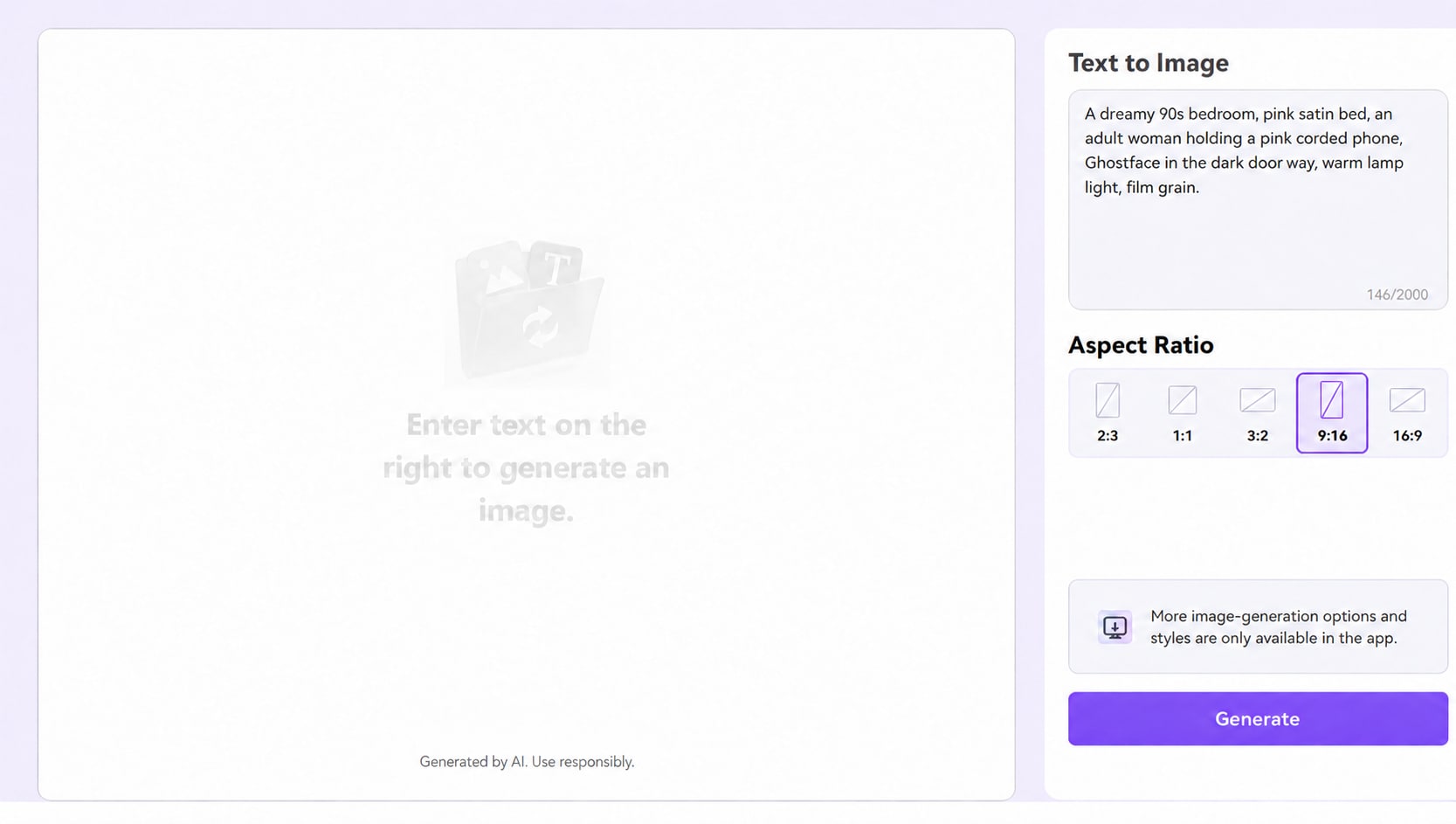
Step 3. Generate, inspect, and download. Click Generate. Check whether the phone has a natural shape, the face is clear, and the masked figure stays in the background. If a detail is wrong, revise one phrase and generate again. Download the result you want to use. Availability of free generations depends on the counter or credits displayed in the tool; “free” does not mean unlimited.
Part 3. Four Ghostface AI Prompts to Copy and Adapt
Use these as scene prompts in the online tool. They describe original horror imagery; a generator may vary the mask design. For a photo-based version, replace “adult subject” with instructions about your uploaded reference in the desktop workflow below.
1. Classic Y2K pink bedroom
Prompt: Photorealistic Y2K point-and-shoot photo of an adult subject on a glossy pink satin bed, holding a pastel corded landline phone, butterfly clips, retro wall posters and a bowl of popcorn. A black-robed figure with a long white horror mask stands quietly in the dim doorway behind them. Direct flash, warm bedside lamp, subtle film grain, playful pose with unsettling background, natural hands, no text or logos, vertical composition.
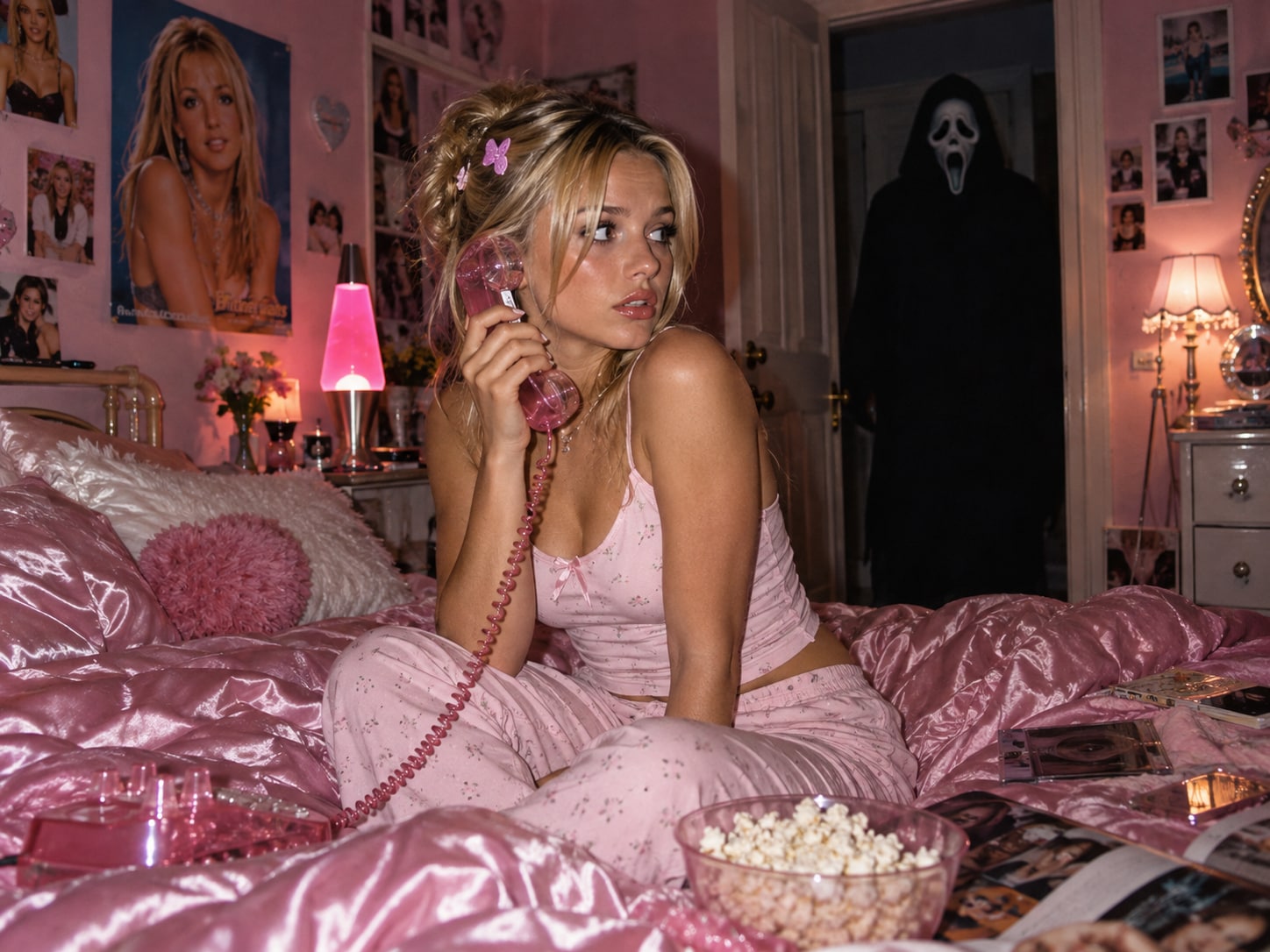
2. 1990s hallway film still
Prompt: A suspenseful late-1990s horror film still: an adult subject answers a cream-colored corded telephone beside an open kitchen door, while a black-robed white-masked figure appears at the far end of a narrow hallway. Sodium streetlight through blinds, practical household lights, 35 mm film grain, tense but non-graphic, realistic anatomy, wide cinematic framing, no title or logos.
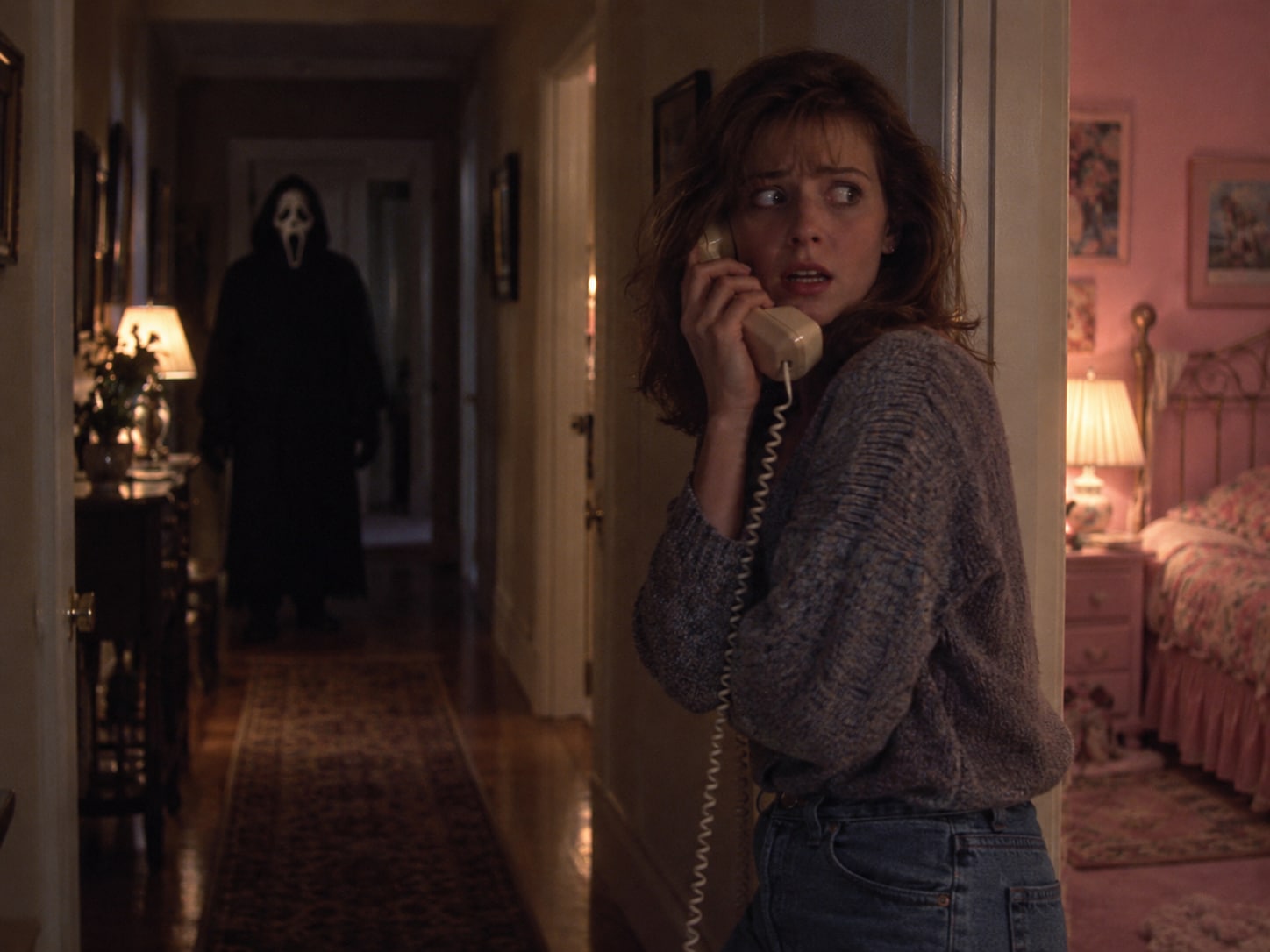
3. Cinematic portrait
Prompt: Waist-up cinematic portrait of an adult subject holding a pastel phone receiver near their face, looking over one shoulder toward a blurred black-robed figure with a long white horror mask in a doorway. Moody teal-and-amber practical light, shallow depth of field, realistic skin texture, 1990s thriller photography, crisp face, understated film grain, non-graphic, no text or logos.
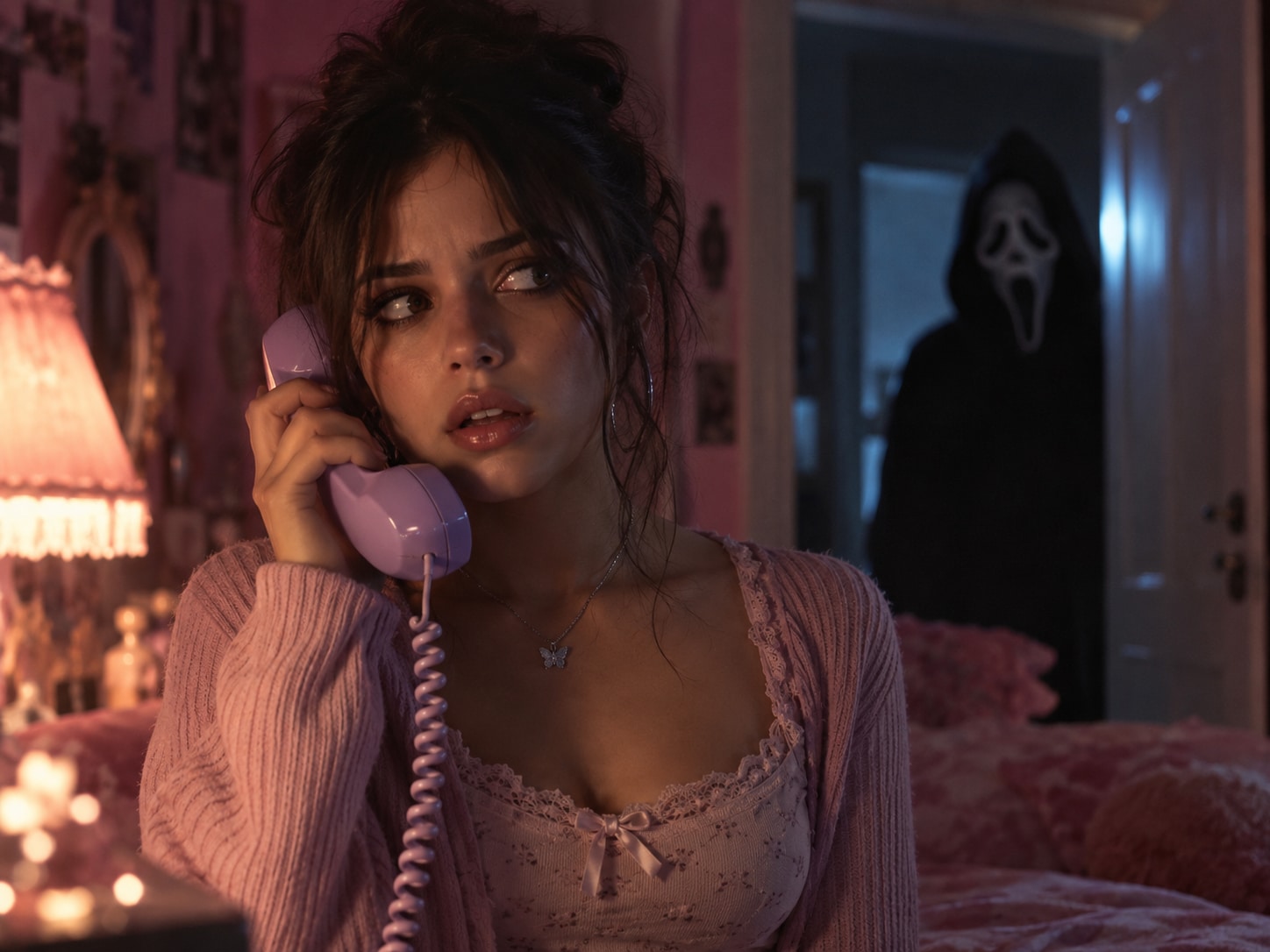
4. Vintage instant-photo look
Prompt: An aged instant-film snapshot of an adult subject sitting on a pastel bed with a corded phone, unaware of a long-white-masked black-robed figure reflected in the bedroom mirror. Faded magenta dyes, slightly imperfect direct flash, soft focus at the edges, visible blank instant-photo border, authentic late-1990s family-camera feel, non-graphic, no writing or logos.
Part 4. Make a Ghostface AI Photo with Your Own Image in UniConverter Desktop
Use the desktop image-to-image workflow when the subject should look like you. The reference image guides the generation; it does not guarantee an exact face match. Start with a clear, well-lit portrait that you have permission to use.
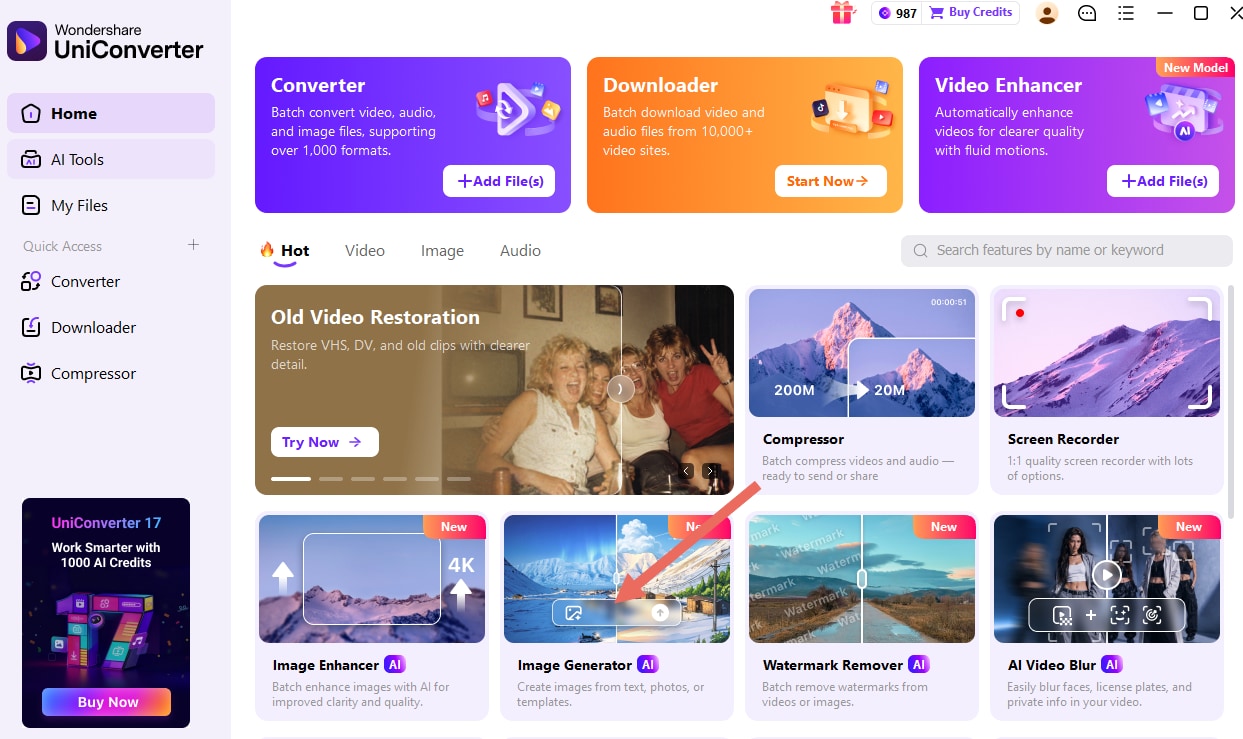
Step 1. Open Image Generator. Launch UniConverter and choose Image Generator from the Home screen. The provided desktop screenshot shows this tile in the AI tools area.
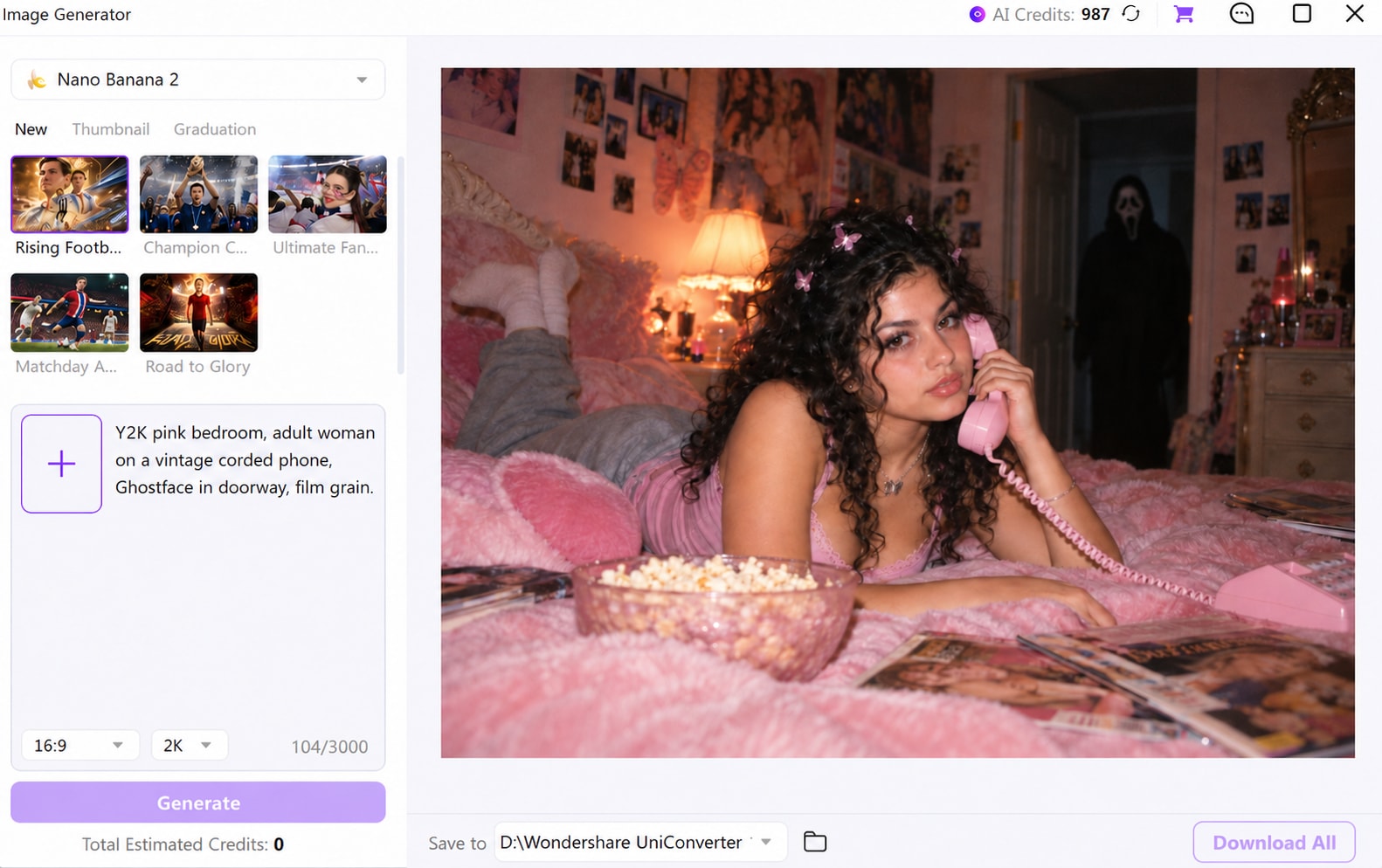
Step 2. Add your reference and prompt. In Image Generator, use the image-reference add control shown beside the prompt field, select your portrait, and enter a scene prompt. Example: “Use my uploaded portrait as a face reference. Keep my facial features, skin tone and hairstyle recognizable. Place me on a pink satin bed holding a pastel corded phone; a black-robed figure with a long white horror mask stands in the distant doorway. Y2K direct-flash photo, natural hands, subtle grain, no text.” Choose an aspect ratio that leaves room for the background figure. Model and output choices may vary by app version or account.
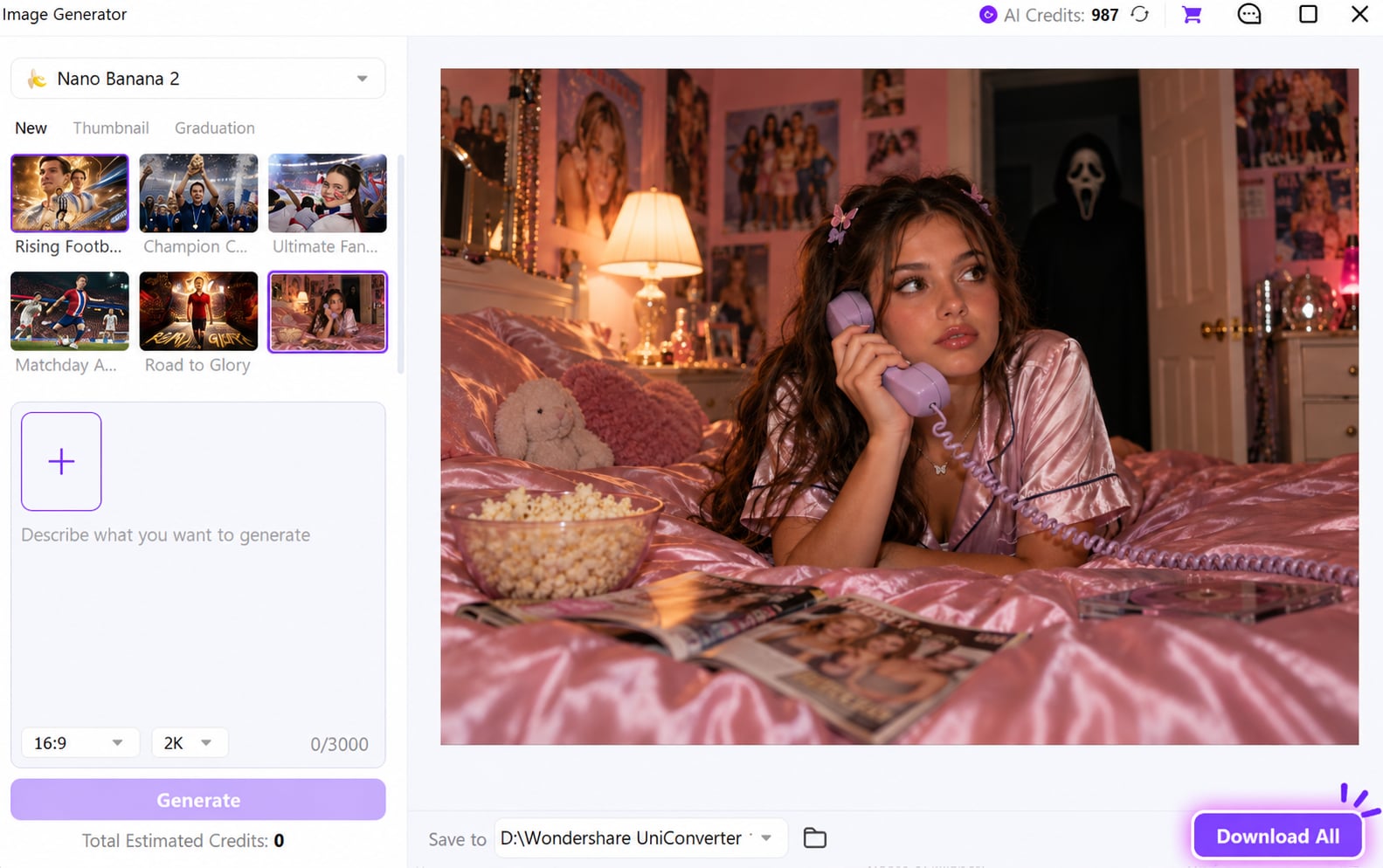
Step 3. Generate and review. Click Generate and compare the face, hair, phone, and doorway against your intent. If the face changes too much, try a clearer frontal reference and explicitly ask for recognizable features. If the figure dominates the scene, place it “small and deep in the doorway” in the prompt.
Step 4. Save a usable version. Review the finished image, select the save location, and use the download action shown in the app. Keep the original portrait and the generated result separate so you can compare them before posting.
Try the text-only online generator Download UniConverter for Windows Download for Mac
Part 5. Ideas for TikTok and Instagram—and What to Check
Try a vertical phone-call reveal, a two-frame “ordinary selfie to horror scene” post, a cropped profile portrait, or an instant-photo carousel. You can adapt the setting to a Halloween party, a rain-soaked hallway, or a retro kitchen while keeping the phone and background reveal as visual anchors.
- Composition: Is the figure visible without obscuring the person?
- Face and hands: Are the expression, fingers, and phone receiver plausible? For photo-based results, does the face still look like the reference?
- Crop: Does the final 9:16 or 1:1 crop retain the doorway reveal?
- Rights and context: Use a portrait you may upload, and make clear to viewers that the scene is AI-generated when context calls for it.
For a quick fictional scene, start online with the Y2K prompt. If the post needs to resemble you, add a permitted photo reference in UniConverter desktop and judge the likeness before exporting.

