
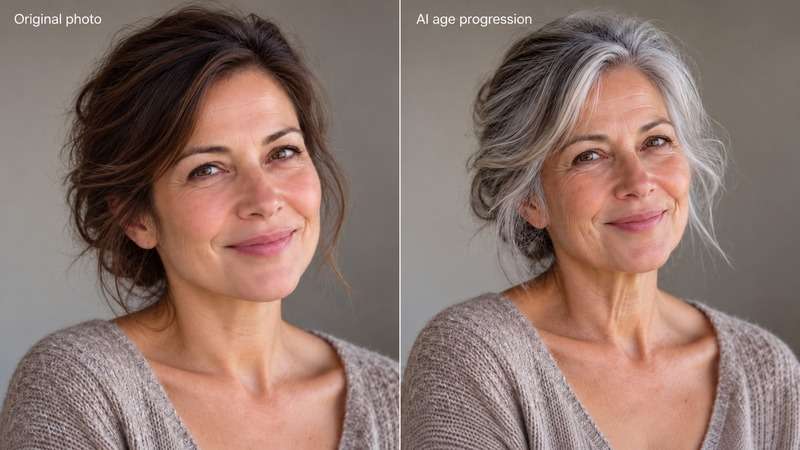
AI age progression is a popular photo trend for imagining a younger self or a future self. Start with a clear portrait, ask an image tool to make the person look a specified number of years younger or older, and compare the result with the original. People use these creative images for social posts, family memory projects, and portraits that show different life stages. An AI aging photo can feel personal, but it cannot tell you exactly how someone will look later in life. The best results keep familiar facial features while changing age cues, lighting, clothing, or setting only as requested.
In this article
What Is AI Age Progression?
AI age progression uses a portrait as a visual reference to create an imagined version of the same person at another age. The shareable “future self” idea caught on because one photo can become a playful before-and-after image. You can try an older or younger self, make a family generations portrait, or create a cinematic character scene. It is an artistic transformation, not an age forecast.
How to Create an AI Age Progression Photo Online
Choose an online AI age progression generator that actually accepts photo uploads. If it only accepts text, it can illustrate a future-self concept but cannot transform your specific portrait.
- Upload a clear portrait. Use a front-facing, well-lit photo of yourself or someone who agrees to the edit.
- Describe the age change. Specify an approximate age or “30 years older,” and ask the tool to keep the person's facial structure and natural expression.
- Generate and refine. Compare the result with the source. If the identity drifts, simplify the scene and ask for subtler aging details.
Best AI Age Progression Prompts
Paste one prompt into an image tool that supports reference photos. Replace the ages and setting to fit your photo. The paired images below are illustrative AI-created source-and-result concepts, not actual UniConverter tests or predictions.
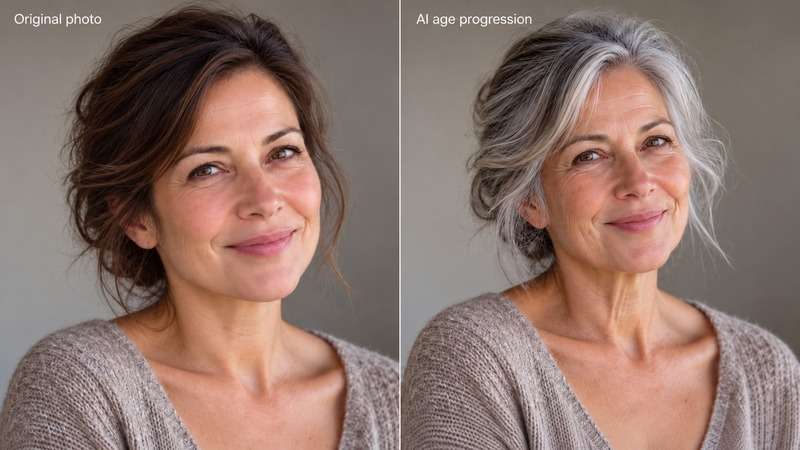
Future Self Portrait
Prompt: “Transform this portrait into a realistic future version of the person 30 years older, keeping the same identity, facial structure, and natural expression. Create a realistic high-quality portrait.”
A straightforward older-self portrait.
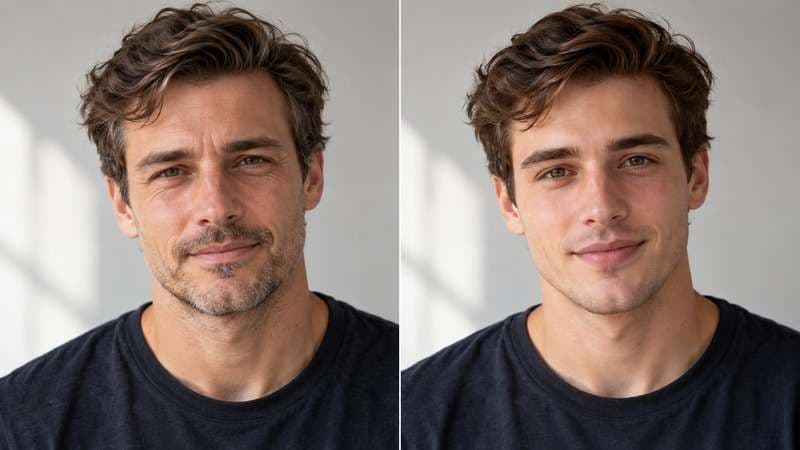
Younger Self Transformation
Prompt: “Create an imagined version of this adult person 15 years younger. Preserve recognizable eyes, face shape, and expression; use natural skin texture and soft daylight.”
A restrained younger-self image.
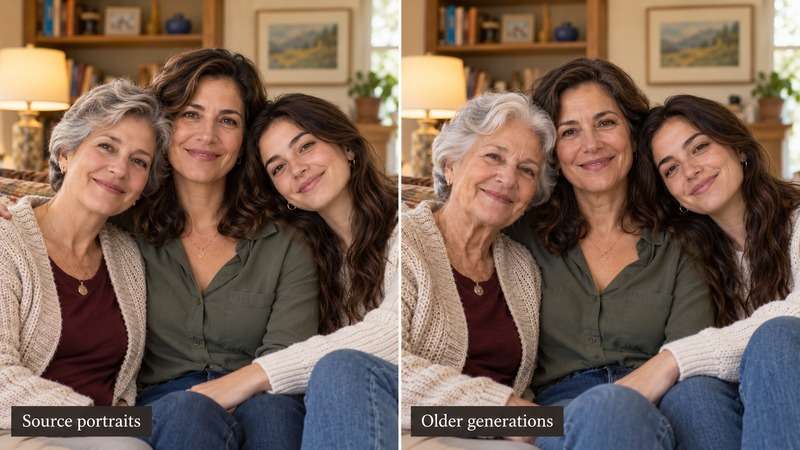
Family Generations Portrait
Prompt: “Using these reference portraits with permission, create a warm portrait showing the family members at imagined older ages. Keep each person distinct and recognizable.”
A creative family memory project.
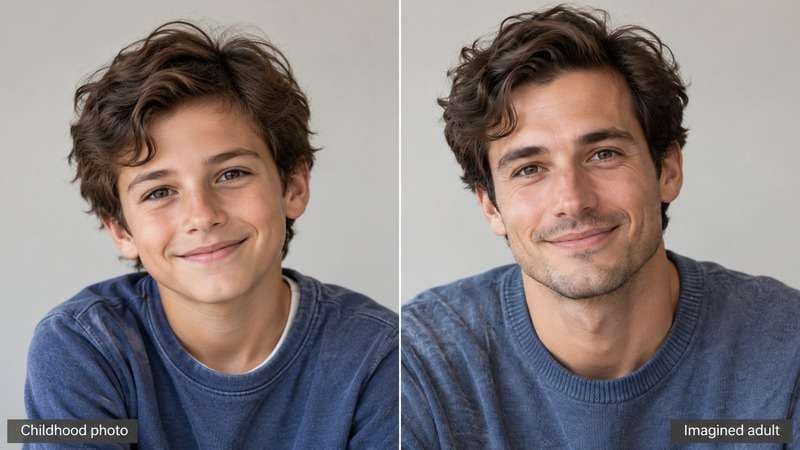
Childhood to Adult Transformation
Prompt: “Using this childhood photo with permission, imagine this person as an adult around age 30. Preserve recognizable features where possible and use a simple, natural portrait setting.”
A fictional adult interpretation, not a prediction.
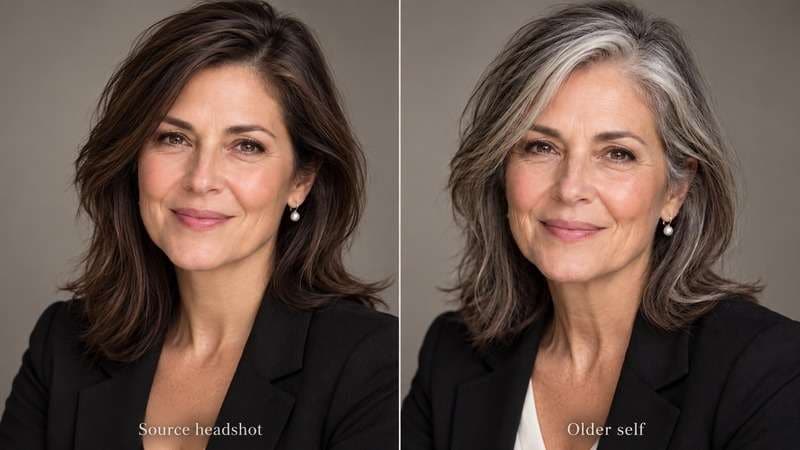
Professional Aging Portrait
Prompt: “Make an older version of this adult person for a professional headshot. Keep the same facial structure, calm expression, plain background, and realistic studio lighting.”
A polished headshot with a simple setting.
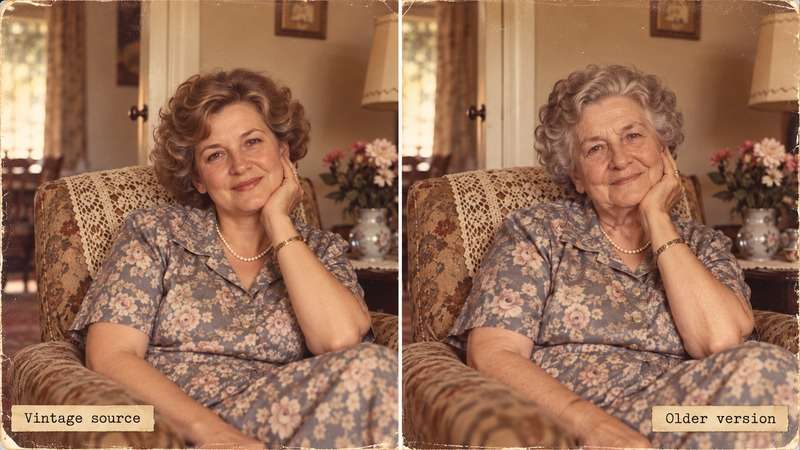
Vintage Family Photo Aging Effect
Prompt: “Create an imagined older version of the person in this vintage family portrait. Retain the original pose and visual character, with believable age details and gentle restored-photo lighting.”
Still-photo storytelling rather than animation.
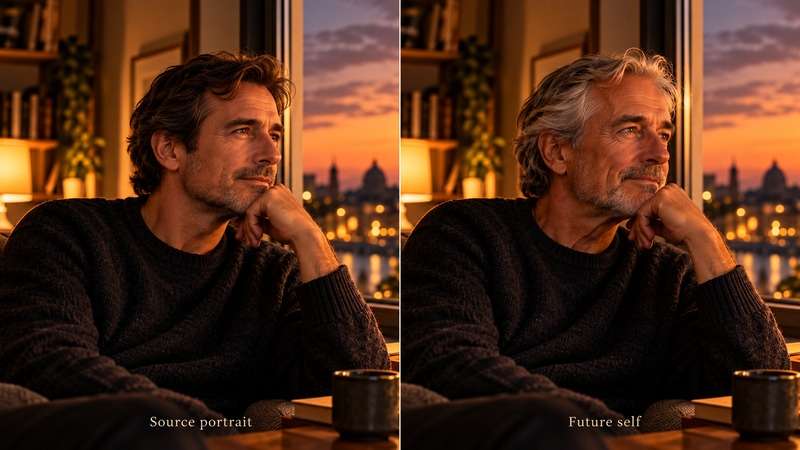
Cinematic Future Self Scene
Prompt: “Show this adult person 25 years older in a quiet cinematic portrait. Preserve their recognizable features; add subtle gray hair, natural skin texture, warm evening light, and a thoughtful expression.”
A future-self portrait with a story-like mood.
Tips for More Realistic AI Aging Photos
- Start with a sharp, front-facing photo; strong filters and obscured faces make identity harder to retain.
- Give one target age and a natural lighting direction instead of a long list of conflicting effects.
- Ask for the same face shape, eyes, expression, and recognizable details.
- Add style details after the age change works: a studio portrait, vintage print, or cinematic scene.
- Review odd hands, mismatched eyes, or a different-looking face; regenerate or simplify the prompt.
Create and Enhance AI Age Progression Images with UniConverter
UniConverter's online AI Image Generator is a quick way to explore a future-self concept from text. Describe the imagined person, age, and portrait style to make a new AI image. For an age transformation based on your own uploaded photo, use the UniConverter Desktop image-to-image workflow: add a reference portrait, write an age-change prompt, generate a variation, and compare it with the original. Image-to-image output may still change recognizable features, so try a more restrained prompt if it does. These are creative image workflows, not a dedicated age prediction service.
Use a Reference Photo in UniConverter Desktop
In UniConverter Desktop, open Image Generator and choose the option to add a reference image.

Upload a clear reference photo and paste an age-change prompt. State the requested age and recognizable facial details.
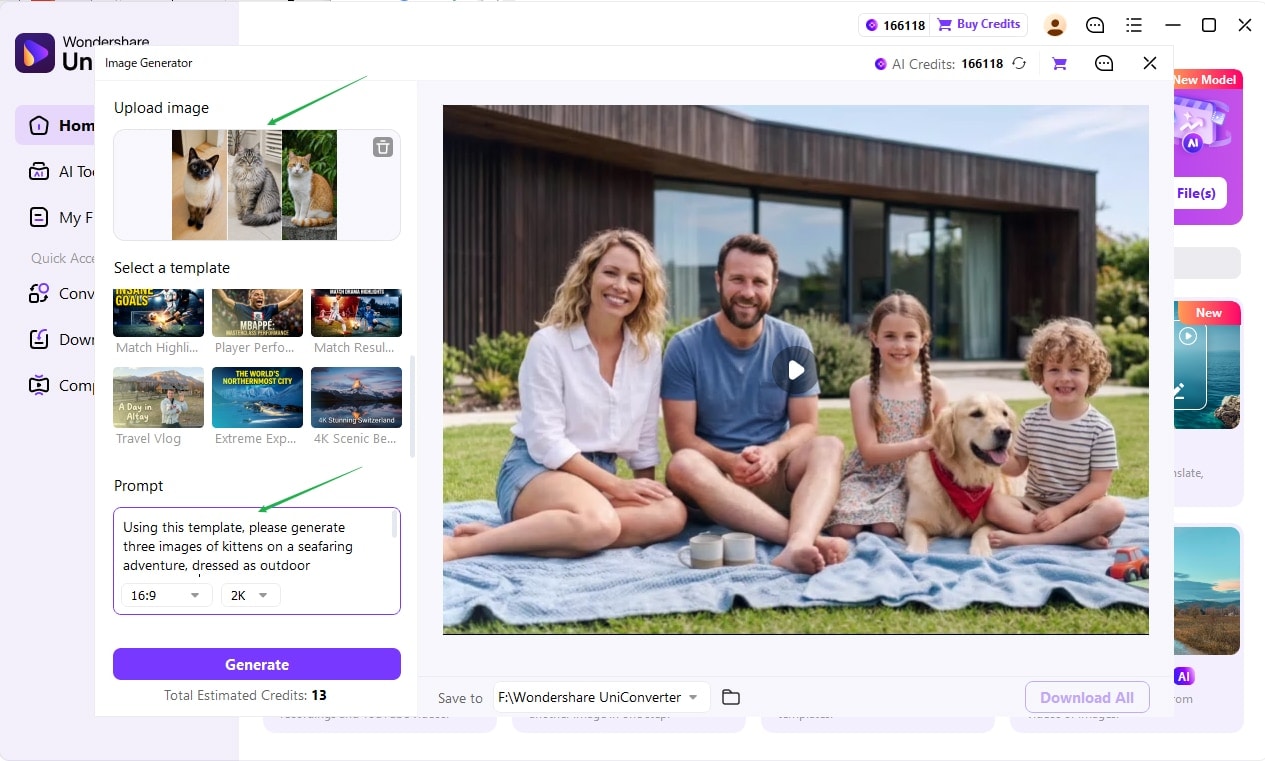
Generate a variation, compare its face with the source, refine the prompt if needed, and save the result.
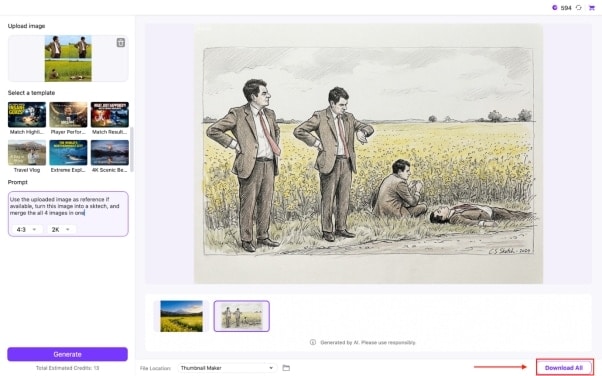
If a generated image looks soft, AI Image Enhancer offers a separate quality-improvement step. Enhancing a photo does not make the simulated age more accurate.
Choose how to make your future-self image
FAQs About AI Age Progression
-
What is AI Age Progression?
AI age progression is a creative image transformation that shows an imagined younger or older version of a person. A photo-based tool uses the original portrait as a reference and adds age cues such as hair and skin changes. The image can be fun to share, but it is not a factual portrait of the future. -
How do I create an AI age progression photo?
Upload a clear portrait to an image tool that supports photo references, specify a target age in your prompt, and generate a result. Compare the output with the source to see whether facial features remain recognizable. If you use a text-only tool, you can create an aging concept but not transform that particular person's photo. -
Can AI show what I will look like in the future?
No, AI cannot reliably show your exact future appearance. An age progression image applies a plausible visual style to a current portrait, but real aging varies with time, environment, and personal circumstances. Treat the result as a creative “future self” illustration, especially when sharing it as a social post or family project. -
What is the best AI age progression prompt?
A useful prompt states the target age and asks the model to retain the person's face shape, eyes, and expression. Try: “Make this person look 30 years older in a realistic portrait, keeping their recognizable facial features and natural daylight.” Use a reference photo where supported, then shorten the prompt if the output changes the identity. -
Can I create AI aging photos online for free?
Yes, some online tools offer free ways to try AI aging photos, though limits and account requirements vary by service. Check that the tool accepts a portrait if you want to age your own face. UniConverter's online generator supports free text-based image creation; its documented reference-photo workflow is in the desktop app.

