Can you download TokyoMotion videos?
I want to save an authorized video before it becomes unavailable.
Can I watch a permitted offline copy without reopening the website?
If these are your questions, start with the individual video page and an authorized download method. A compatible tool may be able to save a supported URL, but availability and permission vary by video.
People looking for TokyoMotion downloads often want convenient offline viewing or fewer repeated visits to advertising-heavy pages. These goals do not establish download permission, and a local file is not automatically safe.
This guide covers ways to download and save authorized TokyoMotion videos, plus considerations for TokyoMotion downloader apps on iPhone and Android. Compare the desktop, browser, and mobile options below before choosing a workflow.
Part 1. What Is TokyoMotion?
TokyoMotion is an adult video-sharing platform with user-submitted content. The source article attributes it to DeNA and gives a launch date, but those details are not established by the evidence available for this localization and should not be treated as verified facts. Check the platform’s own current information for ownership and service details.
Watching and downloading are separate capabilities. Some video URLs may work with compatible tools, but permissions, availability, and exposed media sources differ. The following sections explain the types of tools mentioned in the source article.
Can You Download Directly from TokyoMotion?
You may find that a video plays normally but has no visible option to save the file.
Do not assume that every TokyoMotion page offers a direct download; inspect the specific page and its permitted options.
TokyoMotion is a video-sharing service. Downloading content from such a platform can conflict with its terms or the rights holder’s permissions. The fact that a browser can play a video does not automatically authorize making a permanent copy.
When no authorized offline option is available, use the viewing method permitted by the platform.
Is Watching TokyoMotion a Malware Risk?
A security program may display a warning while you browse a video site, its advertisements, or a redirected page.
A warning does not by itself prove that the video infected your device. Read the alert and identify the domain or file involved.
Keep your browser, operating system, and security software updated. Avoid unfamiliar installers and misleading buttons, and stop if your security software reports a threat rather than dismissing the warning.
Are TokyoMotion Advertisements Dangerous?
Advertisements and redirects on adult sites deserve caution, just as unfamiliar ads on other websites do.
A deceptive ad may lead to phishing, unwanted software, or a fake download prompt. Never install a player, extension, or update merely because an advertisement says it is necessary.
Protect your credentials and payment details as well as your device. Close unexpected pages and check the address before entering information.
On iPhone and Android, small close controls can make accidental taps more likely. Use care around overlays and avoid repeatedly tapping a page that opens unrelated tabs.
Is Offline Viewing Safer?
An authorized local copy can reduce repeated exposure to a website’s advertisements during later playback. However, obtaining that copy may introduce other risks through an untrusted downloader, installer, or media file. Offline viewing is not a security guarantee.
The sections below compare mobile apps and desktop software, including what to check before installation and how to handle a supported video URL.
This article describes technical workflows for content you own or have permission to save. Check applicable law and service terms; do not bypass access restrictions or download unauthorized material.
TokyoMotion Video Downloads with UniConverter’s Supported-URL Workflow
• Use Downloader for compatible video URLs; support varies by site and individual video.
• Review the available media options and manage saved files on your computer.
• Check current trial conditions before using paid or limited features.
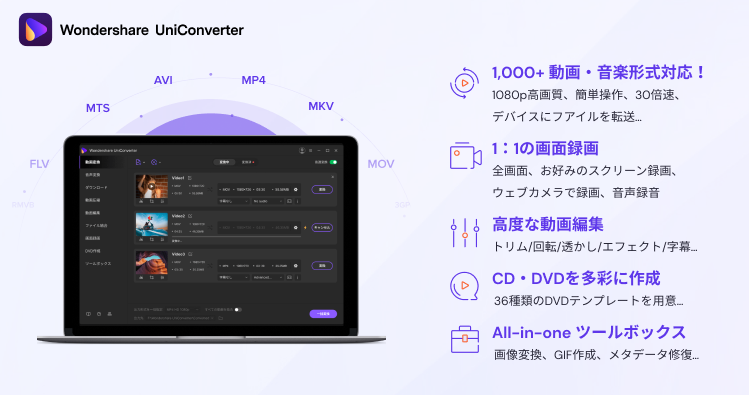
• Follow a visual desktop interface for common media tasks.
Part 2. Three Desktop Downloader Options to Consider
Desktop software can offer a persistent task list, save-folder controls, and follow-up processing. It does not automatically provide better source quality than a website or phone app: quality depends on the video and the options actually exposed.
TokyoMotion Desktop Option 1: UniConverter
For a desktop workflow that also includes local conversion and recording, consider UniConverter. UniConverter combines Downloader, Converter, and Screen Recorder in one media toolkit. Compatibility with an individual TokyoMotion video has not been independently demonstrated in this guide.
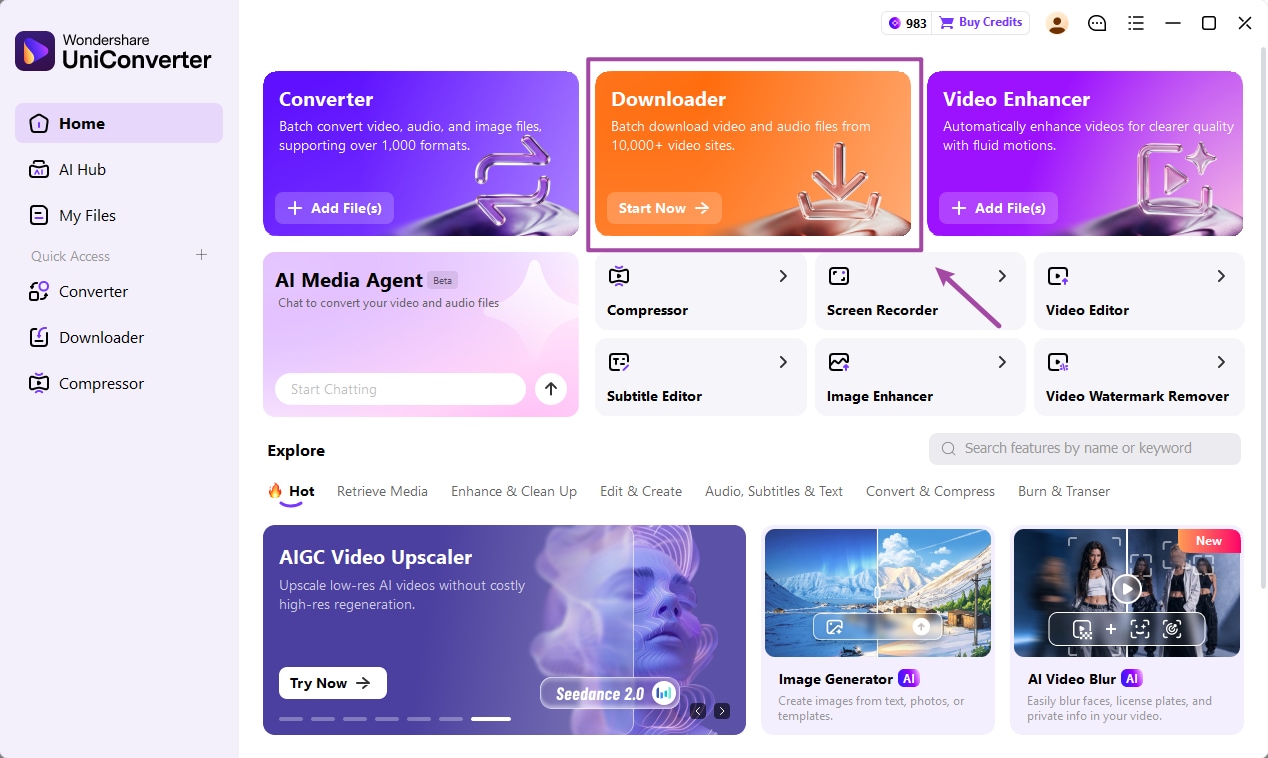 Generic English UniConverter interface; not a tested download from this article’s platform.
UniConverter groups several media functions in one interface. Select the tool that matches your task rather than assuming that Downloader, Converter, and Screen Recorder perform the same operation.
For a supported source, the workflow begins by pasting the individual video-page URL. Review the returned options and task status. Completion time depends on file size, the source server, your connection, and application settings; a download in seconds is not guaranteed.
After saving a supported local video, you can also convert it to an audio format when your use is authorized.
For other eligible sources, check the relevant compatibility documentation. Extracting audio from a local file is a separate task from obtaining the original online video.
Privacy Tip: Protect Your Saved Files
Generic English UniConverter interface; not a tested download from this article’s platform.
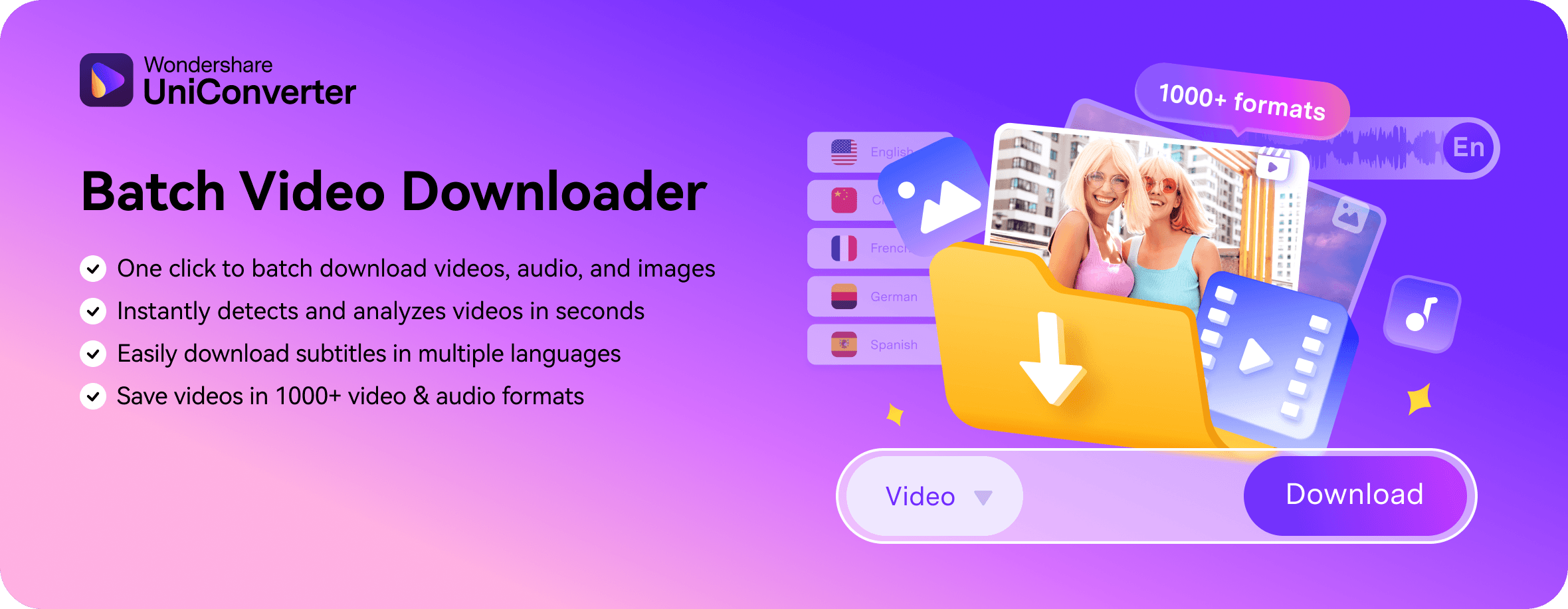
UniConverter also includes local video and audio processing functions. Choose it when you need several supported tasks within one desktop workspace, and review feature availability for your installed version.
TokyoMotion Desktop Option 2: Craving Explorer

Craving Explorer is included in the source article as a simple downloader option. Before installing, confirm its current official distribution, supported operating system, and supported video sites; this localization does not verify TokyoMotion compatibility.
Check whether its current release offers the resolution and output controls you need. A simple interface may be sufficient for one supported file but less suitable if you need detailed quality selection.
There is no verified timing comparison here. A long video may take longer on a slow connection, but do not assume a particular number of minutes or a universal speed disadvantage.
If a saved file does not play correctly, distinguish between these problems:
- An incomplete or damaged file that stops during playback
- A codec or player compatibility problem that prevents the picture from appearing
- Audio and video that are out of sync
Check whether the download completed, then try a compatible player or a supported local conversion. File damage and unsupported playback are different issues.
TokyoMotion Desktop Option 3: Freemake

Freemake is another option named in the source article for readers comparing cost and output settings. Confirm the current product, supported system, and site compatibility before relying on it.
Do not assume that a Windows downloader is also available for Mac. Review the provider’s current platform requirements and available output formats for the exact application you intend to install.
Check its current watermark and licensing conditions before saving or converting a file. The source article’s blanket watermark claim is not verified for every Freemake product or plan.
Part 3. Three Browser-Based Options Mentioned in the Source
Next, compare web-based TokyoMotion downloader options. These names are retained from the source article, but their current service availability and TokyoMotion support are not verified here. Use a result only if it actually returns an authorized media file.
Browser-Based Option 1: Clip Converter

Clip Converter is described in the source as a URL-based media conversion service. MP3 is an audio format and MP4 is commonly used as a video container; the source article reverses these examples, so that error is corrected here.
A typical supported workflow starts with a video URL and then offers available output choices. Check for misleading advertisement buttons or unrelated installers. If no supported result appears, do not assume that repeated clicks will enable downloading.
Browser-Based Option 2: Offliberty

Offliberty is a browser-based option named in the source for retrieving supported online media.
It should not be described as supporting every website. Before relying on it, submit only a video you are authorized to save and review the result. Whether a high-quality source appears depends on compatibility and the original media. For an occasional video download, a browser tool may be convenient, but unsupported links require another authorized approach.
Browser-Based Option 3: DumpMedia

DumpMedia is a product brand with media tools; do not assume that every product is available as both a browser service and a desktop application. Confirm the exact tool and its supported sources before choosing it.
Check available resolution, format, and conversion settings before saving. A blanket claim that the tool is slow or cannot handle high-quality video is not established here; compare the actual returned options for your source.
Part 4. Three Mobile Apps Mentioned for TokyoMotion Downloads
Finally, review mobile app options for saving TokyoMotion videos. App availability, language, and supported sources may differ by country and current release.
Clipbox+: File Management and Privacy Controls
|
The source article presents Clipbox+ as a mobile download and file-management option for iPhone and Android. Check the current official listing in your region before installing it. Its described use includes managing supported video, image, audio, and document files. Confirm each capability in your installed version rather than assuming that every file type or source is supported.Platform-specific restrictions also apply. Compatibility with TokyoMotion must be checked for the individual page; do not infer it from support for another video site. The source describes locked folders. If available, they can help prevent casual access, but a folder lock is not a guarantee of encryption, anonymity, or complete device security. |
|

|
App |
Clipbox+ |
|
Operating system |
iOS: check the current App Store listing Android: check the current official listing |
|
Features |
|
|
Pricing |
Free options may be available; check current terms |
1DM (Formerly IDM): An Android Download Manager
|
1DM is an Android download manager mentioned in the source article for browser-based media and file downloading. Its attraction is download management for supported files, including larger transfers. Actual speed and error behavior depend on the source, connection, and application settings; error-free downloading is not guaranteed. Where the source supports resuming, pause and resume controls can help you continue a transfer when a suitable connection is available. Check the individual task rather than assuming every stream can be resumed. |
|

|
App |
1DM(IDM) |
|
Operating system |
Android: check the current supported version |
|
Features |
|
|
Pricing |
Check current free, paid, and in-app purchase terms |
Data Clip: An iPhone File-App Option
|
Data Clip is a Japanese iPhone app named in the source for downloading and managing supported media and other files. The source describes a simple interface, password controls, background playback, and playlists. Verify these against the current official listing and installed version before relying on them. Additional functions such as compression may depend on a paid feature or subscription. Review the current purchase terms and available English-language interface before choosing it for your workflow. |
|

|
App |
Data Clip |
|
Operating system |
iOS: check the current App Store requirements |
|
Features |
|
|
Pricing |
Check current free and paid feature availability |
Part 5. How to Save TokyoMotion Videos on Mobile or Desktop
The following sections retain the source article’s two workflow examples: Clipbox+ on a phone and Wondershare UniConverter on a computer. Treat the mobile controls as historical source instructions unless they match your installed app.
Mobile Example: Saving with Clipbox+
If your version supports the page and you have permission to download it, the source describes the following sequence.
Step 1: Open the App’s Browser
Open Clipbox+ and locate its clip or browser area. The original Japanese controls are described here in English, not presented as verified current English UI labels.
Navigate to the authorized TokyoMotion video page in that browser.

Step 2: Check the + Control on the Video Page
On the individual video page, select the + control if it is present.
The source then describes prompts labeled Are you ok? and Really?. Continue only when those prompts belong to the app’s permitted save workflow.

Step 3: Choose a Destination and Confirm
Choose the destination and select OK if offered. Wait for the task to complete and verify the saved item; clicking OK alone does not prove success.

Desktop Example: Using UniConverter Downloader
A mobile app may work for a supported page, but source compatibility and available controls vary.
A desktop application can also provide separate conversion, editing, and recording tools. If you need to record your own authorized on-screen session or process an eligible local file afterward, choose the relevant UniConverter tool and respect recording permissions.
The advantage is keeping several media tasks in one application. Check that the specific feature you need is included in your installed version and plan.
Here is the supported-URL workflow in UniConverter Downloader.
Install the official application and review the current trial conditions before starting.
Step 1: Open Downloader and Check the Save Location
Launch UniConverter and select Downloader from Home or the navigation menu.
Generic English UniConverter interface; not a tested download from this article’s platform.
Step 2: Copy and Paste the TokyoMotion Video URL
Open the URL input area within Downloader.
Copy the complete individual video-page address, paste it into the input, select Video when offered, and click Download if the source is supported.
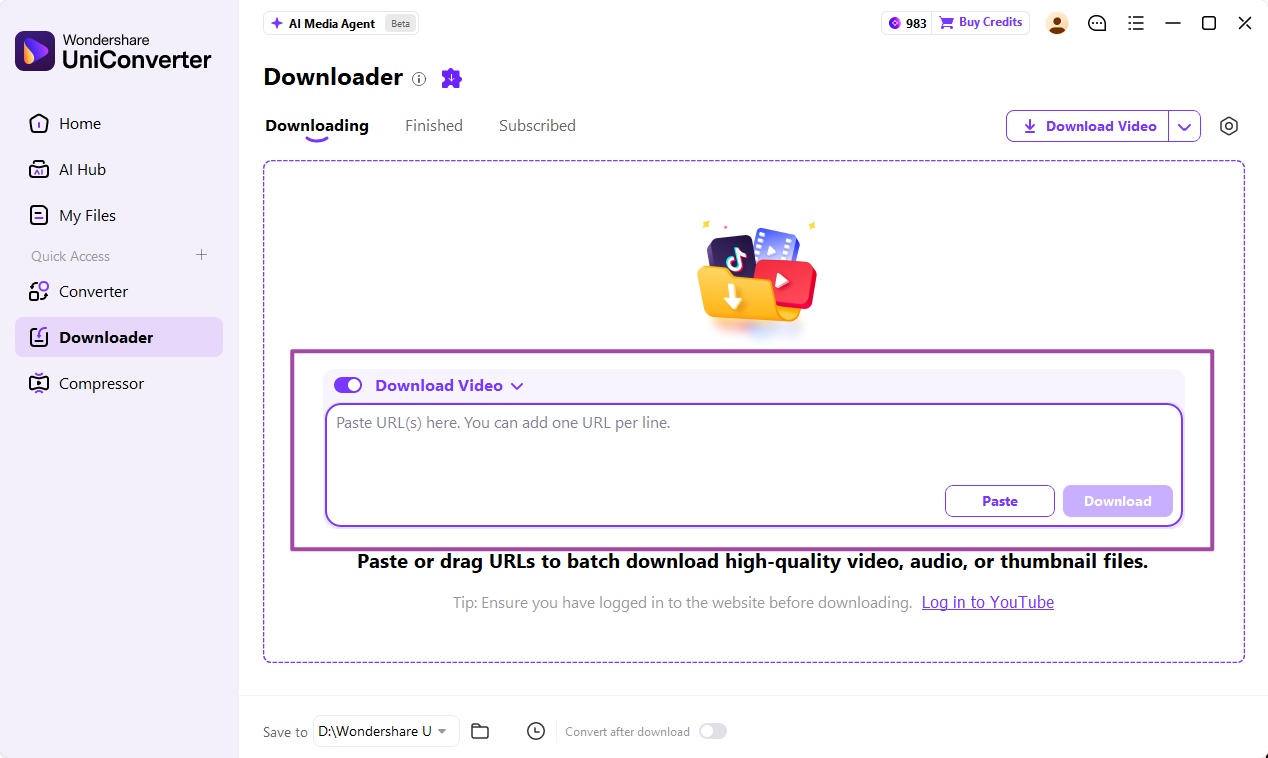 Generic English UniConverter interface; not a tested download from this article’s platform.
Check the Save to destination before starting and choose a folder with sufficient free space. The location of this control can vary by version.
Monitor the task under Downloading.
Generic English UniConverter interface; not a tested download from this article’s platform.
When the task finishes, verify the completed file; no fixed completion time is guaranteed.
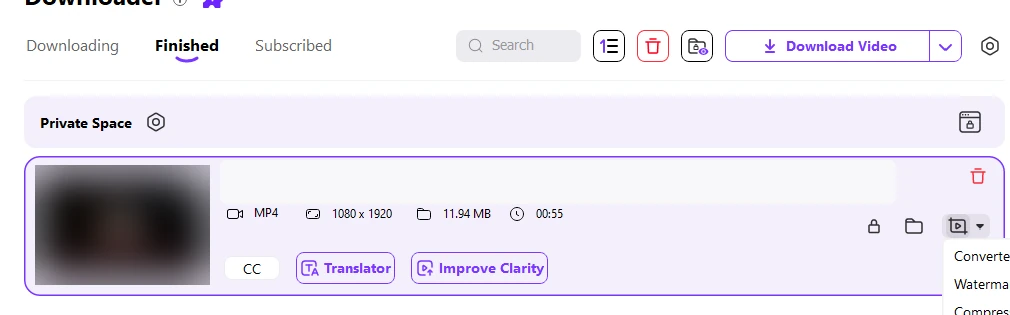 Generic English UniConverter interface; not a tested download from this article’s platform.
Open Finished or the destination folder and play the result. Check that its picture, duration, and audio are complete before further conversion or editing.
What If the TokyoMotion Download Fails?
First check whether the page opens, whether the address is complete, and whether your tool supports it. Recording is only an option for content you are separately authorized to record; it is not a way to bypass a download restriction, access control, or DRM.
Step 1: Open the Content You Are Authorized to Record
Open the page or on-screen material and confirm that recording is permitted before proceeding.
Step 2: Open Screen Recorder in UniConverter
Launch UniConverter and select Screen Recorder. The precise workspace layout can differ between versions.
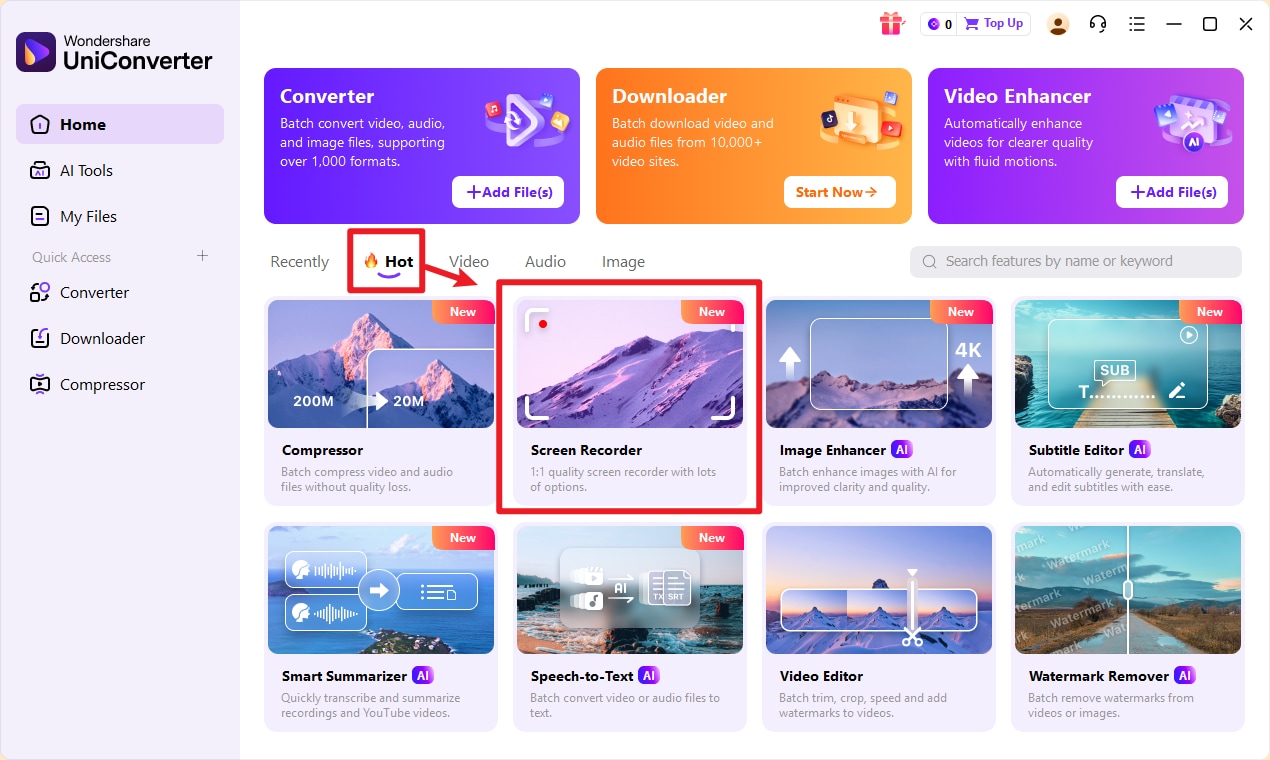 Generic English UniConverter interface; not a tested download from this article’s platform.
Select the screen-recording mode and review the save location. Use the controls available in your current version rather than assuming that an older screen is unchanged.
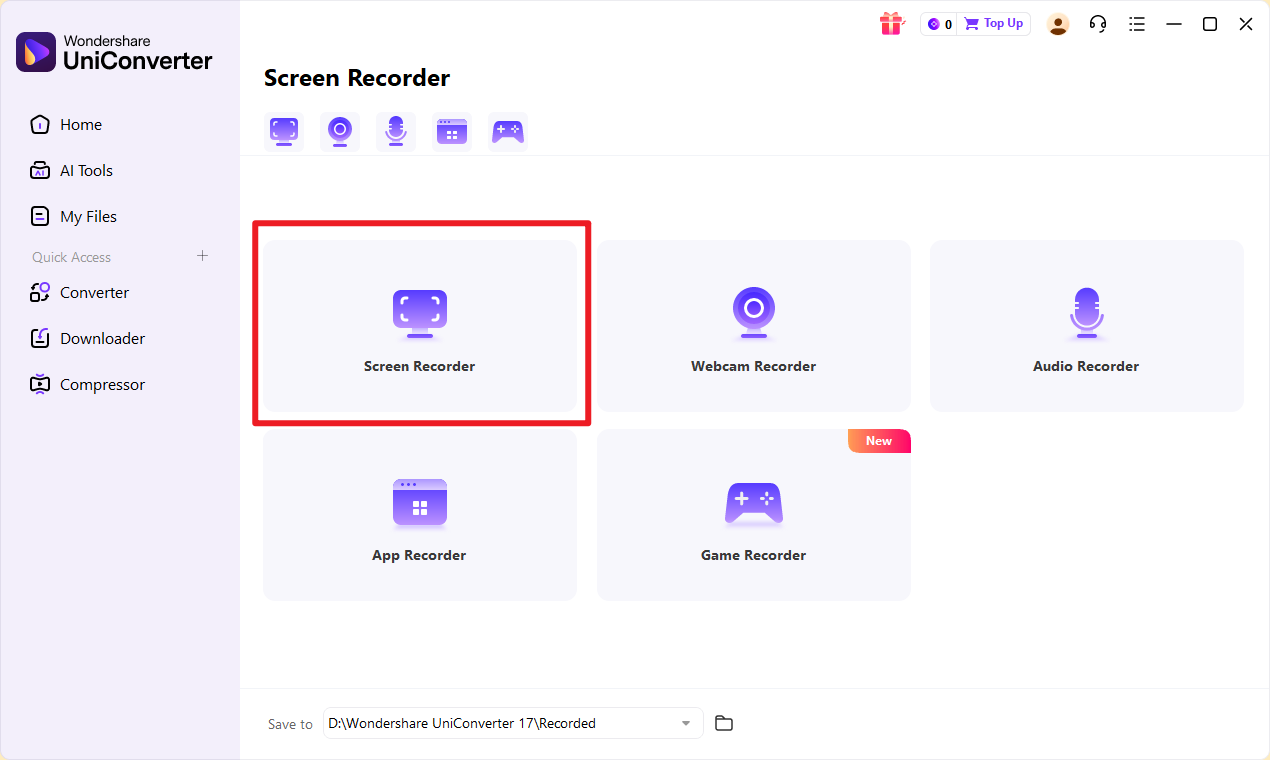 Generic English UniConverter interface; not a tested download from this article’s platform.
Step 3: Set Up and Start the Recording
Before starting, check the following recording controls where available.
Recording area
System audio or speaker capture
Microphone input
Camera input
If you only need the authorized on-screen video and its audio, keep microphone and camera capture off unless they are part of your intended recording.
Start recording with the application’s recording control, commonly labeled REC in the source workflow.
Generic English UniConverter interface; not a tested download from this article’s platform.
Use the recorder’s Stop control to finish the recording.
Generic English UniConverter interface; not a tested download from this article’s platform.
Locate the resulting file in the configured folder and play it to check picture and sound. Recording quality depends on the source, capture settings, and computer; it is not guaranteed to match the original file.
Part 6. Why TokyoMotion Will Not Open: Causes and Checks
| Category | Cause | Explanation | What to check |
|---|---|---|---|
| Access restrictions | Regional availability | Access may be unavailable in your country or region | Respect regional restrictions and use only permitted access methods |
| Connection | Network policy or connectivity | Your network or internet service may restrict or fail to reach the site | Check an authorized personal connection and the network’s rules |
| Browser | Cache problem | Old or corrupted site data may interfere with loading | Clear the affected site’s cache and cookies |
| Browser | Extensions | An extension may change page behavior | Review its settings and permissions without disabling security protection indiscriminately |
| Browser | Unsupported environment | An outdated browser may fail to load the player | Update a supported browser and retry |
| 🟠 DNS | DNS problem | The domain may not resolve correctly | Check your connection and DNS settings with your provider |
| Website | Server outage | Maintenance or a service error may interrupt access | Wait and try again later |
| Managed environment | Work or school network | The network administrator may block the service | Follow the organization’s network policy |
Part 7. TokyoMotion Download FAQs
These answers cover common questions about saving an authorized video and troubleshooting a failed task.
📝What if a TokyoMotion download does not work?
Start by distinguishing between these two situations.
1. Your connection or network has a problem
2. The video is unsupported, restricted, or not available for download
For a connection issue, check another permitted connection or move to a more stable signal. Also verify that you copied the individual video-page URL.
If the source is restricted or download-disabled, do not use recording or another tool to bypass that condition. Use the platform’s permitted viewing or offline option instead.
Is Saving a TokyoMotion Video Legal?
Legality depends on authorization, copyright, applicable law, and the service’s terms; saving a file is not automatically lawful.
Sharing, republishing, or selling it may require additional permission. Check the rights holder’s conditions even if you intend only personal viewing.
Conclusion: Choosing a TokyoMotion Download Workflow
TokyoMotion Video Downloads requires an authorized, compatible method. Compare the desktop, browser, and mobile options according to your device, source support, and follow-up tasks.
If you need a desktop workspace for supported links and subsequent local processing, consider UniConverter. Do not interpret ease of use as proof of universal compatibility, malware immunity, or guaranteed quality.
Install from the official source, review current trial limits, and verify the finished file before relying on it for offline viewing.