


Trying to download a video hosted on JW Player can quickly turn into a frustrating experience. The download button is missing, and screen recording often ruins the quality. If you’ve ever felt stuck while saving an important JW Player video, you’re not alone.
This guide walks you through reliable JW Player downloaders that actually work. From browser-based tools to desktop software, each method is clearly explained to suit different platforms and user needs. Read on to find the easiest and safest way to download JW Player videos without hassle.


Best JW Player Video Downloader
In this article
- Part 1. What Is JW Player and Why Download Videos from It?
- Part 2. Download JW Player Videos Without Software
- Part 3. Best JW Player Video Downloader Software
- Part 4. Browser Extensions for Quick JW Player Downloads
- Part 5. Download JW Player Videos on Mobile Devices
- Part 6. Advanced Users – Command-Line Tools
- Part 7. How to Find the Direct JW Player Video URL (.m3u8)
- Part 8. Tips for High-Quality JW Player Video Downloads
- Part 9. Legal and Ethical Considerations
- FAQs about JW Player Downloader
Part 1. What Is JW Player and Why Download Videos from It?
Before diving into the download methods, it helps to understand what JW Player is and why saving videos from it can be so tricky. Knowing how the platform works sets the stage for choosing the right solution.
Understanding JW Player Technology
JW Player downloader is a powerful HTML5 video player used by over 2 million websites to stream video content smoothly across devices. Instead of delivering a single video file, it relies on adaptive streaming technologies like HLS and DASH. These protocols break videos into small segments and adjust quality in real time based on internet speed. This helps improve playback but also makes direct downloading more complex for users.

Common Challenges in Downloading JW Player Videos
As helpful as JW Player is for smooth streaming, it also introduces real obstacles when users try to save videos for offline use. These challenges become more noticeable with newer versions of the player:
- Segmented Streaming Files (.m3u8/.ts): JW Player 8.0+ delivers videos in small segments rather than a single file. This setup prevents traditional downloaders from downloading the full video in a single click.
- Advanced Encryption Standard (AES): Many JW Player streams are protected with AES encryption to control access and prevent unauthorized downloads. Even if the stream is detected, the video may be unusable without proper decryption.
- Adaptive Bitrate Switching: The player automatically changes video quality based on network conditions. As a result, downloaded segments may vary in resolution or fail to merge correctly.
- Limited Browser Extension Support: Most browser extensions cannot properly detect or process JW Player streams. This often leaves users with broken downloads or incomplete video files.

Part 2. Download JW Player Videos Without Software
For beginners who want a quick and free solution, browser developer tools offer a simple starting point. This method doesn’t require installing any software and works directly within modern browsers like Chrome. It is most effective with older versions (below 8.0) and videos that use basic file delivery instead of advanced encryption.
Using Chrome to Download JW Player Videos
Chrome offers a convenient way to access JW Player video URLs without additional software. By leveraging built-in developer tools, you can inspect network activity and locate streaming links. To learn how to use this utility for downloading videos, read the steps provided next:
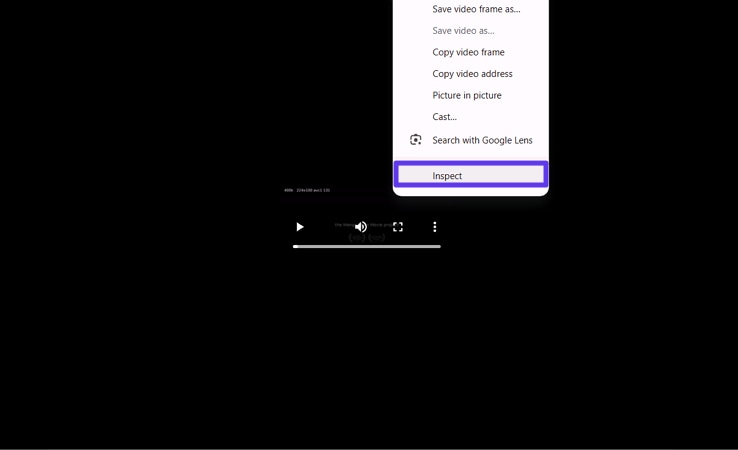
Step 1. Begin by opening the video within the Chrome browser. Next, right-click on the video and select the “Inspect” option from the expanded list.
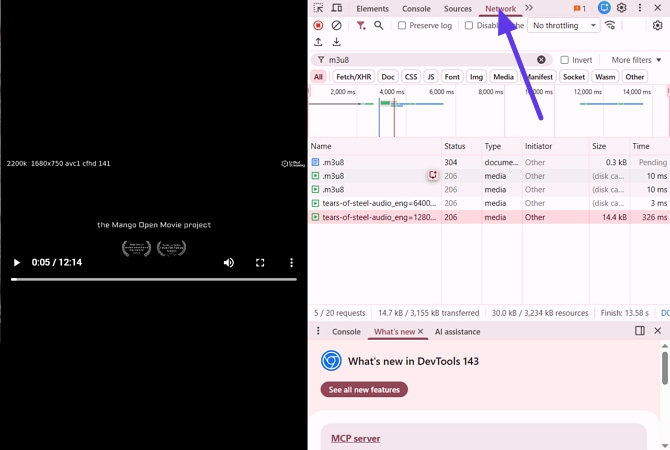
Step 2. Now, enable the “Network' tab and filter the M3U8 video. Locate the MP4 video and open it in a new tab.
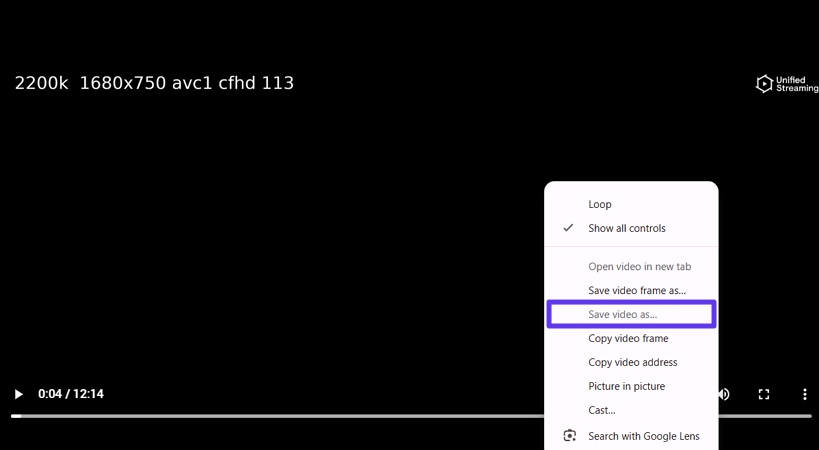
Step 3. Once the video is opened in a new tab, right-click on it and press the "Save Video as" option to successfully save the video to your device.
Downloading via Firefox Browser
Firefox also provides a reliable way to access JW Player video streams using its built-in developer tools. Users can monitor network requests to detect media files, including HLS (.m3u8) streams. The procedure is the same as Chrome; however, there is an alternative method through which you can download the video. Follow the steps mentioned below to learn how to use this browser for video download on JWplayer:
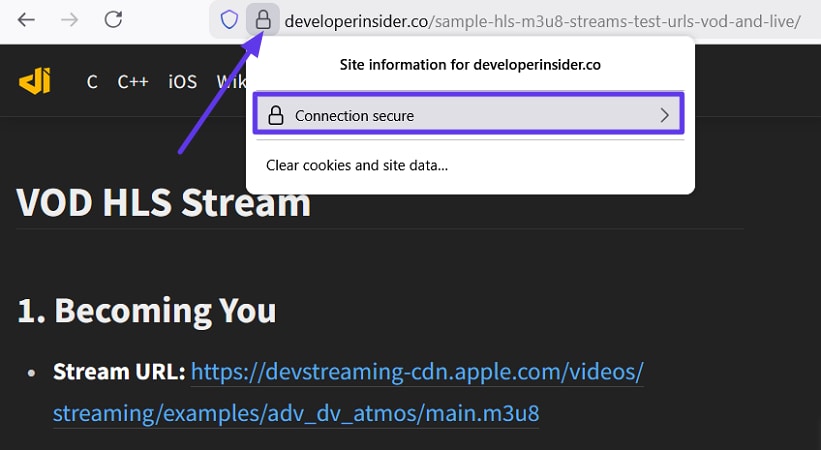
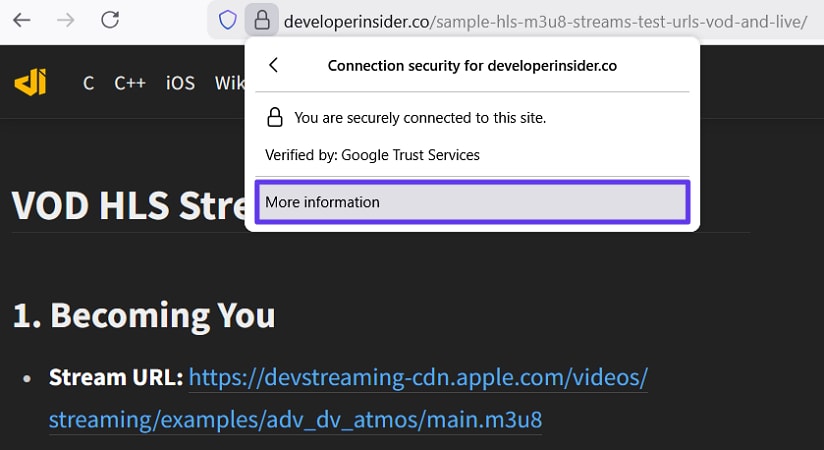
Step 1. Begin by accessing the webpage on Firefox browser and clicking on the "Padlock" icon located on the right side of the address bar. Press the "Connection Secure" option located within the expanded list.
Step 2. Next, press the “More Information” option to proceed.
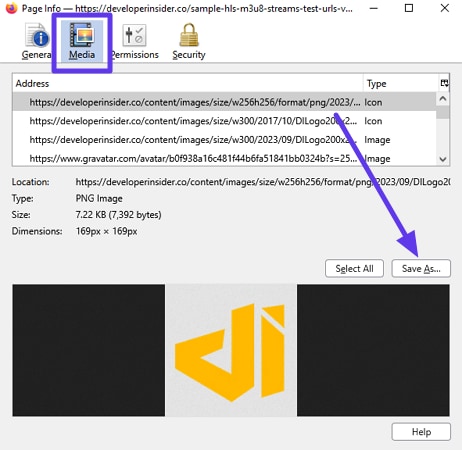
Step 3. Access the “Media” tab in the following window and press “Save As” after selecting the video to successfully save it to your device.
Safari Method for Mac Users
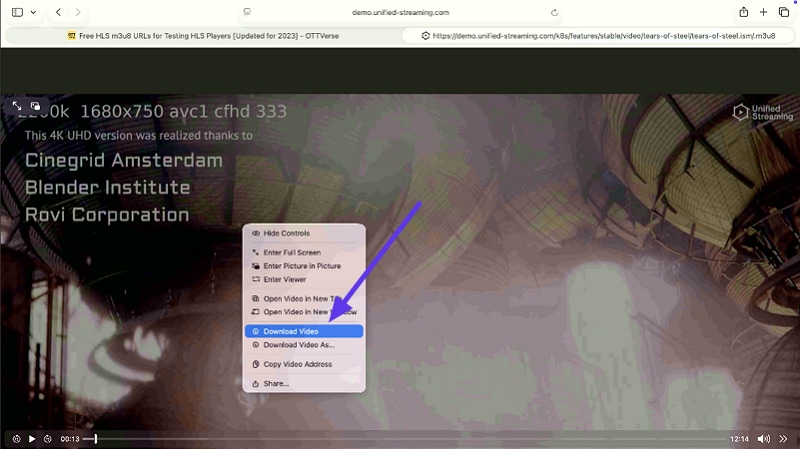
Mac users can use Safari to download JW Player videos directly by right-clicking. Read the instructions provided below to learn how to download videos on a Mac using this method:
Instructions. Start by opening Safari and opening the link to the video. Now, right-click on the video and click on the “Download Video” option to successfully save the video to your Mac device.
When Browser Methods Fail
However, as convenient as browser-based methods are, they quickly reach their limits with modern streaming setups. Mentioned below are some of the limitations that users might encounter while using this method:
- JW Player 8.0+ with HLS Encryption: Newer JW Player versions rely on encrypted HLS streams that cannot be reconstructed through developer tools. The video segments may be visible, but they remain inaccessible or unusable.
- Streaming Sites Like GoGoAnime: Anime and streaming platforms often add extra layers of protection on top of JW Player. These sites actively block direct stream access and frequently change URLs to prevent downloading.
- DRM-Protected Content: Videos secured with digital rights management cannot be downloaded using browser methods. Even if detected, the files are locked and won’t play outside the platform.
- Frequent URL Expiration: Many JW Player streams use temporary URLs that expire within minutes. This causes downloads to fail before the video can be fully saved.
- Incomplete or Corrupted Files: Browser-based downloads may capture only partial segments. The final video often ends up missing audio, out of sync, or completely unplayable.
Part 3. Best JW Player Video Downloader Software
When browser tricks stop working, desktop software becomes the ultimate solution for reliability and control. A professional JW Player downloader is designed to detect segmented streams, handle complex formats, and deliver complete videos without quality loss.
Top Desktop Downloaders for JW Player Videos
The table below breaks down the top desktop downloaders for JW Player videos. This detailed comparison table provides you with a complete insight into which tool to choose:
| Tool | OS Support | Batch Download | Format Conversion | HLS Support |
| Wondershare UniConverter | Windows / Mac | ✓ | ✓ | ✓ |
| Cisdem Video Converter | Mac | X | ✓ | X |
| VideoProc Converter | Windows / Mac | ✓ | X | X |
Best JW Player Video Downloader
Step-by-Step: Download with Desktop Software
Among the recommended tools above, UniConverter is one of the most reliable options for downloading videos from JW Downloader. The tool provides an intuitive interface that lets users easily save their favorite videos from their favorite platforms. Besides video downloads, you can also save audio files to your device. Moreover, users get the ability to convert the media into their desired format in no time.
Steps for Downloading JW Videos with UniConverter
As discussed, UniConverter allows users to download JW videos through its platform. To learn how to use the downloader, read the steps provided next:
Step 1. Find the Video Link
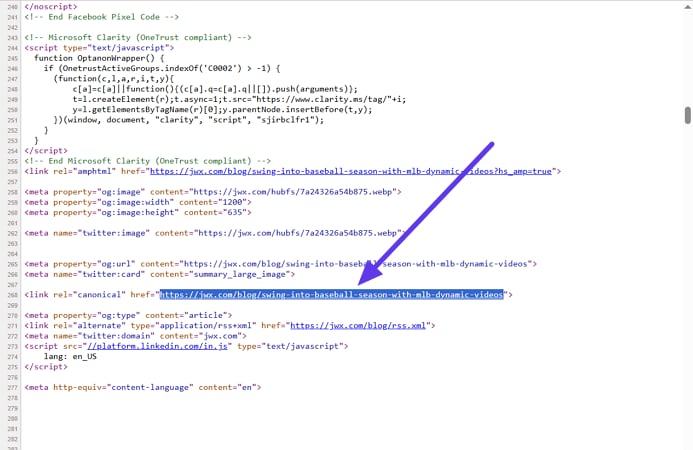
To begin, access the player website and press the F12 key on the keyboard to open the developer tools. Here, access the "Network" tab and search for .m3u8 videos. Now, click the "Copy URL" option to copy the link of the video.
Step 2. Access UniConverter Downloader
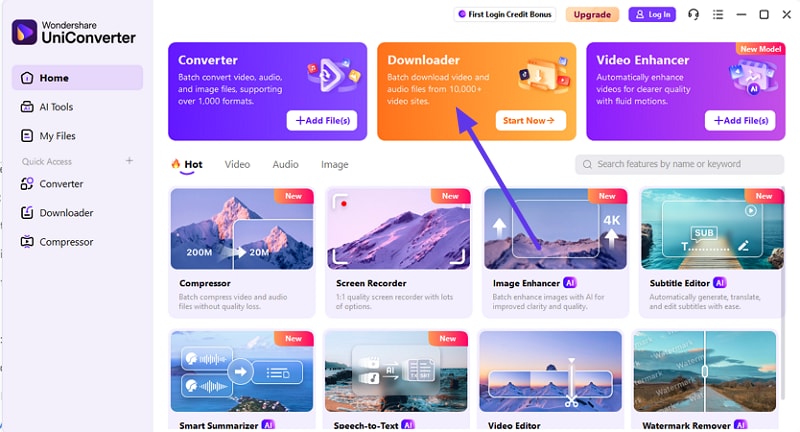
Once you have copied the video link, launch UniConverter on your device and access the “Downloader” option from the homepage.
Step 3. Paste the Video Link
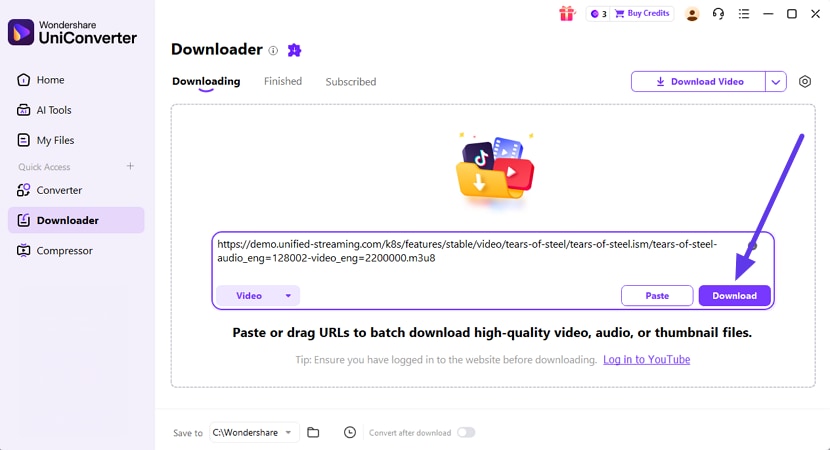
In the next interface, paste the link to the video in the designated field and choose the destination for the saved video. Now, choose the quality and format and press the "Download" button to begin the process.
Step 4. Acquire Downloaded Video
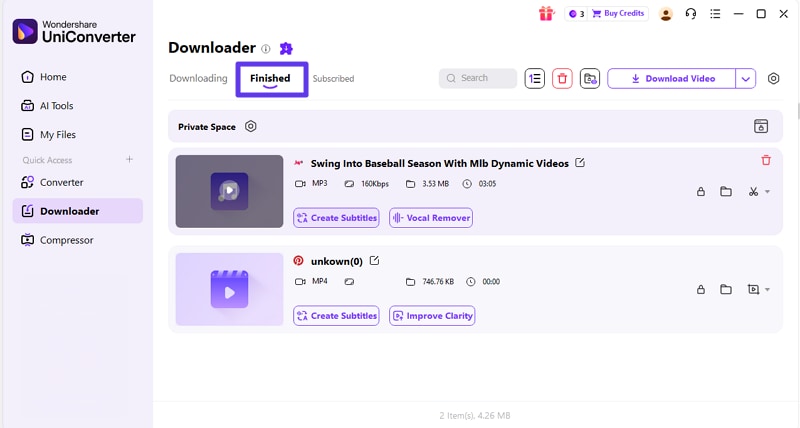
Once the video is downloaded, it will appear within the “Finished” section. You can access the downloaded video by clicking the location folder within the interface.
Part 4. Browser Extensions for Quick JW Player Downloads
If you want a balance between convenience and speed, using a JW Player downloader Chrome extension can be a solid choice. These extensions integrate directly into your browser, allowing you to detect and download videos with just a few clicks.
Video DownloadHelper (Chrome/Firefox/Edge)
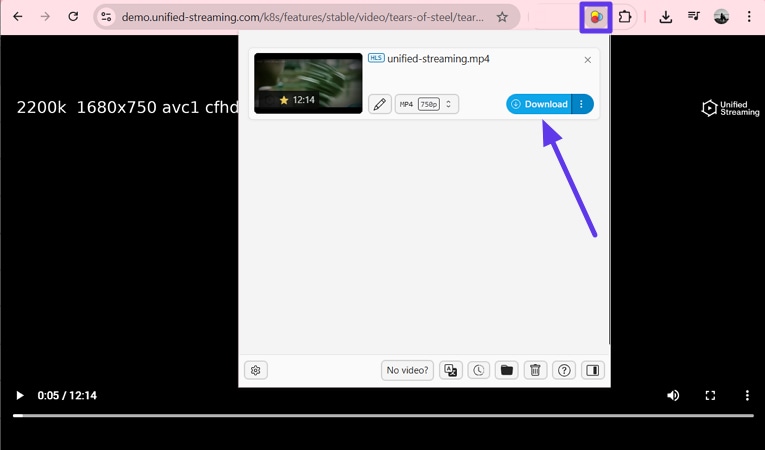
This is a browser extension that you can use on Chrome, Firefox, and Edge to download videos from JW Player. This extension provides a download button for users to instantly save the video to their device. It automatically detects the video within the webpage and shows it within its extension interface. Moreover, users can start and stop the downloading process according to their preferences.
Steps for Downloading JW Player Video with Video DownloadHelper Extension
After you have learned about this extension, let us have a look at the step-by-step guide on how to use it:
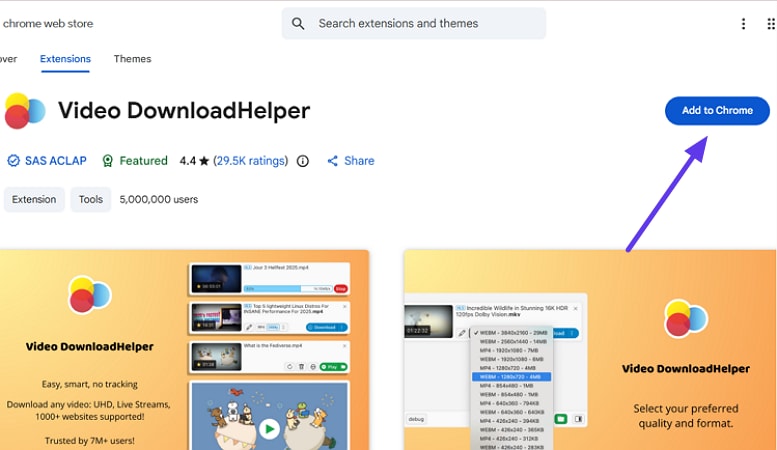
Step 1. Access the extension on the Chrome Web Store and press the "Add to Chrome" button to add the extension to your browser.
Step 2. Once the extension is added to the browser, open the web page of the video and press the extension icon in the top-right corner. When the video is detected, press the "Download" button to save the video successfully to your system.
Limitations of the Video DownloadHelper Extension
- No YouTube Support: Due to Chrome Web Store policy, this extension cannot download YouTube videos on Chrome. That restriction is enforced by Google, not a technical design flaw.
- Companion App Often Required: Many advanced features (like converting or properly saving HLS/DASH streams) require a separate companion application. Without it, functionality is limited.
- Inconsistent Site Support: It may fail to detect or download videos on certain websites (especially complex streaming pages), and the FAQ suggests it simply won’t work on some sites at all.
- 120-Minute Limit for Free Users: Free users can only download up to 120 minutes of HLS/DASH content. Longer videos require the paid version.
When to Upgrade to Premium
Upgrade if you need to download HLS/DASH videos over 120 minutes. Premium allows full format conversion without extra apps. It ensures stable, high-quality downloads. Use JW player downloader for multiple sites with complex streams. Premium removes limits and improves reliability for frequent JW Player downloads.
Alternative Extensions Worth Trying
Mentioned below are some of the other extensions that you can try to download JW videos to your device:
1. Flash Video Downloader
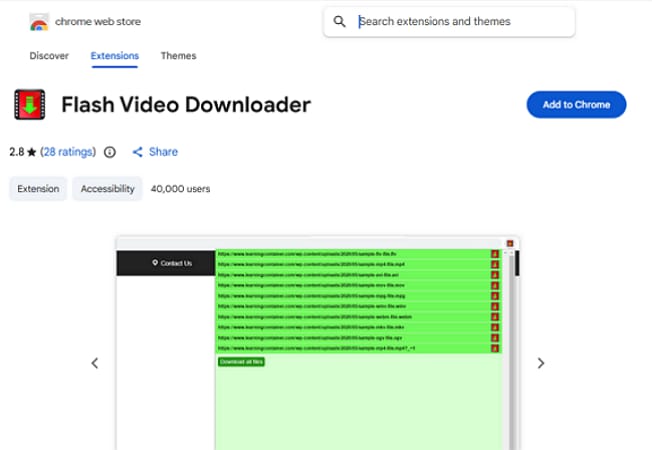
A basic extension for saving web videos in formats like MP4, MKV, and AVI from many sites. While it’s simple and easy to use, its detection of modern streaming formats (like HLS/m3u8) is limited, and it doesn’t support YouTube downloads due to store restrictions.
2. m3u8 Sniffer
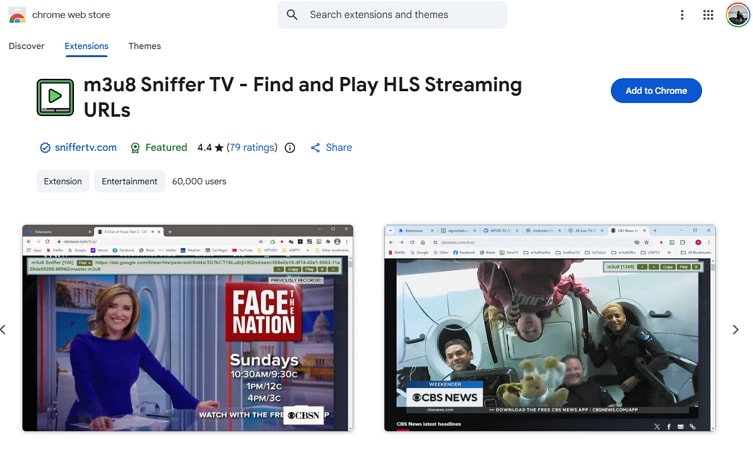
This tool focuses on identifying m3u8 streaming URLs used by adaptive players. It helps capture the raw HLS stream link, which you can then plug into a downloader—especially useful when other extensions fail to detect complex streams. (Detection‑focused, not a one‑click downloader).
3. Video Downloader Pro by PlugMonkey
It is a more robust option that detects and lists embedded videos, including HLS and DASH sources, across thousands of sites. It shows available resolutions and streaming URLs, making it especially helpful for sites with embedded players before saving offline.

Part 5. Download JW Player Videos on Mobile Devices
This section covers how you can download JW Player videos on your smartphones effortlessly:
Android Apps for JW Player Downloads
For users who rely on smartphones, downloading JW Player content requires a different approach. A JW Player video downloader Android solution is usually the most practical.
All Video Downloader & Player
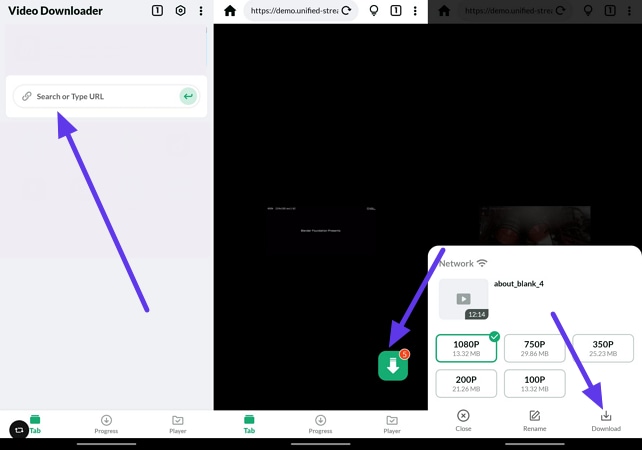
This Android app lets you download and save online videos directly to your phone and play them within its built-in player. It supports HD and 4K video formats and multiple downloads at once, making it handy for casual offline viewing. The app is free with ads and may not work perfectly on every site or stream type. To learn how to download JW Player videos using this app, read the instructions provided next:
Instructions: Start by copying the link to the video and then launching the application on your Android device. Next, paste the link in the designated field and tap on the "Download" icon. Next, select the resolutions from the options provided and hit the "Download" option to save the video.
Limitations of This App
- Limited Streaming Support: It may fail to download videos from complex streaming players like newer JW Player versions that use HLS/DASH.
- Doesn’t Support YouTube: The app cannot download YouTube videos, as this is prohibited by the Play Store policy and enforced in the app design.
- Heavy Advertising: Users frequently report intrusive ads that interrupt or block downloads and reduce usability.
- Reliability Issues: Some users note the app can crash or fail to load properly, especially on certain devices or sites.
iPhone/iOS Solutions for JW Video Download
If you are an iOS user, you can download these videos using applications that support the .m3u8 format. Mentioned next is one of the few applications that are remaining on the App Store:
Video Saver Pro
This iPhone/iPad app lets you save and manage online videos with built-in playback, Chromecast support, and batch image download features. It’s easy to use for casual video saving and offline viewing. However, full download functionality often requires in-app purchases, and reliability varies by site and content type. Read the instructions provided next to learn how to use this application:
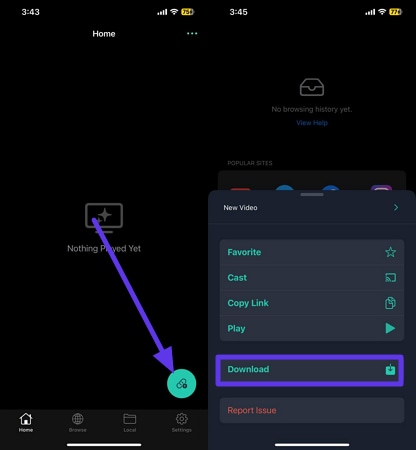
Instructions: begin by copying the video link from the website. Next, launch the application and tap on the “+‘ icon located at the bottom right corner. As you press the + icon, the copied link will be pasted. Now, tap on the “Download” option to successfully save the video to your iOS device.
Limitations of This iOS App
- Free Version Limits: The free version restricts download duration (e.g., a 20-minute or ~200 MB cap), forcing upgrades for longer videos.
- Limited HLS/DASH Support: It may struggle with modern streaming protocols like HLS/DASH, so newer JW Player streams often fail to download.
- In-App Purchases Required: Many core features require payment, reducing utility for free users.
- Inconsistent Site Detection: Some websites or embedded players don’t trigger downloads, leading to failed saves.
Tip: For reliable JW Player downloads on any device, use desktop software and transfer files via USB, cloud, or AirDrop.
Online JW Player Video Downloaders
Here are some online tools you can try for a new player video download online experience on your smartphone:
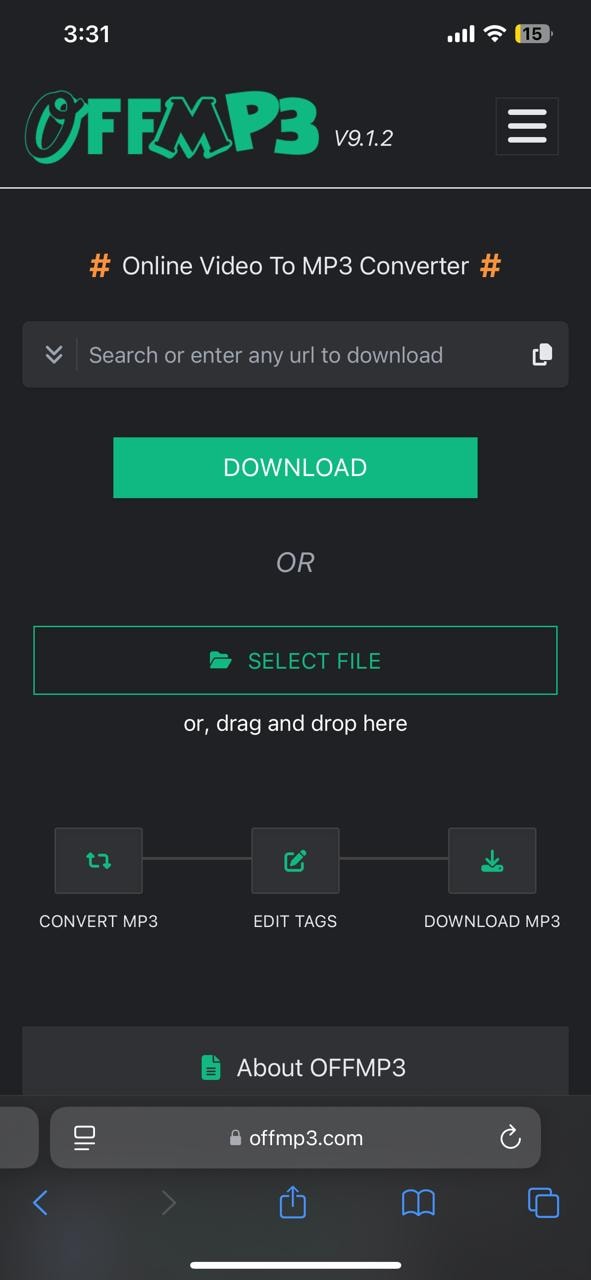
1. OFFMP3
Simple browser tools that let you paste a video URL and convert it to a downloadable file. They require no installation and are free, but most don’t reliably detect or save JW Player’s HLS/DASH streams or segmented video files, and some sites are permanently offline.
2. TubeOffline
A free web-based JW downloader where you paste the video link to get download options. It supports many platforms, but reliability varies with site structure changes and may redirect through ad pages or fail to produce direct downloads for complex streams.

Part 6. Advanced Users – Command-Line Tools
For technical users who want full control, command-line tools are a powerful option. Tools like FFmpeg and yt-dlp can capture and merge HLS streams, automate downloads, and handle batch processing with ease.
Using FFmpeg to Download JW Player Streams
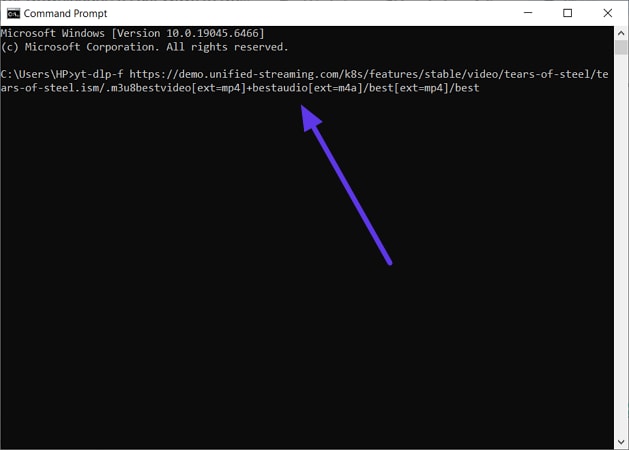
FFmpeg is a powerful command-line multimedia tool used to download, process, and convert audio and video files. It can capture HLS streams, merge segmented .ts files, and repackage them into a single MP4 without re-encoding. FFmpeg also supports format conversion, bitrate control, and trimming, making it ideal for handling complex JW Player downloaders efficiently. To learn how to use this command line prompt for video download, read the instructions provided next:
Instructions: To begin, launch the command prompt on your device and type in the following command: “ffmpeg -i "https://demo.unified-streaming.com/ k8s/features/stable/ video/tears-of-steel/ tears-of-steel.ism/ .m3u8" -c copy output.mp4.” Press the Enter key to execute the command and download the pasted video link to your device.
When This Method is Most Useful
- Bulk Downloads: FFmpeg can download multiple JW Player videos in one session. This saves time compared to manual, one-by-one methods.
- Automation & Scripting: The tool integrates easily into scripts and workflows. You can schedule downloads or run repeat tasks automatically.
- Handling HLS Streams: It is well-suited for .m3u8 streams and segmented video files. The tools merge segments cleanly into a single file.
- Format Control & Conversion: You can output videos in specific formats, resolutions, or bitrates. This is useful for storage optimization or compatibility needs.
yt-dlp for JW Player Videos
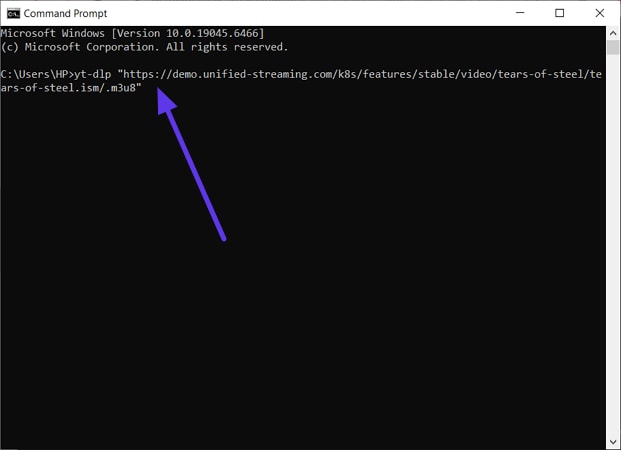
For users who want a simpler alternative to FFmpeg, yt-dlp is an excellent choice. It can detect JW downloader streams, handle HLS/DASH videos, and download or merge them with minimal command-line input. Unlike FFmpeg, yt-dlp often requires fewer commands and automatically manages segmented streams. Here is how you can download W videos using this command prompt:
Instructions: Acquire the command prompt and type in the following command: “yt-dlp [video URL]” and hit the Enter key to download the video.
Part 7. How to Find the Direct JW Player Video URL (.m3u8)
Finding the direct JW Player video URL is a crucial step for downloading videos using desktop software, browser extensions, or command-line tools like FFmpeg and yt-dlp. Most JW Player streams use HLS (.m3u8) or DASH (.mpd) protocols, which break the video into small segments rather than a single file. Follow the instructions mentioned below to learn how to get the link for the video:
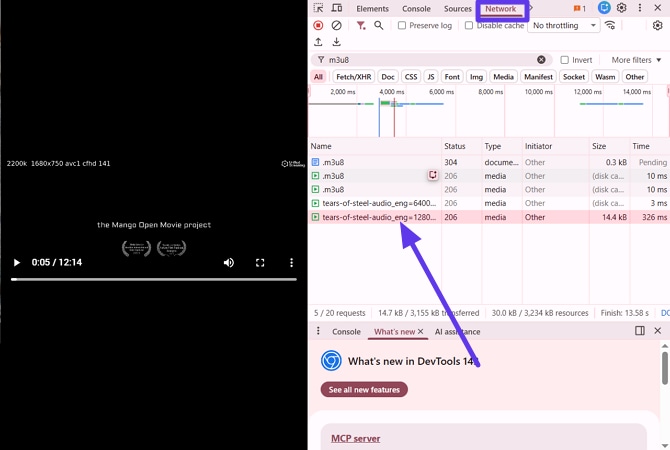
Instructions: Open Chrome or Firefox, press “F12” to open DevTools, and navigate to the “Network” tab. Filter by “Media” or search for .m3u8 in the request list while playing the video. Right-click the .m3u8 request and select “Copy URL.” Paste the URL into a downloader tool to ensure it’s working.
Using m3u8 Sniffer Extension
For users who want an easier alternative to manually digging through developer tools, the m3u8 Sniffer Chrome extension can automatically detect streaming URLs as the page loads. Once installed, it monitors JW Player for downloads. To learn how to use this extension, read the steps provided next:
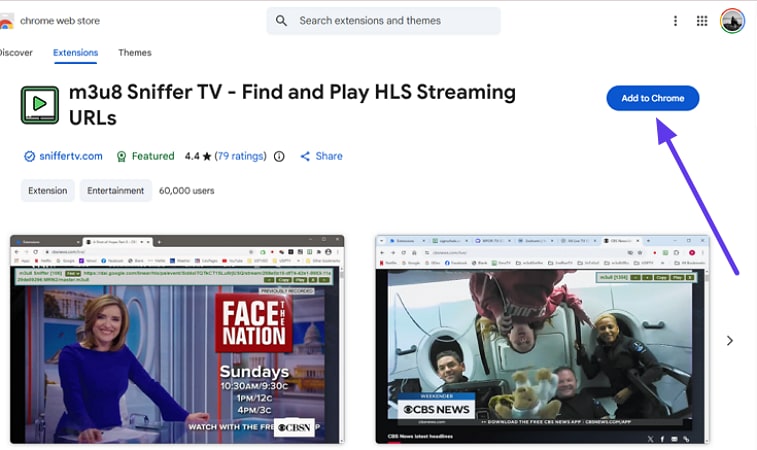
Step 1. Access the extension on your Chrome Web Store and press the “Add to Chrome‘ option to download it to your system.
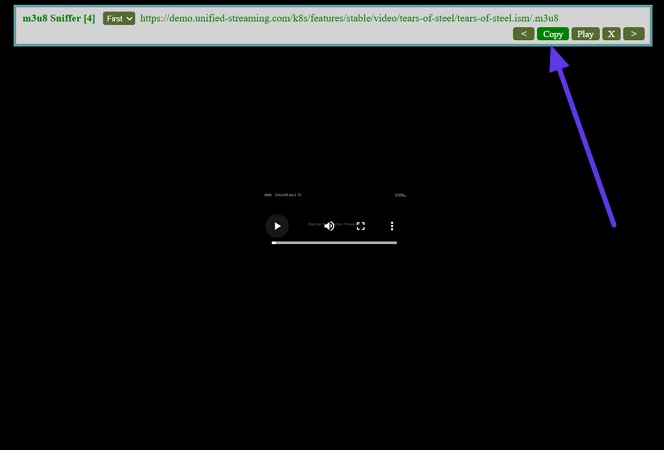
Step 2. Now, open the webpage with the video and enable the extension. It will show the video URL automatically within its interface. Press the "Copy" option to copy the URL and paste it into the downloader to save the video in no time.
Part 8. Tips for High-Quality JW Player Video Downloads
Now that you know the tools and methods for downloading JW Player videos, it’s important to ensure you get the best possible quality. The following tips help maintain resolution, audio sync, and overall playback performance:
Selecting the Best Video Quality
When aiming for the best quality, it helps to understand your options and make informed choices. Here are key considerations for selecting JW Player video resolution:
- Available Resolutions: JW Player usually offers multiple resolutions, from 360p to 1080p. Higher resolutions provide sharper images but larger file sizes.
- Identify Quality Options: Check the player’s settings, use developer tools, or see what your downloader detects to know available resolutions.
- Storage vs. Quality: Higher quality videos take more space. Choose based on your device capacity and how you plan to use the video.
- Device Compatibility: Not all devices handle full HD smoothly. Consider your playback device when selecting resolution.
Batch Downloading Multiple JW Player Videos
For users who need multiple videos at once, UniConverter offers the most efficient solution. It allows you to queue multiple JW Player URLs for simultaneous downloading. You can set output formats, resolutions, and save locations in advance. To learn how to batch download videos using this efficient tool, read the steps provided next:
Best JW Player Video Downloader
Step 1. Acquire the Downloader
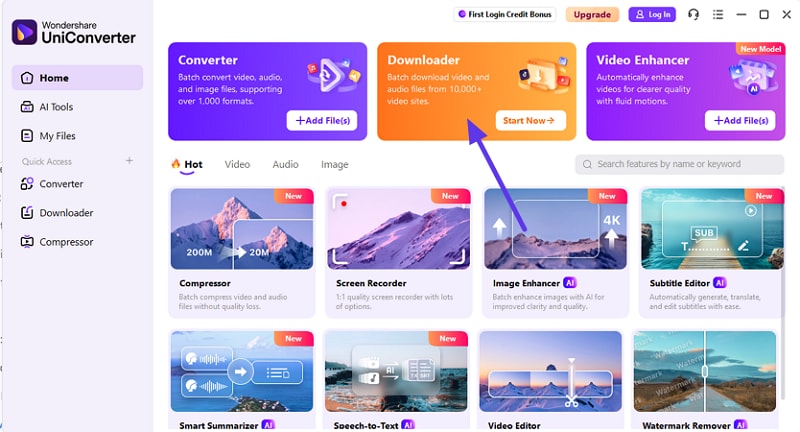
To begin, launch UniConverter on your device and choose the “Downloader” feature from the homepage.
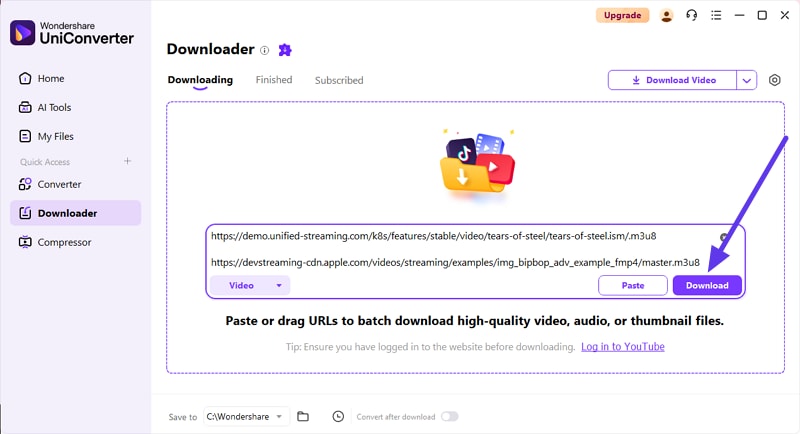
Step 2. Paste Links for Videos
In the following interface, paste the links to the videos into the designated field all at once, separated by Enter. Once the links are added, press the "Download" button to execute the process.
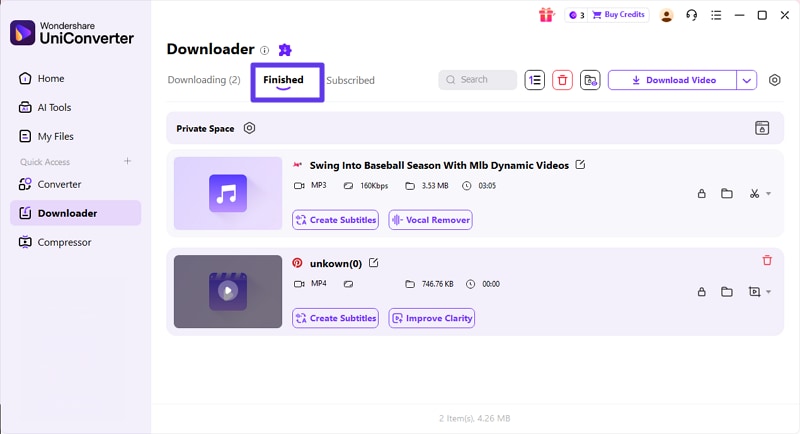
Step 3. Preview Batch Downloaded Videos
When the videos are successfully downloaded, review them under the “Finished” section of the tool. You can also locate the downloaded video within your device’s storage.
Converting Downloaded Videos to Different Formats
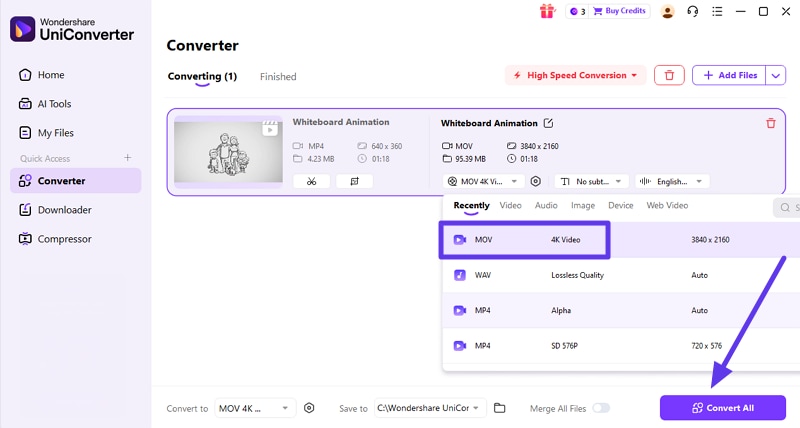
After downloading JW Player videos, you might need them in different formats for compatibility or storage reasons. Desktop tools like UniConverter allow you to convert videos to MP4, MKV, AVI, or MOV while preserving quality. Follow the steps mentioned below to learn how to use this tool for format conversion:
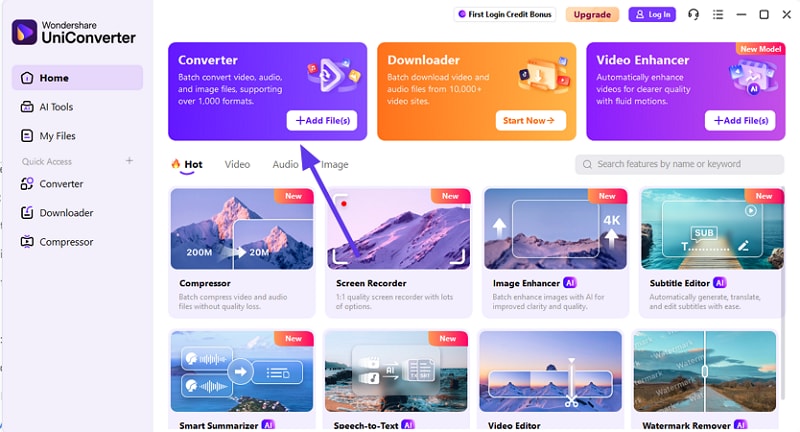
Step 1. Access the Converter Feature
To begin, launch UniConverter on your device and select the “Converter” tab from the homepage.
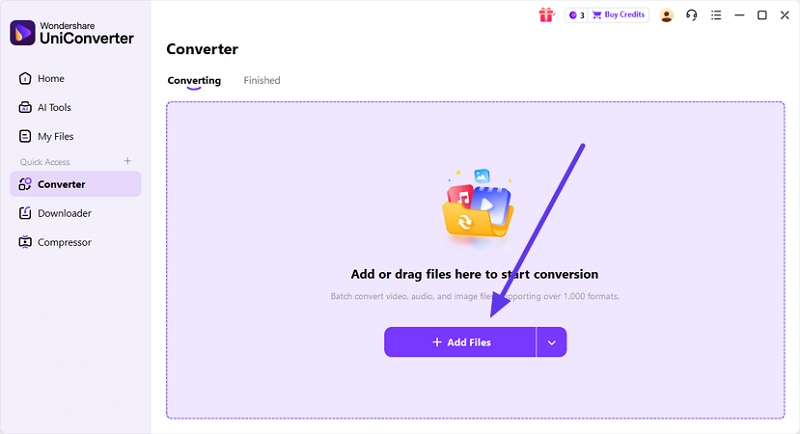
Step 2. Add Video For Conversion
Next, choose the “Add Files” option located within the interface to import the video for format conversion.
Step 3. Select Format Begin Conversion
Once the video is imported, select the output format from the options provided and hit the “Convert All” button to execute the process.
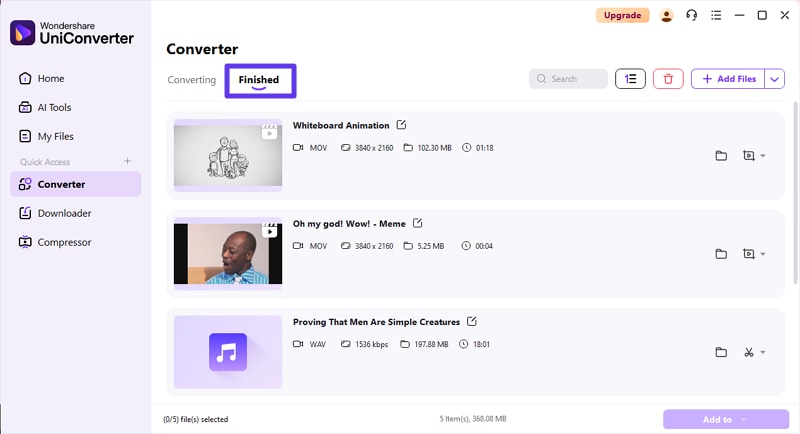
Step 4. Preview Converted Video
After the successful conversion of the video, preview it within the tool’s interface under the “Finished” section.
Part 9. Legal and Ethical Considerations
Before downloading JW Player videos, it’s important to be aware of the legal and ethical boundaries. Here are some of the factors that you must keep in mind while using this utility:
- Personal Use Only: Downloaded videos should be for your own offline viewing or private use. Commercial redistribution without permission is illegal and may result in penalties.
- Respect Copyright & Terms of Service: Many websites explicitly prohibit downloading their content. Ignoring these rules can breach copyright law or the platform’s terms.
- Educational or Backup Purposes: Downloading videos for study, research, or personal backup is generally safer, but still check the source’s usage policies.
- Obtain Permission for Protected Content: For DRM-protected or premium videos, always seek authorization before downloading. This ensures you stay within legal and ethical boundaries.
Conclusion
To wrap it up, this article provided a comprehensive guide to download JW Player videos efficiently and safely. We recommend starting with free options first, such as UniConverter, to test functionality before committing. With the right method, your JW Player video downloader experience can be fast, safe, and high-quality.

