


Many BitChute users often face a common issue while saving an interesting video, but it doesn't provide the option. Streaming works fine when you’re online, but there is no option to watch that content later.
If you are also exploring efficient ways to download BuitChute videos, this article is for you. This guide covers the most efficient Bitchute downloaders, including both built-in and online tools.

Best BitChute Downloader
In this article
- Part 1. What is BitChute? (Understanding the Platform)
- Part 2. Quick Comparison: Best BitChute Downloader Methods
- Part 3. Download Multiple BitChute Videos with Desktop Apps
- Part 4. Online BitChute Video Downloader (No Installation)
- Part 5. Browser Extensions for BitChute Download
- Part 6. Download BitChute Videos Without Any Tool (Browser Method)
- Part 7. How to Download BitChute to MP4 & MP3
- FAQs about BitChute Downloader
Part 1. What is BitChute? (Understanding the Platform)
BitChute is a video-sharing platform launched in 2017 as an alternative to mainstream sites like YouTube. Instead of relying on heavy algorithms, it positioned itself as an independent space for creators. BitChute supports a broad range of content categories and aims to give uploaders greater control over their publications. It uses peer-to-peer (P2P) technologies, such as WebTorrent, to distribute videos.
Why Download BitChute Videos?
To make the most of the platform, let’s explore why you need to download with the Bitchute video downloader:
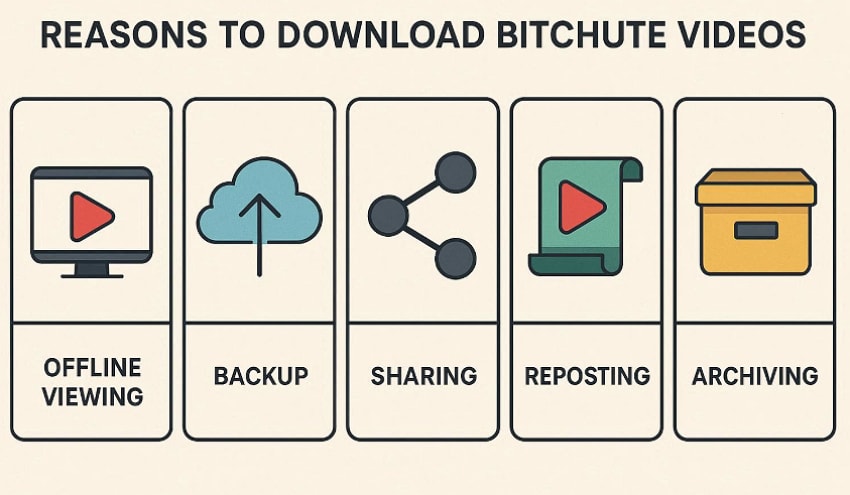
- Limited Video Access: Downloading BitChute videos lets users watch their favorite content even without a stable connection. It also prevents buffering issues during important videos or long-form content.
- Content Archiving: Many users save BitChute videos to build personal libraries of news and commentary. It ensures that essential or rare content remains accessible, even if access becomes more difficult.
- Creating Materials: The downloaded videos can be reused in presentations, lessons, and study resources.
- Backup Against Potential Content: As BitChute videos are typically about controversial topics, they may later be removed. So, keeping HD backups allows users to retain access to meaningful content even if it disappears.
- Easier Sharing: Downloading BitChute videos makes it simple to move content between phones, tablets, and external devices. This makes it easier for users to access videos regardless of the device they use.
Part 2. Quick Comparison: Best BitChute Downloader Methods
To download BitChute videos, you should know your requirements and then choose the targeted platforms. Casual users who only need a few videos can stick to the online tools, whereas professionals can go for desktop programs. So here we have provided a quick breakdown of all the discussed tools, making it easier to choose the best one:
| Methods | Best For | Ease | Batch Download | Free |
| Wondershare UniConverter (Desktop) | Best overall for large BitChute libraries, format conversion, compression, and editing in one app. | ⭐⭐⭐⭐⭐ | Yes | Free and Paid both) |
| 4K Video Downloader (Desktop) | Simple multi-site bulk downloading with playlists/channels | ⭐⭐⭐⭐ | Yes | Free and Paid both) |
| TTOK.com (online) | Quick single BitChute downloads in browser, no install needed | ⭐⭐⭐⭐⭐ | No | Yes |
| VideoFk (online) | Users who want multiple quality/format options (up to 4K) via a simple paste-URL page | ⭐⭐⭐⭐ | No | Yes |
| BitChute Video Downloader (Chrome) | Regular BitChute viewers on Chrome who want a one-click download button on video pages | ⭐⭐⭐⭐⭐ | No | Yes |
| BitChute Video Download Button (Firefox) | Power users on Firefox who want an integrated “Download” button and smart file naming | ⭐⭐⭐ | No | Yes |
| Chrome/Browser Developer Tools | Tech-savvy users who occasionally need a direct MP4 link | ⭐⭐ | No | Yes |
After examining features, we recommend using UniConverter, which offers an efficient downloader, converter, and compressor in a single platform.
Part 3. Download Multiple BitChute Videos with Desktop Apps
If you want to download bulk videos in professional quality, we recommend using desktop software. These programs manage entire channels or playlists or want maximum stability and speed over time. Furthermore, it is ideal if you mostly work from a personal computer, don't mind installing software, and want a reliable tool. So, let's explore some of the efficient platforms to batch download BitChute videos:
1. Wondershare UniConverter
Imagine you follow a niche BitChute creator who uploads long-form lectures or multi-part documentaries. You want to download all its content so you can watch it offline. You tried using an online tool, but they lack advanced options like batch downloading. In this situation, we recommend using Wondershare UniConverter, which lets you download the whole video playlist.
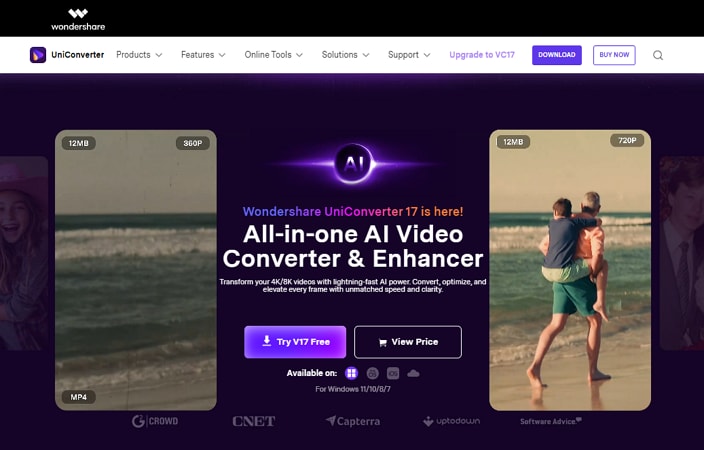
Users can either paste multiple video links or add a single link to the entire playlist. Its smart downloader can easily grab video links from up to 1000+ online websites. Moreover, it ensures that videos are downloaded at the highest available quality on the streaming service.
Best BitChute Downloader
Extensive Guide to Use UniConverter For Quick BitChute Videos Downloading
Now, if you want to use the efficient BitChute desktop software, then follow the detailed step-by-step guide below:
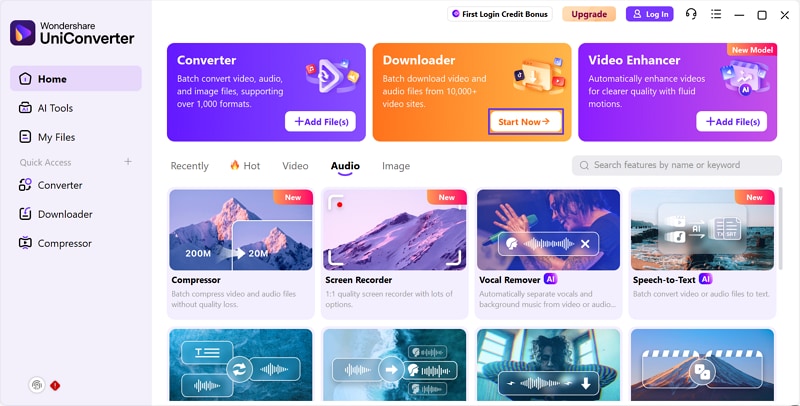
Step 1 Access the Start Now Button in the Downloader Button
As you enter the tool, click on the “Start Now” button in the “Downloader” tab to enter its interface.
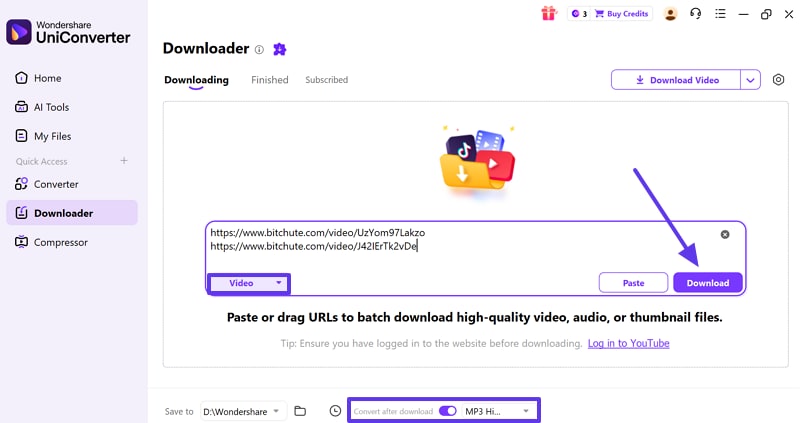
Step 2 Paste the Video links in the URL tab To Download Videos
After this, enter the video URLs in the tab and click the “Download” button to initiate the download. Here, you can also choose the desired video format by choosing in the "Convert After Download" menu.
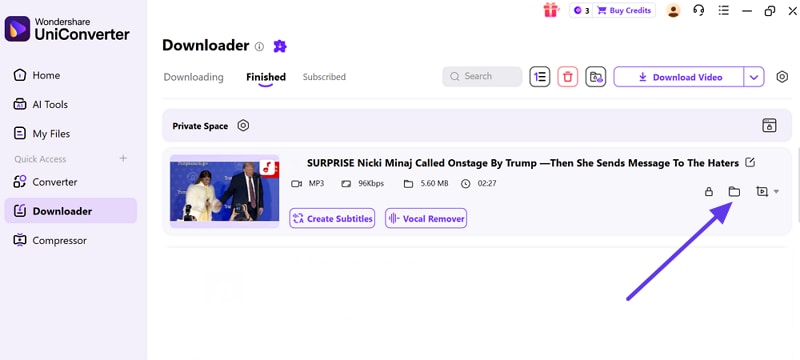
Step 3 Locate the Downloaded File to the Device Folder
Lastly, hit the File icon adjacent to the downloaded file to go to their saved locations on your devices.
2. 4K Video Downloader
This desktop tool supports downloading from a wide range of video sites, including the BitChute website. It lets you choose multiple video qualities, including HD, 4K, and higher when available. Moreover, it offers a playlist downloading option to save multiple videos. This tool also provides options to extract audio and video separately. Users can download BitChute videos without having any deeper technical knowledge.
Detailed Guide to Use 4K Video Downloader
Here we have provided a quick stepwise guide on how to download videos with 4K video downloader:
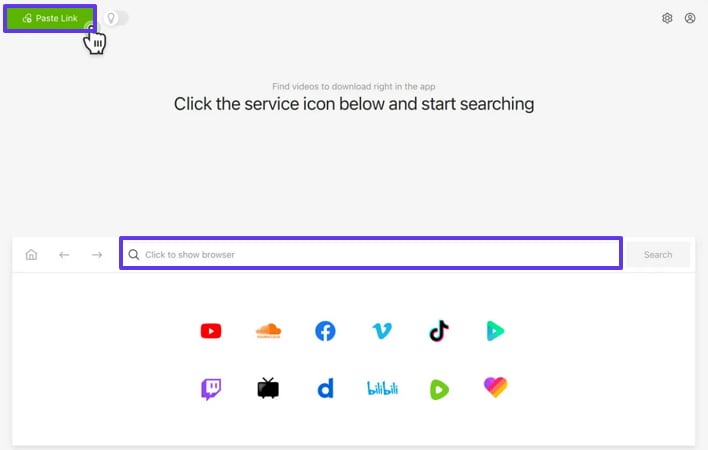
Step 1. With the tool running, click on the “Paste Link” button and then add the video link in the URL tab.
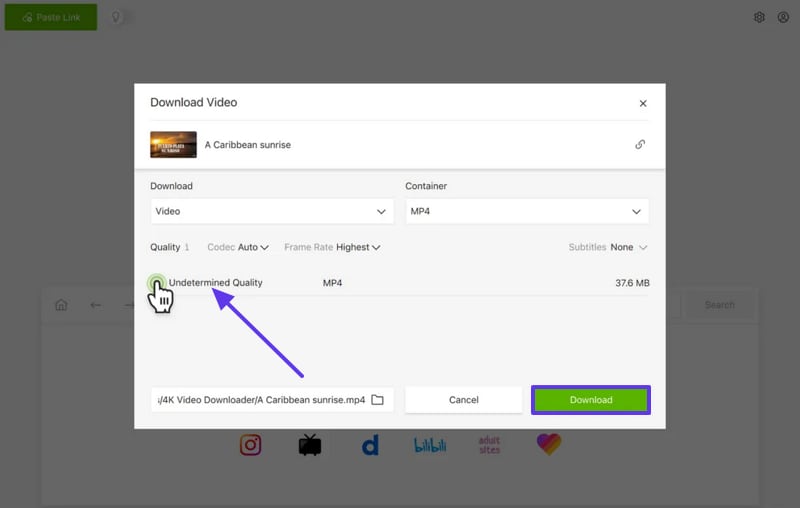
Step 2. Here, enable the "Undetermined Quality" option, select the desired "Container", and hit the "Download" button.
Part 4. Online BitChute Video Downloader (No Installation)
If you want a quick, hassle-free way to save videos without installing any software, you can opt for the online option. These tools are ideal for one-time or occasional downloads, using shared or work computers. Furthermore, it's especially beneficial when you are using these tools on online platforms. So, let’s explore some online Bitchute video downloader online free:
1. TTOK.com
This tool lets you download both BitChute videos and images by simply inserting the video link. It offers various outcome options, including MP4 video, MP3 audio, or image files where available. Furthermore, users don't require any technical knowledge to download their targeted videos. Furthermore, the main feature is that you don't need to install any heavy software.
Detailed Guide to Use the TTOK Online Tool
Upon hearing its key features, let’s just dive into its detailed step-by-step guide below:
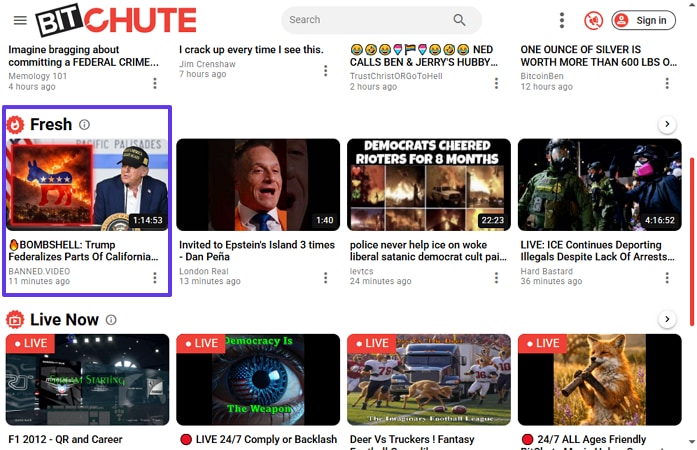
Step 1. At first, go to the BitChute website and click on the targeted video to open it in the next screen.
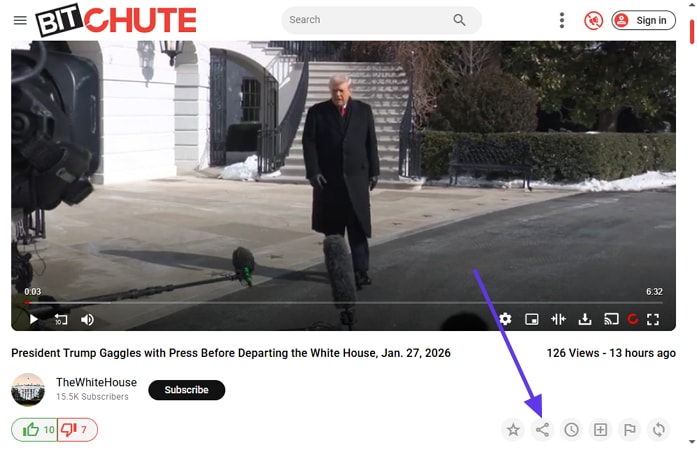
Step 2. Now, click the "Share" button to copy the video link for the downloading procedure.
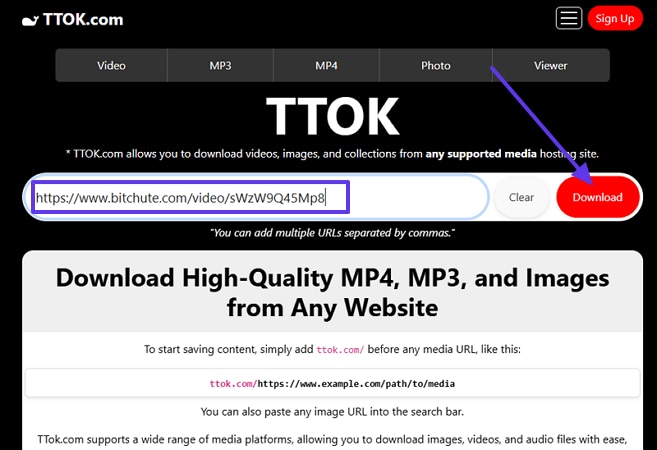
Step 3. Afterwards, open the TTOK online tool, paste the video link here, and click the “Download” button.
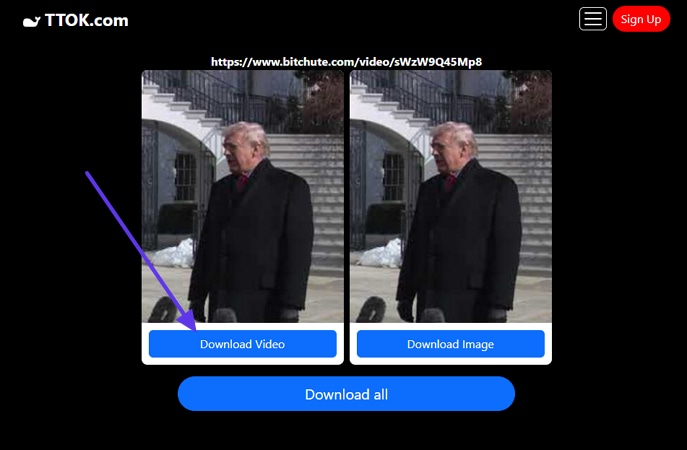
Step 4. Here, choose the "Download Video" button to save the targeted video. At this point, you can also select the "Download All" button to save both images and videos.
2. VideoFk
This BitChute video downloader online free tool lets you download a video by pasting a link or copying it directly from your browser. VideoFK also supports various video formats, including MP4, MP3, and MOV. Furthermore, you can choose between multiple quality options, including SD, HD, and Full HD. The appealing part is that it doesn't store video data on its servers, making it an efficient solution.
Comprehensive Guide to Use the VideoFK for BitChute Video Download
Now you are well aware of its features, let's dive into its detailed stepwise guide below:
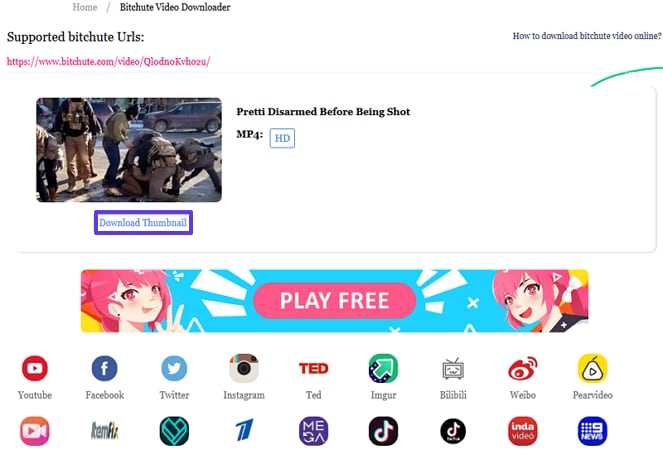
Step 1. At first, paste the copied BitChute video link and press the “Enter” button to start downloading it.

Step 2. Now, the browser prompts you to save the video to your device folder. Here you can also click the "Download Thumbnail" option to save its thumbnail.
Part 5. Browser Extensions for BitChute Download
Besides online tools, you can also opt for browser extensions from both Chrome and Firefox browsers. This method is ideal if you want to directly download without copying the link. With these extensions, the downloading button appears instantly on video platforms. Moreover, it's especially useful for power users who value convenience and speed, so let's explore efficient browser extensions:
1. BitChute Video Downloader (Google)
To use this browser extension, you simply open the desired video and hit the "Download Video" button. Being a very light-weight extension, it provides a very minimal interface, so it doesn't clutter your browser or slow it down. This extension is specifically for BitChute, making it simpler and more focused than generic multi-site downloaders.
Expert Guide to Know How to Download BitChute Videos
To explore how to download BitChute videos, follow the detailed guide below:
Step 1. Initiate by opening the “Google Chrome” extension store and hitting the “Add to Chrome” button to download it.
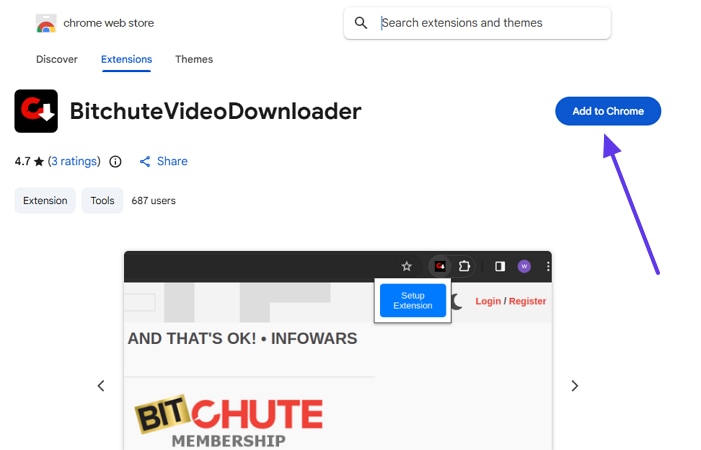
Step 2. Go to the BitChute website and open the desired video. Next, click on the extension and select the "Download Video" button.

2. BitChute Video Download Button (Firefox)
This Bitchute downloader Firefox addon automatically adds the Download now button beneath the video. Users open the video and instantly download it without leaving the site. Furthermore, automatically detects whether BitChute is using the WebTorrent player and grabs the correct video source URL. It can also handle thumbnail and post images on its platform.
Quick Guide to Download BitChute Videos on Firefox
Now, let’s dive into its detailed stepwise guide to download BitChute videos with an easy guide below:
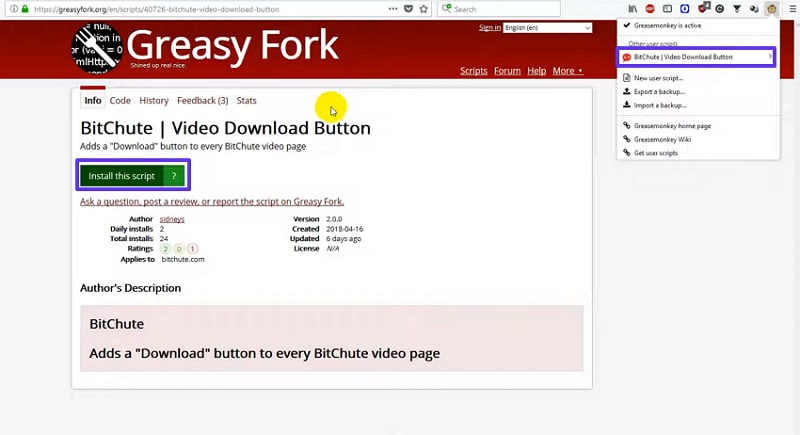
Step 1. Initiate by downloading the Firefox extension by clicking on the “Install the Script” button. Then, examine the downloaded extensions by clicking on the Extension shortcut.
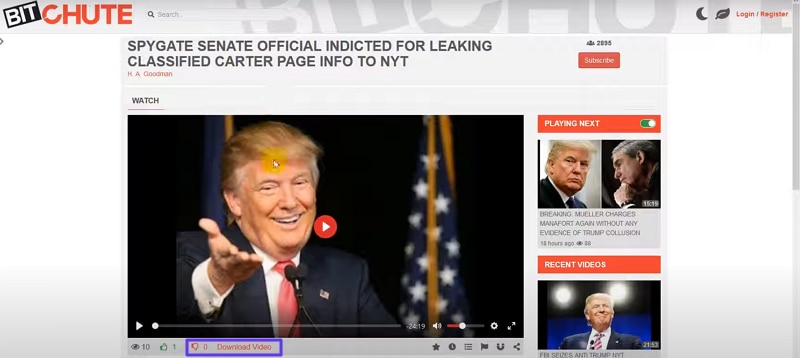
Step 2. Now, open the desired video and click the "Download Video" button, and allow the browser to save.
Part 6. Download BitChute Videos Without Any Tool (Browser Method)
Now, if you are a technical user who doesn't want to rely on a web-based or desktop tool, then Developer Tools is the option. This method works by inspecting the page's code or network activity to locate the direct .mp4 file. It's best suited to tech-comfortable users who only need to download occasionally and want to avoid extra software.
Efficient Guide on How to Use Browser-based Developer Tools
Let’s explore its detailed stepwise guide below to know how to download BitChute videos:
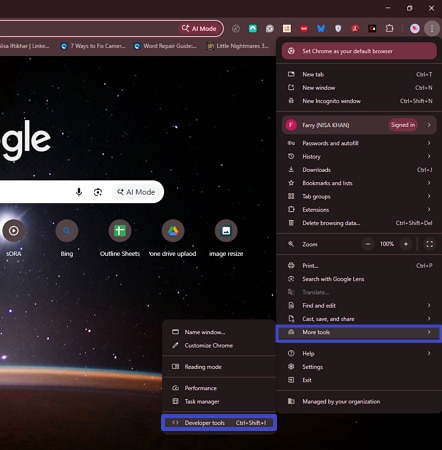
Step 1. Firstly, click on the "3 Dots" available on the top-right corner of the interface. Afterwards, choose the More Tools option and then select the "Developer" Tools option.
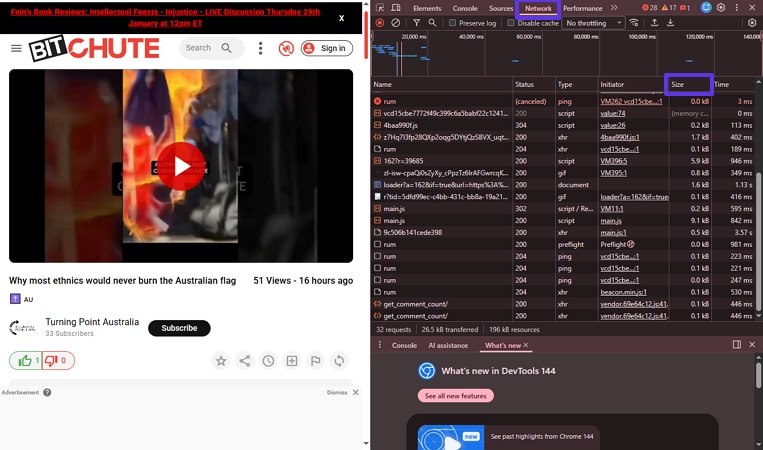
Step 2. Here, open the desired targeted video and select the “Network” tab, and sort the videos by “Sizes.”
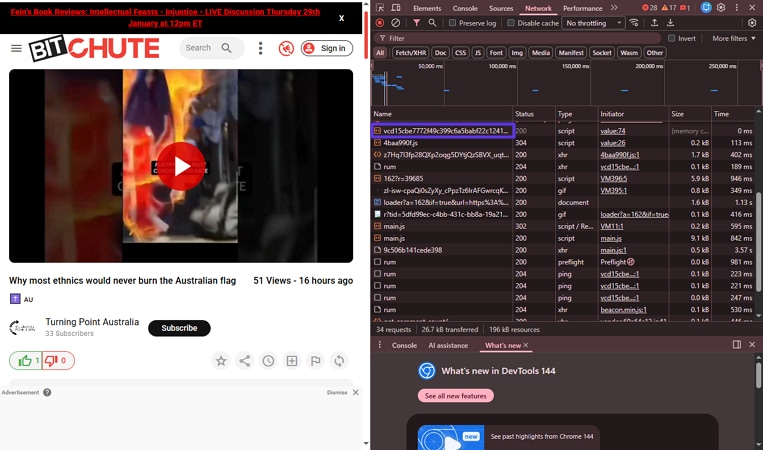
Step 3. Now, right-click the video name to access its further details.
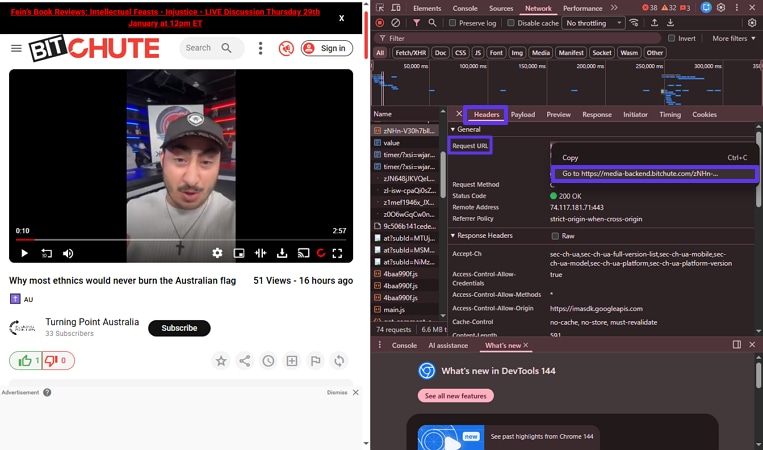
Step 4. Here, choose the “Headers” option and right-click the provided link in “Request URL” and select the option. Afterwards, paste the link into another browser to let the video download to the device directly.
Part 7. How to Download BitChute to MP4 & MP3
For most users, the ideal way to save BitChute videos as MP4 and MP3 is to have a look at this section.:
Download BitChute to MP4 (Video)
To convert Bitchute to MP4 format, you should be aware of the following points to achieve higher quality:
- Best Format for Compatibility: MP4 with H.264 video and AAC audio is supported by almost every phone, tablet, and laptop. It’s the safest choice if you want one file that “just works” everywhere, including older devices.
- Recommended Quality: 1080p Full HD gives a sharp picture for most modern screens while keeping file sizes and bandwidth reasonable. It’s a good default for BitChute downloads unless you specifically need 4K.
- Average File Size: A typical 10‑minute 1080p H.264 MP4 at common streaming bitrates falls into the 300–500 MB range. Heavier motion or less compression can push it higher, while aggressive compression can shrink it below this range.
When To Use
- Cross-Device Compatibility: Use MP4 when you want your downloaded video to play smoothly on any device.
- High-Quality Offline Viewing: Choose MP4 1080p when you want a good balance between visual detail and storage usage, making it ideal.
- Easy Editing and Reuse: If you plan to trim or edit the video further, then converting BitChute to MP4 is an ideal option.
Convert BitChute to MP3 (Audio Only)
Users should convert BitChute to MP3 if they only care about the audio, such as long interviews and podcasts. Converting to MP3 typically reduces the video size to around 20–30% of the original, so the audio can be roughly 70–80% smaller. So, let’s explore 2 efficient Bitchute to MP3 converter online along with their guides below:
Online Tool
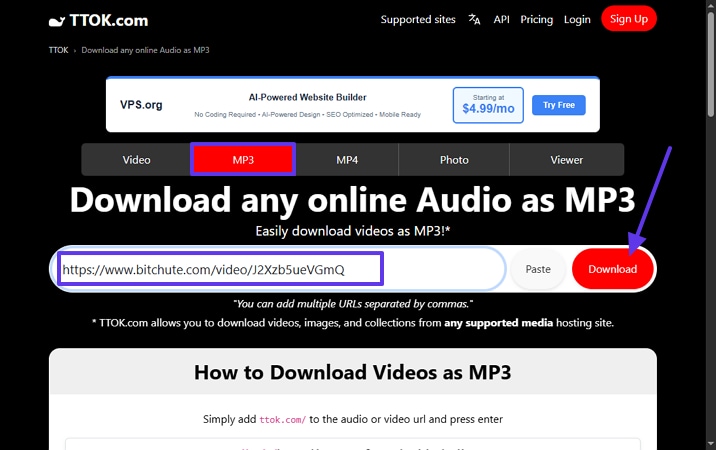
To convert BitChute videos to MP3, you can opt for an online tool like TTOK.com, which lets you select the desired file format. So, have a look at its detailed stepwise guide below to know its procedure:
Step 1. Initiate by accessing the tool and choosing the "MP3" format. Following this, paste the desired video URL and select the "Download" button.
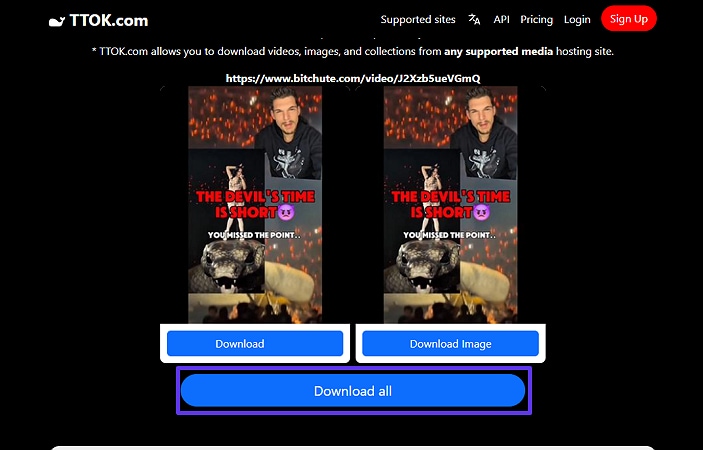
Step 2. Here, click on the “Download All” button to save the MP3 files and their thumbnails.
Desktop Software
Now, if you want an advanced solution to convert BitChute to MP3, we recommend using UniConverter. This tool lets you convert your video into multiple formats, including MP3, MP4, SVG, and PNG. Furthermore, it provides a batch processing system to convert multiple downloaded files simultaneously to save time efficiently.
Extensive Guide on How to Convert BitChute to MP3 Format
Now, let’s dive into its detailed step-by-step guide below to convert BitChute to MP3 effortlessly:
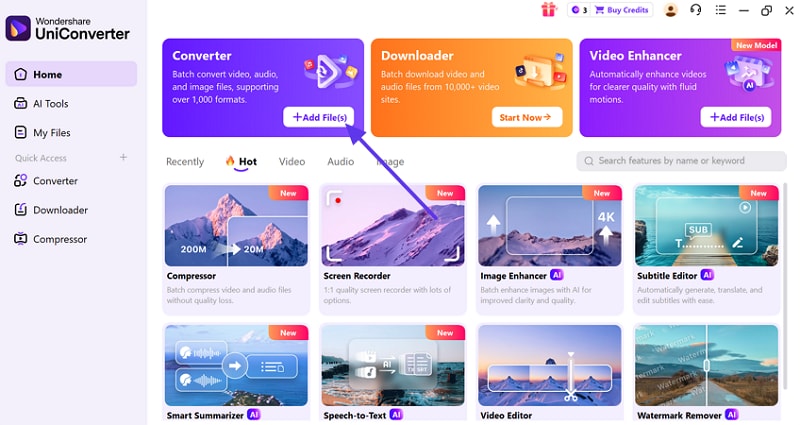
Step 1 Access the +Add File(s) Button in the Converter Tab
Upon entering the tool, click on the “+Add Files(s)” button in the “Converter” tab to insert the desired video.
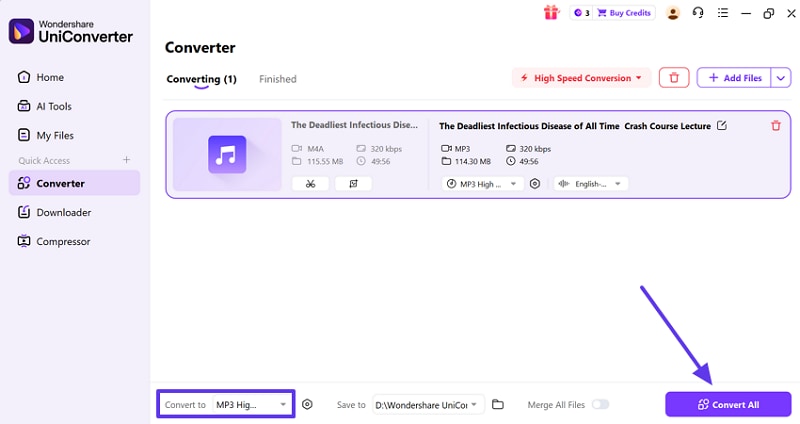
Step 2 Choose The Desired File Format to start a conversation
Following this, choose the MP3 format in the "Convert To" menu and hit the "Convert All" button.
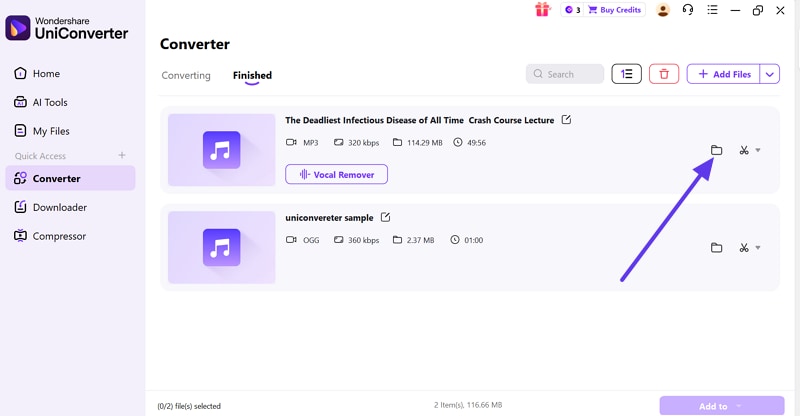
Step 3 Locate the Saved File in the Device Folder
Now, the converted MP3 file is automatically saved to the device. You can also locate the file by clicking on the File icon located adjacent to the outcome.
When to Use
- Requires Audio Only: You can convert video to audio when your main agenda is only listening, like for podcasts and interviews.
- Save Storage: It is beneficial if you're low on storage or using mobile data, because audio files are much smaller than full videos.
- Prefer Flexibility: Choose MP3 if you want to listen while your screen is off and consider it the best option for commuting, workouts, or study sessions.
Conclusion – Choose Your BitChute Downloader
Summing up, users can easily download BitChute videos using BitChute Downloaders. This article has listed various tools, including online, desktop, and even browser-based developer tools. However, we recommend using UniConverter, which lets you download videos and allows you to convert them in multiple formats.

