


Turning video into notes or text is essential for improving information accessibility, searchability, and workflow efficiency. As video content continues to dominate online education, meetings, having actionable notes directly from recordings can significantly enhance productivity. With the evolution of AI, numerous tools, both free and paid, exist for extracting clear, organized text from videos.
This guide presents 5 effective ways to transform videos to notes, complete with step-by-step instructions. So, if you are also facing these issues, please go through the following detailed guide to the end.
In this article
- Why Convert Video to Notes?
- Method 1: Built-in Video to Note Tool
- Method 2: Batch AI Video Note-Taking Tool (Easiest & Most Efficient)
- Method 3: All-in-One AI Video Note-Taking Web Tool (Most Available)
- Method 4: Note-Taking Extensions (Most Convenient)
- Method 5: Video to Note-Taking Mobile App
- Detailed Comparison Table of 5 Methods to Convert Videos to Notes
- Conclusion
- FAQs
Part 1. Why Convert Video to Notes?
Before you dive into the whole process of using a video notetaker, let's explore why you need to convert video into notes firsthand:
Efficiency & Time-Saving: By transforming videos into notes, users can significantly reduce the time spent rewinding or manually jotting down information.
Improved Accuracy: Unlike relying on memory, which can forget details, video-to-note conversion ensures that every detail from the source material is captured.
Better Comprehension: With transcripts or summarized notes extracted from videos, users can shift their focus to other productive things.
Accessibility: Transcribing video content into notes makes resources accessible to people with hearing impairments or those who prefer reading.
Efficient Knowledge Management: Businesses and professionals utilize video-to-notes technology to create documentation from workshops, training sessions, presentations, and webinars.
Part 2. Method 1: Built-in Video to Note Tool
If you're exploring a built-in video note taker, we have listed the right tools for both Windows and Mac below:
Built-in Video to Note Tool for Windows
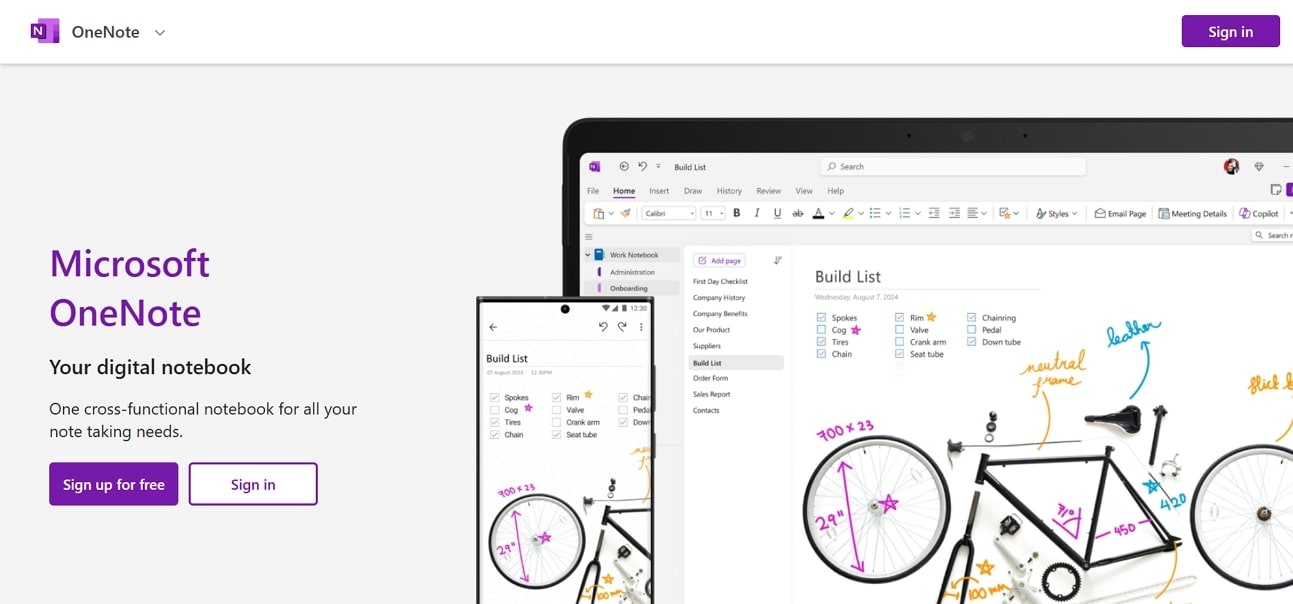
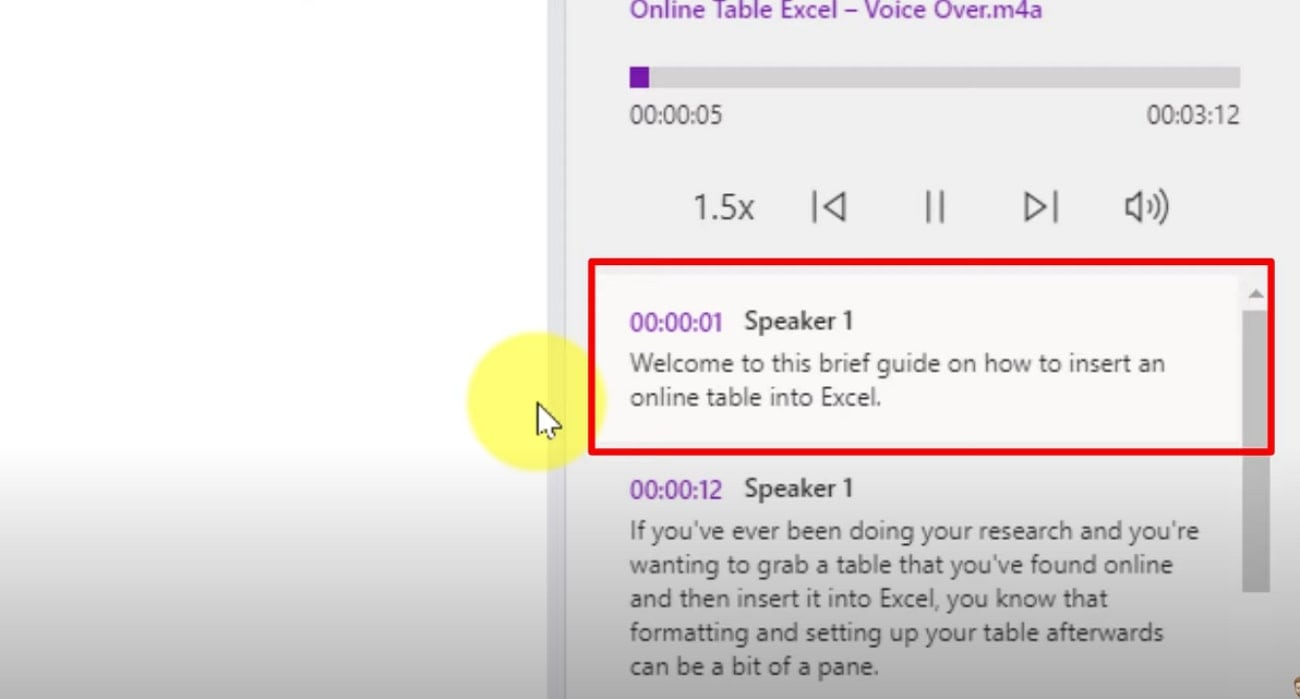
If you are a Windows user and want to transcribe your video into text, you can opt for OneNote. Its built-in transcription function quickly converts uploaded video or audio files into editable, time-stamped text. The transcribed text consists of the speaker’s label, making it easy to follow conversations, identify, and reference key sections.
Best For: Creating accurate transcripts from videos, while offering powerful organization.
Detailed Guide to Use OneNote to Convert Video to Note
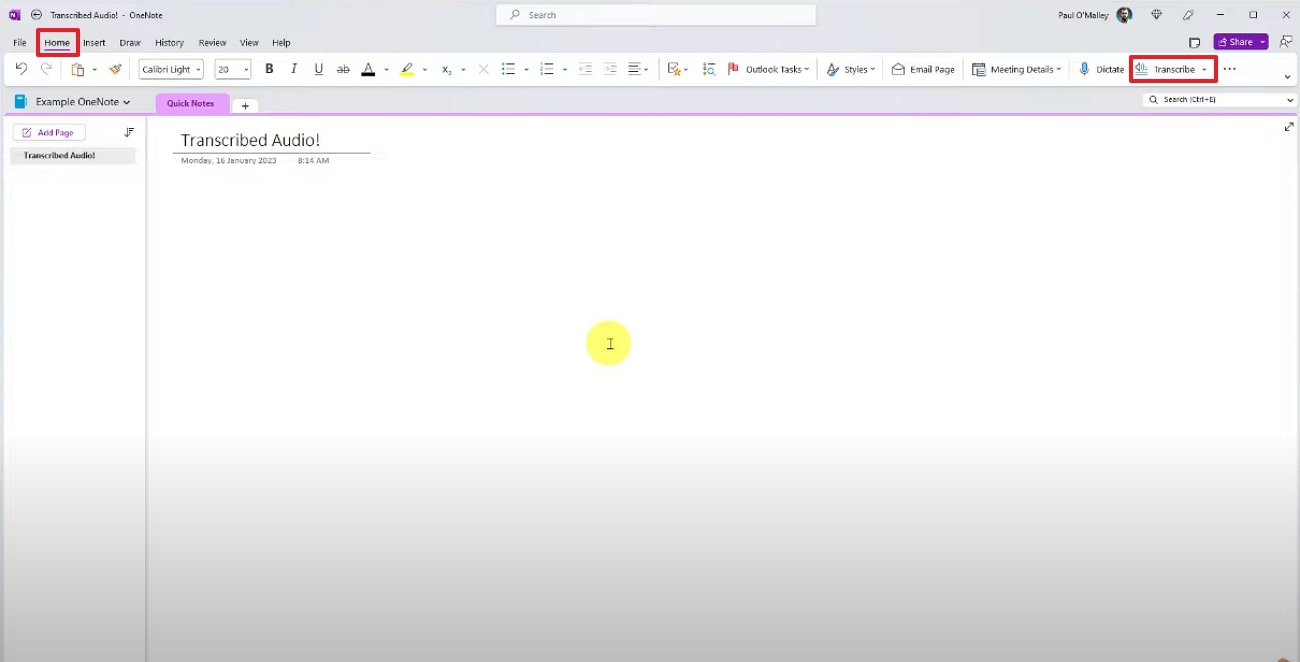
Step 1. Access OneNote from the "Windows" search bar by searching its name. After entering the tool, tap on the "Home" tab and choose the "Transcribe" option available here.
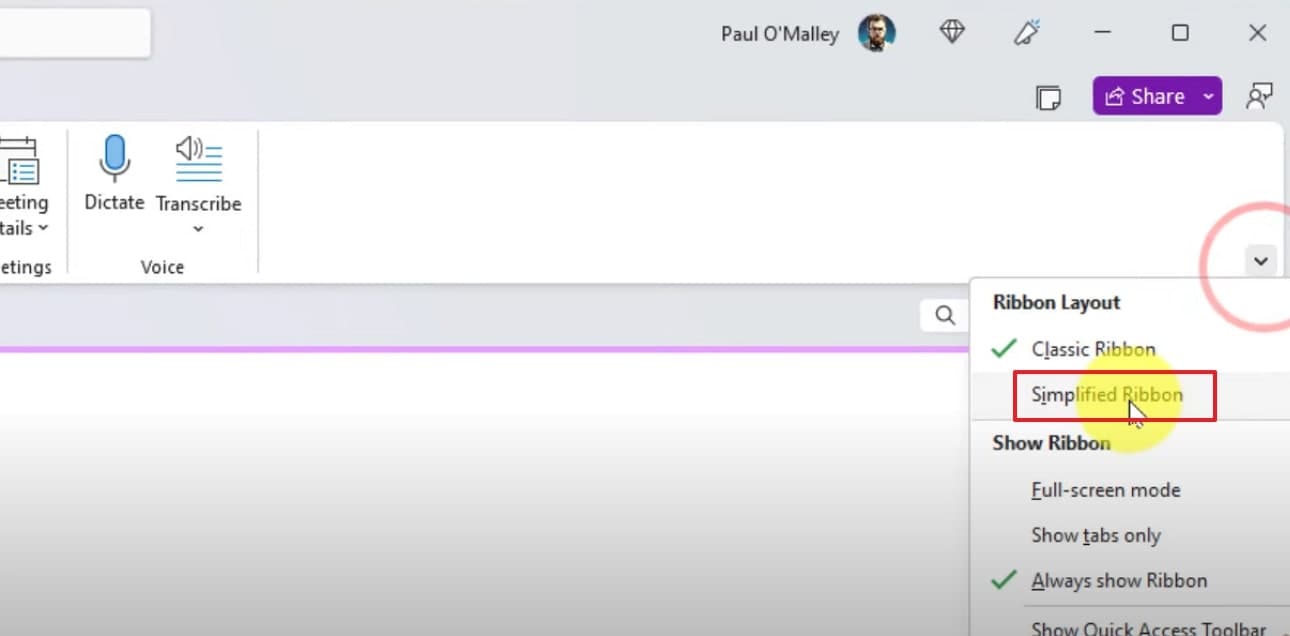
Step 2. Here, click on the "Arrow" icon and choose the "Simplified Ribbon" option for the transcribed text.
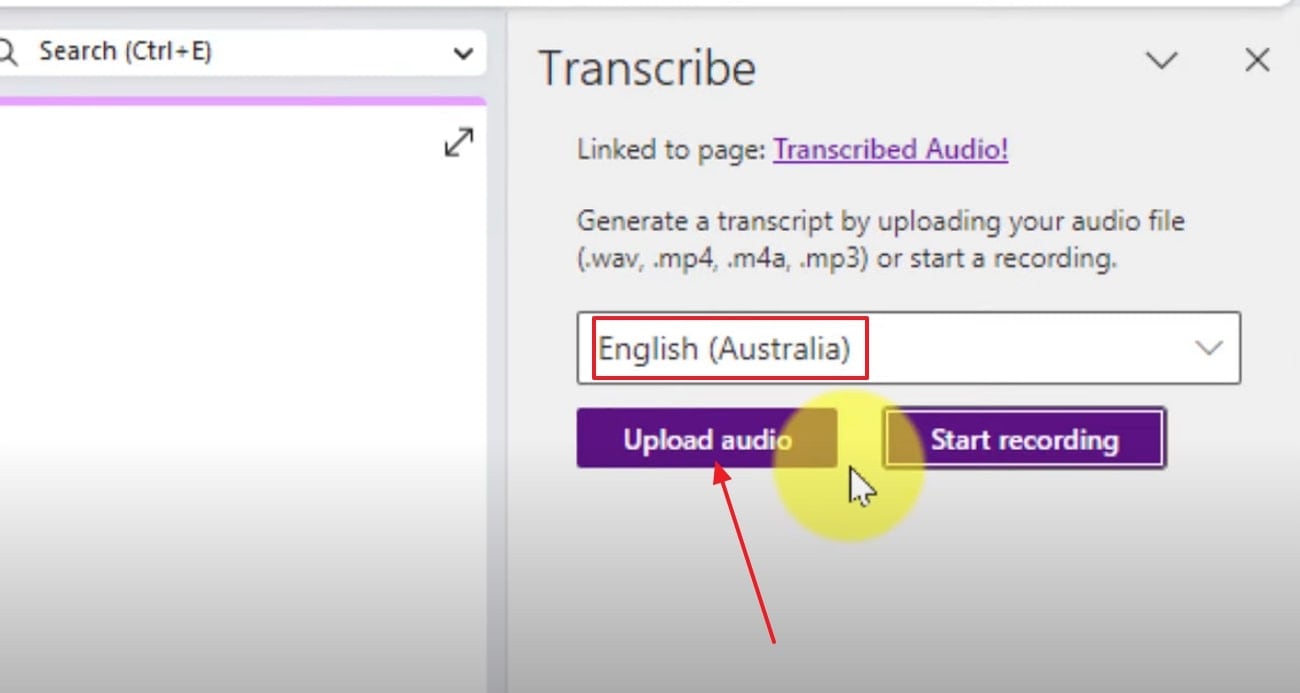
Step 3. Choose the desired “Language” for your transcribed text and select the “Upload Audio” option.
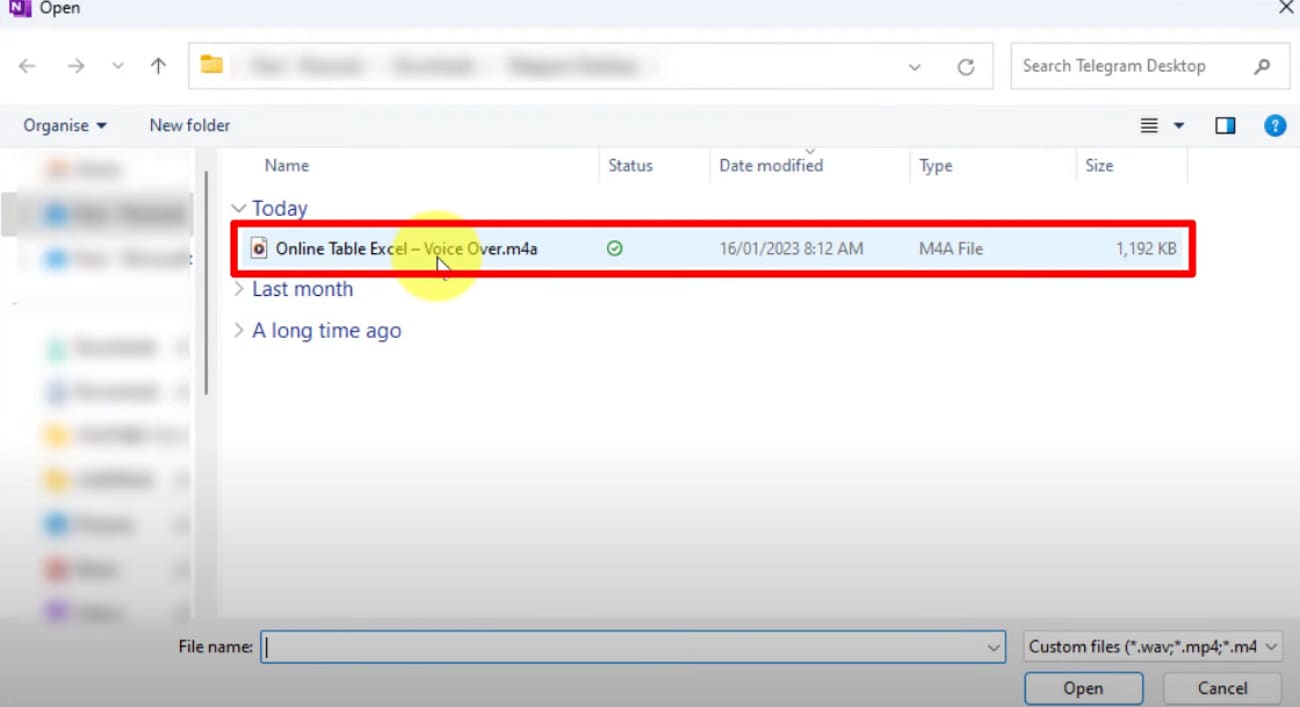
Step 4. Here, select the desired audio file that you want to transcribe with the OneNote tool.
Step 4. After some time, your audio will be transcribed; whose text can be copied or further edited.
Built-in Video to Note Tool for Mac
As a Mac user, you can opt for Apple Notes for transcribing your audio into text. Transcripts are embedded within notes, enabling users to quickly search for keywords, copy relevant sections, and edit or annotate the content for study. Notes can link to other Apple apps (such as Voice Memos), support rich formatting, attachments, checklists, and provide quick access.
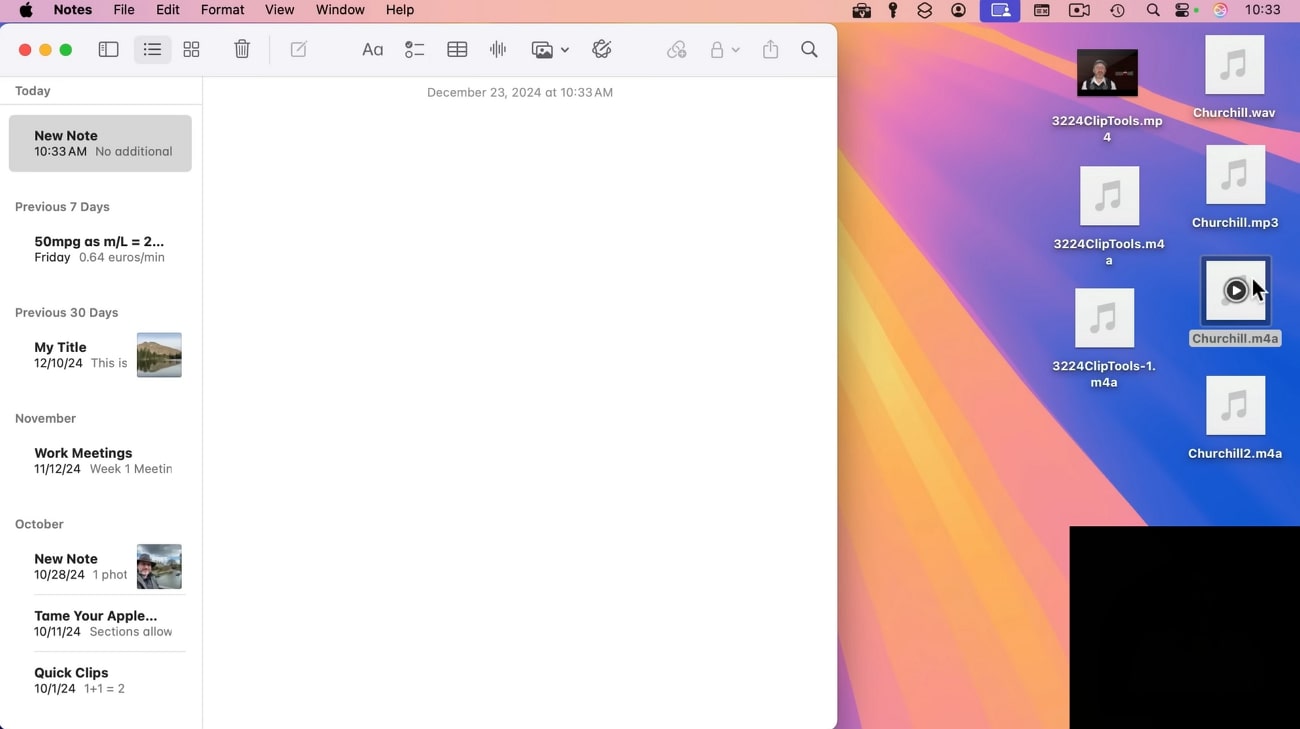
Best for: Quick transcriptions and seamless note-taking across Apple devices.
Stepwise Guide to Use Apple Notes to Transcribe Video
Step 1. As you access the video to note tool, double-tap the media file to start transcription.
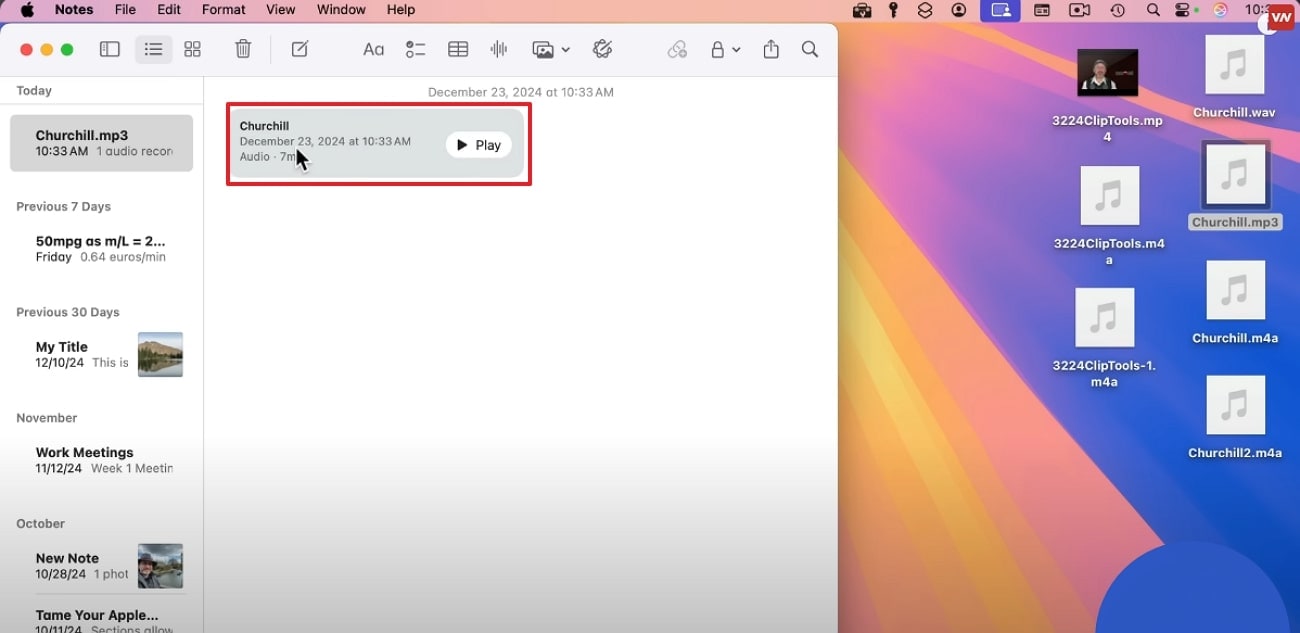
Step 2. After some seconds, you will be shown the whole summary of the file you selected.
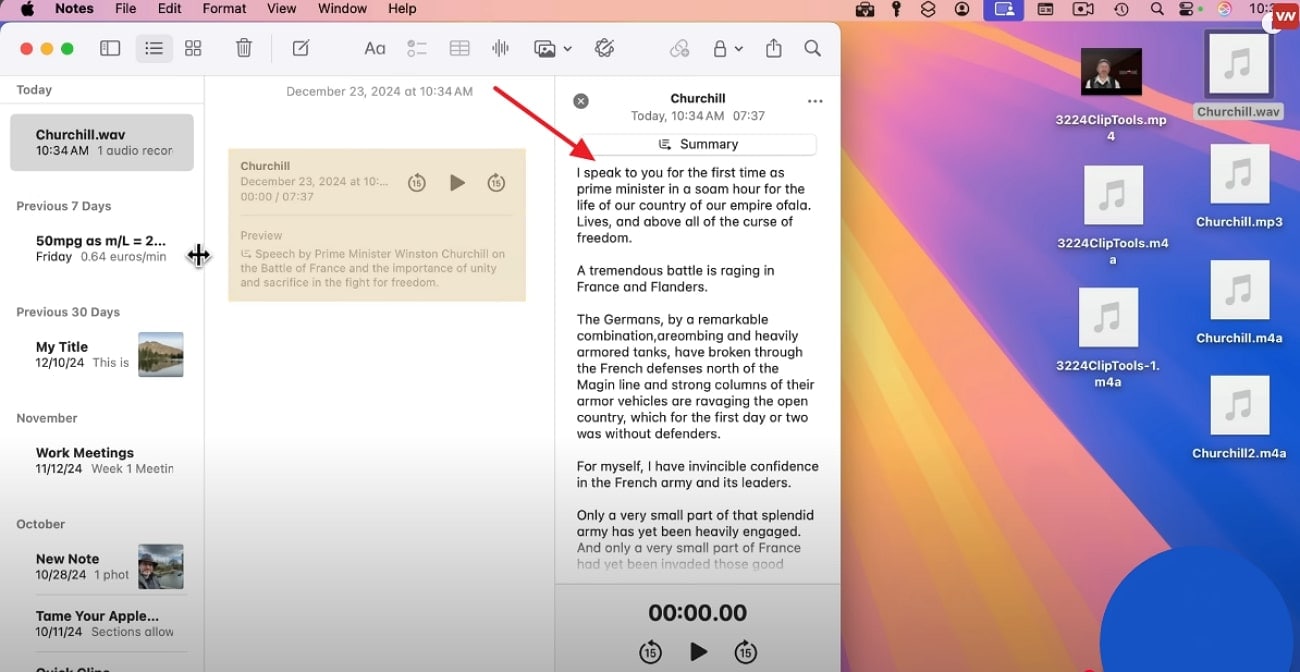
Step 3. After getting the summary, select the “3 Dots” and choose “Copy Transcript” to save.
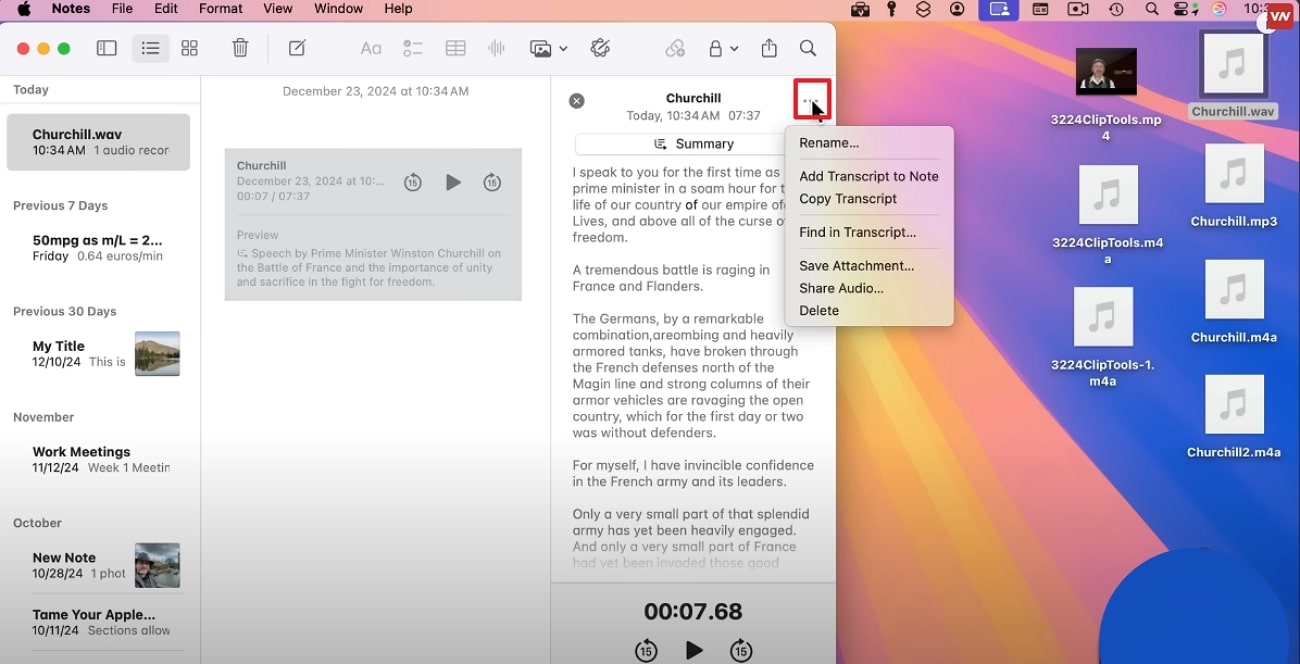

Video to Note Transcriber
Part 3. Method 2: Batch AI Video Note-Taking Tool (Easiest & Most Efficient)
Being a student, you might feel the need to extract notes from multiple lectures videos at once. In this situation, UniConverter turns out to be an ideal option for batch note-taking. Its Speech-to-Text functionality uses AI abilities to efficiently transcribe both audio and videos files. Supporting 20+ languages for transcriptions, it gets easier to transcribe videos in different cultural contexts.
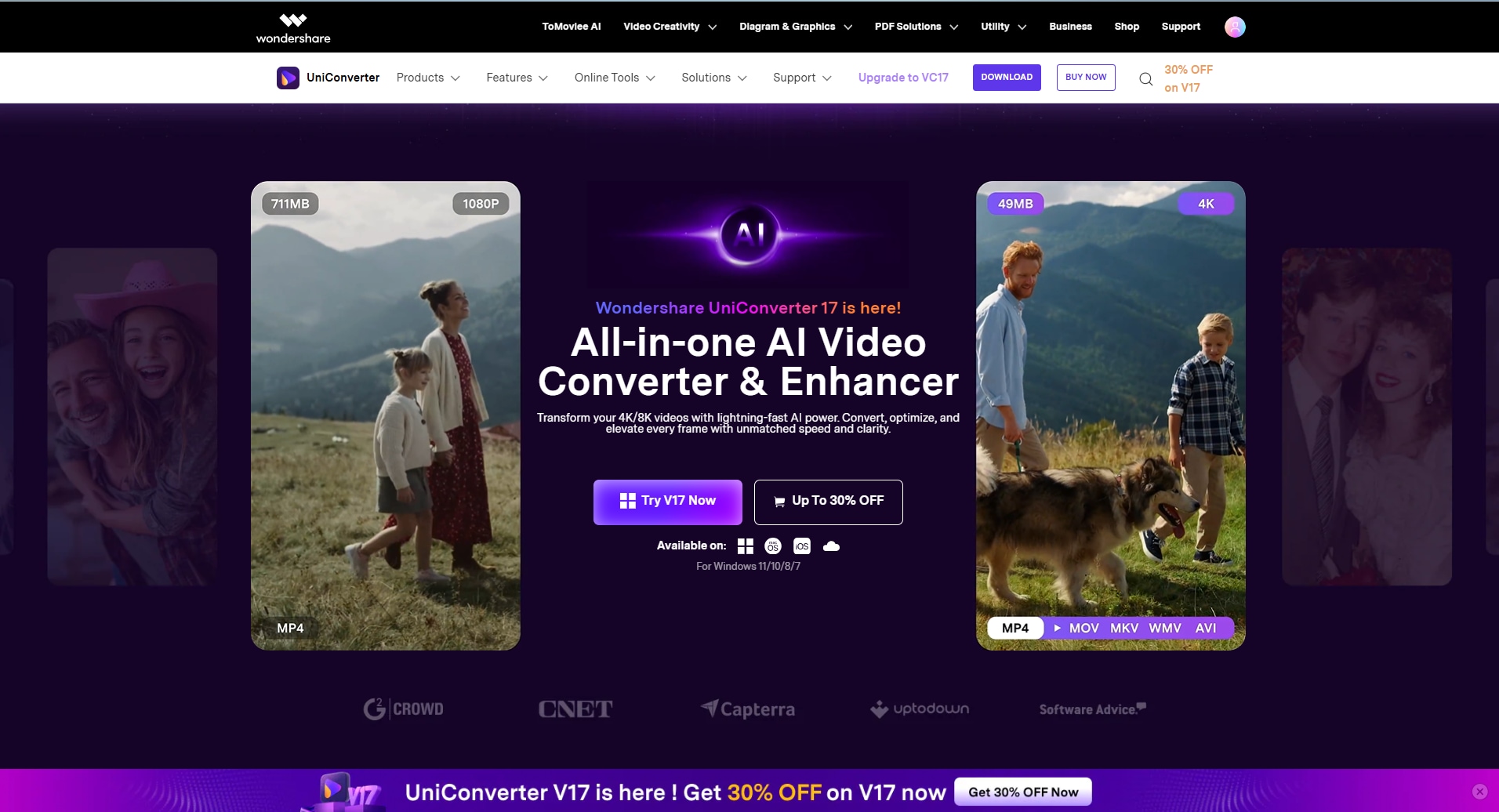
Besides the YouTube note-taking feature, this tool also offers other advanced features like Screen Recorder, Subtitle Editor, Video Enhancer, and much more. The foremost feature of this tool is that it generates results with a 95% accuracy rate.
Best For: Users who want an all-in-one solution for automatically generating, extracting, and exporting subtitles.
Detailed Expert Guide to Know How to Use Uniconverter to Take Notes
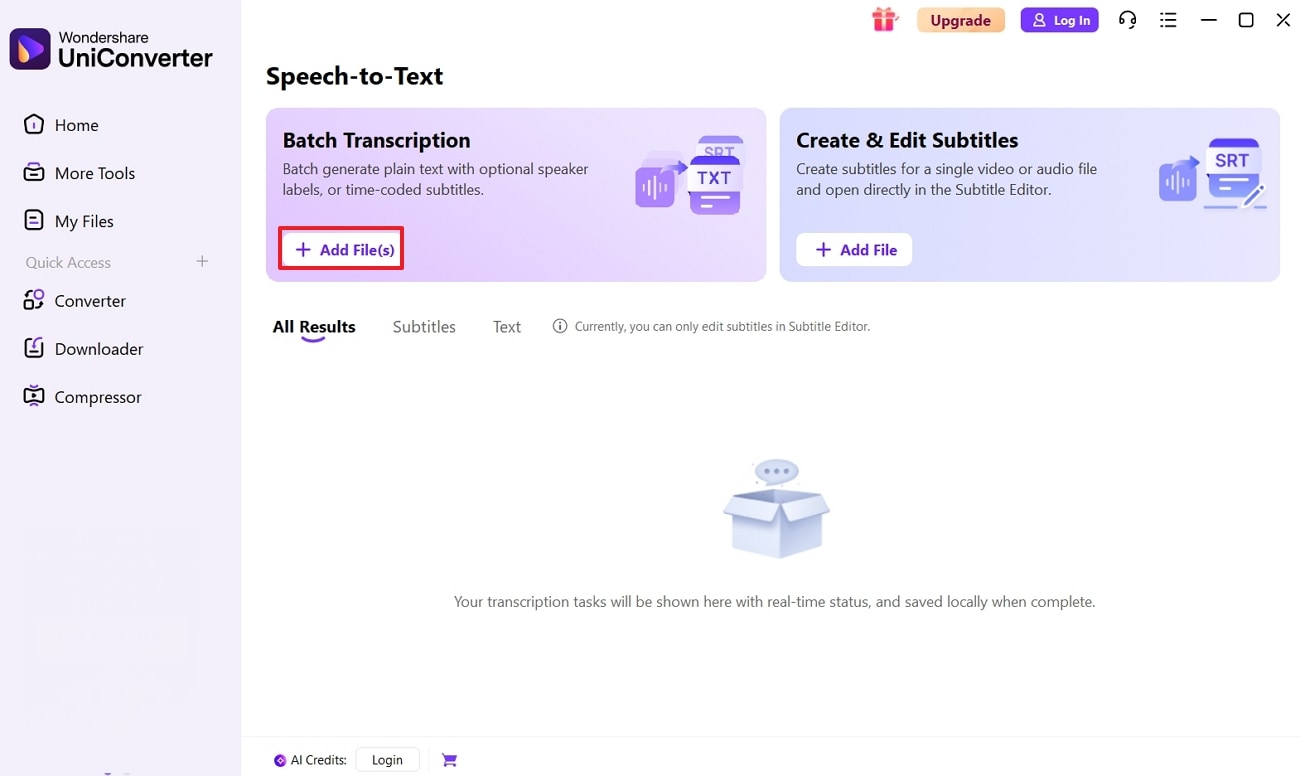
Step 1. Launch the Tool and Select the Speech to Text Feature
Initiate by launching UniConverter and choose the “Speech-to-Text” feature to enter the editing interface.

Step 2. Insert the Desired Video into the Editing Interface
Add your desired video by clicking “Add or Drag Audio/Video File To Start” or drag and drop it from your device folder.
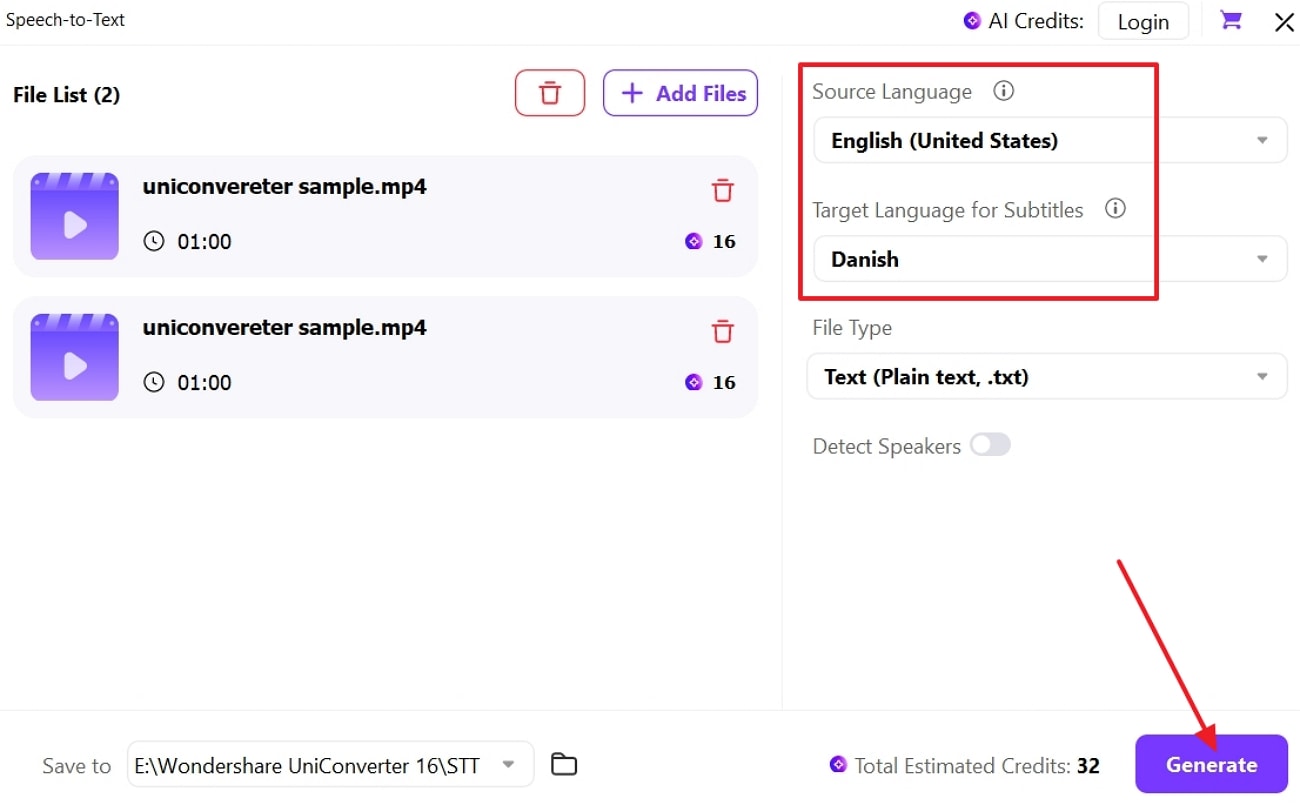
Step 3. Here, choose the desired language for transcription, and hit the “Export” button. Here you can add as much many videos as to access its batch processing system.
Part 4. Method 3: All-in-One AI Video Note-Taking Web Tool (Most Available)
Besides built-in tools, if you want an online solution, Notta.ai is one of the best web options. While offering transcription facilities, Notta is integrated with variety of other workflow enhancement functions. Users can easily select the desired language for the video by choosing from the available menu. With speaker identification options, you can summarize content and collaborate with other users directly.
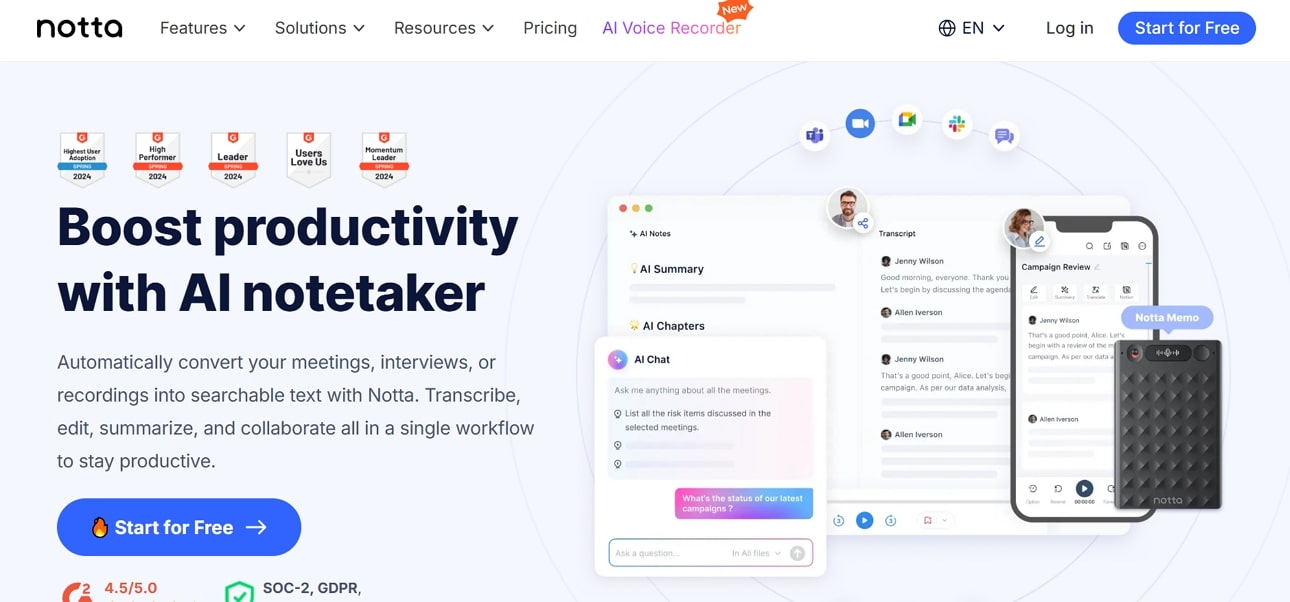
Best For: Automatically transcribing, summarizing, and translating meetings with high accuracy for multilingual individuals
Expert Guide to Use Notta for Transcribing Videos
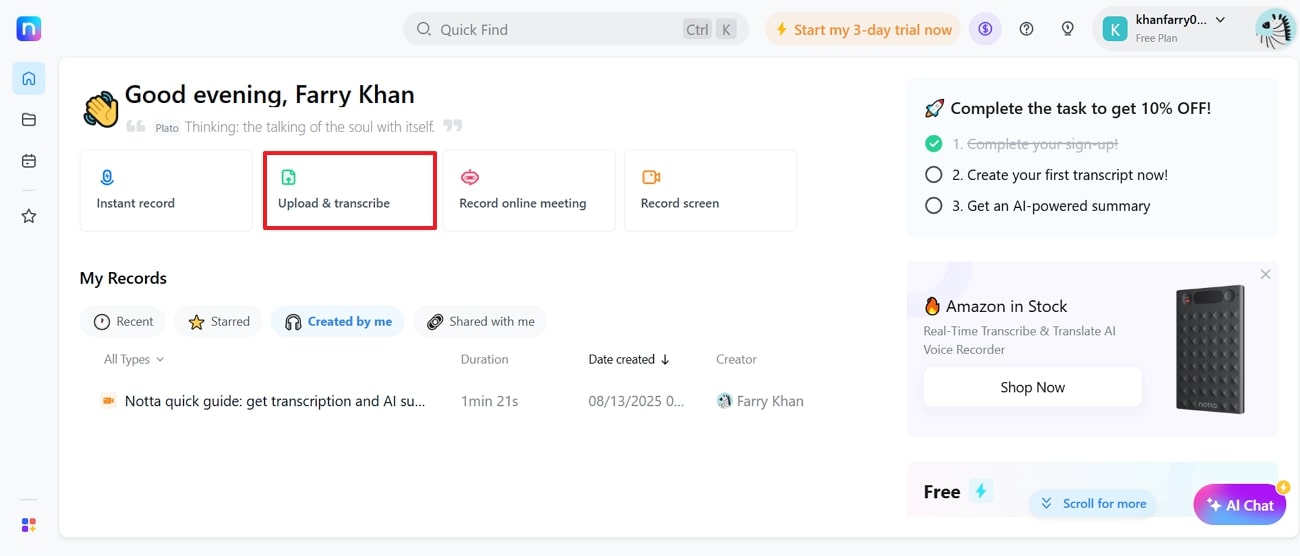
Step 1. As you access Notta, click on the “Upload & Transcribe” option to start its YouTube transcript summarizer.
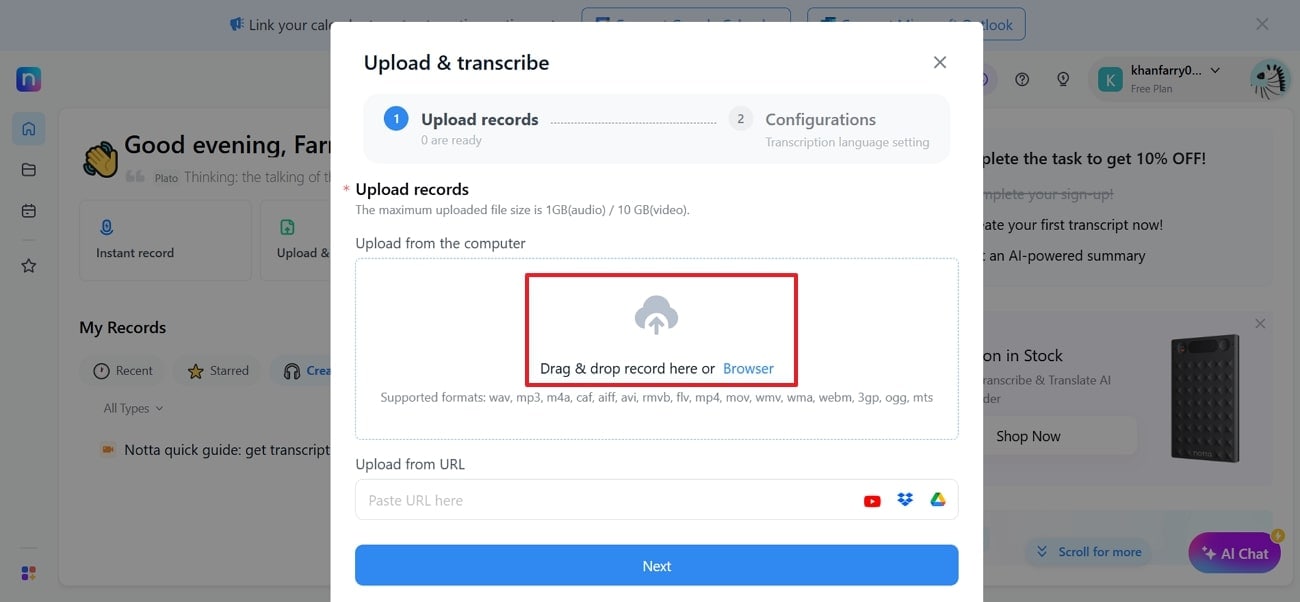
Step 2. Here, add the video file by clicking on the “Drag & Drop Record Here or Browser” button.
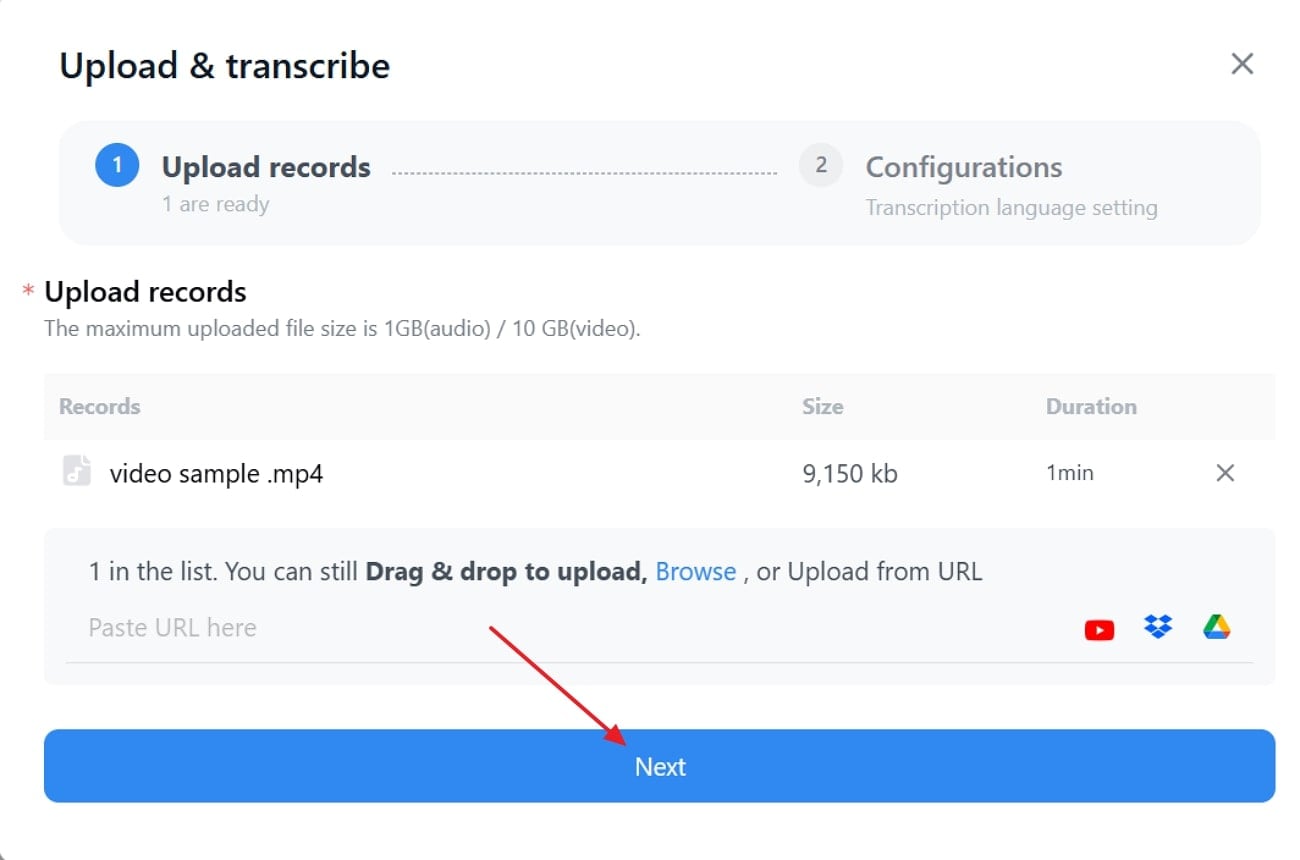
Step 3. After uploading the file, click on the “Next” button to get to the next interface.
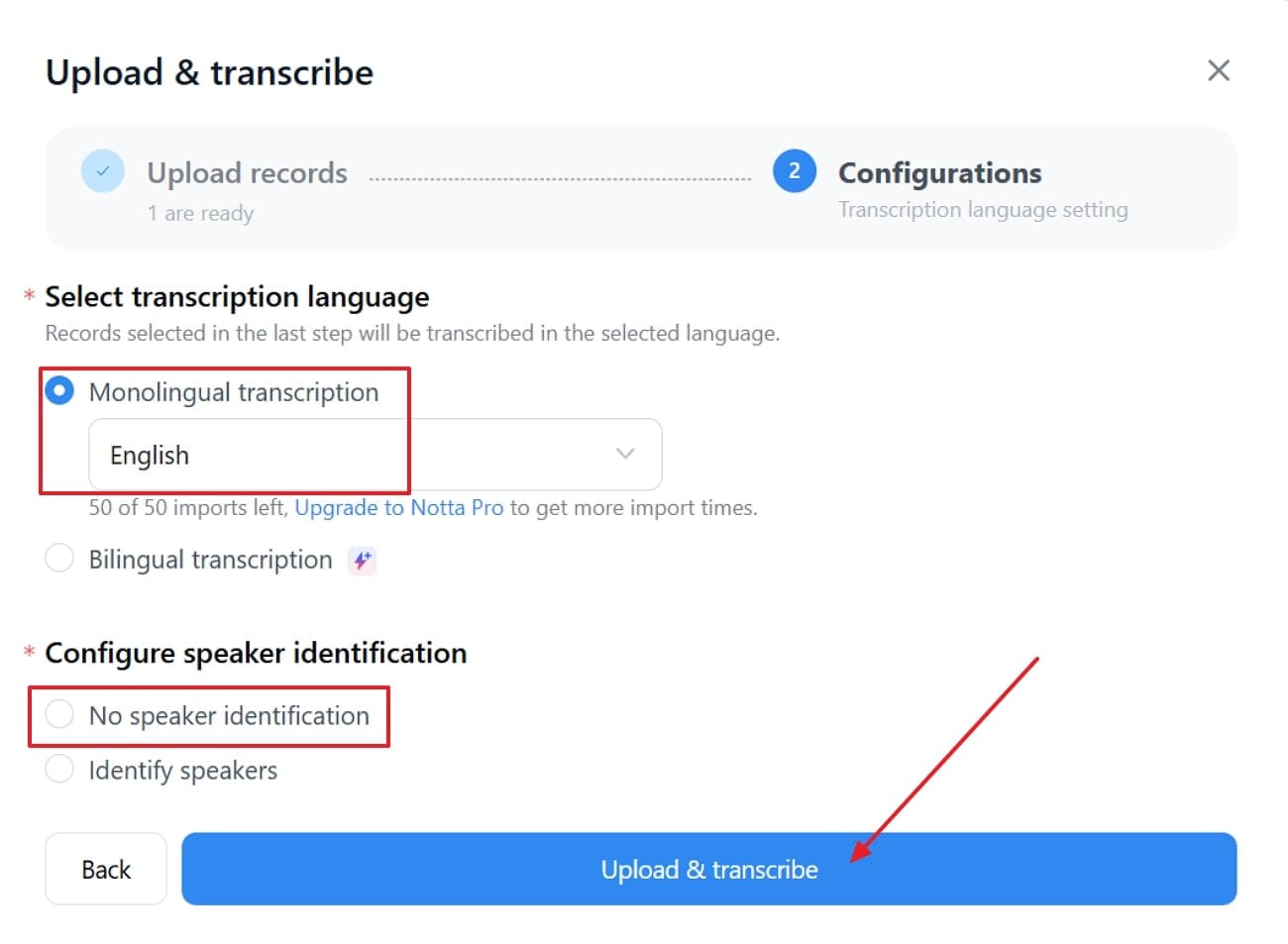
Step 4. Here, choose the “Target language”, “Configure Speaker” settings, and click on the “Upload and Transcribe button” to start the transcribing process.
Part 5. Method 4: Note-Taking Extensions (Most Convenient)
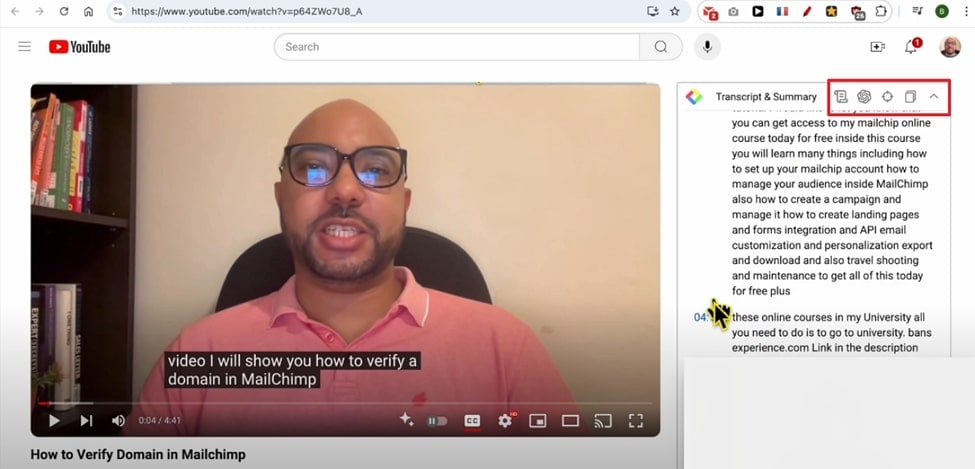
With the evolution of AI, everyone can take instant notes using extensions like YouTube Summary with Chat GPT & Claude. You simply need to turn on this extension and run your YouTube videos, and it will provide real-time notes side-by-side. After providing a summary, you can further edit it by accessing its provided features, including AI chat. This video note-taker extension supports exporting SRT, VTT, and other standard text formats.
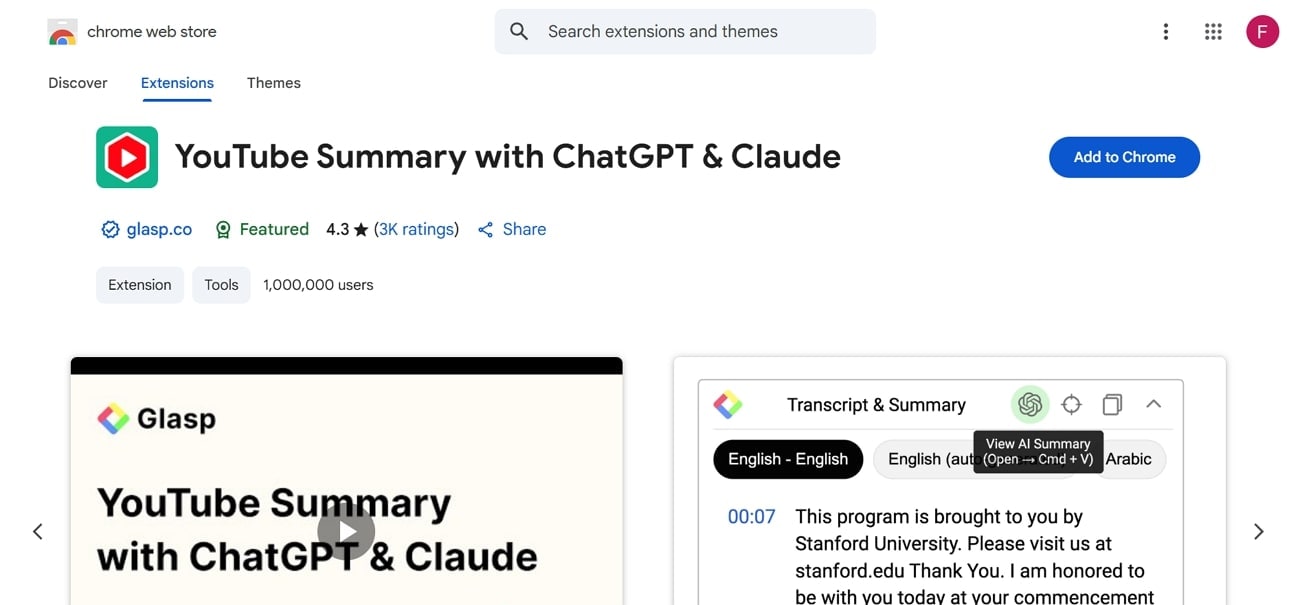
Best For: Quickly transcribing YouTube videos and web articles to save time and boost productivity.
Detailed Stepwise Guide to Use the Note-Taking Extension
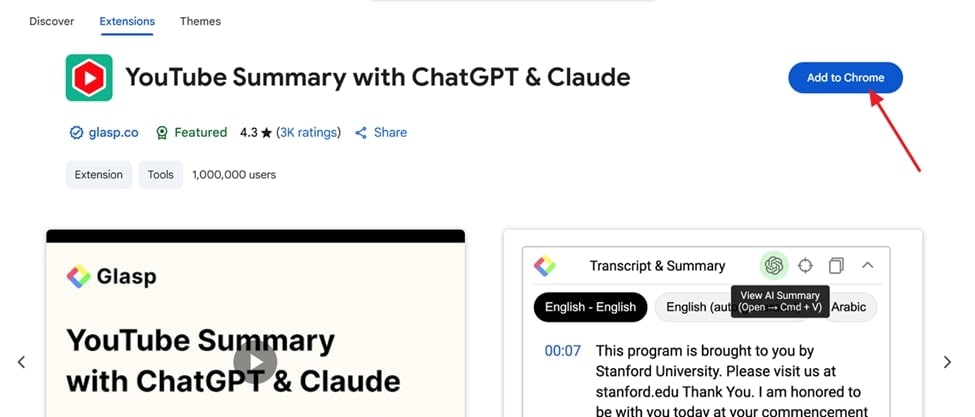
Step 1. First, open Google Chrome, search for “YouTube Summary with Chat GPT & Claude,” and click the “Add to Chrome" button.
Step 2. Here start the YouTube video of which you want to take notes; it will instantly start showing the transcribed text, which you can copy and use later.
Part 6. Method 5: Video to Note-Taking Mobile App
Besides web-based tools, you can also opt for mobile applications to instantly take notes sitting anywhere. Among numerous apps, consider using Slid: Video AI note-taking app, which lets you transcribe your long videos instantly. There are no restrictions on the number of notes or storage space, and it provides fast search functionality for both notes and folders.
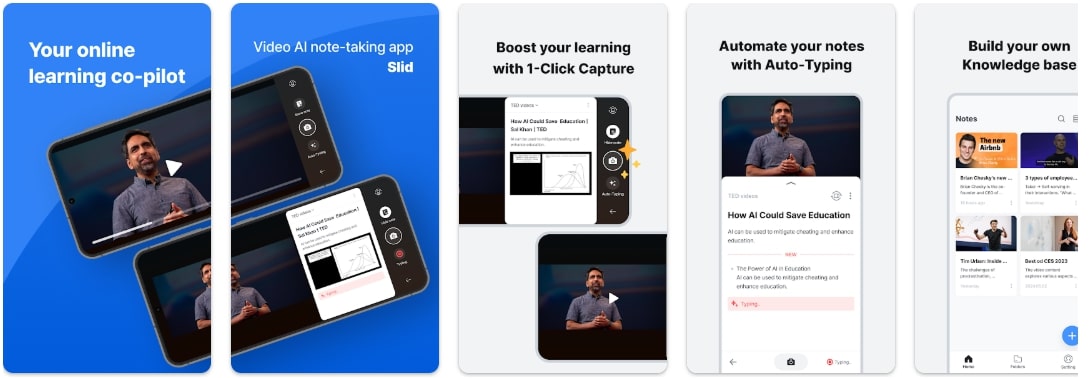
Best for: Capturing and organizing key points from videos into searchable notes across smartphones.
Expert Guide to Using the Slid Mobile App to Take Notes
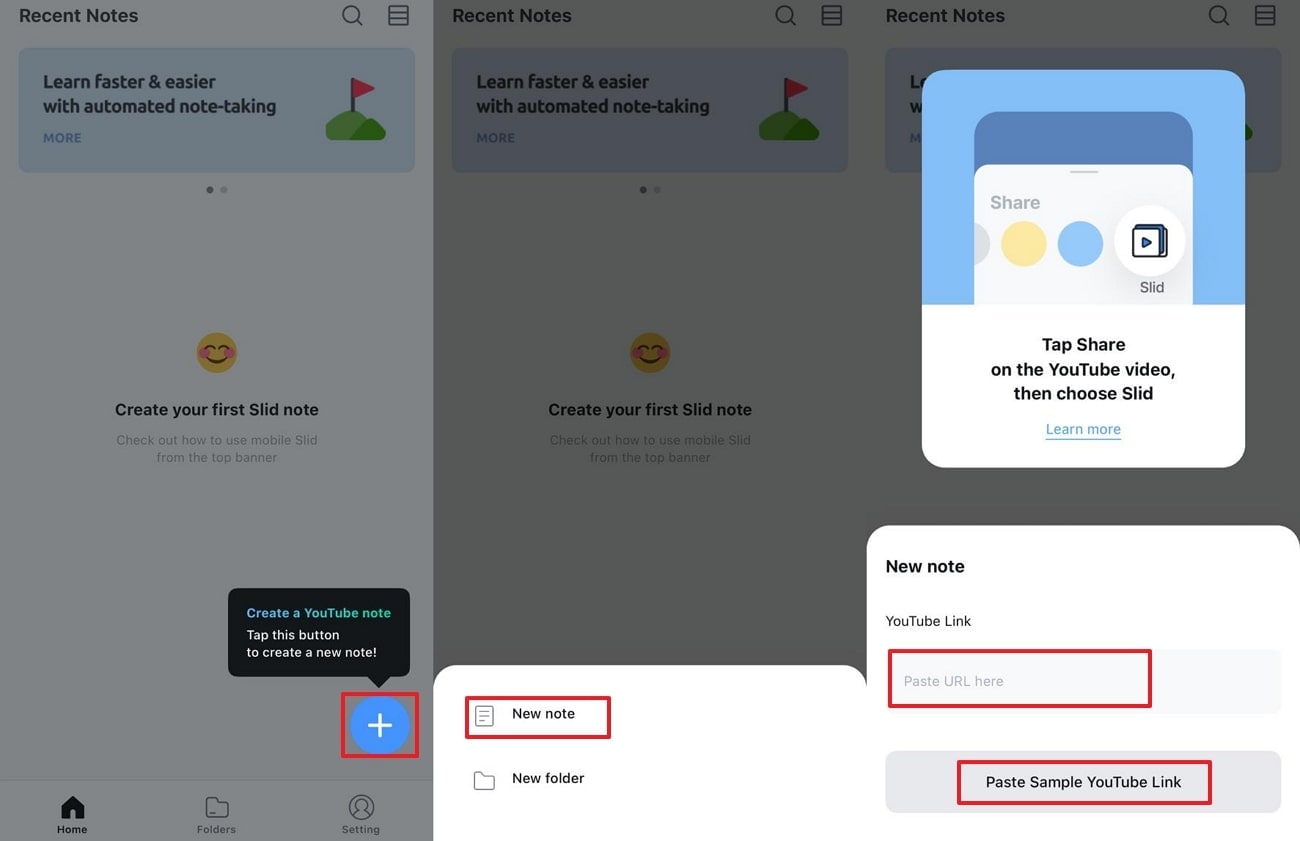
Step 1. Initiate by accessing the app and clicking on the “+” icon available at the bottom right of the screen. Afterwards, select the “New Note” option, add your “YouTube Video" link, and hit the “Create” button.
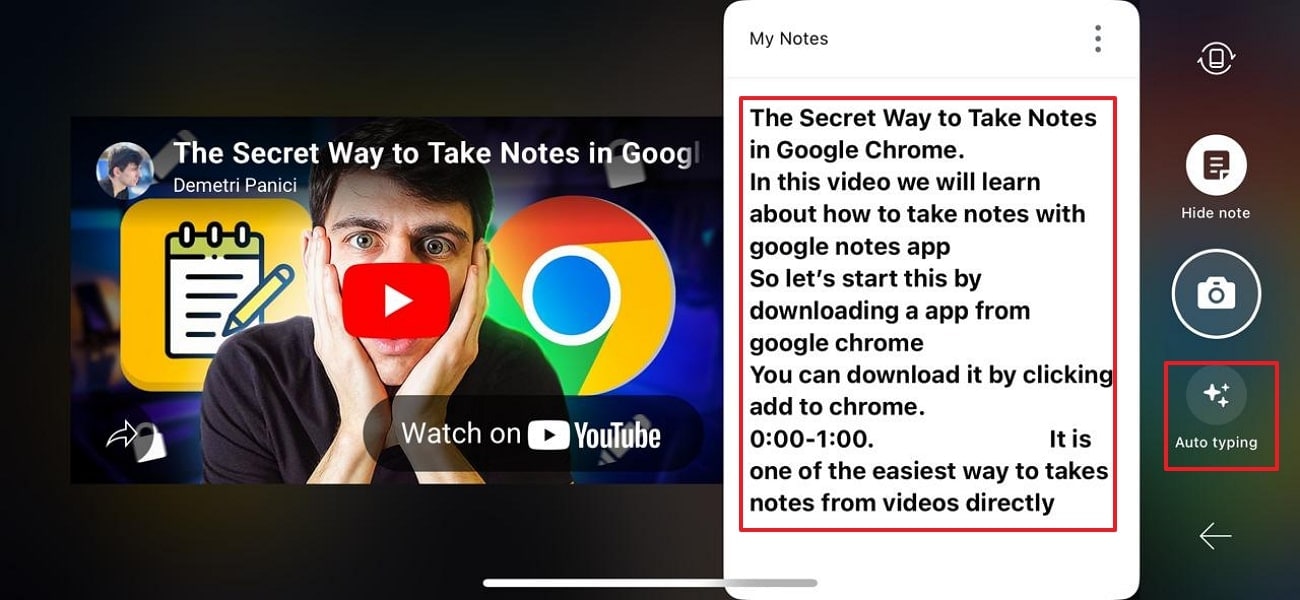
Step 2. Your YouTube video is transcribed, which you can copy or make further edits, such as “Hide Notes.”
Part 7. Detailed Comparison Table of 5 Methods to Convert Videos to Notes
After exploring the efficient methods to transform video to notes, we have provided a detailed breakdown of the given methods:
| Features | OneNote (Windows built-in) | Notes (Mac built-in) | UniConverter (Batch AI Tool) | Notta.ai (Web all-in-one tool) | YouTube Summary with ChatGPT & Claude (Extension) | Slid: Video AI note-taking app (Mobile |
| Platform | Windows | Mac | Win/Mac | Web | Chrome Extension | Mobile (Android/iOS) |
| Format Support | MP4, MOV, WMV, AVI, WAV, MP3 | MP4, MOV, MP3 | MP4, MOV, AVI, MKV, JPG, MP3, and more. | MP4, MOV, AVI, Online YouTube Videos | Online YouTube Videos | MP4 |
| File Size Limitations | 50MB per attachment | 5-10MB per note | No limit | No clear limit | No clear limit | No limit |
| Batch Processing | No | No | Yes | Yes | No | No |
| Export and sharing | Export notes to PDF, Word, web; share/collab via link | Copy transcripts | Export converted files; share via cloud/email | Export notes/transcripts to TXT, Word, PDF, SRT | Copy transcripts; export summaries | Export notes/screenshots to PDF; share notes |
| Device Sync | Yes, via OneDrive; multi-user collab | Yes, via iCloud; real-time collab | Files sync by user, not real-time collaboration | Yes, with team collaboration | Not real-time, but shareable output | Sync across mobile/PC/tablet |
| Privacy/Encryption | Microsoft cloud, encrypted, selective sharing | Apple cloud encryption, privacy controls | Private video download, account-based; privacy options | Cloud encryption; GDPR/data privacy | Data not sold, privacy controls | Data encrypted in transit, no sharing |
| Integration Options | Integrates with Office, OneDrive | iCloud, Mail, Messages | Connects to social, cloud storage | Integrates with Notion, Drive, Dropbox | Works with ChatGPT, Claude AI, and Gemini | Syncs with PC/tablet; PDF export |
Video to Note Transcriber
Conclusion
Summing up, with the evolution of AI, it has become way easier to transform video to notes. In this article, we have narrowed down the most efficient methods, including built-in tools and other apps, to make your work easier. Furthermore, if you want to access batch processing, then we recommend using UniConverter, which lets you transcribe all videos simultaneously.
FAQs
-
1. What file formats do these tools support?
Most tools accept MP4, MOV, AVI, and sometimes direct YouTube/Vimeo URLs. However, some of them handle audio formats (MP3, WAV, M4A) and images for OCR-powered transcription. -
2. Are free video-to-note tools really free?
Yes, there are numerous video notebook tools that are available, which are free to use, like UniConverter. However, before choosing one, always ensure that the tool is paid or free. -
3. Which method is the most efficient for batch processing?
If you want to access batch processing for video transcriptions, then we recommend using Wondershare UniConverter. This tool provides a built-in Speech-to-Text converter by choosing the desired language for notes. -
4. Are these methods safe and private to use?
Yes, most of the methods are secure and use cloud encryption for privacy. However, extensions and apps clarify their privacy practices; always review before storing sensitive information.

