


Blurry old clips, low-resolution memories, and noisy smartphone footage can instantly lose their emotional impact. That’s where tools like Remini step in. Originally known for restoring vintage photos, Remini has expanded into AI-powered video enhancement, promising sharper details, improved clarity, and even facial refinement with just a few taps. Many users may be looking for Remini for PC, but does it really deliver professional-level results on PC, or is it better suited for casual users?
In this guide, we’ll break down everything you need to know about Remini Video Enhancer — from its core features and real-world performance to its pros, cons, pricing plans, and best alternatives. This comprehensive overview will help you decide if Remini is the right tool for your video enhancement needs.
In this article
Part 1: What Is Remini Video Enhancer?
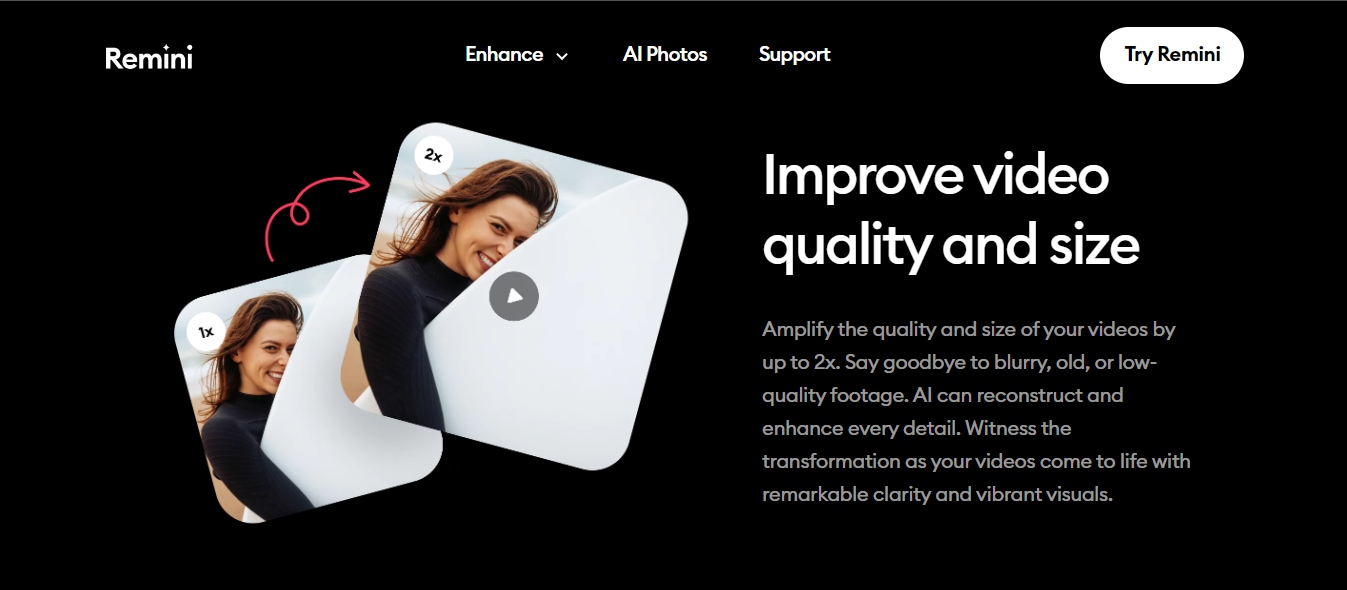
Remini Video Enhancer is an AI-powered online tool that’s designed to improve the quality of low-resolution, blurry, or noisy videos.
Unlike basid editing apps that rely on filters, this tool uses machine learning models trained on a large data set to upscale and refine video footage by enhancing facial details, sharpening edges, reducing grain, and improving overall clarity.
Also, Remini Video Enhancer is not limited to just videos. It also supports a low-quality enhancer, a background enhancer, and a face enhancer. The low-quality enhancer enables you to enhance the quality of low-quality videos, while the background enhancer allows you to improve the quality of your video background, and the face enhancer enables you to improve the appearance and clarity of faces in videos.
Supported Platforms: Android, iOS, Web
Key Features of Remini Video Enhancer
AI Video Upscaling
Remini uses advanced AI models to upscale low-resolution videos. This helps you to restore low-quality videos, delivering more visually appealing content.
Facial Enhancement Technology
The platform places special focus on faces, identifying and enhancing key features such as eyes, skin texture, and contours. This results in more defined and natural-looking faces, which is especially valuable for portrait videos, interviews, and social media content.
Noise and Grain Reduction
Remini also reduces digital noise and grain commonly found in low-light or heavily compressed footage. This makes your video look smoother and more polished.
Frame-by-Frame Processing
Each frame is analyzed individually to maintain consistency across motion scenes. This ensures that enhancements look stable and natural throughout the entire video rather than appearing uneven or flickering.
Cloud-Based Processing
Most enhancements done on Remini Video Enhancer are processed through cloud servers. This allows for more advanced AI computations and higher-quality results without demanding high device performance.
Pricing of Remini Video Enhancer
Remini offers various plans,
| Plans | Pricing (USD) | Key Features |
| Free | $0 | Enhance photos and videos, and allow exportation with a watermark. |
| Personal | $6.99/week$17.99/month$179.99/year | Enhance up to 20 photos/weekAll AI models availableOutput image format: JPG onlyIndividual video limits: 60s/60MBCumulative video limits per week: 240s/240MBVideo enhanceDownload without watermark |
| Business | $9.99/week$24.99/month$249.99/year | Unlimited photo enhancementsOutput image format: JPG, PNG, TIFFIndividual video limits: 120s/120MBCumulative video limits per week: 480s/480MBVideo enhanceNo watermarkBulk uploadCommercial use allowedPhotoshop Plugin |
Weekly vs monthly pricing
If you’ve already reviewed the pricing table, the main difference between the weekly and monthly plans comes down to cost efficiency and usage frequency.
The weekly plan is ideal for short-term needs. If you only need to enhance a few videos - for example, restoring old clips or preparing content for a specific project- a weekly subscription gives you full access without a long commitment. However, the monthly plan, on the other hand, offers better overall value if you enhance videos regularly. Content creators, social media managers, and frequent users will typically save more using the monthly pricing compared to paying week by week.
Part 2: How to Use Remini Video Enhancer (Step-by-Step Guide)
You can use Remini Video Enhancer to improve your video quality in just a few clicks. Here are the steps;
Steps on Mobile
Step 1: Install and Log in Remini Video Enhancer
Install and run the “Remini Video Enhancer” on your Android or iOS device. Log in to your Remini account or register for a new account if you don’t have one.

Step 2: Upload the Video
Upload the video you want to enhance from your smartphone's local files. You can also import videofrom your social media account.
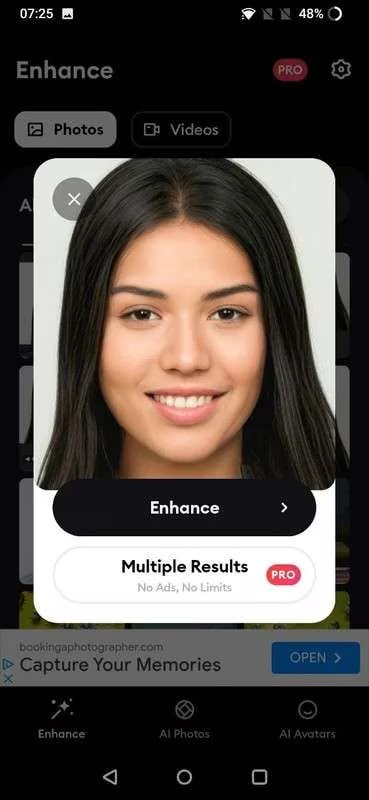
Step 3: Enhance and Preview the Video
Once you upload the video, press “Enhance” and let the tool start upscaling it the clip.
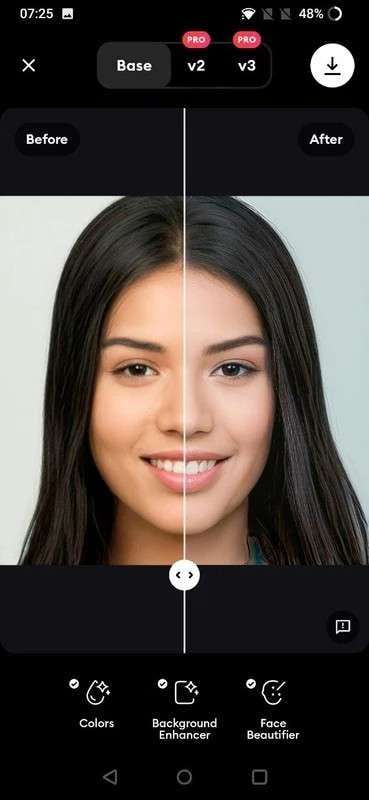
After that, you can preview the video, make other necessary changes, and press “Download” to save the file.
Steps on Web
Step 1: Open Remini Video Enhancer
Open the “Remini Video Enhancer” web tool in your browser and click on “Choose File” to upload the video you want to enhance.
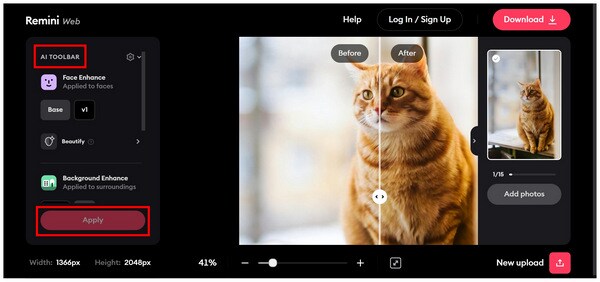
Step 2: Apply Video Enhancement
Once you upload the media file, click on the “AI Toolbar” and select how you want to enhance the video/image, then click on “Apply” to confirm the adjustment.
Step 3: Click to Download
Finally, click on the “Download” button at the top-right corner to save the enhanced video/image file.
Supported Formats: JPG, PNG, TIFF, MP4, MOV.
Part 3: Remini Mobile App Vs. Web Tool
| Feature / Aspect | Remini Mobile App | Remini Web Tool |
| Platform | Android & iOS devices | Web browser (desktop/laptop) |
| User Interface | Touch-optimized, streamlined app experience | Browser-based layout with more screen space |
| Convenience | Great for quick edits on the go | Better for desktop workflows and larger files |
| File Upload | Direct access to phone gallery and camera roll | Upload from local drives or cloud storage |
| Processing | Cloud-based AI enhancement via app | Cloud-based AI enhancement via browser |
| Output Control | Simple and quick with limited settings | Easier to review results with larger displays |
| Best For | Casual users, social content creators | Users working with longer videos or desktop editing |
Part 4. Remini Video Enhancer Pros and Cons
Now that we've explored Remini's impressive feature set, it's essential to look beyond the glossy filters. While these tools can magically resurrect old memories, the real question is how they hold up in daily use. Let's weigh the standout benefits against the potential drawbacks.
Pros
High-Quality AI Enhancement
The tool uses advanced AI algorithms to improve video resolution and clarity, producing results that often outperform basic filters and traditional editing techniques.
Strong Facial Detail Refinement
Remini excels at enhancing faces, making subjects look sharper and more defined — a major benefit for portrait footage and social content.
Noise and Artifact Reduction
It effectively reduces visual noise, grain, and compression artifacts, resulting in smoother, cleaner videos.
Cross-Platform Availability
Available on both Android and iOS, with some web access depending on subscription, so users can edit on multiple devices.
User-Friendly Interface
The enhancement process is largely automated and easy to use, even for beginners without technical editing skills.
Cons
Subscription-Based Model
All the features are available only with a paid subscription. However, even though you pay, the video limit is 60 seconds, and the file size is capped at 60 MB.
Processing Time and Limits
Cloud processing can take time, especially for longer videos, and there may be daily or weekly limits on how much you can enhance.
Dependence on Internet Connection
Remini Video Enhancer processes enhancement in the cloud, so you need a stable internet connection to enhance your videos with the tool.
Part 5: Best Remini Video Enhancer Alternative for PC
Finding a reliable alternative to Remini Video Enhancer for PC users can be quite challenging due to the numerous tools available online. However, after reviewing various video-enhancing software, Wondershare UniConverter All-in-one AI Video Enhancer is one option that stands out.
UniConverter is a powerful video enhancement tool that combines AI upscaling with a complete set of video editing and conversion features. Unlike Remini, it provides greater control, faster processing with hardware acceleration, and support for high-resolution output, including 4K and beyond.
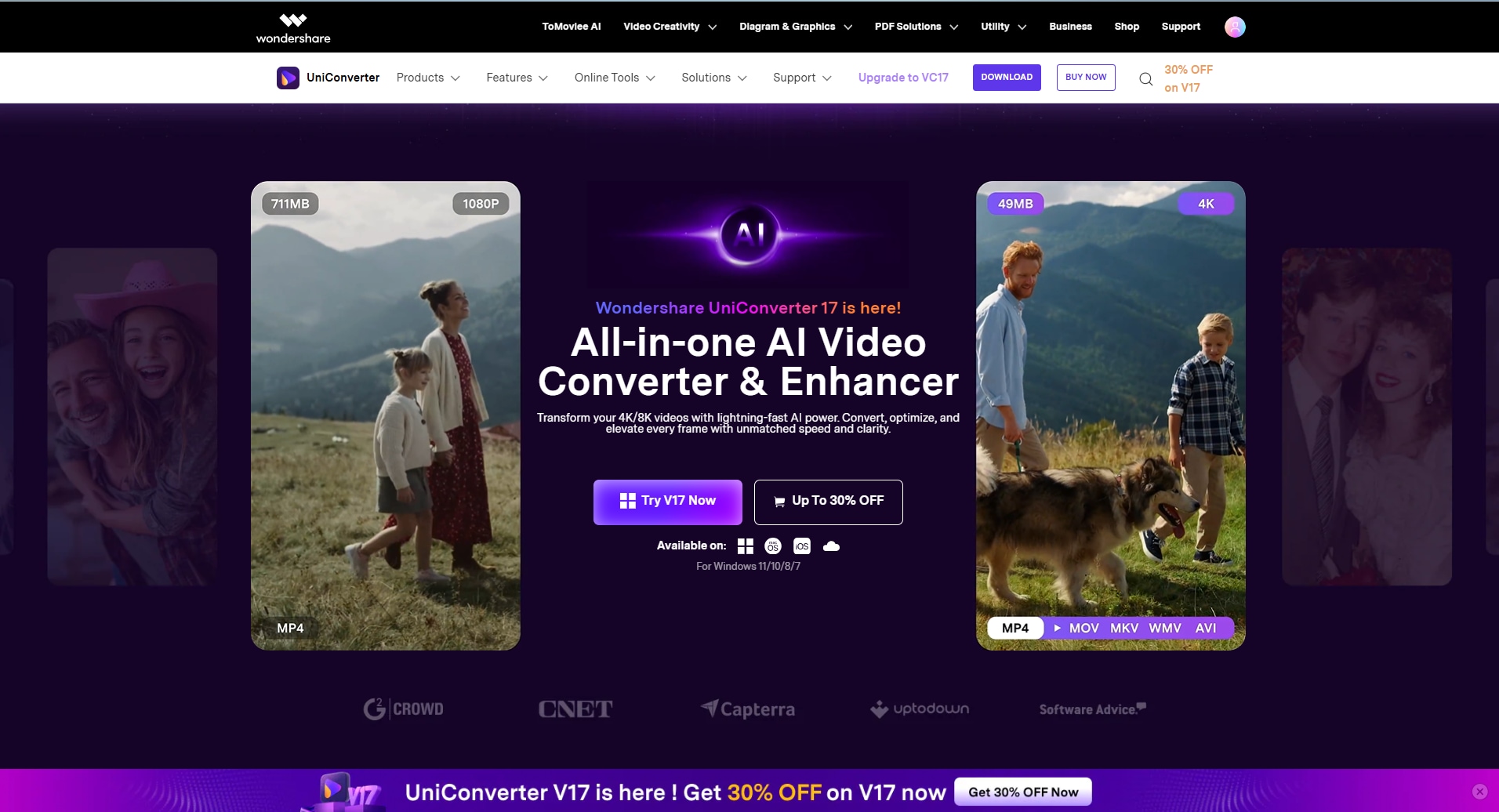
This Remini Video Enhancer alternative for PC offers various AI models, including Quality Restoration, Anime Enhancement, Face Enhancement, and more, which allow you to enhance the quality of your videos based on your requirements. It also offers a free online video enhancer without watermark which need no installation or logging in.
Also, UniConverter boasts many essential tools such as batch video processing, format conversion, compression, and basic editing. This enables you to enhance and edit your videos on one platform without stress.
Key Features
AI Video Enhancement: Uses artificial intelligence to upscale resolution, sharpen details, and reduce noise in video footage, delivering significant quality improvement.
Hardware-Accelerated Processing: Supports GPU acceleration to speed up rendering and enhancement, making it 90x faster than many cloud-based tools for large or high-resolution videos.
All-in-One Video Toolkit: Offers a suite of video utilities, including format conversion, compression, trimming, and batch processing, which enables you to enhance and edit your videos on one platform.
4K and High-Resolution Support: Allows you to export enhanced videos in 4K and other high resolutions, making it suitable for modern displays and professional projects.
How to use UniConverter Video Enhancer
Step 1: Lauch UniConverter
Run the “Wondershare UniConverter” software on your computer and select the “Video Enhancer” tool.
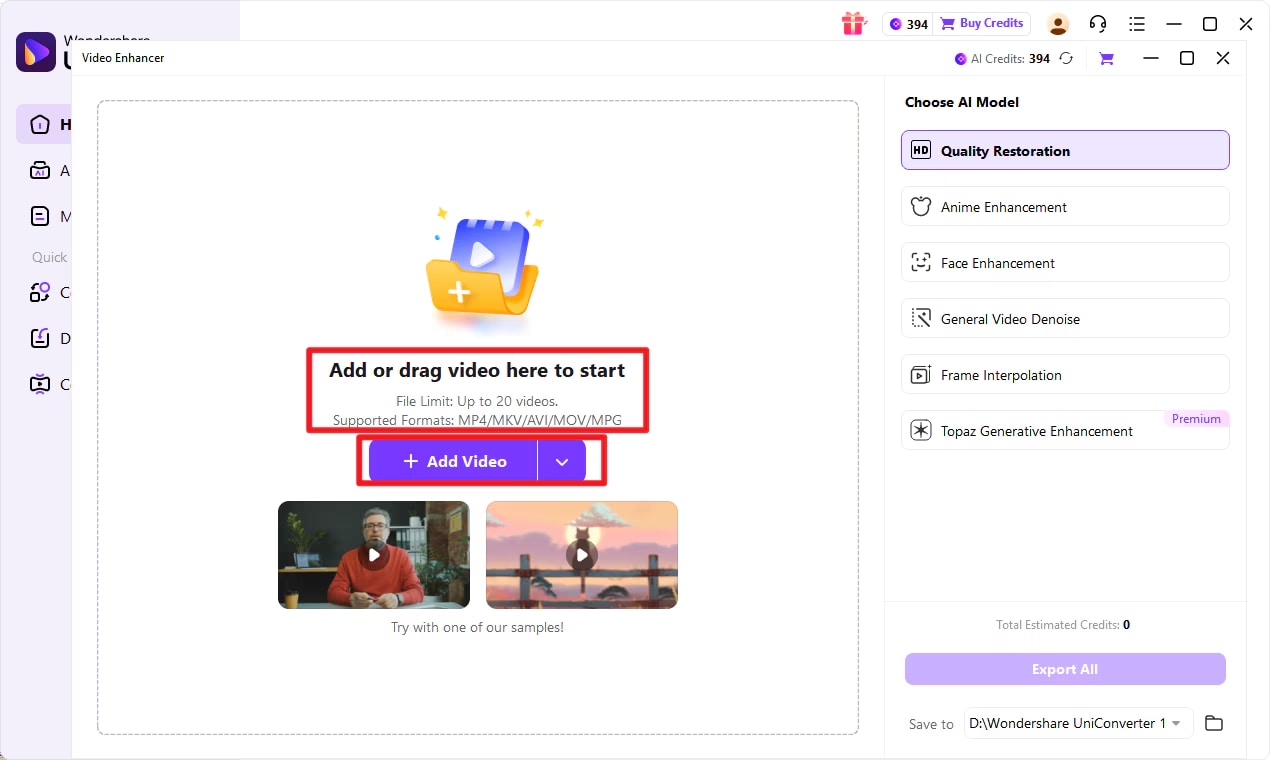
Step 2: Upload Files
Add the files you want to enhance by clicking the “Add Video” button. Or you can just drag and drop the files to the software interface.
Step 3: Select the AI Model
Next, you need to select the AI model you want to use for the video quality enhancement. UniConverter’s AI video enhancer offers six AI models, including;
- Quality Restoration: This model allows you to enhance the overall quality of your video in a single click.
- Anime Enhancement: This can be used to add more vivid color and sharper lines in old anime clips.
- Face Enhancement: This can be used to make the faces in your videos look brighter by smoothing wrinkles and scratches on the skin.
- General Video Denoise: This AI is ideal for videos captured in low light. It helps to reduce visual noise (grainy appearance in the video).
- Frame Interpolation: Use this model to increase your video frame rate to make motions in the video smoother.
- Topaz Generative Enhancement: This model offers a more professional enhancement effect by integrating with the Topaz video enhancer API.
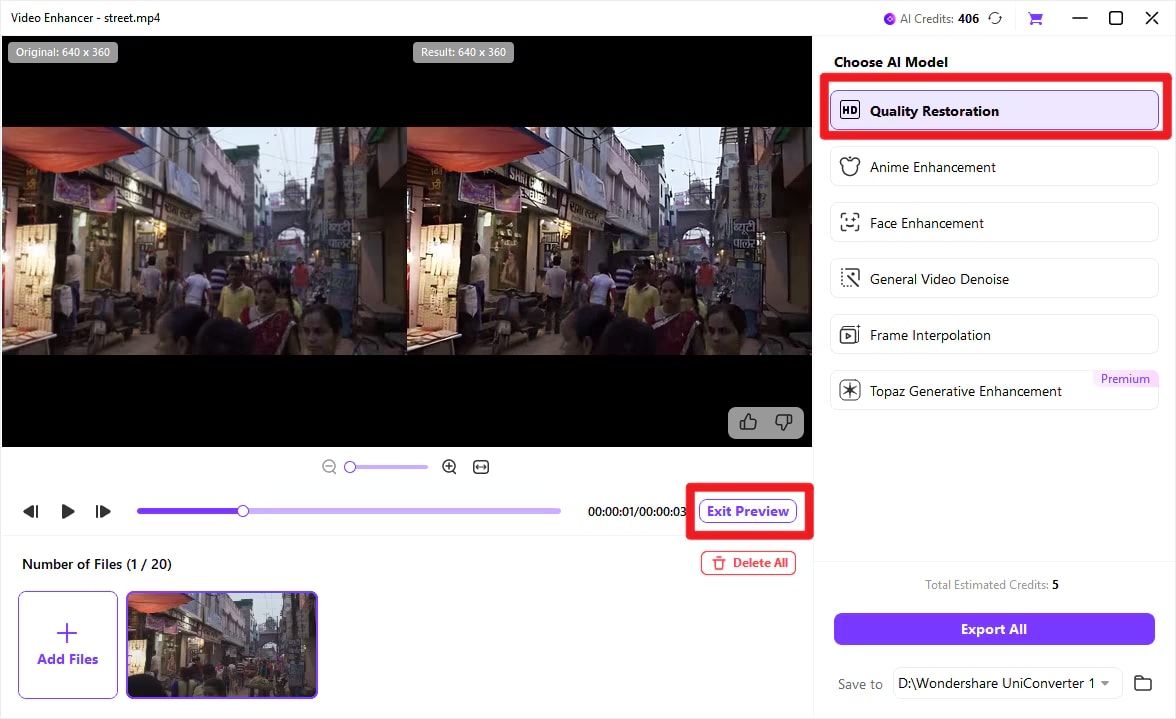
Step 4: Once you choose the AI model for the process, UniConverter will start enhancing your video quality.
Finally, click on the “Export” button to save the enhanced video locally.

Remini Video Enhancer Alternative for PC
Part 6: Remini Video Enhancer vs Other AI Video Enhancers
| Feature / Tool | Remini Video Enhancer | Wondershare UniConverter | Topaz Video AI | CapCut AI Enhancer | HitPaw Video Enhancer | Canva Video Enhancer |
| Quality Improvement | Good, especially for faces and portraits | Moderate, general upscaling | Excellent, professional-grade detail recovery | Good for social media clips | Good, multiple AI models | Basic, max ~1080p |
| Ease of Use | Very simple, mobile-focused | Simple, integrated in the suite | Moderate, requires some learning | Very user-friendly | Beginner-friendly | Extremely easy, drag-and-drop |
| Processing Speed | Cloud-based, can be slow for long videos | Fast with hardware acceleration | Slower unless a high-end GPU | Fast, server-based | Moderate, depends on hardware | Fast, cloud-based |
| Pricing | Subscription-based, affordable | Subscription/perpetual, cost-effective | Higher cost, one-time or subscription | Freemium with paid upgrades | Subscription/yearly plan | Freemium, full access requires a subscription |
Conclusion
There you have it! Remini Video Enhancer is an excellent tool for newbies looking to enhance videos with basic editing skills. Although there is no official solution of Remini for PC, Wondershare UniConverter offers a reliable AI video enhancer that you can use to enhance videos with the best quality. Moreover, it has a powerful video editing toolkit that you can use for advanced video editing after you enhance your videos.
FAQs
-
1. Is Remini Video Enhancer free?
Remini offers a free tier, but advanced video enhancement features and higher-resolution exports are typically available only on paid plans. The free version is mainly suitable for testing basic functionality. -
2. Does Remini really improve video quality?
Yes. Remini can enhance resolution, reduce noise, and sharpen details, particularly for faces and portraits. However, results depend on the original video quality, and extremely low-resolution or heavily compressed footage may still show limitations. -
3. Can Remini upscale to 4K?
Remini can upscale videos beyond their original resolution, but availability of 4K output may vary depending on the subscription plan and platform. Higher resolutions are generally offered on paid tiers. -
4. Is Remini better than Topaz?
Not necessarily. Remini is well suited for fast, mobile-friendly enhancements and face-focused improvements, while Topaz Video AI typically provides more advanced upscaling and detail refinement for professional or cinematic projects. The best choice depends on your workflow and quality requirements. -
5. Does Remini leave a watermark?
Free plans and certain lower-tier subscriptions may add a watermark to exported videos. Removing the watermark generally requires upgrading to a paid plan.

