

VSCO is a popular photo and video editing application known for its high-quality, film-inspired, minimalist presets. Creators use these tools to edit their work and build a stunning, professional portfolio. You can view the creations, but VSCO doesn’t offer a native download option for offline viewing and sharing. This is where the third-party VSCO downloaders become useful.
This guide walks you through the best VSCO downloaders available online, on desktop, and on smartphones. Use them to download stunning VSCO images, videos, or an entire gallery.

Best VSCO Image Enhancer & Editor
In this article
Part 1. What is a VSCO downloader and what can it do?
A VSCO downloader is a tool that lets you download photos and videos from publicly available VSCO profiles by extracting media links and saving them to your device. It works through web tools, mobile apps, browser extensions, or desktop software.
How does a VSCO downloader work?
VSCO downloaders typically fetch media (photos or videos) that users have publicly shared and make them downloadable. These let you either save images or videos by pasting the post link or download an entire creator profile or their collections.
Most VSCO downloaders work directly in your browser, so you can extract media on Windows, Mac, Android, or any device without installing or logging in. However, most of these are filled with ads and show errors while parsing the images or videos.
While app-based VSCO downloaders offer a dependable method for downloading media, they may require some time to adjust to their interface.
Why do people use VSCO downloaders?
The lack of a native download option is the main reason users turn to a VSCO downloader. Many people save VSCO photos and videos to study editing styles, get creative inspiration, or keep copies for personal projects. Others use VSCO downloader tools to archive content that may be deleted later or to build organized collections for future reference.
Part 2. Which VSCO downloader tools work best on web, mobile, and browser?
Quick Guide: Best VSCO Downloader by Use Case
Online VSCO Image Downloader Tools
VSCO Downloader and Experts Tool Downloader are reliable online tools to download VSCO photos and videos. Here’s what each has to offer:
1. Experts Tool
Site: https://www.expertstool.com/vsco-downloader/
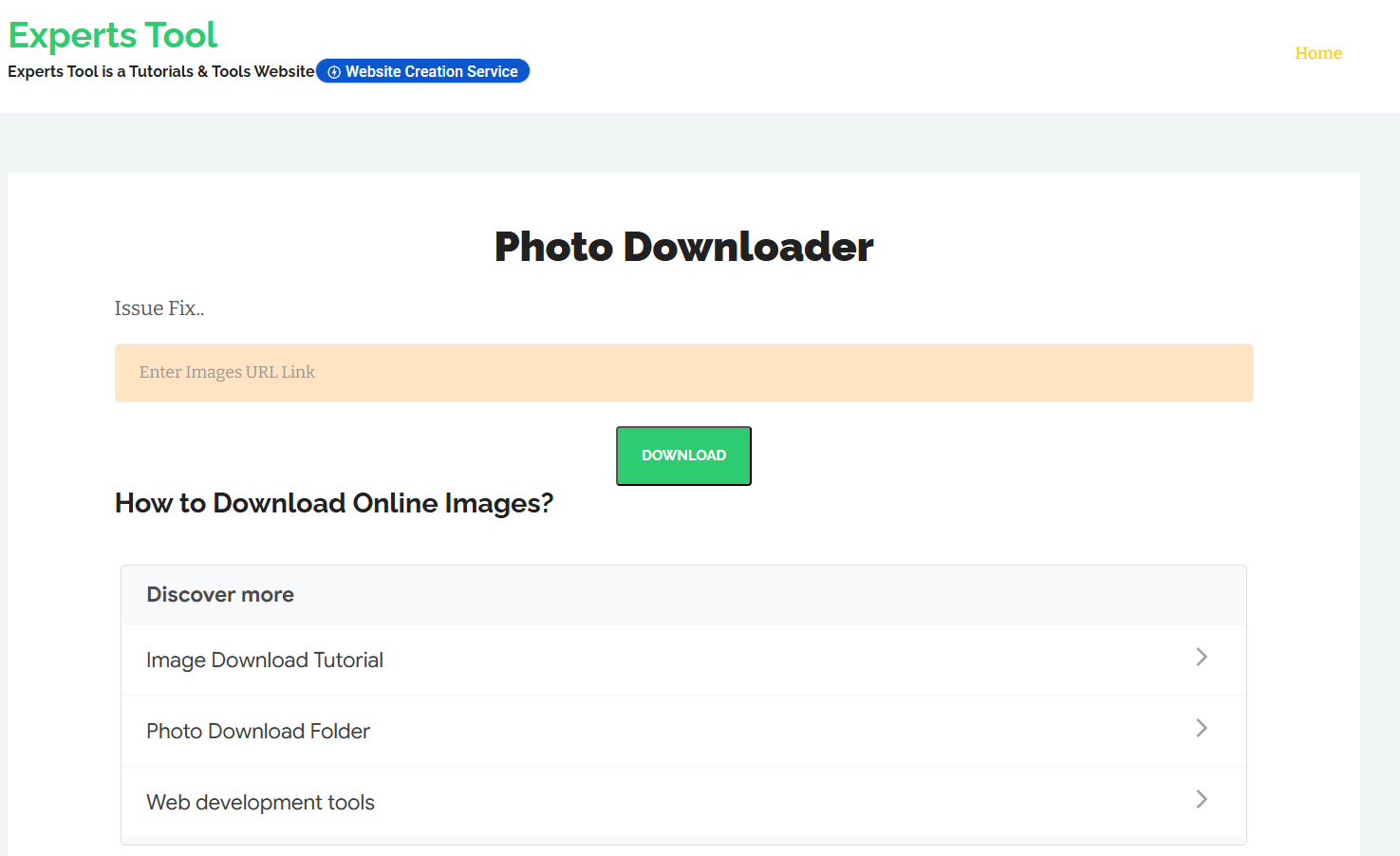
The Experts Tool VSCO Downloader offers a balance between a simple, quick approach to saving VSCO images and videos. It doesn’t require a login, supports common image and video formats like JPG, PNG, and MP4, and works issue-free on any platform.
Key Features
- Give a quick preview and let you download the file instantly.
- It provides HD quality download of images.
- Experts Tool works on Windows, macOS, Android, and iOS.
How to Use the Experts Tool to Download Pictures from VSCO
Follow the steps to download VSCO photo or video using the Experts Tool:
Step 1: Open the VSCO image or video you want to download, then copy its link.
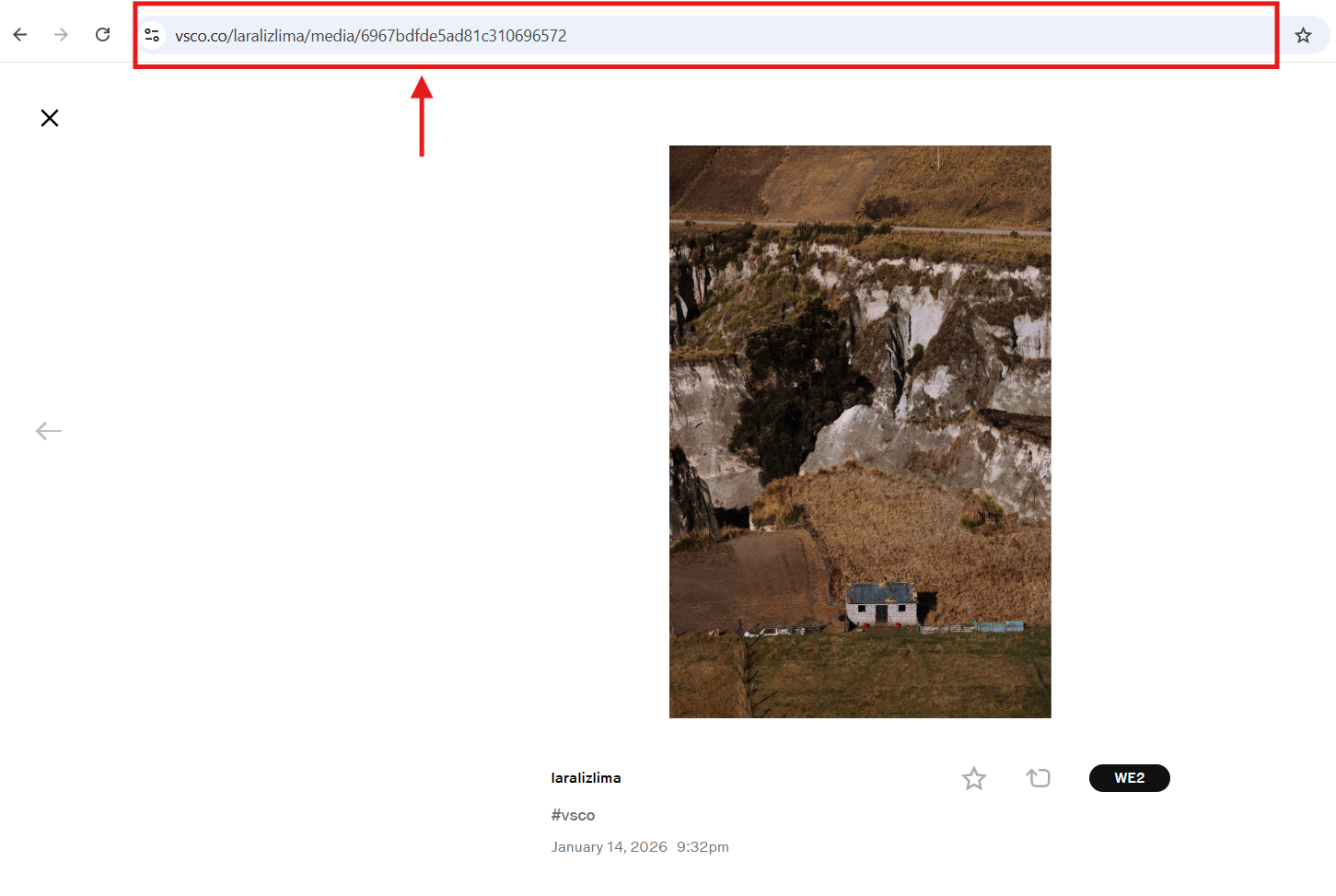
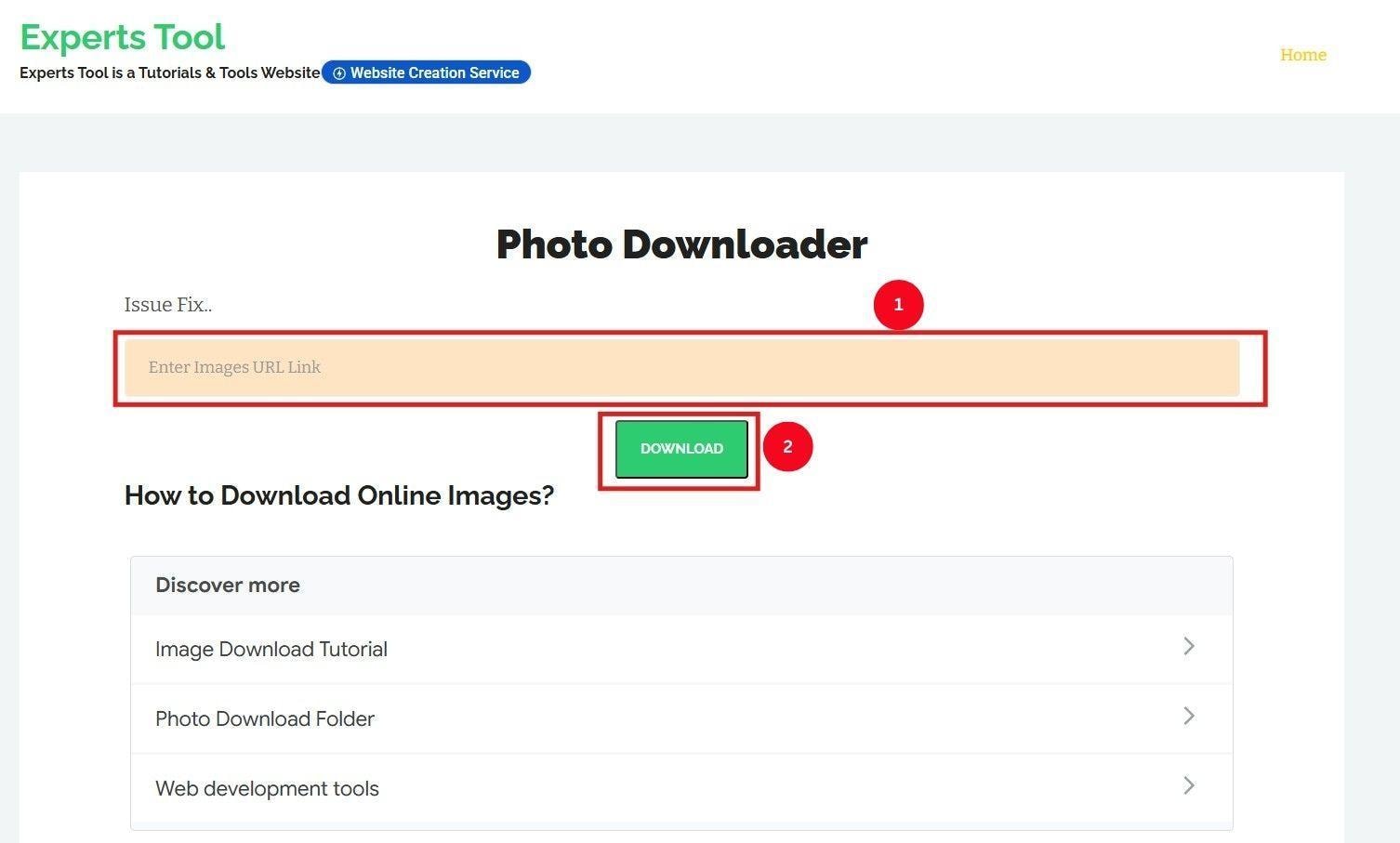
Step 2: Paste the media link in the input box of the Experts Tool and click on “Download.”
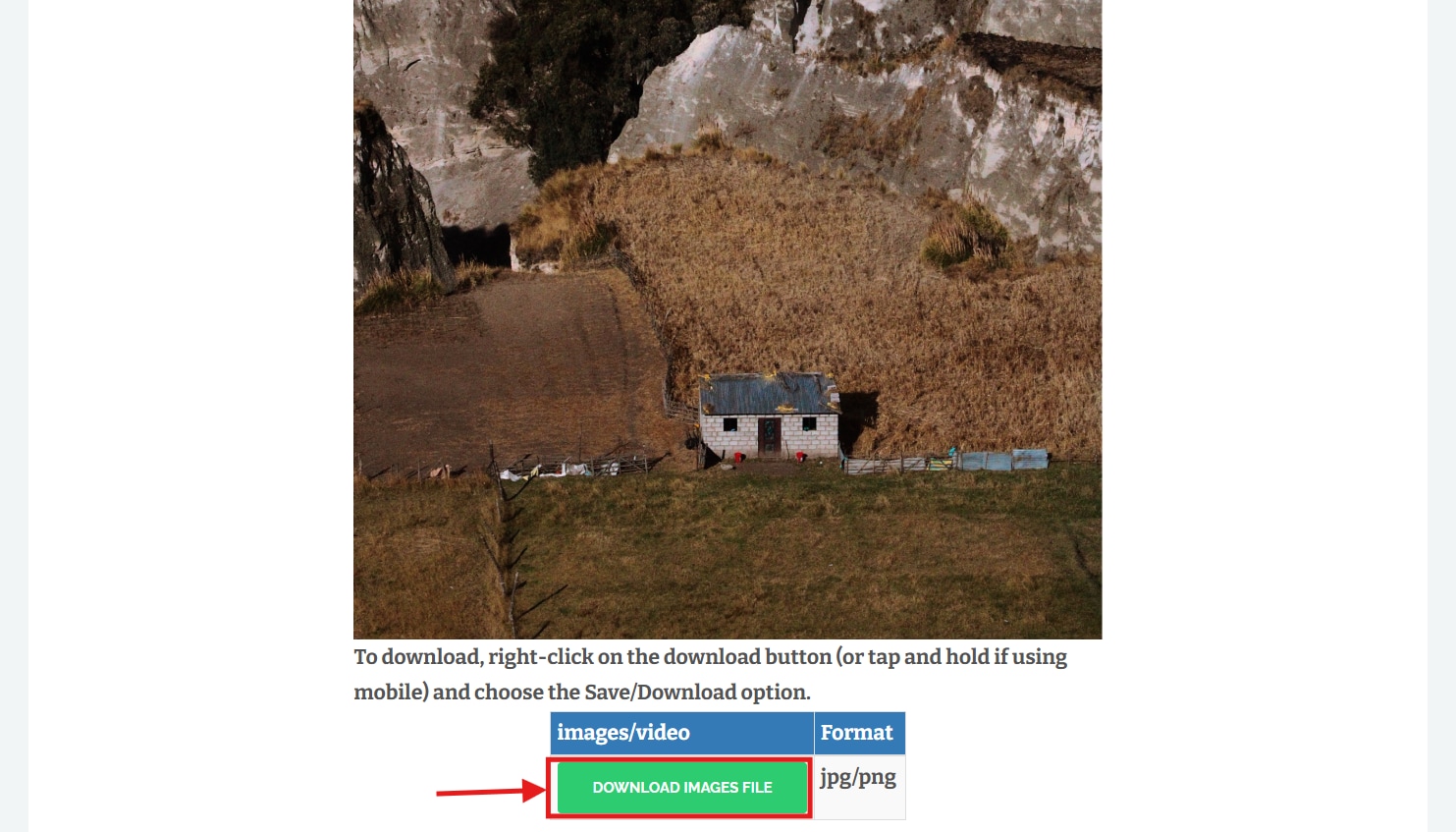
Step 3: It will extract the media. Right-click on the image/video and save it in your local storage.
Best For: Casual users who need a simple, safe, and cross-platform VSCO downloader.
2. VSCO Tools
Site: https://www.vscotools.online/
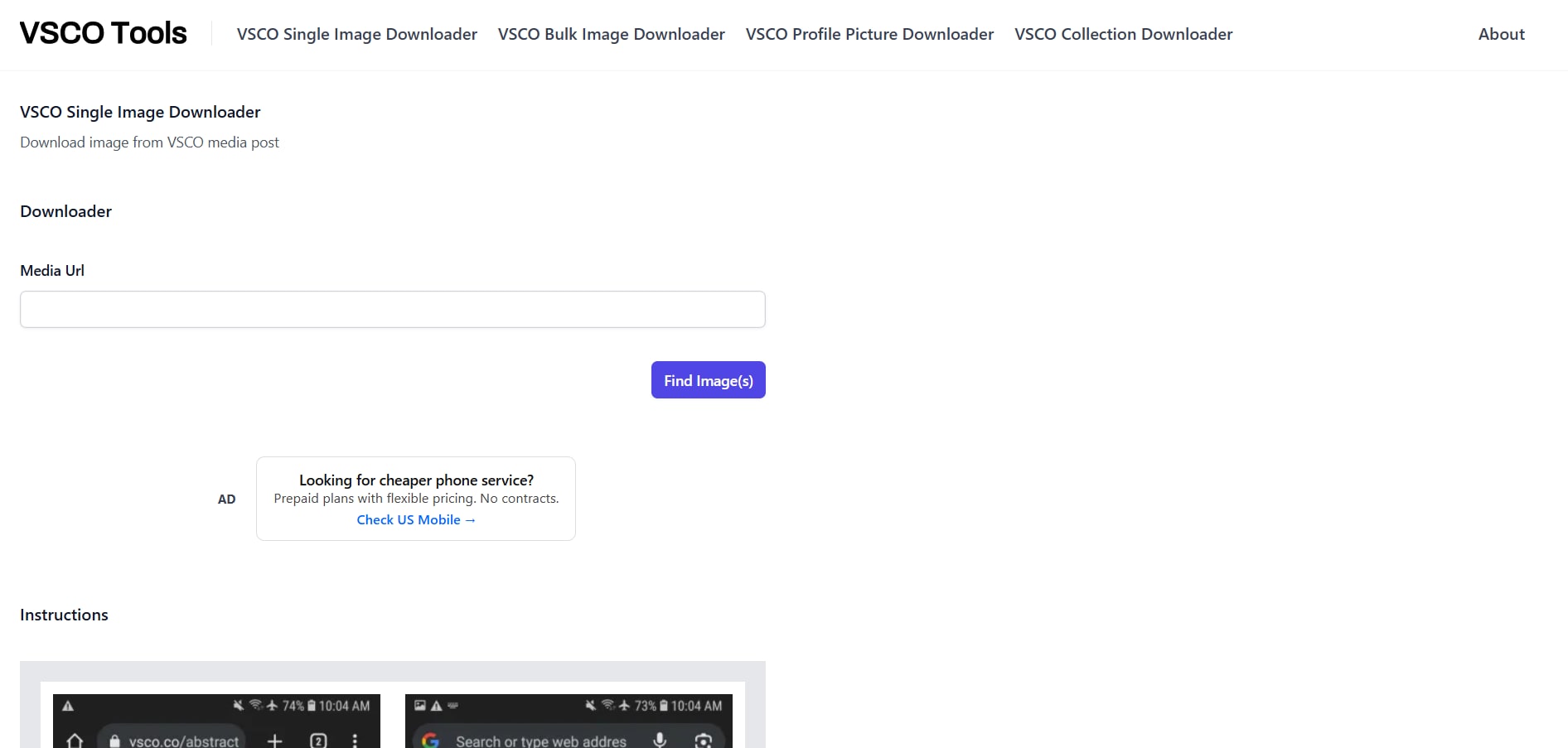
VSCO Tools has a similar URL-copy-and-paste interface to Expert Tools and supports VSCO photo downloads. There’s no batch download support, but the downloader offers a preview, making it suitable for users who prefer to verify content before saving.
Key Features
- Saves images in the original and maximum resolution.
- Works fast and has no login functionality.
- Supports bulk image downloads.
How to Use VSCO Tools to Download VSCO Photo
Follow the steps to bulk download using VSCO Tools:
Step 1: Access VSCO Tools on your browser and paste the VSCO links of images/videos you want to download.
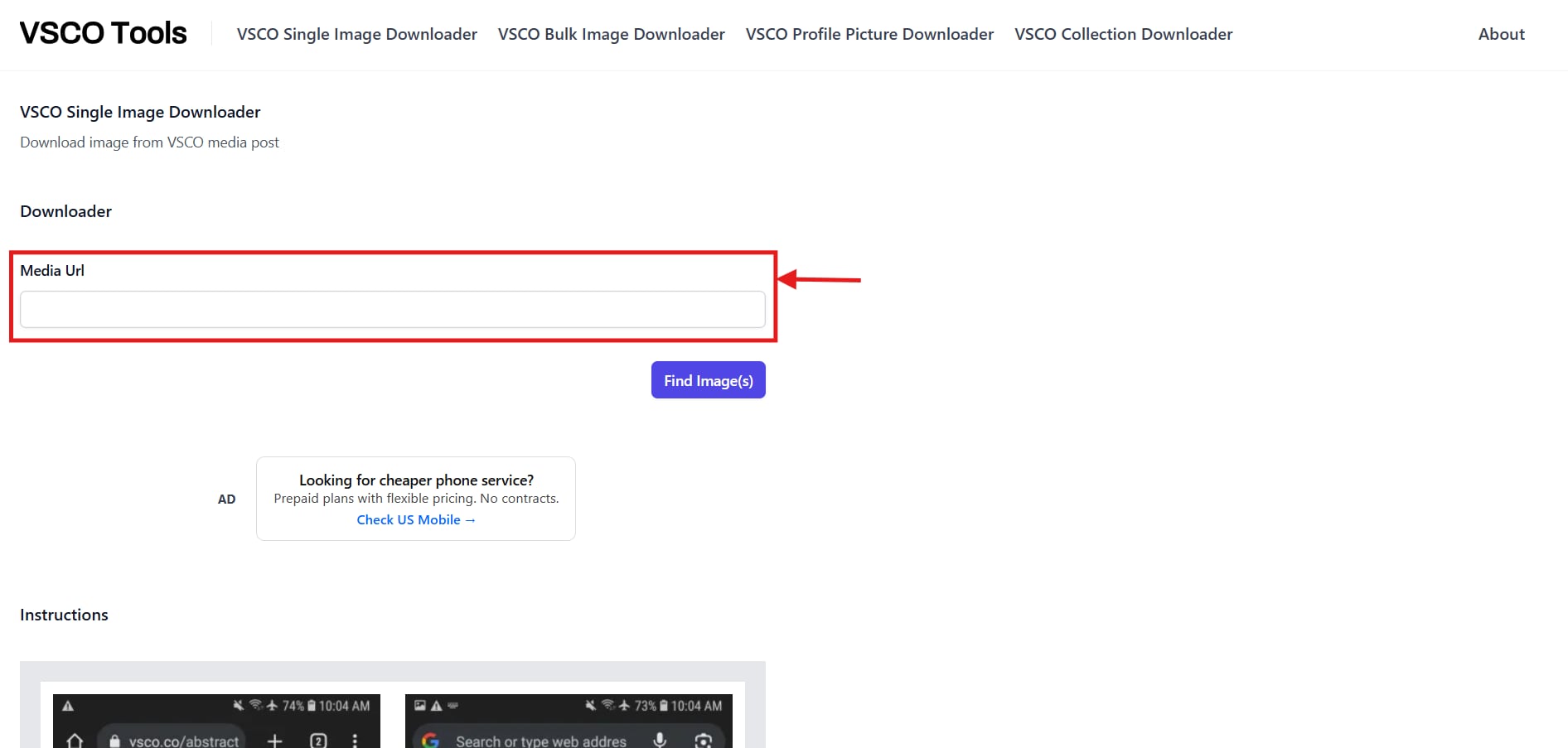
Step 2: Click “Find Image(s)” and wait for the downloader to extract the images.
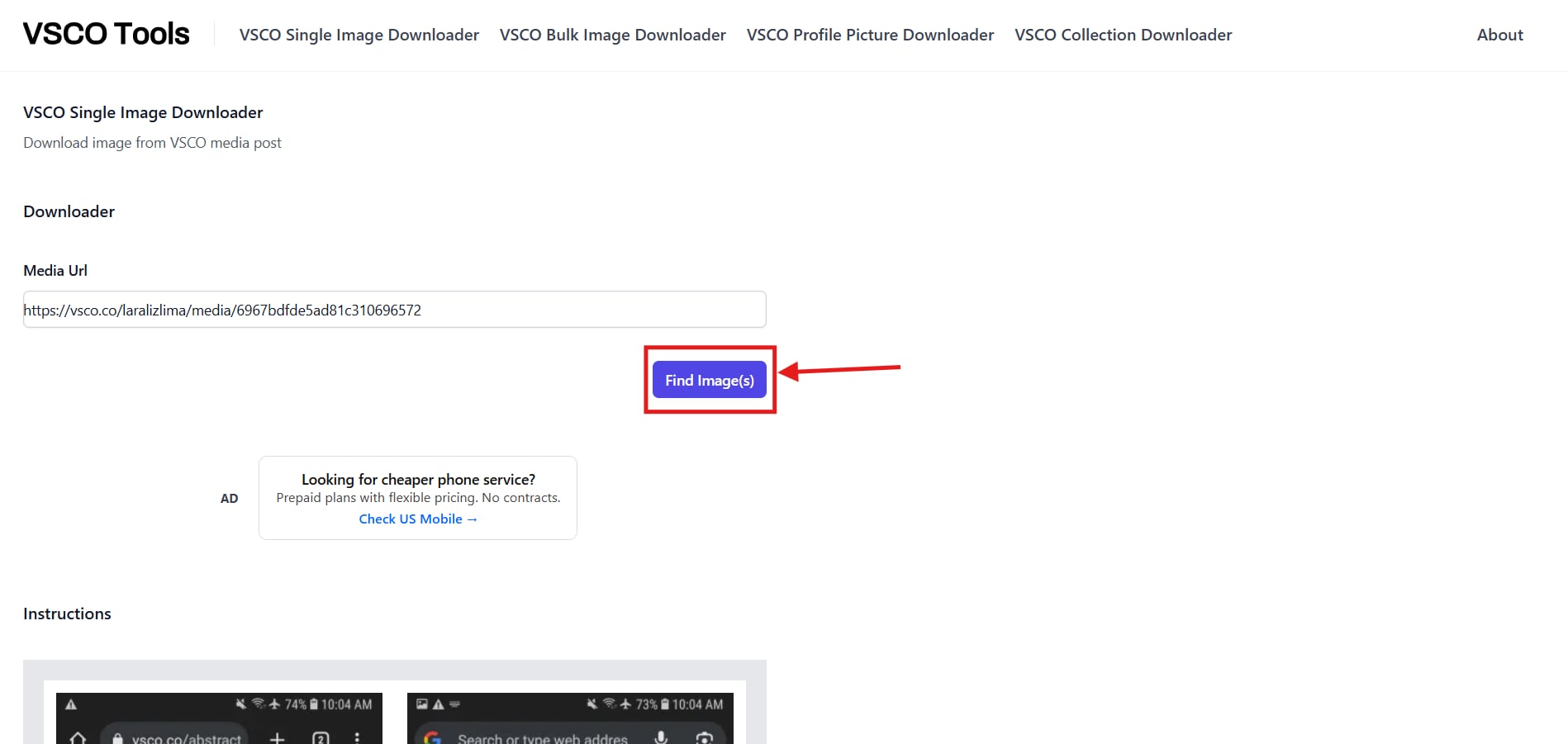
Step 3: The VSCO downloader provides a preview of images. Click the download icon to save images to your device.

Best For: Users who want bulk image downloads with a preview feature.
Mobile Apps for VSCO Picture Download
VSCO image downloaders on mobile offer a simple, convenient way to archive your favorite images or use them as references. The following are some of the best downloaders you can use on your Android or iOS devices:
VscoLoader: 4K VSCO Downloader (Android)
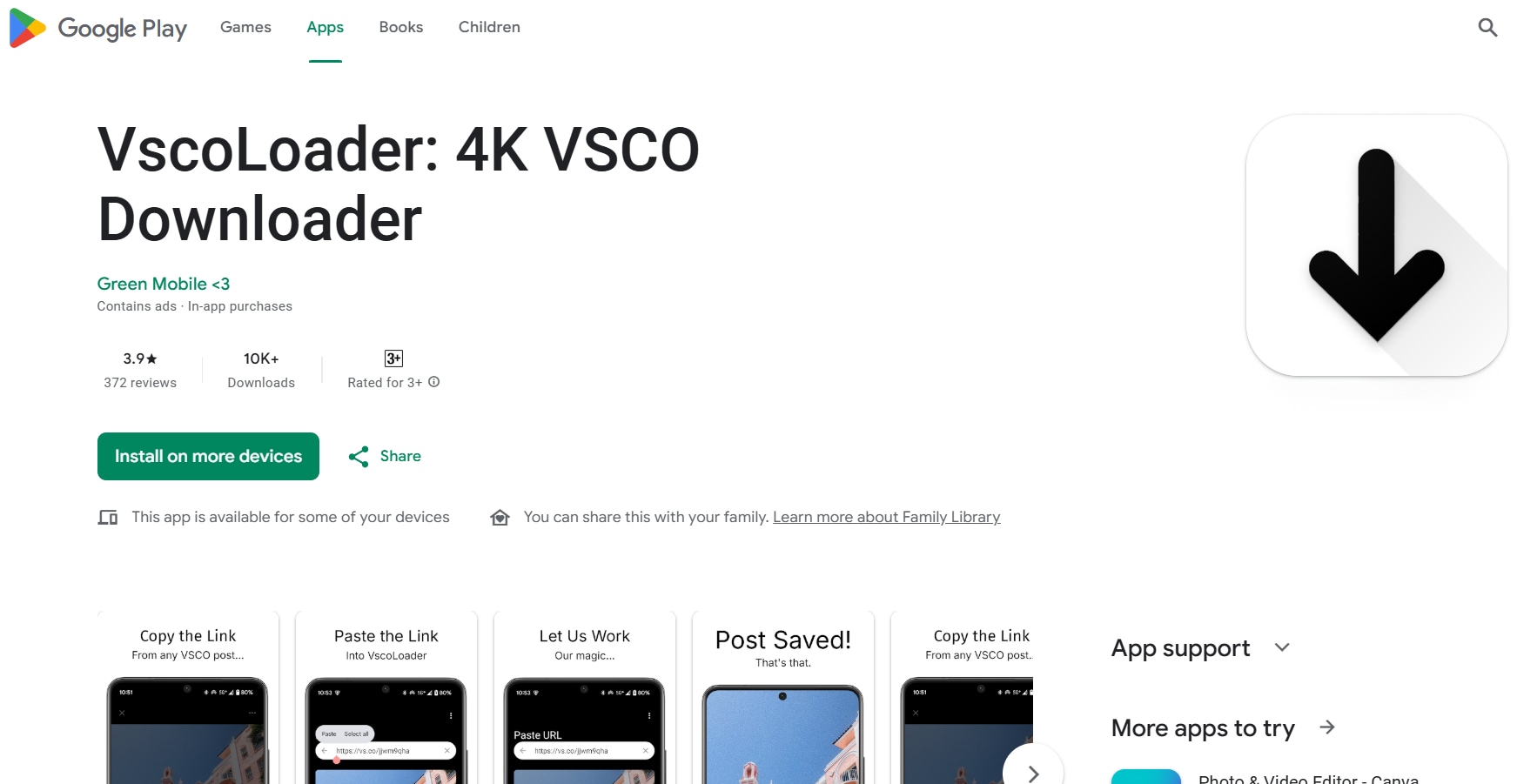
VscoLoader: 4K VSCO Downloader provides a simple yet reliable way to download VSCO images and videos, even on the go. The downloader is free to use, the images are the same quality as the website, and it supports video downloads up to 4K quality.
Key Features
Download images and videos in the original quality.
Supports bulk downloads for profiles and collections.
A simple copy-paste interface
How to Use VscoLoader: 4K VSCO Downloader
Follow the steps to use VSCO content saver on mobile without any complications:
Step 1: Launch VscoLoader and paste the VSCO link in the input box.
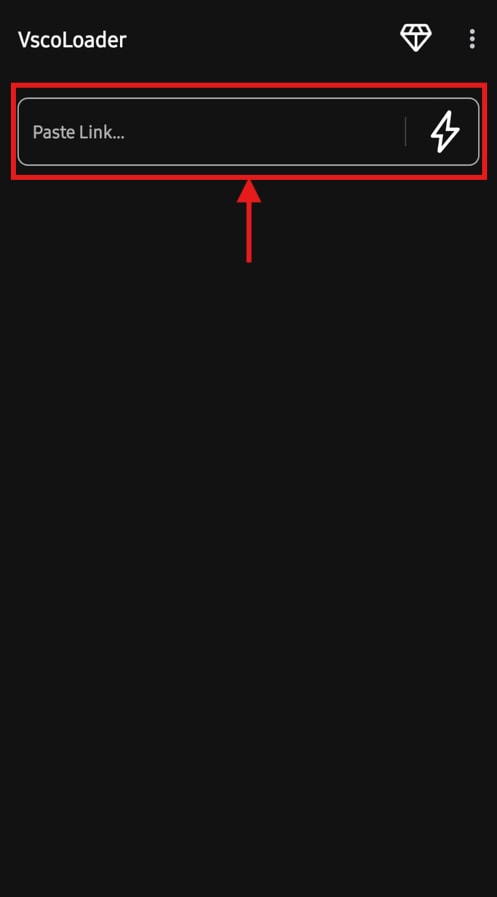
Step 2: The downloader automatically parses the media file and provides a preview. Now, press the “Download” icon to save the photo/video.
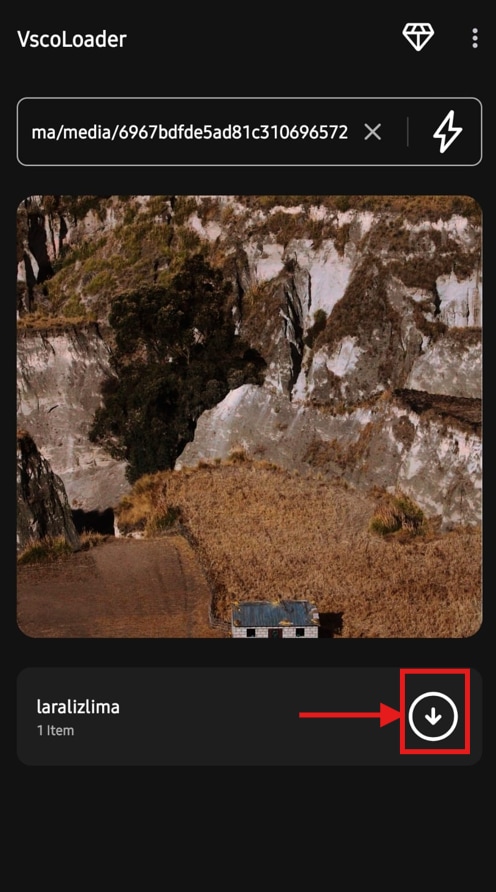
Best For: Users who need a simple downloader to download VSCO photos and videos even on the move.
iOS Workarounds
Strict App Store policies, copyright enforcement, and technical sandboxing are the reasons why there aren’t any native VSCO photo downloaders available. So, if you want to download images or videos on iOS, you can use browser-based tools like Expert Tools and Vscodownloader.
How to Download VSCO images on iOS
Here is the step-by-step guide to save VSCO images on iPhone:
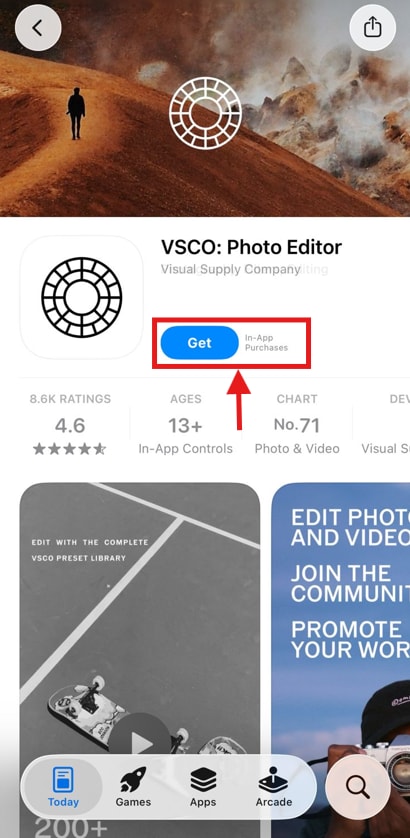
Step 1: Access the Apple App Store to find the VSCO mobile app and click “Get” to install it on your iOS device from the App Store.
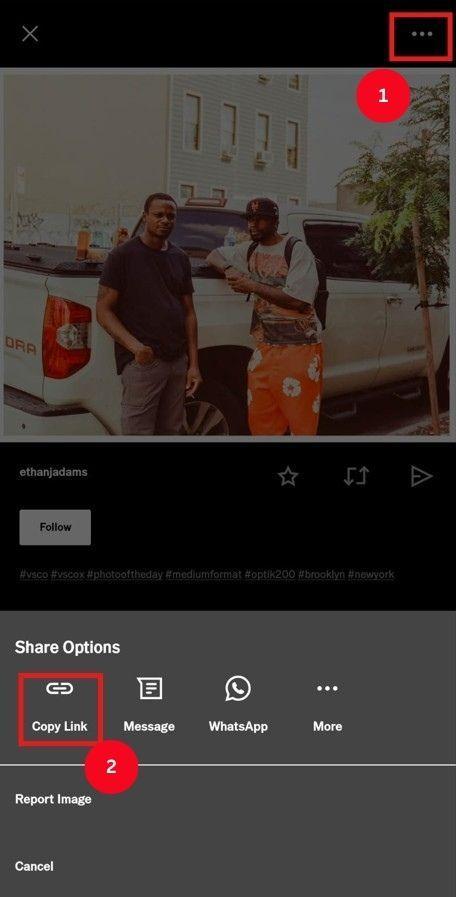
Step 2: Launch the VSCO app, sign in with your email credentials, and browse the media you want to download. Now, click the three-dot icon in the top-right corner, then select “Copy Link” to copy the image or video URL.
Step 3: Access any of your preferred online tools, paste the URL, and download your preferred media.
Browser Extensions for VSCO Image Download
Browser extensions are convenient for saving photos, videos, and stories from social media, but there's no VSCO downloader for Chrome. If you use Mozilla Firefox as a default browser, the VSCO and Instagram downloader can be an option.
VSCO and Instagram Downloader
Site: https://addons.mozilla.org/en-US/firefox/addon/vsco-insta-down/
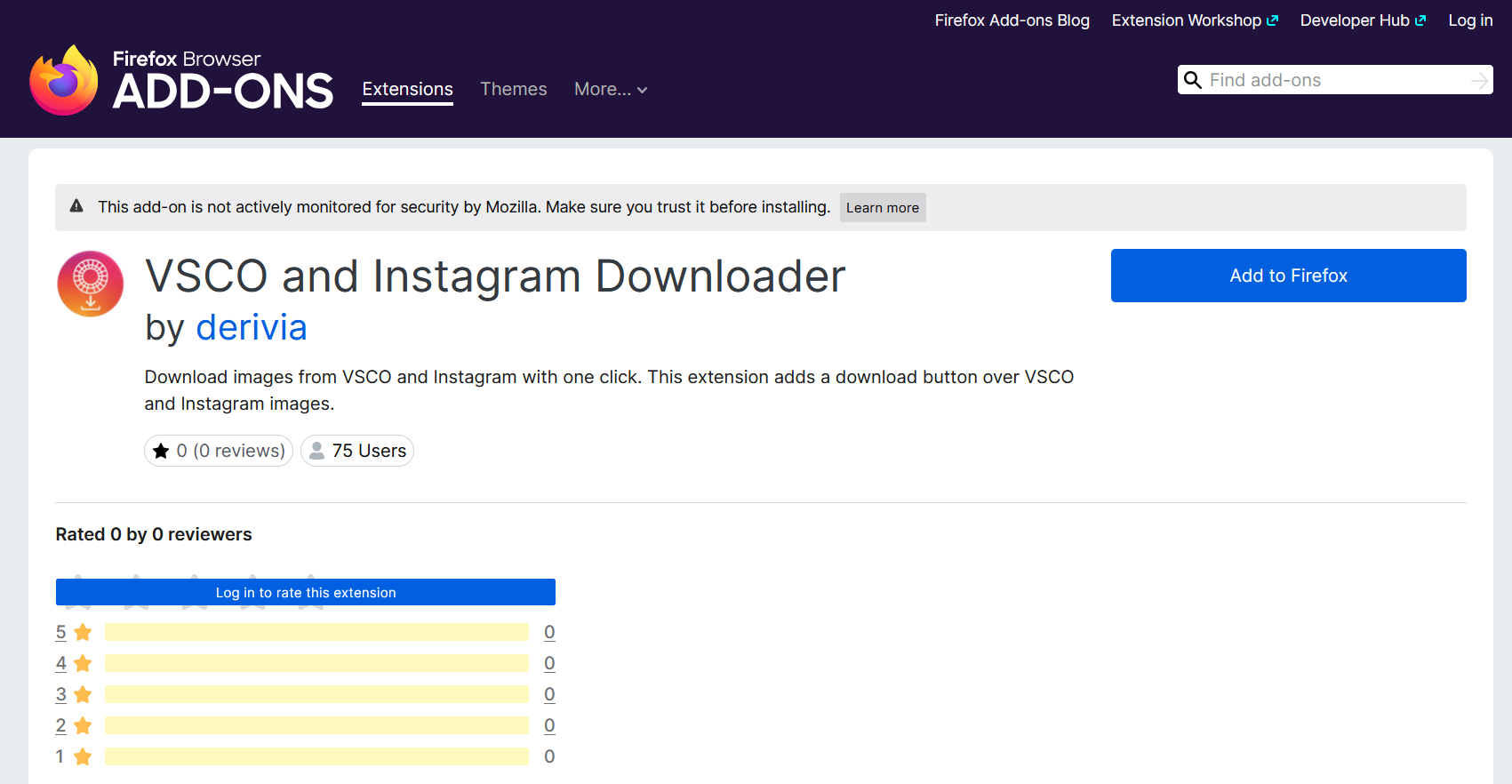
VSCO and Instagram Downloader is a free-to-use Firefox extension that doesn’t require a login and adds a download icon to images. This makes it simple to download your preferred media. Not only that, but the downloader also preserves the quality of the uploaded image.
How to Use VSCO and Instagram Downloader Browser Extension
Take these simple steps to use the VSCO downloader:
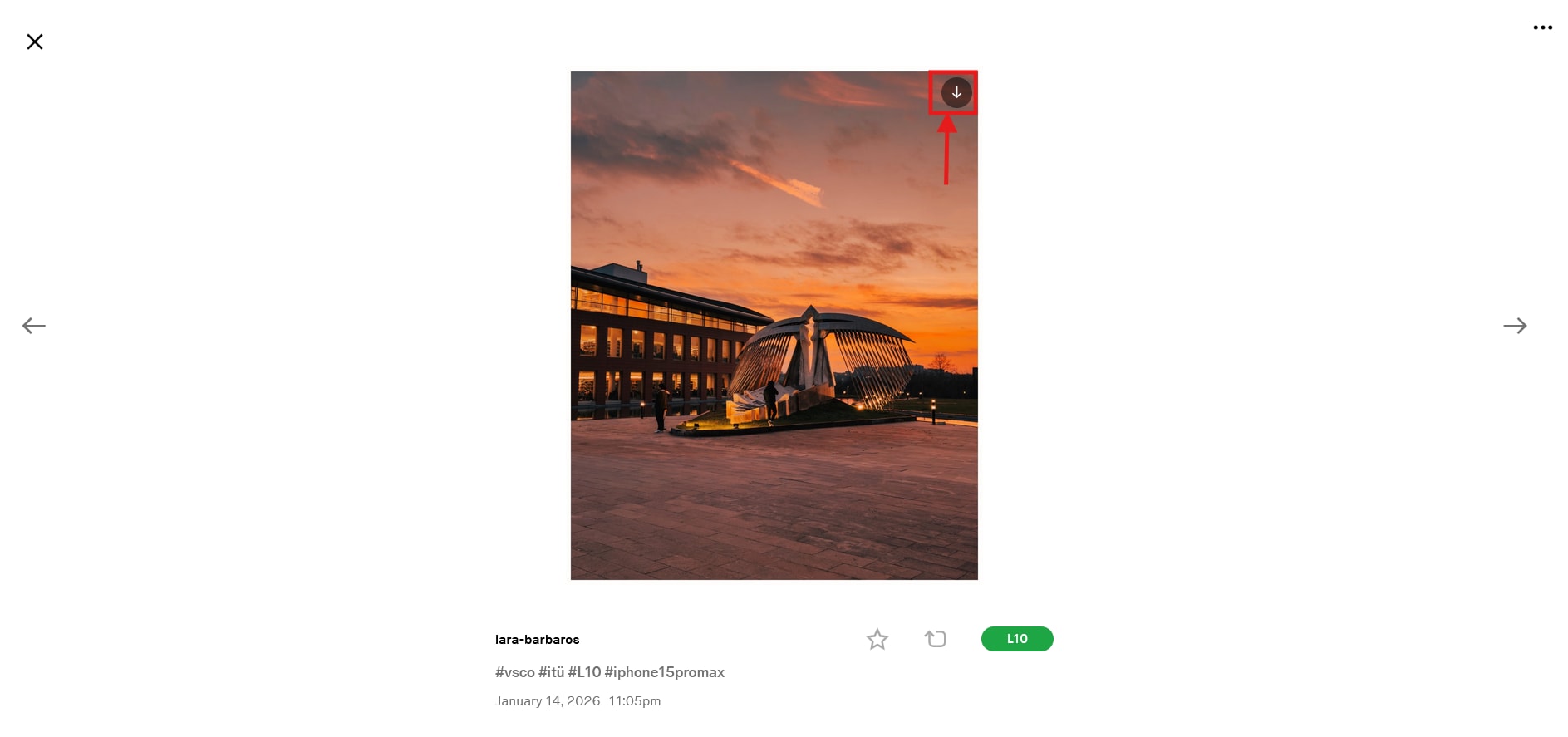
Step 1: Enable the browser extension and head over to your VSCO feed. Find and click the image you want to download. You’ll see a download icon appear on the image. Click the icon to download the image to your local storage.
Key Features
- Adds a download button on the images or videos for easy downloads.
- Supports media downloads from Instagram as well.
- Allows image downloads without signing into your account.
Best For: Users who want quick and high-quality downloads from the VSCO media page.
Third-party browser extensions can simplify VSCO downloads, but they often pose security and privacy risks due to broad data permissions. Install only from official browser stores or verified developer sites, review permissions carefully, and avoid enabling developer mode or loading extensions from unofficial sources.
Desktop Software
Desktop software can be a reliable way to save VSCO images in high-quality and in bulk. You can use GitHub tools like VSCO-Downloader and WFDownloader to save the VSCO media files.
VSCO-Downloader
Site: https://github.com/1fag/VSCO-Downloader
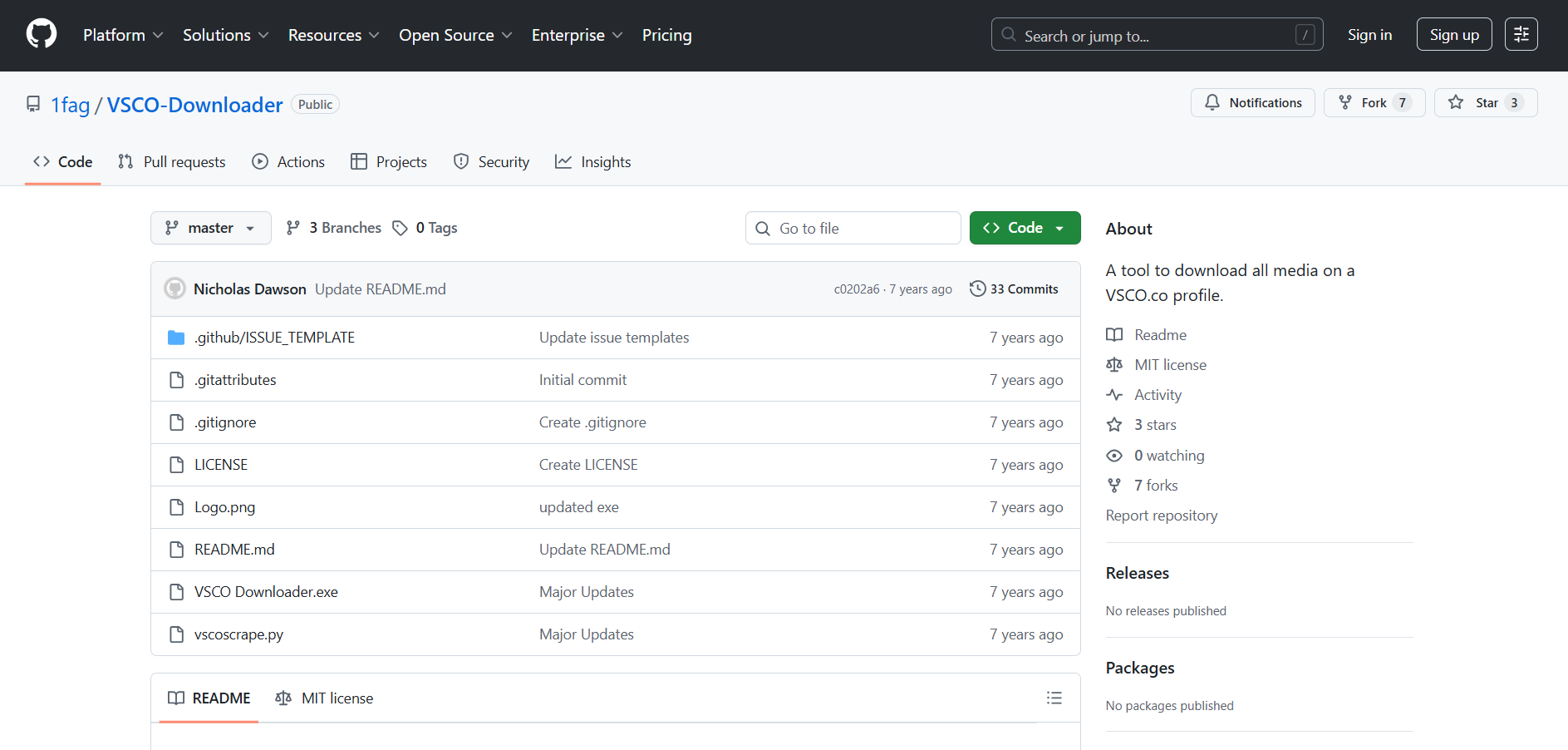
Developers have created several command-line interface (CLI) tools, often in Python and JavaScript, to scrape and download images from public VSCO profiles. One such CLI tool is VSCO-Downloader.
As you create a Git clone, install Python libraries with pip, and use Python functions, the CLI will make the VSCO image available for download. VSCO-Downloader preserves the image quality and ensures quick downloads.
However, the overall process is fairly technical and is designed for developers or users who are familiar with the command-line tools.
Key Features
- Core functionality to download both photos and videos.
- The CLI can scrape and download images from a user’s journals and main gallery.
- VSCO-Downloader provides HD-quality image downloads.
How to Download VSCO Images Using VSCO-Downloader
As you create a Git clone <repo url> from the command prompt, install the libraries written in “requirements.txt” through pip of Python. Here are the steps to download an image from VSCO:
Step 1: In Python, write the following command:
from vsco import get_links
url=”image link”
links = get_link<url>
for link in links:
print<link>
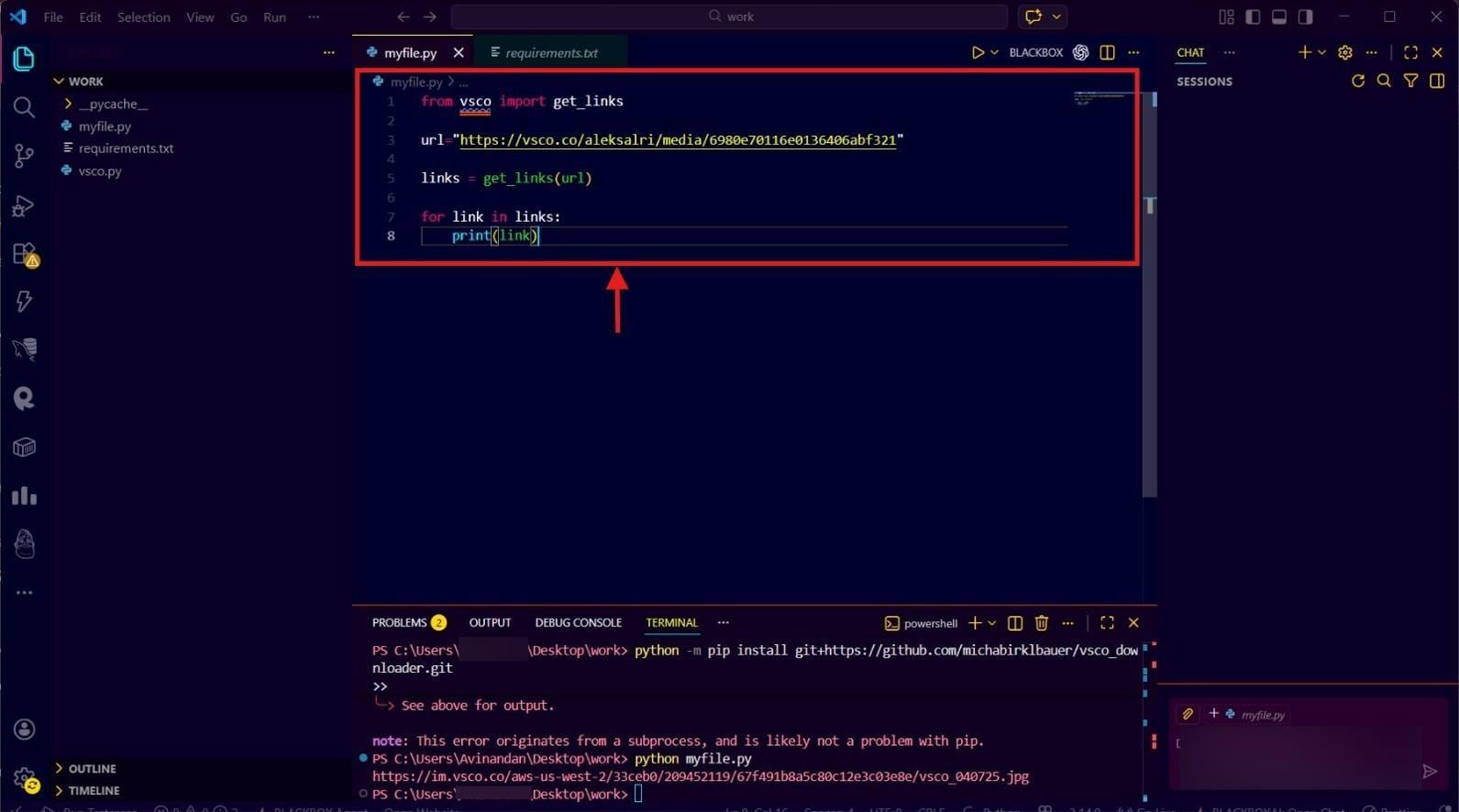
Step 2: Now head over to the Terminal (at the bottom), and type “python myfile.py” and press Enter.
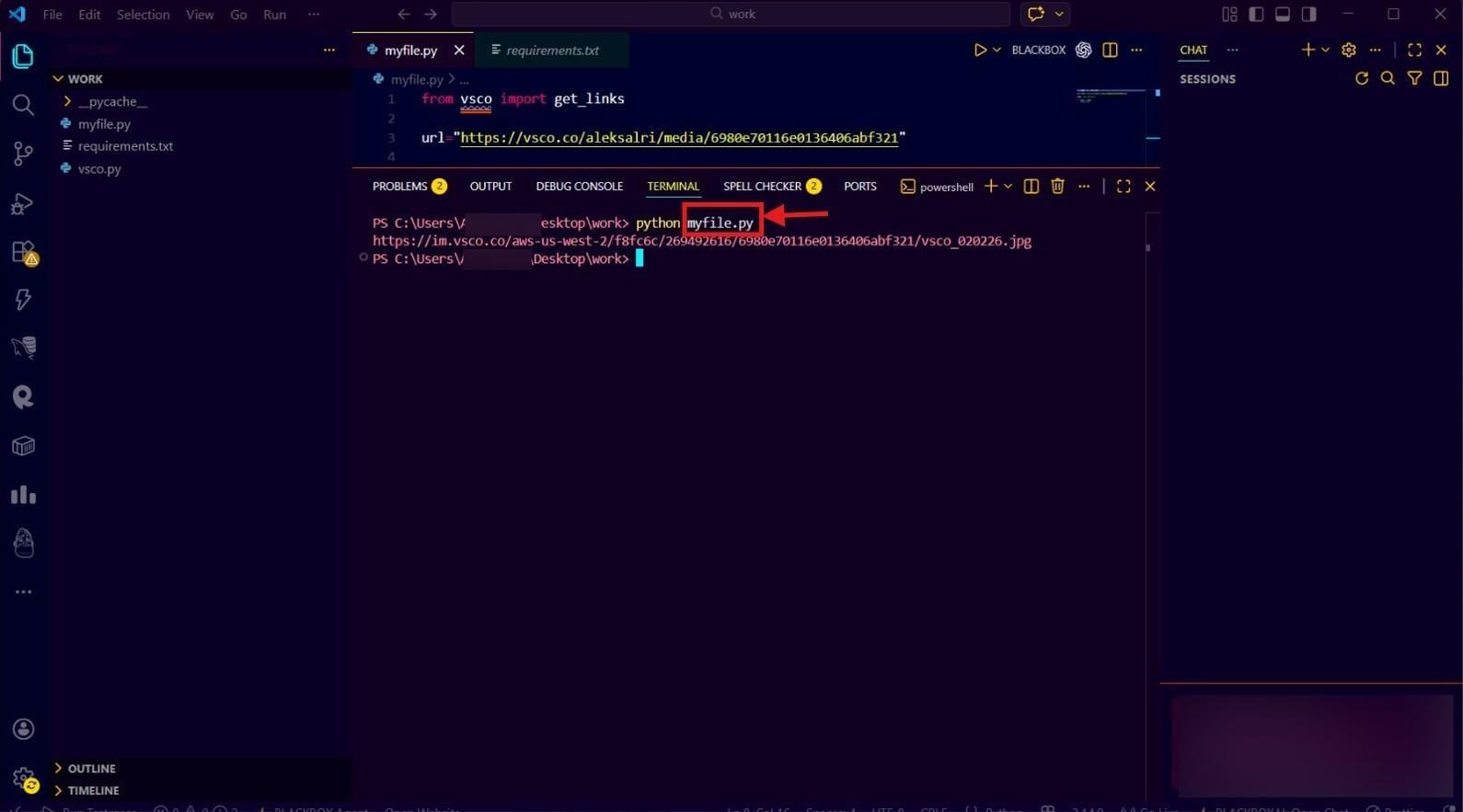
Step 3: The terminal then executes the file and prints the result. Now, hold Ctrl and click the URL in the terminal and press “Open” on the pop-up window.
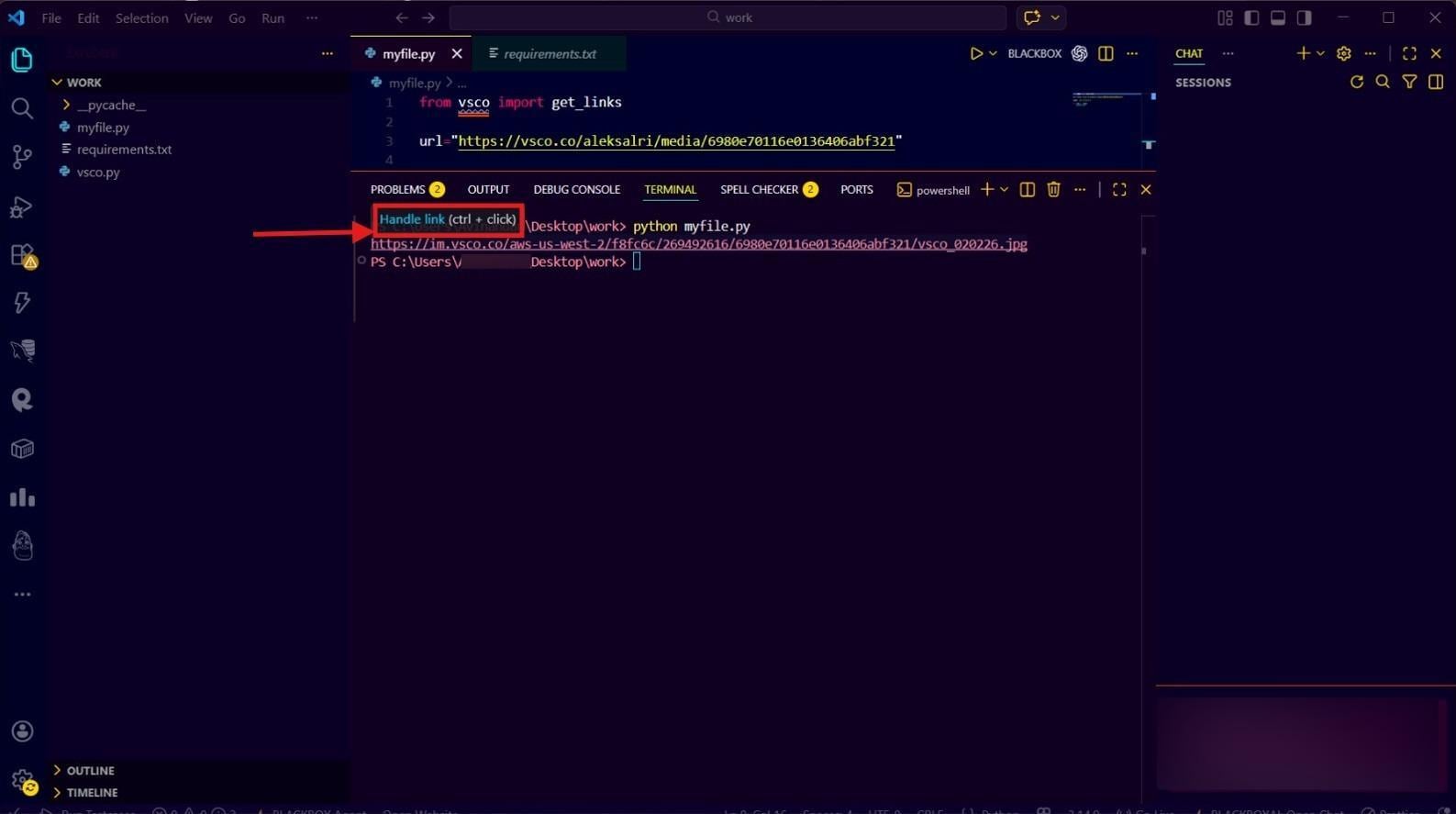
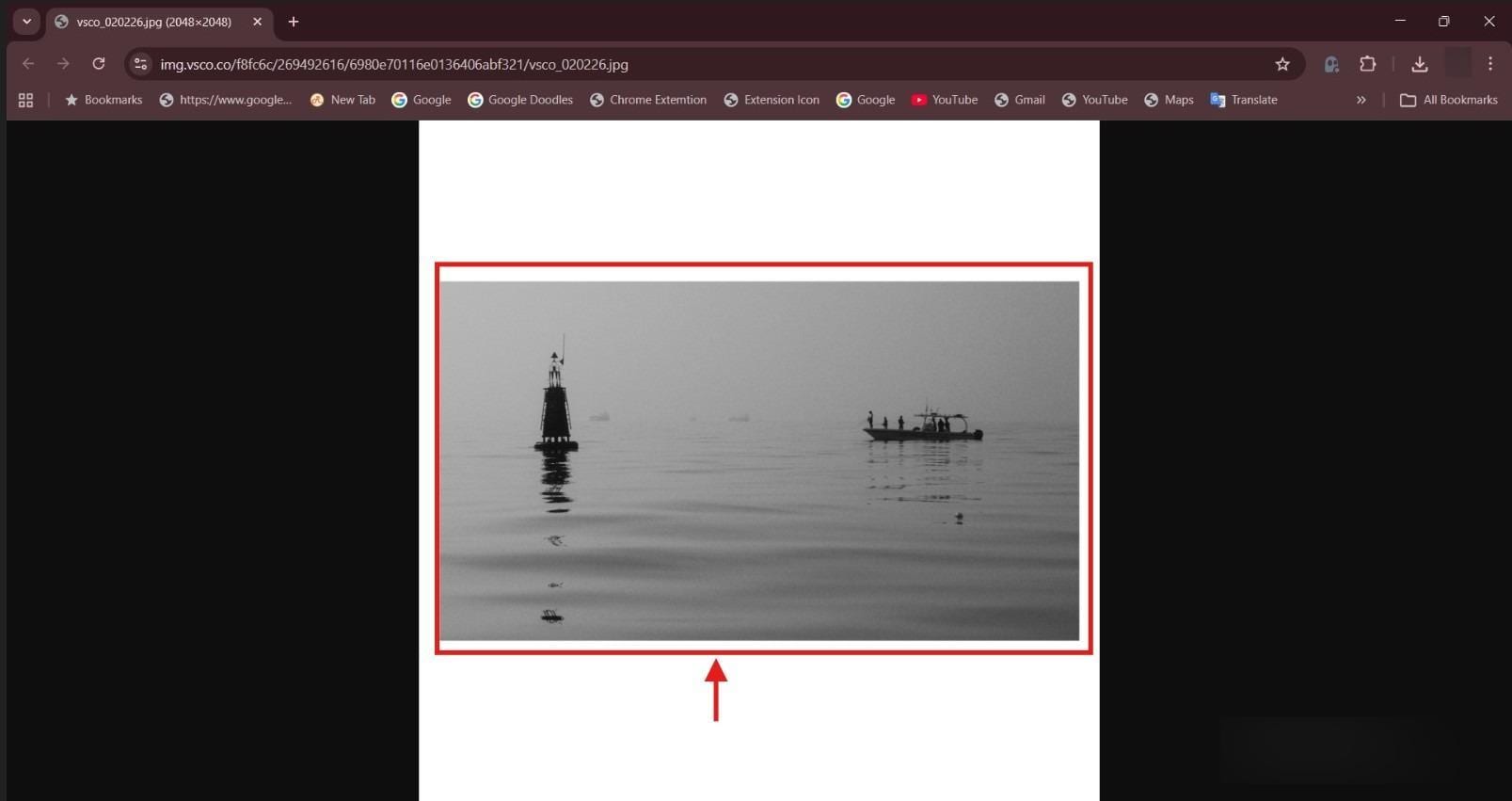
Step 4: It redirects you directly to the image URL. You can right-click on the image to save it in your local storage.
Best For: Developers or users who are technically sound and previously worked with Command-line tools.
WFDownloader
Site: https://www.wfdownloader.xyz/download
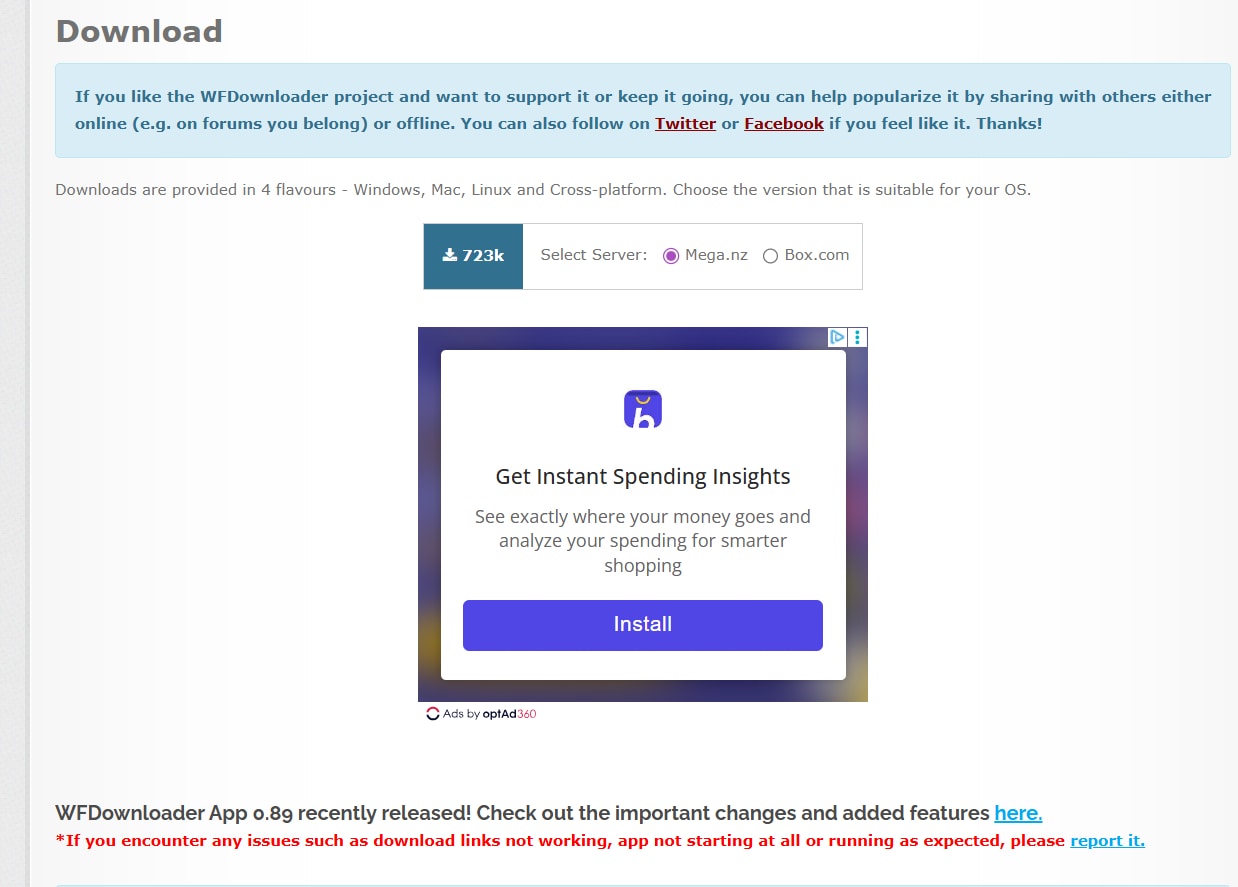
WFDownloader is a free-to-use bulk downloader that lets you download images, GIFs, and videos from VSCO, Instagram, Behance, and other popular websites. The VSCO downloader is cross-platform and works on Windows, macOS, and Linux. Moreover, the interface is straightforward, and outputs are downloaded in high-quality.
Key Features
- Supports up to 20 simultaneous downloads of images, GIFs, and videos.
- Simple, built-in DSL for customized download tasks.
- WFDownloader supports password-protected sites, downloading from open directories, and proxy support.
How to Use WFDownloader
Here’s how to use WFDownloader to download your favorite media from VSCO:
Step 1: Open VSCO in your browser and navigate to the page containing the media to download.
Step 2: Copy the link to the VSCO page from the address bar, which can be a profile, gallery, or collection.
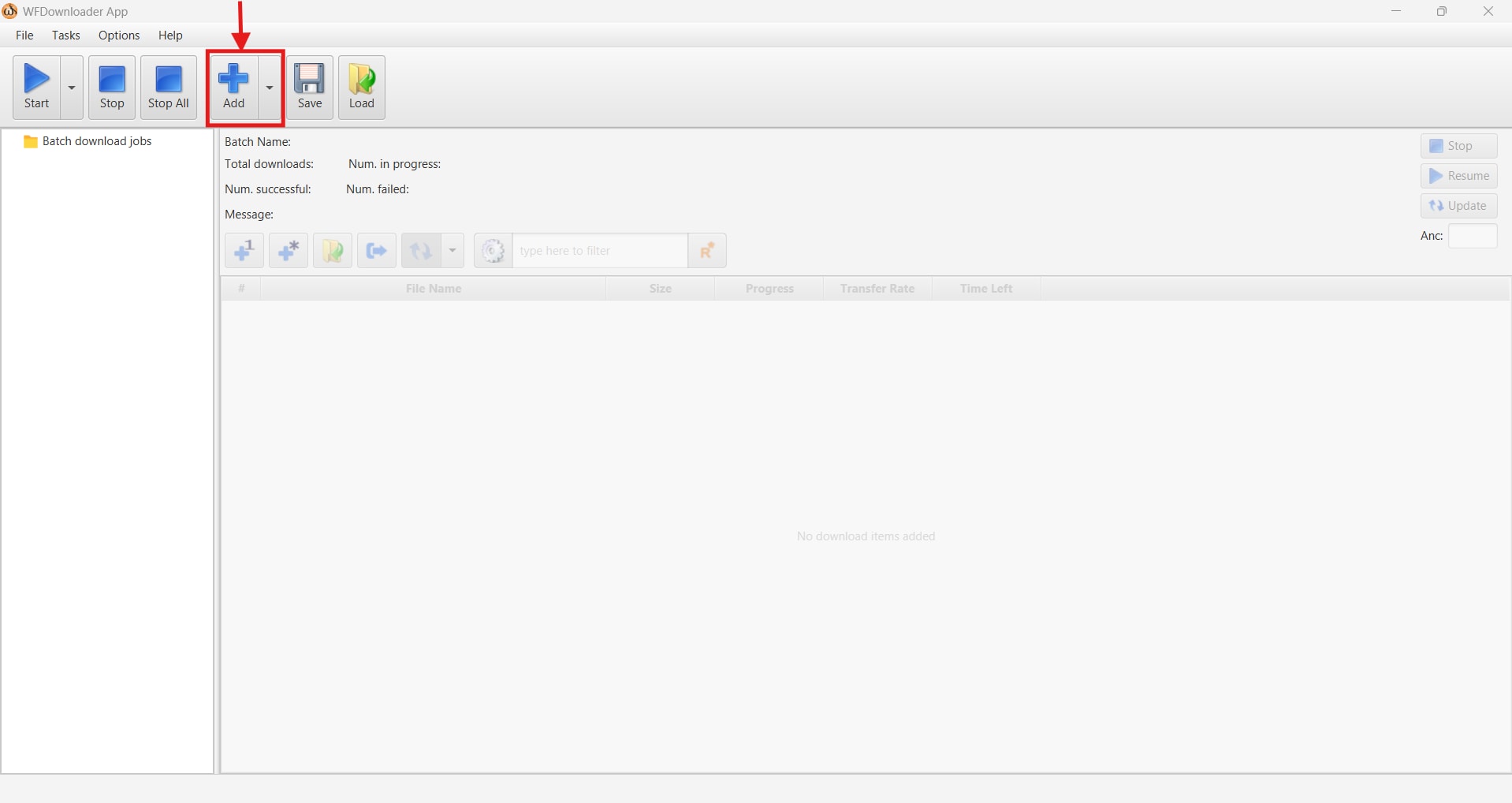
Step 3: Launch WFDownloader and click the “Add” button on the top menu tray. The link gets automatically pasted in the input bar, and you’ll set the folder where the files will be downloaded.
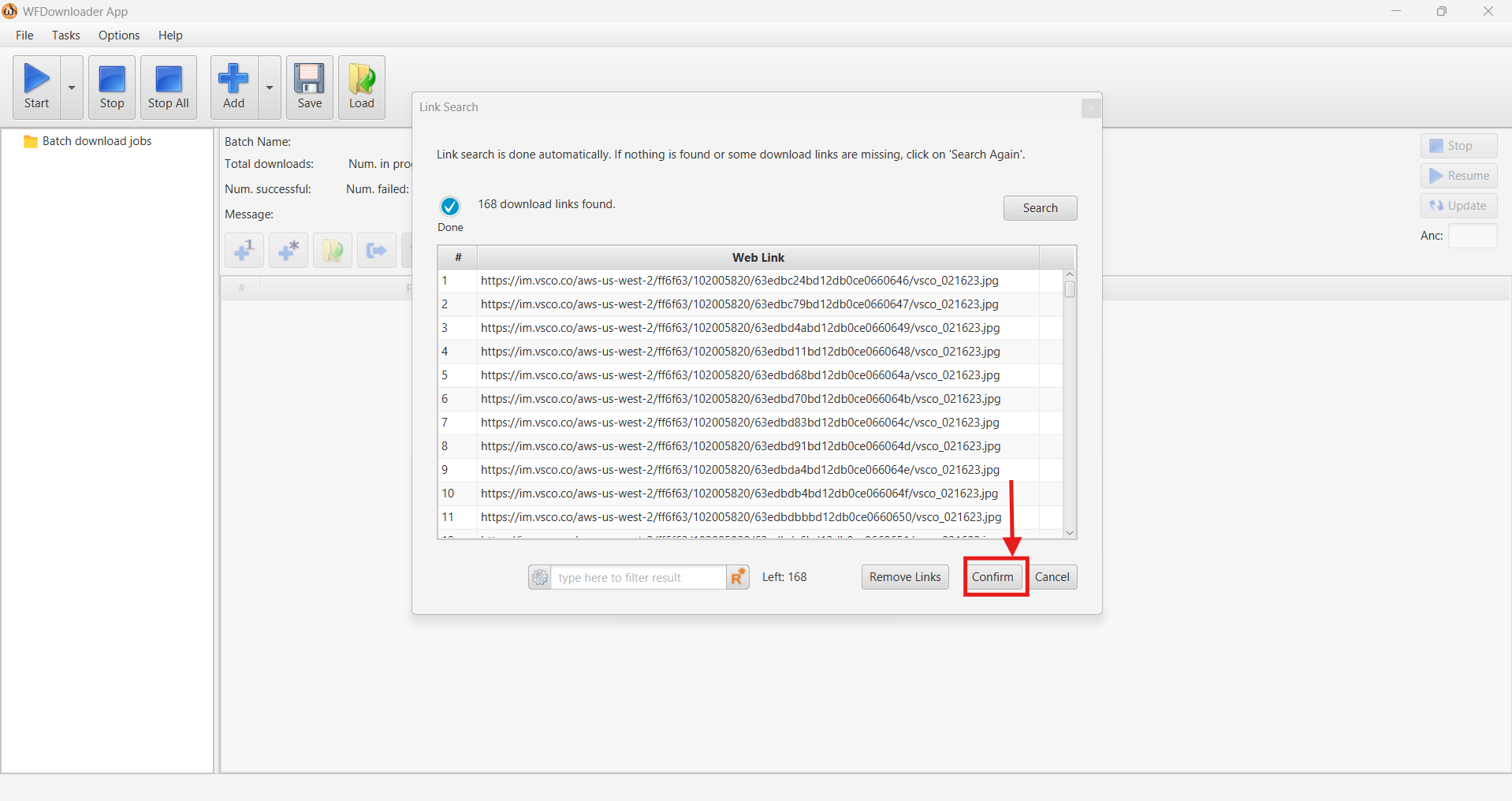
Step 4: As WFDownloader parses the links, click "Confirm" to search the VSCO page.
Step 5: WFDownloader automatically saves the video in your local storage.
Best For: Users who need a reliable way to download the VSCO images in batches.
Part 3. How to Download Pictures/Videos From VSCO (Complete Guide)?
Method 1: Download a VSCO Photo with Tools
Saving individual VSCO images with online tools is pretty straightforward, and here are the steps:
Step 1: Head to the VSCO official website and find the image you want to download. Copy the image link from the search bar.
Step 2: Open the online downloader you prefer (Vscotools or Expert Tools) and paste the link in the input box.
Step 3: As the downloader provides a preview, right-click on it to save the image to your device.
Method 2: Bulk Download VSCO Profile Content
If you’re impressed by some creator’s work and want to archive their entire gallery, using batch downloaders like WFDownloader can be a good idea. So, here are the steps:
Step 1: Open VSCO in your browser and copy the creator's profile link.
Step 2: Launch bulk downloaders like WFDownloader or Vscotools, paste the copied link, and download the images as a ZIP file or individually.
Aside from the mentioned tools, several GitHub tools offer advanced bulk download capabilities. For example, automated download of multiple repositories, specific journals, or large datasets.
Method 3: Download VSCO Videos
Downloading VSCO videos follows a similar procedure to image downloads, and the process is as follows:
Step 1: Identify video posts on the VSCO feed and copy the link.
Step 2: Launch UniConverter on your device, head to Downloader feature and paste the link.
Step 3: Customize the video settings and output format (optional). Click on the “Download” icon to save the video.
Method 4: Official VSCO Export (Your Own Photos)
Export All Images Feature (VSCO App)
If you’re using VSCO mobile, then downloading the uploaded files is simple. Here are the steps to follow:
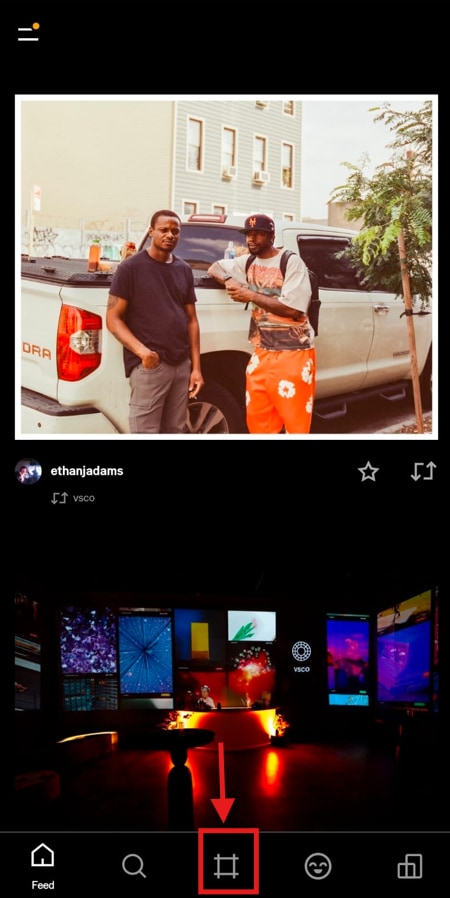
Step 1: Open the VSCO mobile app and access the “Studio” tab at the center of the bottom menu.
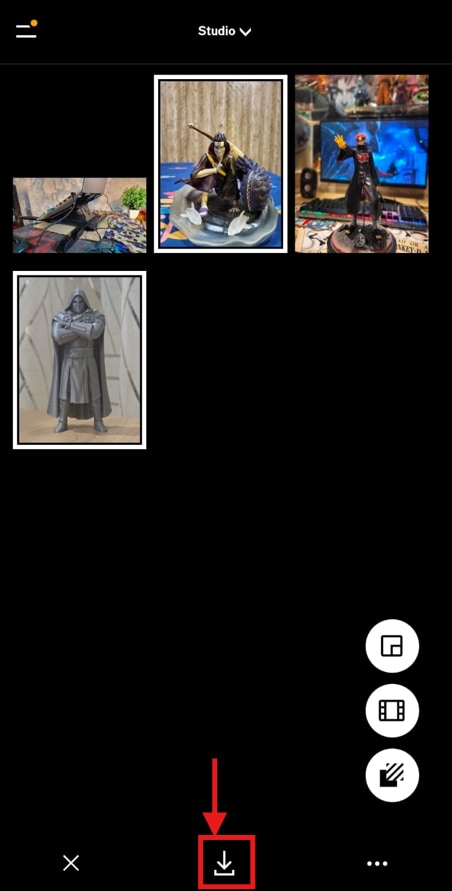
Step 2: Select the images you want to download and click the “Download” icon. The images will be saved in the local storage.
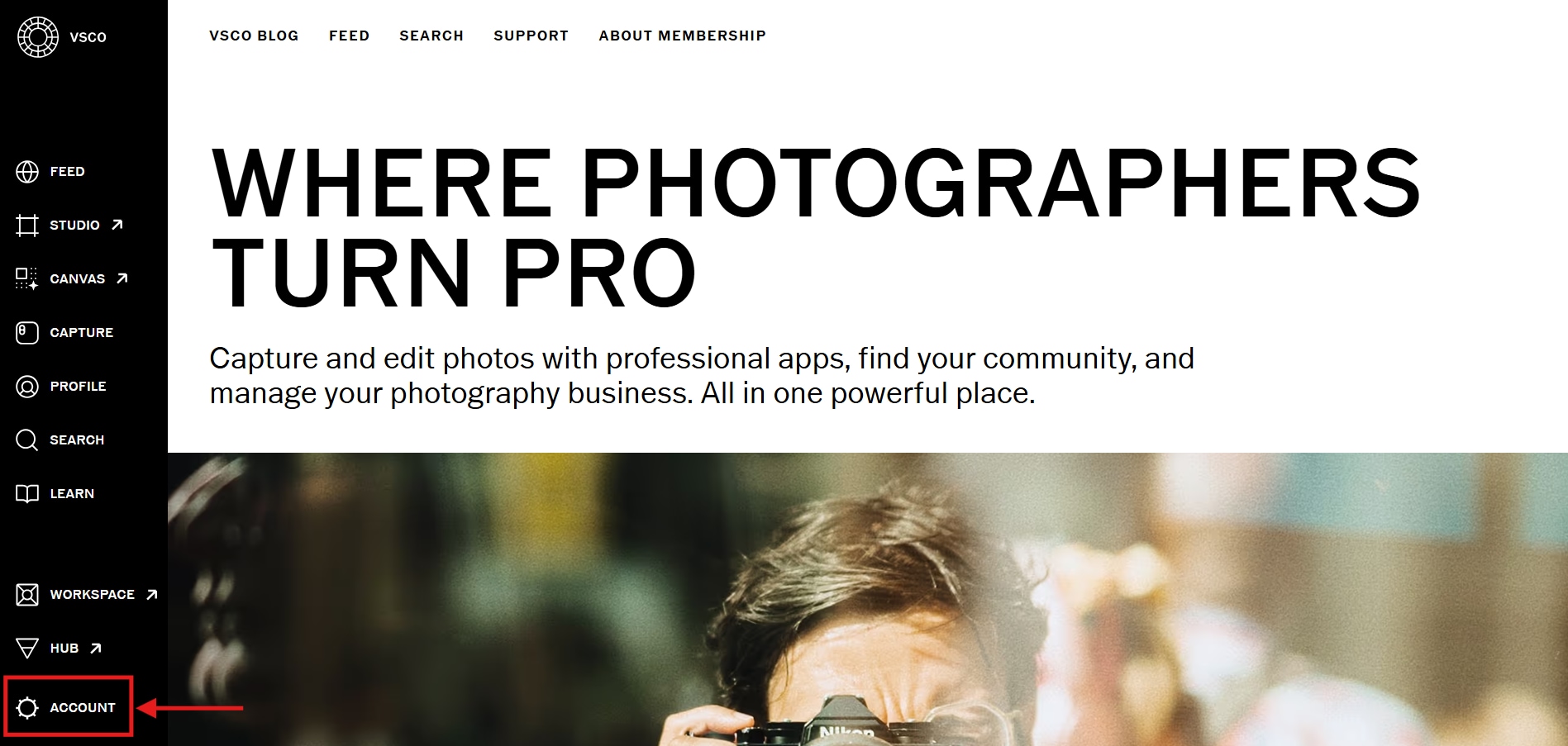
Create VSCO Data Snapshot (Desktop)
Downloading your uploaded images to your desktop is also not very complicated, so follow the steps in order:
Step 1: Open VSCO on your browser and select “Account” from the left menu bar.
Step 3: Scroll the new window and click on “Access Snapshot” to save the account data to the local storage.
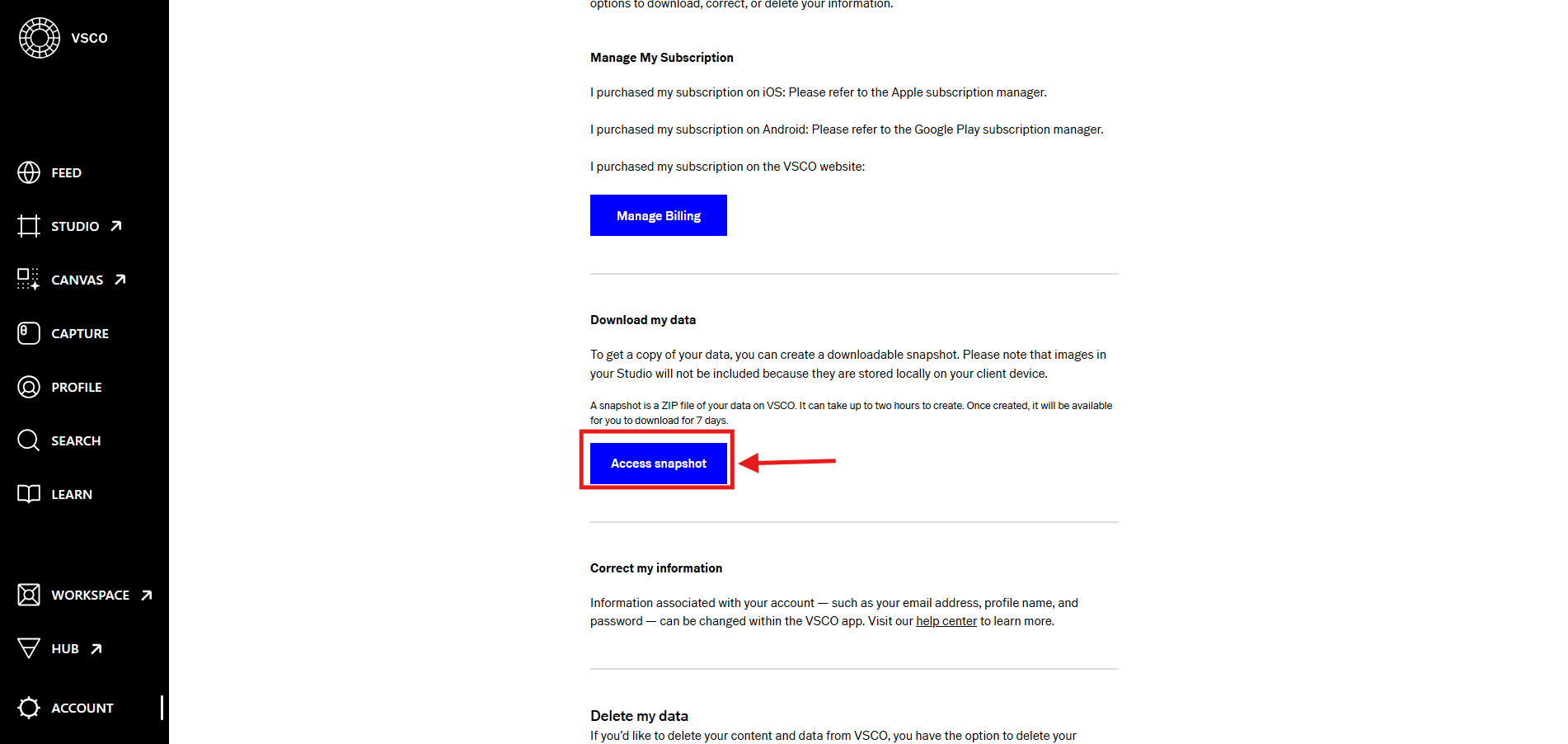
Please note that it takes about 2 days for VSCO to provide a snapshot of your account, and you have a 7-day window to download the data.
Save Individual Images
VSCO requires you to upgrade to its membership plan to save the uploaded images in the highest available quality. If you have one, follow the steps:
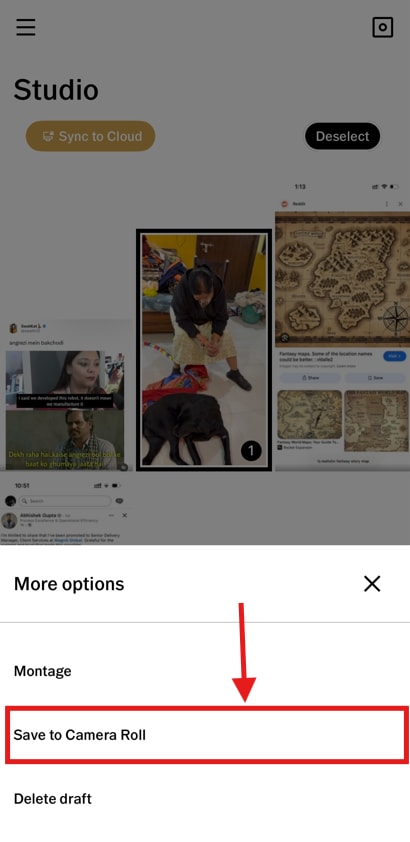
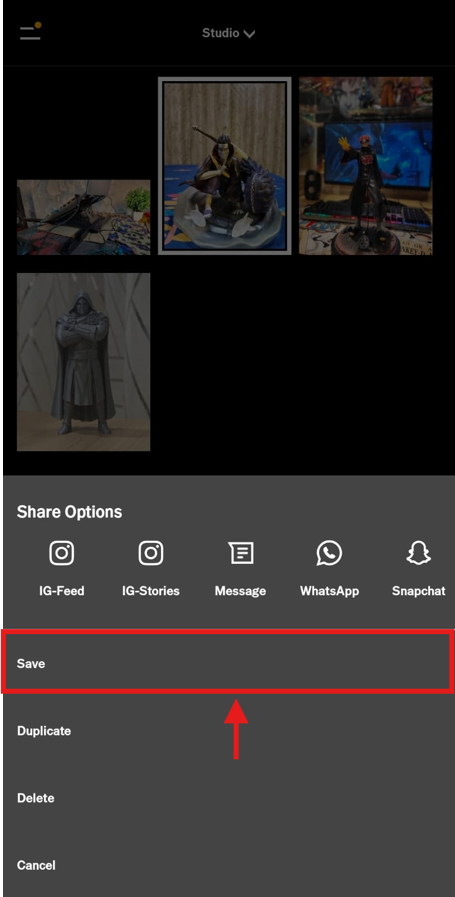
Step 1: Access the “Studio” option on the VSCO app and select the image you want to download.
Step 2: If you’re on iOS, tap the three dots icon, then tap “Save to Camera Roll” to save the image at original quality.
Or, if you’re on Android, select the image, tap the three dots icon, then choose “Save” from the menu.
Downloaded VSCO images from third-party apps are typically low quality due to the compression and downscaling applied to optimize loading time and save storage space. In such cases, multimedia processing tools like Wondershare UniConverter become helpful.
UniConverter has an AI Image Enhancer feature that can upscale images to up to 4K quality. You can convert or edit images to re-upload them on other social media platforms or professionally and build trust with your audience. Other than images, you can use UniConverter’s video editor to add your personal touch to the VSCO video.
Best VSCO Image Enhancer & Editor
Part 4. VSCO Downloader Privacy and Legal Considerations
What's Legal to Download From VSCO
Using third-party downloaders to save images and videos from public profiles on VSCO is legal. You can save content uploaded to private profiles for reference or collection, but using it for commercial purposes can lead to copyright infringement.
That said, you can download your own uploaded content officially from VSCO at any time without any issues.
Does VSCO Notify When You Download?
No, VSCO doesn’t notify you when you download an image/video from a public profile or take a screenshot. If made public, anyone can browse or download your uploaded content without you knowing.
Ethical Guidelines for Using Downloaded Content
Keep in mind, a lot of effort goes into creating content, so it’s ethically important that you always ask for permission to use the content commercially. Failing to do that is considered stealing and can result in suspension or even a ban on your account.
Part 5. VSCO Downloader Comparison Table
Choosing the right VSCO downloader depends on your device, download needs, and technical comfort level. The comparison table below highlights key features, platform support, bulk options, and overall ease of use to help you decide quickly.
| Feature | Experts Tool | VSCO Tools | VscoLoader: 4K VSCO Downloader | iOS Workarounds | VSCO and Instagram Downloader | VSCO Downloader | WFDownloader |
| Platform | Web | Web | Android | iOS | Mozilla Firefox | Desktop | Desktop |
| Bulk Downloader | No | Yes | No | Yes | No | No | Yes |
| Video Support | No | No | Yes | Yes | Yes | Yes | Yes |
| Quality | HD | HD | HD | HD | HD | HD | HD |
| Mobile Friendly | Yes | Yes | Yes | Yes | No | No | No |
| Ease of Use | ⭐⭐⭐⭐⭐ | ⭐⭐⭐⭐⭐ | ⭐⭐⭐⭐ | ⭐⭐⭐⭐ | ⭐⭐⭐⭐⭐ | ⭐ | ⭐⭐⭐ |
| Best For | Beginners | Bulk Media | Video content | iPhone users | Quick browser downloads | Advanced desktop users | Large-scale bulk downloads |
FAQs about VSCO Downloader
Can I download VSCO photos without an account?
Yes, many publicly accessible accounts are available on VSCO, which you can browse without an account. You can even scroll through their uploaded images or videos and use links to download them with third-party VSCO downloaders.
Does VSCO notify if you screenshot photos?
No, VSCO doesn’t notify you of your screenshot photos. You can anonymously browse through a creator’s profile and even download photos that are publicly available for download.
How do I download all photos from a VSCO profile?
You need a bulk downloader like VSLoader or Vscotools Downloader to download all photos from a VSCO profile. Just copy the profile link and paste it into the creator's input box to batch download the photos.
Can I download VSCO videos?
Yes, you can use tools like VSLoader to download VSCO videos with a few clicks. The VSLoader interface is simple and allows downloading videos within seconds.
How do I download my own VSCO photos?
If you’re on the VSCO mobile app, head to the Studio and download the uploaded photos individually or in a batch. Or, on the desktop, open Settings and click Access Snapshot to save the entire dataset to local storage.
Why is my downloaded VSCO image low quality?
Your downloaded VSCO images are low-quality because the platform applies heavy compression, limits resolution to speed loading, and uses dynamic scaling for mobile viewing. To upscale the images, you can use a reliable platform like Wondershare UniConverter.
Is it legal to download VSCO photos?
It’s legal to download VSCO photos as long as you’re archiving them or using them for reference. However, using the photos for commercial purposes is illegal and can result in your account being suspended or banned.
Can I use a VSCO downloader on iPhone?
Yes, a browser-based VSCO downloader is available on iPhone, or you can use official apps to create and save content. However, third-party downloaders aren’t available on iPhone due to download restrictions and privacy policies.
How do I find deleted VSCO pictures?
Deleted VSCO pictures can often be recovered from your phone’s local storage (Camera Roll/Gallery) within 30-60 days, as VSCO stores photos locally rather than on its own servers.
What's the best VSCO bulk downloader?
WFDownloader is one of the best bulk downloaders available due to its stable operations, video download support, and high-speed downloads.
Conclusion: The Smart Way to Download Photos from VSCO
VSCO downloaders provide convenient access to public content, whether you want inspiration or an archive for future reference. Many web, online, and desktop downloaders are available, but some are bundled with adware, while others require technical skills. Moreover, downloading and using others' content can constitute copyright infringement.
That said, the official VSCO features always let you export your own content safely. If you’re not a VSCO member, the downloads may be of lower quality. In such cases, use a reliable video quality improvement tool such as Wondershare UniConverter. It supports image upscaling to 4K quality, usable on social media and professionally.
So, choose the right VSCO downloader for your needs and image/video editing tools like UniConverter to level up your content creation.

