

Want smarter, faster, and free photo edits? With the RoboNeo AI agent, it actually is. Built for creators who want fast, professional-quality results without technical hurdles, RoboNeo covers everything from cleanup to resizing. It is a rising favorite among most of the AI-powered tools, and for a very good reason.
This article breaks down its features, use cases, and tips for better editing prompts. If you’re ready to upgrade your content game, you’re in the right place.
In this article
Part 1: What Is RoboNeo AI Agent?
RoboNeo AI agent is a your AI-powered photo editing genie designed for fast, high-quality results with zero technical hassle. From object removal to image enhancement and resizing, it handles everything in seconds through a clean, user-friendly interface. Ideal for creators and marketers, it's also perfect for RoboNeo for small business use cases like product visuals, graphic design, photo editing, video creation and brand graphics. This AI assistant makes editing effortless and scalable. Whether you're polishing a portrait or prepping social media posts, RoboNeo delivers professional-grade results instantly.
Key Features of RoboNeo
- One-Click Photo Editing: Enhance photos instantly—no manual tweaking required.
- Rich Design Templates: Choose from a curated library for social posts, ads, banners, and more.
- Built-in Video Editing: Add effects and trim videos to improve visual storytelling.
- Supports All Major Formats: Effortlessly export in JPG, PNG, MP4, and beyond.
- User-Friendly Interface: Creators of all levels will find it easy to use with its straightforward design.
- AI-Powered Suggestions: This AI editing tool intelligently recommends design edits and layouts based on your goals.
- Cloud-Based Workflow: It offers secure cloud storage where you can save, access, and manage projects anytime
- Cross-Device Functionality: Edit your visual across multiple devices—perfect for flexible, mobile-first creators.
Who Can Benefit Most from RoboNeo
If you're building content, campaigns, or a brand—RoboNeo is your shortcut to visual excellence. Here’s who can benefit the most:
Small business owners
Running a business means wearing multiple hats—and design doesn’t have to be one of them. RoboNeo gives you easy tools to edit photos, create flyers, or prep social media visuals. It’s fast, free, and requires no prior experience.
Influencers & content creators
If you post often, you need visuals that pop—and fast. RoboNeo helps creators polish their content quickly, whether it’s YouTube covers or Reels previews. It keeps your feed fresh without burning you out.
Marketers and advertisers
Tight deadlines and endless asset demands are no problem with RoboNeo. You can generate campaign visuals on demand using templates and AI smart suggestions. Everything stays on-brand and professionally polished.
E-commerce sellers
RoboNeo makes your product photos look as good as your products. Background removal, image enhancement, and resizing are all just a click away. It’s perfect for creating high-converting listings on any platform.
What Can I Do With RoboNeo
Here's how real users apply RoboNeo—from ecomm to content creation.
- Launching a logo and product pack for online stores
Online sellers can generate clean, minimal logos and visual sets for their products using RoboNeo. It ensures brand consistency across hero shots, thumbnails, and promos. Especially for Shopify users, it simplifies the early branding process without needing pro design tools.
- Influencer photo edits, done in one shot
Batch-editing is a lifesaver for creators managing high-volume content. RoboNeo offers smooth, contrast control, and lighting balance at scale. It helps Social media influencers to create visuals without compromising aesthetic consistency or brand tone.
- Create ad banners for paid campaigns on Mobile
Designer can craft minimalist banners quickly using RoboNeo’s in-built ad-friendly templates. These banners are optimized for fast loading, high visibility, and sharp rendering on mobile. Great for marketers iterating creatives across multiple platforms in short sprints.
- Enhance handmade product shots
Crafters and Etsy sellers benefit from RoboNeo’s auto background remover and lighting enhancer tools. They can clean up clutter and focus on the product’s appeal—without reshooting. Eventually it results in higher professionalism in listings, better buyer trust.
- Creating on-brand thumbnails and channel art for YouTube
For educational and entertainment channels alike, RoboNeo helps keep branding consistent. YouTubers can easily generate thumbnails, covers, and profile images that reflect their niche. That helps build identity—and increase subscriber trust—visually.
Pros & Cons of RoboNeo
Part 2: Why RoboNeo is the Next Popular AI Agent?
Tools that combine simplicity, intelligence, and visual appeal are winning hearts of AI agents in the world of content creation. RoboNeo checks all these boxes and more—let's explore what makes it a future favorite:
Affordable access and free tier
RoboNeo editing tool offers a powerful suite of tools at no cost, which makes it incredibly attractive for individual creators and startups. Its generous free tier includes image editing, AI generation, and avatar features—without intrusive ads or usage caps. For budget-conscious users, the affordability factor removes creative limitations. You can easily create high-quality content without investing in expensive subscriptions.
All-in-One AI creativity tool
RoboNeo integrates AI-powered image editing, generation, and enhancement in one seamless platform. Whether you're refining portraits, adding AI visuals, or generating branded content, it consolidates multiple workflows into one. This multimodal capability of RoboNeo allows users to experiment freely without switching tools. It is built for creators who value both speed and visual quality in their output.
Ease of use with natural language prompts
Just type it out—RoboNeo will handle the rest. Its language-based interface understands what you need and delivers results in seconds. No design degree? No problem because the intuitive UI makes creativity feel effortless.
Personalization and fun features
From mood-mirroring avatars to saved preferences, RoboNeo injects joy into content creation. Your work doesn’t just look good—it feels like you. It’s built to make your brand, your vibe, and your tone stand out naturally.
Part 3: How to Easily Do AI Photo Editing with RoboNeo
RoboNeo simplifies AI photo editing with its intuitive controls and precision tools. Whether you're refining a single photo or transforming it into dynamic content, the platform ensures high-quality results with minimal effort. Here are the two methods to get started:
Method 1: Static image editing
Follow the below mentioned 3 steps:
Step 1: Upload your image
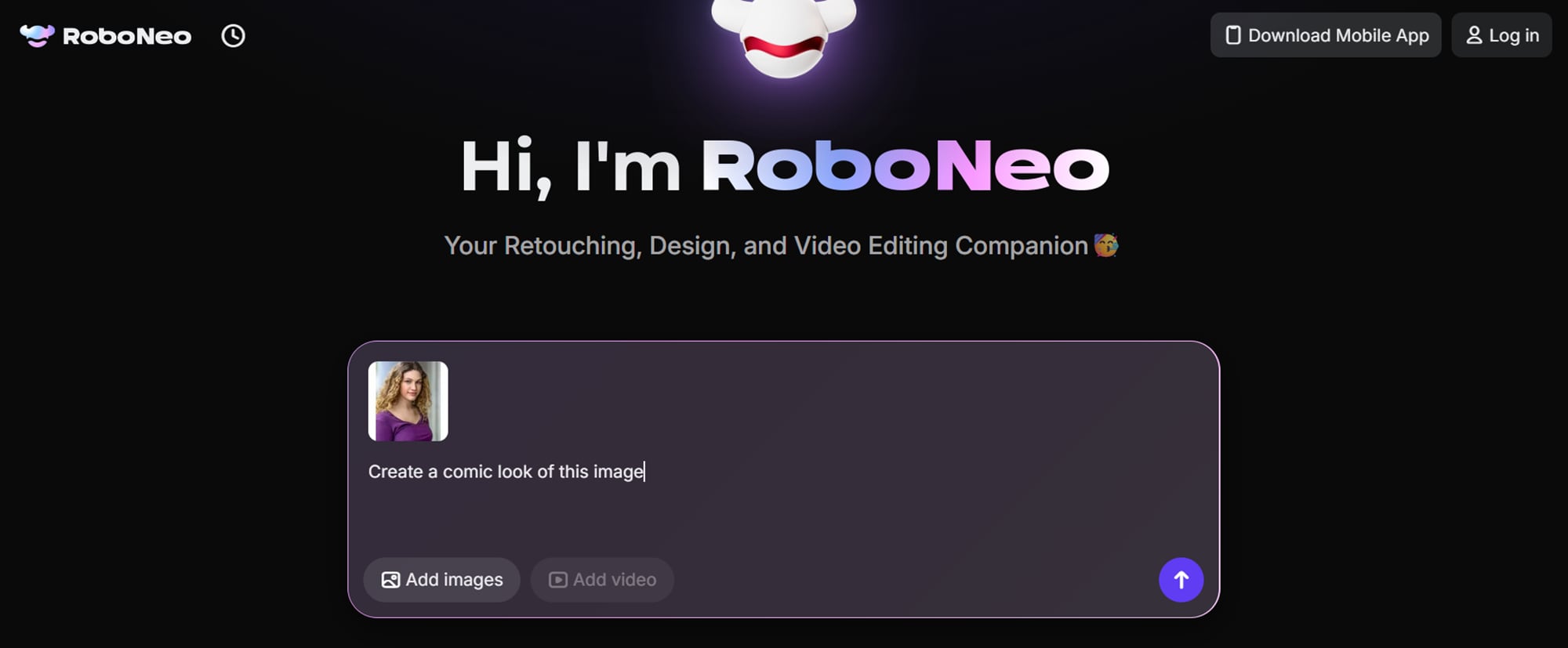
Launch RoboNeo and choose the “Add Image” tool. Upload your photo directly or drag and drop it into the workspace.
Step 2: Apply regional edits
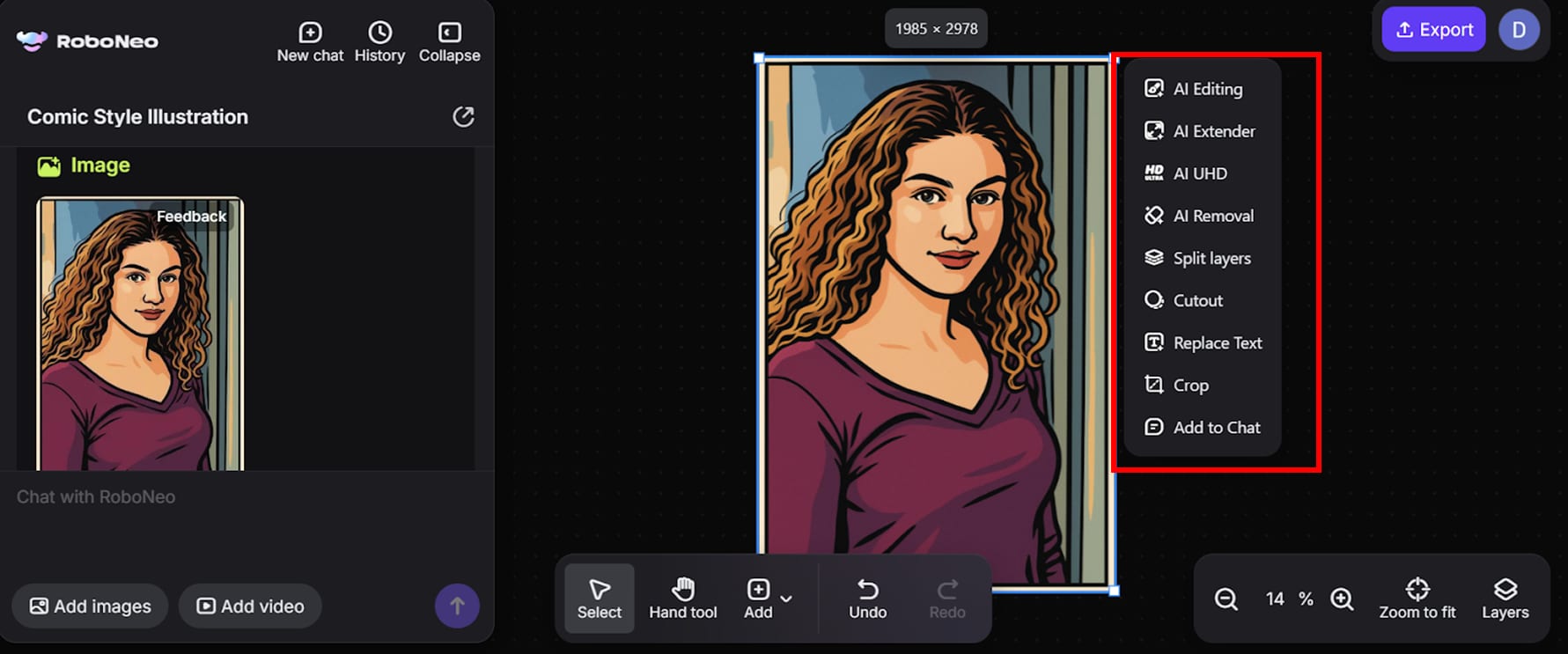
Use prompt-based commands or mask specific areas to retouch zones like facial features, lighting, or background removal—while preserving image fidelity. Hit the “Generate” button, and the AI will automatically apply the desired changes. You can also make manual refinements using RoboNeo’s built-in editing tools.
Step 3: Generate and refine
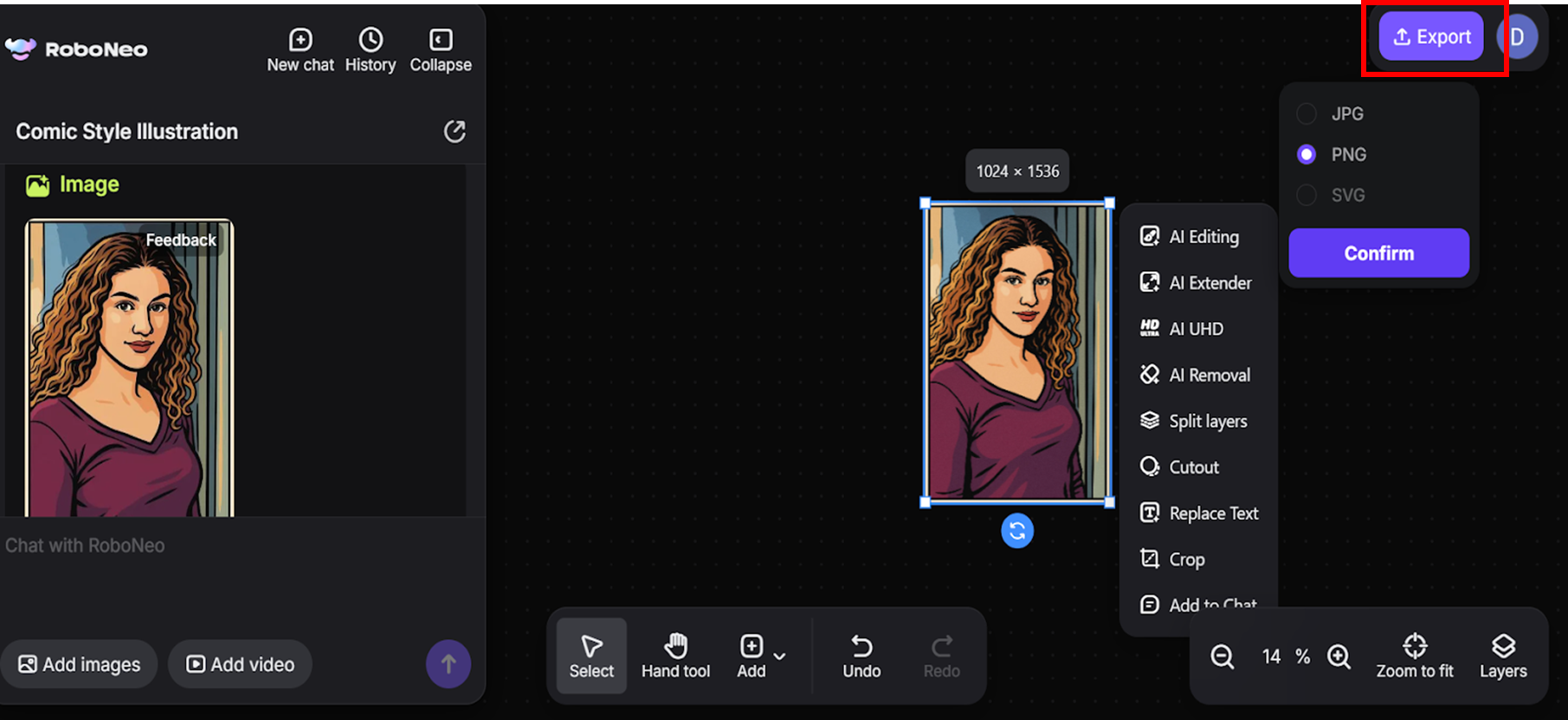
Preview the AI-edited output. Tweak the results using sliders or prompt re-entries until you're satisfied, then hit Export.
Method 2: Image to video generation
Follow the below mentioned 3 steps:
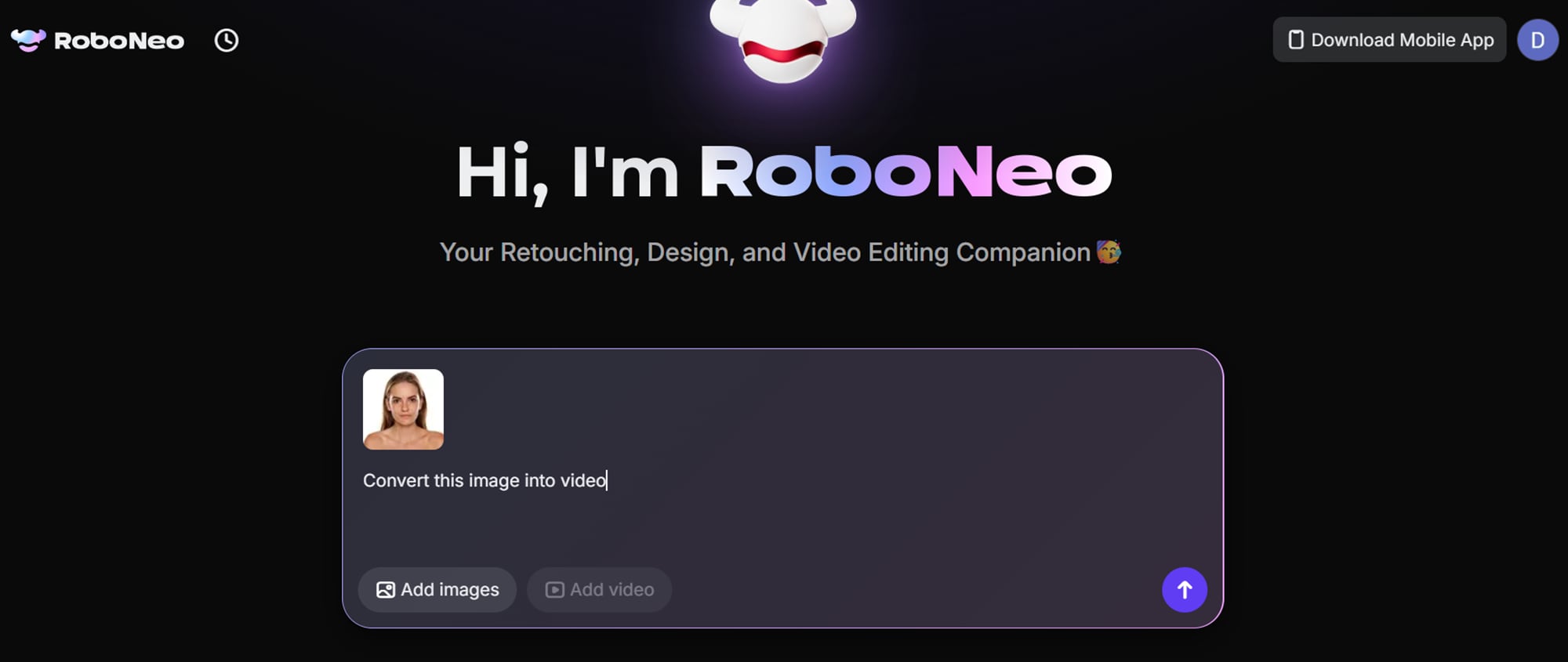
Step 1: Select your base image
Head to RoboNeo’s “Add Image” feature. Upload a portrait or product image to act as the visual anchor of your animation. Give a prompt to convert the image into video along with other specifications. Then, hit “generate button”
Step 2: Edit and customize
RoboNeo’s AI agent will automatically generate a video out of your image based on your prompt. Once generated, use the built-in editing tools to crop, edit text, AI extender, refine motion, timing, transitions, etc.
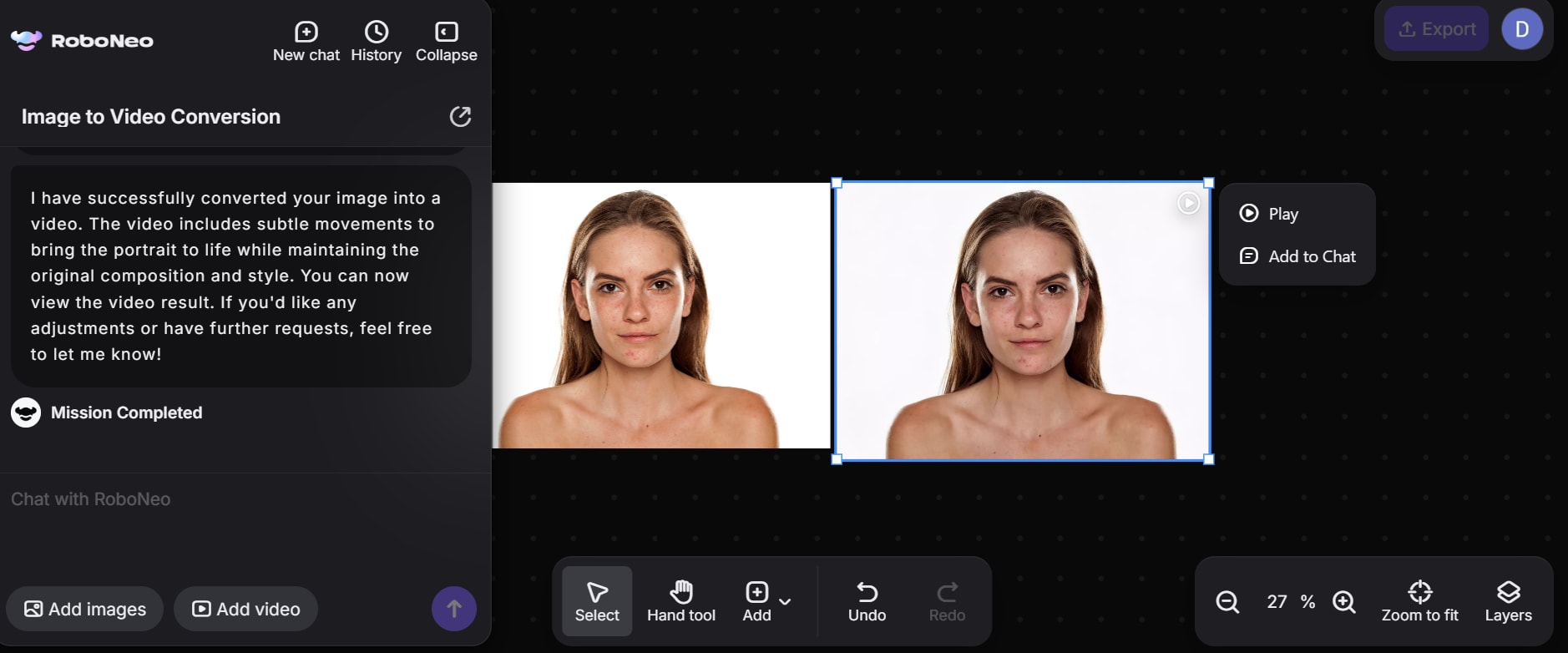
Step 3: Generate and export video
Play the video and once finalized, download the video in your preferred format for sharing or publishing.
Part 4: How to Resize Edited Photos from RoboNeo Without Cropping
RoboNeo makes AI editing easy, but its resizing tool? Not so flexible. It only crops, which often means losing parts of your image you’d rather keep. That’s a problem if you’re trying to fit your photo into different formats. That’s where UniConverter’s Image Resizer shines. With one click, you can resize images to match any major social media layout—Instagram, YouTube, Facebook—without cutting off a thing. Choose a preset or type in your own dimensions, and just like that, your photo is resized and ready to go.
Here is the step guide on how to use Wondershare Uniconverter Image Resizer:
Step 1: Start UniConverter and load your images
Launch UniConverter and head over to the “Batch Image Editor”. Upload all the photos you want to edit—whether it’s two or two hundred, this tool handles it with ease.
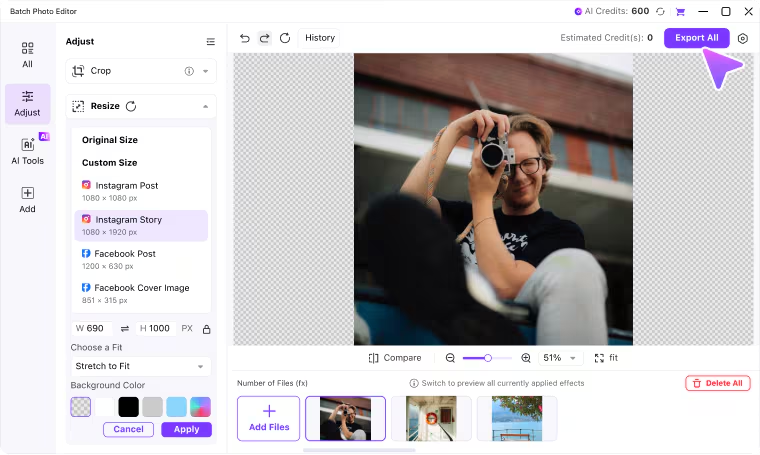
Step 2: Set your size—fast or fine-tuned
Click the “Resize” drop-down. You’ll see ready-made sizes for social platforms, but if you need something specific, just type your desired width and height—no guesswork needed.
Step 3: Export Image
Take a moment to view the resized images right inside the editor. Happy with how it looks? Hit “Export All” in the upper-right corner—and your images are ready to go!

Easy to Use Batch Image Resizer
Why UniConverter Excels at Image Editing Process
Supports multiple image formats
Uniconverter supports image formats from JPG and PNG to BMP, TIFF, and even WebP. It also supports a wide range of formats, so you never need separate tools to handle different image types.
Delivers consistent or even better processing quality
Unlike limited in-app tools like RoboNeo, UniConverter ensures your images retain their visual fidelity. Whether you're resizing, compressing, or changing formats, there's no blur, noise, or quality drop.
One-click batch editing
Work smarter by processing dozens—or even hundreds—of photos at once. Resize, enhance, or convert in bulk while maintaining professional-level output.
Integrated with smart AI editing tools
UniConverter goes beyond basic resizing. Add watermarks, remove backgrounds, adjust colors, and more—all powered by AI and conveniently accessible in one interface.
Optimized for social media output
Tailor your content to match the exact specs for platforms like Instagram, Facebook, YouTube, or Pinterest. Aspect ratio and resolution presets make it effortless.
Lightweight and user-friendly interface
With its clean design and intuitive controls, UniConverter is easy for beginners and powerful enough for advanced users—without slowing down your workflow.
Part 5: Tips for AI Image Editing Prompts with RoboNeo
Every great image starts with a strong idea—and RoboNeo’s AI listens to how you describe it. Think of your prompts as your creative voice. and the use these tips to speak fluently in AI language:
Be specific with your descriptions
Imagine telling an editor exactly what to fix. That’s how RoboNeo works. Say “remove blemishes and soften jawline” instead of just “beautify the face.” Precise language = smarter AI choices.
Define the type and style of image
Whether it’s a moody portrait or a product on a white background, define it. Style matters too—vintage, surreal, editorial, or cinematic? Help RoboNeo visualize your concept before it generates.
Avoid overloading the prompt
Too much at once can muddle the magic. Break edits into parts instead of overloading the prompt with five requests. It’s like giving directions—one turn at a time gets you there smoother.
Use contextual cues for better results
Paint a mental picture with words. Create the prompts like “natural light from the left, blurred café background” or “golden hour with lens flare.” These extras elevate realism and creative tone.
Leverage prompt iteration to fine-tune edits
Are you aware of the fact that "good edits evolve". If the first output misses the mark, tweak your prompt and regenerate it. Each small change teaches the AI—and gets you closer to the exact mood or look you imagined.
Conclusion
Smart editing starts with smart prompting. RoboNeo turns your ideas into reality—but only if you communicate them with purpose. From image tone to aesthetic direction, every element you define gives the AI an edge. Be intentional, avoid clutter, and let RoboNeo do the heavy lifting. The outcome? AI-generated visuals that look human-made. Pair that with UniConverter’s powerful image editor—supporting all major formats and AI tools—and you’ve got a complete editing ecosystem.
Easy to Use Batch Image Resizer
FAQs
-
1. Can it really clean up shadows and reflections with RoboNeo AI Agent?
Yes, and better than expected. Its neural understanding of light behavior lets it rebalance an image like a seasoned photojournalist. Reflections, poor lighting, awkward shadows? All gone—no masking required. -
2. Do I need to master prompts to use RoboNeo AI Agent well?
No, but if you enjoy refining your craft, you will get better results by learning to “talk in visuals.” Think of prompts like casting a spell—the more precise the incantation, the more magical the image. -
3. How does it maintain aesthetic unity across content pieces?
Through design memory. RoboNeo tags your cues—like minimalist lighting or pastel overlays—and applies them throughout your batch. That’s how your catalog ends up looking like a curated Pinterest board. -
4. Where does RoboNeo AI Agent shine beyond the basics?
In creative ops. It’s your thumbnail engine, your moodboard whisperer, your mockup magician. If you work in content, branding, or marketing, RoboNeo saves hours—and looks cool doing it. -
5. Can AI image editors like RoboNeo AI Agent deliver print-ready images?
Yes, but optimization is key. RoboNeo creates high-resolution visuals, and refines them by converting to TIFF or BMP formats and tweaking DPI. The result: sharp, professional-grade prints.

