


Ever found the perfect photo, only to see it turn into a blurry, pixelated mess when you zoom in? Whether you're a photographer with old prints, a social media creator needing HD graphics, or an e-commerce seller with tiny product shots, this problem is frustrating. You need a photo image enlarger, but professional tools are complex and costly.
Wouldn’t it be amazing if you could make any photo look HD in just one click? Well, now you can — with the latest AI image enlargers. In this guide, we’ll walk you through the 10 top tools of 2025 to help you upgrade low-res pics in seconds.
Table of Contents
Part 1. What is an AI Image Enlarger & How Does It Work?
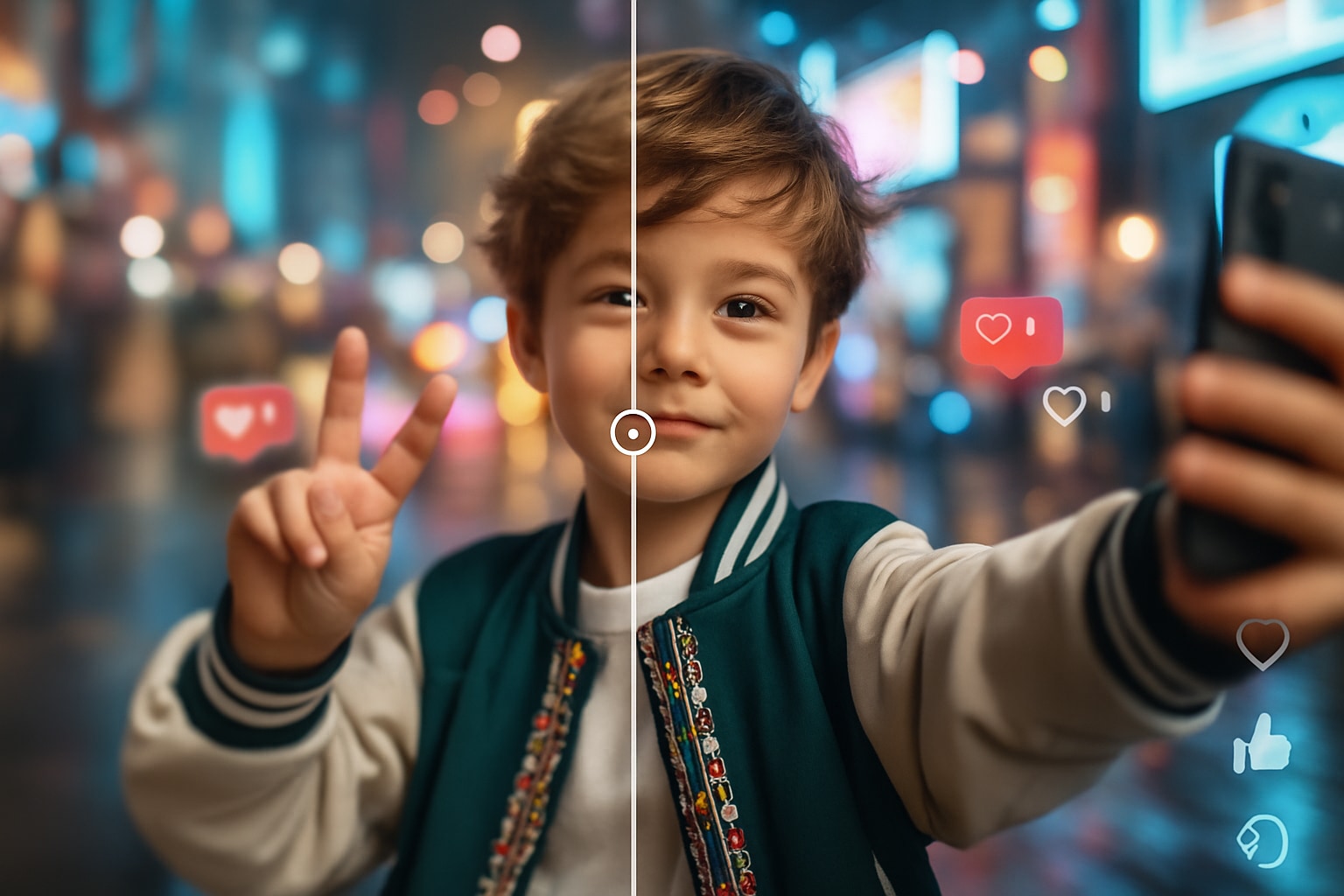
The "Magic" Explained in Simple Terms:
To understand what makes an AI enlarger special, let's look at the old way versus the new AI way.
Old Way (Pixel Interpolation)
Imagine you have a small 4x4 grid of pixels and you want to make it 8x8. The old method, called interpolation (like 'Bicubic' or 'Bilinear'), has to guess what to put in all the new, empty spaces. It looks at the pixels right next to an empty spot and just averages their colors. This "dumb" guessing is why the image becomes soft, blurry, and undefined. It's just stretching; it's not adding real detail.
AI Way (Deep Learning)
The AI image enlarger works completely differently. It runs on a 'neural network' that has been trained on millions of pairs of low-resolution and high-resolution photos.
Training: The AI is shown a blurry photo and the original sharp version. It learns the patterns of how real-world objects—like brick texture, strands of hair, or the edge of a leaf—look when they are pixelated.
Reconstruction: When you give it your blurry photo, it doesn't just guess colors. It recognizes the patterns. It says, "This blocky mess looks like the pattern of a human eye," or "This soft edge looks like a rooftop."
Result: It then reconstructs that feature, drawing in new, intelligent pixels that it predicts should be there. It's not just stretching; it's a form of intelligent recreation. This is why a photo enlarger AI can add genuine sharpness and detail that wasn't visible before.
Part 2. Top 10 AI Image Enlargers 2025 (Free & Paid)
We've tested the best tools available, from all-in-one desktop suites to fast online apps. Here are our top 10 picks, starting with our top recommendation for creators.
Group 1: Best All-in-One Desktop Software
This category is for users who want a safe, powerful tool on their computer that handles more than just one task.
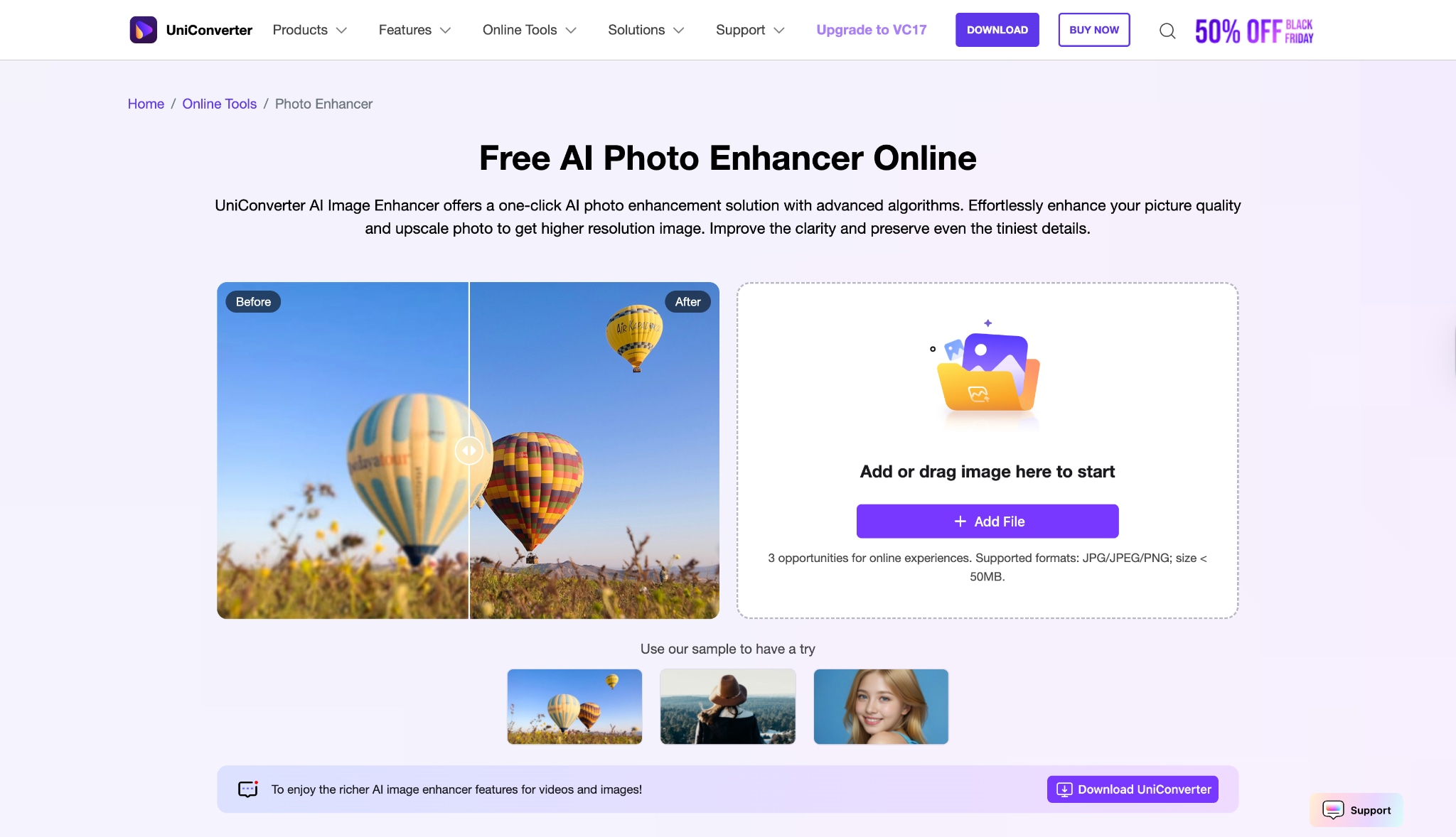
1. Wondershare UniConverter
Serving as more than a basic AI image enlarger, Wondershare UniConverter stands out for its robust suite of media capabilities. The platform integrates advanced AI algorithms to upscale images, effectively reducing blur and pixelation while preserving crucial detail. Whether you're preparing graphics for presentations or revitalizing personal photos, UniConverter delivers speed and versatility. Users may resize multiple images in bulk or fine-tune individual enhancements, thanks to its flexible options. Not only does it handle photos, but it also supports videos and audio, making it a well-rounded toolbox.
Safety Review: 5/5
Starting Price: Free Trial; Paid plans start at $9.99/month.
Supported Device: Windows 11/10/8/7, macOS 10.11 or later.

Easy to Use AI Image Enlarger
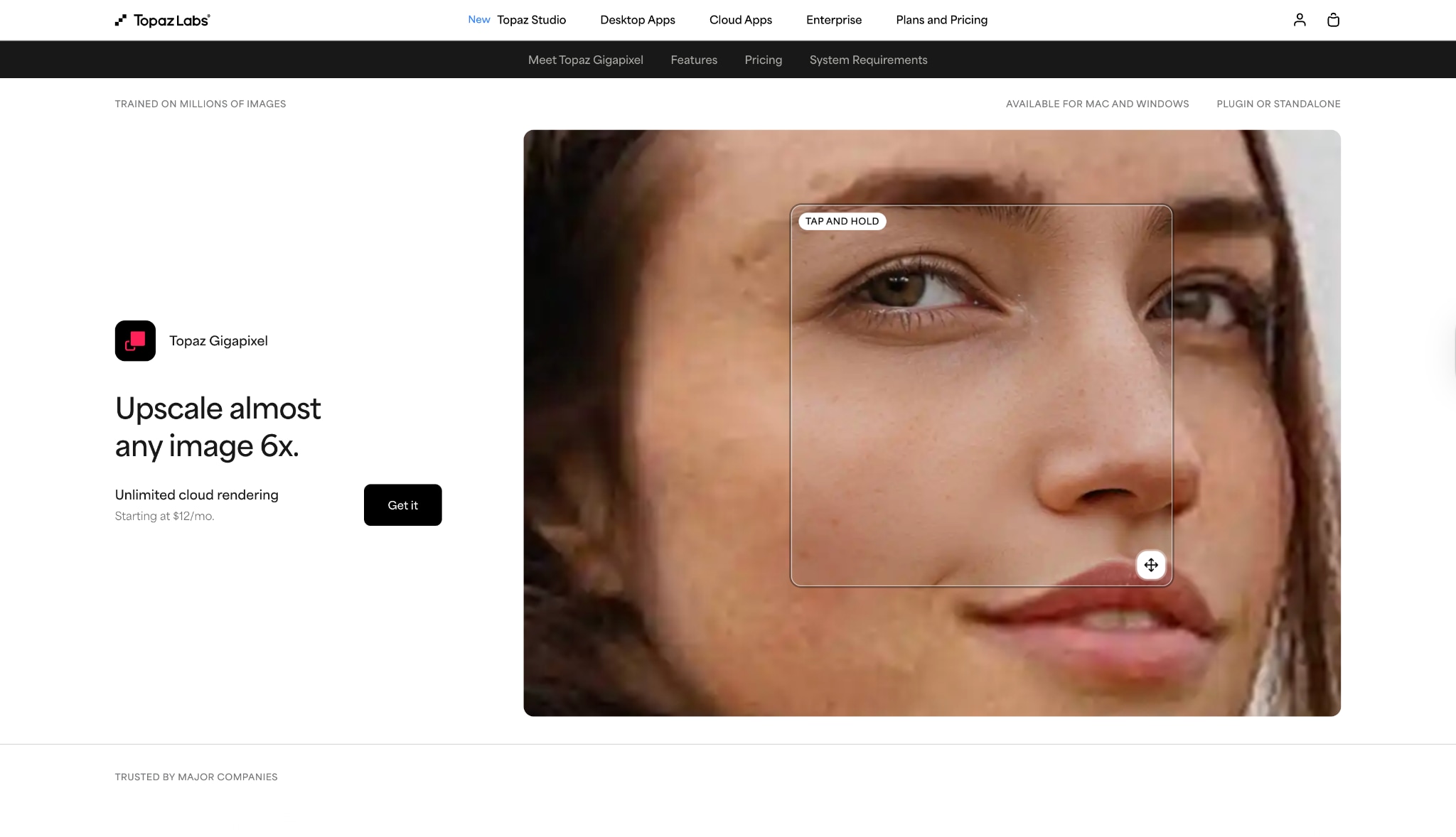
2. Topaz Gigapixel AI
As a leading AI image enlarger, Topaz Gigapixel AI transforms tiny, lackluster images into sharp, print-ready visuals with impressive realism. Leveraging state-of-the-art neural networks, it intelligently re-creates textures and precise edge details lost in the original. Photographers appreciate the natural-looking enlargements, free from halos or fuzziness typically caused by traditional tools. Batch processing allows multiple images to be upscaled at once, streamlining workflow and saving time.
Safety Review: 5/5
Starting Price: $99.99 (one-time purchase)
Supported Device: Windows, macOS.
Group 2: Best Free & Freemium Online Tools
These browser-based tools are perfect for quick, easy upscales without any installation.
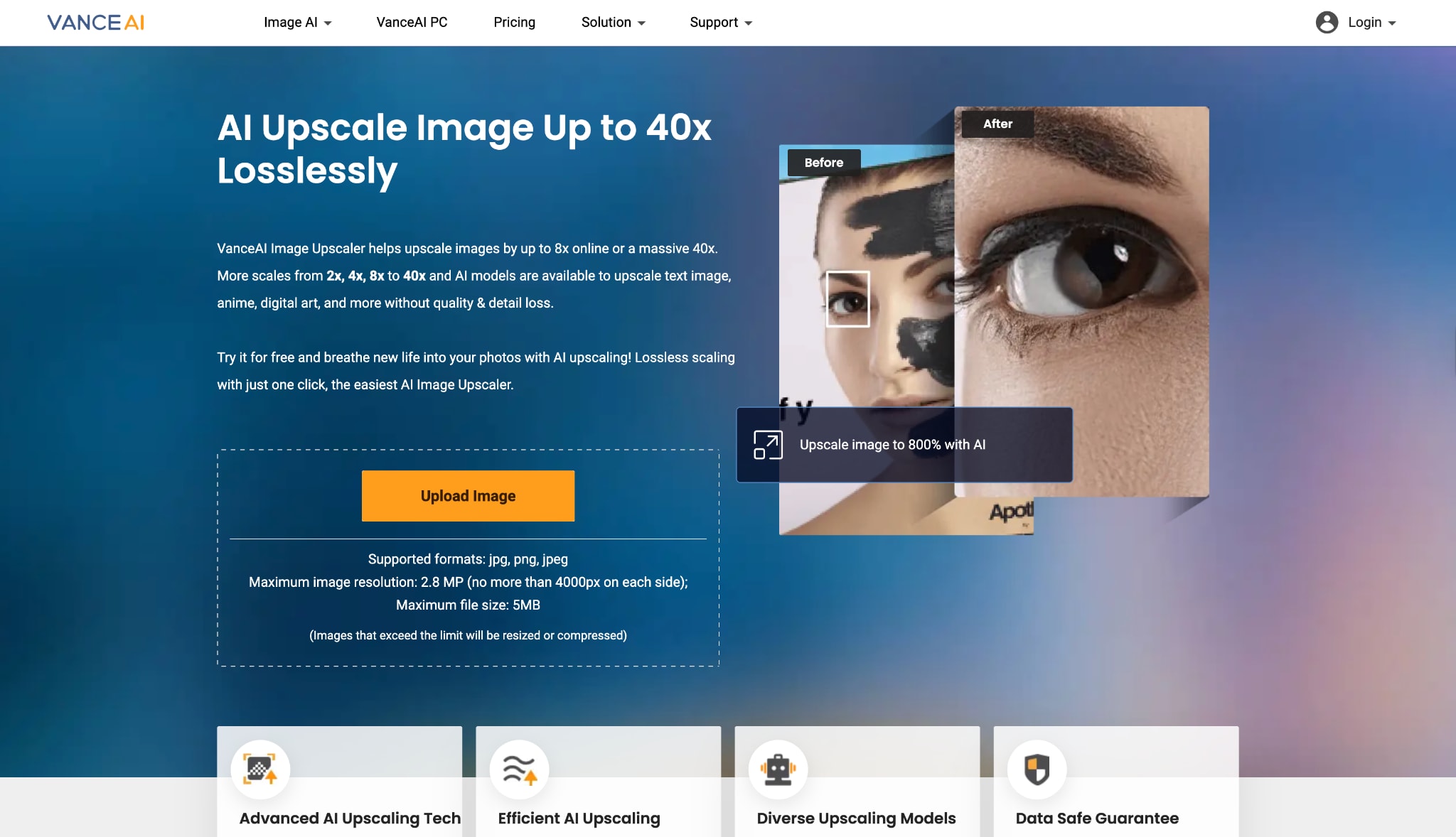
3. VanceAI Image Enlarger
Designed as an accessible online AI image enlarger, VanceAI Image Enlarger appeals to users who want speed without sacrificing quality. The interface is refreshingly straightforward—just upload an image, select the upscaling level, and let AI handle the rest. Behind the scenes, deep learning algorithms rescue fine details, eliminate noise, and prevent unsightly blurring, even when magnifying up to eight times the original size. Both hobbyists and professionals can appreciate its ability to upgrade photos for ecommerce, artwork, or web publishing.
Safety Review: 4/5
Starting Price: Free (with limited credits); Paid plans start at $4.95/month.
Supported Device: Web (Online), Windows.
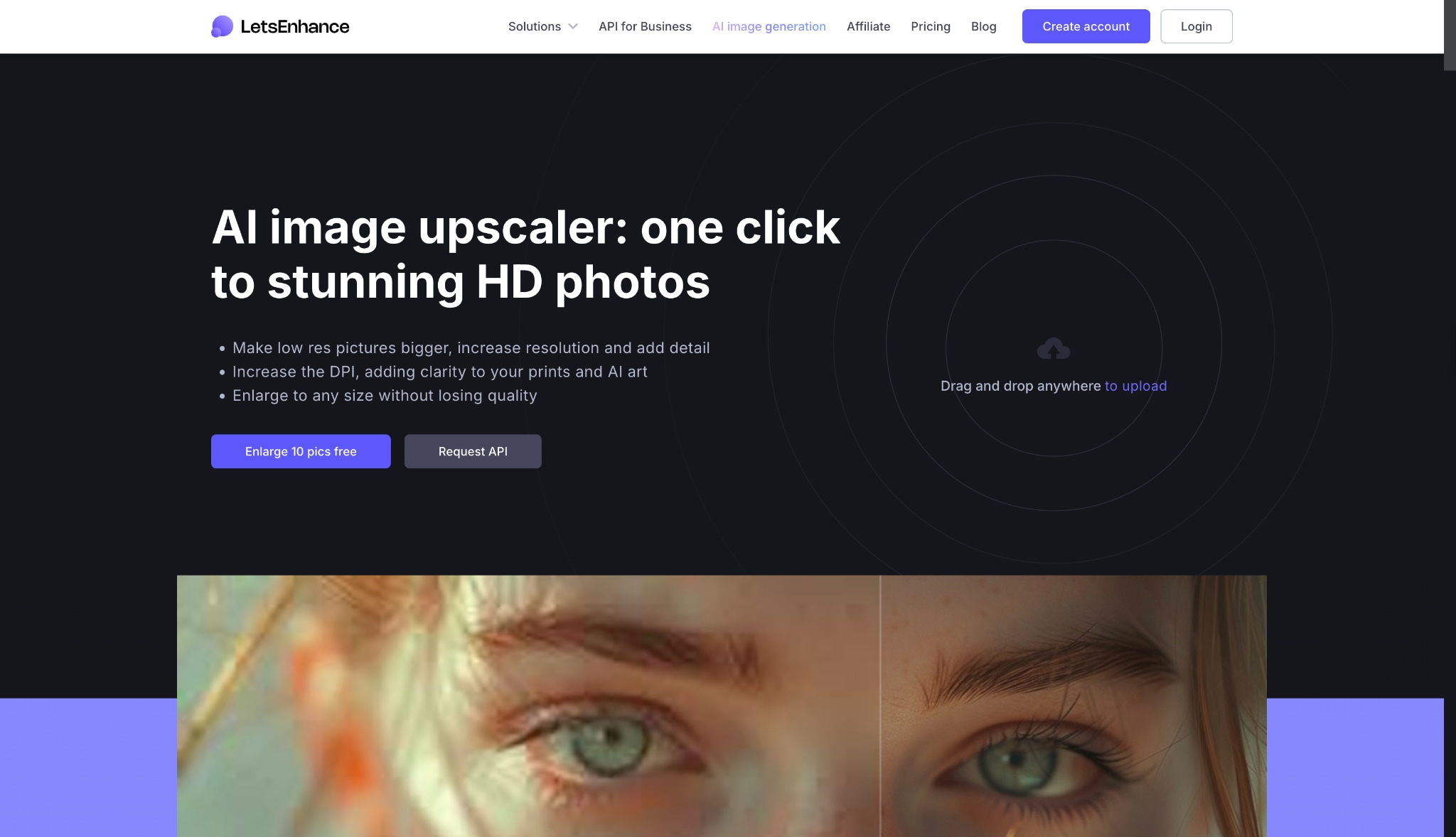
4. LetsEnhance
LetsEnhance represents a highly automated AI image enlarger with a distinct focus on optimizing both clarity and color. Users are drawn to its seamless workflow: upload, select enhancement style, and watch the platform deliver sharper, more vibrant photos. This tool not only increases resolution by up to eight times but also revives dull tones and fixes compression artifacts—a bonus for images salvaged from social media or the web. Suitable for e-commerce, marketing, or archival needs, LetsEnhance operates fully online, allowing fast batch processing and consistent results across large libraries.
Safety Review: 4/5
Starting Price: Free (10 credits); Paid plans start at $9/month.
Supported Device: Web (Online).
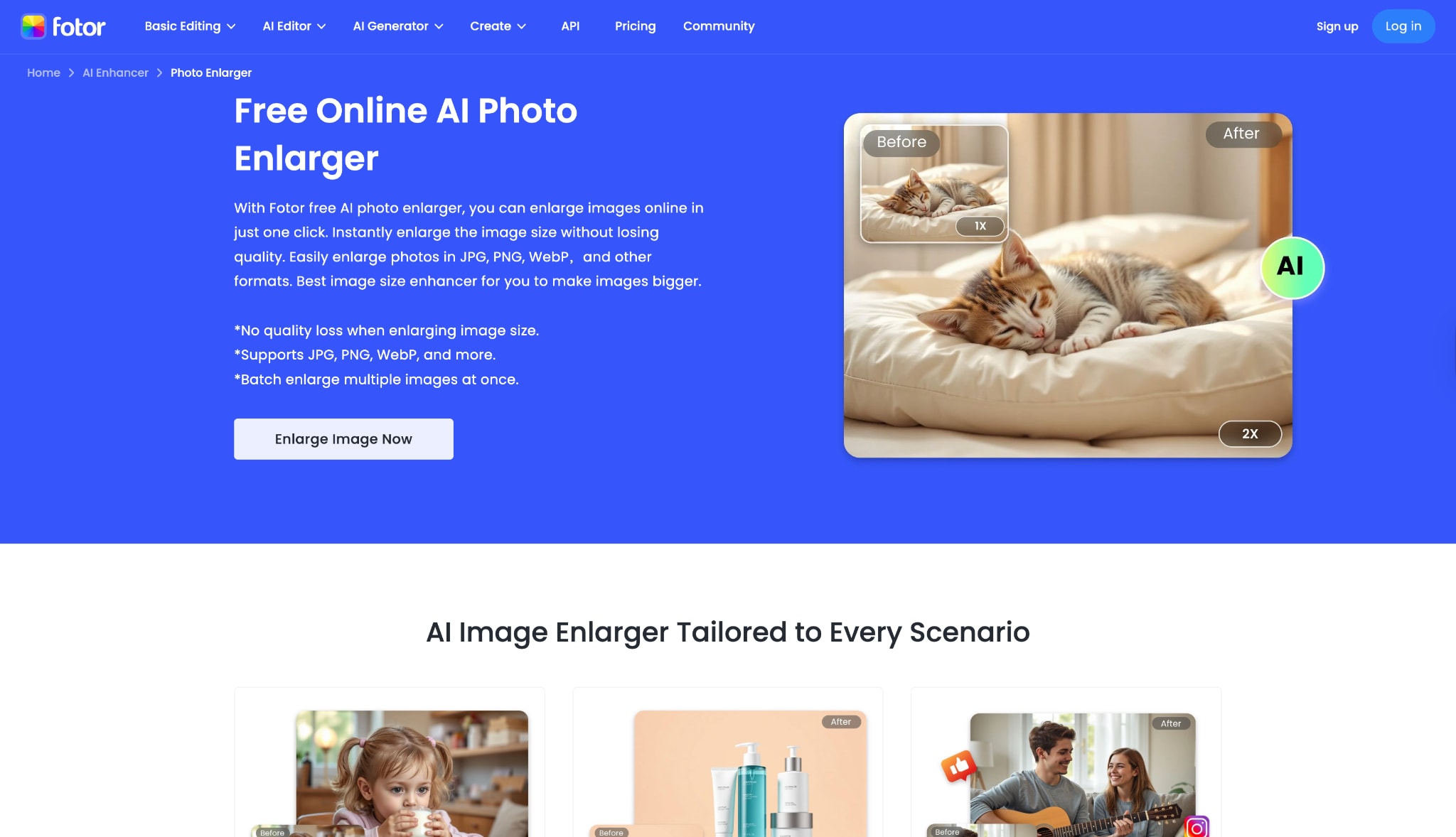
5. Fotor AI Photo Enlarger
Fotor AI Photo Enlarger stands out for its blend of simplicity and power in AI image enlarger tasks. Users are welcomed by an easy drag-and-drop interface, where selecting upscaling magnification is a breeze. Whether prepping visuals for digital marketing or improving treasured memories, Fotor uses advanced AI to preserve edges, refine textures, and amplify clarity in every photo. Real-time previews allow side-by-side comparisons, helping users select the best result with confidence. The tool supports popular file formats, making it a convenient choice for various creative projects and presentations.
Safety Review: 4/5
Starting Price: Free (with ads and limitations); Pro plans start at $3.33/month.
Supported Device: Web (Online), Windows, macOS, Mobile (iOS & Android).
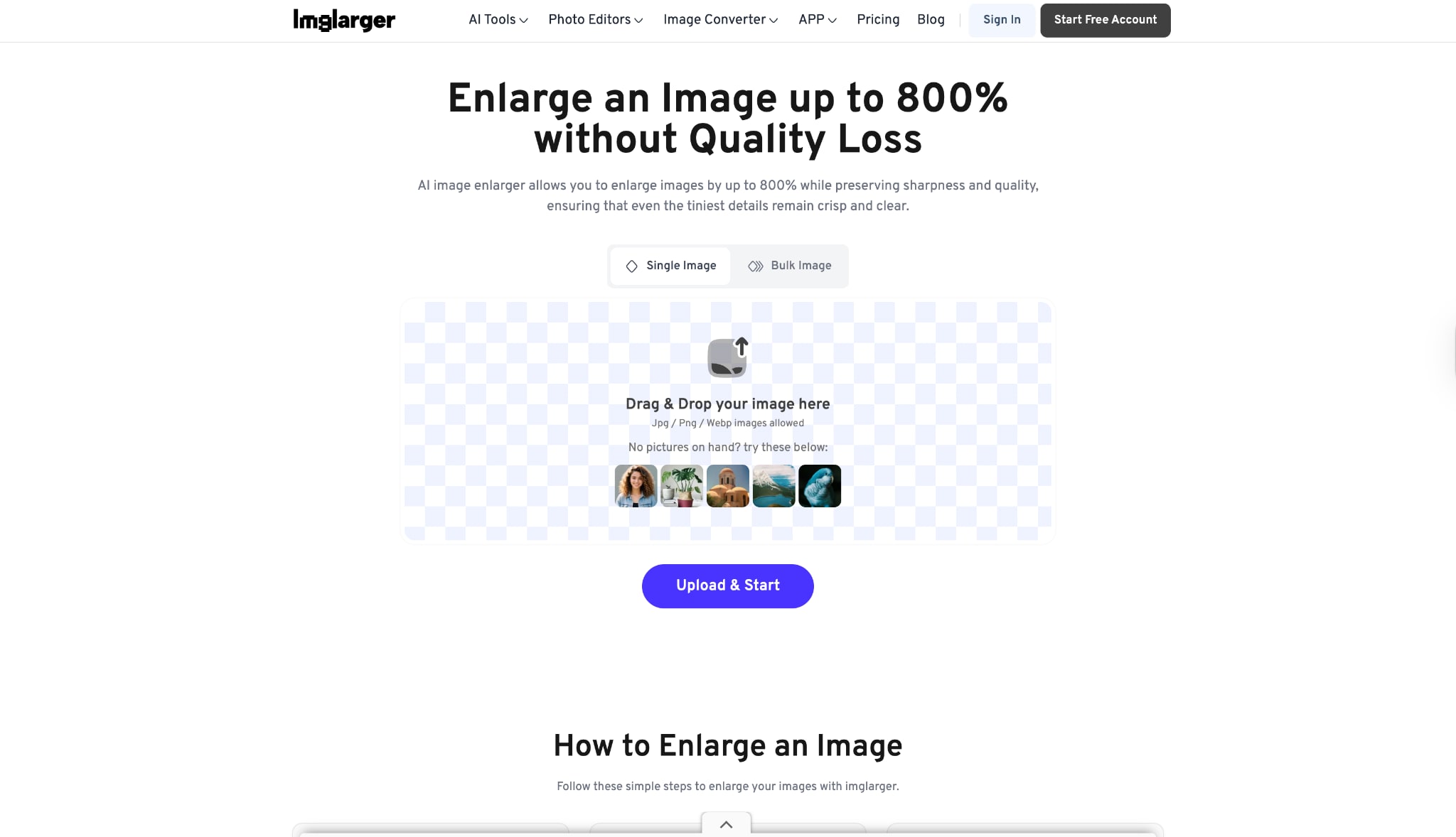
6. Imglarger
Heralded as a straightforward yet powerful AI image enlarger, Imglarger excels at enlarging images up to 800% without noticeable loss in quality. The service removes blur, corrects jagged edges, and reveals hidden details, lending professional polish to amateur snapshots and digital artwork alike. Its cloud-based design means users can access Imglarger from any device, ensuring adaptability for on-the-go editing.
Safety Review: 3/5
Starting Price: Free; Paid plans unlock batch processing and faster speeds.
Supported Device: Web (Online).
Easy to Use AI Image Enlarger
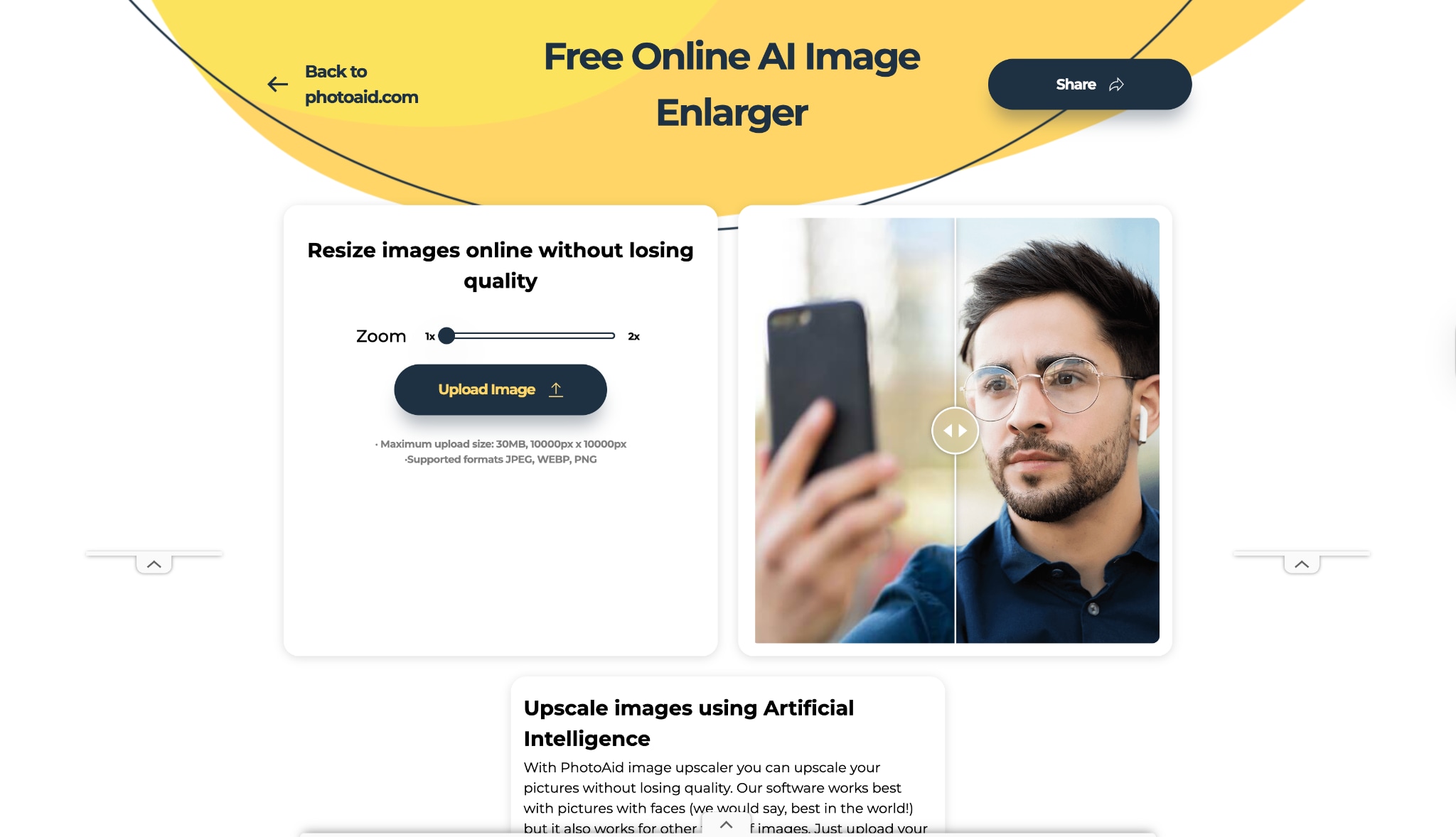
7. Photoaid Enlarger
Specializing in personal and professional use cases, Photoaid Enlarger is an AI image enlarger crafted for bringing out facial details and natural tones, particularly in portraits and ID images. Its algorithms intelligently analyze facial features, ensuring that skin texture, hair, and eyes remain lifelike and well-defined at higher resolutions. This targeted approach minimizes artifacts and maintains balanced sharpness across the entire photo, making it ideal for official document updates or creative headshots.
Safety Review: 4/5
Starting Price: Free.
Supported Device: Web (Online).
Group 3: Best Mobile Apps
For enhancing photos directly on your phone or tablet.
8. Remini
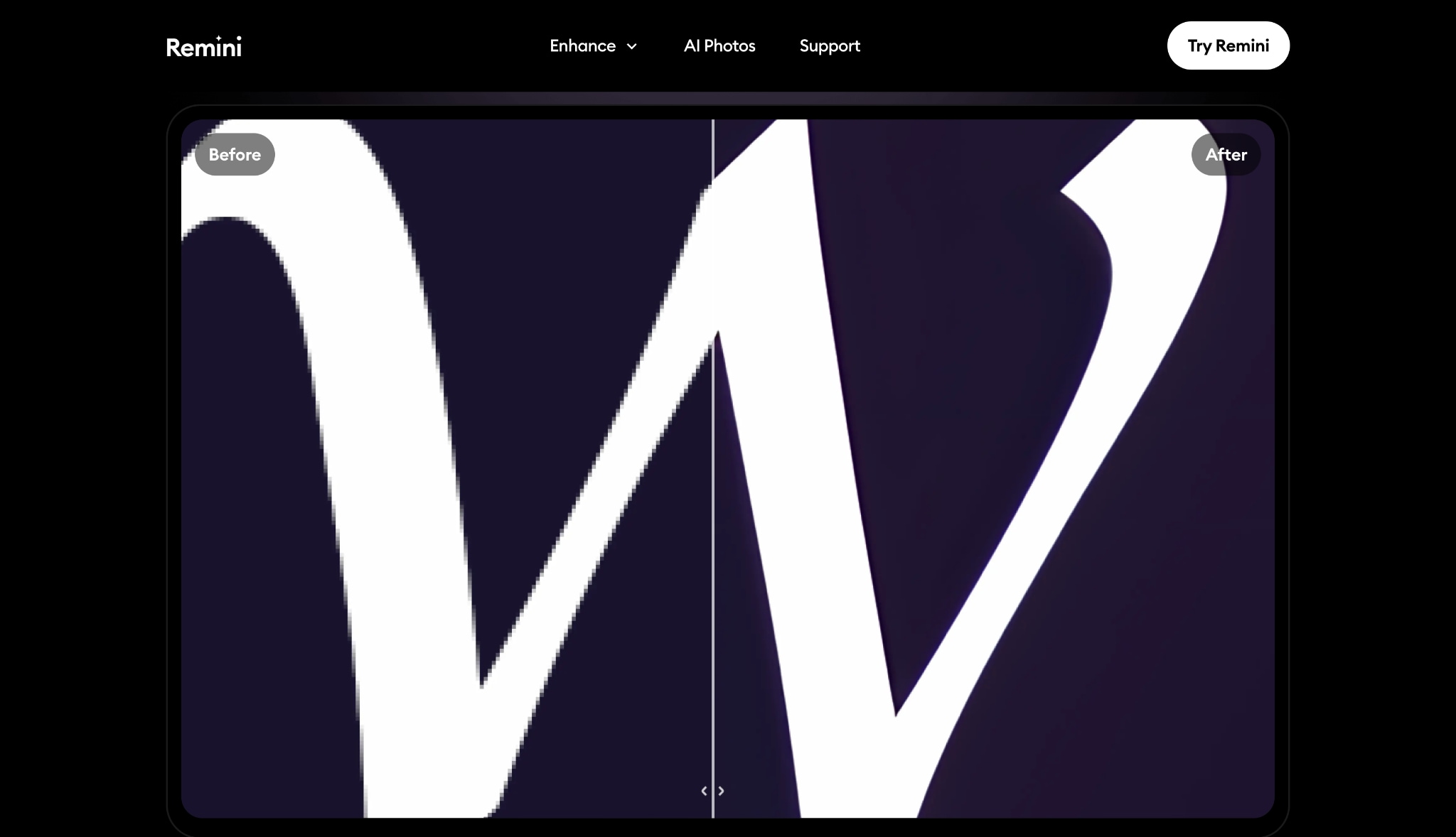
Renowned as both an enhancer and AI image enlarger, Remini breathes new life into faded, damaged, or out-of-focus photos. Its neural network models accurately recover facial details, restore accurate colors, and clarify blurry sections with a single tap. Mobile-first design ensures accessibility for all users, allowing quick fixes to family portraits or cherished memories. While Remini’s upscaling limit is typically 200%, its true strength lies in total restoration: beyond mere magnification, it reconstructs images to look as if they were originally captured in high resolution.
Safety Review: 3/5
Starting Price: Free (with ads/limits); Paid plans start around $4.99/week.
Supported Device: iOS, Android, Web (Online).
9. PicWish
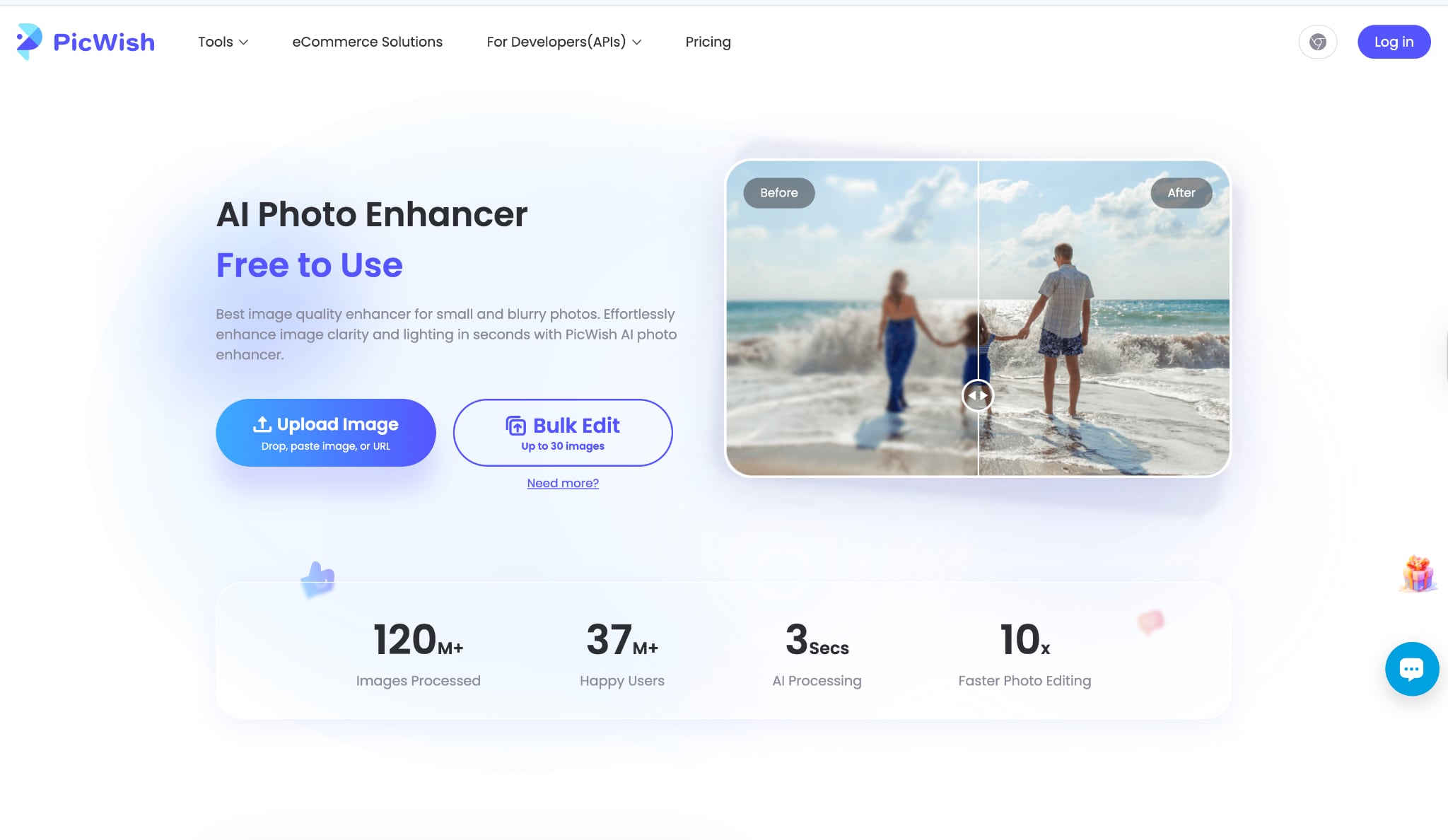
Picwish acts as a user-friendly, free AI image enlarger optimized for everyday use. The cloud-based platform allows quick upscaling up to 4x and delivers automatic noise reduction for cleaner, crisper results. Drag-and-drop functionality, along with guided steps, ensures anyone can enhance images without prior experience. Picwish’s AI examines each image for optimal upscaling, whether for social profiles, digital products, or incremental upgrades to artwork.
Safety Review: 4/5
Starting Price: Free (with credits); Paid plans offer more credits.
Supported Device: iOS, Android, Windows, macOS, Web (Online).
10. BeFunky
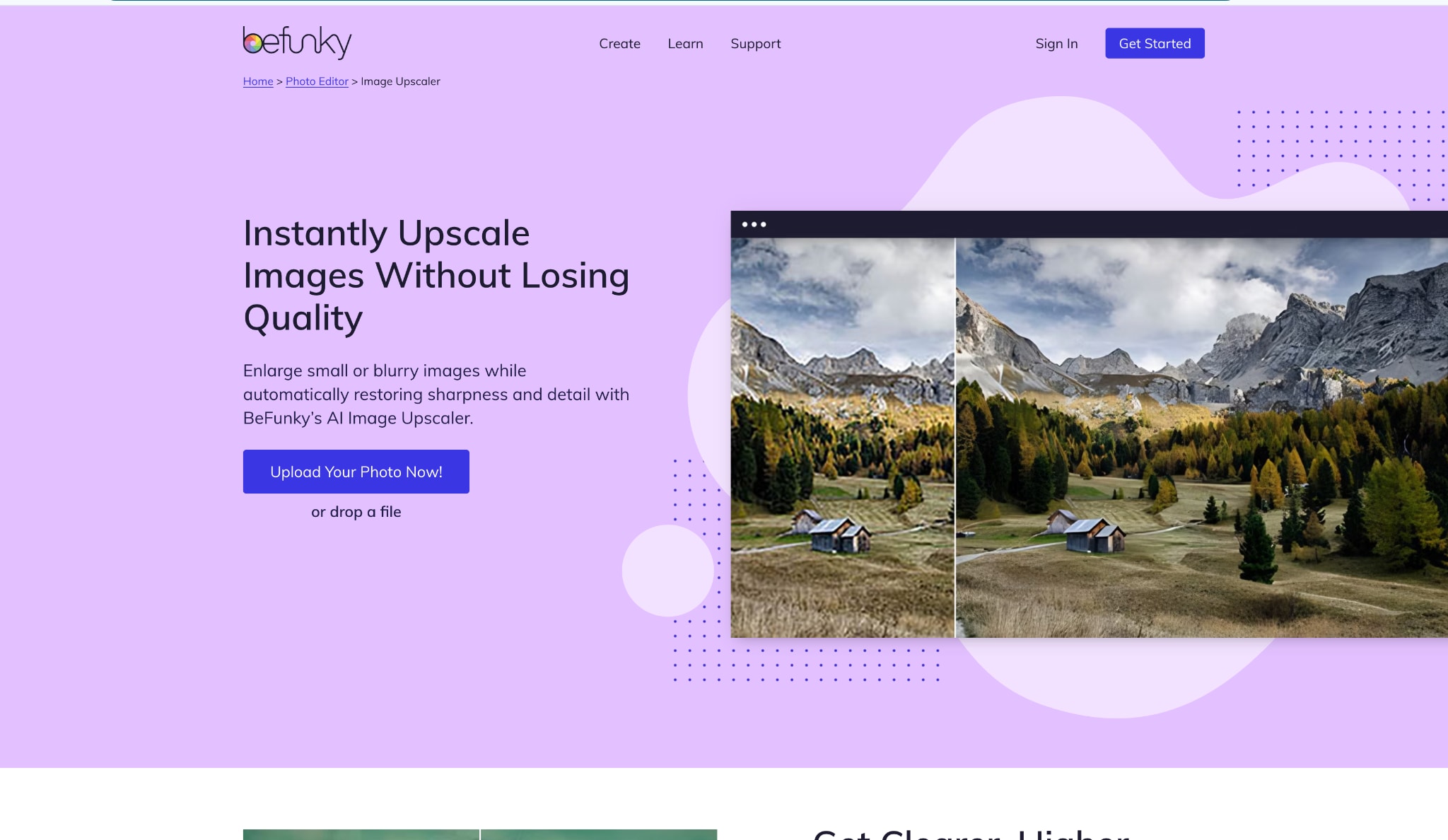
At its core, BeFunky’s AI image enlarger is a catalyst for creativity, providing upscale functionality alongside premium editing and design tools. Users can scale images for web, print, or creative composites while leveraging built-in filters, one-click enhancements, and graphic overlays. The AI-based upscaling preserves minute details often lost in traditional resizing, such as hair strands, fabric textures, or tiny text. BeFunky’s unified dashboard encourages experimenting with image styles and layouts, supporting both single-image projects and complex graphic designs. For educators, marketers, or content creators hoping to elevate visual impact, this AI image enlarger is both intuitive and inspiring—enabling high-quality imagery with flair and efficiency.
Safety Review: 4/5
Starting Price: Free (basic editor); BeFunky Plus starts at $5.99/month.
Supported Device: iOS, Android, Web (Online).
Part 3. At a Glance Comparison Table of Top 10 AI Image Enlargers
Here's a quick-glance table to help you compare our top picks.
| App Name | Supported Format | Unique Edge | Best For |
|---|---|---|---|
| Wondershare UniConverter | JPG, PNG, BMP, WEBP | All-in-one video, audio, & image AI toolkit | Video creators & social media managers |
| Topaz Gigapixel AI | JPG, PNG, TIFF, RAW | Specialized AI models (face, landscape) | Professional photographers & print |
| VanceAI Image Enlarger | JPG, PNG | "Waifu" upscaler model for anime | Anime, digital art, & general photos |
| LetsEnhance | JPG, PNG, WEBP | "Smart Enhance" for color/tone correction | E-commerce & real estate photos |
| Fotor AI Photo Enlarger | JPG, PNG | Integrated with a full online photo editor | Quick edits & social media posts |
| Imglarger | JPG, PNG | Extremely simple, fast free online AI image enlarger | Urgent, simple, one-off upscales |
| Photoaid Enlarger | JPG, PNG | AI-driven passport photo compliance | Passport/ID photos & documents |
| Remini | JPG, PNG | Unmatched AI for restoring blurry faces | Old family photos & portraits |
| Picwish | JPG, PNG, BMP | Strong background removal + upscaling | E-commerce product shots |
| BeFunky | JPG, PNG | Part of a creative-focused design suite | Bloggers & creative projects |
Part 4. Pro Tips for Best Results with Your AI Enlarger
Using an AI image enlarger is simple, but following these tips will give you professional-level results.
Start with the Highest Quality Original: The "garbage in, garbage out" rule is king. An AI enlarger can't recover details that are completely lost. A clear 500px image will upscale far better than a blurry, compressed 500px one. Always use the original file if you have it.
Don't Overdo the Scaling: It's tempting to go straight to 8x or 16x. However, 2x or 4x often gives the cleanest, most natural results. Pushing the AI too far can sometimes introduce "artifacts"—like waxy-looking skin or strange textures.(32) Stick to the lowest scale that meets your needs.
Experiment with Different Tools: As you see from our list, some tools are best for faces (Remini), while others excel at anime (VanceAI) or print (Gigapixel). The free photo enlarger that worked for your landscape shot might not be the best for a family portrait.
Check for Artifacts: Always zoom in 100% on the final image. Look closely at fine details like hair, text, brick patterns, and grass. Make sure the AI hasn't smudged them or created unrealistic, repetitive patterns.
Part 5. How to Easily Batch Enlarge Photos to 8X Quality
When you need to enlarge an entire album or a batch of product photos, a free online AI image enlarger that only does one file at a time is a nightmare. This is where a desktop tool like UniConverter shines. Here's how to batch-enlarge photos to 8x quality using its "Image Enhancer" feature.
Step 1: Launch the Tool and Add Your Photos
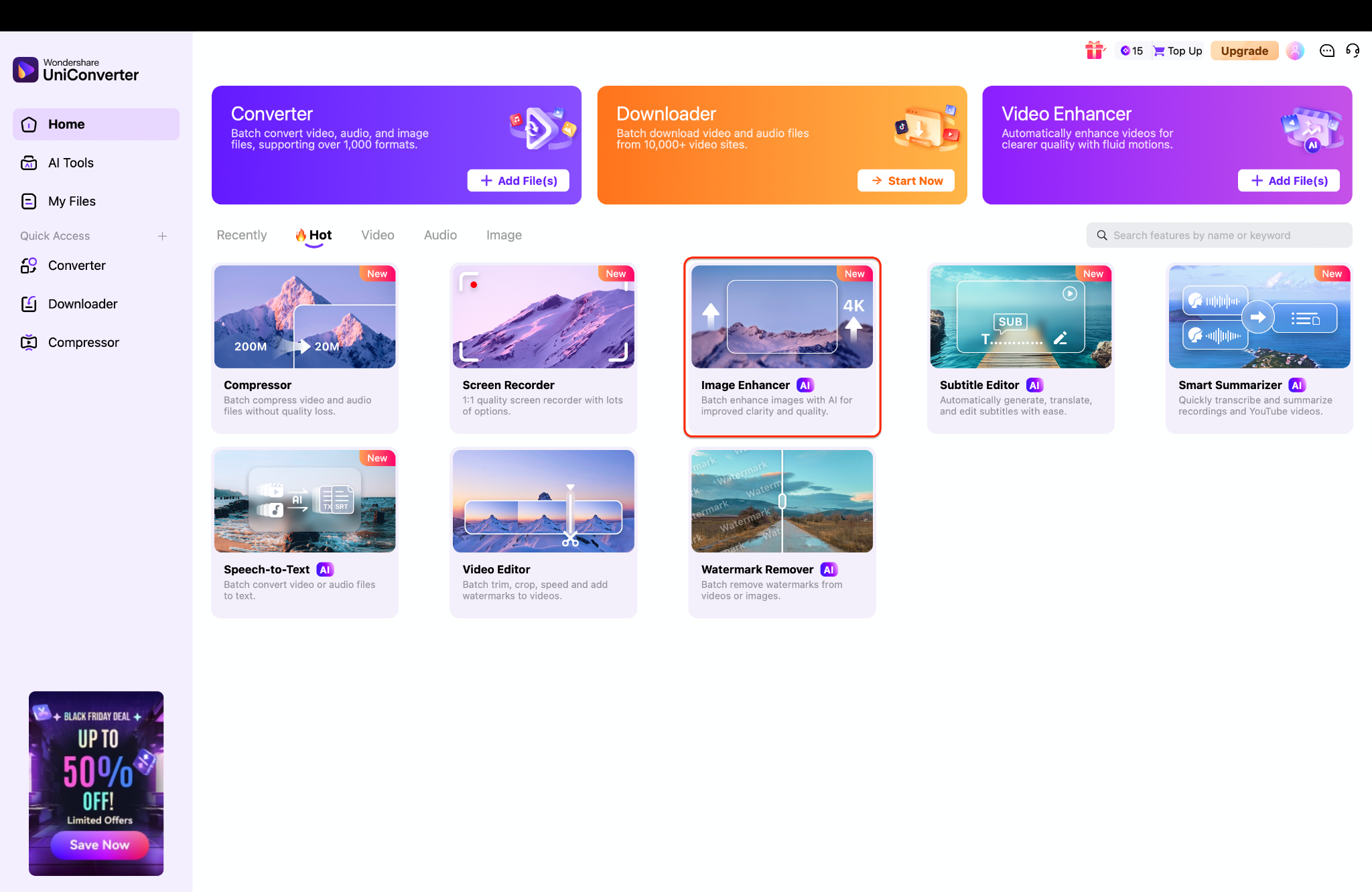
Pro Tip: Before you begin, organize all the photos you want to enlarge into a single folder for an even faster drag-and-drop workflow. UniConverter allows 20 images at a time for batch upscaling (image enlarging).
Step 2: Set Your 8X Enlargement Settings & Preview
With your photos loaded, your first step is to choose the AI model by selecting 'Image Upscaler' from the 'Choose AI Model' menu on the right, and then click '8X' to set your enlargement level. This single selection applies the 8X setting to every photo in your batch, saving you the effort of repeating the step manually for each file. Before processing, you can check the quality by clicking the purple Preview button, which allows you to compare the 'Original' and 'Result' using the Slider view and Split view modes.
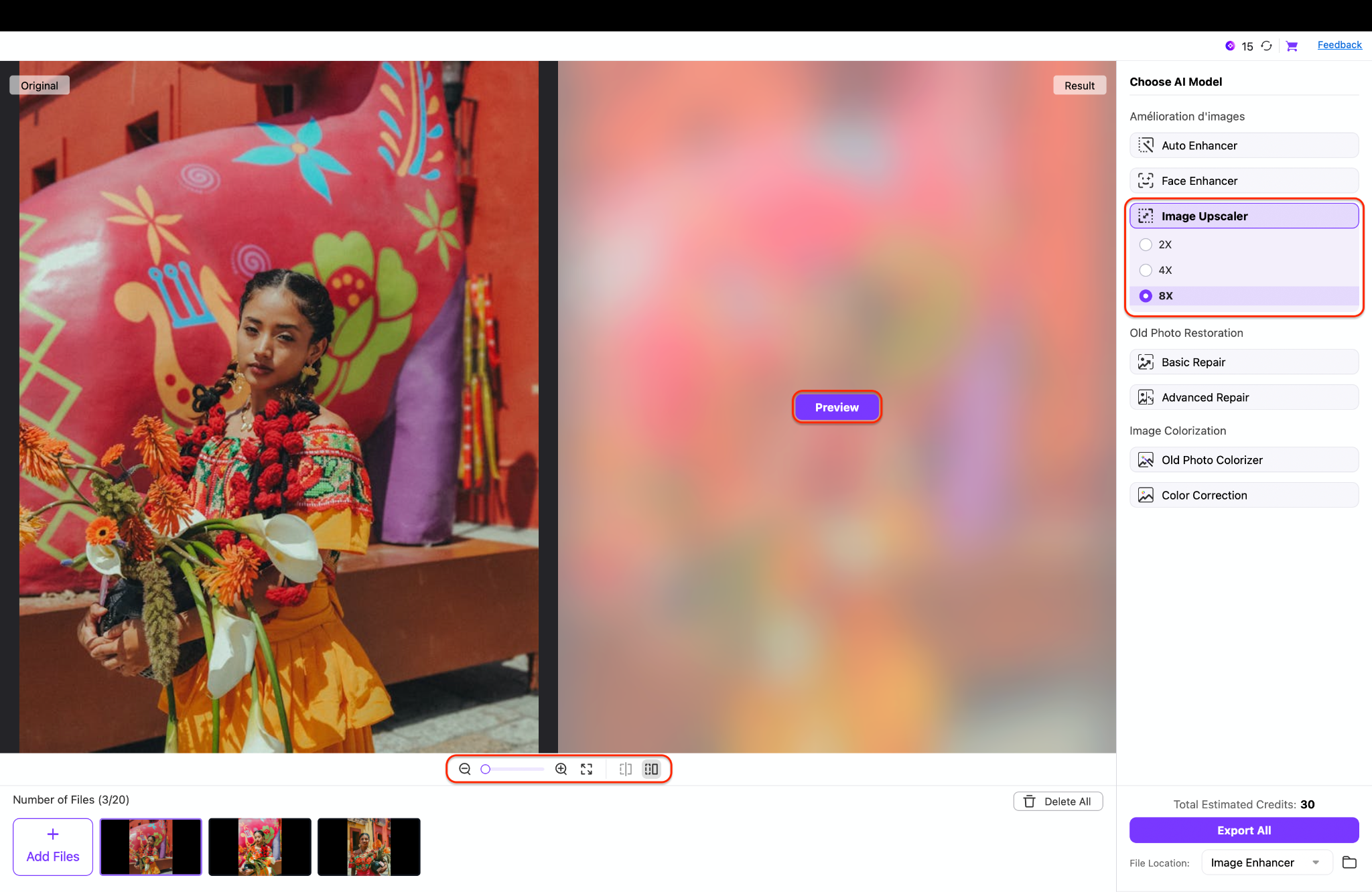
Pro Tip: While 8x is powerful, use this preview function to test one image at 4x first, especially if you're working with very old or low-quality originals. This allows you to ensure the AI-generated details appear natural before committing to the whole batch.
Step 3: Process Your Batch and Save the Results
Once you are satisfied with the preview, confirm your save destination by clicking the File Location dropdown menu at the very bottom right. Next, check the Total Estimated Credits for the operation, and then click the large purple 'Export All' button to initiate the batch process. UniConverter will now process your entire list, applying the 8x AI upscale to every file and saving the finished, high-quality images to your chosen folder.
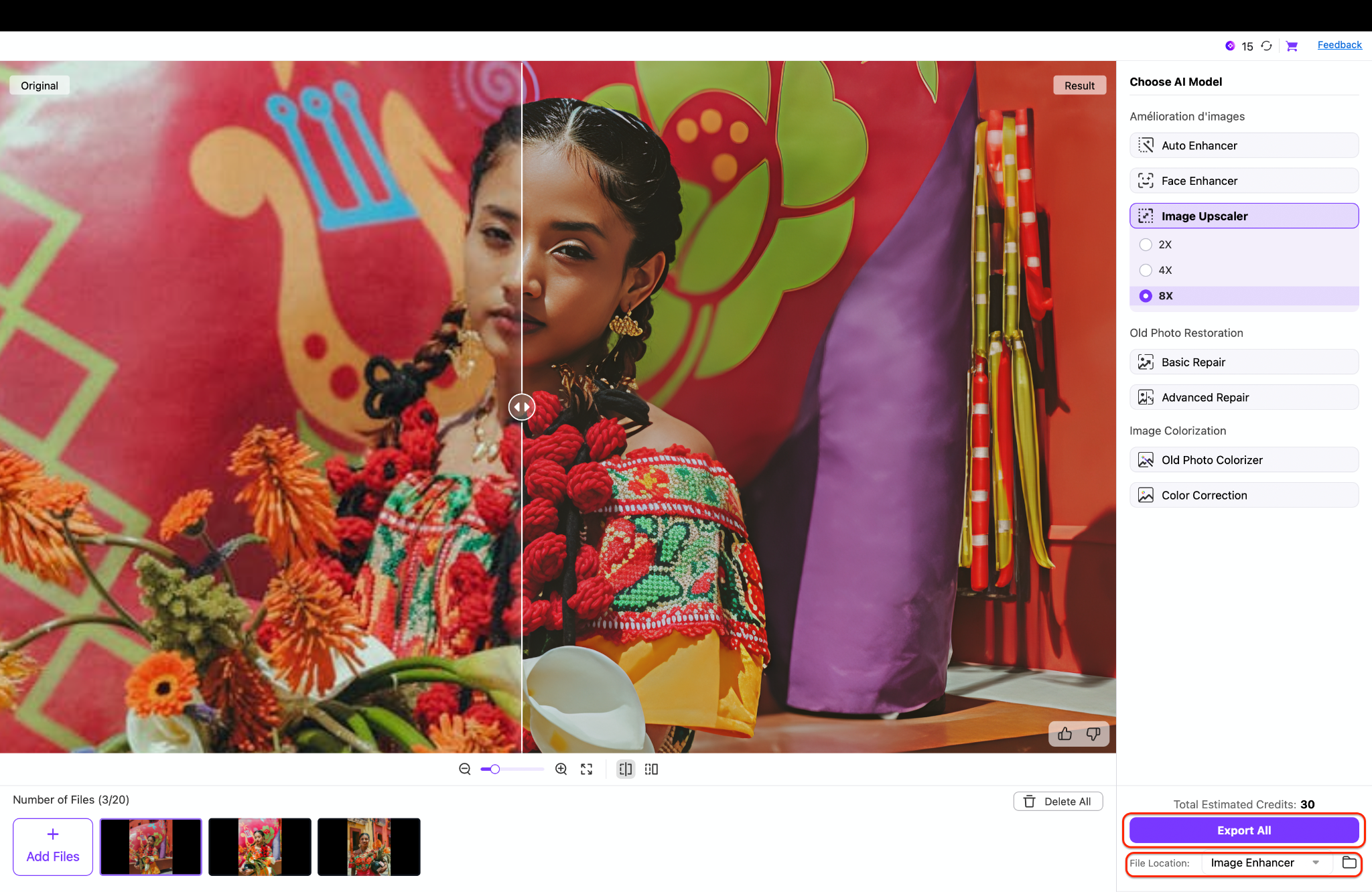
Pro Tip: Batch processing is much faster on a desktop app, but it still uses your computer's resources. For the fastest results, close other heavy applications while the batch is running.
Easy to Use AI Image Enlarger
Conclusion
Gone are the days when a low-resolution photo was a dead end. As we've seen, an AI image enlarger is a game-changing tool for everyone—from hobbyist photographers and e-commerce sellers to office workers needing to fix a logo for a presentation. It can breathe new life into old memories, make product shots look professional, and ensure your content looks sharp on any screen.
Choosing the right tool depends on your needs. While a free online AI image enlarger is great for a quick fix, investing in a reliable, safe, and powerful tool is key for serious or batch-processing work.
For creators who value efficiency and an all-in-one solution, Wondershare UniConverter stands out. It not only delivers high-quality AI upscaling but also handles your video conversions, audio editing, and other media needs in one clean, fast, and secure desktop application. You get privacy, power, and convenience all in one place.
FAQs
-
1. Is a free AI image enlarger safe to use?
Mostly, yes, but be cautious. Free online AI image enlarger sites may log your IP or store your photo temporarily. For sensitive or personal images, a trusted desktop tool like UniConverter is always safer as your files never leave your computer. -
2. Will an AI image enlarger work on my very old, blurry photo?
It will improve it, but it can't work miracles. AI needs some data to recognize patterns. It can significantly sharpen a soft photo but can't fully restore a completely blurred face where no detail exists. -
3. What's the difference between upscaling and enlarging?
Enlarging (or interpolation) just stretches the existing pixels, which causes blur. AI Upscaling (or super-resolution) intelligently adds new, realistic pixels as it enlarges, resulting in a sharp, clear photo image enlarger. -
4. Can I use an AI enlarger on my phone?
Yes! Tools like Remini, Fotor, and Picwish offer excellent mobile apps for both Android and iOS, allowing you to use a pic enlarger free on the go. -
5. What is the best AI image enlarger for anime or cartoons?
Many users find that tools with specialized AI models, like VanceAI's "Waifu Upscaler" or the anime model on img enlarger com, produce the best results. They are trained to enhance clean lines and flat colors without adding unwanted "real-world" textures.

