


Have you ever taken the perfect photo, only to realize it's too tightly cropped? Maybe you need to turn a vertical phone picture into a horizontal desktop wallpaper, but you have no background to fill the space. In the past, this meant clumsy clone-stamping or simply giving up on the image. Today, the AI image extender has revolutionized photo editing.
Using generative AI, these powerful tools don't just stretch your photo; they intelligently create new parts of your image that never existed. This technology, also known as "outpainting," can enlarge a picture by building a seamless, context-aware background.
Whether you're a professional designer needing to enlarge photo size for a layout or a social media user wanting to fix a poorly framed shot, an image expander AI is the solution. This guide breaks down the absolute best photo extender AI tools for 2025.
Table of Contents
Part 1. Top 10 AI Image Extender Tools in 2025 (Free & Paid)
An AI image extender is a versatile tool that uses generative artificial intelligence to add new pixels to the outside of an image, expanding its canvas. Here are the primary use cases:
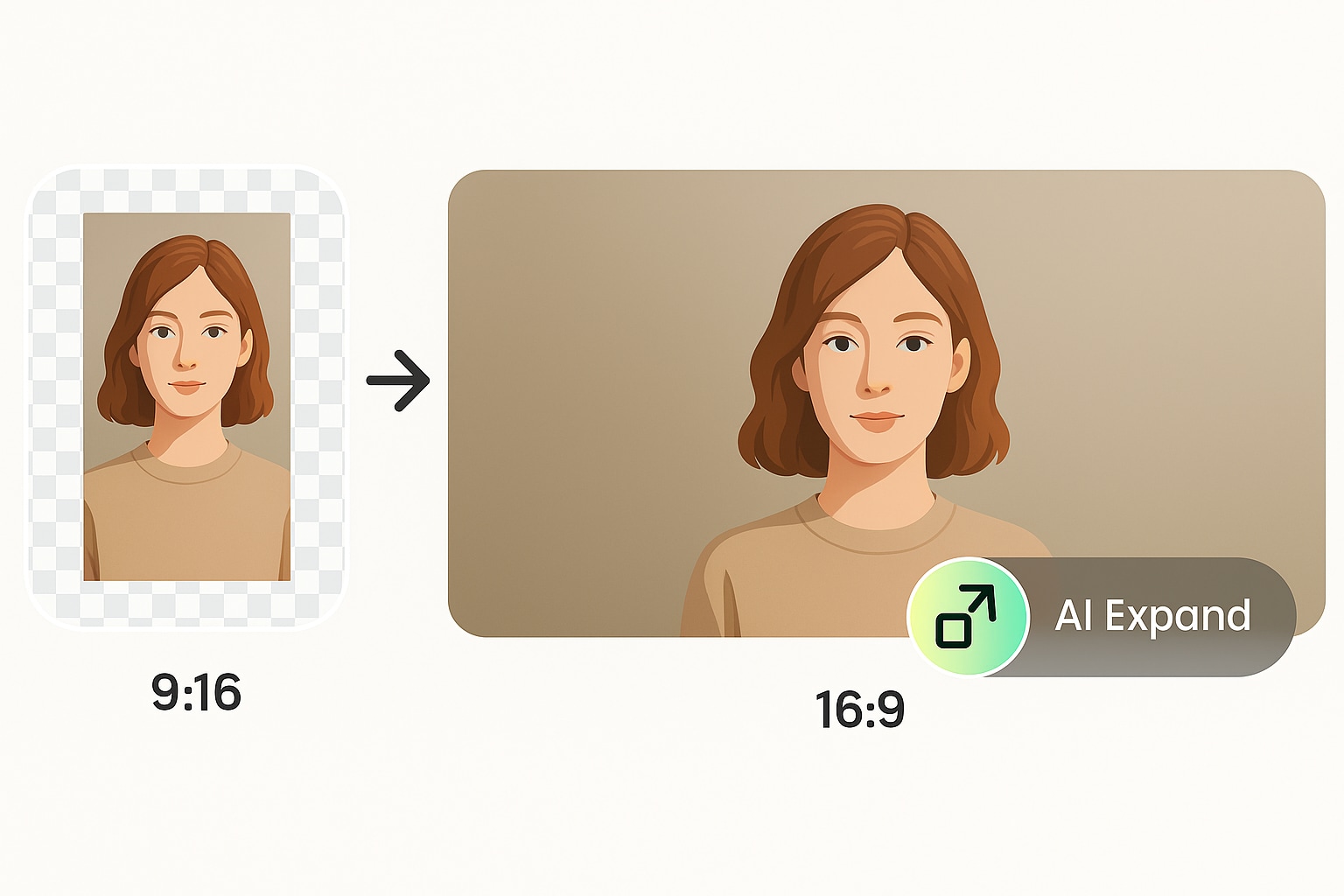
Change Aspect Ratios: This is the most popular use. Effortlessly convert a vertical 9:16 portrait photo from your phone into a 16:9 horizontal (landscape) image suitable for a YouTube thumbnail or desktop wallpaper. The AI generates the missing background on the (Left and Right) sides.
Improve Composition: Is your subject too centered or too close to the edge? An image extender AI can add more "breathing room" or negative space, allowing you to re-crop the image to follow classic composition rules like the rule of thirds.
Create More Background: Need to add text overlays for a social media post, presentation slide, or website hero image? An online photo expander can extend a simple or complex background, giving you a clean canvas to work with without covering your main subject.
Fix Cropped Photos: We've all done it—accidentally cut off someone's arm, the top of their head, or a key part of the scenery. An AI image expander can often "uncrop" the photo, intelligently recreating the missing parts to salvage the shot.
Part 2. Top 10 AI Image Extender Tools in 2025 (Free & Paid)
We've tested and ranked the best tools, dividing them by the platform they run on.
Desktop AI Image Extenders (Maximum Power)
These tools offer the most features and processing power, ideal for professionals.
1. Adobe Photoshop (Generative Fill)
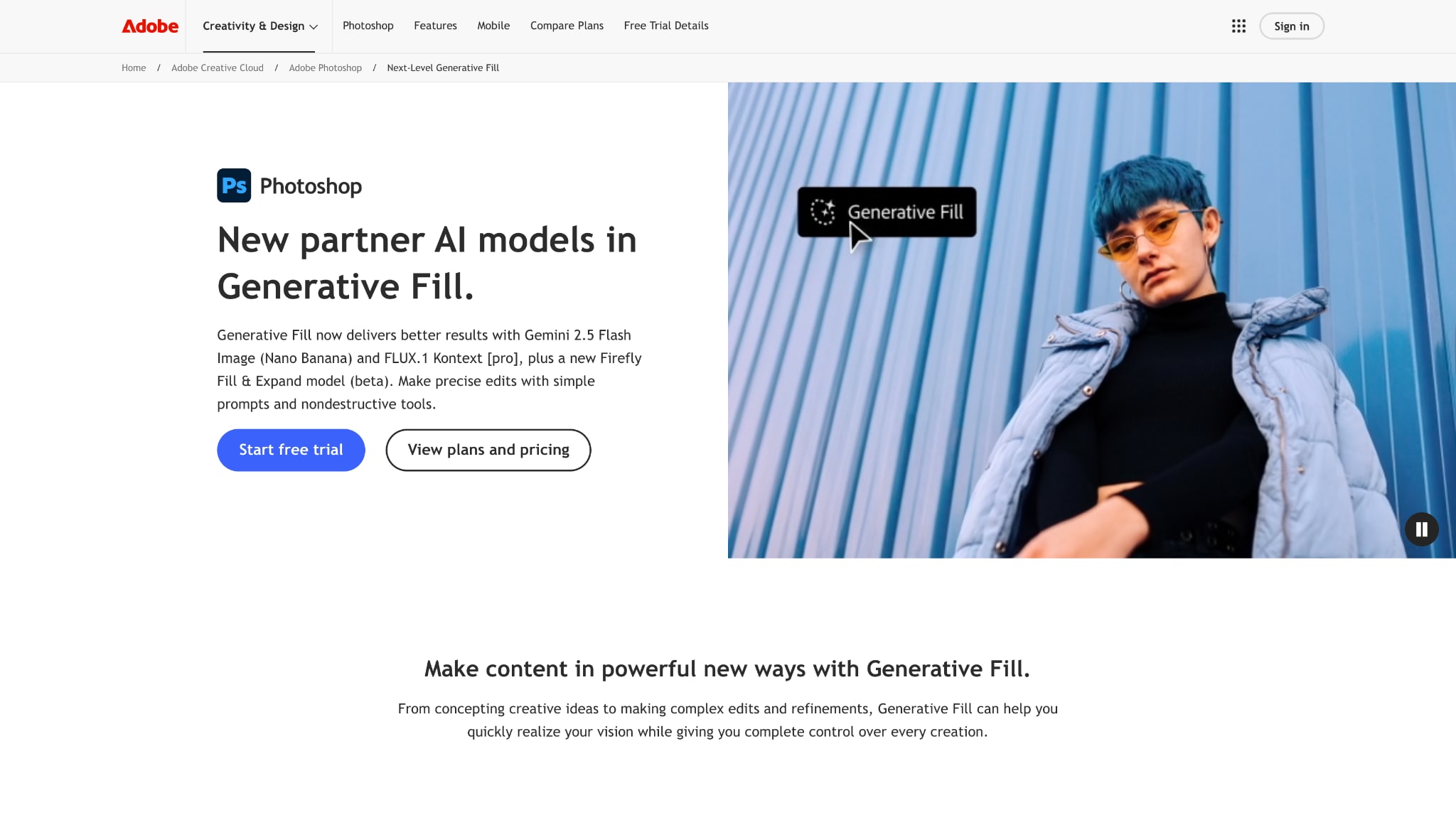
The Generative Expand feature in Adobe Photoshop uses Firefly AI to extend or expand images beyond their original borders with a single click. By analyzing lighting, shadows, perspective, and textures, it generates realistic new content that blends seamlessly into the original photo. This tool is perfect for changing aspect ratios, fixing awkward cropping, or widening a scene. The workflow is intuitive: expand the canvas, select the extension area, and let Photoshop’s AI generate several options, which you can further refine or regenerate for even better results.
Safety Review: 5/5 (Industry-leading security and privacy)
Starting Price: $19.99/month (Photography Plan includes Photoshop(PS) and Lightroom(LR))
Supported Device: Windows, macOS
2. Luminar Neo (GenExpand)
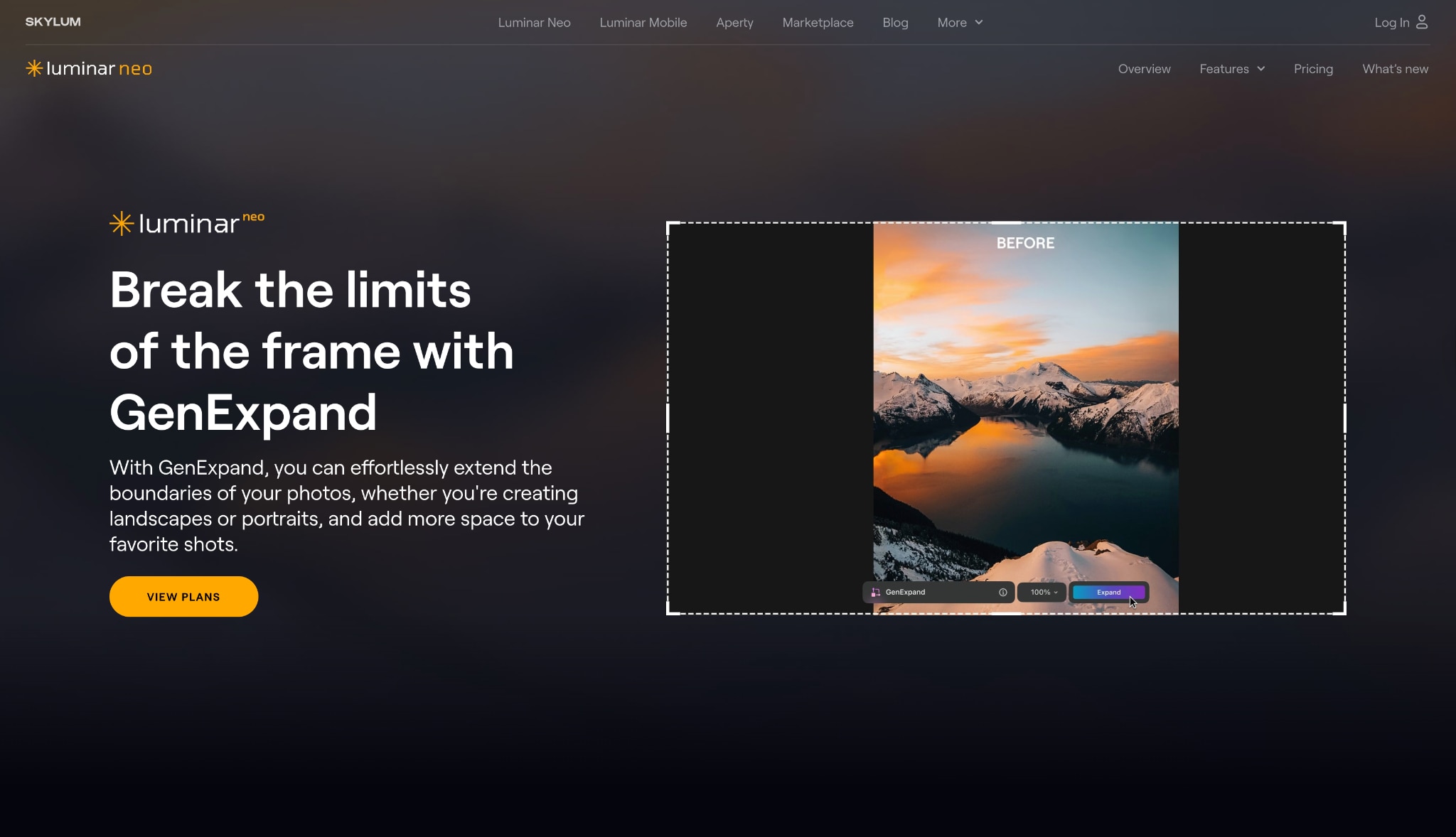
Luminar Neo features GenExpand, an AI-powered image extender that broadens the boundaries of your photos effortlessly. After selecting your image, simply use the expand function to add extra space that’s intelligently filled by AI. GenExpand recognizes and replicates image details and composition, creating natural-looking extensions for both landscapes and portraits. This level of content-aware expansion helps fix composition issues and offers more creative possibilities for framing and aspect ratios, regardless of your editing experience level.
Safety Review: 5/5 (Reputable company, secure offline processing)
Starting Price: $139 (One-time "Perpetual" license) or subscription
Supported Device: Windows, macOS
Online AI Image Extenders (Free & Accessible)
These browser-based tools are perfect for quick edits without any downloads.

Easy to Use AI Image Enhancer
3. Canva (Magic Expand)
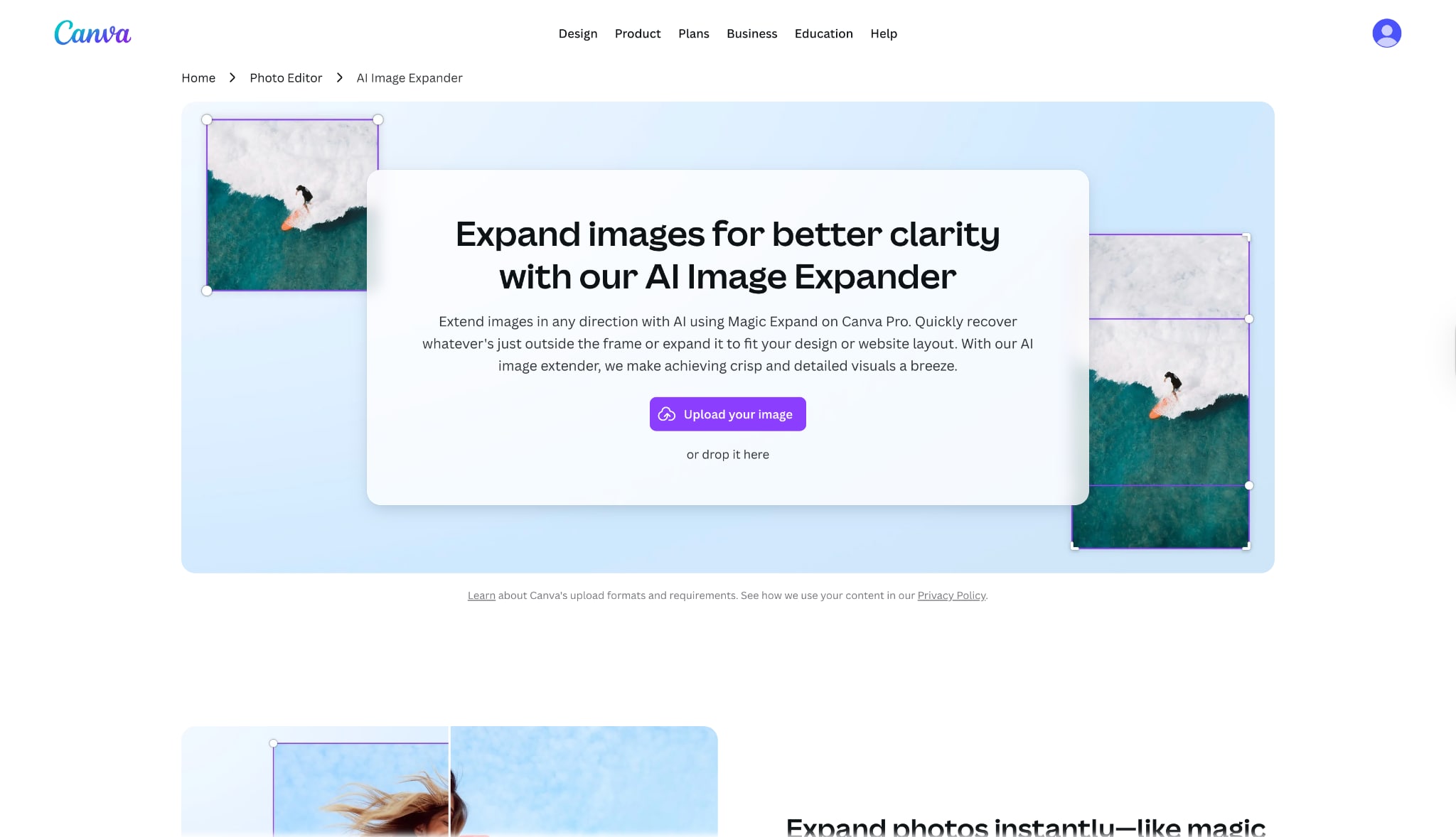
With its cutting-edge Generative Expand feature, Adobe Photoshop empowers users to rethink photo boundaries. This AI-driven tool gracefully adds new elements outside the original frame, analyzing every nuance of light, shadow, and texture to produce natural extensions. Whether you want to fix tight cropping or create wider panoramas, Photoshop’s intuitive interface lets you choose, refine, and perfect your image expansions effortlessly. It’s more than editing; it’s redefining creative possibilities with AI innovation at your fingertips.
Safety Review: 4/5 (Generally safe, but it's a cloud service, so be mindful of sensitive photos)
Starting Price: Free (with limitations); Pro from $12.99/month
Supported Device: Web Browser (Any device)
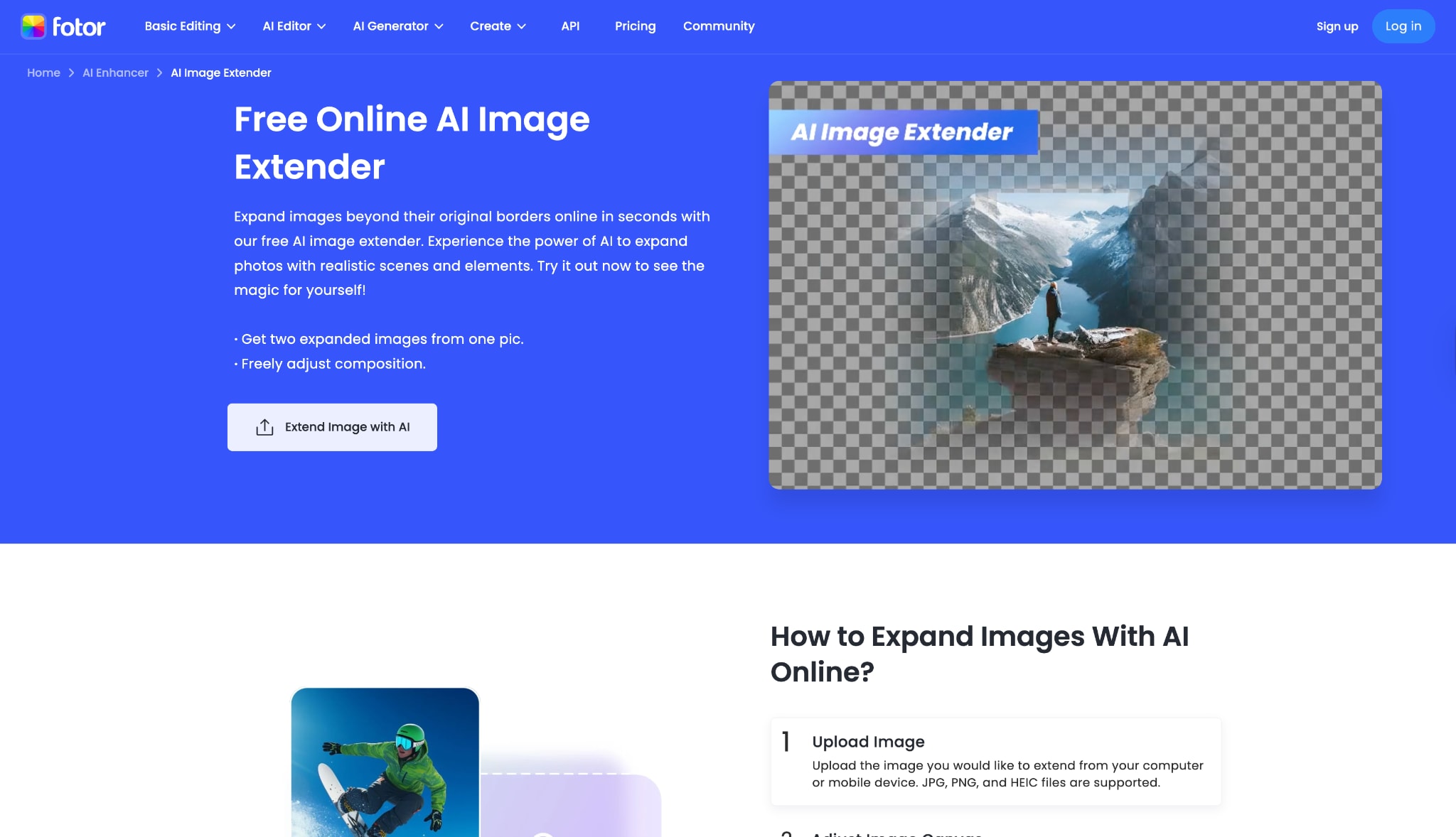
4. Fotor (AI Image Extender)
The AI Image Extender in Fotor harnesses advanced outpainting technology to expand image backgrounds or turn cropped shots into complete scenes. This free online feature analyzes your image’s context, composition, and style, then adds new elements pixel by pixel for strikingly natural results. Fotor supports various content types, including portraits, product photos, and landscapes. You can adjust the direction, composition, and framing with just a click and receive two expanded versions from a single upload. The tool produces high-resolution outputs for web and print use.
Safety Review: 3/5 (Standard online tool; avoid uploading private/sensitive images)
Starting Price: Free (with credits); Pro from $3.99/month (billed annually)
Supported Device: Web Browser
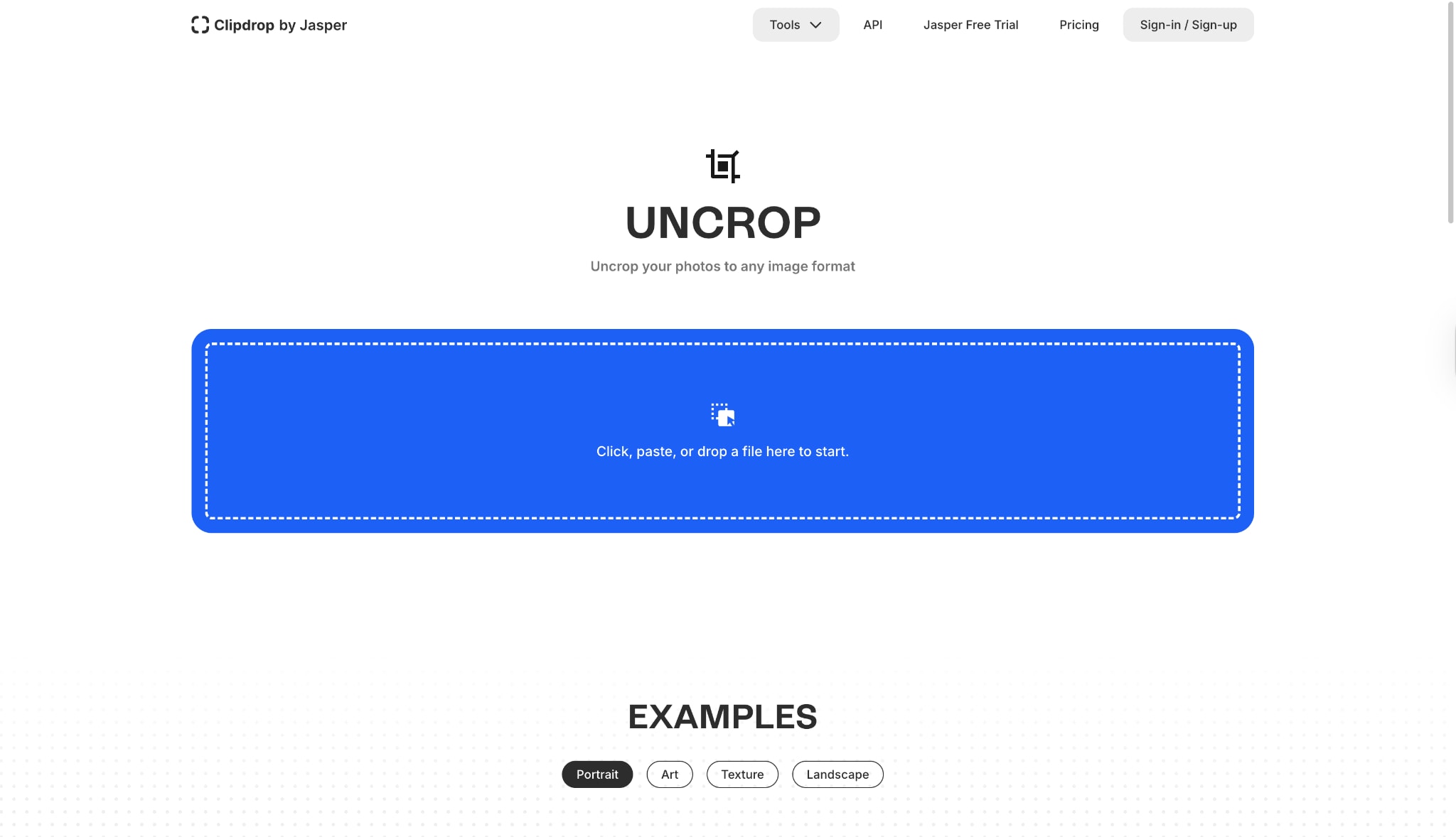
5. Clipdrop by Jasper (Uncrop)
Clipdrop includes an “Uncrop” feature for extending images using AI. After uploading your picture, Clipdrop’s algorithm analyzes the visible pixels and content to suggest realistic extensions—no text prompting required. You can choose the direction, aspect ratio, and download the best of several results. The free version works online with some limitations on resolution and watermarking, while paid tiers unlock higher quality. The tool is known for speed and ease of use, making it great for quick fixes, social media, or prepping visuals for further design work.
Safety Review: 4/5 (Backed by a major AI company)
Starting Price: Free (limited) or Pro plans (approx. $16/month)
Supported Device: Web Browser
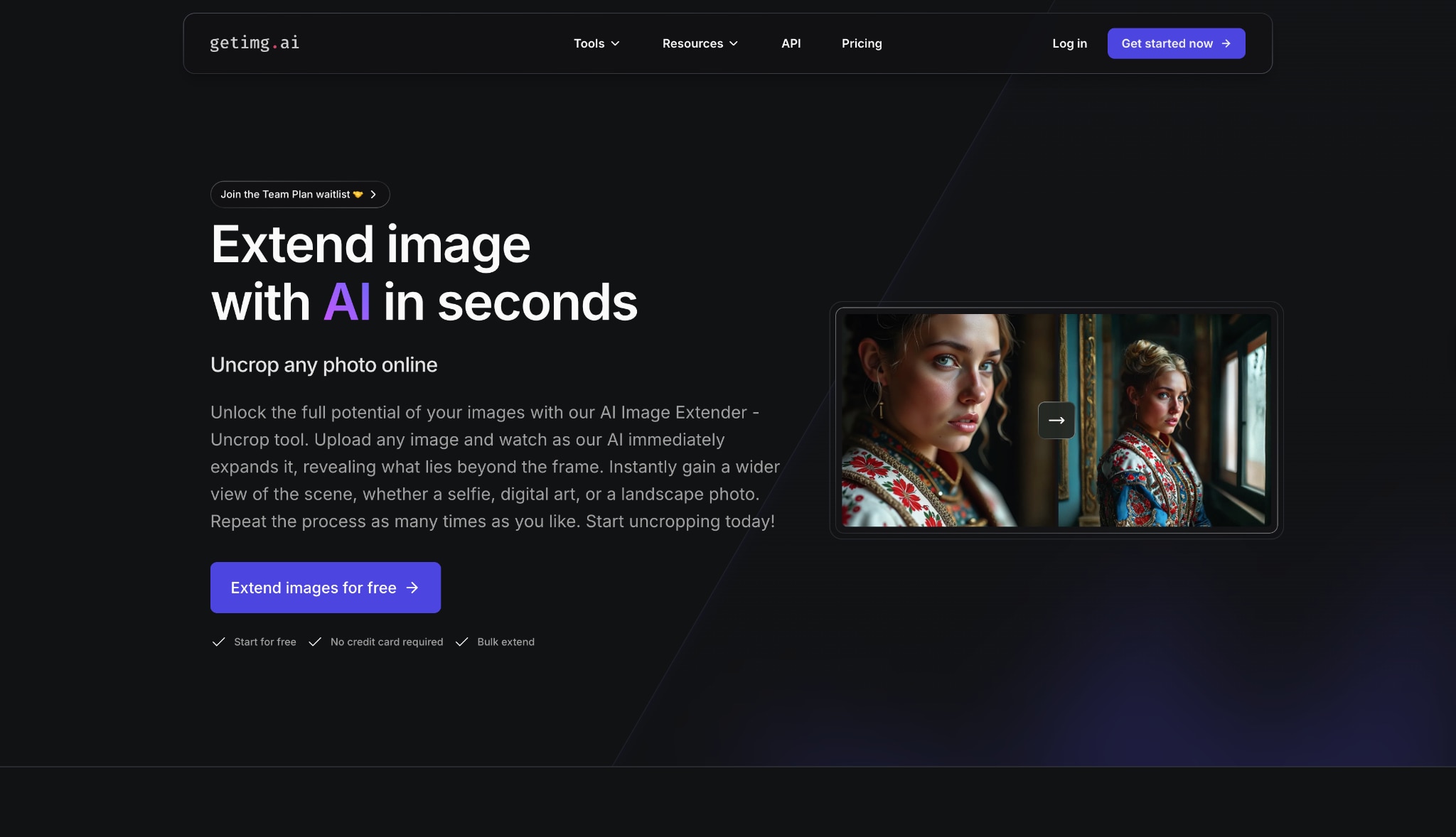
6. Getimg.AI (Outpainting)
At the crossroads of creativity and technology lies Getimg.ai, a versatile platform armed with AI to extend, enhance, and transform images. Users can effortlessly upscale resolution or expand backgrounds using smart algorithms that understand scene context and aesthetics. With access to multiple leading AI models, Getimg.ai opens doors to instant image generation, variation, and style transfer. It’s crafted for creators who value precision, diversity, and speed in image enhancement.
Safety Review: 4/5 (Standard online generator platform)
Starting Price: Free (40 credits/day); Paid plans from $8/month
Supported Device: Web Browser
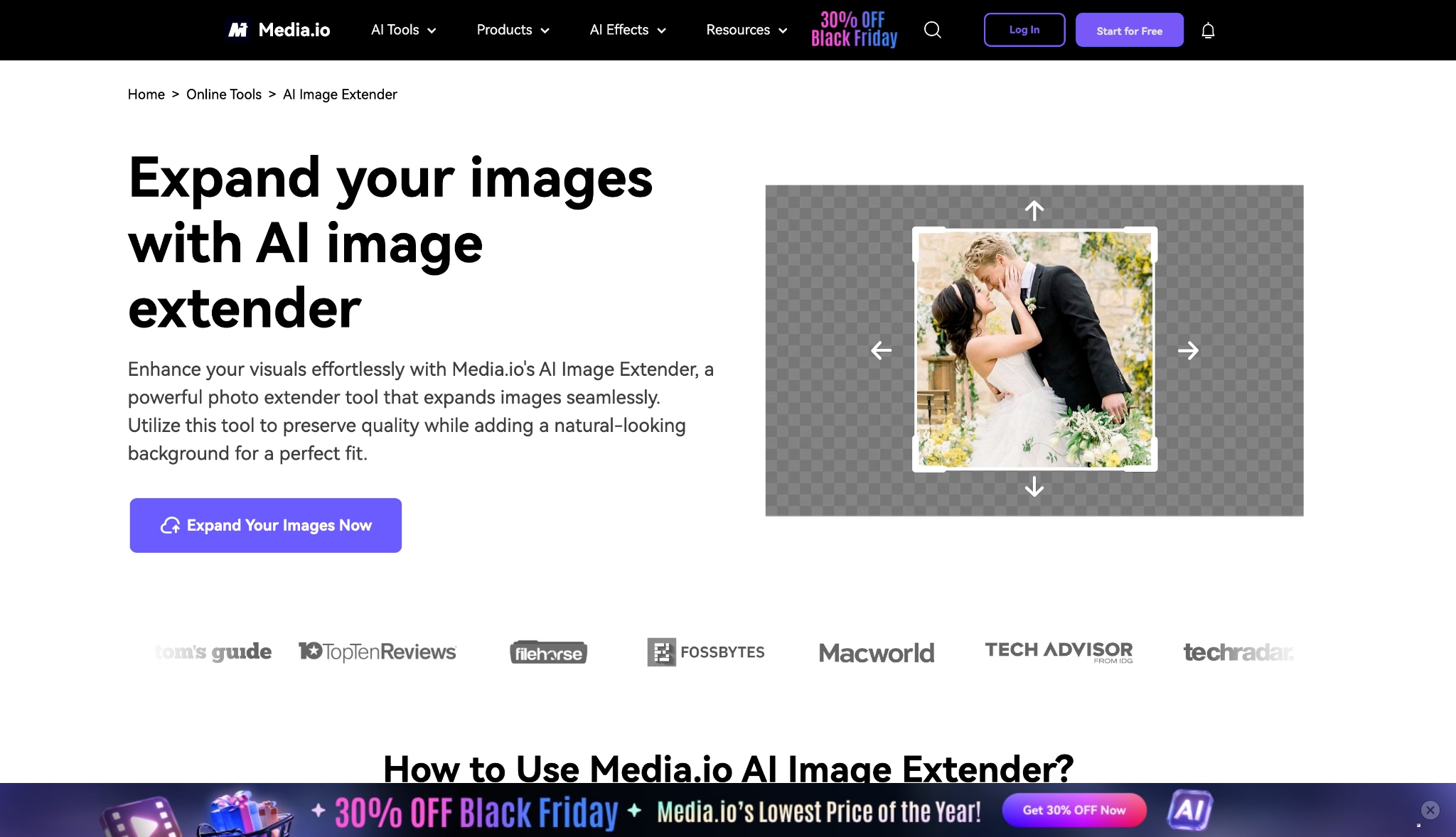
7. Media.io (AI Image Extender)
Media.io is a comprehensive AI-powered platform offering a suite of creative tools, including image extension, video generation, and object removal. Its AI Image Extender increases photo boundaries by intelligently filling in new content for backgrounds, product shots, and personal photos. Users benefit from an intuitive workflow: upload a photo, choose the expansion settings, and let the AI generate the rest, producing high-resolution outputs ready for sharing or editing. Media.io works directly in your browser and supports both casual users and creators seeking fast, viral-ready content.
Safety Review: 4/5 (Reputable company, clear privacy policy)
Starting Price: Free (limited trial); Paid plans from $6.99/month
Supported Device: Web Browser
Mobile AI Image Extenders (On-the-Go)
Perfect for editing photos directly on your phone.
8. CapCut (AI Expansion)
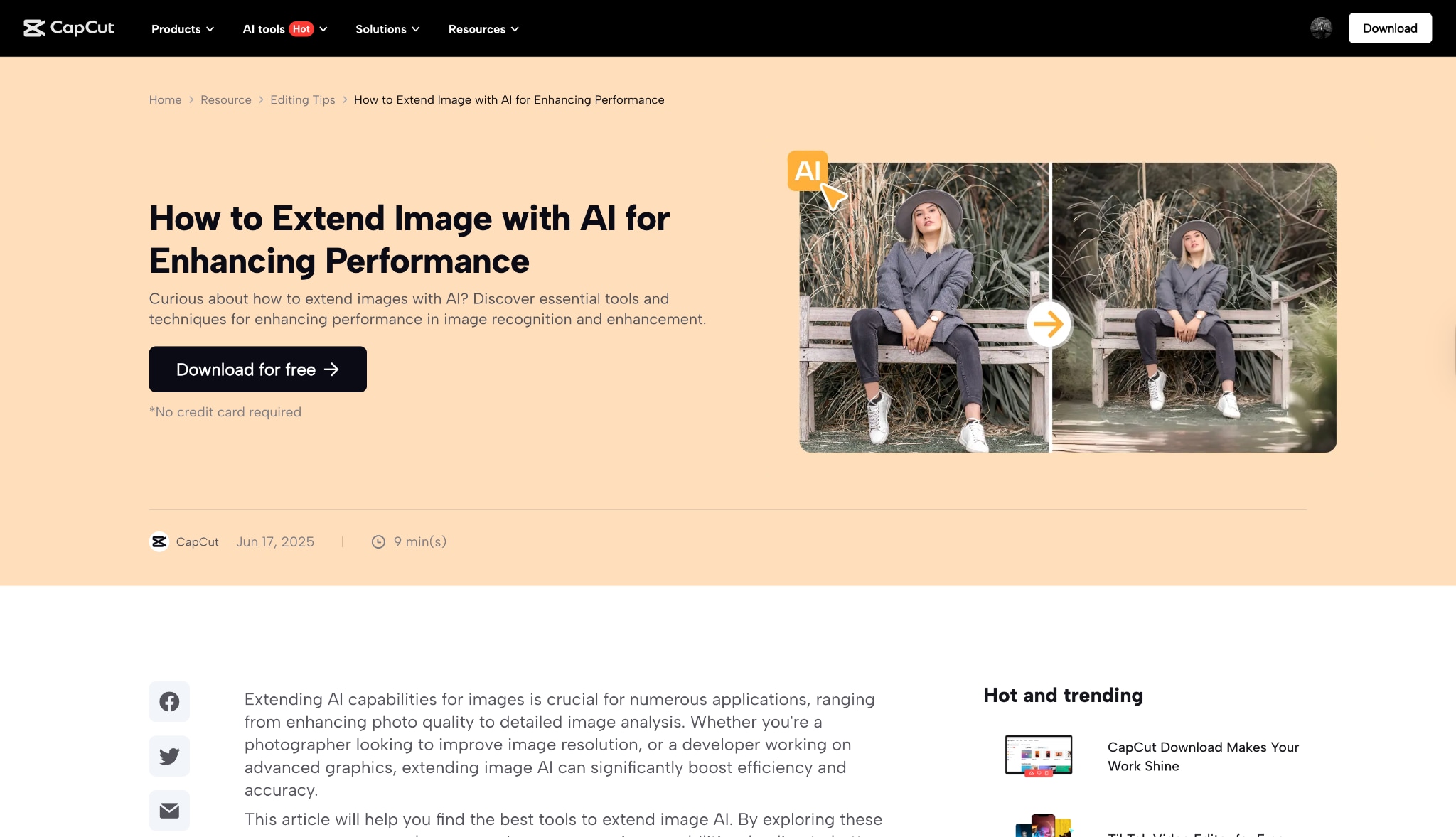
CapCut is a multipurpose video and image editor that uses built-in AI to expand photos and backgrounds. The AI image extension function auto-generates new context and blends it with the original scene, supporting a range of aspect ratios and resolution needs for social, promotional, and creative projects. In addition to uncropping and background expansion, CapCut offers advanced editing features, templates, and direct exports to popular social media platforms. It’s ideal for users looking for fast, versatile tools integrated into video and design workflows.
Safety Review: 3/5 (Owned by ByteDance; privacy is a common concern for some users)
Starting Price: Free (limited); Pro from $9.99/month
Supported Device: iOS, Android, desktop and web
9. Picsart (AI Expand)
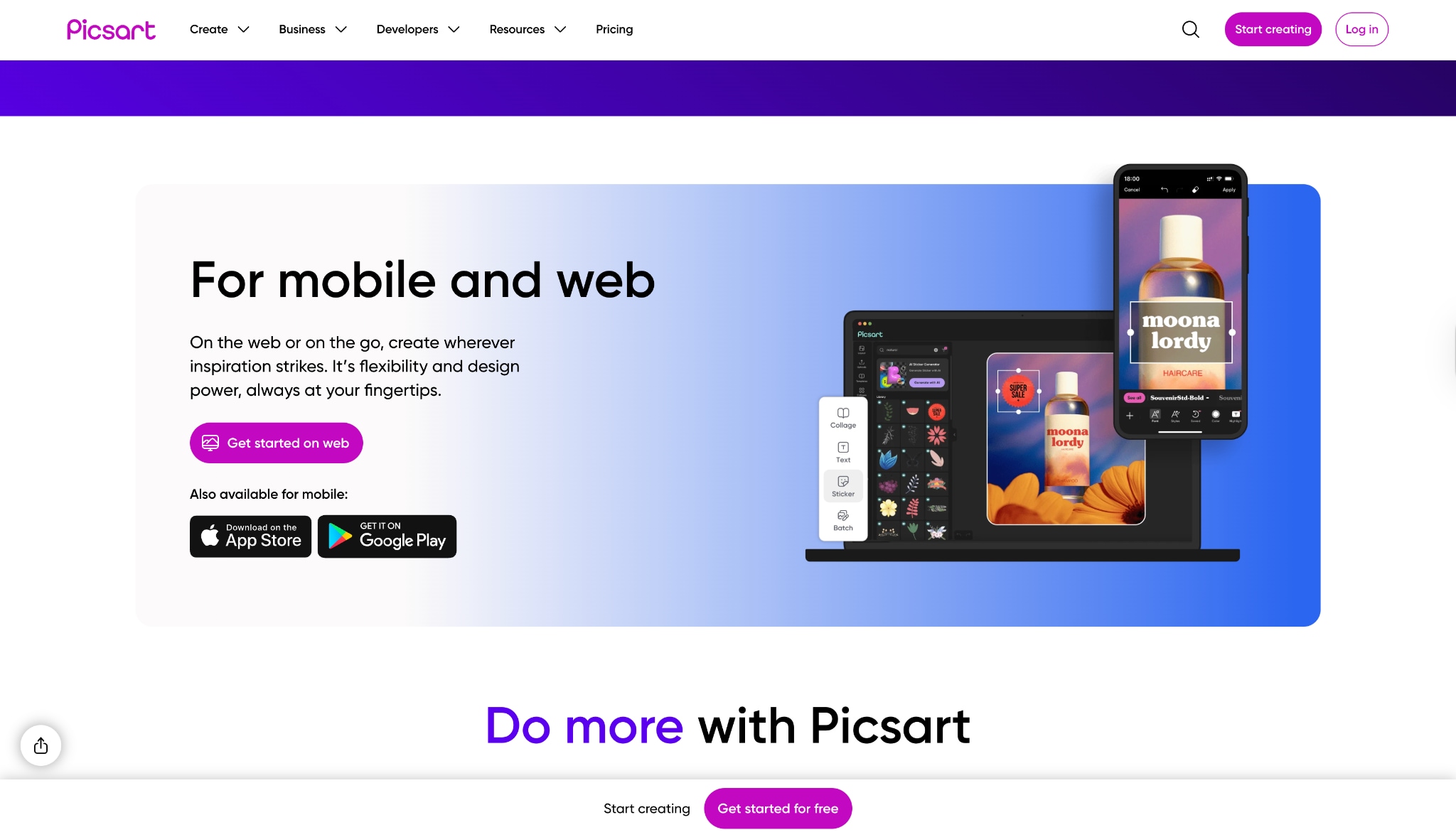
Picsart employs AI-powered image extension to add more to your photos smoothly, enabling background enlargement or creative transformations. With its easy-to-use interface, just select the area to extend and let the AI fill in realistic new details. Picsart also includes drawing tools, text, stickers, and other effects for further personalization. The service caters to influencers, marketers, and personal users looking to enhance images for sharing or professional use, all within a single mobile or web app.
Safety Review: 4/5 (A-list app with standard practices)
Starting Price: Free (with ads); Plus from $13/month
Supported Device: iOS, Android, and web
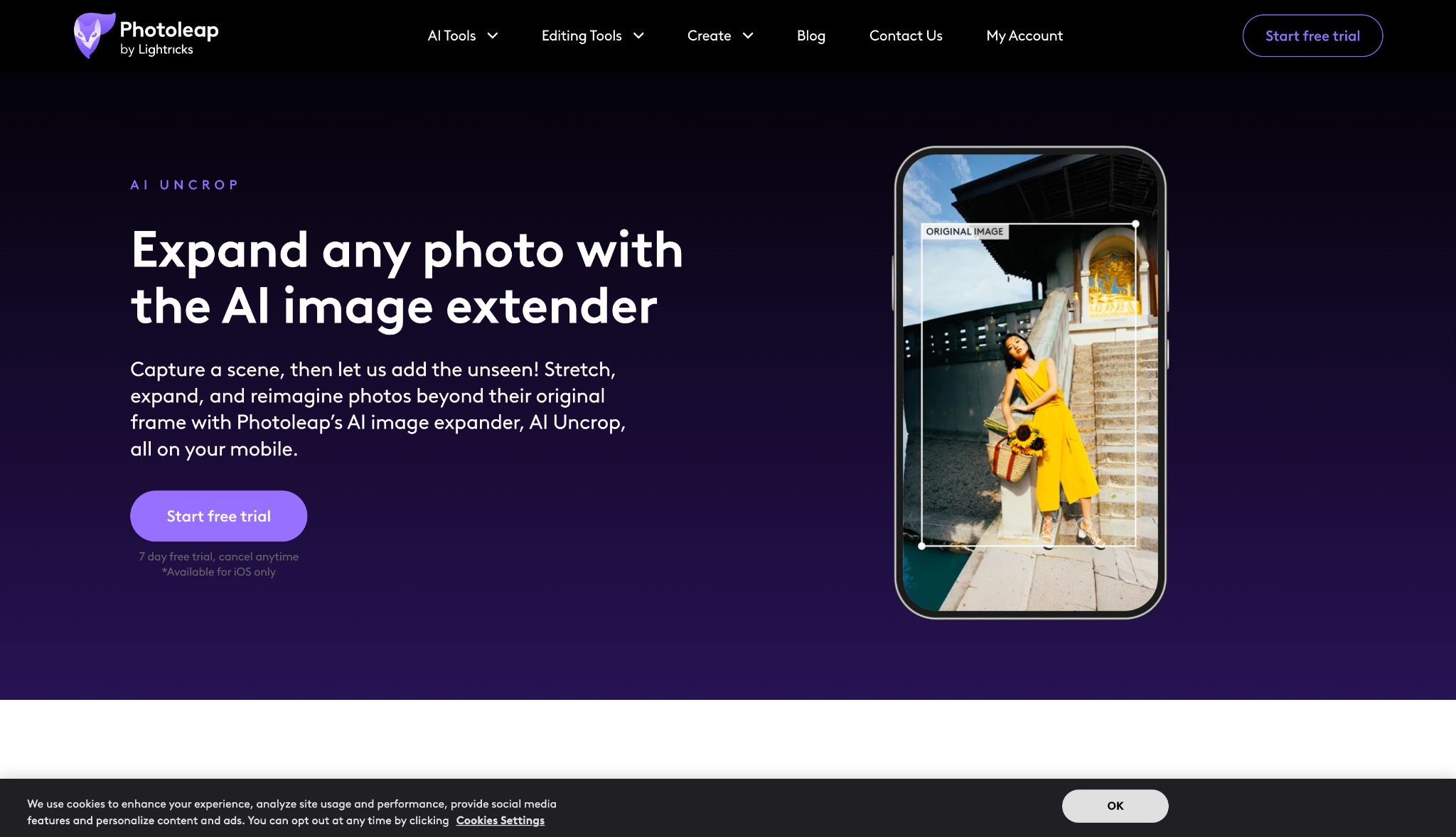
10. Lightricks Photoleap (AI Expand)
Picsart employs AI-powered image extension to add more to your photos smoothly, enabling background enlargement or creative transformations. With its easy-to-use interface, just select the area to extend and let the AI fill in realistic new details. Picsart also includes drawing tools, text, stickers, and other effects for further personalization. The service caters to influencers, marketers, and personal users looking to enhance images for sharing or professional use, all within a single mobile or web app.
Safety Review: 5/5 (Reputable app developer)
Starting Price: $3.99/month or $47.99/year
Supported Device: iOS, Android
Part 3. At a Glance: Comparison of Top 10 AI Image Extender Tools
| App Name | Supported Format | Unique Edge | Best For |
|---|---|---|---|
| Adobe Photoshop | All (Desktop) | Industry-standard generative AI with text prompts. | Professionals & Creatives |
| Luminar Neo | All (Desktop) | One-time purchase option with a photographer-friendly UI. | Photographers |
| Canva | Web (PNG, JPG) | Full integration into a social media design workflow. | Marketers & SMMs |
| Fotor | Web (PNG, JPG) | Simple drag-and-drop frame for easy expansion. | Quick Casual Edits |
| Clipdrop | Web (PNG, JPG) | Powered by the advanced Stable Diffusion AI model. | AI Enthusiasts |
| Getimg.ai | Web (PNG, JPG) | Full text-prompt control over the expanded areas. | AI Artists |
| Media.io | Web (PNG, JPG) | All-in-one media suite with a very simple UI. | Content Creators |
| CapCut | Mobile (PNG, JPG) | Integrated into a top-tier mobile video editor. | TikTok/Reels Creators |
| Picsart | Mobile (PNG, JPG) | All-in-one mobile editor with fun, creative tools. | Social Media Users |
| Lightricks Photoleap | Mobile (PNG, JPG) | Premium, desktop-quality results on a mobile device. | Mobile-First Professionals |
Easy to Use AI Image Enhancer
Part 4. 4 Pro Tips for Getting the Best Results
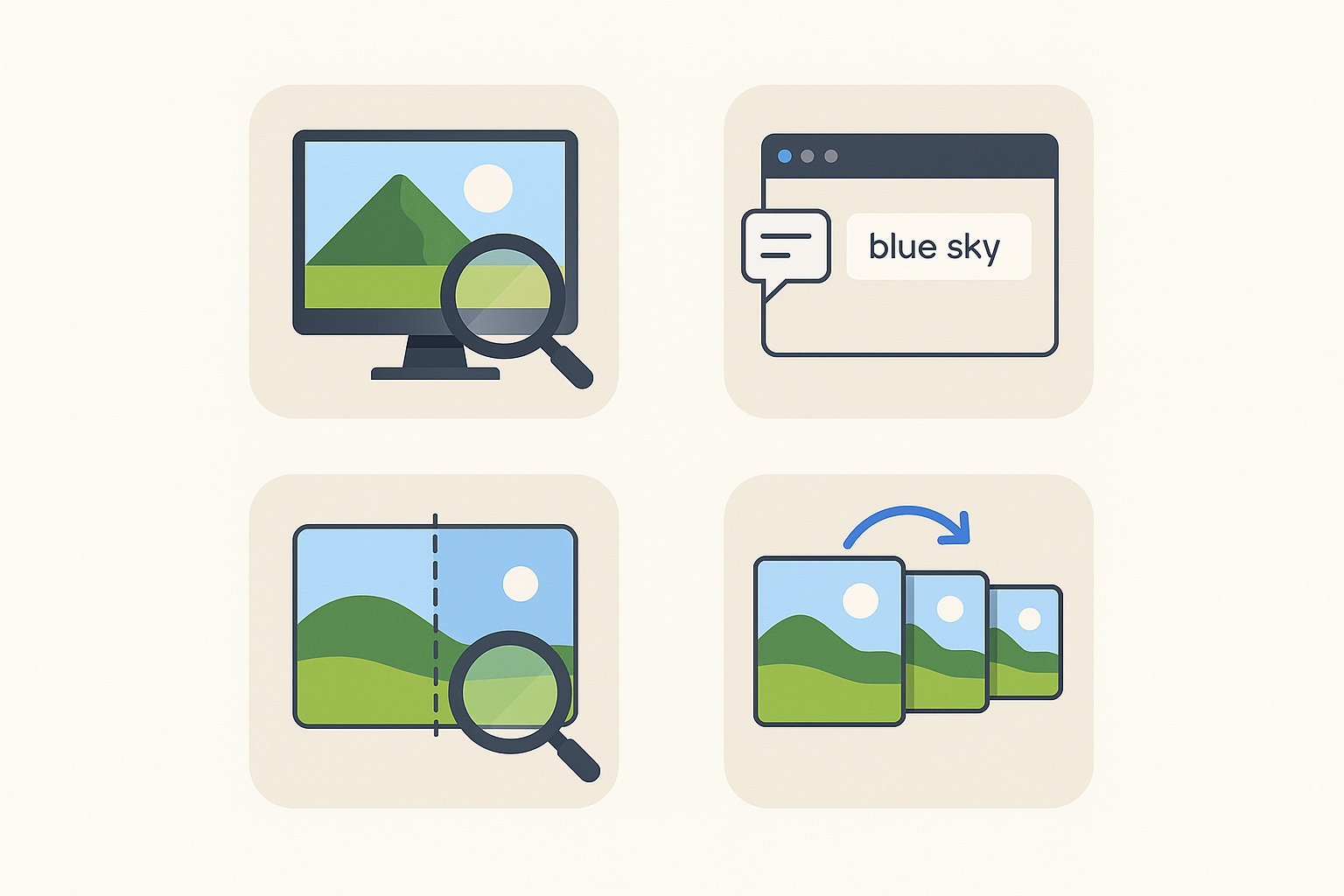
1. Start with High-Resolution Images: The AI needs data to learn the context, patterns, and lighting of your photo. The more data (pixels) you provide, the more convincing the new, generated parts will be. A low-quality, pixelated image will likely result in a blurry or nonsensical extension.
2. Use Descriptive Prompts (If Available): Tools like Photoshop and Getimg.AI allow text prompts. Don't just leave it blank! If you are extending the sky, prompt "blue cloudy sky." If you're extending a field, prompt "green grass field." This guides the photo extender AI and gives you far more control.
3. Check for Seamless Blending and Artifacts: Zoom in and look at the "seam" where the original photo meets the AI-generated part. Look for weird, repeating patterns (artifacts), illogical objects (like a third arm), or abrupt changes in light and shadow.
4. Generate Multiple Variations: Don't settle for the first result! Every AI image extender has a "generate again" button. Click it 3-4 times. The AI will produce a different result each time, allowing you to pick the one that looks the most natural and requires the least amount of touch-up.
Part 5. Extended Knowledge: Image Extender vs. Image Enlarger
The terms are often confused, but they do opposite things. When you want to enlarge a picture, you might need an enlarger or an extender. Here's the difference.
Use an Image Enlarger when you think: "I wish this photo wasn't so small and pixelated."
Use an Image Extender when you think: "I wish there was more background/space around the subject in this photo."
Here is a direct comparison:
| Feature | Image Enlarger (Upscaler) | Image Extender (Outpainter) |
|---|---|---|
| Primary Goal | Increase the resolution (pixel count) of the existing image. | Increase the canvas size by adding new parts to the image. |
| Core Function | AI Upscaling & Interpolation. It analyzes pixels and intelligently adds new ones between existing ones to increase detail and sharpness. | AI Generative Fill & Outpainting. It analyzes the image and generates new content (background, objects) outside the original borders. |
| Effect on Original Image | The original image composition is unchanged. It just gets bigger, sharper, and less pixelated. | The original image is a part of a new, larger composition. The canvas size changes. |
| Generation of New Content | No. It only enhances what is already there. | Yes. It creates brand-new image data, seamlessly blending it with the original. |
| Common Tools | Gigapixel AI, Let's Enhance, VanceAI Image Upscaler | Adobe Photoshop (Generative Fill), Canva (Magic Expand), Fotor (AI Image Extender) |
| Ideal Use Case | Preparing a small photo for a large print; restoring old, low-resolution digital photos. | Fixing a "zoomed-in" photo; changing aspect ratio from 9:16 to 16:9; creating ad copy space. |
Conclusion
The rise of the AI image extender has fundamentally changed our creative limitations. A poorly framed shot is no longer a lost cause, and a single photo can be repurposed for any aspect ratio. From the professional power of Photoshop to the instant convenience of Canva and CapCut, there's a tool for every need. The key is to match the tool to your workflow.
As you explore these options, remember that your creative process doesn't end with one photo. For a comprehensive, AI-powered media suite that can handle everything else—from video editing to file conversion and image upscaling—Wondershare UniConverter is ready to streamline your entire workflow. Download UniConverter today and unify your creative tools.
FAQs About AI Image Extenders
-
1. What is the best free AI image extender?
For desktop-like features, Canva's "Magic Expand" is a top AI image extender free option, though its AI use is limited on the free plan. For a truly free (but less advanced) experience, Fotor offers a great tool that operates on a free credit system. -
2. How does an image extender AI work?
An image extender AI uses a "diffusion" or "generative adversarial network" (GAN) model. It analyzes the pixels at the edge of your photo (the context) and "outpaints" by generating new pixels that logically continue the image, matching its style, lighting, and texture. -
3. Can I enlarge a picture and extend it at the same time?
You must do this in two separate steps. First, use an AI Image Enlarger (Upscaler) to increase the resolution of your original photo. Second, take that new, high-resolution image and use an AI Image Extender (Outpainter) to add more background. Doing it in this order ensures the AI has the most data to work with. -
4. Is it safe to use an online photo expander?
For most non-sensitive photos (landscapes, products, etc.), yes. However, be cautious about uploading private or personal images to free online tools. Reputable, paid services like Adobe Creative Cloud offer the highest level of security and privacy for your files. -
5. What's the difference between extending and cropping an image?
They are exact opposites. Cropping removes parts of an image to make it smaller or change its focus. Extending adds new, AI-generated parts to the image to make its canvas larger.

