


There is nothing quite as frustrating for a video editor as spending hours perfecting a cut, syncing the audio, and color-grading the footage, only to export it and see a large "Made with KineMaster" logo floating in the corner. While KineMaster is undoubtedly one of the most powerful mobile editing suites available, the watermark on the free version can make your content look unprofessional, especially if you are creating for clients or trying to grow a serious YouTube channel.
Whether you are looking to remove watermark from KineMaster using official methods, trying to find a KineMaster watermark remove app, or seeking advanced desktop software to polish your footage, this guide covers it all. We will explore the legal implications, the dangers of "hacked" apps, and five proven methods to clear up your video frame—ranging from simple crops to advanced AI solutions.
Table of Contents
Part 1. Is It Legal and Safe to Remove KineMaster Watermark?
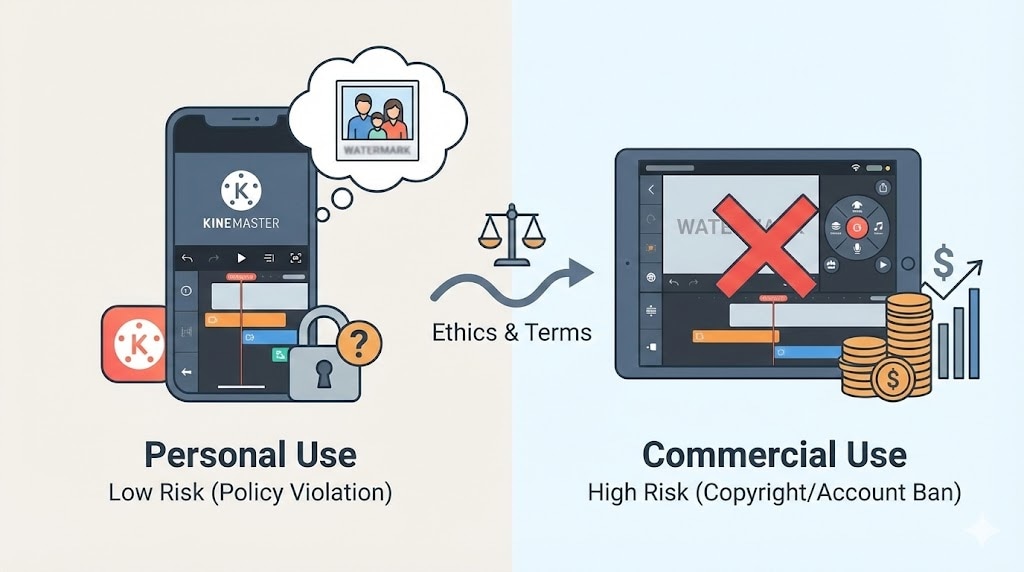
Important: Understanding the Terms of Service
Technically, when you use the free version of KineMaster, you agree to their Terms of Service, which stipulate that the watermark is the "price" you pay for using their server resources and development technology without a monetary fee.
For Personal Use: If you are removing the logo from a video you recorded and edited yourself for private viewing or a small personal project, the risk is generally low, though it still violates the app's intended usage policy.
For Commercial Use: If you are removing the watermark to sell the video, use it in a monetized YouTube channel, or deliver it to a client, you are treading on dangerous ground. Using software to bypass licensing fees for commercial gain can lead to copyright strikes or account bans.
Ethical Consideration: The most "correct" path for any creator who relies on the app regularly is supporting the developers via a subscription. However, for students or hobbyists with zero budget, knowing how to KineMaster water mark remove using external tools on their own original footage is a common necessity.
Part 2. The Risks of "KineMaster Mod APKs"
A simple Google search for "remove watermark KineMaster download" often leads users to "Mod APKs" (modified Android packages). These are hacked versions of the KineMaster app that promise premium features for free. We strongly advise against this method.
Here is why you should avoid Mod APKs:
Illegal & Against ToS: These are pirated versions of the software. Using them is a direct violation of intellectual property rights and KineMaster's Terms of Service.
Security Risk: "Cracked" apps are the number one vehicle for mobile malware. Hackers often inject spyware, keyloggers, or crypto-miners into these APKs. Installing them can compromise your passwords, banking apps, and personal photos.
Unreliable Performance: Modded apps are notoriously buggy. They often crash during rendering, fail to export 4K video, or stop working entirely when KineMaster updates its server-side protocols.
Instead of risking your device's safety, consider the legitimate methods below. Using a separate, safe tool to clean up a video you already created is generally a safer alternative than installing compromised software.
Part 3. Method 1 - The Official & Easiest Way: KineMaster Premium
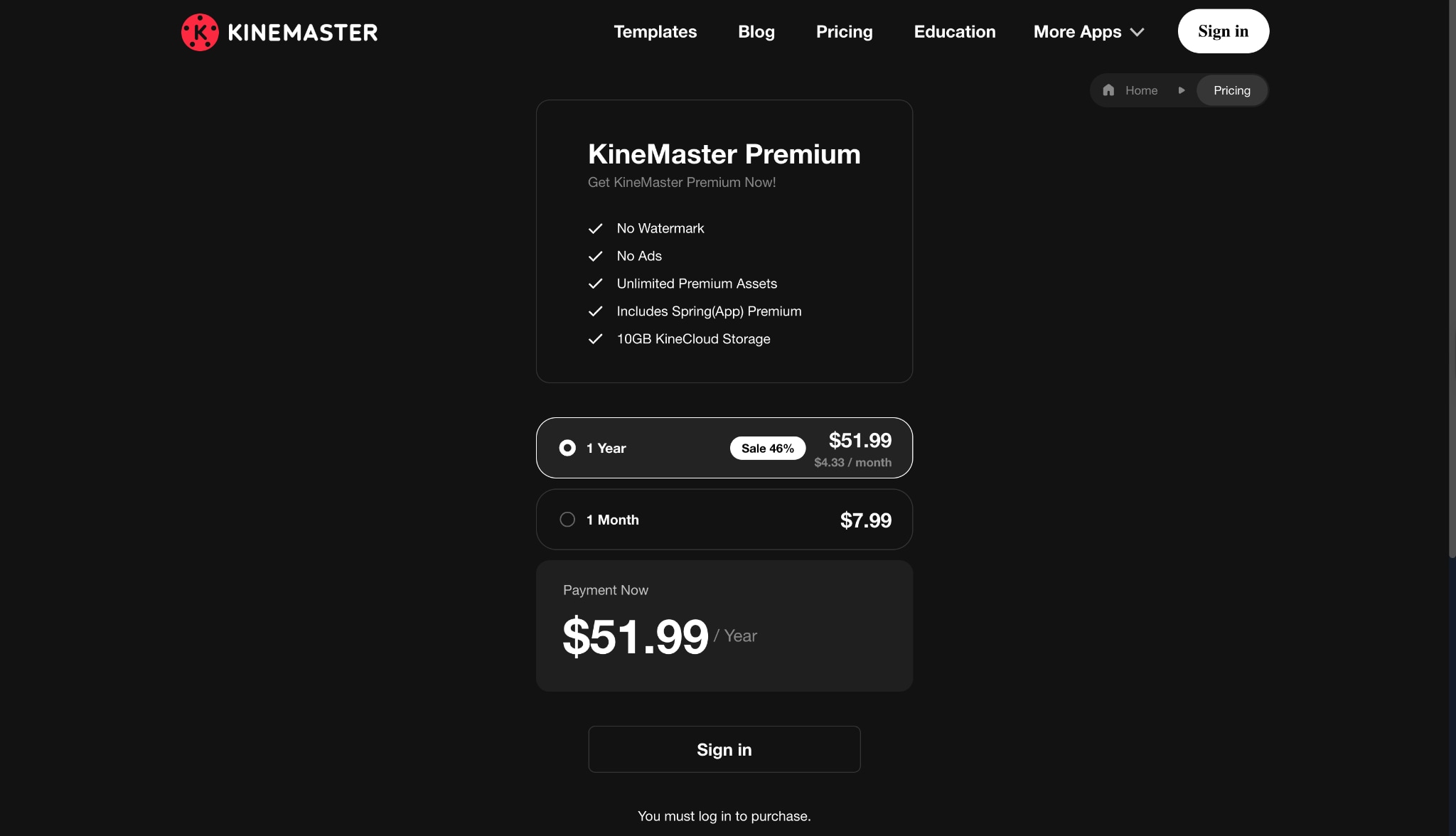
What is KineMaster Premium?
The Premium subscription removes the watermark automatically from all your exports. Beyond just being a KineMaster water remove solution, it unlocks a massive asset store.
No Watermark: Instant removal on all past and future projects.
No Ads: A cleaner editing interface without pop-ups.
Premium Assets: Access to professional transitions, stickers, music, and cinematic filters that are locked in the free version.
High-Quality Export: Unlocks higher bitrates and resolutions (up to 4K 60FPS) depending on your device.
While the subscription cost is reasonable for professionals, it might be a hurdle for casual users who only need to edit one or two videos a year.
Part 4. Method 2 - Cropping to Remove KineMaster Watermark for Free
If you are looking for a completely free method and don't mind altering your video's frame slightly, cropping is the oldest trick in the book. This doesn't require a specialized KineMaster watermark remove app; you can do it with almost any basic video editor.
How to Crop the Watermark
Step 1: Open Your Video Editor and Import the Footage
First, open your phone's native Gallery app or a simple video editing tool like Google Photos and select the video exported from KineMaster. Tap the "Edit" button usually found at the bottom of the screen to access the adjustment tools available on your device. This will bring up a menu of options including filters and adjustments, but you should look specifically for the "Crop" or "Rotate" icon to begin resizing your frame.
Step 2: Adjust the Frame to Exclude the Watermark
Select the Crop tool and manually drag the corners of the video frame inward until the "Made with KineMaster" logo in the top-right corner is completely outside the visible area. Be careful to maintain a standard aspect ratio, such as 16:9 or 4:3, so your video does not look stretched or oddly shaped when you upload it to social media. You may need to adjust the center focus of the video to ensure your main subject remains in the middle of the new, tighter frame.
Pro Tip: If you plan to crop later, always shoot your video from a slight distance or leave extra "headroom" above your subject while filming; this ensures you don't accidentally chop off heads or important details when you crop out the logo.
Step 3: Save or Export the New Version
Once you are satisfied that the watermark is gone and your subject is still visible, tap "Save Copy" or "Export" to finalize the changes. The app will process the video and save a new file to your device storage, leaving your original KineMaster file untouched in case you need it later. You can now upload this clean version to your platform of choice without the distracting branding.
Part 5. Method 3 - AI-Powered Watermark Remover (Safe & Easy)
If cropping ruins your video framing and you don't want to pay a monthly subscription for an app you rarely use, the best professional alternative is Wondershare UniConverter.
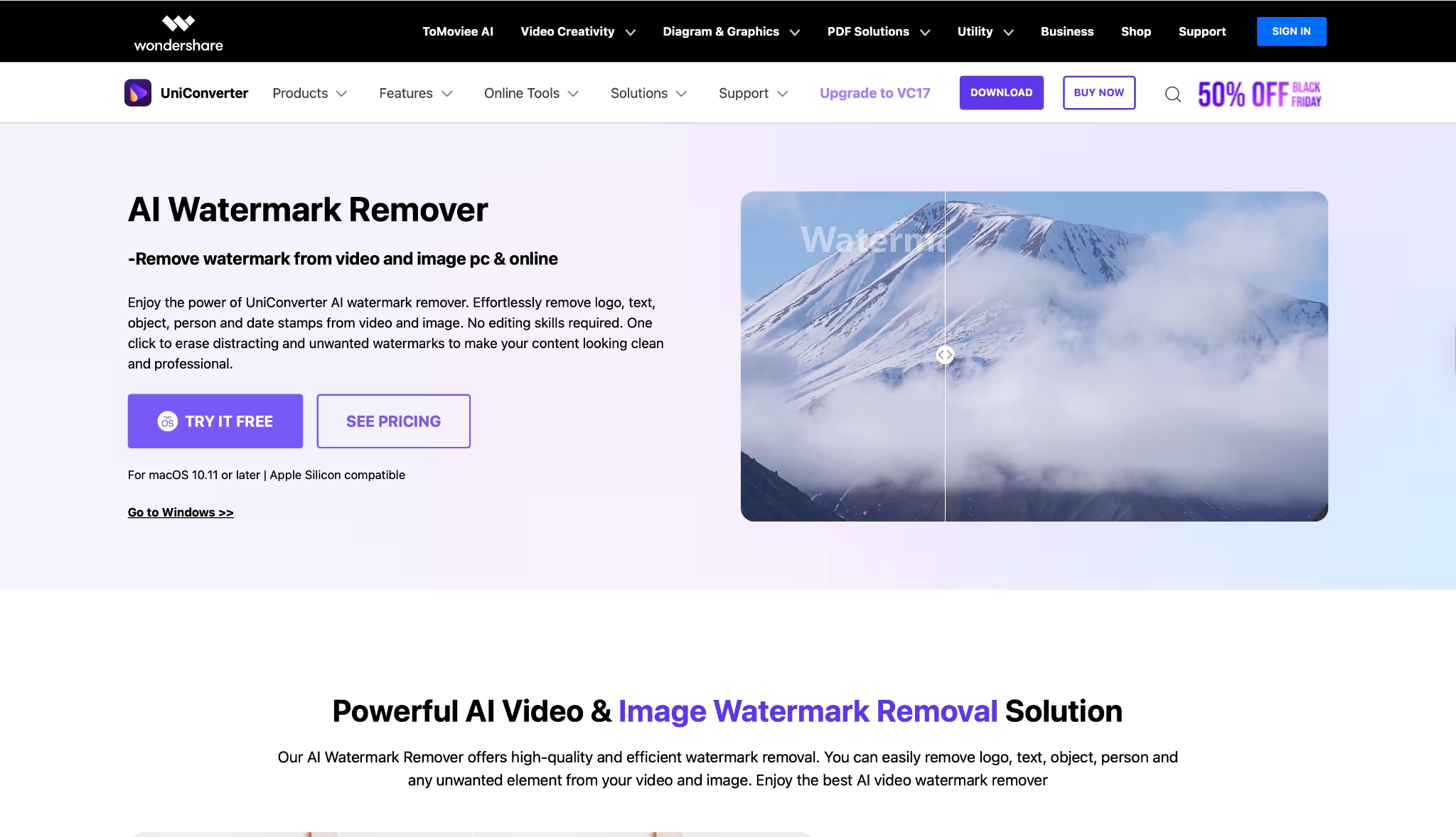
UniConverter is a comprehensive video toolbox that goes far beyond a simple watermark remover KineMaster tool. It uses advanced AI to detect static logos (like the KineMaster text) and intelligently fills in the background with matching pixels, leaving your video clean without losing any frame area.
Why UniConverter is the Best Choice for Creators
Unlike risky Mod APKs, UniConverter is legitimate, secure desktop software. It is ideal for creators who need to batch-process videos or enhance the quality of their mobile uploads.
- AI Watermark Remover: Automatically highlights and removes logos, text, and stamps from videos without blurs or artifacts.
- Video Enhancer: If your KineMaster export looks grainy, UniConverter's AI can upscale it to 4K and reduce noise.
- Batch Processing: Remove watermarks from multiple KineMaster clips at once.
Step-by-Step Guide to Remove KineMaster Watermark with UniConverter
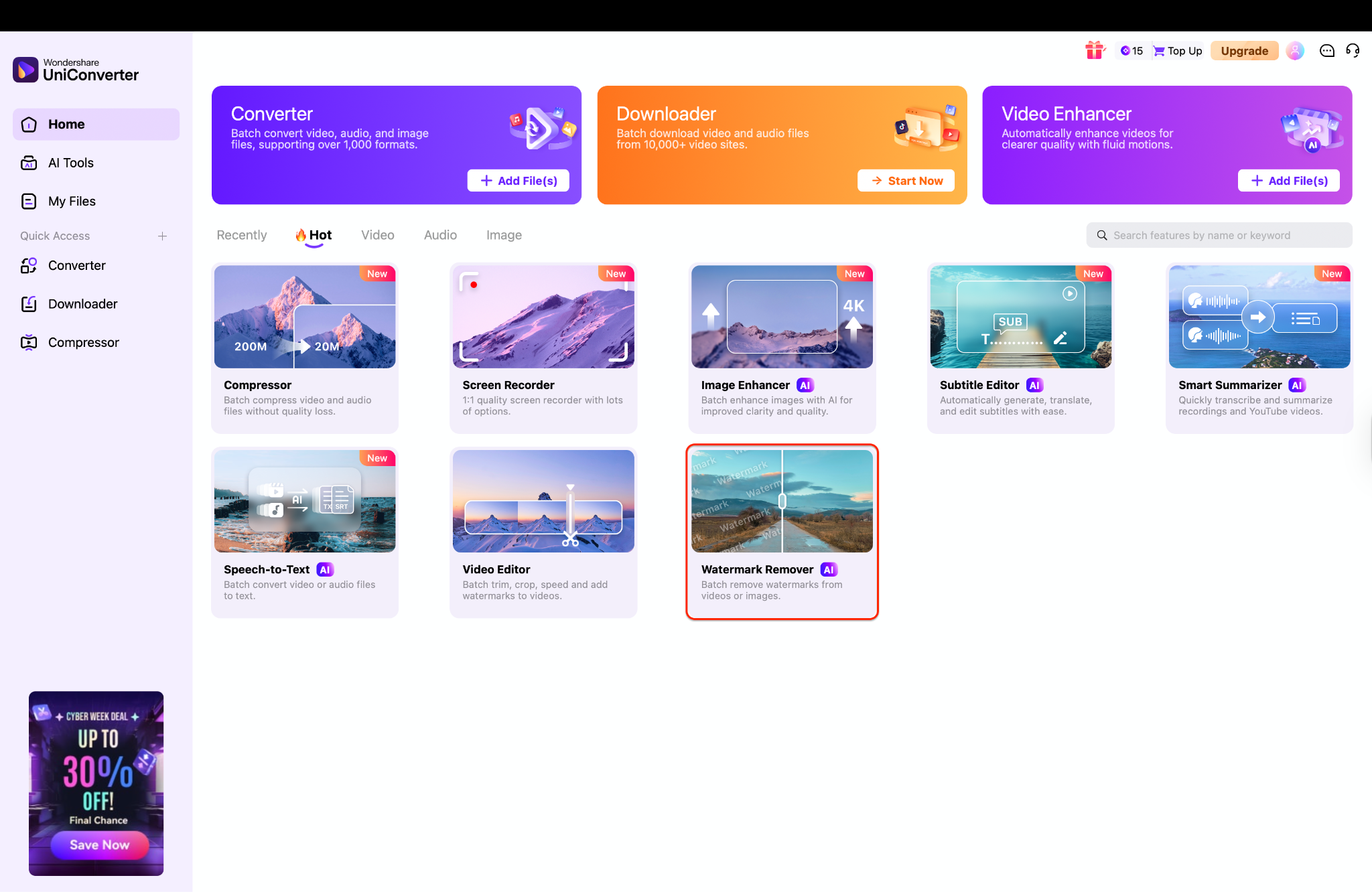
Step 1: Access the Watermark Remover from Home
Start by launching Wondershare UniConverter on your computer and ensuring the "Home" tab is selected in the left-hand sidebar. Browse the "Hot" features grid to locate the "Watermark Remover" card, which is highlighted with an AI badge and designed for batch processing. Click this specific tile to open the removal interface where you can begin uploading your branded videos.
Step 2: Load Video and Mark the Logo
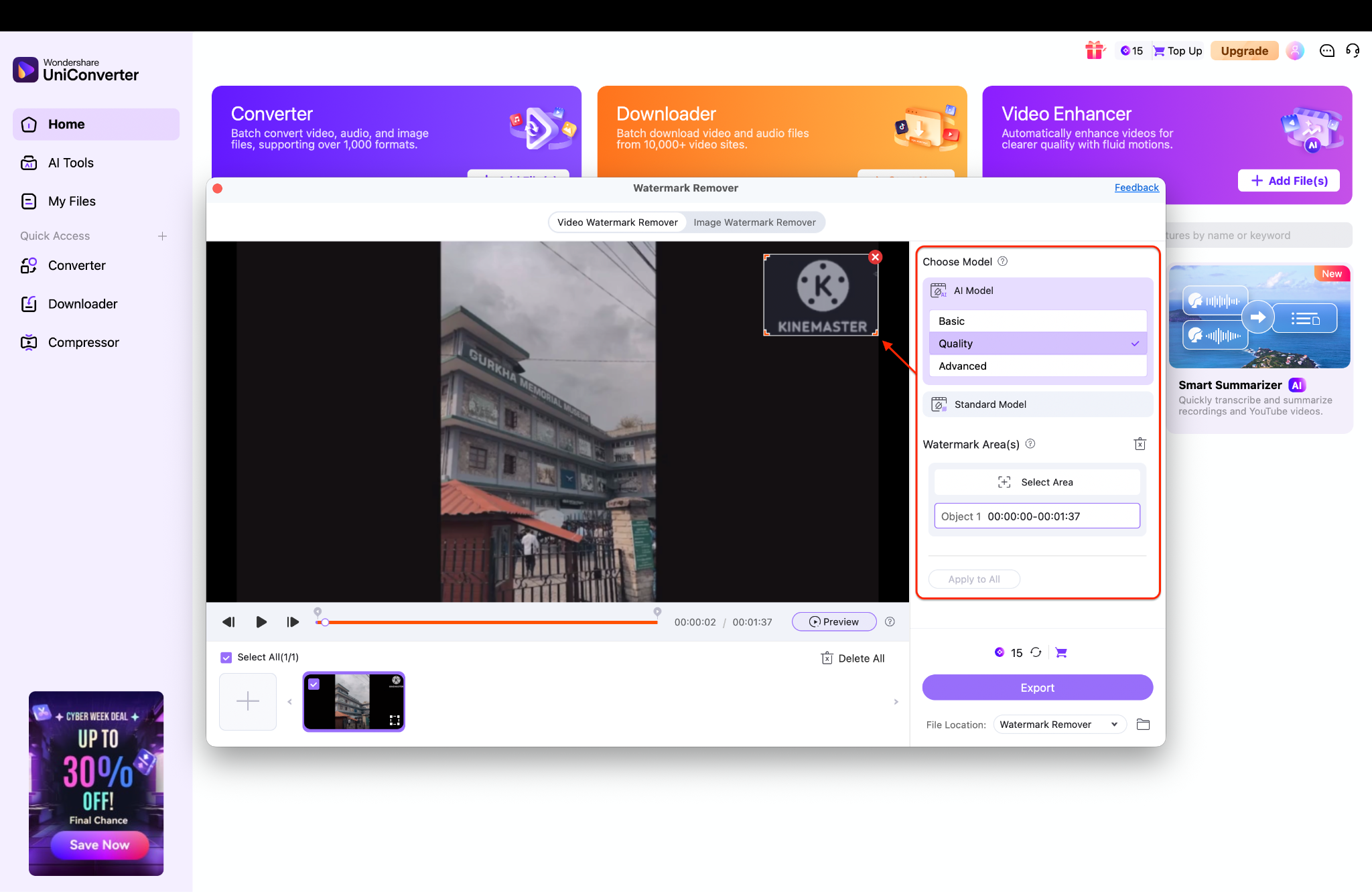
After adding your video, look at the panel on the right side and choose the AI Model with the Quality option selected for the best results. Click the Select Area button, then draw a box around the KineMaster logo in the top-right corner to highlight it. Make sure the orange box covers the entire logo just like it does in the preview window.
Step 3: Check and Save
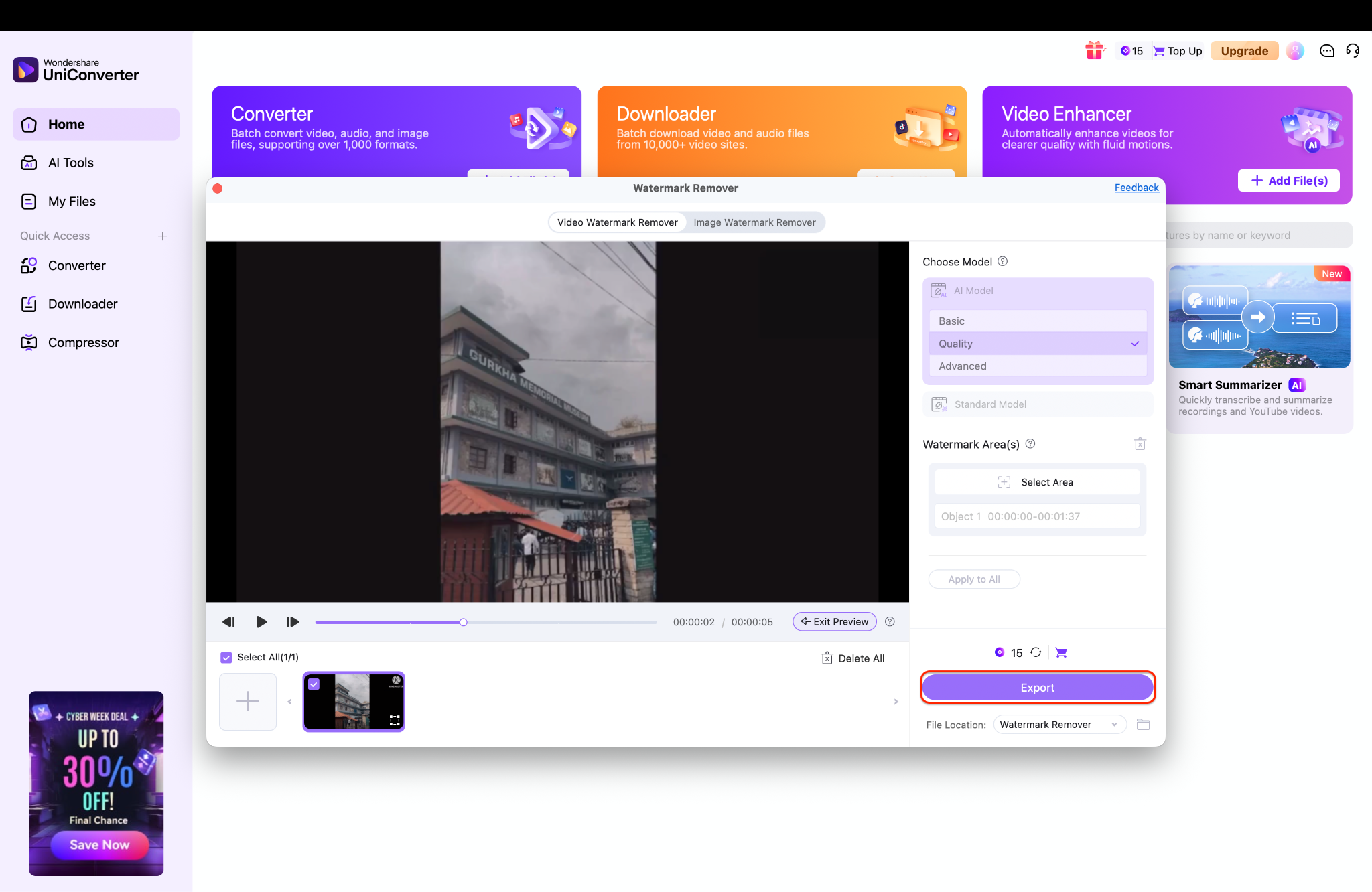
Click the "Preview" button to see how the video looks with the logo removed before you finish. If the video looks clean and clear, choose a folder on your computer to save it. Finally, click "Export" to save your new video, and it will be ready to watch in seconds.
Quick Tip: If the watermark removal looks blurry, try making the selection box slightly smaller so it barely touches the edges of the text.

Easy to Use KineMaster Watermark Remover
Part 6. Method 4 - Online Watermark Remover
For users who cannot install software and just need a quick fix for a single short clip, an online KineMaster watermark remover is a viable option. Tools like Media.io or 123Apps operate entirely in your web browser.
How to Use an Online Tool
Step 1: Select the Logo Remover Tool
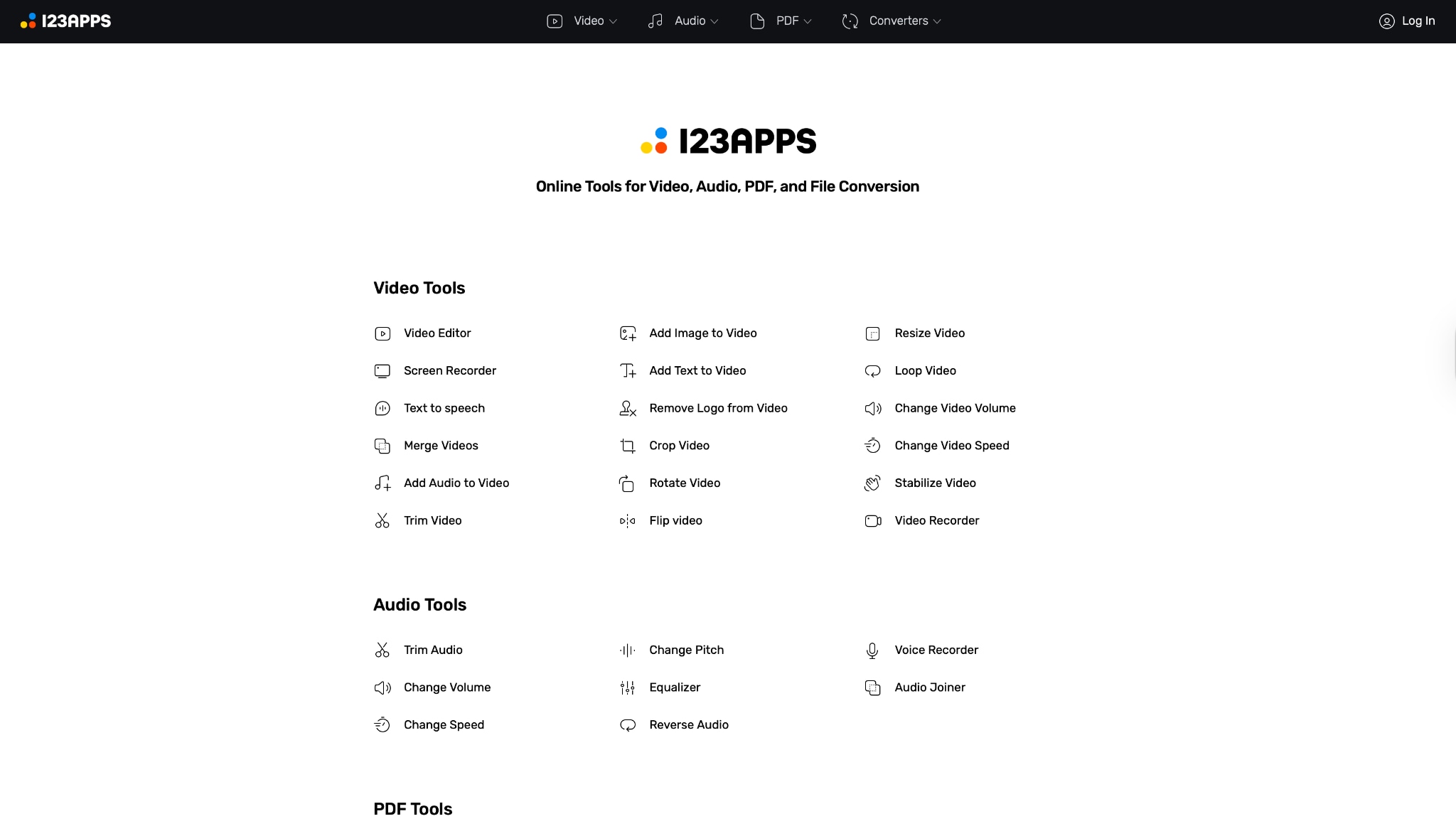
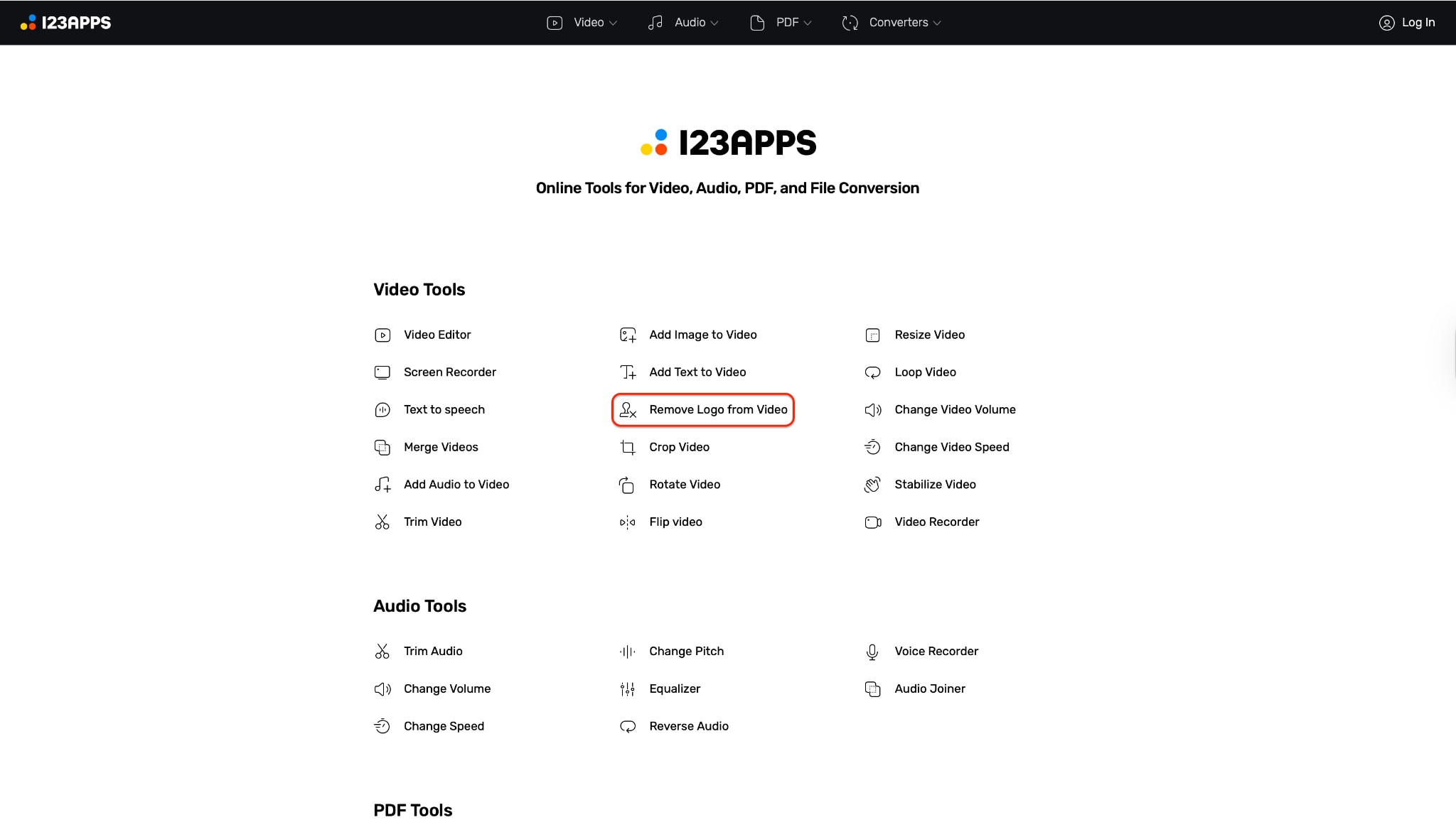
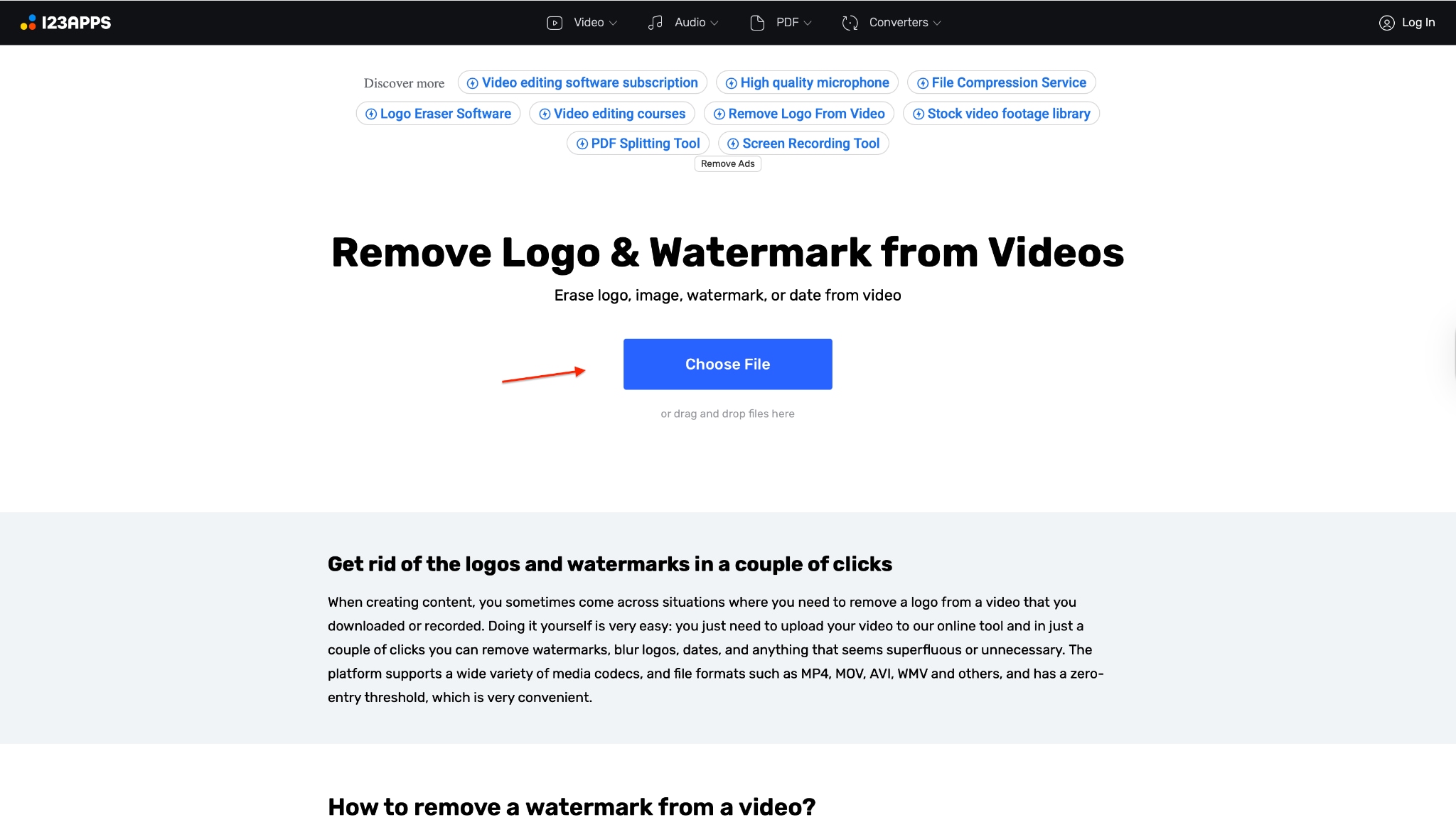
Start by visiting the 123Apps main dashboard and scrolling through the "Video Tools" section to find the necessary utility. Locate and click on the "Remove Logo from Video" link, which is designed to erase unwanted overlays from your footage. This will immediately redirect you to the specific tool interface where you can begin your watermark removal task.
Step 2: Upload Your KineMaster Video
On the tool's start screen, click the prominent blue "Choose File" button to browse your computer for the video containing the KineMaster branding. If you prefer a faster workflow, you can simply drag the video file from your desktop and drop it directly into the browser window. The site will then process and load your video into the online editor for modification.
Step 3: Cover the KineMaster Logo
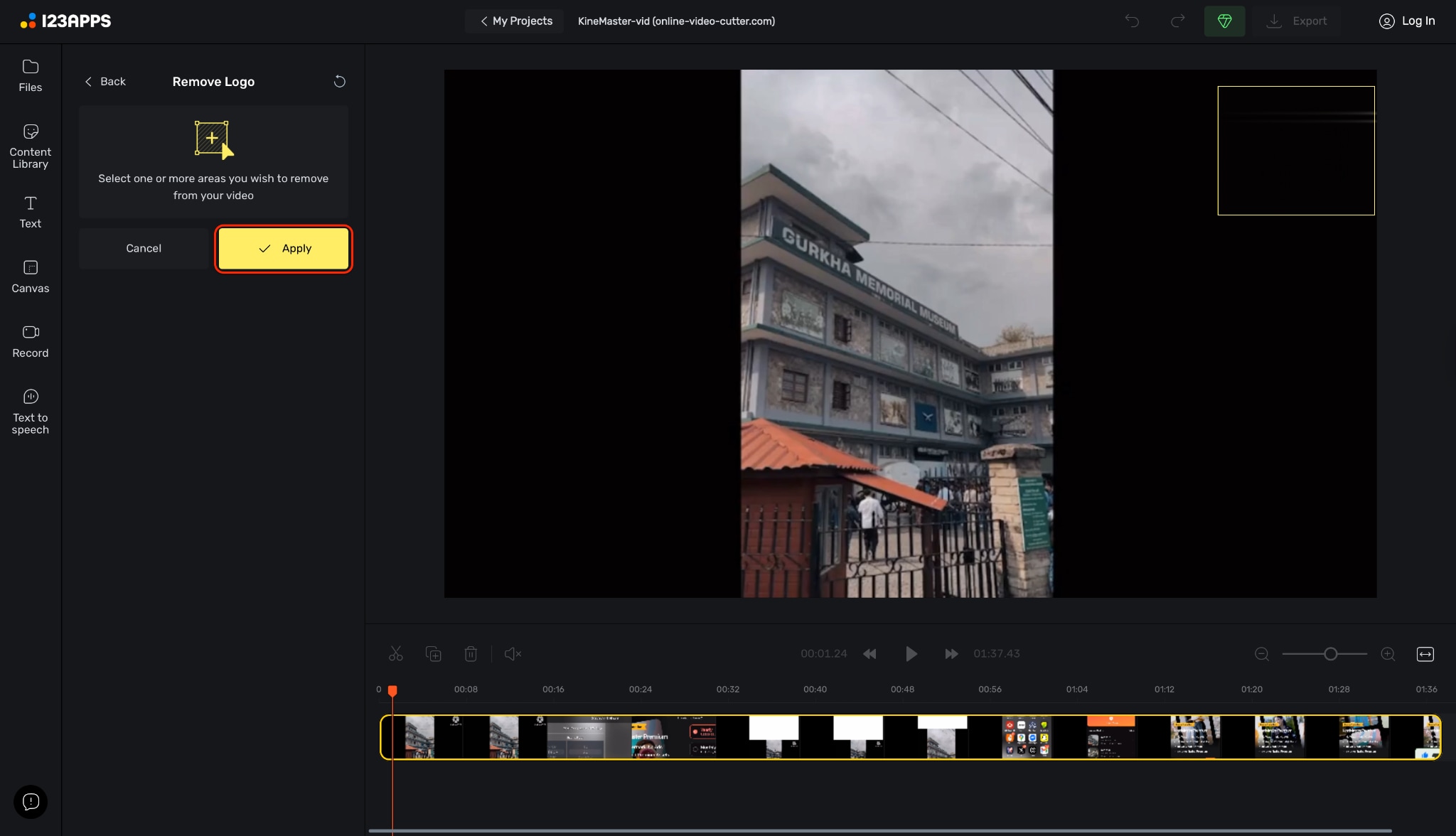
Once the editor opens, use your mouse cursor to draw a box around the KineMaster watermark, which is typically located in the top right corner of the video. Adjust the size of this selection area carefully to ensure the entire logo is covered without blurring the surrounding content. After you have perfectly isolated the watermark, click the "Apply" button to let the software mask the unwanted image.
Step 4: Save Your Watermark-Free File
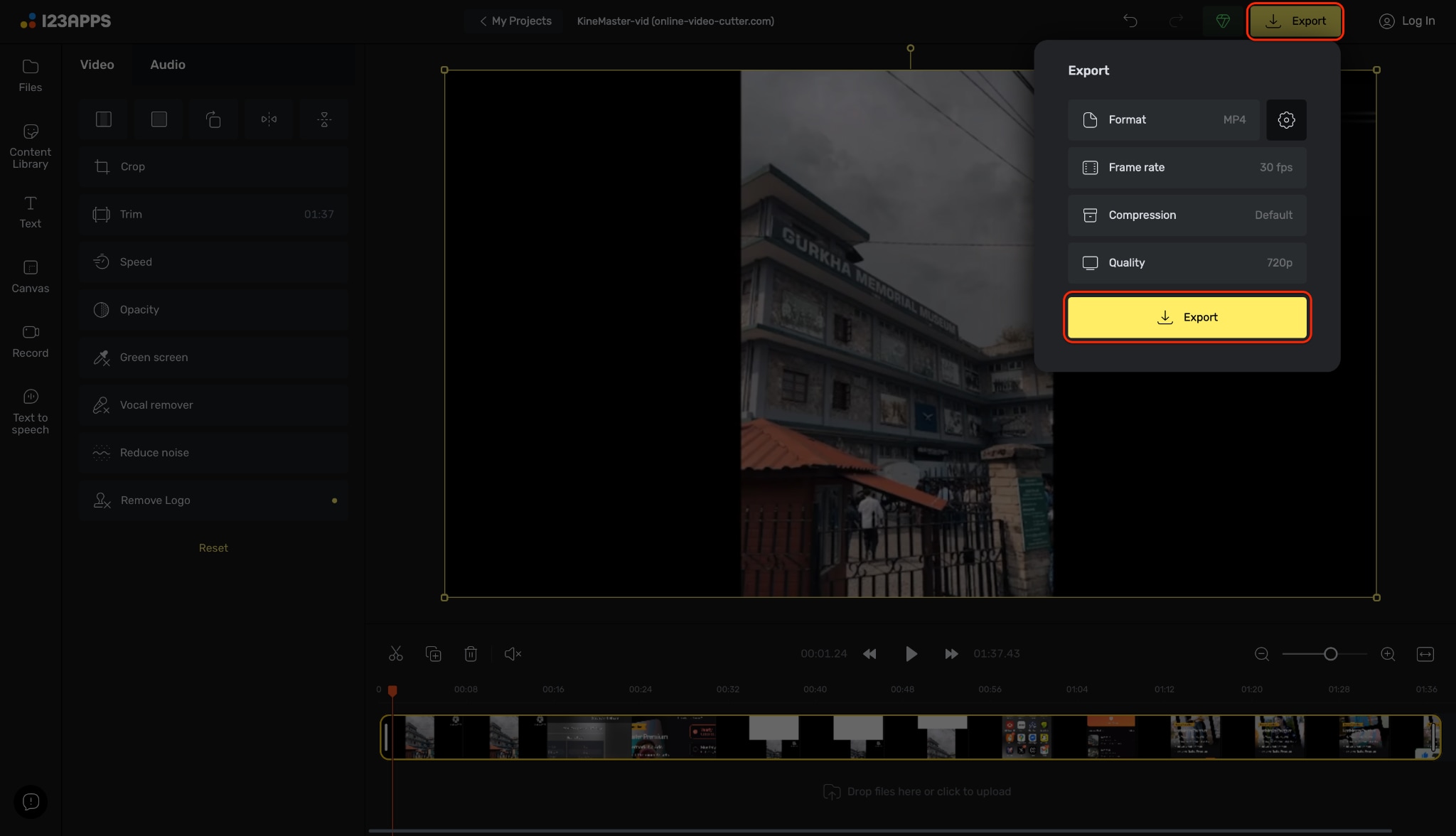
After the removal process is applied, head to the "Export" button situated at the top right of the screen to initiate the saving process. A dialogue box will appear where you can customize your final video settings, including the desired resolution and file format. Finally, click the "Export" button within this menu to download your clean, professional-looking video without the KineMaster logo.
Easy to Use KineMaster Watermark Remover
Part 7. Method 5 - Mobile Watermark Remover
If you don't have a PC and refuse to crop, you can use a dedicated mobile KineMaster watermark remove app. Apps like "Vmaker Video Eraser" (iOS/Android) or "Remove & Add Watermark" (Android) are popular choices.

Steps to Use a Mobile Remover
Step 1: Install Vmaker and Import Your Video
First, download the Vmaker (Video Eraser) app on your iOS or Android device and allow it access to your media library. After launching the app, tap on the "AI Remover" tool to begin the process of importing your footage. From here, select the video containing the KineMaster watermark from your gallery to load it into the editor.
Step 2: Brush Over the KineMaster Watermark
Since KineMaster logos are distinct, choose the Manual selection mode and adjust your brush size for better precision. Use your finger to carefully paint over the watermark area in the corner until the entire logo is highlighted in red. Once you have accurately masked the branding, hit the "Remove now" button to let the AI erase the object.
Step 3: Preview and Save the Clean Video
Wait for the application to analyze the scene and automatically fill in the background where the watermark used to be. Play the preview to verify that the KineMaster logo is completely removed and the video quality remains intact. Finally, tap the "Save" button to export your newly polished, watermark-free video straight to your device's gallery.
Conclusion
In this article, you've discovered various methods to remove KineMaster watermarks from your videos effortlessly. From comprehensive software like Wondershare UniConverter to quick online tools, there's something for everyone. Each option has its strengths and weaknesses, but one consistent factor is the importance of choosing the right tool for your needs.
If you want an effective and user-friendly solution, Wondershare UniConverter stands out as an excellent choice. Its advanced features allow you to edit your videos without the hassle of watermarks. You can enjoy your KineMaster edits as they were meant to be seen—without distractions. Start using a KineMaster watermark remover today and elevate your content! You can also try our advanced features like voice changer, video enhancer and so on.
FAQs
-
1. Is it illegal to use a KineMaster watermark remover?
It is not illegal to remove watermarks from your own original content for personal use. However, removing watermarks from someone else's copyrighted video or using cracked software (Mod APKs) to bypass payment is illegal and unethical. -
2. What is the best app to remove KineMaster watermark?
For desktop, Wondershare UniConverter is the best due to its AI precision and safety. For mobile, "Video Eraser" is a decent free option, though it uses blurring rather than true removal. -
3. Can I remove the watermark without paying?
Yes. You can use the "Cropping" method (Method 2) to cut the watermark out of the frame for free. Alternatively, some online tools offer free trials for removing watermarks, though they may have file size limits. -
4. Are KineMaster Mod APKs safe to use?
Generally, no. Mod APKs are modified by unauthorized third parties and often contain malware or spyware. They are also unstable and violate KineMaster's Terms of Service, risking your account and data security. -
5. Does UniConverter reduce video quality?
No. UniConverter is designed to preserve original quality. In fact, it includes an "AI Video Enhancer" that can actually improve the resolution and clarity of your video after removing the watermark.

