


Creating professional video content on mobile devices has never been easier, but nothing ruins the aesthetic of a polished clip quite like a distracting brand logo floating in the corner. If you are a content creator, vlogger, or social media enthusiast, you have likely searched for how to remove InShot watermark to give your videos a cleaner, more cinematic look. While InShot is a powerhouse for mobile editing, its default branding can make your work look amateurish.
In this deep-dive guide, we will explore the most effective methods to remove InShot watermark from video, ranging from official in-app solutions to advanced AI desktop software. We will cover inshot watermark remover online tools, mobile apps, and manual editing tricks, ensuring you find the perfect workflow for your 2025 projects.
Table of Contents
Part 1. Is It Legal to Remove The InShot Watermark? A Crucial Disclaimer
The Official Stance (InShot's Terms of Service)
InShot, like most software developers, includes a watermark in their free version as a form of branding and attribution. By using the free version of the app, you generally agree to their Terms of Service, which implies that the exchange for free usage is the presence of their logo. Altering the software code to bypass this is a violation of those terms.
The Ethical Consideration & Fair Use
From an ethical standpoint, developers deserve compensation for their work. However, removing InShot watermark for personal use—such as sharing a video with family or a small presentation—is typically viewed differently than removing it for a commercial advertisement broadcast on television. If you are editing a video for a paying client or a commercial entity, using a watermarked free tool and stripping the logo is professionally frowned upon and carries higher liability.
The Clear Verdict & Recommendation
"The safest, most ethical, and 100% legal way to remove the watermark is to purchase InShot Pro." However, if you own the rights to your video footage and want to clean up the visual clutter for aesthetic reasons using external tools, the following methods (like AI removal) are technically feasible, provided you do not claim ownership of the InShot software itself.
Part 2. Method 1 - The Official & Easiest Way: InShot Pro

What is InShot Pro?
InShot Pro is the unlimited version of the editor. When you upgrade, you are not just paying for an InShot watermark remover; you are unlocking a full creative suite. The primary benefit is the instant, permanent removal of the logo and all advertisements. Additionally, Pro users gain access to a massive library of premium transitions, effects, stickers, and fonts that are locked in the free version.
Pricing Structure (2025 Estimates):
Monthly Plan: ~$4.99/mo
Yearly Plan: ~$19.99/yr (includes trial)
One-Time Purchase: ~$49.99 (Lifetime)
Part 3. Method 2 - AI-Powered Watermark Remover (Safe & Easy)
For users who edit on desktop or need a solution that works across various video sources (not just InShot exports), we recommend a dedicated desktop solution.
Recommendation: Wondershare UniConverter
Disclaimer: Ensure you have the right to modify the video content. This tool is intended for cleaning up your own footage.
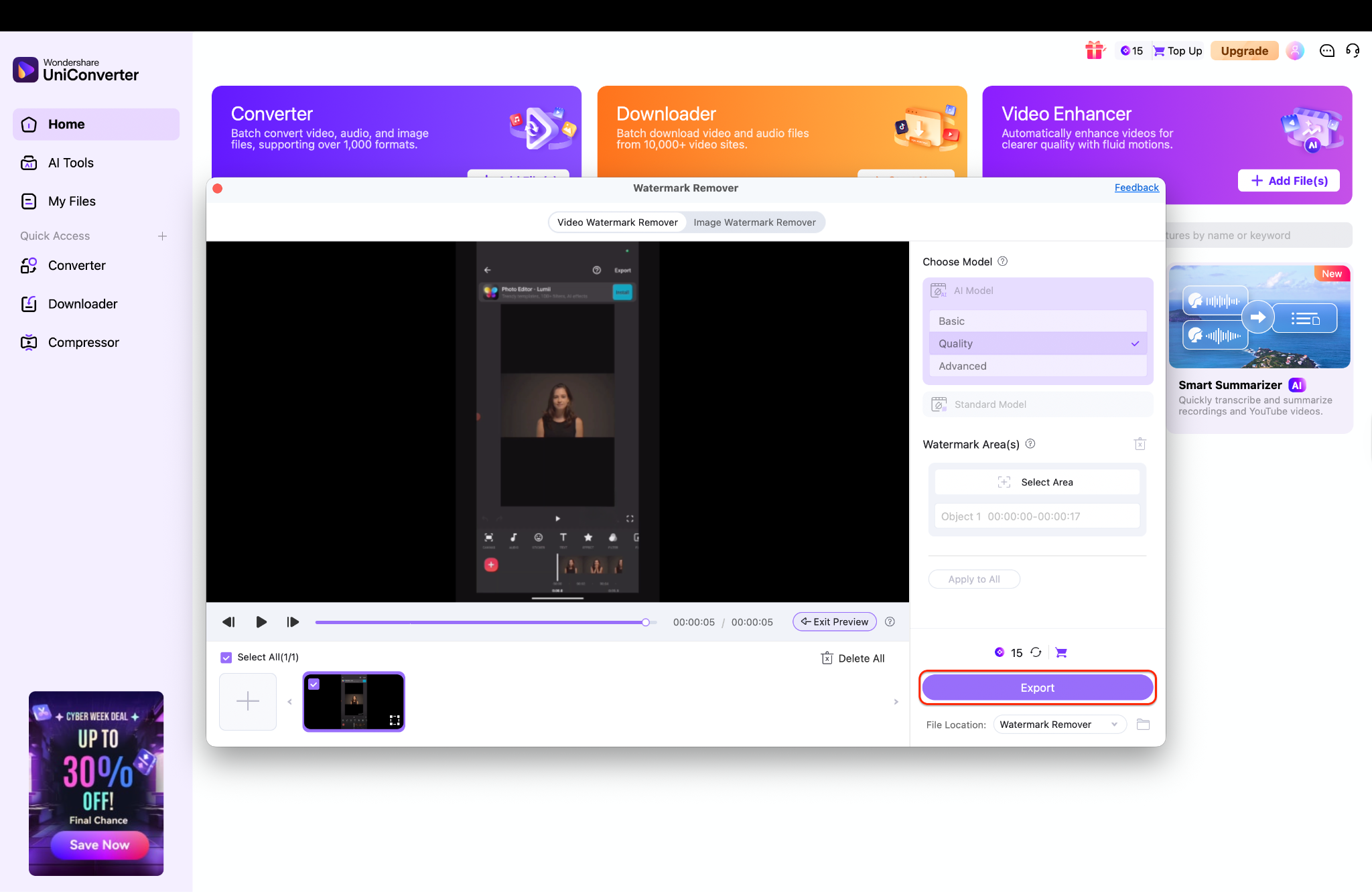
Wondershare UniConverter is not just a watermark remover; it is a comprehensive AI-powered video toolbox. While InShot is great for phones, UniConverter brings professional-grade AI processing to your desktop. Its Watermark Remover function uses artificial intelligence to analyze the pixels surrounding the logo and fill in the background seamlessly, often producing results superior to simple blur tools.
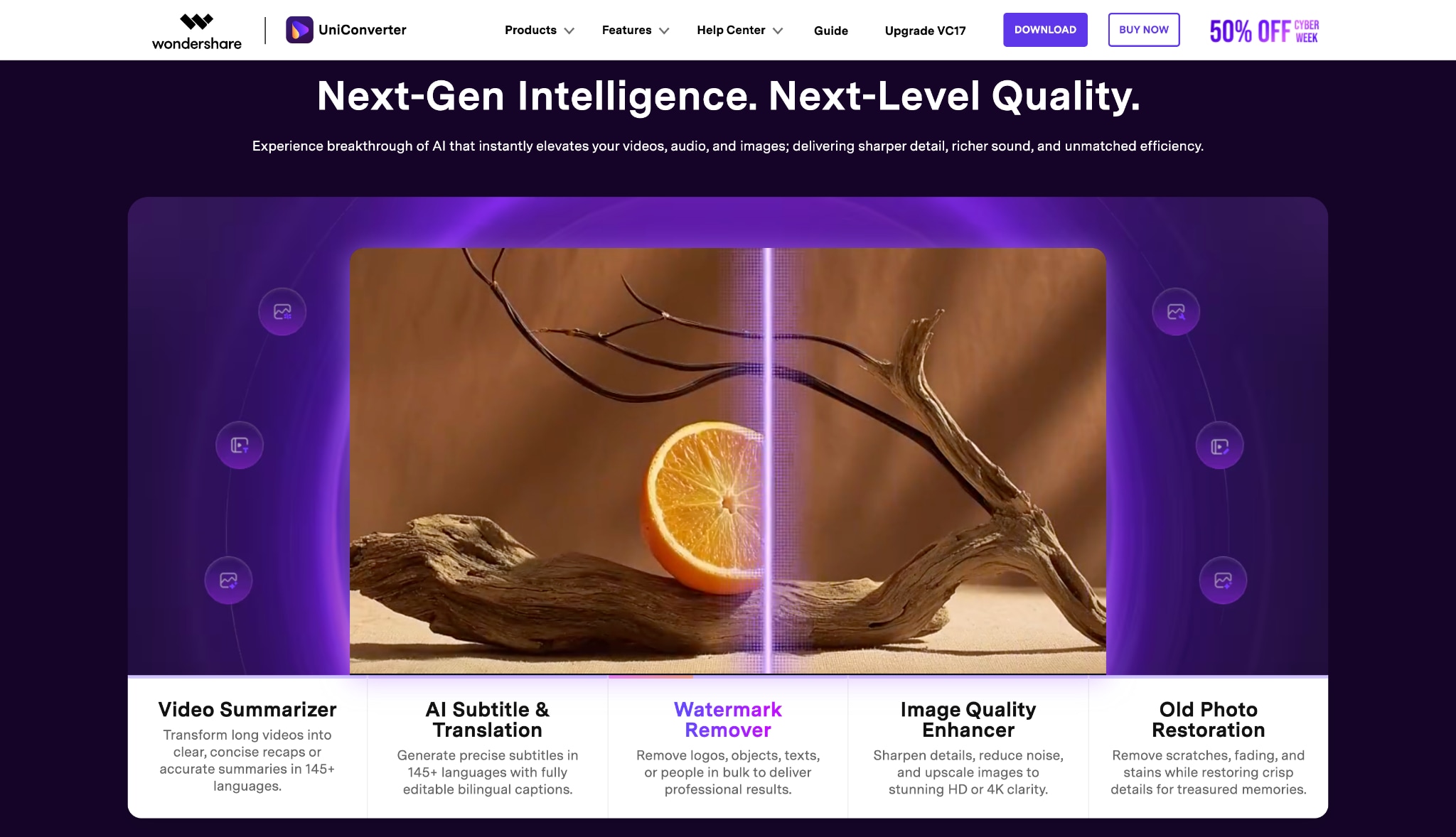
Step-by-Step Guide: Removing InShot Watermark with UniConverter
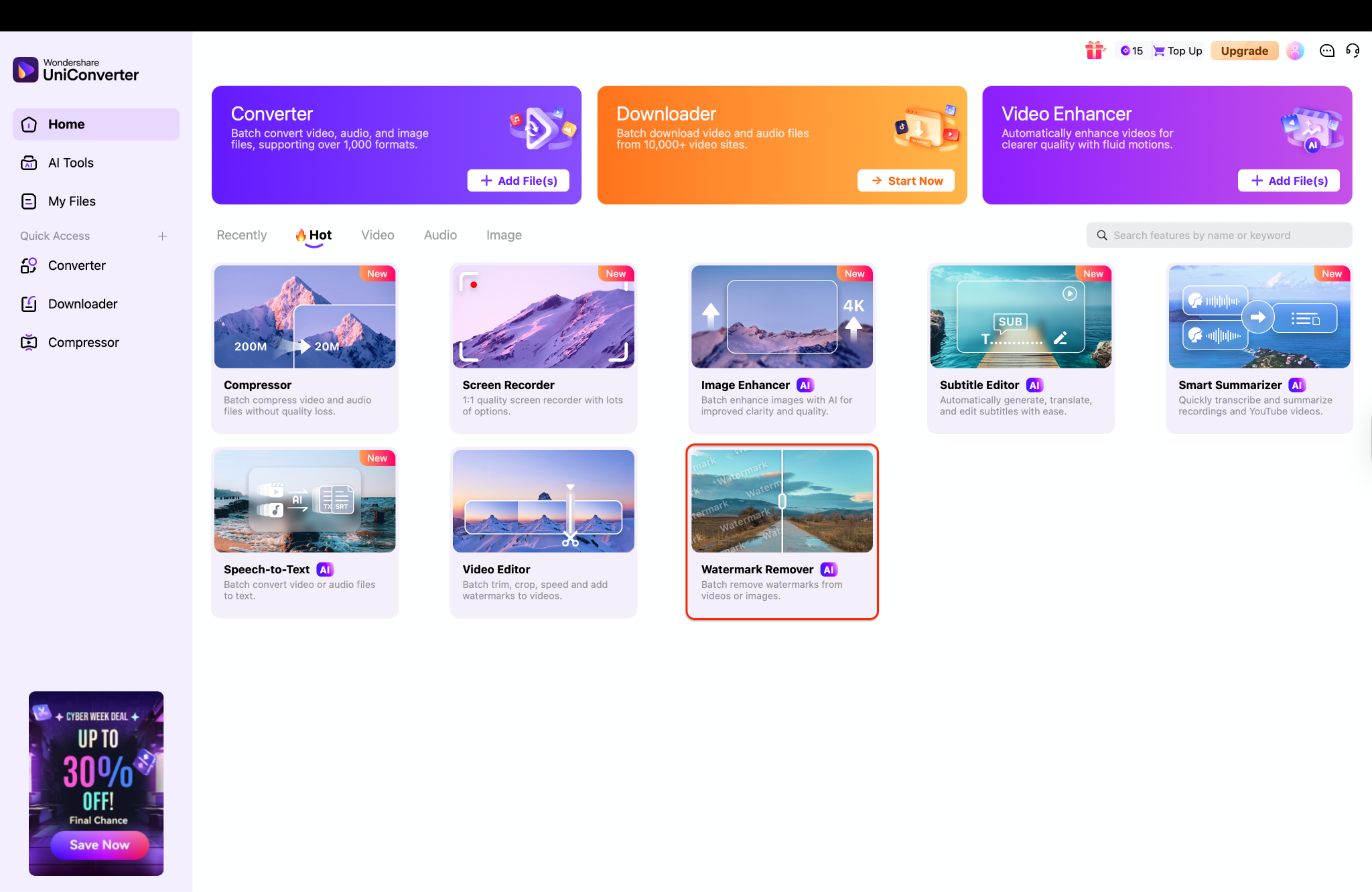
Step 1: Open the Watermark Remover Tool
Step 2: Upload Files and Select the Area
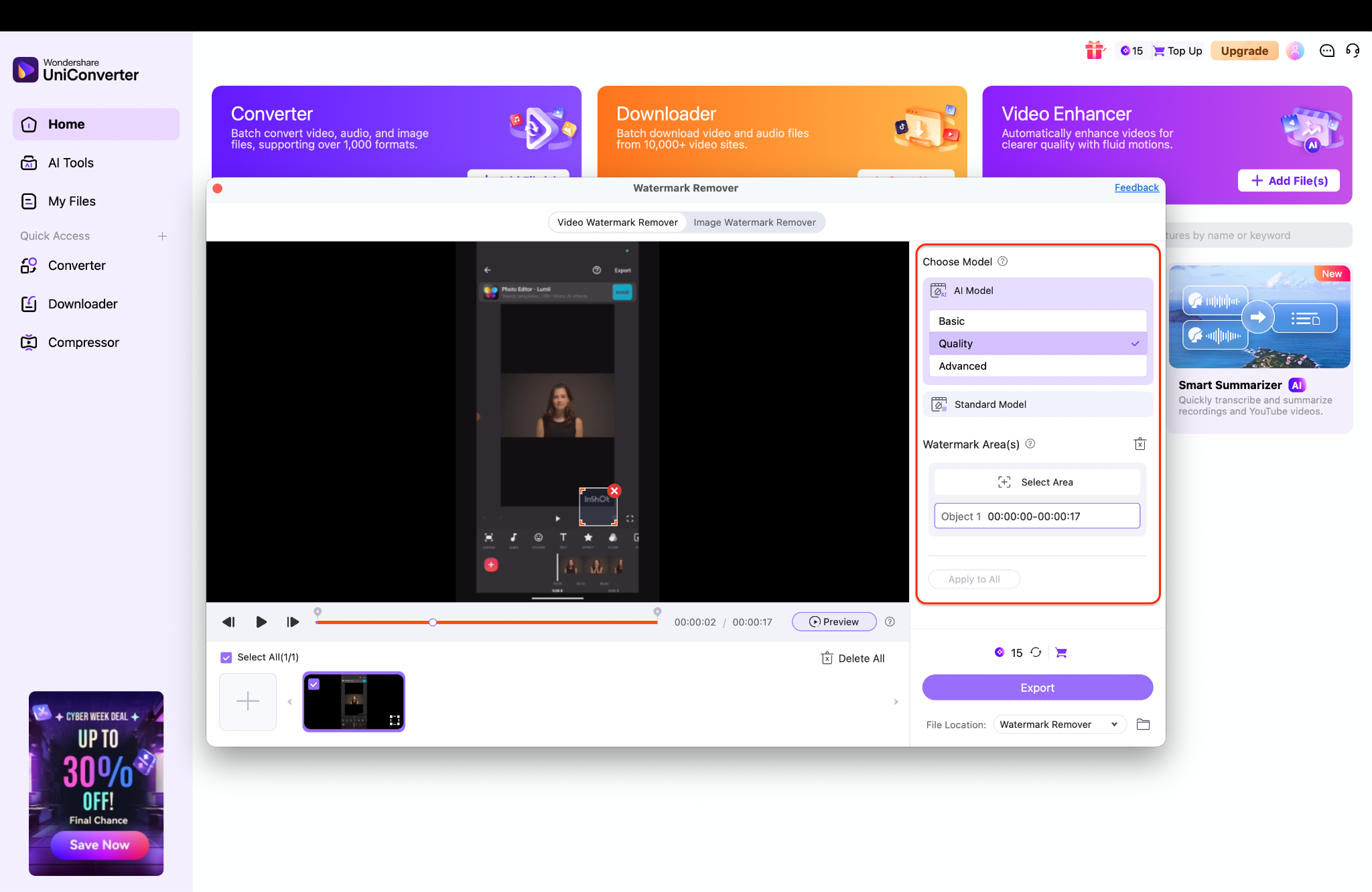
Pro Tip: Keep your selection box as tight as possible around the text; a smaller, more precise selection area helps the AI analyze the surrounding pixels accurately, resulting in a much cleaner and less blurry removal.
Step 3: Preview and Export Your Final Files
Click the "Preview" toggle to watch a short segment of your video and verify that the watermark has been erased cleanly. If you are satisfied with how the background blends, select your preferred output folder at the bottom of the window. Finally, click the "Export" button to process the edit and save your professional, watermark-free video to your desktop.

Easy to Use InShot Watermark Remover
Part 4. Method 3 - Online Watermark Remover
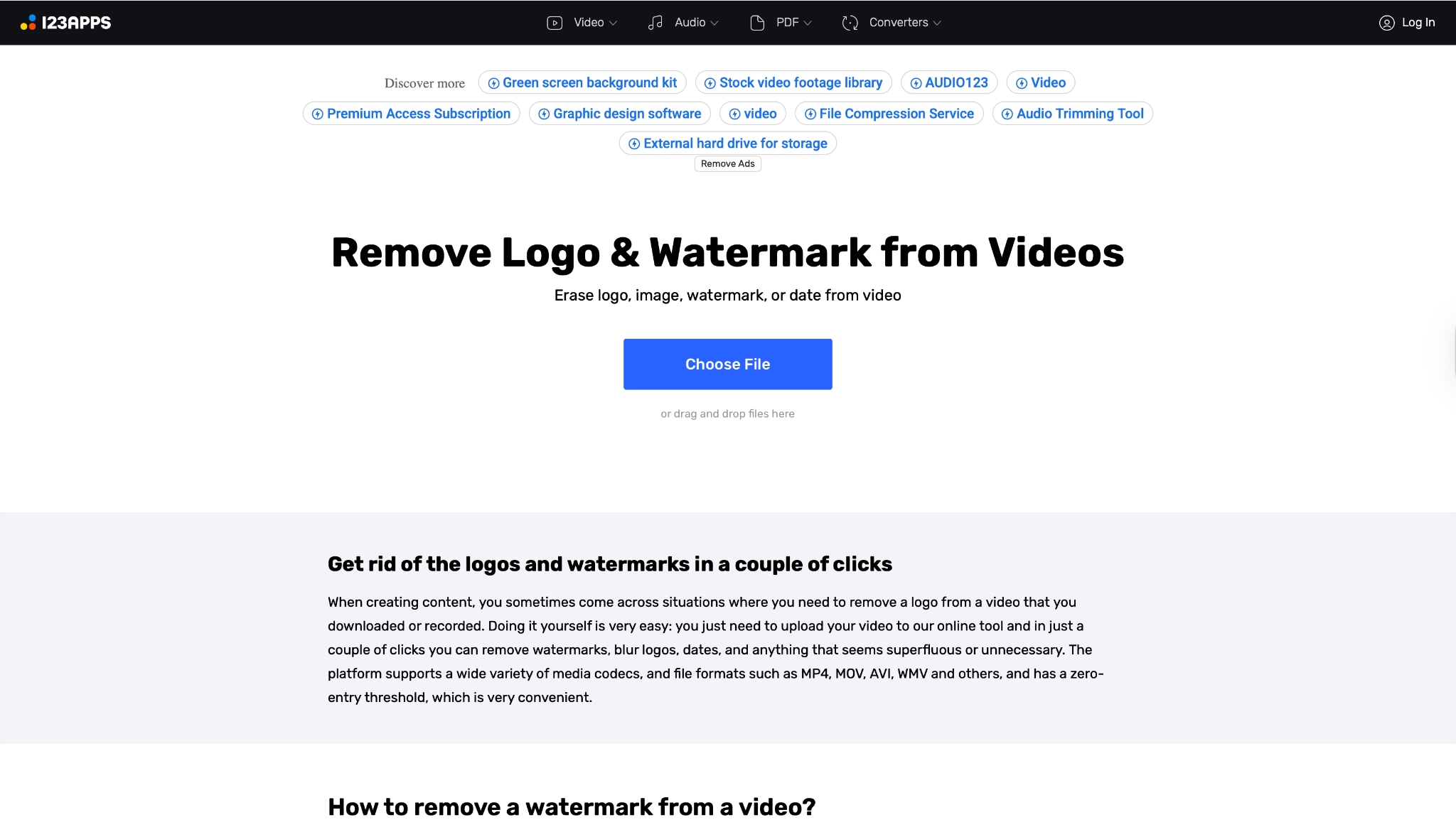
If you are unable to install software and are searching for an InShot watermark remover online, browser-based tools are a viable alternative. These tools allow you to upload a video, remove the logo, and download it, all within a web browser.
Recommendation: 123Apps
Step-by-Step Guide
Step 1: Access the Removal Tool
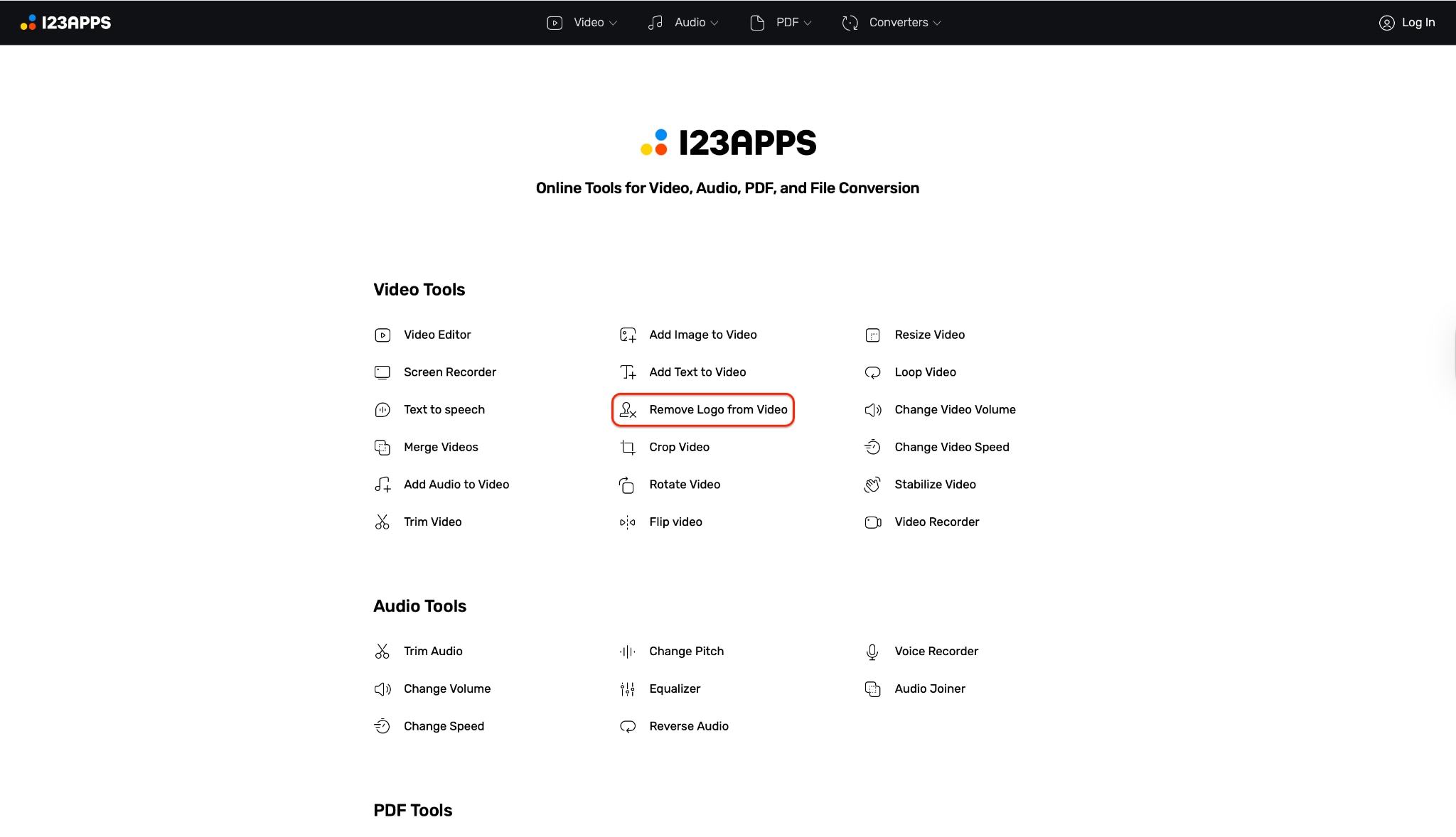
Step 2: Upload Your InShot Video
Step 3: Highlight the Watermark Area
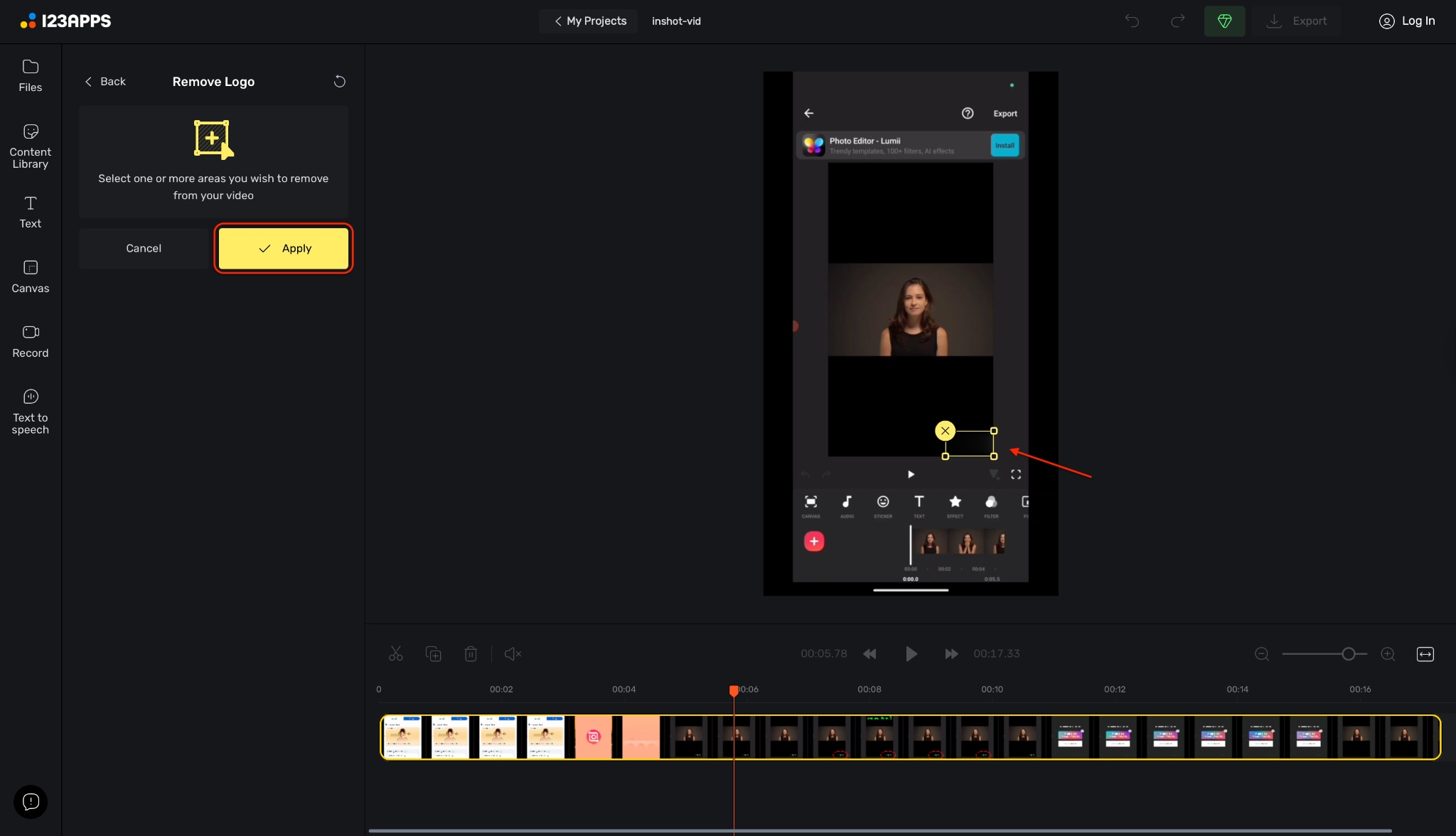
Step 4: Export Your Clean Video
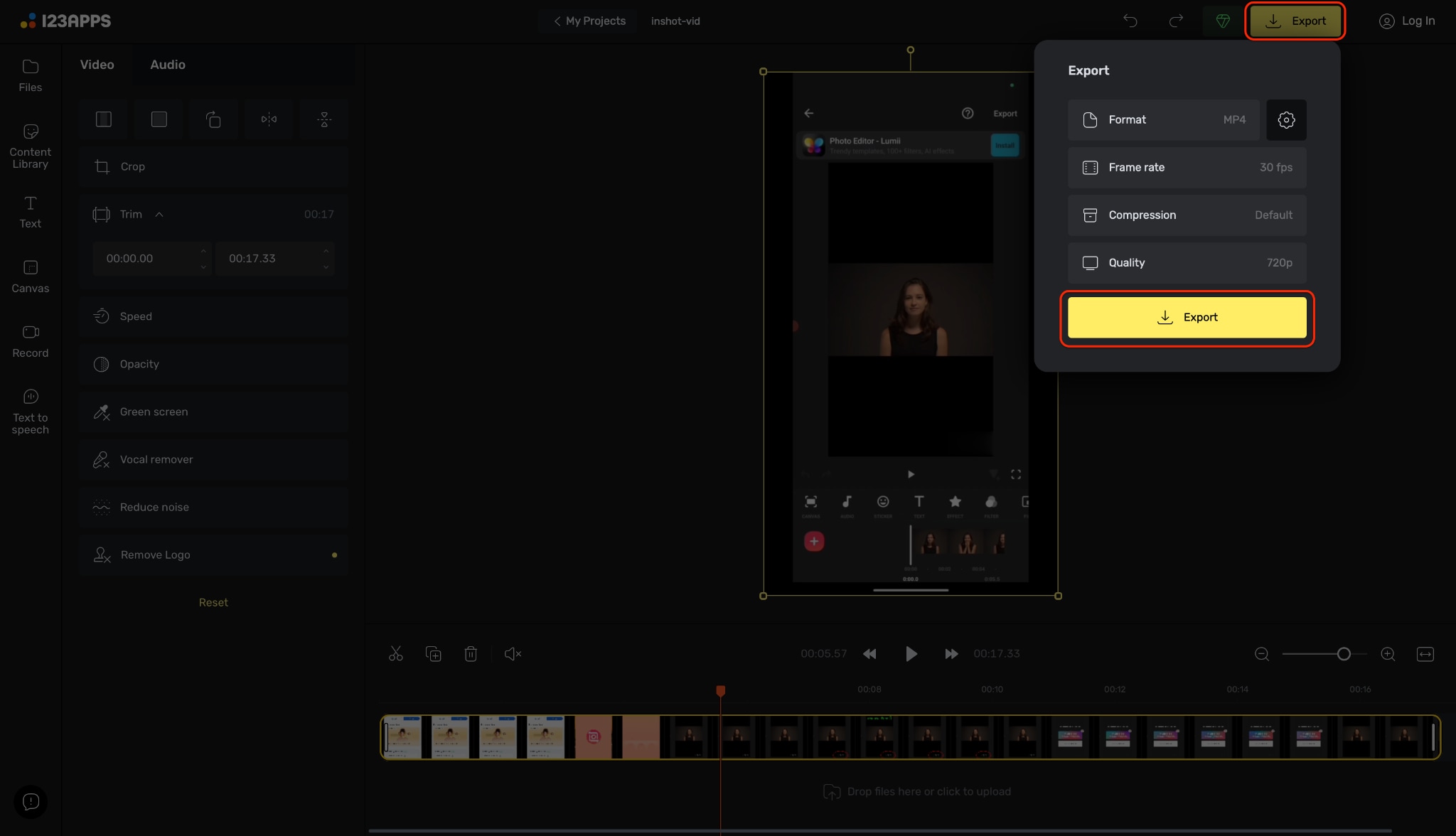
With the watermark now removed, click the "Export" button located at the top right corner of the screen to prepare your final file. A menu will appear allowing you to choose your preferred settings, such as the format (MP4), frame rate, and video quality. Finally, hit the "Export" button within that menu to save your newly polished, watermark-free video directly to your device.
Part 5. Method 4 - Mobile Watermark Remover
Since InShot is a mobile app, many users prefer to stay on their phones to remove InShot watermark. There are specific apps designed for Android and iOS that specialize in logo removal.
Recommendation: Vmake-Video Eraser (iOS/Android)

Step-by-Step Guide
Step 1: Install Vmaker and Load Your Video
Begin by downloading the Vmaker app on your Android or iOS device and granting it the necessary permissions to access your photos. Open the app and tap on the "AI Remover" option, which will bring up your gallery for file selection. Browse through your media and select the video exported from InShot that needs the watermark removed.
Step 2: Highlight the InShot Logo
Select the Manual brush mode and adjust the brush size so it is small enough to be precise but large enough to cover the text. carefully drag your finger over the InShot watermark, typically located in the bottom-right corner, until the logo is completely highlighted. Once the area is marked to your satisfaction, tap the "Remove now" button to start the deletion process.
Step 3: Review and Save Your Clean Clip
Give the app a moment to process the edit and blend the background pixels where the watermark used to be. Watch the preview to ensure the InShot logo is fully erased and that the video looks natural without any obvious blur. When you are happy with the result, hit the "Save" button to store the watermark-free video directly to your phone's gallery.
Easy to Use InShot Watermark Remover
Part 6. Method 5 - Manual Editing (Cropping)
If you want to know how to remove InShot watermark from video without using any removers, you can use a simple editing trick: Cropping. Since the InShot logo usually sits in the bottom right corner, you can cut that part of the frame out.
How it Works
You use a secondary editor (or your phone's gallery editor) to zoom in on the video slightly or change the aspect ratio until the watermark is pushed out of the visible frame.
Conclusion
In this article, you've discovered various methods to remove InShot watermark from your videos effortlessly. From comprehensive software like Wondershare UniConverter to quick InShot watermark remover online tools and mobile apps, there's something for every type of creator. Each option has its strengths—InShot Pro is best for loyalty, online tools for speed, and cropping for simplicity.
However, if you want an effective, high-quality, and user-friendly solution, Wondershare UniConverter stands out as an excellent choice for 2025 workflows. Its advanced AI features allow you to edit your videos without the hassle of watermarks while preserving high fidelity. You can enjoy your video moments as they were meant to be seen—without distractions. Start using a professional video watermark remover today and elevate your content! You can also try our advanced features like voice changer, video enhancer, and AI script generation to further boost your creative output.
FAQs
-
1. Is there a way to remove the InShot watermark for free legally?
Yes, within the InShot app, you can sometimes watch a short advertisement to remove the watermark for that specific editing session. This is a legal, free feature provided by the developers, though it may not always be available. -
2. Does removing the watermark affect video quality?
If you use cropping, you will lose resolution as you zoom in. If you use a low-quality online remover, compression may occur. However, using high-end AI tools like UniConverter ensures the video quality remains clear while only affecting the pixels where the logo is located. -
3. Can I remove the watermark from a video I didn't create?
Technically yes, but legally and ethically, no. You should only remove InShot watermark from content you have created yourself. Removing watermarks from other creators' videos to claim them as your own is copyright infringement. -
4. Why does the InShot watermark reappear?
If you are using the free version of InShot, the watermark applies by default to every new project. Even if you remove it for one video by watching an ad, the next project will have it again unless you upgrade to the Pro version. -
5. What is the best InShot watermark remover for PC?
For PC and Mac users, Wondershare UniConverteris the top recommendation in 2025. It offers batch processing, AI accuracy, and a suite of other editing tools that go far beyond simple watermark removal.

