

Want the background music from a popular song for your karaoke party or to prepare a DJ mix? In either instance, you need a reliable tool to remove vocals from a YouTube video. These tools are powered by artificial intelligence and don’t require you to be a sound engineer with a powerful setup and fancy headphones. With just a few clicks, you can separate vocals within seconds.
However, as AI evolves rapidly, numerous YouTube vocal removers have come into existence. This article presents the best tools available online, offline, and on mobile, along with detailed steps to help you achieve the best results.
- Link-based online tools like Media.io and browser extensions like unMixprovide quick vocal removal by pasting a YouTube URL, but they often have file length limits or inconsistent results.
- Mobile apps like SplitHit Vocal Remover are convenient for casual use, though processing power and audio quality may vary by device.
- For users working with multiple videos, Wondershare UniConverter functions as a batch-capable YouTube video vocal remover, enabling more stable processing and consistent output quality through local handling.
In this article
- How to Remove Vocals from a YouTube Video by Pasting a Link
- How to Remove Vocals from a Downloaded YouTube Video Online
- How to Remove Vocals from a YouTube Video with Desktop Software
- How to Remove Vocals from YouTube Videos on Mobile (iPhone & Android)
- How to Remove Vocals from a YouTube Video with a Chrome Extension
- Comparison Table of YouTube Vocal Removers
- How to Choose the Right YouTube Vocal Remover
- Important Considerations for Using a YouTube Vocal Remover
- Conclusion
- FAQs
Part 1. How to Easily Remove Vocals from YouTube Videos by Pasting Link?
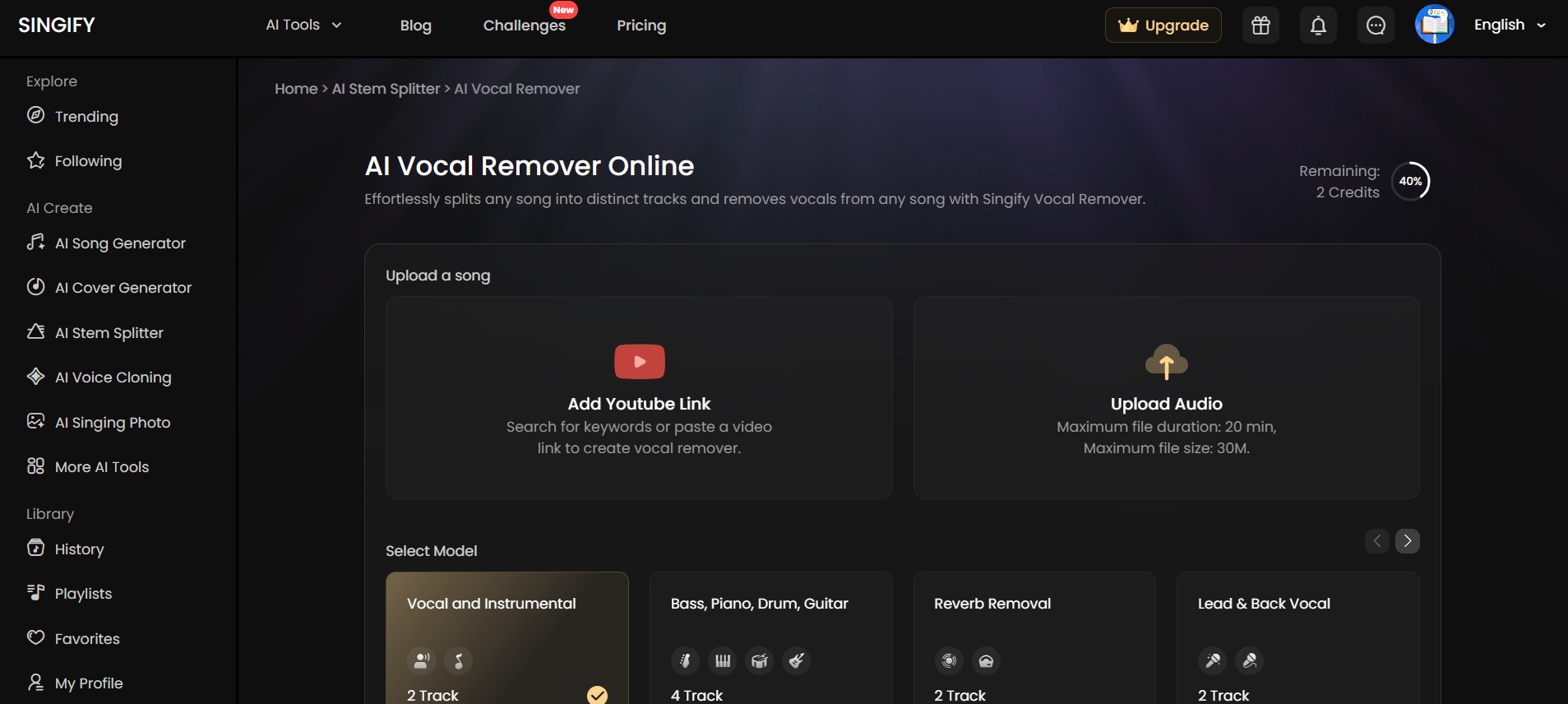
If you want a simple way to remove vocals from YouTube videos, Singify can be a good pick. It’s an AI-based platform whose primary use case lies in creating high-quality music tracks with minimal effort. The interface is simple, and a descriptive prompt can generate an original track. Besides, you’ll find a range of tools and music styles to experiment with different sounds and create music for podcasts, videos, and other projects.
Singify’s YouTube vocal remover feature uses a copy-and-paste interface, like most online tools, and the output is quick. Regardless, the output quality is decent, and Singify cleanly splits the songs into up to ten stems (vocals, drums, guitar, piano, synth) for karaoke or remixing.
How to Remove YouTube Vocals Using Singify
Follow the steps to remove vocals from YouTube videos using Singify:
Step 1: In Signify’s vocal remover page, find the Vocal and Instrumental model already selected. If you want to remove bass, drums, and guitar, reverb, or lead and backing vocals, choose the option accordingly. Then, click Add YouTube link.
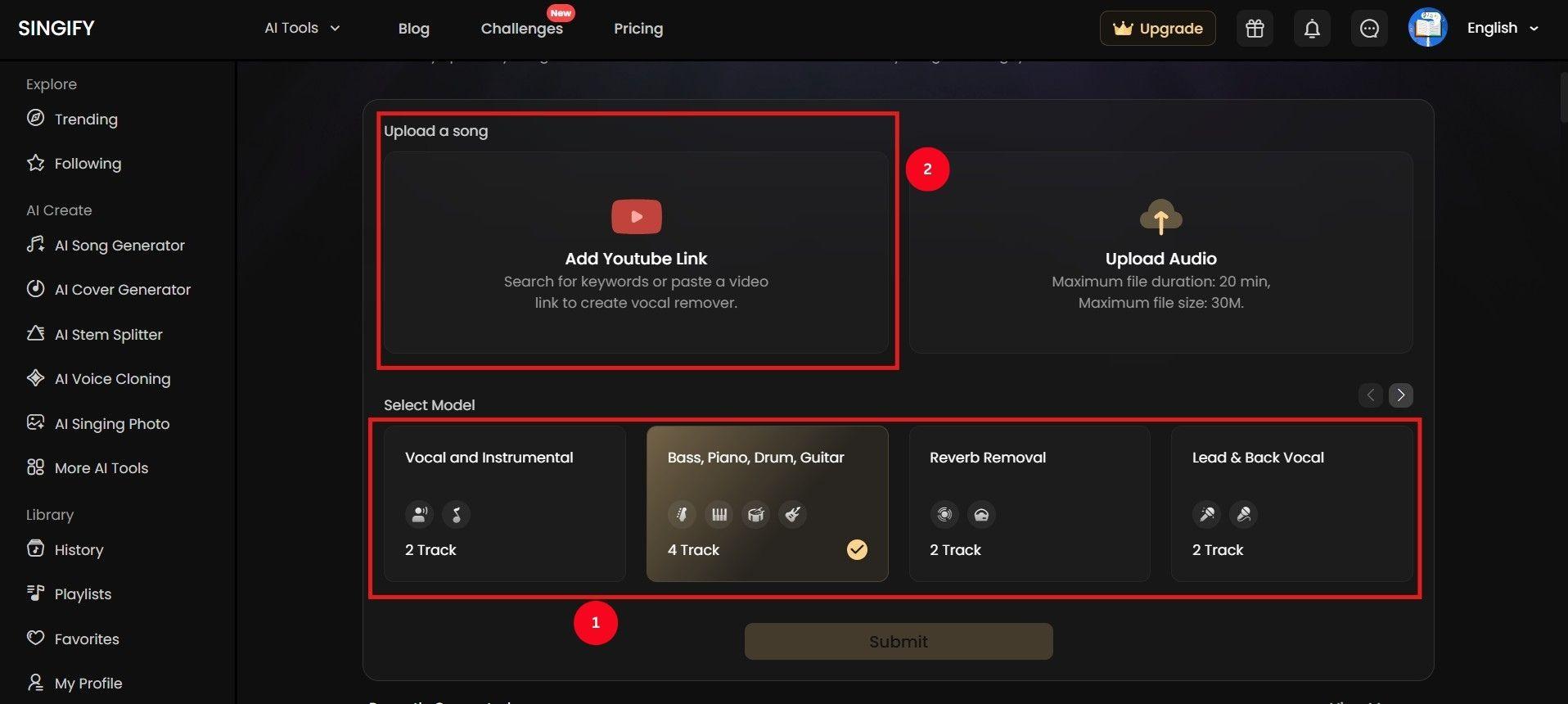
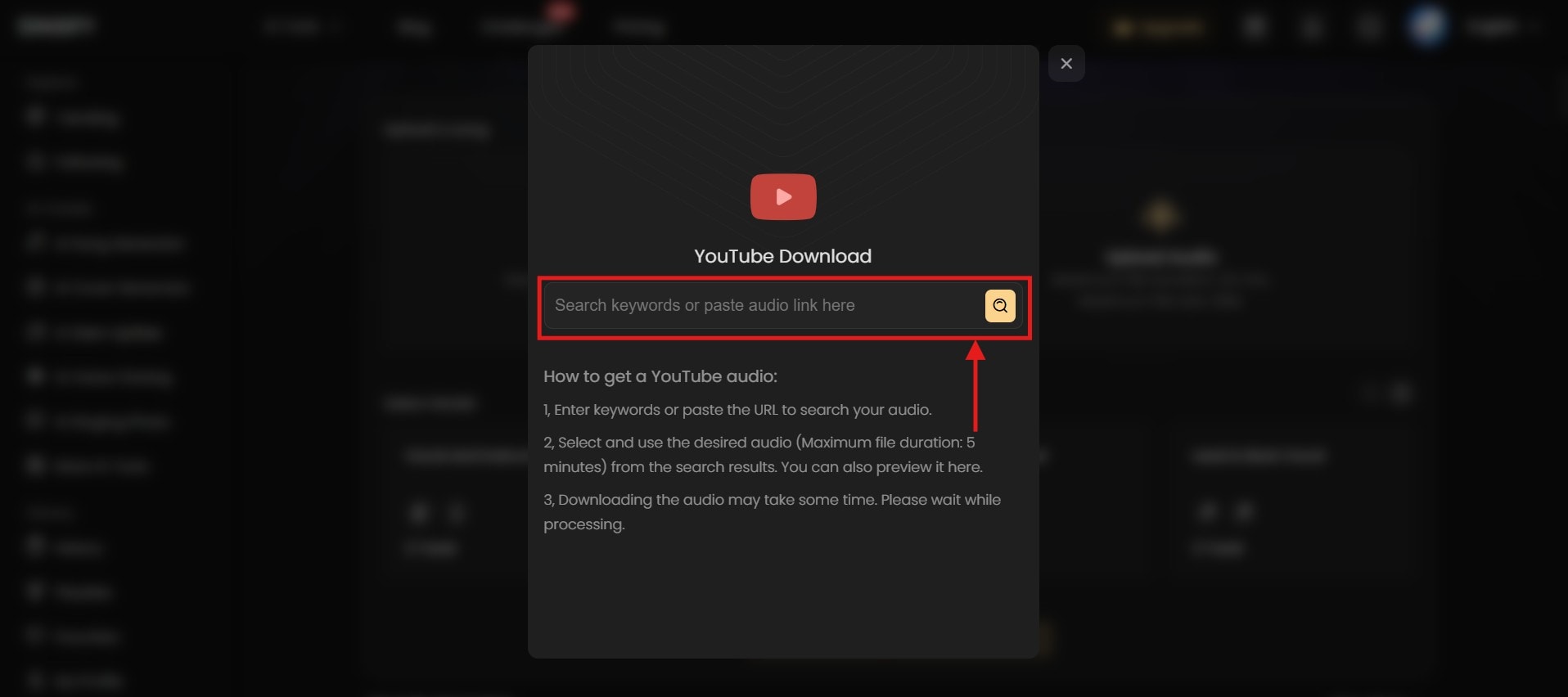
Step 2: Paste the YouTube link into the input field, then press Enter or click the Search icon.
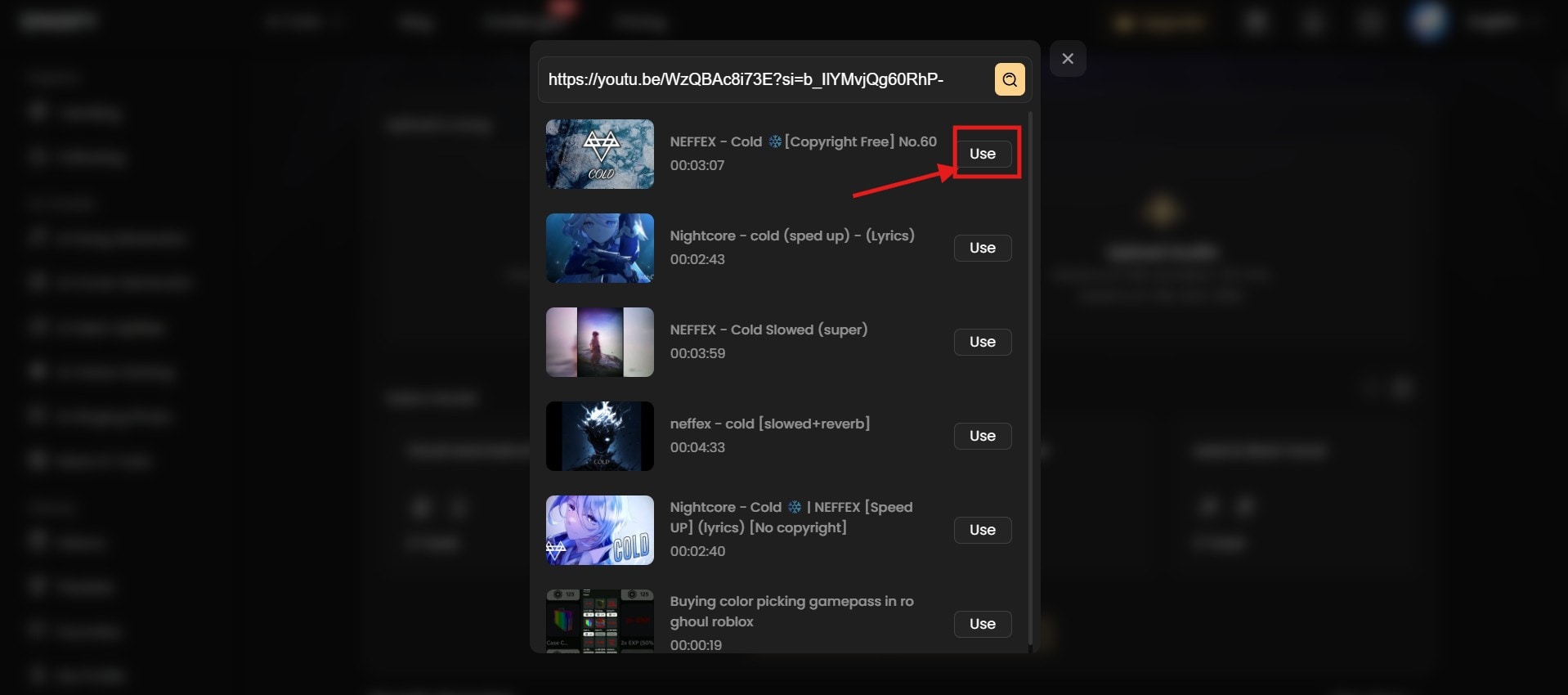
Step 3: It may take some time for Singify to search for the video. Once done, click Use to select your preferred YouTube video.
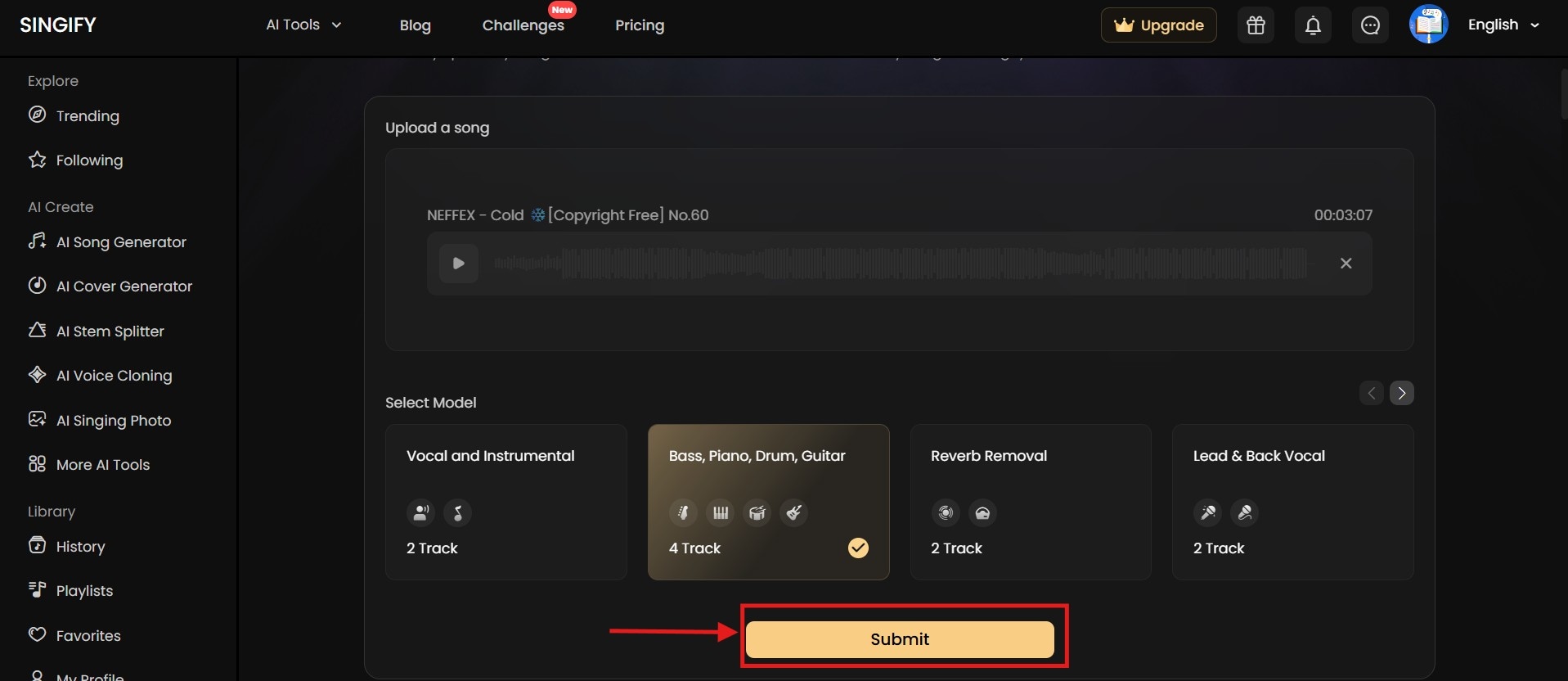
Step 4: Singify will download the video and open a new window; click Submit.
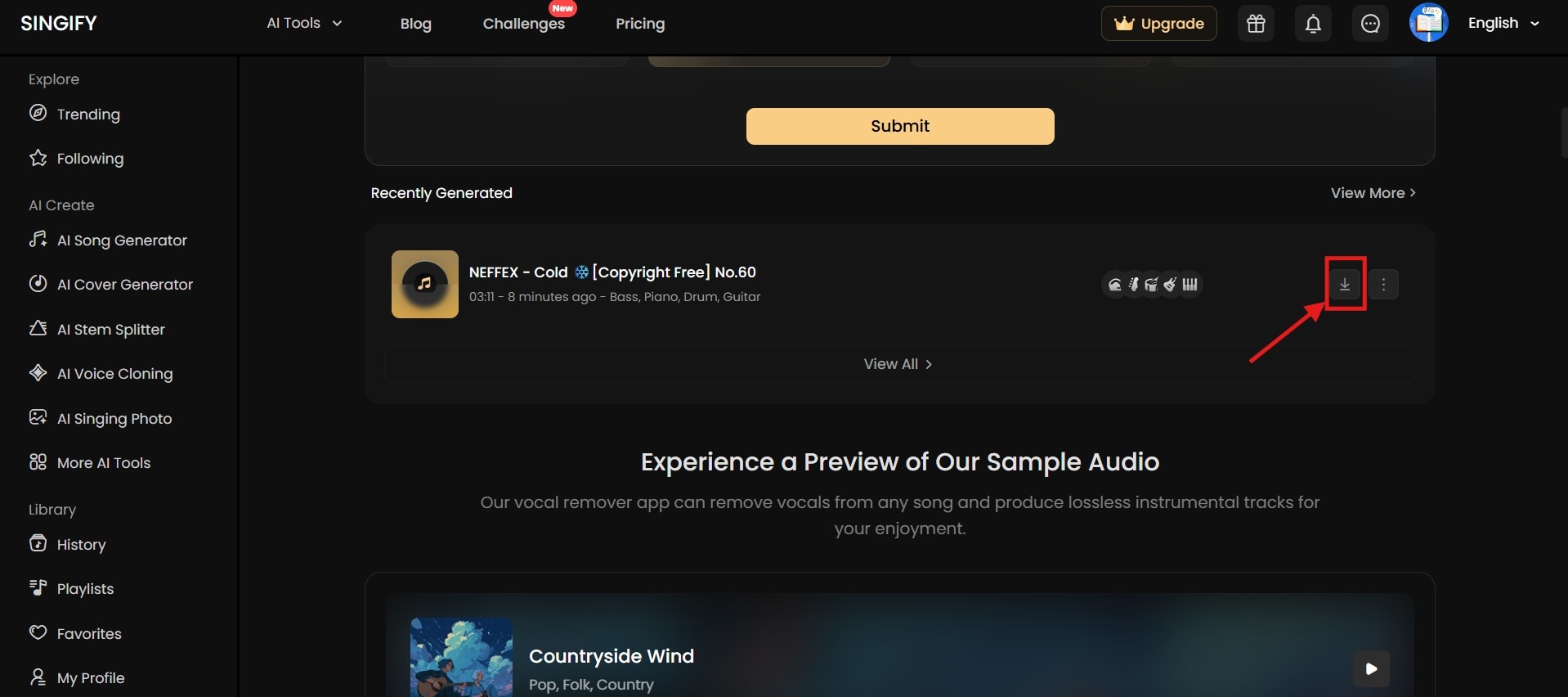
Step 5: As Singify completes vocal extraction, you’ll find the output under the Recently Generated section. Click the Download icon at the right end of the song.
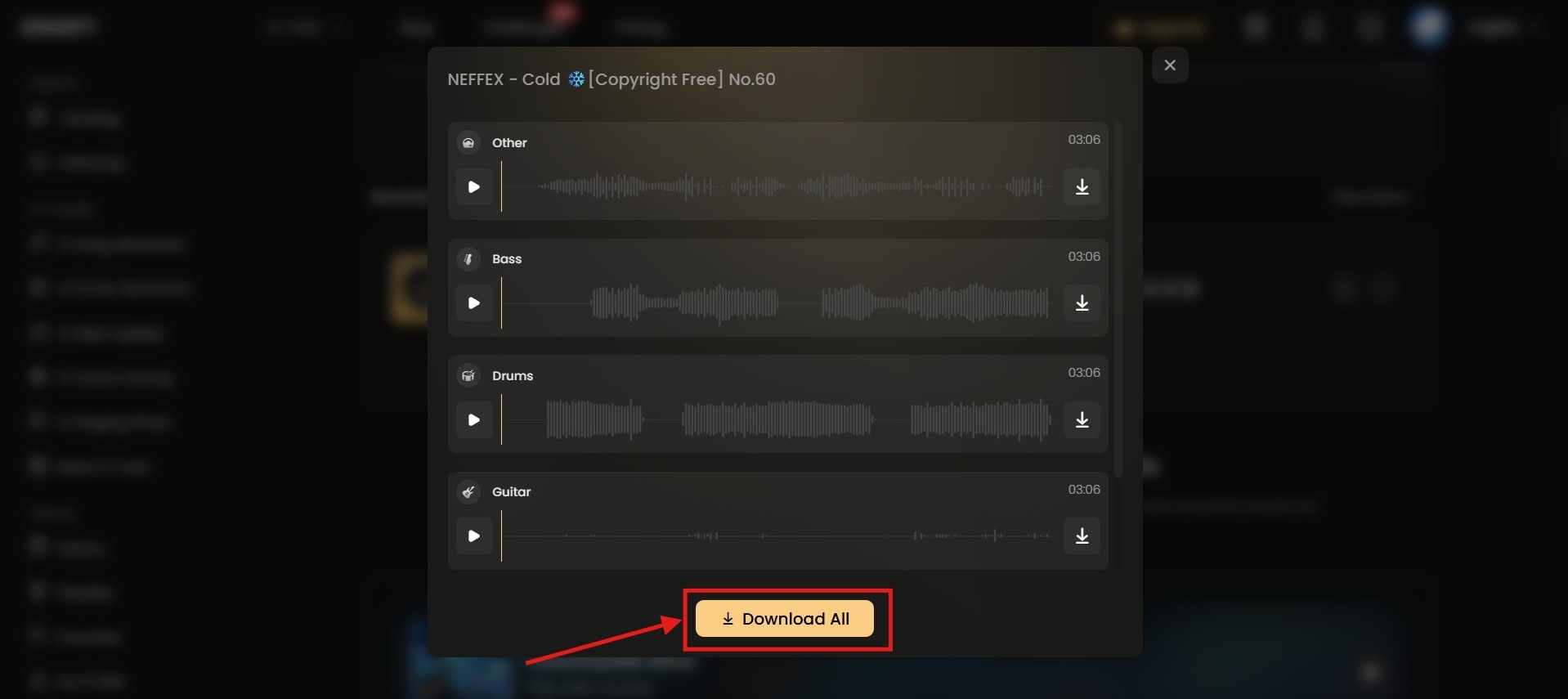
Step 6: You can download the bass, drum, and guitar separately, or click Download all.
Part 2. How to Easily Remove Vocals from YouTube Videos with Media.io?
Signify appears to be a decent online tool to remove vocals from a YouTube video, but error messages like “can’t load link,” “file size above 30MB” (even if it isn’t), and others might appear quite often. This can hinder your vocal removal experience, so consider using a reliable online converter like Media.io.
The interface is simple, rendering is fast, and Media.io generates a high-quality output. It also supports major audio file formats, including MP3, MKP, WAV, M4A, etc. This makes Media.io a good tool for any AI enthusiast, casual user, or professional audio editor, singer, or music producer.
Besides, like Singify, you’ll find several music generation tools, along with a range of AI tools for photos, audio, and video.
How to Remove YouTube Vocals Using Media.io
Here’s a step-by-step process to follow if you want to remove vocals from your downloaded YouTube video using Media.io:
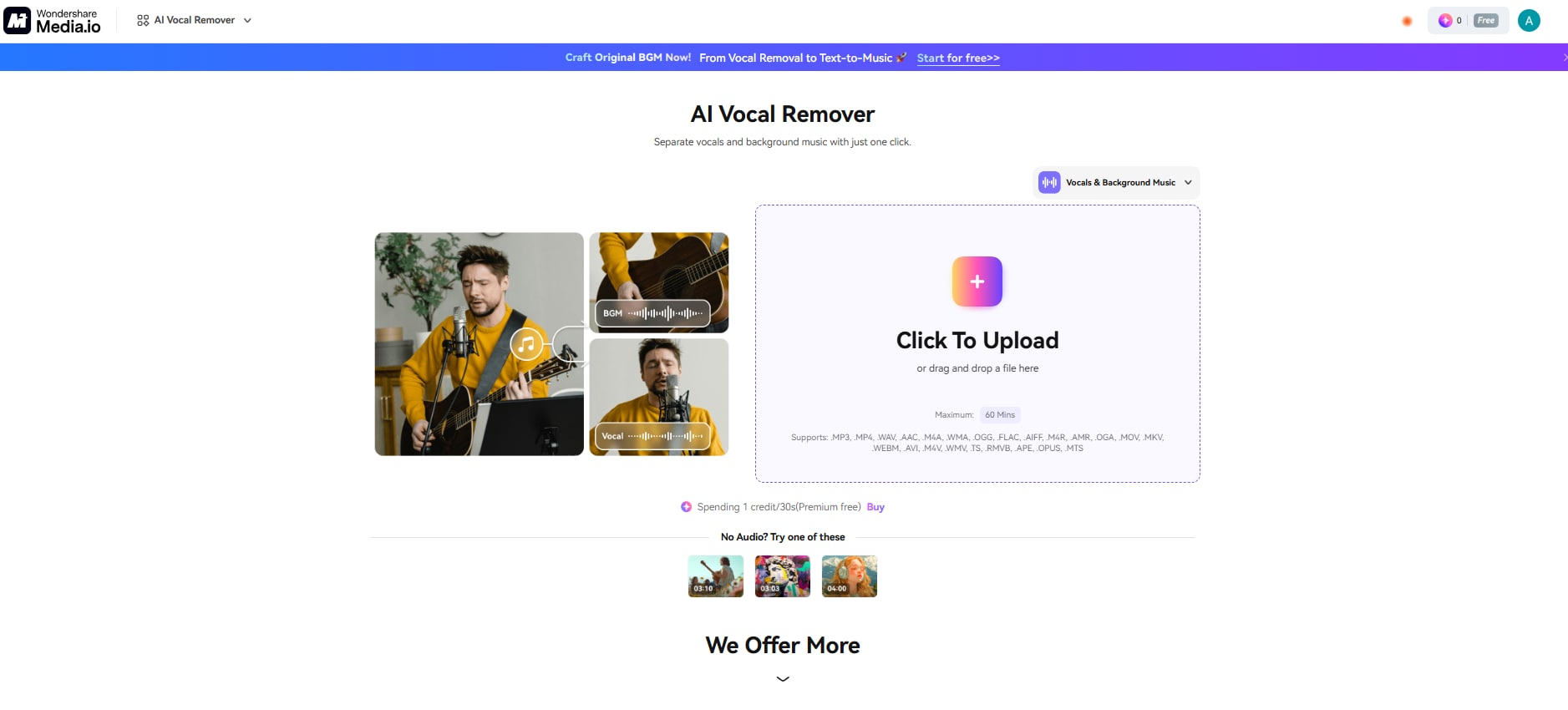
Step 1: Launch Media.io Vocal Remover on your browser and click on Click to upload to head to the editing window.
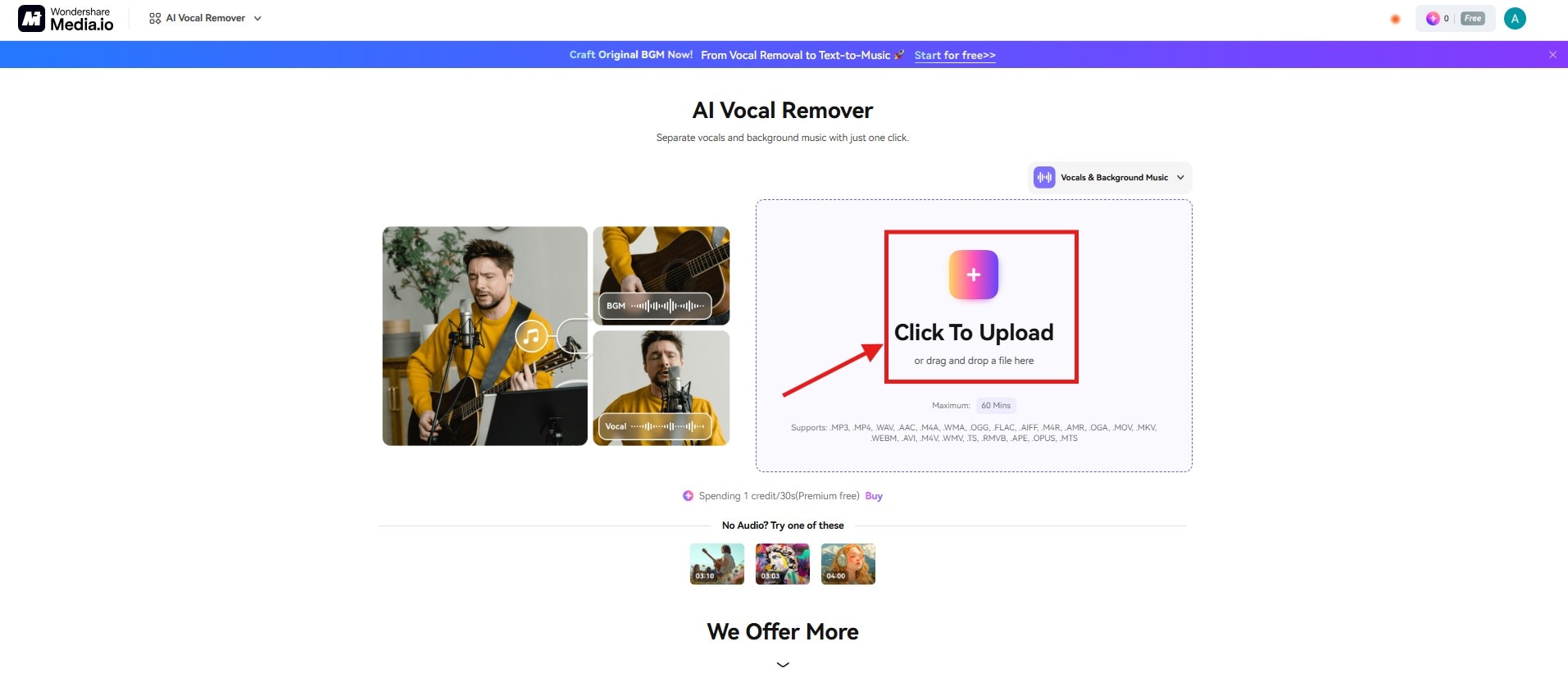
Step 2: In the new window, click Click to upload, then select the YouTube video. Alternatively, you can drag and drop the video to upload it.
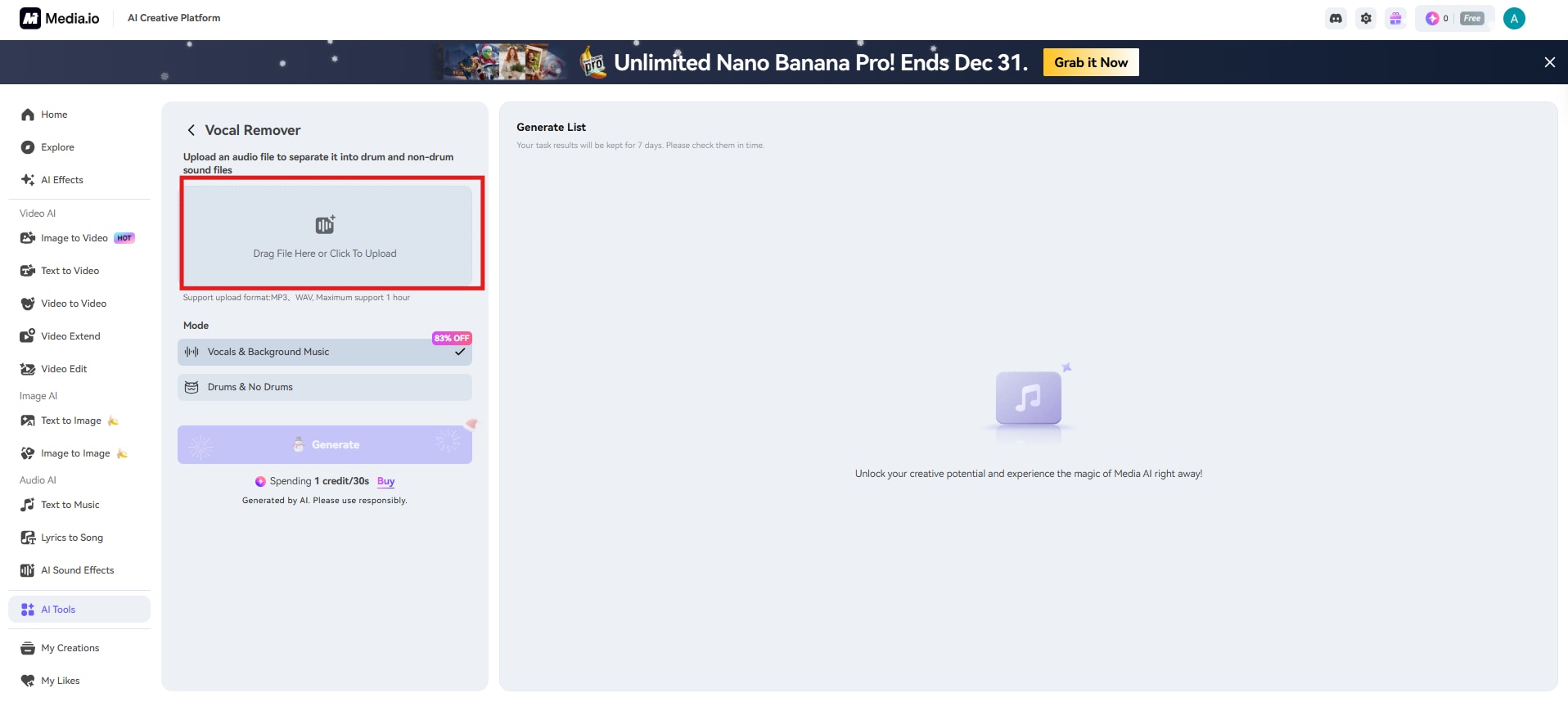
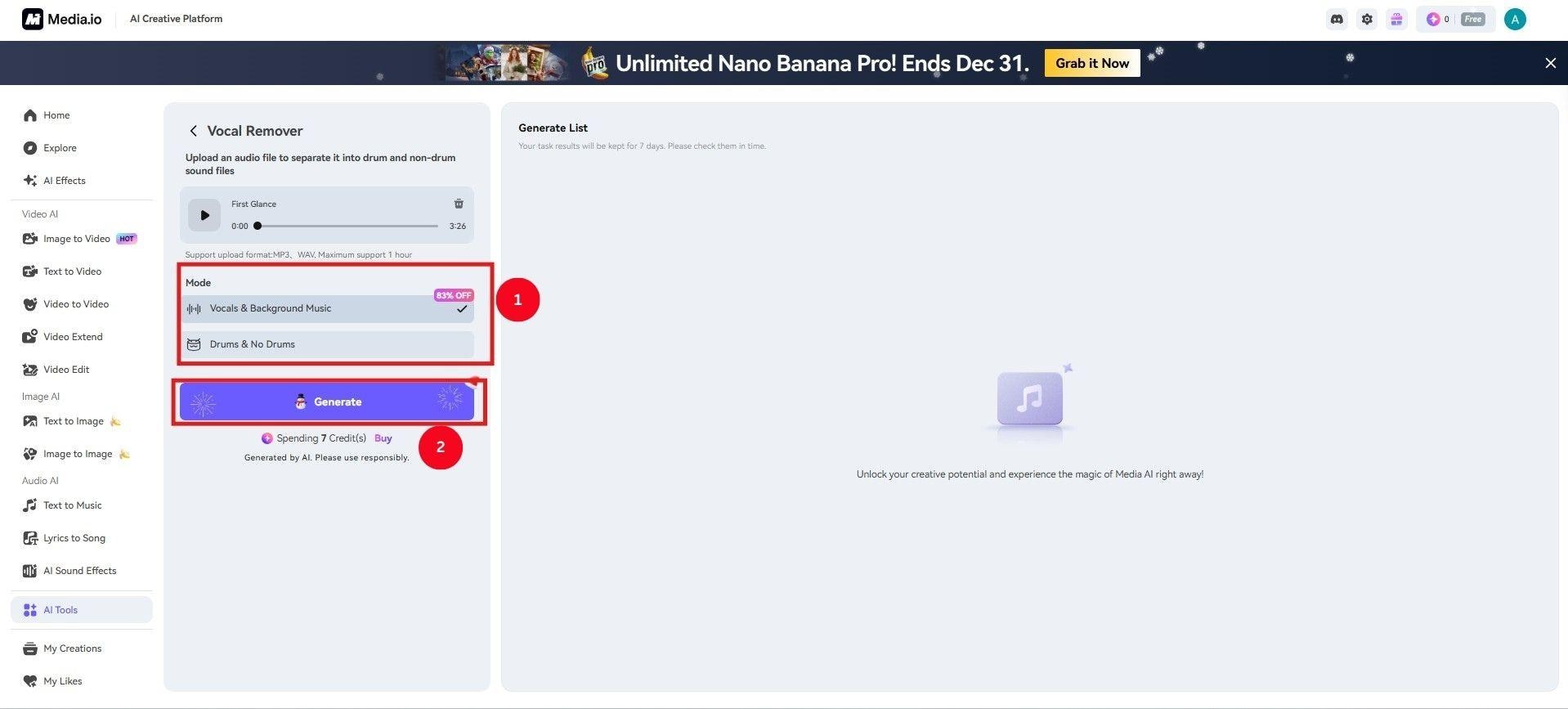
Step 3: It takes a few seconds to upload the video. Once done, select the Mode as Vocals & Background Music, or Drums & No Drums. Then, click on Generate.
Part 3. How to Easily Remove Vocals from YouTube Videos with UniConverter?
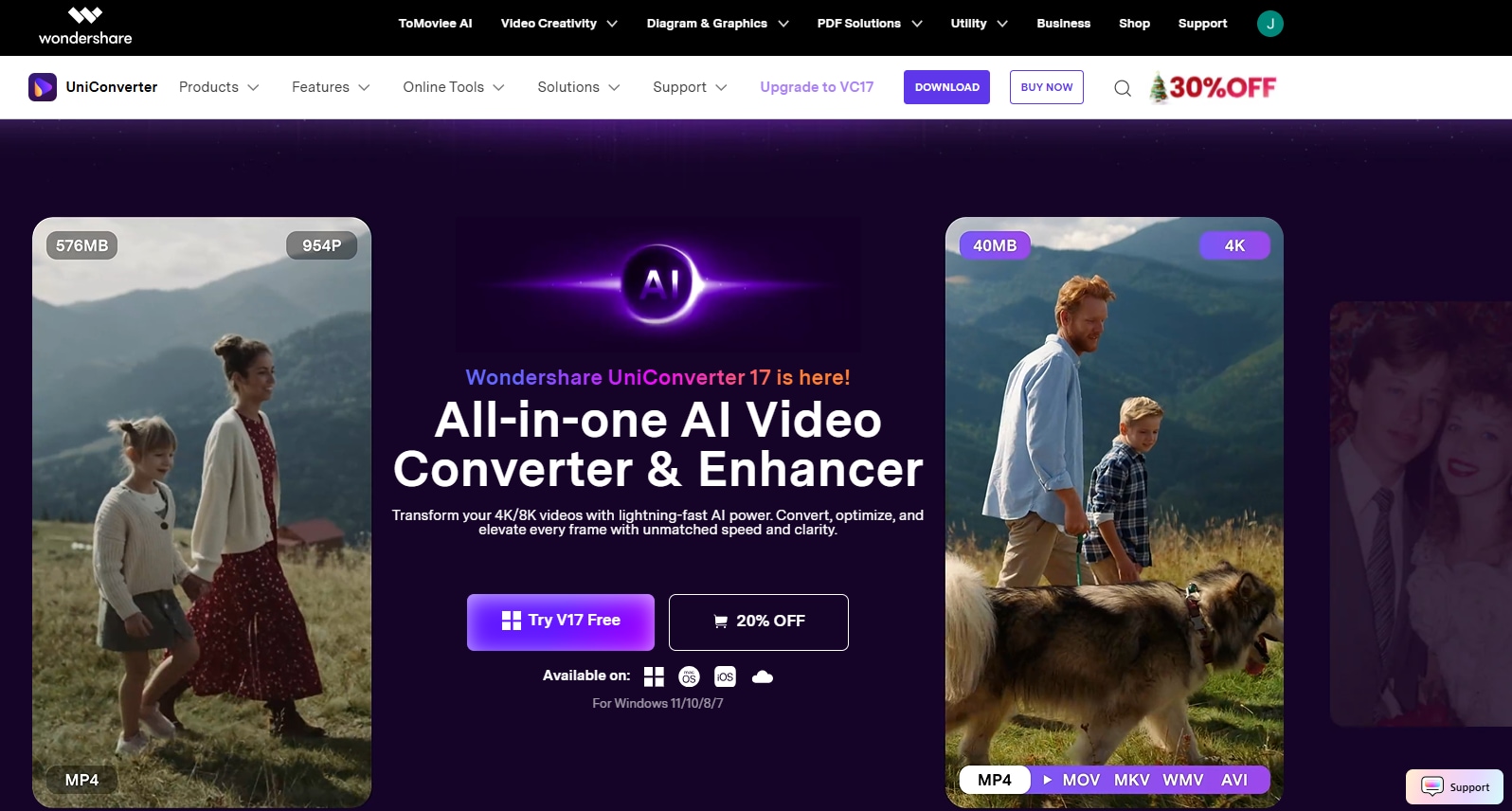
Wondershare UniConverter is a desktop tool that combines powerful functionality with a highly intuitive interface and lightning-fast processing. It supports multiple audio formats, including MP3, WAV, and M4A, and preserves the original file quality after removal.
Wondershare UniConverter is an all-in-one audio and video toolkit. You can use its Noise Remover to remove background noise in batches and its Audio Enhancer to generate crystal-clear audio for your videos. As it’s a desktop app, you can use it to remove vocals from YouTube videos anytime, anywhere. Besides, you can expect stable performance, minimal errors, and better-quality saved files.
How to Remove YouTube Vocals Using Wondershare UniConverter
You must download the video and audio to remove the vocals. Now, follow the steps in order:
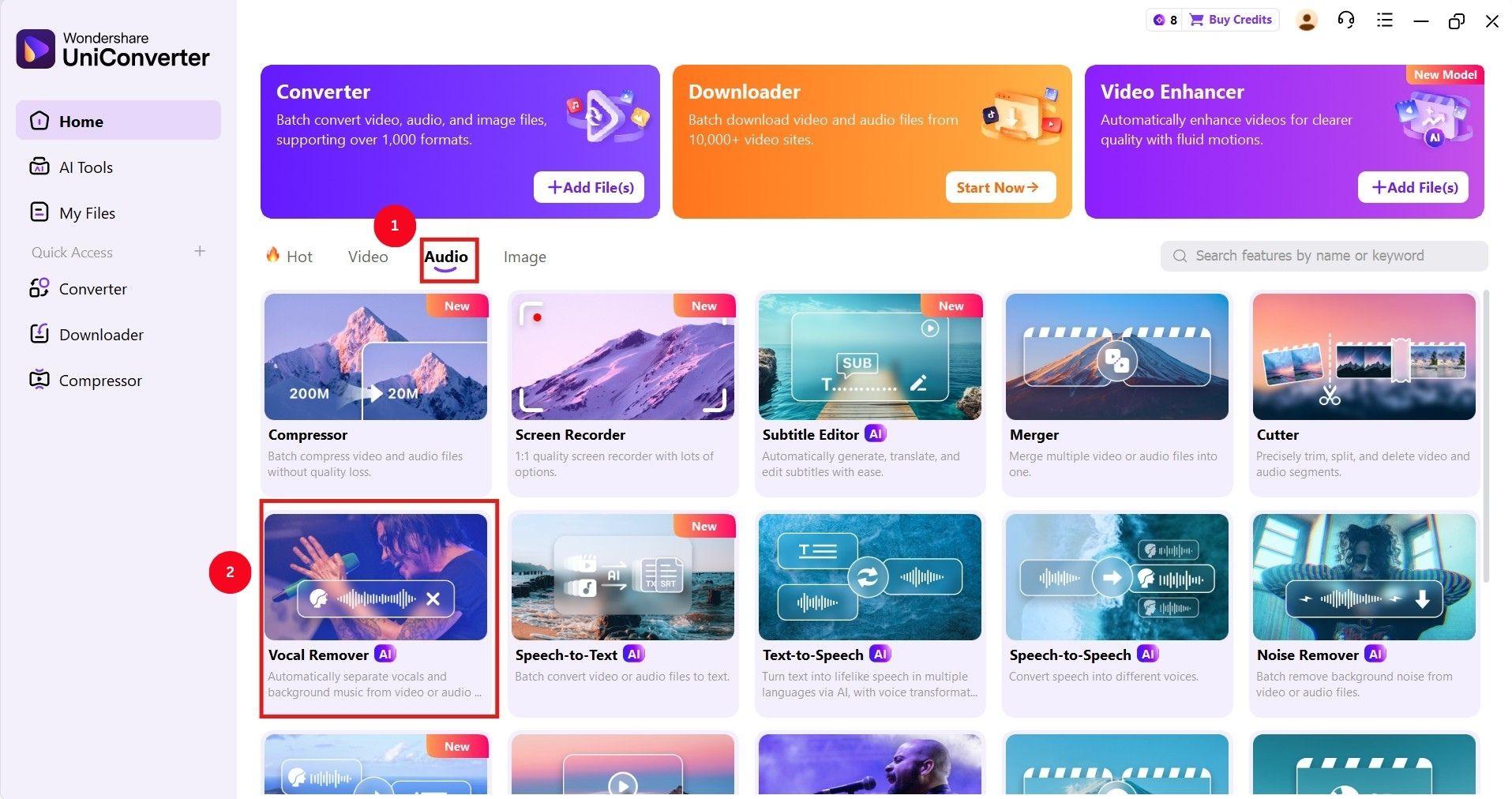
Step 1: Launch UniConverter on your device, head to the Audio tab, and click on the Vocal Remover feature.
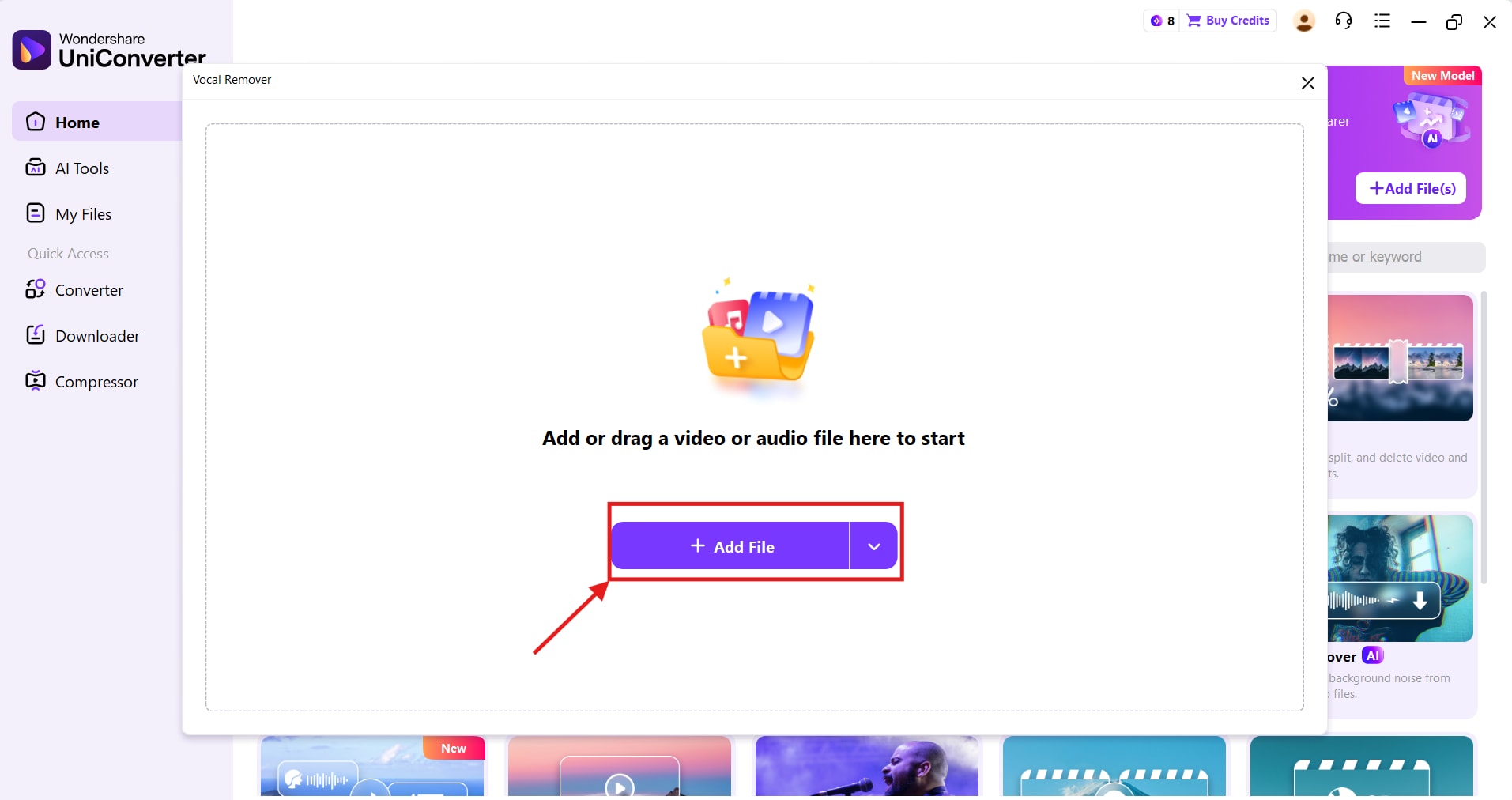
Step 2: In the pop-up window, click Add File and select the media file you want to work on.
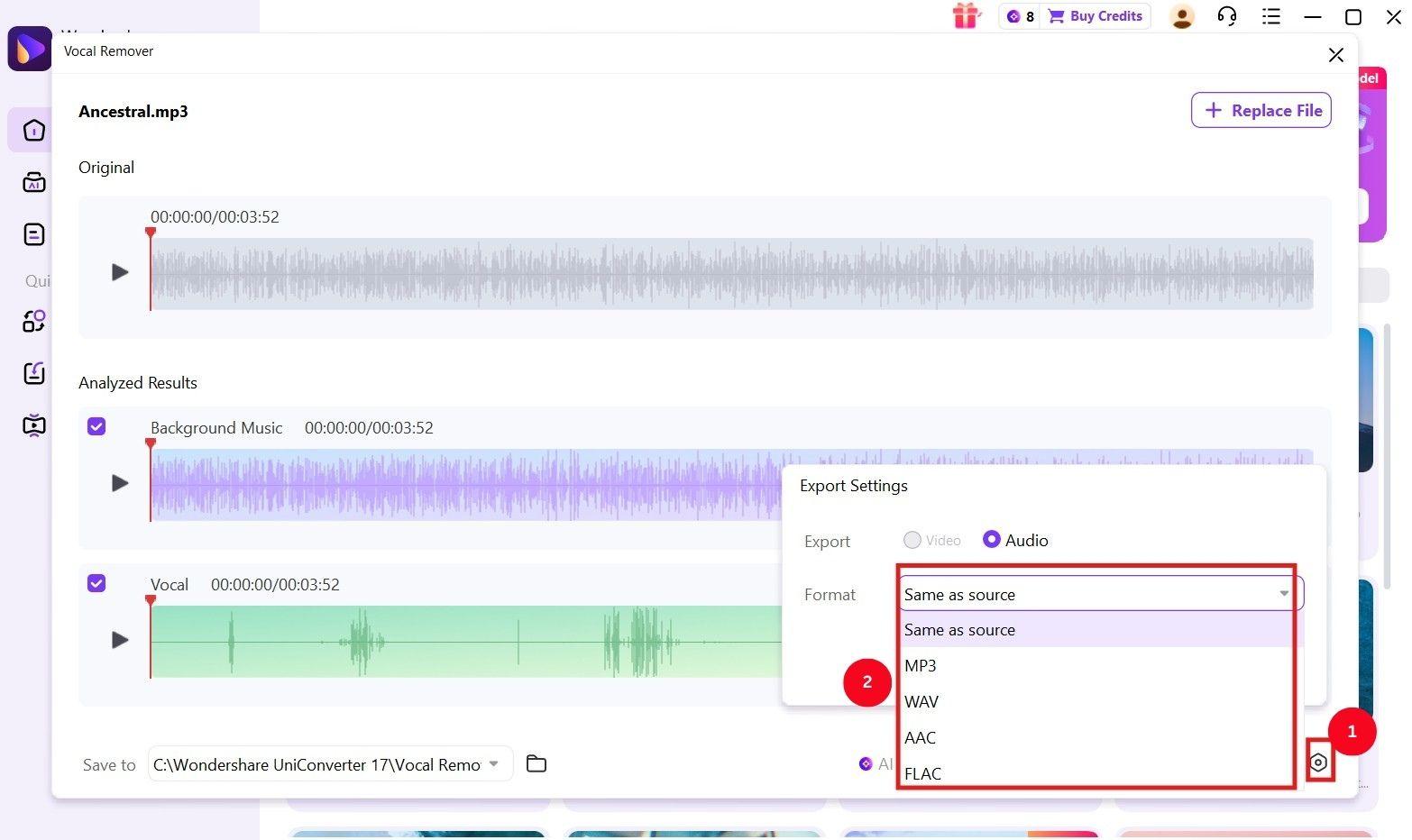
Step 3: UniConverter processes the media file and opens a new window. Click Settings (gear icon) in the bottom-right corner, then select the output format.
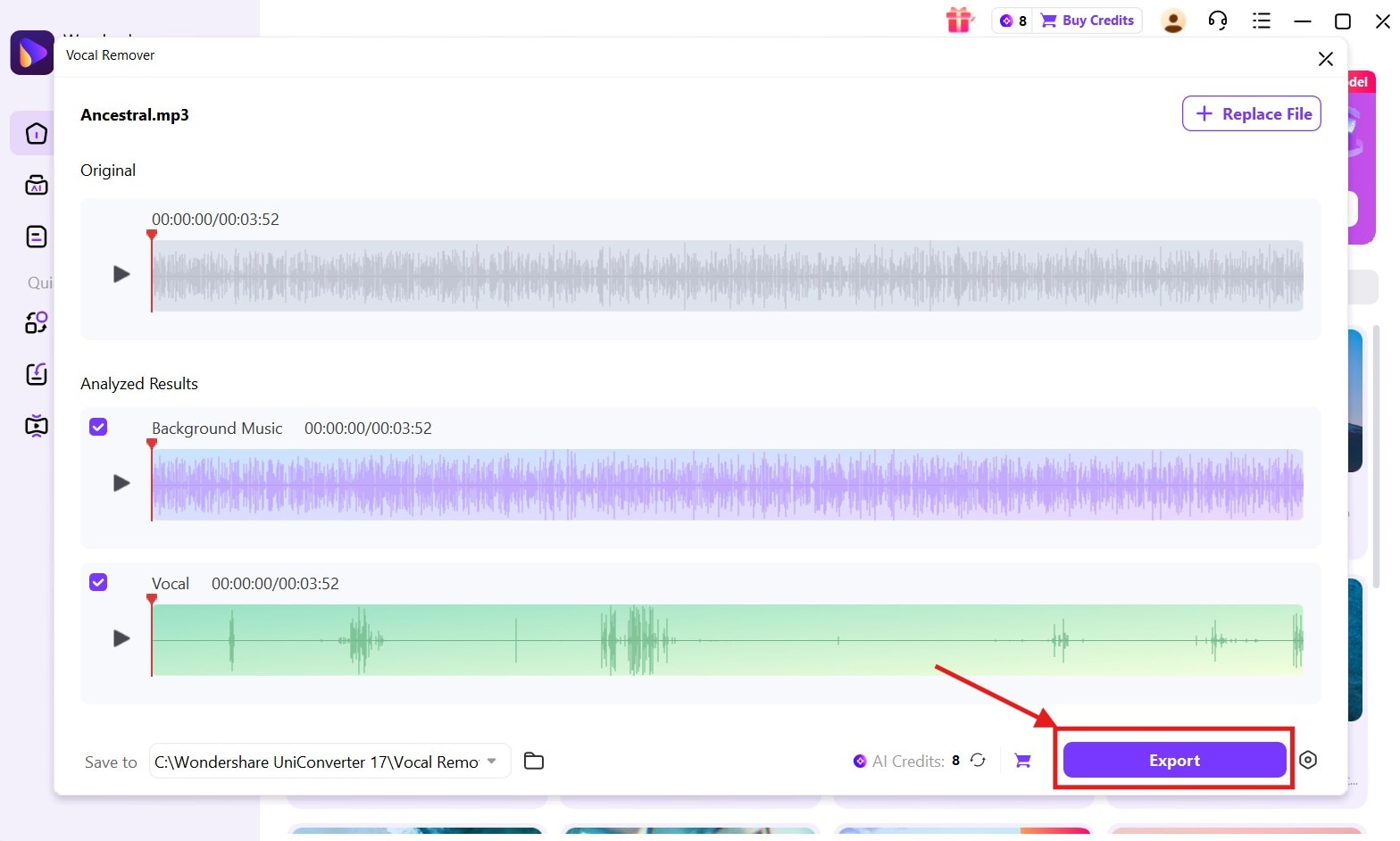
Step 4: Preview the separated vocals and instrumentals, then click Export to save them to your local storage.

High-Quality YouTube Vocal Remover With AI
Part 4. How to Easily Remove Vocal from YouTube Videos on Mobile Apps (iPhone & Android)?
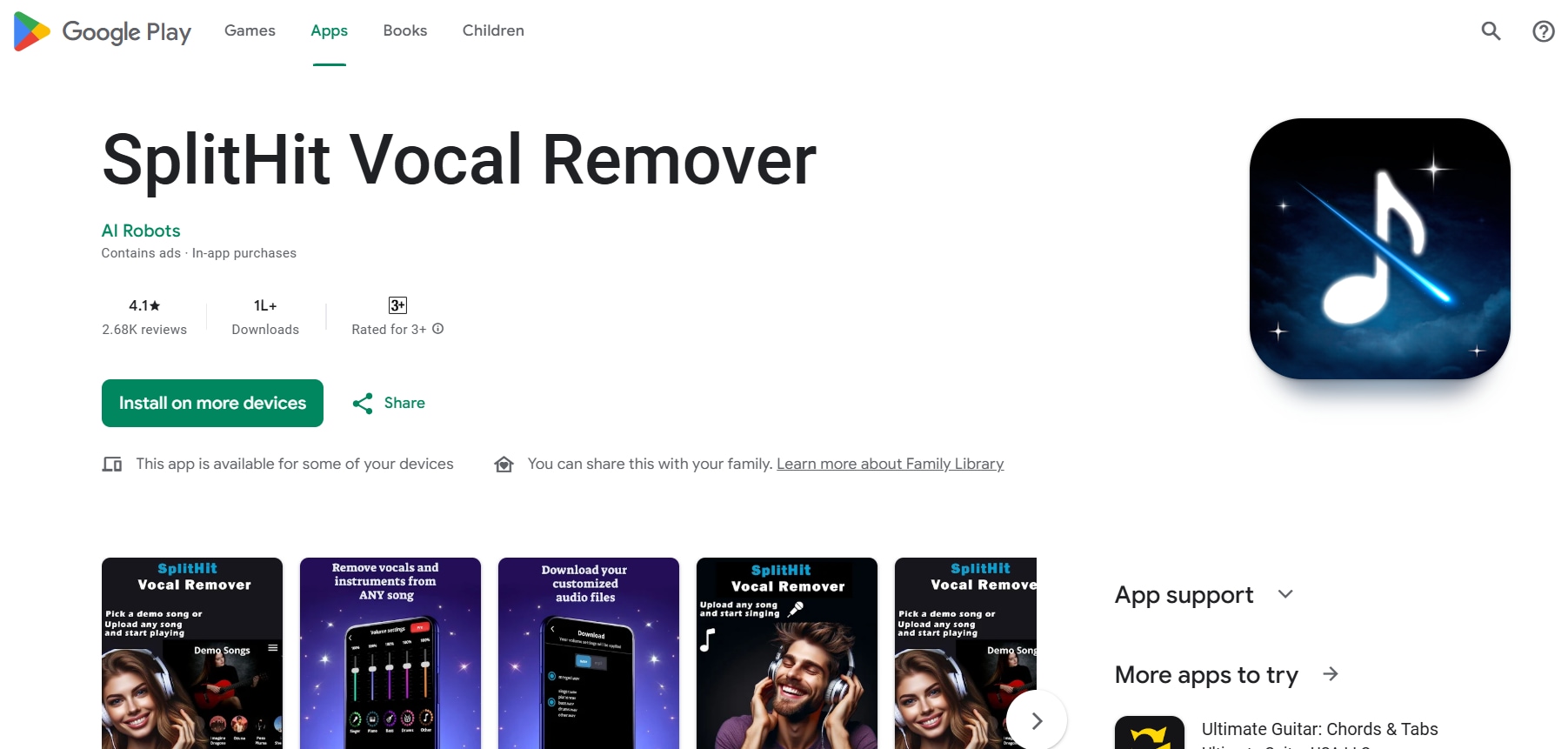
SplitHit Vocal Remover is a smartphone-only vocal remover and audio mixer app for Android and iOS that is easy to use and works error-free. It splits YouTube audio and isolates vocals, drums, and guitars, which you can download separately. This makes SplitHit Vocal Remover suitable for musicians, producers, and DJs to create mixes or original tracks.
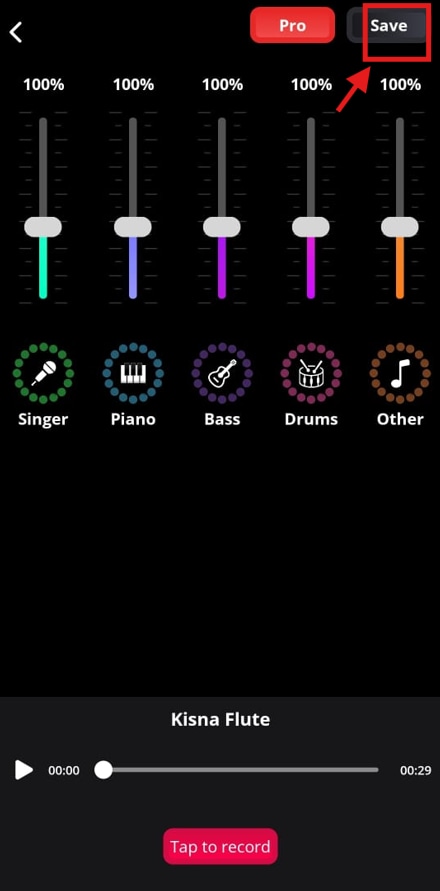
What’s unique is that users can adjust the volume level of each stem and create a custom mix, as needed. Besides, the rendering speed is decent, and users can use the output to practice the vocals or as a backing track.
However, you may encounter export issues, and one free song per day may be too limited for casual users.
How to Remove YouTube Vocals Using SplitHit Vocal Remover
You must follow the steps to use SplitHit Vocal Remover and obtain a clean and quality audio:
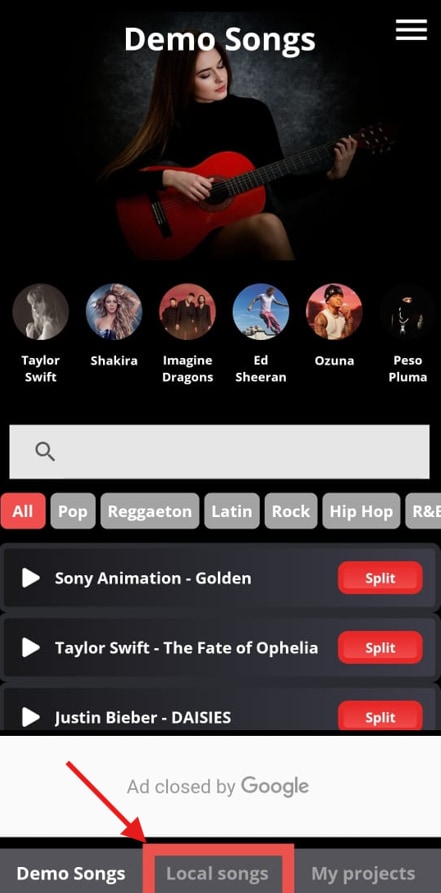
Step 1: Launch SplitHit Vocal Remover on your device, head over to the Local Storage tab at the bottom, and upload the YouTube video file.
Step 2: The vocal remover processes the audio and opens a preview window where you can adjust vocals, guitar, bass, and other instruments. Once you’re done, click on Save to download the audio.
Part 5. How to Remove Vocal from YouTube Videos with a Chrome Extension?
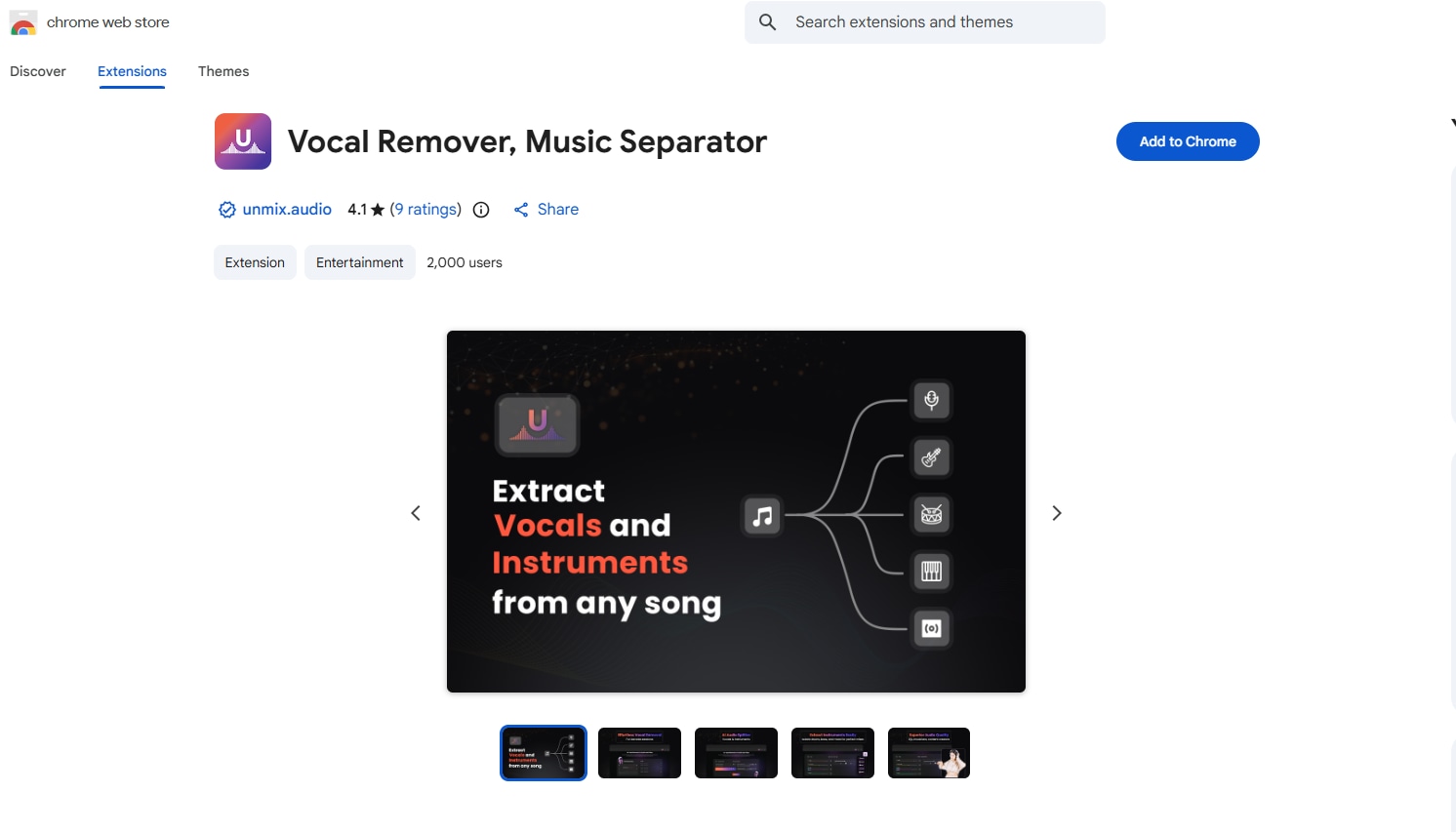
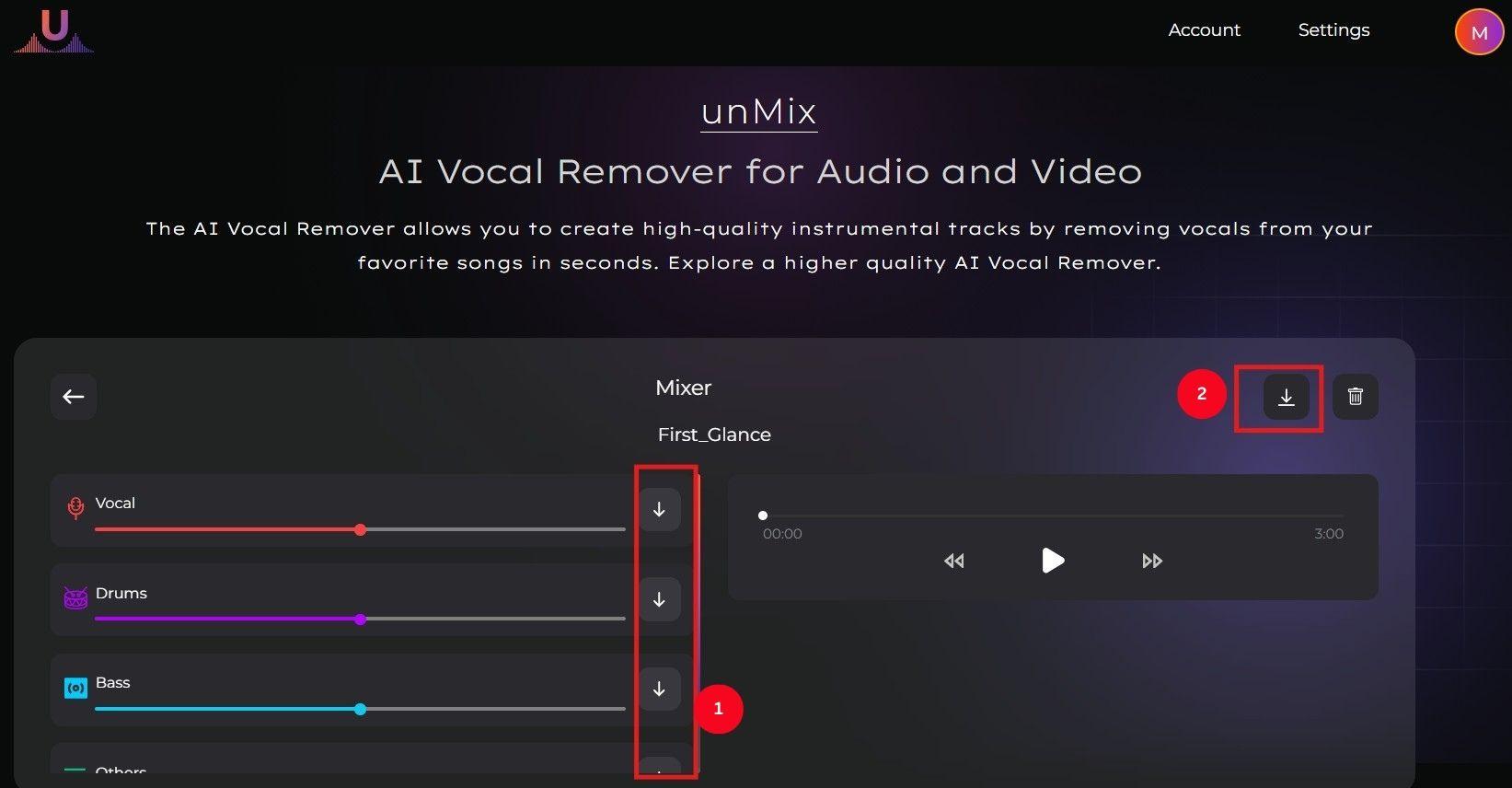
unMix is a decent Chrome extension that pairs a simple interface and ease of use with high-quality and clean results. Similar to most YouTube vocal removers, it isolates vocals, drums, piano, bass, and other instruments. This makes unMIx a good YouTube voice-removal tool for musicians, music producers, and karaoke enthusiasts who need quick, clean stems for remixes or beat-making.
The Chrome extension, however, sometimes freezes or takes forever to upload the YouTube video. This may affect your music-creation experience.
How to Remove YouTube Vocals Using unMix Vocal Remover, Music Separator
Install the Chrome extension and click on it to head over to its web interface, and follow the steps to remove the vocal from the YouTube Video:
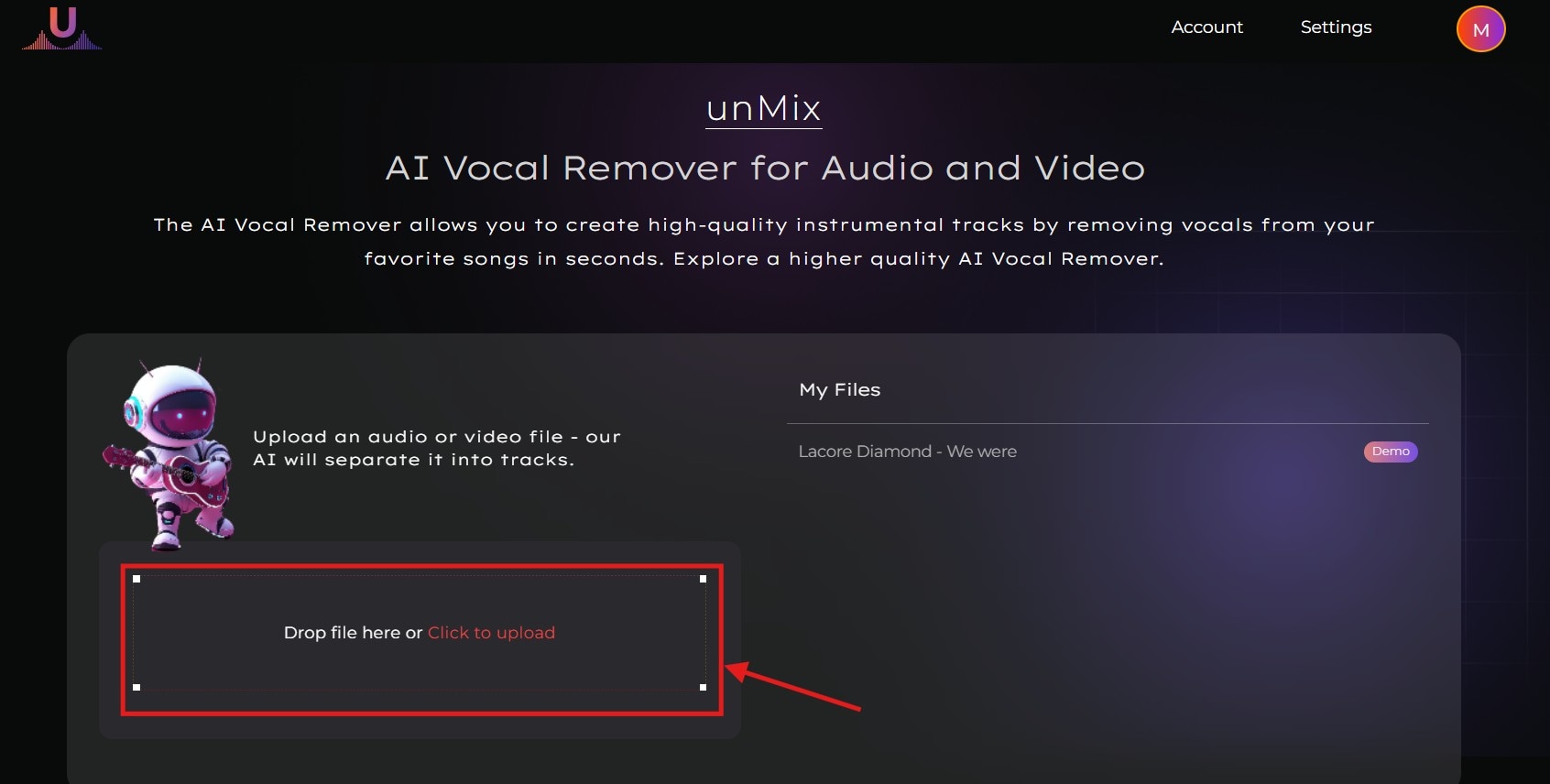
Step 1: Click the Click to upload to select the video or drag and drop the video to upload it to unMix.
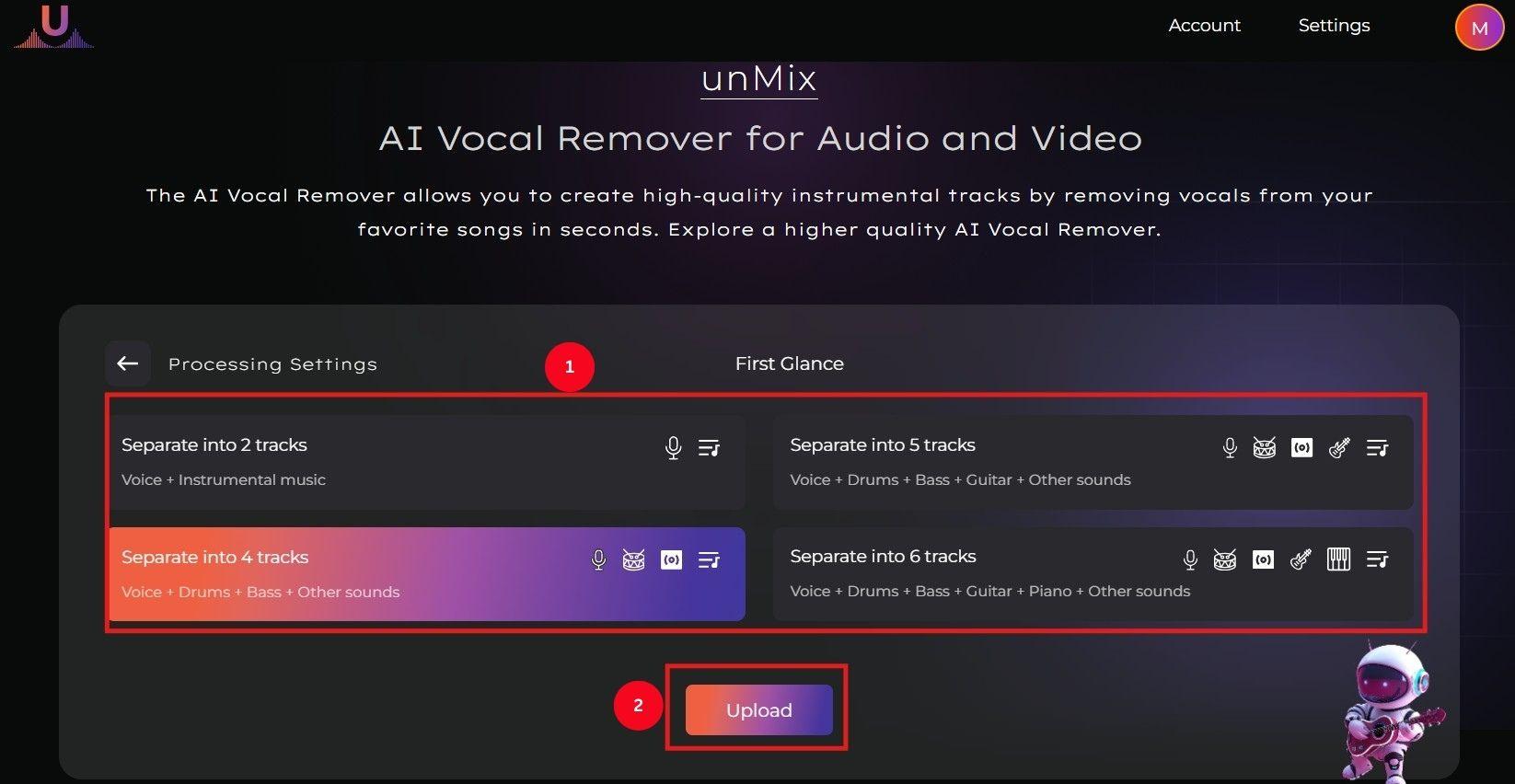
Step 2: unMix provides options like Separate into two tracks, Separate into 4 tracks, and more. Select one that meets your needs, then click Upload.
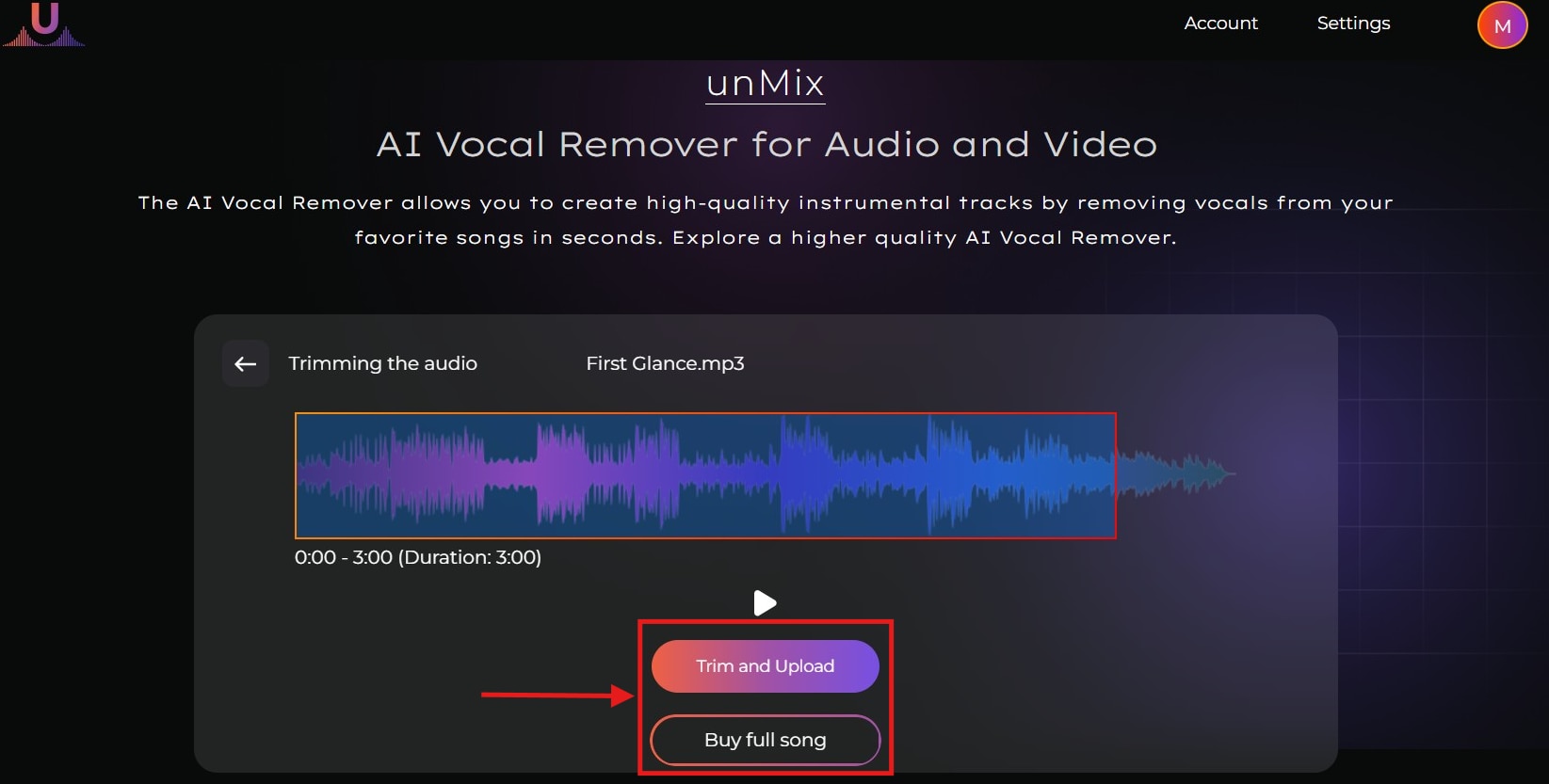
Step 3: Click Trim and Upload, then unMix cuts a small portion of the audio. Or click Buy full Song for the full audio.
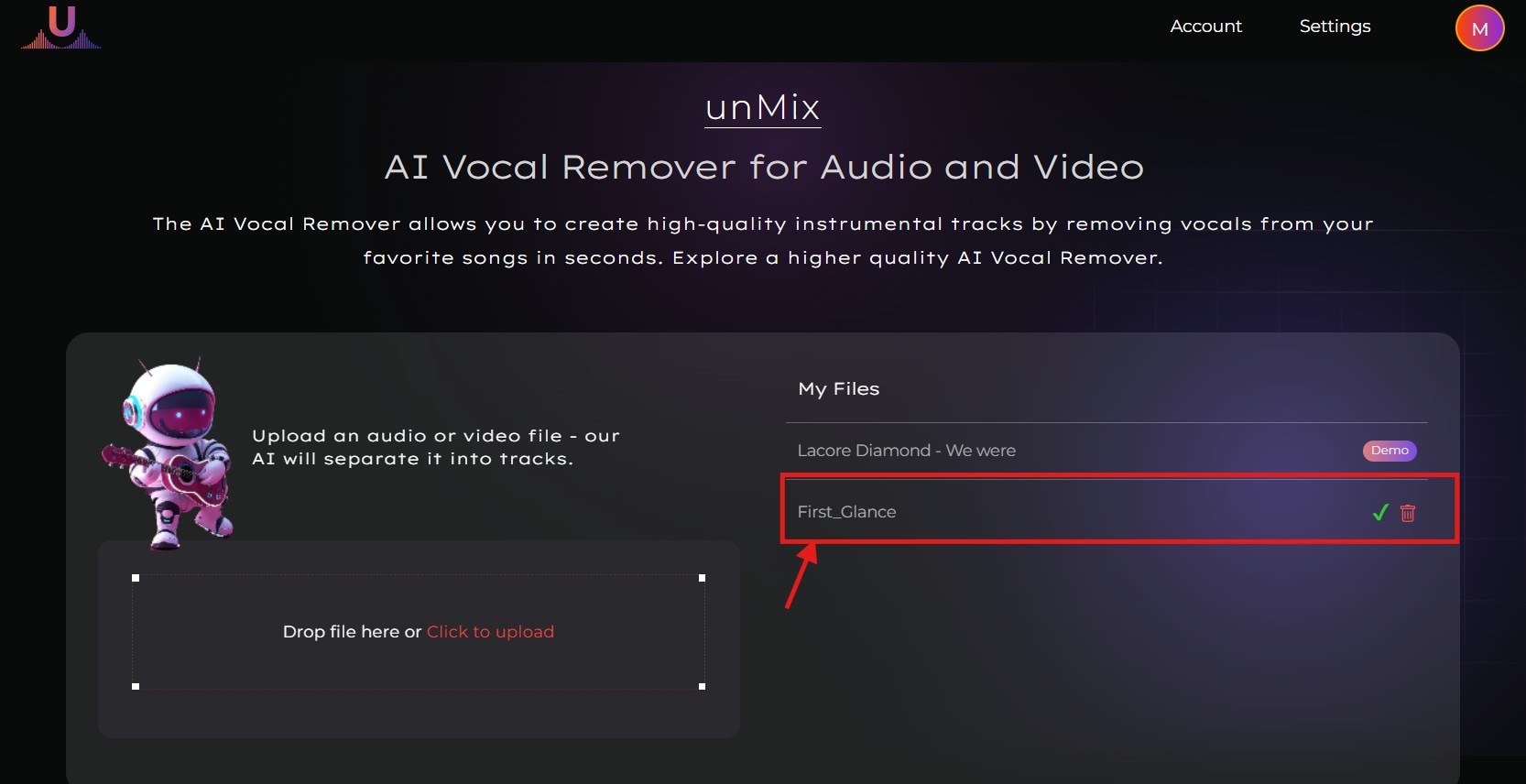
Step 4: It may take some time to process the file; once complete, locate and click it in the My Files section.
Step 5: Click the download icon next to each instrument or vocal, or the entire audio file.
Part 6. Comparison Table of YouTube Vocal Removers
If you’re going to remove vocals from YouTube audio or video, let’s compare each tool to help you choose the best option for your needs:
| Tool Name | Primary Offering | Notable Feature | Key Limitation | Format Support | Best For |
| Singify | AI-based vocal removal from an uploaded YouTube video | Smart vocal isolation | Daily usage limits | MP3, WAV | Creating karaoke tracks from YouTube songs |
| Media.io | Online AI remover with file upload support | No installation and a simple interface | Export limits in the free tier | MP3, WAV, MP4 | Quick vocal removal without technical setup |
| Wondershare UniConverter | All-in-one media tool with vocal remover and YouTube downloader | High-quality stem separation + format conversion | Trial version restricts full-length exports | MP4, WAV, MP4, MKV | Users who need to download, edit, and perform vocal removal in one tool |
| SplitHit Vocal Remover | AI-powered vocal and instrument separation | Flexibility to maintain a volume level of respective sounds | Limited accuracy for complex tracks | MP3, WAV | Music practice and remix experiments |
| unMix | AI vocal removal and stem separation from a YouTube video | Advanced multi-stem separation | Clean stem isolation | Free usage is limited | MP3, WAV |
Part 7. How to Choose the Right YouTube Vocal Remover
If you are not sure which YouTube vocal remover to use, the best choice depends on how you plan to remove voice from a YouTube video, how often you need to do it, and how much control you want over the final output. Some tools are better for quick one-time tasks, while others are more suitable for stable, high-quality processing.
-
If you want the fastest workflow, choose a tool that supports pasting a YouTube link directly. This type of AI vocal remover for YouTube link is convenient for quick karaoke tracks, casual remixing, or testing short ideas without downloading the file first.
-
If you care more about output quality and stability, choose a desktop tool. Desktop software is usually better when online YouTube vocal remover tools fail to load links, slow down during upload, or produce inconsistent results.
-
If you only need occasional edits and prefer not to install software, an online vocal remover YouTube tool can be enough. Just keep in mind that browser-based tools may have file-size limits, credit systems, or privacy concerns.
-
If you want to work on your phone, choose a mobile app that supports stem separation and export. This is useful for simple practice tracks or quick edits, but mobile performance can vary depending on your device and the app’s free limits.
-
If you often process multiple files, look for batch support, format options, and stable local processing. This is especially important if you regularly remove vocals from YouTube videos for DJ sets, rehearsals, karaoke prep, or content production.
In short, use a direct-link tool for speed, an online uploader for convenience, a desktop app for better control, and a mobile app for flexibility. Choosing the right method will make it much easier to remove voice from a YouTube video without wasting time on failed uploads or low-quality results.
Part 8. Important Considerations for Using YouTube Vocal Remover
When removing vocals from YouTube, key considerations include copyright infringement, technical limitations, and privacy. These are explained as follows:
Copyright: Using content from YouTube is legal as long as you’re using it for personal use. That is, creating instrumental versions for private practice or enjoyment. However, using vocal removed tracks in a remix, new video, or any content that you intend to monetize on YouTube requires written permission from the original creator. Without it, your content may get taken down for copyright infringement.
Realistic Expectations: AI tools have come a long way and have made vocal removal from YouTube quite simple. Just upload the audio/video, and you'll receive a high-quality output within minutes. However, keep in mind that no AI tool is perfect, and they might struggle with tracks with heavily layered music or overlapping frequencies.
Privacy: Many online tools require you to upload the file to their servers for processing, which means your content temporarily leaves your control. It’s therefore crucial to review the tool’s privacy policy to understand the types of data they collect, how long your files are retained, and who can access them. If you can’t find a written privacy policy, it’s safe to use desktop software like Wondershare UniConverter, which processes your files locally.
Conclusion
Many online, desktop, and mobile-based tools can remove vocals from YouTube videos, but a few stand out for their simple interfaces and high-quality output. Following the detailed steps outlined in the article should help you complete the work in an automated manner. However, if you’re still confused, Wondershare UniConverter is the best available. It’s an easy-to-use, powerful tool for your audio editing needs. Use UniConverter now to create high-quality tracks for your karaoke!
FAQs
Can I remove voice from a YouTube video without editing audio manually?
Yes. If you want to remove voice from a YouTube video without doing manual audio editing, you can use an AI YouTube vocal remover. These tools automatically separate vocals from background music and are much easier for beginners than traditional audio software.
What is the easiest way to remove voice from a YouTube video?
The easiest way is to use a tool that accepts a YouTube link directly or lets you upload a downloaded file and process it automatically. For quick one-time use, an online vocal remover YouTube tool is often enough. For more stable results, desktop software is usually the better option.
Why do some YouTube vocal remover tools fail to process a link?
Some YouTube vocal remover tools may fail because of temporary parsing issues, file restrictions, server overload, or changes on the source platform. If a direct-link method does not work, downloading the file first and uploading it manually is often a more reliable workaround.
Can a vocal remover YouTube tool also separate drums, bass, or other instruments?
Yes, many AI tools now do more than basic vocal removal. Depending on the platform, a vocal remover YouTube tool may also split the track into stems such as drums, bass, piano, and instrumentals, which is useful for karaoke, remixing, and practice sessions.
Is online or desktop software better if I need to remove vocals from YouTube videos often?
If you remove vocals from YouTube videos regularly, desktop software is usually better because it offers more stable processing, fewer upload issues, and better control over output quality. Online tools are more convenient for occasional tasks, but they may come with limits on file size, usage credits, or export quality.
Is it legal to use a YouTube vocal remover for karaoke or remix practice?
Using a YouTube vocal remover for personal karaoke, rehearsal, or private practice is generally lower risk, but public redistribution, monetized remixes, or commercial reuse may require permission from the original copyright owner. It is always safer to check usage rights before sharing or publishing the output.

