


Background music can ruin an otherwise usable audio file. Voices get buried, words lose clarity, and the final output sounds unprofessional. Knowing how to remove background music from audio is essential for producing clean podcasts, interviews, voiceovers, and spoken content that sounds focused and intelligible.
AI background music removers now make vocal isolation fast and precise. With the right tool, it is possible to extract clear speech, separate vocals from songs, and maintain near-lossless audio quality without complex editing. This guide covers reliable methods that deliver consistent results across common audio formats and real-world use cases.
In this article
- How to Easily Remove BGM with CapCut AI Voice Remover?
- How to Easily Remove BGM with LALAL.AI?
- How to Easily Remove BGM with Media.io Vocal Remover?
- How to Easily Remove BGM with Vocalremover?
- How to Easily Remove BGM from Audio with Remove.Music?
- How to Easily Remove BGM from Desktop Background Music Removers (Most Effective)?
- Comparison Table of Tools listed AI Background Music Remover
- Important Considerations for Using Background Vocal Remover
- Conclusion
- FAQ
Part 1: How to Easily Remove BGM with CapCut AI Voice Remover?

CapCut is widely known for video editing, but it also features a powerful background vocals remover ideal for content creators. If you are already editing a video project and need to clean up dialogue without switching apps, this built-in tool is a lifesaver.
CapCut uses advanced AI to distinguish between human speech and background noise or music. With just a simple toggle, you can isolate vocals directly on your timeline, saving you the hassle of exporting audio to external software.
How to Remove Background Music and Keep Vocals with CapCut?
Here is how you can use this feature on the CapCut Desktop version:
Step 1: Open CapCut and import your video or audio file into a new project. Drag and drop the file onto your main timeline.
Step 2: Click on the clip in the timeline to select it. Navigate to the Audio tab in the upper-right properties panel.
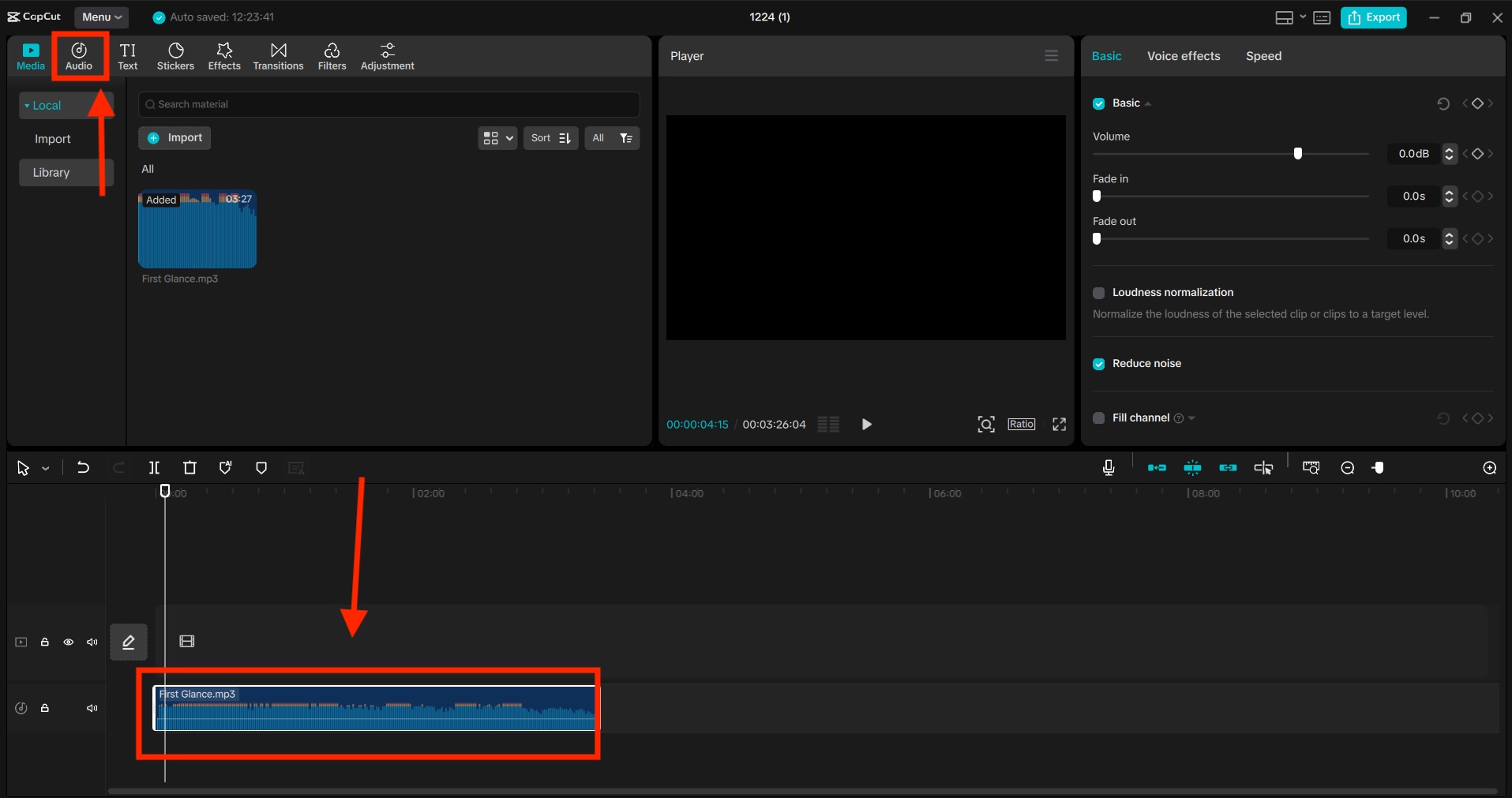
Step 3: Scroll down to find the Vocal Isolation checkbox. Check it to enable the feature (this may require a Pro subscription).
Step 4: You will see a dropdown or options for "Remove Vocal" and "Keep Vocal." Select Keep Vocal to eliminate the background music while preserving the speech.

Batch Background Music Extractor
Part 2. How to Easily Remove BGM with LALAL.AI?

Background music often competes with dialogue, making it difficult for your audience to focus on the spoken message. When clarity matters, LALAL.AI offers a straightforward solution to isolate vocals without complex editing skills.
By using its dedicated Voice Cleaner, you can strip away distracting instrumentals and noise, leaving you with clean, usable speech for your projects. This browser-based tool handles the heavy lifting, allowing you to salvage audio that might otherwise be unusable due to loud backing tracks.
How to Remove Music and Keep Vocals with LALAL.AI?
Here is how to use the background music remover online and get quick results:
Step 1: Visit the official website of LALAL.AI, navigate to "Products" and select "Voice Cleaner."

Step 2: Click on "Select Files" and upload the file.

Step 3: Select the stem, then click the "Split in Full" option.
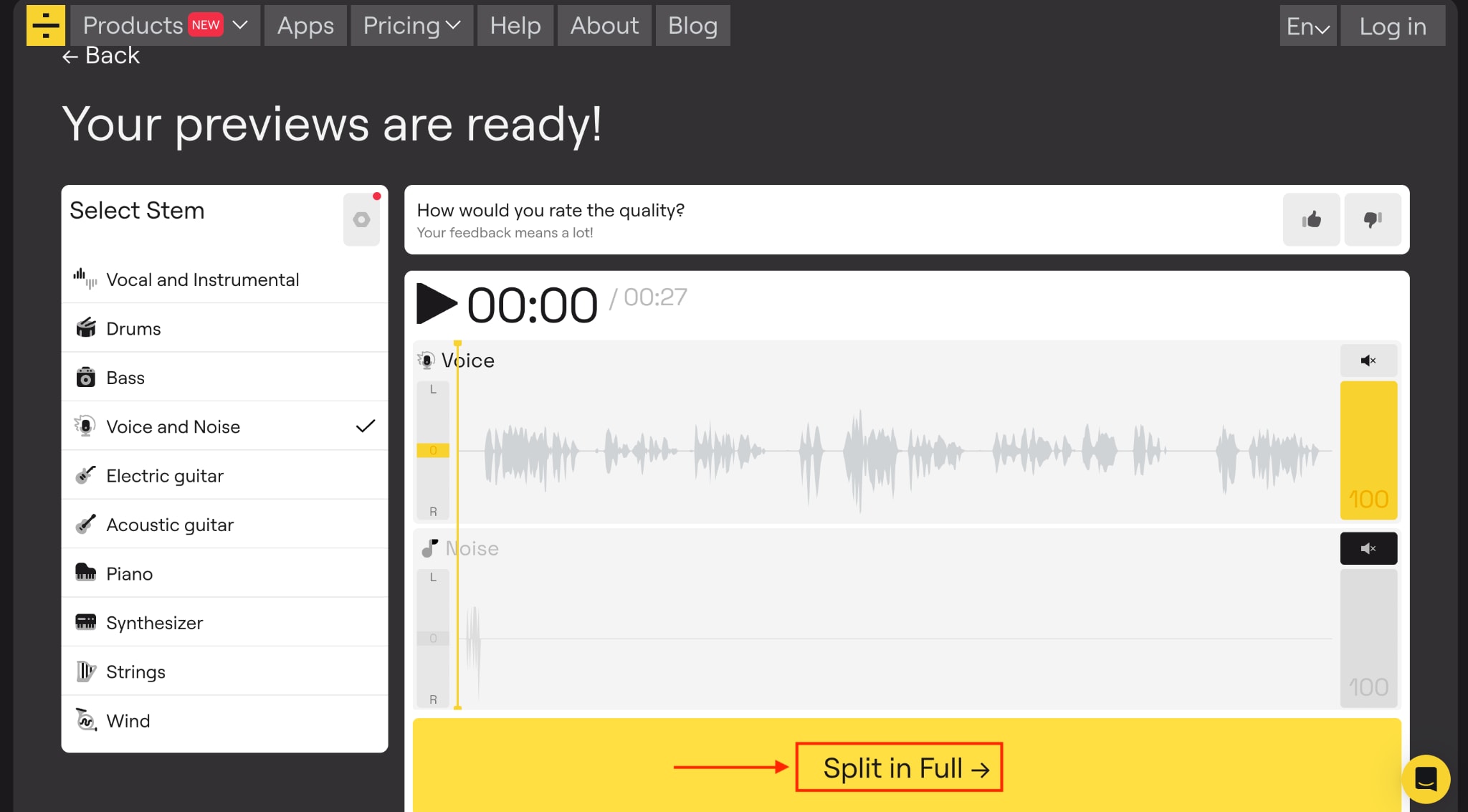
Step 4: Listen to the audio, then click "Get Split Files" to get the final results.

Extract Background Music Without Distortion
Part 3. How to Easily Remove BGM with Media.io Vocal Remover?

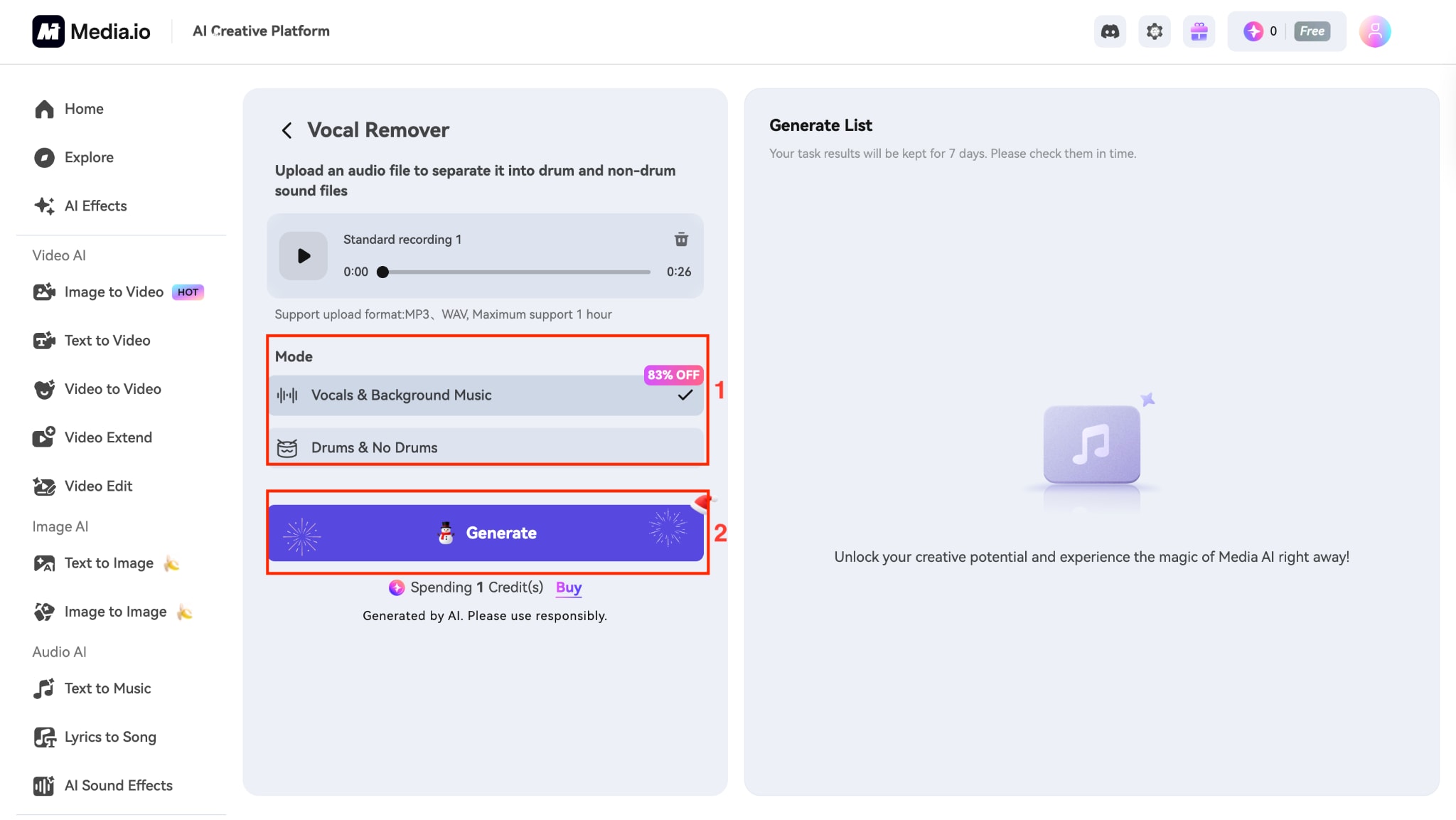
Media.io Vocal Remover offers a quick online option for removing music while keeping vocals. You upload your file, and the AI separates vocals and instruments in moments, saving time on manual editing. This works well for podcasts, videos, or songs where dialogue gets buried under tunes, letting you pull out clear speech without installing software.
The free access draws in users testing audio cleanup, though limits apply for heavier use. Overall, it fits into simple workflows for content tweaks.
How to Use the Background Music Extractor Online?
Follow these simple steps to remove background music from audio with Media.io:
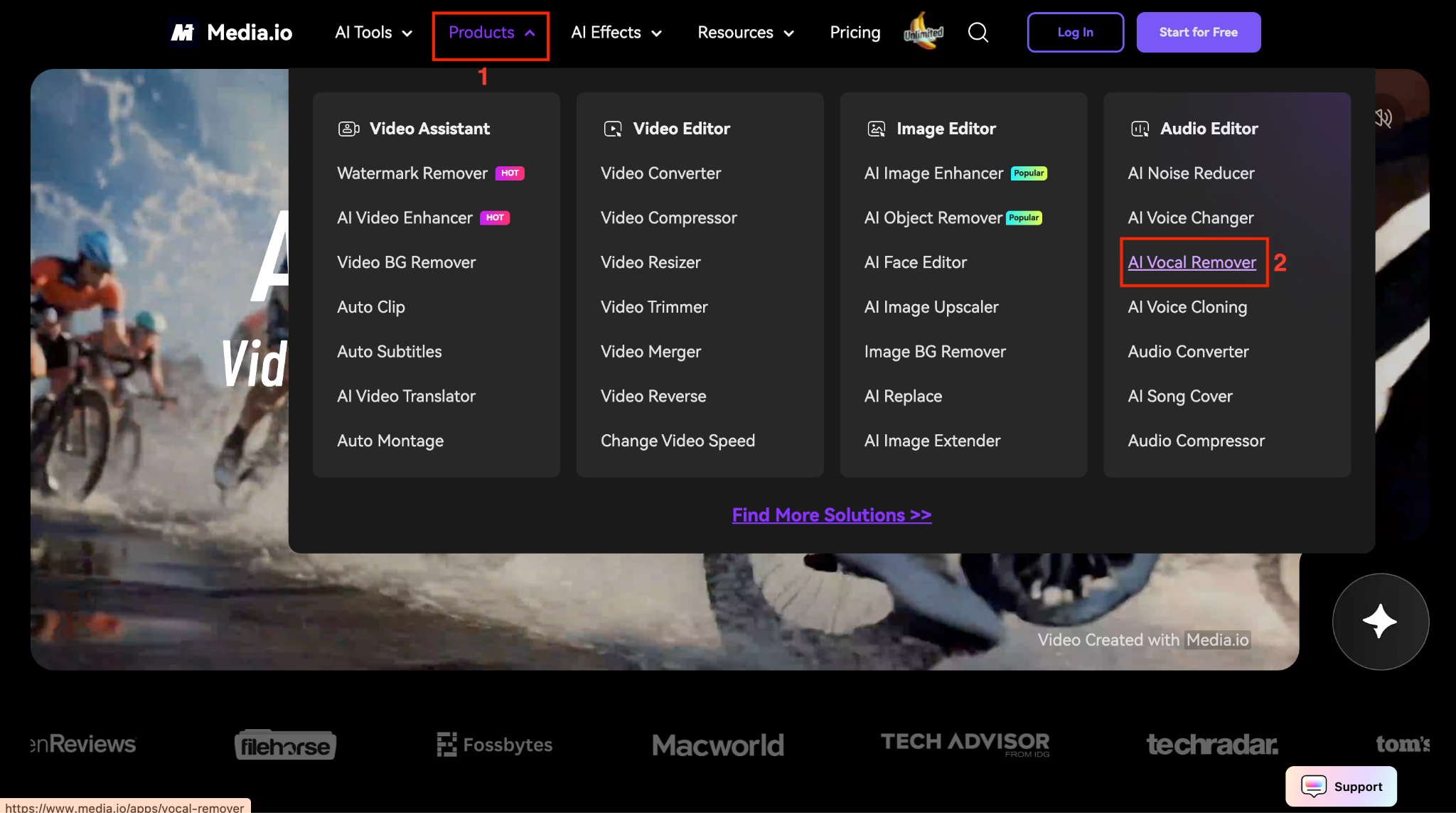
Step 1: On the Media.io homepage, navigate to "Products" and choose "AI Vocal Remover."
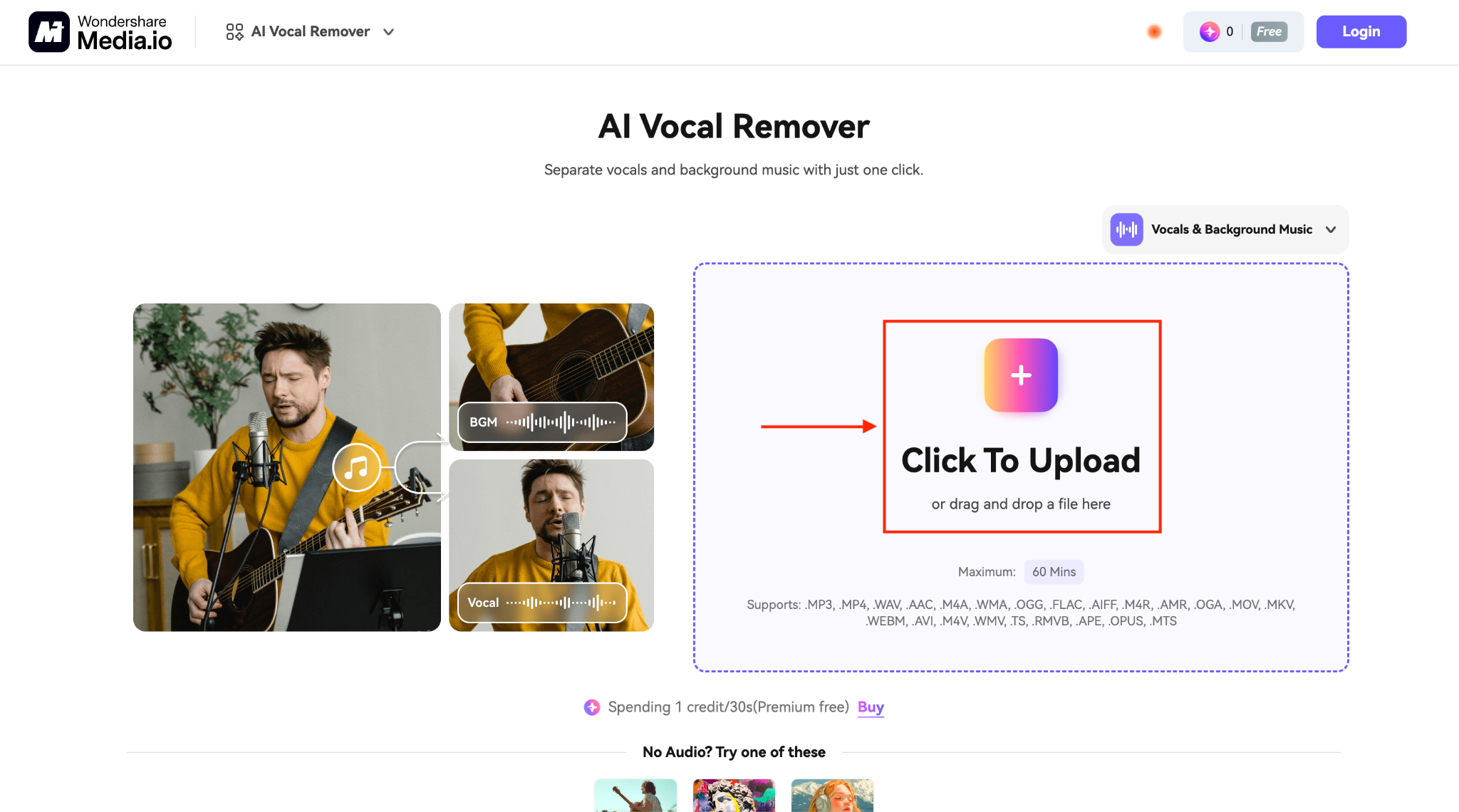
Step 2: Click on the "Click to Upload" button.
Step 3: Select one Mode and click the "Generate" button.
Part 4. How to Easily Remove BGM with Vocalremover?
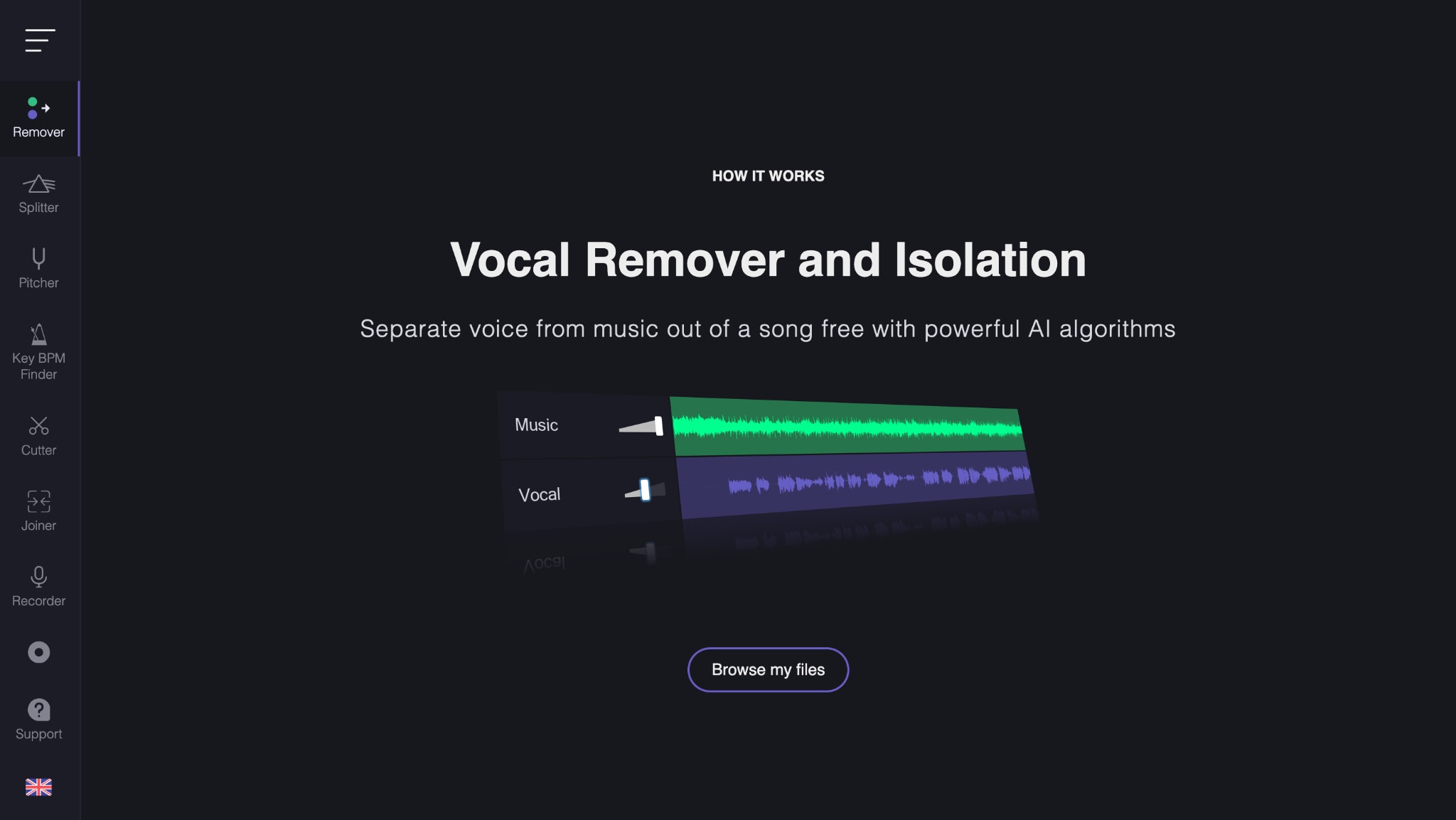
Vocalremover is a free online tool that separates voice from music directly in your browser. It uses AI to split tracks, giving you two distinct audio channels, one for vocals and one for karaoke instruments. This is especially useful if you need to create a backing track or isolate speech without installing heavy software.
Since Vocalremover runs online, you do not need to worry about compatibility, but you will need a stable internet connection. The interface lets you hear changes in real time as you tweak volumes.
How to use Song BGM Remover Online?
By following these steps, you can easily remove background music from audio with Vocalremover.
Step 1: Visit the official website, click on "Browse my files," and upload the file.
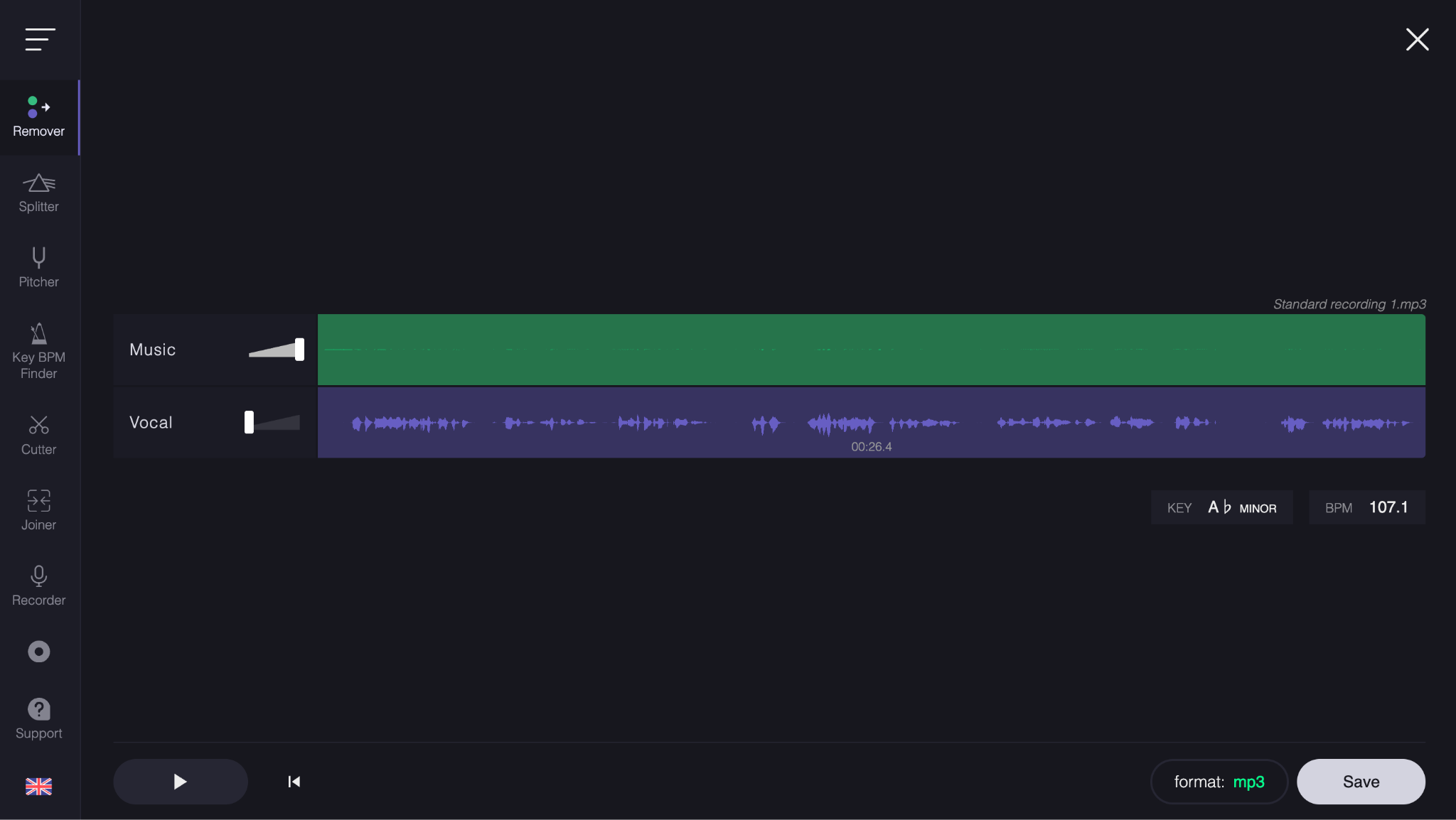
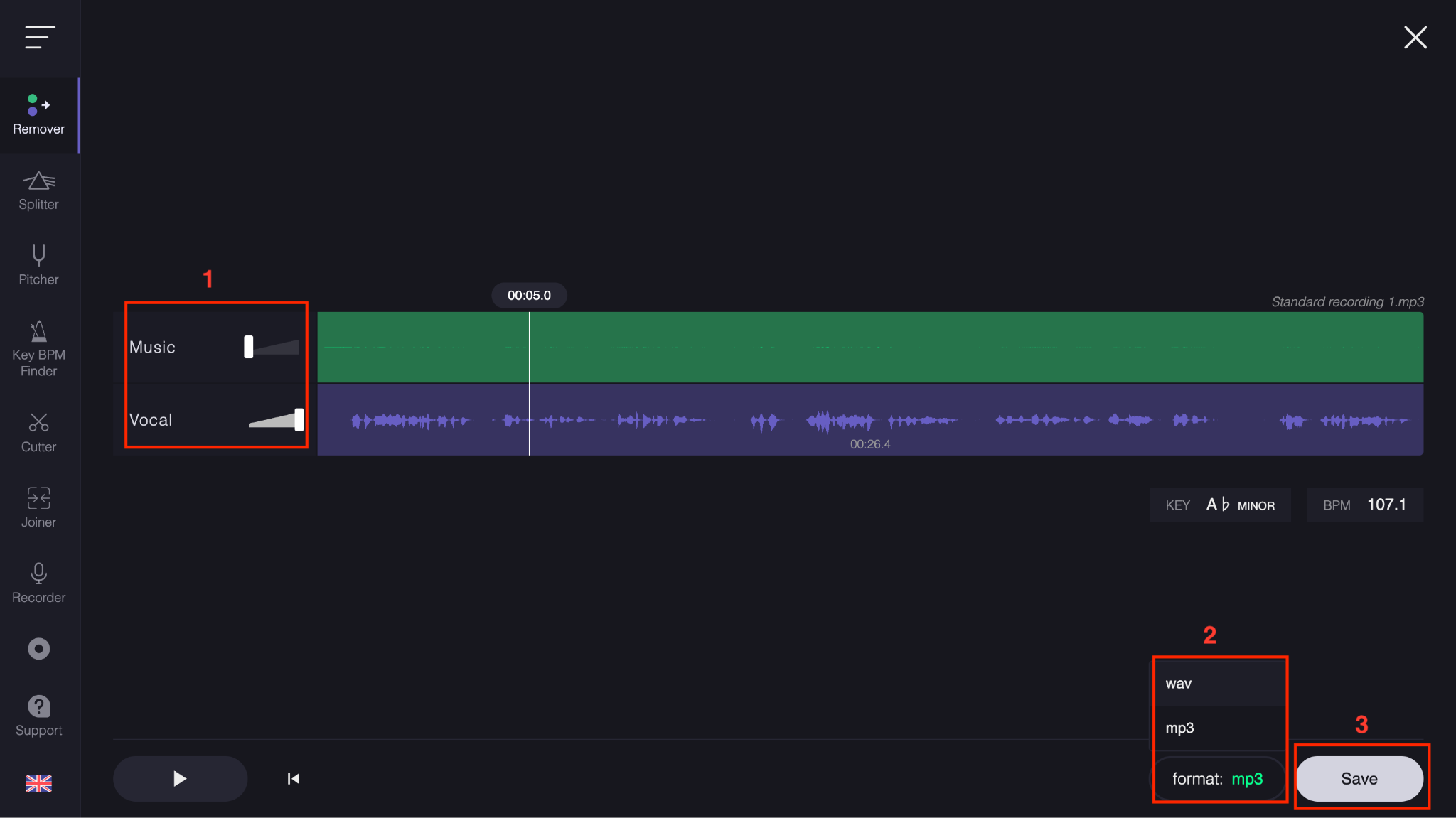
Step 2: Adjust the music and vocal sliders as needed, choose the format, and click the "Save" button.
Easy Background Music Extractor for Audio Files
Part 5. How to Easily Remove BGM from Audio with Remove.Music?

Remove.Music is another straightforward background vocal extractor designed for quick edits. It focuses solely on simplicity, letting you drop a file and get results without navigating complex menus or settings. This makes it a good option if you are in a rush and just need a quick separation for a social media clip or rough draft. While it may not offer granular control over every frequency, it handles the main job of suppressing instrumental backing tracks effectively enough for casual use.
How to Remove Background Music from Audio with Remove.Music
Follow these steps to use the background song remover quickly:
Step 1: On the homepage, click Upload File. After selecting a music file, the music extraction process will automatically start.

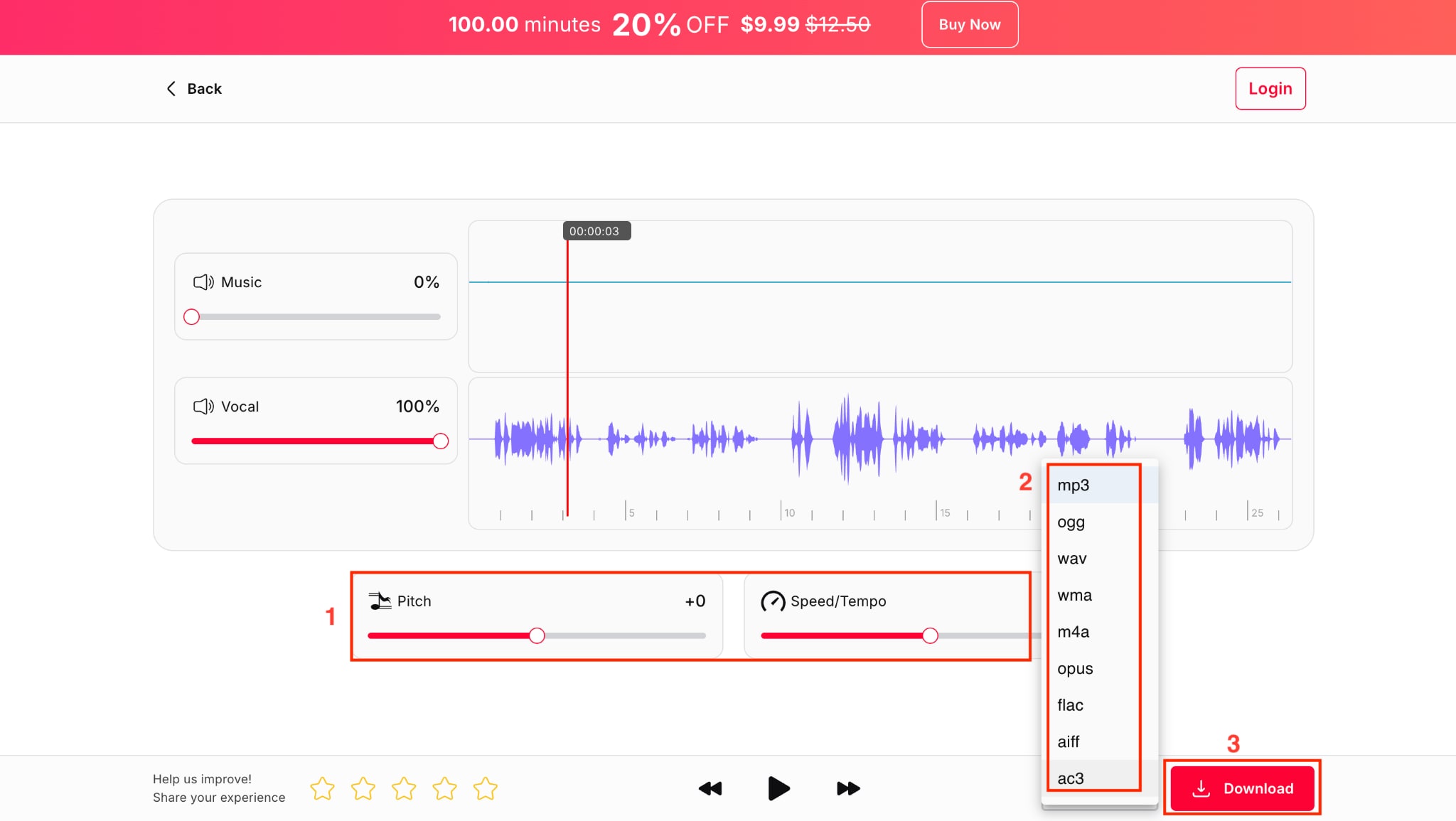
Step 2: Adjust pitch, speed/tempo, choose a format, and click the "Download" button.
Batch Background Music Extractor
Part 6. How to Easily Remove BGM from Desktop Background Music Removers (Most Effective)?

For a dependable way to handle audio separation directly on your computer, Wondershare UniConverter offers a powerful desktop solution. Unlike browser-based tools that can struggle with slow internet or file limits, this application leverages your machine's processing power for faster results.
Wondershare UniConverter integrates this function into a complete set of video tools, making it ideal if you regularly edit media. When you want to keep the voice, remove background music with high precision and without worrying about upload caps, this method provides a stable environment for clean vocal removal in your projects.
How to Remove Background Music from Audio with Wondershare UniConverter
Here is the step-by-step guide to removing background music from an MP3
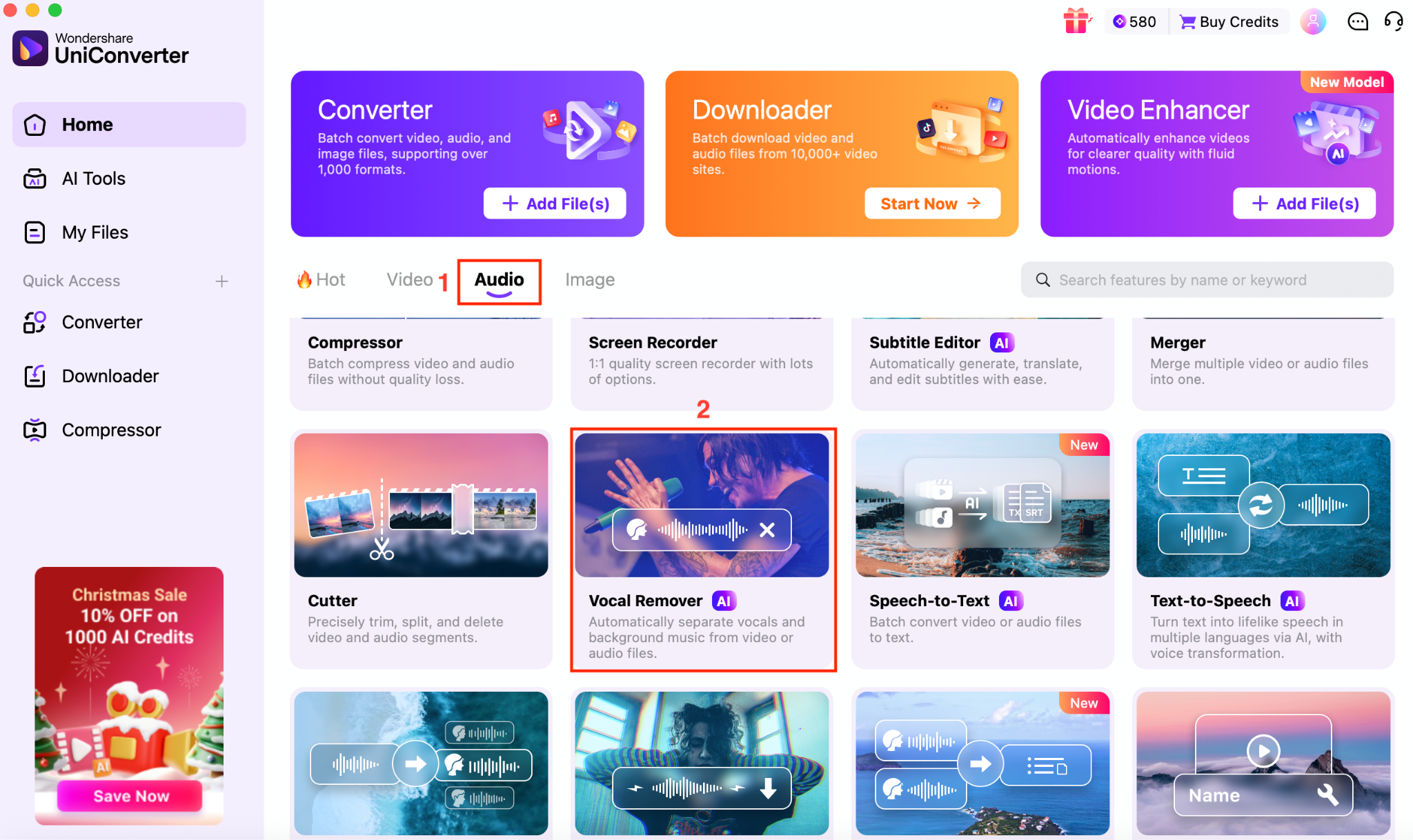
Step 1: On the UniConverter's desktop, navigate to "Audio > Vocal Remover."
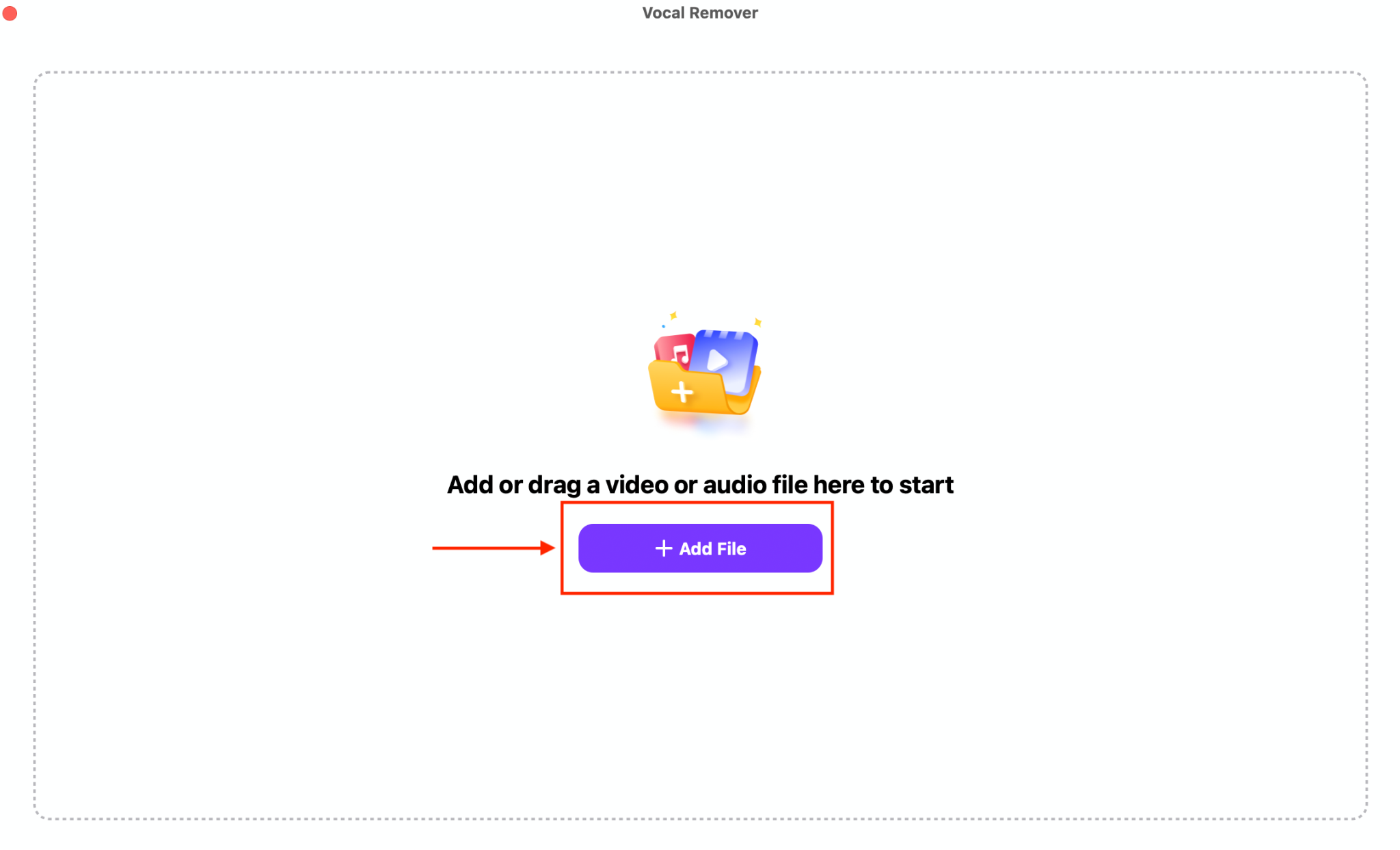
Step 2: Click "Add File" to add the audio.
Step 3: Click the Settings icon, then choose the Format.
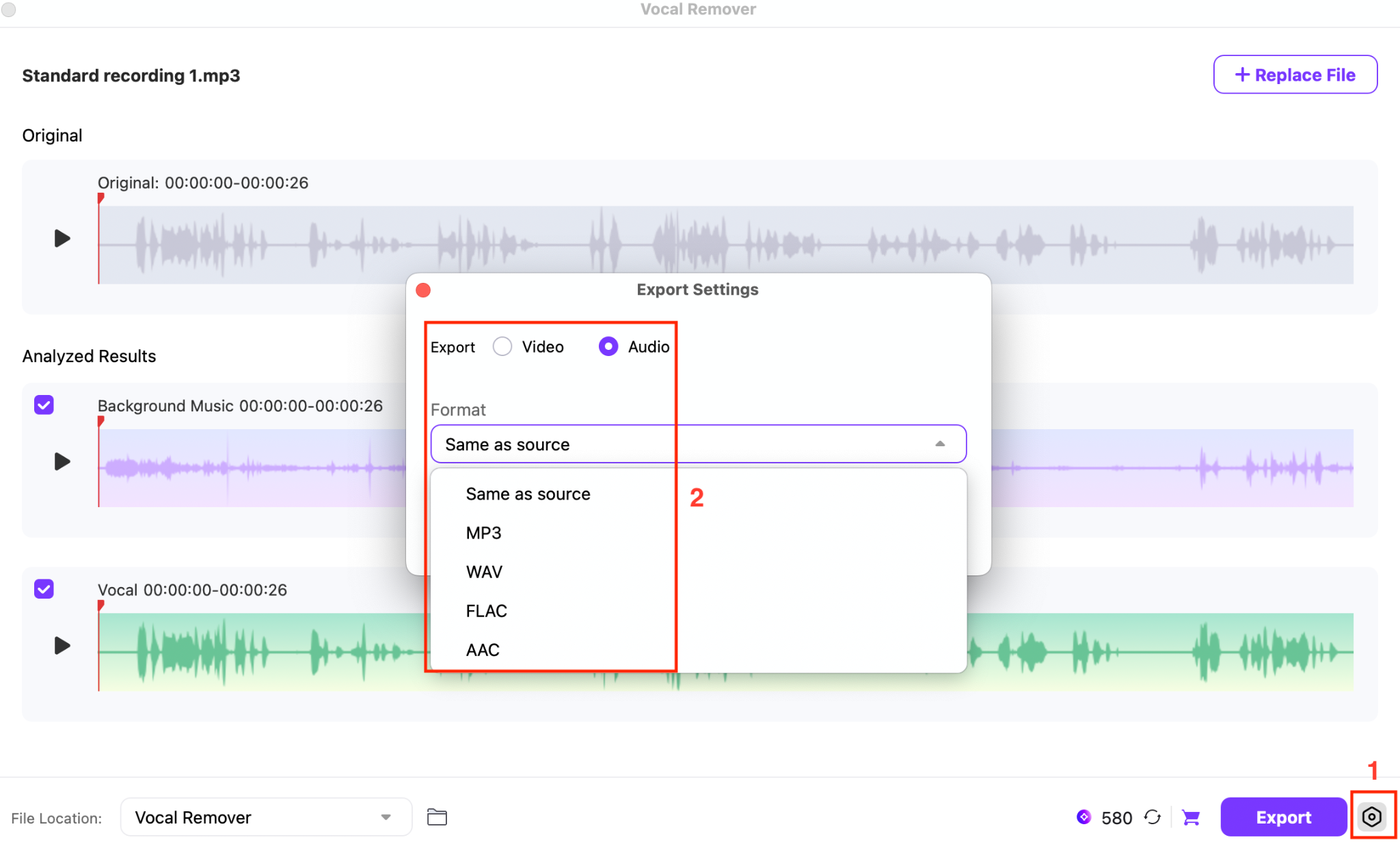
Step 4: You will get two options, background music and vocals. You can download both or only the vocal by clicking the Export button.
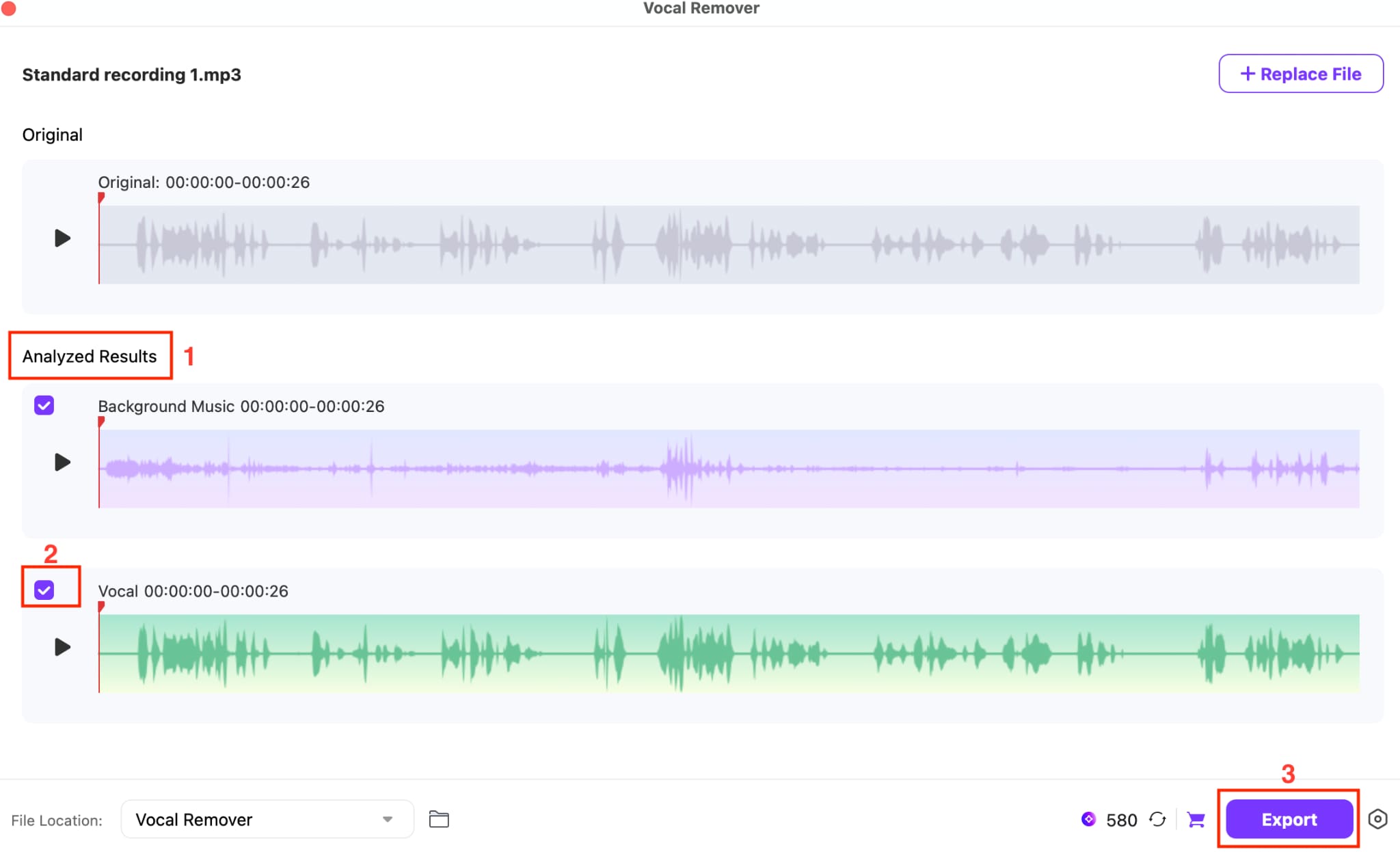
Extract Background Music Without Distortion
Part 7. Comparison Table of Tools listed AI Background Music Remover
Choosing the right background music remover depends on your specific needs, whether you prioritize speed, quality, or budget. The table below breaks down the key differences to help you decide which tool best fits your workflow.
| Tool | Primary Free Offering | Key Limitation | Notable Feature | Format Support | Best For |
| CapCut | Basic video editing | Vocal isolation is paid (Pro) | All-in-one video editor workflow | MP4, MOV, MP3 | Video creators needing quick audio fixes |
| LALAL.AI | 10 minutes/ 50MB (preview) | Cannot download full files without paying | High-precision stem splitting | MP3, OGG, WAV, FLAC, MP4 | High-quality separation for music production |
| Media.io | Free trial for basic use | Slow processing for large files | Fully online, no install needed | MP3, WAV, M4A | Quick, casual online edits |
| Vocalremover | Free unlimited basic use | Slow processing during peak times | Real-time volume sliders for tracks | MP3, WAV | Creating karaoke tracks |
| Remove.Music | Free basic separation | Limited manual controls | Simple, automated workflow | MP3, WAV | Fast, hassle-free social media clips |
| Wondershare UniConverter | Free trial (limited features) | License required for full access | GPU-accelerated desktop processing | MP3, WAV, MP4, MKV, AVI | Professional batch processing & large files |
Part 8. Important Considerations for Using Background Vocal Remover
Removing background music from audio is technically simple, but using AI background music remover responsibly matters just as much. Before extracting vocals or modifying any track, keep the following points in mind to avoid legal, quality, and privacy issues.
Copyright compliance: Always confirm you have the legal right to edit, reuse, or publish the audio. Copyrighted songs, licensed music, and commercial recordings often restrict modification, even when using a background music remover online or offline.
Realistic separation quality: AI background music removers perform best on clean recordings. Tracks with heavy instrumentation, overlapping frequencies, or compressed audio may leave artifacts or partial music bleed, even with advanced tools.
Audio format and bitrate impact: Lossy formats, such as low-bitrate MP3s, can limit separation accuracy. For better results, use high-quality WAV or high-bitrate MP3 files when removing music and keeping vocals.
Privacy and data handling: Online background vocal removers may temporarily store uploaded files or use them to train AI models. Review privacy policies carefully, especially when processing sensitive recordings.
Free tool limitations: Free background music removers often cap file size, export length, or audio quality. For professional or long-form projects, desktop solutions usually offer better control and consistency.
Batch Background Music Extractor
Conclusion
Removing background music from audio is often the deciding factor between a distorted recording and a polished, professional result. The quality of the tool directly affects how clean the vocals sound and how much detail is preserved in the final output. Modern AI solutions now make it possible to recover clear dialogue and improve intelligibility with minimal effort.
For consistent, high-quality separation without file-size restrictions or processing delays, a desktop solution offers the most control. Wondershare UniConverter stands out for its accurate vocal extraction, fast performance, and lossless export options. Download UniConverter to achieve cleaner audio and a more efficient editing workflow across all creative projects.
FAQs
-
1. Can I remove background music from audio without losing voice quality?
Yes. Advanced AI tools like Wondershare UniConverter use vocal separation models designed to preserve speech clarity while suppressing background music. Results are best with high-quality source files, and adjustable export settings allow near-lossless vocal extraction. -
2. What is the best free online background music remover?
Free online tools can remove background music from short clips, but they often limit quality, file length, and control. Wondershare UniConverter offers a free trial with desktop-level processing, making it a stronger option for cleaner results without heavy compression or watermarks. -
3. Can I remove background music from an MP3 file?
Yes. MP3 files are fully supported. Wondershare UniConverter can process MP3 audio while maintaining vocal clarity, especially when the source uses a high bitrate. For optimal results, converting MP3 to WAV before separation can further reduce compression artifacts. -
4. Why does some background music remain after removal?
Residual music usually occurs when vocals and instruments overlap in frequency ranges. Wondershare UniConverter allows you to export separate vocal and background tracks, which helps reduce bleed-through, though heavily layered or compressed audio may still retain minor artifacts. -
5. Are desktop background music removers better than online tools?
Yes. Desktop solutions like Wondershare UniConverter generally provide higher accuracy, faster processing, batch support, and lossless export options. They are better suited for long audio files, repeated use, and professional workflows compared to most free online background music removers.

