In this article
- Can you download a Loom video?
- How to download your own Loom video
- How to download a Loom video from a shared link
- Can you download Loom videos for free?
- Why the Loom Download button is missing or not working
- Download and Manage Loom Videos and Subtitles with UniConverter
- FAQs about Loom video downloads
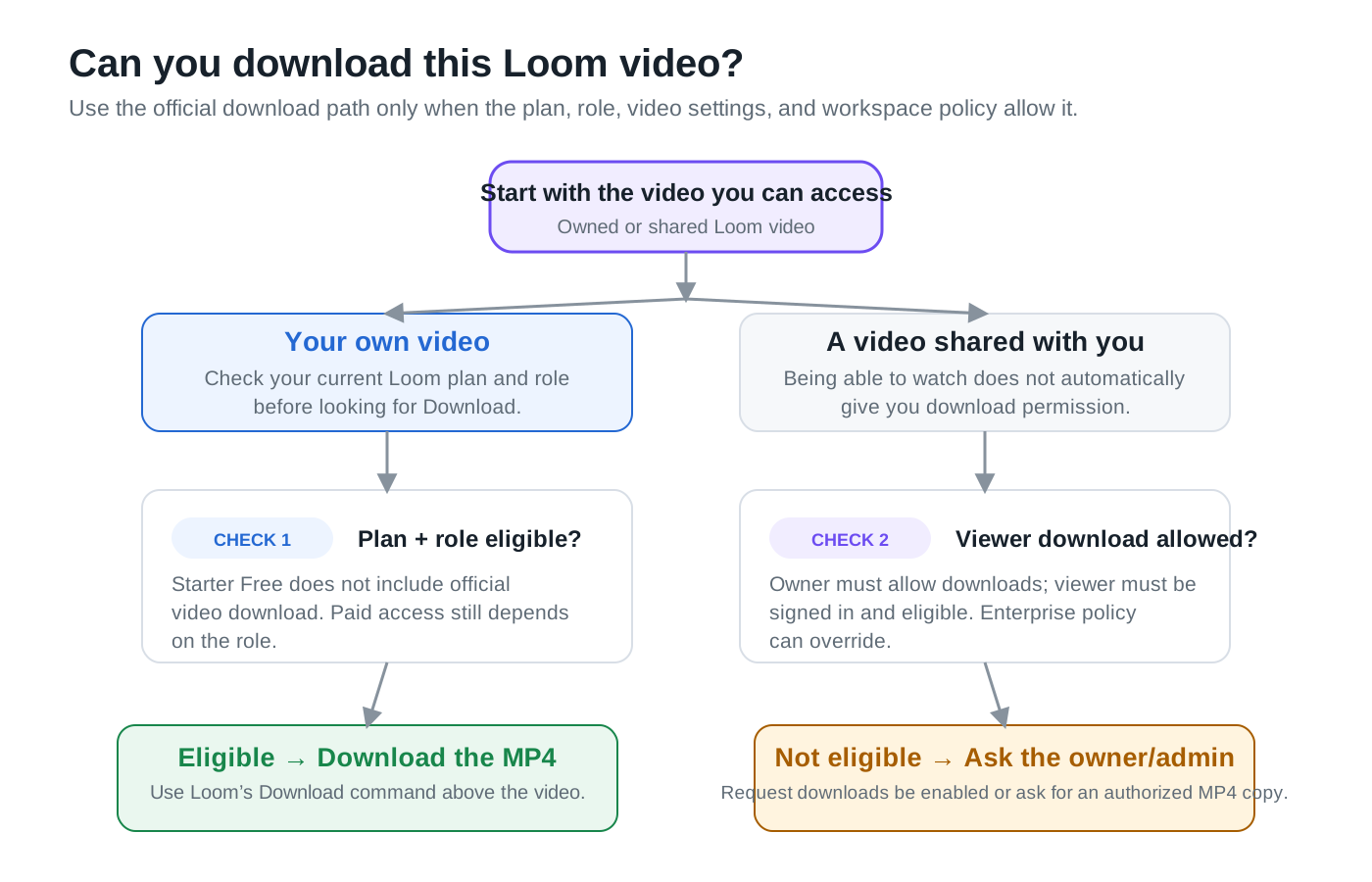
Loom has an official download path, but access is conditional. The practical question is not simply whether you have a Loom URL; it is whether the current account, video, and workspace allow a download. The steps below follow Loom's current support documentation and avoid methods that bypass disabled downloads or private access controls.
Part 1. Can You Download a Loom Video?
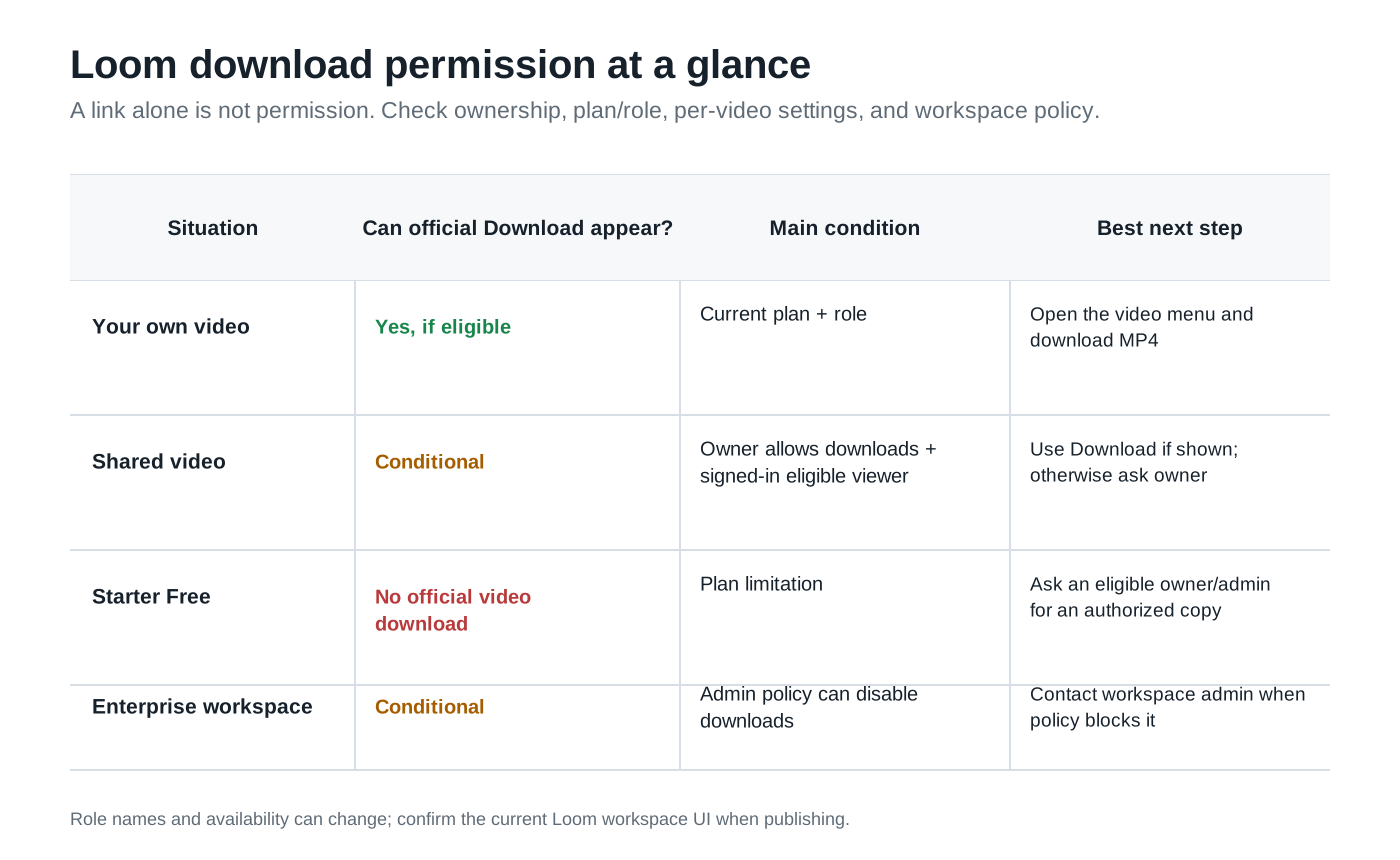
Yes, if the video and your account are eligible. Loom's current rules distinguish between the person who owns or administers a video and someone who merely has viewing access. The official Loom download guide also makes clear that Starter Free does not include official video downloads.
| Situation | Can you download? | Important condition |
| Your own video: Business or Business+ AI | Yes, for Admin or Creator roles | Check both the workspace plan and your assigned role. |
| Your own video: Enterprise | Yes, for Admin or Member roles, unless restricted | Enterprise administrators can disable downloads across the workspace. |
| Education workspace | Admin only, according to the official plan matrix | Loom’s troubleshooting summary elsewhere omits Education; ask the workspace admin to confirm this entitlement. |
| Starter Free workspace | No official video download | Even an Admin or Creator cannot use the native download feature on Starter Free. |
| Creator Lite or Viewer role | No official video download | These roles do not have native download permission. |
| Someone else’s shared video | Only when explicitly permitted | The owner enables Downloads, you are signed in and eligible, and workspace policy allows it. |
| Meeting recording | Only the meeting organizer | A separate ownership restriction applies to Loom meeting recordings. |
| Video with Variables or file over 20 GB | Not through standard download | Loom excludes videos with Variables and files exceeding 20 GB; contact support for large-file assistance. |
To check your plan and role, select your profile image in the top-right corner of Loom. For the current plan matrix, see the official download guide; for role definitions, see roles and permissions.
Part 2. How to Download Your Own Loom Video
If your plan and role include video downloads, Loom's official workflow is short:
- Open the video from your Loom Library.
- Open the three-dot menu above the video. Choose Download.
- Let Loom prepare the file if needed. If the interface says it is still processing or “Polishing pixels,” wait until processing finishes.
- Save the MP4. Loom's official export is already an .MP4, so there is no separate “Loom format to MP4” conversion step.
Your browser and operating system control the final file-save behavior. If the file is not where you expected, check the browser's download list or the destination you selected rather than assuming every device uses the same Downloads folder.
If the video says “Polishing pixels”: Loom may still be preparing the download, including after you trim a recording. Loom recommends allowing at least 30 minutes for processing; if Download remains unavailable, contact Loom Support.
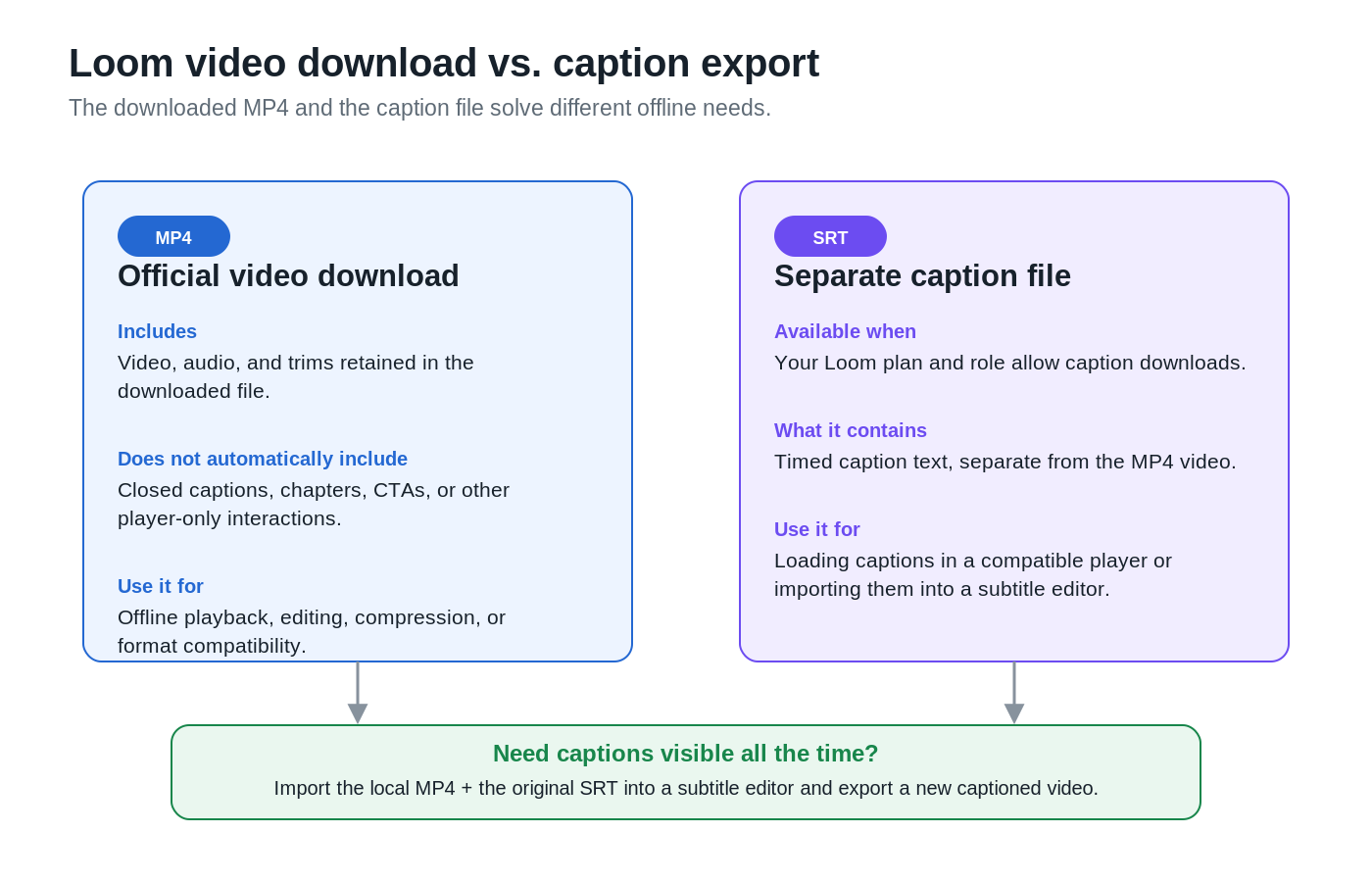
What stays in the MP4? Loom says video trims are retained, but closed captions, chapters, CTAs, and filler-word/silence removal are not included as Loom player features. See the official export FAQ.

Part 3. How to Download a Loom Video from a Shared Link
You can download a Loom video from a shared link only when the owner and workspace allow it. A public or accessible viewing link is not a universal download link.
- Open the shared Loom link and sign in with the account that has access to the video.
- Check for Download in the video menu. If it is present, use it to save the authorized MP4.
- If Download is missing, ask the video owner to check the video's download setting. Loom's current settings place viewer download control under the video's settings/audience controls.
- If the owner has enabled downloads but the option still does not appear, check workspace restrictions. Enterprise administrators can disable downloads for the organization.
For an owner who wants to make an eligible shared video downloadable, open the video, open Settings, and enable the current Downloads / Allow downloads option under the audience-related settings. Loom documents the current setting in its download guide and video settings guide.
For the video owner: Loom documents opening the video’s Edit → Settings → Audience controls and enabling Downloads. Another section of the official guide calls this toggle Allow downloads under Settings; use the setting visible in your current interface, then refresh the viewer page. Enterprise-wide download restrictions still take precedence.
If the owner or administrator intentionally disabled downloading, ask for an authorized MP4 copy instead. This guide does not use developer tools, browser extensions, or third-party grabbers to bypass a disabled/private Loom download.
Part 4. Can You Download Loom Videos for Free?
Not through Loom's official video-download feature on Starter Free. Loom currently lists official video download as unavailable to Starter Free users. If you only need a legitimate local copy, the cleanest alternative is for an eligible owner or administrator to provide the MP4 or enable downloads when the workspace policy permits it.
Search results also contain third-party sites that advertise free Loom downloads from a pasted share link. Their availability, privacy practices, and handling of Loom permissions vary, and a number of them describe workflows that ignore the owner's Download setting. Because those services were not independently tested here, they are not presented as a universal or permission-safe solution. “Free” describes price, not authorization.
Part 5. Why Is the Loom Download Button Missing or Not Working?
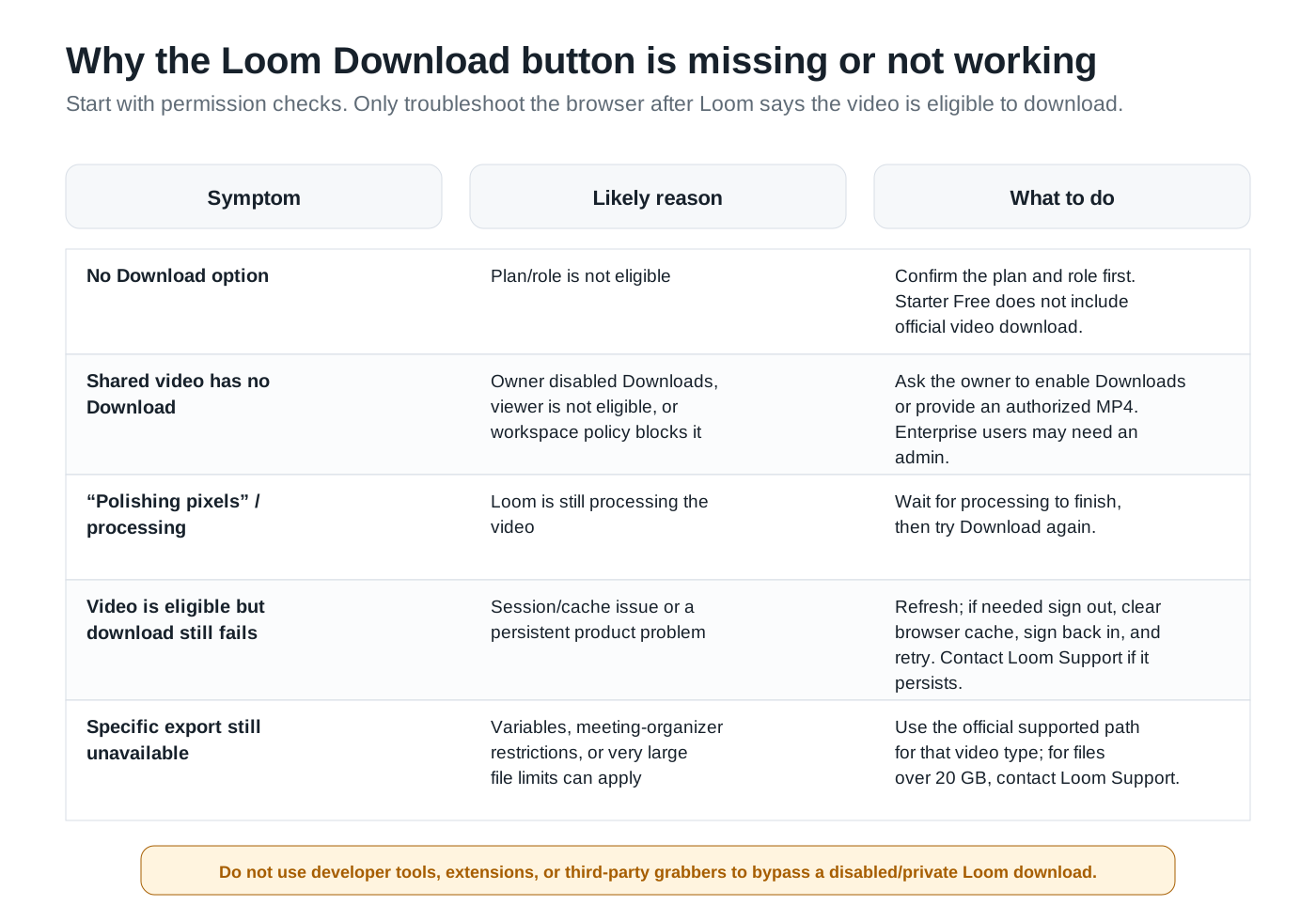
First separate a permissions problem from a technical download failure. If the Download option never appears, the cause is usually eligibility or settings. If Download is available but the file still fails to arrive, then browser/session troubleshooting makes sense.
| Symptom | Likely cause | What to do |
| No Download option on your own video | Starter Free plan or a role without downloads | Check your profile’s plan and role; ask an admin about eligible access. |
| No Download option on a shared link | Owner disabled Downloads, viewer is signed out or ineligible | Sign in; ask the owner to enable Downloads or send an authorized MP4. |
| Download missing across Enterprise workspace | Enterprise admin disabled organization downloads | Ask the workspace administrator to confirm the organization policy. |
| “Polishing pixels” or disabled Download button | The video, or a recent trim, is still processing | Allow at least 30 minutes; contact Loom Support if the file is still unavailable. |
| A particular video cannot be exported | Variables video, meeting organizer restriction, or size over 20 GB | Check the video type and size; for large files, contact Loom Support. |
| Button works but the file does not appear | Browser save location or an existing-session issue | Check the browser downloads list and selected destination; if permitted, refresh, sign out, clear cache, and sign in again. |
| Downloaded MP4 appears stretched | Local MP4 uses the original capture aspect ratio, which can differ from the Loom player | Inspect in another compatible player; for future recordings, consider capturing at a conventional 16:9 resolution. |
Part 6. Download and Manage Loom Videos and Subtitles with UniConverter
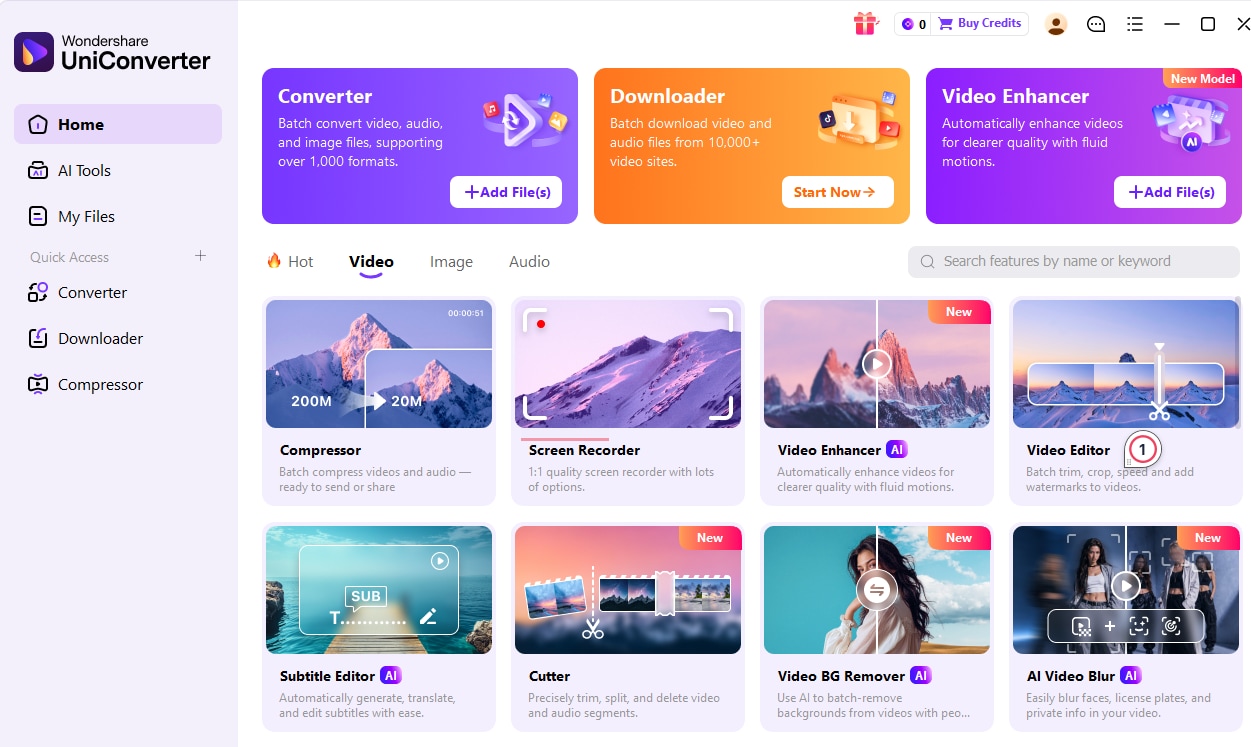
Wondershare UniConverter includes a dedicated Video Downloader for saving and managing online videos from supported URLs. Its desktop Downloader lets you paste media links, choose Video as the download type, select a local save folder, and manage completed downloads. It also offers subtitle and audio-track options when the source and current version support them.
For Loom recordings, direct compatibility with loom.com/share/ links has not been verified. If Loom provides a Download option for your account, use it to save the MP4. If downloading is restricted, ask the video owner or workspace administrator for an authorized copy rather than attempting to bypass those restrictions.
How to Use Wondershare UniConverter Video Downloader
For supported media URLs, UniConverter V17 for Windows provides a straightforward desktop download workflow:
- Open Downloader. Launch Wondershare UniConverter and select Downloader from the Home screen or left navigation.
- Paste a supported media URL. Enter the link in the URL input field. For batch tasks, add one supported URL per line.
- Choose the download settings. Select Video, review the available quality or subtitle preferences when applicable, and choose a local destination using Save to.
- Start the download. Click Download. UniConverter analyzes the URL and starts the task when the source is supported. Available tasks can be paused or resumed.
- Find the downloaded video. Open Finished to locate and manage the saved media. You can then use other UniConverter tools for subtitle editing, compression, or conversion.
UniConverter also supports batch URL input and up to 10 simultaneous download tasks in the verified Windows V17 interface. Actual supported websites, formats, subtitle availability, and video quality depend on the source and product version. These general Downloader features do not establish Loom-link compatibility.
Download Supported Videos and Prepare Them for Offline Viewing
How to Keep Original Subtitles When Downloading a Loom Video
Closed captions displayed in the Loom player are not embedded in its downloaded MP4. To preserve the original captions, download the video and its SRT subtitle file separately when your Loom account has the required permissions.
- Open the Loom video and download the MP4 through the official Download option.
- Open the video menu and select Download captions if available.
- Save the separate .srt subtitle file to your computer.
- Keep the MP4 and SRT together for offline playback or further editing.
Loom provides caption downloads to eligible Business and Business+ AI creators and admins, and Enterprise members and admins. For the latest requirements, see Loom's official transcription and closed captions guide.
MP4 vs. SRT vs. Transcript: The MP4 contains the video and audio. An SRT file contains time-coded subtitles for compatible players and editors. A copied Loom transcript provides text but is not the same as downloading the original timed SRT file.
Add the Original Loom SRT to MP4 with UniConverter Subtitle Editor
If you want optional subtitles during offline playback, open the MP4 and SRT in a player that supports external subtitle files. If you need subtitles to remain visible when sharing or uploading the video, use UniConverter Subtitle Editor to combine the authorized local MP4 with its original SRT.
- Open Subtitle Editor. Launch UniConverter and select Subtitle Editor from the Home screen.
- Import the MP4. Add the Loom video you have saved locally.
- Import the original subtitles. Choose Import Subtitle File and select the downloaded Loom SRT.
- Review the captions. Preview subtitle timing, correct text where necessary, and adjust styling or placement.
- Export the video. Save a new captioned video and verify the subtitles appear correctly during playback.
For detailed import and export instructions, see the official UniConverter Add Subtitle guide.
What if the original Loom SRT is unavailable? First check your caption download permissions or ask the video owner for the subtitle file. If you have an authorized local MP4, UniConverter's Auto-Subtitle Generator can create new captions from speech. However, AI-generated subtitles are a new transcription, not a recovery of Loom's original captions.
After saving the Loom MP4 locally, you can also use UniConverter Compressor to reduce its size or Converter when another format is needed. These are optional follow-up workflows because Loom's official video download already produces MP4.
Conclusion
The official path for an eligible Loom video is to use Loom's own Download command when the account, video settings, and workspace policy allow it. That produces an MP4. For a shared video with no Download option, ask the owner or administrator instead of trying to bypass the restriction. If you also need offline captions, treat the SRT as a separate file and only move into subtitle editing, compression, or format conversion after the authorized local video has been obtained.