


Tired of transcribing Vimeo videos one by one? You're spending hours on a task that could be fully automated. Discover how to batch transcribe your entire Vimeo library and get back your most valuable resource: time. Manually transcribing videos is killing your productivity.
Imagine reclaiming that time by batch transcribing your entire Vimeo library all at once. Modern solutions allow you to process 10, 50, or even 100 videos in a single operation, automating the conversion of Vimeo to text. This isn't just about adding Vimeo captions; it's about unlocking efficiency and scaling your content's potential. For content creators, marketers, and educators, this tedious process creates a major bottleneck.
Learn how batch transcription can process even 100 Vimeo videos at once. Keep on reading to unlock the full potential of your Vimeo content.
Table of Contents
Part 1. Why Transcribe Your Vimeo Videos? (The Key Benefits)

Supercharge Your Video SEO
This is the most compelling benefit for marketers and brands. Search engines like Google are incredibly smart, but they cannot watch your video. They can't understand the nuance of your argument, the key topics you discuss, or the valuable keywords you speak. They rely on text to understand context.
When you provide a full transcript, you are handing Google a keyword-rich, detail-filled blueprint of your content.
Indexability: Your transcript makes every spoken word indexable. A 10-minute video could contain between 1,500 and 2,000 words. That's a massive blog post's worth of content that Google can now crawl, understand, and rank.
Keyword Ranking: That "how-to" guide or expert interview is likely full of long-tail keywords that your audience is searching for. Without a transcript, they are invisible. With one, your Vimeo page can start ranking for dozens of new search queries.
Topical Authority: By providing a transcript, you allow search engines to see the depth and breadth of your expertise on a subject, boosting your site's overall topical authority. The Vimeo to text process turns your video from a black box into a transparent asset that proves your value.
Maximize Accessibility and Inclusion
Video is a visual medium, but its message relies on audio. This simple fact excludes millions of people. According to the World Health Organization (WHO), over 5% of the world's population—430 million people—have disabling hearing loss.
Providing accurate transcripts and captions is not just a legal compliance checkbox (though it is under laws like the ADA and WCAG); it is a digital welcome mat.
Deaf and Hard-of-Hearing Viewers: This is the most obvious and essential reason. Captions provide a direct, equivalent experience for those who cannot hear the audio.
Cognitive and Learning Disabilities: Many people find it easier to process information by reading, or by reading while listening—transcripts aid comprehension and information retention across diverse learning styles.
Non-Native Speakers: For viewers who are not fluent in the video's language, captions are an indispensable learning tool. They can follow along, pause, and understand complex terminology at their own pace.
Improve Viewer Engagement & Comprehension
We live in a "sound-off" economy. Think about how often you scroll through social feeds in a public place. A 2019 Verizon Media study found that 69% of people view videos without sound in public, and 25% do so even in private.
Capture the "Sound-Off" Audience: Without captions, your video is just silent moving pictures. A viewer will scroll right past. Captions grab their attention in the first three seconds and pull them into your story.
Boost Information Retention: For complex topics, tutorials, or educational lectures, captions are a game-changer. Viewers can read along, reinforcing the audio-visual information. This dual-encoding (seeing and hearing the message) dramatically increases comprehension and recall.
Increase Watch Time: When a viewer is more engaged and understands the content better, they are far more likely to watch it through to the end. This boosts your "watch time" and "completion rate" metrics, which Vimeo's algorithm loves, leading it to recommend your content to more people.
Repurpose Content Easily
This is the ultimate content marketer's hack. A single video is a goldmine of content. The Vimeo video transcription is the key to unlocking it. Manually re-watching and typing out your content to find good quotes is a nightmare. A text file is a searchable, editable document.
With one click, your Vimeo to text file becomes:
A Full Blog Post: Embed your Vimeo video at the top of an article and use the cleaned-up transcript as the body of the post.
Social Media Gold: Pull 5-10 "quote graphics" for Instagram, Twitter, and LinkedIn.
An Email Mini-Course: Break the transcript into a 5-day email series that drives traffic back to the video.
A Lead Magnet: Edit the transcript, add some screenshots, and save it as a PDF "Ultimate Guide" to capture email addresses.
A Knowledge Base: Create searchable "how-to" articles and FAQs for your product or service.
You've already done the hard work of creating the video. Transcription lets you multiply its value tenfold with minimal extra effort.
Part 2. How to Transcribe a Vimeo Video: 3 Effective Methods
Now that you're convinced of the "why," let's get tactical. There are three primary paths you can take to transcribe Vimeo video to text. They range from free and fast (but inaccurate) to manual and free (but slow) to automated and paid (quick, accurate, and recommended).
Method 1: Using Vimeo's Auto-Generated Captions
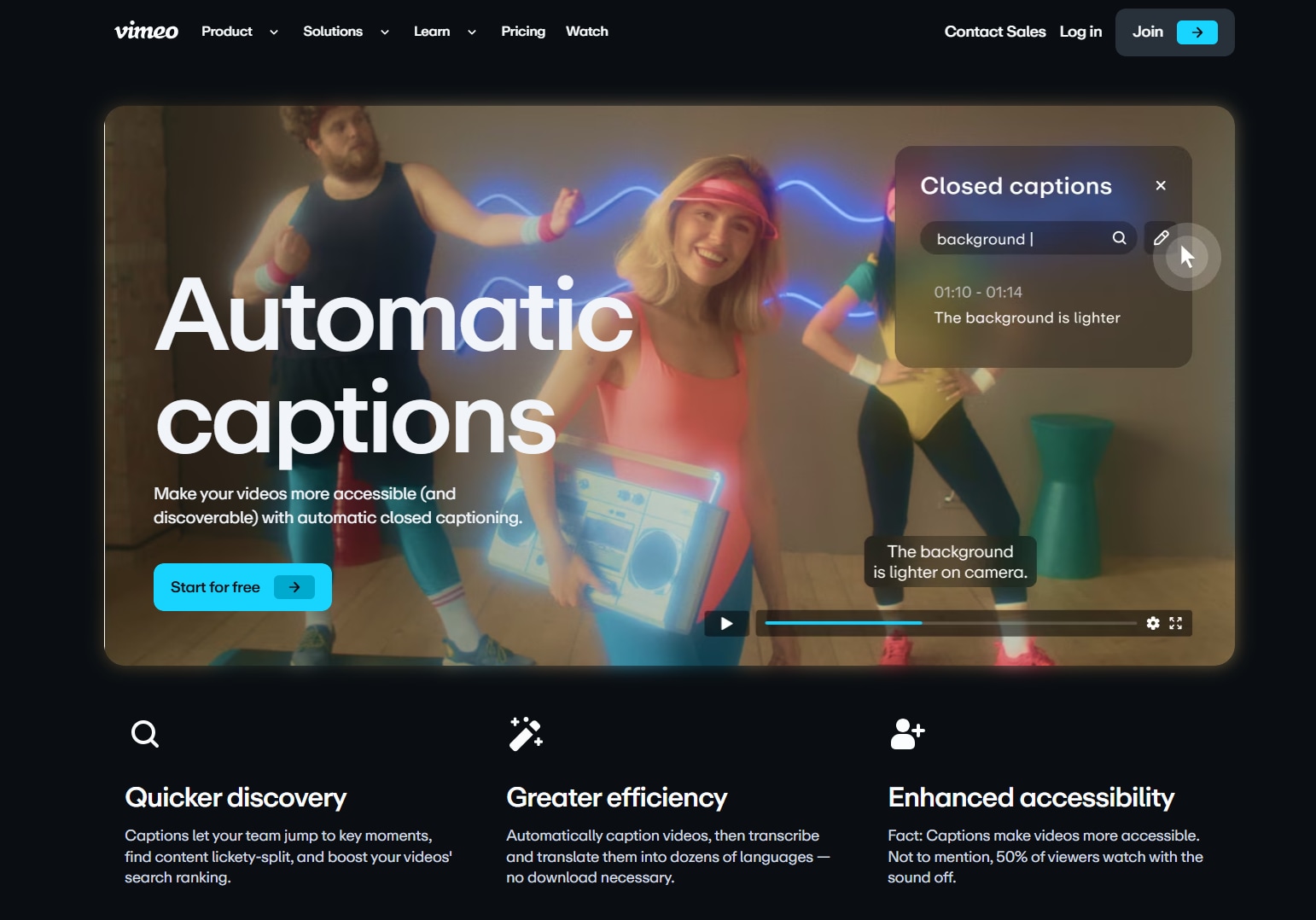
Vimeo has a built-in feature that automatically generates captions for your videos. This is a great starting point, as it's integrated directly into the platform.
How It Works:
For all paid Vimeo plans (Standard, Advanced, Pro, Business, Premium, and Enterprise), Vimeo will automatically transcribe your videos upon upload (as long as the video was uploaded after May 25, 2022, and is under 8 hours).
- Upload your video to Vimeo.
- Go to your Video Manager and select the video.
- On the left-hand toolbar, click "Languages" (it may also be under "Subtitles" or "Captions" depending on your UI).
- You should see an auto-generated file for the language spoken in your video (e.g., "English (Autogenerated)").
- Toggle the switch "On" to display these captions.
- To edit them (which you absolutely must do), click the overflow menu (⋮) next to the file and select "Edit". This will open Vimeo's caption editor, where you can correct spelling, grammar, and timing.
Method 2: Uploading Your Own Transcript File (.srt, .vtt)
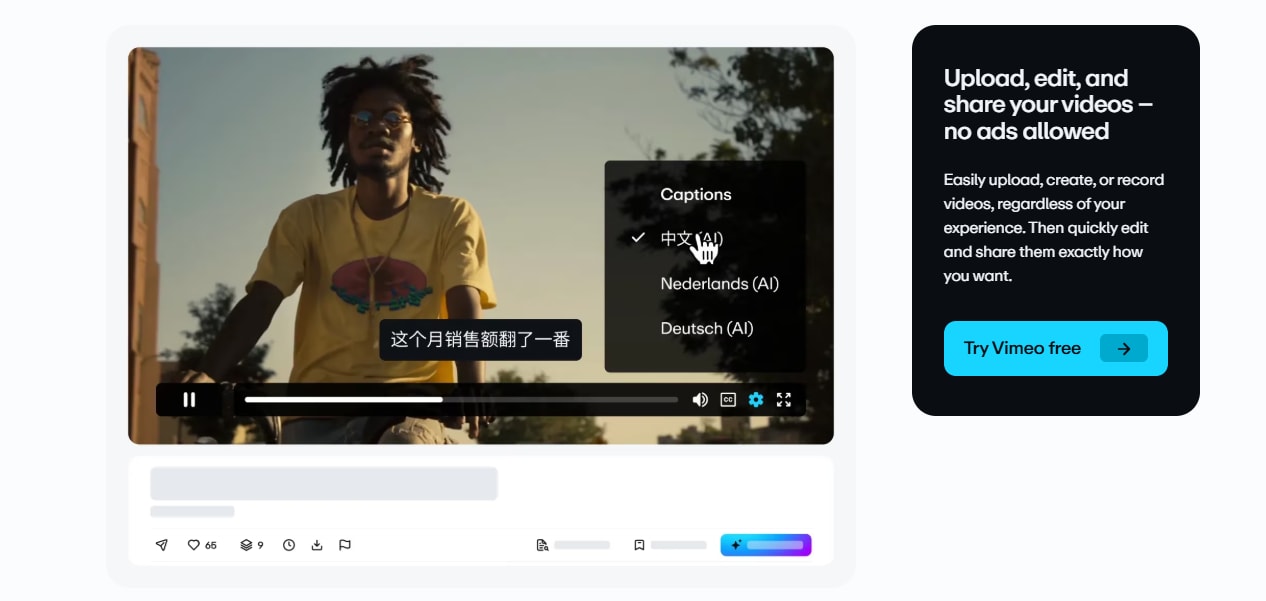
This is the "do-it-yourself" method. It's the only truly 100% transcribe Vimeo video to text free solution, but it requires the most manual labor. This method involves you (or an intern) manually typing the script and saving it in a special caption format, such as .srt (SubRip Text) or .vtt (Video Text Tracks).
How It Works:
An .srt file is just a plain text file with a specific format. You can create one in any basic text editor (like Notepad on Windows or TextEdit on Mac).
The format is:
[Caption Number]
[Start Time] --> [End Time]
[Caption Text (1-2 lines)]
[Blank Line]
Example:
1
00:00:02,120 --> 00:00:04,800
Hello everyone, and welcome back to our channel.
2
00:00:05,000 --> 00:00:07,300
Today, we're discussing Vimeo transcription.
(Note the precise HH:MM:SS, MMM timestamp format. This is critical.)
Once you have laboriously created this file for your entire video, you upload it to Vimeo:
Go to your Video Manager and select the video.
On the right-hand side, click "Advanced".
Navigate to the "Distribution" tab, then "Subtitles".
Click the + button.
Select the language and type (Captions).
Click "Choose File" and upload your .srt or .vtt file.
Method 3: Using a Professional Transcription Service (Recommended for Accuracy)
This is the method for serious creators, businesses, and anyone who values their time and brand reputation. It involves using a dedicated third-party tool that leverages advanced, highly trained AI to do the work for you with speed and precision.
While Methods 1 and 2 represent a trade-off (Time vs. Cost), Method 3 gives you the best of both worlds: it's incredibly fast and highly accurate.
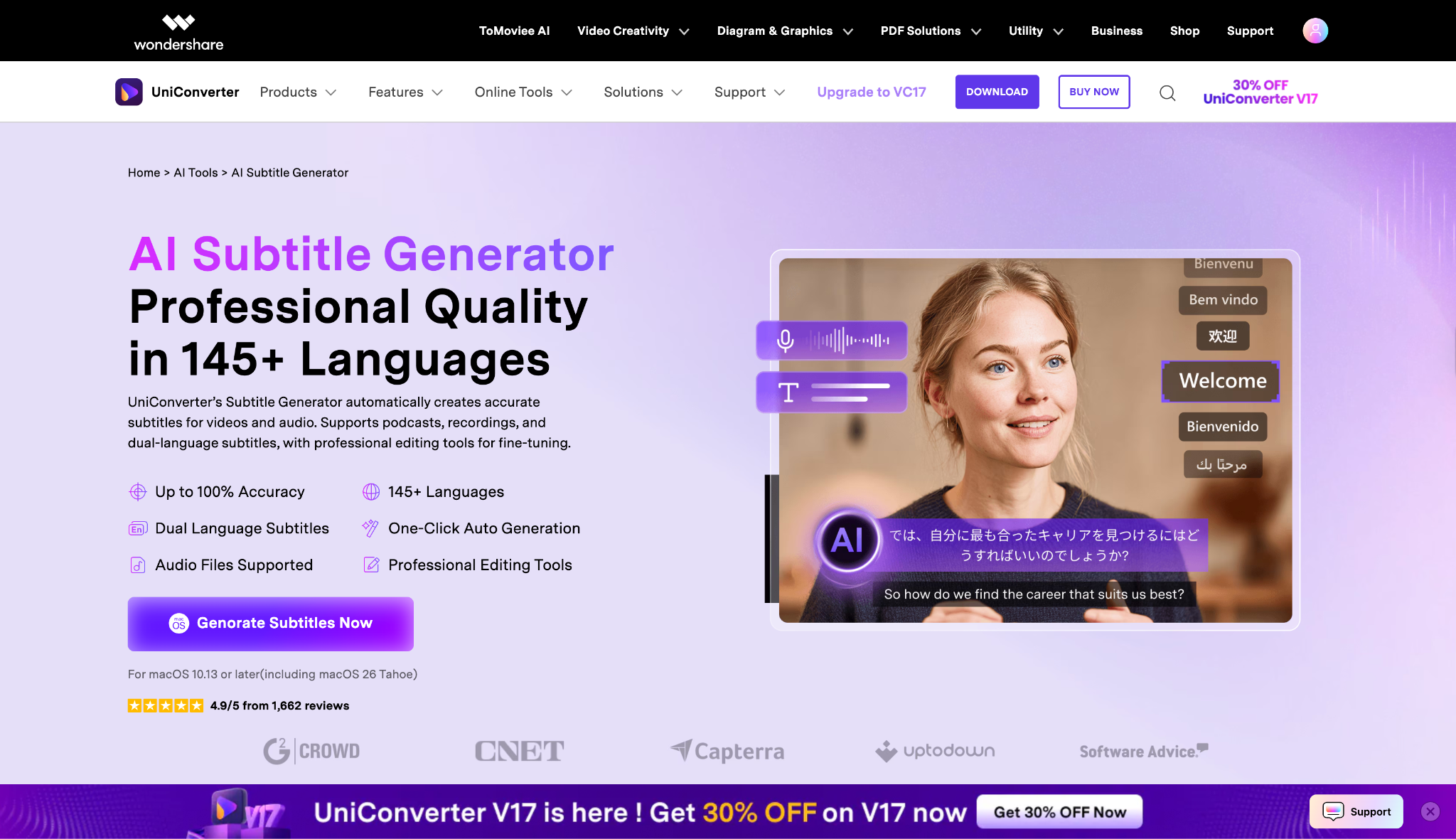
For this, we highly recommend UniConverter.
How to Transcribe a Vimeo Video with UniConverter:
- Open UniConverter and Import Your Video: First, download your video file from your Vimeo account. Launch the UniConverter software on your Mac or PC. In the main dashboard, navigate to the "Subtitle Editor" and then add your downloaded Vimeo video file(s) into the window.
- Start the AI Transcription: Once your video is loaded, select the language spoken in the video from the available options (UniConverter supports over 145). After selecting the language, click the "Transcribe" button. UniConverter's AI will immediately begin analyzing the audio.
- Review and Export Your Subtitle File: In just a few minutes, a full, timestamped transcript will appear in UniConverter's built-in editor. Take a moment to proofread the text and correct any specific names or technical jargon. When you are satisfied, click the "Export" button and save the file in either .srt or project file format.
- Upload the Transcript to Vimeo: Finally, go back to your video on Vimeo. Follow the steps in Method 2 ("Upload Your Own Transcript File") to upload the new, professional-grade .srt file you just exported from UniConverter.
Why UniConverter is the Recommended Choice:
- Exceptional Accuracy: Its AI engine is trained for high accuracy (100%), far surpassing the built-in auto-captions. It handles accents and background noise much more effectively.
- Support for 145+ Languages: It's not just for English. You can transcribe and even translate your content to reach a global audience.
- Blazing-Fast Speed: What takes 4 hours manually takes just 5-10 minutes.
- Built-in Subtitle Editor: A full-featured editor lets you tweak text, merge/split lines, and adjust timestamps with ease.
- All-in-One Toolkit: After transcribing, you can use the same software to burn the captions into the video for social media, edit the video, compress it, or even use the "Video Summarizer" AI to get a quick summary.
- Batch Processing & Speaker ID: It can handle multiple files at once and even identify different speakers, which is a lifesaver for interviews.

Easy to Use Batch Vimeo Transcriber
Part 3. Best Practices for Vimeo Transcripts & Captions
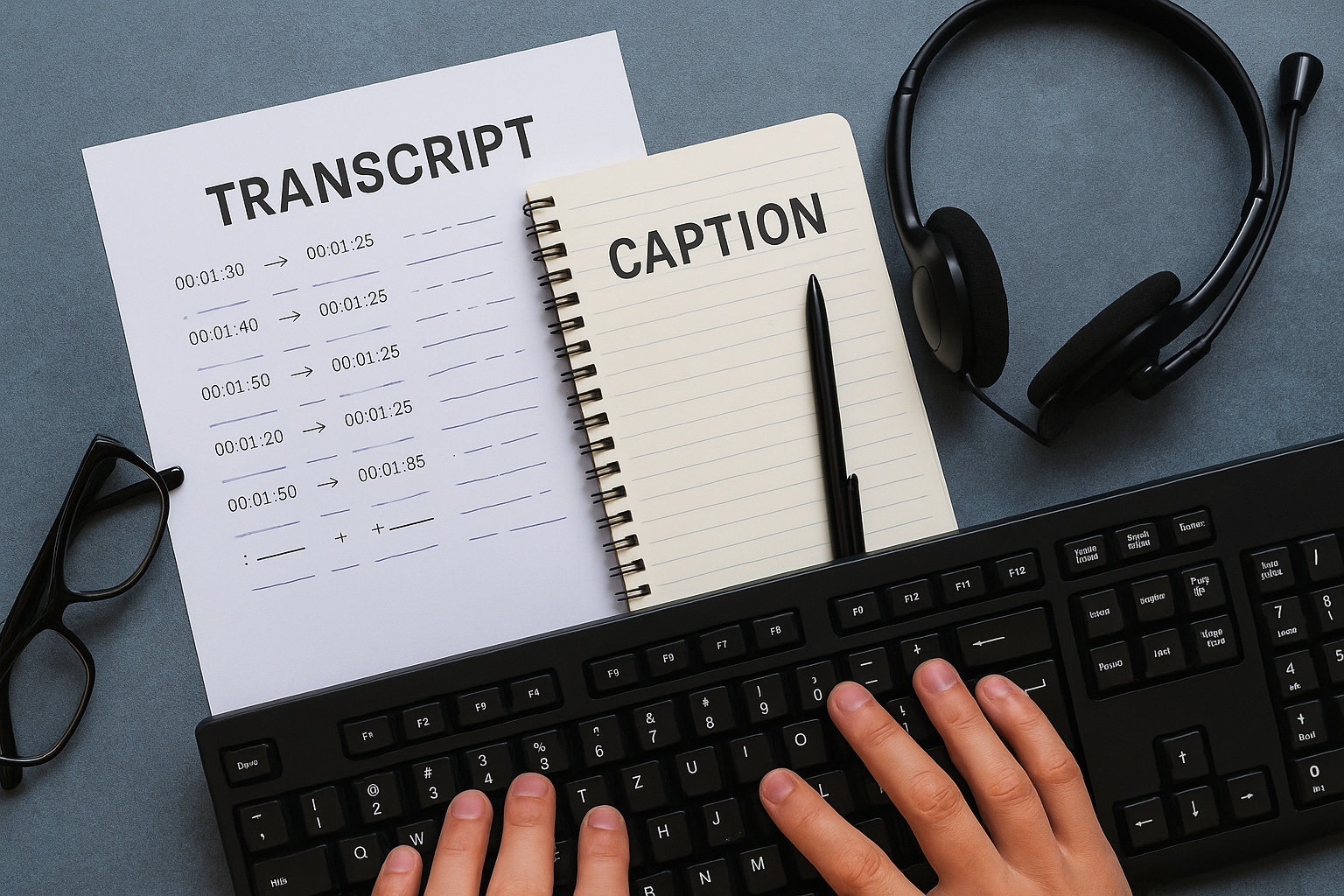
Ensure High Accuracy: Always proofread, even auto-generated ones
This is the golden rule. An inaccurate caption is worse than no caption. It can lead to misinformation, confusion, or (in the worst case) an embarrassing or offensive error. Even with a 98% accurate tool like UniConverter, you should always do a final 5-minute review to catch proper nouns, brand names, or specific jargon. For Vimeo's auto-captions, this is non-negotiable and will take longer.
Format for Readability: Use line breaks and punctuation correctly
Don't just dump a wall of text. Good captions are an art form.
- Line Breaks: A caption should never be more than two lines on the screen at once.
- Character Length: Aim for a maximum of 42 characters per line. This ensures the viewer can read the entire line before it disappears.
- Synchronization: Ensure the text appears and disappears in sync with the speech. A good subtitle editor (like UniConverter's) makes this easy to adjust.
- Punctuation: Use punctuation! Commas, periods, and question marks guide the reader's cadence and make the text intelligible.
Identify Speakers: Use speaker labels if there are multiple people
If your video is an interview, a panel discussion, or a dialogue, your viewers need to know who is speaking. Without speaker labels, the captions become a confusing jumble of competing ideas.
A simple dash or a name in brackets is perfect:
>> Anna: I agree with that point.
>> John: But have you considered ...
Include Non-Speech Information: Add [music] or [applause] where relevant for context
This is a key accessibility practice. Captions should convey the entire audio experience, not just the words. This provides crucial context for deaf or hard-of-hearing viewers.
[laughter]
[applause]
[suspenseful music]
[phone rings]
[door slams]
These small additions make the difference between simply reading a video and truly experiencing it.
Part 4. Troubleshooting Common Vimeo Transcription Issues
"My subtitles aren't showing."
You've uploaded your .srt file and toggled it "on," but the "CC" button still doesn't appear on your video.
- Check the File Format: The most likely culprit. Did you save it as .srt or .vtt? Did you accidentally save it as a .txt or .doc file? Re-save and re-upload.
- Check the Language Tag: When you uploaded the file, did you correctly select its language (e.g., "English")? If the tag is missing, Vimeo may not display it.
- Check the Player Settings: Is it possible that the "CC" button is just hidden there? Check your embed settings to ensure the "CC" control is enabled.
- Check Language Code (Advanced): Some systems are picky. An .srt file might fail with a language code of en-us but work with en-US or just en. Try simplifying the code if you're using an API.
"The auto-generation feature is not available."
You're in your video settings, but the "auto-generate" option isn't there.
- This is a Plan Issue: This is almost always because you are on a Vimeo Free plan. As of 2025, automatic transcription is a feature reserved for paid members (Standard, Advanced, Pro, etc.).
- Video Age: The auto-caption feature only works for videos uploaded after May 25, 2022. If your video is older, the auto-captions won't exist. The fix is to re-upload the video.
- Video Length: Auto-captions may fail or not be available for videos longer than 8 hours.
"My .srt file won't upload."
You click "Choose File," select your .srt file, and Vimeo shows an error.
- Check Timestamp Formatting: This is the #1 cause of failure. The format must be HH:MM:SS,MMM (hours, minutes, seconds, milliseconds). A common error is using a period instead of a comma (e.g., SS.MMM).
- Check Encoding: Your text file must be saved with UTF-8 encoding. This is the standard for web text and supports all characters. If it was saved in a different format (like ANSI), it might contain unsupported characters. Open it in a text editor and "Save As" with UTF-8 encoding.
- Check for Missing Blank Lines: Remember the format: number, timestamp, text, blank line. If you forget the blank line between entries, the file is considered "corrupted" and will fail to open.
Conclusion
In today's content landscape, your video's audio is too valuable to remain locked away. **Batch transcribing your Vimeo videos** is the definitive strategy to amplify your reach, ensure inclusivity, and maximize your content's ROI. By moving beyond manual methods, you transform your entire library into a searchable, reusable asset that works for you around the clock. Don't let inefficient processes limit your impact. Embrace the power of automation to enhance your video SEO, guarantee accessibility, and unlock effortless content repurposing. Start your journey today and ensure your message is heard, read, and discovered by everyone.
Stop letting your message be half-heard. Start your Vimeo video transcription journey with Wondershare UniConverter today and let your content speak to everyone, everywhere.
Easy to Use Batch Vimeo Transcriber
FAQs
-
1. How can I transcribe Vimeo video to text free?
You have two main options for a Vimeo transcription free solution. The first is to use Vimeo's built-in auto-captioning, which is included with a paid Vimeo plan (Standard, Pro, etc.). The second, 100% free method, is to manually transcribe the video yourself into a text editor and format it as an .srt or .vtt file (as shown in Method 2). -
2. What is the most accurate way to get a Vimeo video transcription?
The most accurate method is manual transcription (Method 2), but it is prolonged. The fastest and most accurate method is to use a professional, AI-powered service like UniConverter, which consistently delivers 95%-98%+ accuracy in a fraction of the time. -
3. Why is my Vimeo to text conversion (auto-captions) not working or failing?
This is likely for one of four reasons:
• You are on a "Vimeo Free" plan, which does not include auto-captions.
• Your video was uploaded before May 25, 2022 (you must re-upload it).
• Your video is longer than 8 hours.
• The audio quality is too poor (e.g., loud music, silence for the first 30 seconds) for the AI to detect speech. -
4. Can I get a transcript for a Vimeo live event?
Yes, but the rules are different. Auto-captioning for live events is available on Vimeo's Advanced, Premium, and Enterprise plans, but it is limited. Advanced and Premium members get 2 hours of live auto-CC per year, while Enterprise members get 30 hours. For more, contact their sales team or transcribe the recorded event after it's over using a tool like UniConverter.

