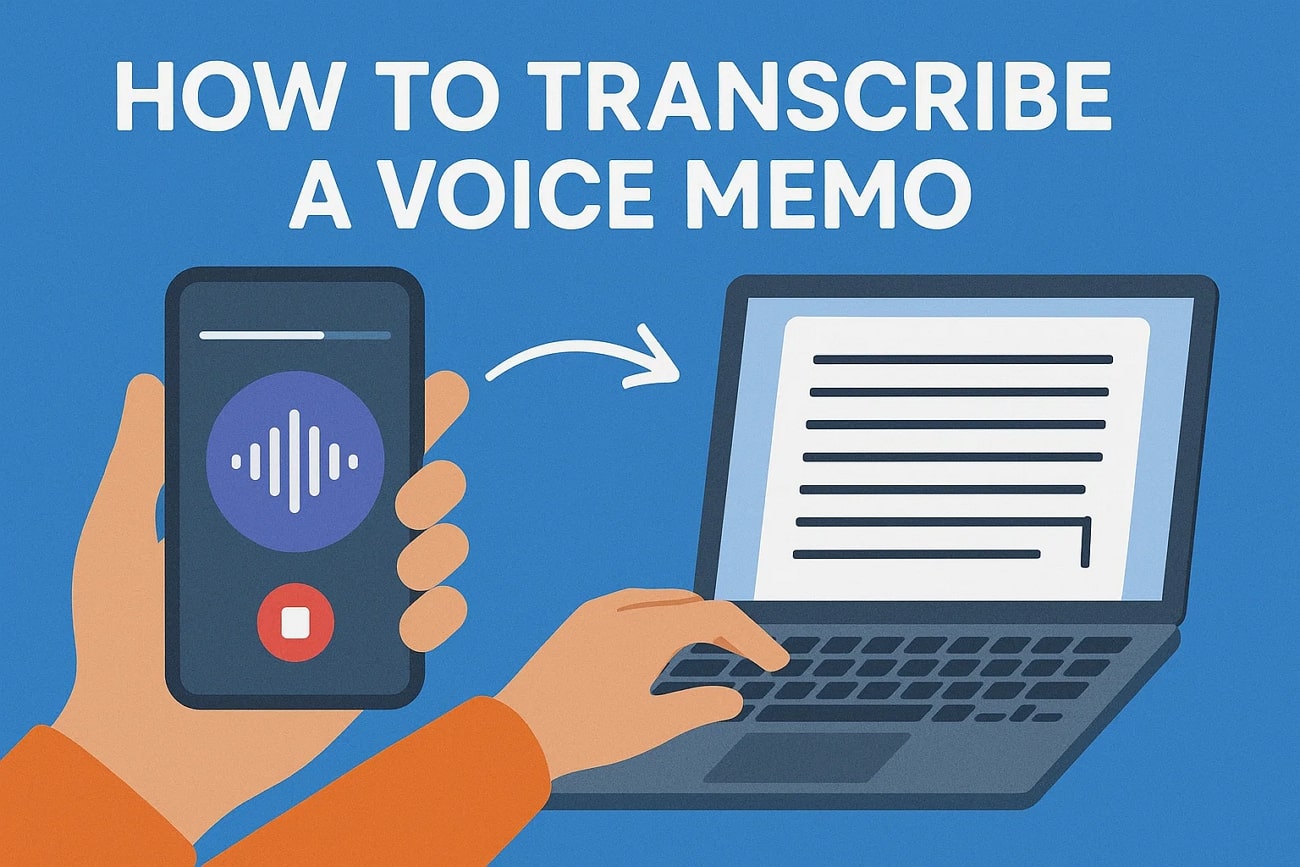
As we know, the use of voice memos has become very common among students and workers nowadays. They basically help record important thoughts and reminders without needing to write anything down at that moment. Even so, listening to long recordings later can be slow and hard to manage, especially during busy schedules. This is where many individuals seek an effortless way to convert their voice recordings into readable text.
Besides replaying the same memo repeatedly, you can simply scan the text and access the readable version. Luckily, various tools are available to help you batch convert voice memos into text without confusion or delay. So, this article will help you explore multiple ways to learn how to transcribe a voice memo on any device.
In this article
- How to Easily Batch Transcribe Voice Memos on Desktop
- How to Convert Voice Memos to Text with Built-in Mobile Tool
- How to Transcribe Voice Memos with a Voice Transcriber on iPhone/Android
- How to Transcribe Voice Memos with Voice Recognition Keyboard
- How to Convert Voice Memos to Text Online
- Conclusion
- FAQs
Part 1. How to Easily Batch Transcribe Voice Memos on Desktop
When you want a fast and accurate way to transcribe voice memos on a desktop, try using UniConverter. This dedicated software utilizes smart AI that turns speech into text quickly and correctly with 95% accuracy. You can import multiple audio or video files and start the batch transcription process right away with just one click. Plus, it even supports more than 20 languages, which is helpful for users with different speaking needs.
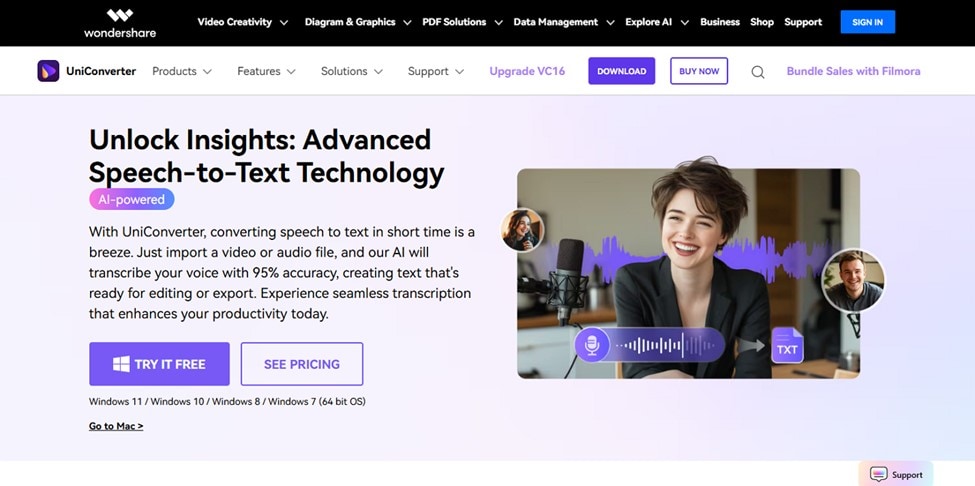
Furthermore, the advanced program is also available on both Windows and Mac, which makes it best to learn how to transcribe voice memos. Apart from transcribing your audio or video files, you can also opt for this tool to convert these files into other formats effortlessly. For this purpose, it supports more than 1000 formats to address the conversion of video or audio files without losing quality.
Key Features
- Exported Location: It lets you choose your desired location on your desktop to download the transcribed voice memos automatically.
- File Delete Feature: When you mistakenly upload the wrong file during batch processing, you can remove it easily by clicking the “Trash” icon.
- ASR Detection: The program uses Automatic Speech Recognition to convert spoken words into accurate and readable text formats effortlessly.
- File Support for Transcribing: Users can transcribe multiple formats of audio and video files, including MP3, MP4, and more, without any hassle.
- Fast Conversion Speed: UniConverter delivers quick processing times even for large or multiple files, which makes it stand out for all users.
Stepwise Guide to Easily Batch Transcribe Voice Memos on Desktop Using UniConverter
As you discover the top features, take guidance from the steps below to understand how to convert voice memo to text using this tool:
Step 1. Access the UniConverter to Transcribe Voice Memos
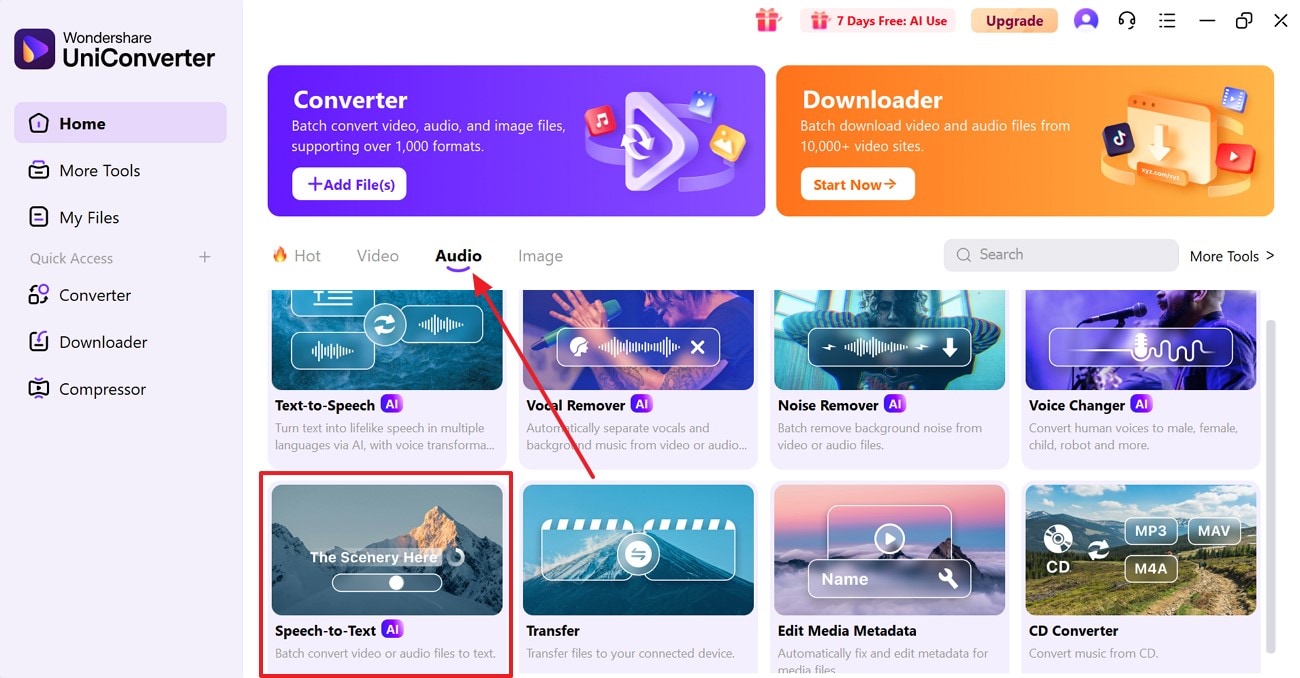
When you run this advanced tool, head to the “Audio” tab and opt for the “Speech To Text” feature to move further.
Step 2. Select All Voice Memos to Start Transcribing
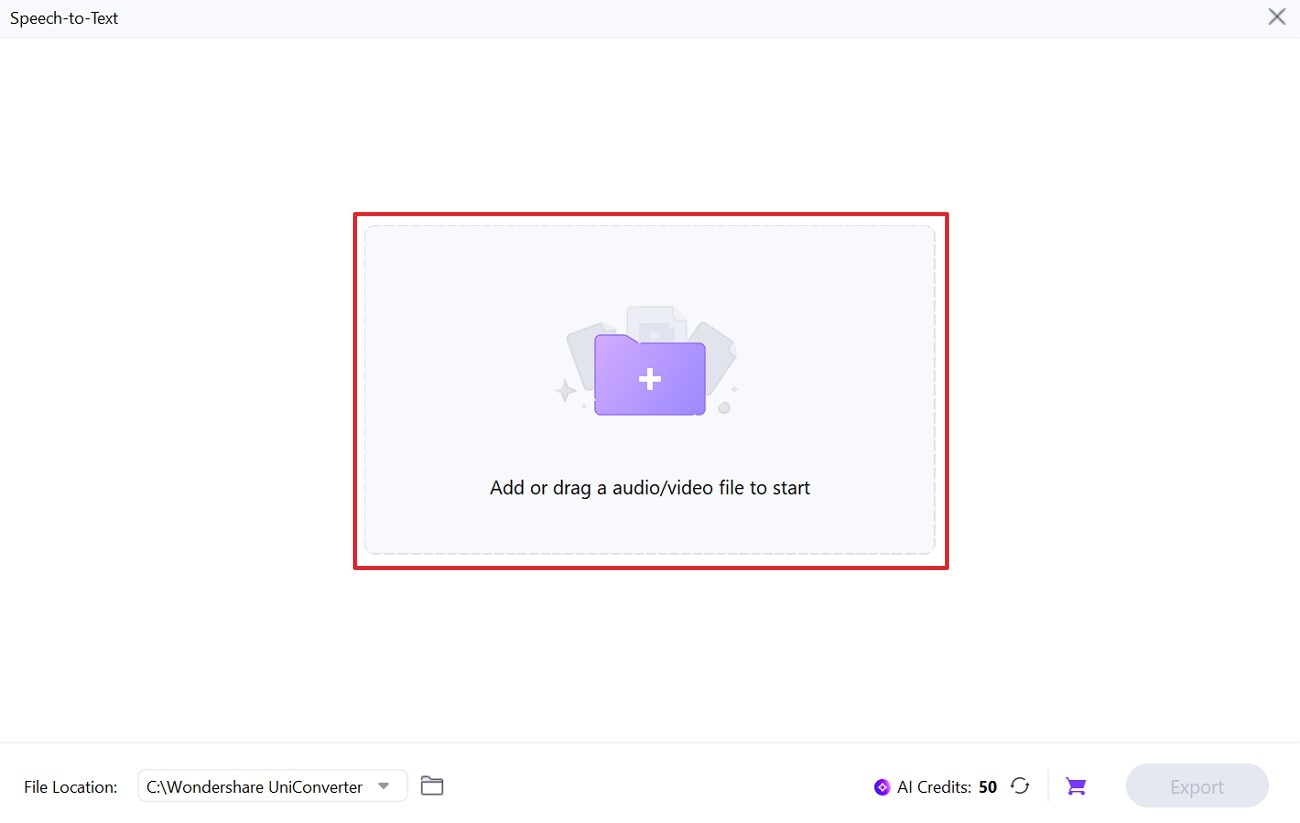
Upon seeing a new display, press the “Add or Drag Audio/Video File to Start” section to import the voice memo files to the tool.
Step 3. Transcribe Your Voice Memo and Export it to Your Device
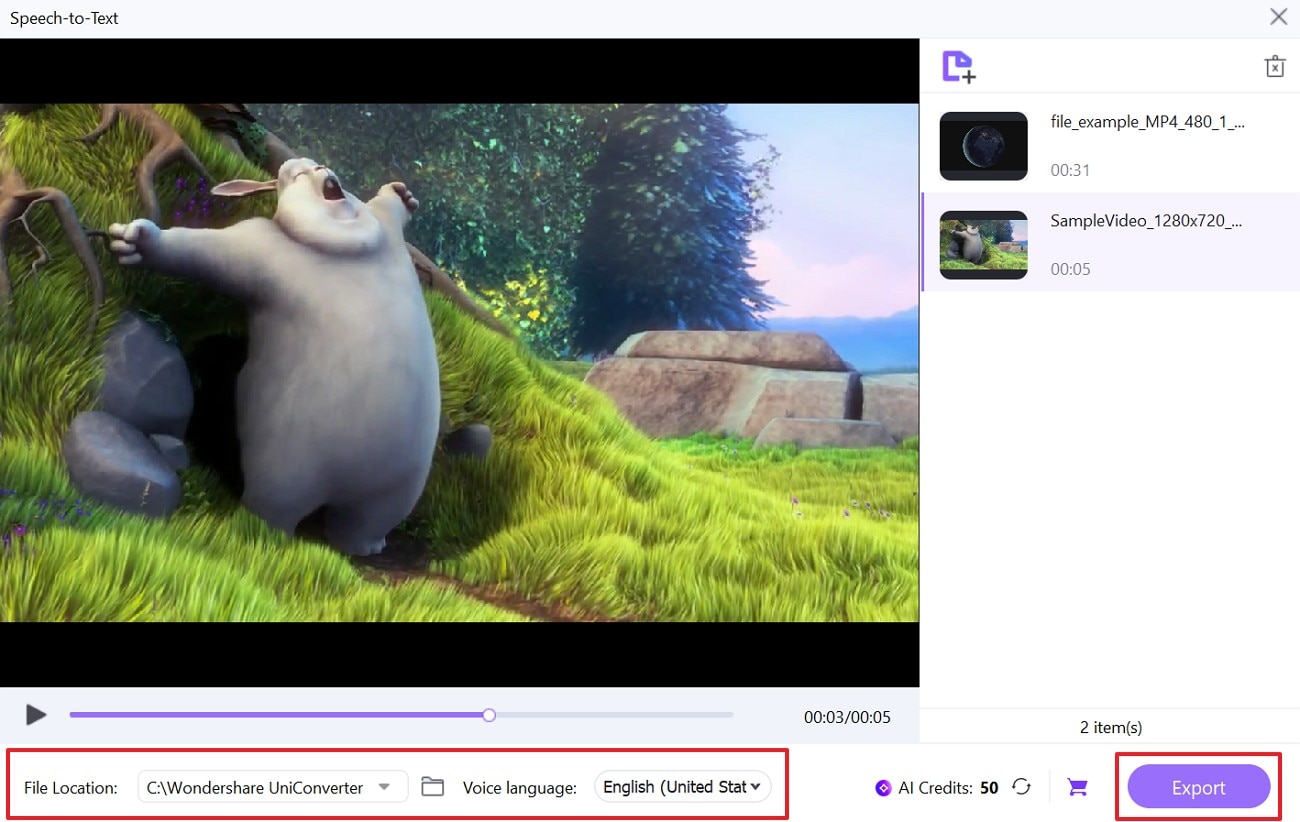
As they import, simply click the “Voice Language” dropdown box to choose your desired language for transcribing. Afterward, select your preferred destination in the “File Location” section and press the “Export” button to save the transcribed files to this folder.
Part 2. How to Convert Voice Memos to Text with Built-in Mobile Tool
When you want to overcome this need on your mobile phone without installing anything, below are native options to learn how to transcribe voice memos to text:
For iPhone
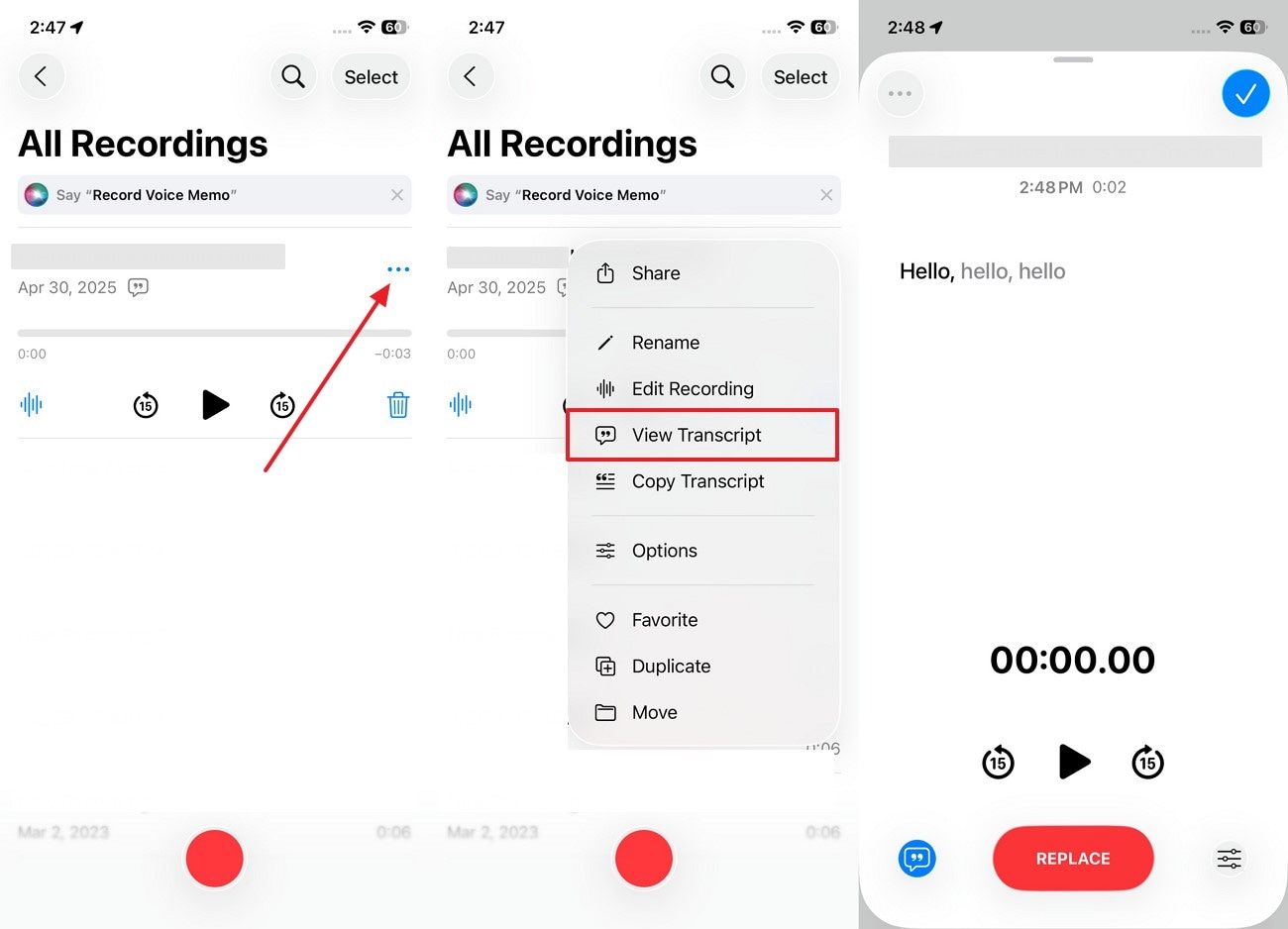
It offers a native Memos app that works well with Siri, which allows you to transcribe your voice memos effortlessly. The app provides a feature known as “View Transcript" right after recording your audio. In addition to that, you can even copy your audio transcript or edit it according to your needs. So, go through the guide to find out how to transcribe voice memos on iPhone:
Instructions
As you access the app’s main display, tap the “Three Dots” on your voice recording and choose the “View Transcript” feature. After that, you will be able to see the readable text on your audio file.
For Android
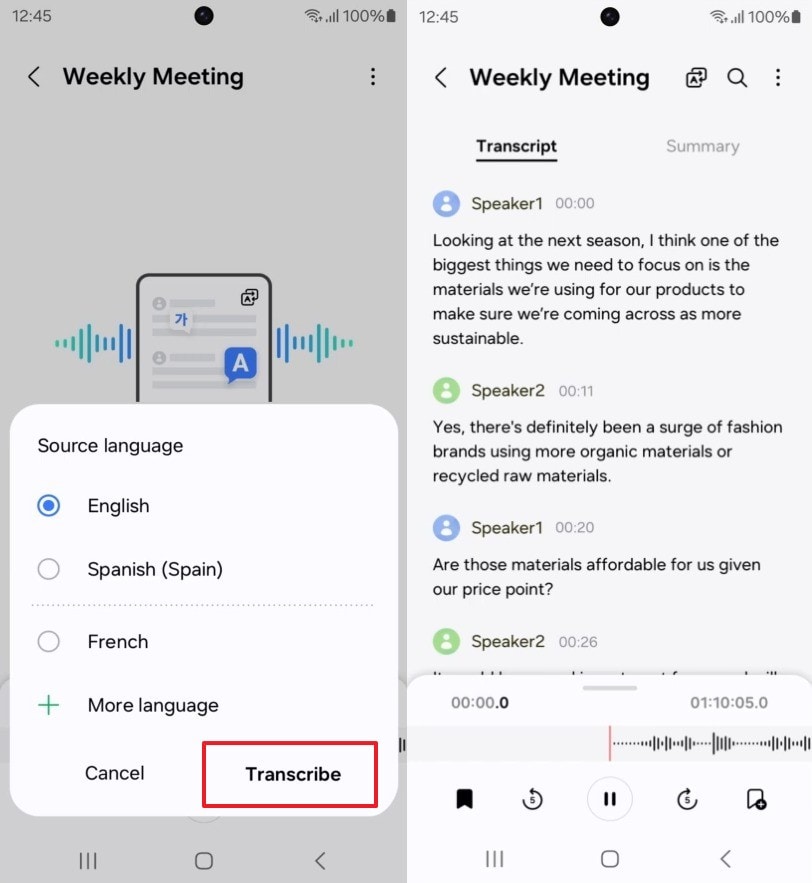
Samsung’s Galaxy AI offers a smart way to transcribe voice recordings using built-in features on supported Android devices. It works on Galaxy S24 and S23 series, S23 FE, Z Fold5/6, Z Flip5/6, and Tab S9 or newer models. Plus, this feature supports 20+ languages to transcribe audio, which makes it the best choice for the latest mobile users.
However, as old phone users can’t access this feature, you can still perform this action by another method discussed further. Anyhow, adhere to the given guide to understand how to turn voice memos into text on your Android:
Step 1. Once you run the Voice Recorder app, tap the recording and then hit the “Transcibe” button on the next screen.
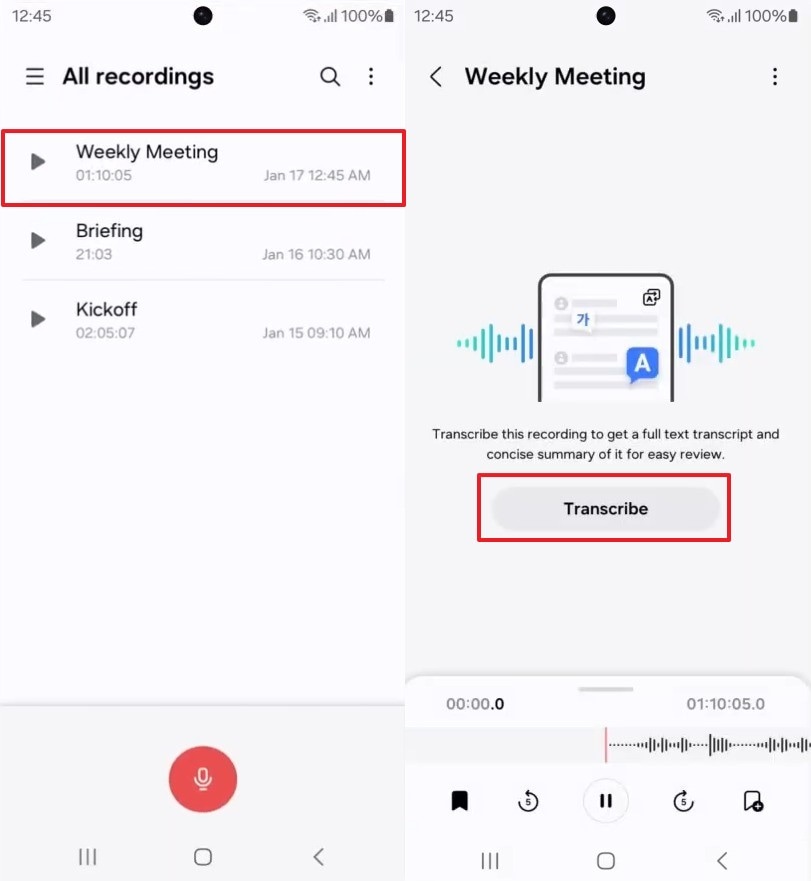
Step 2. As you see new options, opt for your preferred language for transcription and tap the “Transcribe” button to see the result.

Easy to Use Batch Voice Memo Transcriber
Part 3. How to Transcribe Voice Memos with a Voice Transcriber on iPhone/Android
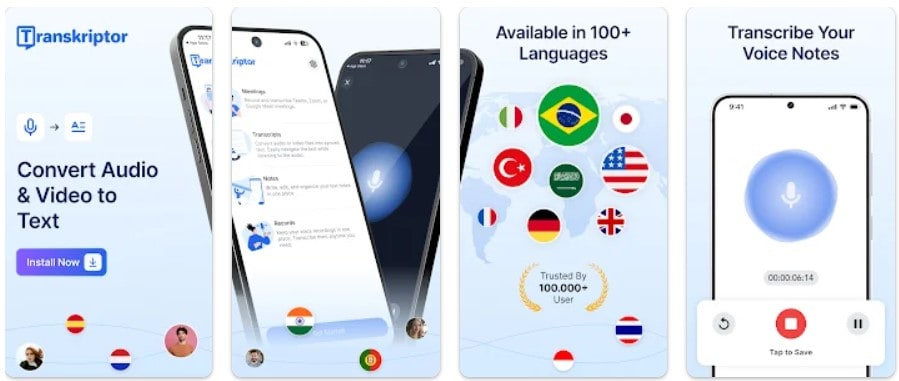
Transkriptor [Android/iPhone] stands out as the best app that uses AI to turn your voice recordings into well-organized and accurate written notes automatically. They support popular audio formats like MP3 and M4A for smooth and flexible transcription on any device. You can also transcribe your file from various platforms like YouTube, devices, and more. Thus, let’s dive below to understand how to transcribe a voice recording on iPhone or Android:
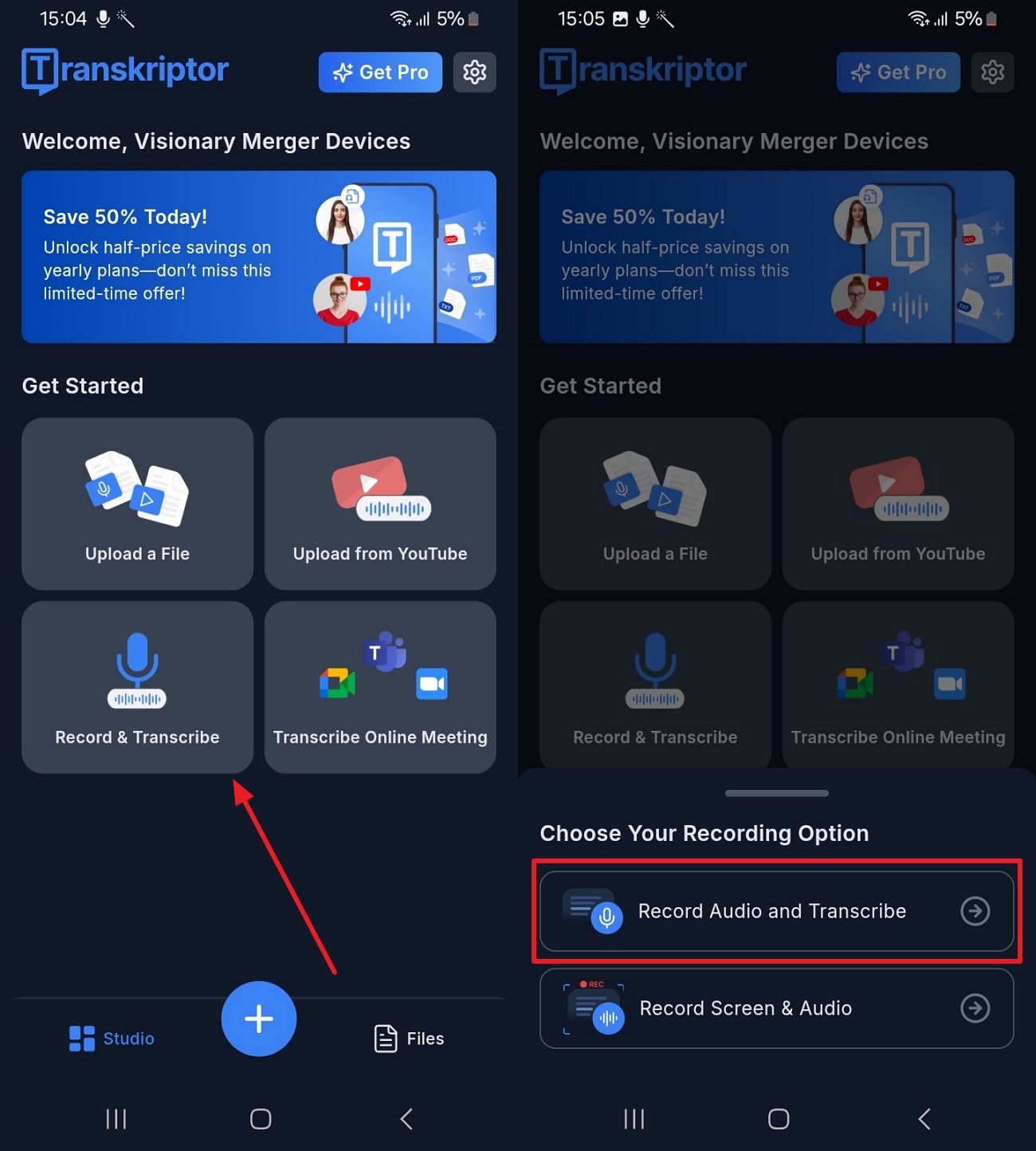
Step 1. After you launch this app on your older Android device, tap the “Record & Transcribe” feature and then opt for the “Record Audio And Transcribe” option.
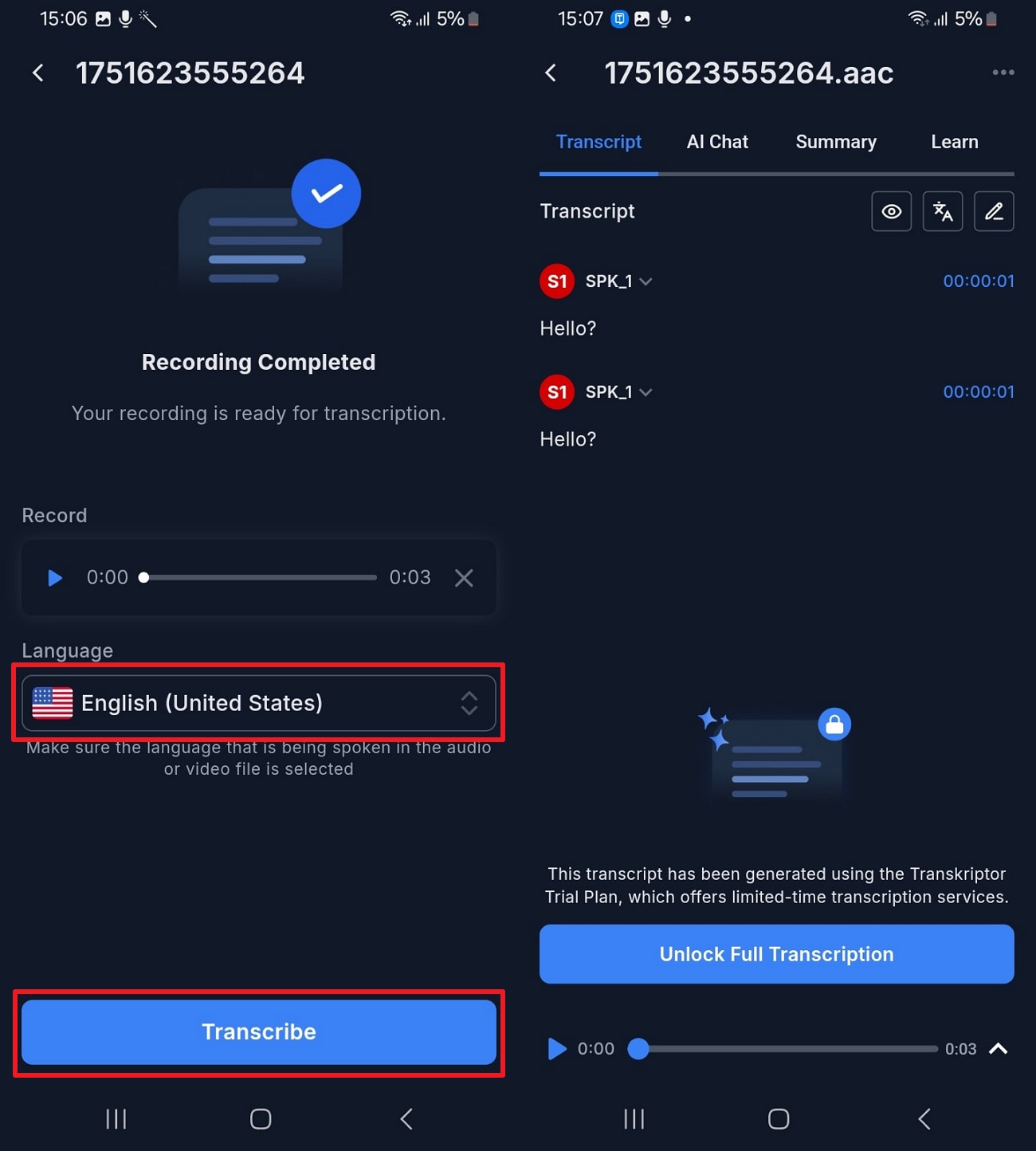
Step 2. Following that, record your audio, choose your desired language from the available options, and press the “Transcribe” button to finish the task.
Part 4. How to Transcribe Voice Memos with Voice Recognition Keyboard
Voice recognition keyboards allow you to speak instead of type and turn your spoken words into readable text instantly. They are built into most smartphones and support different languages by making them easy to use for anyone, anywhere. Below, we will explore how to transcribe voice memos to text using Voice recognition keyboards on your PC or mobile:
On Mobile
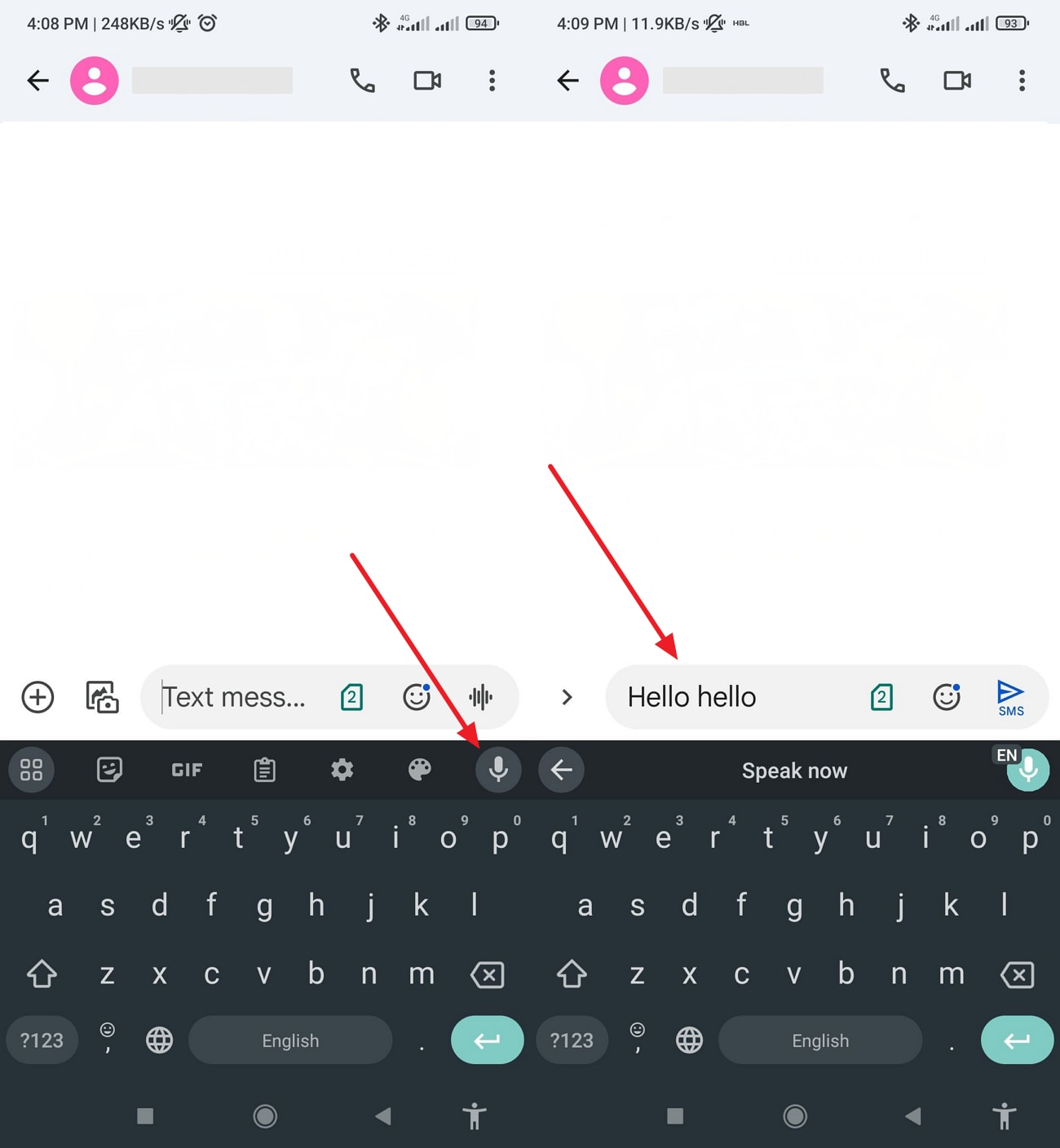
Using this feature on mobile is a quick way to turn your speech into written text in real time. It works with native keyboards on both Android and iPhone by offering a simple way to capture your thoughts. The tool supports multiple languages and works great for fast replies, notes, and short memo transcriptions on the go. So, follow the steps to find out how to convert voice memo to text on your phone:
Instruction
Initially, go to the app where you want your voice memos to be transcribed, like Messages or Google. After that, tap the “Speaker” icon on the keyboard and start speaking to convert the audio to readable text.
On PC
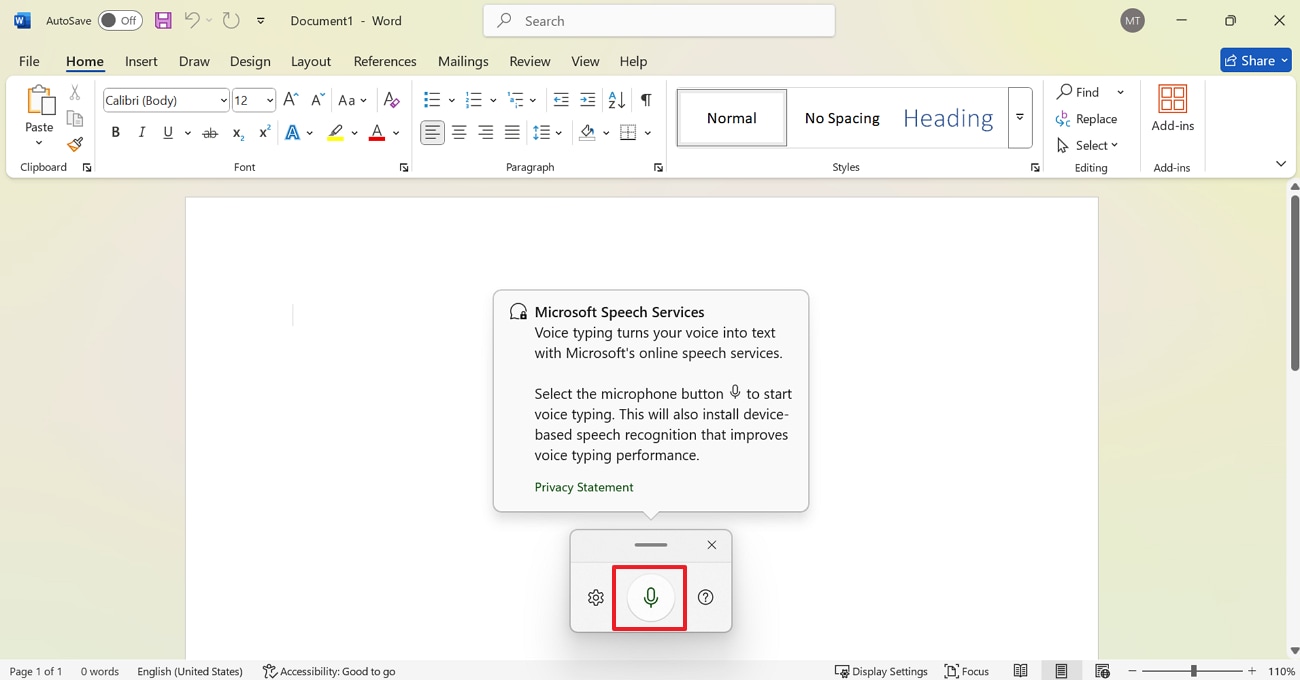
Users can also use this Voice Recognition feature on their Windows PC to convert voice memos to text in various apps like Notepad, Word, or Google Docs. It is known as Microsoft Speech Services, which lets you speak into your microphone and instantly see your words appear as editable text on screen. Hence, take guidance from the steps to learn how to transcribe a voice memo:
Instructions
As you launch the app like Word or Docs on your PC, press the “Windows + H” keys at once. Upon seeing a Microsoft Speech Service pop-up, press the “Speaker” icon to start speaking and convert it to readable text.
Part 5. How to Convert Voice Memos to Text Online
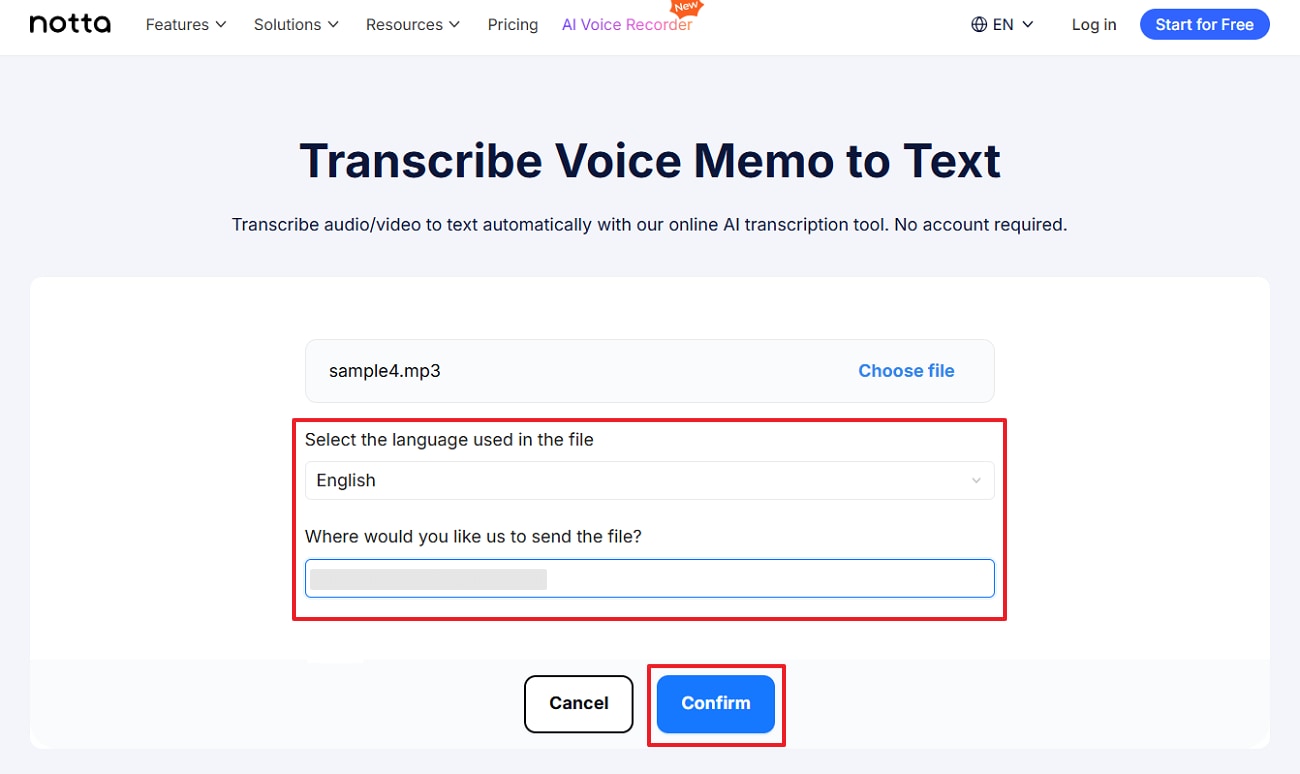
Apart from the tools mentioned above, Notta is a great online tool that lets you transcribe voice memos with many audio and video file types like MP3 and MP4. This dedicated tool supports 58 languages for conversion, which makes it best for global users. It uses advanced SSL to secure your files from unauthorized access. Anyhow, follow the quick steps to understand how to convert voice memo to text using this tool:
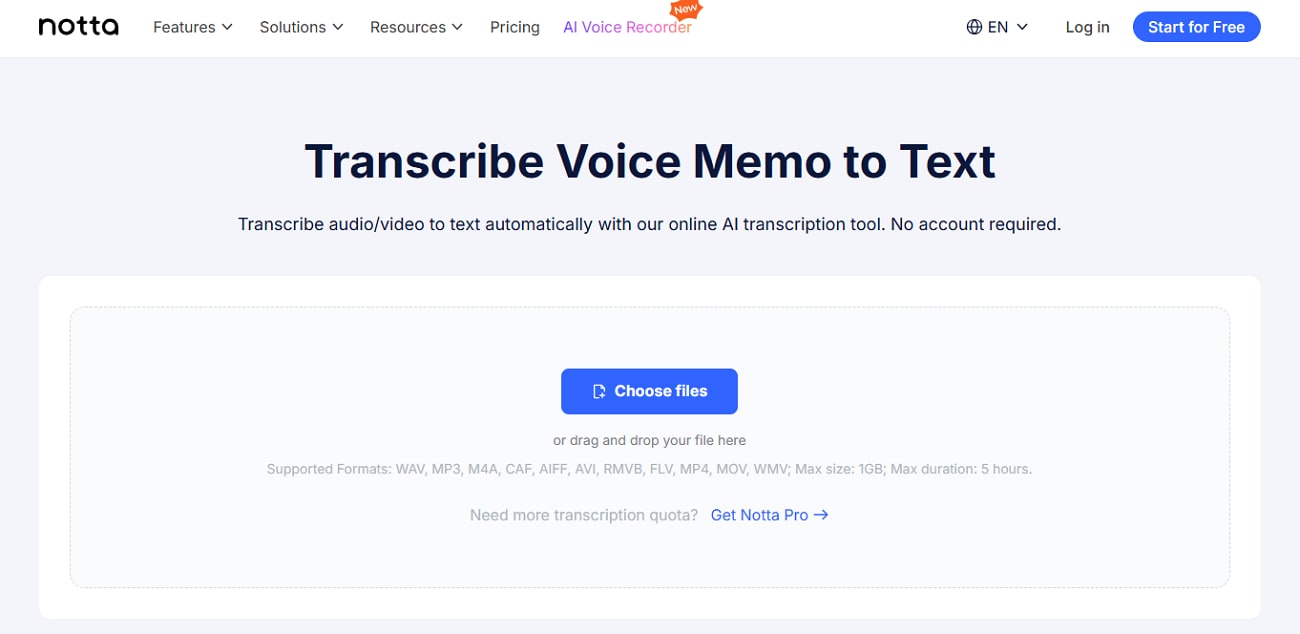
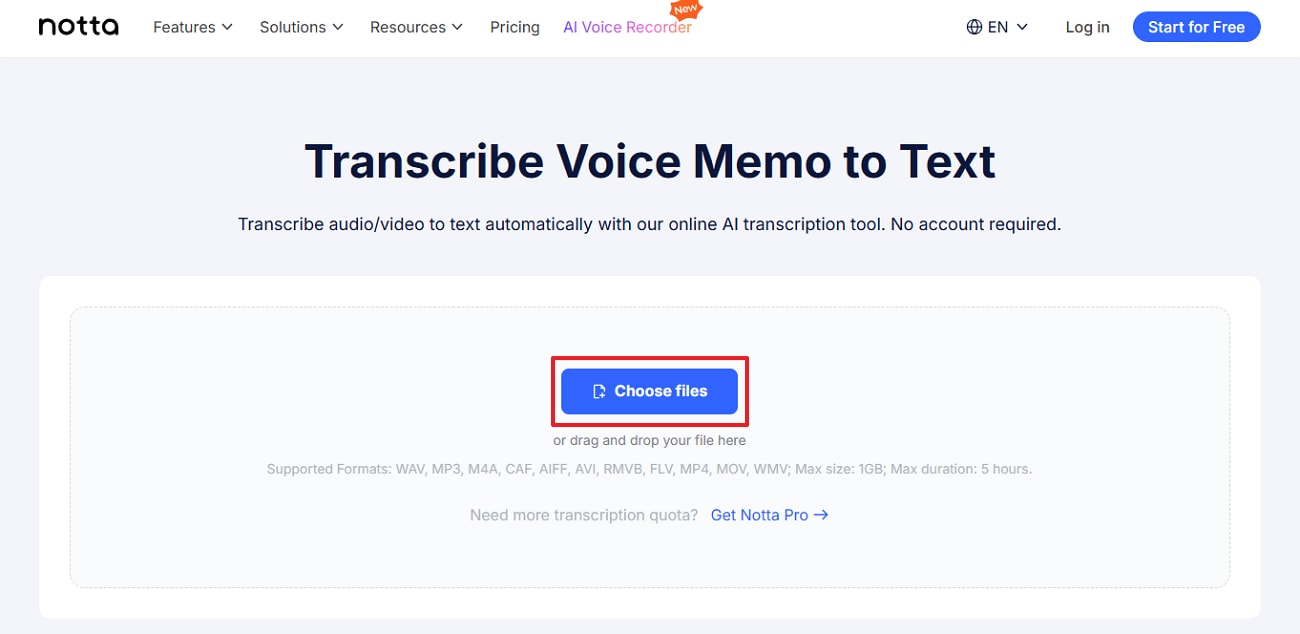
Step 1. As you access the “Transcribe Voice Memo to Text” tool page of Notta, press the “Choose Files” button to upload your voice memos.
Step 2. Subsequently, choose your preferred language in the “Select The Language Used In The File” section and then enter your email address. After that, you need to hit the “Confirm” button to let the tool transcribe it and alert you when it completes.
Conclusion
In summary, transcribing voice memos into text makes it easier to read and share important information anytime you desire. This article has explored several tools and apps that allow you to address this need. After learning how to transcribe a voice memo, many users still find it confusing to choose the best option. At this point, we highly recommend you use UniConverter, as it supports batch processing in over 20 languages.
Easy to Use Batch Voice Memo Transcriber
FAQs
-
1. How accurate are voice memo transcription tools?
Many modern transcription tools use AI to deliver very high accuracy, up to 95%, depending on the audio quality. Also, clean recordings with minimal background noise will always result in better transcriptions. Whenever the speaker talks clearly and avoids overlapping speech, the text is usually very accurate. -
2. How long does it take to transcribe a voice memo?
The time actually varies depending on the tool and the length of your voice memos. Most advanced tools usually transcribe files in a few moments, even when you upload large files. Plus, tools like UniConverter are known for their fast processing speed, even with large batch uploads. -
3. What’s the easiest way to transcribe a voice memo on a desktop?
The effortless way to address this transcribing need is to opt for a dedicated software known as UniConverter. It supports high accuracy and even allows you to transcribe multiple videos or audio files at the same time. Moreover, users can even alter the desired saved location where they want to save their transcribed files.