


Many people worry that free video software might damage their computer or risk their privacy. With so many fake websites online, finding safe tools has become difficult for everyone. This is where HandBrake comes in, solely responsible for video conversion and DVD ripping.
Yet, many users ask, "Is HandBrake safe in 2026 for video conversion?" People want to know if it is truly secure and worth trusting for conversions. This guide explores everything clearly so you can decide with confidence before downloading HandBrake.
In this article
- Quick Answer: Is HandBrake Safe to Use in 2026
- HandBrake Software Review: Core Features Explained
- HandBrake DVD Ripper Review: Can It Rip DVDs?
- HandBrake Video Converter User Review for Daily Use
- Why UniConverter Outshines HandBrake for All Your Video Needs
- Which Is Better? HandBrake vs. UniConverter Video Converter Review
- Conclusion
- Frequently Asked Questions
Part 1. Quick Answer: Is HandBrake Safe to Use in 2026
Many people still worry if HandBrake is truly safe for their computer and data. Some users hesitate because free software often hides risks like malware or tracking tools. They want to know if HandBrake can be trusted after years of new security updates. Let's explore how safe it really is and what users should know in 2026.
Is HandBrake Safe to Download from Any Website?
It is important to get HandBrake from its official site or trusted platforms only. Some third-party websites might include unsafe files that could damage and slow down your system. Reliable sources protect your device and ensure you receive the original, secure version of HandBrake.
Is HandBrake Free or Are There Hidden Costs?
HandBrake is completely free and does not charge users for downloads or updates. Many users frequently ask, “Is HandBrake free to use?” because they worry about hidden charges or scams. The software is open source that means everyone can safely use it without paying anything.
Part 2. HandBrake Software Review: Core Features Explained
HandBrake offers powerful tools that help users convert and manage videos across different devices. Now, we will look at its key features that make everyday video conversion effective.
Video Conversion: HandBrake supports many video formats to let users convert files without losing quality. It verifies smooth conversions for all major devices, such as smartphones, tablets, and televisions.
Presets and Profiles: The software has built-in presets that automatically adjust settings for different devices. This helps beginners create optimized videos without learning advanced technical details and complex adjustments first.
Subtitles and Audio Tracks: Users can add subtitles and multiple audio tracks and conveniently convert their favorite movies. It keeps everything synced to make playback comfortable for multilingual viewers and learners.
Compression Tools: HandBrake reduces video file sizes without noticeable loss of quality in the output. Smaller files save storage space, making sharing and uploading faster for daily use.
Customization Options: Advanced users can manually adjust resolution and codecs to get desired results. These personalized options make videos look professional and give full control over output quality.
DVD Ripping Support: HandBrake allows converting Hand Brake DVD files into digital versions with dependable performance. This makes archiving, transferring, and watching old disc collections easier and more convenient.
Part 3. HandBrake DVD Ripper Review: Can It Rip DVDs?
HandBrake can convert many DVDs into digital video files, safely stored on your computer. It helps users back up discs and save space without using physical media. However, it cannot bypass strong protections on some commercial DVDs, depending on local laws. This section will guide you through ripping DVDs and supporting your HandBrake software review.
Step-by-Step Guide: Safely Ripping Videos with HandBrake
Ripping a DVD with HandBrake is simple when you follow each step with care. Now, follow the steps below to convert your DVD into a playable video:
Step 1. Lauch Handbrake
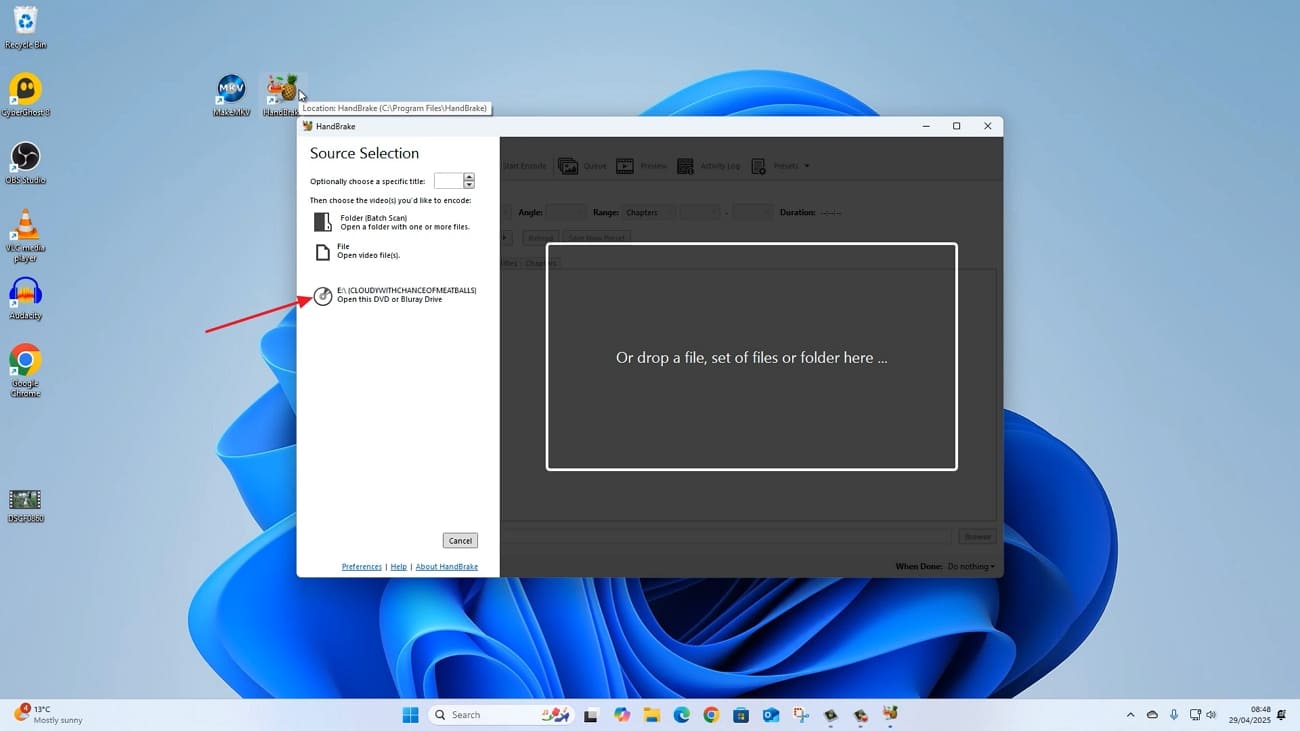
First, insert your DVD into your PC and open the HandBrake application. After that, “Open Source” button in the top left corner and choose your DVD.
Step 2. Choose Presets
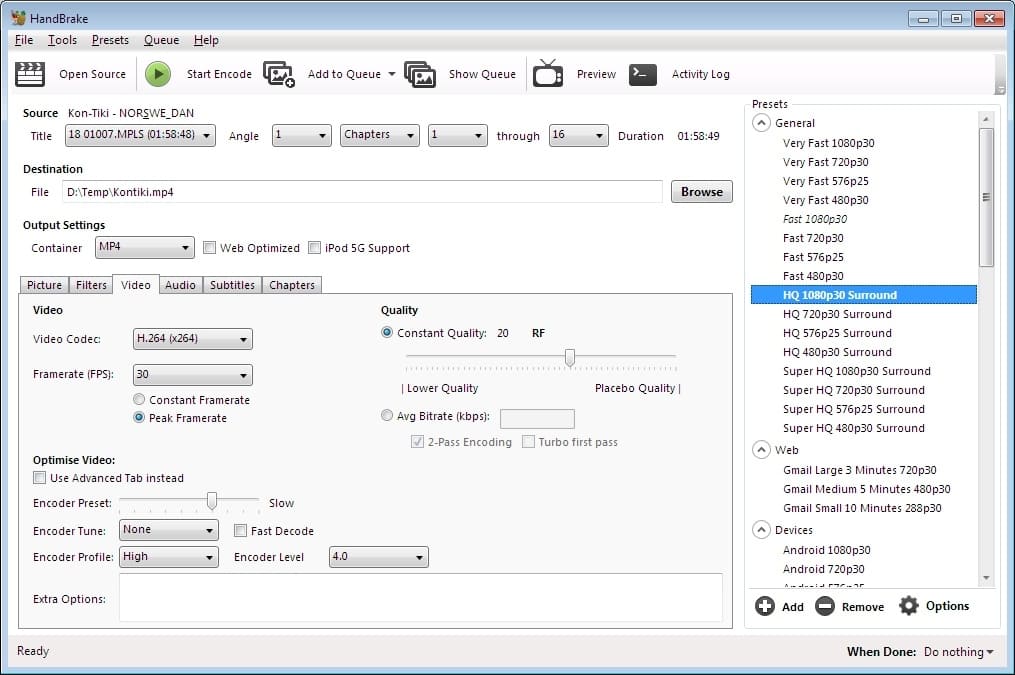
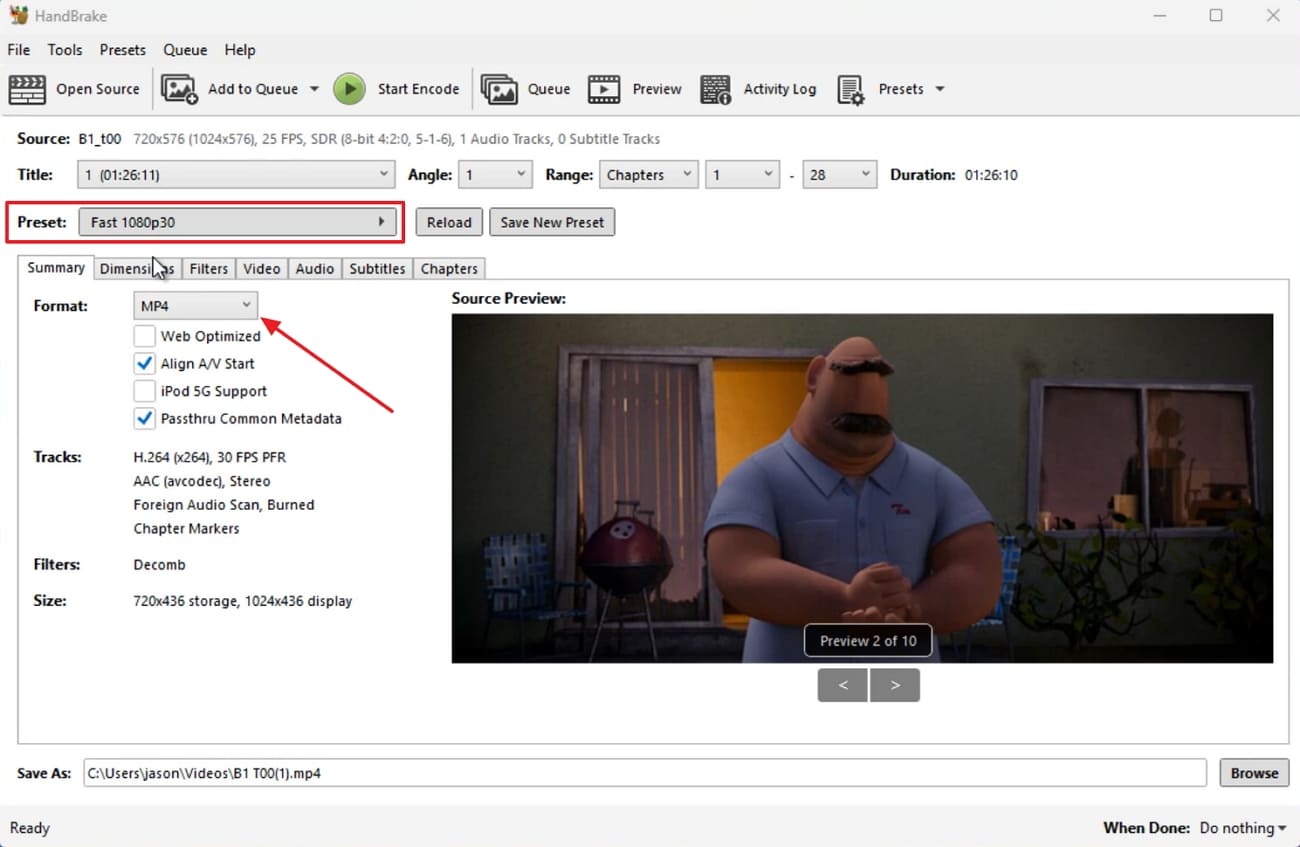
Once your video is on the main interface, choose a preset from the “Preset” option and select the format you want to rip in.
Step 3. Pick Dimension and Resolution
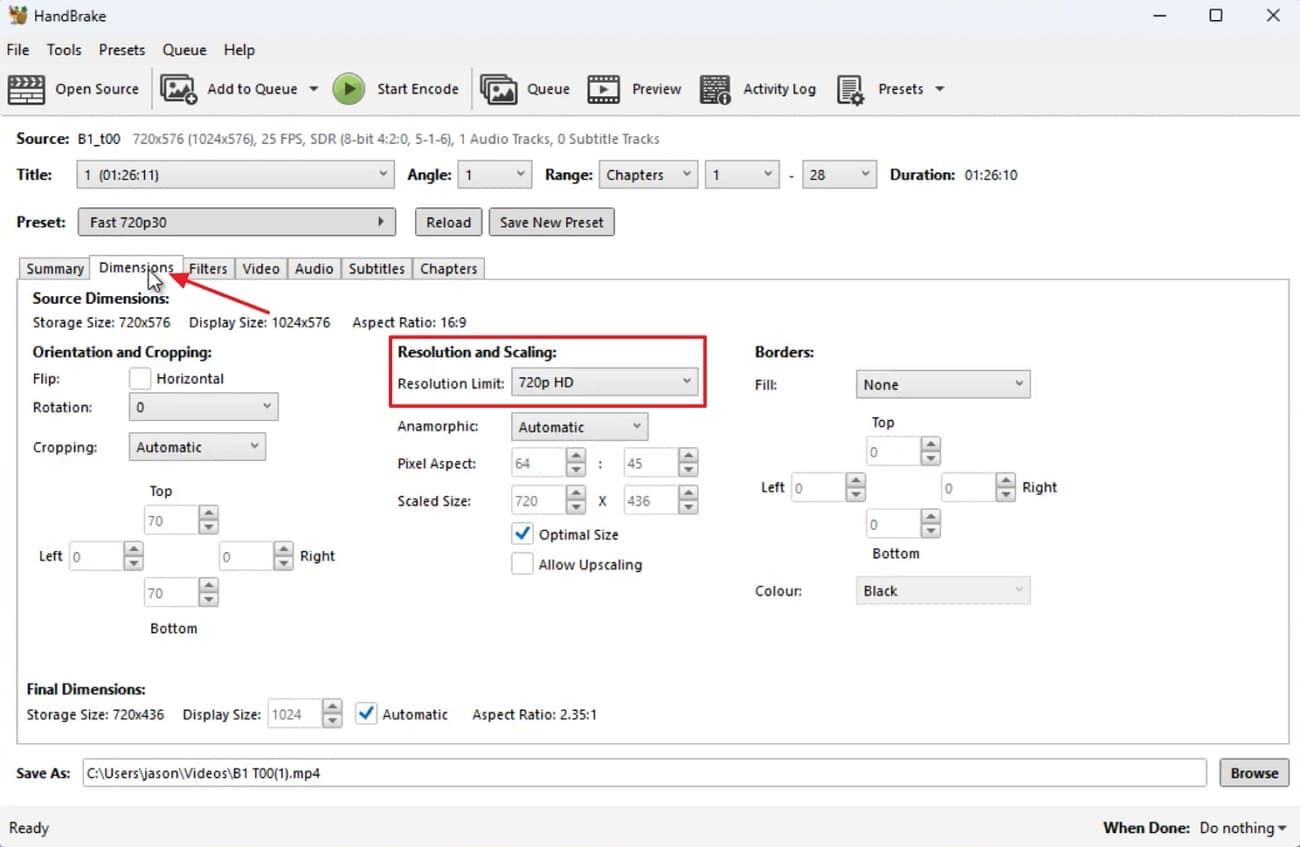
Next, press the “Dimensions” tab and set the “Resolution Limit” option under the “Resolution and Scaling” section.
Step 4. Set the Video Encode and Framerate
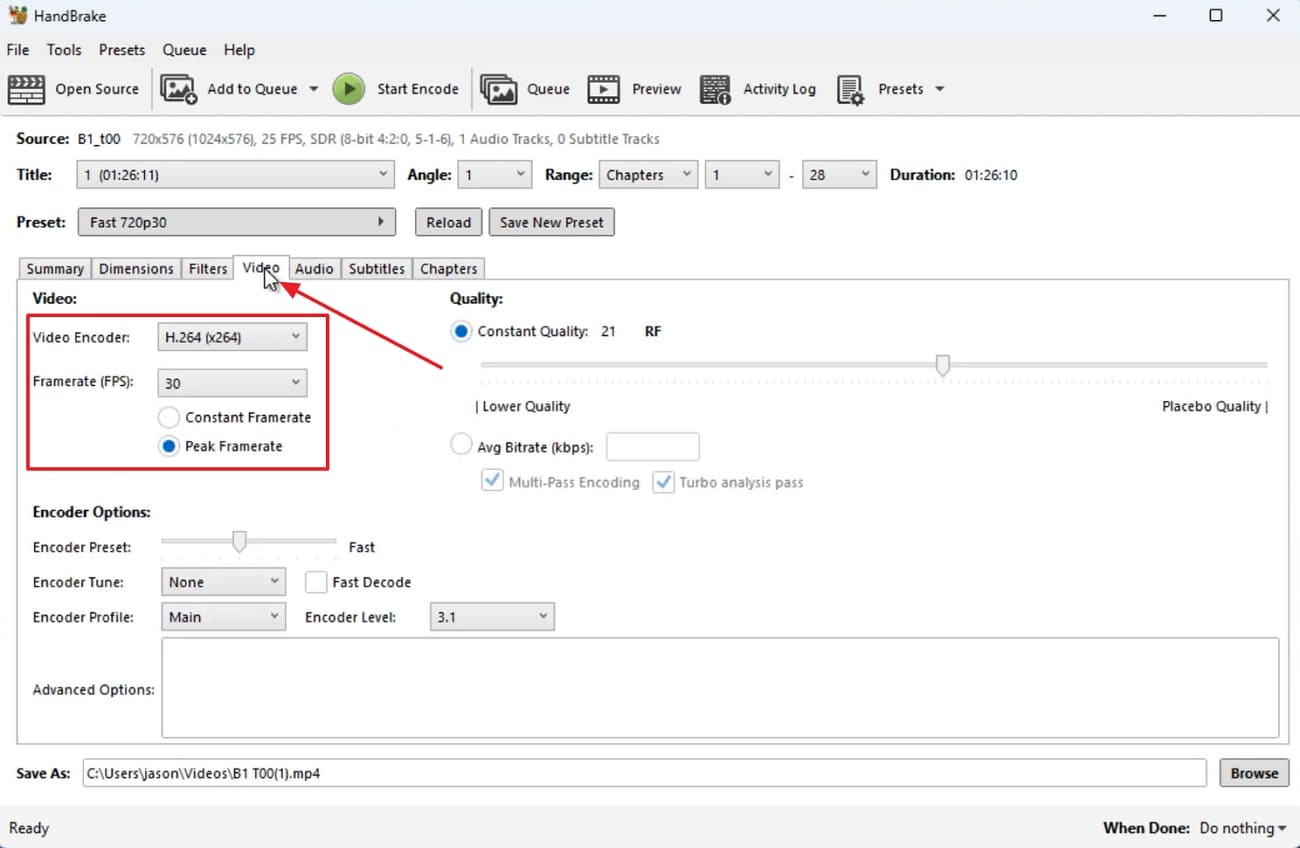
Afterwards, press the “Video” tab and set the Video Encode and Framerate ratings.
Step 5. Choose Export Location
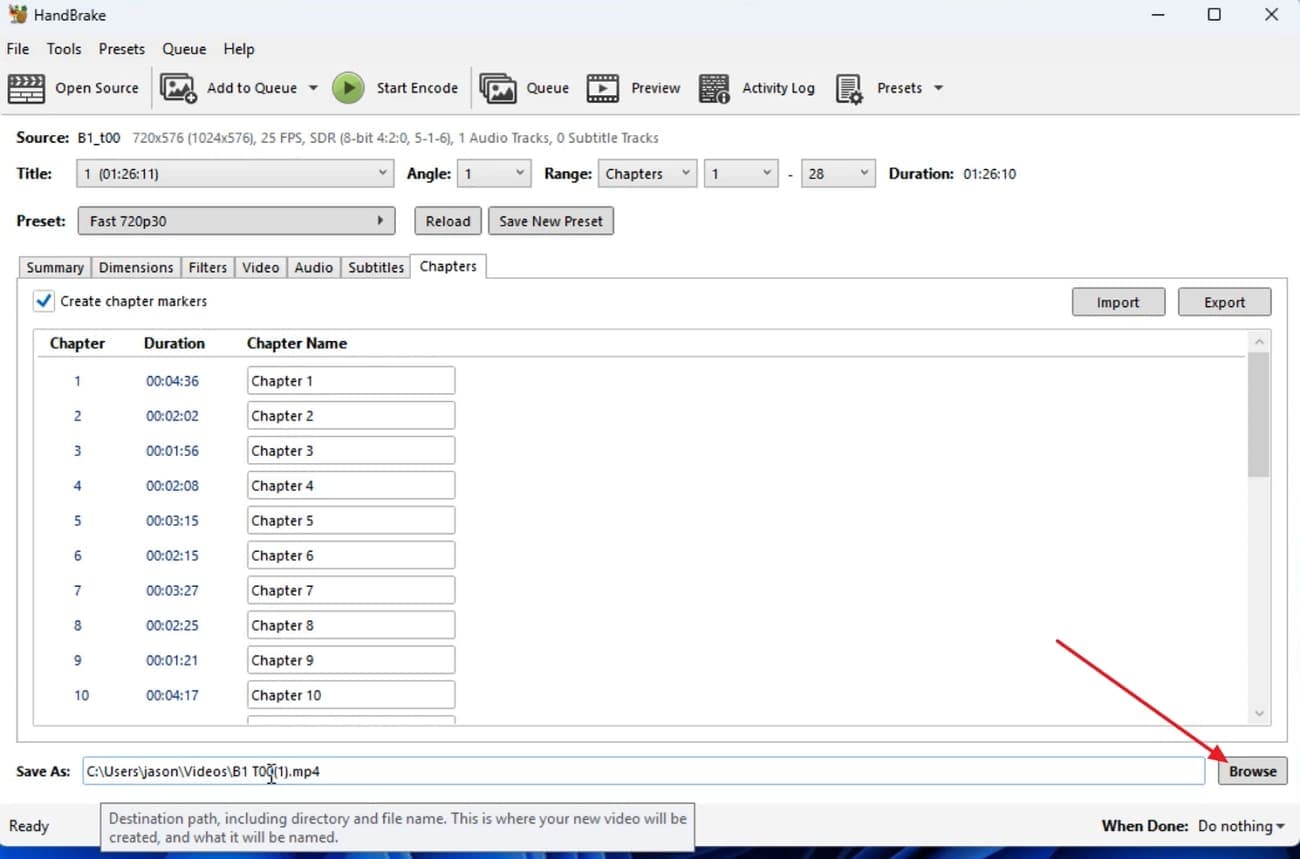
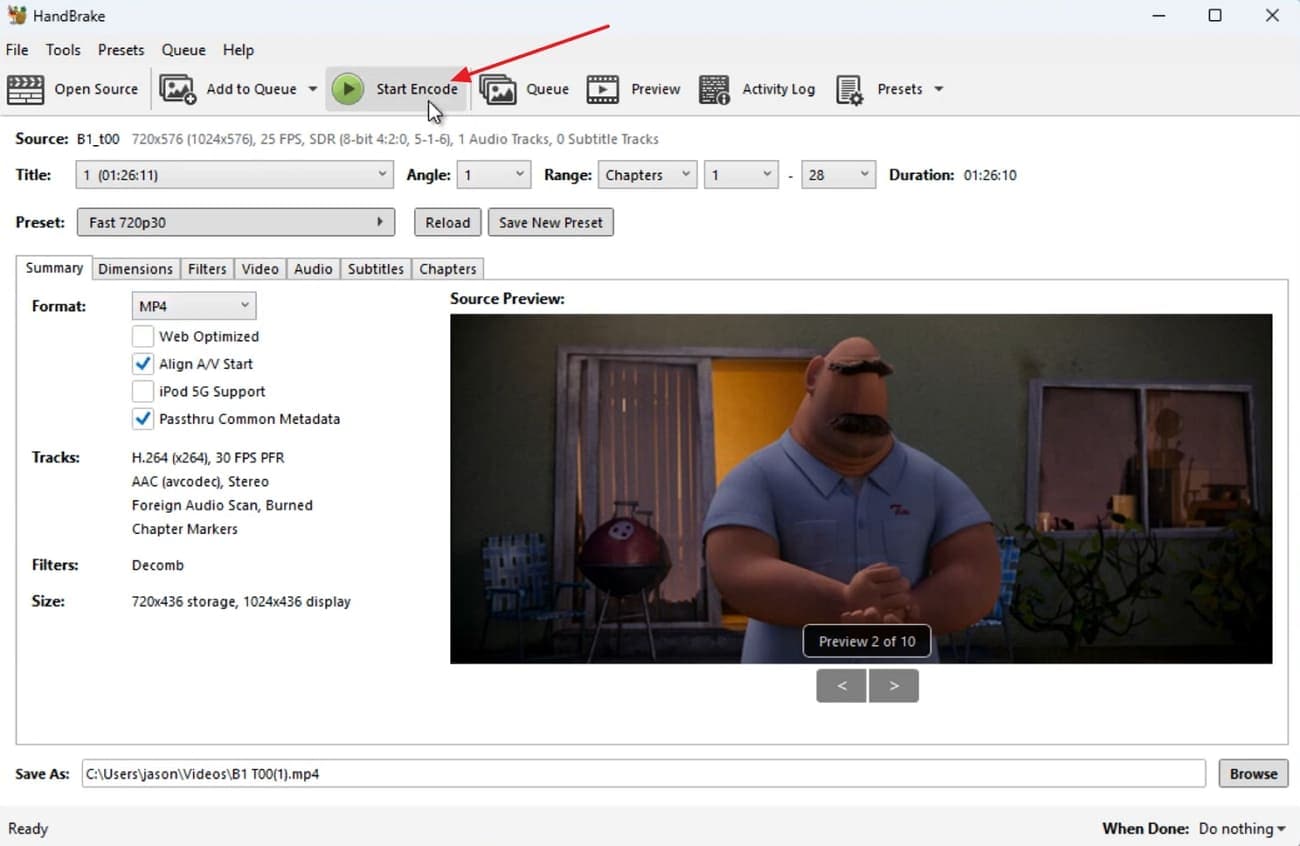
Now, press the “Browse” button in the bottom-right corner and select the location where you want to encode and save the video.
Step 6. Start Encode
Once the location is selected, press the “Start Encode” button to begin the encoding process.
Step 7. Check Encoded File
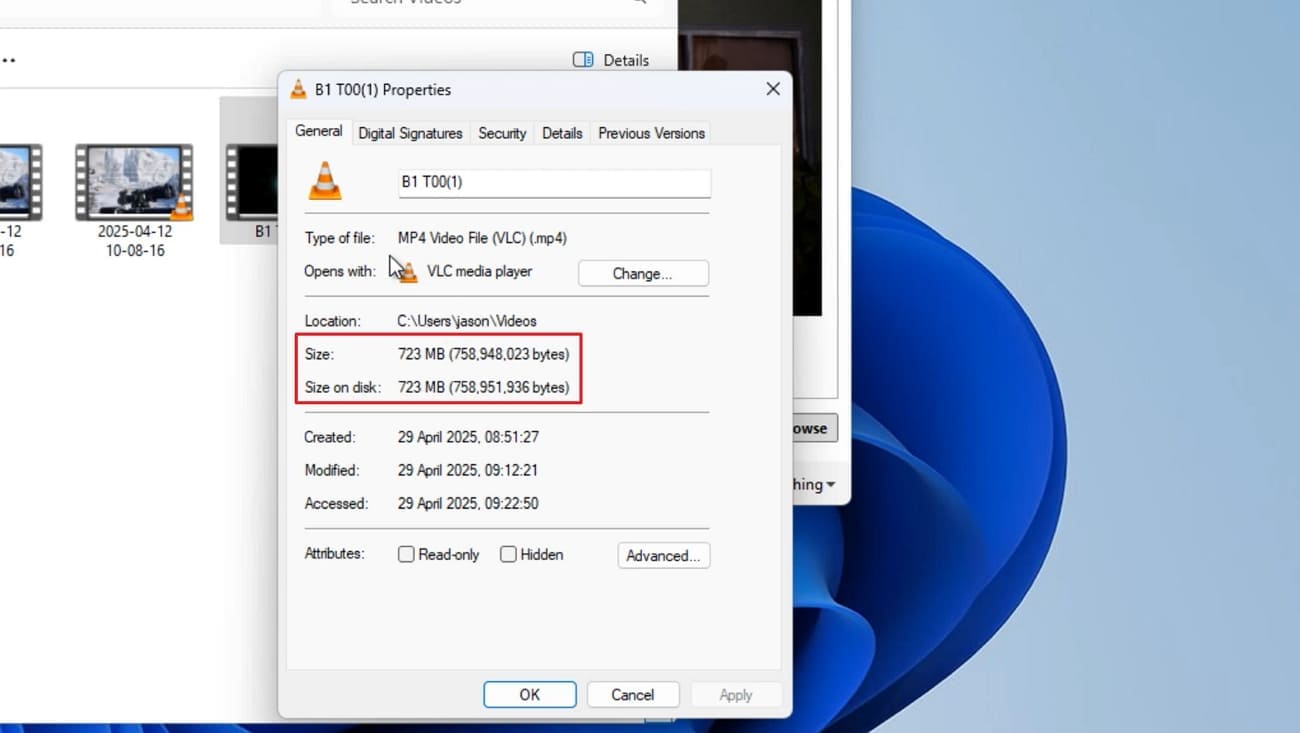
After the video is encoded, test the encoded file and check its size.
HandBrake Converter Review: Pros and Cons
Having learned how to rip DVDs safely, let's examine HandBrake's real-world performance.
Part 4. HandBrake Video Converter User Review for Daily Use
Many users rely on HandBrake every day to convert, compress, and organize videos. Some people love its free tools, while others struggle with settings and confusing options. To help you understand this HandBrake review clearly, we will share positive and negative user opinions.
Positive Reviews
“Has a lot of settings that might be a bit confusing, and you kinda have to know what you do, but it's very reliable. It does a great job of conversion and compression.” - Gabriel Nick
“I love this open-source transcoder software. Many commercial products should look up to and learn from it…” - Samuel
“Handbrake is the absolute best on all platforms for video conversion and viewing. I use an old 4th gen intel based Lenovo mini pc to copy DVDs and convert them to use on my JellyFin server and while it’s slow due to the older CPU, it does exactly what I need.” - CompetitiveLake3358
Negative Reviews
“This is an undeniably powerful tool that can handle just about any homemade DVDs. Doesn't work for new releases. WinX DVD Ripper Platinum showed better performance. - Rico Rodriguez
“I dislike the consistency and reliability of the program. And by that I mean that there are often times when I choose a specific output format and when it's done encoding, the file isn't in the format I chose and requires me to do further conversion.” - Stephen S.
Part 5. Why UniConverter Outshines HandBrake for All Your Video Needs
HandBrake is excellent at what it was designed for—converting local files. However, in today’s content-driven world, the real challenge isn't just converting the videos you already have; it's acquiring new ones efficiently. If you are tired of juggling a separate downloader tool and then importing files into HandBrake, it’s time to look at a solution that combines both steps. Many users also leave HandBrake when they also need video enhancement, compression, and recording tools together.
This is where UniConverter comes in as an all‑in‑one video toolbox, not just a converter. Firstly It allows easy video downloading function with its easy to use Chrome YouTube video extension, and batch video downloading function. It lets people convert, compress, edit, burn dvd, download, and record videos inside one program. This focused design makes UniConverter better for creators and everyday users who handle many tasks.
Unlike basic converters, UniConverter supports modern devices and high‑resolution formats. It offers practical workflows for preparing videos for sharing, backup, and simple professional projects. For users asking, “Is HandBrake safe to download?”, UniConverter reduces common security and privacy risks.
Key Features
Wide Format Support: Convert videos to 1,000+ formats, including MOV, MP4, AVI, WMV, FLV, and MKV.
Batch Conversion: Let users convert multiple videos at once to any format without losing original visual quality.
Built-in Video Editing: Edit videos with trimming, cropping, cutting, merging, and adding subtitles.
DVD Burning: Burn videos to DVD using customized, free DVD menu templates for a clean presentation.
Download and Record: Download or record videos from over 10,000 online video-sharing sites directly.
Guide: How to Use UniConverter Conversion Feature
Having explored the features, follow the steps below to convert your video using UniConverter:
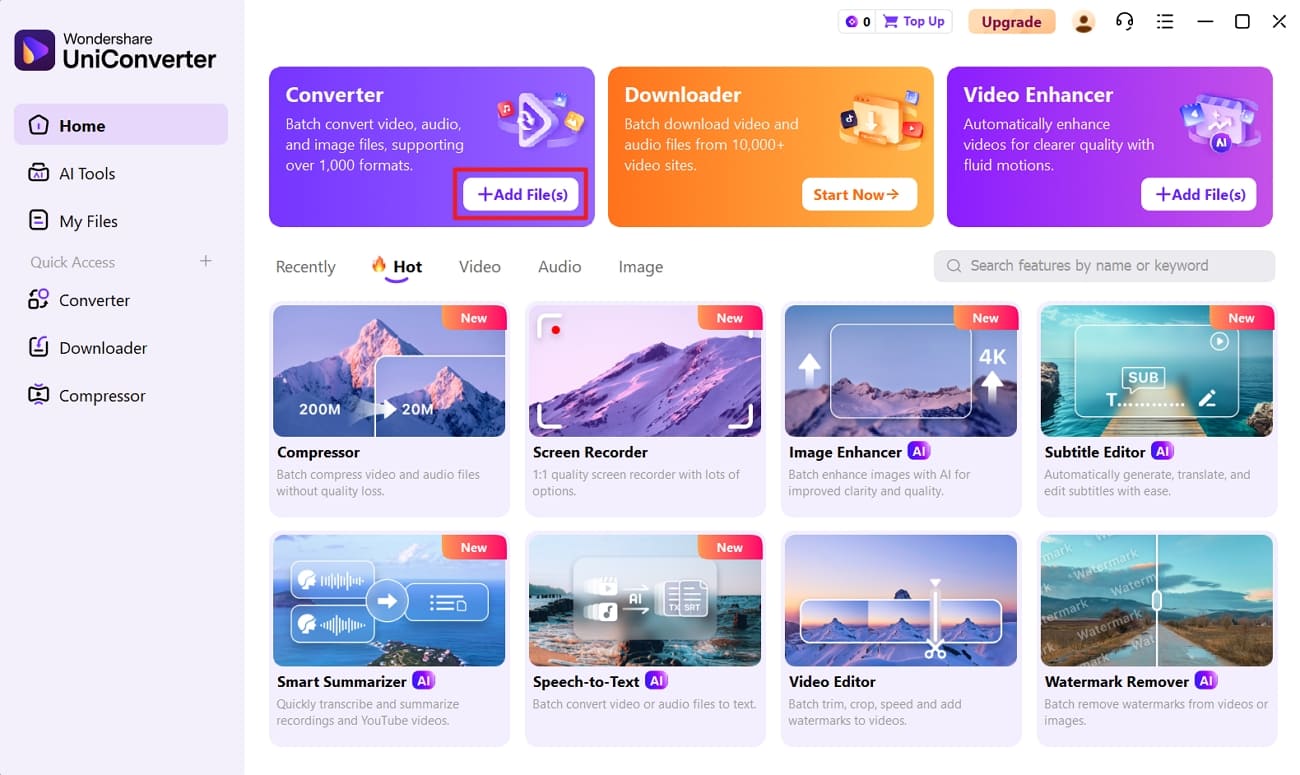
Step 1. Access Converter Feature and Import Files
Once you enter the main interface, navigate to the “Converter” option and press the “Add Files” button to import the video files.
Step 2. Customize Conversion Settings
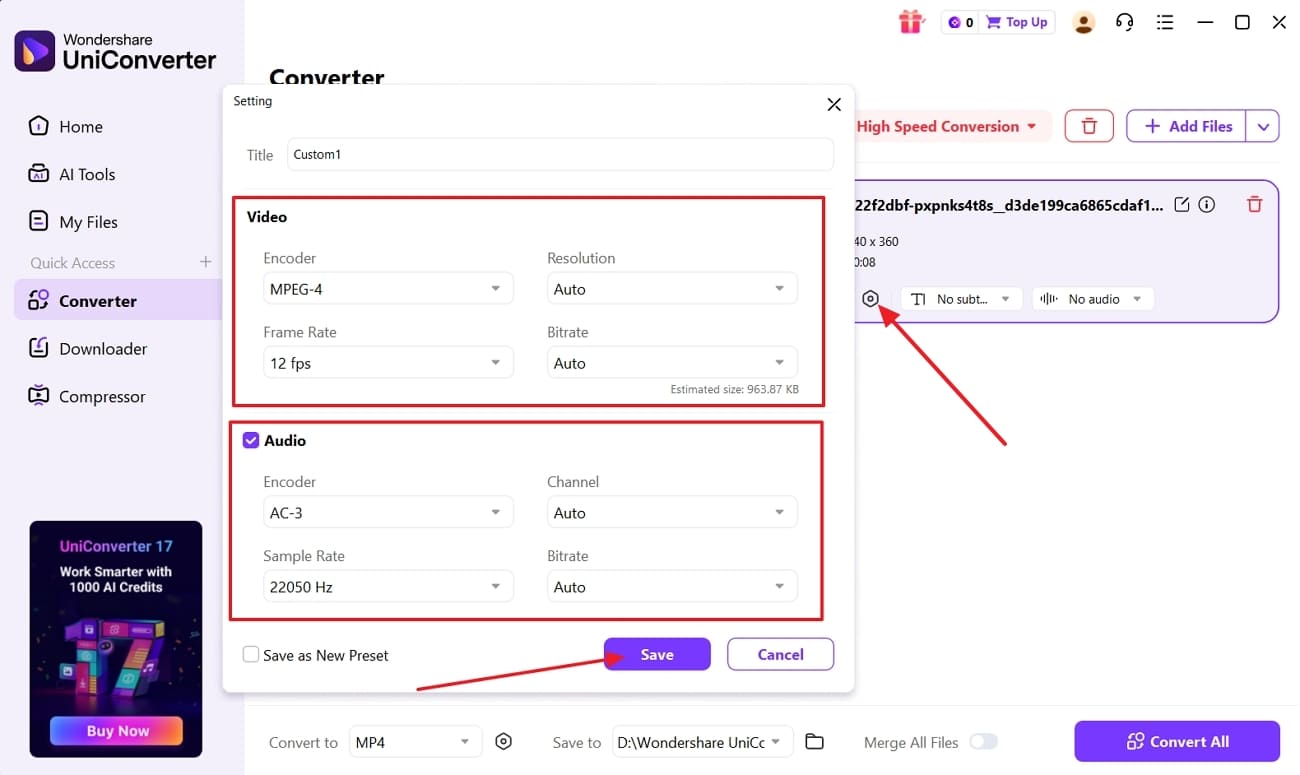
Next, press the “Settings” icon to open the Settings pop-up window. Afterwards, set the “Encoder,” “Frame Rate,” and “Sample Rate” settings under the “Video” and “Audio” section. Once done, press the Save” button to successfully proceed to conversion.
Step 3. Convert The Video Successfully
Once the settings are complete, choose the output format and press the “Convert” button to begin the conversion.
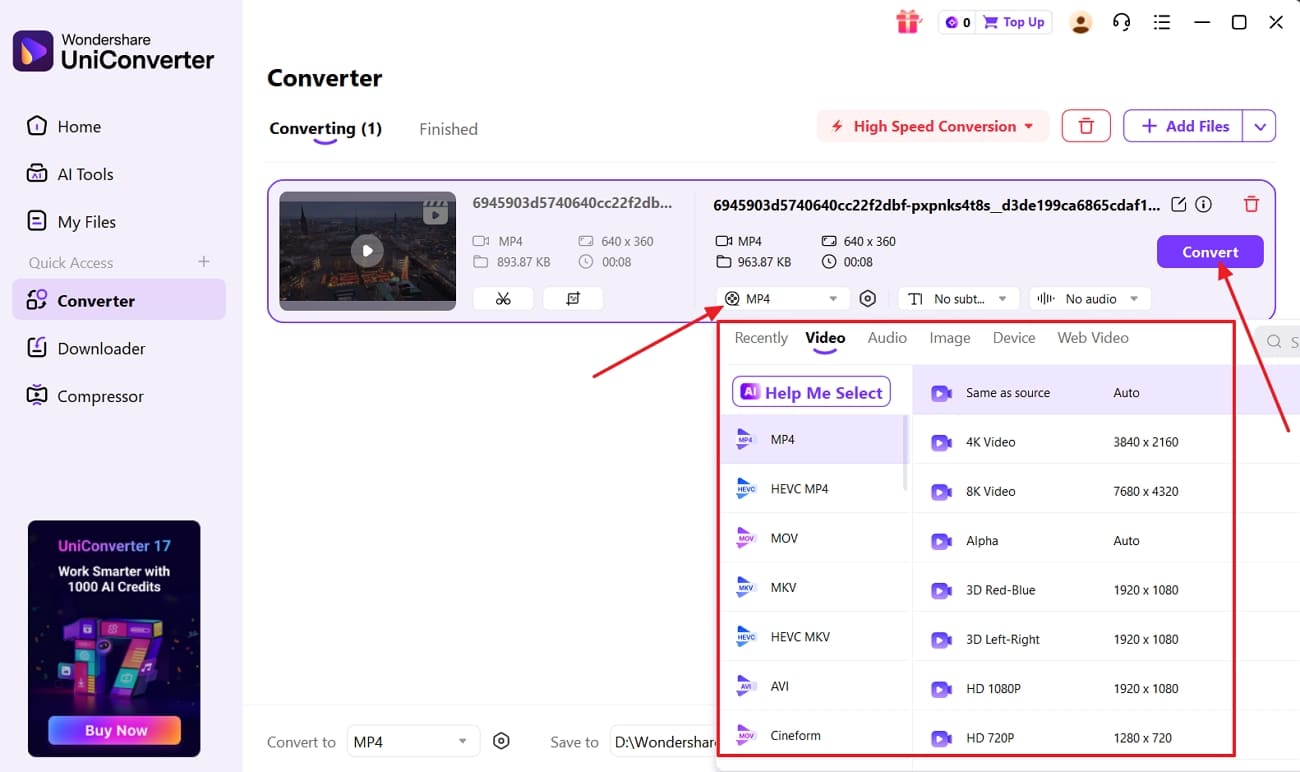
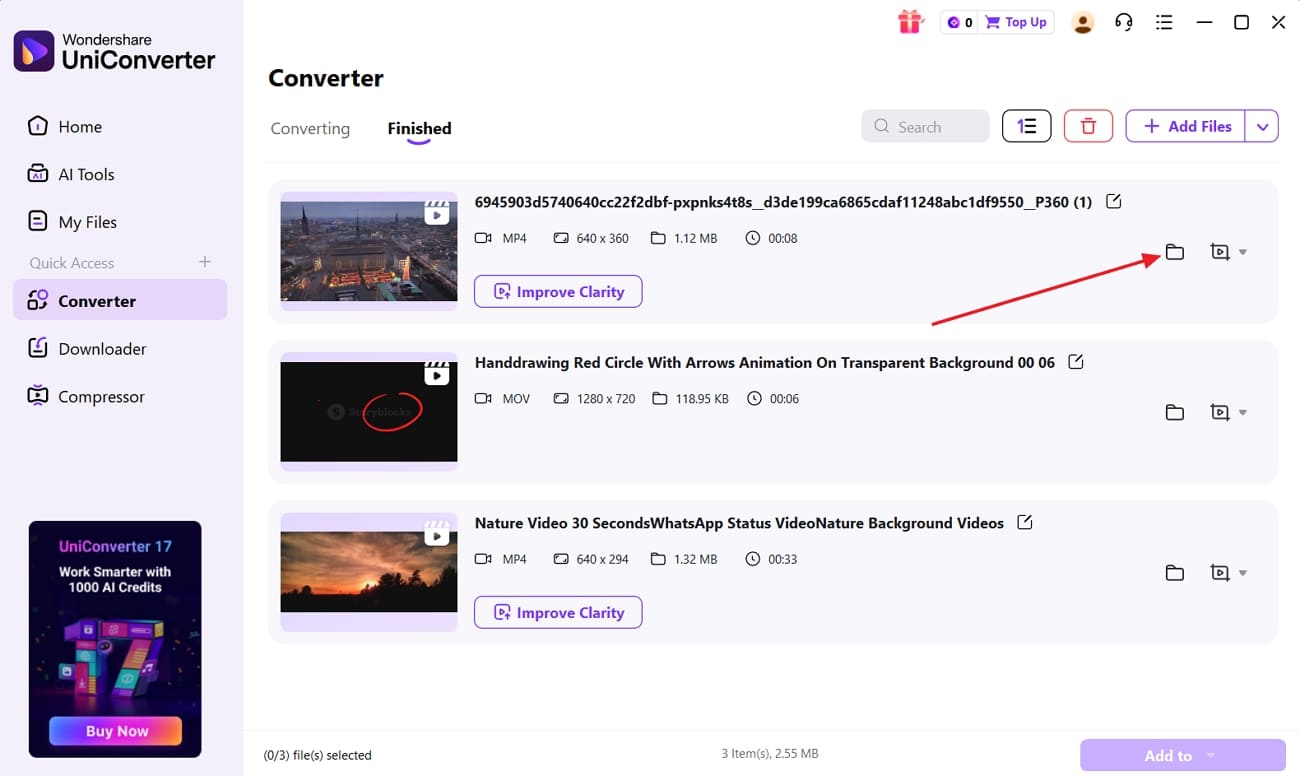
Step 4. Open Converted File Location
Now, after the video is converted, press the “Open File Location” icon to enter the folder where the converted video file is saved.

All-in-One & Secure HandBrake Alternative
Part 6. Which Is Better? HandBrake vs. UniConverter Video Converter Review
HandBrake offers strong control, yet many users still feel confused and search for alternatives. On the other hand, UniConverter keeps things simple and works better for tasks like handling Hand Brake DVD projects. Now let's compare HandBrake and UniConverter side by side to see which works better.
| Aspect | HandBrake | Wondershare UniConverter |
| Main Purpose | Free video transcoder for converting and compressing videos | All‑in‑one toolkit: convert, edit, download, record, burn |
| Formats Support | Many formats, mainly focused on conversion outputs | 1,000+ formats and device profiles for input and output |
| DVD Tools | Rip non‑protected DVDs only, no DVD menu authoring | Convert DVDs and burn DVDs with menus and templates |
| Online Video Support | No built‑in video download or recording options | Built‑in video downloader and screen recorder in the same app |
| Editing Features | Basic crop, scale, simple filters, subtitles | Trim, cut, crop, merge, subtitles, and more editing tools |
| Ease of Use | Technical interface, steeper learning curve | Guided interface designed for non‑technical users |
| Target Users | Power users managing encodes and file sizes | Creators, teachers, and businesses needing complete video workflows |
Conclusion
In conclusion, we answered the key question: Is HandBrake safe for everyday use? You saw its strengths for free video conversion and basic DVD backup tasks. We also learned where HandBrake struggles, especially with protections, speed, and complex workflows. If you need extra tools and simplicity, UniConverter offers a stronger all‑in‑one choice.
FAQs
-
1. Does HandBrake keep original DVD menus and extras?
No. HandBrake does not preserve interactive DVD menus, bonus features, or navigation structures. It focuses on converting the main movie or selected titles into standard video files. If full DVD menu retention or authoring is required, dedicated DVD tools may be more suitable. -
2. Where can beginners learn safe and effective HandBrake settings?
Beginners can follow updated online tutorials that explain presets, bitrate settings, and device profiles step by step. Many guides demonstrate complete DVD ripping examples to help users understand optimal configurations. After mastering the basics, some users explore additional tools for expanded editing features. -
3. Is HandBrake legal to use for personal backups?
HandBrake itself is legal software. However, how you use it must comply with local copyright laws. Some regions allow format shifting for personal backups of legally owned media, while others restrict copying encrypted discs. Always verify local regulations before copying commercial DVDs. -
4. How safe is HandBrake for sensitive business or client videos?
HandBrake operates locally on your computer and does not upload videos to external servers by default. Security concerns usually stem from unofficial installers or unsecured systems rather than the software itself. For business workflows, some teams prefer tools that offer commercial support and structured update policies.

