


Blurry, low-resolution photos cause immense frustration in this modern, social-media-savvy life, where every pixel has to be crisp. Deep AI Super Resolution is an AI-powered image enhancement technology that increases the resolution of low-quality images by predicting and reconstructing missing details using deep learning models. However, results are not always perfect, as the model may sometimes generate patterns or pixels that are not present in the original image.
In this article, you will learn what Deep AI Super Resolution is and how deep learning models use STED microscopy to improve the image resolution.
In this article
Part 1. What is Deep AI Super Resolution?
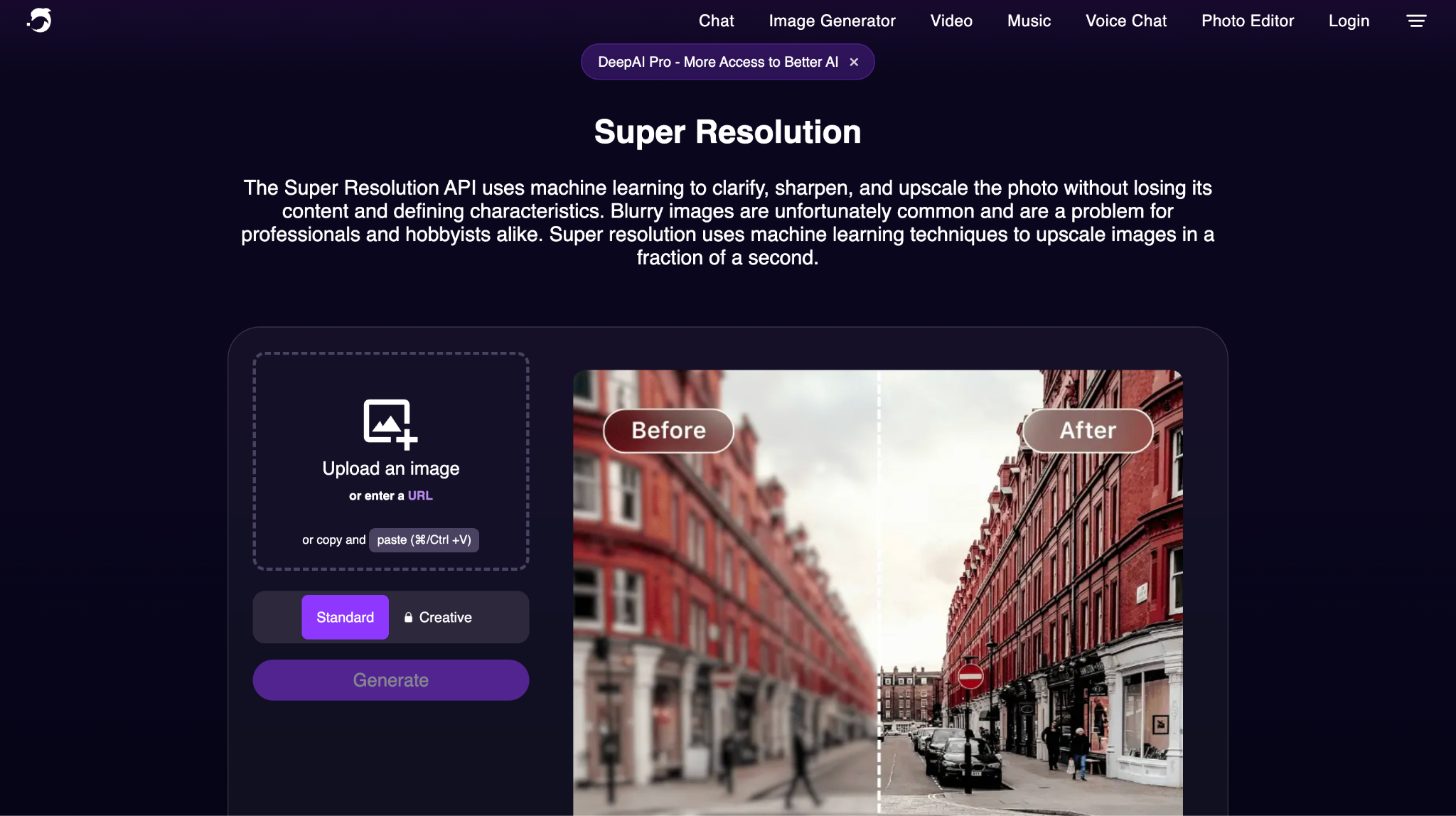
Deep AI Super Resolution is a machine learning tool that uses a deep learning model to upscale and enhance low-resolution images by sharpening details and increasing the pixel count. Deep AI does not rely solely on simple interpolation for upscaling images; it uses a trained neural network to preserve defining features and prevent loss of detail and blurring.
Key Features of Deep AI Super Resolution
Deep AI uses machine learning to increase resolution with contextual detailing rather than simple pixel scaling.
The built-in deep learning model reduces blur and improves the sharpness of images with proper pixel construction during upscaling.
With API integrations, you can embed the Deep AI platform into other apps or workflows as per your requirements.
The advanced processing engine can automatically predict luminosity to prevent loss of depth in the upscaled image.
Part 2. How to use Deep Super Resolution?
With these powerful features in mind, let’s walk through how to use Deep Super Resolution to transform low-quality images into sharper, high-resolution results.You can visit the Deep AI Super Resolution website, upload the image, choose the editing options, and enhance your image.
Step-by-step Process to Upscale Your Image Using Deep AI
Step 1. Visit Deep AI Super Resolution
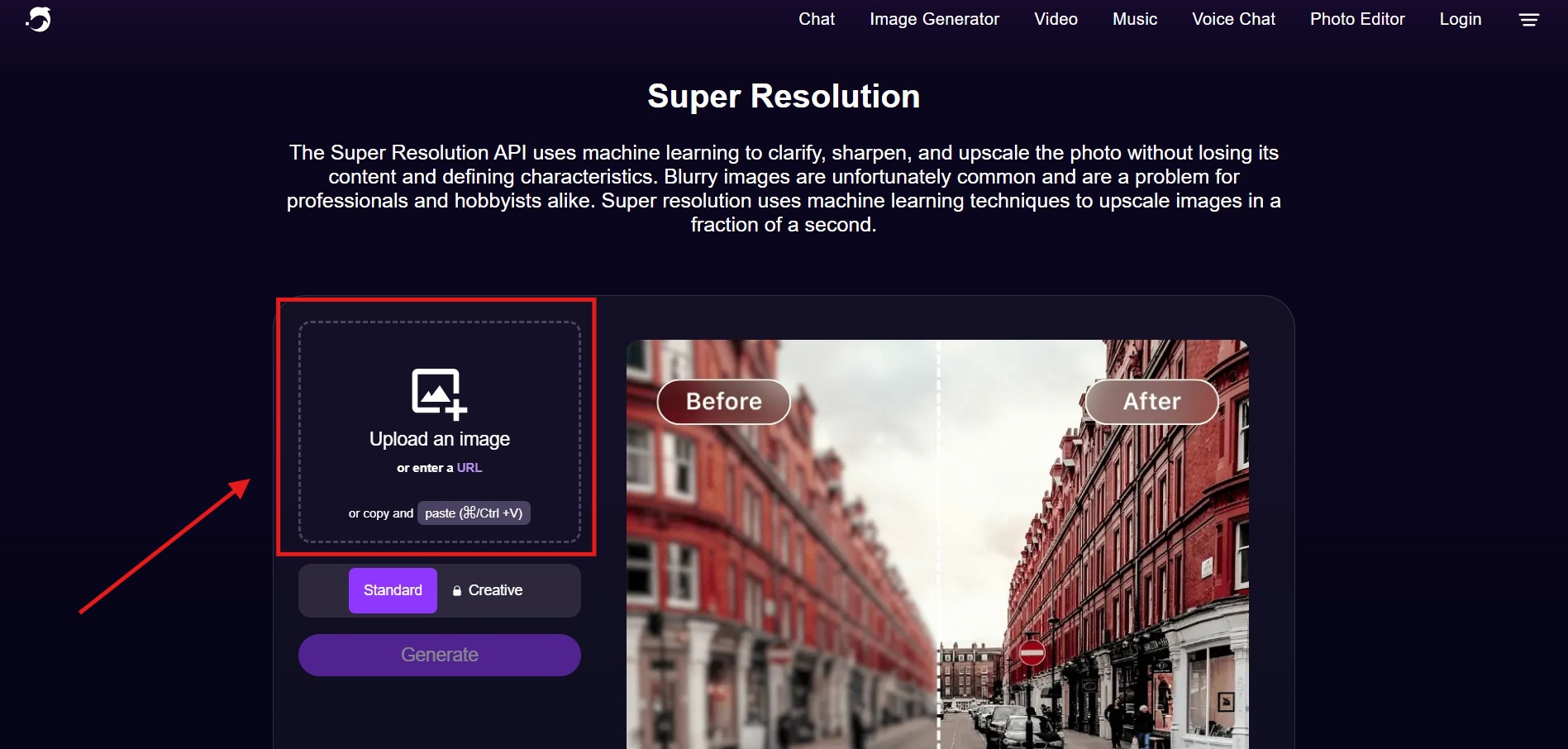
Visit the Deep AI Super Resolution official webpage, click on the “Upload an image” button, and upload the image.
Step 2. Click Generate Button
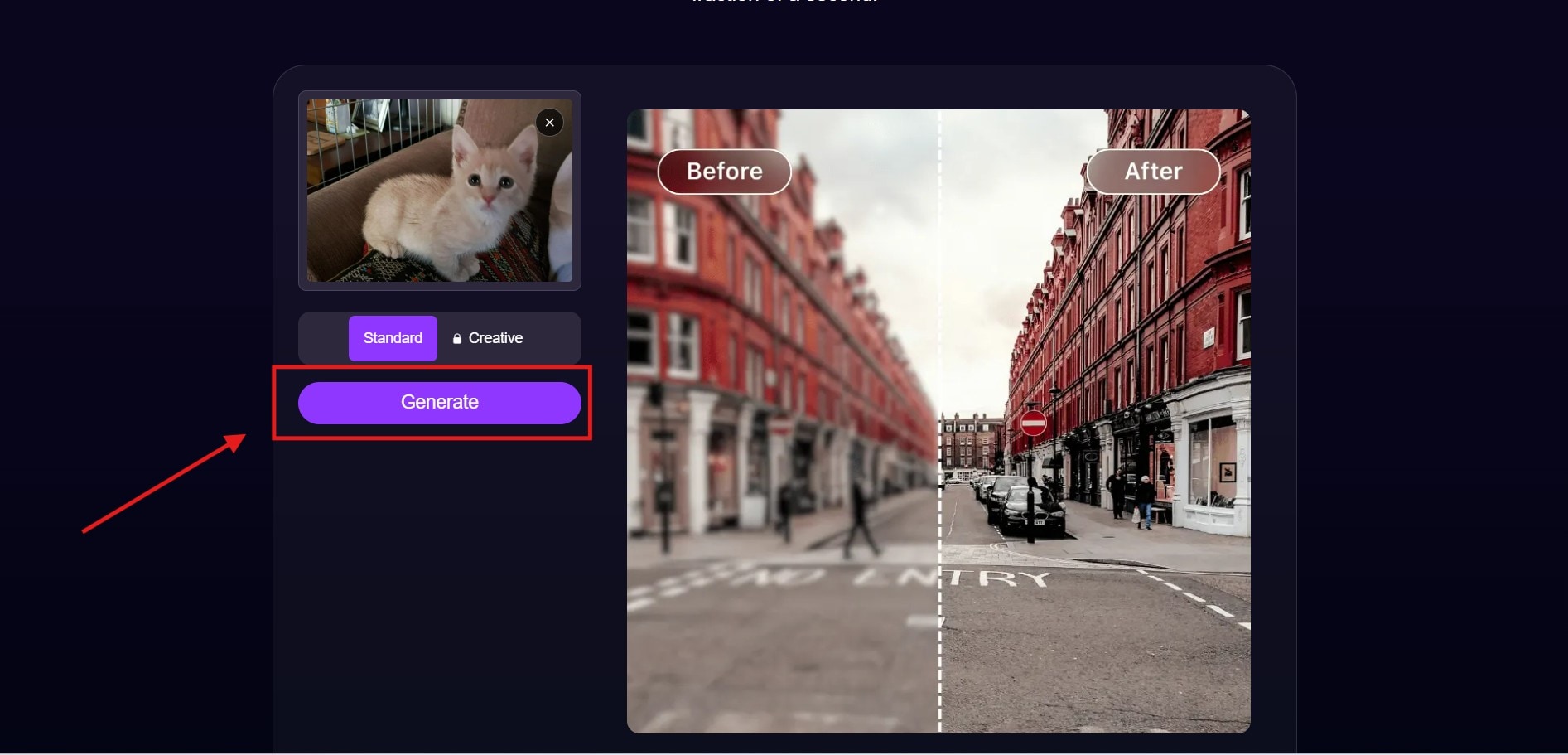
Click on the “Generate” button.
Step 3. Select an Image-editing Option
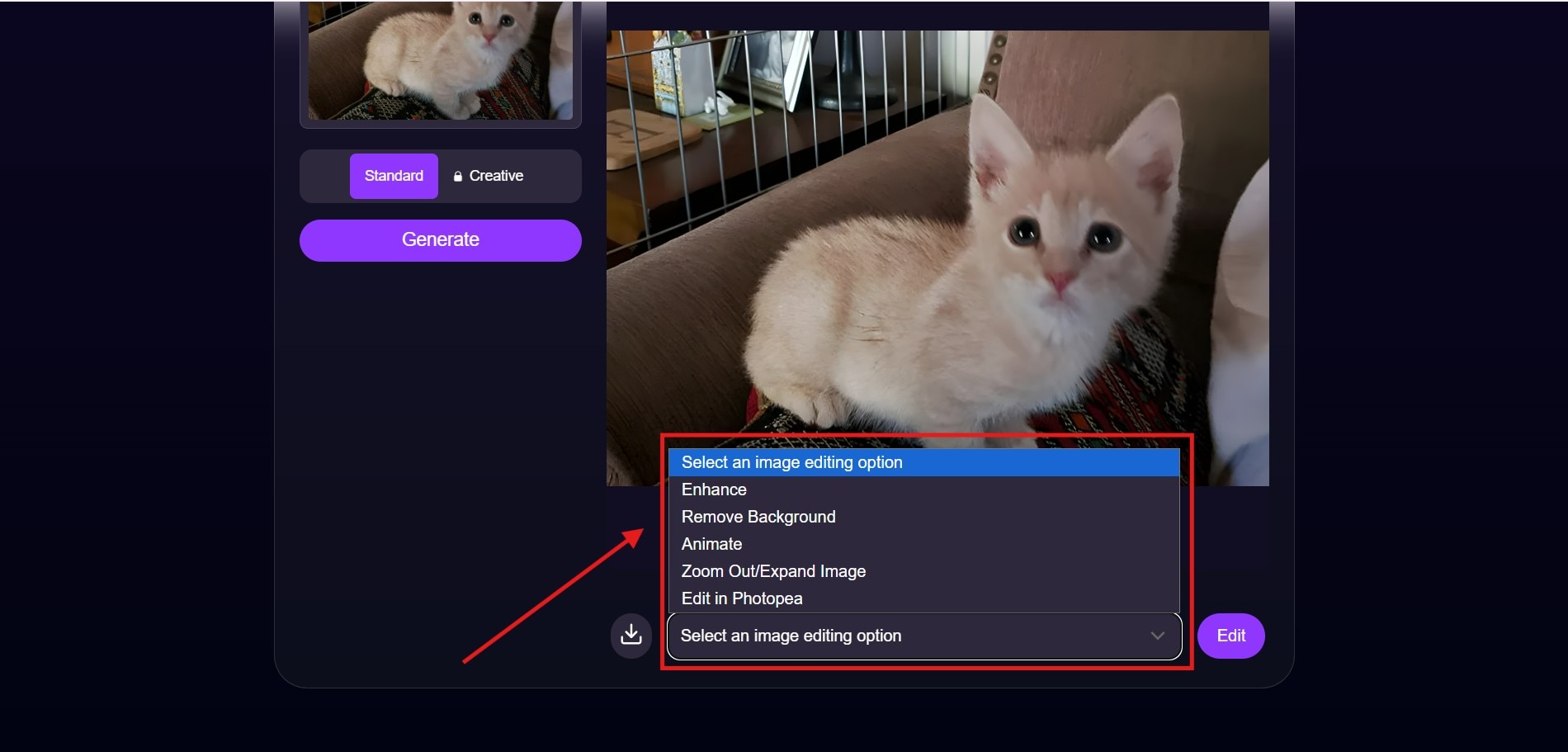
Click the drop-down menu below the image to select an image-editing option.
Step 4. Choose Enhance Image
Click on the “Edit” button to generate the enhanced image.
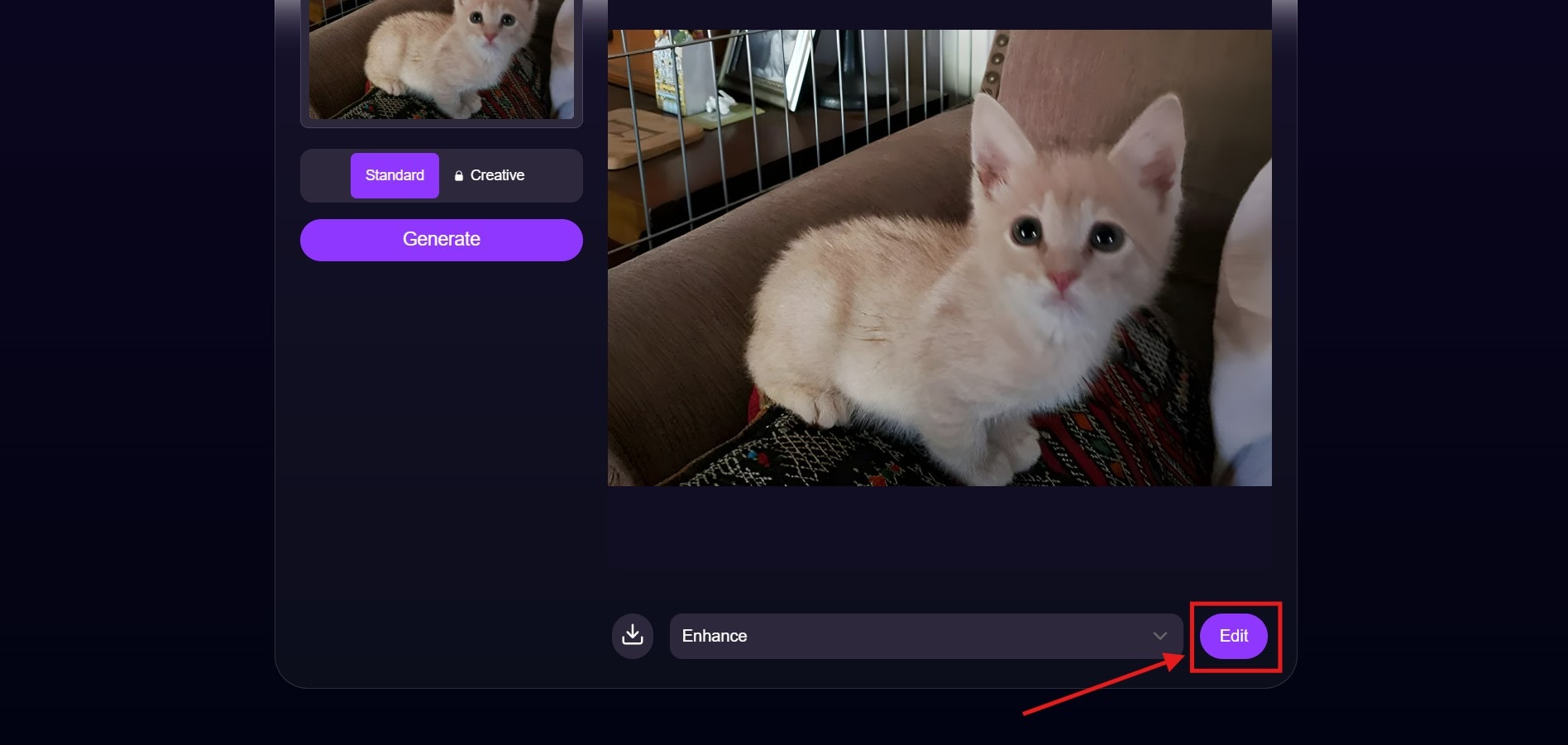
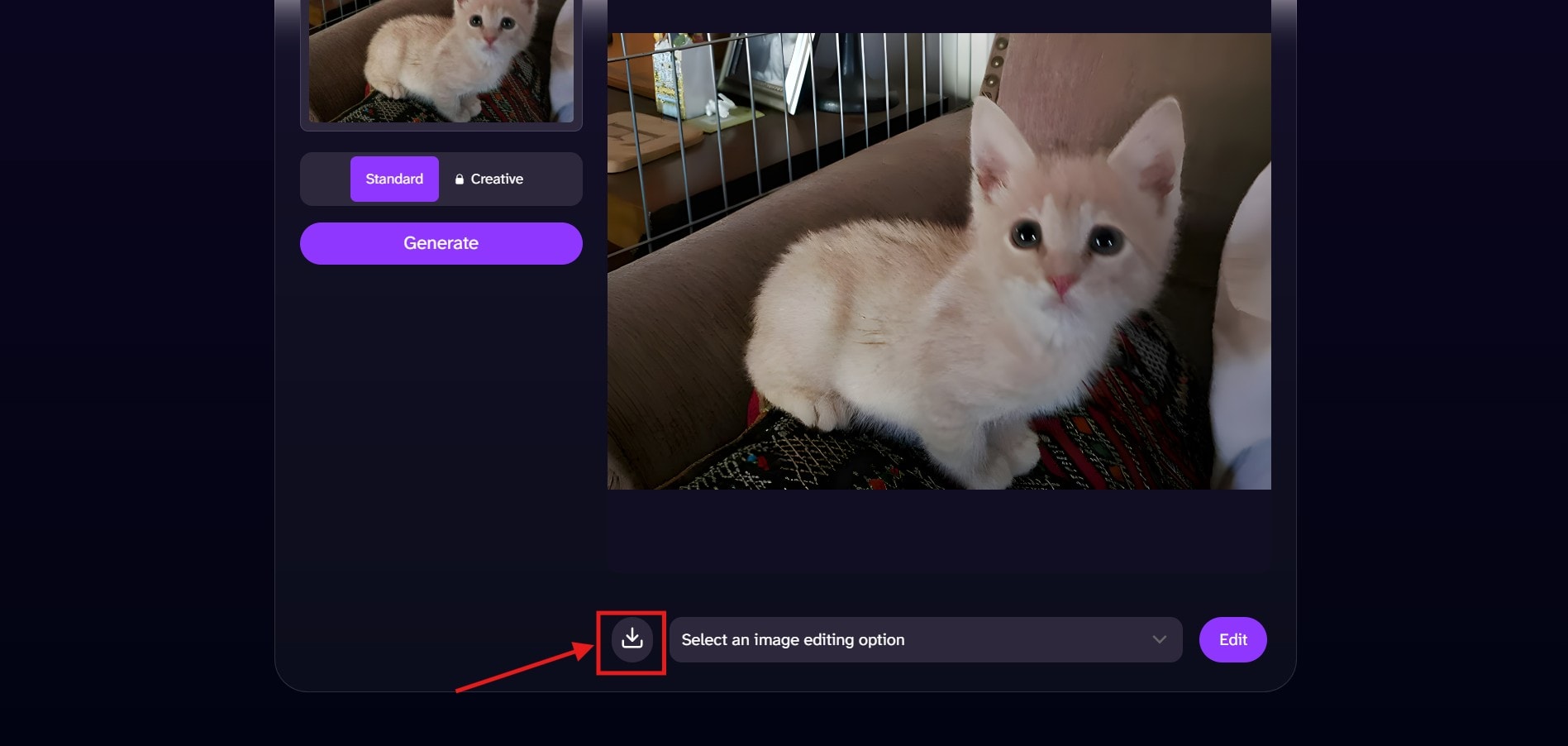
Step 5. Download and Save Image
Once you are satisfied with the output, click on the “Download” button to save the image.
Part 3. What are the Limitations of Deep AI Super Resolution?
From this Deep AI Super Resolution review, you can see that image quality improves with deep learning models, but the technology has clear technical limits. Because the system predicts missing details instead of restoring original pixel data, the results are often approximations rather than true recoveries. Other limitations of Deep AI Super Resolution include potential artifacts, inconsistent results across different image types, and reduced accuracy when working with extremely low-quality inputs.
Other limitations of Deep AI Super Resolution are:
- AI Hallucination Issues: The AI-powered engine may sometimes hallucinate patterns that are not part of the image, resulting in distorted features and unrealistic patterns.
- Amplified JPEG Compression Artifacts: Images with JPEG compression contain blocked artifacts that become more evident than in the original image.
- Inconsistent Results Across Image Conditions: There are inconsistencies in the output result based on lighting, subject type, and original resolution.
- Dataset Training Limitations: Deep AI Super Resolution is trained on specific datasets, such as digital cameras or downscaling methods. Therefore, they struggle in real-world images.
- Limited Improvement for Extremely Low-Quality Images: Certain low-resolution or blurred images do not show any significant improvements, even with powerful AI models.
Part 4. What are the Better Alternatives to Deep AI Super Resolution?
Tools like Wondershare UniConverter, Adobe Photoshop, Topaz Labs, and LetsEnhance come in as better alternatives to Deep AI Super Resolution because they are reliable and provide customizable AI models.
Wondershare UniConverter
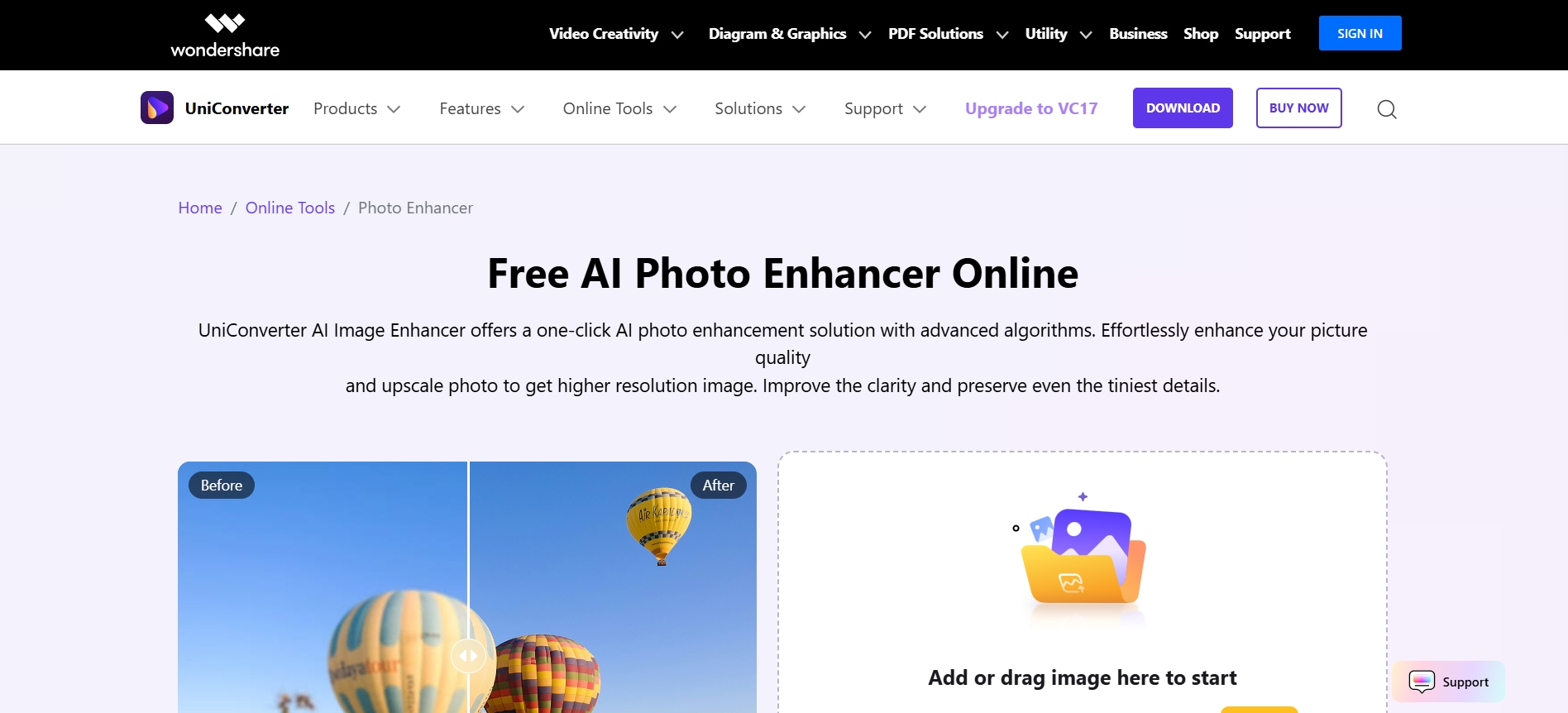
Wondershare UniConverter comes with an AI-powered image enhancement tool that helps you upscale and improve image quality using advanced algorithms. It’s a good option for creators because it offers more than just upscaling. You can remove backgrounds, reduce noise, convert files into different formats, and do basic editing.
Since Wondershare UniConverter is a desktop app with GPU acceleration, it can handle large files more smoothly than browser-based tools like Deep AI. Because it runs on your system instead of relying on the cloud, performance is generally faster and more stable, especially when working with bigger images or multiple files.
Key Features
- The background remover tool lets you remove or edit the background of any image with ease.
- With the batch image converter, you can convert image files to different formats, such as PNG, SVG, WebP, AVIF, TIFF, and others, as per your requirements.
- The AI thumbnail maker helps you create thumbnails for sharing on social media platforms.
Apart from enhancing and editing image files, Wondershare UniConverter also lets you edit video and audio files, making it an all-in-one media management tool.
How to Enhance Images Using Wondershare UniConverter
Follow these steps to enhance image quality using Wondershare UniConverter.
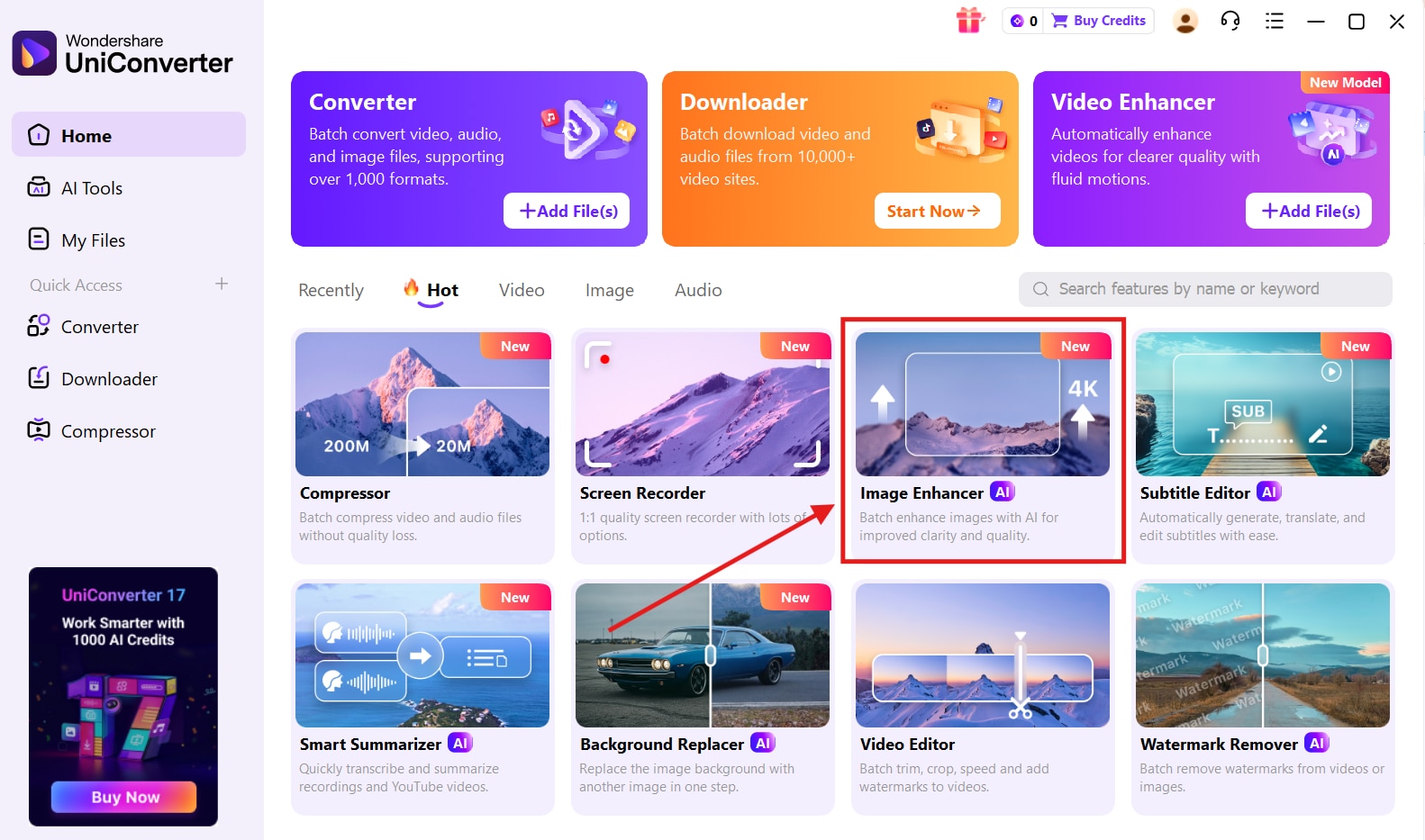
Step 1. Choose Image Enhancer
On the Wondershare UniConverter dashboard, click “Image Enhancer.”
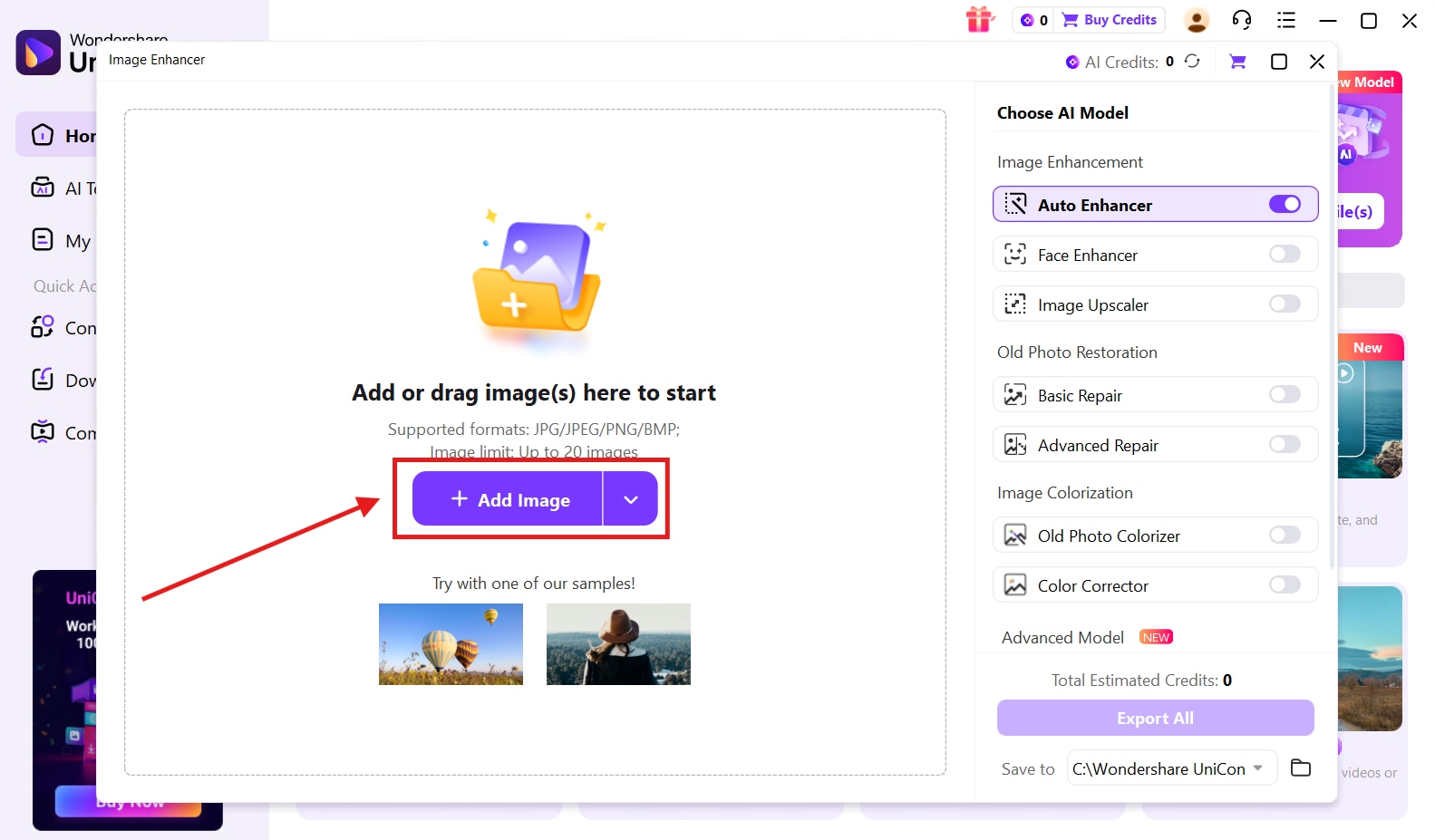
Step 2. Add Images
Click on the “Add Images” button to upload your image.
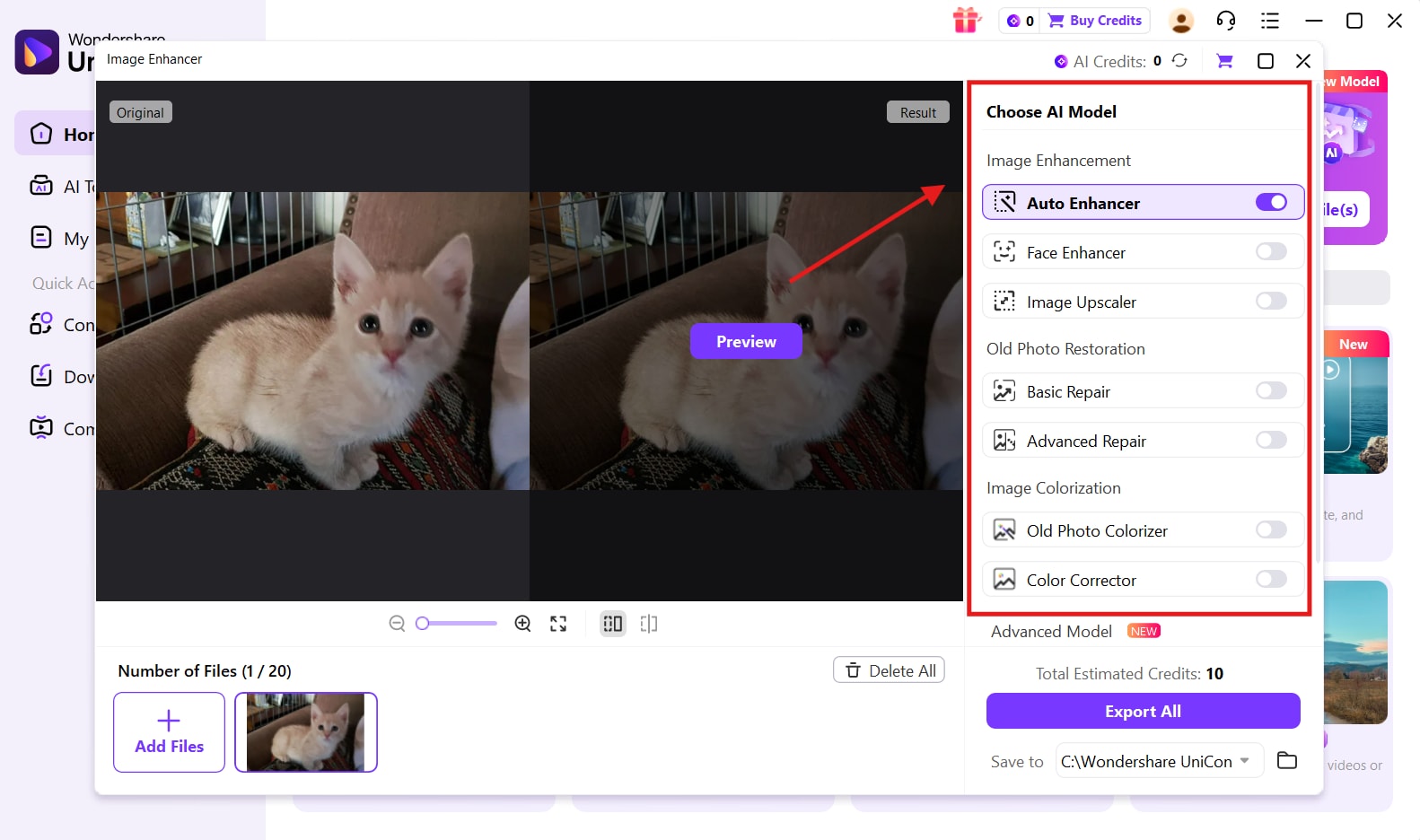
Step 3. Choose the AI Model
From the right-hand panel, choose the AI model as per your requirement.
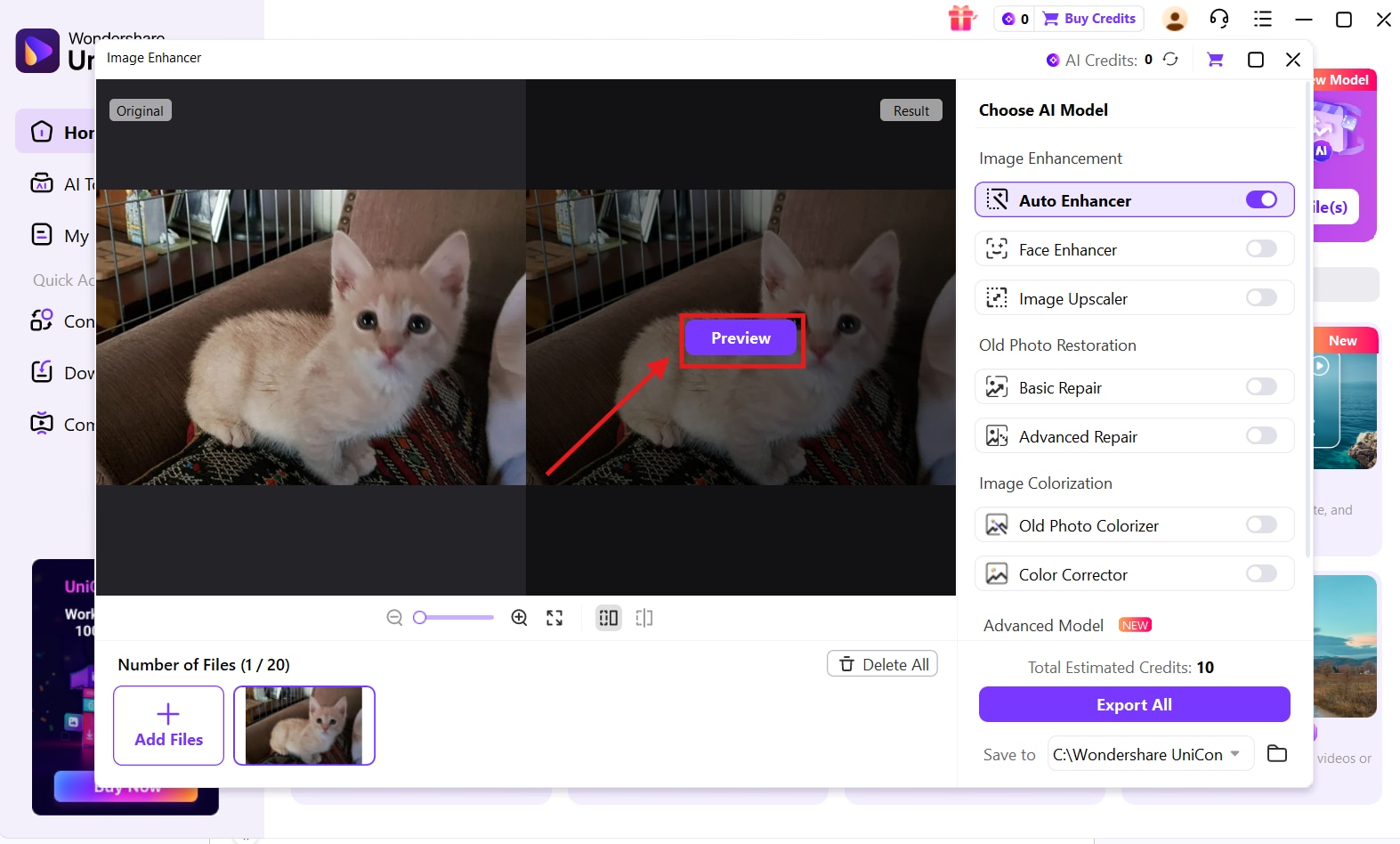
Step 4. Preview the Enhanced Image
Click on the “Preview” button to see the enhanced image.
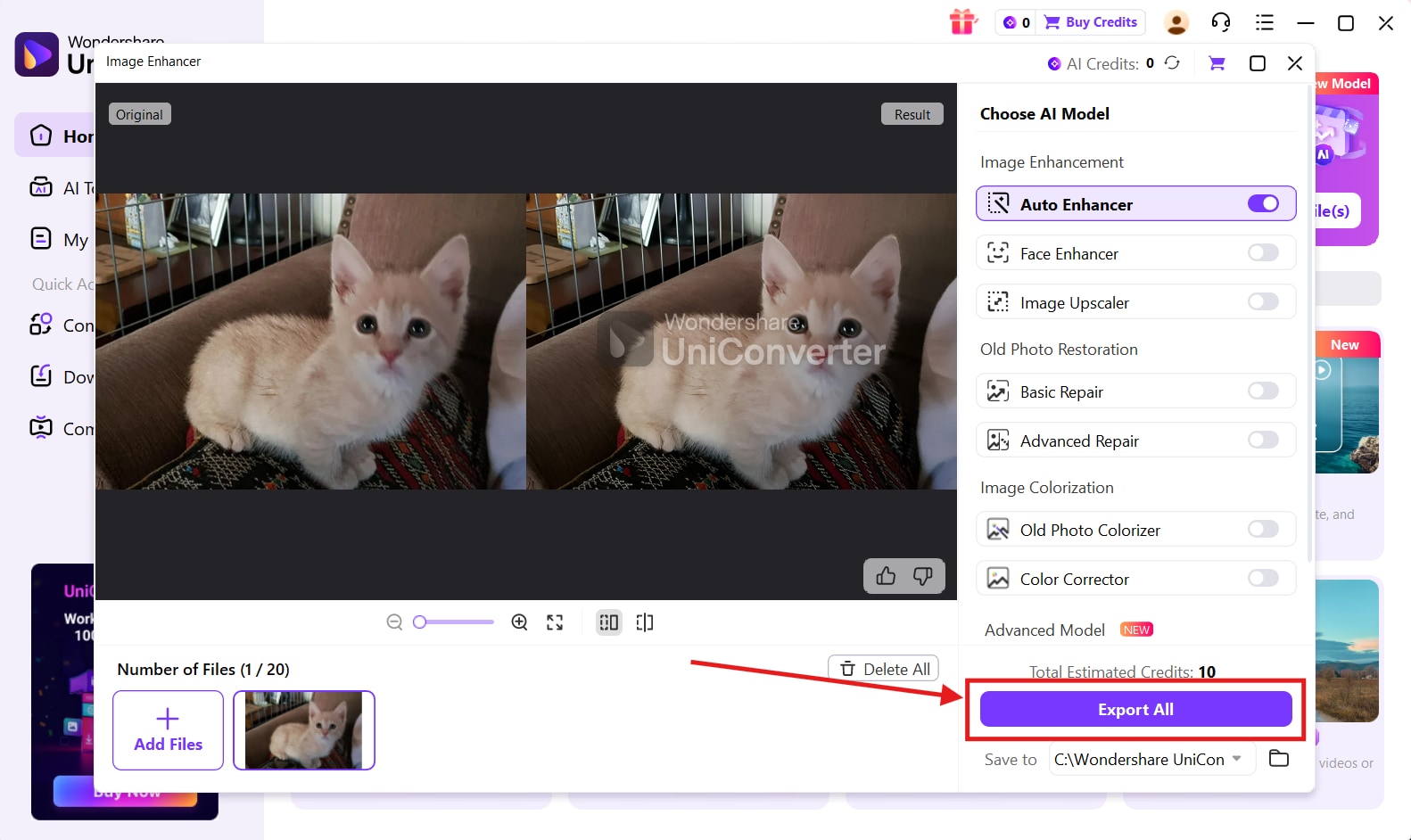
Step 5. Export All
Once the enhanced image is ready, click on the “Export All” button to download.

Powerful Deep AI Super Resolution Alternative
Adobe Photoshop

Adobe Photoshop has a built-in feature called “Super Resolution” that lets you enhance and upscale images quickly. It works particularly well with RAW files, helping increase resolution while preserving color depth, dynamic range, and fine details.
One of the main advantages of Photoshop is control. Along with Super Resolution, you also get access to tools for color correction, masking, retouching, and other creative adjustments. This means you can upscale the image first and then fine-tune the final result exactly the way you want.
Key Features
With multiple edit layers, you can ensure that edits are non-destructive.
Preserves fine details and luminosity to every single pixel.
You can work directly on RAW and DWG files.
Topaz Labs
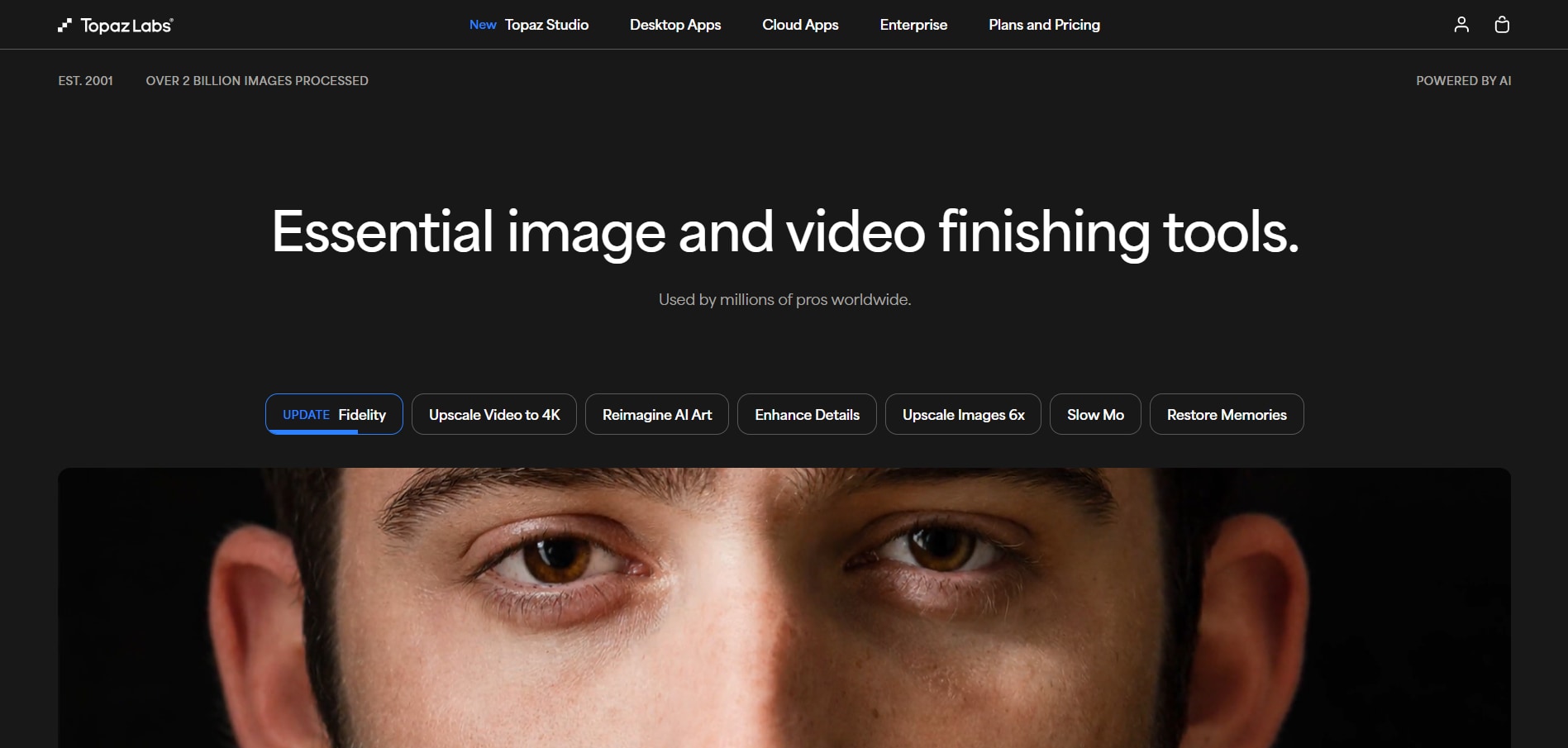
Topaz Labs is an AI-powered image upscaling tool built on super-resolution technology using deep learning to improve details and enhance image texture. Creatives and professionals who work in print media and creative content can work with Topaz Labs to deliver realistic results that are better than generic upscalers. With Topaz Labs, you can also control the emphasis on details and perform fine refinements.
Key Features
Dedicated neural networks for detailed enhancements.
Customizable settings for blur removal and fine refinements.
Focus on still images with efficient texture restoration.
LetsEnhance

LetsEnhance is an online platform that uses an AI engine for automatic tone correction and color enhancement. LetsEnhance aims to improve the image quality by adjusting the lighting, color balance, and texture, along with upscaling the image to deliver high-quality output. With multiple templates, presets, and minimal configuration, LetsEnhance is suitable for e-commerce owners and social media managers.
Key Features
Cloud-based processing for minimum dependency on the browser.
Presets and templates for different photography styles.
Automated color and tone improvement.
Conclusion
Deep AI Super Resolution delivers high-quality results; however, AI hallucinations are a major drawback. Furthermore, Deep AI cannot process highly compressed and noisy images, leaving room for better alternatives like Wondershare UniConverter.
With Wondershare UniConverter, you have better control over the output, and it also streamlines the workflow for image editing and other editing actions, such as background removal and applying effects. Try Wondershare UniConverter today for high-quality image enhancement.
FAQs
-
1. What is super-resolution microscopy?
Super-resolution microscopy is an advanced imaging technique that allows scientists to observe structures beyond the diffraction limit of traditional light microscopy. It is widely used in biological and cellular research to study fine details such as DNA structures and molecular interactions. -
2. What is STED microscopy?
STED (Stimulated Emission Depletion) microscopy is a type of super-resolution microscopy. It uses a specialized laser beam to deactivate fluorescence around a targeted focal point, allowing extremely precise imaging at the cellular and molecular level. -
3. Is Deep AI Super Resolution suitable for printing large posters?
Yes. Deep AI Super Resolution can upscale images to higher resolutions, which may make them suitable for printing large posters. However, the final print quality still depends on the clarity and resolution of the original image. -
4. How do you use Super Resolution in Photoshop?
Open the image in Adobe Photoshop, right-click the layer, and select “Convert to Smart Object.” Then go to Filter > Camera Raw Filter. In the Camera Raw window, choose the “Enhance” option to enable Super Resolution, which generates a higher-resolution DNG version of the image. -
5. How do you use Super Resolution in Lightroom?
In Adobe Lightroom Classic, right-click the image in the Library module and select “Enhance.” In the Enhance Preview window, check the “Super Resolution” option and click “Enhance.” Lightroom will create a new DNG file with four times the original pixel count while preserving image quality.
