


Whether you're editing a podcast, leveling out a video soundtrack, or just tired of adjusting your volume between songs—audio normalization is your secret weapon. Below, we’ve rounded up the easiest tools across desktop, web, and mobile to help you achieve consistent, professional sound in just a few clicks.
In this article
Part 1. Top 3 Easy-to-Use Audio Normalizers for Desktop
Whether you're editing a podcast, balancing background music, or fixing inconsistent MP3 volumes, these audio normalizer software tools make it simple to achieve professional sound on your desktop.
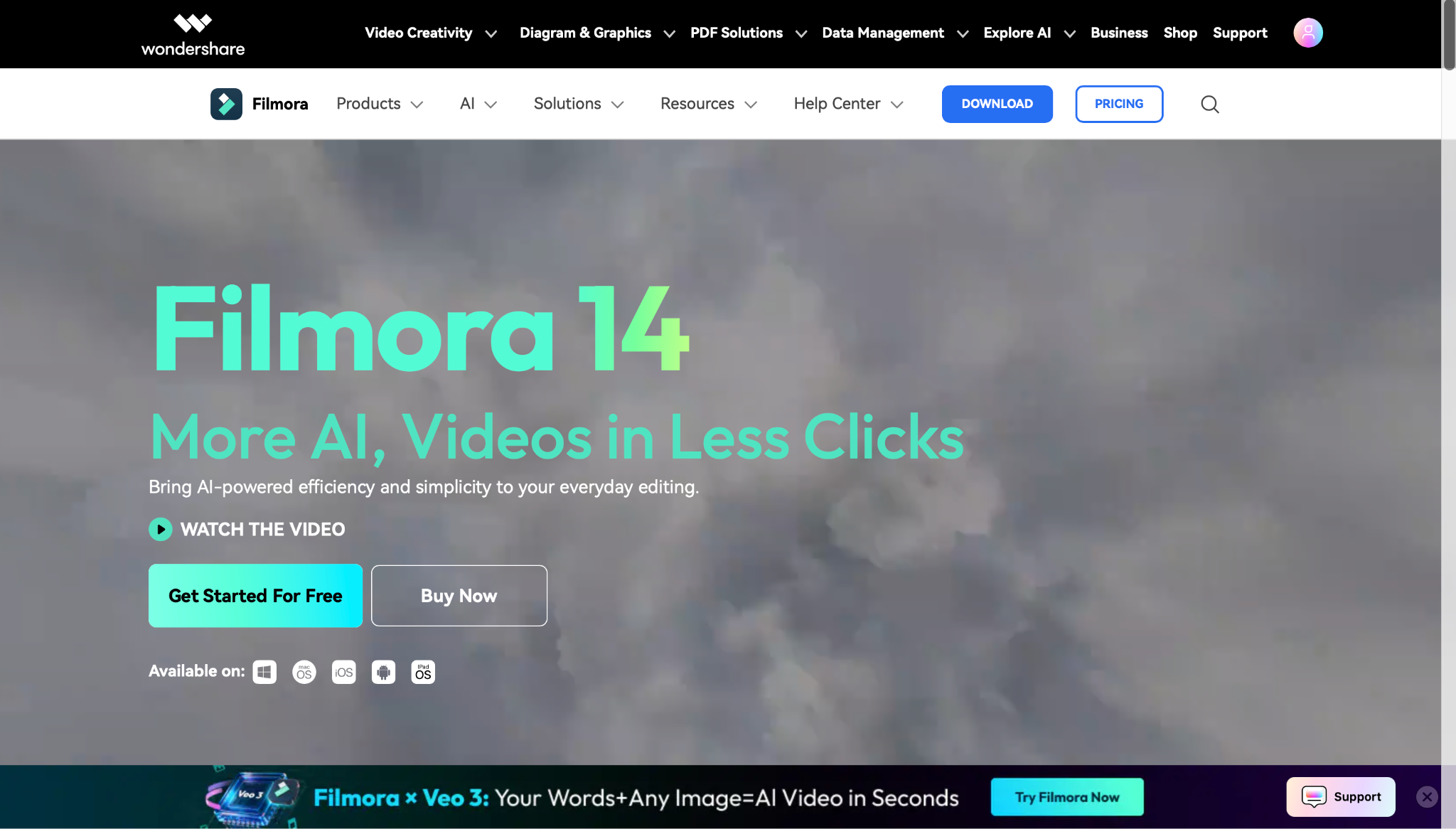
1. Wondershare Filmora – Smart Audio Normalizer for Creator
Features:
One-click audio normalisation using Auto Normalization at -23 LUFS
Built-in loudness normalizer for voice, music, and ambient tracks
Multi-track timeline for syncing audio layers with video
Batch processing for normalizing multiple files at once
Includes denoiser, pitch adjuster, and customizable equalizer
2. Audacity – Free and Flexible MP3 Volume Normalizer
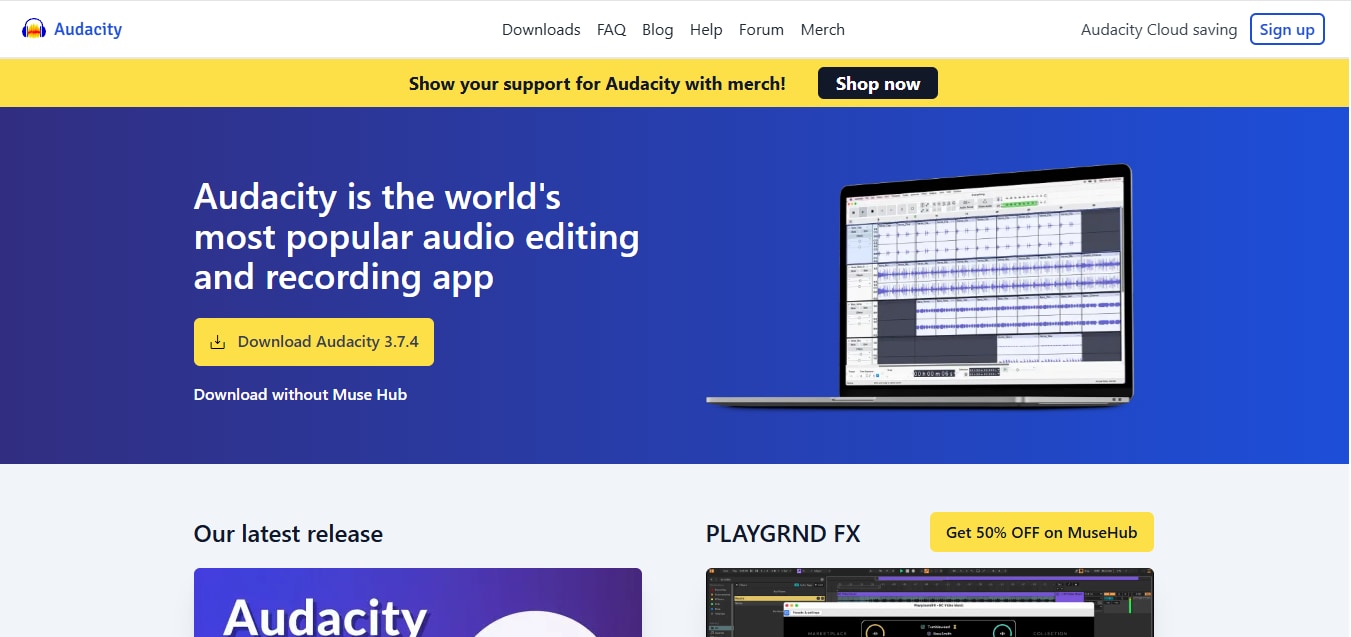
Audacity is a legendary open-source audio normalizer software trusted by podcasters, musicians, and audio engineers worldwide. It supports both peak normalization and RMS-based loudness normalizer functions, giving you complete control over your sound levels. Whether you're working on a single track or batch-processing multiple MP3s, Audacity’s flexible tools make it a reliable MP3 volume normalizer. With support for plugins and scripting, it’s also a favorite for those who want to automate their MP3 normalizer online workflows locally, without relying on cloud tools.
Features:
Normalize audio to a target peak amplitude (e.g., -1 dB)
Remove DC offset and balance stereo channels
Apply loudness normalization using LUFS or RMS
Batch process multiple MP3 files with macros or chains
Supports plugins for compression, EQ, and metering
3. Adobe Premiere Pro – Broadcast-Ready Loudness Normalizer
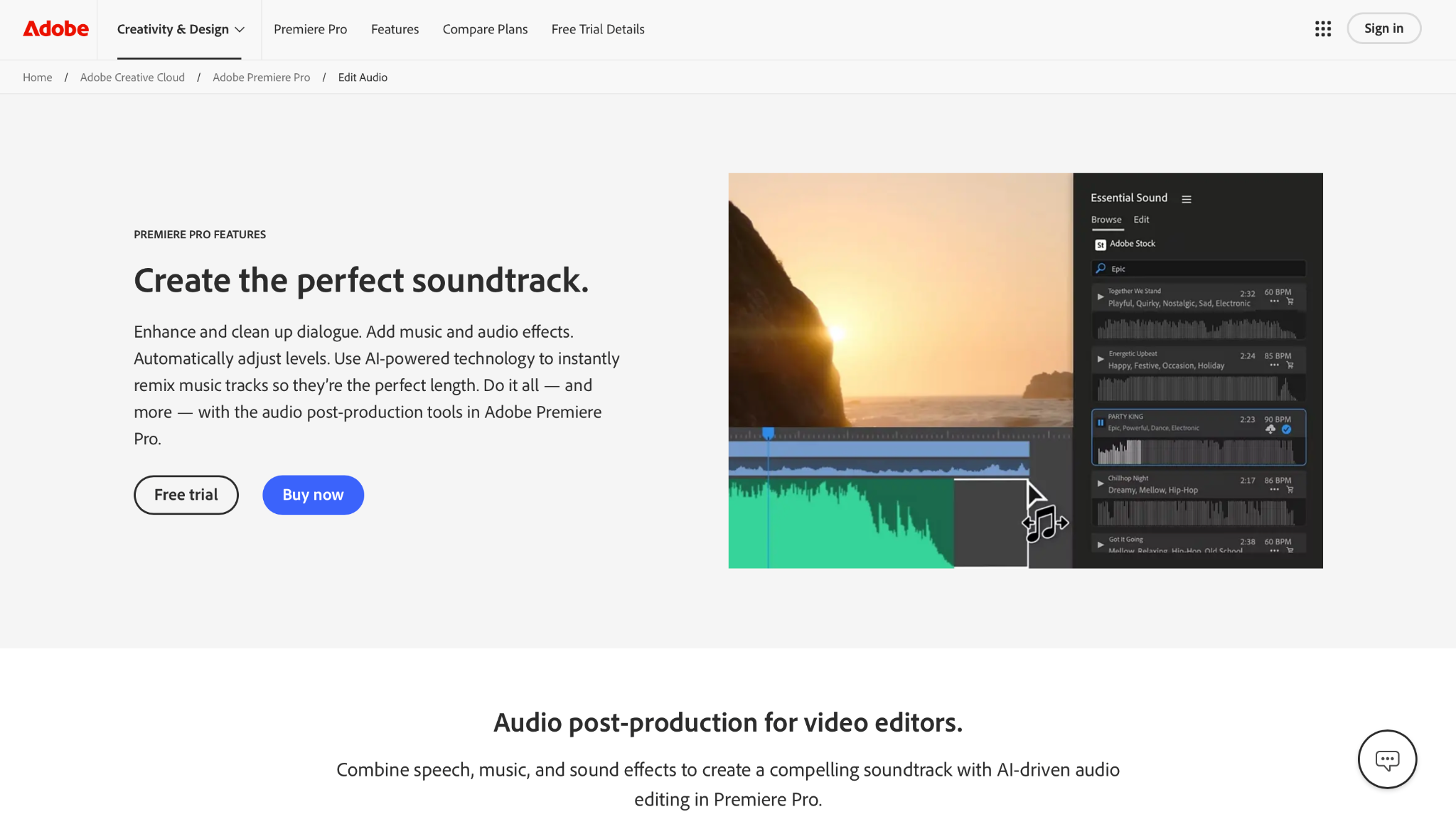
For professionals who need precise control over audio in video production, Adobe Premiere Pro delivers a robust loudness normalizer built to meet global broadcast standards. Its Essential Sound panel allows you to normalize audio using LUFS, making it ideal for YouTube, film, and streaming platforms. As a premium audio normalizer software, Premiere Pro supports multi-clip batch normalization, real-time metering, and seamless integration with Adobe Audition. If you're editing MP3s or syncing voice and music in complex timelines, this tool ensures your audio is polished, balanced, and ready for any platform.
Features:
Normalize audio clips or entire mix tracks using LUFS or peak gain
Auto-ducking for background music under voice-overs
Essential Sound panel for quick audio leveling presets
Real-time waveform preview and loudness metering
Batch normalize multiple
clips in a timeline
Part 2.Best 3 Easy-to-Use Audio Normalizers Online
Ever played your audio and found the volume bouncing all over the place? That’s where audio normalization comes in. Whether you're editing a podcast, fixing your song mix, or prepping content for YouTube, using an online audio normalizer can quickly level your sound without diving into complex software. The best part? These tools are free, browser-based, and require zero downloads. Here are 3 of the best, beginner-friendly audio normalizers online—just upload your file, hit normalize, and get consistent, professional audio in seconds.
1. AudioMass
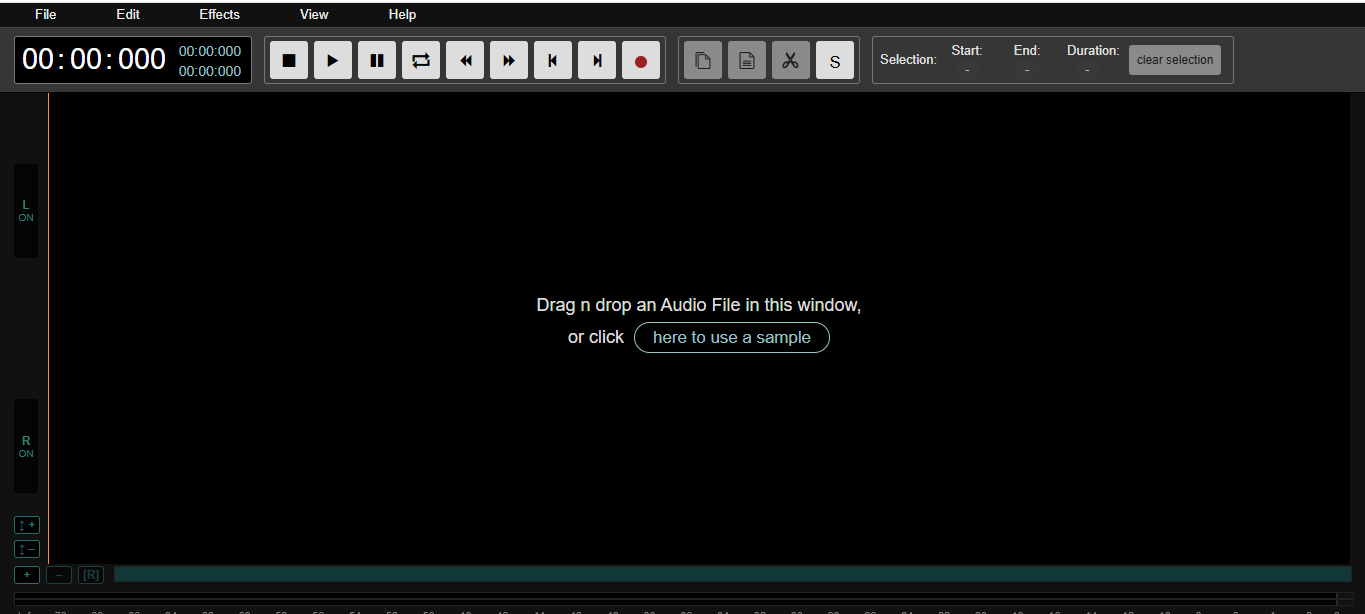
AudioMass is a fast, lightweight online audio editor with a built-in normalizing function. Designed with simplicity in mind, it offers an old-school waveform UI where you can drag, drop, and instantly normalize your audio. Ideal for beginners and creators who want fast results without installing anything.
Features:
Works directly in your browser—no need to download anything.
Shows a visual sound wave so you can easily edit your audio.
Has a one-click “Normalize” option to fix volume levels quickly.
Supports common file types like MP3, WAV, and OGG.
Completely free to use—no login or sign-up needed.
2. MP3 Louder
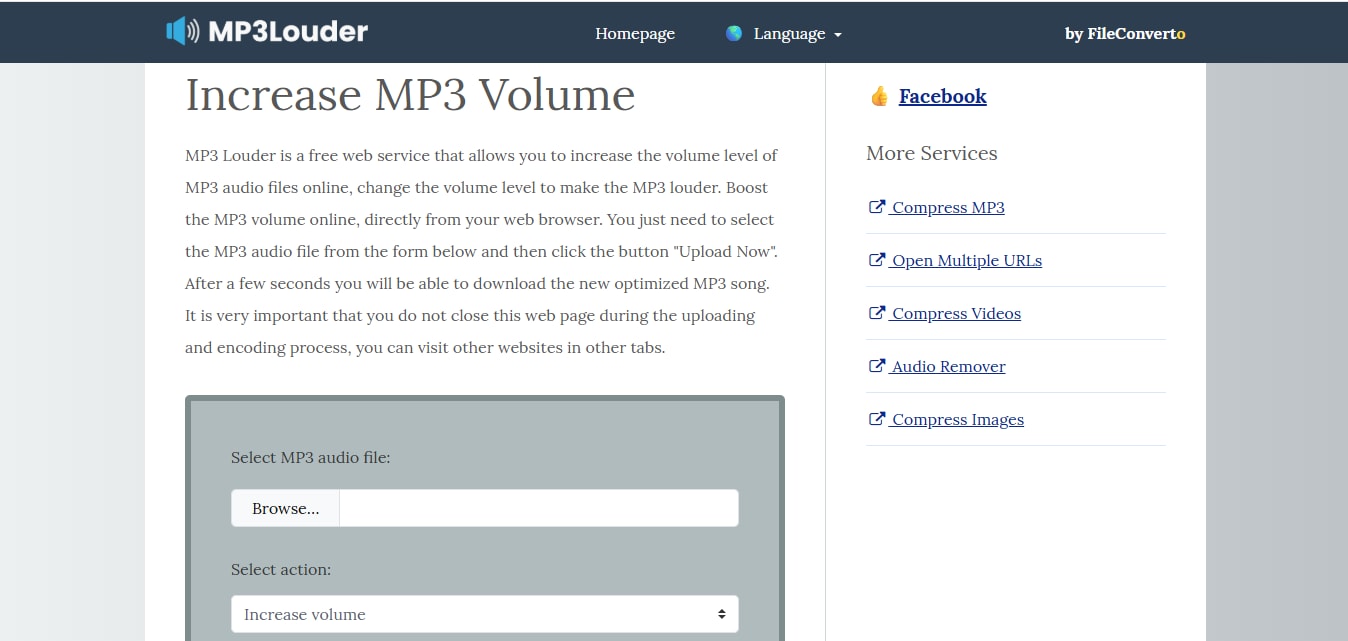
MP3 Louder is a straightforward web tool focused purely on adjusting volume levels in MP3 files. It’s no-fuss interface lets you increase or normalize audio in just three steps—upload, choose volume settings, and download. Perfect for casual users or quick fixes.
Features:
Let's upload and normalize your MP3 file in just a few steps.
You can increase volume by a specific amount (in decibels).
Lets you control the left and right audio channels separately.
Works on any browser, no extra software needed.
Gives you a download link right after it's done processing.
3. Online Audio Converter by 123Apps
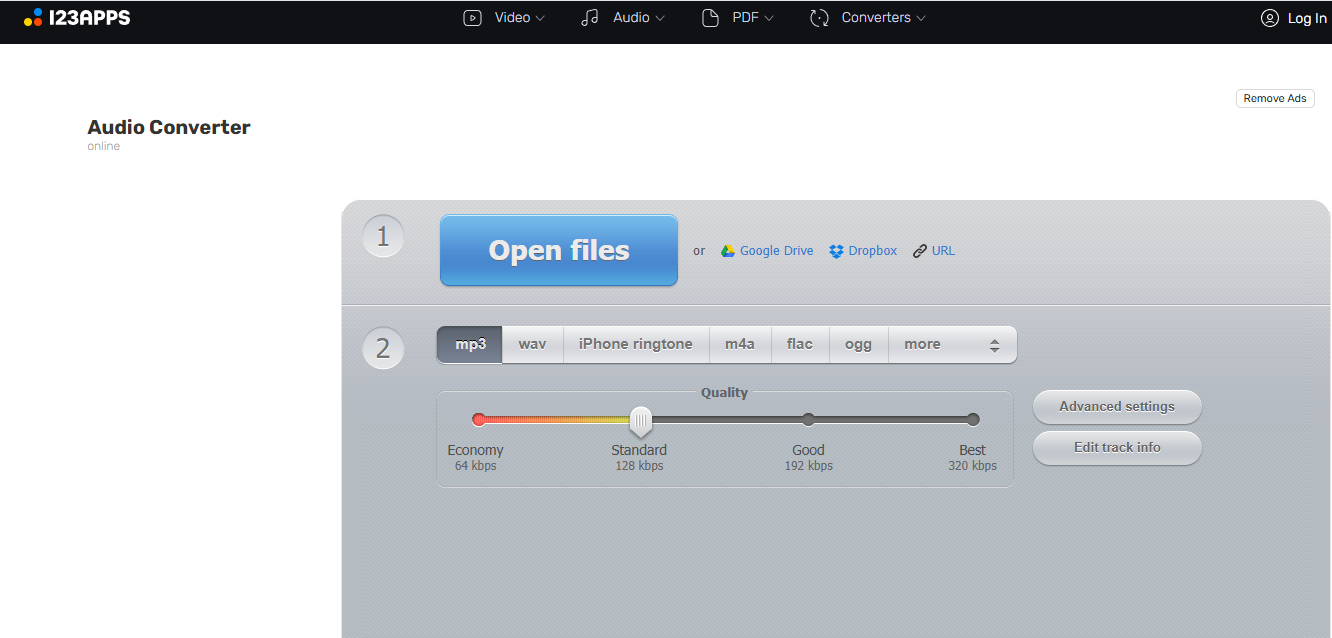
Part of the 123Apps suite, this Online Audio Converter includes built-in tools like volume normalization, file format conversion, and compression. It’s a great all-in-one audio station if you're normalizing files while prepping them for web or streaming.
Features:
Normalizes volume and converts audio at the same time.
Let’s you upload files from your device, Google Drive, or Dropbox.
Allows you to choose the sound quality before saving.
Easy-to-use layout with clear buttons and options.
Works on all devices—computers, phones, and tablets.
Part 3. Popular 3 Audio Normalizer Apps for Mobile
Whether you're editing music, fixing voice recordings, or prepping audio for social media, having a good audio normalizer app on your phone makes the process quick and convenient. These apps help balance loud and quiet parts of your audio, making it sound smoother and more professional, without needing a laptop or complex software. From Android to iOS, we’ve picked 3 popular mobile apps that are easy to use, even for beginners.
Each of these apps offers basic editing tools along with built-in normalization, so you can edit on the go, whether you’re in a studio or your car.
1. WaveEditor for Android™
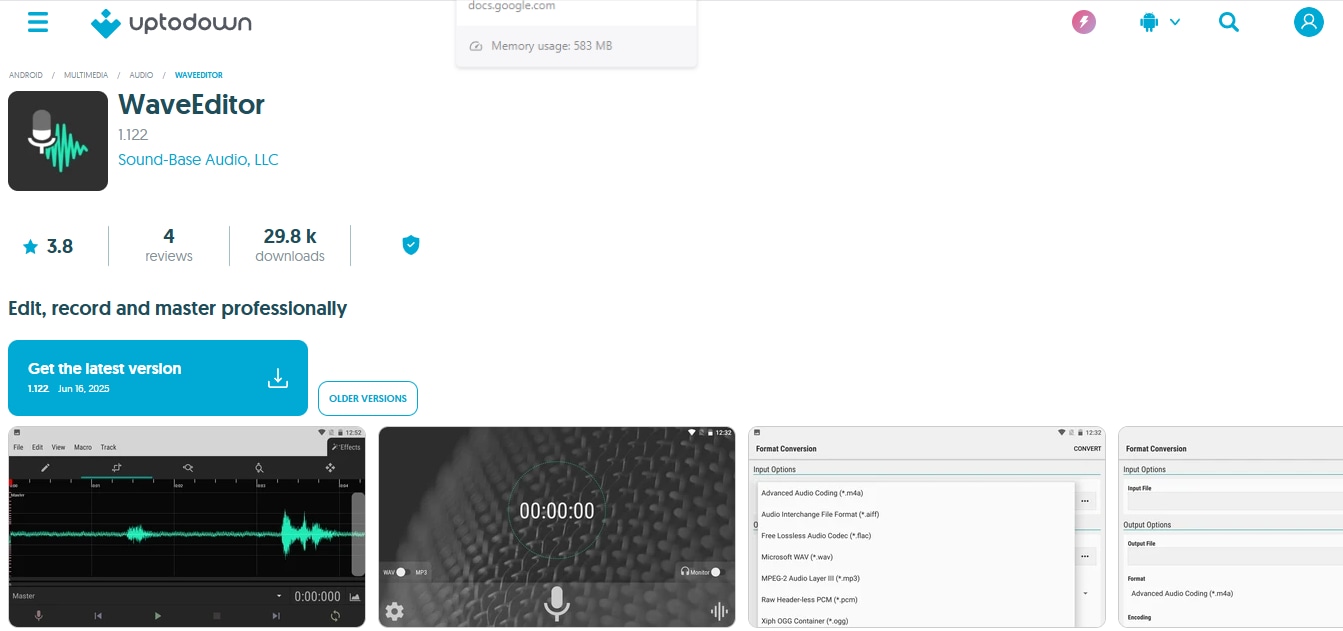
WaveEditor is a full-featured audio editor for Android that includes volume normalization, trimming, recording, and exporting. It supports a wide range of formats and is ideal for mobile creators or podcasters looking to edit professionally from their phone.
Features:
Works with MP3, WAV, FLAC, and more
Built-in Normalize option to balance volume
Real-time waveform display for precision editing
Record audio directly in the app
Export to multiple file types and quality levels
2. Lexis Audio Editor
Lexis Audio Editor is a powerful and simple tool available on both Android and iOS. With normalization, trimming, and compression built-in, it’s a top choice for mobile audio editing. The clean interface makes it great for users who want quick, no-fuss results.
Features:
One-tap normalization tool
Record and edit voice clips on the spot
Save in MP3, WAV, AAC, and more
Simple noise reduction options
Supports copy-paste and multiple undo
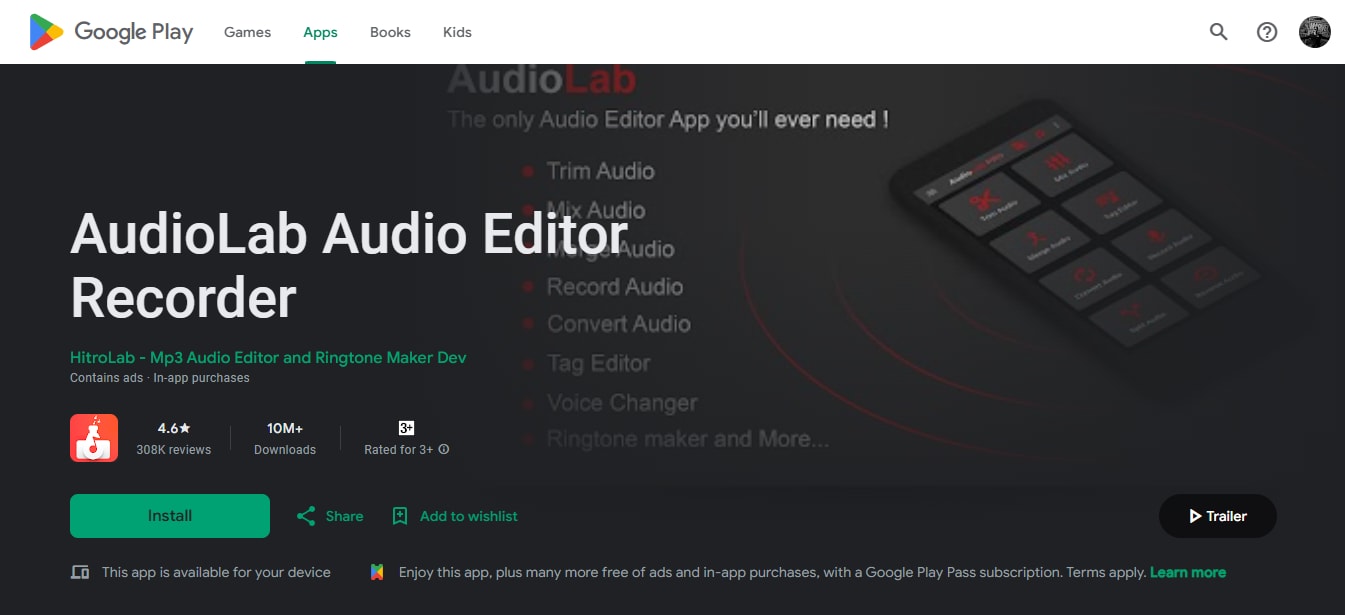
3. AudioLab Audio Editor Recorder
AudioLab is one of the most downloaded audio editing apps on Android, known for its powerful tools, voice editing features, and yes, audio normalization. It’s a go-to for YouTubers, podcasters, and content creators who edit directly from their phones.
Features:
Audio normalization and gain control options
Voice changer, trimmer, and audio merger
Supports background noise removal
Built-in text-to-speech and audio converter
Save projects and resume later
Part 4. Bonus: How to Easily Batch Normalize Video Sound with UniConverter
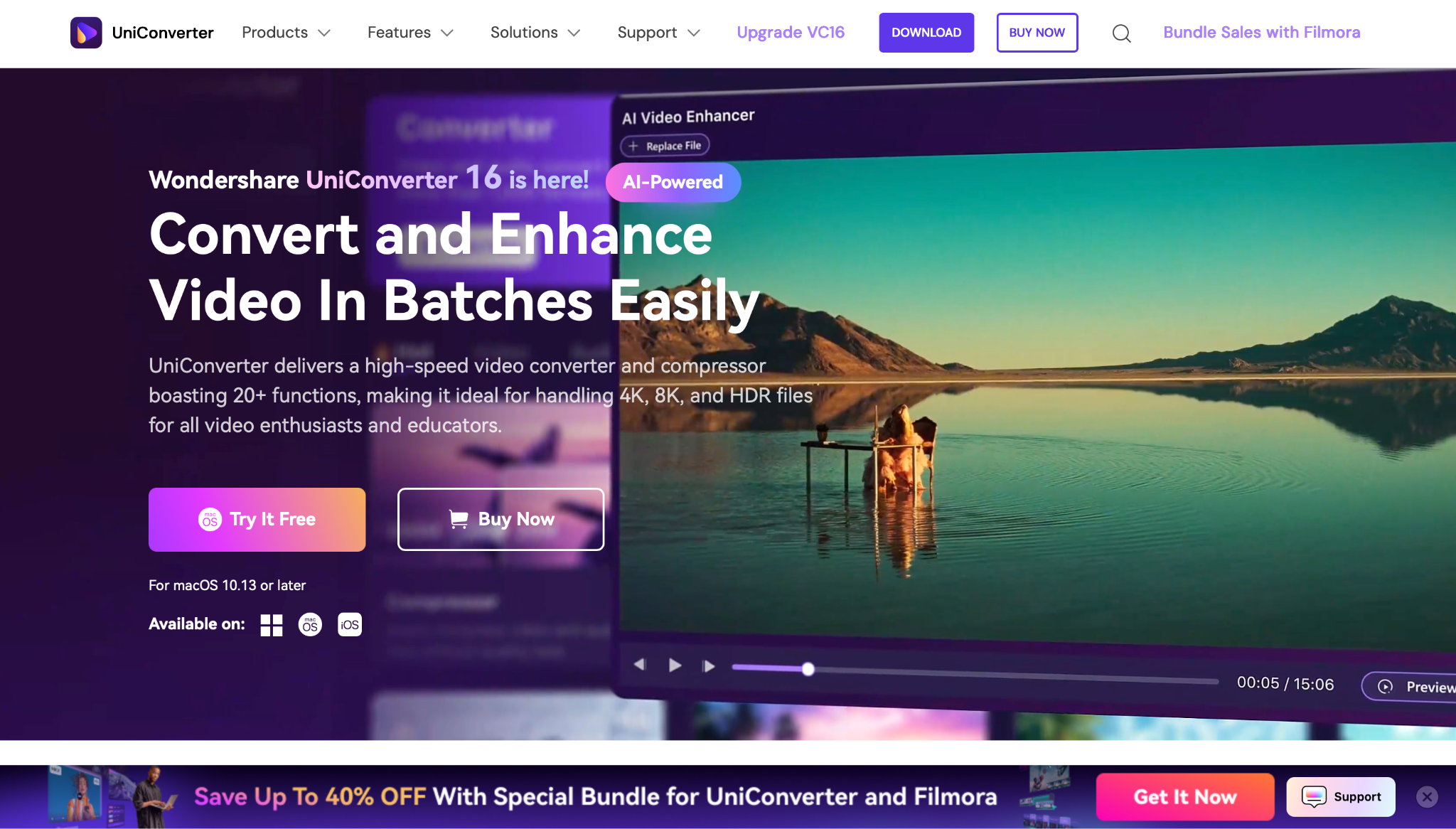
Got multiple videos with inconsistent audio levels? Instead of adjusting them one by one, you can batch normalize all your video files using Wondershare UniConverter—a powerful desktop tool that handles video and audio tasks like a pro.
UniConverter not only boosts or balances audio levels across many video files at once, but it also gives you options to convert, compress, and edit without affecting the original quality. Whether you're working on a YouTube playlist or editing for a client, this tool keeps everything smooth, fast, and organized.
Step-by-Step: Batch Normalize Audio in UniConverter
If you're working with multiple video files that have inconsistent audio levels—some too loud, others barely audible—batch normalization is the most efficient way to bring everything to a consistent volume. With Wondershare UniConverter, you don’t need to be an audio professional to get polished, balanced sound across all your videos.
Whether it’s for a YouTube series, client project, or personal archive, normalizing your videos ensures a seamless and consistent listening experience across every file.
Here’s how to batch normalize audio using UniConverter—step by step.
Step-by-Step: Normalize Audio Volume (3 Steps)
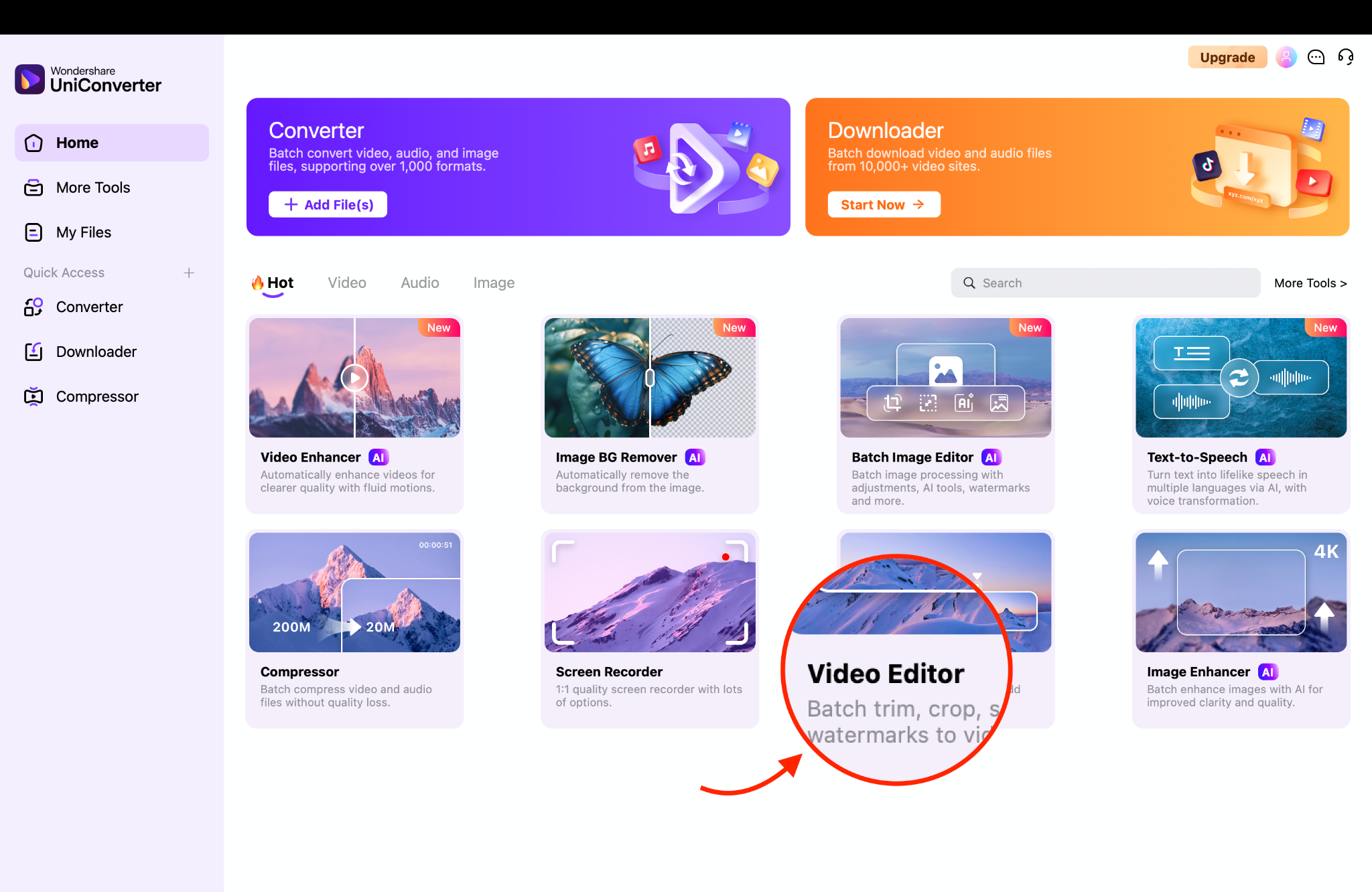
Step 1: Launch UniConverter & Open Toolbox
Open Wondershare UniConverter and navigate to the Toolbox tab. Select Video Editor to access volume adjustment tools that support batch processing. This feature is ideal for handling multiple video files at once.
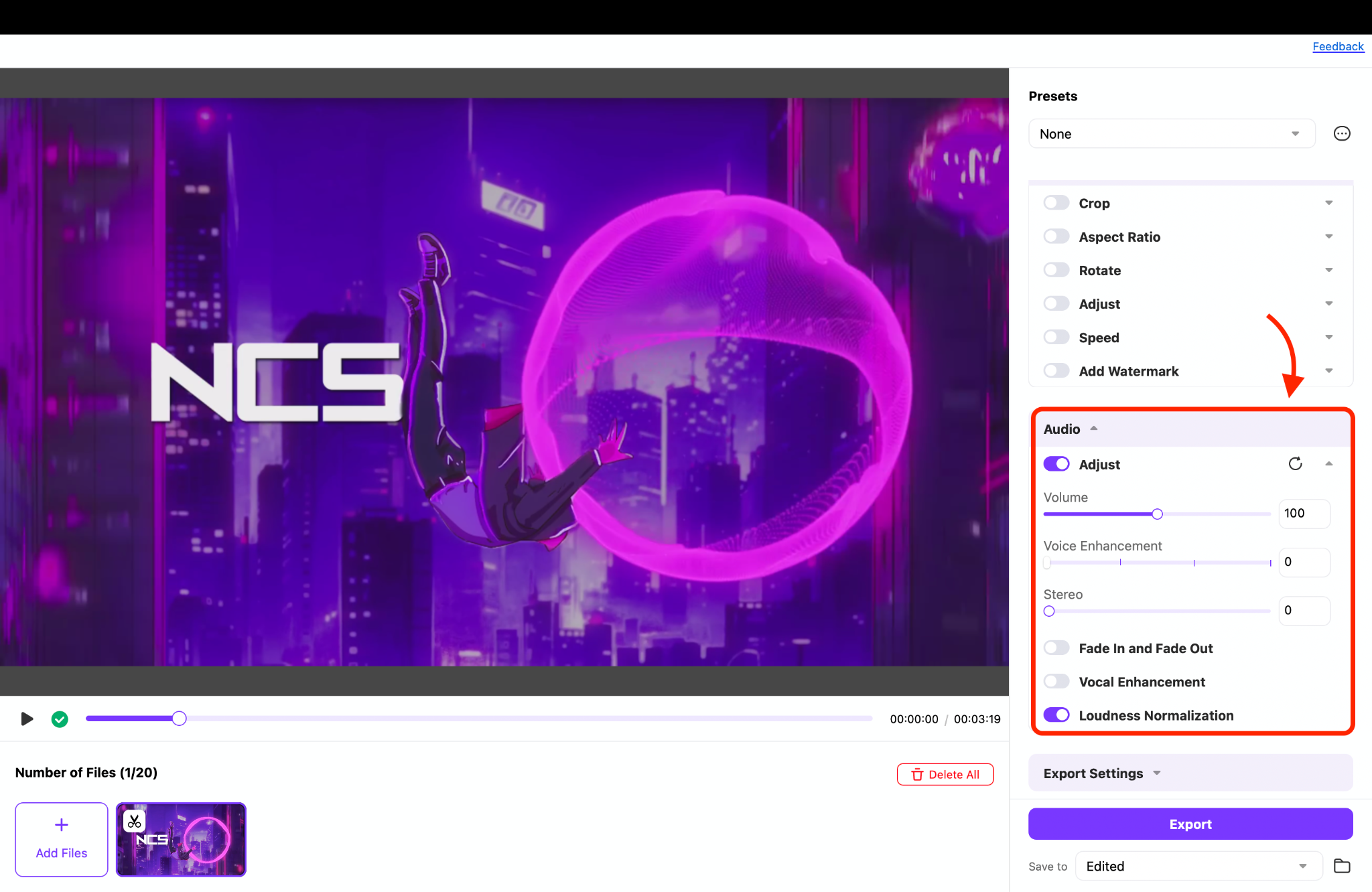
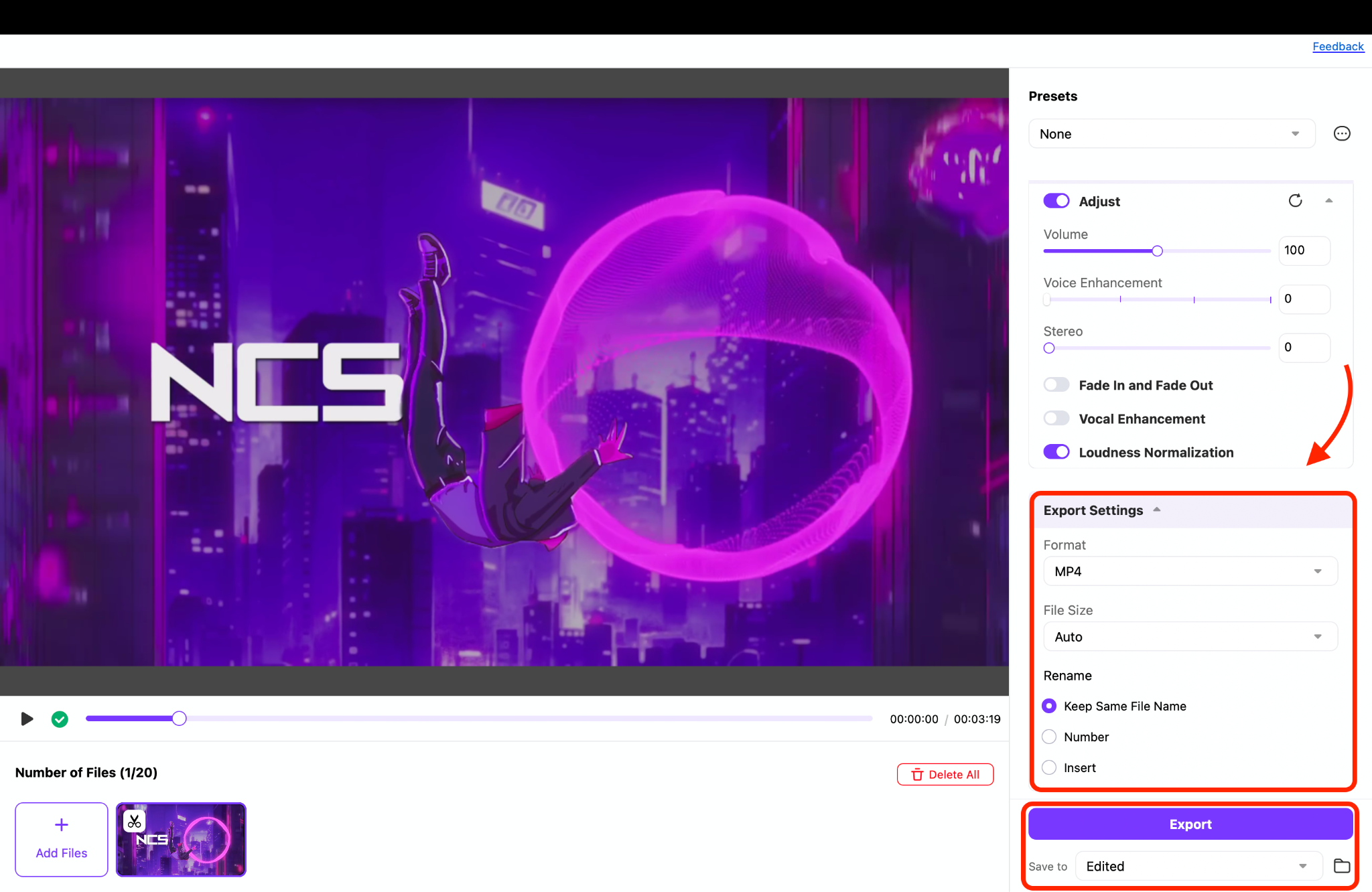
Step 2: Add Files & Enable “Loudness Normalization”
Step 3: Choose Format and Export
Final thoughts
Balancing audio levels is a crucial step in making your content sound polished and professional, whether it's a podcast, a video, or a voiceover. With the right tools, you don’t need to be an audio engineer to fix volume issues. From online normalizers like AudioMass and MP3 Louder to mobile apps like Lexis Audio Editor and desktop solutions like UniConverter, you have plenty of easy-to-use options.
If you're working with multiple files or full-length videos, tools like UniConverter’s batch audio normalizer can save you hours of manual editing while keeping your sound quality consistent across the board. Pick the tool that fits your workflow—online, mobile, or desktop—and start normalizing with confidence.
FAQs
-
1. What does audio normalization actually do?
Audio normalization adjusts the volume levels across your entire audio or video file. It makes sure the sound stays consistent, so no parts are too loud or too quiet. This is especially helpful for podcasts, interviews, or video projects where volume might vary. It improves the overall listening experience without distorting your original sound. -
2. Can I normalize audio without installing any software?
Yes, you can normalize audio online using free tools like AudioMass or MP3 Louder. These websites work directly in your browser—no installation or sign-up needed. Just upload your file, apply normalization, and download the result. 3. Is there a way to normalize audio on my phone? -
3. Is there a way to normalize audio on my phone?
Absolutely. Mobile apps like Lexis Audio Editor, WaveEditor, and AudioLab allow you to adjust volume levels directly from your smartphone. If you want to break out all capabilities bar, only consistency and potential are the keys, Wondershare’s UniConverter always stands out with its powerful AI tools. -
4. Can I normalize sound in multiple videos at once?
Yes! If you're dealing with multiple files, Wondershare UniConverter is an excellent option. It lets you batch normalize videos’ audio with ease, saving you time and effort. -
5. Will normalization affect my original video or audio quality?
No, normalization doesn’t reduce the quality of your audio or video. It simply adjusts volume levels without changing other settings like resolution or bitrate. As long as you're using a reliable tool like UniConverter or Lexis Audio Editor, your content stays clean and professional.

