


Imagine watching a water balloon burst—not in a blink, but in a mesmerizing dance of droplets hanging in mid-air. That is the magic of smooth slow motion. Whether you are editing a high-octane sports clip or a cinematic wedding b-roll, slowing down time adds drama and emotion. However, getting that "liquid" look without the footage becoming choppy is a challenge. Many creators struggle to find good smooth slow motion video online tools or find themselves overwhelmed by complex software setups for slow motion After Effects projects.
In this guide, we will cut through the technical jargon and explore the top tools for every device. From industry giants utilizing Premiere Pro smooth slow motion workflows to accessible smooth slow motion apps that make smooth slow motion CapCut edits a breeze, we'll help you freeze time perfectly.
- Professional tools like Premiere Pro, After Effects, and DaVinci Resolve offer advanced slow motion controls, but they often come with steeper learning curves.
- Online and mobile apps such as CapCut, Runway ML, Ezgif, VSCO, and VN Video Editor are suitable for quick edits, though results may vary with complex motion.
- For users enhancing multiple clips at once, Wondershare UniConverter works as a batch smooth slow motion video app, providing stable frame interpolation and consistent output across files.
In this article
Part 1. What Is Smooth Slow Motion?
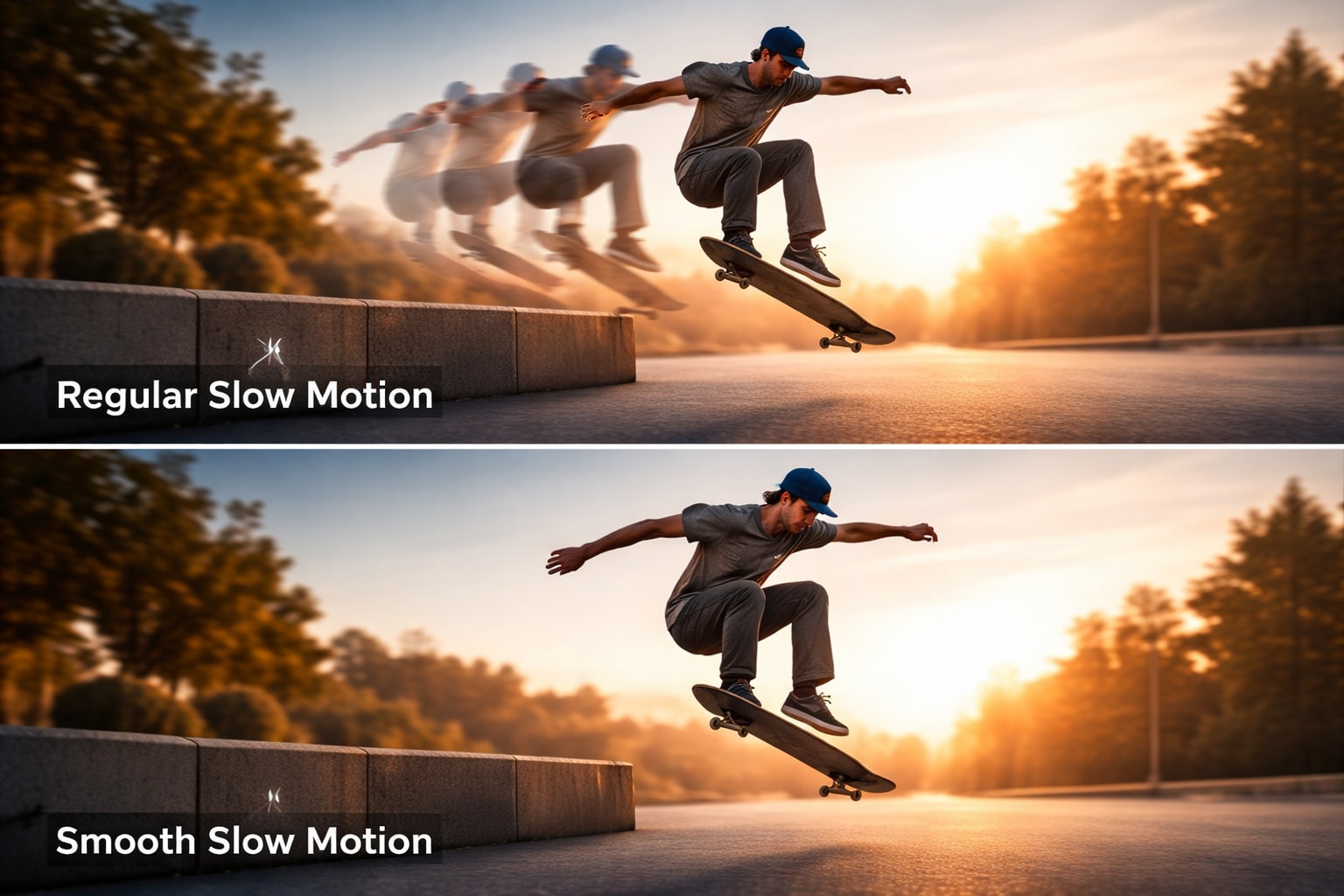
To understand smooth slow motion, think of a flipbook. If you tear out every second page (reducing the frame rate), the animation looks jerky and stutters. This is what happens in standard slow motion if the footage wasn't recorded at a high speed; you stretch the existing video, and the gaps between frames become visible "stutters."
Smooth slow motion fixes this by filling in those gaps. It's like an artist drawing new pages in that flipbook to bridge the action seamlessly.
Difference between regular slow motion vs smooth slow motion
Regular slow motion simply slows down the playback speed. If you take a standard 30fps video and slow it to 50%, it plays at 15fps, looking like a slideshow. Smooth slow motion uses technology to maintain a fluid look, even when slowing down standard footage.
Importance of Frame rate (FPS) and Optical Flow / AI
Frame Rate (FPS): This is your raw material. Footage shot at 60fps or 120fps has more "pages" in the flipbook, making it naturally easier to slow down without quality loss.
Optical Flow / AI Frame Interpolation: This is the magic sauce when you don't have high FPS. Tools use AI to guess what the movement between two frames looks like and generate fake frames. This is crucial for achieving smooth slow motion online or when trying to turn a standard 24fps movie clip into a slow-mo masterpiece for social media.
Part 2. How to Make Smooth Slow Motion Video (Free & Paid)
Whether you are editing a cinematic masterpiece on a high-end workstation or just tweaking a clip on your phone for TikTok, there is a tool designed for your needs. We have categorized the top solutions below to help you find the perfect match for your device and skill level.
2.1 Best Smooth Slow Motion App for Win and Mac on PC
1.Wondershare UniConverter
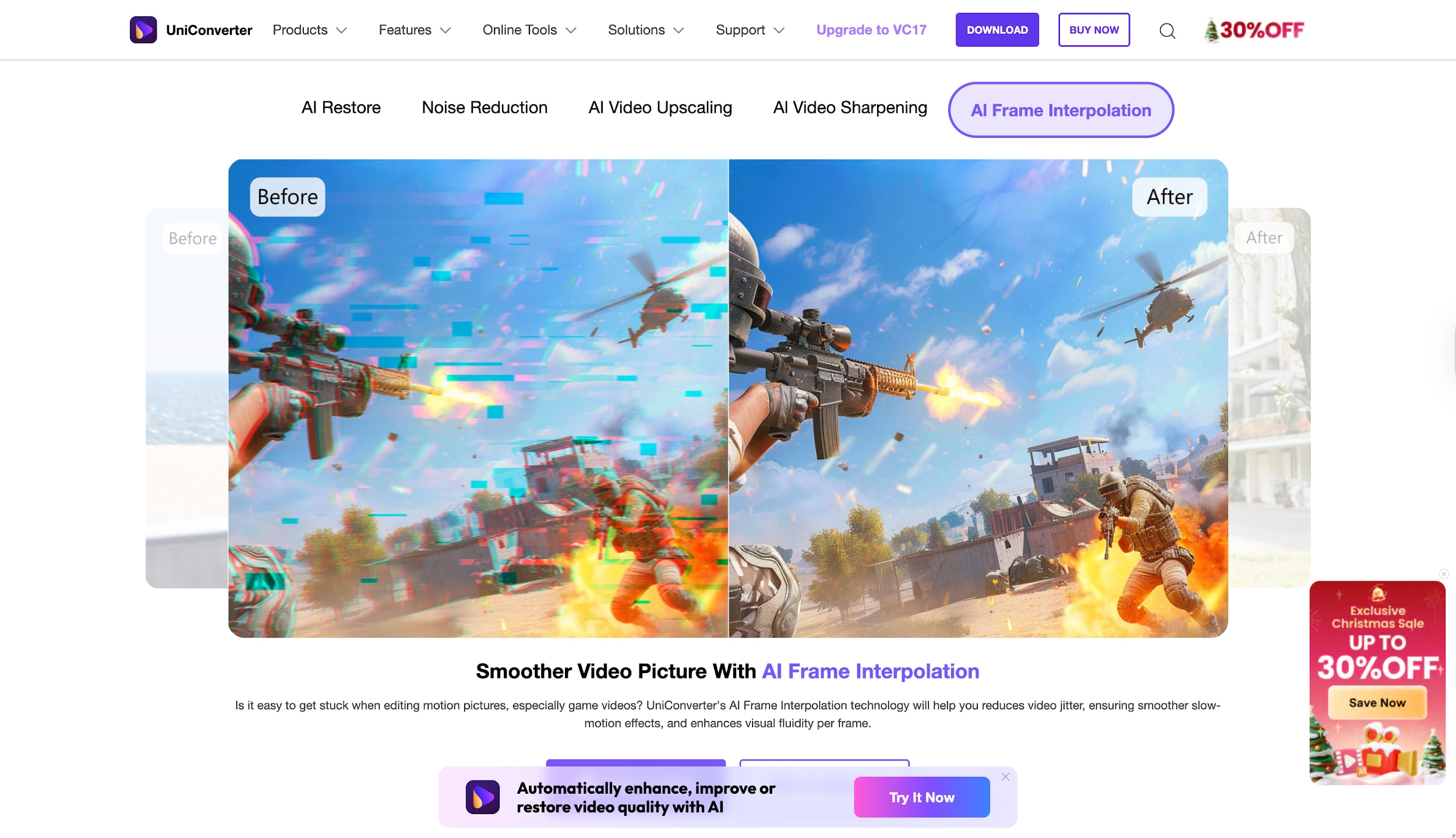
Wondershare UniConverter is a powerhouse for users who want professional smooth slow motion results without the steep learning curve of NLE software. While primarily known for file conversion, its dedicated AI Video Enhancer is a game-changer for frame interpolation. It uses deep learning models to analyze your footage and generate new, realistic frames between existing ones. This allows you to turn standard 30fps clips into buttery smooth 60fps or 120fps slow-motion videos effortlessly. It supports batch processing, meaning you can enhance an entire folder of clips at once, saving hours of manual editing time.
Key Features:
AI Frame Interpolation: Boosts frame rates (e.g., 30fps to 60/120fps) for fluid slow motion.
Batch Processing: Apply AI smooth slow motion to multiple files simultaneously.
Full Editing Suite: Includes cutting, cropping, and color correction tools.
GPU Acceleration: Optimized for fast rendering on Windows and Mac.

Smooth Slow Motion App for Fluid Playback
Pros
Incredibly easy to use; no technical VFX knowledge needed.
Produces artifact-free interpolation that rivals expensive plugins.
Supports over 1,000 video formats, ensuring compatibility.
All-in-one tool allows for converting, compressing, and editing in one place.
Cons
The free trial version has limitations on video length and export features.
Advanced AI processing requires a paid subscription.
Best For: Content creators and beginners who want a fast, "one-click" solution for professional smooth slow motion.
2. Adobe Premiere Pro
Adobe Premiere Pro is the industry standard for video editing and offers a robust native workflow for Premiere Pro smooth slow motion. By utilizing its "Optical Flow" Time Remapping feature, editors can slow down footage significantly while the software mathematically calculates the missing pixels. It offers granular control over speed ramps, allowing for dynamic speed changes within a single clip. For users already in the Adobe ecosystem, this is the most seamless way to achieve broadcast-quality Premiere slow motion smooth results without leaving your timeline.
Key Features:
Optical Flow Time Remapping: A native tool for smoothing out slowed footage.
Speed Ramping: Precision keyframe controls for gradual speed changes.
Lumetri Color: Advanced color grading to match your slow-mo aesthetic.
Pros
Industry-standard tool used by professionals worldwide.
Seamless integration with After Effects and Audition.
Highly customizable workspace and keyboard shortcuts.
An extensive library of third-party plugins and tutorials is available.
Cons
Expensive monthly subscription (Creative Cloud).
Steep learning curve for absolute beginners.
Requires a powerful computer (high RAM and GPU) to run smoothly.
Best For: Professional video editors and YouTubers requiring precise control over editing and speed ramps.
3. Adobe After Effects
For those needing the absolute highest quality After Effects smooth slow motion, this software is the heavy hitter. It goes beyond simple editing by offering "Pixel Motion Frame Blending" and the "Timewarp" effect, which provide pixel-perfect control over motion estimation. It is the preferred tool for VFX artists who need to rescue footage that was shot at very low frame rates. With the ability to mask specific areas and track motion, users can achieve smooth slow mo After Effects results that don't suffer from the warping artifacts common in simpler tools.
Key Features:
Pixel Motion & Timewarp: Advanced algorithms for fluid motion estimation.
Compositing: Ability to layer slow-motion elements with VFX.
Rotoscoping: Isolate subjects to apply speed effects selectively.
Pros
Unmatched quality for smooth slow mo After Effects tasks.
Can fix "impossible" footage that other tools can't handle.
Extensive plugin support (like Twixtor) for even better results.
Cons
Extremely complex interface that can be intimidating.
Render times can be very long for high-resolution clips.
Not designed for audio or simple video assembly.
Best For: VFX artists and motion graphics designers who need pixel-perfect slow motion.
4. DaVinci Resolve
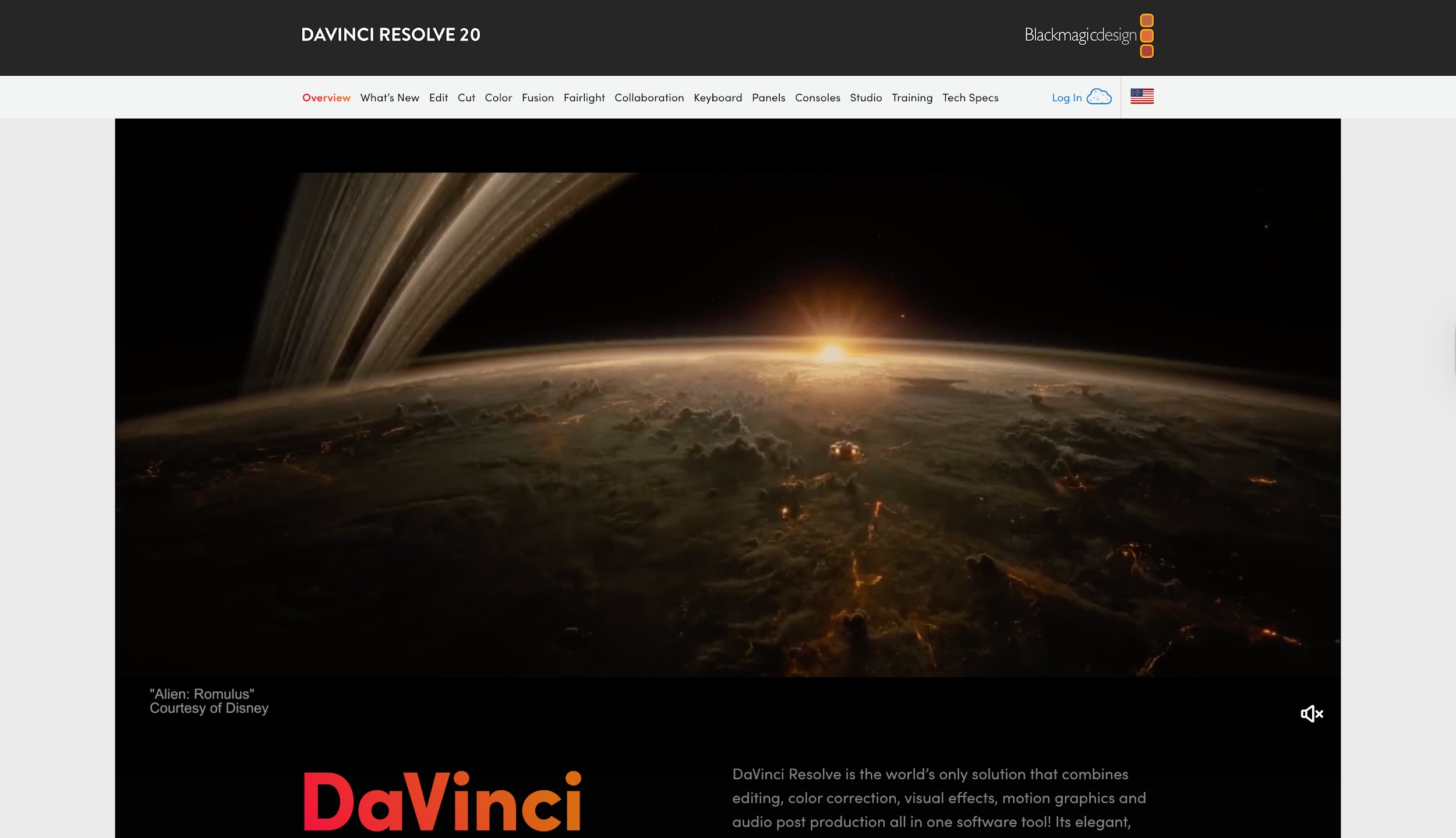
DaVinci Resolve has quickly become a favorite for its "Speed Warp" feature (available in the Studio version), which uses the Neural Engine to create DaVinci Resolve smooth slow motion. Even the free version offers excellent "Optical Flow" controls. It combines editing, color correction, visual effects, and audio post-production in a single application. Its node-based architecture allows for intricate adjustments, making it possible to apply smooth slow motion while simultaneously grading the footage to look like a cinema film.
Key Features:
Neural Engine Speed Warp: AI-driven interpolation for superior results.
Retime Controls: Intuitive curve editor for variable speed changes.
Color Grading: World-class color tools integrated with speed effects.
Pros
The free version is incredibly powerful and feature-rich.
"Speed Warp" offers some of the best AI interpolation in the industry.
Combines every aspect of post-production in one software.
Cons
The node-based workflow is different from layer-based editors (like Premiere).
Very high system requirements; needs a strong GPU.
Best For: Colorists and independent filmmakers looking for a professional suite (often for free).
2.2 Best Smooth Slow Motion App Online
5.CapCut Online
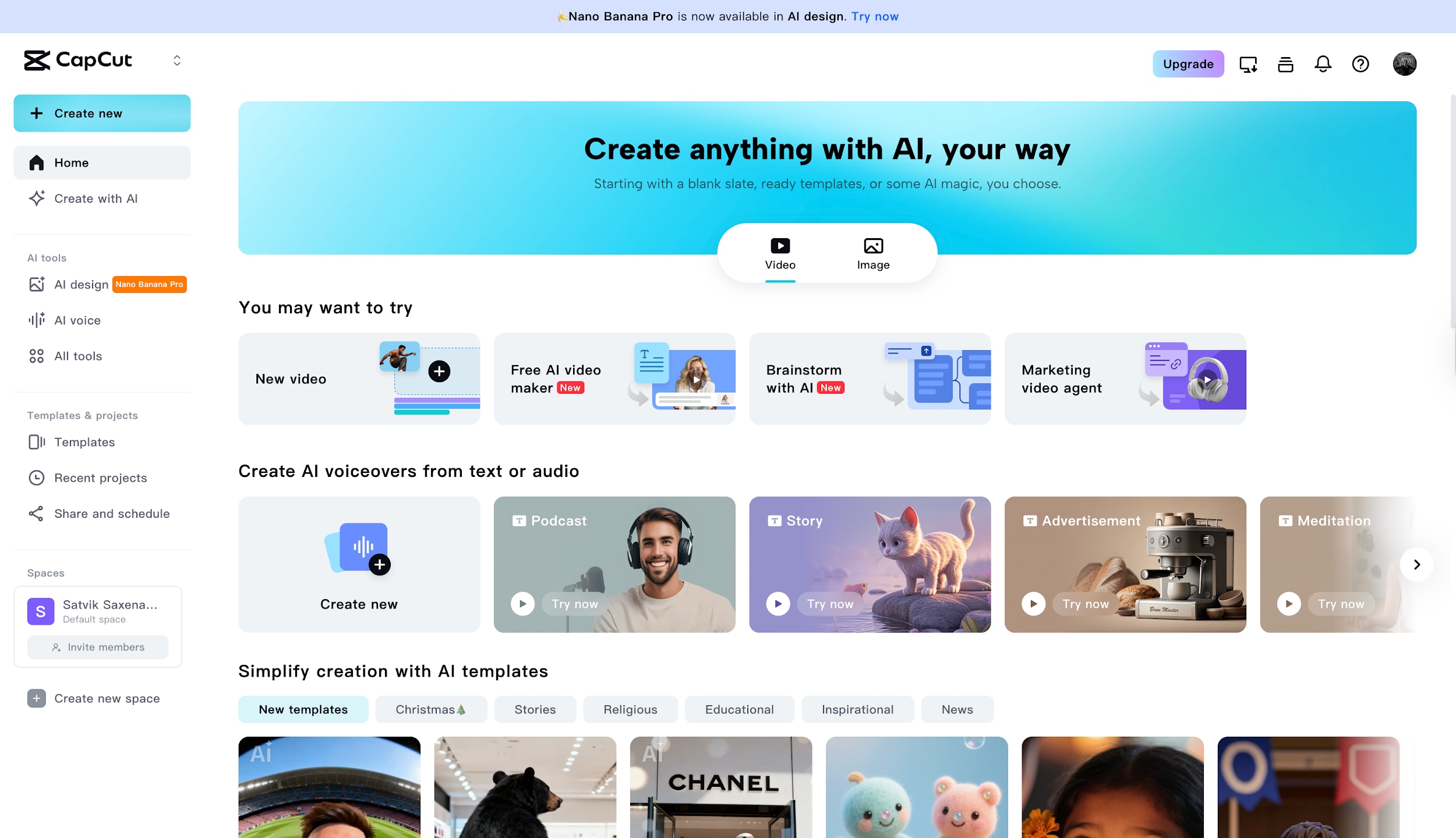
CapCut Online brings the viral capabilities of its mobile app to your web browser. It is arguably the most popular tool for creating smooth slow motion CapCut edits for social media. With a simple "Smooth Slow-Mo" toggle, it automatically applies optical flow to your uploaded clips. It is designed for speed and ease, making it perfect for creators who need to edit a TikTok or Reel quickly without installing heavy software. The interface is drag-and-drop, and it syncs with your TikTok account for immediate posting.
Key Features:
One-Click Smooth Slow-Mo: Instant optical flow application.
Cloud Editing: Start projects on mobile and finish on the web.
Templates: Thousands of pre-made slow-mo templates.
Pros
Completely free to use for most basic features.
Extremely intuitive interface perfect for social media formats.
Fast cloud processing reduces strain on your local computer.
Huge library of trendy music and effects built-in.
Cons
Requires a stable and fast internet connection.
Less manual control over the interpolation settings compared to desktop software.
Privacy concerns regarding data usage have been raised by some users.
Best For: Social media creators (TikTok/Reels) who need fast, trendy edits.
6. Runway ML
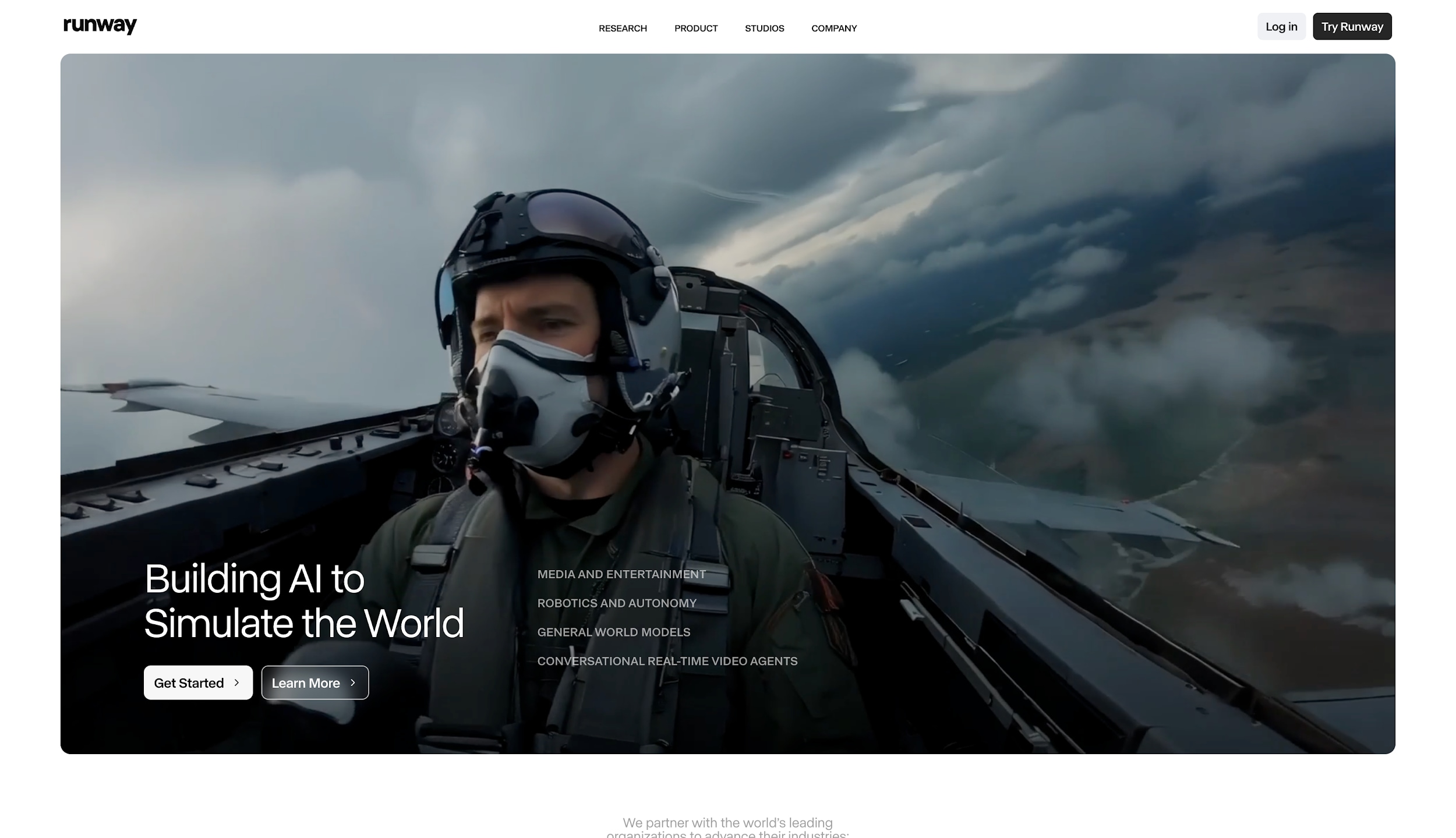
Runway ML is a cutting-edge creative suite that runs entirely in your browser. Its "Super-Slow Motion" tool utilizes Generative AI to dream up new frames, often outperforming traditional optical flow methods. This makes it an excellent choice for smooth slow motion video online when dealing with complex footage that usually glitches. Runway is more than just an editor; it's an AI playground that allows you to remove backgrounds, in-paint objects, and generate slow motion all within a collaborative web interface.
Key Features:
Generative AI Frame Interpolation: Creates highly realistic intermediate frames.
Magic Tools: Includes Green Screen, In-painting, and Motion Tracking.
Cloud Collaboration: Real-time editing with teams.
Pros
Uses state-of-the-art AI that handles complex motion well.
No heavy hardware required as processing is done in the cloud.
Innovative features that go beyond standard video editing.
Cons
The free tier is limited in export resolution and credits.
It can be expensive for heavy users requiring 4K exports.
The interface can be slightly technical for casual users.
Best For: Tech-savvy creators and professionals wanting to experiment with the latest AI video tools.
7.Ezgif
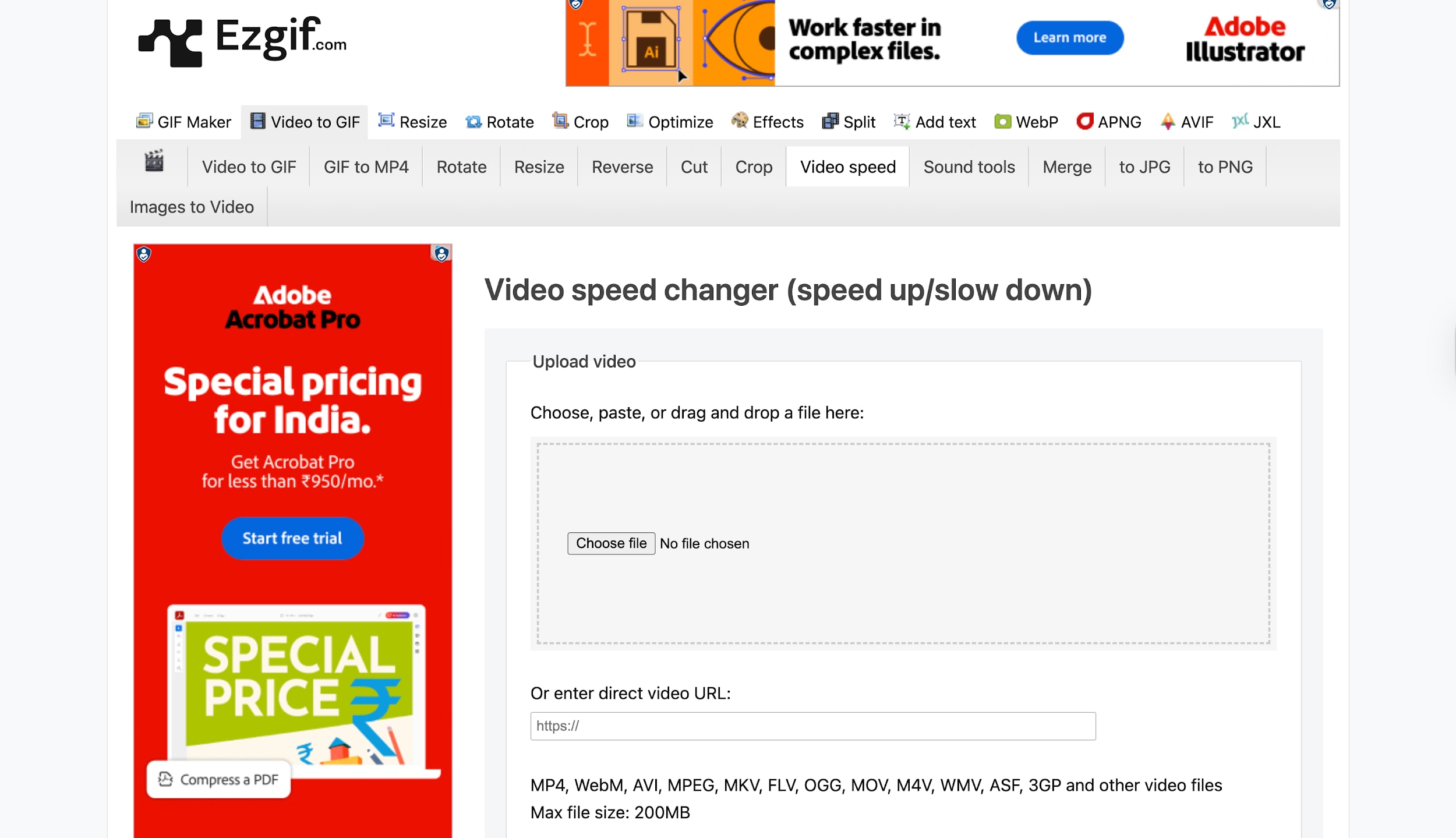
Ezgif is the utilitarian choice for simple tasks. While it lacks the fancy AI of Runway or UniConverter, it is a reliable tool for basic speed changes. It allows you to upload a video, change the playback speed, and export it without any watermarks. It offers basic frame blending but is best used for smooth slow motion online when you just need to slow down a clip that was already shot at a decent frame rate, or for creating GIF memes where perfect smoothness isn't the priority.
Key Features:
Video Speed Changer: Simple percentage-based speed adjustment.
Format Converter: Easily switch between MP4, WebM, GIF, etc.
Resizer/Cutter: Basic tools to trim and crop your slow-mo clips.
Pros
100% free with no registration or account required.
Works on any device with a browser, including older computers.
Simple, no-nonsense interface.
Cons
Lacks advanced AI interpolation (results can be choppy if slowed too much).
File size limits for uploads (usually max 100MB).
Not suitable for high-definition professional video work.
Best For: Quick, rough edits, memes, and GIF creation.
2.3 Best Smooth Slow Motion App for iPhone and Android
8. CapCut (Mobile App)
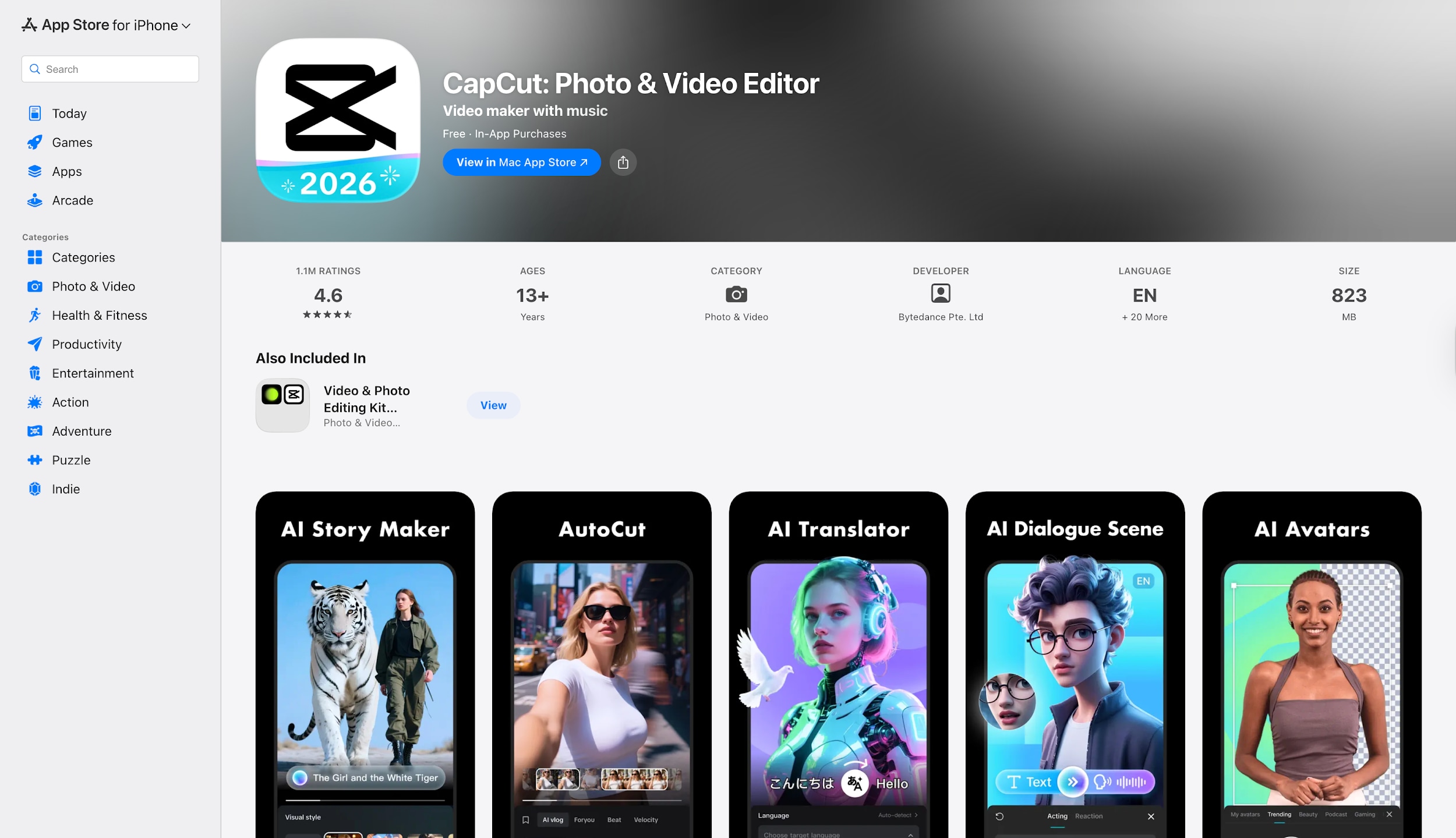
The CapCut mobile app is the undisputed king of smartphone editing. Its smooth slow motion free feature is widely regarded as the best on mobile. By simply selecting your clip, tapping "Speed," and choosing "Smooth Slow-Mo," the app analyzes the footage and applies optical flow. It creates incredibly fluid results that look like they were shot on a high-end camera. It also features a "Curve" editor, allowing you to create the popular "speed ramp" effect (fast-slow-fast) seen in travel vlogs and car edits.
Key Features:
Smooth Slow-Mo Tool: Features "Normal" and "Better Quality" modes.
Speed Curves: Preset curves like "Bullet," "Montage," and "Hero."
Auto-Velocity: Automatically adds speed ramps to the beat of the music.
Pros
User-friendly interface that anyone can master in minutes.
High-quality optical flow that rivals some desktop software.
Direct export to TikTok without watermarks.
Constantly updated with the latest trending effects.
Cons
Some advanced features are locked behind the "Pro" subscription.
Processing "Better Quality" slow-mo can drain battery and take time.
Best For: Mobile-first content creators, TikTokers, and travel vloggers.
9. VSCO
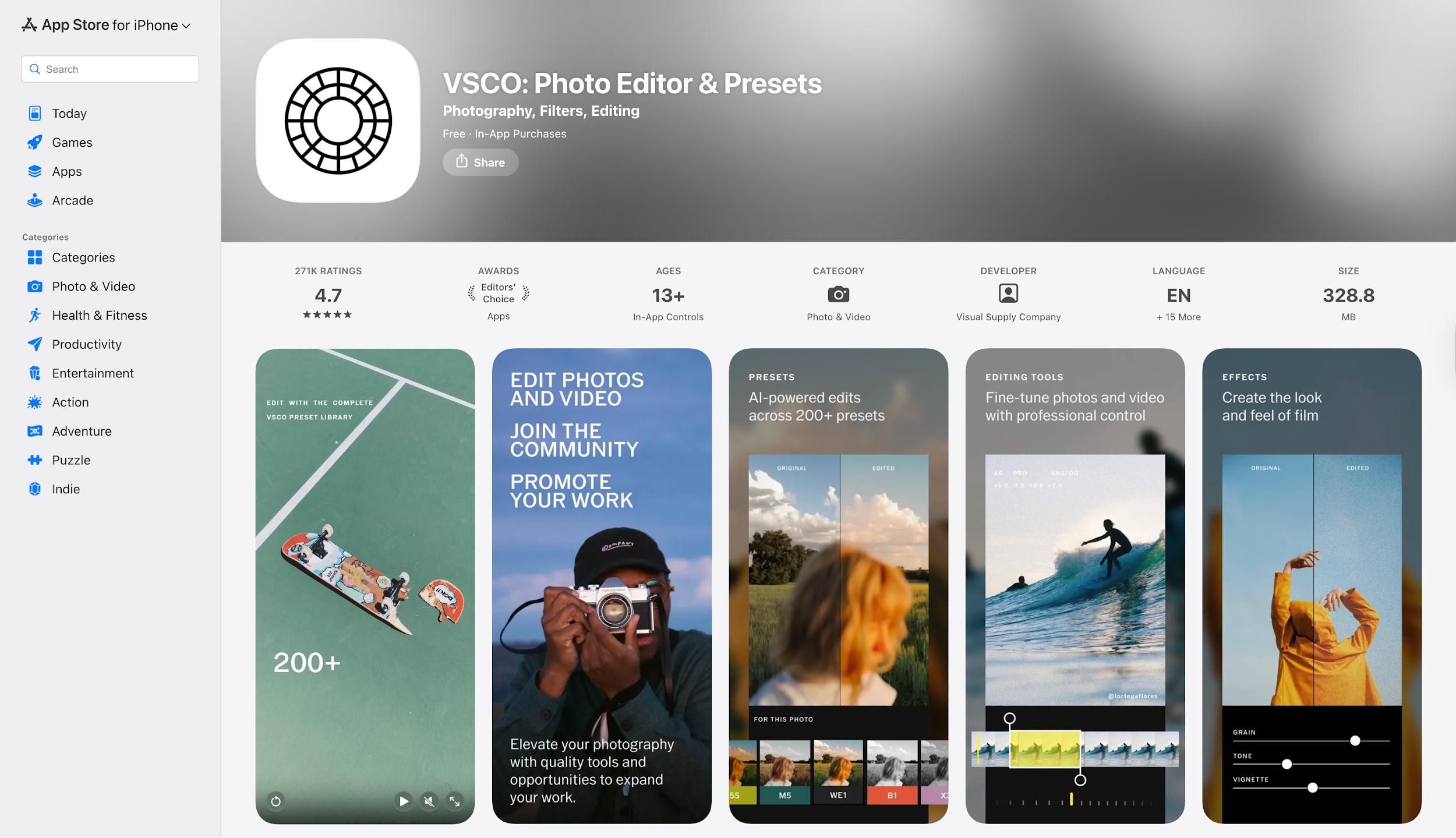
VSCO is beloved for its aesthetics. While primarily a photo editor, its video tools are powerful and focus on a film-like look. The slow-motion tool in VSCO is designed to be subtle and cinematic. It doesn't just slow down the footage; it ensures the motion blur looks natural. For users who care deeply about color grades and a cohesive "vibe" on their Instagram grid, VSCO offers the best combination of smooth slow motion and professional color presets in one app.
Key Features:
Speed Slider: Smooth, granular control over playback speed.
Film Presets: Industry-leading emulation of Kodak and Fuji film stocks.
Hessian Detail: Tools to enhance clarity and texture in slowed footage.
Pros
Minimalist and aesthetic interface.
Superior color grading options are included with the editor.
Produces very natural, non-digital-looking slow motion.
Cons
Video editing capabilities require a paid membership.
Rendering speeds can be slower than dedicated video apps like CapCut.
Best For: Aesthetic vloggers, Instagram curators, and lifestyle influencers.
10. VN Video Editor
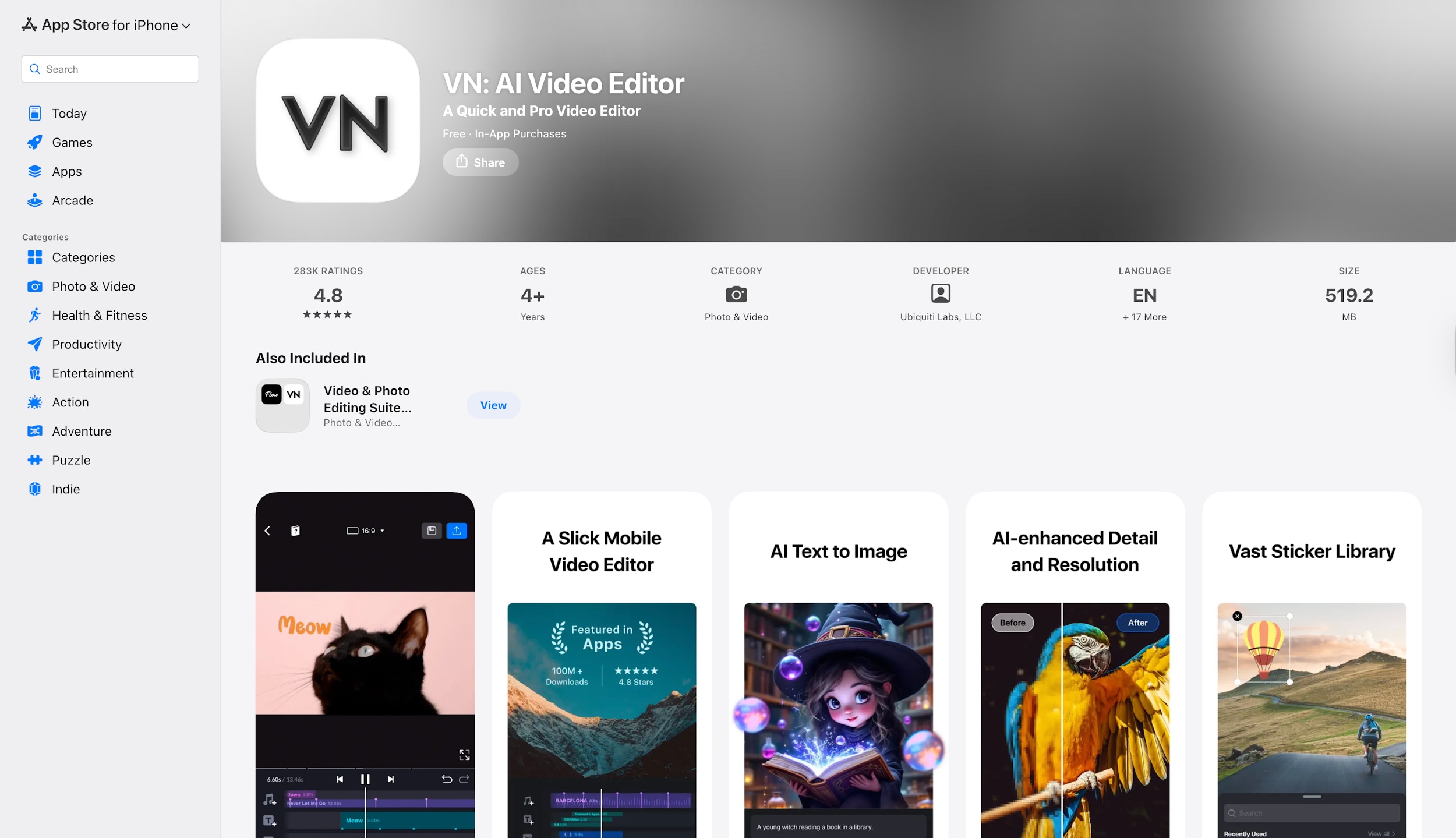
VN Video Editor is often described as "Premiere Pro for your phone." It offers a multi-track timeline that gives you desktop-level control. The speed ramping tools in VN are exceptional, allowing for precise point-by-point adjustment of the speed curve. This makes it perfect for complex smooth slow motion edits where you need to sync the slowdown perfectly with a musical beat. It creates smooth results using frame blending and is a favorite among mobile editors who find CapCut too limiting.
Key Features:
Advanced Speed Curve: Customizable points for precise ramping.
Multi-Track Editing: Layer video, audio, and effects easily.
No Watermark: Free version exports a clean video.
Pros
Professional timeline feels on a mobile device.
Excellent control over speed ramps and audio syncing.
Free to use with minimal, non-intrusive ads.
Cons
Steeper learning curve than simple apps like CapCut.
Optical flow rendering can be resource-intensive on older phones.
Best For: Mobile editors who want granular control and professional features.
Part 3. Quick Comparison Table on Smooth Slow Motion Apps
| App/Software | Platform | Starting Price | AI Interpolation? | Best For | Rating |
| UniConverter | Win/Mac | Free Trial / $29.99/yr | Yes (AI Enhancer) | Batch Processing & Ease | 4.5/5 |
| Premiere Pro | Win/Mac | $22.99/mo | Yes (Optical Flow) | Pro Editing Workflow | 4.6/5 |
| After Effects | Win/Mac | $22.99/mo | Yes (Pixel Motion) | Complex VFX | 4.6/5 |
| DaVinci Resolve | Win/Mac | Free / $295 | Yes (Speed Warp) | Color & Pro Grading | 4.7/5 |
| CapCut Online | Web | Free | Yes | Social Media Trends | 4.7/5 |
| Runway ML | Web | Free Trial | Yes (Generative) | AI Experimentation | 4.3/5 |
| Ezgif | Web | Free | No | Quick Utility/GIFs | 4.2/5 |
| CapCut App | Mobile | Free | Yes | Mobile Trends | 4.6/5 |
| VSCO | Mobile | Free / Membership | No (Standard) | Aesthetics & Color | 4.7/5 |
| VN Video Editor | Mobile | Free | No (Frame Blend) | Manual Curve Control | 4.8/5 |
Best For: Creators who want to compare the best AI slow motion video tools for PC, online, iPhone, and Android, especially if they need smoother slow-mo playback, frame interpolation, or an easier alternative to complex professional editors.
Part 4. Guide: How to Batch Enhance Smooth Slow Motion Video
Creating slow motion one clip at a time is tedious. If you have a folder full of 30fps clips that you want to turn into silky 60fps slow-motion assets, Wondershare UniConverter is the most efficient tool. It doesn't just slow them down; it interpolates new frames to ensure the motion remains fluid.
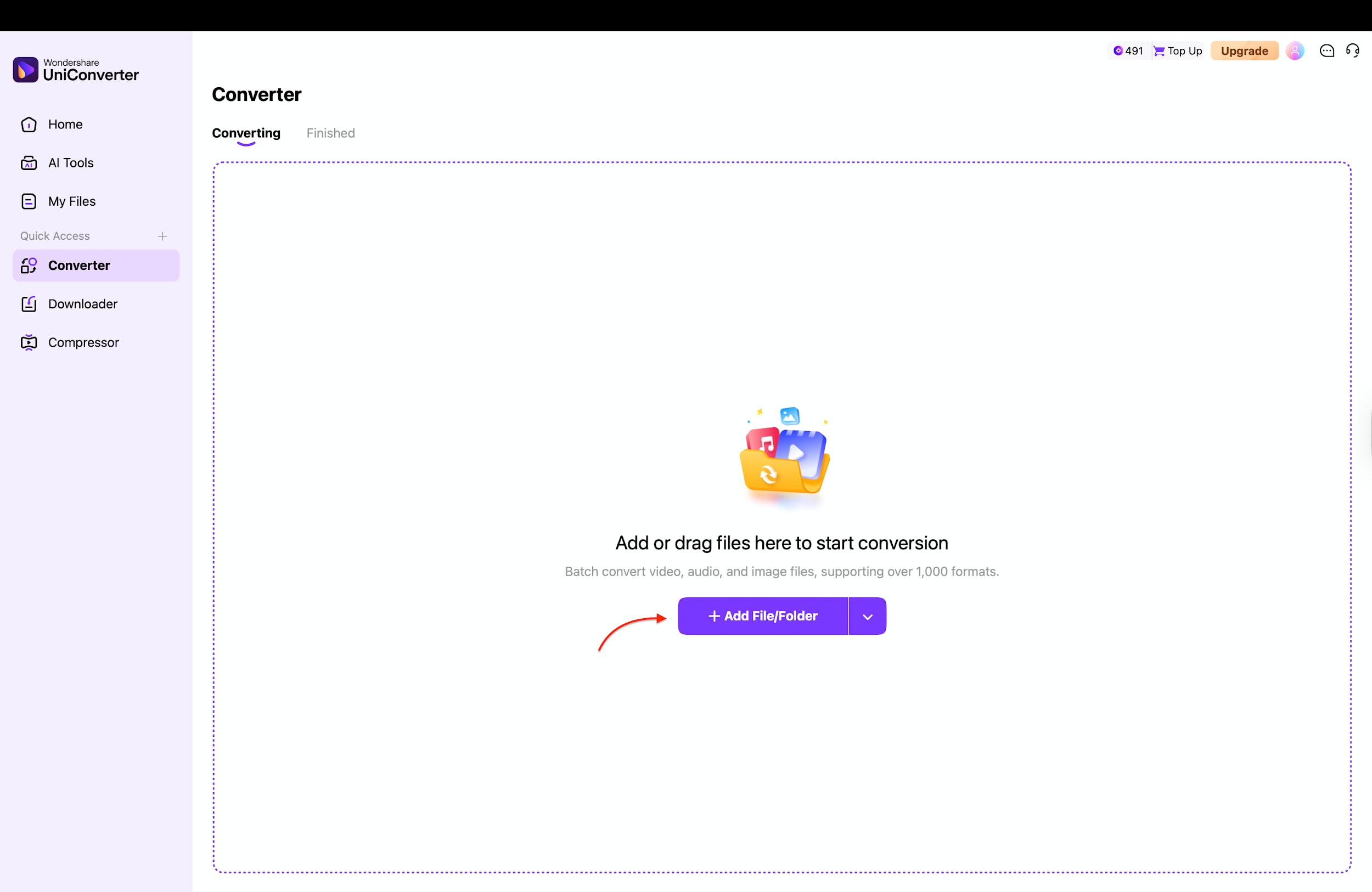
Step 1: Launch UniConverter and Select AI Video Enhancer
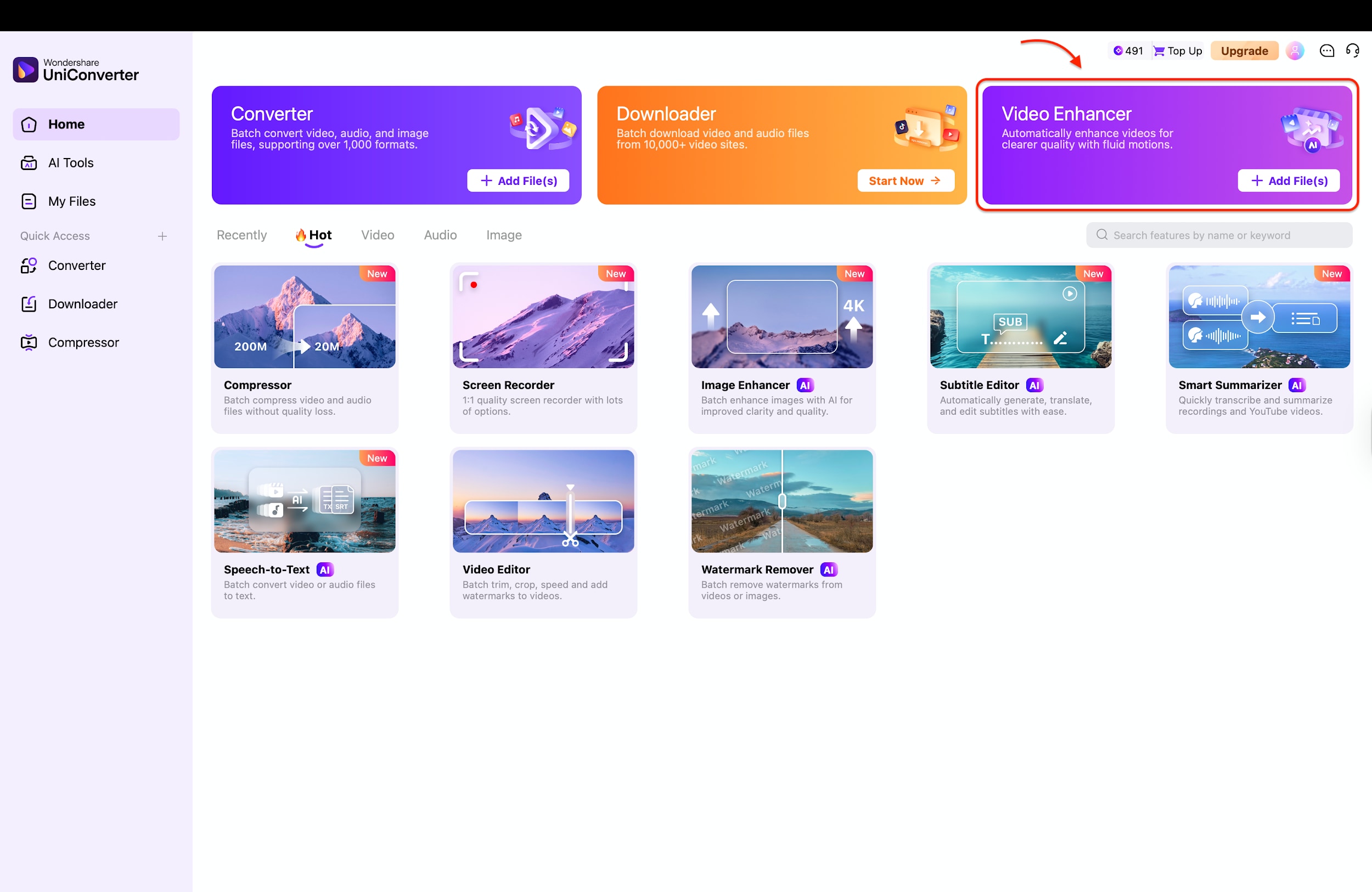
Start by launching the Wondershare UniConverter software on your computer to access its main dashboard. Look for the "Video Enhancer" card, which is prominently displayed on the "Home" screen or within the "AI Tools" section. Click on this tool to open the dedicated interface for improving video quality and frame rates.
Step 2: Add Your Videos
Once the Video Enhancer window opens, you will see an option to import your media. Click the "+ Add Files" button located at the bottom left corner (or the center for the initial file) to browse your computer folders for the clips you wish to enhance. You can select your primary video first to prepare the workspace for the enhancement settings.
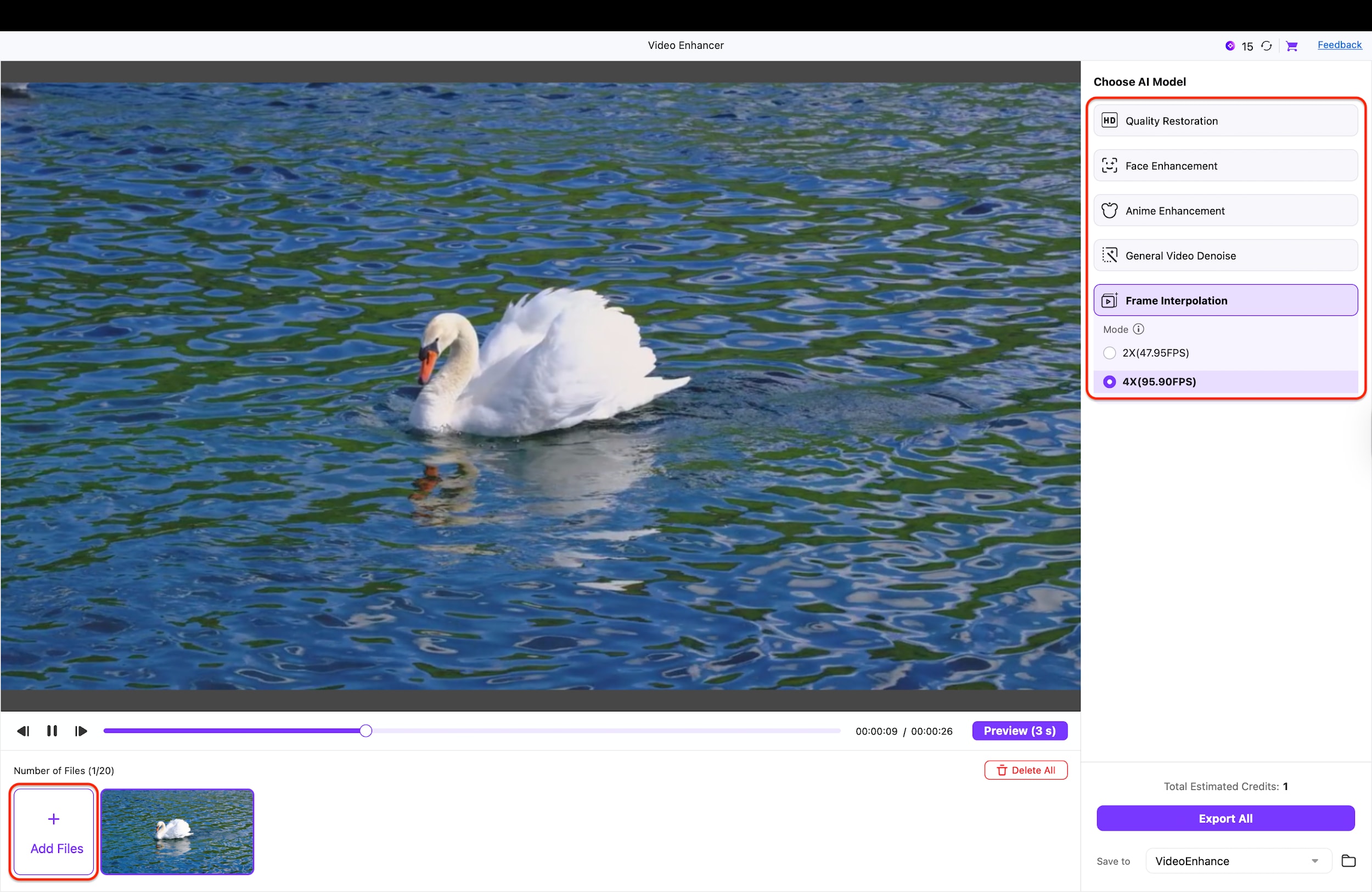
Step 3: Choose Frame Rate Settings and Add More Files
On the right-hand side, select the "Frame Interpolation" model and choose a multiplier like "2X" or "4X" to drastically increase the frame rate. If you need to process a batch, you can easily include more videos to the list by clicking the "+ Add Files" button located at the bottom left of the screen. This ensures all your footage is queued up to receive the necessary extra frames for high-quality slow motion simultaneously.
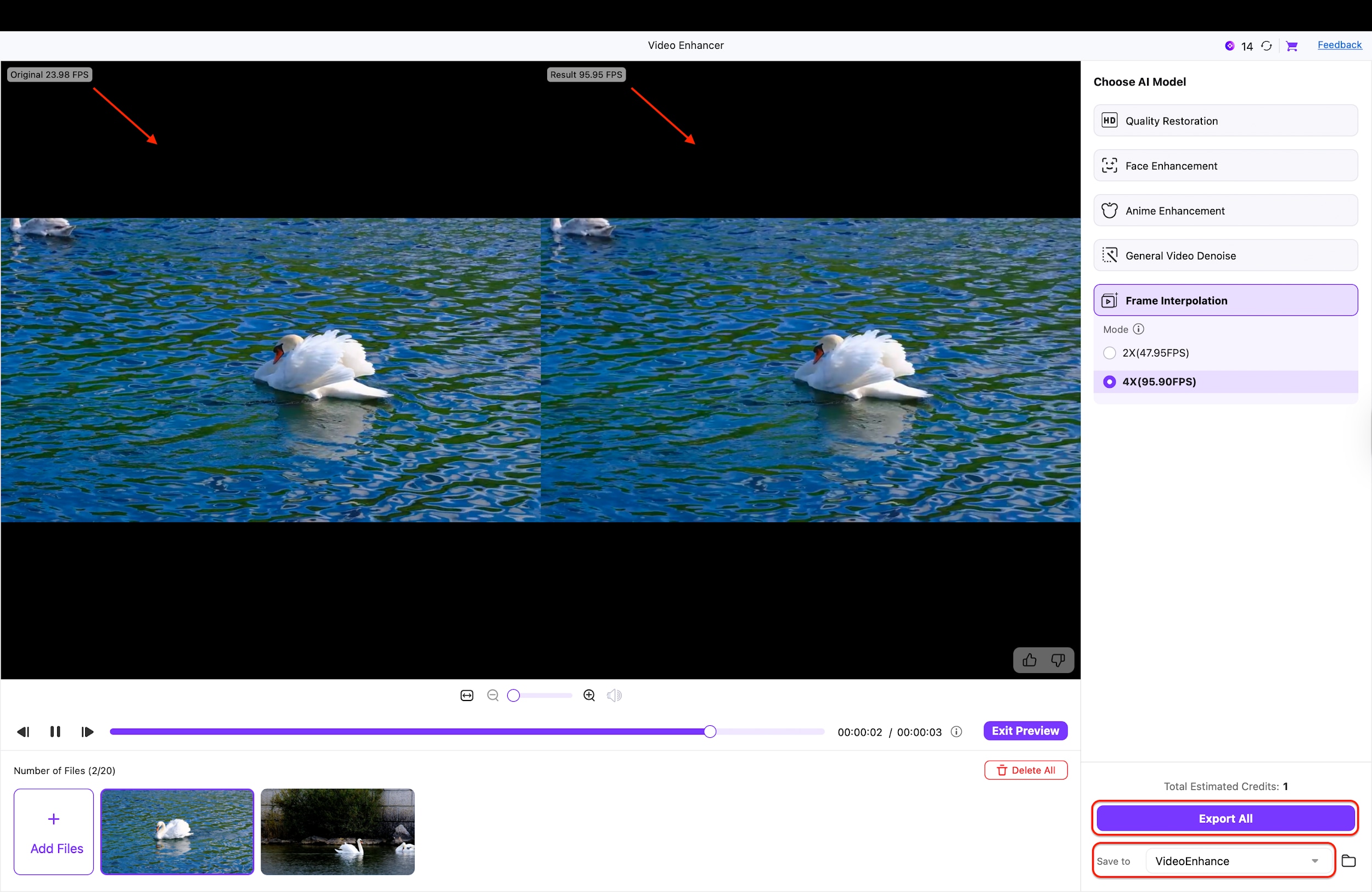
Step 4: Preview and Export
Use the "Preview" button under the video player to watch a short segment of your enhanced footage and verify the smoothness. If the results meet your expectations, navigate to the bottom right corner and click the purple "Export All" button. The software will now process all your selected clips, saving the new high-frame-rate versions to your specified destination folder.
Part 5. Common Smooth Slow Motion Problems (And Fixes)
1. Choppy Motion (The Slideshow Effect)
The Issue: Your video stutters, looking like a series of still photos rather than a movie. This usually happens when you slow down standard 24fps or 30fps footage without using interpolation.
The Fix: Always enable "Optical Flow," "Frame Blending," or "AI Interpolation" in your software. If you are using UniConverter, ensure the "Frame Interpolation" model is selected to generate the missing frames.
2. Ghosting Artifacts (The Warping Halo)
The Issue: Moving objects appear to have a weird, watery double-vision or "halo" around them. This occurs when the AI gets confused by complex motion, like crossing legs or overlapping objects.
The Fix: Reduce the intensity of the slowdown (e.g., 50% instead of 20%). For professional results, use masking in After Effects to isolate the subject from the background before applying the effect.
3. Long Render Times
The Issue: Your computer freezes, or a 10-second clip takes an hour to export. AI calculations are heavy on your processor.
The Fix: Use tools with GPU acceleration like UniConverter or Premiere Pro. Also, try rendering the slow-motion clip separately (pre-rendering) before adding it to your main timeline.
4. Audio Sync Issues
The Issue: The sound becomes a demonic, low-pitched growl or drifts out of sync with the video.
The Fix: Slow motion is a visual effect. Unlink the audio before slowing the video. It is almost always better to replace the slowed audio with a music track or sound design, as slowed dialogue is rarely usable.
Part 6. Tips to Get the Smoothest Slow Motion Results
Software can work miracles, but it cannot fix bad physics. To achieve that Hollywood-level "liquid" look, you need to capture your footage with slow motion in mind from the start.
1. Shoot at Higher FPS (Frames Per Second)
This is the golden rule. If you know a shot might be slowed down, switch your camera or phone to 60fps or 120fps. This provides real data for every moment of action, meaning the software doesn't have to "guess" as much. Real frames always beat AI-generated ones.
2. Use Good Lighting
High frame rates require faster shutter speeds, which let in less light. If you shoot in a dim room, your footage will be noisy and grainy. Noise confuses AI interpolation tools, leading to ugly artifacts. Always shoot slow motion in bright daylight or well-lit studios.
3. Avoid Fast, Erratic Camera Movement
Optical flow works best when the background is predictable. If you are whipping the camera around wildly, the software can't track which pixels go where, resulting in a "warped" background. Keep your camera movements smooth and steady; let the subject provide the action.
4. Choose AI/Optical Flow Over Basic Speed Changes
Never just drag the speed slider to 50% and leave it. Always select the "Optical Flow" or "AI" option in your editing tool. For the best results on standard footage, dedicated AI tools like UniConverter often outperform the basic interpolation found in free video editors.
Conclusion
In this article, you've discovered various to master time manipulation in your videos. From industry titans like Premiere Pro smooth slow motion workflows to accessible mobile apps for smooth slow motion CapCut edits, the options are vast. Each tool serves a specific purpose: online tools for quick social posts, professional suites for cinematic control, and AI enhancers for restoring footage.
However, if you want a balance of power and simplicity, especially for batch processing, Wondershare UniConverter stands out as an excellent choice. Its AI Frame Interpolation allows you to create the high-framerate foundation needed for buttery smooth slow motion without the steep learning curve of VFX software. Start using a smooth slow motion app today and give your content that cinematic edge!
FAQs
What makes a slow motion video look smooth instead of choppy?
A smooth slow motion video usually depends on two things: the original frame rate and the editing method. Videos recorded at higher FPS naturally look better when slowed down, while standard footage often needs optical flow or AI frame interpolation to create extra in-between frames.
Can AI turn a normal video into smooth slow motion?
Yes, AI tools can improve normal footage by generating intermediate frames between existing ones. This can make a slowed clip look much more fluid, although the final result still depends on the original lighting, motion complexity, and video quality.
Are online AI slow motion video tools good enough for professional use?
They can be useful for quick projects, social content, and light editing tasks, especially when convenience matters most. However, desktop software still gives better control, stronger rendering performance, and more reliable results for demanding or high-resolution professional work.
Are there smooth slow motion apps available on iPhone and Android?
Yes, several smooth slow motion apps are available on both iPhone and Android. CapCut and VN Video Editor are two of the most practical options for creators who want to make slow motion videos directly on mobile devices.
Which type of tool is best for batch slow motion video processing?
Desktop tools are usually the best choice for batch slow motion processing because they offer more stable performance, better export control, and stronger frame interpolation for multiple clips. This is especially helpful when you need to process several videos at once instead of editing them one by one.

