

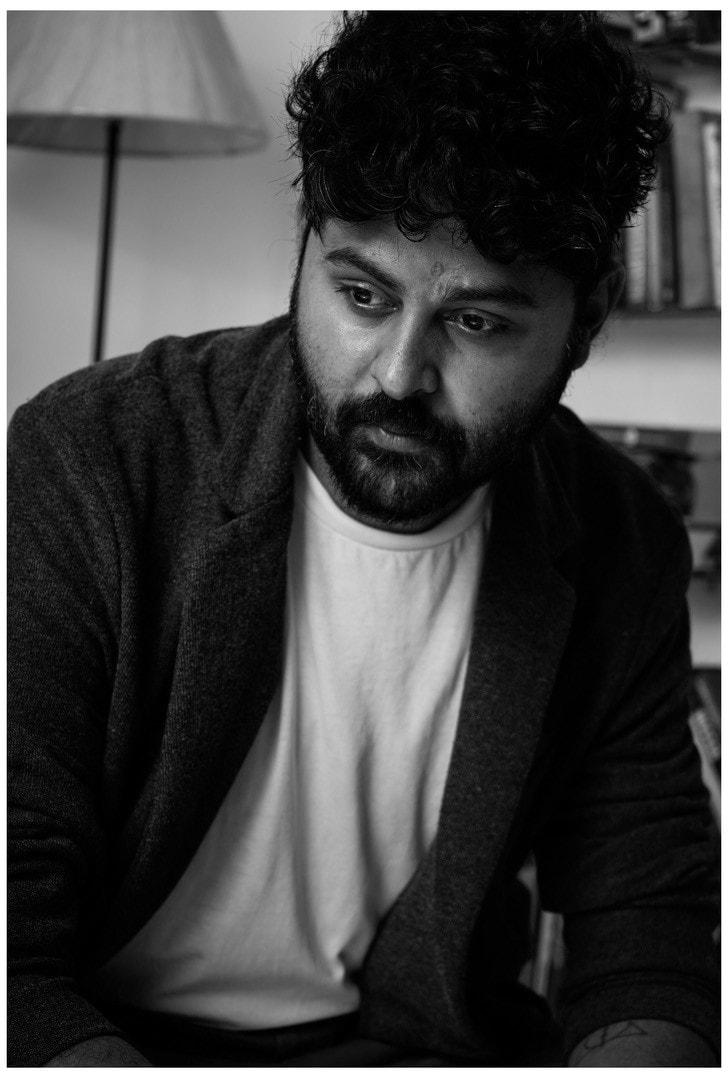
Ever clicked a photo that you wished to be a masterpiece, but came out blurred or pixelated? Pixelation can also result from resizing. Regardless of the reason, pixelation is one of many annoying problems that occur with digitally manipulated or stored photos. While the issue is common, many tools can fix pixelated images and even enhance their quality.
This guide lists the top online and offline tools for fixing pixelated photos with just a few clicks. You’ll also find detailed steps on how to use these tools and improve image quality. Additionally, the guide highlights some pitfalls to avoid when reducing pixel size, ensuring your images always turn out great.
In this article
- How to Batch Fix Pixelated Images at 8x Quality with UniConverter?
- How to Modify the Pixels of Photos at Crisp Quality with an Online Tool?
- How to Fix Pictures with the Pixel Fixer App on iPhone or Android?
- How to Easily Repair Pixelated Pictures with a Chrome Extension?
- Pitfalls to Avoid When Reducing the Pixel Size of Images
- Conclusion
- FAQs
Part 1. How to Batch Fix Pixelated Images at 8x Quality with UniConverter?
When it comes to fixing pixelated pictures and increasing resolution, Wondershare UniConverter stands out with its simple interface paired with powerful features. Its AI enhancer and upscaler unpixelates your images, sharpening fine details to make them clearer and sharper without requiring any technical process.
Furthermore, its batch processing feature saves time by processing multiple images simultaneously. This makes it a great choice for both beginners and professionals seeking a reliable yet straightforward tool that avoids the complexity of Photoshop.
Key Features
- The AI image enhancer improves image sharpness and clarity, allowing you to increase image resolution up to 8x.
- An Image Editor lets you fine-tune the unpixelated image.
- It features a pre-designed image ratio for specific platforms, such as Facebook and Instagram.
- Its Image Converter feature easily converts your image format to JPG, PNG, WEBP, AVIF, etc.
How to Fix Pixelated Images Using Wondershare UniConverter
Take these simple steps to fix pixelated photos using Wondershare UniConverter:
Step 1: On the homepage, navigate to “Image Enhancer” at the bottom-right corner.
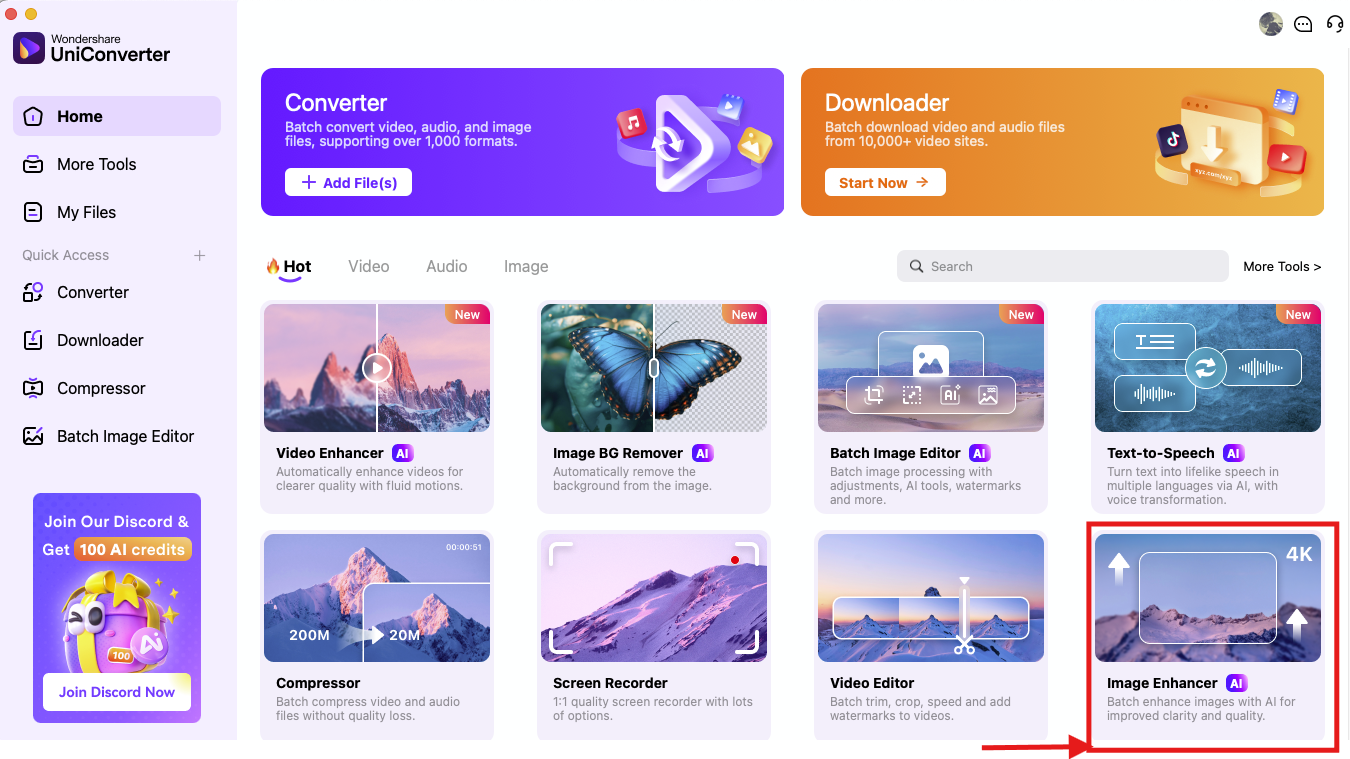
Step 2: Click the “+” icon to upload your pixelated images, or you can drag and drop the images for easy upload. Then, click “Auto Enhancer” to remove pixelation.
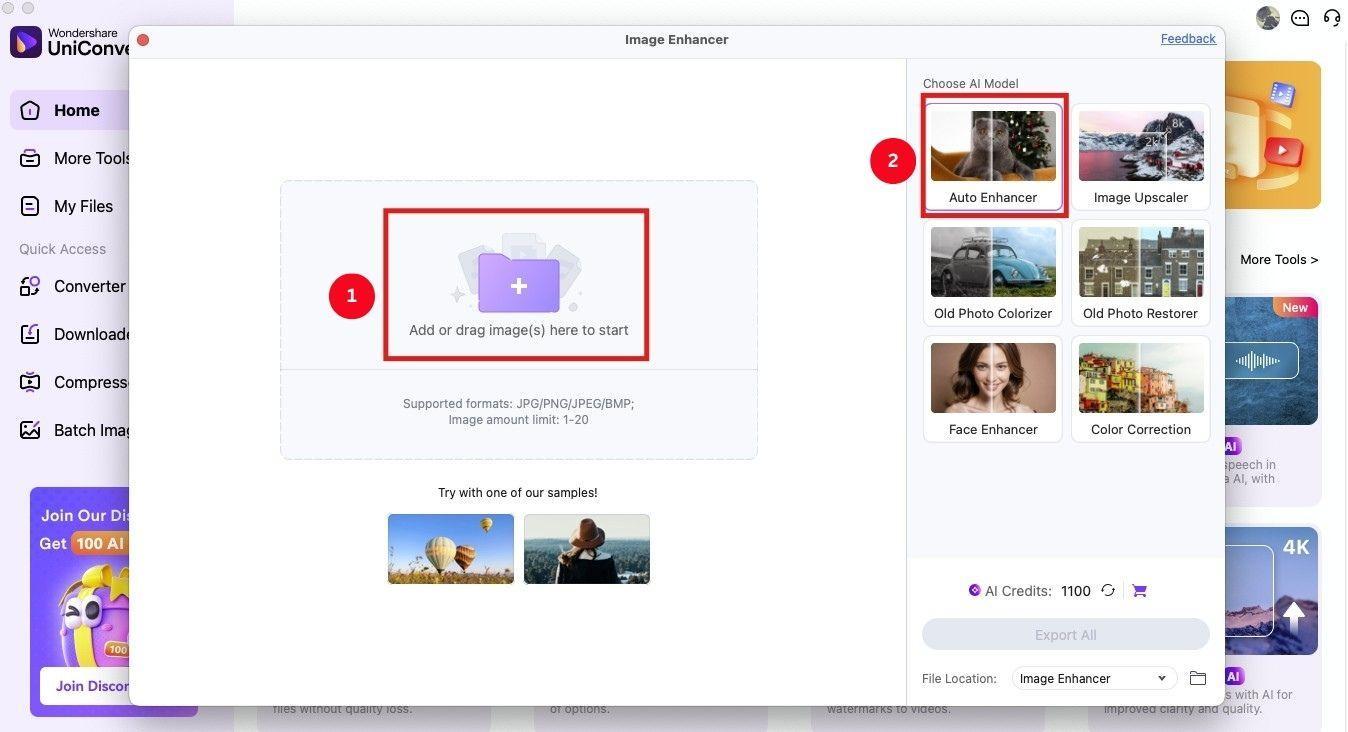
Step 3: As the unpixelation is complete, click on “Image Upscaler” and choose the “Upscaler Setting” to 8X.
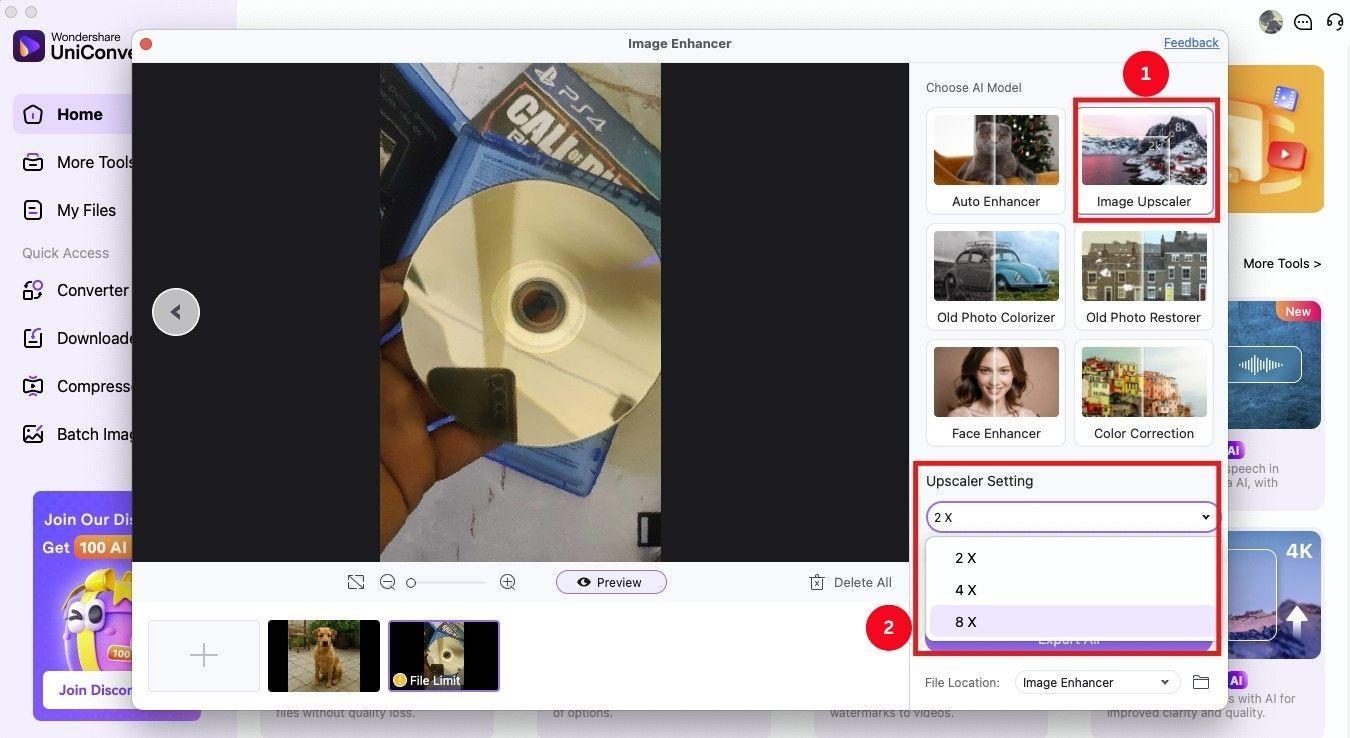
Step 4: Now, click “Export All” to export your finished images to your local storage.
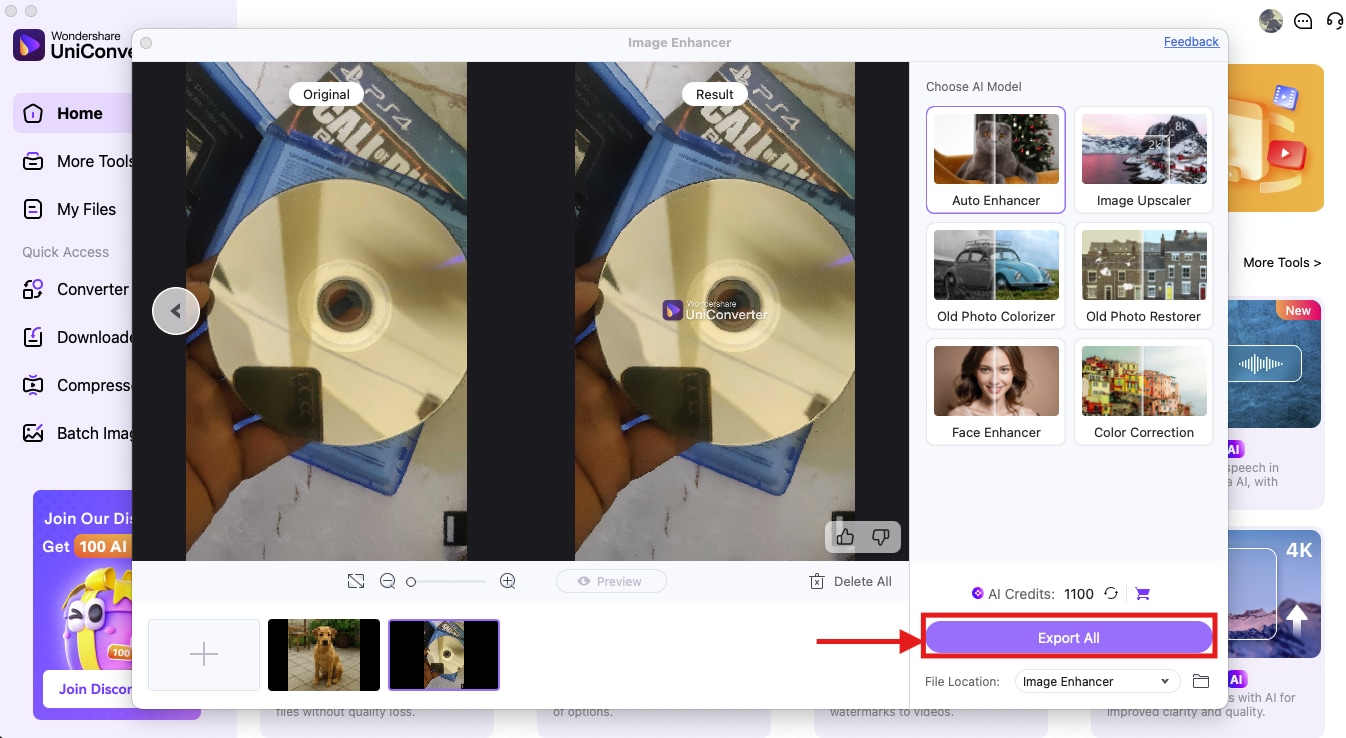

Easy to Use Fix Pixelated Photos
Part 2. How to Modify the Pixels of Photos at Crisp Quality with an Online Tool?
Online pixel-fixing software can be a decent choice if one prefers accessibility and convenience. If you don’t want to install software or your device doesn’t have enough storage left, PicWish is worth trying. The tool is simple to use, and its AI technology can sharpen your pixelated and blurry images to make them look clear and crisp. It supports most image formats, and you can also upload image links.
Key Features
- PicWish uses AI to automatically detect and remove blur from images.
- Its face enhancement feature restores details and clarity of the faces.
- The platform enables users to upload multiple images simultaneously.
- Users can select different upscale levels, such as 2X, 4X, and so on.
How to Fix Pixelated Images Using PicWish
PicWish offers a simple interface, and here’s how to fix pixelated images using the online tool:
Step 1: Access PicWish’s unblur image feature and click the “Upload Image” button. Then, select the pixelated image from your gallery.
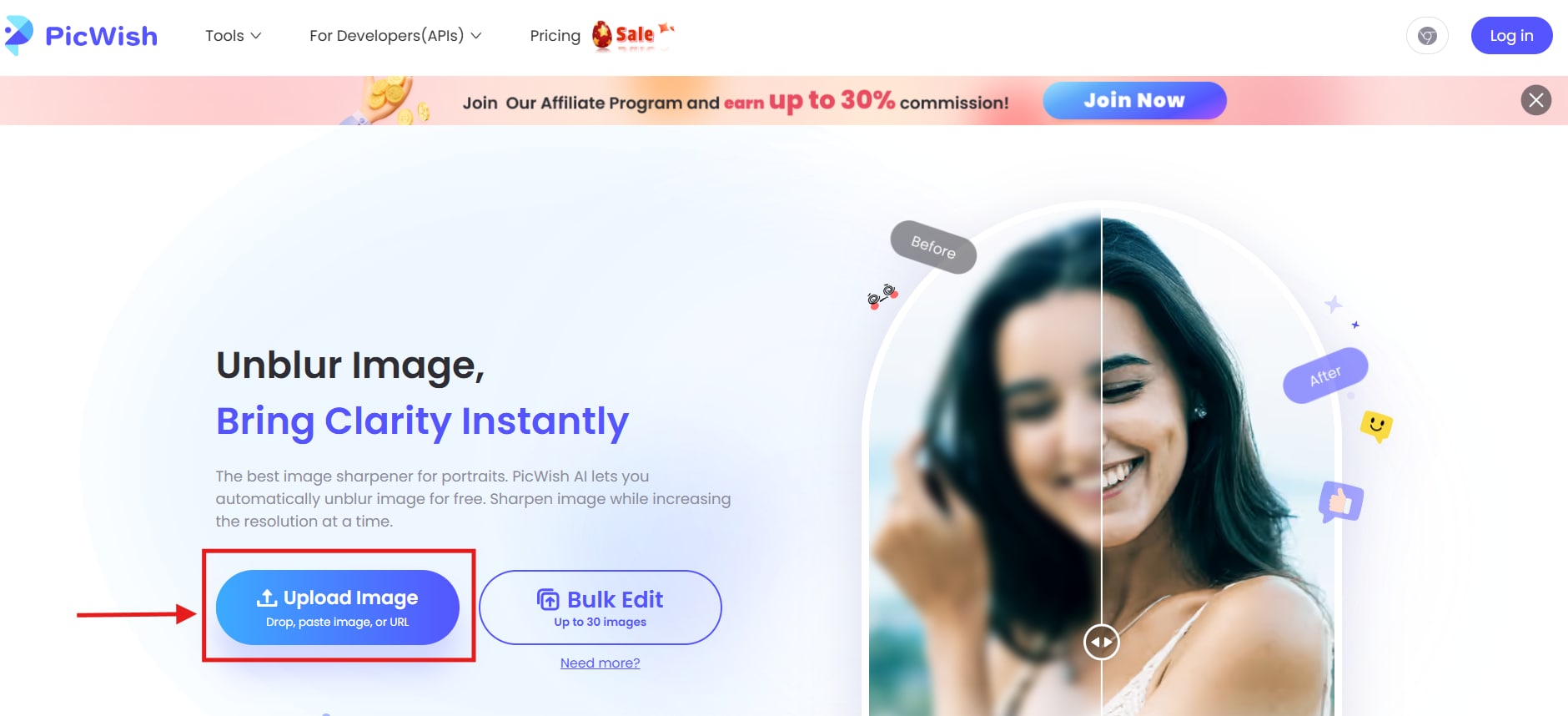
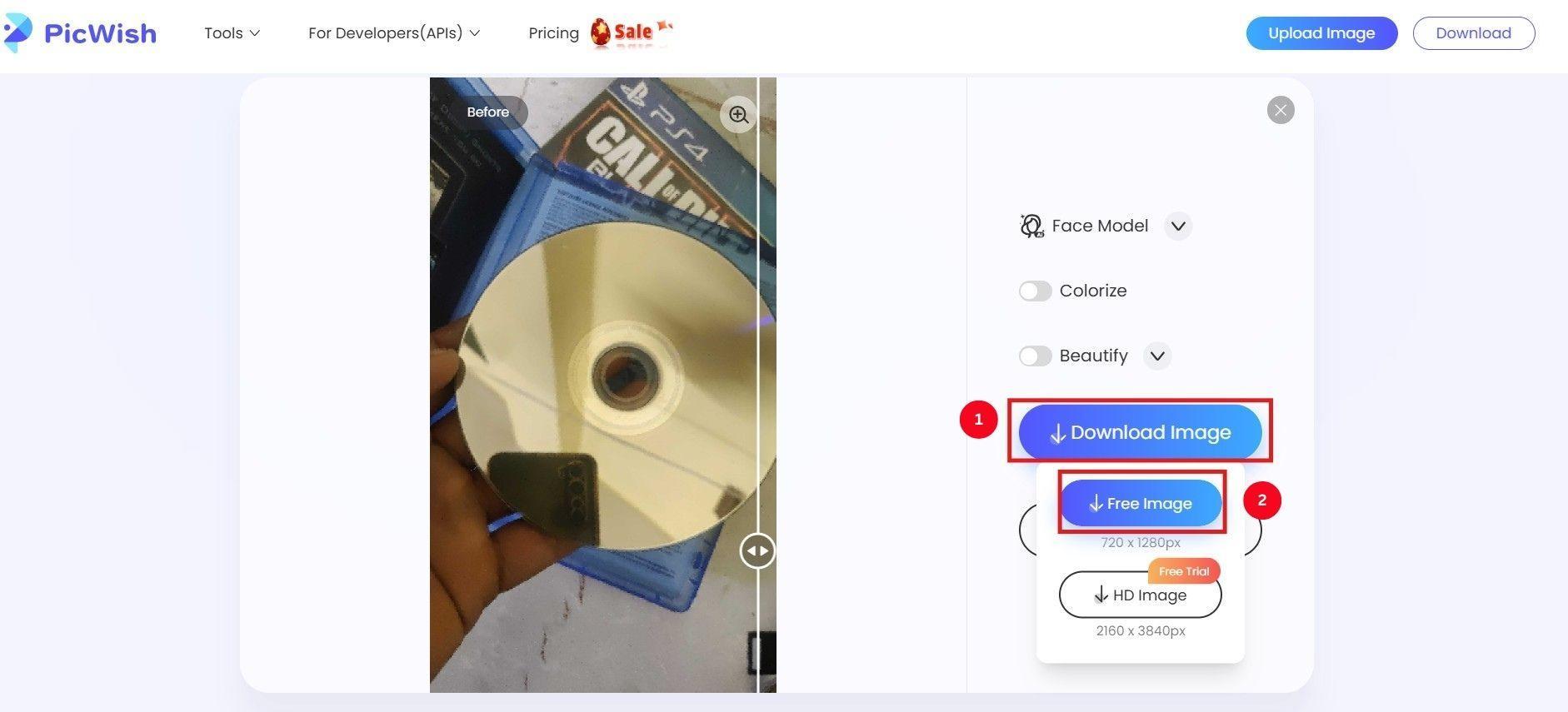
Step 2: Once the image upload is complete, the tool automatically unpixelates the image, improves the quality, and delivers the final result. You can click “Download Image” followed by the “Free Image” button to save it.
Part 3. How to Fix Pictures with the Pixel Fixer App on iPhone or Android?
Vivid AI Photo Enhancer is a popular answer to how to fix pixelated pictures on your smartphone (Android and iOS). The interface is straightforward, allowing you to generate clear and crisp images with just a few clicks. Besides the typical enhancer feature, it has built-in editing features like Toning, Colorizer, and Filters that further refine your images.
Key Features
- Enhance and enlarge your blurry photos to make them sharper and clearer.
- Its color correction feature balances the colors in the image and gets proper photo exposure.
- Scan and edit images directly in the app.
- Its Magic Eraser feature removes unwanted objects from the photos with a simple drag interface.
How to Fix Pixelated Images Using Vivid AI Photo Enhancer
Here’s how to remove pixels from an image using Vivid AI Photo Enhancer:
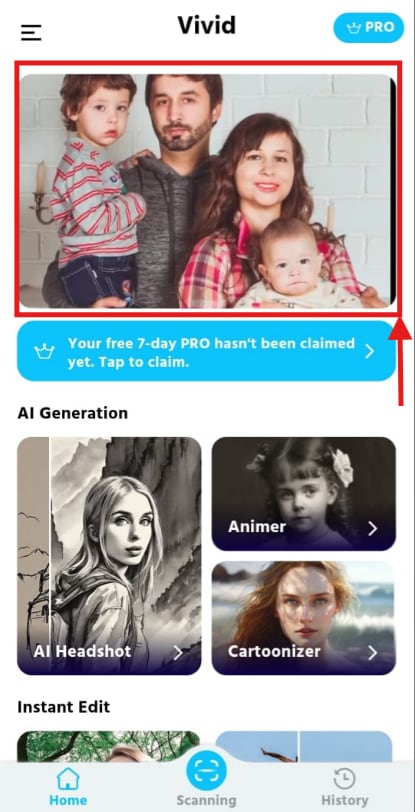
Step 1: Launch the Vivid AI Photo Enhancer app on your smartphone and tap the “Enhance” feature.
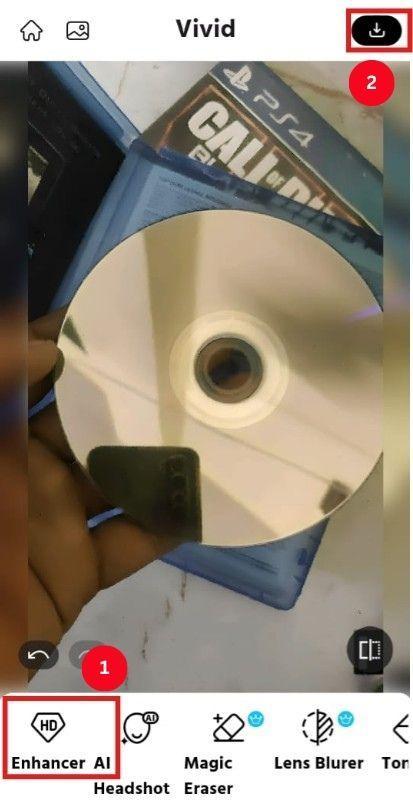
Step 2: Select the blurred image from your gallery and tap “Enhancer AI.” Once done, tap the “Download” icon in the top-right corner.
Easy to Use Fix Pixelated Photos
Part 4. How to Easily Repair Pixelated Pictures with a Chrome Extension?
Image Enhancer is a popular Chrome extension to remove pixels from an image. It also offers a host of features, such as image unblur, upscaler, and face enhancement to transform your pixelated photos. Not to mention, fixing a pixelated picture is simple. Just upload the image, select your image repair tool, and that’s it. All seems good, except that it offers a single free trial, and you need a premium subscription to access its features further.
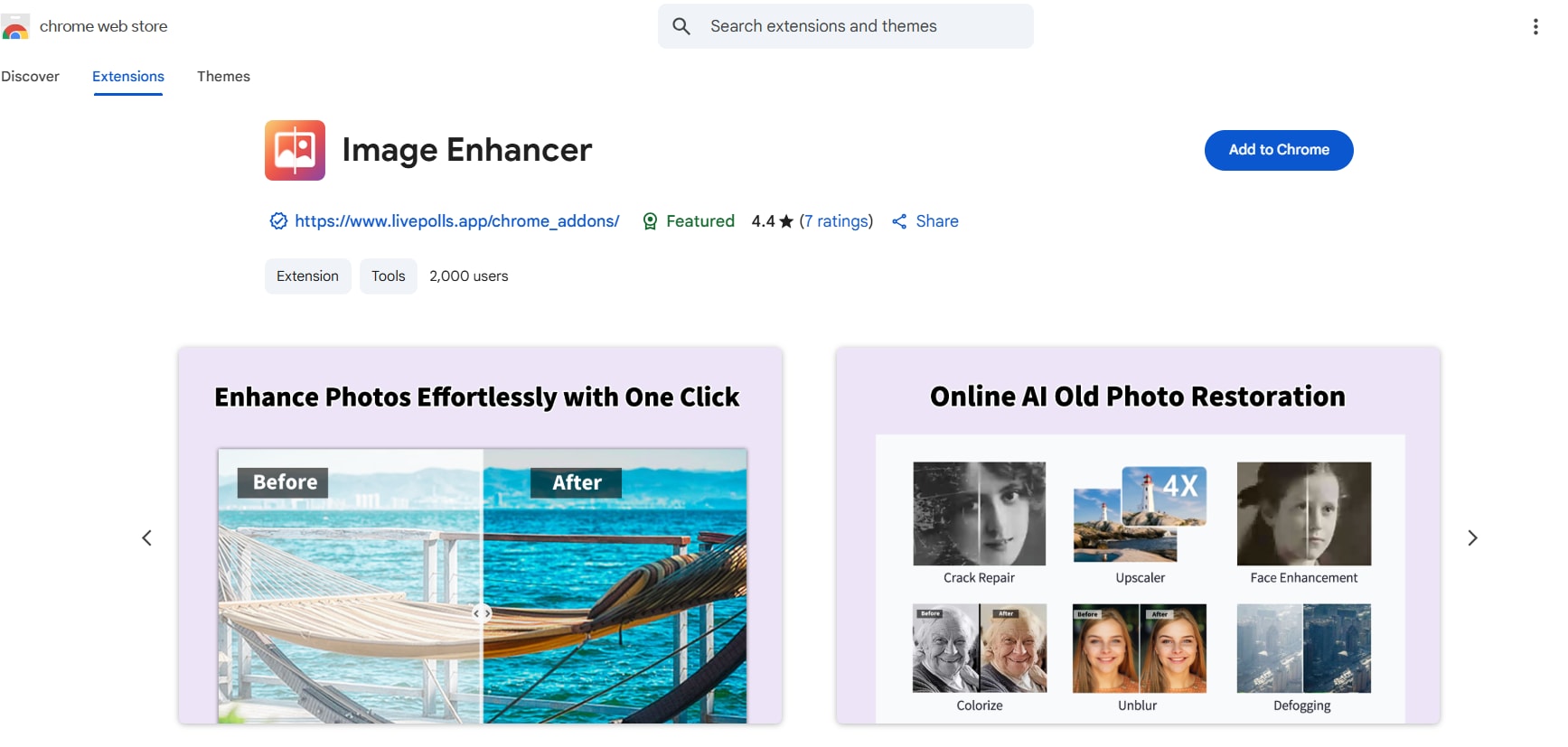
Key Features
- It can upscale your images by up to 4X.
- Transform blurry images into sharp and clear photos with enhanced details.
- It can even restore damaged photos to pristine condition.
- Other tools like crack repair, face enhancement, colorize, defogging, and more.
How to Fix Pixelated Images Using Image Enhancer
Fixing a pixelated image using Image Enhancer is relatively simple, and here are the steps:
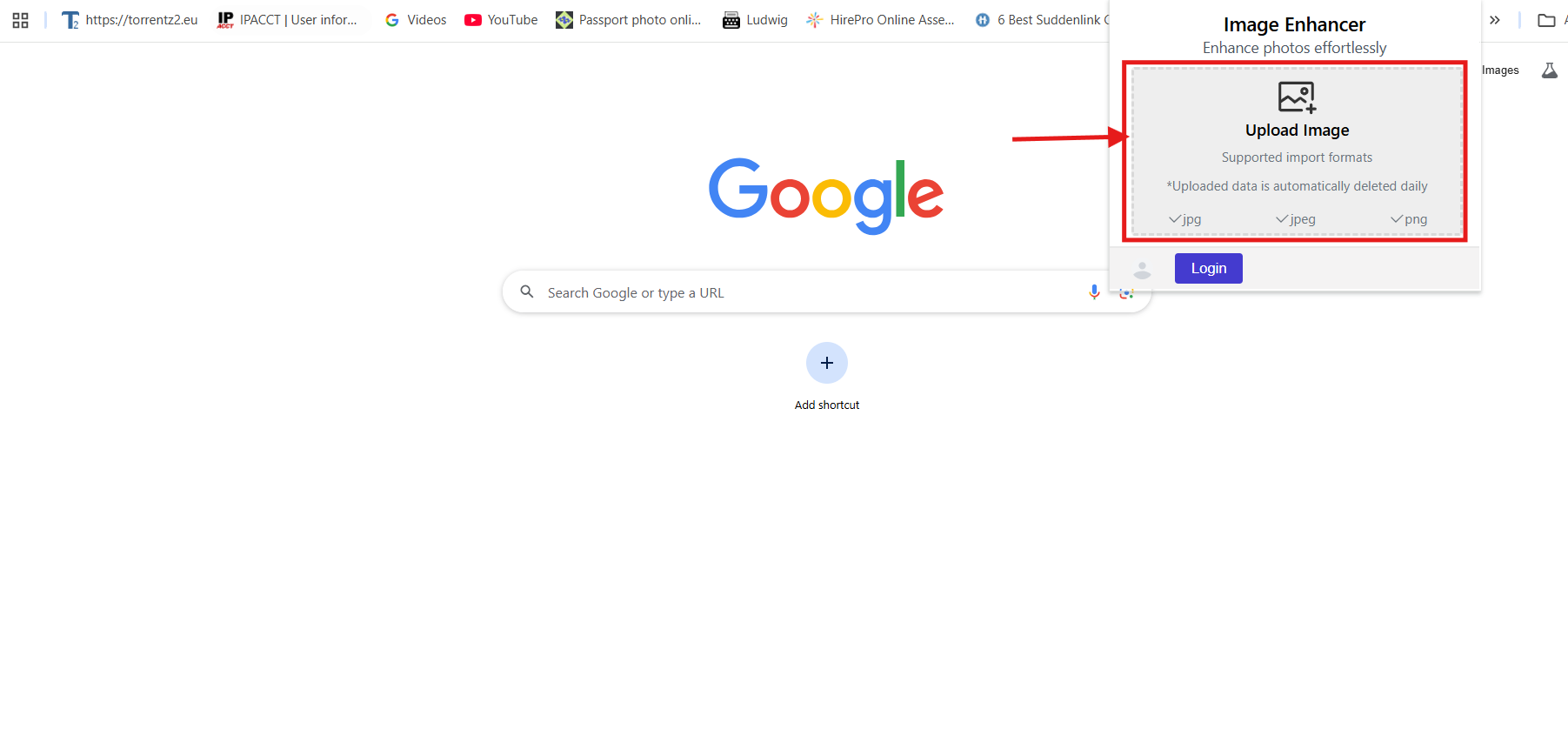
Step 1: Launch the Image Enhancer extension and click on “Upload Image” to upload your pixelated image.
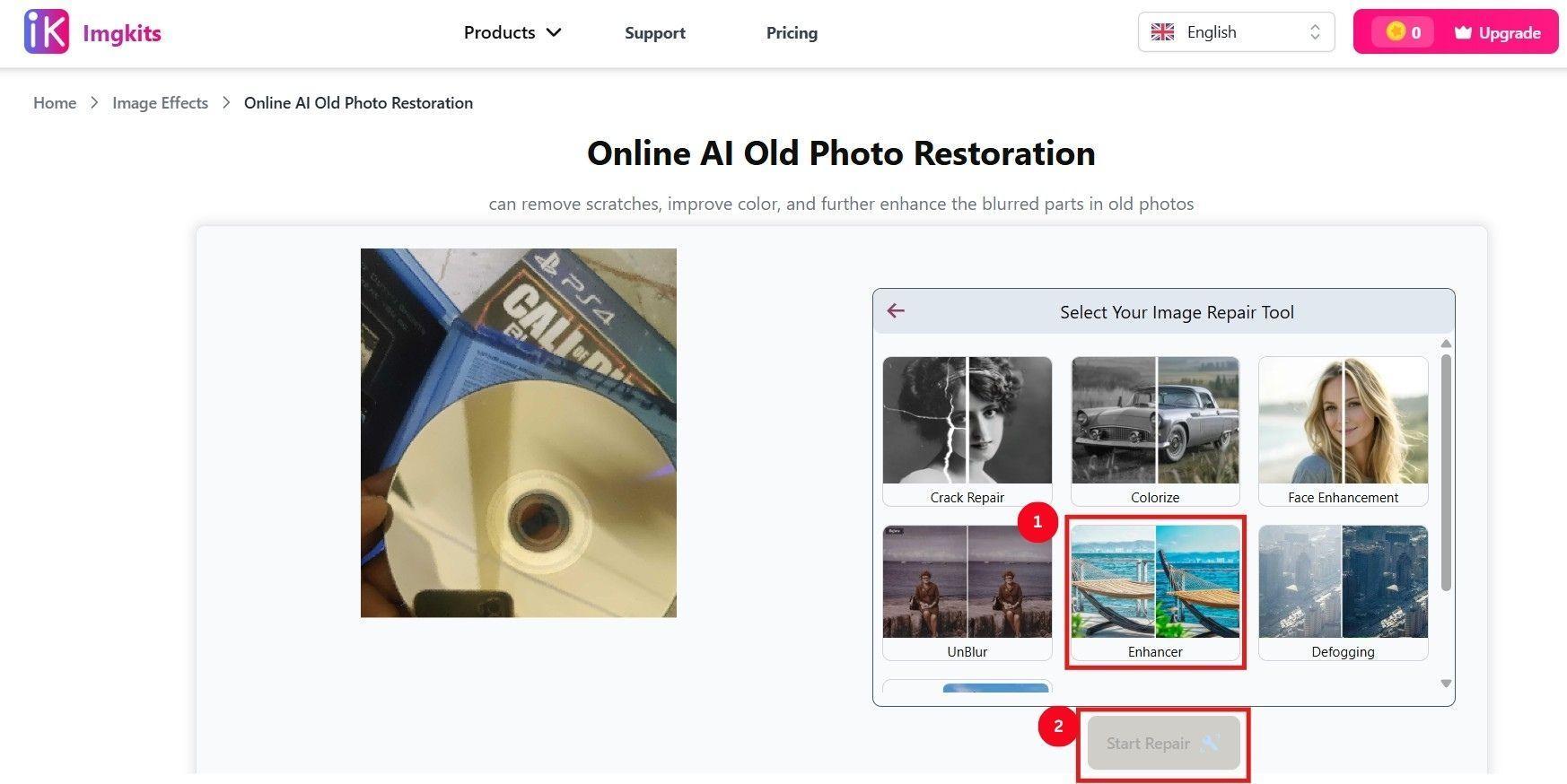
Step 2: It redirects you to its platform interface, where you select “Image Enhancer” and “Start Repair.”
Step 3: Once done, tap “Download” to save the clear image.
Part 5. Pitfalls to Avoid When Reducing the Pixel Size of Images
While the mentioned pixel repair software is a quick solution to the pixelation problem, it’s important to be mindful. The following are some mistakes people make when reducing pixel size, which you shouldn’t make:
Using Low-Quality Images: Low-quality images lack sufficient pixels to maintain high quality. It’s always crucial to start with a high-resolution photo when reducing the pixel size.
Inappropriate File Formats: Users must select images of the right formats for their needs. For example, use PNG for higher quality and JPEG for smaller file sizes.
Minimize Repeated Edits: Editing an image multiple times can cause the pixels to be reduced or stretched, resulting in a blurry image. So, it’s recommended to use AI tools that automatically enhance images.
Ignoring the Aspect Ratio: Squeezing or stretching an image disproportionately can result in noticeable quality loss. It’s therefore crucial to maintain the original aspect ratio of the image. This ensures the proportions are maintained and prevents distortion.
Conclusion
Regardless of the reasons, pixelated images can be frustrating. Fortunately, many tools are available to help users correct image issues. Online tools like PicWish and mobile-based tools like Vivid are great, as they don’t charge anything to enhance your images. Yet, the best tool is Wondershare UniConverter. Its simple interface and advanced features allow a beginner to fix pixelated images and generate professional results. So, try it now and use high-quality pictures for all your projects.
FAQs
-
How to fix a Pixelated photo?
Multiple AI-based tools available in the market can fix a pixelated photo, but Wondershare UniConverter stands out with its Image Enhancer and upscaler features. This way, the outputs are always crisp and clear. -
Is it possible to fix pixelated images on a mobile device?
Yes, many mobile-based tools can fix pixelated images. Applications like Vivid AI Enhancer analyze the image and restore details, improving clarity without the need for professional editing software or advanced skills. -
Why do my images become pixelated when enlarged?
Your images might become pixelated when you try to enlarge them beyond their original resolution. When the photos exceed the limits, the pixels are stretched and fail to maintain sharpness.

