

If you're searching for how to remove voice in video, you're not alone. Whether it's a tutorial, vlog, or background footage, there are many reasons people want to silence vocals or commentary from a video.
This guide covers every method you need—whether you're on a PC, using a mobile app, or working in a browser. We’ll help you understand how to remove voice from video cleanly, including tools that let you batch-edit and maintain video quality. Whether you're asking how to remove a voice from a video or trying to delete voice from video, we’ve got all your answers in one place.
In this article
Part 1. How to Easily Batch Remove Voices from Video on Desktop
If you're dealing with multiple clips and want to remove voice in a video efficiently,the best solution is to use a desktop tool like Wondershare UniConverter. With its AI-powered Vocal Remover, you can remove voices from a video in bulk—making it perfect for editors who handle tutorials, reactions, or remixes.
To get started, download and install UniConverter on your Windows or Mac system. This app doesn't just support one video—it allows batch processing, meaning you can delete voice from video files in groups. This makes it ideal for creators who frequently need to silence dialogue across multiple takes.
Step-by-Step Guide:
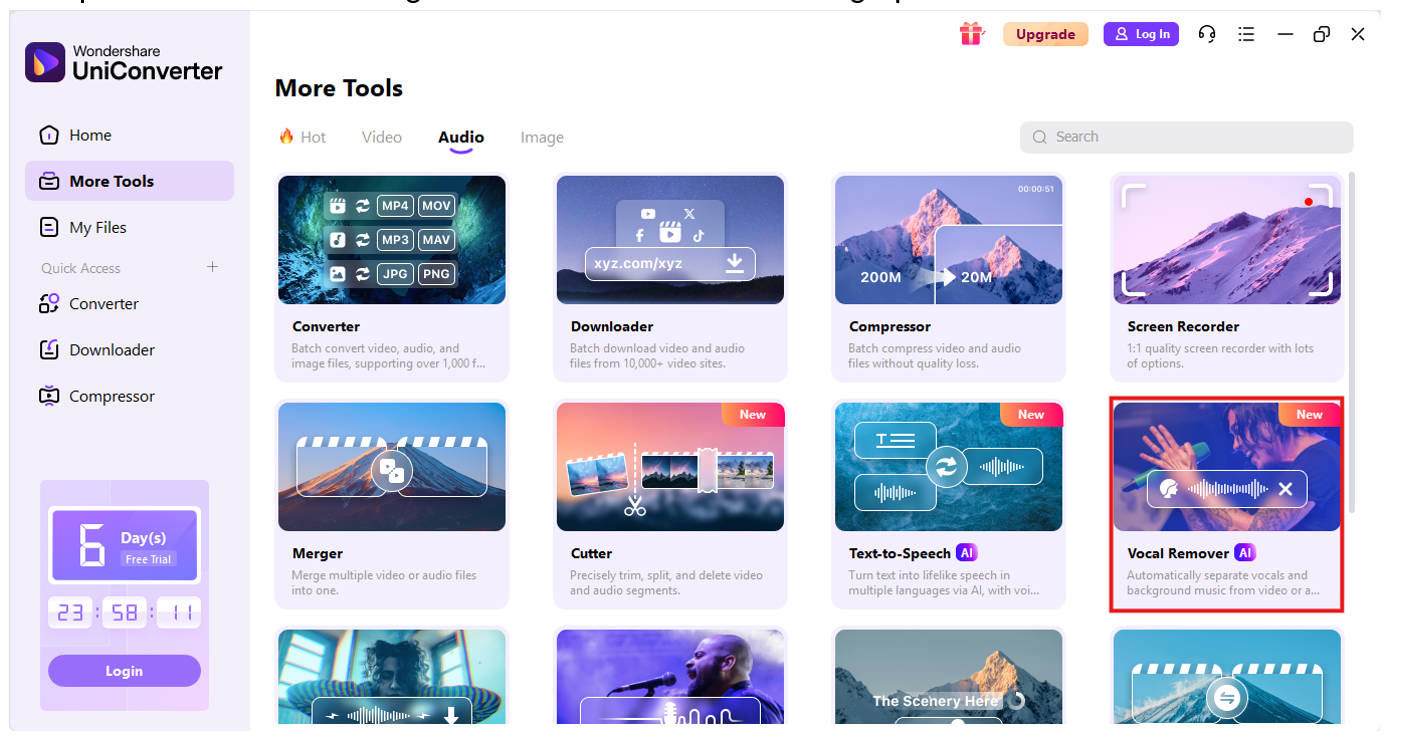
Step 1: Launch UniConverter & Select Vocal Remover
Open UniConverter, go to the Toolbox, and choose AI Vocal Remover. This feature is trained to separate voice from background sounds or music with high precision.
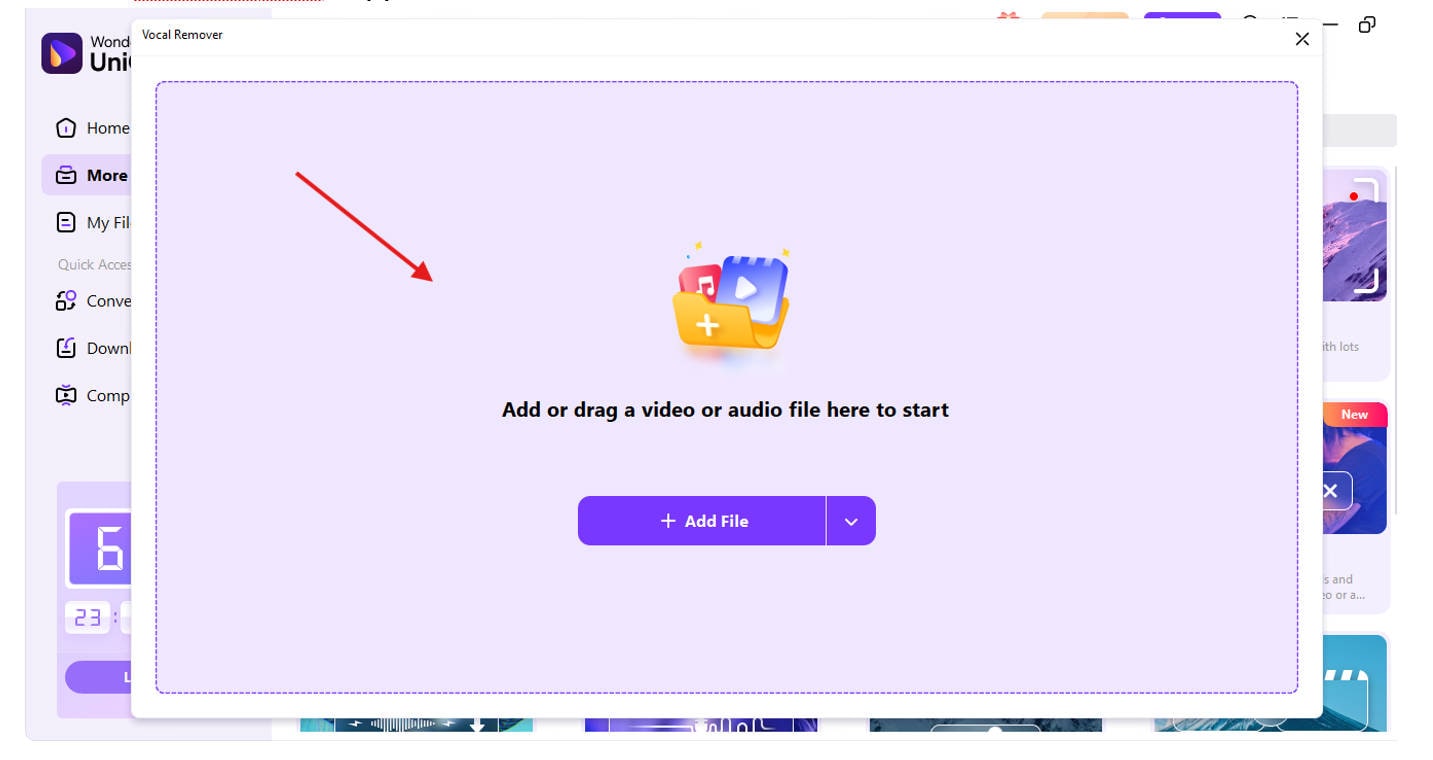
Step 2: Import your audios or videos for Batch Processing
Click “+” to add multiple audios or video files. Whether you're working with MP4, MOV, AVI, or others, UniConverter supports over 1,000 formats.
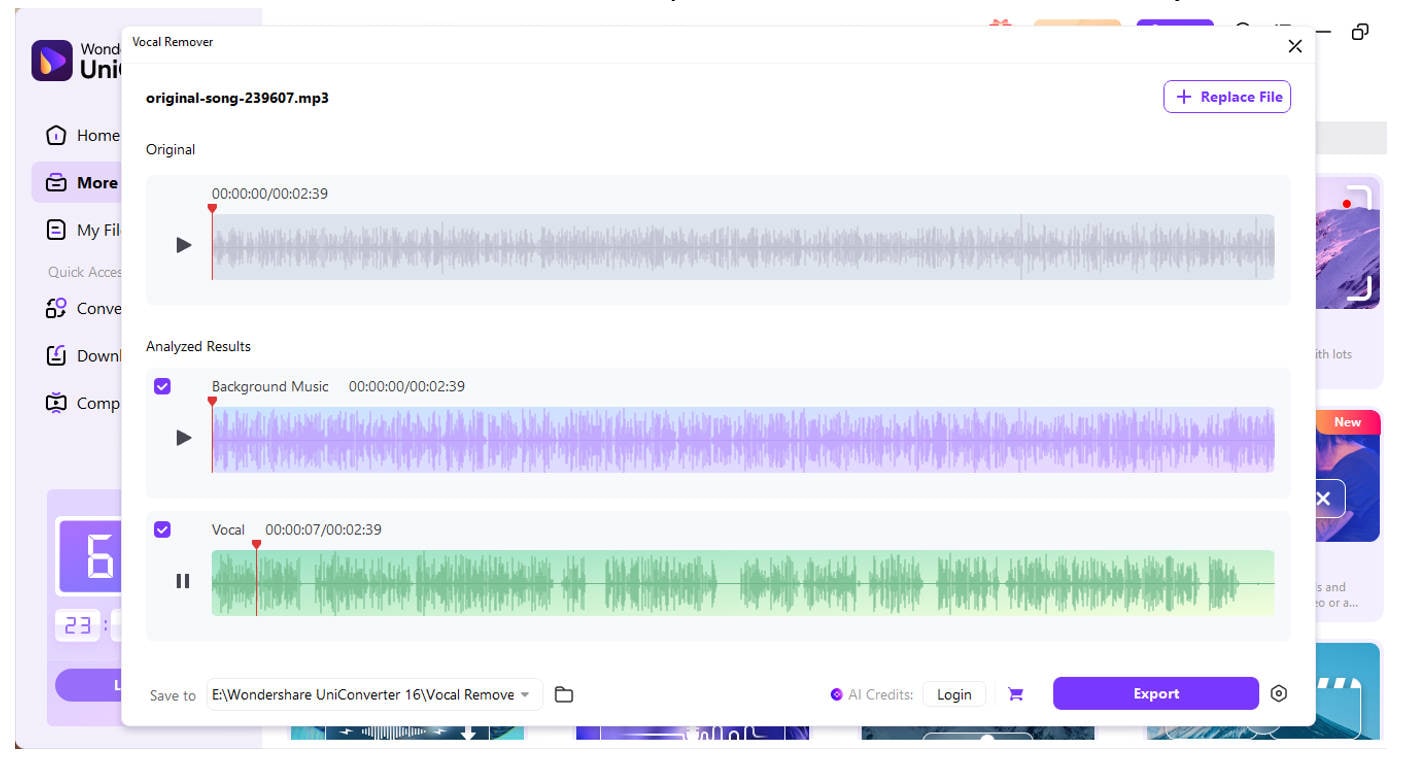
Step 3: Let AI Detect and Remove the Voice
Click “Start.” The tool will scan the audio and split it into two tracks—one with vocals and one without. You'll be left with a clean video that’s perfect for B-roll, remixes, or overlays.
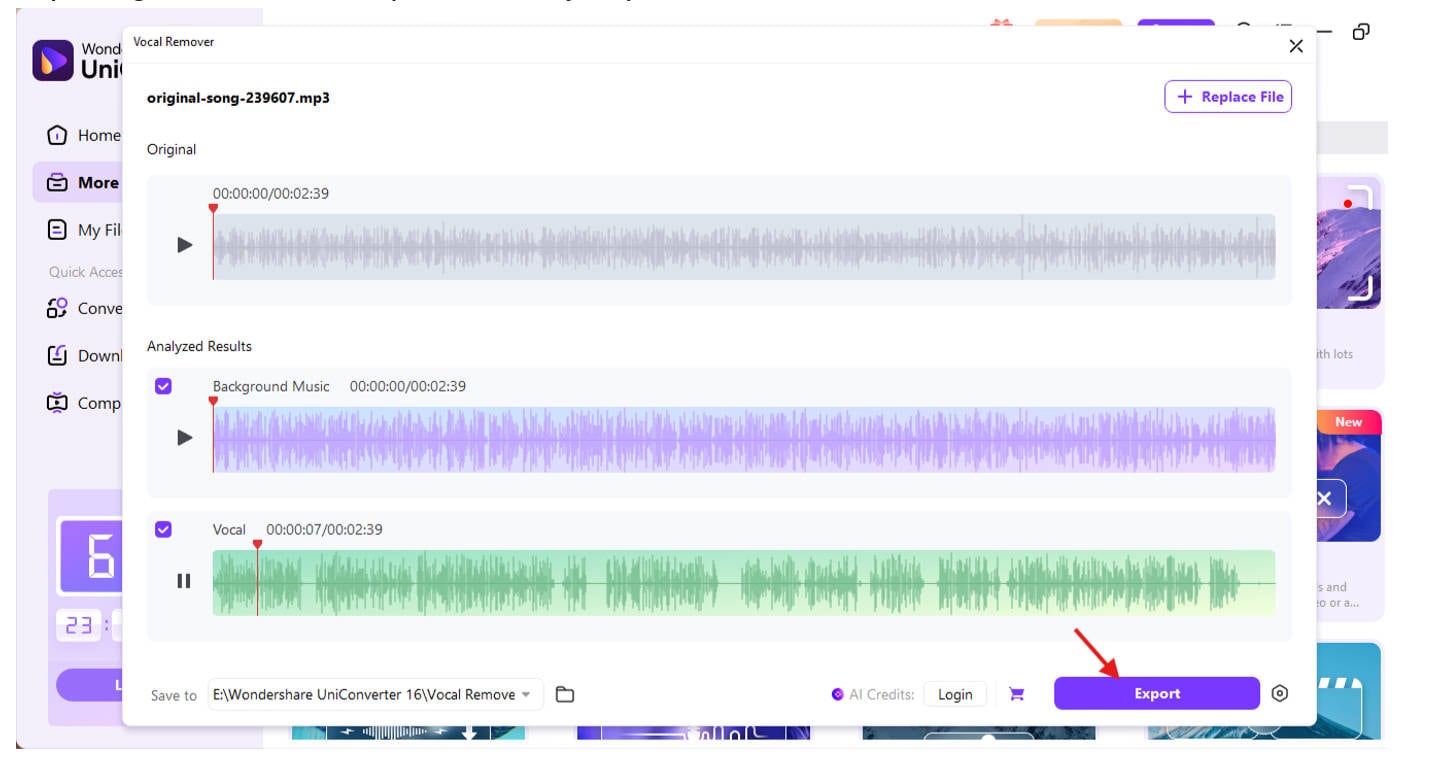
Step 4: Preview and Export
Once processed, preview the result. Choose output quality, resolution, and format before exporting. You can even upload directly to platforms like YouTube.
Why Use UniConverter :
- 1. Batch Voice Removal
UniConverter supports batch processing, allowing you to upload multiple videos and remove voices from all of them simultaneously. This saves time when handling large projects or bulk video edits. It’s beneficial for educators, vloggers, and agencies managing content libraries.
- 2. AI-Powered Vocal Remover
The built-in AI Vocal Remover accurately detects and separates human voices from background music or ambient sounds. This ensures cleaner edits and minimal distortion in your output. Whether you're muting narration or extracting vocals, AI handles it intelligently.
- 3. Support for 1000+ Formats
UniConverter is compatible with over 1000 video and audio formats, including MP4, MOV, MKV, AVI, and more. This makes it perfect for creators who work across different platforms or receive videos in varying formats. No conversion hassles—just direct voice removal.
- 4. Lossless Output Quality
Unlike many free tools, UniConverter maintains the original video quality after removing the voice. You won’t have to compromise on resolution, frame rate, or bitrate, making it suitable for professional use. This is ideal for preserving HD or 4K footage.
- 5. Custom Export Settings
Once voices are removed, you can export your video with custom settings for resolution, codec, audio bitrate, and more. This gives you control over file size and output quality, making UniConverter highly adaptable for different platforms or publishing standards.
Whether you want to remove a voice from a video for aesthetic or editing reasons, UniConverter is your top choice for fast, clean, and high-resolution output.
Part 2. How to Remove Voices from Video with Mobile App
Sometimes, you don’t need a desktop powerhouse—just a handy app to mute or edit a clip right from your phone. If you’re looking for how to remove voice from video using a mobile app, you’re in luck. Apps like Video Sound Editor (available on both iOS and Android) make it incredibly easy to mute audio, separate vocals, or trim away unwanted voiceovers directly from your gallery footage.
Whether you're working with a personal video or downloaded content, mobile tools are now smart enough to handle tasks that once required a full computer setup. If you’re on the go and still wondering how to remove voices from a video, here’s the quickest way to get clean results without breaking a sweat.
Step-by-Step Guide to Using Video Sound Editor:
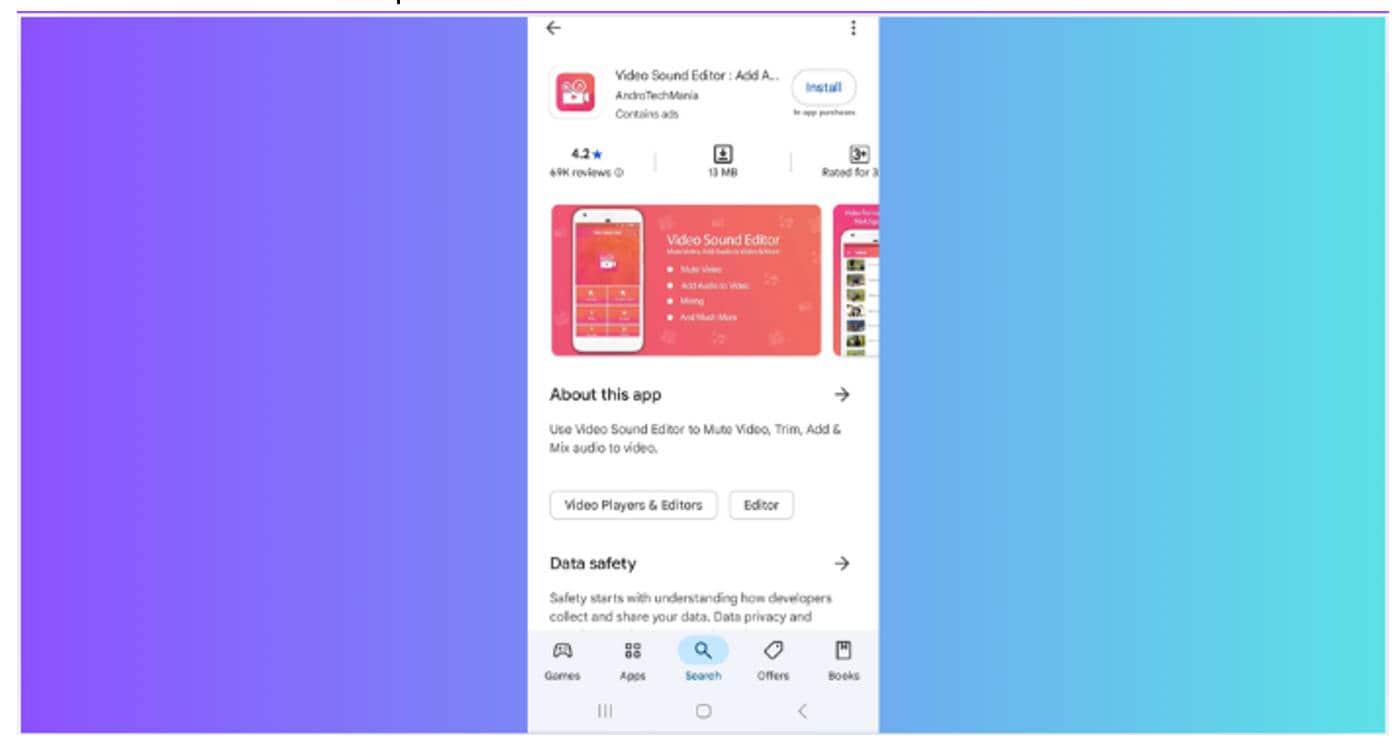
Step 1: Download & Open the App
Install Video Sound Editor from the App Store (iOS) or Play Store (Android). Once opened, select the “Mute Video” option from the home menu.
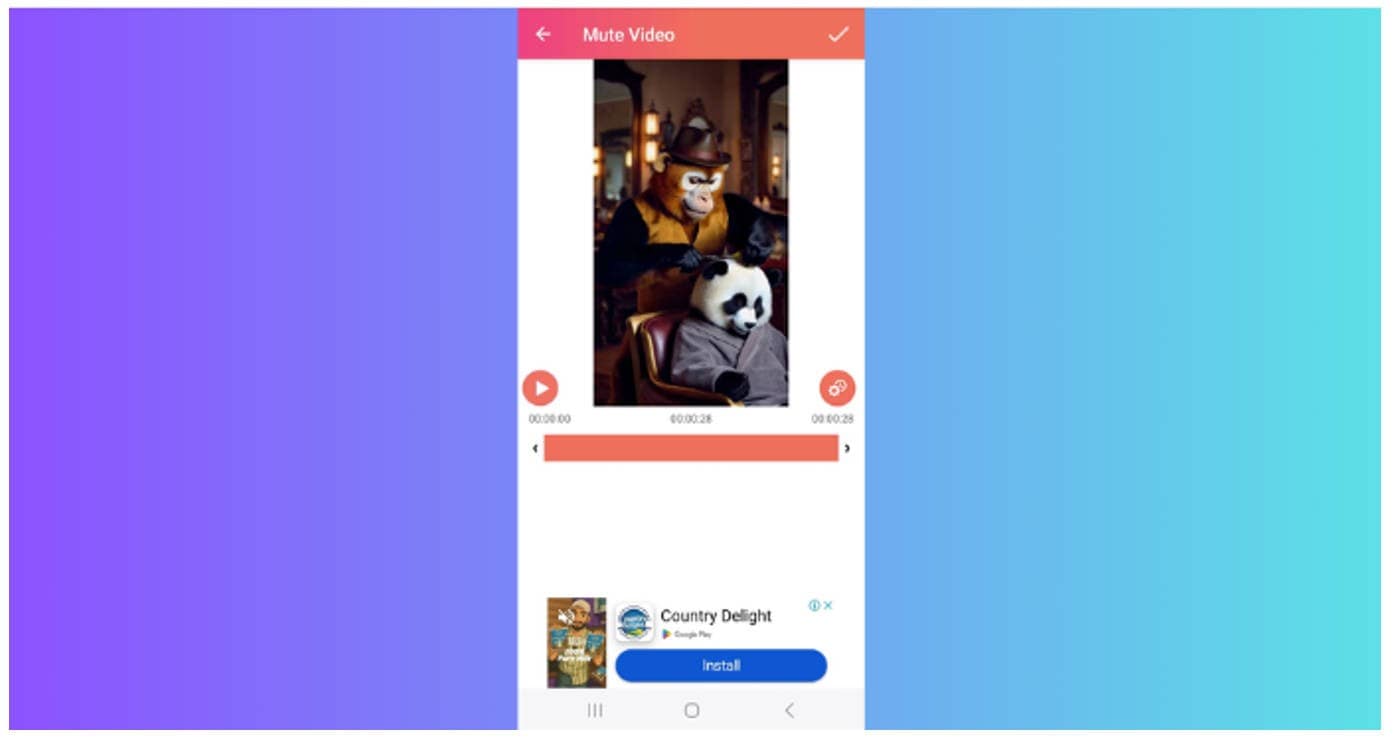
Step 2: Choose the Video File
Browse your phone’s local storage or gallery and select the video you want to edit. The app supports most formats like MP4, 3GP, and MOV.
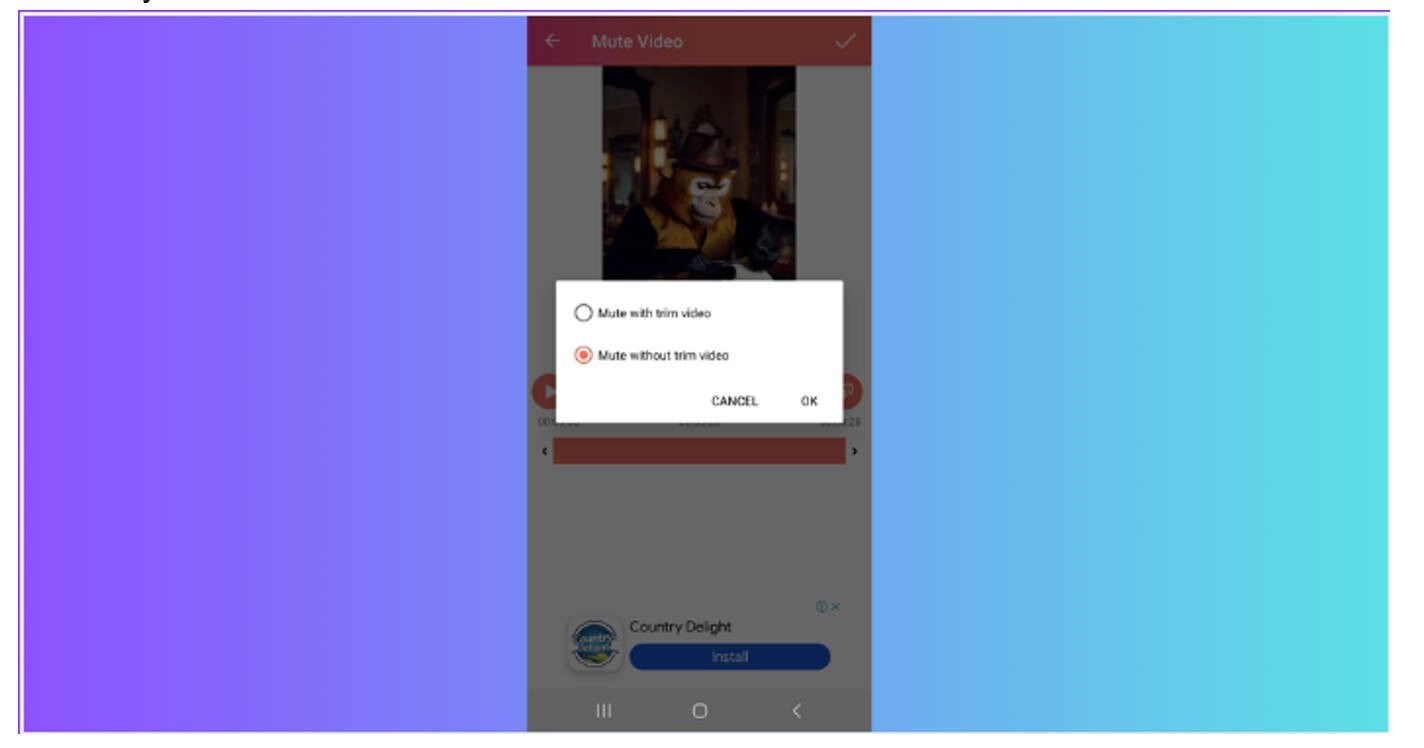
Step 3: Remove the Voice
After the video loads, the app automatically previews it with sound muted. If you're wondering how to remove a voice from a video with just one tap, this is it. You only have to select whether you want to “Mute with trim video” or “Mute without trim video.”
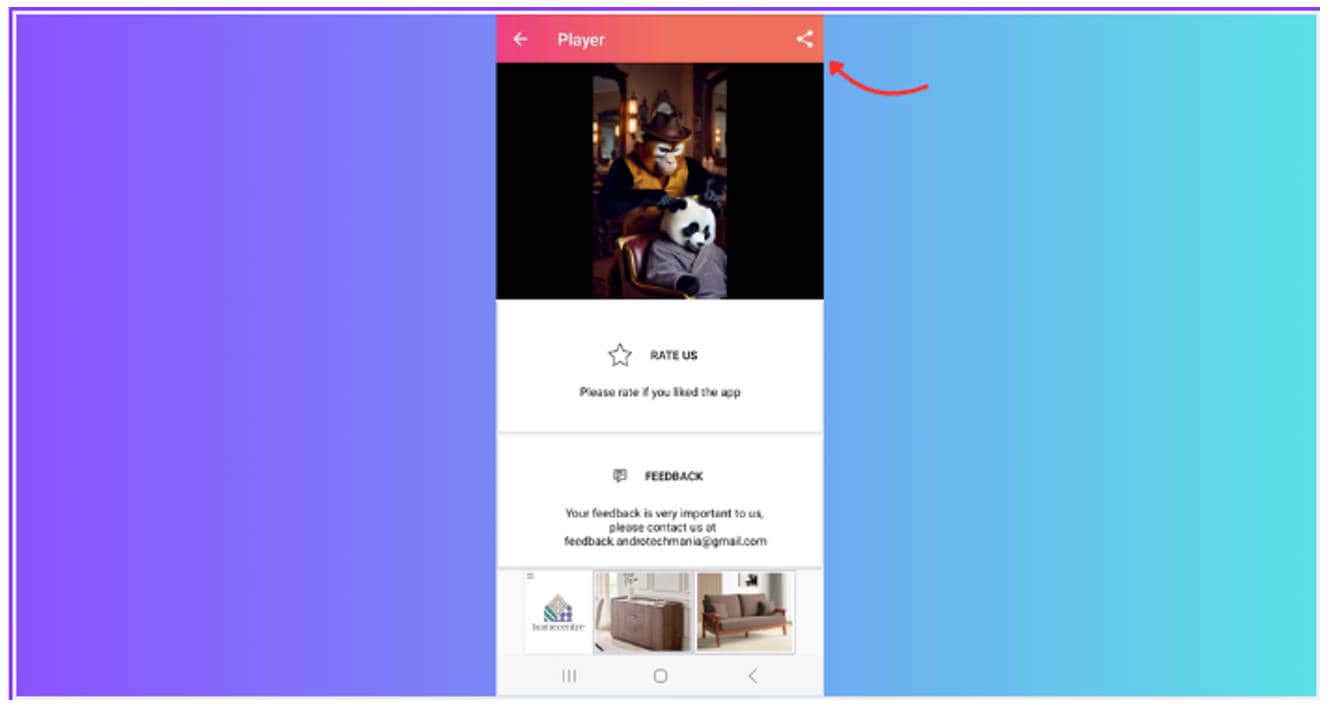
Step 4: Save & Share
The final video will be saved in your gallery or exported to your preferred destination (WhatsApp, Instagram, Google Drive, etc.). You now have a silent video ready for overlays or music.
Bonus Tip:
Some advanced apps like Lexis Audio Editor also allow frequency-based editing. If your goal is how to remove vocals from a YouTube video you’ve saved to your phone, look for apps with vocal reduction or frequency isolation modes.
Whether you want to delete voice from video, mute a noisy background, or even remove music from video but keep voice, mobile apps offer more than you think—right in your pocket. It’s a perfect solution for casual editors, influencers, or creators on a deadline.

Easy to Use Batch Vocal Remover for Win and Mac

Part 3. How to Remove Voices from Video on Web Page
If you don’t want to download software or apps, browser-based tools offer a quick and flexible way to remove voice in video directly online. These platforms are ideal for casual users or creators who only need to edit a few files on the fly. So, if you're wondering how to remove voice from video on a Chromebook, shared system, or restricted device—this method is for you.
Online tools like Media.io Online Vocal Remover, Lalal.ai, or VEED.IO work entirely through your browser. They use advanced AI to detect and strip vocals from video files without sacrificing quality. And the best part? You don’t need to be tech-savvy to figure out how to remove voices from a video online.
Step-by-Step Guide Using Media.io Online Vocal Remover:
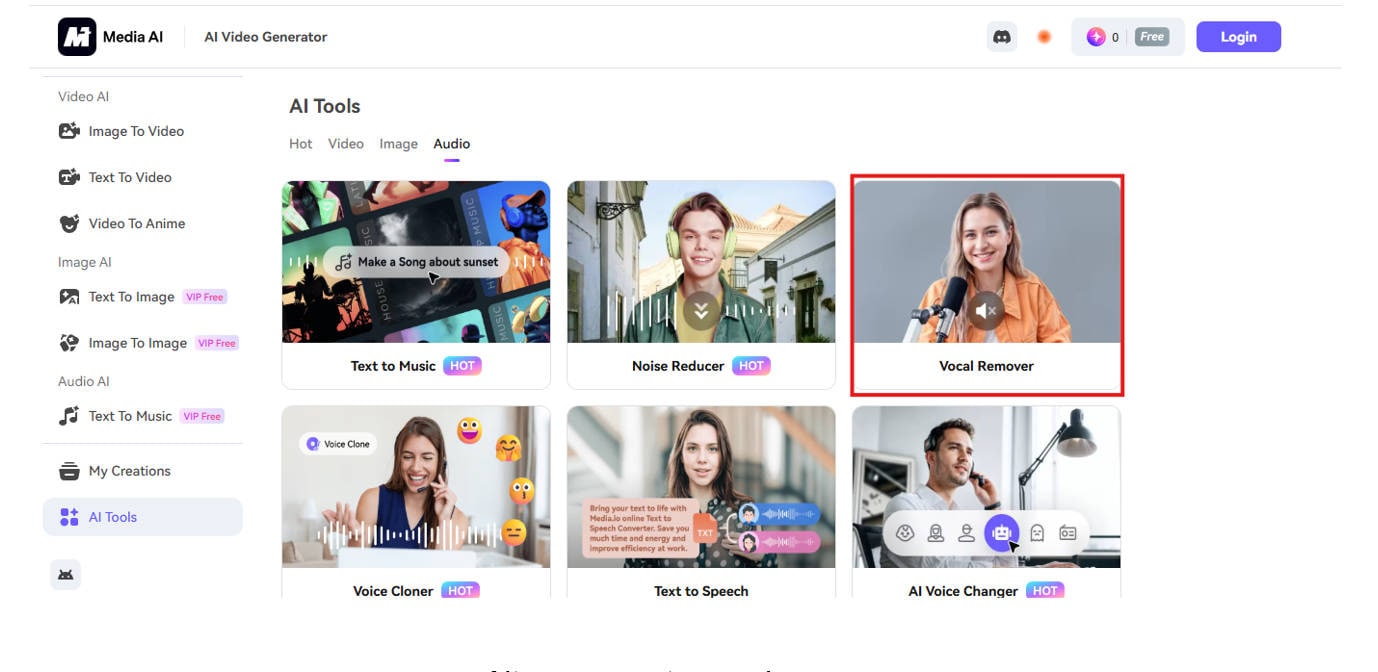
Step 1: Visit the Website
Go to Media.io Vocal Remover in your browser. This tool runs entirely online—no plugins or downloads are required.
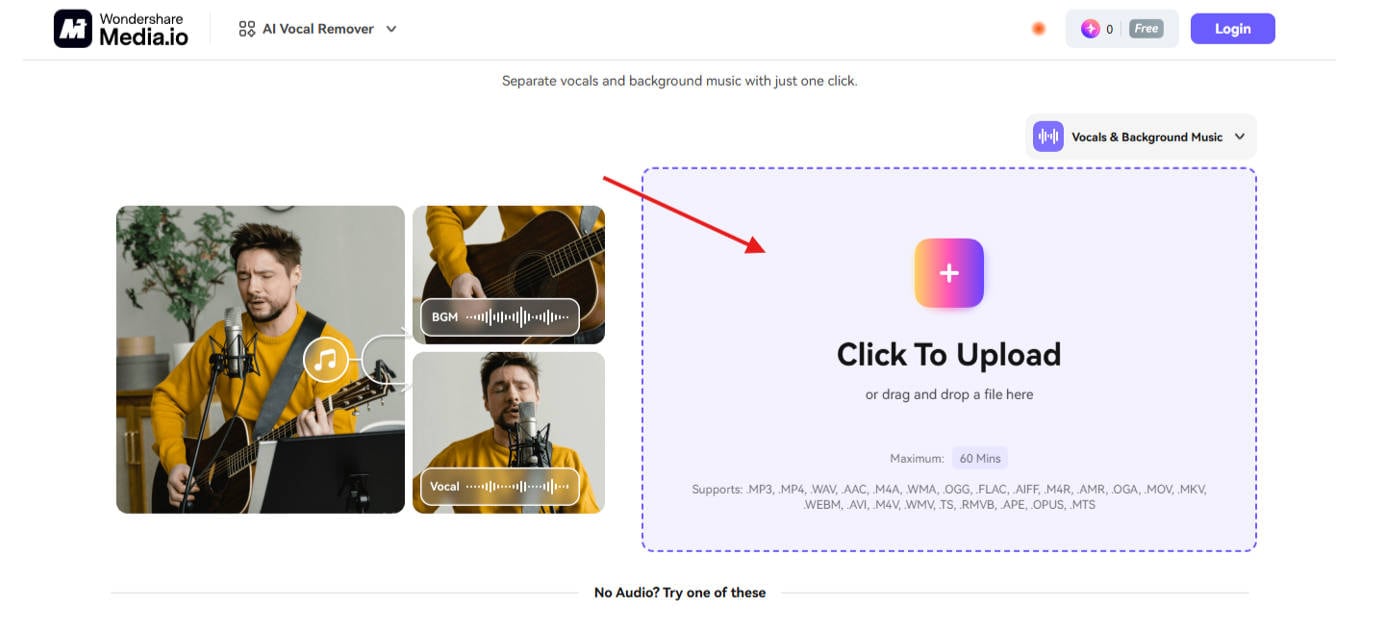
Step 2: Upload Your Video File
Click “Choose Files” and upload the video you want to edit. Supported formats include MP4, MOV, MKV, and more. This step is convenient for those who want to remove a voice from a video without converting formats.
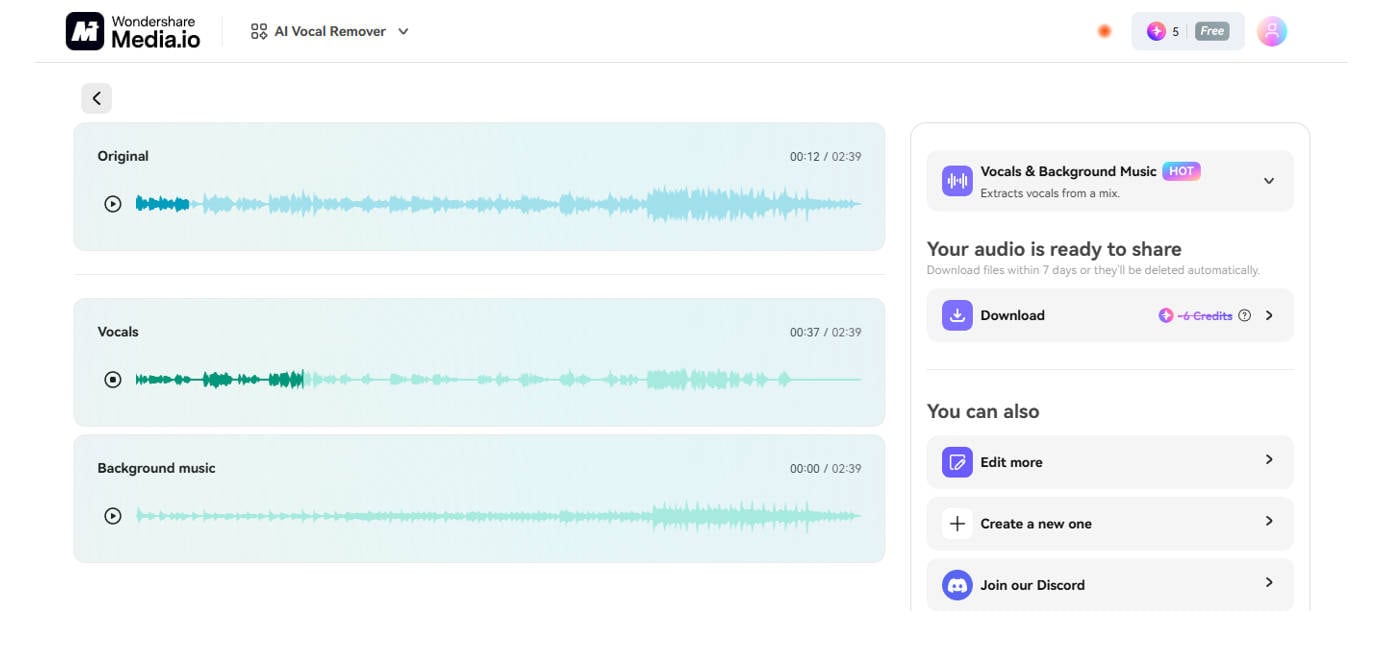
Step 3: Let AI Do the Work
Once uploaded, the platform automatically separates vocals and instrumentals. You’ll get two tracks—one with voice, one without. You can choose to download just the background or the clean video.
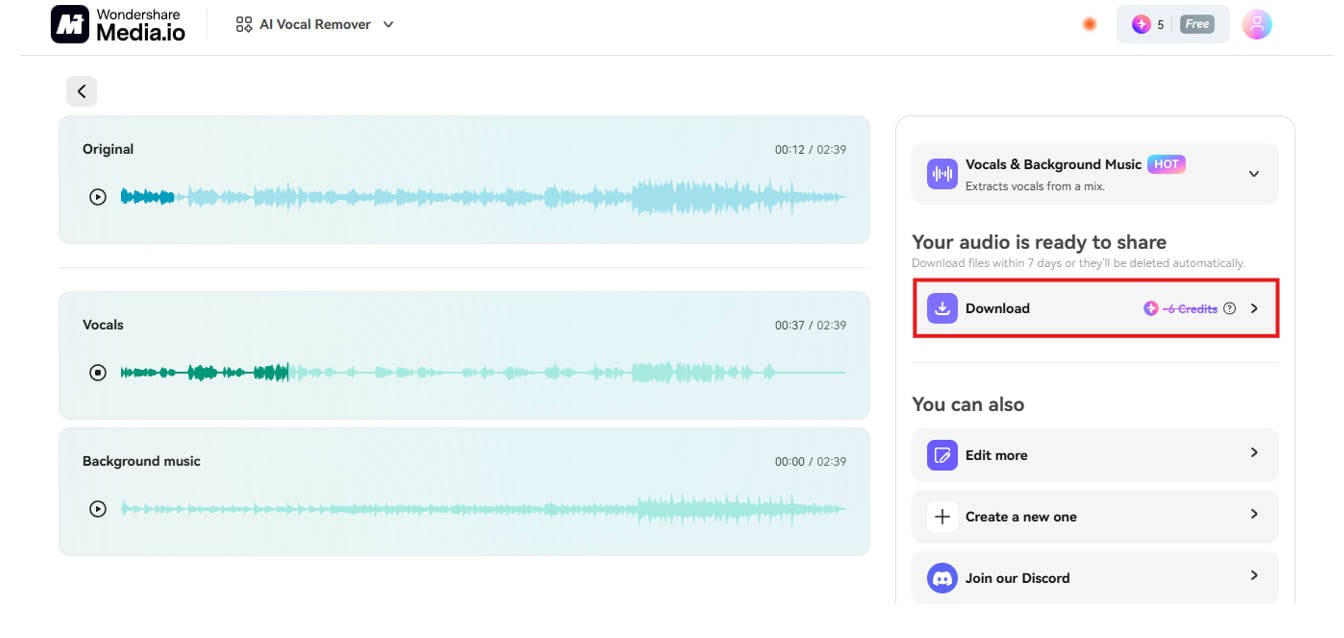
Step 4: Preview & Export
Preview your results in the browser. Adjust volume sliders if needed. Hit “Download” to save the edited video, ready for reuse or repost.
Extra Advice:
If you’re dealing with downloaded content and asking how to remove vocals from a YouTube video, just paste the YouTube link into tools like VEED.IO or Kapwing and extract the vocals directly.
Whether you're trying to delete voice from video, remove voice in a video, or even remove music from video but keep voice, these web-based editors deliver surprisingly solid results—no software or signup needed.
Part 4. Quick Comparison of 3 Tools Above
When deciding how to remove voice from video, the best solution depends on your platform, file size, editing needs, and budget. Below is a quick comparison of the desktop, mobile, and web-based tools covered in this guide:
|
Platform |
UniConverter |
Video Sound Editor |
Media.io Vocal Remover |
|
Price |
Desktop (Win/Mac) | Mobile (iOS/Android) | Web |
|
KissAnime |
Free + Paid Plans | Free | Free + Premium |
|
Format Limitations |
Supports 1000+ formats | Common formats only | MP4, MOV, MKV, etc. |
|
File Size Limit |
No limit (Paid) | Depends on device | 100MB (Free version) |
|
Processing Speed |
Fast (AI-accelerated) | Very Fast | Moderate |
|
Best For |
Batch edits, high-res output. | Quick mutes, casual mobile edits. | No-install edits, clean interface |
What to Consider
Still not sure how to remove voices from a video with the best results? Use this table as your decision guide:
- Choose UniConverter if you’re working with large files, multiple videos, or need how to delete voice from video while keeping original quality intact.
- Go with Video Sound Editor if you're on a mobile device and want fast, no-fuss editing.
- Media.io works great for lightweight browser jobs—ideal for those asking how to remove a voice from a video without downloading anything.
These tools also help in niche scenarios like how to remove music from video but keep voice, especially if you’re using advanced AI with sliders or waveform isolation.
Conclusion
By now, you know exactly how to remove voice in video using desktop, mobile, and web tools. Whether it's AI-powered UniConverter, a simple mobile app, or an online platform, each tool offers practical ways to mute or isolate voices. You’ve also learned how to remove vocals from a YouTube video, delete voice from video, or even reverse the process to remove music but keep voice. These solutions help creators, educators, and editors clean up audio for better content. With flexible options for all needs, you now have complete control over how to remove voice from video like a pro.
Easy to Use Batch Vocal Remover for Win and Mac
FAQs
-
1. How to remove voice in video without affecting background music?
To remove only the voice but keep the music, use AI-based tools like UniConverter or VEED.IO. These tools separate vocals and background tracks using voice recognition models. -
2. What’s the easiest way to remove voice from video for beginners?
If you're new, Media.io or Video Sound Editor apps are simple and require no editing experience. They help you quickly understand how to remove voice from video in just a few taps. -
3. Can I remove voices from a video recorded on iPhone or Android?
Yes, you can. Apps like Video Sound Editor or InShot let you mute or strip voices easily, giving a clean version even for mobile clips. It’s the fastest way to delete voice from video on the go. -
4. How to fix issues when removing a voice from a video leaves echo or artifacts?
Echoes often happen when the voice isn’t isolated cleanly. Use advanced AI tools like UniConverter or try editing with EQ in tools like Adobe Audition for better grain-free audio control. -
5. Can I remove voice in a video without losing visual quality?
Absolutely. Tools like UniConverter ensure lossless export, so while the voice is removed, the resolution and clarity of your footage remain unchanged.

