
Editorial feature-based comparison based on public product information and the interfaces shown below. This is not a controlled download-speed benchmark. Features, compatibility and available formats may change.
Looking for a Rumble video downloader? Your options range from desktop software with format and task controls to online tools that work in a browser. Some are built specifically for Rumble, while others support many websites and offer a different way to find and save media.
This guide compares 10 tools, explains what each one offers, and walks you through the supported-link workflow in Wondershare UniConverter. Check the source-specific options before downloading: a tool's advertised maximum resolution does not mean every Rumble video is available in that quality.
How We Chose the Best Rumble Video Downloaders
A useful downloader should do more than accept a URL. We considered each tool's published Rumble support, platform, output controls, and the way it handles saved media.
- Rumble relevance: a dedicated Rumble page, an official supported-site listing, a Rumble extractor, or a published Rumble-specific guide.
- Platform and workflow: desktop software, browser-based service, or browser extension.
- Output options: documented video containers, audio formats, and quality controls.
- Download management: queues, multiple URL imports, playlists, or simultaneous tasks.
- Ease of use: whether you can work through a graphical interface or need command-line setup.
This is a feature-based comparison using public product information and the interfaces shown below. It is not a controlled speed benchmark. Actual download options can vary by video source and product updates.
10 Best Rumble Video Downloaders Compared
Use this table to narrow down the tools by platform and workflow. The listed features reflect public product information; actual Rumble availability and output options depend on the source and current product support.
| Tool | Platform | Rumble-Related Fit | Best For |
|---|---|---|---|
| Wondershare UniConverter | Windows, macOS; optional browser-extension companion | Dedicated workflow for supported individual Rumble video-page URLs; source-based options; Finished list | Desktop downloads and local media handling |
| SnapDownloader | Windows, macOS | Dedicated Rumble page; batch queue, scheduling, trimming and format choices | Batch downloads and extra controls |
| 4K Video Downloader Plus | Windows, macOS, Ubuntu | Rumble appears in the official supported-sites list; quality and format controls | Quality and format selection |
| Cisdem VideoPaw | Windows, macOS | Rumble-specific guide; multiple URL imports, stream and subtitle options | Batch URL management |
| MediaHuman YouTube Downloader | Windows, macOS, Ubuntu | Rumble support noted in official release history; MP4/WebM and audio options | Multi-site downloads |
| YTDLP Desktop | Windows, macOS, Linux | Uses yt-dlp Rumble extractors; format inspection and queue controls | GUI-based advanced downloads |
| Rumble-video.download | Browser | Rumble-focused page for public videos and Shorts; MP4 and audio options | Rumble-specific online workflow |
| A2Z Tools | Browser | Rumble-specific page; MP4 video and several audio-format options | Online format choices |
| AnyDownloader | Browser | Dedicated Rumble page; HD MP4 and no-registration workflow | Simple link-based downloads |
| Video DownloadHelper | Chrome, Firefox, Edge | General media detection on supported pages; not a Rumble-specific service | Browser-based media detection |
UniConverter's Rumble Downloader is a Windows and Mac desktop feature. Its optional Chrome, Edge and Firefox extensions are companions that connect supported browser pages to the desktop app; they do not provide a separate online Rumble download form.
1. Wondershare UniConverter – Best for Desktop Rumble Downloads and Media Management
Best for: users who want to save supported Rumble video-page links on Windows or Mac and continue working with the files locally.
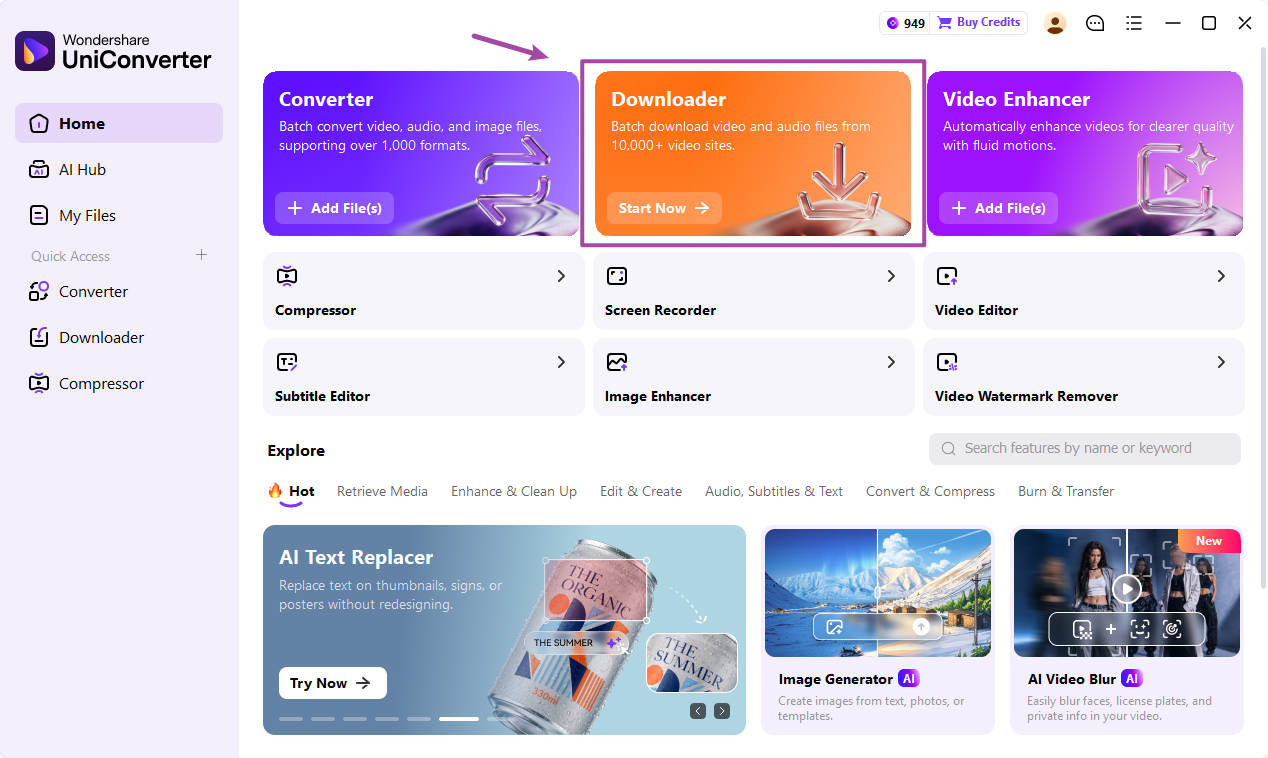
Wondershare UniConverter brings supported video-link downloading and local media tools into one desktop application. For Rumble, start with an individual public video-page URL. Copy the page address, open Downloader, and paste the link. If the source is supported, UniConverter analyzes it and shows the formats and resolutions available for that video.
You can monitor the task under Downloading and find completed files in Finished. Use the file-location control to open the saved video on your computer. If you need a different format or a smaller file, continue in UniConverter's Converter or Compressor instead of moving to a separate application.
The dedicated Rumble workflow is for Windows and Mac. UniConverter also offers optional Chrome, Edge, and Firefox extensions to connect supported browser video pages with UniConverter Desktop. These extensions are an additional entry point—not a browser-based version of the Rumble Downloader. UniConverter Online provides other browser tools, but the Rumble URL downloader is not listed as an online tool.
For current URL requirements and product details, see the UniConverter Rumble Video Downloader page.
- Pros: combines supported Rumble link downloads with local media management; shows formats and resolutions available for the individual source; keeps active and completed tasks organized in Downloading and Finished; lets you continue with local conversion or compression in the same app.
- Cons: requires desktop installation for the Rumble download workflow; only supported individual video-page links can be processed, and formats and quality depend on the source.
Download supported Rumble videos with UniConverter
Paste an individual Rumble video-page link, review the available source options, and manage your saved media alongside conversion and compression tools.
2. SnapDownloader – Best for Batch Downloads and Extra Controls
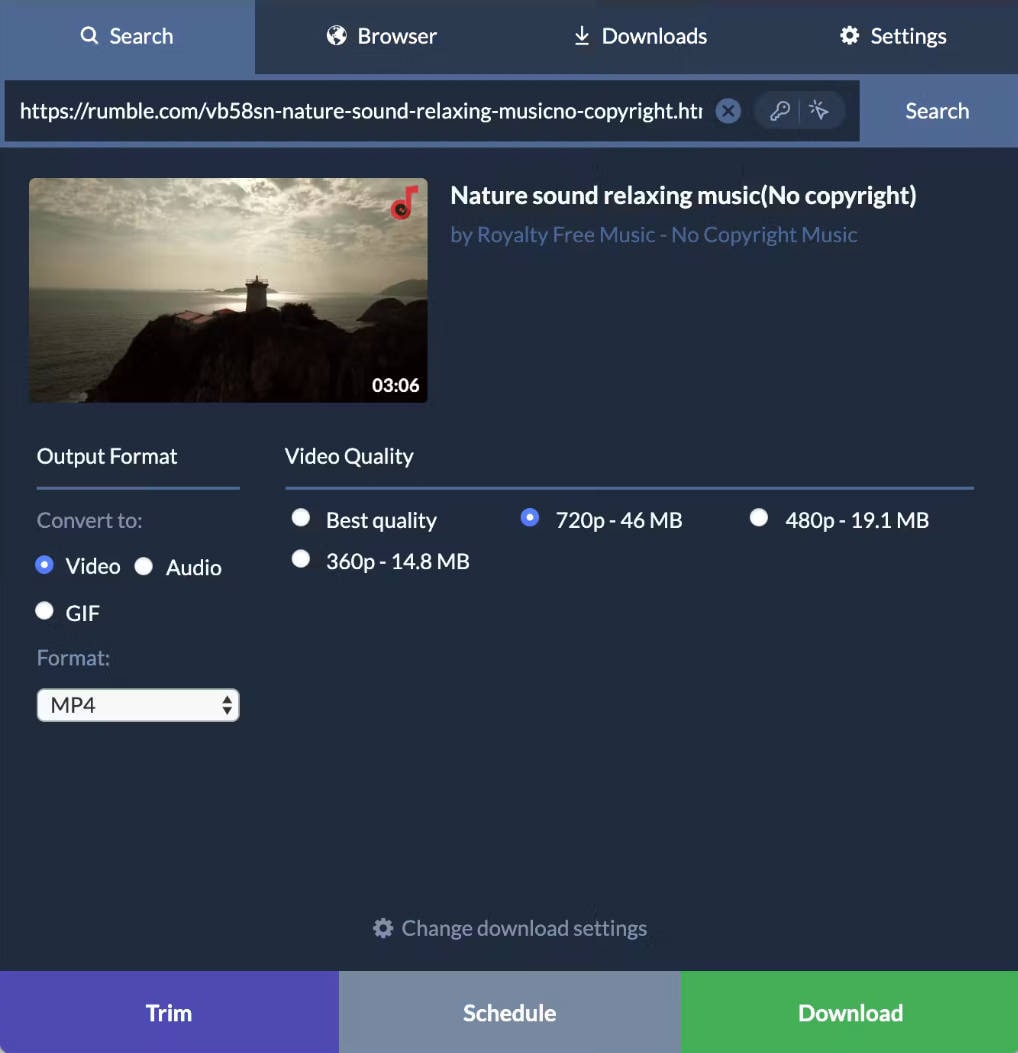
Best for: users who want batch URL imports, scheduling, trimming, and multiple output formats in a desktop application.
SnapDownloader is a Windows and macOS downloader with a dedicated Rumble workflow. Its product page advertises support for more than 900 websites, a queue for up to 100 Rumble URLs, scheduled and simultaneous downloads, and a built-in trimmer. Listed output formats include MP4, AVI, MKV, and several audio formats. Resolutions up to 8K are available when the source provides them.
- Pros: batch queue, scheduling and trimming are built into the desktop workflow; offers multiple video and audio output formats.
- Cons: requires desktop installation; the full feature set is available through a paid license after the trial.
3. 4K Video Downloader Plus – Best for Quality and Format Settings
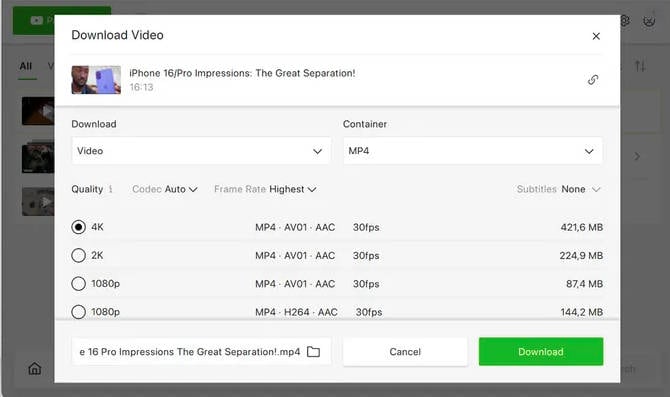
Best for: users who want to review the available container, codec, frame rate, and resolution before downloading.
Rumble appears in 4K Video Downloader Plus's official supported-sites list. The desktop app lets you review available quality options and adjust settings such as the container, codec, and frame rate. Smart Mode can save your preferred settings for future downloads. The application supports Windows, macOS, and Ubuntu Linux.
- Pros: Rumble is included in the official supported-sites list; provides visible quality, container, codec and frame-rate controls; Smart Mode simplifies repeat download tasks.
- Cons: requires desktop installation; the free version has quantity limits, while a license unlocks more features.
4. Cisdem VideoPaw – Best for Multiple URL Imports
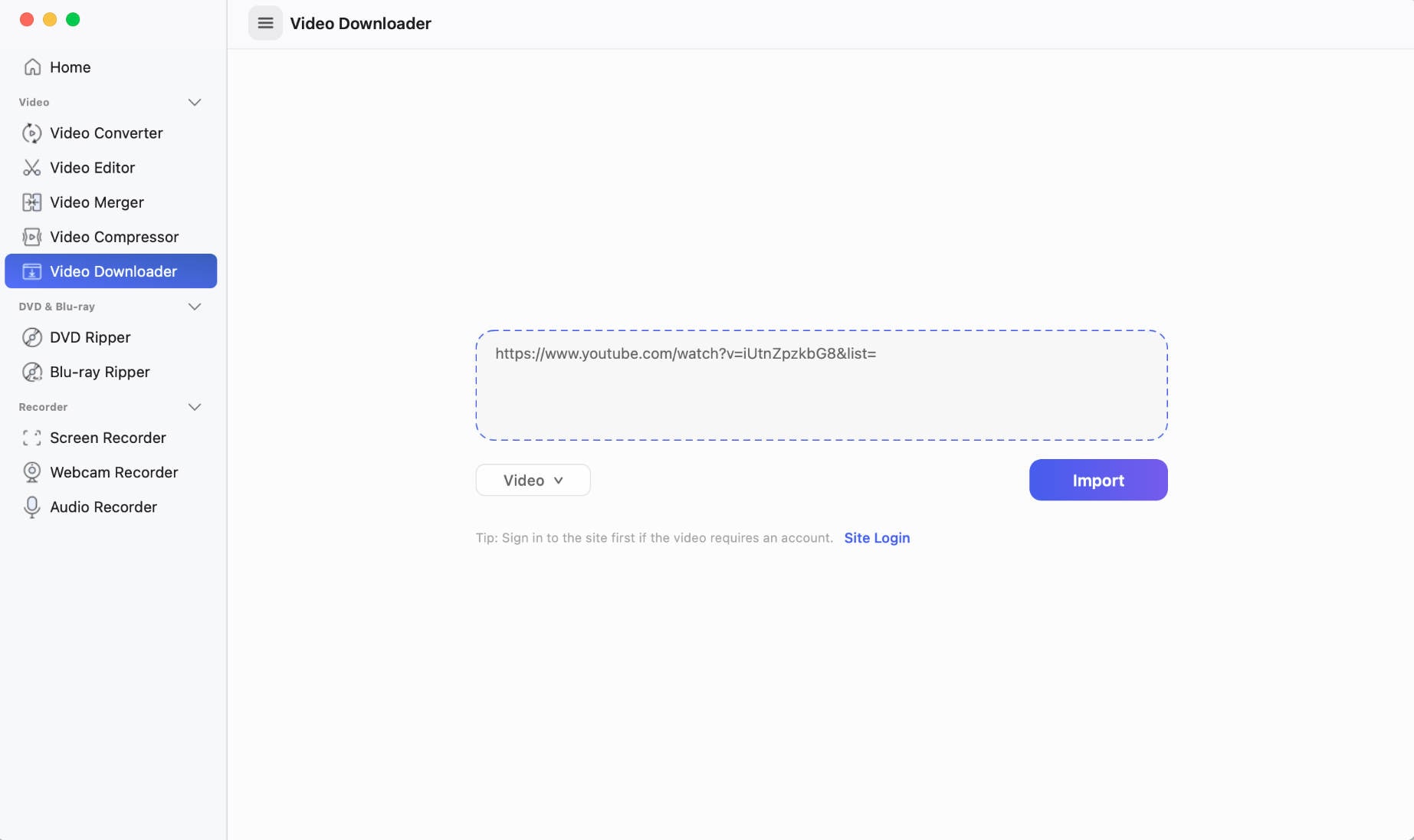
Best for: users who manage several video links and want batch downloads with stream and subtitle options.
Cisdem VideoPaw is a Windows and Mac media suite with a Video Downloader module. It supports multiple URL imports, batch processing, and selection of available video streams, audio tracks, and subtitles. Cisdem also publishes a Rumble-specific guide that demonstrates its downloader workflow.
- Pros: supports multiple URL imports and batch downloads; offers stream, audio and subtitle choices when the source provides them; includes conversion and other media tools.
- Cons: requires desktop installation; available streams and tracks depend on the source video.
5. MediaHuman YouTube Downloader – Best for Multi-Site Downloads
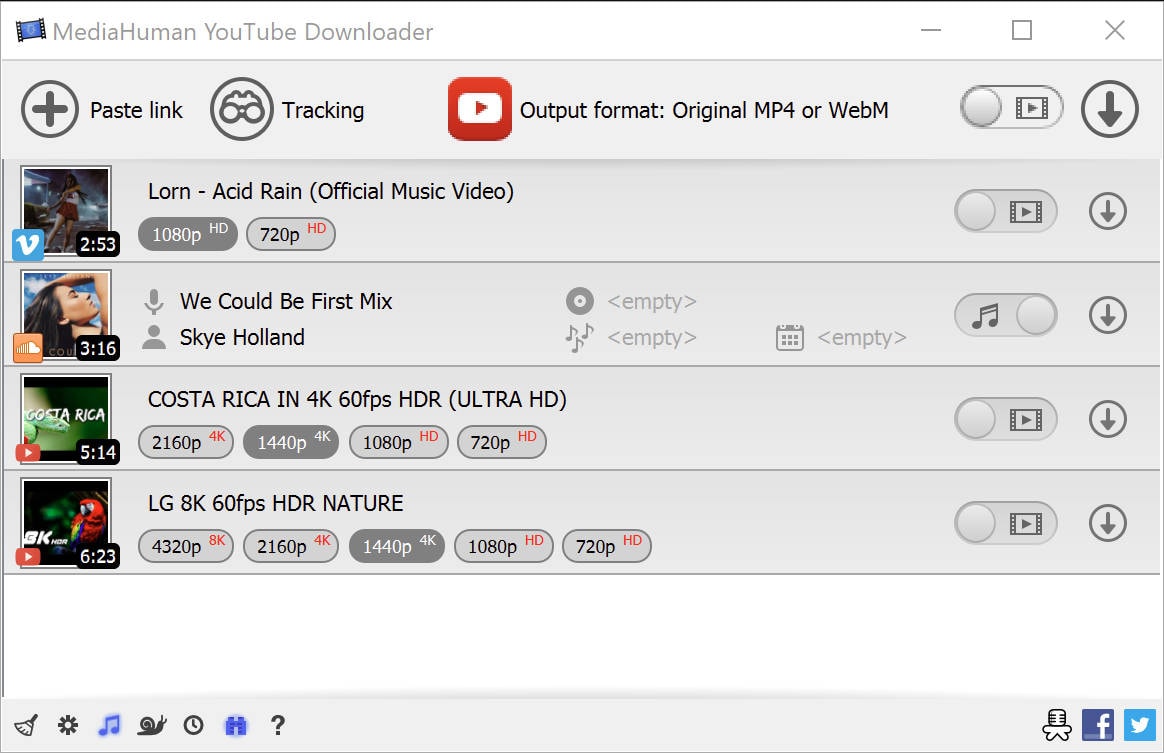
Best for: users who want one desktop app for videos and audio from several supported platforms.
Despite its name, MediaHuman YouTube Downloader supports sites beyond YouTube. Its official version 3.9.23 release notes specifically record a fix for downloading from Rumble, including channel pages. The app also supports original MP4 or WebM downloads, multiple tasks, and audio extraction. Versions are available for Windows, macOS, and Ubuntu.
- Pros: official release notes document a Rumble-related fix; supports original MP4 and WebM output; includes queue and audio-download options.
- Cons: requires desktop installation; the product name does not make its broader site support immediately obvious.
6. YTDLP Desktop – Best for a Graphical yt-dlp Workflow
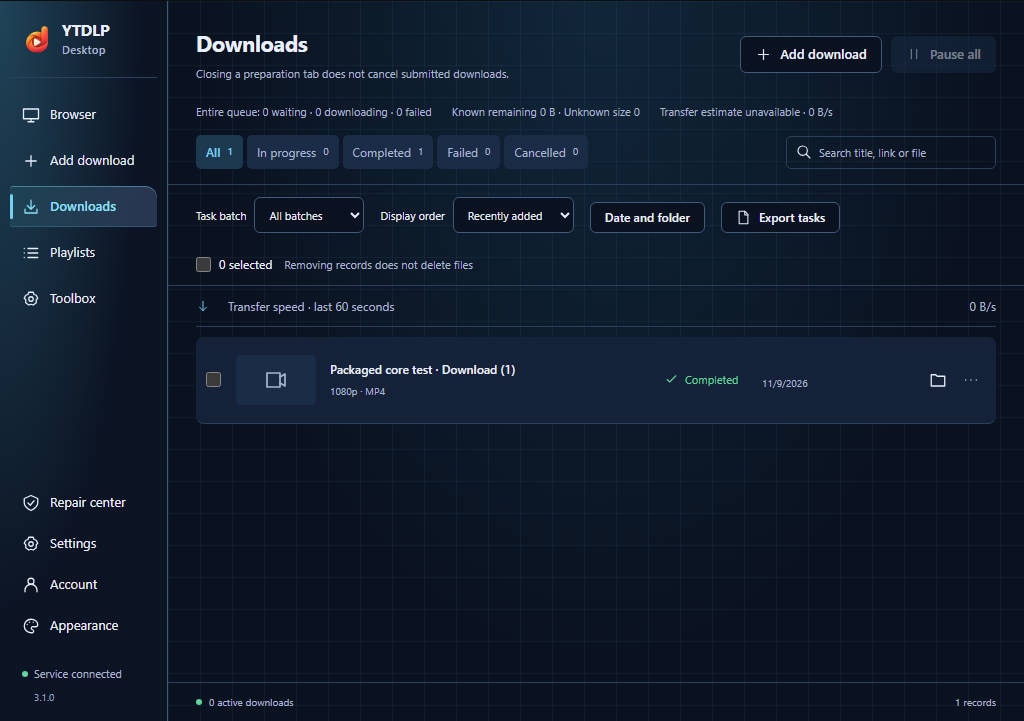
Best for: users who want the flexibility of yt-dlp without working directly in a terminal.
YTDLP Desktop is a separate desktop application built around the open-source yt-dlp engine. Its supported-sites directory lists Rumble video, channel, and embed extractors. You can add a link, inspect the formats returned by the source, and manage downloads through a graphical queue. It is available for Windows, macOS, and Linux.
- Pros: provides a graphical interface for the yt-dlp engine; lists Rumble extractors and supports format inspection; offers queue and playlist controls.
- Cons: requires desktop installation; some options are more technical than a basic paste-and-download service; it is a separate GUI product, not the official yt-dlp command-line application.
7. Rumble-video.download – Best for a Rumble-Focused Online Workflow
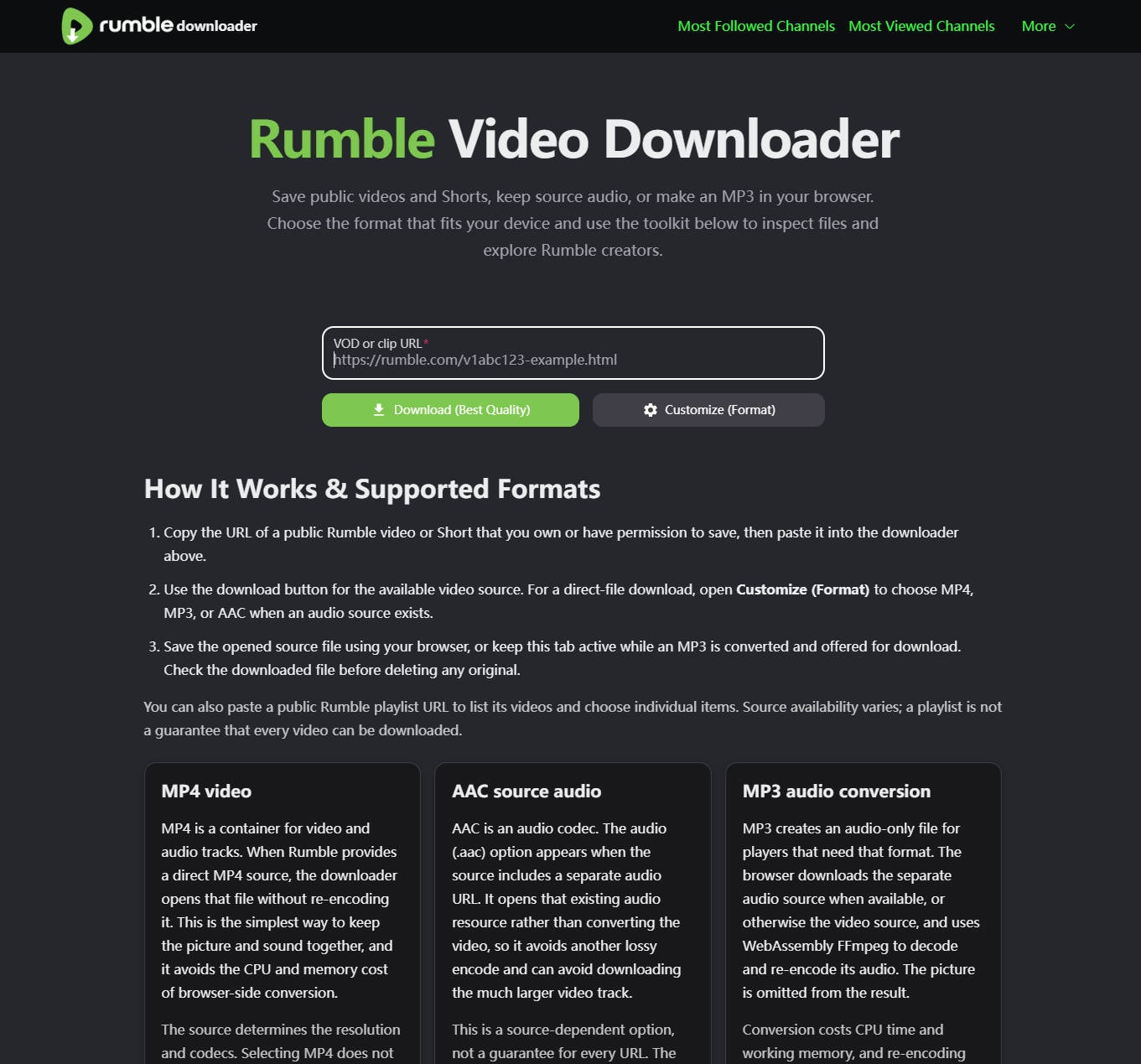
Best for: users who want a browser-based tool built specifically around public Rumble videos and Shorts.
Rumble-video.download focuses on public Rumble videos and Shorts. Its page describes direct MP4 downloads when a source MP4 is available, AAC when a separate audio source exists, and MP3 conversion in the browser. It can also list individual items from a public playlist URL.
- Pros: dedicated to Rumble content; provides video and audio-related options; works in a browser without desktop installation.
- Cons: available formats depend on the source; MP3 conversion uses browser resources; a playlist listing does not guarantee every item is available.
8. A2Z Tools – Best for Online Video and Audio Format Choices
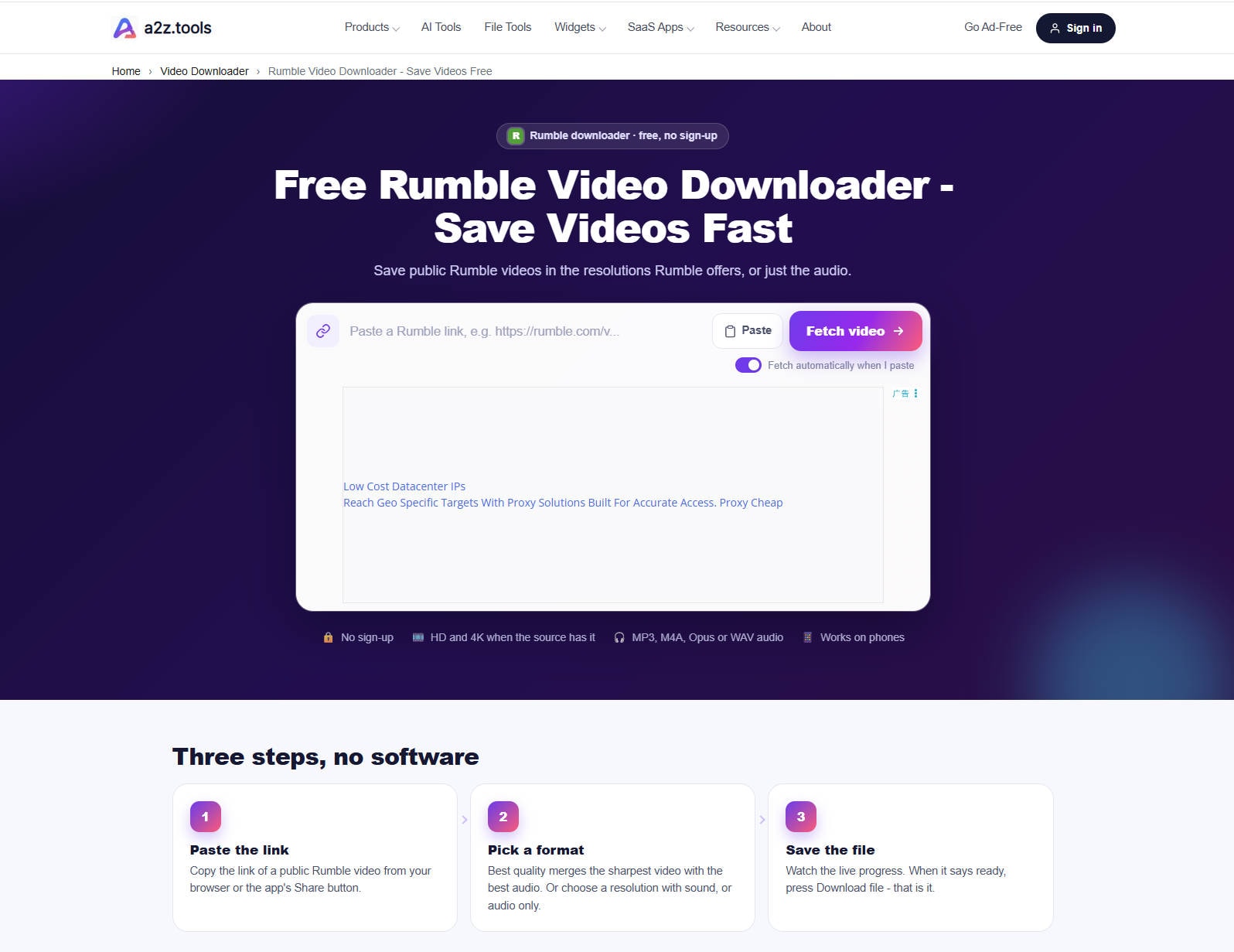
Best for: users who want a browser-based Rumble downloader with several listed audio formats.
A2Z Tools offers a Rumble-specific downloader that works in a browser without sign-up. Its page shows MP4 video output and audio options including MP3, M4A, Opus, and WAV. It also advertises HD and 4K choices when the source provides them, with a simple paste, fetch, and save workflow.
- Pros: no desktop installation or sign-up is advertised; lists several audio formats as well as MP4 video; works in mobile and desktop browsers.
- Cons: requires an internet connection; the page includes advertising; output quality depends on the original source.
9. AnyDownloader – Best for Simple Online MP4 Downloads
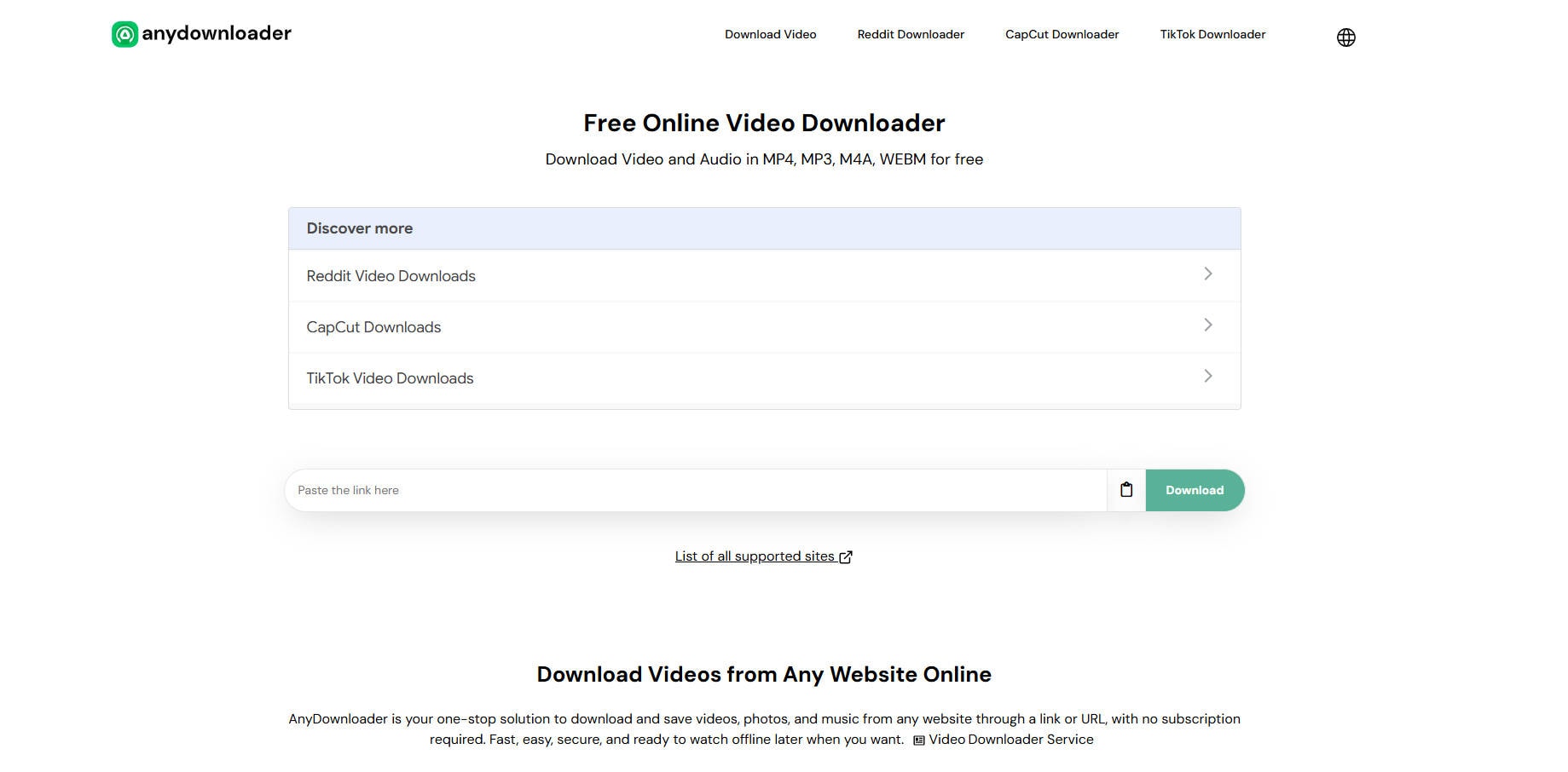
Best for: users who want a straightforward browser-based way to save eligible public Rumble videos.
AnyDownloader has a dedicated Rumble Video Downloader page and describes a simple link-based workflow for saving public videos as HD MP4. The service advertises free use without registration or an app, and works through desktop and mobile browsers. The screenshot shows its general online downloader homepage.
- Pros: simple paste-and-download workflow; no app or registration is advertised; can be used from desktop and mobile browsers.
- Cons: the Rumble page focuses mainly on MP4 rather than detailed output customization; offers fewer file-management controls than desktop software.
10. Video DownloadHelper – Best for Browser-Based Media Detection
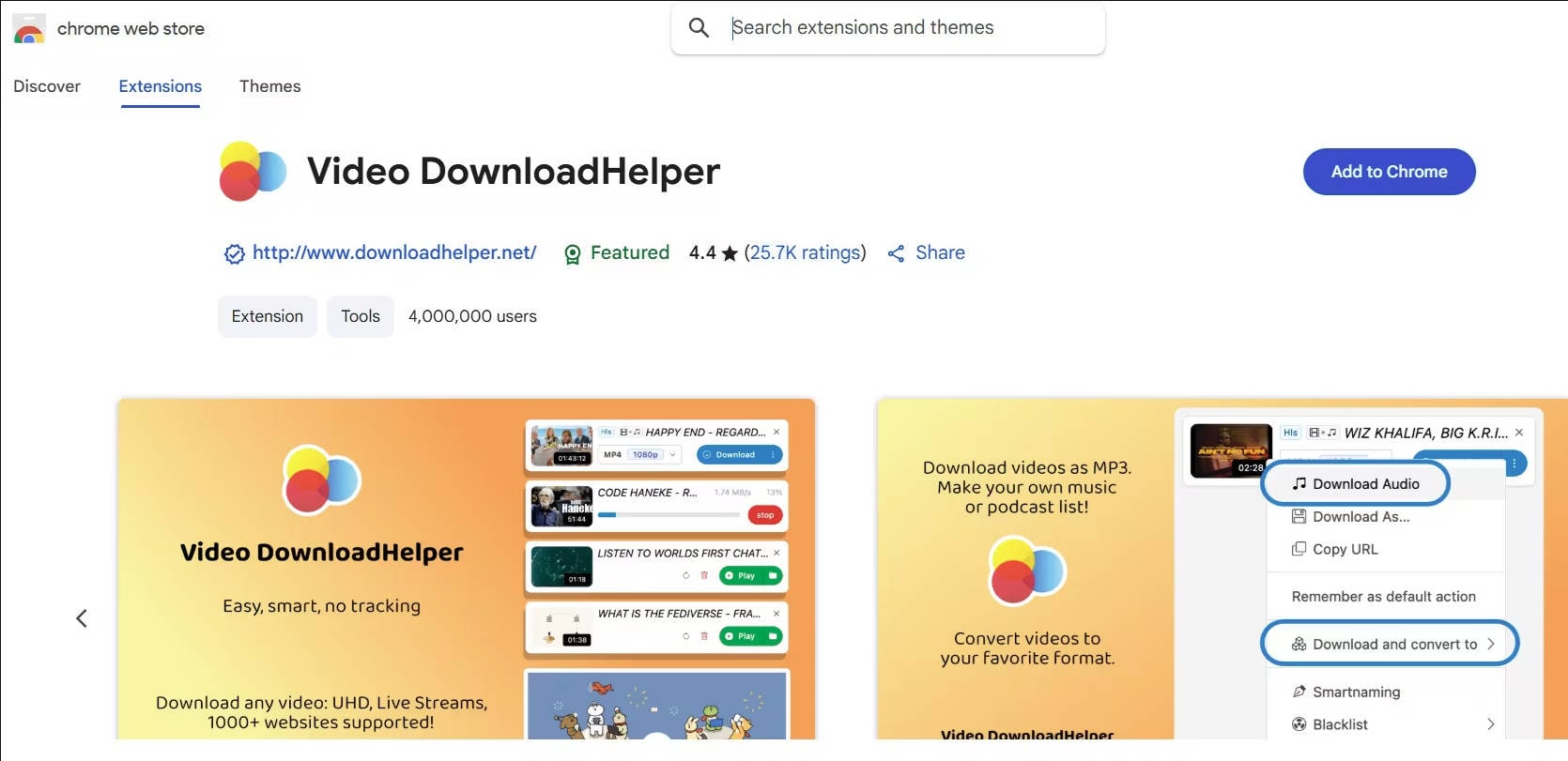
Best for: users who prefer a browser extension that detects media on supported webpages.
Video DownloadHelper is a general-purpose browser extension rather than a Rumble-specific service. Its publisher describes support for more than 1,000 websites and streaming formats such as HLS, DASH, and MPD, with common output formats including MP4, MKV, and WebM. It can also extract audio as MP3. The extension is available for Chrome, Firefox, and Microsoft Edge; it works when it detects a compatible media stream on the page.
- Pros: works directly from a browser toolbar; supports a wide range of media streams and common formats; available for Chrome, Firefox and Edge.
- Cons: it is not dedicated to Rumble, and detection depends on the media exposed by the page; some advanced features and unlimited downloads require a premium license.
Which Rumble Video Downloader Should You Choose?
Choose the tool that matches the way you save and manage videos:
- For a desktop workflow with local media tools: choose UniConverter if you want supported Rumble link downloads alongside conversion and compression.
- For batch queues and trimming: consider SnapDownloader.
- For visible format and quality controls: consider 4K Video Downloader Plus.
- For multiple URL imports and subtitle options: consider Cisdem VideoPaw.
- For a graphical interface powered by yt-dlp: consider YTDLP Desktop.
- For a Rumble-focused browser workflow: compare Rumble-video.download, A2Z Tools, and AnyDownloader.
- For browser media detection: consider Video DownloadHelper on pages where it detects a compatible stream.
Before using an online service or extension, review its privacy policy and permissions. Avoid entering your Rumble password into an unrelated downloader page.
How to Download Rumble Videos with UniConverter
Use UniConverter Downloader for a supported Rumble video-page link on Windows or Mac. Start with an individual public video that you own or are authorized to save. The formats and resolutions shown depend on the source.
Step 1. Open Downloader in UniConverter
Launch Wondershare UniConverter on your computer. From the Home screen, select the Downloader card or open Downloader from the left-side Quick Access menu.
Step 2. Paste Your Rumble Video Link
Open the individual Rumble video page and copy its URL. Return to UniConverter Downloader, paste the link into the input field, keep Download Video selected, and click Download to submit it for analysis.
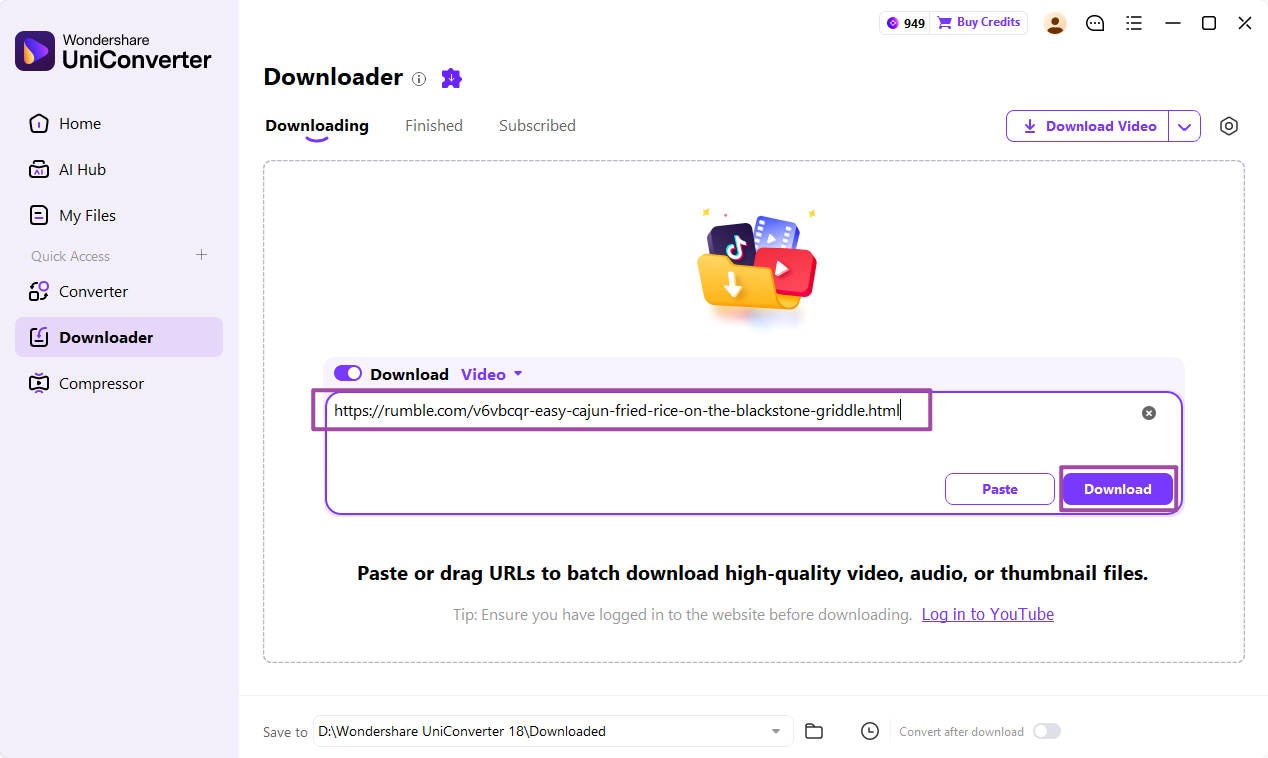
Step 3. Review the Link Analysis and Available Options
UniConverter adds the link to the Downloading list and analyzes it. If the link is supported, review the formats and resolutions returned for that specific video. Choose an available option that suits your needs before proceeding.
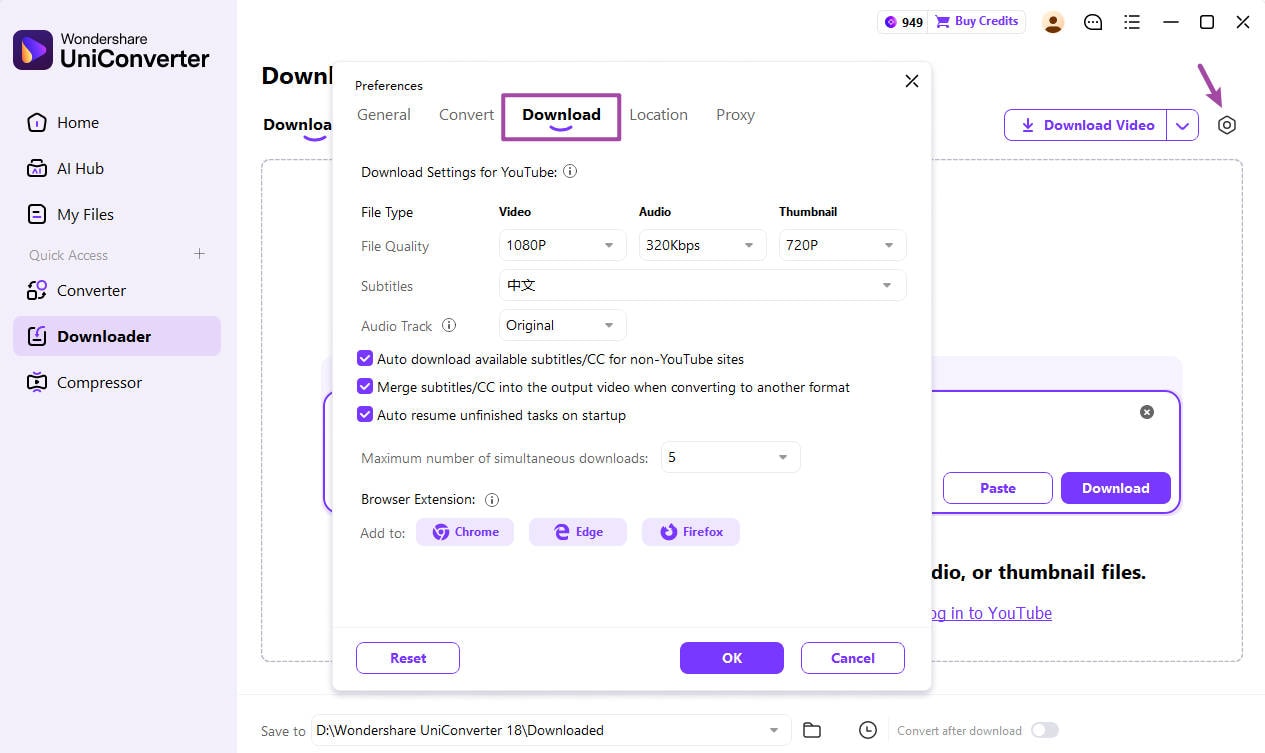
Step 4. Download and Locate Your Video
Start the download using an available option. When the task is complete, open the Finished tab to review the saved file. Use the file-location control to open its folder on your computer. If you need another format, continue with a supported local conversion workflow in UniConverter.
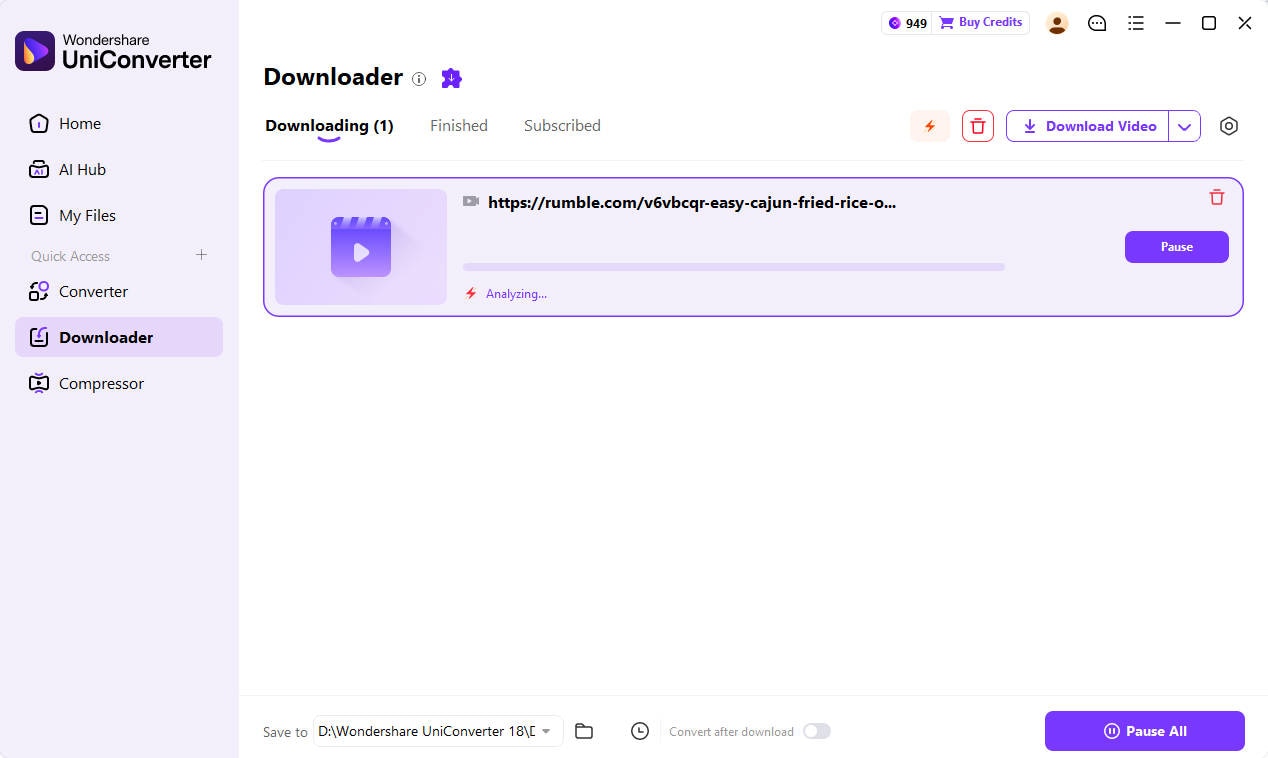
For current Rumble URL requirements and product details, visit the UniConverter Rumble Video Downloader page.
Safety and Legal Considerations
Before saving a Rumble video, consider both the rights attached to the content and the platform's current terms. Public visibility does not automatically mean a video is free to copy, redistribute, edit, or use commercially.
- Review Rumble's terms: Rumble's Terms of Service, last modified September 1, 2026, prohibit automated software from accessing or interacting with the Rumble Site without Rumble's prior written permission.
- Check content rights separately: permission from a creator or copyright holder does not necessarily resolve platform-level restrictions on automated access.
- Do not bypass access controls: avoid attempts to access private, paid, or otherwise restricted content without authorization.
- Understand official offline downloads: Rumble Premium's in-app offline viewing is different from exporting a standalone MP4 file to a computer.
- Protect your account: do not enter your Rumble password into an unrelated downloader service.
- Check intended use: permission to save a copy does not automatically grant permission to repost, monetize, edit, or redistribute it.
Read the current Rumble Terms of Service before choosing a download method.
FAQs About Rumble Video Downloaders
-
1. How do I download the original file of a Rumble video I uploaded?
If the video is on your own Rumble account, use the creator-side file option. Sign in, open your account menu, select My Content, open the three-dot menu beside the video, and choose File. See Rumble's step-by-step instructions. -
2. How can I save a short MP4 clip from my own Rumble livestream?
In Rumble Studio, open the past livestream from the Videos section, select the scissors icon, choose a segment of up to 60 seconds, and enter a title. After you generate the clip, select Download to save it as an MP4. Follow the official Rumble Studio clip guide for the current steps. -
3. Which Rumble URL should I paste into UniConverter?
Use the URL of an individual Rumble video page, not a channel page, search-results page, or unrelated embed link. Open the specific video in your browser and copy its full page address. The UniConverter Rumble Video Downloader page explains the supported link type and desktop workflow. -
4. Why does a Rumble video play in my browser but fail to process in a downloader?
Browser playback and third-party URL analysis are different processes. The link may be an embed or channel URL, the video's delivery method may not be supported, or access may be restricted. Confirm that the original page is still available and try its individual video-page URL. If it is your own upload, use Rumble's creator download instructions rather than trying to bypass an access restriction. -
5. How can I check whether a Rumble video actually has a 1080p or 4K source?
Check the options returned for that specific video after the downloader analyzes its URL. Do not infer source quality from the size of the browser player or from a tool's advertised maximum resolution. After saving an authorized file, inspect its media properties to confirm the actual frame size. The UniConverter Rumble download guide explains why available formats and resolutions depend on the source. -
6. Is Rumble Premium offline viewing the same as exporting an MP4 file?
No. Rumble describes Premium offline downloads as a way to watch videos in the Rumble app without an internet connection. Its Premium page does not describe this as exporting a standalone MP4 file to a computer. If you need the original file for a video you uploaded, use the Rumble creator download guide. You can also review the current Rumble Premium benefits. -
7. Does Rumble allow third-party automated downloaders to access its website?
Rumble's Terms of Service, last modified September 1, 2026, state that automated software may not interact with or access the Rumble Site without Rumble's prior written permission. The terms also restrict copying, distributing, or otherwise using content unless expressly authorized. Review the current Rumble Terms of Service and obtain any required permissions before using an automated workflow. Creator permission and platform permission are separate considerations.
Conclusion
The best Rumble video downloader depends on how you plan to save and manage videos. Wondershare UniConverter is a strong desktop option when you want supported Rumble link downloads alongside local conversion and compression. SnapDownloader, 4K Video Downloader Plus, Cisdem VideoPaw, MediaHuman YouTube Downloader, and YTDLP Desktop offer different combinations of format controls, queues, and desktop features.
For a browser-based workflow, Rumble-video.download, A2Z Tools, and AnyDownloader provide Rumble-focused pages. Video DownloadHelper offers a broader browser-extension approach for media it detects on supported pages. Check each tool's current compatibility, available options, and terms before using it.
When you need a desktop workflow for supported Rumble links and local media processing, explore Wondershare UniConverter.