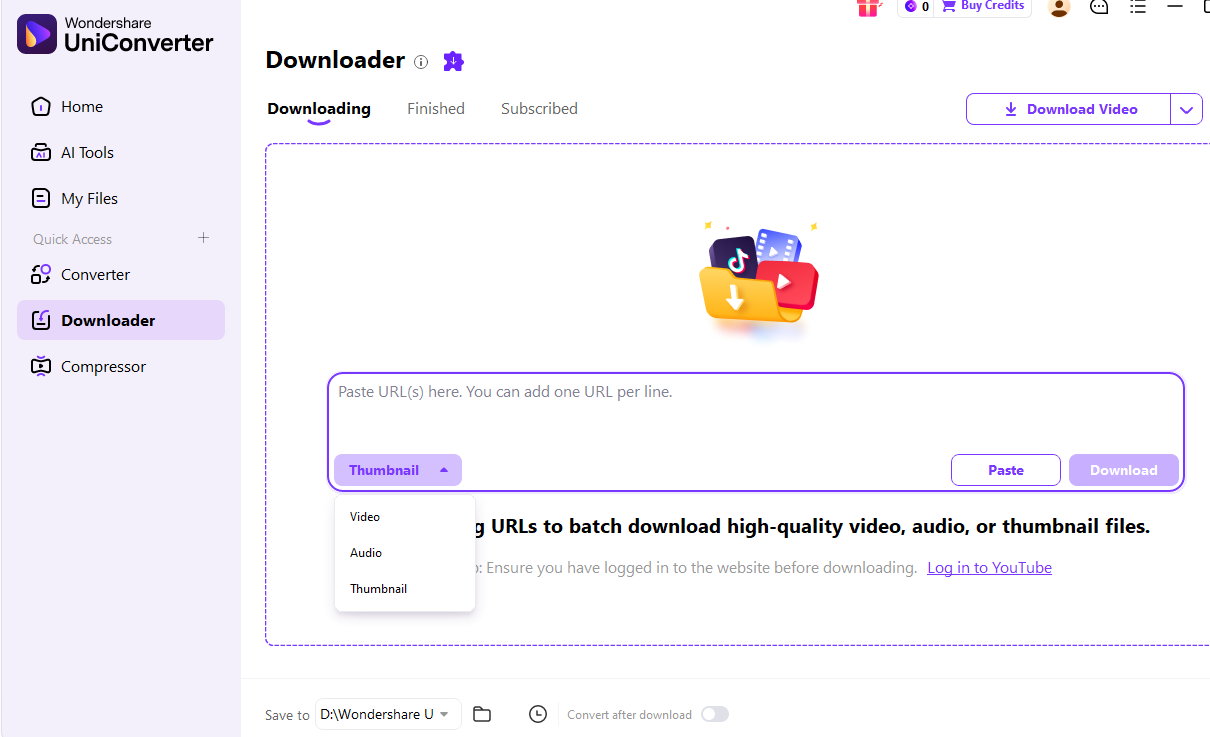
A Telegram video may play in the app without appearing in your gallery or a folder you chose. To keep a separate local copy, use the save or export command for your device, then check the destination. Forwarding to Saved Messages keeps the video in Telegram, not in your phone’s Photos or Files.
Wondershare UniConverter Downloader: Download and Manage Videos from URLs
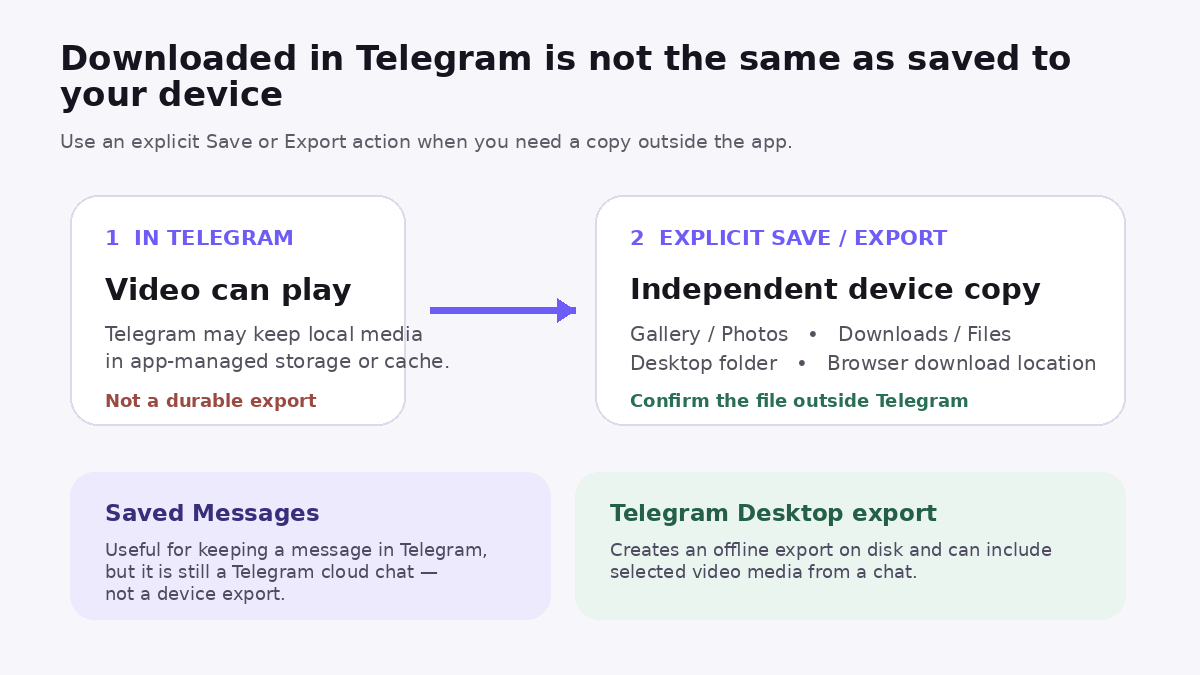
Wondershare UniConverter Downloader is a desktop video and audio downloader for supported media URLs. In the Windows V17 app, paste a media URL, choose Video or Audio, set a Save to folder, and start the download. Track the task under Downloading and open the completed file under Finished. You can also add several links, one URL per line; V17 supports up to 10 simultaneous download tasks.
Already saved your Telegram video? Keep working in UniConverter: use Converter when the file format or codec is incompatible with your device, or Compressor when the video is too large to send or upload. If you are saving a video from a Telegram chat, the Telegram app's built-in Save or Export option is also available in the device-specific steps below.
See the Downloader steps and real V17 screenshots · UniConverter Downloader guide
Choose the Right Telegram Video Download Method
| Device or situation | Best first method | Expected destination | Jump to |
|---|---|---|---|
| Android | Telegram’s Save to Gallery or Save to Downloads command | Gallery/Photos app or Downloads/Files, depending on the command | Android steps |
| iPhone / iPad | Save Video for Photos, or Save to Files for a file location | Photos or a Files location you choose | iPhone/iPad steps |
| Windows / Mac / Linux | Telegram Desktop → Save As... | A folder you choose | Desktop steps |
| Browser | Telegram WebA → Download | Your browser’s configured or selected download location | Web steps |
| Several videos from one chat | Telegram Desktop → Export chat history | The export download path you select | Multiple videos |
| Downloading from a supported media URL on desktop | Wondershare UniConverter Downloader for video or audio | The local folder selected under Save to | Downloader overview |
| Local video will not play or is too large | Use UniConverter after the Telegram file is fully saved | A new converted or compressed local file | Post-download fixes |
How to Download Telegram Videos on Android
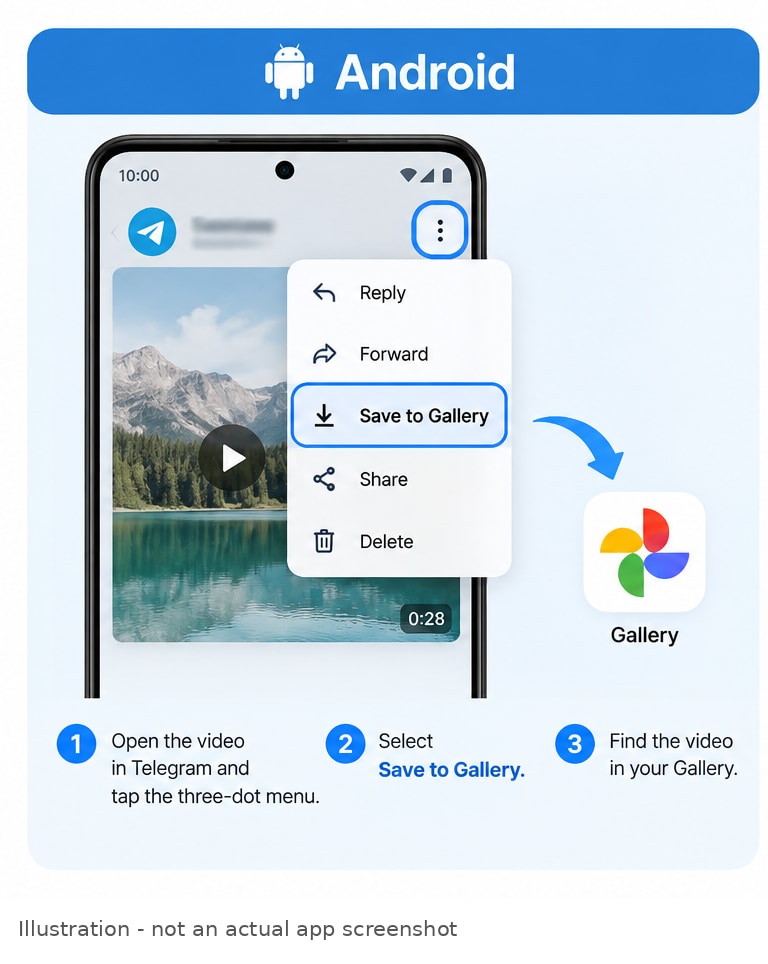
For one video, use Telegram’s explicit save command after the media has loaded. Current Telegram Android language resources include both Save to Downloads and Save to Gallery. The exact menu position can change by app build, so follow the labels shown in the current app rather than relying on an old folder path.
- Open the chat, group, or channel containing a video you are allowed to save.
- Tap the video. If a download arrow is shown, let the download finish so the video can play normally in Telegram.
- Open the video viewer and its ⋮ or media action menu.
- Choose Save to Gallery when you want a gallery copy, or Save to Downloads when that option is shown and you prefer a file-oriented destination.
- Confirm the result outside Telegram in your Gallery/Photos app or in the device’s Files/Downloads view.
Why the download arrow alone can be confusing: Telegram has a built-in Downloads manager for active and recent downloads. That helps Telegram manage media, but it does not prove that the video was exported into your gallery as an independent copy. If the video plays in Telegram but is missing from Gallery, return to the video and use the explicit save command.
Single save vs. automatic gallery behavior: Telegram also exposes a Save to Gallery setting in its Android Storage & Data area. Use that only if you want Telegram’s automatic gallery behavior for the categories shown by your current build. For a specific video you need to keep, an explicit save followed by an outside-the-app check is easier to verify.
Avoid tutorials that promise one universal Android internal-storage path. Android version, device maker, app build, and the command you chose can all affect where a file appears.
How to Download Telegram Videos on iPhone or iPad
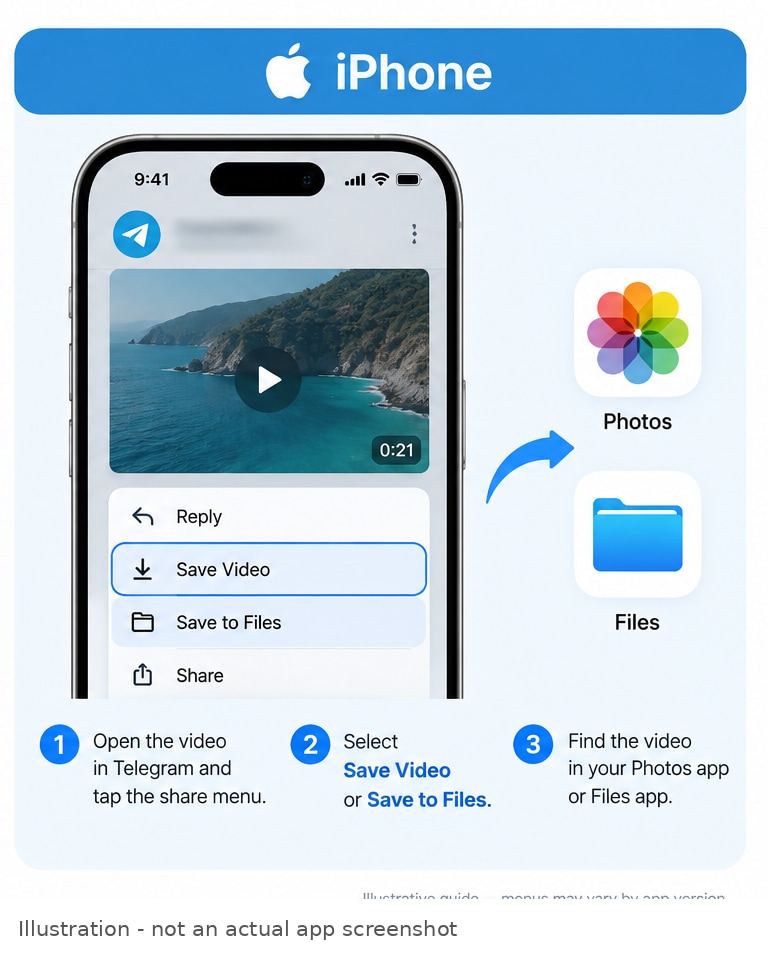
Choose the destination first: use Save Video when the goal is the Photos library, or Save to Files when you want to choose a Files location. Telegram’s current iOS translation resources expose both Save Video and Save to Files.
- Open the Telegram conversation and tap the video.
- Let the media finish loading if Telegram still shows a download/progress state.
- Open the video’s action/share menu.
- Choose Save Video for a Photos copy, or Save to Files and select a Files destination.
- Open Photos or Files and verify that the saved video is present and plays independently of Telegram.
If Save Video is available but nothing appears in Photos, review Telegram’s current Photos permission in iOS Settings and retry the explicit save. Photos and Files are different destinations; saving to Files does not automatically put the same video in Photos.
How to Download Telegram Videos on Windows or Mac
The steps below are for the cross-platform Telegram Desktop client that Telegram lists for Windows, Mac, and Linux. Telegram also distributes a separate native Telegram for macOS, so do not assume every menu is identical between the two clients. You can see the official client lineup on Telegram’s Apps page.
- Open Telegram Desktop and go to the conversation containing the video.
- Let the video finish downloading if it is still showing a progress state.
- Open the media context menu and choose Save As..., which is a current Telegram Desktop command.
- Choose the local folder where you want the file and confirm the save.
- Open that folder in File Explorer or Finder and play the file from there to confirm the save completed.
If you use Telegram Desktop’s configured download behavior instead of Save As..., check Settings > Advanced > Download Path. Telegram’s current Desktop language resources explicitly point users there when the selected download location is invalid. The path can be configured, so avoid assuming every Windows or Mac installation uses the same folder.
How to Download Videos from Telegram Web
Telegram currently offers both WebK and WebA. To keep this tutorial precise, the steps here refer to Telegram WebA, whose current official language resources include a Download action.
- Open Telegram WebA from Telegram’s official Apps page and sign in.
- Open the chat and the video you are allowed to save.
- Use the Download action when it is available for that media.
- Let the browser complete the download.
- Use the browser’s Downloads list to reveal the file, or check the folder your browser is configured to use.
You do not need a browser extension just to save ordinary Telegram media when WebA already exposes Download. Also, there is no single “Telegram Web folder”: the browser decides whether it uses a default download directory or asks you where to save.
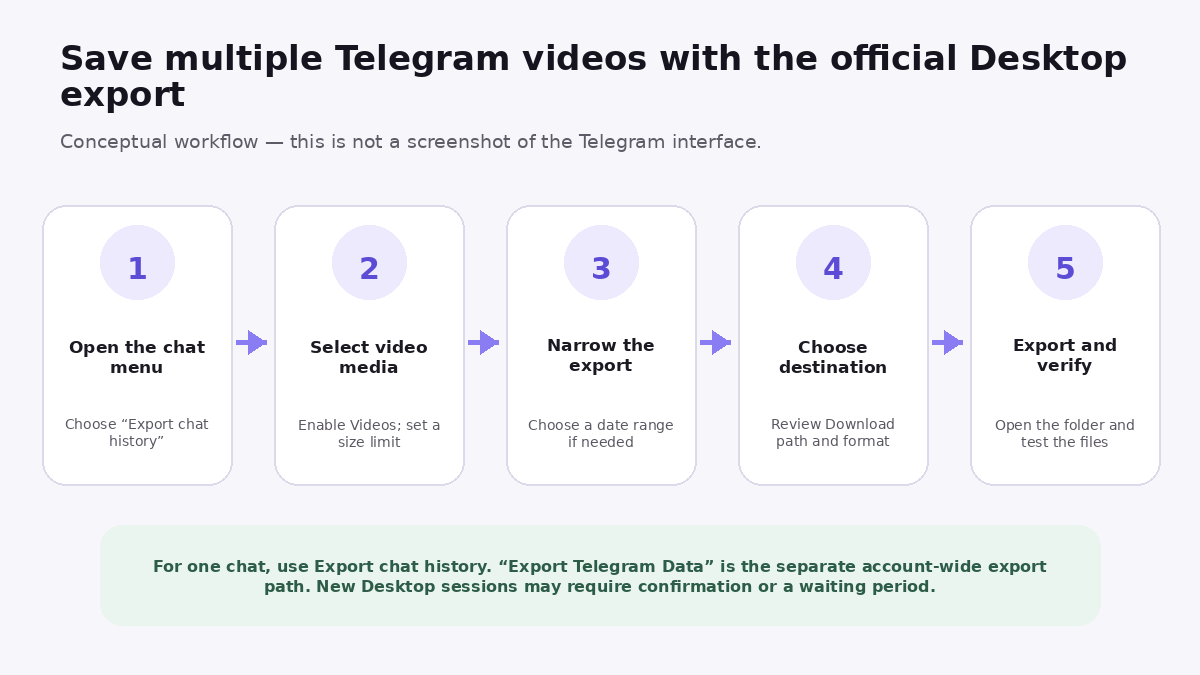
How to Save Multiple Telegram Videos with the Official Desktop Export
Use Telegram Desktop’s chat export when you need several authorized videos from one conversation. This is different from repeatedly saving one video and different from the account-wide Export Telegram Data tool.
- In Telegram Desktop, open the specific chat.
- Open the chat’s ⋮ menu and choose Export chat history. Telegram documents this as the individual-chat export path.
- In the export settings, select Videos and any other media types you actually need.
- Review the available Size limit, date range, export format, and Download path. Set the range and size controls so the videos you need are included.
- Start Export, then open the selected output folder and verify the exported media.
Telegram’s official documentation also lists Settings > Advanced > Export Telegram Data for an account-wide export. Do not confuse that with Export chat history for one conversation. Telegram also notes that a newly logged-in Desktop session may require a 24-hour wait or confirmation from another device before an export begins. The export feature is a Desktop feature, not a Telegram Web workflow. See Telegram’s official export guidance and export announcement.
Where Are Downloaded Telegram Videos Saved?
If a Telegram video “downloaded” but you cannot find it, first ask which kind of download happened. Media that is playable inside Telegram can still be app-managed local data. A separate file appears only after the relevant save/download/export action has completed.
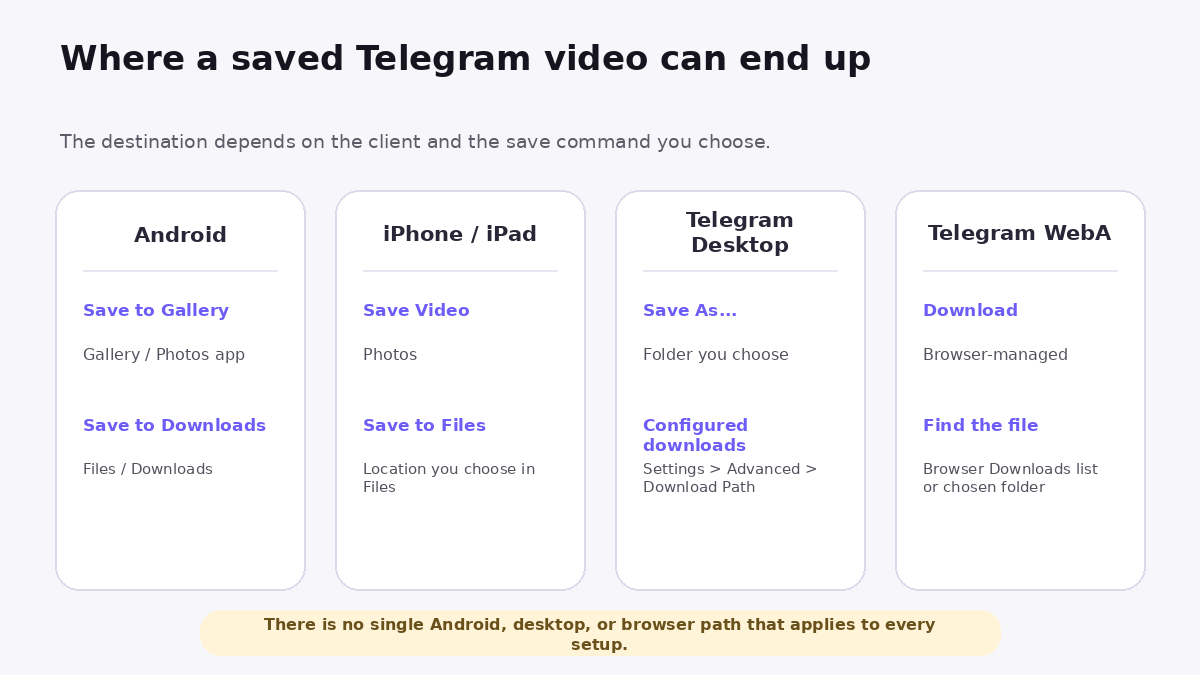
| State or client | What it means | Where to look |
|---|---|---|
| Telegram in-app download / cache | Telegram has local data for playback or recent access. | Manage it from Telegram’s Downloads/storage controls. Do not treat hidden app cache as a durable exported file. |
| Android — Save to Gallery | An explicit gallery save was requested. | Your Gallery/Photos app; exact filesystem path can vary. |
| Android — Save to Downloads | An explicit file-style save was requested. | Files/Downloads or recent files; exact path can vary. |
| iPhone/iPad — Save Video | A Photos copy was requested. | Photos. |
| iPhone/iPad — Save to Files | You chose a file location. | The Files location you selected. |
| Telegram Desktop — Save As... | You explicitly chose a destination folder. | The folder selected in the Save As dialog. |
| Telegram Desktop — configured downloads | Desktop uses its configured download destination. | Settings > Advanced > Download Path. |
| Telegram WebA | The browser handled the Download action. | Your browser’s Downloads list and configured/chosen folder. |
| Saved Messages | The message/media was bookmarked in Telegram’s personal cloud storage. | Inside Telegram’s Saved Messages — not automatically in Photos, Gallery, Files, or a desktop folder. |
Do not assume a Telegram video is MP4 just because it is a video. Keep the file Telegram actually saved and check its format/container if another app refuses to open it.
Why Won’t Telegram Videos Download or Save?
Start with the symptom instead of clearing Telegram’s cache. If a needed video exists only in Telegram-managed storage, clearing local data first can remove the convenient local copy. Save or export anything important before doing storage cleanup.
| Symptom | Likely cause | What to do |
|---|---|---|
| Download stalls or restarts | Connection interruption, paused task, or app/network state | Open Telegram’s Downloads manager, resume or retry the task, and use a stable connection. Do not convert an incomplete file as a “fix.” |
| Telegram reports or behaves like storage is unavailable | Insufficient device space or invalid Desktop download path | Free enough storage, or on Desktop review Settings > Advanced > Download Path and retry. |
| Video plays, but it is not in Gallery/Photos/Files | The video is only available inside Telegram or its app-managed storage | Use the explicit Save to Gallery, Save Video, Save to Files, Save As, or Web Download command for your client. |
| Save Video does not create an iOS Photos copy | Photos permission or save did not complete | Review Telegram’s current Photos permission in iOS Settings, then use Save Video again and verify in Photos. |
| Web download finished but the file seems missing | The browser saved it somewhere different from the folder you expected | Open the browser’s Downloads list and use its reveal/show-in-folder action. |
| Save/download option is unavailable for a protected post | Telegram content protection can disable downloads, copying, forwarding, and screenshots | Do not bypass the restriction. Ask the sender, group/channel owner, or publisher for a version they allow you to save. Telegram documents this behavior in its content-protection specification. |
| A fully saved local file will not play in the target app | The player may not support the video’s container, codec, audio codec, or other parameters | Test the complete file in another compatible player. If the file itself is complete, convert it to a format/codec your target device supports with UniConverter Video Converter. |
| A fully saved local video is too large to share | File size exceeds the practical limit of the next app or workflow | Compress the local copy with UniConverter Video Compressor. Compression can reduce size, but stronger compression can also reduce visible quality. |
Do You Need a Telegram Video Downloader or Extension?
For ordinary media that Telegram allows you to save, start with Telegram’s official controls. Android, iOS, Telegram Desktop, and WebA already provide device-appropriate save/download actions. A third-party downloader is not a requirement for a normal Telegram video download.
Browser extensions and online “paste a Telegram link” services can add extra permissions, privacy exposure, or account risk. A public-looking message URL is also not a guarantee that a third-party site can retrieve its media. Do not send an unknown service your Telegram login code, password, session data, cookies, or other credentials. If Telegram has disabled saving because of content protection, a third-party tool should not be treated as a workaround.
What Can Wondershare UniConverter Downloader Do?
Wondershare UniConverter Downloader is a Windows and Mac desktop tool for downloading video or audio from supported media URLs. Unlike Converter, which processes files you already have, Downloader starts with a URL, analyzes the available media, and saves the result to a local folder. Its Windows V17 interface also offers a Thumbnail target, although thumbnail availability depends on the source.
UniConverter describes Downloader as covering 10,000+ video sites. The available video, audio, and other download options depend on the supported source. For Telegram posts, you can also use Telegram's built-in Save or Export commands described above to get the local file.
How UniConverter Downloader Works for Supported Media URLs
- Open Downloader. Launch UniConverter Desktop and select Downloader from the left navigation.
- Paste an eligible URL. Add a link from a supported source to the box labeled Paste URL(s) here. You can add one URL per line. Select Video or Audio as your download target. Thumbnail is also available for compatible sources.
- Choose your output folder. Use Save to and, if necessary, review available settings under Preferences → Download. Source availability controls which formats, quality, subtitles, or audio tracks you can obtain.
- Analyze and download. Select Download. The Downloading workspace shows the Analyzing stage and download progress; supported tasks can be paused or resumed.
- Find the file in Finished. Open Finished to locate the saved result and use its folder control to open the local destination. Where appropriate, the completed media can continue into UniConverter's Converter, Compressor, Cutter, or Subtitle Editor.
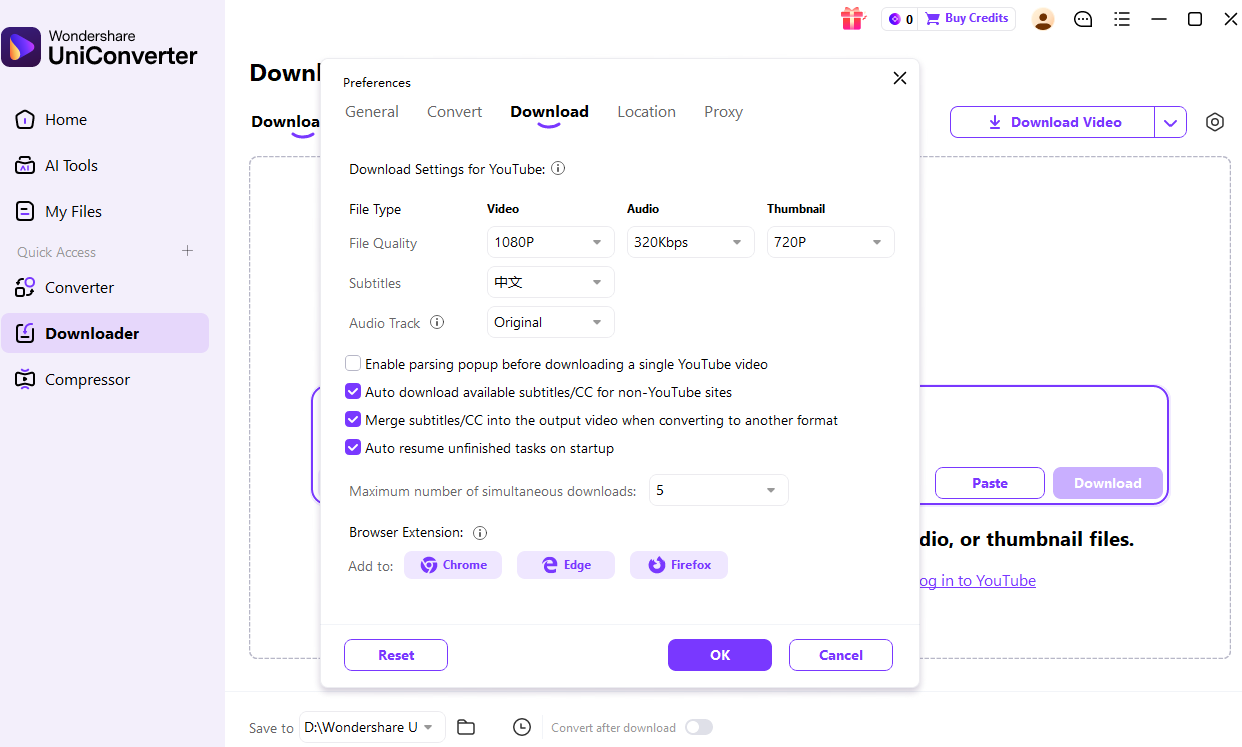
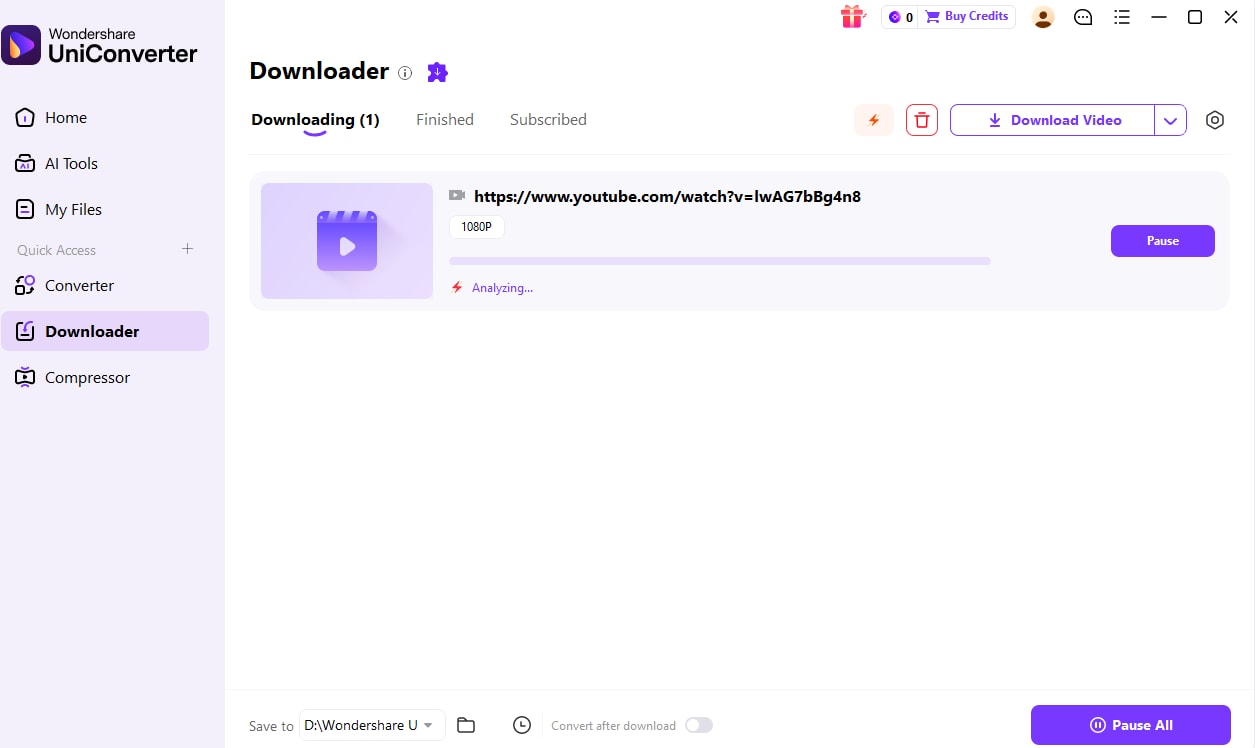
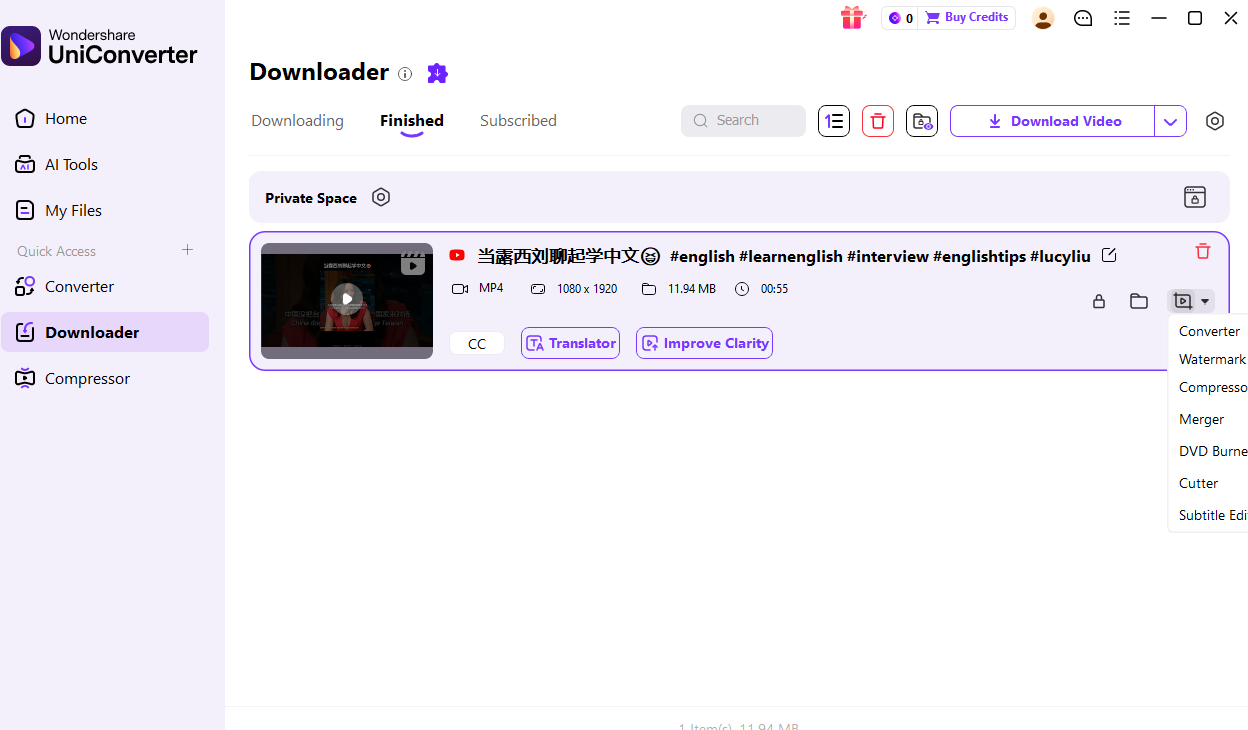
Multiple links: for supported URLs, UniConverter can queue several links, one per line. Windows V17 allows up to 10 simultaneous download tasks; this concurrency setting is not a limit of 10 URLs per batch. The browser extension and other downloader controls do not override access restrictions, content protection, or Telegram's own save permissions.
For more details, see the UniConverter Downloader guide. Once a video is saved on your device, UniConverter Converter and Compressor can help prepare it for playback or sharing.
Saved Messages is not a downloader either. Telegram calls it personal cloud storage for messages and media. It is useful for bookmarking a video inside Telegram, but forwarding there does not create an independent copy in your phone’s Photos/Files or on your computer. See Telegram’s Saved Messages documentation.
Fix Playback or File-Size Issues After Downloading
After you have saved a complete Telegram video to your device, UniConverter can help if the file will not play on the target device or is too large to share. It cannot finish an interrupted Telegram transfer or restore missing video detail.
Convert a saved Telegram video that will not play on your device
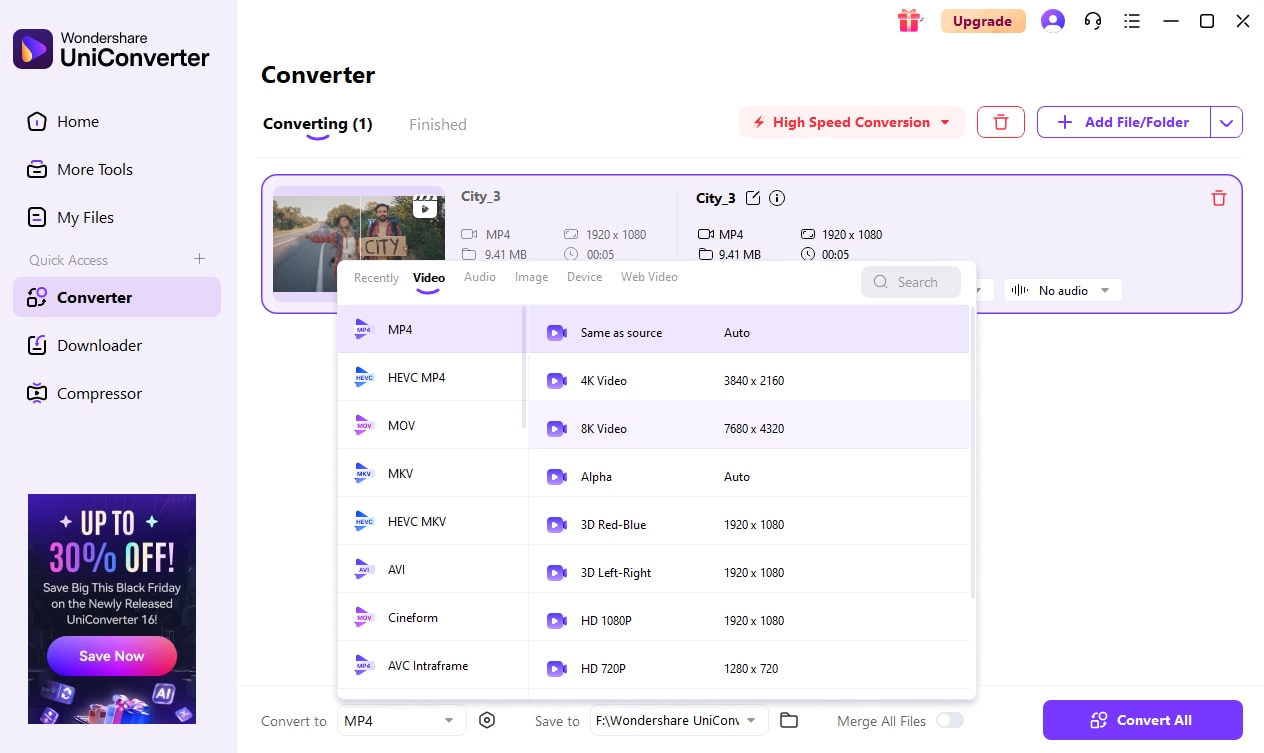
- Open Wondershare UniConverter and select Converter on the Home screen.
- Choose Add Files / Folder or drag the saved Telegram video into the conversion queue.
- Open the Convert to list and choose an output format that your target device or app supports. Use the Settings control only when you need to change parameters such as encoder, resolution, frame rate, or bitrate.
- Select Convert All. After processing, open the Finished tab and test the new local file.
Conversion changes compatibility; it does not recover missing frames or detail that were never present in the downloaded source.
Compress a Telegram video that is too large to share
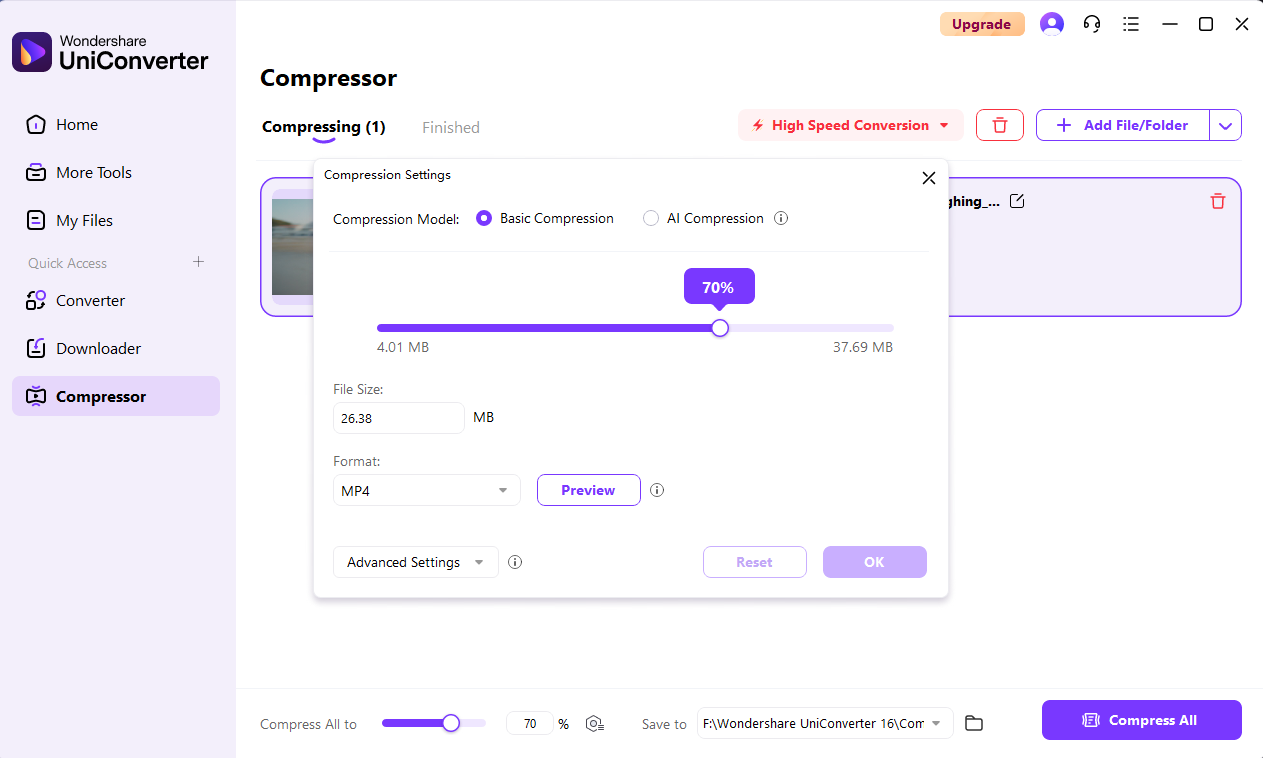
- Open Compressor in UniConverter and add the fully saved local video.
- Use the current compression controls to choose an appropriate balance between size and quality. UniConverter’s current workflow includes Prioritize Quality, Prioritize Size, AI Compression, and Advanced Settings where available.
- Preview a representative result when needed, then choose Compress All and check the output before deleting or replacing the original.
If the local video needs captions for editing or sharing, UniConverter also provides a Subtitle Editor. Keep that as a post-download workflow; it does not change Telegram’s save permissions or download status.