


In today’s digital landscape, video content dominates platforms like YouTube, but it often lacks one essential element—text. Transcribing YouTube videos to text offers numerous benefits for content creators, language learners and businesses alike. Whether you're looking to maximize content reach, streamline note-taking, or localize content for global audiences, transcription is a smart and practical solution.
Luckily, several tools and methods exist—from YouTube’s built-in transcript feature to advanced platforms like Wondershare UniConverter, Descript.com, and Chrome extensions such as Notta. This guide will walk you through various ways to Transcribe YouTube Videoss to text and help you choose the best option based on your needs.
In this article
Part 1. Why Transcribe YouTube Videos to Text
Transcribing YouTube videos to text offers numerous benefits. By transcribing YouTube videos to text, we can benefit people not limited to content creator themselves. For example transcribed video text can also help audience including language learner, people who prefer reading than watching videos as well as some targeted content researchers. Following listed how to transcribe YouTube video to text helps in different ways:
Improve SERP Information as Video Description
Search engines can’t “watch” videos, but they can read text. By converting your YouTube video to text and providing a transcript, you make your content indexable by Google and YouTube, significantly increasing your chances of appearing in search results and driving more traffic to your video and channel.Keyword-optimized transcripts help your videos rank higher, both on YouTube and in broader web searches.
Repurpose for Diverse Media Formats
Having a text version of your video makes it easy to transform the content into blog articles, social media posts, email newsletters, e-books, guides, and more. This not only extends the lifespan of your original video but also helps you engage diverse audiences across multiple platforms.
Easier Content Reference
Reading text is often faster than watching a video. Transcripts allow users to skim for key points, search for specific information using keywords, and quickly reference or quote material without re-watching the entire video.
Reach Broader Audience
Transcripts make your video content accessible to a wider audience, including people who are deaf or hard of hearing, and those who prefer reading over watching.They can also be easily translated, broadening your reach to non-English speakers and global viewers.
Part 2. How to Transcribe YouTube Videos to Text with Built-in Tool
YouTube offers a built-in transcript feature for many videos allowing you to easily convert video audio to text for derivative work. Just open the video you want to transcribe and you can get its transcription directly in the same page.
Step by Step Guide
Step 1
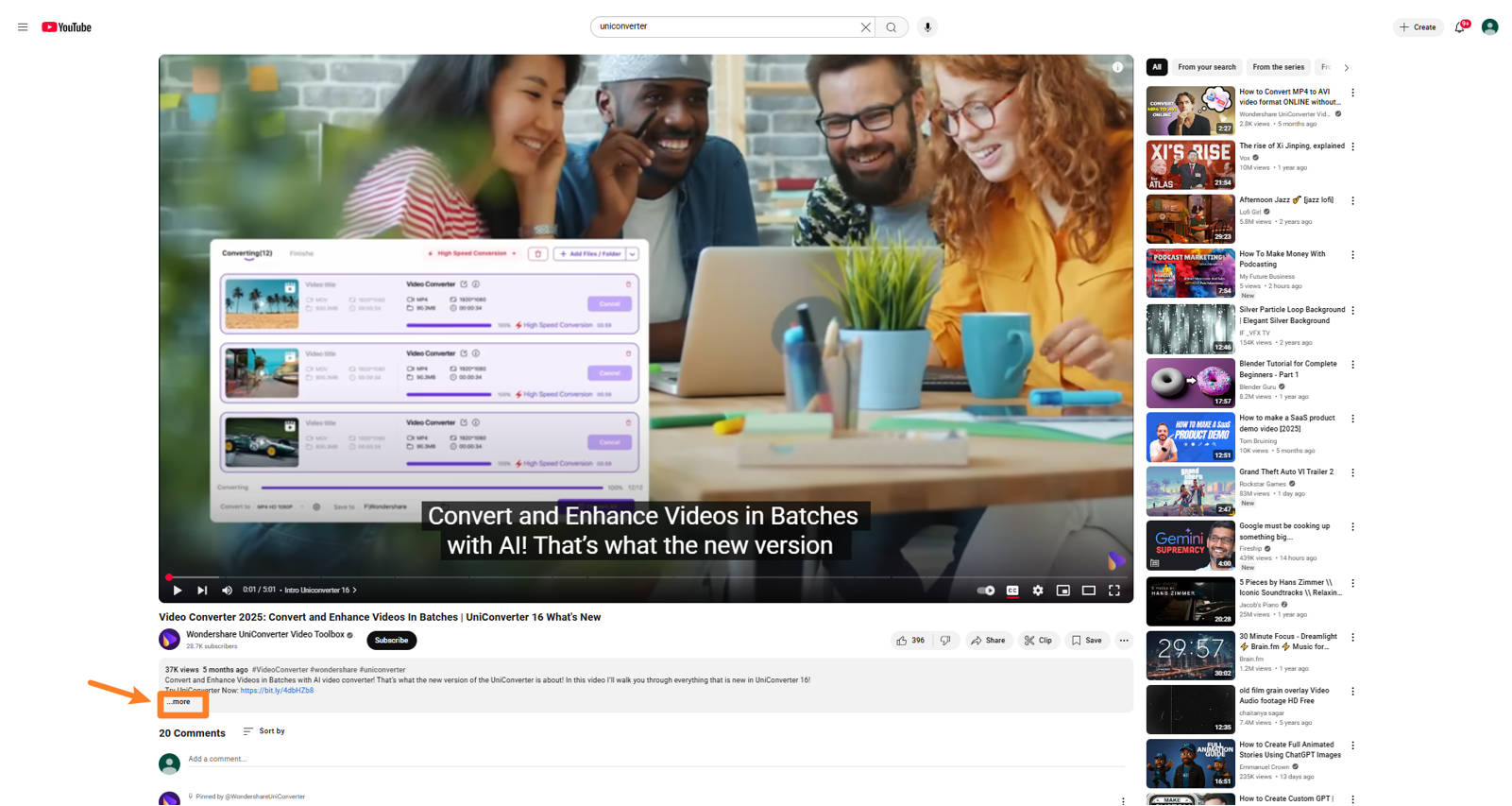
Go to YouTube and play the video you want to transcribe and click the three dots (···more) below the video to unfold the information penal.
Step 2
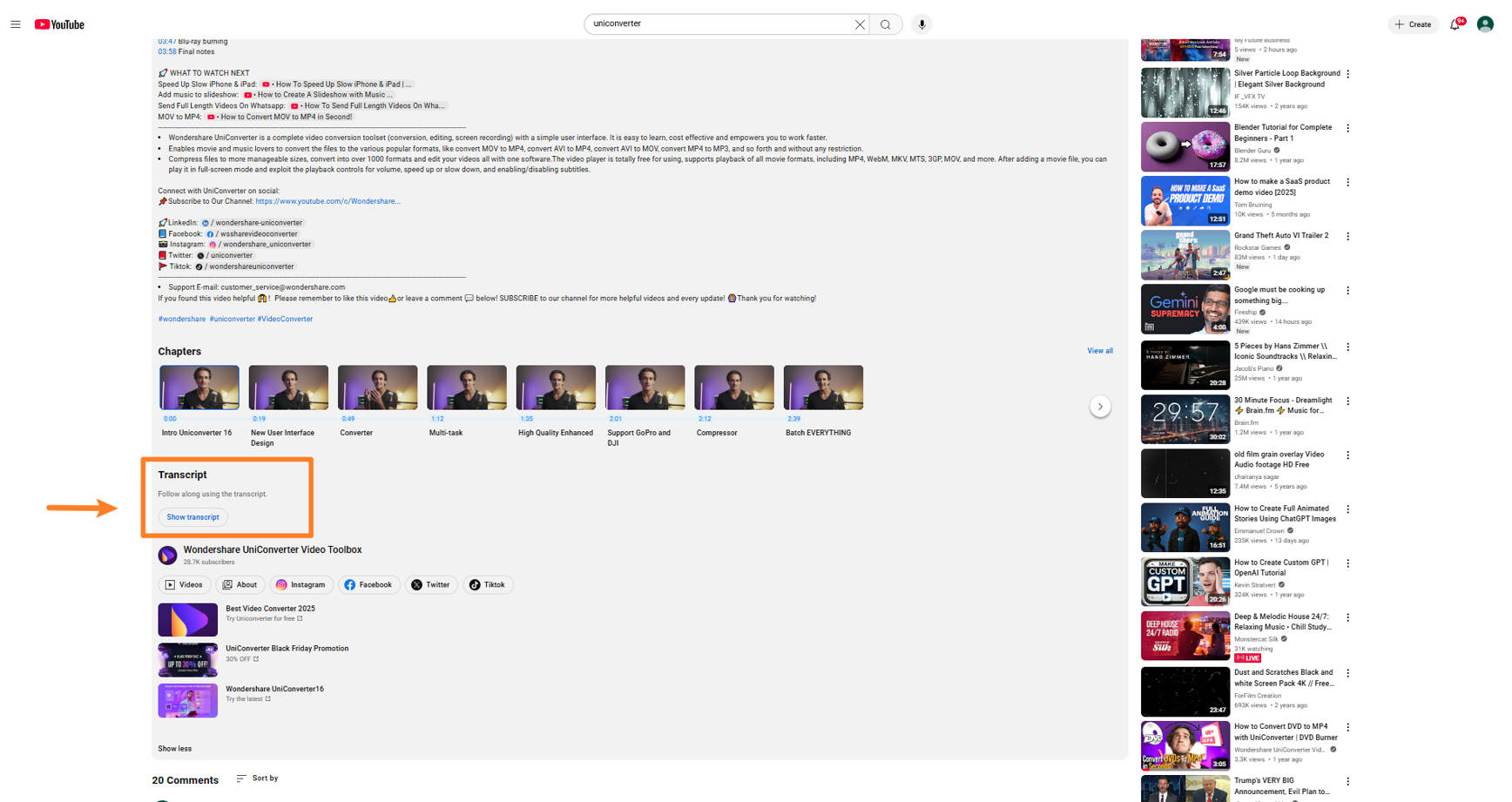
Click“Show transcript”. A transcript panel will appear on the right side of the video, displaying the text along with timestamps.
Step 3
Click“Show transcript”. A transcript panel will appear on the right side of the video, displaying the text along with timestamps. You can directly copy the text from the panel, and choose to toggle timestamps according to your demand.
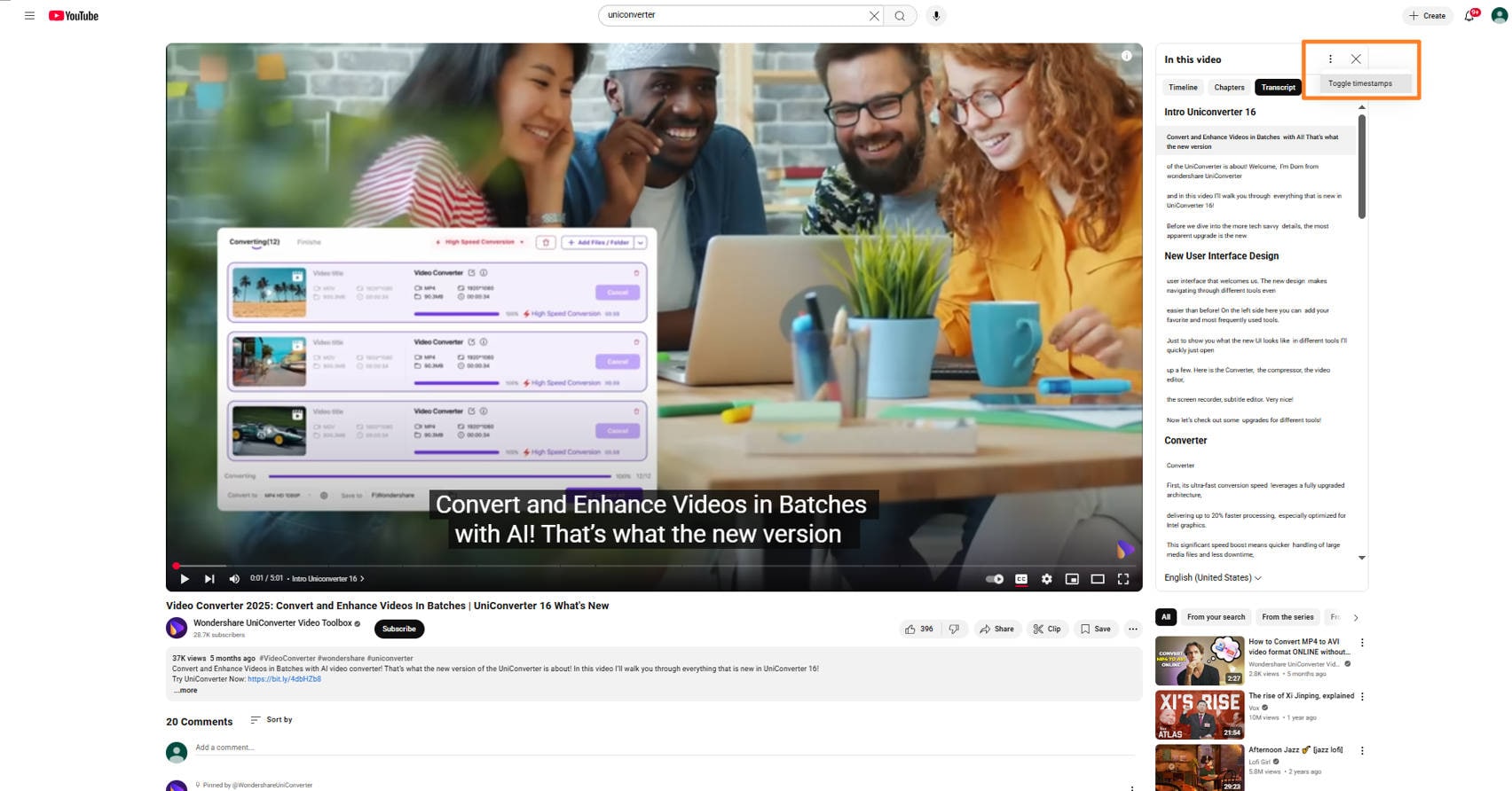
By steps above you can easily transcribe YouTube videos to text directly on page, but seeing that the text transcribed from are split into many lines, you still might need further edition.
Pros & Cons

Batch Transcribe Youtube Video to Text on Win and Mac
Part 3. How to Convert YouTube Video to Text in Batch
Wondershare UniConverter’s Speech to Text feature is an AI-powered tool designed to quickly and accurately convert audio or video speech into written text. This function is integrated within UniConverter’s suite, making it accessible for anyone needing fast transcription for interviews, meetings, lectures, content creation, or subtitles.
By using UniConverter’s Speech to Text feature, you can quickly batch transcribe YouTube videos to text and get txt files without further manual saving.
Features
- Transcribe audio and video files with up to 95% accuracy with fast processing speed.
- Support a wide range of audio and video formats for transcription simultaneously.
- The tool supports over languages with 70+ accents, allowing users to transcribe content in various languages for global accessibility.
- Offers related functions like Text to Speech and subtitle translator for further video edition.
Step by Step Guide
Step 1
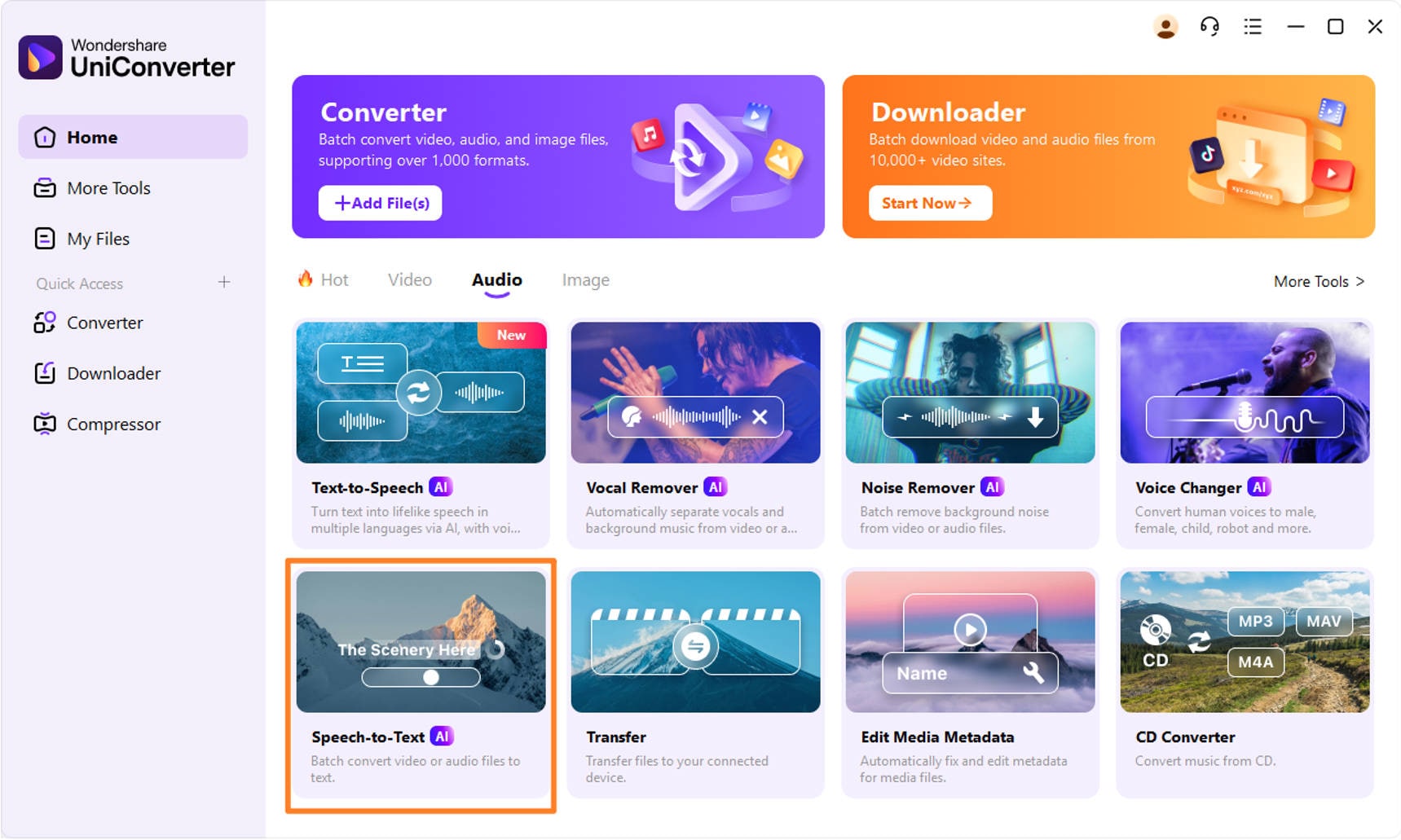
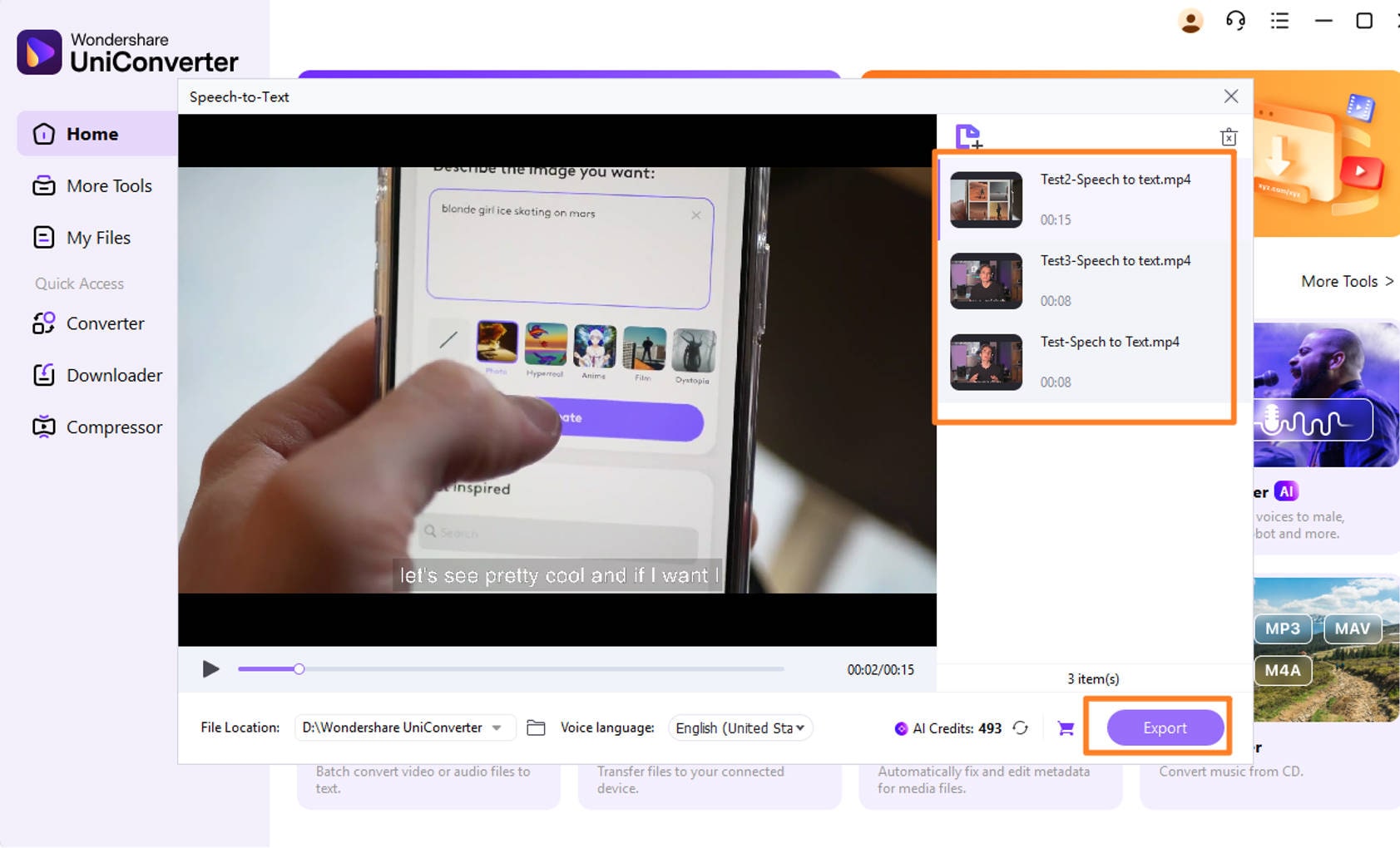
Download and register for UniConverter to start it, and choose the Speech to Text module to batch upload multiple YouTube videos at the same time. You can use UniConverter to grab video source from YouTube.
Step 2
Hold the Ctrl button on your keyboard and click all the files you uploaded, and click export to batch transcribe your YouTube videos.
Step 3
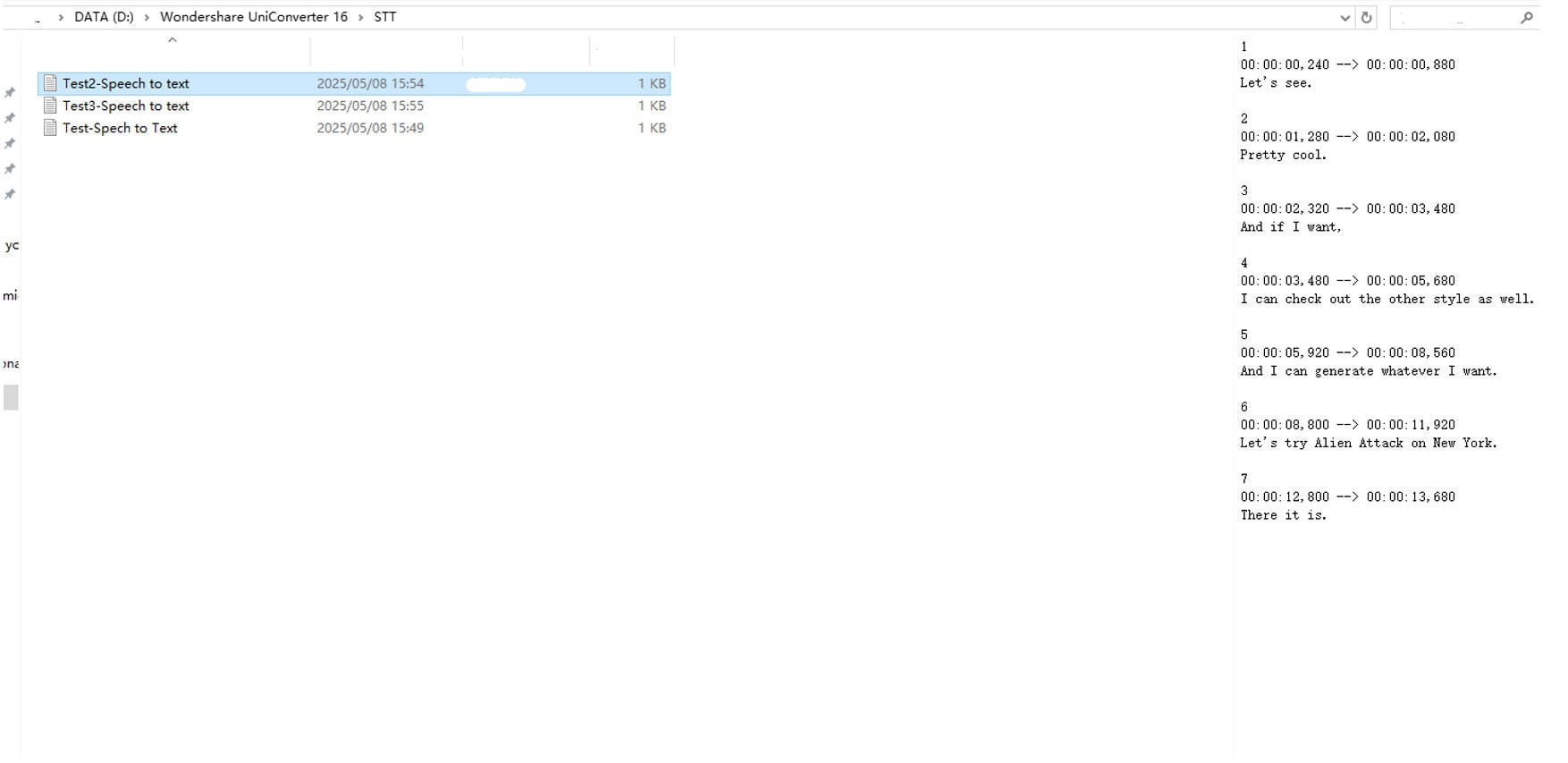
After the transcription the panel will pop a session of completed batch transcribed YouTube videos text files automatically.
Pros & Cons
Part 4. How to Transcribe YouTube Videos to Text with Online Tool
To save post-edition of text generated from YouTube built-in transcriber, you can turn to more dedicated online tools for help. Some online tools like Descript.com also offers transcription function on web except from functions of further video editing and so on. Descript.com isan AI-powered all-in-one audio andvideo editing platform designed tomake editing aseasy as editing a text document. With Descript you can easily transcribe YouTube videoss to text easily with links or through uploading files from local folders.
Features
- Record up to 10 remote guests, combine multiple files into multi-track sequences.
- Allows Editing the text (deleting, rearranging, or correcting) automatically to streamline the editing process.
- Export transcripts in various formats, including plain text, Word, PDF, SRT, VTT, HTML, markdown, or as a shareable web link.
- Offers AI Actions to convert transcripts into blog posts, social media content, or scripts with custom prompts.
Step by Step Guide
Here’s how to use Descript.com as an online tool to transcribe YouTube videos:
Step 1
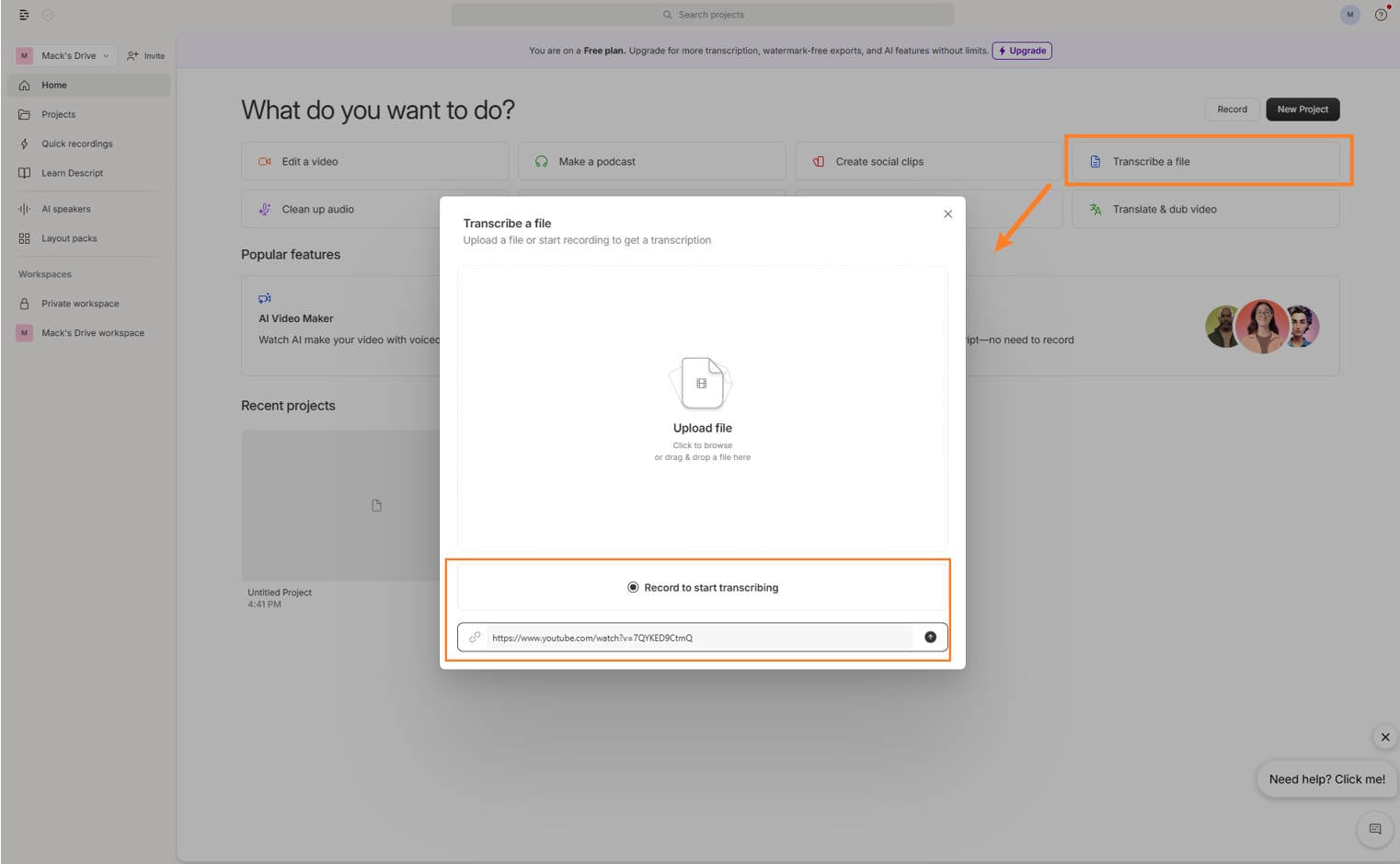
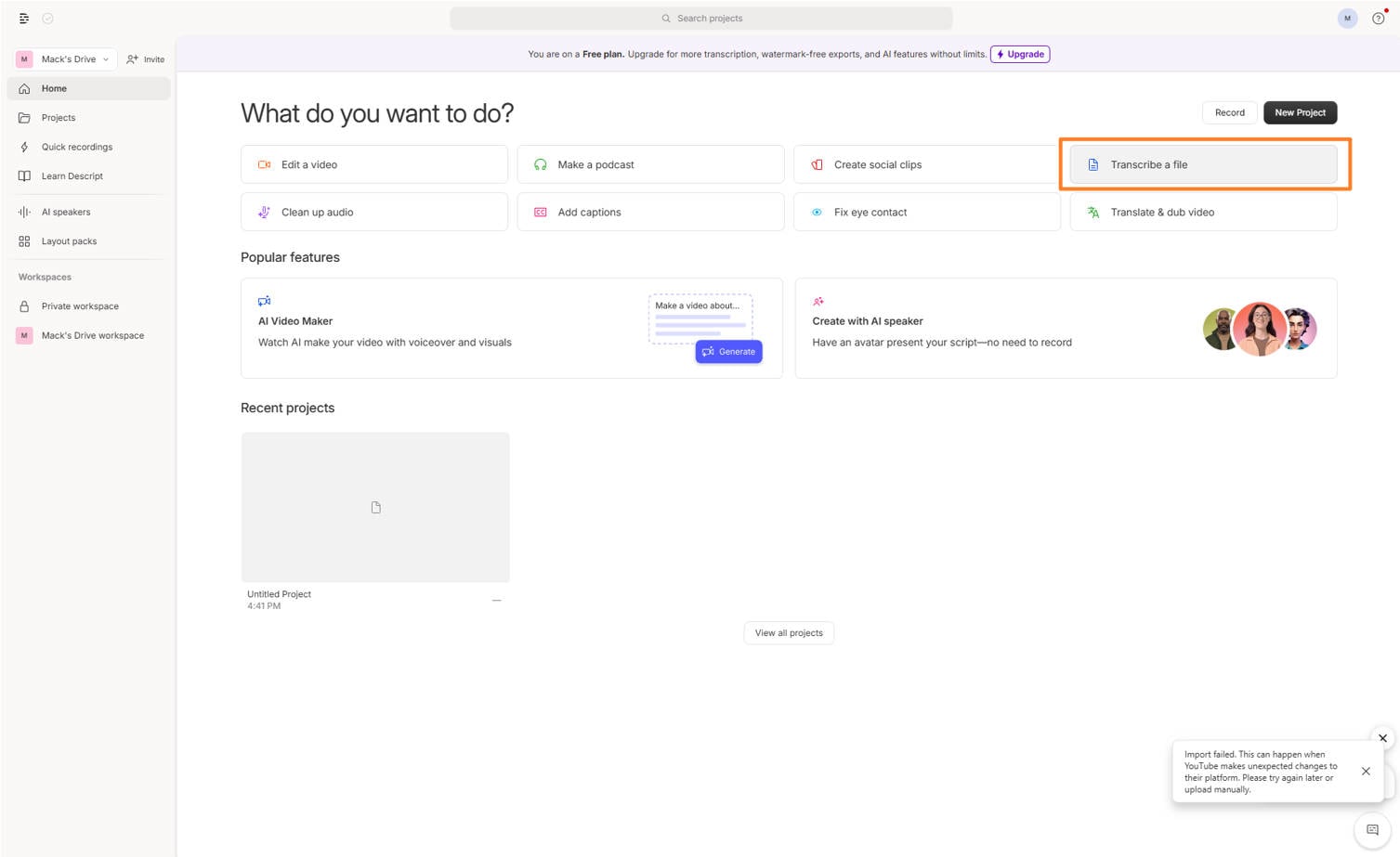
Open Descrip.com studio, paste a YouTube video URL to generate automatic summaries and transcripts.
Step 2
Open Descrip.com studio, paste a YouTube video URL to generate automatic summaries and transcripts.
Step 3
Put in your links or import video directly from local files and choose done to start processing.
Step 4
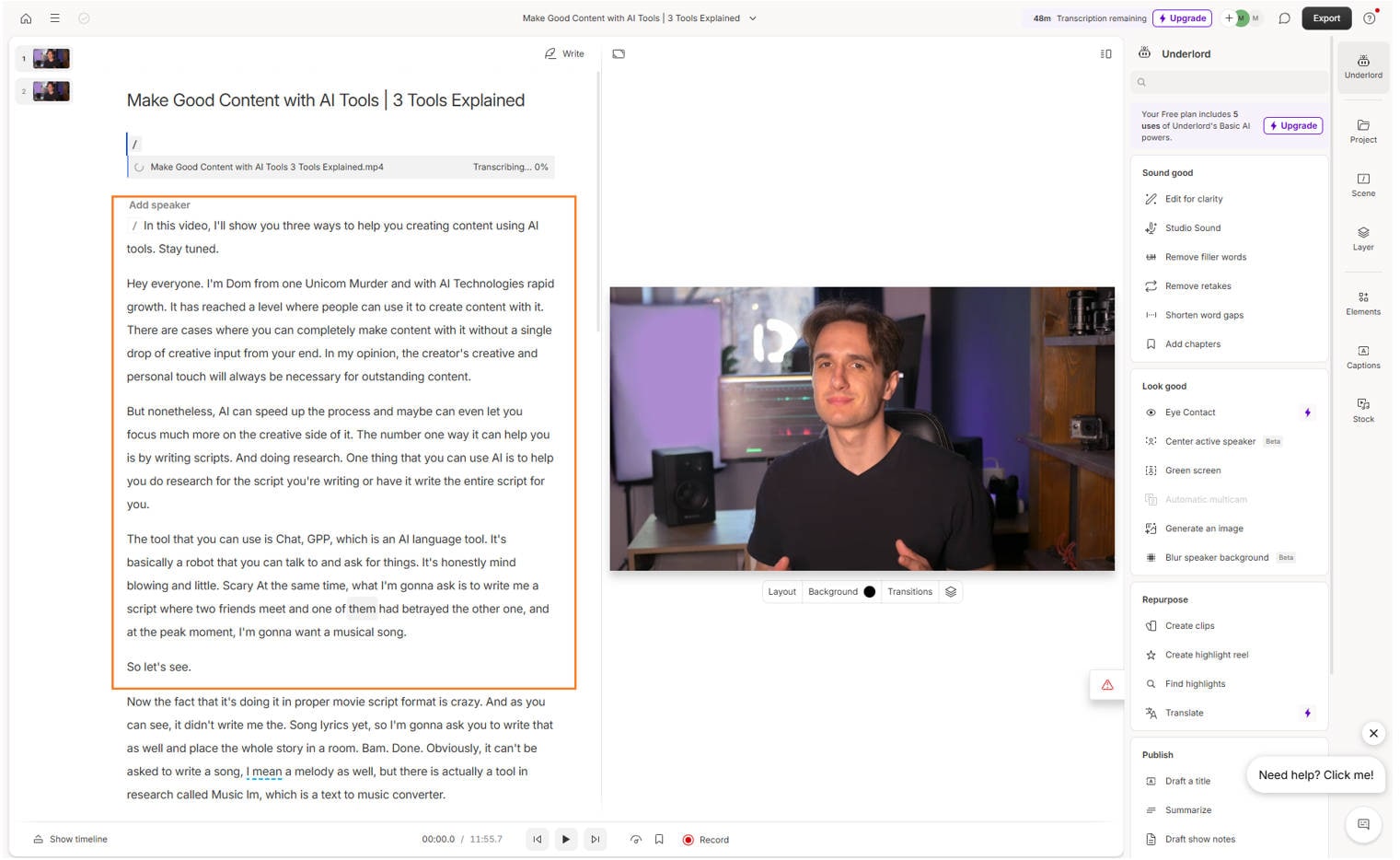
Check the text on the left panel, choose to post edit or copy text directly from the panel.
Pros & Cons
Batch Transcribe Youtube Video to Text on Win and Mac
Part 5. How to Transcribe YouTube Videos to Text with Chrome Extension
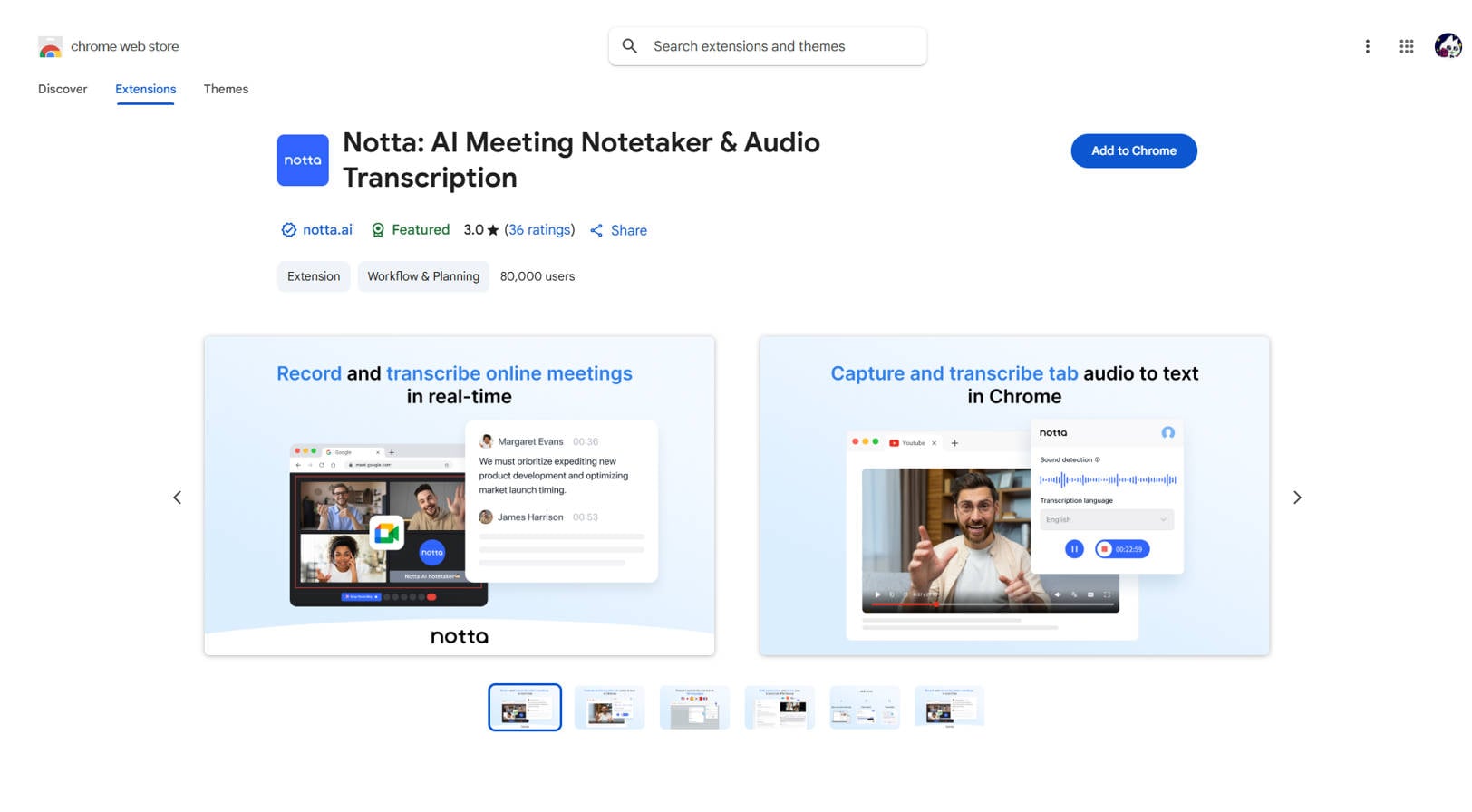
If you still want to transcribe YouTube videoss without jumping into other websites, an extension in Chrome will be a feasible solution. You can try to find an extension like Notta. Notta is an AI-powered transcription and note-taking platform designed to automatically convert meetings, interviews, and audio or video recordings into accurate, searchable text.
Features
- Transcribes live meetings, phone calls, interviews, and uploaded audio or video files into text instantly.
- Allows multiple users to access, edit, comment on, and share transcripts in real time, supporting team collaboration and workflow efficiency.
- Securely stores all transcripts in the cloud, making them easily searchable by keywords for quick access to past discussions and information.
- Generates concise summaries of lengthy conversations, highlighting key points, action items, and decisions for quick review and follow-up.
Step by Step Guide
Step1
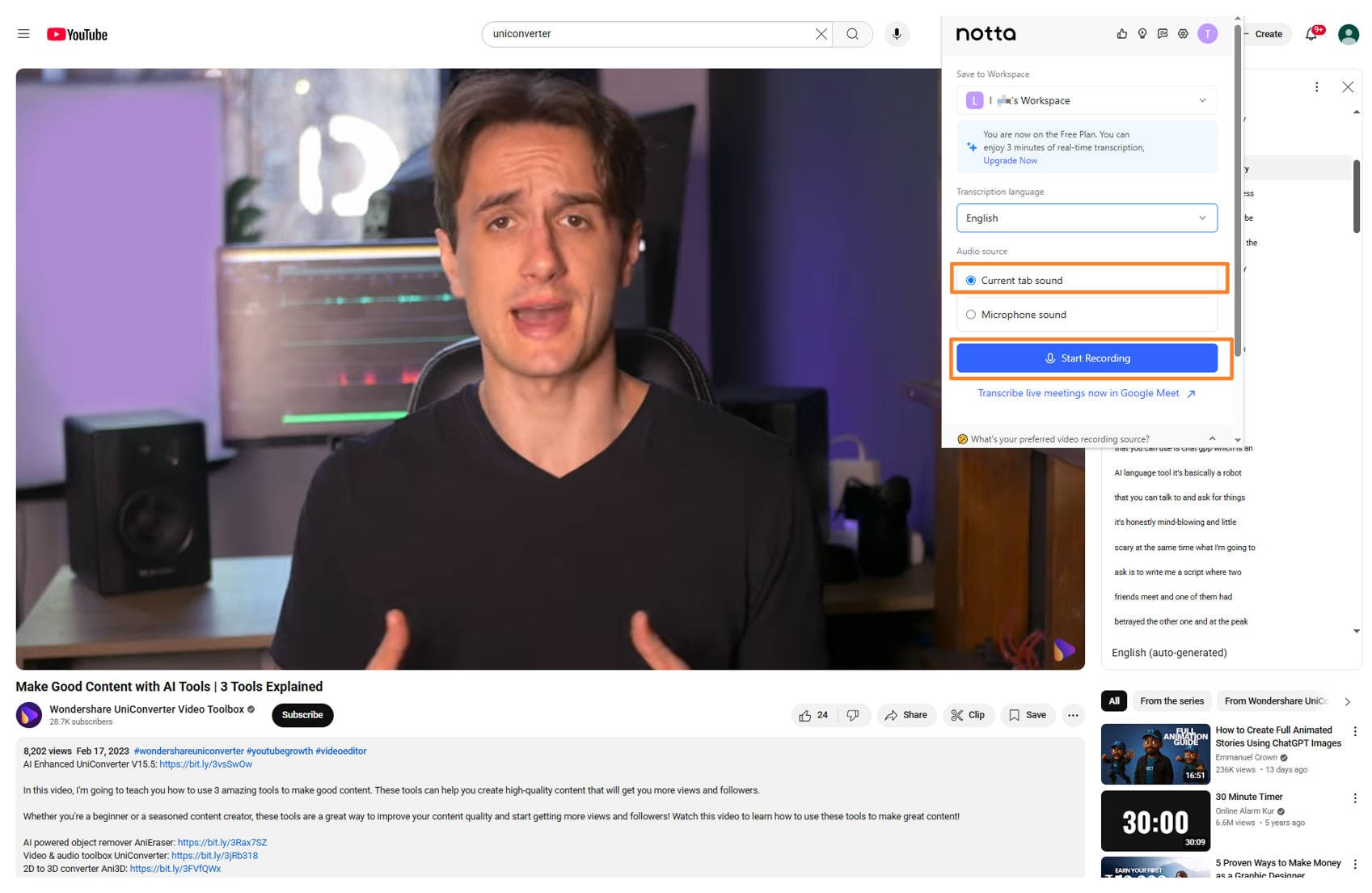
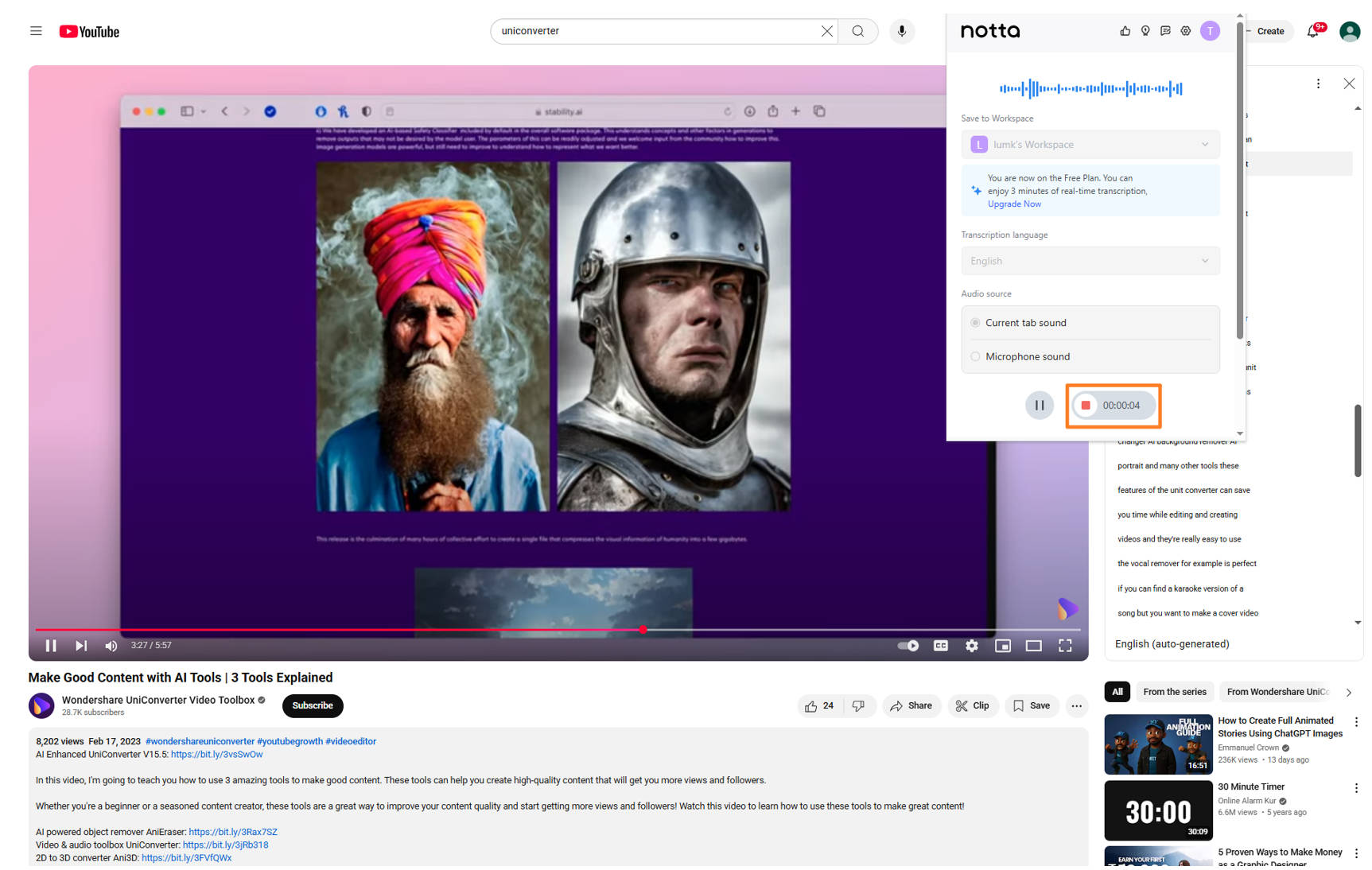
After adding extension to your Chrome and registering a new account, open Notta on your YouTube video page. Then click the record to start recoding for transcription.
Step 2
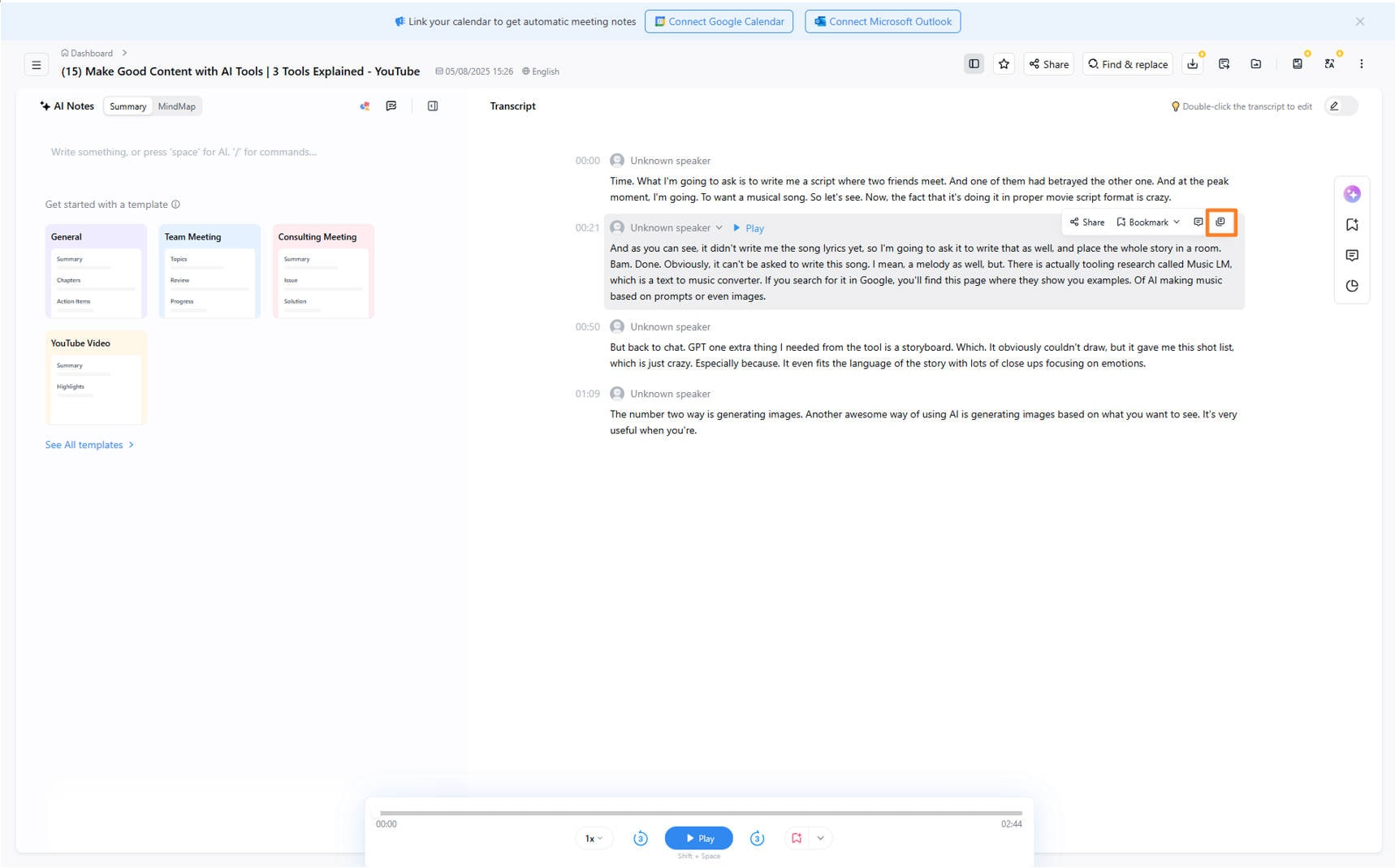
Choose the part of video you want to transcribe when recording, you can click the pause icon to jump to another part, and click pause to jump to the transcribed page of video content.
Step 3
Choose the part of transcription you want and copy directly from the scree.
Pros & Cons
Part 6. Conclusion
Converting YouTube videos to text is a powerful way to enhance search visibility, boost accessibility, and repurpose content for wider distribution. Whether you're aiming to improve SEO, create derivative content, or make your videos more user-friendly, transcription adds significant value. YouTube’s built-in transcript feature is convenient for quick use, Descript.com offers transcription online, Notta as Chrome extensions offers summarizing repurpose function, and UniConverter offers batch conversion with languages in 70+ accents while packing your text into txt files automatically. Choose the right method depends on your goals, whether it's ease, accuracy, format compatibility, or professional editing features.
Batch Transcribe Youtube Video to Text on Win and Mac
FAQs
-
1. Can I download the transcript directly from YouTube?
YouTube doesn’t support transcription download from its interface, but you can copy and paste the transcript manually or use browser extensions or transcription tools to extract and download it as a .txt or .doc file. -
2. Are YouTube’s auto-generated captions accurate?
Auto-generated captions are fairly accurate when the speaker has clear pronunciation and minimal background noise. However, they can be inaccurate with strong accents, overlapping dialogue, or technical terms, so manual editing is often needed for clarity and correctness. -
3. Can I Transcribe YouTube Videos without watching it?
If captions are already available on the video, you can access and copy the transcript without playing the full video. Otherwise, transcription tools may still process the video link and generate the text without requiring you to watch it in real time. -
4. Is there a way to remove timestamps from the transcript?
Yes, after opening the transcript panel on YouTube, you can click the three-dot menu at the top of the transcript and select “Toggle timestamps” to hide them. This makes the text easier to read or copy for further use. -
5. Can transcripts be generated from YouTube Shorts?
Currently, YouTube Shorts do not support the “Show transcript” feature, and captions are usually limited. You would need to use a third-party tool like UniConverter to extract or create a transcript from Shorts content.

