


Embedding a YouTube video in a PowerPoint presentation is a powerful way to enhance your slides and engage your audience. Whether you're preparing a business presentation or an educational lecture, incorporating multimedia like videos can make your message more impactful.
In this guide, we will walk you through the steps to easily embed a YouTube video in PowerPoint for both online and offline presentations.
In this article
- Why Embed Videos to PowerPoint
- How to Embed a YouTube Video to PowerPoint Online with Preview
- How to Embed a YouTube Video to PowerPoint for Offline Watching
- Pros and Cons of Inserting YouTube Video Online and Offline
- Points You Need to Care When Embedding YouTube Video to PowerPoint
- Conclusion
- FAQs
Part 1. Why to Embed Videos to PowerPoint
Embedding videos in PowerPoint presentations provides several benefits that make your slides more engaging and interactive. Here are a few reasons why embedding videos is a great idea:
Enhances Engagement
Videos can help capture and maintain the audience’s attention better than text and images alone. Embedding YouTube videos in PowerPoint can make your content more dynamic.
Clarifies Information
Complex ideas can be easier to explain with videos, especially in educational or training contexts. For example, how to embed a YouTube video in a PowerPoint presentation can help demonstrate step-by-step instructions.
Improves Retention
Studies show that multimedia content, such as videos, aids in memory retention. Viewers are more likely to remember content when it's presented through a video embedded in PowerPoint.
Boosts Professionalism
Including high-quality videos in your slides can elevate the overall quality of your presentation, making it more polished and professional. It shows that you’ve invested time and effort into creating a more immersive and visually appealing experience for your audience.
Facilitates Better Storytelling
Videos can be a powerful storytelling tool. They allow you to communicate your message with emotion, tone, and context, helping to create a more memorable and impactful experience for the audience. Embedding a video in PowerPoint can help you tell your story more effectively, whether for marketing, education, or training purposes.

Batch Grab Videos from Social Media for Win and Mac
Part 2. How to Embed a YouTube Video to PowerPoint Online with Preview
If you're wondering how to embed a YouTube video in a PowerPoint presentation for online viewing, the process is straightforward. Embedding a YouTube video in PowerPoint can help make your presentation more dynamic and engaging. Follow these simple steps to embed a YouTube video in PowerPoint for online access, allowing your audience to view the video directly within your slides.
Step 1: Open PowerPoint and Select the Slide
First, open your PowerPoint presentation and navigate to the slide where you want to embed the YouTube video. This is the slide where the video will be displayed.
Step 2: Click on the Insert Tab
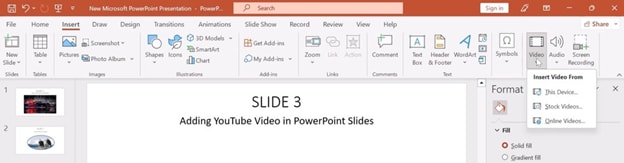
In the PowerPoint ribbon, go to the Insert tab and select Video. From the dropdown, choose Online Video to start embedding your video.
Step 3: Copy the YouTube Video Link
Go to YouTube, find the video you want to embed, and copy the video URL from the browser's address bar. This URL is what you'll use to link the video to your PowerPoint slide.
Step 4: Paste the Link in PowerPoint
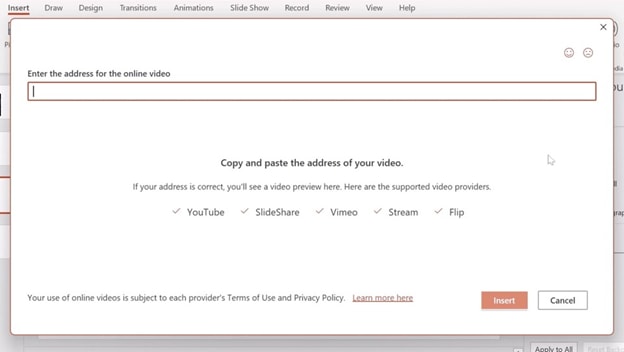
In PowerPoint, paste the YouTube video link into the box that appears after selecting Online Video. Hit Insert, and your YouTube video will automatically appear on your slide.
Step 5: Preview and Adjust the Video
Click on the video to preview it. You can resize and move it to fit your slide as needed. Additionally, you can adjust playback settings from the Playback tab for better control over how the video will appear during your presentation.
Batch Grab Videos from Social Media for Win and Mac
Part 3. How to Embed a YouTube Video to PowerPoint for Offline Watching
If you're wondering how to embed a YouTube video in PowerPoint for offline viewing, here's how you can do it. Embedding YouTube videos in PowerPoint presentations offline allows you to play videos without an internet connection. Follow the steps below to download a YouTube video and then embed it into your presentation. For better video quality and smoother playback, tools like UniConverter can help you download and compress the video for optimal performance in your slides.
Step 1: Download the YouTube Video
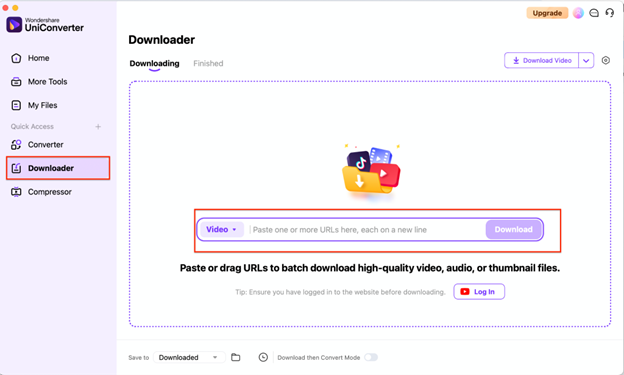
To begin, you need to download the YouTube video that you want to embed into your PowerPoint. Use UniConverter, which provides a straightforward solution to download videos from YouTube in high quality. After opening UniConverter, simply paste the YouTube video URL into the downloader tool, select your preferred video quality, and start the download.
Step 2: Insert the Downloaded Video into PowerPoint
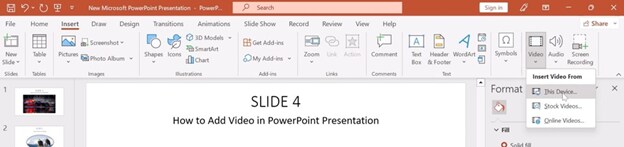
Once the video is downloaded, open your PowerPoint presentation and go to the slide where you want to add the YouTube video. From the Insert tab, choose Video, then select Video on my PC. Navigate to the location where you saved the downloaded YouTube video, select the file, and click Insert. The video will now appear on your slide.
Step 3: Resize and Adjust the Video
After inserting the YouTube video into your slide, you can resize it to fit the slide’s layout. Simply click on the video and drag the corners to adjust its size. You can also move it around the slide to position it as you prefer. Make sure that the video is properly aligned and takes up the right amount of space.
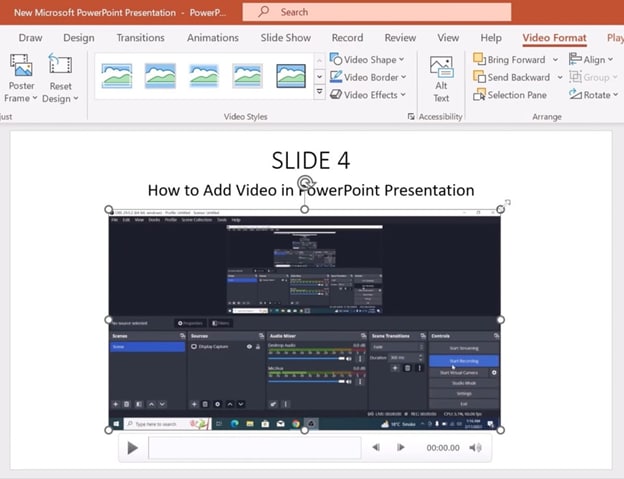
Step 4: Adjust Video Playback Settings
To control how the video plays during your presentation, click on the video and then go to the Playback tab in PowerPoint’s toolbar. You can choose whether the video starts automatically or when clicked. You can also adjust the volume, set it to loop, or hide the video when not playing. These options give you more control over the video experience during the presentation.
Part 4. Pros and Cons of Inserting YouTube Video Online and Offline
When embedding a YouTube video in PowerPoint, there are different pros and cons depending on whether you choose to embed the video for online viewing or offline viewing. Below is a comparison of both methods, highlighting their key features.
|
Feature |
Online YouTube Video |
Offline YouTube Video |
|
Internet Dependency |
Requires an active internet connection to play the video. |
No internet required, plays without needing a connection. |
|
Playback Flexibility |
Allows auto captions and offers customizable video quality for better control over video resolution and buffering. |
Flexible customization in Playback options in the Quick Access Toolbar, including automatic playback, looping, and adjusting volume. |
|
File Size |
No file size limitation since the video is streamed online. |
File size is determined by the video format; can be large if not compressed. |
|
Convenience |
Quick and easy embedding directly from YouTube; no need to download. |
Once downloaded and inserted, it’s ready to play without relying on an internet connection. |
Key Takeaways:
- Online videos are ideal when you have a stable internet connection and prefer not to download large files.
- Offline videos provide more flexibility and reliability, especially for presentations in locations with limited or no internet access.
Part 5. Points You Need to Care When Embedding YouTube Video to PowerPoint
When embedding a YouTube video in PowerPoint, there are several important factors to consider to ensure that the video plays smoothly and effectively enhances your presentation. Here are key points to keep in mind:
1. Video Format Compatibility
When embedding a YouTube video in PowerPoint, ensure that the format is compatible with PowerPoint. If you’re embedding a video from YouTube, the format is generally supported, but it’s essential to check for format compatibility for offline videos. Use MP4 or other universally supported formats for smooth playback.
2. Software Version
Ensure that you are using an updated version of PowerPoint to avoid any issues with embedding online videos. Older versions of PowerPoint might not support embedding YouTube videos directly. If you're using PowerPoint for Mac or Windows, check that your version supports online embedding features for YouTube videos.
3. Video Content Proportion and Size
The proportion of the video (aspect ratio) should fit your slide design. Make sure the YouTube video is not distorted when embedded by adjusting the size and proportion. Also, if you plan to embed an offline video, be aware of the file size and ensure it’s optimized for quick loading. If necessary, use a tool like UniConverter’s Video Compressor to reduce the file size for smoother playback.
4. Link Validity for Online Embeds
When embedding a YouTube video directly from the platform, the link’s validity is essential. If the video is private, unavailable, or removed from YouTube, your PowerPoint presentation will not be able to display it. Always verify the video link before embedding to avoid link errors during the presentation.
Conclusion
Embedding a YouTube video in PowerPoint is an effective way to enhance your presentations, whether you want to embed a video from YouTube online or offline. With tools like Wondershare UniConverter, you can easily download and optimize videos for offline viewing. By following the steps outlined in this guide, along with helpful tips for video formats and settings, you can ensure that your embedded videos play smoothly and help you create more engaging presentations. Now, you know how to embed a video in PowerPoint from YouTube, ensuring your content is impactful and dynamic.
Batch Grab Videos from Social Media for Win and Mac
FAQs
-
1. Can I embed a YouTube video without an internet connection?
Yes, you can embed a YouTube video offline by downloading the video first using UniConverter and then inserting it into PowerPoint. -
2. What video format should I use for embedding in PowerPoint?
For offline videos, use MP4 format, as it is widely compatible with PowerPoint and provides good quality with smaller file sizes. -
3. How can I make my embedded YouTube video play automatically in PowerPoint?
To make the YouTube video play automatically, select the video, go to the Playback tab, and choose Automatically under the Start option. -
4. Can I add subtitles to my embedded YouTube video in PowerPoint?
Yes, if you're embedding a YouTube video, you can turn on auto-captions for subtitles directly through PowerPoint for online videos. For offline videos, you can add subtitles manually.

