


As the trend of virtual meetings continues to grow, the need for accurate meeting transcribers is also increasing. In 2025, the demand for Google Meet transcription tools, both live and post-meetings, has also increased. Whether you’re a professional seeking flawless meeting records or an educator compiling lecture transcripts, selecting the right tool matters.
In this guide, we have covered the 4 best tools for live or post-Google Meet transcription in 2025, highlighting their strengths and weaknesses. If you are also exploring an efficient tool for your meeting transcription, read the following article to the end.
In this article
- Integrated Transcription: How to Enable and Use Transcription in Google Meet
- How to Save, View, and Share a Google Meet Transcript
- Pros and Cons of Integrated Google Meet Transcription
- Qualified Alternative to Integrated Google Meet Transcription
- How to Batch Transcribe Google Meet Recordings with UniConverter
- Conclusion
- FAQs
Part 1. Integrated Transcription: How to Enable and Use Transcription in Google Meet
Ready to make your meetings more productive? Here’s how you can enable and use Google Meet’s built-in transcription feature with ease:
Prerequisites Before Using Transcription in Google Meet
Before you dive into the procedure of Google Meet transcribing, explore the following prerequisites:
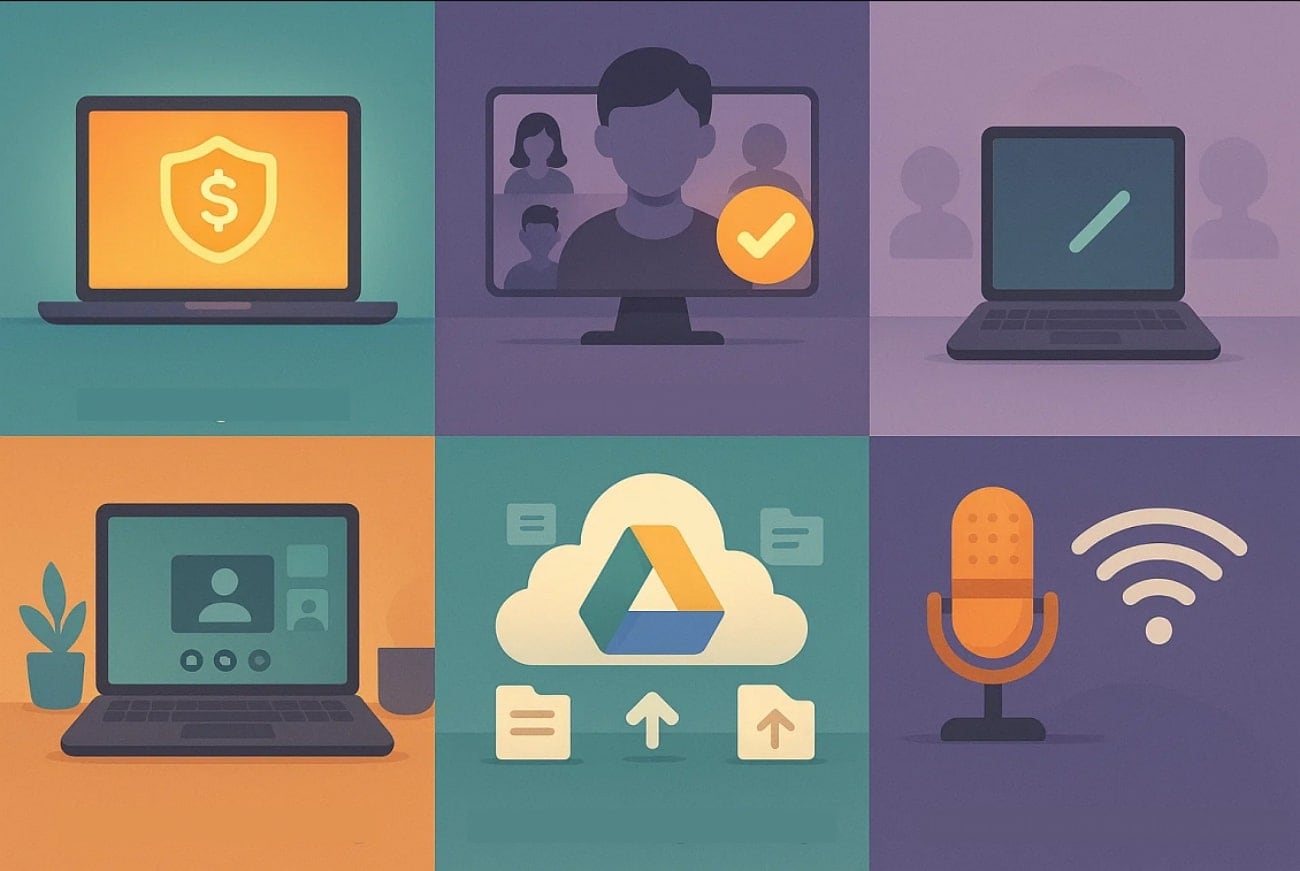
Paid Google Meet Account: To start, you will need to purchase a premium account because advanced features require access, such as transcription.
Permission of the Meeting Organizer: You must have permission from the host or the assigned co-host to use the transcription feature, which will be available when the host is present.
Laptop or Computer Use: Built-in transcription only works on a computer or laptop, and make sure your system meets the required standards.
Adequate Google Drive Storage: Since the transcriptions will be sent to Google Drive, ensure that your Drive has the capacity to hold the meeting transcriptions.
Internet and Audio Quality: A microphone set and a stable, high-speed internet connection of at least 3 Mbps are required for proper transcription.
Step-by-Step Guide to Using Transcription in Google Meet
Here, we have provided a detailed step-by-step guide to use Google Meet Transcriber to efficiently take notes of your essential meetings:
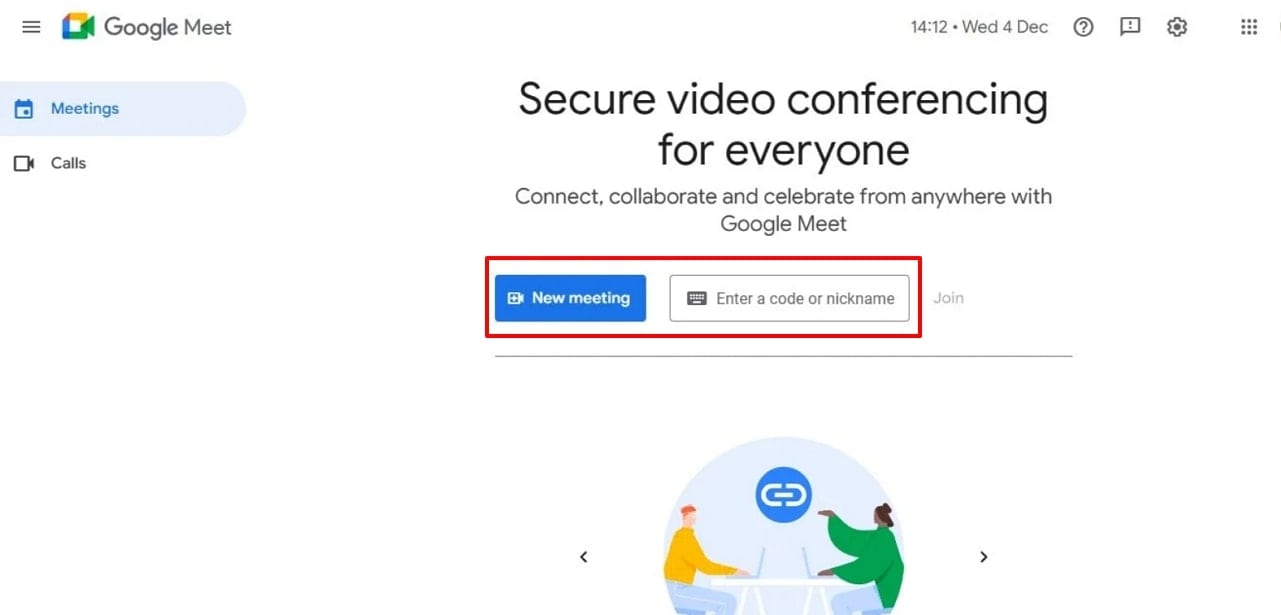
Step 1. Access the "Google Meet' web-based tool and click on the “New Meeting” button to initiate a meeting instantly.
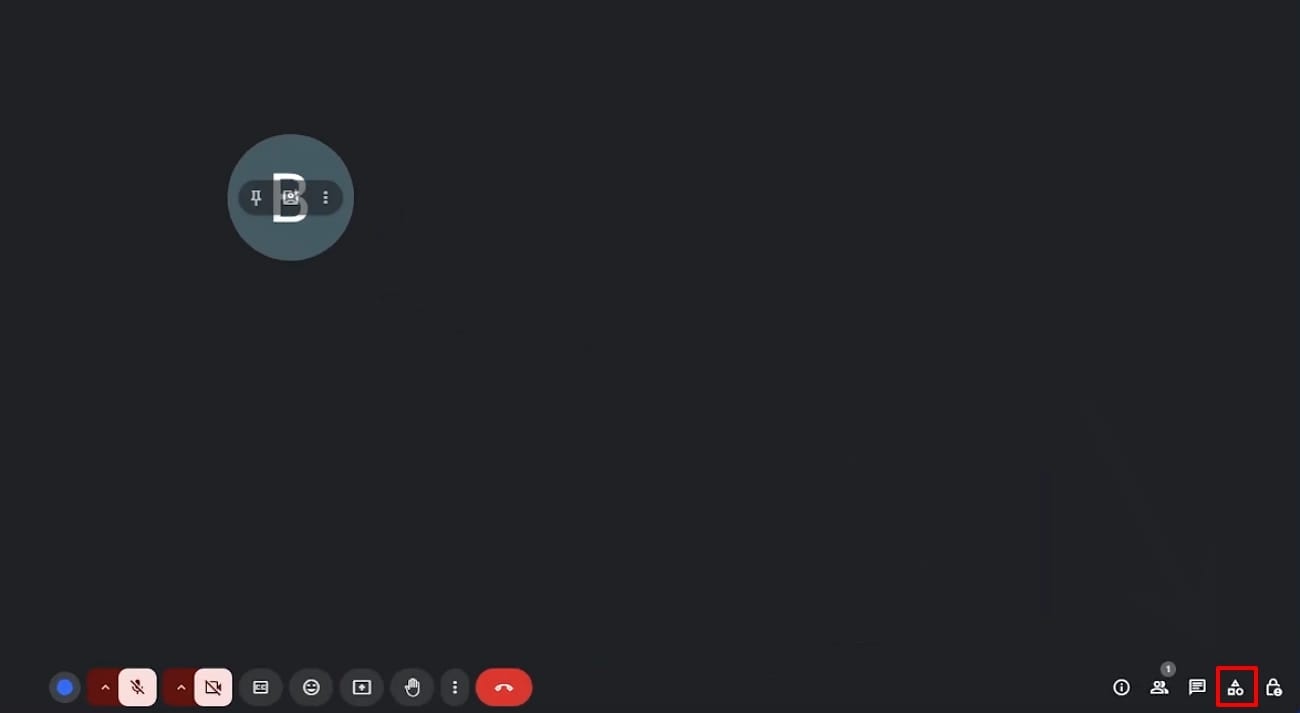
Step 2. As the meeting starts, click on the "Activity" icon located at the bottom right of the meeting interface.
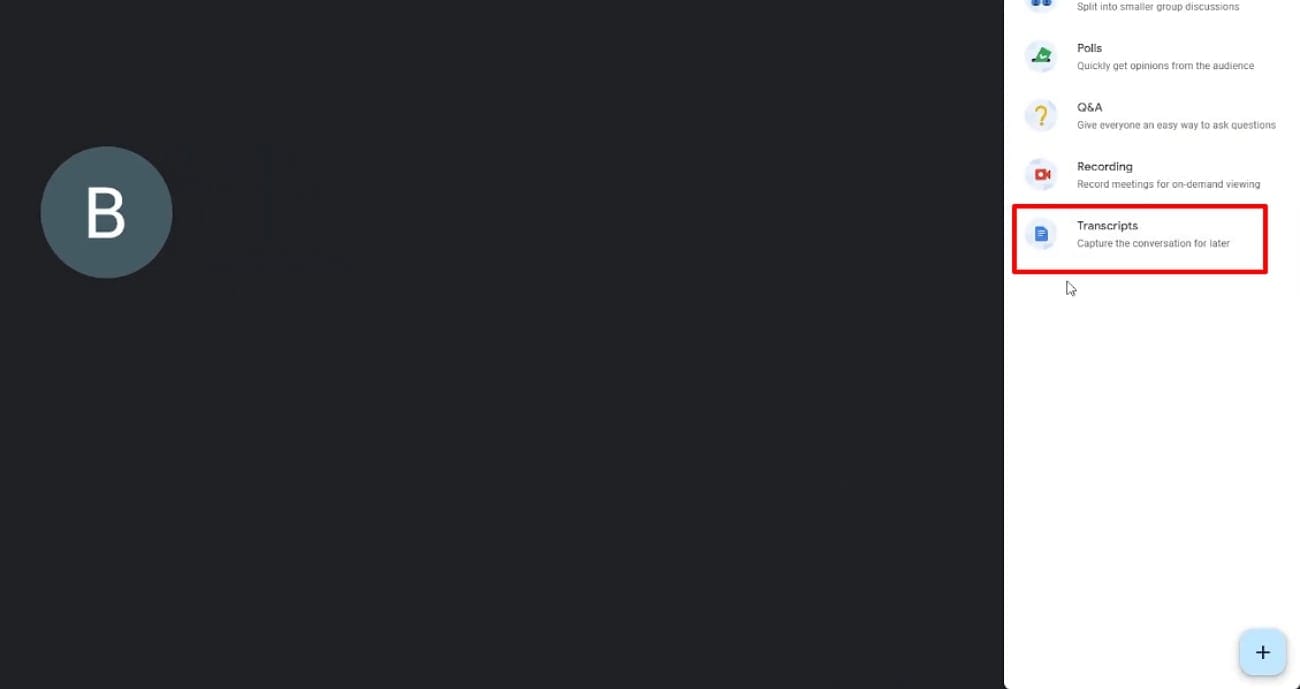
Step 3. Here, click on the “Transcripts” option available in the pop-up menu.
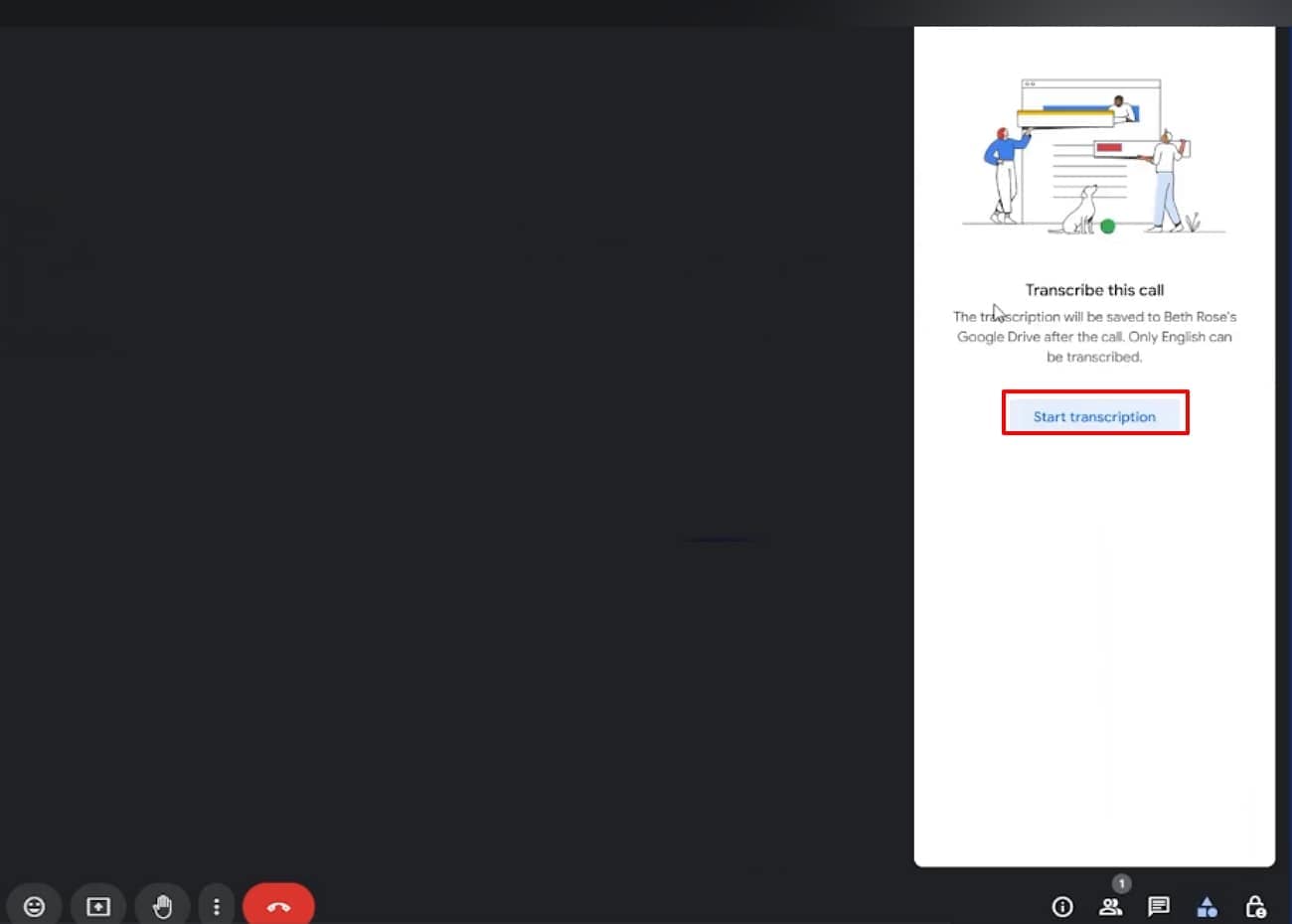
Step 4. Following this, tap on the "Start Transcript" button to let Google Meet initiate the transcription procedure. A pop-up message will be shown to all team members to notify them about the transcription.
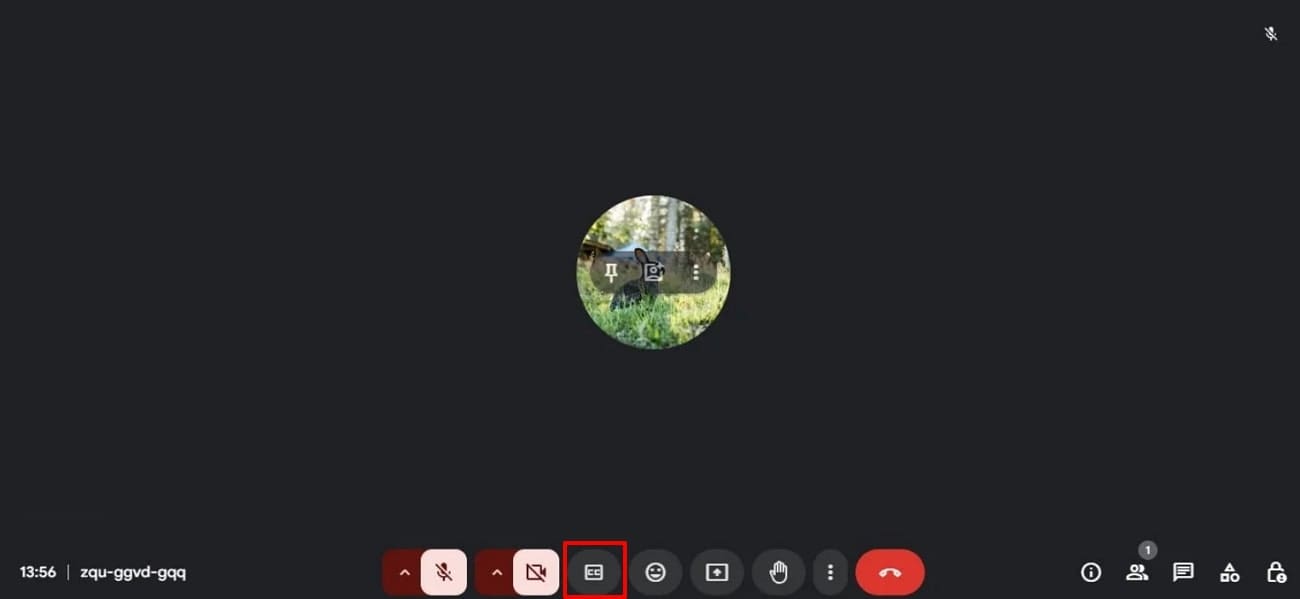
Step 5. If you want real-time transcription, click on the “CC” option. Choose the desired target language for transcription, and it will start showing transcription during the meeting.

Easy to Use Google Meeting Transcriber
Part 2. How to Save, View, and Share a Google Meet Transcript
You have explored how to transcribe your long-awaited meetings using Google Meet's built-in tools. Following this, let's dive into a detailed step-by-step guide to view and share your Google Meet transcripts with others:
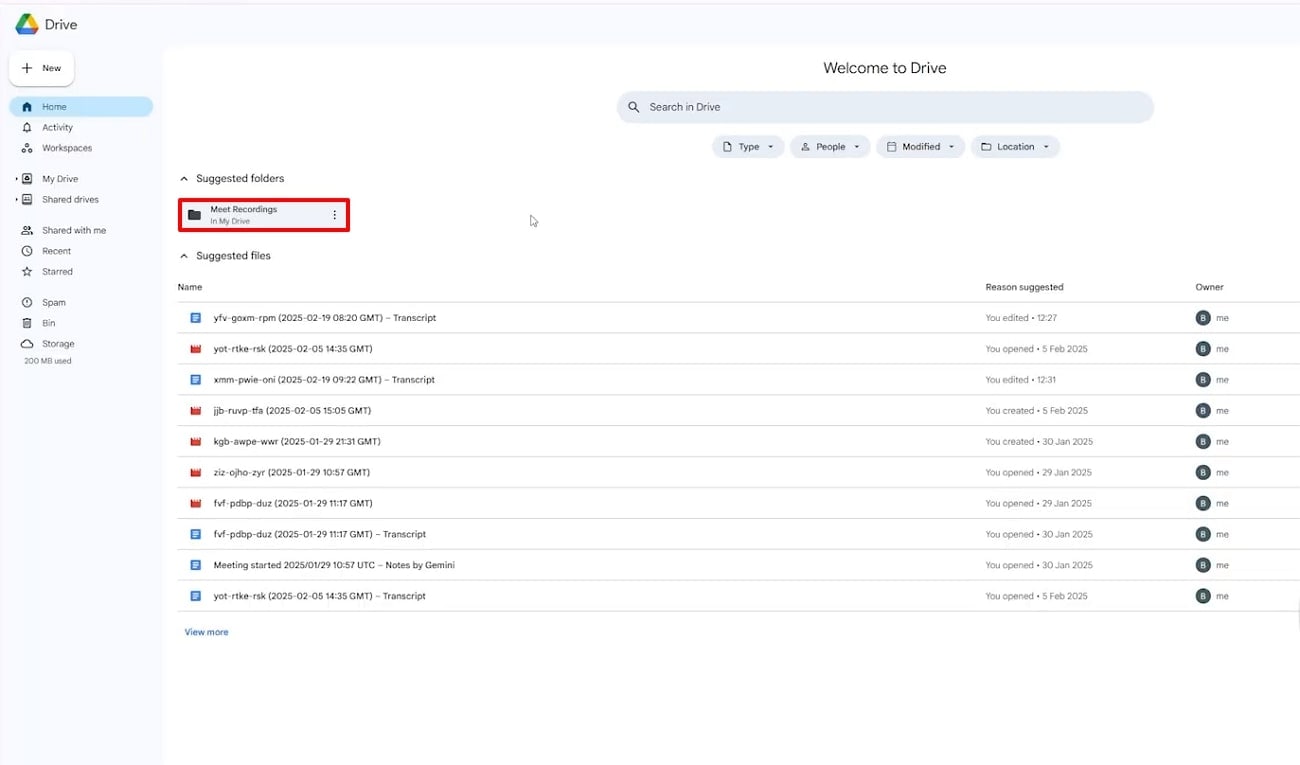
Step 1. Upon ending the meeting, go to your Google Drive folder; the “Meet Recordings” folder will automatically appear at the top of the files. Click this file to view and examine the transcribed text of the meeting.
Step 2. After examining the document, click on the “Share” button to give the link access to other team members. Here you can set the access to “Viewable” or “Editable” according to your requirements.
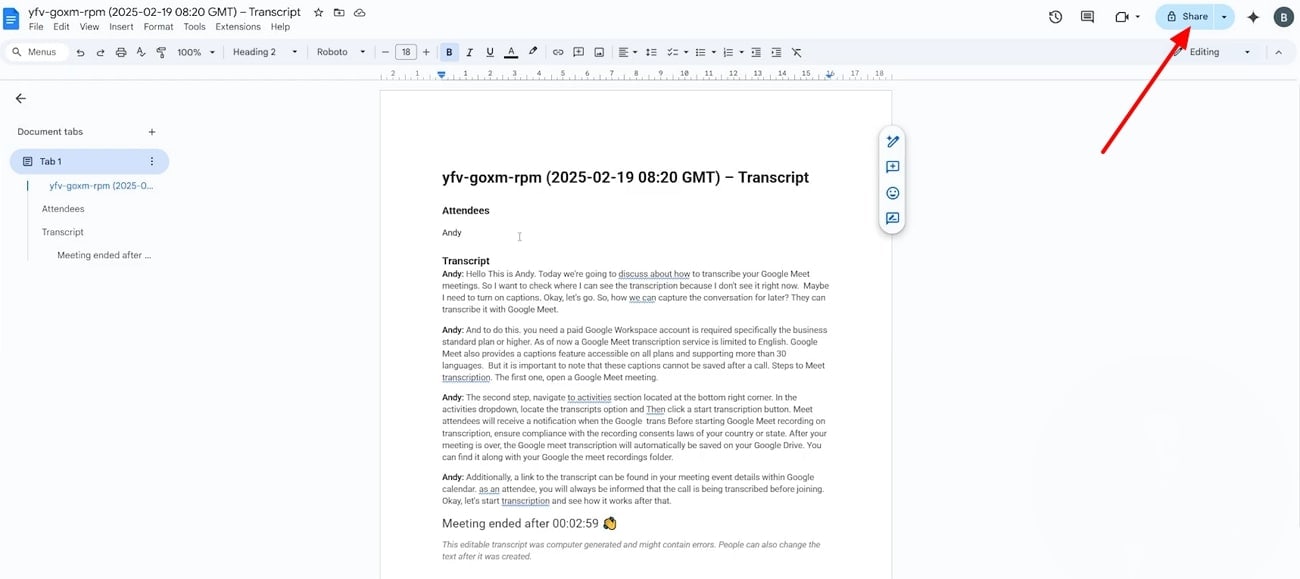
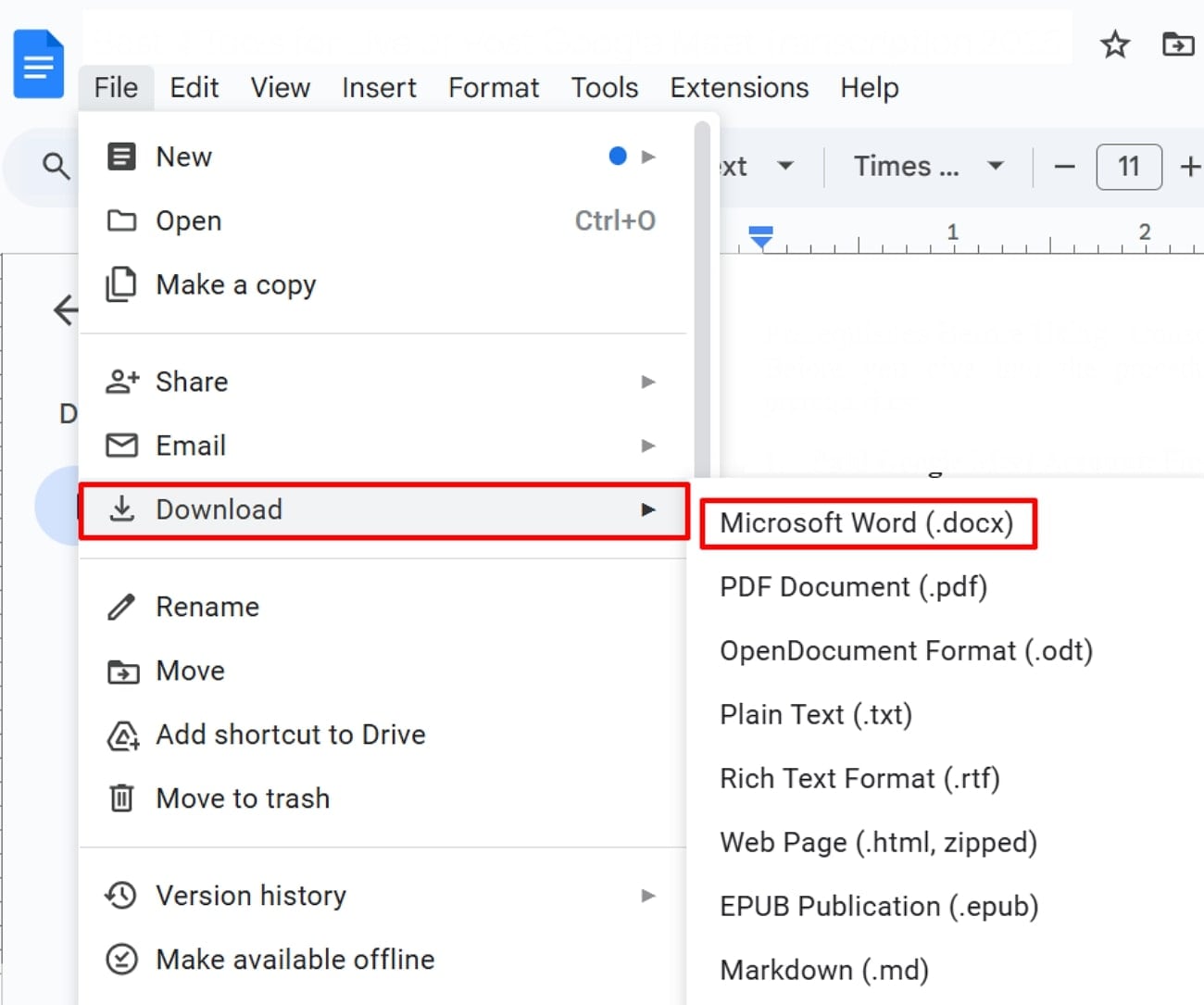
Step 3. Besides sharing, if you want to download this “Google Meet Transcript,” click on the “File” tab. Here, select the “Download” option and choose the “Microsoft Word(.docx)” option to get it saved to your device's designated folder.
Part 3. Pros and Cons of Integrated Google Meet Transcription
To have a deeper understanding of the Google Meet transcription tool, let's explore its strengths and weaknesses below:
Pros of Integrated Google Meet Transcription
Seamless Workflow: This tool provides a streamlined process by enabling the transcription option and selecting the desired language.
Editable Transcriptions: As transcriptions are saved in Google Docs, it is easier for the host to edit them as needed.
Meeting Accessibility: This feature helps hearing-impaired participants understand all points of the meeting more easily.
Automation: Compared to manual note-taking, it saves you time by automatically recording everything, making it helpful for team members.
Linked Recordings: Users can jump to the relevant video segment by clicking documented lines in the transcript.
Cons of Integrated Google Meet Transcription
Language Support: Unlike other advanced options, Google Meet’s transcribing only supports a limited languages and creates errors while transcribing other languages than English.
Transcription Accuracy: If the meeting includes background noise, overlapping speech, or a different accent, it will not produce accurate transcripts.
Compatibility: This feature is only available to desktop users, so mobile users cannot access it for transcribing their meetings.
Storage Dependency: These transcriptions are directly saved to your Google Drive, so if it doesn’t have enough space, this feature will not work.
Privacy Concerns: Privacy concerns can arise when a sensitive topic is discussed, especially when third-party tools are also used.
Part 4. Qualified Alternative to Integrated Google Meet Transcription
If you’re looking for more flexibility or an advanced alternative to Google Meet transcription, this section will cover it all:
1. Wondershare UniConverter
Suppose you are a PhD student and your lecturer hosts a lengthy session on an important topic. You want to take notes and understand the topic, which is a hectic, time-consuming task. In this situation, UniConverter is an ideal option, as it provides a specific Speech-to-Text feature. This tool utilizes AI technology to transcribe efficiently both audio and video files.
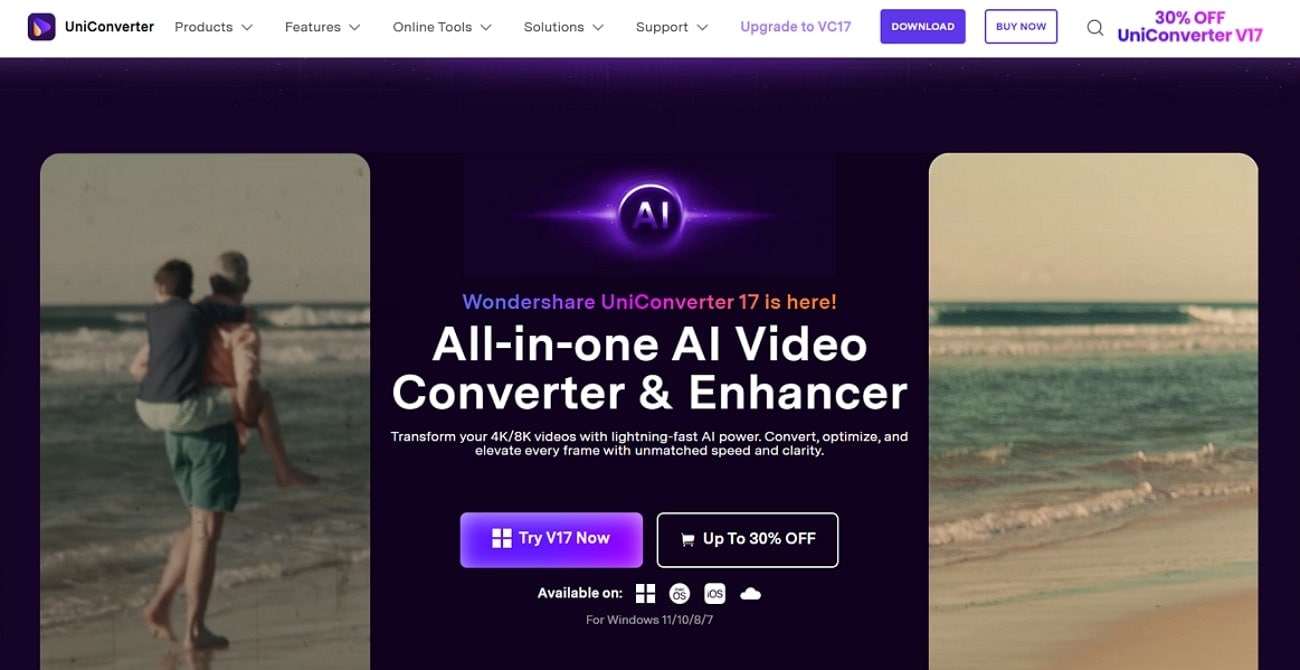
Users simply upload their recorded lecture to the interface, and it will transcribe the whole file within a matter of minutes. This tool is capable of transcribing audio into 80+ languages, along with dedicated AI summary support.
Key Features
- Subtitle Editor: This tool lets you edit video subtitles by simply uploading them to its editing interface.
- Video Enhancer: Users can opt for the Video Enhancer tool to enhance the quality of their pixelated videos, making them visually appealing.
- Converter: One can easily convert their audio, video, and image files with UniConverter as it supports up to 1000+ file formats.
- Downloader: It lets you download numerous files by simply uploading their links from sharing services.
Easy to Use Google Meeting Transcriber
2. Otter.ai
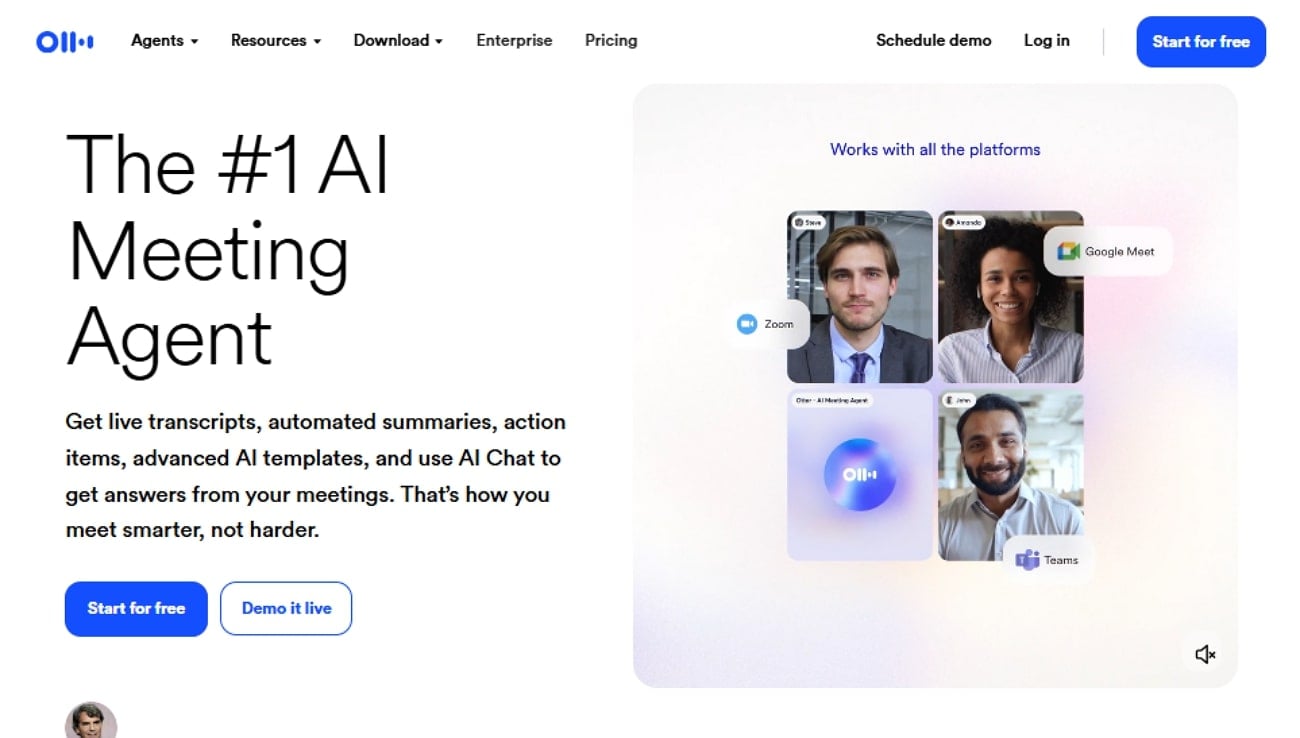
This tool transcribes your audio and video by simply inserting them on the web, iOS, and Android. It is also capable of transcribing your lectures live from streaming services like YouTube and Google Meet. Otter.ai's Google Meet transcription tool automatically labels and separates speakers, adding names and timestamps for clarity. Furthermore, it lets you edit, highlight, and tag important moments of transcripts.
Key Features
- This tool downloads transcripts in formats like TXT, DOCX, PDF, or SRT.
- It also lets you summarize the transcription for quick and easy reading.
- These transcripts can be easily shared via links, Slack, or team folders.
3. Fireflies.ai
Fireflies.ai is an advanced Google Meet transcriber that automatically joins meetings in platforms like Zoom and Google Meet. This tool provides real-time transcription and also gives post-meeting transcription in your tool's dashboard. One can also generate AI-powered summaries to easily understand the main theme of the meeting. Plus, it also highlights the main key points of the meeting for your better understanding.

Key Features
- Let users search transcripts by keywords, action items, and participant names.
- It allows sharing transcripts, summaries, and audio clips with team members.
- Fireflies.ai supports almost 100+ transcription languages to cater to a wider audience.
4. Rev
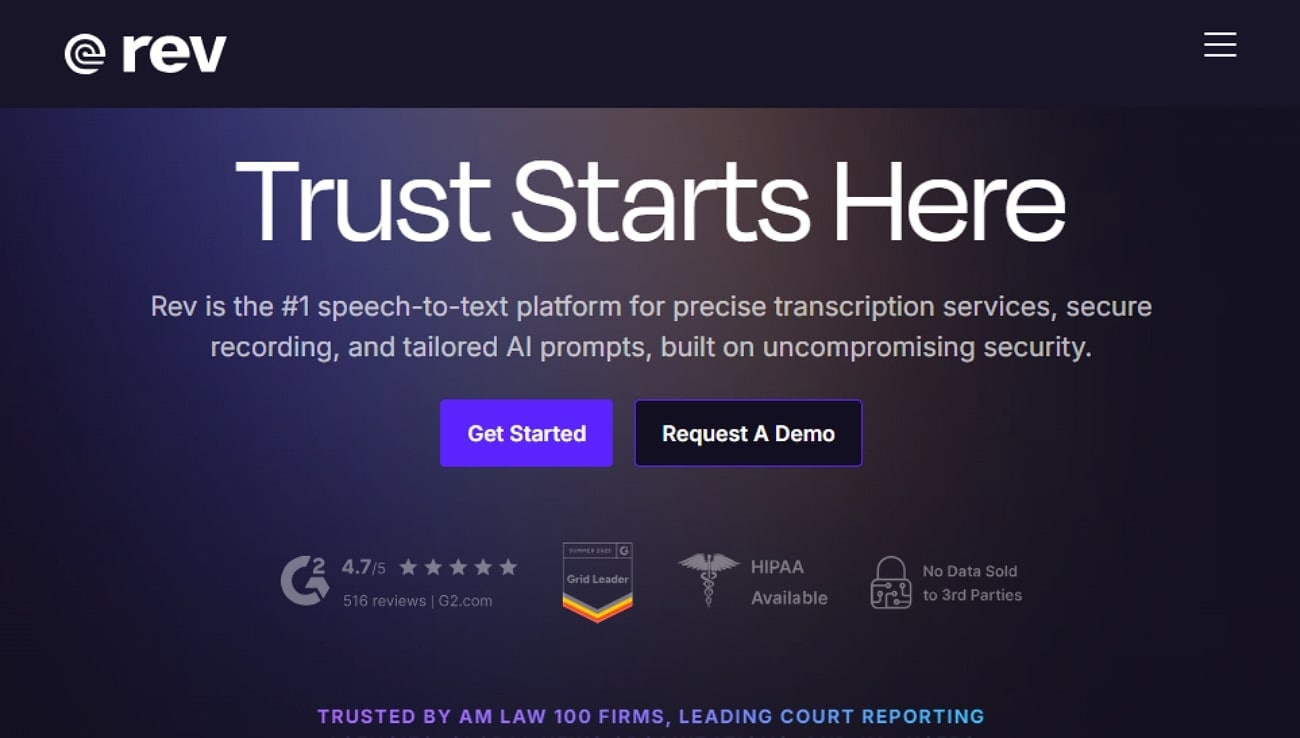
Being a human-powered tool, it offers highly accurate human transcription (99%+) for sensitive, complex, or professional use. This tool accepts nearly all major audio and video formats, including MP3, MP4, MOV, WMV, and AIF. Human transcripts are delivered within 12 hours, while AI-generated transcripts are provided in minutes. It gives the option to include paragraph or word-level timestamps, with verbatim capturing every utterance or research use.
Key Features
- It integrates directly with platforms like Zoom, Google Meet, Vimeo, and Dropbox.
- This tool labels speakers for interviews and focus groups, enabling easy review.
- Rev.com provides tools to highlight, split, add notes, and export Google Meet transcripts.
Quick Takeaway: Google Meet transcription is the most seamless and cost-effective option if your organization already uses Google Workspace. It natively transcribes your meeting recording in real-time without paying extra cost. However, if you want to opt for a tool with higher accuracy and more advanced features, then we recommend using a dedicated tool like UniConverter.
Part 5. How to Batch Transcribe Google Meet Recordings with UniConverter
Now, if you want to batch Google Meet transcription with an advanced yet intuitive tool, follow the provided guide below:
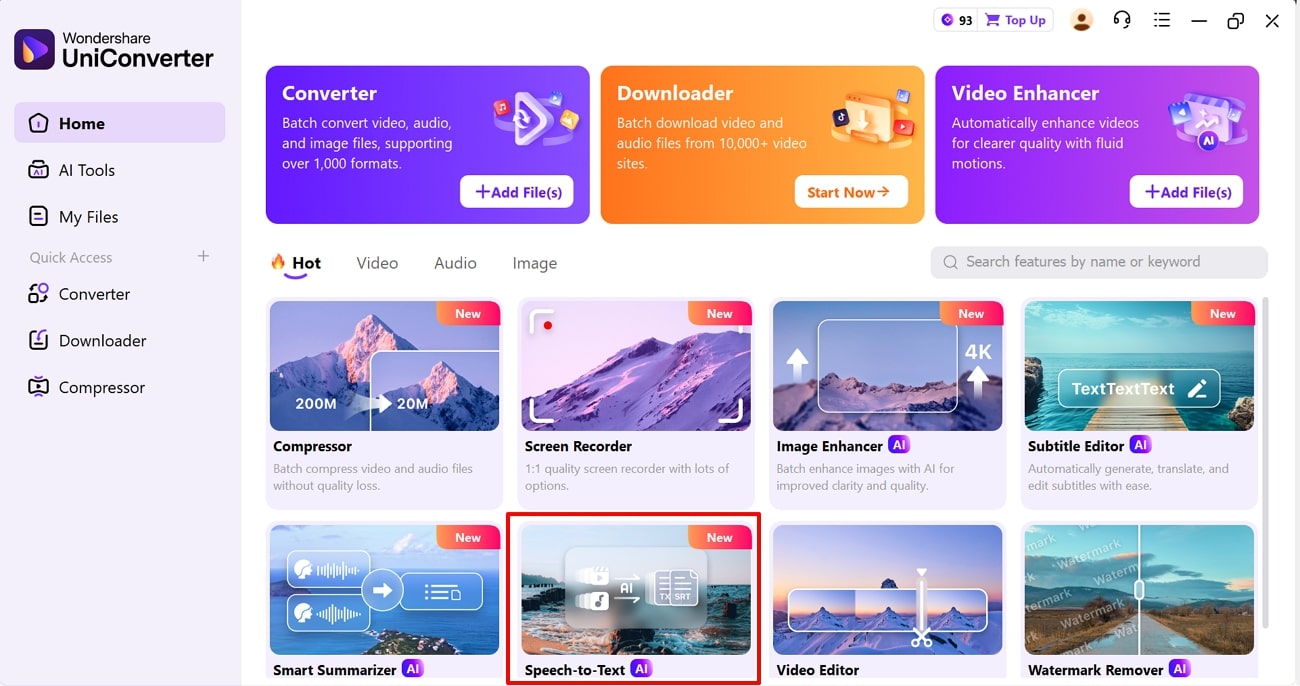
Step 1. Select the Speech-to-Text Tool
As you access UniConverter, choose the “Speech-to-Text” feature available on its main interface.
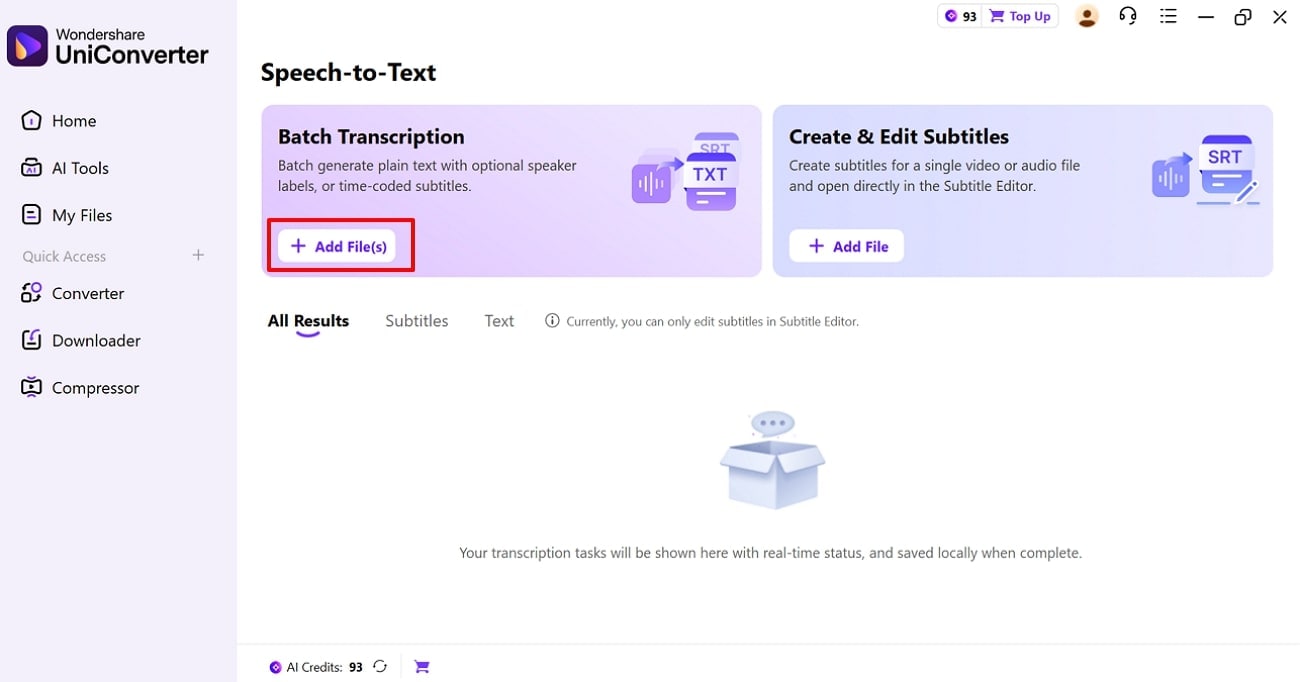
Step 2. Choose the +Add Files button to Insert Files
Here, click on the "+Add File(s)" button to insert the desired file into the editing interface.
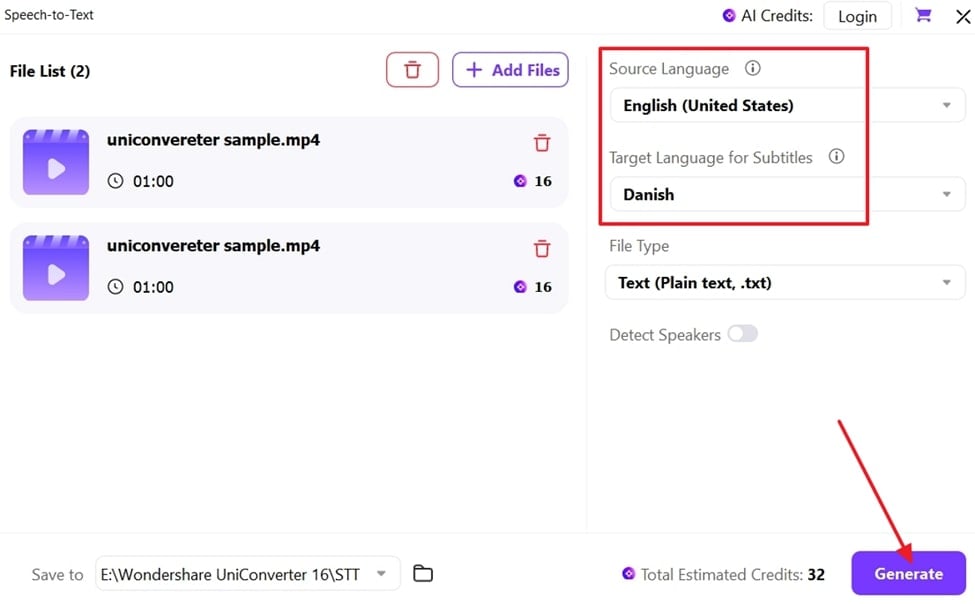
Step 3. Click on the " Generate Button to initiate it
Here, choose the desired language for transcription, and hit the "Generate" button. At this point, you can add more files by simply clicking the "+Add File" button to access its batch processing.
Conclusion
Summing up, in this article, we have provided a detailed guide on how to use the Google Meet Transcription feature. Furthermore, we have also provided the 4 best tools that you can use to transcribe Google Meet if you don't have a business account. Among these tools, we recommend using UniConverter, which provides you with a batch transcription service.
Easy to Use Google Meeting Transcriber
FAQs
-
1. Do these tools work with Google Meet recordings after the meeting?
Yes, almost all tools offer transcription services after recording the whole video. You can opt for tools like Wondershare UniConverter, which lets you batch transcribe all your videos by simply uploading them. -
2. Which tool offers the highest transcription accuracy?
Rev.com's human-powered transcription delivers over 99% accuracy for professional use, but it's paid. So we recommend using UniConverter, which provides a maximum accuracy rate with its batch processing system. -
3. Can these transcription tools identify different speakers?
Yes, most of the advanced tools have the capability of distinguishing speakers and labeling them in the transcriptions. However, always ensure to choose a reliable tool that ensures complete accuracy while transcribing your meetings. -
4. Are these generated transcripts editable and shareable?
Absolutely, these tools let you edit the transcripts, highlighting them and even adding other elements to ensure it is completely perfect to share. Furthermore, you can copy your transcription or even share the data in the form of a textual file, like .txt or .stt.

