When Crunchyroll subtitles are not showing, the right fix depends on what is missing: the subtitle language, captions for a dub, or text on one particular device. Start with the checks below, then jump to the device section if the problem continues.
Need subtitles for your own video project? Wondershare UniConverter includes a Subtitle Editor that can generate, translate, and edit captions for supported local files.
In this article
Why Are Crunchyroll Subtitles Not Working?
A subtitle track may be off, unavailable for that episode or audio version, or failing to load on your device. Compare the same episode on another device and a different episode on the same device before changing settings.
| What you see | Likely cause | First check |
|---|---|---|
| No subtitles on any show | Player setting, browser, app, network, or service issue | Select a subtitle language; test a second device |
| English subtitles missing for one show or episode | Language availability or an episode-specific error | Check More Details and the exact episode's player menu |
| English dub has no dialogue captions | The dub may not have an English CC track | Look for English CC; try original audio with English subtitles |
| Works on a phone but not a browser or TV | Device-specific settings or software | Check browser extensions, app version, and device captions |
| Subtitles are delayed or wrong | Playback or episode subtitle issue | Restart playback; compare another episode and report the timestamp |
How to Fix Crunchyroll Subtitles Not Working
1. Turn On Subtitles in the Player
- Play the affected episode and open the player controls.
- Select the Settings gear and open Subtitles/CC.
- Choose an available language, such as English, instead of Off or None.
- Resume playback. If it is already selected, choose another available option and switch back.
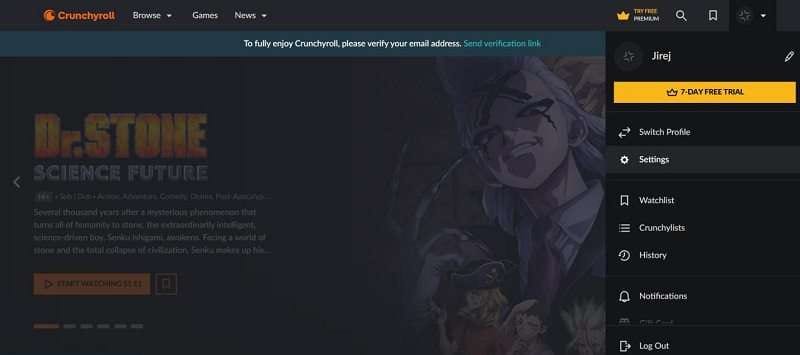
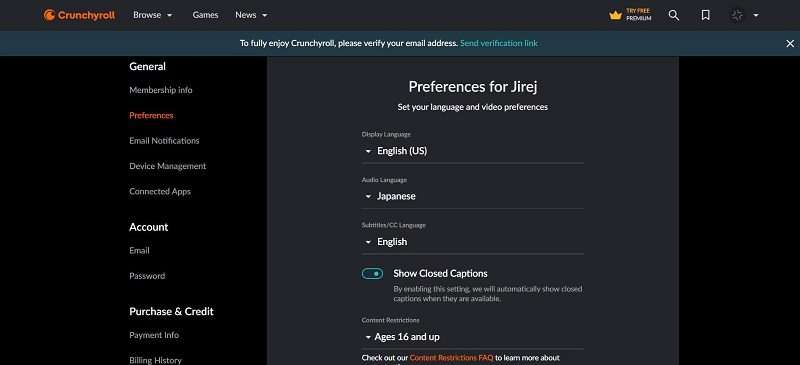
2. Check Your Profile's Subtitle Preferences
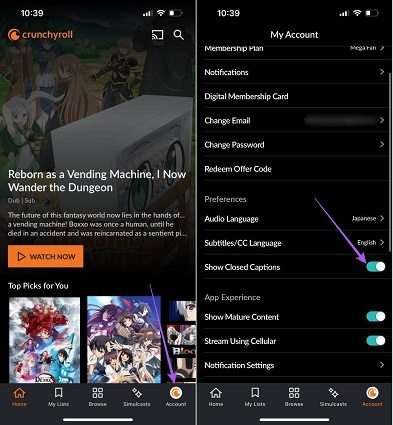
Open your Crunchyroll profile or account settings, find the audio and subtitle preferences, and choose your preferred subtitle language. If a Show Closed Captions option is available, enable it. Then return to the episode and check the player menu again. Menu labels can differ across devices and app versions.
3. Check Whether Your Language Is Available
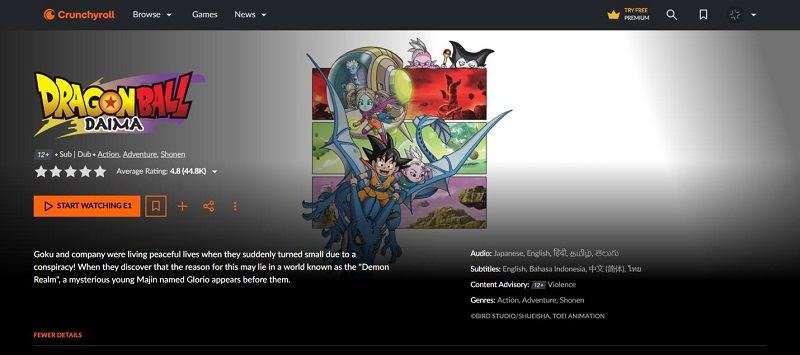
On the show's page, open More Details and look at the listed audio and subtitle languages. The list may not apply to every season or episode, so also check the exact episode. Language availability can vary by region. See Crunchyroll's language availability guide.
4. Switch Between Sub and Dub
If English subtitles are not working on an English dub, check whether English CC is listed for that episode. A dubbed version may not offer closed captions even when its original-audio version has English subtitles. Try the original audio and select English subtitles. Do not assume a missing CC option can be created by a device setting.
5. Restart the Episode, App, and Device
Close the player, reopen the episode, and check the subtitle menu. If that does not help, fully close Crunchyroll, reopen it, and restart your phone, computer, TV, or console. For captions that are out of sync, replay the affected section and check another episode.
6. Turn Off Your VPN and Test the Connection
Crunchyroll's web troubleshooting guide says VPNs are unsupported and may cause missing or overlapping subtitles. Disconnect a VPN or proxy, reload the episode, and test again. If other streaming functions also fail, restart your router or try another network.
7. Try a Private Window and Disable Extensions
On a browser, open a private or Incognito window, sign in, and play the same episode. If subtitles work there, an extension or stored site data may be involved. Temporarily disable ad blockers and other extensions for Crunchyroll, then re-enable them one at a time to identify the conflict.
8. Update the Browser or App
Install available updates for your browser or Crunchyroll app. Test the same episode in another supported browser or on another device. If it works elsewhere, note which app or browser version fails before contacting support.
9. Clear Cache or Reinstall the App
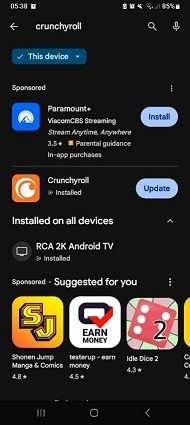
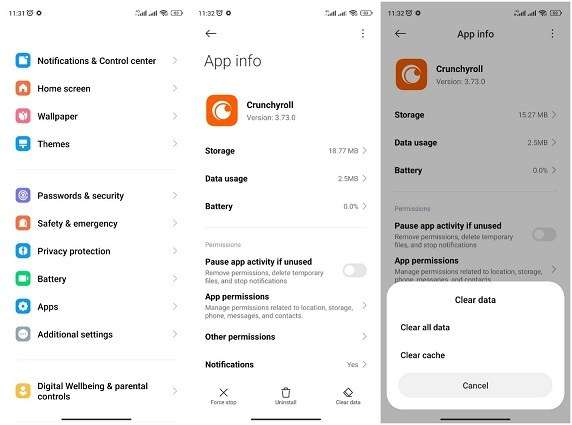
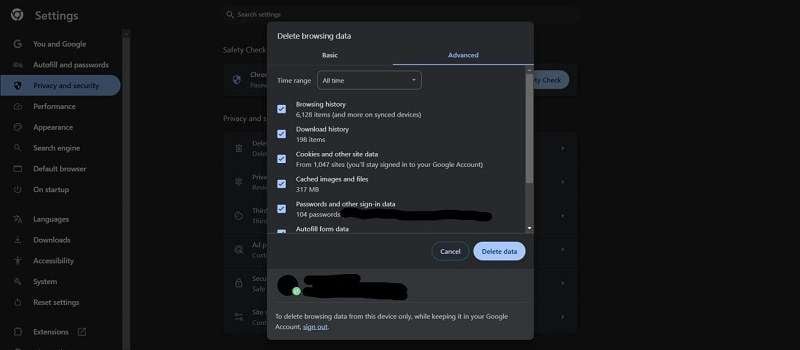
Clear Crunchyroll site data or cached files in your browser; on Android devices, check the Crunchyroll app's storage settings for a cache option. Exact menus vary. If needed, sign out and back in or reinstall the app. Clearing site data or reinstalling may sign you out and remove locally stored data or offline items.
10. Report an Episode-Specific Problem
If the language is listed but missing, the subtitles are incorrect, or they remain out of sync across devices, contact Crunchyroll Support. Include the show, season, episode, timestamp, audio and subtitle language, country, device, app/browser version, and what you already tried. If many titles fail across devices, ask whether there is a known service issue.
Crunchyroll Subtitles Not Working on Roku, PS5, TV, or Phone
Roku
- Play an episode and check its in-player Subtitles/CC options.
- From the Roku home screen, open Settings > Accessibility > Captions mode, if available on your device, and check that captions are enabled. Menu names can vary by model.
- Update Crunchyroll, restart the Roku device, and retry. Test another episode before reinstalling.
A system caption setting cannot add a subtitle track that the episode does not offer.
PS5 and PS4
On PS5, open Settings > Accessibility > Closed Captions and turn on Display Closed Captions. Return to Crunchyroll and select an available track in the player. For PS4, check the console's accessibility settings and the app's player options. Use the controller's Options button on the Crunchyroll app and check for updates. See PlayStation's PS5 accessibility guide.
Smart TVs, Fire TV, Xbox, and Other Streaming Devices
Check the episode's Subtitles/CC menu first, then your device's caption or accessibility settings. Restart the device and update the Crunchyroll app and system software. If available, clear the app cache. Names and settings vary by device; do not expect TV captions to create a missing Crunchyroll track.
iPhone and Android
Tap the video to reveal the controls and select an available subtitle language. Check profile preferences, close and reopen the app, and install any update. On Android, clear the app cache if the device offers that option. On iPhone, check for an app update or reinstall if necessary; save your sign-in details first.
Why Are Crunchyroll English Subtitles Not Working on Dub?
Subtitles commonly translate dialogue from the original audio. Closed captions can represent dialogue and relevant sound cues for accessibility. An English dub may have no English CC even if the Japanese-audio version has English subtitles. Some available tracks may only translate on-screen text; check the actual track and episode.
For the best available experience, select English CC when offered. Otherwise, switch to the original-audio version and choose English subtitles, or contact Crunchyroll to ask about accessibility for that title. Availability depends on the episode and region.
How to Generate Subtitles for Your Own Video with UniConverter
If you also work with video files that you own or have permission to edit, Wondershare UniConverter provides a separate subtitle workflow. Its Subtitle Editor can generate captions from speech, translate supported languages, import existing subtitle files, and let you review the result.
Important: This is for a locally accessible, authorized video file. It does not enable captions in Crunchyroll, access its streaming player, or make an unavailable Crunchyroll caption track appear.
Choose a Subtitle Workflow
| What you have | What to try in Subtitle Editor |
|---|---|
| A subtitle file | Import an SRT, ASS, SSA, or VTT file and review text and timing. |
| No subtitle file | Use Auto-Subtitles Generator; choose a source language and a translation if needed. |
| A written script | Explore Text to Subtitles, or create lines using Manual Subtitles. |
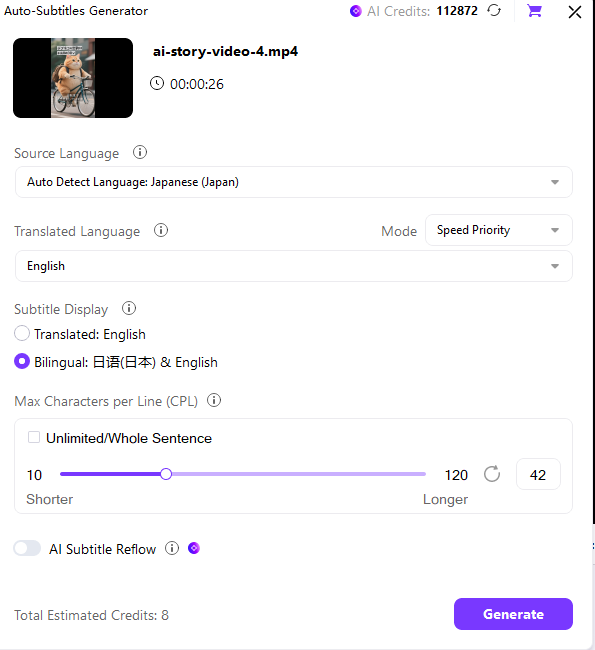
You can choose a translated or bilingual display in the generator. Check the on-screen credit estimate and review every generated line before export.
Step 1. Open Subtitle Editor
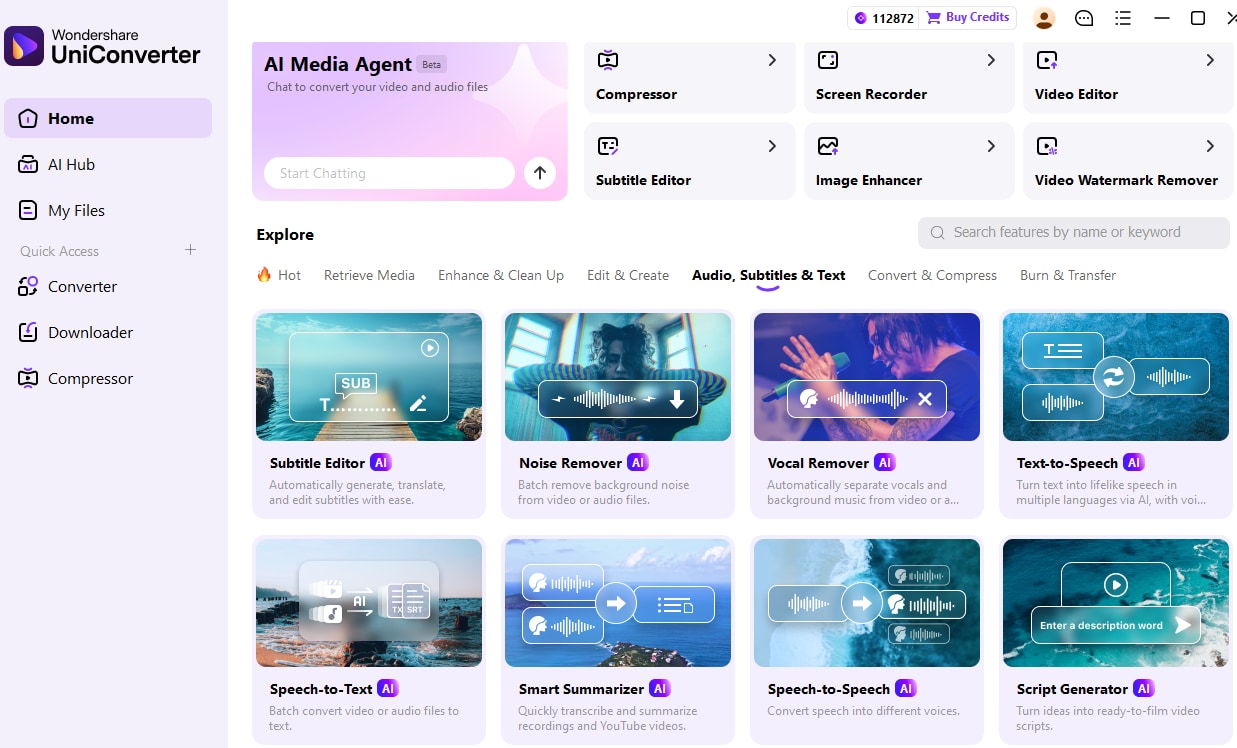
Launch UniConverter and select Subtitle Editor on the home screen or under Audio, Subtitles & Text.
Step 2. Add a Video You Are Authorized to Edit
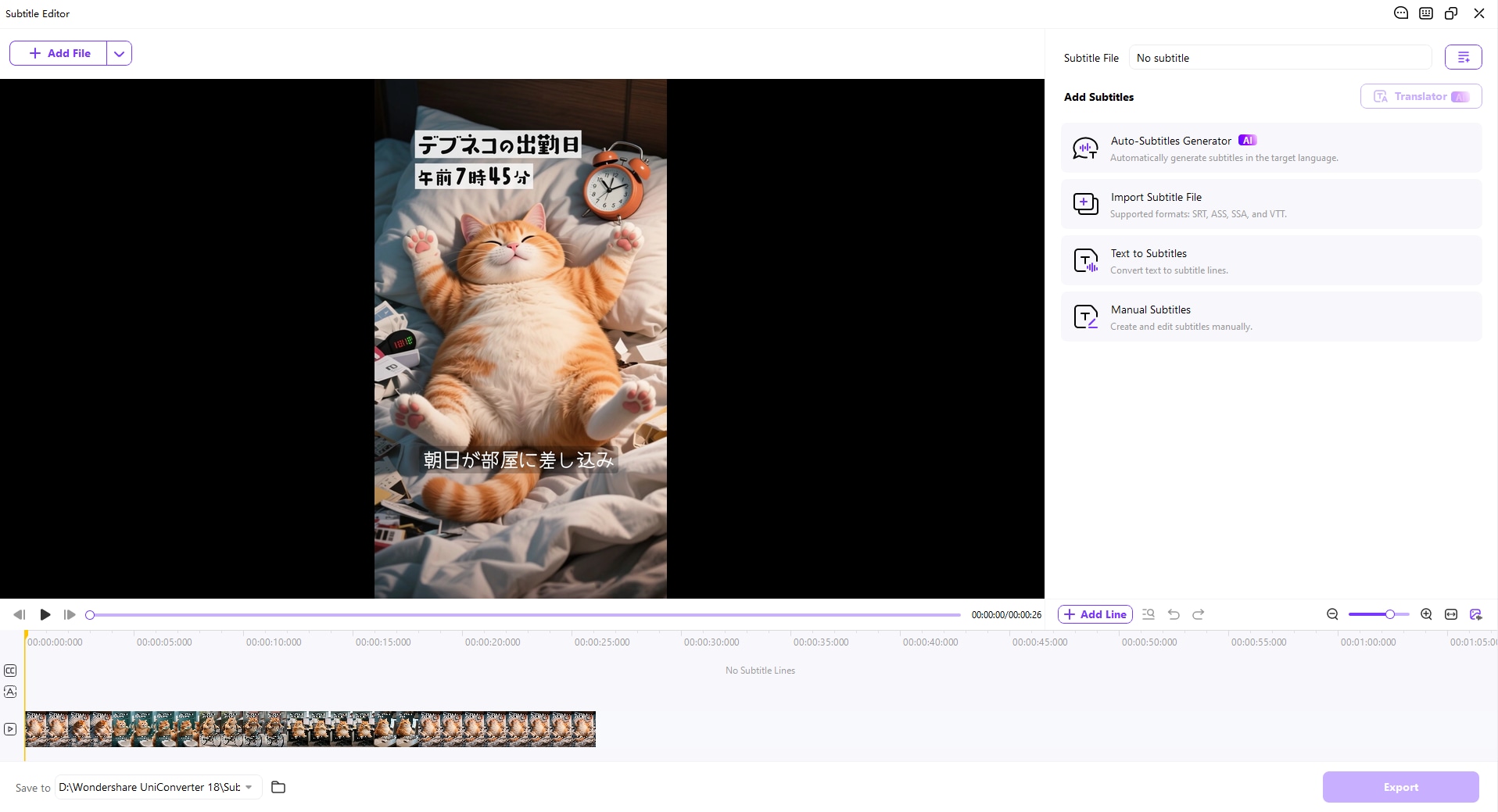
Select Add File and import your video. To use existing captions, choose Import Subtitle File; the shown interface lists SRT, ASS, SSA, and VTT.
Step 3. Generate and Translate Subtitles
Select Auto-Subtitles Generator. Confirm the source language, choose the translated language if needed, and select a display option such as bilingual subtitles. Review the estimated AI credit cost shown in the app, then select Generate.
Step 4. Review and Export
Review the generated text and timing, particularly names and overlapping speech. Correct errors, preview the video, select the save location, and click Export. See the Subtitle Editor guide for details.
What If Crunchyroll Subtitles Are Invisible or Overlapping?
If captions appear against the video but are hard to read, check caption appearance in the available player, app, or device accessibility settings. Changes to font, color, or background may help. For overlapping subtitles on the web, disable any VPN and reload the page; other causes can include an extra caption or translation overlay, so check one setting at a time.
FAQs About Crunchyroll Subtitles
-
Why does Crunchyroll have no subtitles on one episode?
The selected language may not be available for that episode or audio version, or there may be an episode-specific issue. Compare another episode and check the player menu before reporting it.
-
Why are Crunchyroll subtitles not working on English dub?
English CC is not available for every dubbed episode. Select English CC if offered, or try the original-audio version with English subtitles.
-
How do I turn on subtitles on Crunchyroll?
Start an episode, open the player settings, select Subtitles/CC, and choose an available language. You can also check your profile preferences.
-
How do I fix Crunchyroll subtitles on Roku?
Check the in-player language, Roku caption settings, and app updates. Restart the device and compare another episode.
-
Why are Crunchyroll subtitles out of sync?
A playback or episode-specific issue may be involved. Restart playback, compare another device and episode, then report the timestamp if it continues.
-
Why are two subtitles overlapping on Crunchyroll?
Crunchyroll says unsupported VPNs can cause overlapping subtitles. Turn off the VPN and reload; also check for caption or translation overlays.
-
Can I use bilingual subtitles for my own video?
In UniConverter Auto-Subtitles Generator, select the source and translated languages, then choose the bilingual display option and review the generated text.
-
Can UniConverter fix Crunchyroll subtitles?
UniConverter cannot change Crunchyroll's player or restore an unavailable track. Its Subtitle Editor works with your own or otherwise authorized local video files.
Start by checking the episode's available language and audio version, then narrow the problem down by device. For your own video files, explore the AI Subtitle Generator or learn how to create an SRT file.