


As a content creator, we always require high-quality images for professional purposes or internet posting. Despite having the best cameras, the limitation of lenses results in making the output photograph dull and soft. This issue is encountered by both amateurs and professionals, which leads to the need of sharpening the photos.
Many tools offer automatic and customizable features to sharpen photos online, turning your best memories into clear, more cherished captures. In this guide, we will explore the best free online tools to consider for achieving flawless, sharpened images.
In this article
Part 1. 3 Easy Ways to Sharpen Photos on Desktop
Online tools are a great way to sharpen your images, but desktop applications are preferred most for their ease and convenience. Here in this part, 3 best desktop tools are discussed that give impressive results:
1. UniConverter
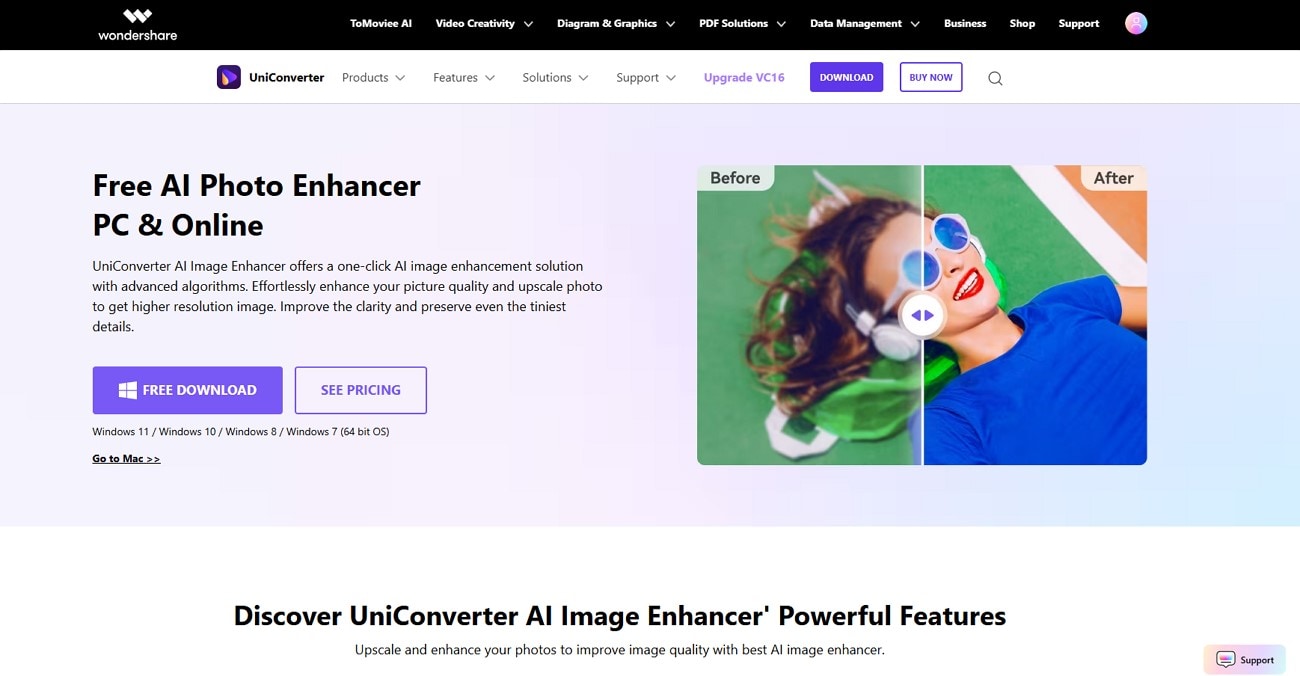
Suppose you're a digital creator looking for a reliable tool to give your images a more precise and sharper look. Wondershare UniConverter is one of the best photo enhancement solutions for creating effortless image enhancements of your blurry photos with just a few clicks. This AI image sharpener tool instantly transforms flat and unfocused visuals into vivid, high-featured images for sharing and printing.
The AI enhancement feature, combined with a super enlargement tool, enables users to create exclusive images for larger prints while maintaining the sharpness and quality of the photos. Moreover, UniConverter is a user-centric tool that uses advanced features to locate blurry edges and correct color contrast with precision and ease.
Salient Features Offered by UniConverter
- The AI image sharpener tool utilizes advanced algorithms that can easily monitor the softness and blurriness in images and improve the photo texture.
- Photo restoration feature helps users to repair the old and damaged parts of the photos back to life while maintaining authenticity.
- With a texture optimization tool, creators can minimize the artifacts to produce an AI-sharpened image.
- Portrait images are refined and enhanced through an advanced AI photo enhancer by analyzing facial details.
- It can enhance image vibrancy and composition with flexible editing options, including cropping and color correction.
A Complete Guide on Generating Enhanced Images Through UniConverter
To learn how you can sharpen your images using advanced AI photo enhancer tools of UniConverter, read the following instructions carefully:
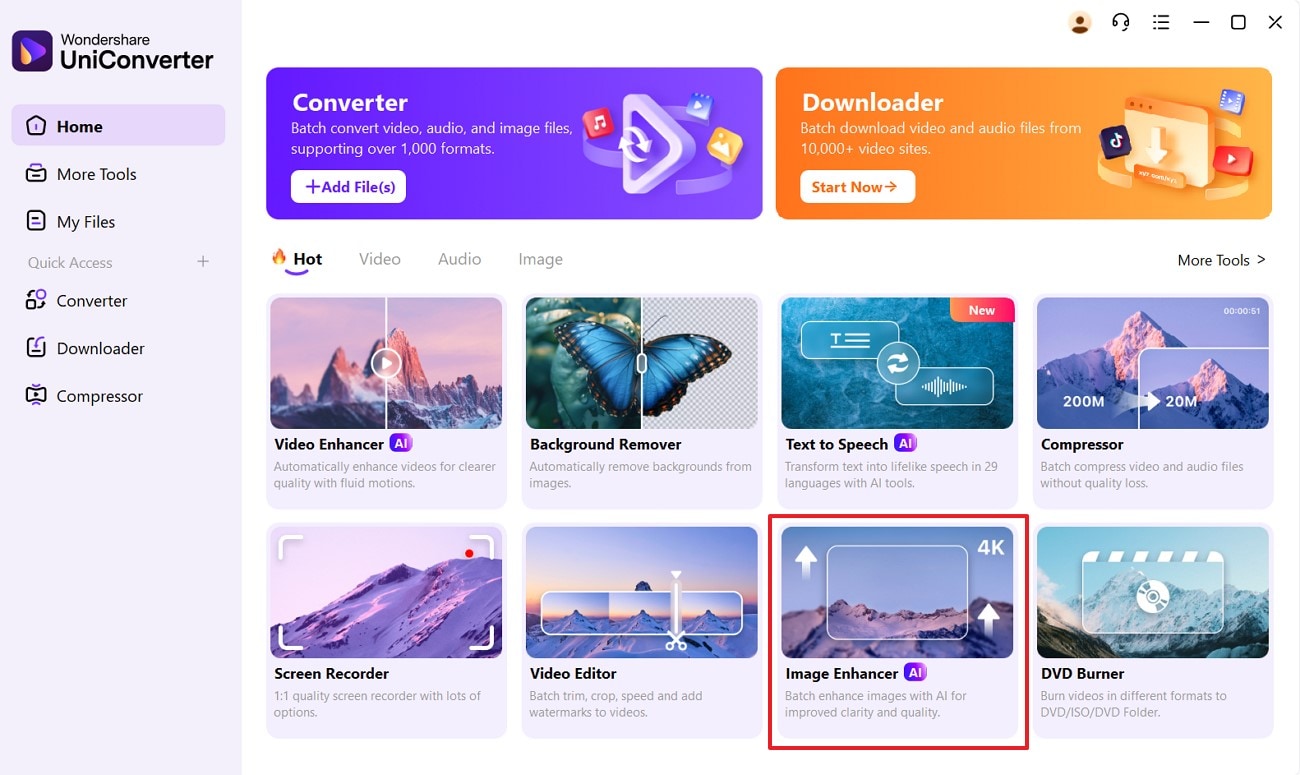
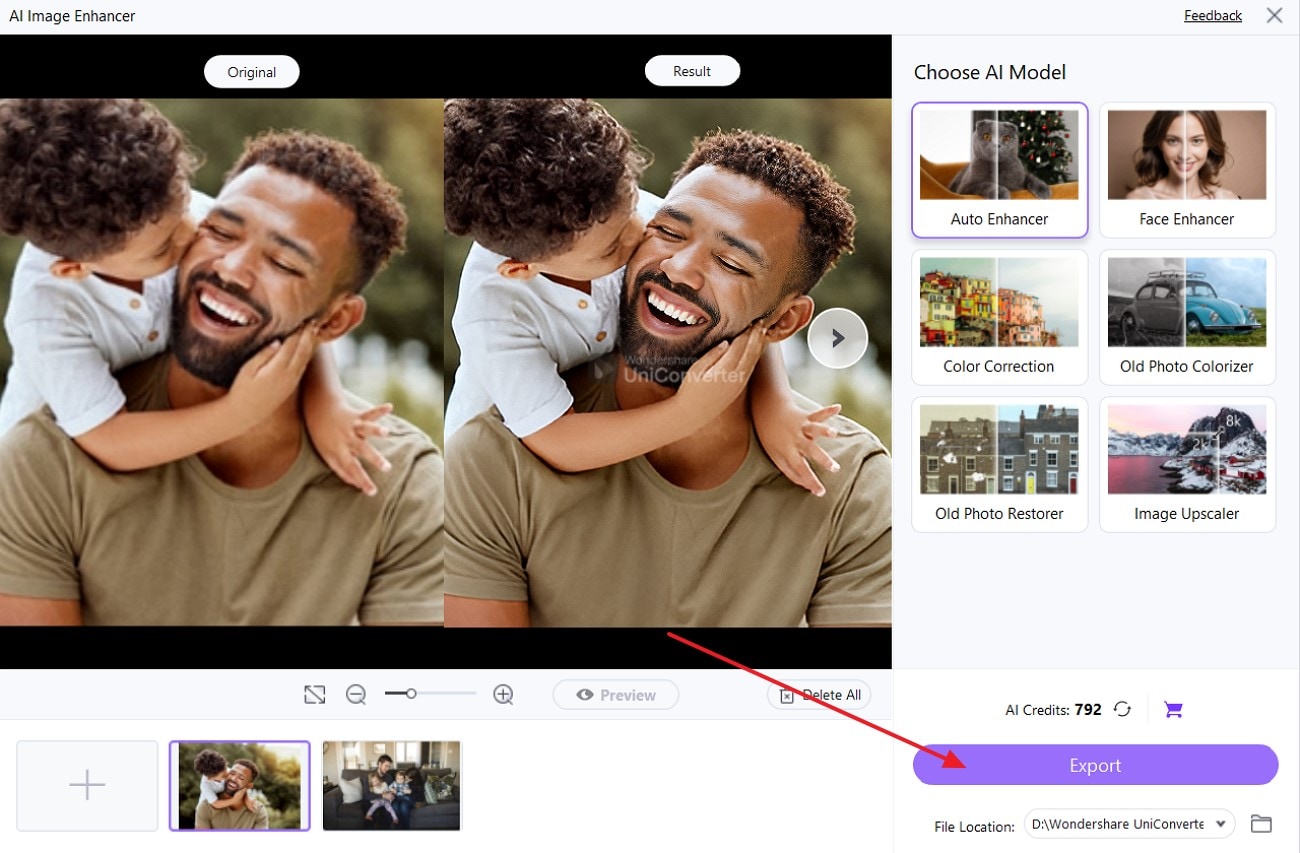
Step 1. Choose Image Enhancer and Click on the Add Files Button
From the home window, select “Image Enhancer” and import your image file by clicking on the “+” add files button.
Step 2. Select the AI Model and Start Enhancing Your Image
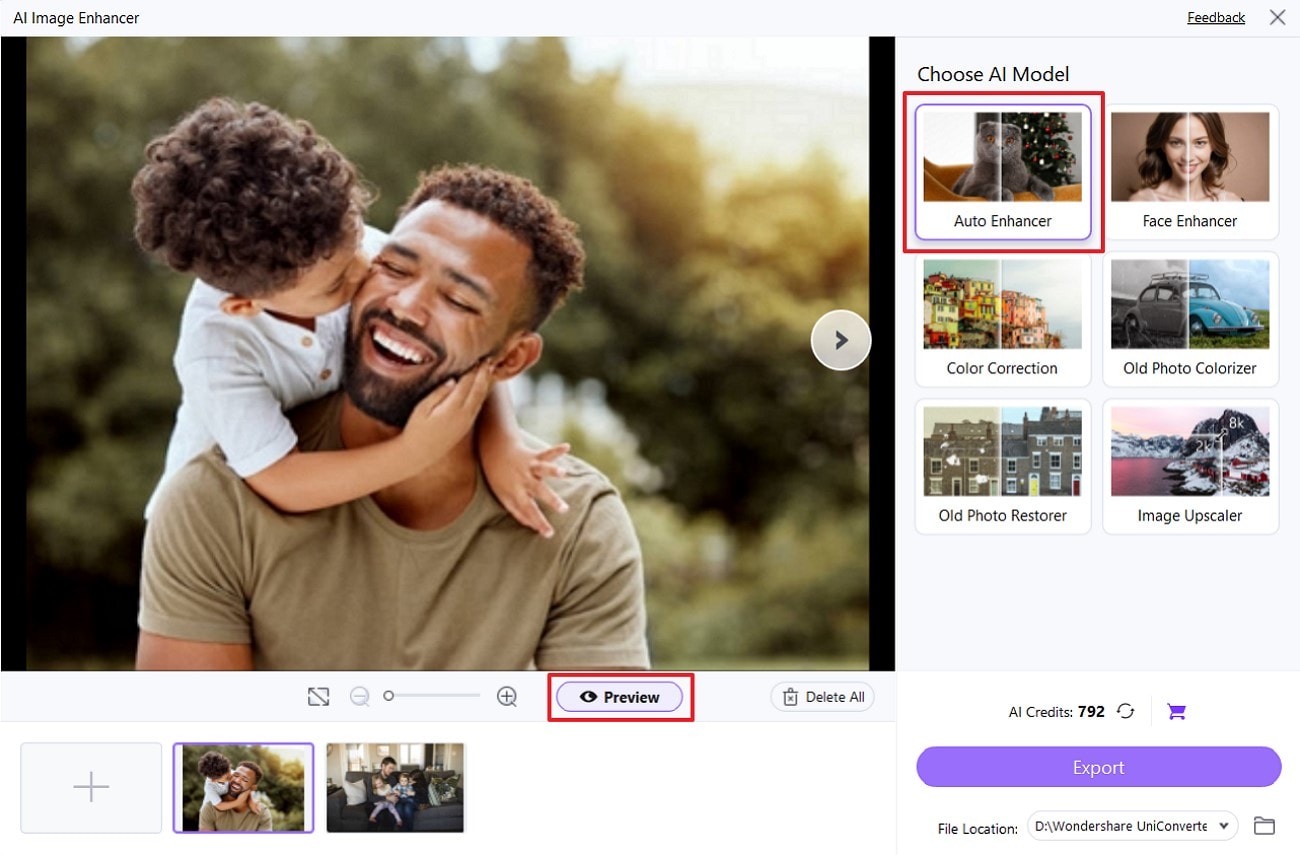
After importing your image, select the AI model from the right panel of the window. You can choose the “Auto Enhancer” model to preserve the fine details of your image by using an AI sharpen image tool. Click on the “Preview” button present in the image enhancer interface to process the AI enhancement on your image.
Step 3. Click on the Preview Button and Export Your Image
From the zoom in slider, you can preview the final photo results and export your image by clicking on the "Export" button.
2. TopazLabs
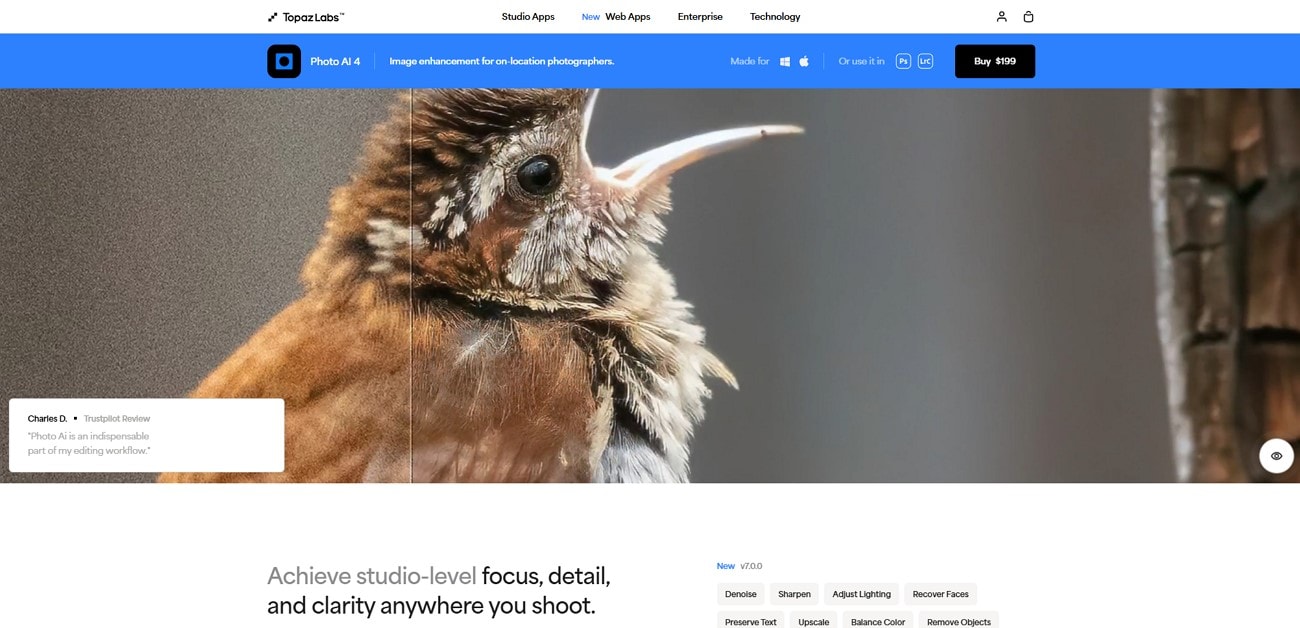
It is a well-known application for sharpening the image quality with its advanced AI features to recover image texture and reduce noise from the photos. This AI image sharpener uses the advanced Super Focus v2 model to recover lost details caused by misfocus or lens issues. Topaz also offers selective sharpening, enabling you to enhance only the most important parts of your image while preserving the rest.
Key Features
- Users can instantly sharpen their images using the photo AI image enhancement model.
- The selective sharpening tool allows users to choose a specific part of an image for improvement.
- Artifact and grain reduction can be done instantly using the noise slider in the Denoise model.
- It offers batch processing for creators dealing with multiple image files for enhancement.
A Complete Guide to Enhance Images Using Topaz Labs Photo AI
To learn how to enhance and sharpen images using Topaz Labs tool, have a look at the following instructions to consider:
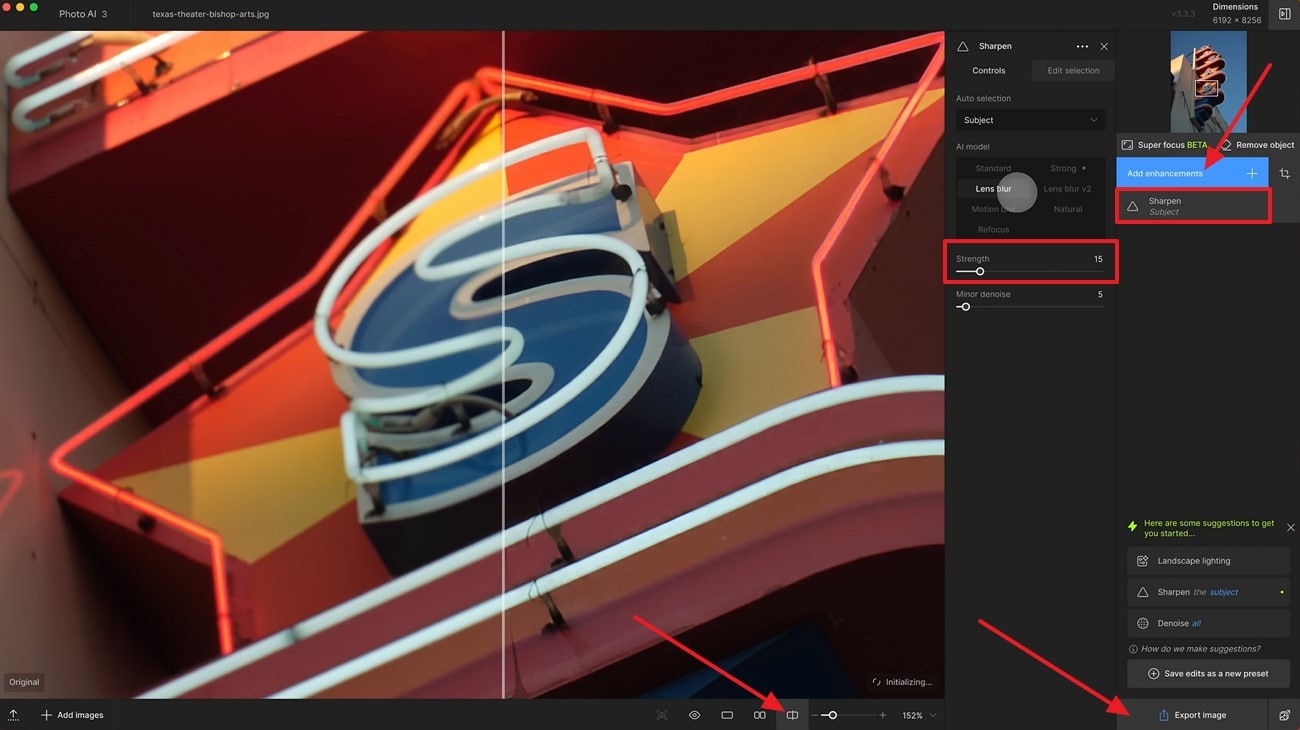
- Once you upload your image, select the "Sharpen" model from the "Add Enhancement" button on the right panel.
- Fine-tune the sharpen settings by adjusting the "Strength" slider from the sharpen pane.
- You can also preview the changes by clicking the "Split View" icon in the lower toolbar.
- To finalize your edits, click on the "Export Image" option from the lower bar and choose the desired file format to save on your device.
3. Aiarty
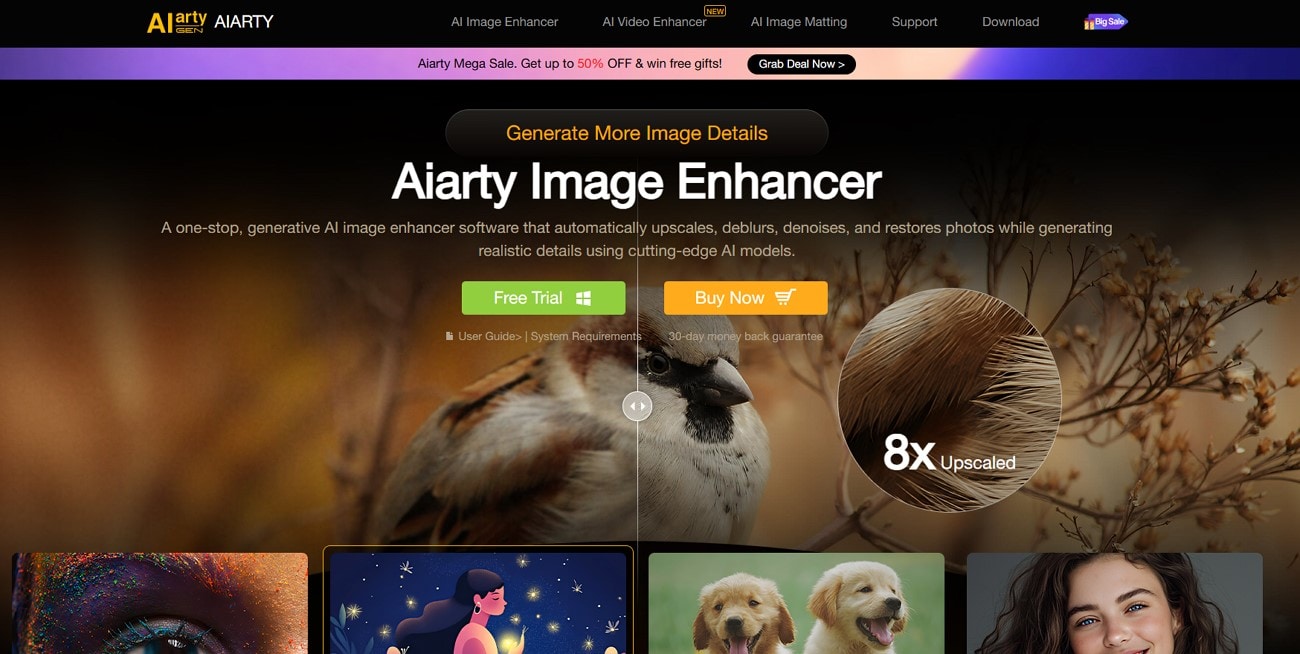
With Aiarty Image Enhancer, users can easily process image enhancement and sharpening without lag, thanks to the fast GPU acceleration. The ultra-high-definition photos with up to 32K resolution are achieved with this free online image sharpener tool. Furthermore, this robust desktop tool utilizes AI to improve and sharpen the visual blurriness and can easily remove the compression artifacts from the images.
Key Features
- The Upscale model allows users to enhance authentic images and restore the authenticity of photos.
- Old compressed JPEG photos can be restored by removing banding and artifacts using DeJPEGing.
- Users can utilize generative detail enhancement models to enhance group shots by fixing textures, skin, and eye details.
- Portrait images can be easily restored using AI face restoration models with natural results.
A Complete Guide on Image Sharpener Using Aiarty Image Enhancer
In this guide, you will explore how to enhance your blurry images using the photo sharpener online tool into professional-grade images.
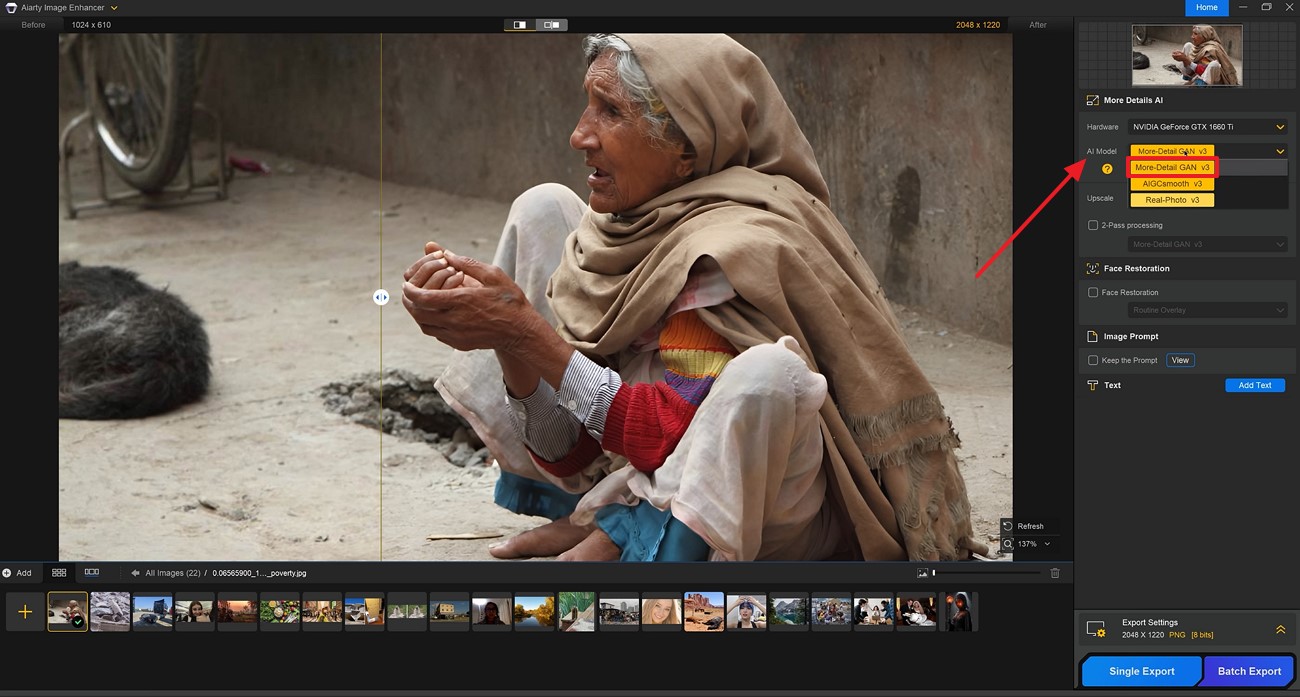
Step 1. Import your image to the tool’s interface and choose “More Detail Gen v3” AI model from the “AI Model” drop-down menu located on the right.
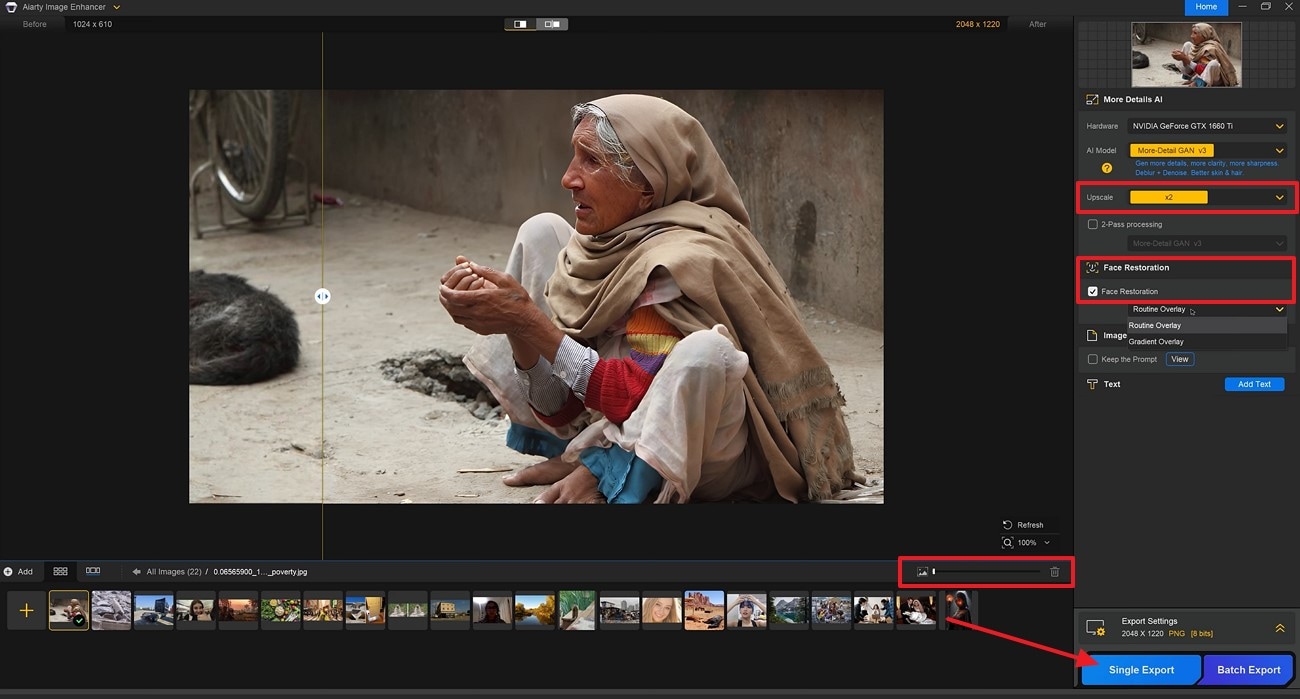
Step 2. From the same panel, adjust the model details and upscale at "X2" from the "Upscale" tab. You may also enable “Face Restoration” from this model preview window. In the final step, review your results by clicking on the "Zoom in Slider" icon in the preview window. Click the "Single Export" button to download the image in your preferred format.

Easy to Use Batch Image Sharpener
Part 2. 3 Popular Web Tools to Sharpen Photos Online
Free online image sharpener tools are easily accessible for everyone to make blurry and pixelated images into sharp and shiny photos in one go. Creative professionals utilize these online tools because of their easy-to-use interface and advanced AI technology that can restore and reshape soft images in no time. Some of these popular web tools are discussed in the section below:
1. VanciAI
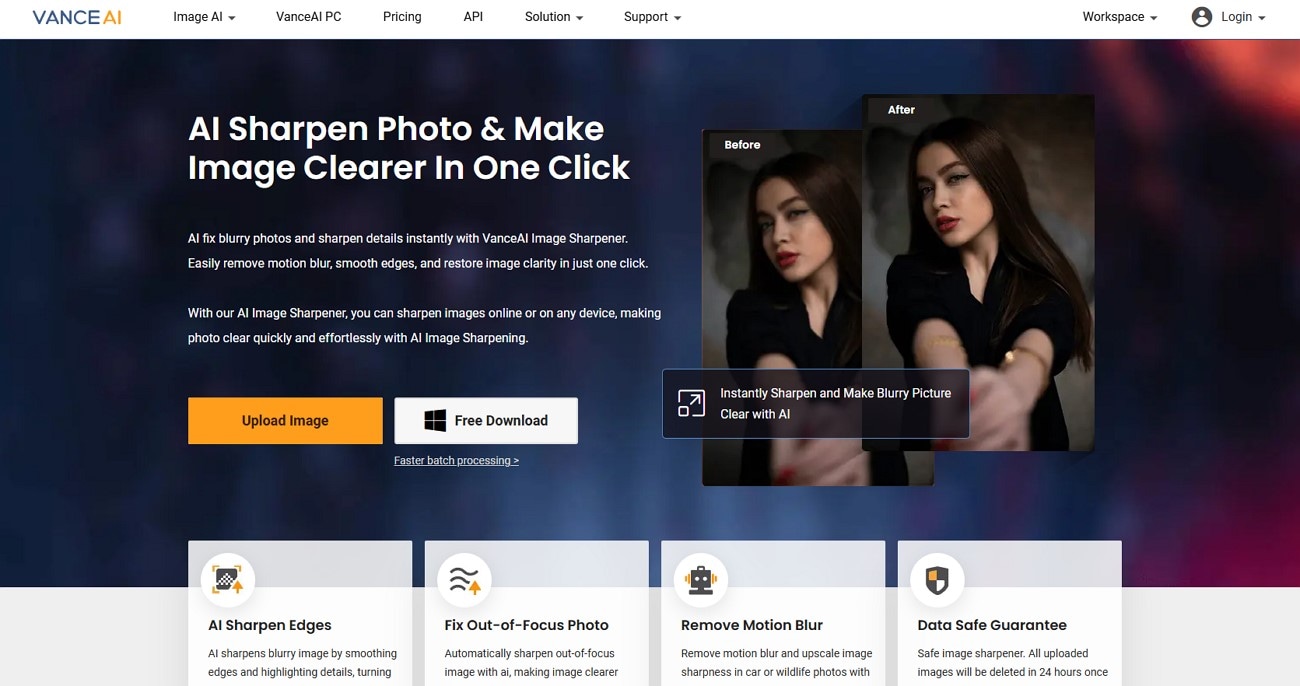
VanceAI is one of the known online tools, particularly used for image sharpening with advanced AI photo enhancer models. It leverages high-quality image improvements using fix-out-of-focus tools that automatically sharpen the soft and blurry image. Besides that, it gives creators the flexibility of choosing output DPI to save the transformed image as a print or digital copy.
Key Features
- It allows users to enhance image quality using one-click AI enhancement tools.
- AI Image Upscaler model can transform the image quality up to 40x without losing essential details.
- Creators utilize the Auto Denoise image model that can easily recover the lost details of images.
- Through the AI image sharpener tool, it can sharpen fine details in images without compromising photo quality.
Step-by-Step Guide to Sharpening Photos with VanceAI
With VanceAI, soft and blurry images can be easily restored, and a simple step-by-step guide to sharpen photos online using VanceAI is given below:
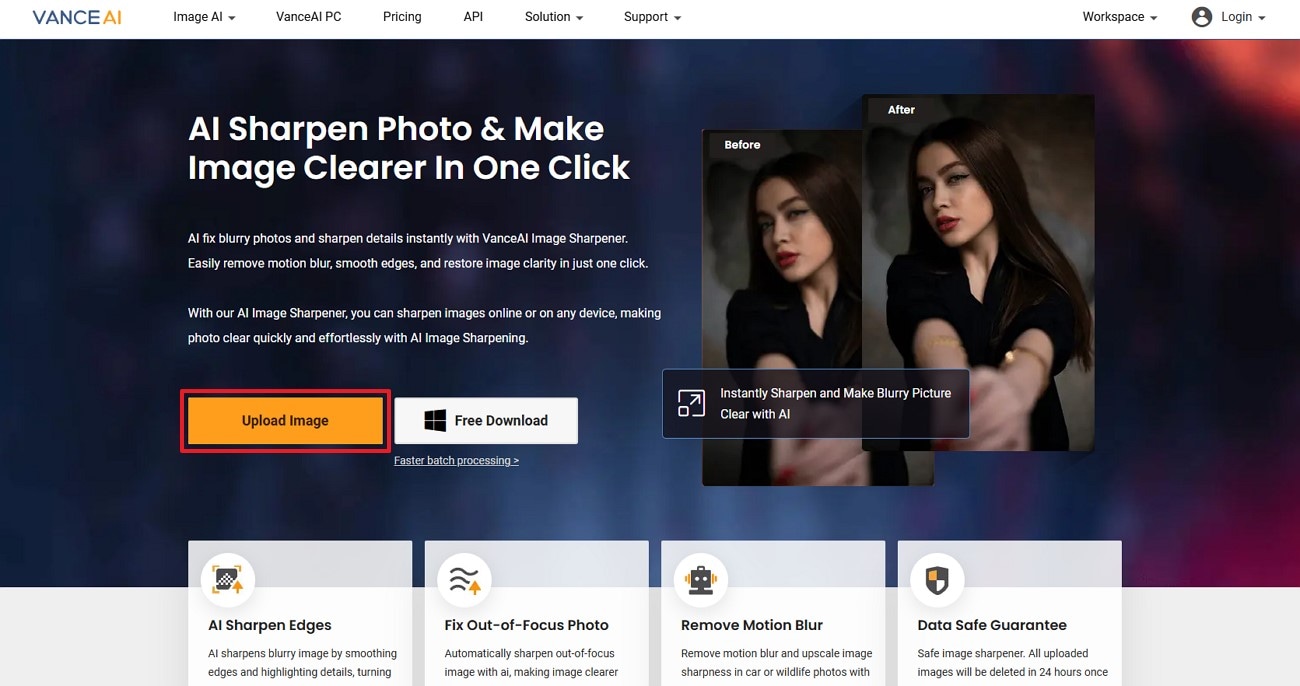
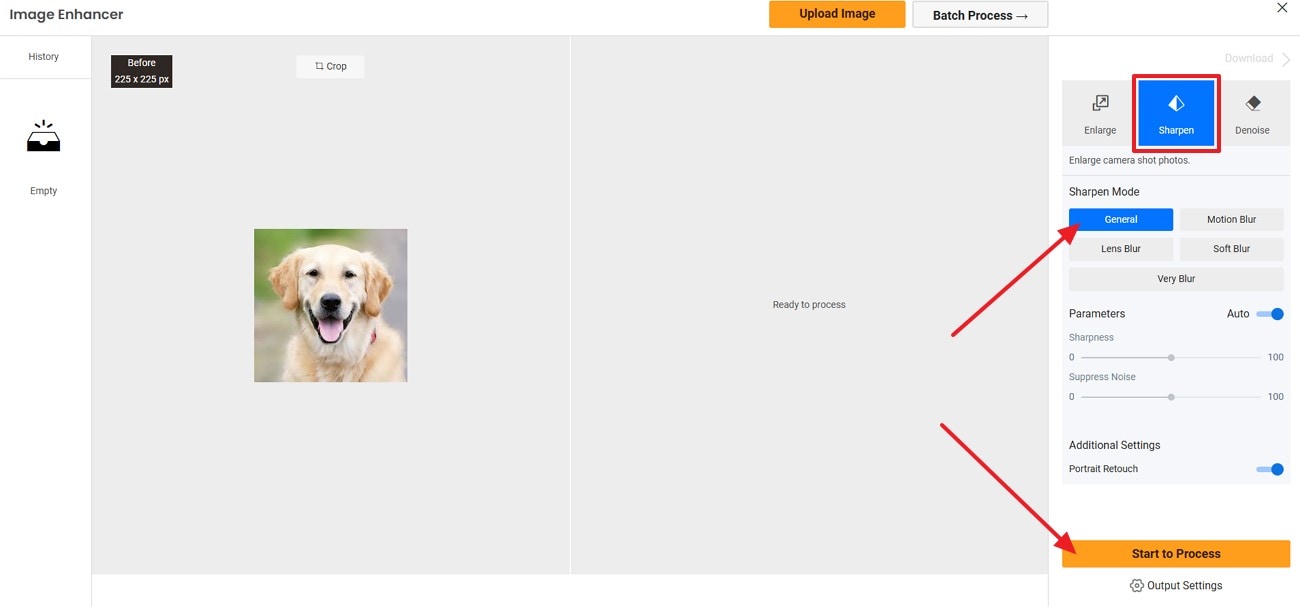
Step 1. Go to the official website of VanceAI and from the AI image enhancer homepage, click on the “Upload Image” button and import your image.
Step 2. From the right panel of the window, click on the "Sharpen" model and select the sharpen mode, e.g, choose "General" and click on the "Start to Process" button.
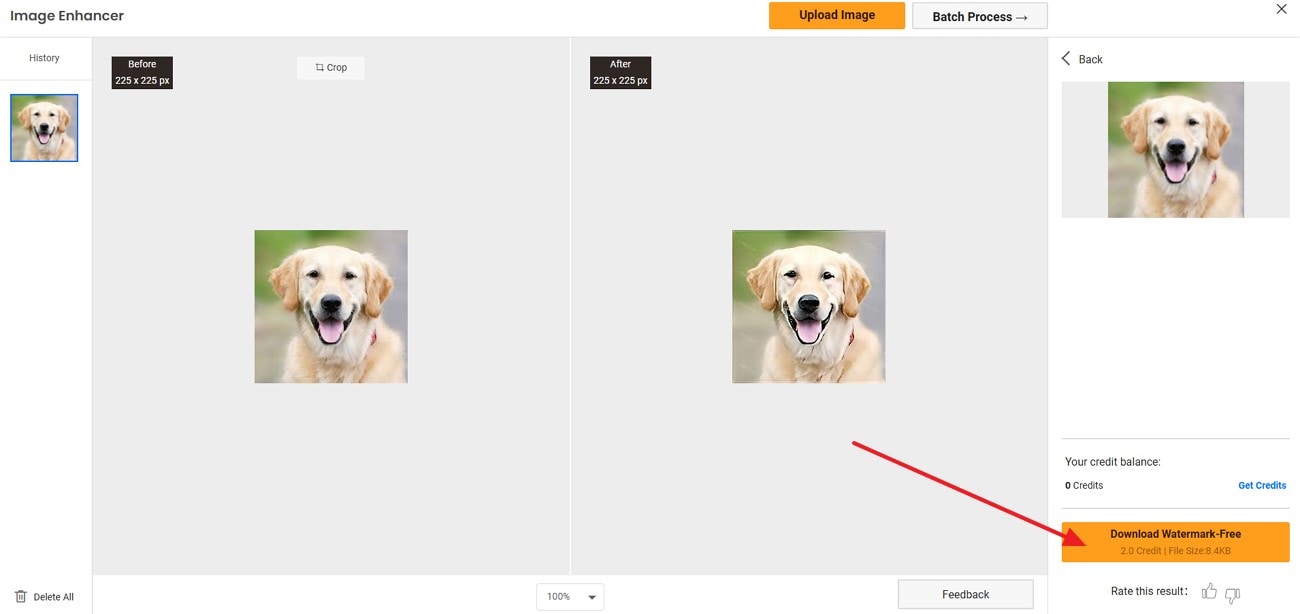
Step 3. After sharpening the image using AI, review your results in the preview window. Then, click on the “Download” button to save the image on your device.
2. Lets Enhance
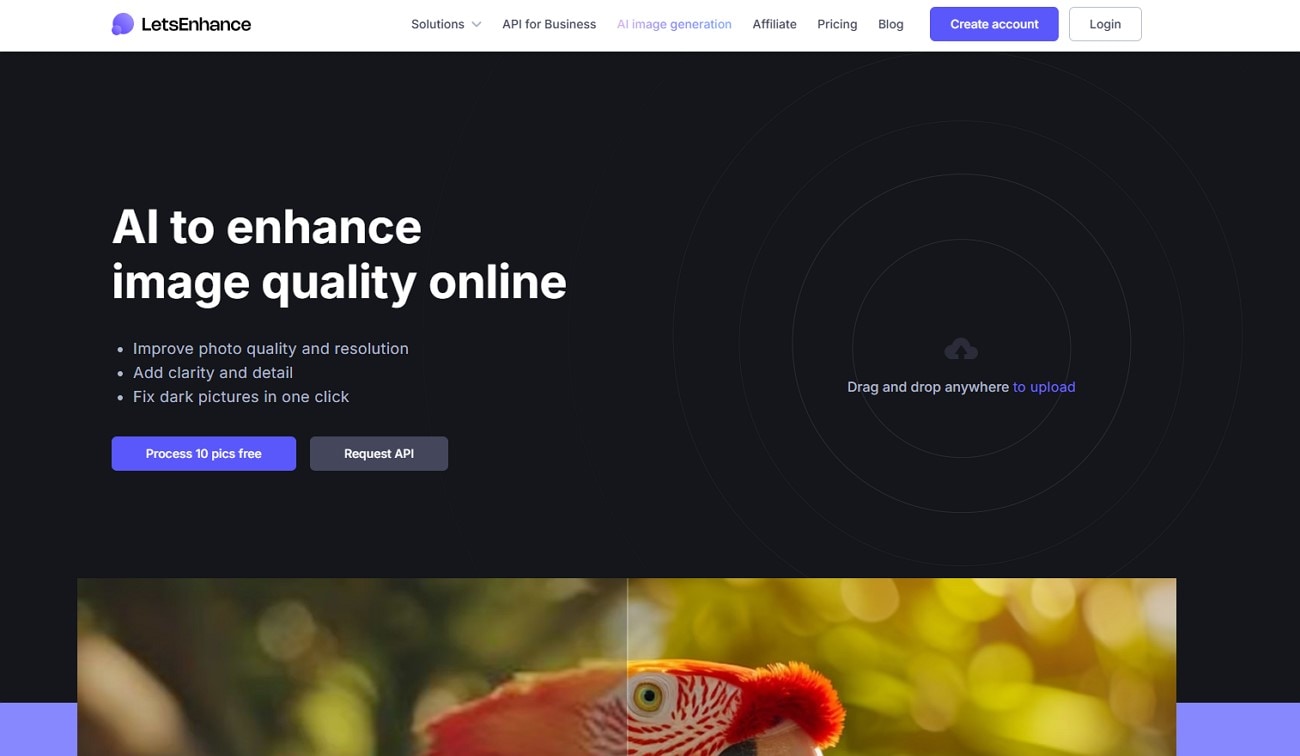
Another cutting-edge tool favoured by creators and professionals for its online freemium AI image sharpener models and advanced photo enhancement tools is Let’s Enhance. Its photo restoration ability allows users to transform low-quality images into clear and pleasing visuals in one go. In addition, this tool utilizes deep AI technology to identify lost details and blueness to reconstruct into stunning graphics.
Key Features
- The Magic Upscaler model enables users to specifically detect image softening and enhance visual clarity.
- Users can consume Smart AI Enhance and Photo Enhance tools to produce exclusive images.
- It can enhance photo quality with up to 16x resolution, making them perfect for professional usage.
- You can sharpen images with the seamless integration of HDR filters and color correction.
Step-by-Step Guide to Sharpening Photos with Let's Enhance
Let's have a look at how you can sharpen a photo online using the Let's Enhance sharpening tool in the steps below:
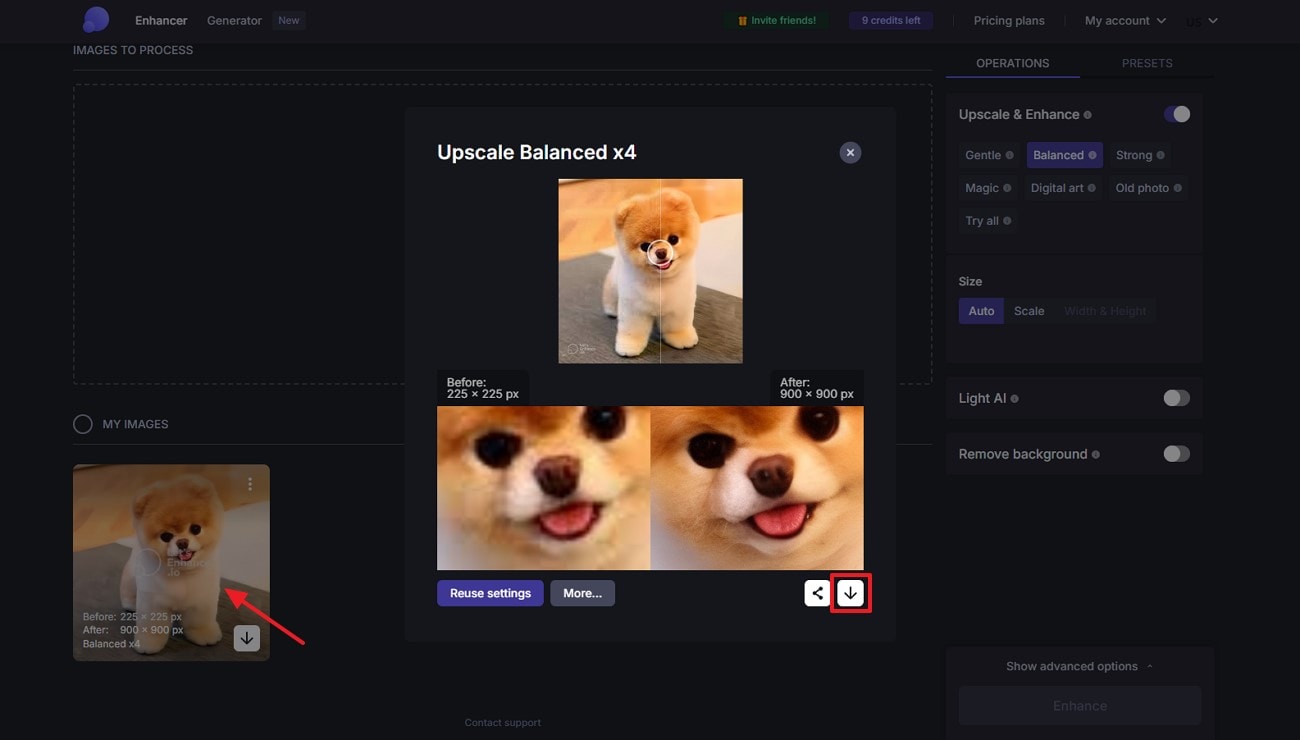
Step 1. Upon signing into the Let’s Enhance image editor, ensure you are at the “Enhancer” tab and “Import” your image from the device using the designated option. Turn the toggle on for the “Upscale and Enhance” option from the right side panel. Make other adjustments according to your preferences using the same panel and click on the “Enhance” button.
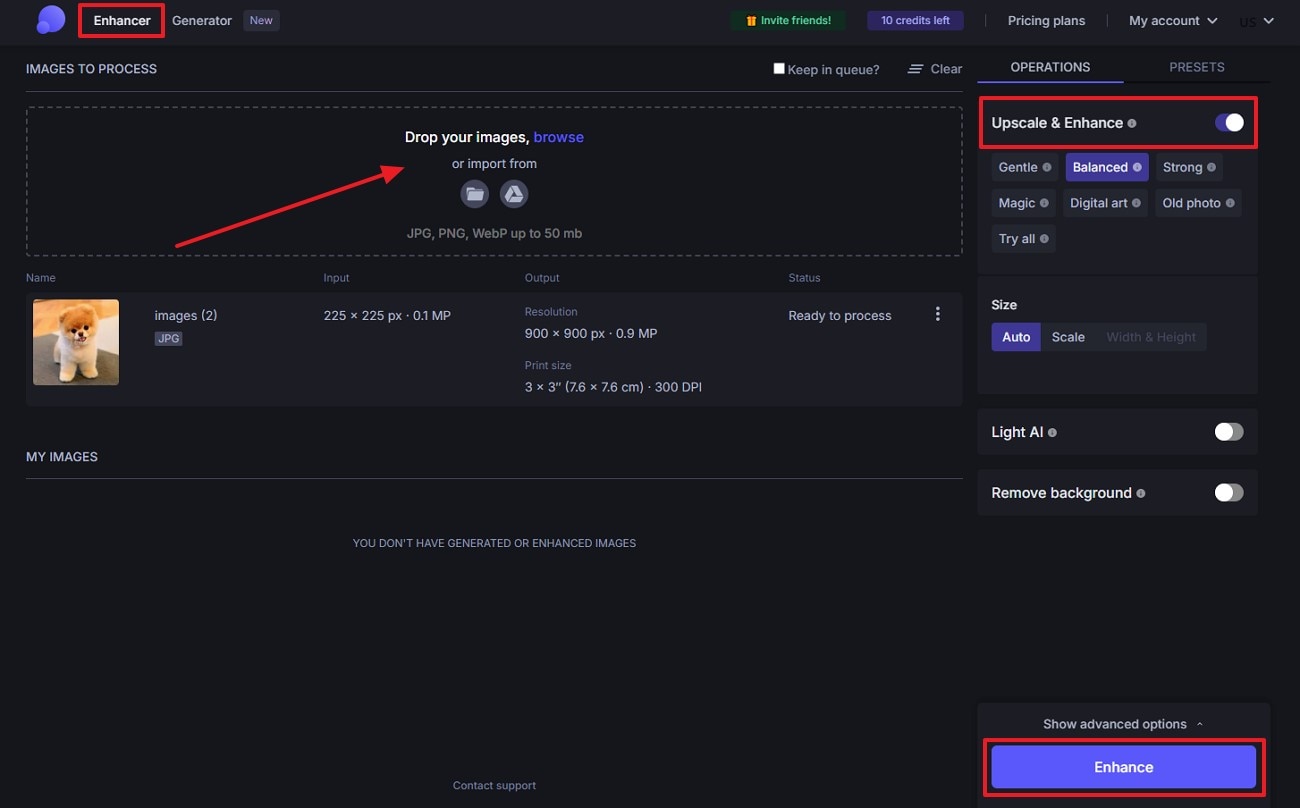
Step 2. Finally, preview your results from the preview window and click on the “Download” button to save the preferred image format on your computer.
3. Fotor AI
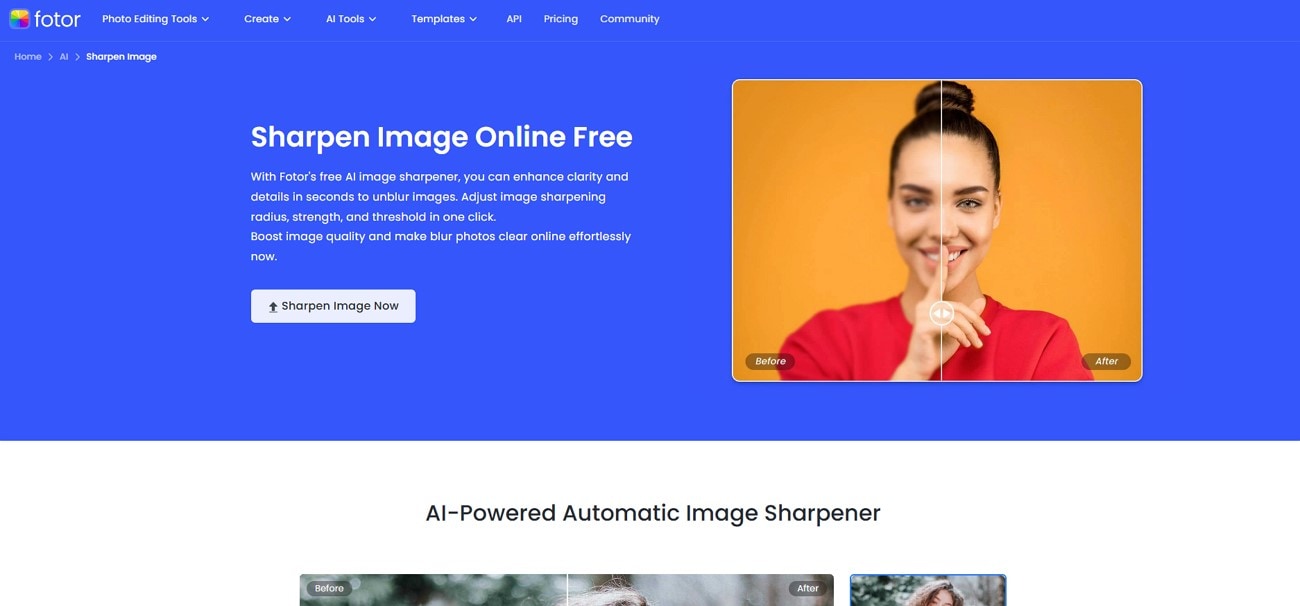
To boost the photo quality and image restoration, a notable free online image sharpener, Fotor AI, is available for creators and digital users. This tool does not require any technical and advanced learning skills to restore the image quality and preserve your favorite memories. Additionally, it gives fix blurry and sharpen out-of-focus tools to enhance fuzzy and low-resolution images with quick operability.
Key Features
- With the enhanced image detail and texture tool, Fotor AI effectively restores image edges and intricate details to create refined photos.
- It analyzes the minor details of the image and AI scan to instantly sharpen the soft visuals.
- From the AI tool library, users can sharpen blurry images online in no time.
- The photo clarifier tool allows users to sharpen the text in photos using AI-inferred image details.
Step-by-Step Guide to Sharpening Photos with Fotor AI Image Sharpener
Follow these easy guidelines to sharpen photos online using the advanced AI features of Fotor AI Image Sharpener:
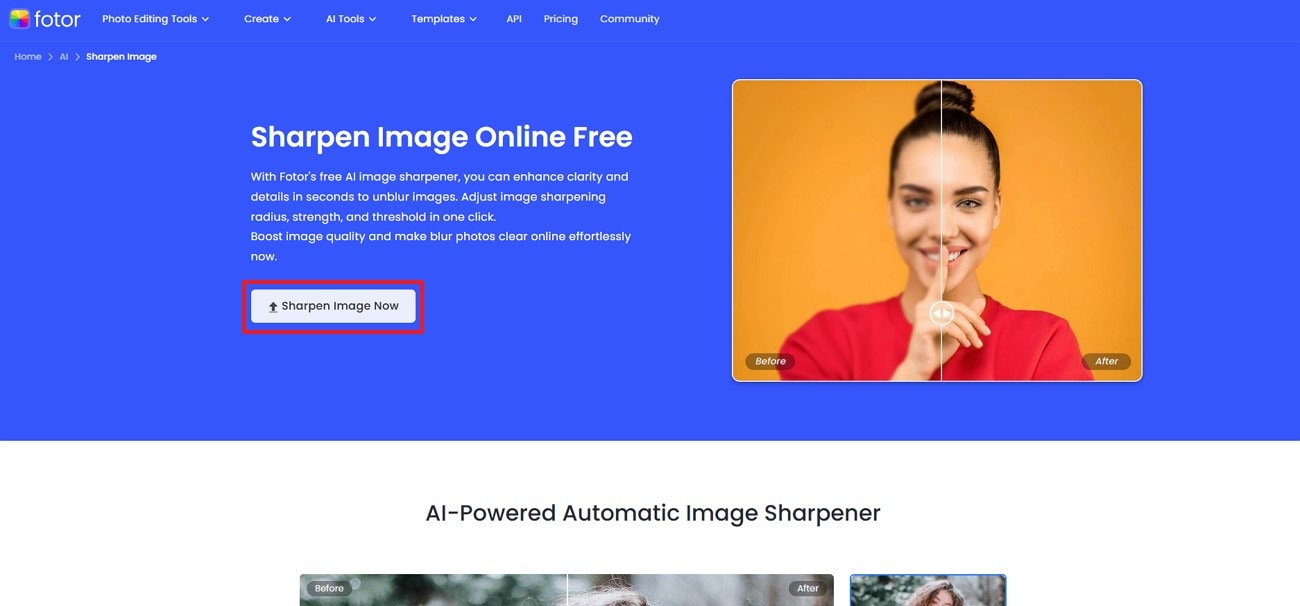
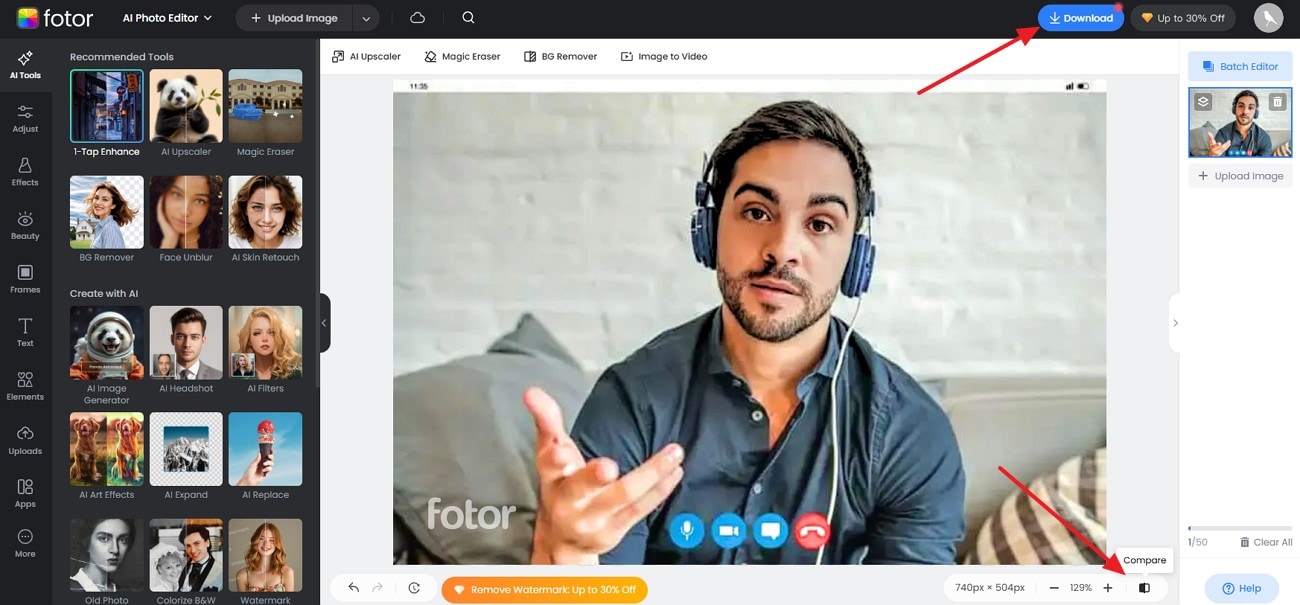
Step 1. Go to the homepage of Fotor AI Image Sharpener and click on the “Sharpen Image Now” tab to upload your image from your desktop.
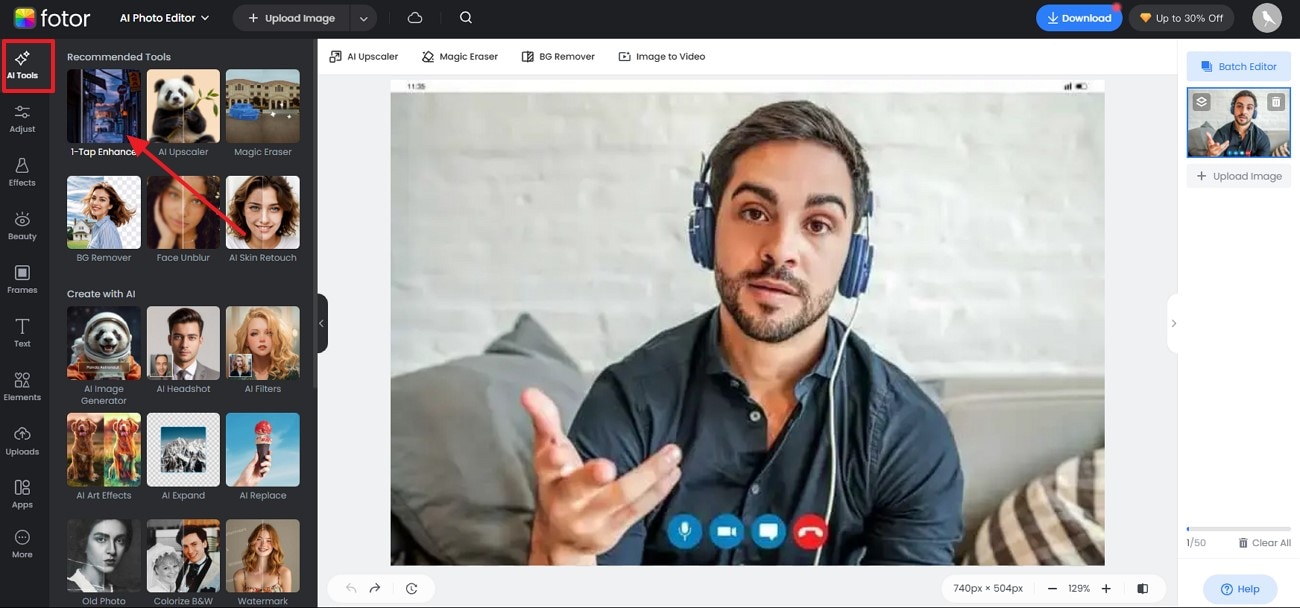
Step 2. Navigate to the “AI Tools” section and choose the “1-Tap Enhance” feature from the left panel of the window.
Step 3. Click on the "Compare" icon from the lower panel of the preview window to review the before and after results. Finally, select the "Download" button to save the image on your device.
Part 3. Best 3 Apps to Sharpen Images on Mobile
Mobile photo editing tools have transformed the way of sharpening blurry and fuzzy images via fast processing and direct accessibility from smartphones. Creators prefer these editing apps because of their real-time preview option and basic sliders for adjustments all within the taps on their fingertips. Some of the notable AI image sharpener apps are discussed in this part for your consideration:
1. Remini
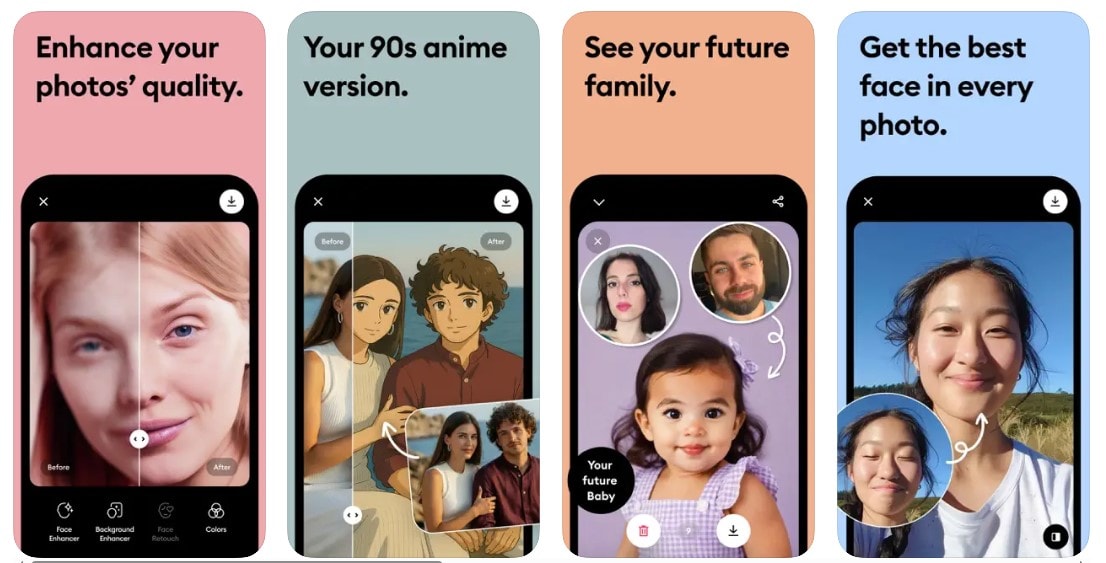
Remini has set the standard in AI photo enhancement tools for mobile devices due to its transformative technology that brings life to your old and distorted images. This application has a variety of enhancement features both for creators and professionals to transform their pixelated images into visually appealing ones.
Key Features
- It allows users to boost image clarity through AI-driven Unblur and Sharpener features.
- Users can revive vintage images by scanning the scratches and tears in photos using old photo restoration technology.
- This tool has the ability to restore low-resolution videos through the upscaling video enhancement.
- Small-size images can be given a new breath of life by increasing the quality and size up to 800x.
Simple Guide for Image Sharpening Through Rimini Mobile App
Below is a quick and straightforward step-by-step guide on how to sharpen your image using the Rimini Sharpener tool:
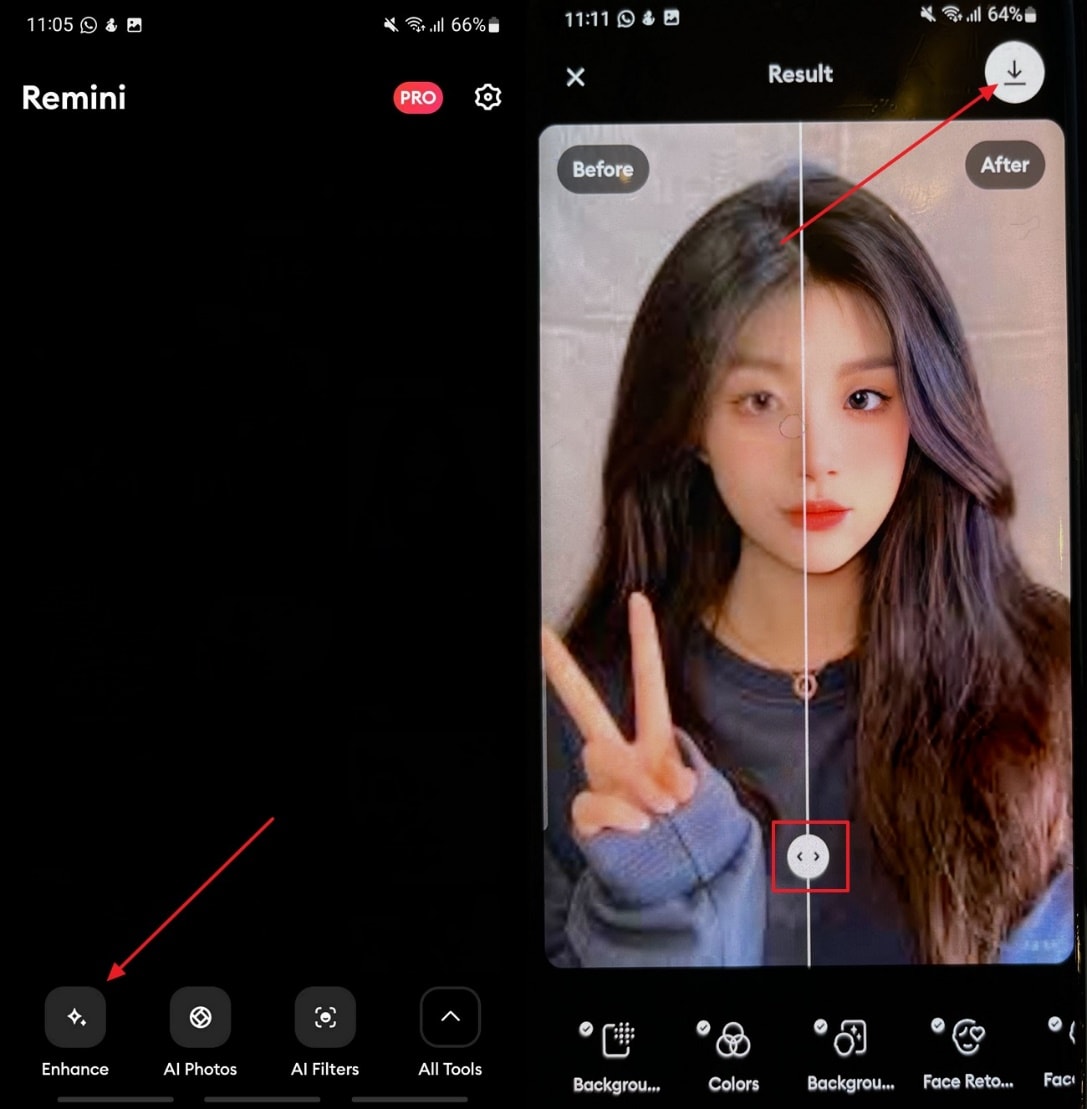
- After opening the app, tap on the “Enhance” button from the home screen and choose your image from the gallery.
- As the tool automatically enhances the image, drag the slider to view the changes in your image.
- Once previewed, tap on the "Download" icon and press the "Save" button.
2. Picsart (iOS/Android)
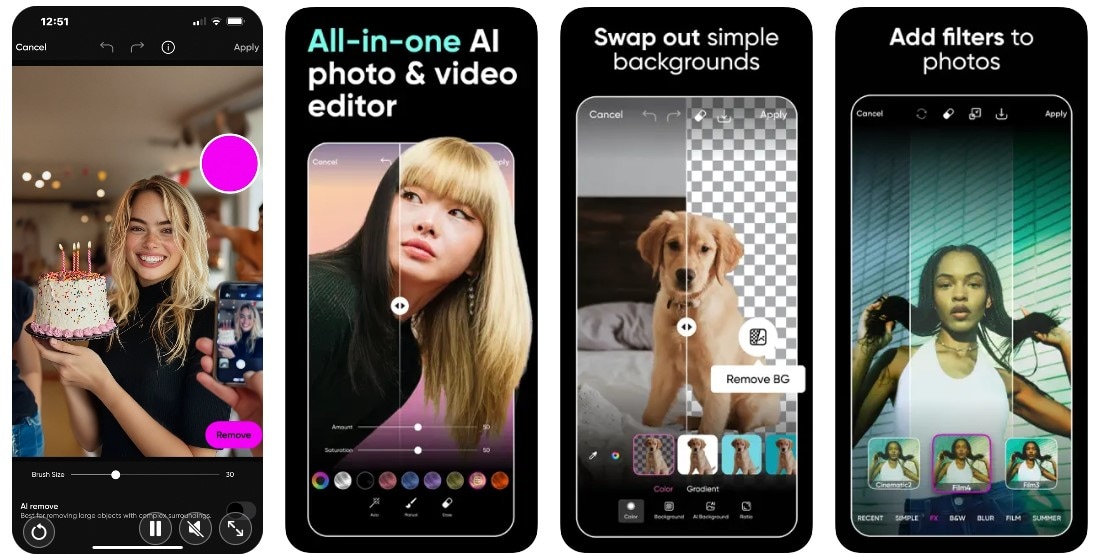
Designed for creators, Picsart is a renowned app for editing photos as well as video frames in a quick and easy way. This tool offers basic editing features, along with advanced AI tools, to sharpen pictures online and offline, making it an all-in-one creative platform for everyone. Additionally, the Quick Edits feature allows you to recreate effects and edits on your photos with a single tap on your smartphone.
Key Features
- The Magic Effects feature of this app gives your photos an artistic look through AI-powered filters.
- Graphic creators utilise trending backgrounds with 16+ colours and 23+ patterns in seconds.
- For printing and digital sharing, AI Upscale models can easily enlarge photo sizes without compromising minor details.
- AI-enhanced tools can transform your image into a vivid and sharp visual by reducing blurriness and haze.
Simple Guide for Image Sharpening Through Picsart Photo Editor
To enhance your images using a free online image sharpener like Picsart photo editor, follow the steps below:
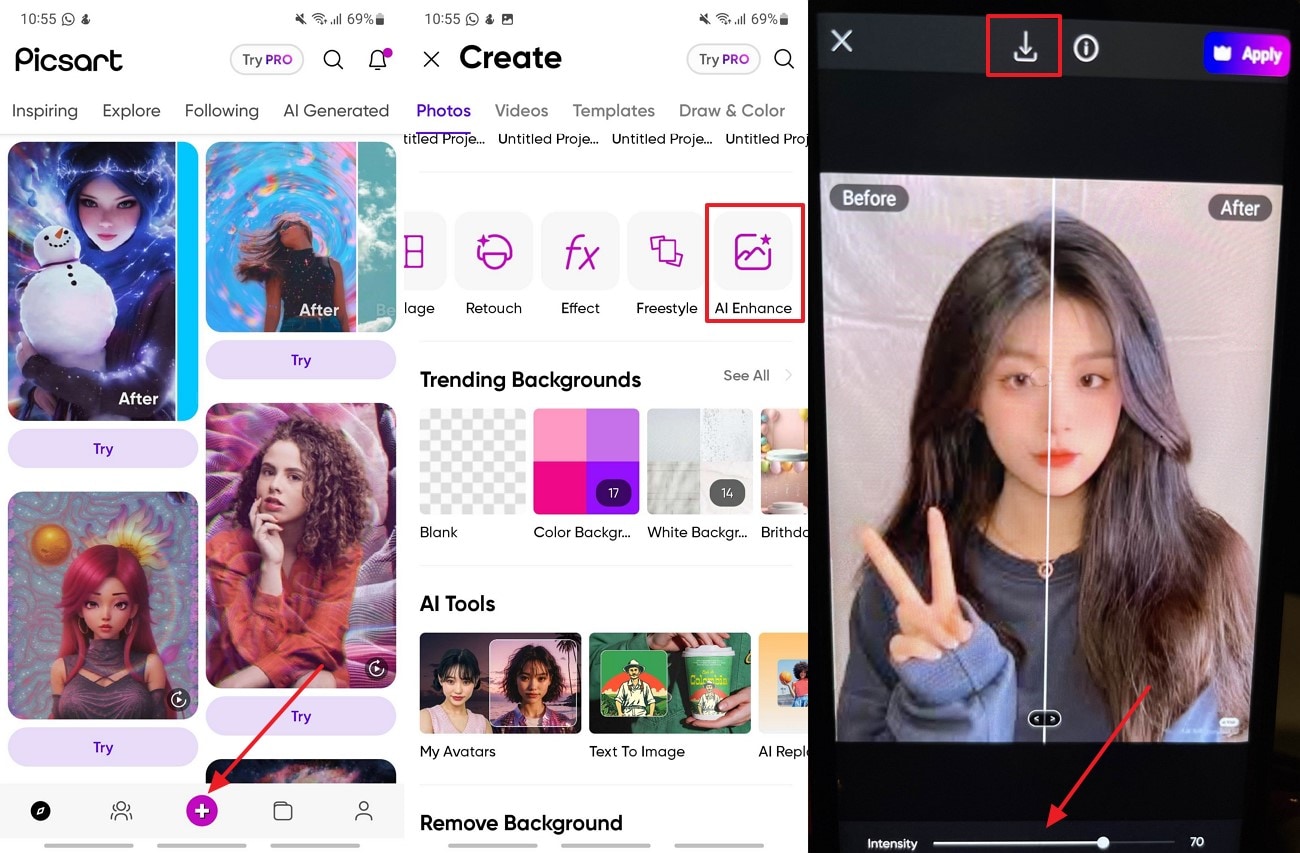
- From the app homepage tap on the “+” icon, scroll through the toolbar and click on the “AI Enhance” button to import your image for enhancement.
- Upon doing so, the tool automatically starts enhancing the image, which can be previewed and futher adjusted using the “Intensity” slider.
- Tap on the “Download” icon present on the top of the enhancement screen to save the sharpened image.
3. Snapseed (iOS/Android)
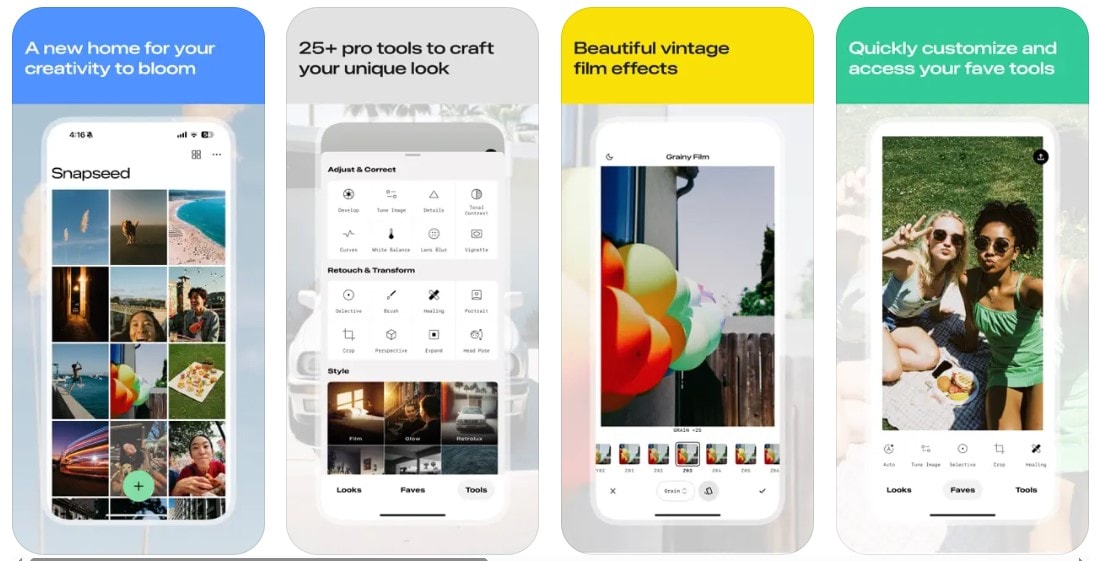
A professional-grade image-sharpening online free tool that offers a double exposure feature to enhance your images is Snapseed. This tool is relatively different from others because of its ad-free experience, which is favoured among amateurs and professional creators. Furthermore, it offers manual control for editing and fine-tuning the blurry images into visually striking photos.
Key Features
- It offers HDR and advanced photo enhancement tools to brighten your soft images.
- Snapseed offers support for both RAW and JPG formats, allowing for enhanced image quality with complete control over editing.
- This app features the latest updates displayed on the homescreen toolbar, providing easy access.
- The healing tool enables users to remove any unwanted and undesired elements from images.
Simple Guide for Image Sharpening Through Snapseed
Here in the guide, easy stepwise instructions are given to transform your soft images into vivid ones through Snapseed:
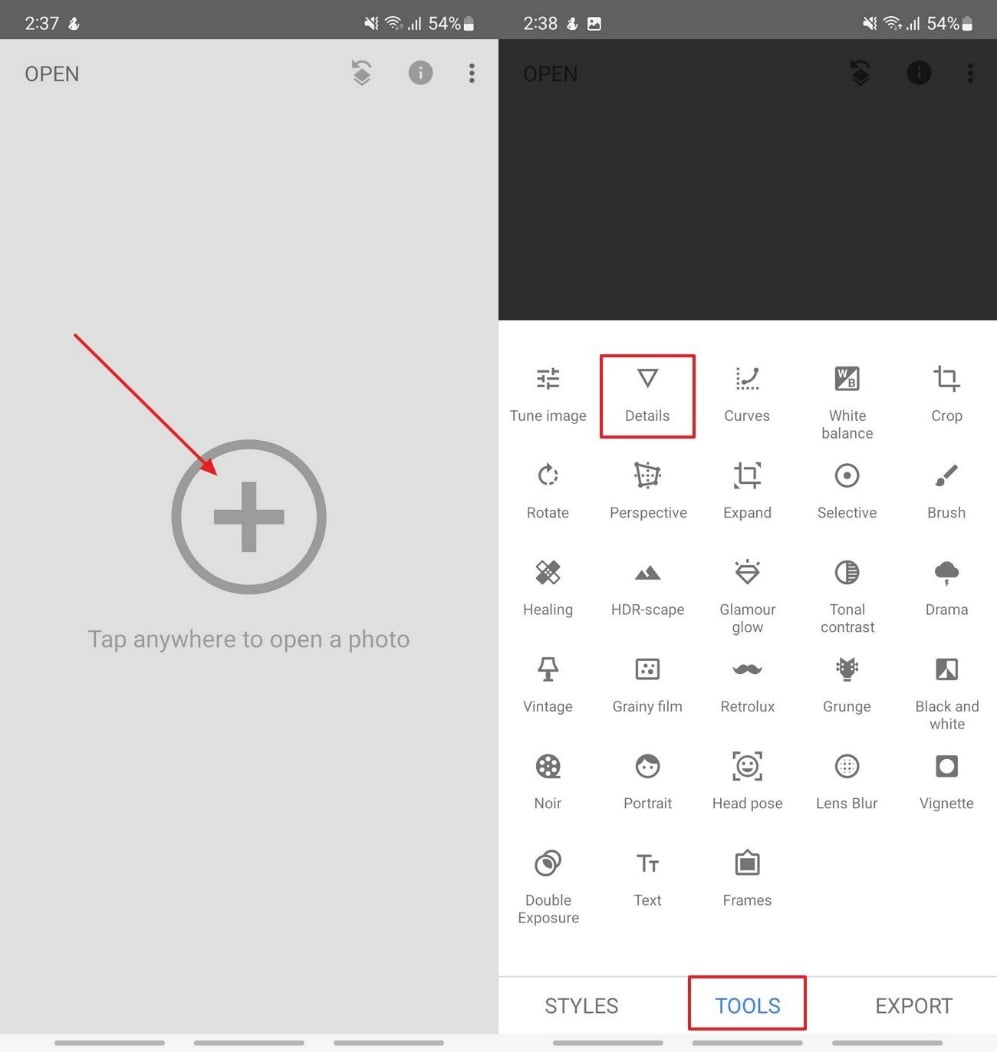
Step 1. Tap the "Open" button at the top left of the homescreen and select any image from your device's gallery to import. Choose the "Tools" option from the bottom toolbar, select the "Details" feature, and press the "Tick" icon.
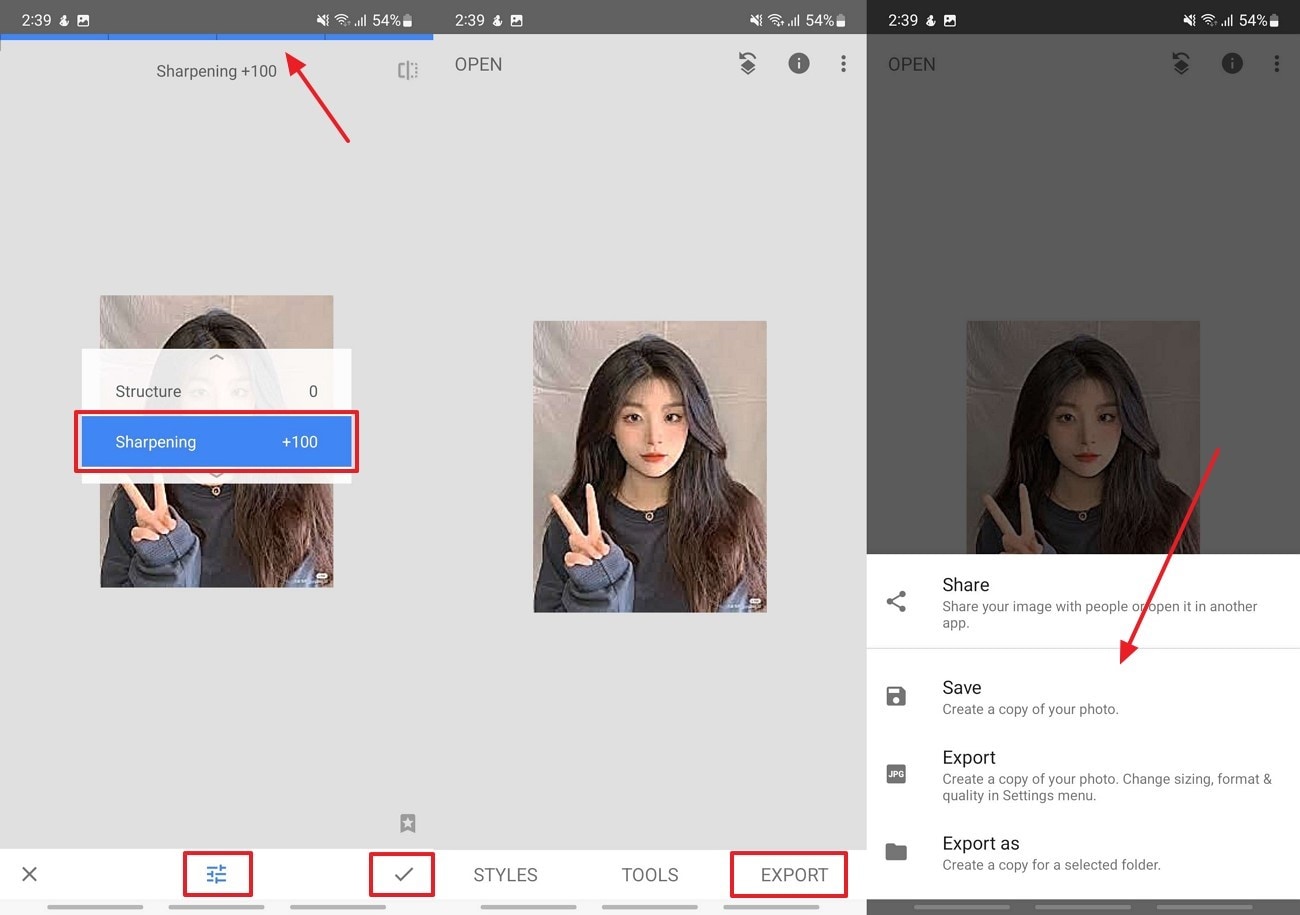
Step 2. Next, from the “Slider” icon at the bottom select the “Sharpening” option and drag across the screen to adjust the slider at the top. Once you are satisfied, tap on the “Tick” icon and select “Export” to “Save” the sharpen image to your device.
Easy to Use Batch Image Sharpener
Part 4. Quick Comparison of the Online Image Sharpener Tools and Downloaders
The following table is a quick comparison between all the sharpen photo online tools and apps, highlighting key criteria:
| Tool/App | Pricing | Batch Processing | Unique Feature | Ads Density | Platform Usage |
| UniConverter |
Monthly Plan:$9.99/month Yearly Plan:$29.99/yr Perpetual Plan:$39.99/one time |
Yes | 4K to 8K image and video processing feature. | None | Windows and Mac |
| Topaz Labs Sharpen AI | Photo AI:$199/yr | Yes | It has AI image sharpen for multiple blur photo types | None | Windows, Mac, and Web (limited) |
| Aiarty Image Enhancer |
Standard License: $75 Lifetime License: $99 |
limited to 1000 images | Image Upscaling up to 32K and pro artifact removal | None | Windows and Mac |
| VanceAI Image Sharpener |
100 Credits: $4.95 200 Credits: $7.95 500 Credits: $12.95 1000 Credits: $17.95 |
Yes | 4 AI models for sharpening and denoising images | None | Online & Windows |
| Lets Enhance |
Starter:$9/month Pro: $24/month Max:$34/month |
Yes | It gives 16x Upscaling of images | None (with paid subscription) | Online |
| Fotor |
Pro:$3.33/month Pro +:$7.49/month |
Yes (Pro+ only) | Real-time AI image sharpening features | Yes, in the free plan | Online, Windows, Mac, iOS, Android |
| Remini (Mobile App) |
Remini Pro Weekly:$9.99/week Remini Lite Weekly:$7.99/week |
Limited on Web and No in Mobile App | Face and Video restoration feature with AI portrait focus tool | Yes, in the free version | Web and Mobile (iOS/Android) |
| Picsart (Mobile App) |
Picsart Plus:$5/month Picsart Pro:$7/month |
Yes | AI-powered editing tools and templates | Yes, in free and no in paid version | Web and Mobile (iOS/Android) |
| Snapseed (Mobile App) | Free | No | Non-destructive edits and manual editing feature | None | iOS, Android |
Conclusion
After thoroughly reviewing some of the latest AI tools to sharpen photos online, it is clear that each offers unique strengths and robust AI features. Among them, UniConverter stands out as one of the best in providing intelligent AI sharpening of soft and blurry images without damaging the original quality. Therefore, it is a highly dependable solution for creators and professionals to reform their scarred images into visually striking ones.
Easy to Use Batch Image Sharpener
FAQs
-
1. Is UniConverter the best choice for both Windows and Mac users?
Yes, UniConverter is a fully featured desktop tool that enables users to transform their images reliably and efficiently as compared to other AI sharpen photo online tools. -
2. Do other popular apps, like Remini and Picsart, offer an ad-free experience?
No, Remini and Picsart include ads in the free versions, and users require a paid subscription for an ad-free experience. In contrast to others, UniConverter offers uninterrupted image sharpening with a paid desktop version. -
3. How do creators decide which AI image sharpening tool is best for their work?
The most prominent feature of advanced and well-known tools like UniConverter for photo editing is their ability to process batches of photos, which helps creators convert multiple images at once. -
4. Do I need the internet for using UniConverter and other desktop photo sharpening tools?
No, you do not need internet to use core features, as UniConverter offers image enhancing and processing with its offline desktop facility. Likewise, with Topaz Labs and Aiarty, you can also edit your photos without an internet connection.

