


Facebook is a treasure trove of memories, filled with photos that capture special moments. But what happens if you want to download a Facebook image and save those precious images to your device? Whether it's a single snapshot, a cover photo, or an entire album, downloading Facebook photos is easier than you might think. This guide will walk you through various methods, from simple saves to using specialized software, ensuring you never lose a cherished memory.
In this article
- Part 1: How to Easily Save Photos from Facebook to Your Camera Roll :Official Way
- Part 2: How to Download a Facebook Photo Album (Official)
- Part 3: How to Download Own Account Photos from Facebook(Official)
- Part 4: How to Download Facebook Photo Online or by Extension
- Part 5: Facebook Photo Download Methods: Which Should You Choose?
- Part 6: Is It Legal to Download Other People’s Facebook Photos?
- Part 7: How to Enhance Downloaded Facebook Photos in Batch at Lossless Quality
- Conclusion
- FAQs
Key Takeaways
- Facebook provides official methods to download single photos, albums, and personal data easily.
- Individual images can be saved directly via right-click (desktop) or long-press (mobile).
- Albums can be downloaded as a ZIP file using the built-in “Download Album” feature.
- For higher quality, use Download Your Information to avoid heavy compression.
- For batch downloads and lossless quality, tools like UniConverter offer a faster and more flexible solution.
Part 1: How to Easily Save Photos from Facebook to Your Camera Roll : Official Way
Facebook is a great place to share memories, but sometimes you may want to keep certain photos saved on your device. Whether it's a personal moment or an important post, downloading images from Facebook is quick and simple. Follow these steps to download a picture from Facebook directly to your phone or computer.
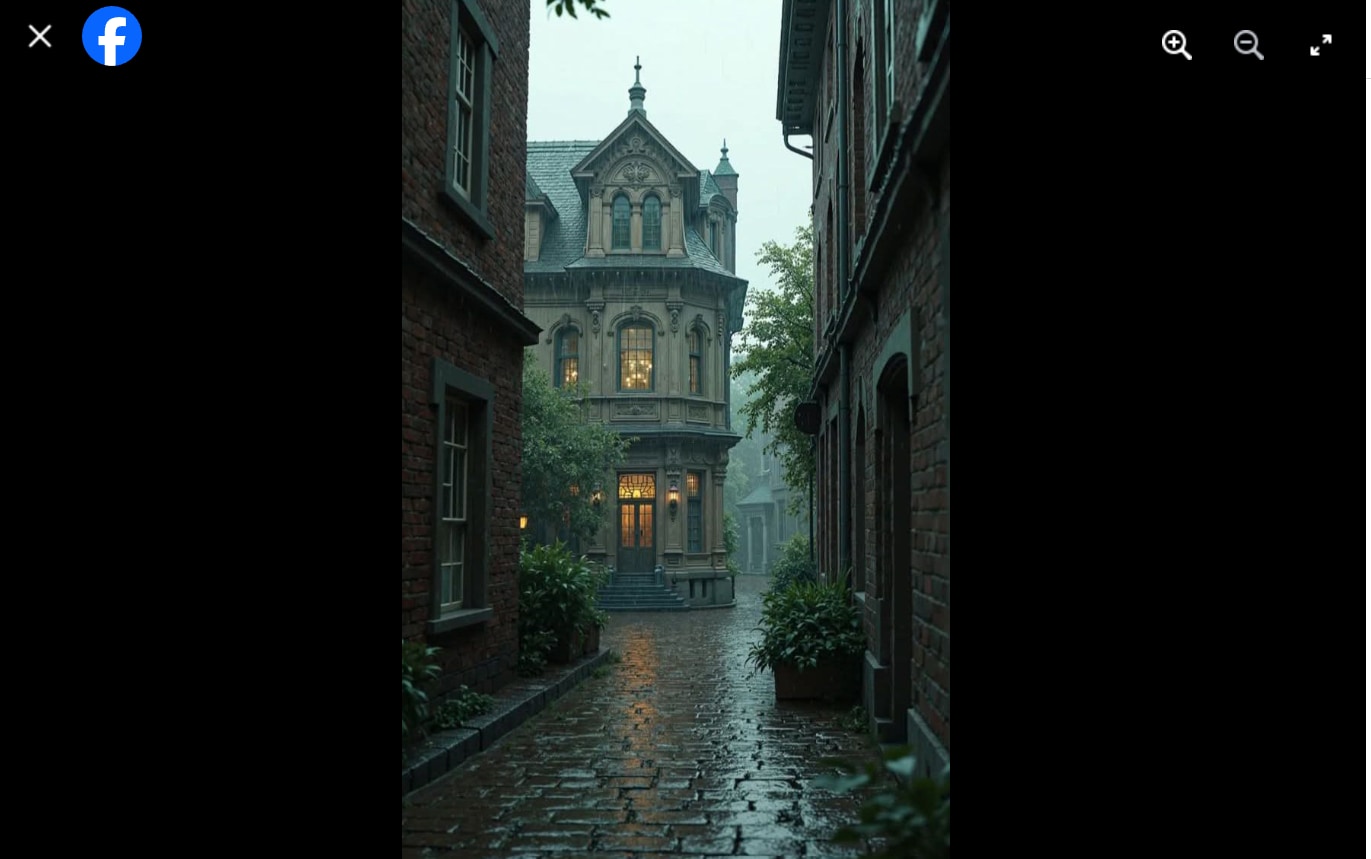
Step 1: Open the Facebook photo
Launch Facebook and locate the image you want to save. Tap or click on the photo to expand it to full screen. This ensures you are selecting the correct image and viewing it in its best quality before saving.
Step 2: Select the save option
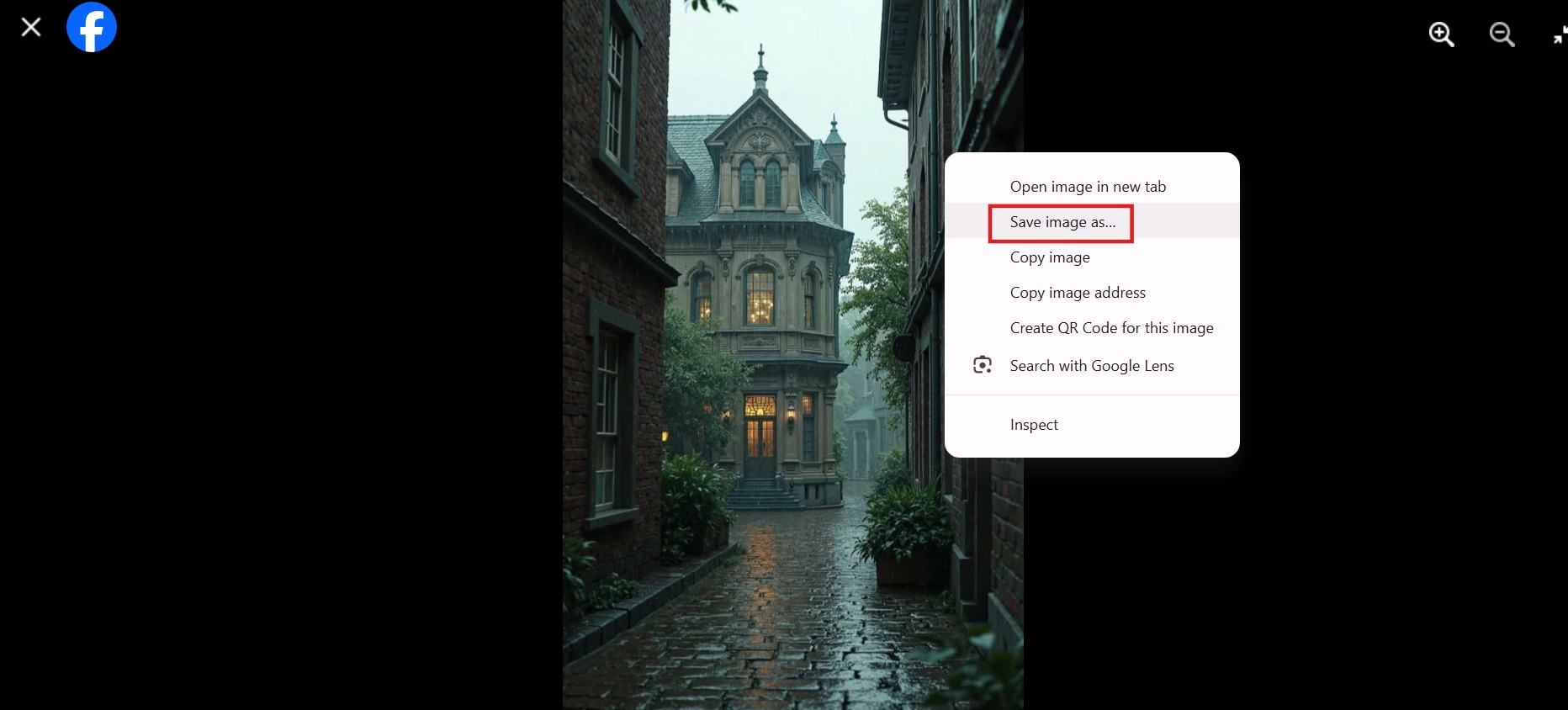
On mobile, press and hold the image until a menu appears, then select Save to phone. On a computer, right-click on the image and choose Save image as from the dropdown menu. This will allow you to download and store the image on your device.
Step 3: Save the image to your device
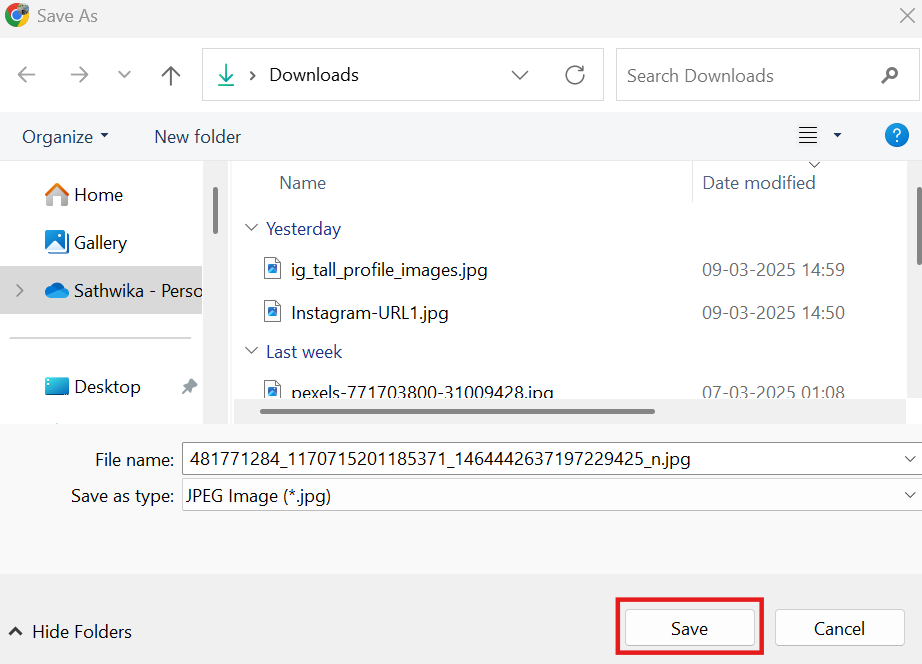
On mobile, the image will be saved directly to your phone’s gallery or camera roll. On the desktop, choose a destination folder (such as Downloads or Pictures) and click Save to store the file. Once saved, you can access the image anytime from your device.
Part 2: How to Download a Facebook Photo Album (Official)
Downloading a Facebook photo album can be useful when you want to back up your memories or save multiple pictures at once. Instead of manually saving each image, Facebook offers a built-in option to download entire albums in just a few steps. Follow this guide to download all Facebook pictures from an album efficiently.
Step 1: Open Facebook and Go to Your Albums
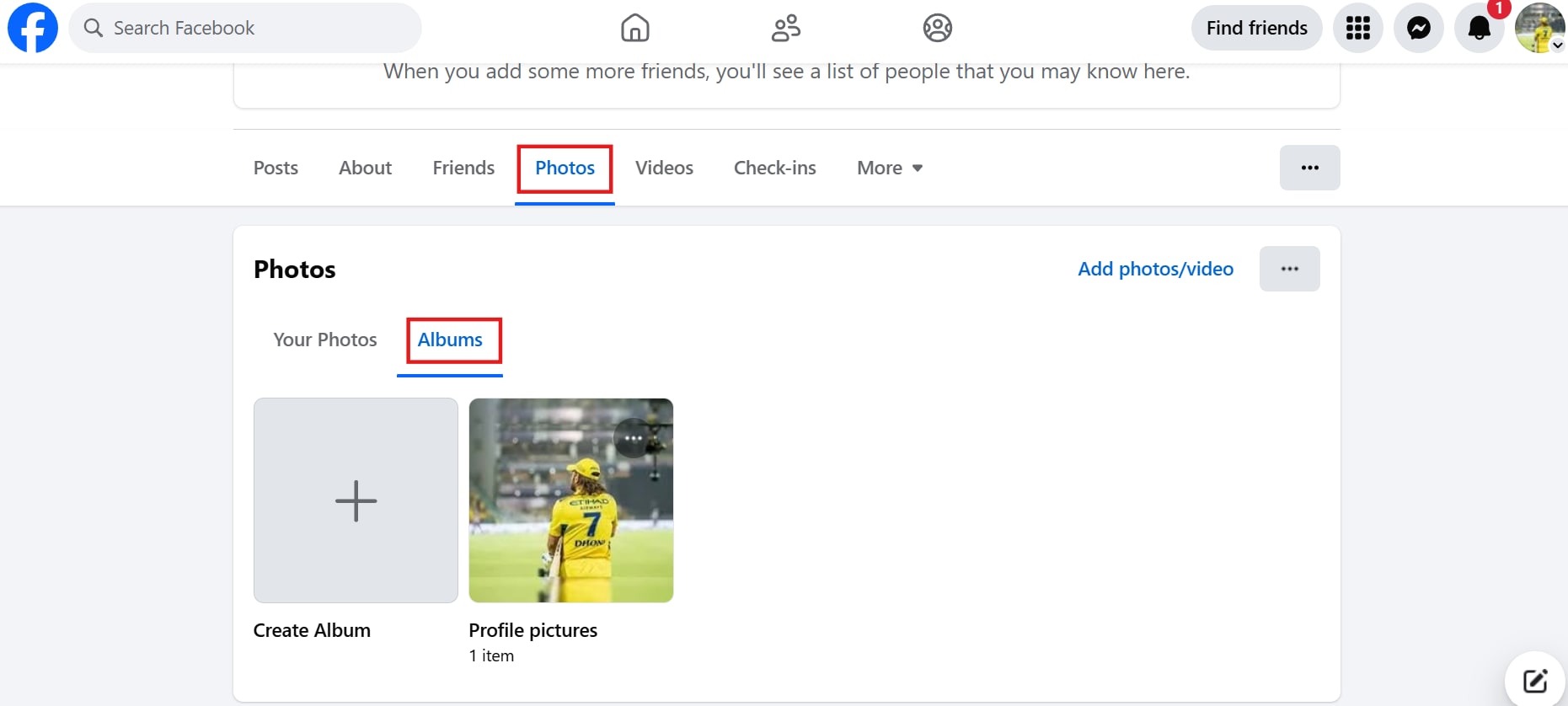
Log in to your Facebook account from a web browser and click on your profile picture. Navigate to the Photos section and then select Albums to view all your saved photo collections. Choose the album you want to download and open it.
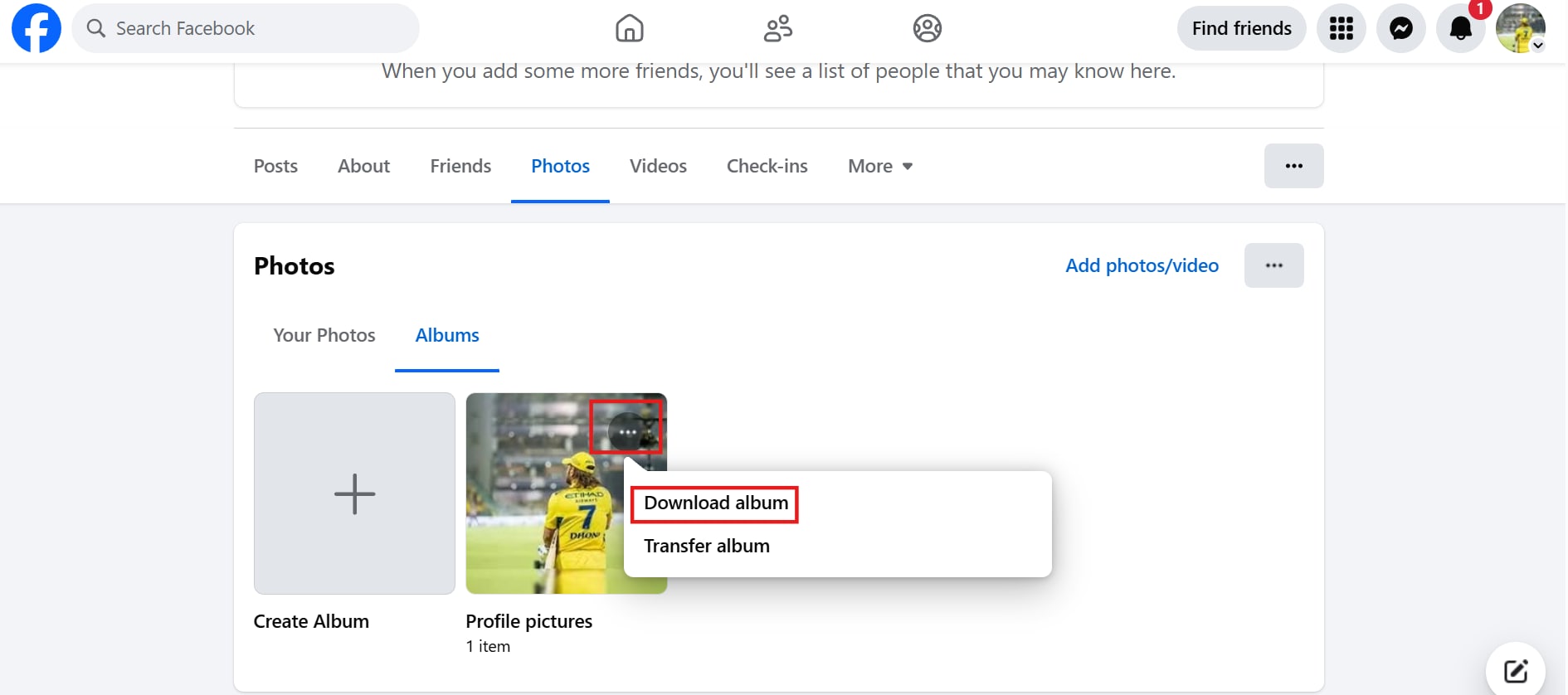
Step 2: Click on the Three-Dot Menu and Select Download Album
Inside the album, look for the three-dot menu in the top right corner of the page. Click on it to reveal a dropdown menu with multiple options. Select Download Album, and Facebook will begin processing your request to compile all images.
Step 3: Download and Save the Album
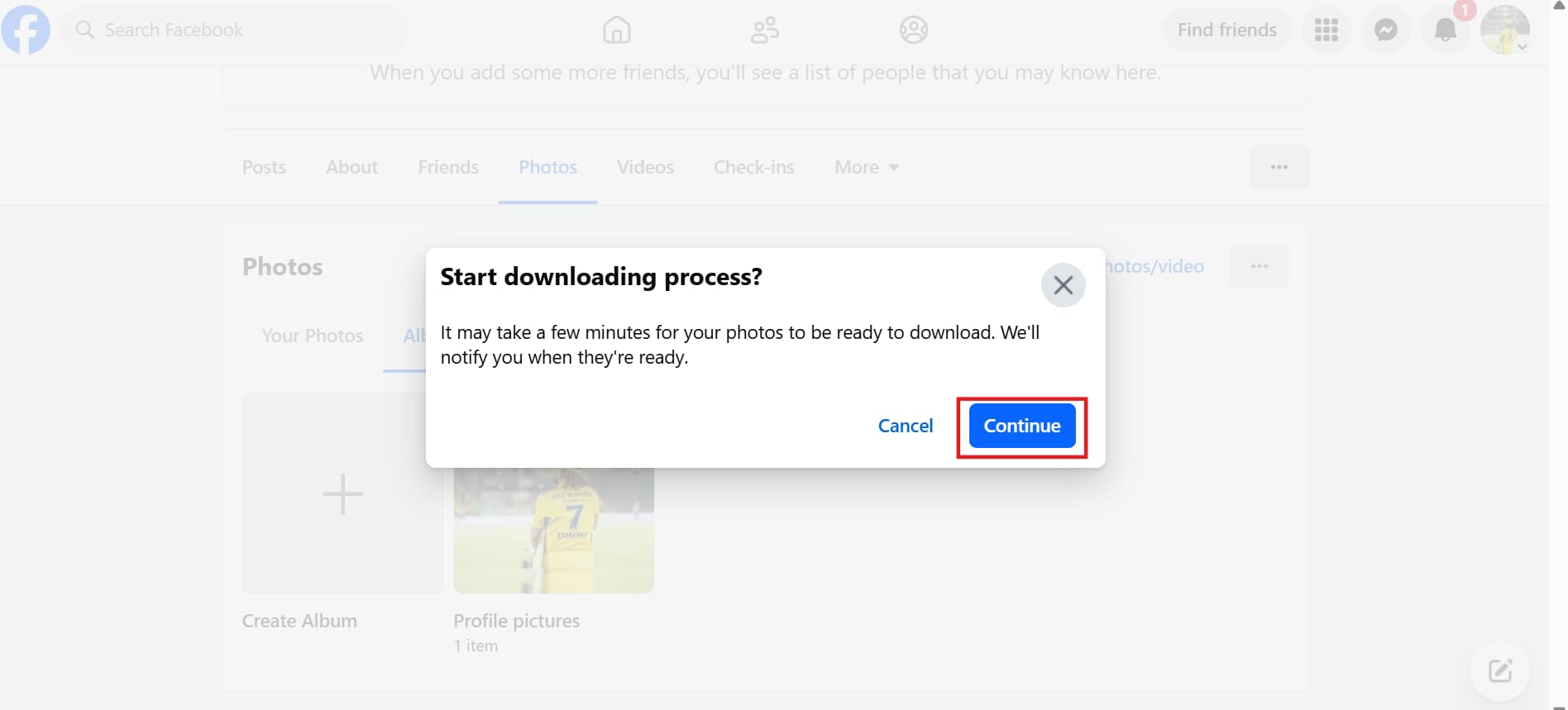
Facebook will take a few minutes to process the album and generate a ZIP file. Once it's ready, you will receive a notification on the website. Click on it to open a pop-up window asking for your Facebook password. Enter your password and press Continue to confirm the download. The album will then be saved as a ZIP file on your computer. After downloading, extract the file to access all your saved photos.
Part 3: How to Download Own Account Photos from Facebook (Official)
Facebook automatically compresses images when they are uploaded, reducing their quality when downloaded individually. However, you can still retrieve high-quality Facebook pictures by adjusting the right settings. The Download Your Information feature allows you to save your photos with minimal compression. Follow these steps to ensure you get the best resolution when downloading images from Facebook.
Step 1: Open Facebook and Access Settings
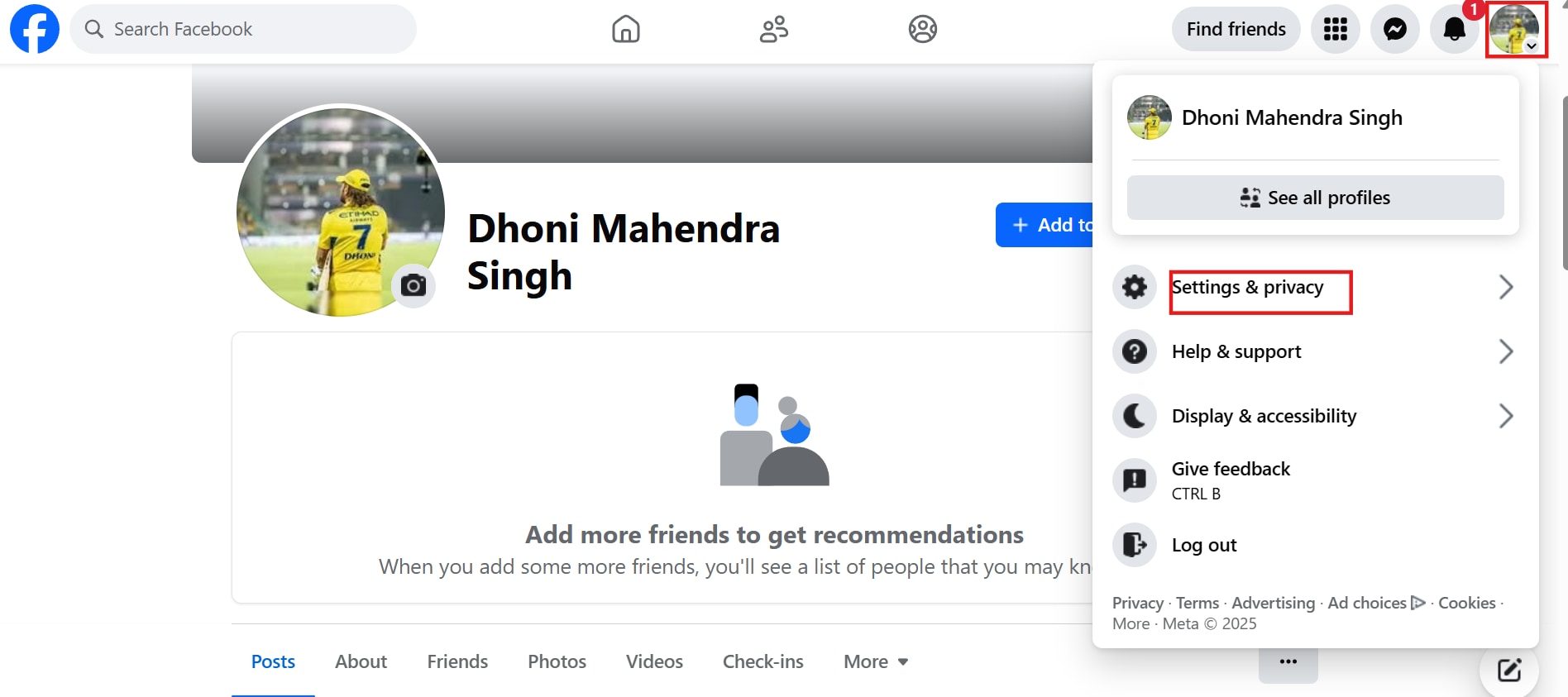
Click on your profile icon in the top-right corner of Facebook. From the dropdown menu, select Settings & privacy, then click on Settings. This will open the settings page, where you can manage your account information and privacy options.
Step 2: Navigate to the Meta Accounts Centre
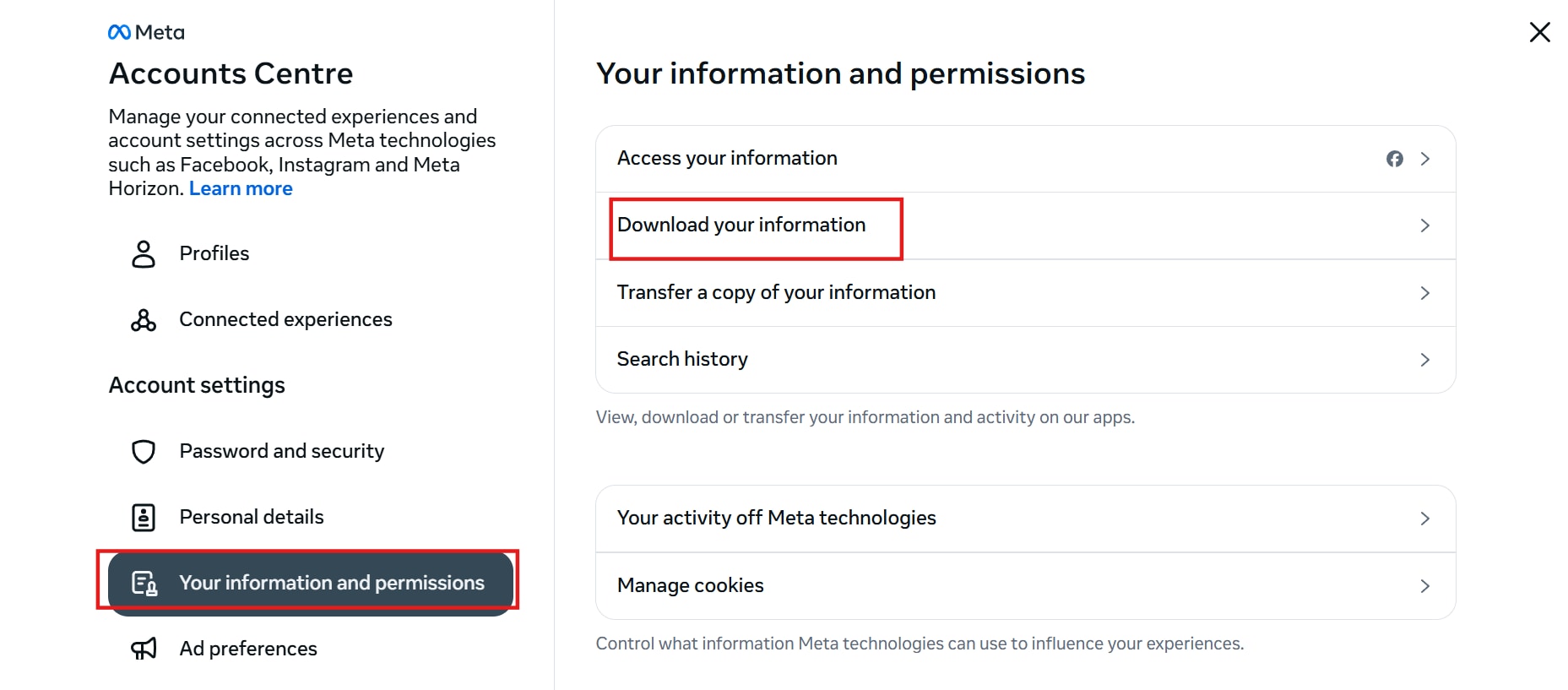
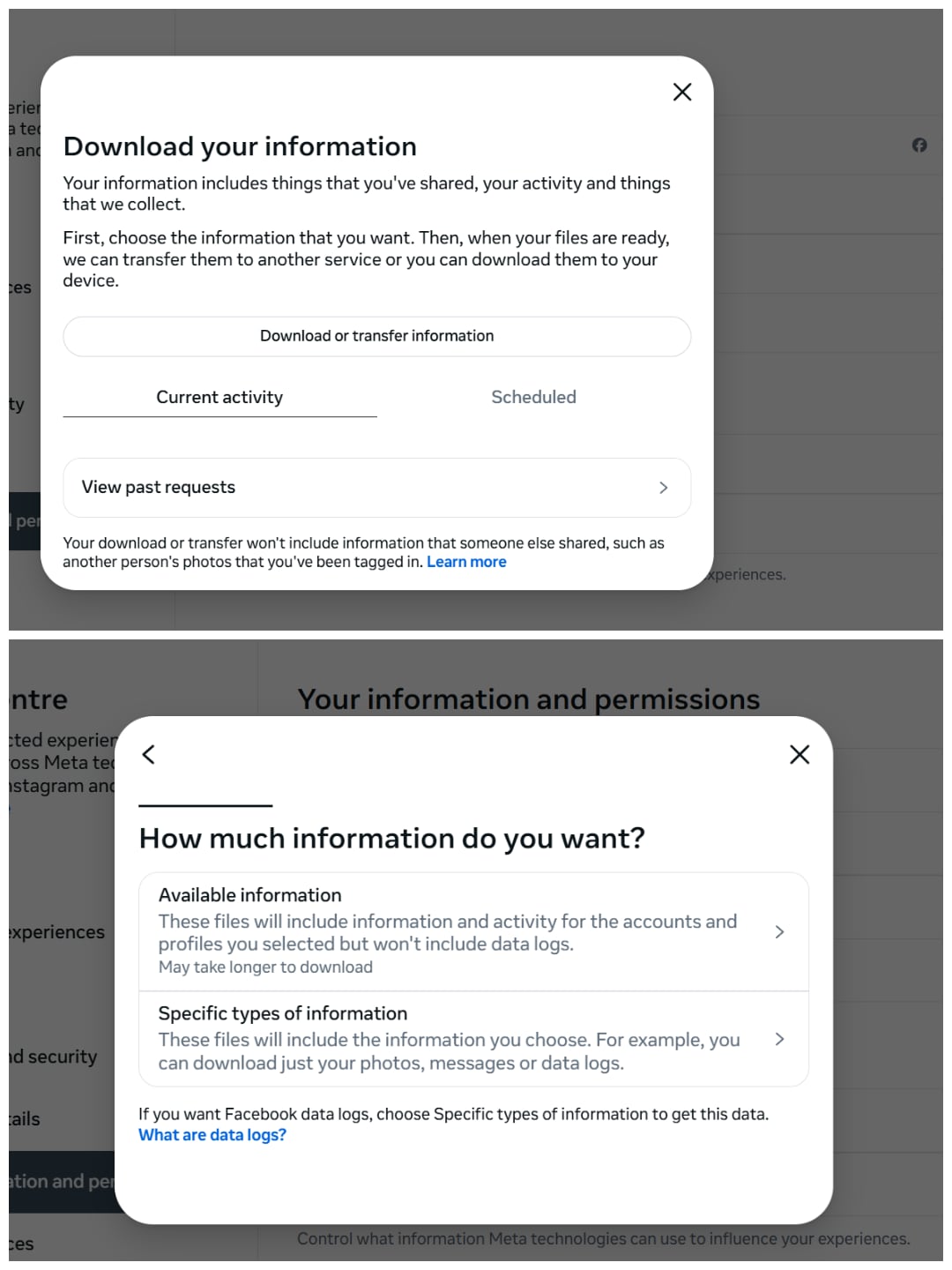
On the settings page, locate Your information and permissions in the left sidebar. Click on it to expand more options, then select Download your information. This section allows you to export and save your Facebook data, including photos and videos.
Step 3: Select Download or Transfer Information
Click on Download or transfer information to access your saved content. You will see options for downloading specific Facebook data, such as photos, messages, or activity logs. This ensures that you only retrieve the files you need instead of all stored information.
Step 4: Choose High-Quality Photos and Download
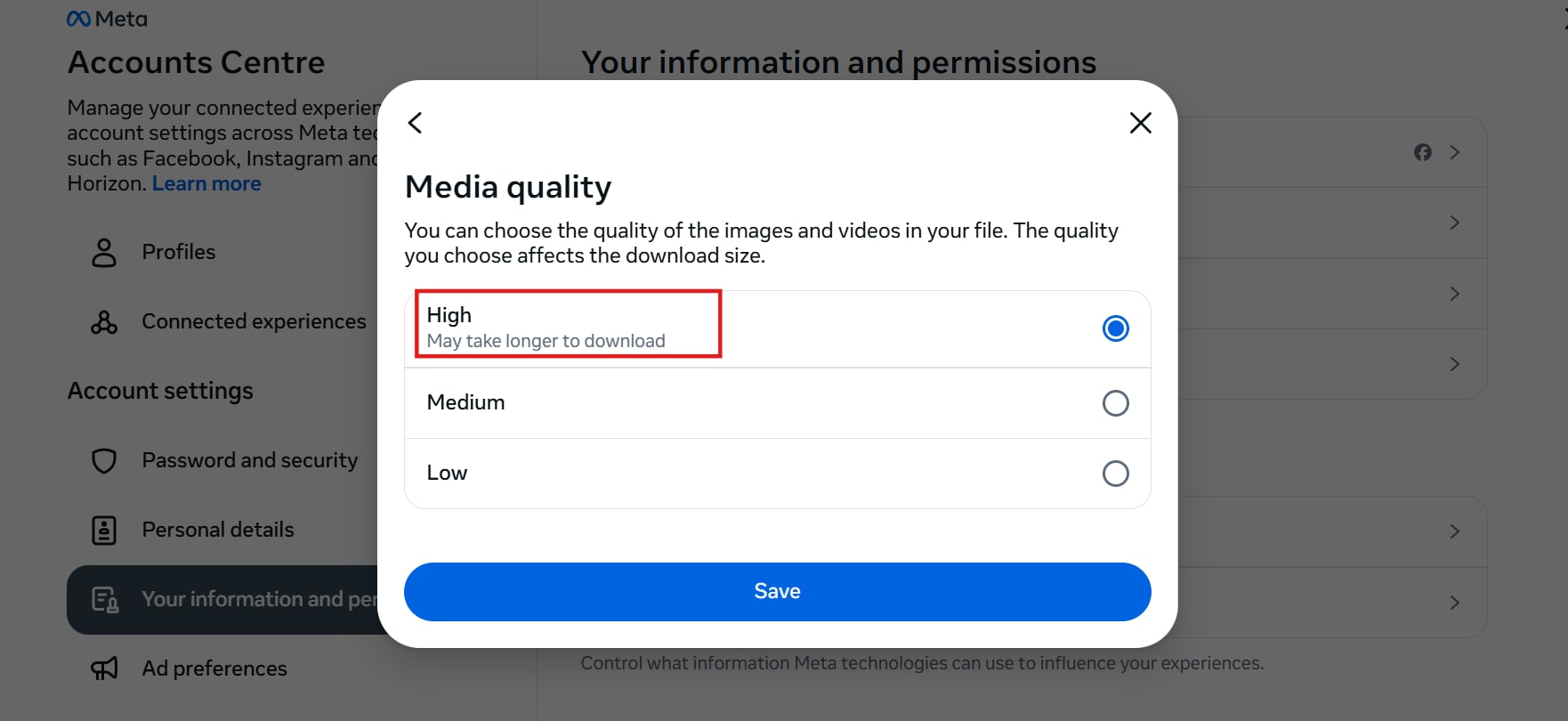
Select Available information to download all your Facebook data, including photos and videos. Click on Download to device to proceed with saving the files. Scroll down to find Media Quality, tap on it, and select High for the best resolution. Click Create File, and once Facebook processes it, you’ll receive a notification with a download link to save your photos.
Part 4: How to Download Facebook Photo Online or by Extension
Downloading Facebook photos individually can be a slow process, especially if you want to save multiple images at once. Using online tools, you can efficiently download Facebook images while maintaining high quality. These tools help users save Facebook profile pictures, cover images, and entire albums quickly. Below are three of the best options, along with their features, user reviews, and step-by-step guides.
How to Download Facebook Images Online
1. FDownloader.net
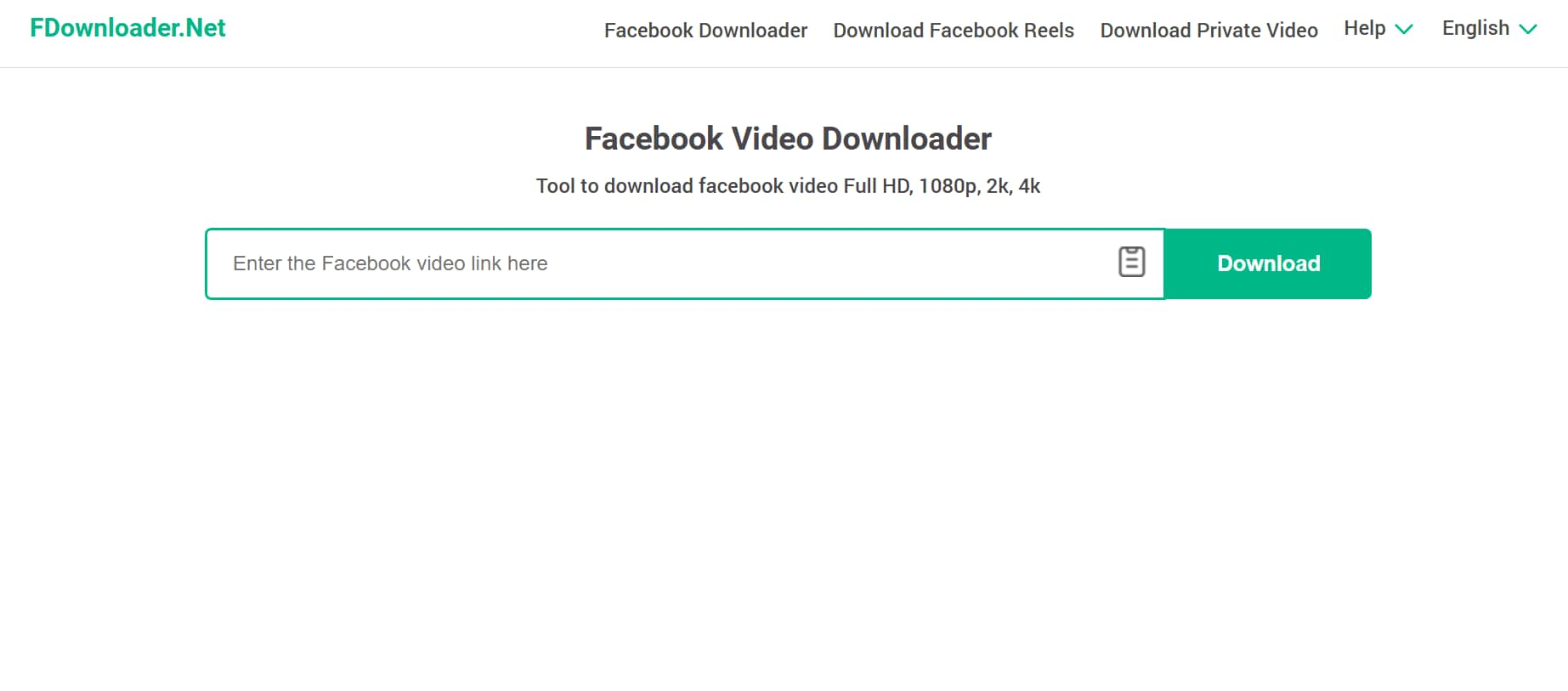
FDownloader.net is a user-friendly online tool designed for downloading photos and videos from Facebook without hassle. This tool is perfect for users who want a straightforward method without the need for software installation. With its fast processing speed and bulk download capabilities, FDownloader.net ensures that users can save high-quality Facebook images effortlessly.
- Easy-to-use interface: The tool is designed for simplicity, making it accessible to users of all experience levels.
- Batch downloading support: Users can download multiple photos from Facebook albums or posts in one go.
- Preserves original image quality: Ensures that downloaded photos retain their high resolution without compression.
- Quick and efficient downloads: Processes and retrieves photos instantly, reducing wait times.
- No installation or account required: Works entirely in a web browser, eliminating the need for additional software.
User Reviews
- FDownloader.net is my go-to tool for saving Facebook photos quickly. The batch download feature makes it super convenient! : Emily R.
- I love how easy it is to use. I don’t need to install anything, and I can download high-quality Facebook images in seconds. : Mark S.
- The ability to download multiple photos at once is a huge time-saver. It works perfectly on both my phone and laptop. : Sophia L.
Steps to Use FDownloader.net for Saving Photos from Facebook
Step 1: Copy the Facebook Photo URL
Go to Facebook and find the image or album you want to save. Right-click on the photo and select Copy Link Address from the menu.
Step 2: Open FDownloader.net
Launch your web browser and navigate to FDownloader.net. In the provided input field, paste the copied Facebook photo link.
Step 3: Download and Save the Image
Click the Download button, choose the preferred image quality, and save the photo to your device effortlessly.
2. HiTube Facebook Photo Downloader
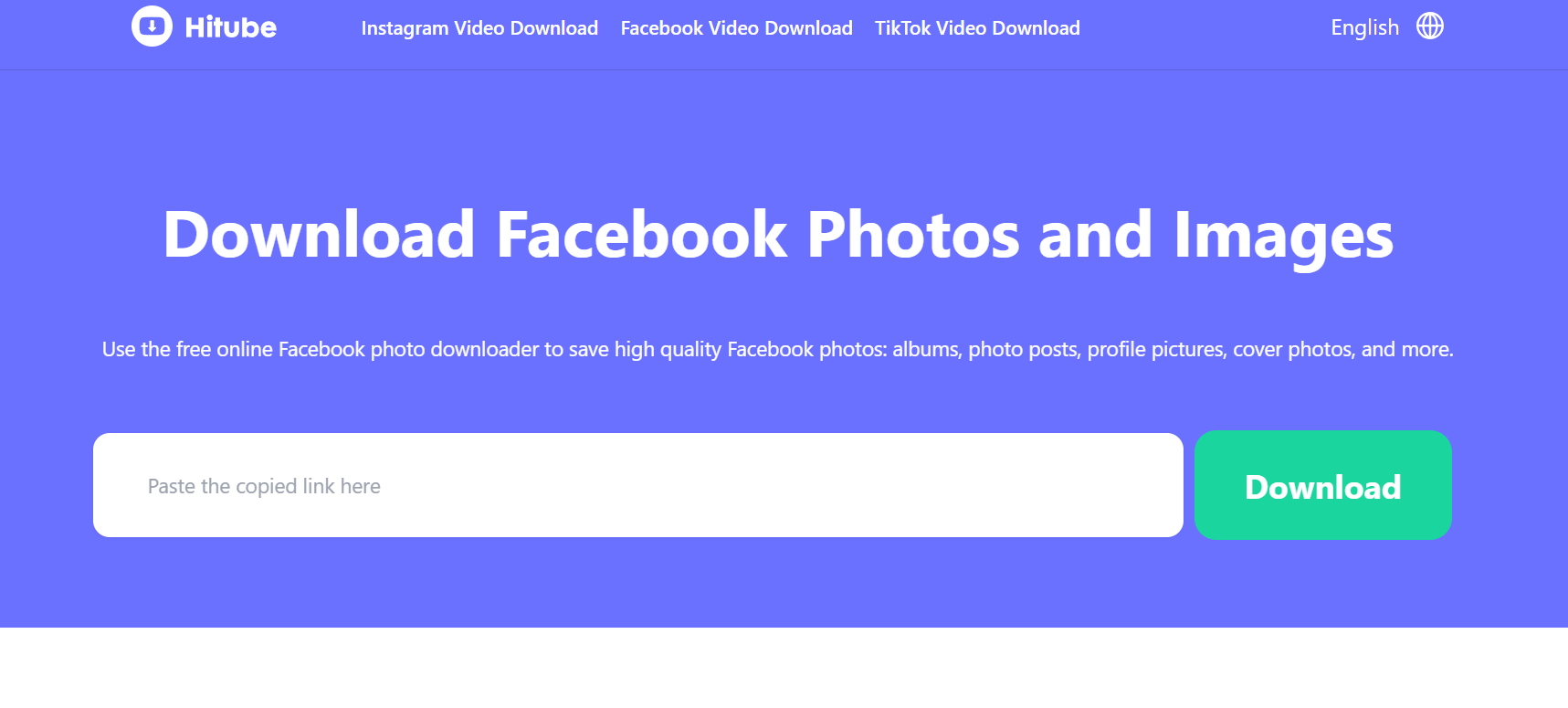
HiTube is an easy-to-use online tool that helps users download FB pics in their original resolution. It supports downloading Facebook profile pictures, cover images, and other media files. This tool works on both desktop and mobile devices without requiring additional software. Whether you want a Facebook DP download or a high-quality photo, HiTube simplifies the process.
Features
- Original quality downloads: HiTube allows users to save Facebook images without compression or quality loss.
- Simple and intuitive interface: With a clean design, users can quickly paste the image link and start downloading.
- Compatible with all devices: It works smoothly on Windows, Mac, iOS, and Android browsers.
- No software installation required: Users can download images directly from the browser without downloading any application.
- Supports cover and profile pictures: It allows downloading Facebook DP and cover images in full resolution.
User Reviews
- HiTube is the best tool to quickly download Facebook images in their original size. : Daniel P.
- The interface is simple, and I can save Facebook photos with just one click. : Rachel W.
- I love that it works on both my phone and computer without any issues. : Kevin J.
Steps to Download Facebook Images with HiTube
Step 1: Open HiTube
Visit the HiTube Facebook Photo Downloader website using any browser on your phone or computer. Locate the Facebook image you want to download and copy its URL from the address bar.
Step 2: Paste the Facebook link
Paste the copied link into HiTube’s search bar and click the Download button. The tool will process the image and generate a downloadable file.
Step 3: Download the image
Choose the preferred quality option, such as standard or high-resolution. Click Save Image, and the file will be downloaded directly to your device.
How to Download Facebook Images with Chrome Extension
3. ESUIT Photos Downloader for Facebook
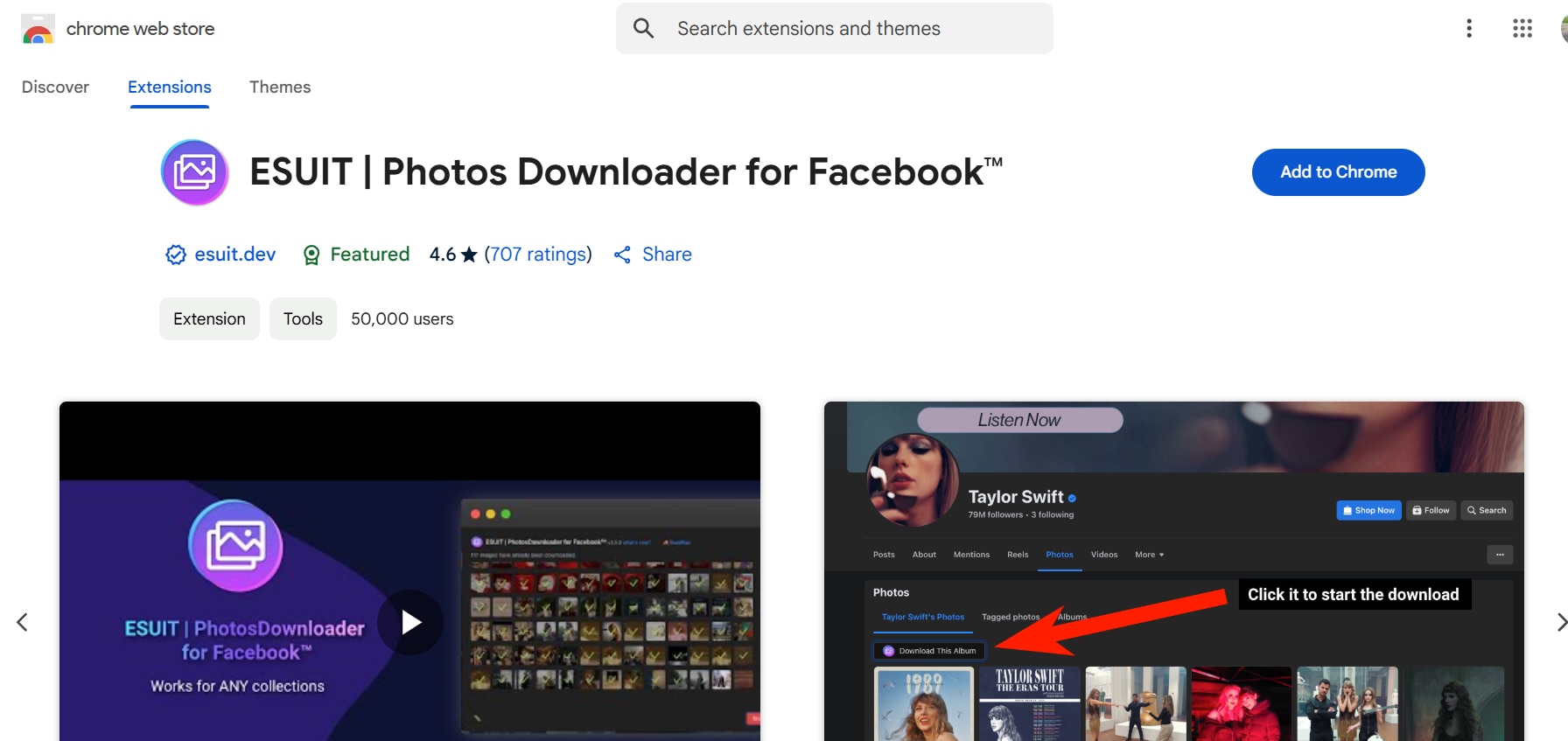
ESUIT is a Chrome extension designed for users who want to download Facebook images directly from their browser. It simplifies the process by allowing bulk downloads of profile pictures, cover photos, and albums. With just a few clicks, users can save Facebook pictures to download in their preferred resolution. The extension works seamlessly with the Facebook interface, making it a convenient tool for frequent downloads.
Features
- One-click Facebook photo download: ESUIT allows users to download images directly from Facebook without copying links.
- Bulk image downloading: The extension enables batch downloading of multiple images at once, saving time and effort.
- Works with albums and profile pictures: Users can download individual images, full albums, or even profile and cover photos.
- No need to leave Facebook: Since ESUIT works as a browser extension, users can download images while browsing Facebook.
- Supports high-quality image downloads: The tool preserves image resolution, ensuring photos are saved in the best available quality.
User Reviews
- ESUIT is an amazing extension for downloading Facebook pictures quickly and in bulk. : Emily T.
- I like how I can save my Facebook pictures without opening another website. : Jake S.
- The batch download feature is perfect for saving all photos from an album. : Olivia D.
Steps to Download Facebook Images with ESUIT
Step 1: Install the ESUIT Extension
Open the Chrome Web Store and search for ESUIT Photos Downloader for Facebook. Click on Add to Chrome, then confirm by selecting Add Extension to install it.
Step 2: Open Facebook and Select Images
Go to Facebook and navigate to the photo or album you want to download. Click on the ESUIT extension icon in your browser to activate the downloader.
Step 3: Download and Save Images
The extension will detect available images on the page and display them for selection. Choose the images you want, select the quality, and click Download to save them to your device.
Part 5: Facebook Photo Download Methods: Which Should You Choose?
| Method | Suitable for Single Photo | Suitable for Full Album | Suitable for All Data | Official Method | Context Loss Risk | Beginner-Friendly |
| Save Photo / Download | Yes | No | No | Yes | Low | Yes |
| Download Album | No | Yes | No | Yes | Medium (no comments/metadata) | Yes |
| Export Your Information | No | No | Yes | Yes | Medium (data separated by folders) | Medium |
| Browser Extension | Depends | Yes | Depends | No | High (may miss metadata/context) | Medium |
| Online Tools (FDownloader, HiTube, etc.) | Yes | Yes | Depends | No | Medium–High (limited structure, no metadata) | Yes |
Key Interpretation for Different Cases
Most reliable & safe: Official methods (Save / Album / Export)
Most convenient: Online tools
Highest risk: Browser extensions (privacy + instability)
Part 6: Is It Legal to Download Other People’s Facebook Photos?
Downloading other people’s Facebook photos is technically possible, but it comes with important legal, ethical, and privacy considerations. Just because a photo is publicly visible does not mean you can freely use it however you want.
Public Access Does Not Equal Commercial Permission: Even if a photo is visible to everyone, the original creator still owns the copyright. Public availability does not grant you the right to use the image for business, marketing, or redistribution. Using someone else’s photo without permission may lead to legal consequences.
Downloading Does Not Mean Ownership: Saving a photo to your device only gives you a personal copy—it does not transfer ownership. You cannot modify, repost, or profit from the image without proper authorization. Giving credit is important, but it does not replace the need for permission in many cases.
Risks of Batch Downloading Tools: Batch downloading tools can be convenient, but they may require access to your Facebook account or permissions that pose privacy risks. Some tools may also violate Facebook’s terms of service, so it’s important to use trusted solutions and review permissions carefully.
Be Careful with Private and Sensitive Content: Downloading photos from private profiles, closed groups, or tagged posts requires extra caution. These types of content involve stricter privacy expectations, and accessing or saving them without consent may breach platform rules or ethical boundaries.
Part 7: How to Download Facebook Photos in Batch at Lossless Quality
UniConverter
While many tools focus on how to download Facebook photos, UniConverter goes a step further by enhancing the images after download. Instead of just saving Facebook images, it provides an AI-powered image enhancement feature that improves photo quality, sharpness, and clarity. This is especially useful for users dealing with compressed Facebook images or improving low-resolution downloads. With its advanced upscaling and noise reduction technology, UniConverter helps restore details and make downloaded Facebook photos look clearer and more professional. Combined with its easy-to-use interface and fast processing, it’s an ideal solution for users who want not just to download Facebook photos, but also to enhance and optimize them for better viewing, sharing, or reuse.
UniConverter also offers smart video link analysis, enabling quick extraction of Facebook video URLs with just one paste. In addition, its built-in file management system helps organize downloaded Facebook videos automatically, making it easy to locate and manage files.

Best Image Enhancer
Features
- Batch downloading for multiple images: UniConverter allows users to download entire albums or multiple Instagram photos at once, saving time.
- Preserves original image quality: The tool ensures that images are downloaded in high resolution without any compression.
- Supports multiple image formats: Users can save Facebook photos in different formats, including JPG and PNG, for better compatibility.
- Built-in file management: The software offers organized storage, making it easy to access and manage downloaded photos.
- Safe and secure downloads: UniConverter provides a secure environment for downloading Facebook images without risks.
Steps to Download Photos with UniConverter
Step 1: Launch UniConverter and Open Image Enhancer
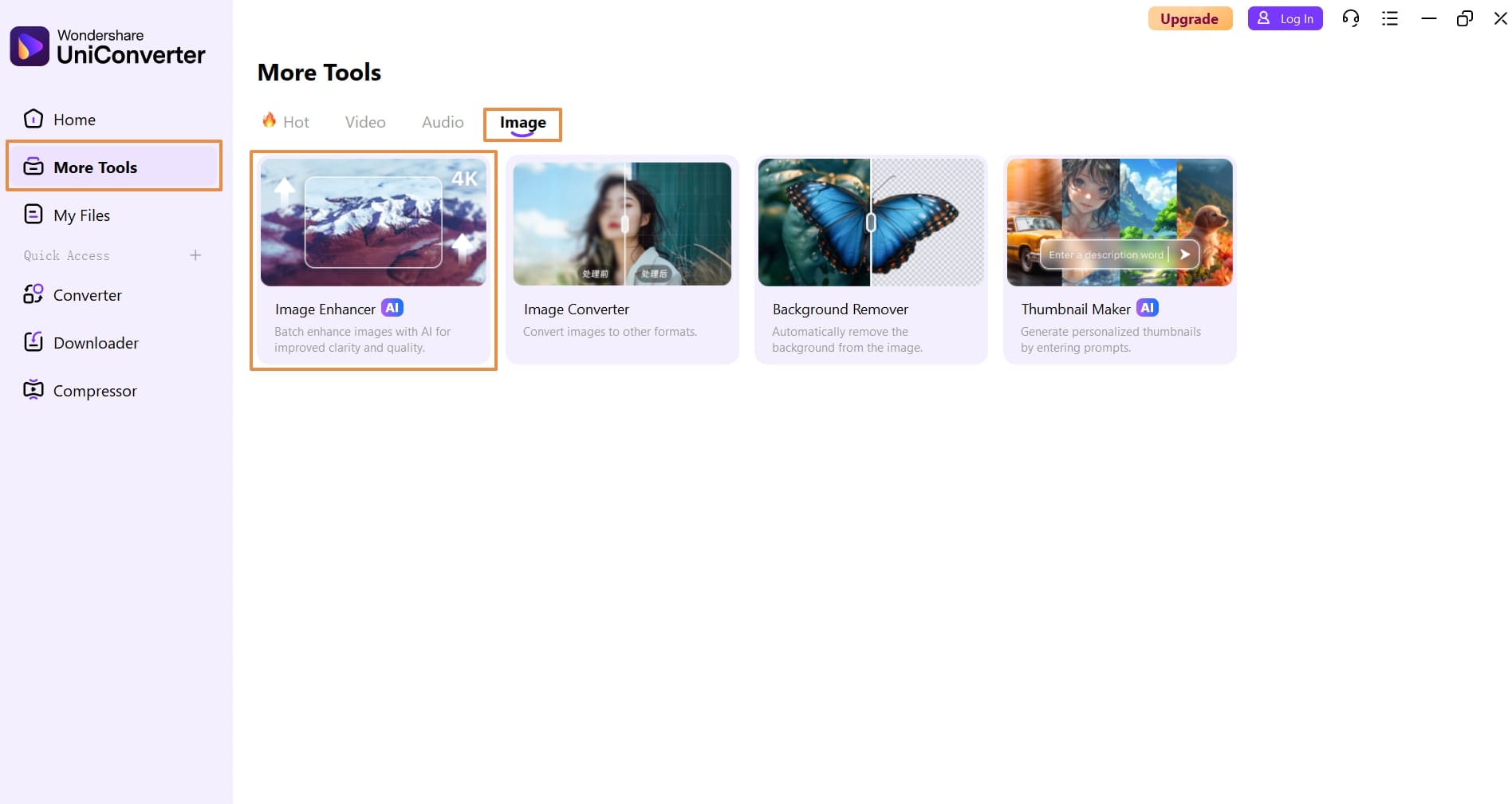
Download and install UniConverter on your computer. Open the software and navigate to the Image Enhancer tool from the main interface. This feature is designed to improve image quality using AI technology.
Step 2: Import Your Downloaded Facebook Photos
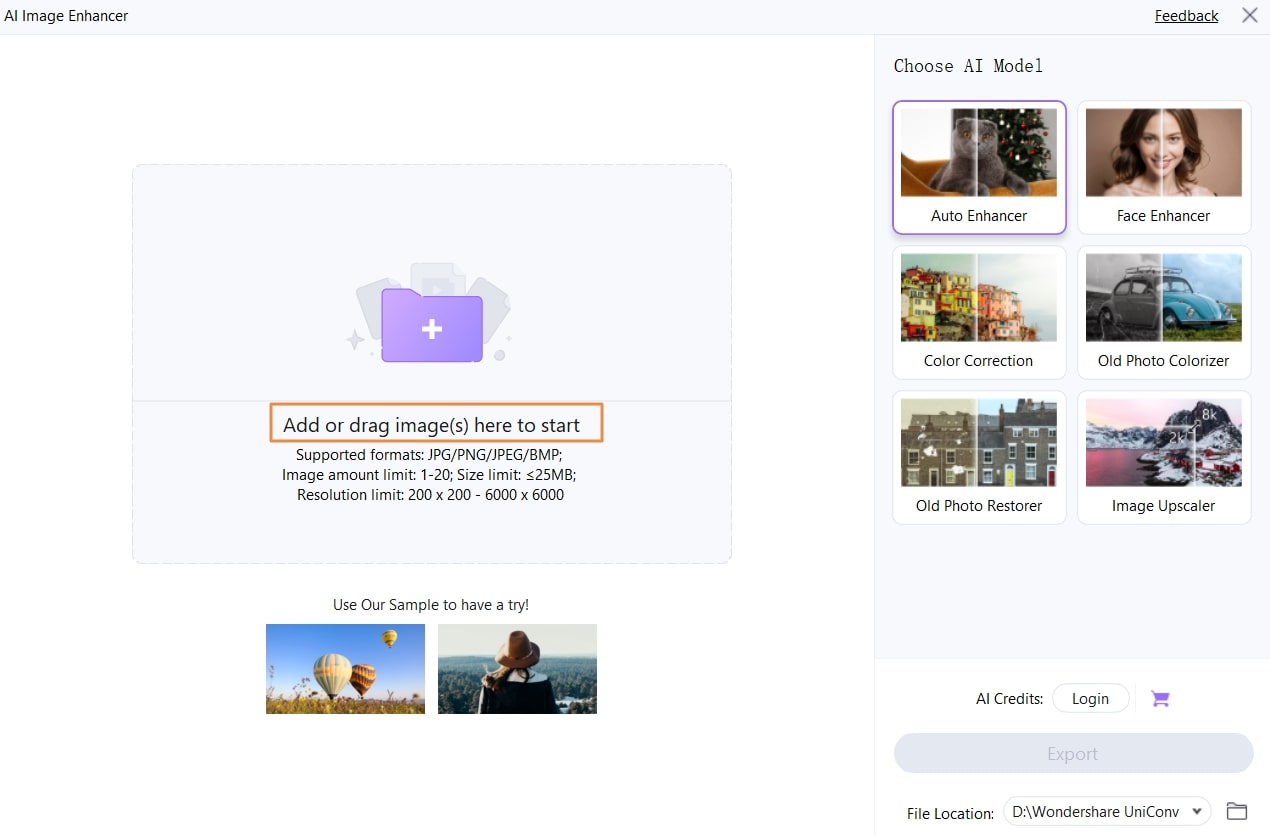
Click the Add Files button or drag and drop your downloaded Facebook photos into the workspace. You can upload one image or multiple photos for batch enhancement.
Select the appropriate AI enhancement mode based on your needs:
- Upscale Image: Improve resolution and make images sharper
- Denoise: Remove grain or compression artifacts
- Sharpen: Enhance details and edges
These settings help fix blurry or low-quality Facebook images.
Step 3: Download and Save the Image
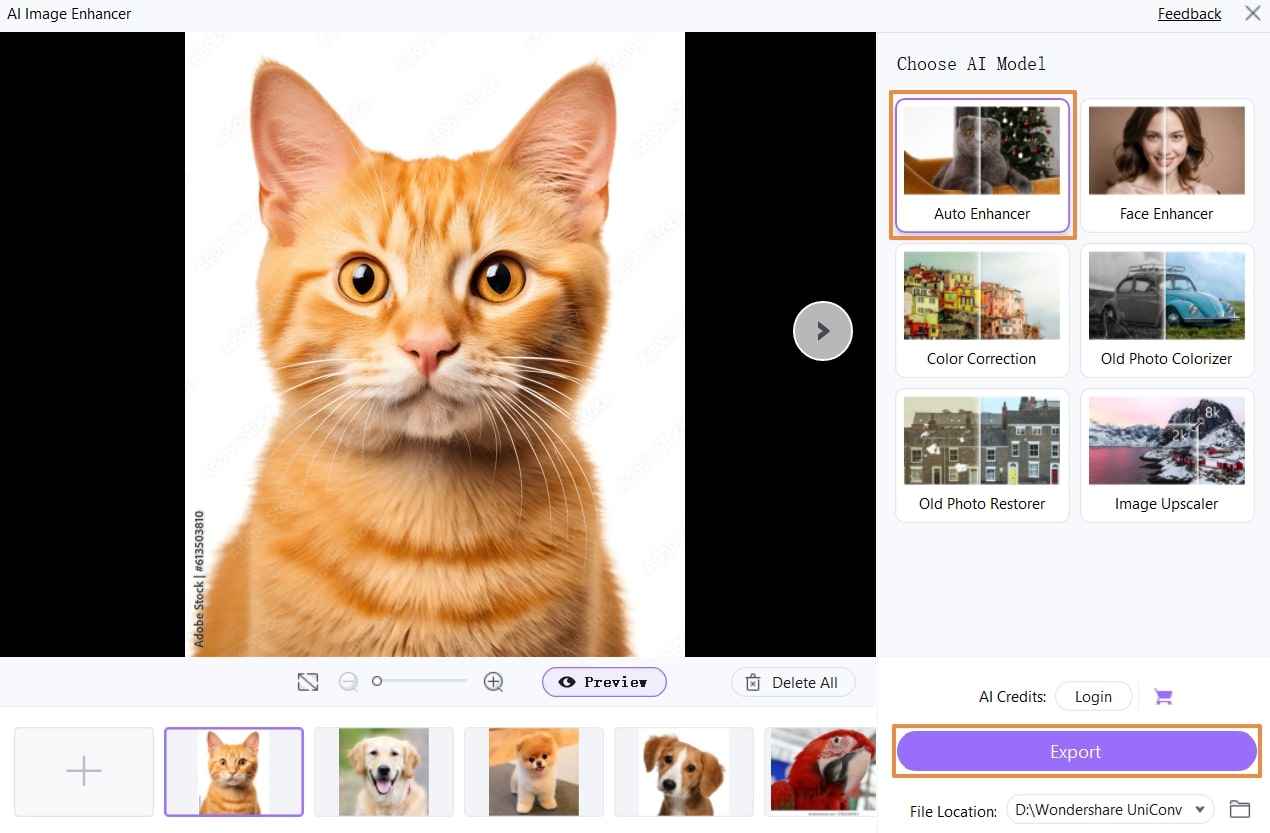
Use the preview function to compare the original and enhanced versions. This allows you to adjust settings before final processing to ensure the best result.
Conclusion
In conclusion, this guide has explored various methods to download Facebook photos, from simple saves to using dedicated tools. We’ve covered how to save individual images, download entire albums, and maintain high image quality. For a more robust solution, consider UniConverter. This software offers batch downloading, high-resolution preservation, and multiple format support, making it ideal for managing your Facebook memories. Beyond downloading, UniConverter also provides an AI Image Enhancer to sharpen blurry photos and a watermark remover to clean up images. Its comprehensive features make it a powerful tool for all your media needs. We encourage you to use UniConverter to effectively preserve and enhance your cherished Facebook photos.
FAQs
-
1. Can I download someone else's Facebook profile picture (DP) in high resolution?
You can save a profile picture, but Facebook often compresses images, so the downloaded version may not match the original quality. For the best resolution, it’s recommended to request the original file directly from the owner and always respect privacy. -
2. How do I download multiple photos from a Facebook group without saving each one individually?
For your own content, Facebook’s “Download Your Information” feature is the safest method. Some tools claim to download albums in bulk, but you should use them carefully and ensure you have permission when downloading others’ content. -
3. How do I download a “VIP” Facebook cover photo if I have permission?
Open the cover photo and use the “Save image as...” option in your browser. The process is the same as downloading any standard cover photo. -
4. Is there a way to download Facebook photos directly to cloud storage without saving them locally first?
No. Facebook does not support direct downloads to cloud services. You need to save the photos to your device first and then upload them to your preferred cloud storage. -
5. Can UniConverter download multiple Facebook photos at once?
Some desktop tools support batch downloading, allowing you to save multiple images or albums at once. This can be more efficient than downloading each file individually.

