


Many people record videos but get confused by unfamiliar file formats. These files often come from cameras and do not play later. Without clear explanations, users do not know what these files are for. This guide starts by explaining the basics and the “MTS meaning.”
Furthermore, readers will learn what an MTS file is and where it is used. The article also explains playback problems, converters, and simple fixes. By the end, users feel confident handling MTS videos on different devices.
In this article
Part 1. What is an MTS File?
An MTS file is a video format used to store high-quality camera recordings. It saves video and audio together while keeping strong detail and clarity. Many users ask what MTS stands for, meaning MPEG Transport Stream.
Origin
The MTS format supports high-definition video recording on modern camcorders. It follows updated recording standards to ensure reliable performance. This format helps maintain clear video quality during long recording sessions. As a result, it is suitable for capturing important moments without quality loss.
Common Association With AVCHD Camcorders
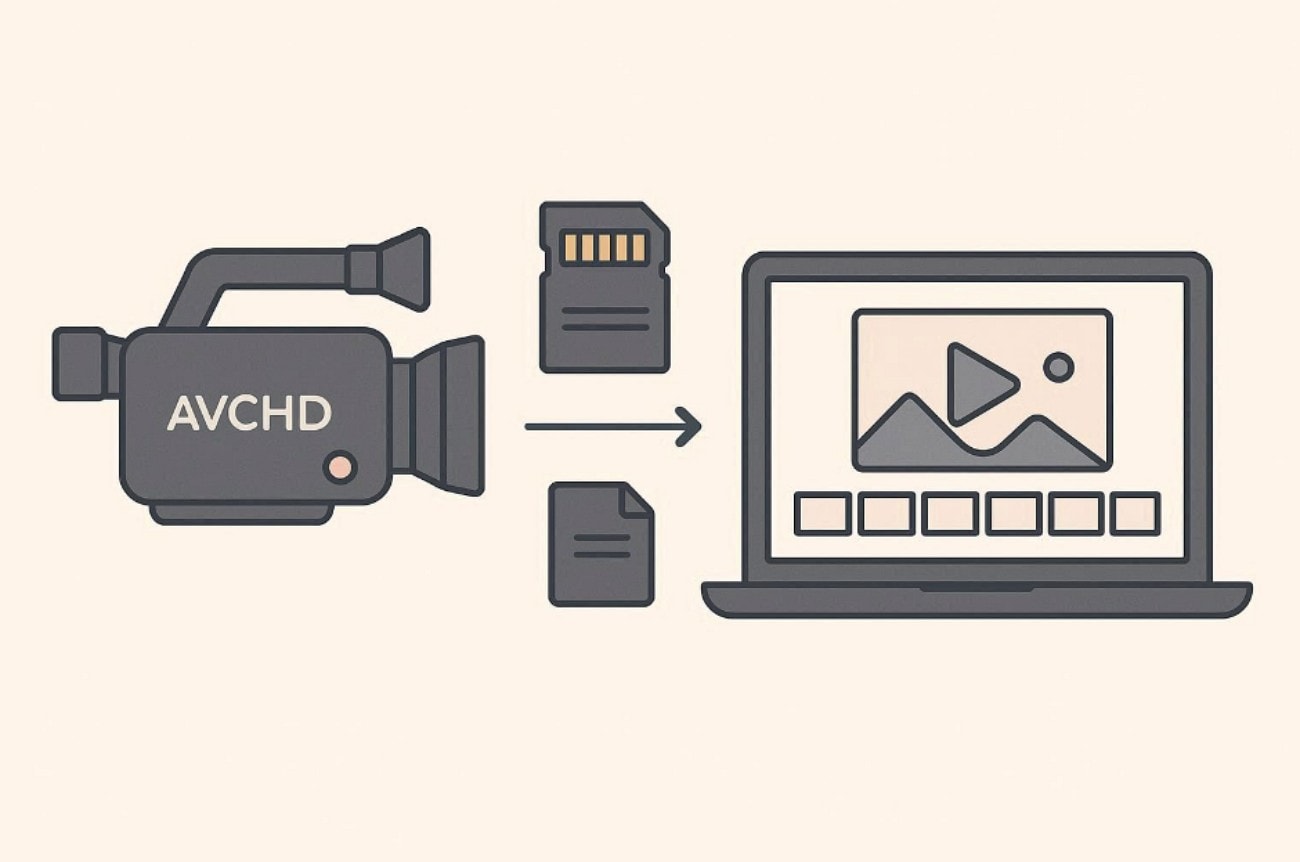
MTS files are strongly linked with AVCHD-based video recording devices. Many popular camcorder brands use this format for high-quality recordings. It is commonly generated when recording videos using AVCHD camera settings.
Typical File Extension: .mts
The typical file extension used for this video format is .mts when you are playing AVCHD camera videos on computer. This extension usually appears after transferring recorded videos from camcorders to computers. Plus, it helps the OS correctly recognize the file as a video recording. Media players and editing software rely on this extension to function properly.
Part 2. What is an MTS File Used For?
An MTS file is mainly used for recording and storing high-quality HD video. This format is designed to capture detailed visuals and clear audio together. Since it preserves more original data, the video remains sharp and natural. MTS files are especially useful when quality matters more than file size. They are commonly created by modern digital camcorders using AVCHD standards.
Moreover, many modern recording devices automatically generate MTS documents worldwide. Popular camcorder brands rely on this format for stable HD recording. These include Sony camcorders used for personal and semi-professional filming needs. Panasonic camcorders also record videos in the MTS format by default. In addition, Canon AVCHD cameras widely use MTS for high-definition capture. Plus, MTS files are used in the following several common recording situations:

HD Recording: Used to record high-definition videos with strong detail and accurate color quality.
Camcorder Capture: Generated directly by AVCHD camcorders during video recording sessions.
Home Videos: Used for recording family events, vacations, birthdays, and personal memories.
Professional Shoots: Preferred for interviews, events, and projects requiring reliable video quality.
Video Editing: Suitable for editing workflows because the format retains original video details.
Part 3. Why MTS Files Don’t Play on Some Devices
The following points explain the main reasons MTS files fail to play properly:
Codec Compatibility: MTS is a container file, not a video codec itself. Some media players cannot decode video or audio inside MTS files. This limitation causes playback errors or prevents videos from opening properly.
Decoding Problems: Some devices lack the needed system support, causing playback problems. This results in stuttering, lag, or complete playback failure during viewing. MTS was designed mainly for camcorders, not everyday consumer playback devices.
Large File Size: MTS files are large because they store high-quality video data. Large files need better devices to play without problems. Mobile devices often struggle playing large files in real-time situations.
Limited Platform Support: Many mobile applications do not support MTS files by default. Web platforms also avoid MTS because it is not web-friendly. Streaming services prefer smaller compressed formats for faster loading support.
File Structure Issues: Some editing software requires the complete AVCHD folder structure to be present. Missing folders can stop MTS clips from importing into editors. This problem often appears after files are copied incorrectly.
File Transfer Errors: Errors can happen while copying MTS files from camcorder devices. Incomplete transfers may damage video files and affect playback later. Damaged files may not open at all or play as expected.

Part 4. [Easy to Use] Top 3 MTS Video Converters
Playback problems often need converting files using reliable and easy video tools. The following MTS video converters help users fix compatibility issues across devices.
Wondershare UniConverter
UniConverter is an all-in-one video toolkit for modern creators. As a batch process video converter, It converts MTS files and offers compression, recording, subtitles, and AI tools. Furthermore, it supports GPU processing for faster video handling tasks. As an MTS file converter, it supports GPU processing with 4K outputs. Thus, users can manage video tasks without switching between tools. UniConverter can helps easily convert MTS files to MP4, MKV or other any video files with broader compatibility.
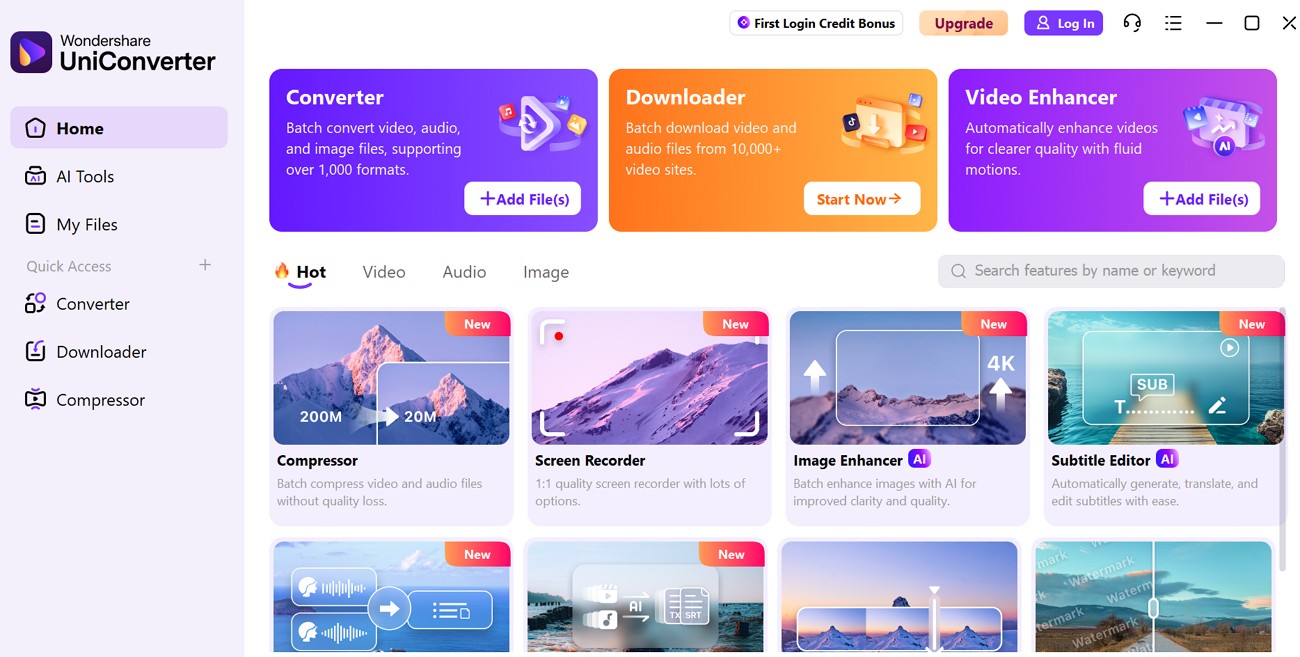
In addition, recent updates add AI upscaling, quality restoration, and frame interpolation features. Built-in tools manage editing, compression, recording, and subtitles without extra applications. As a result, workflows become simpler and easier to control. GPU acceleration accelerates processing for large projects involving high-resolution videos.
HandBrake
Many users download camera videos but cannot play them on their devices. Free tools help fix format problems without paying for software licenses. HandBrake becomes useful when simple playback fails after file transfer processes. It converts camera recordings into formats most players understand easily today.
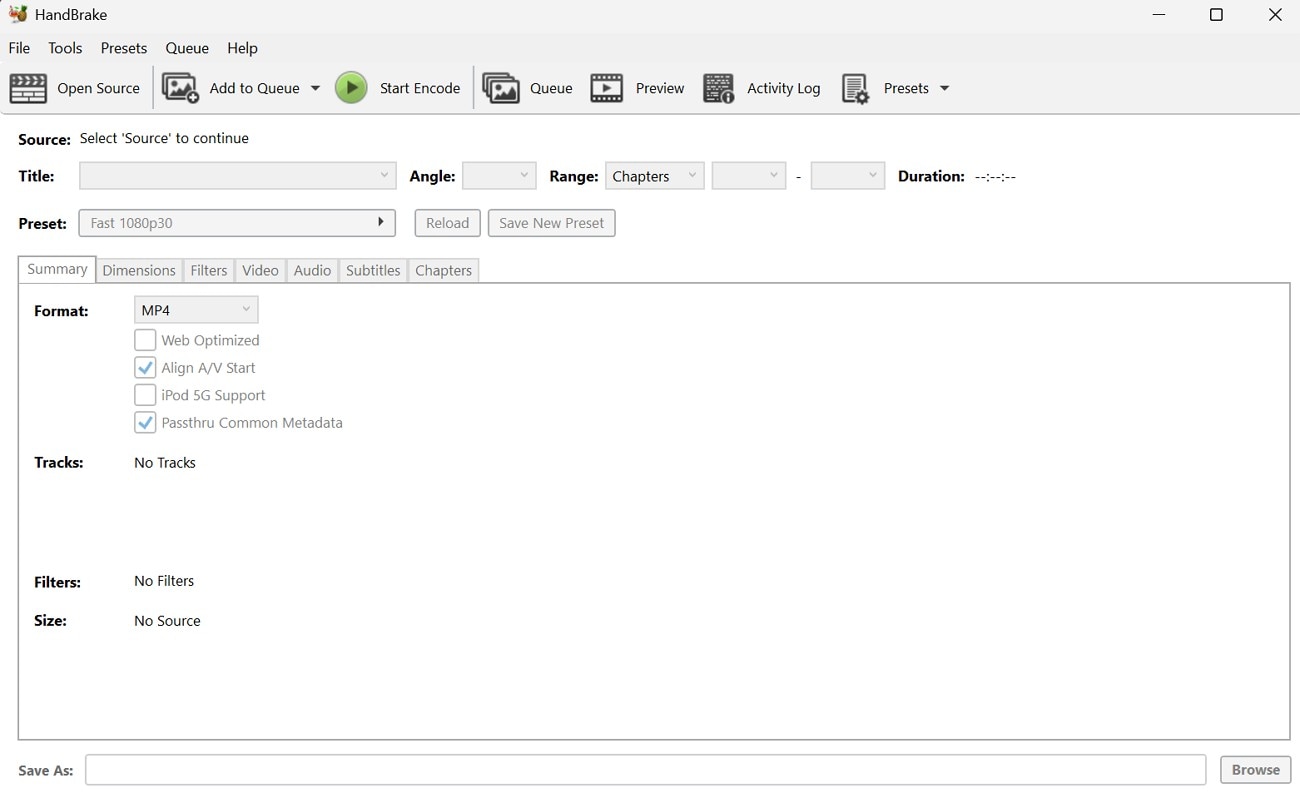
Further, this tool works well for converting an MTS document to a safe format. Preset options guide beginners through conversion steps without confusion during use. Its advanced settings are for experienced users who need control and high-quality output. Thus, HandBrake suits users seeking a free, reliable video conversion tool today.
FreeConvert
Sometimes users need quick conversions without installing software on devices. This approach saves time and avoids installing heavy applications locally. Online tools help when storage space or permissions become problems. FreeConvert works directly inside browsers using simple upload, convert, and download steps. As an MTS file converter, it helps change camera videos quickly online.
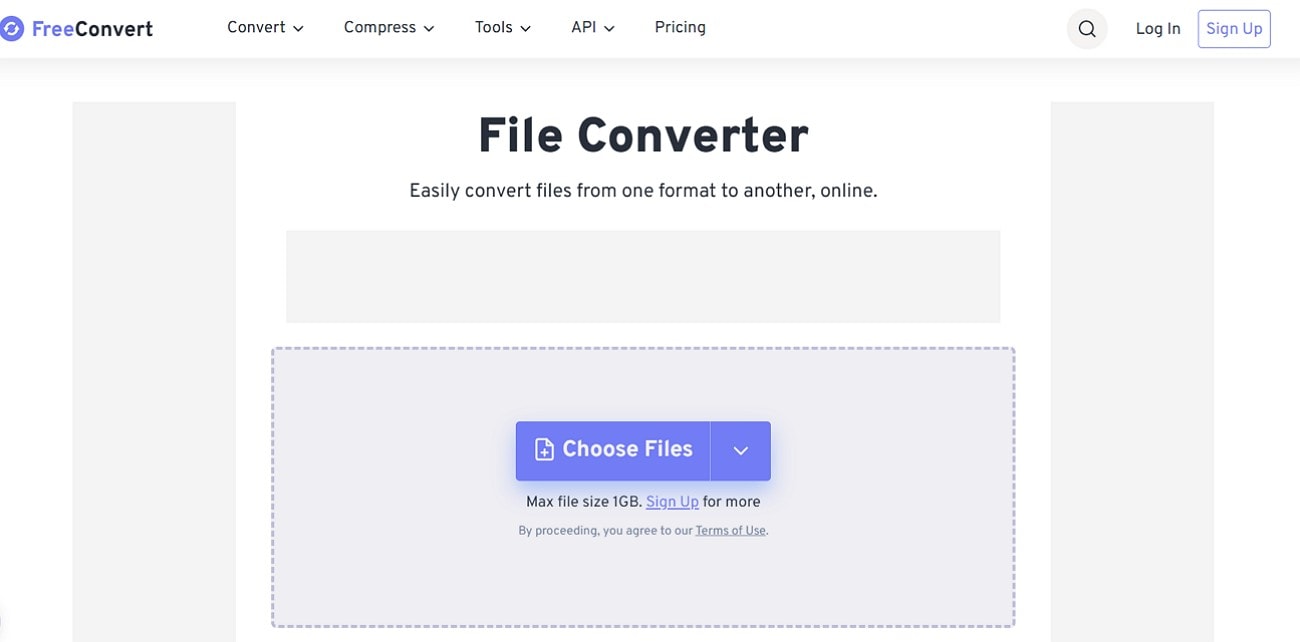
The service supports thousands of formats beyond video, including documents and audio. It suits users needing fast conversions for small or medium files. Files are deleted automatically, improving privacy after conversion completes. However, large videos depend on internet speed and plan limits.
Part 5. How to Easily Batch Convert MTS to Other Format
MTS files are commonly used by camcorders, but they’re not always easy to play or edit on all devices. Converting MTS to MP4 makes your videos more compatible with smartphones, social platforms, and editing software. With Wondershare UniConverter, the process is fast and beginner-friendly.
Steps Guide of How to Batch Convert MTS Files
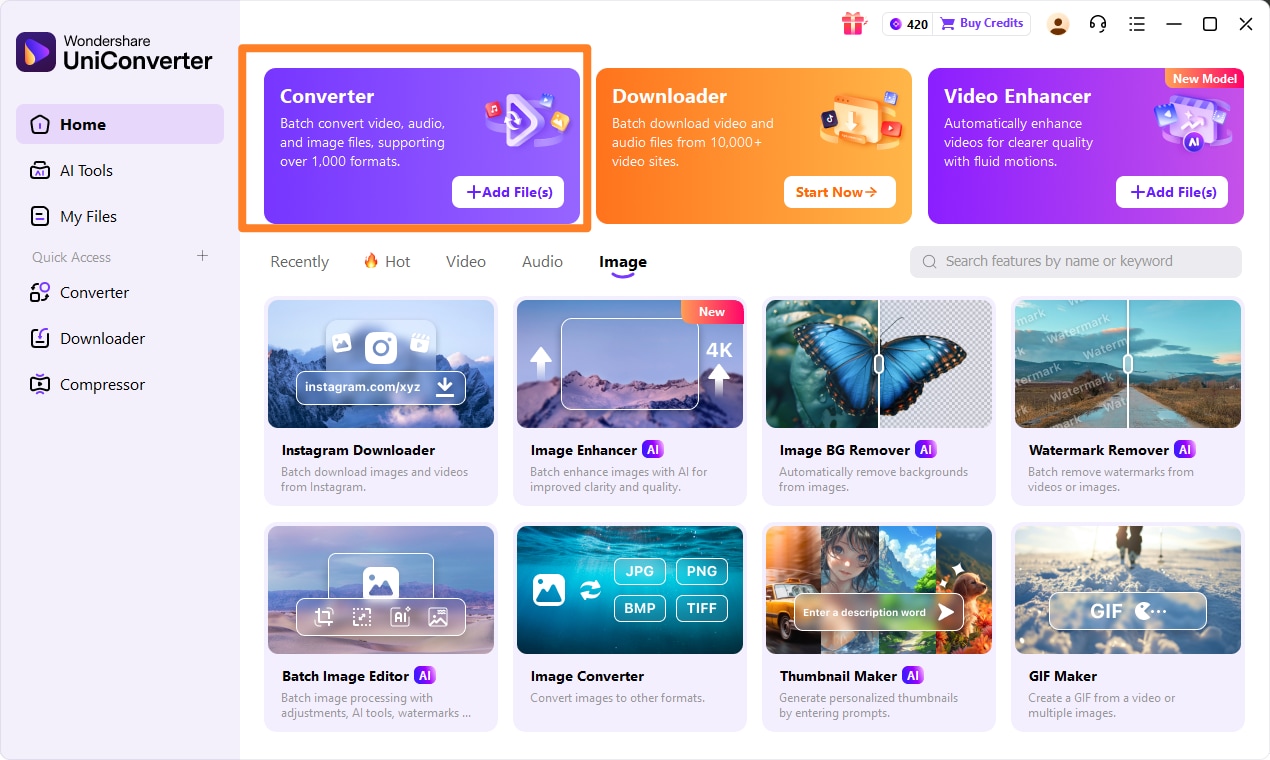
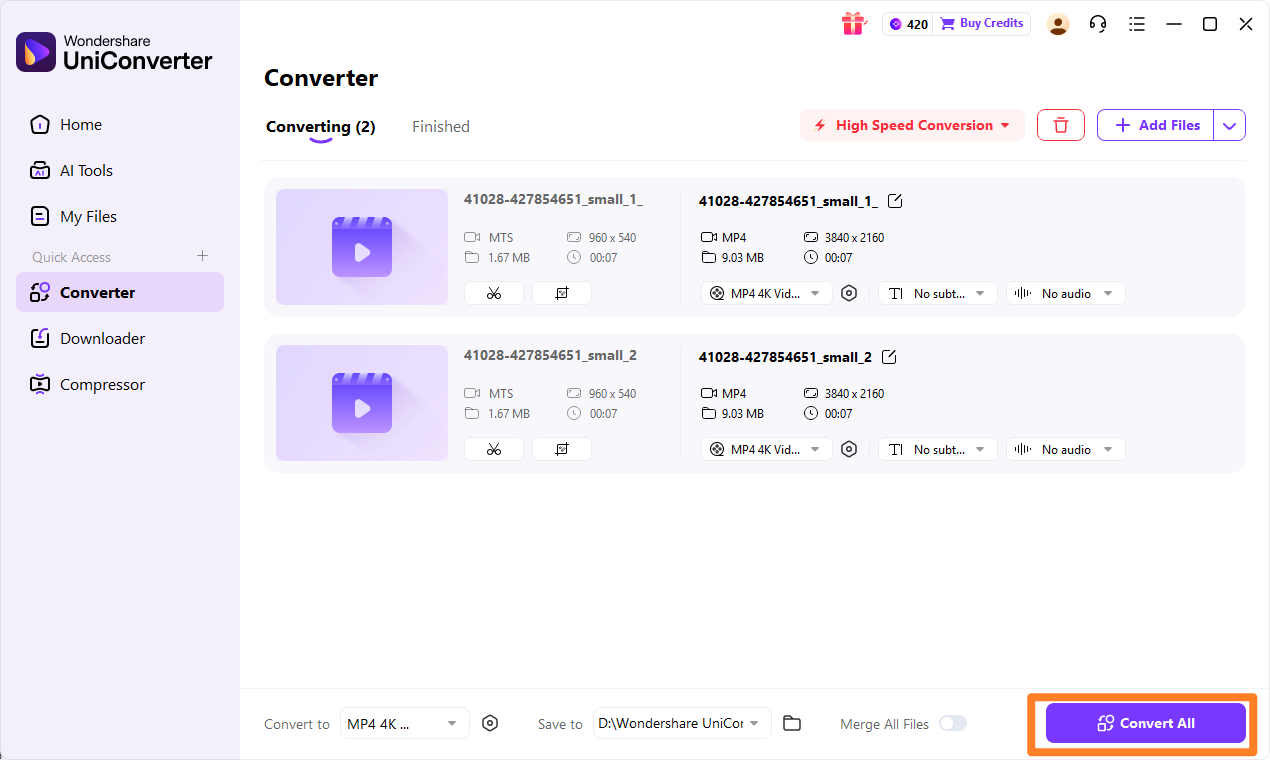
Step 1. Import the MTS file
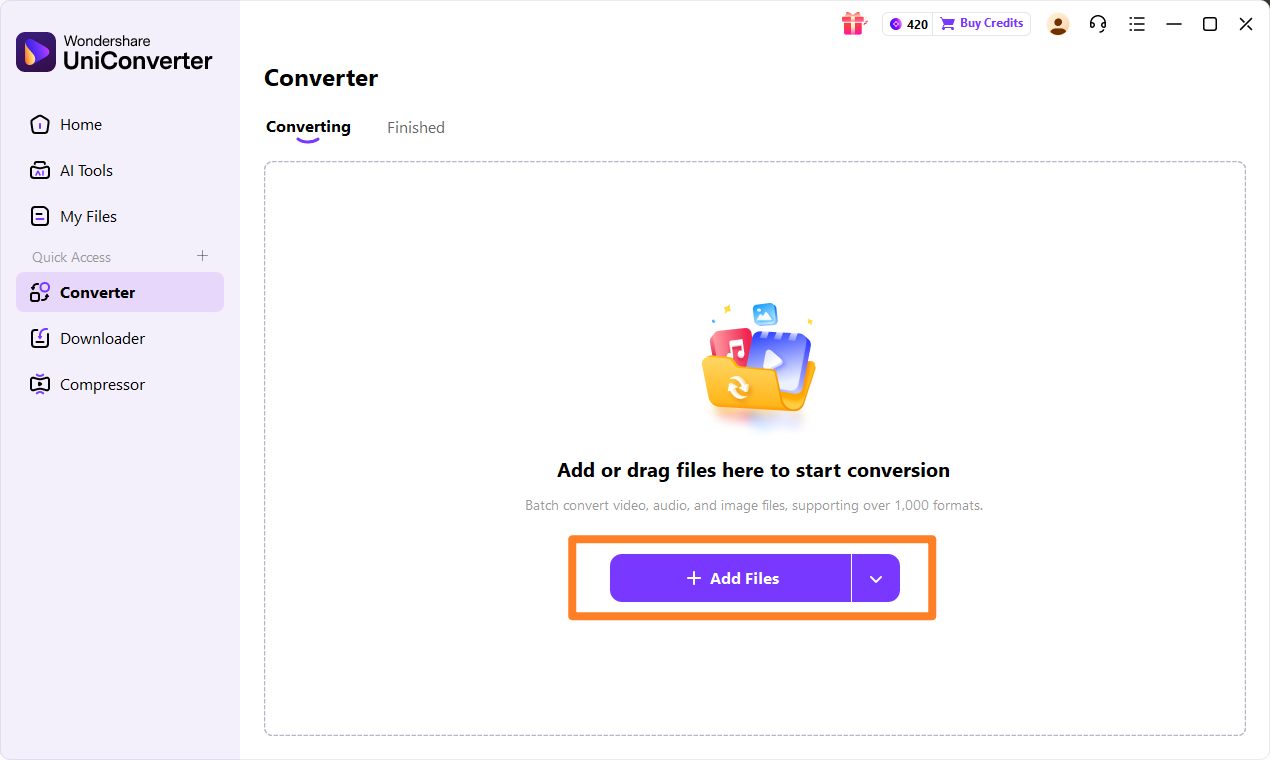
Open UniConverter and click Add Files to upload your MTS video from your camcorder or computer.
Step 2. Choose MP4 as the output format
In the format list, select MP4, a widely supported video format that works across devices and platforms.
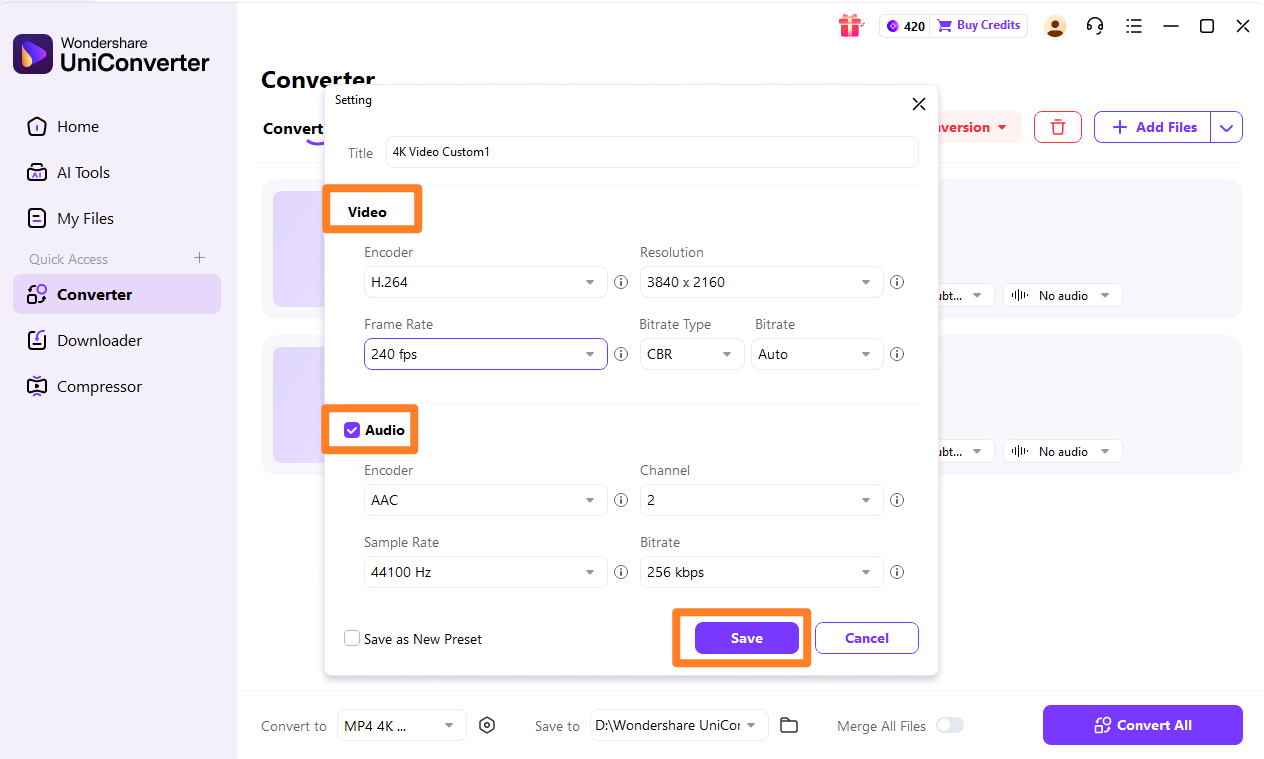
Step 3. Adjust settings if needed
You can customize resolution, frame rate, or compression settings to balance video quality and file size.
Step 4. Convert and save the video
Click Convert to start the process. Once finished, your MP4 file will be ready to play, edit, or share.
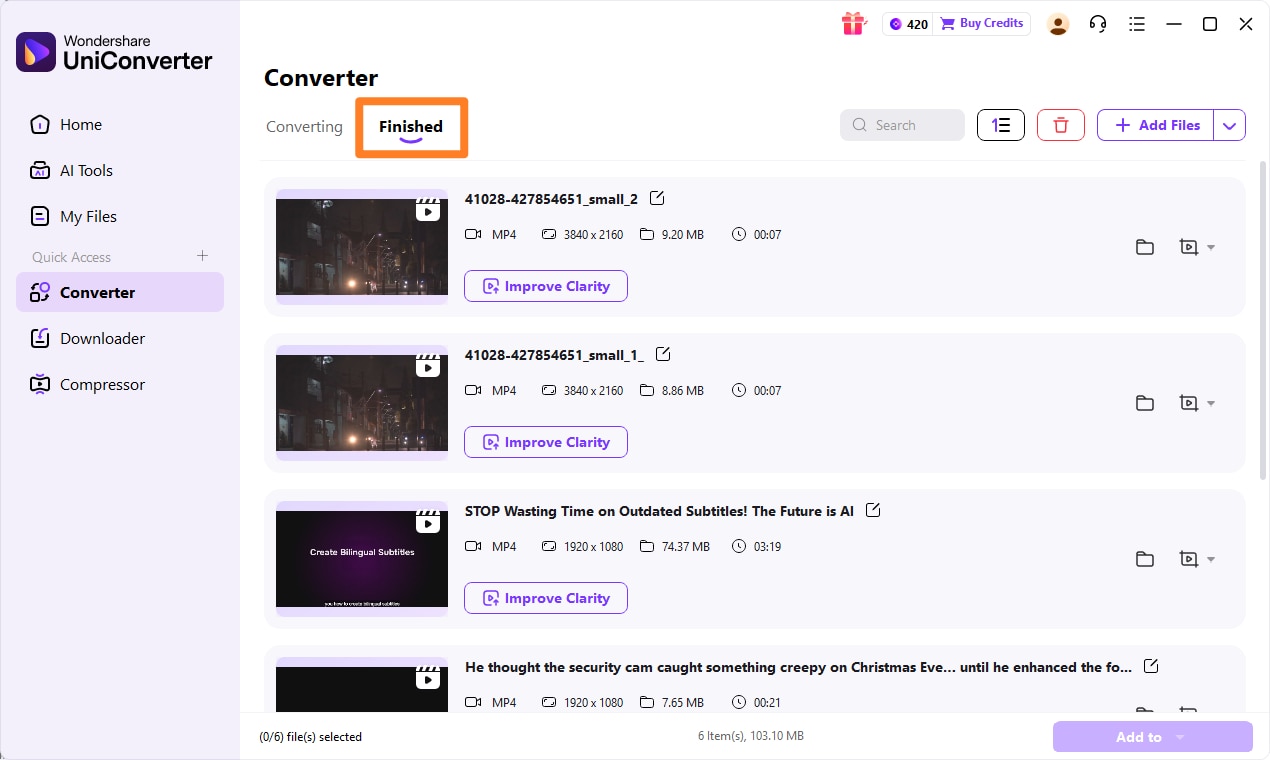
Step 5. Check converted video files
Click Finished tab to check converted videos.

Batch MTS File Converter for AVCHD Videos
Part 6. Problem Shooting for Playing or Converting MTS Files
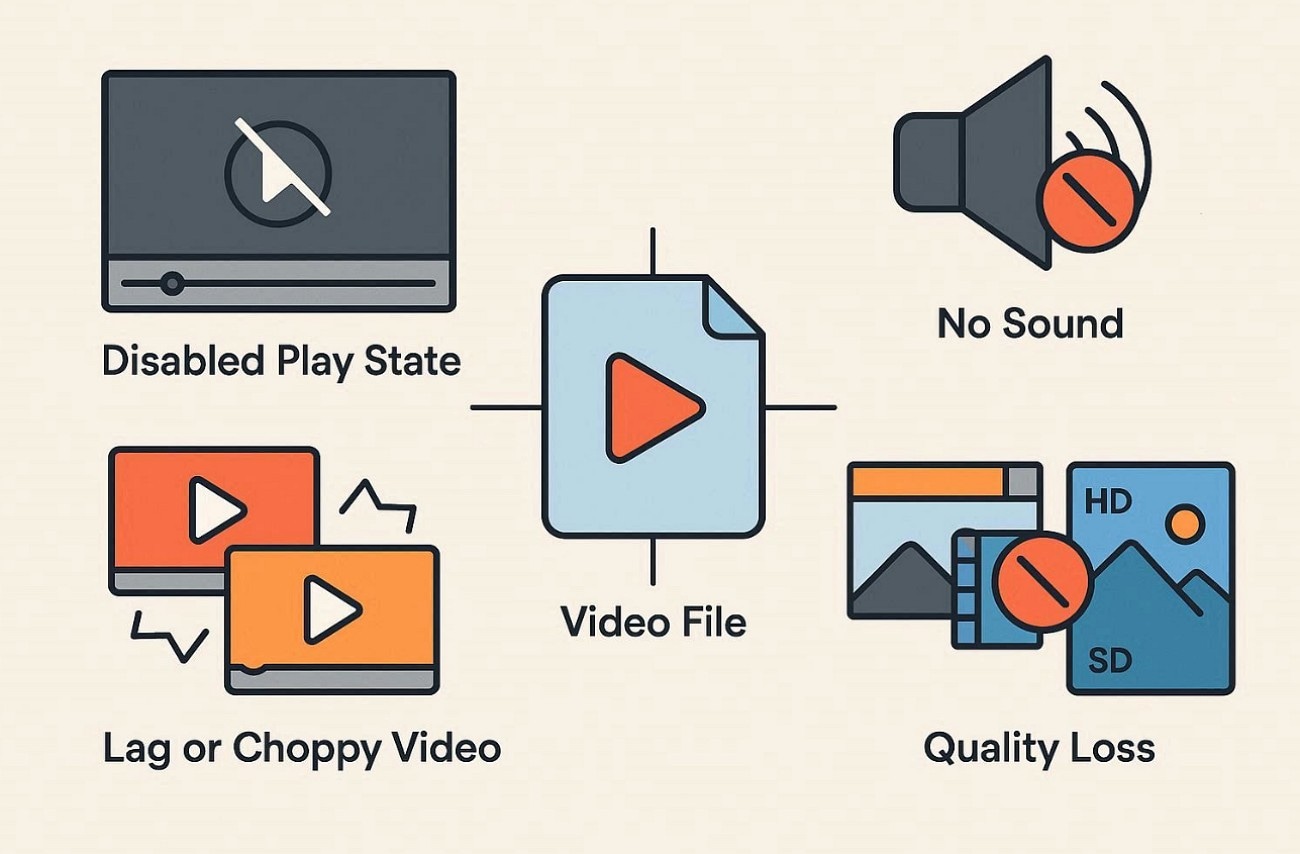
The following sections explain common problems users face when handling an MTS document:
MTS File Won’t Open or Play
Sometimes MTS files fail to open due to unsupported media player limitations. Many media players do not support the MTS definition container format. Also, missing or outdated codecs prevent systems from decoding video. Incorrect file transfer from camcorders can damage video file integrity. Thus, recopying files with the original cables often resolves playback issues.
MTS File Plays but Has No Sound
Some MTS videos play without sound, even when the video displays. This issue usually occurs when the audio codec lacks proper player support. Many MTS files contain AC-3 or LPCM audio formats by default. Installing updated codecs or using another player often restores missing audio.
MTS Video Is Choppy or Lagging
Choppy playback occurs when devices struggle to process high-bitrate video files. Also, large file sizes place heavy demands on system memory and processors. Older hardware may lack enough performance for smooth playback, causing lag. Missing hardware acceleration increases lag during real-time video decoding. Some players decode video but fail to handle audio streams. In this case, using optimized players or converting files can reduce lag issues.
Cannot Import MTS Files into Video Editing Software
Some editing programs cannot import MTS files without added support. This happens when software lacks native support for MTS formats. Missing AVCHD folder structures often confuse editors during file recognition processes. Corrupted metadata can block clips from loading into editing timelines. So, restoring original folder structures often fixes import errors across editing software.
Converted MTS File Loses Quality
Quality loss happens when wrong settings are used during file conversion. Too much compression makes videos look blurry and removes clear details. Plus, low bitrates reduce image clarity and affect viewing quality. Thus, using the right presets helps keep the original video quality intact.
Conclusion
To conclude, MTS files store high-quality camera videos but often cause playback confusion. In this article, we explained what is an MTS file, its usage, problems, and solutions. Readers learned why devices struggle and how conversion improves compatibility. We also reviewed practical tools that help manage and convert MTS files. For stable conversions, many users rely on UniConverter as a dependable option.
FAQ
-
1. What is an MTS file?
MTS is a video file format used by many HD camcorders. It stores high-quality video and audio together and is commonly associated with the AVCHD (Advanced Video Coding High Definition) recording standard. -
2. Why do MTS files not play on some devices?
Some devices and media players lack the required codecs to decode MTS files. In addition, hardware limitations, unsupported containers, or large file sizes can cause playback errors on older or weaker systems. -
3. What are MTS files commonly used for?
MTS files are mainly used for recording home videos and professional footage. They are widely created by AVCHD camcorders from major camera manufacturers and are favored for preserving original recording quality. -
4. How can users fix MTS playback or compatibility issues?
Converting MTS files into more widely supported formats like MP4 or MOV is the most reliable solution. Tools such as Wondershare UniConverter allow users to convert MTS videos quickly while maintaining high video and audio quality.

