


Sending a video on Google Drive is simple on both desktop and mobile. Upload your video, create a shareable link, and send it with the right access permissions so others can view or download it without issues.
If you want to know how to send a video on Google Drive in detail, this guide gives you the exact steps. You will also learn best practices for handling large files and proven fixes for common problems such as upload failures or playback errors. The process is based on how Google Drive currently handles video uploads, sharing, and permissions in 2026.
Part 1: How to Upload and Send a Video on Google Drive (Desktop)?
To understand how to send a video through Google Drive, upload it from your computer, create a shareable link, and send it with the correct permissions. This method works for both small and large video files.
Step 1: Go to Google Drive and sign in to your account. Click New → File upload.
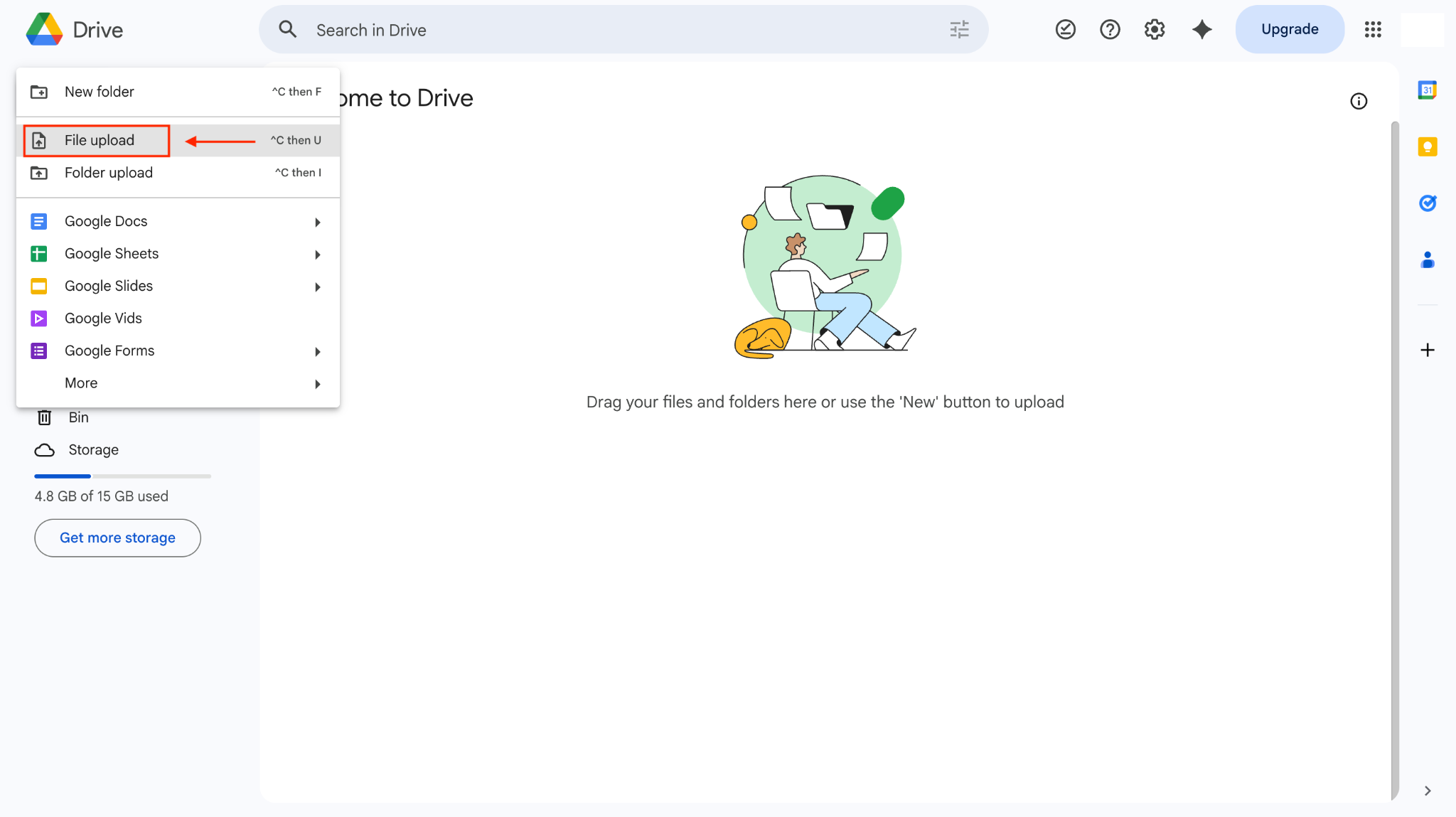
Step 2: Select your video file and upload it. Once uploaded, right-click the video and click Get link.
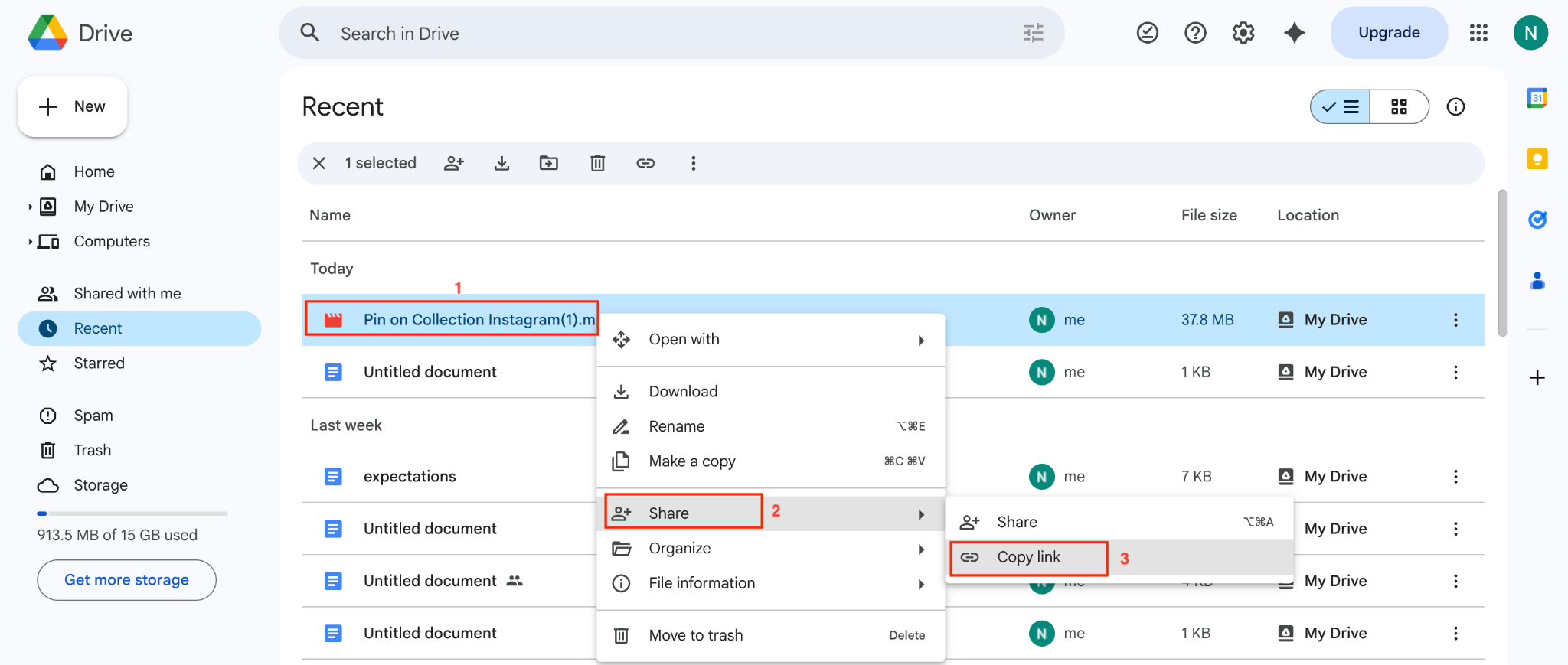
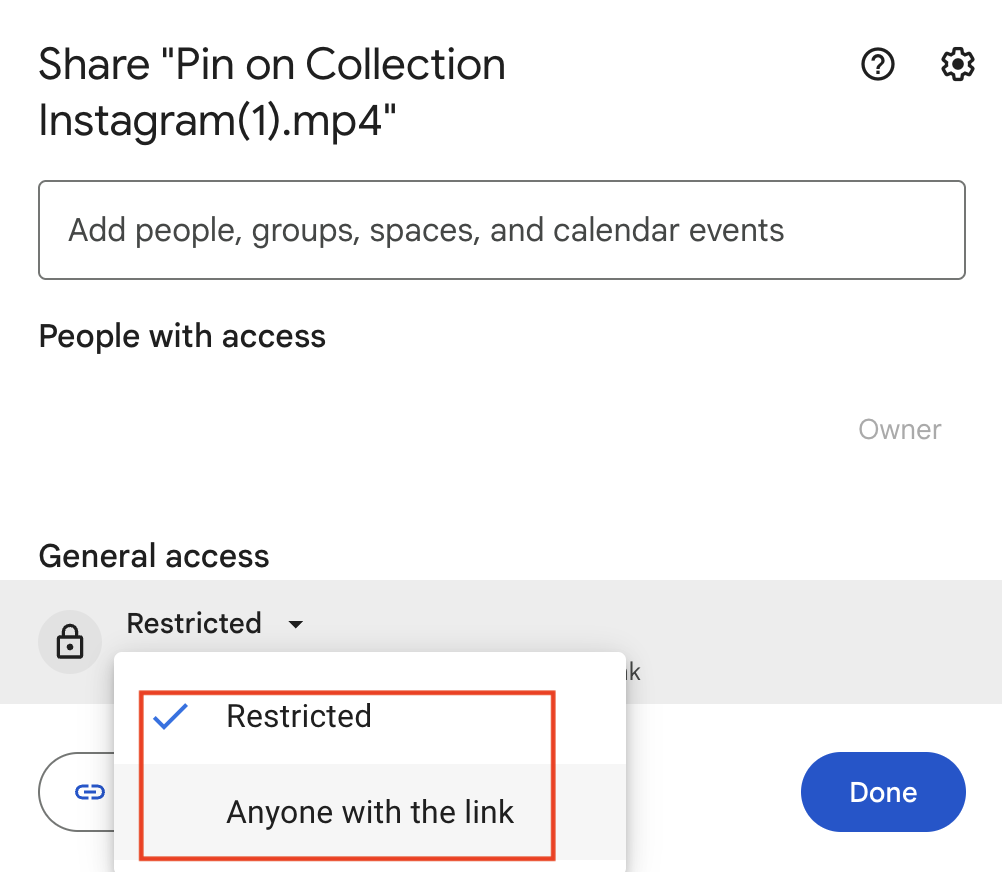
Step 3: Choose the access type: Viewer (recommended for sending videos), Commenter, or Editor (if needed). Click the “Copy link” option, then send it via email, WhatsApp, or any platform.
Part 2: How to Upload and Send a Video on Google Drive (Mobile)?
If you're using a phone, sending a video to Google Drive is just as simple. Upload the video from your gallery, generate a link, and share it instantly.
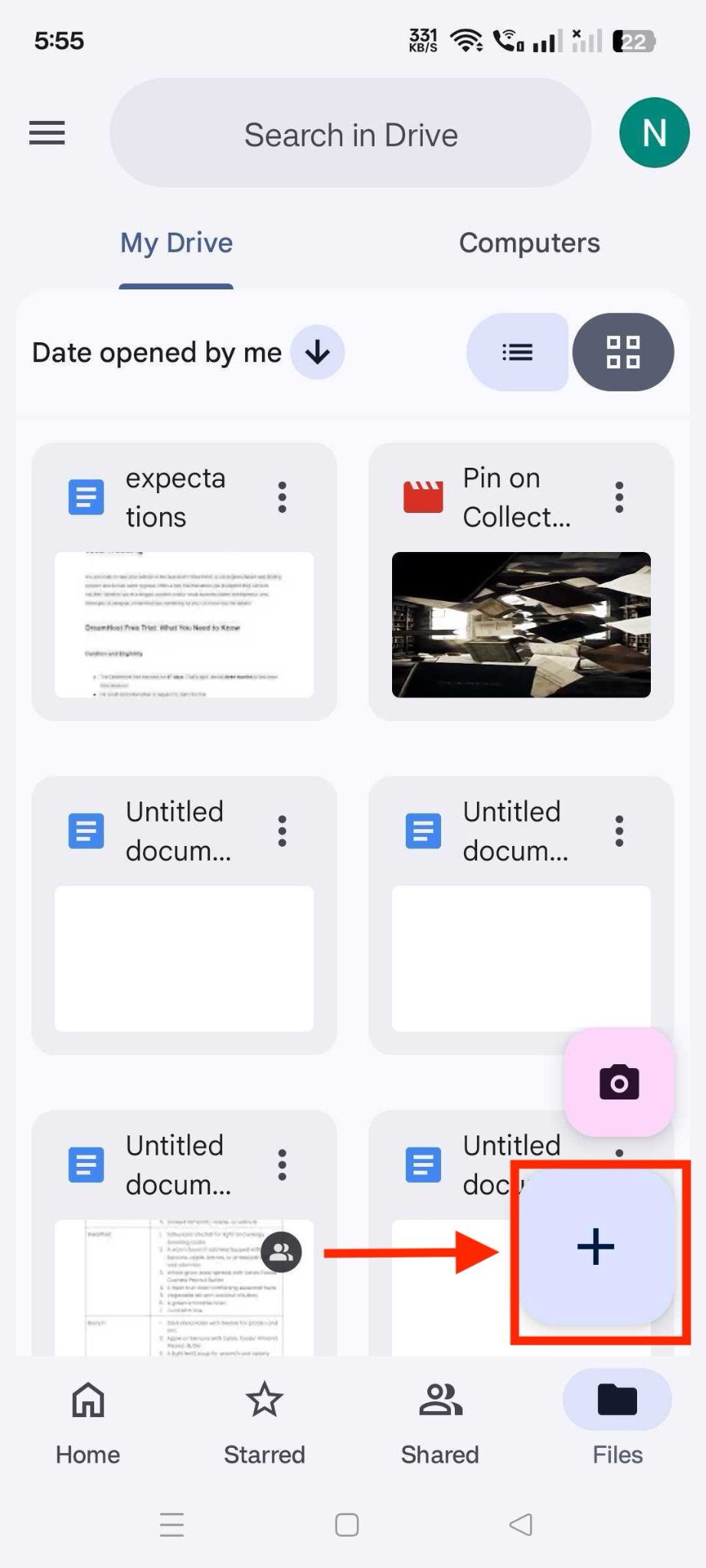
Step 1: Open the Google Drive app on your phone and tap the + (plus) icon.
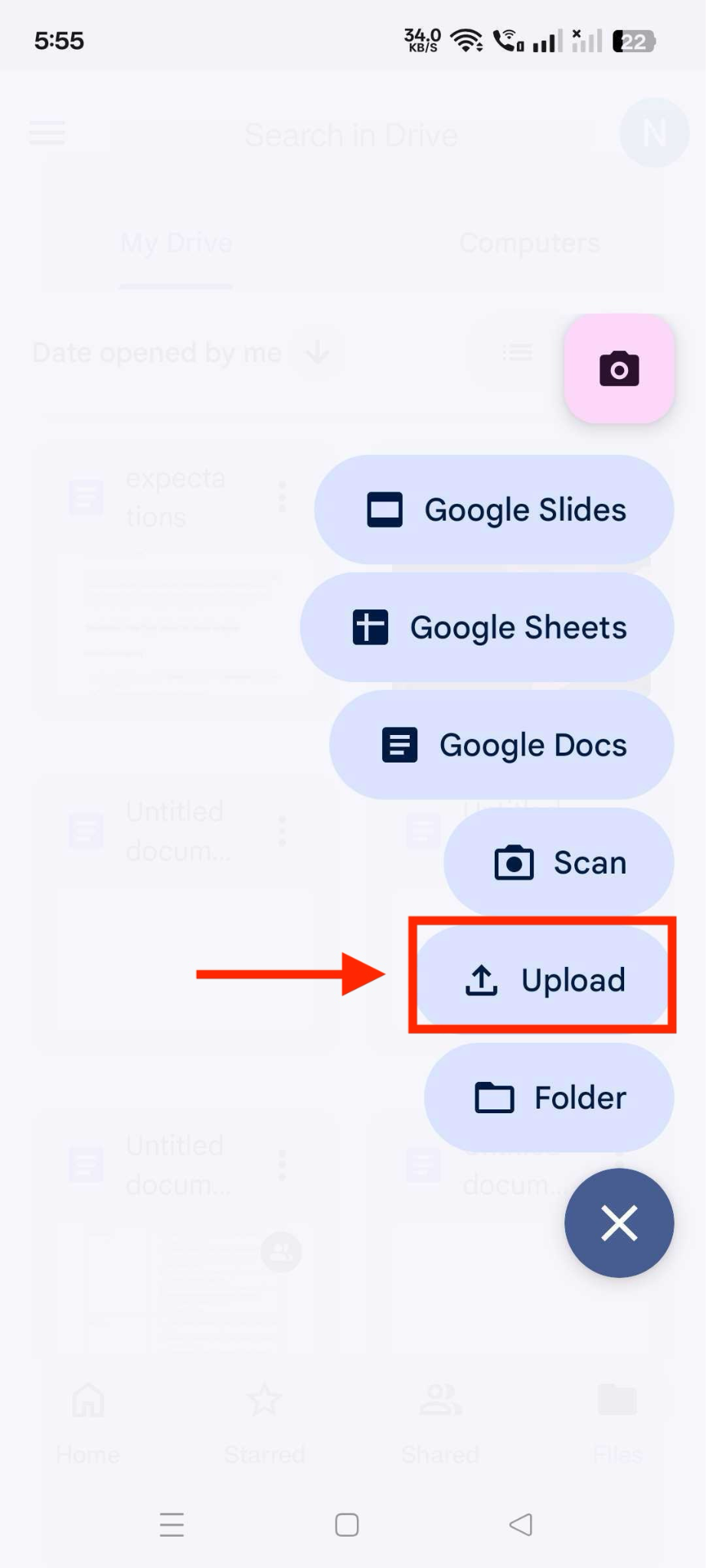
Step 2: Select Upload and choose your video from the gallery.
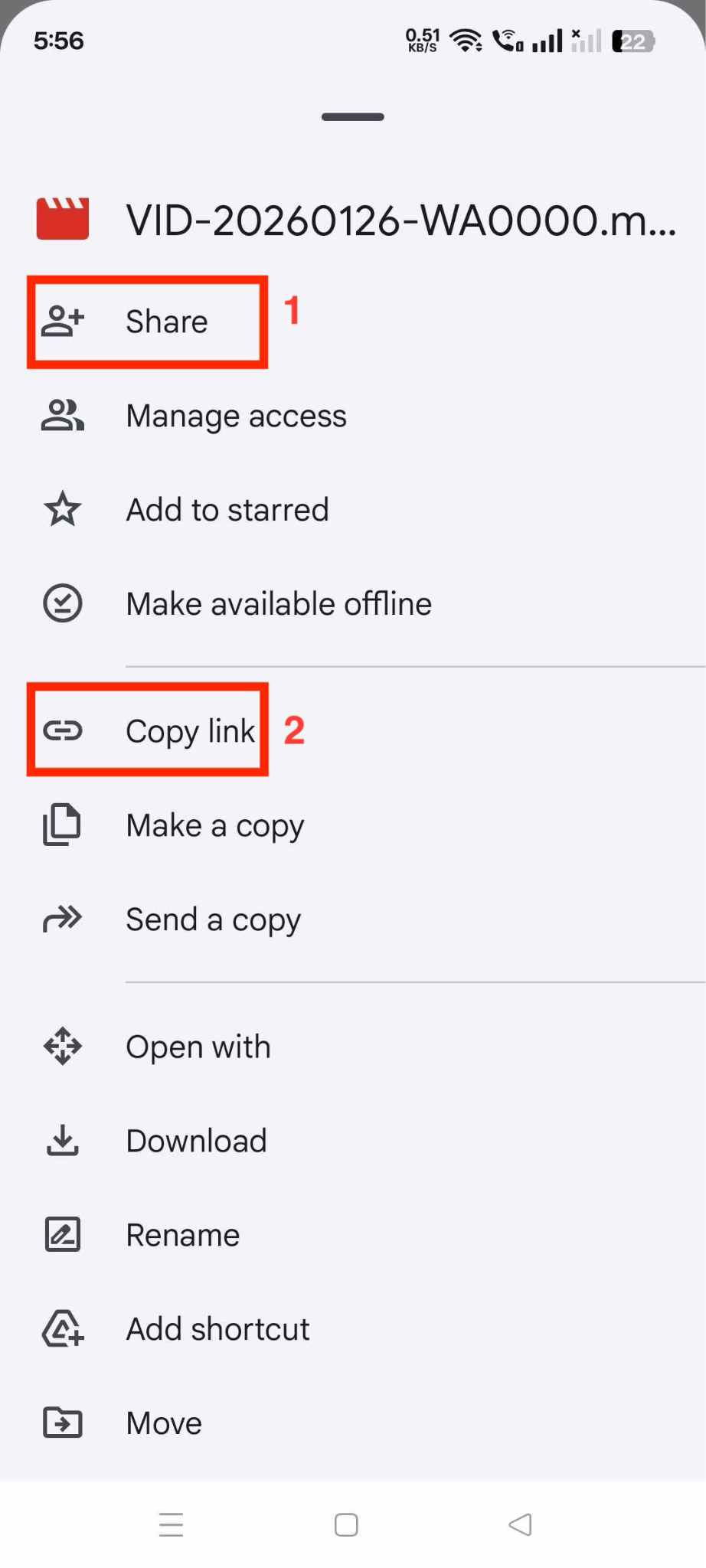
Step 3: Tap the three dots next to the video file and tap Copy link or Share.
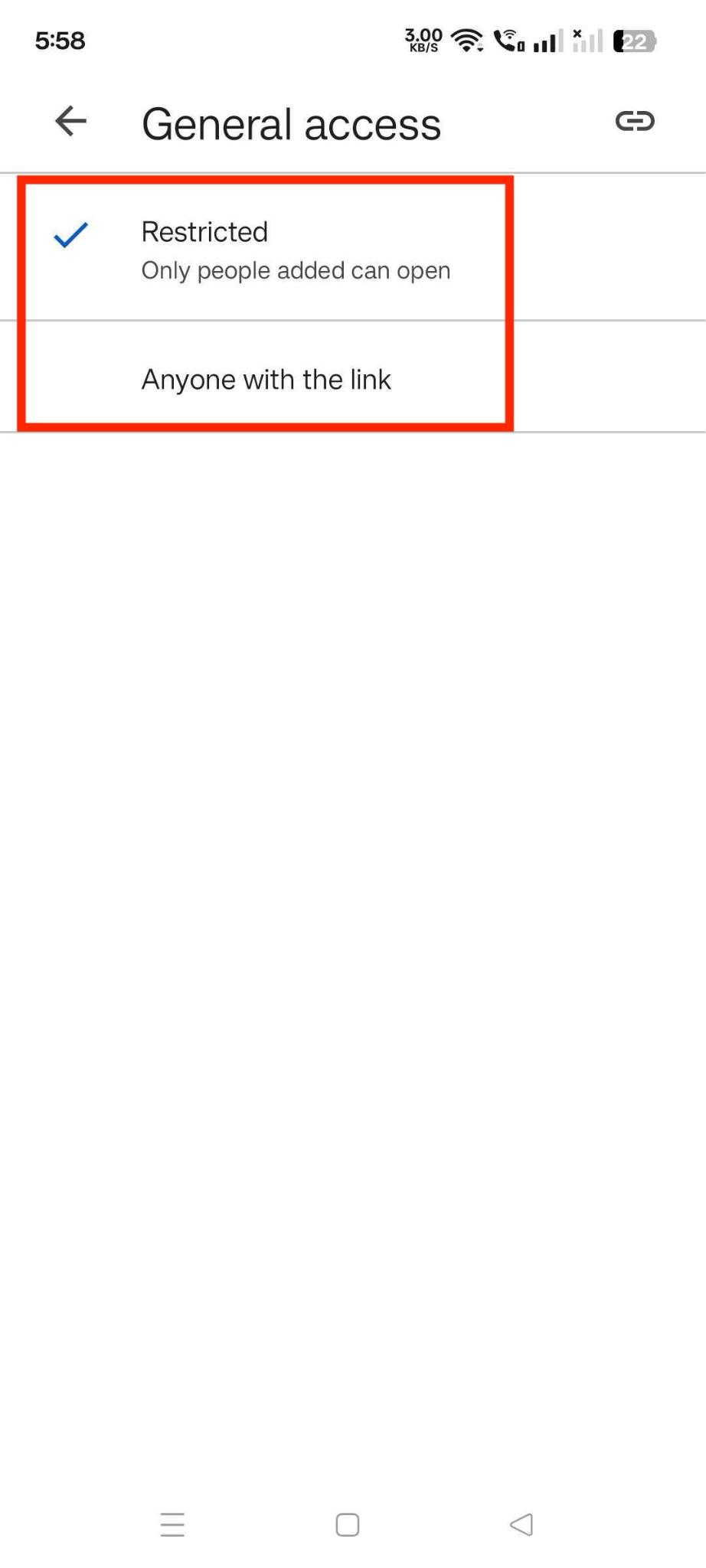
Step 4: Select Manage Access and set access to Anyone with the link (if needed).
Part 3: Google Drive Storage Limits, Supported Formats & Permission Settings
Before you send a video, you need to understand file size limits, supported formats, and sharing permissions. These factors directly impact upload success and playback. Most issues related to the Google Drive video size limit and why a video won't play on Google Drive come from these three areas.
Google Drive Storage and Video Size Limits
Google Drive supports very large uploads, but storage is the real constraint.
Maximum file upload size: Up to 5 TB per file
Free storage: 15 GB per account (shared across Drive, Gmail, Photos)
Upload fails if storage is full, even for small videos
Practical Insight: In real use, large videos often fail due to storage limits, not file size. Many users overlook this because Drive does not always show a clear error before upload stops.
Supported Video Formats on Google Drive
Google Drive can store almost any video format, but playback support is limited to specific formats and codecs.
Common Supported Formats: MP4 (best for compatibility), MOV, AVI, WMV, MPEG
Best Practice: Use MP4 with H.264 codec. This format uploads faster, processes quicker, and plays reliably across devices.
Practical Insight: Videos in formats like MKV or unusual codecs may upload successfully but fail to play. This is one of the most common reasons behind "video not playing" issues.
Permission Settings for Sharing Videos
Uploading is only half the process. If permissions are wrong, the recipient won't be able to access the video.
Key Sharing Options
Restricted: Only added email addresses can access
Anyone with the link: Anyone can view the video
Roles: Viewer (recommended), Commenter, and Editor
Practical Insight: Most "video not accessible" issues are not technical. They happen because the file is still set to "Restricted" by default.
Practical Suggestion: Even though Google Drive supports large uploads, file size and format still affect how smoothly your video uploads, processes, and plays. Large files take longer to upload and are more likely to fail on slow connections, while unsupported formats can cause playback issues. To avoid these problems, reducing your video file size before uploading is often the most effective step.
Part 4: How to Reduce Video File Size Before Uploading to Google Drive?
If you're trying to figure out how to send a video on Google Drive, since it's long, reducing the file size makes uploads faster and more reliable. Smaller videos are easier to share and less likely to fail during upload. Follow these steps to reduce video file size offline with Wondershare UniConverter:

All-in-One AI Video Toolkit
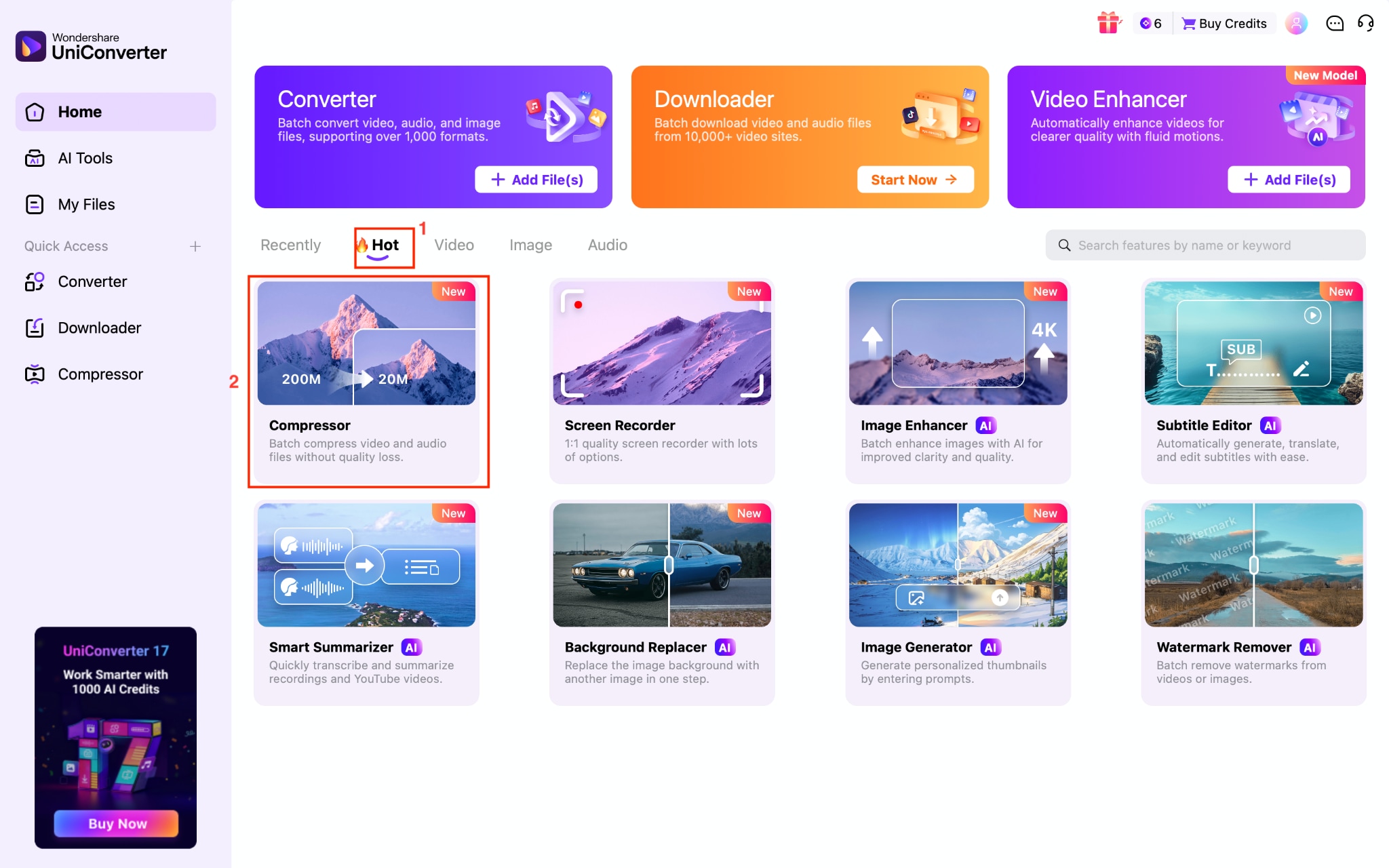
Step 1: On the dashboard, navigate to Compressor under the Hot section or select from the left side menu.
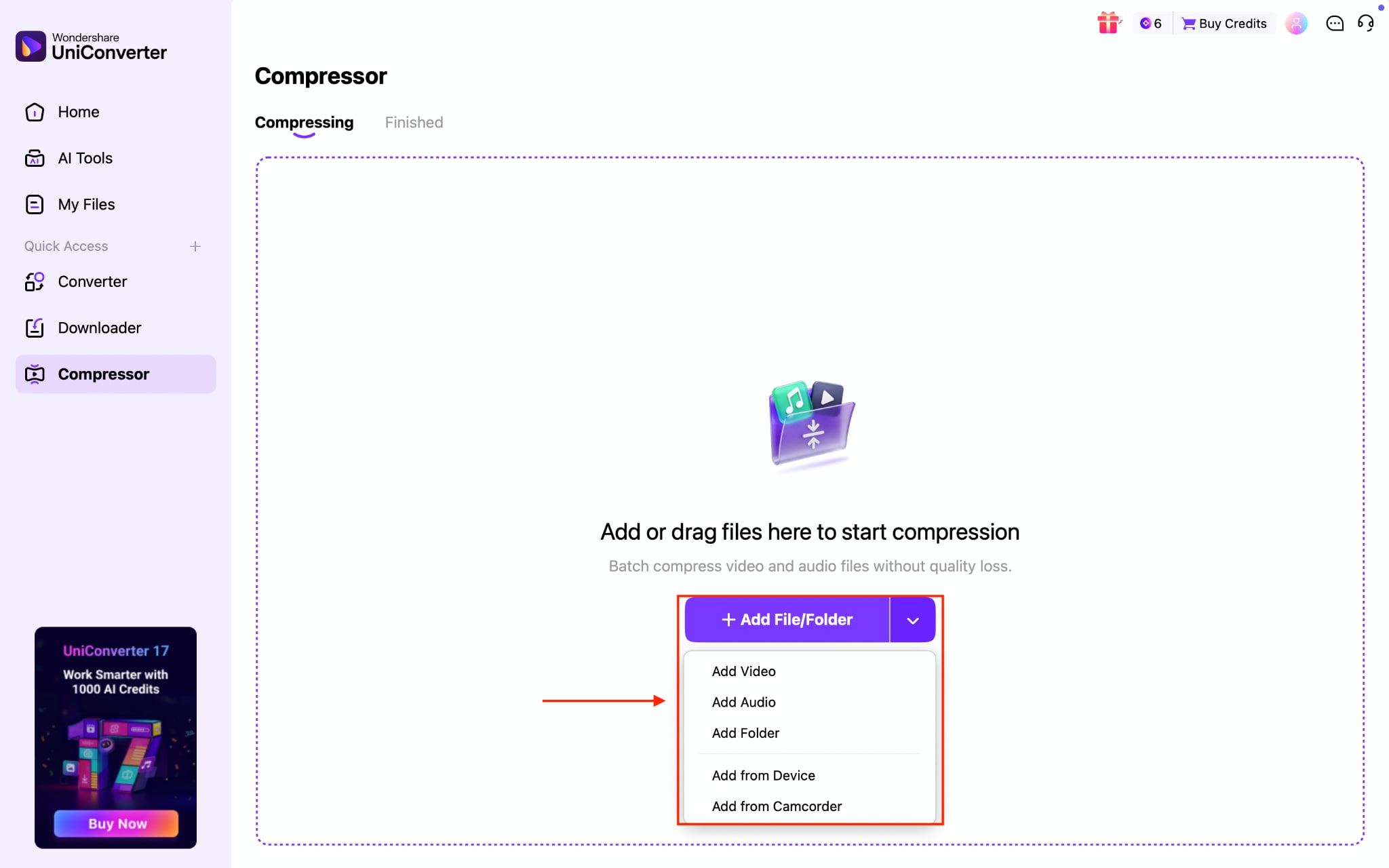
Step 2: Click the Add File/Folder option. You can upload a single file or a complete video/audio folder.
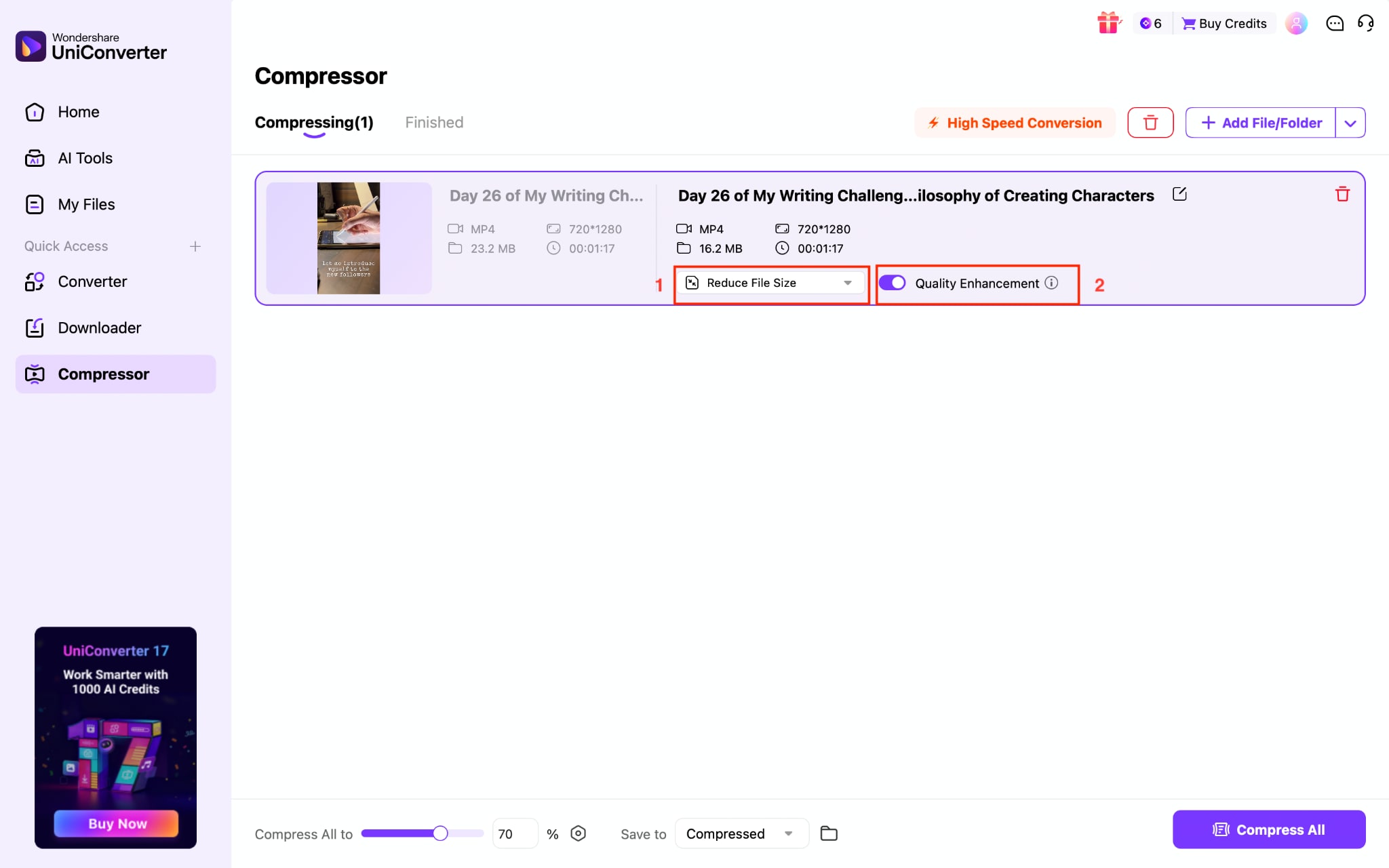
Step 3: Once the video file is uploaded, you can see the file size. Click the Reduce File Size drop-down menu, and you can also enable the Quality Enhancement button.
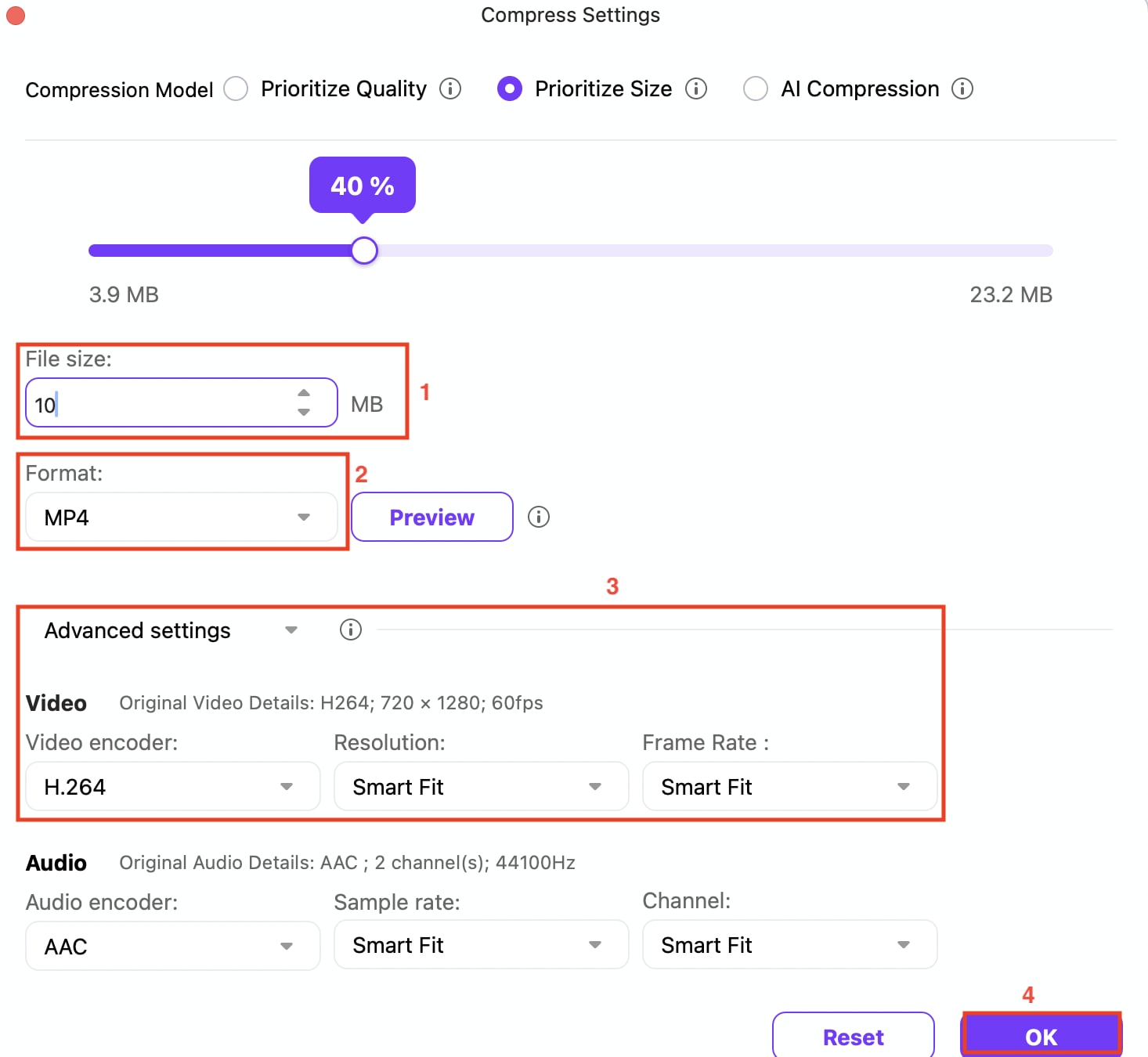
Step 4: Use the slider to reduce the size, or manually set it. If you want to change the format, choose one from the Format option. You can also change advanced video settings, such as the video encoder, resolution, and Frame Rate. Once done, click OK.
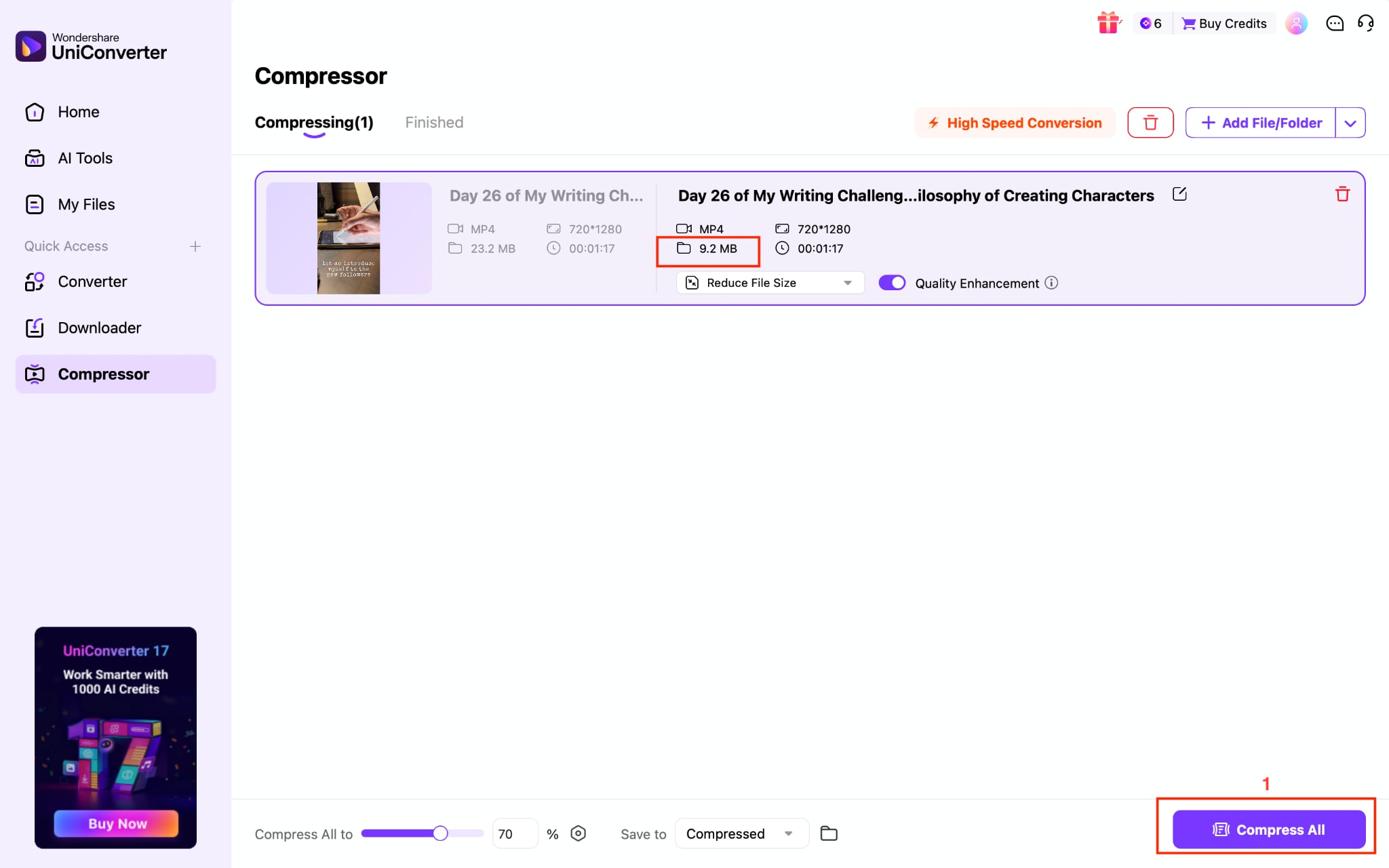
Step 5: You can see your current file size. Click the Compress All button to save changes.
Part 5: How to Convert Video Format Before Uploading to Google Drive?
Playback issues are common when the video format is not supported. If you're asking how do I share a video on Google Drive without errors, converting the file to a compatible format ensures it uploads and plays smoothly. Here is how you can simply convert the video format with Wondershare UniConverter:
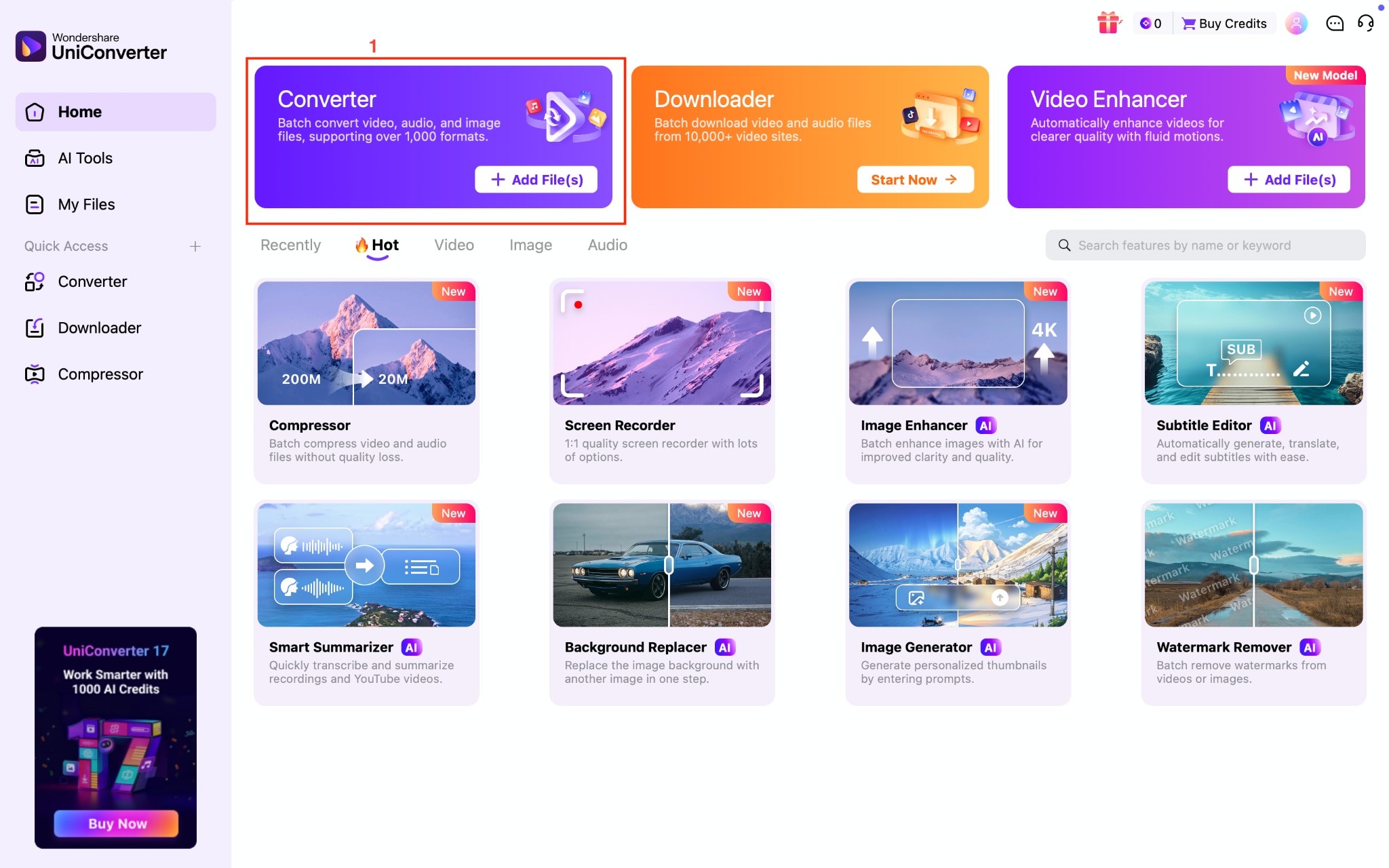
Step 1: Open the app and navigate to the Converter option on the top menu.
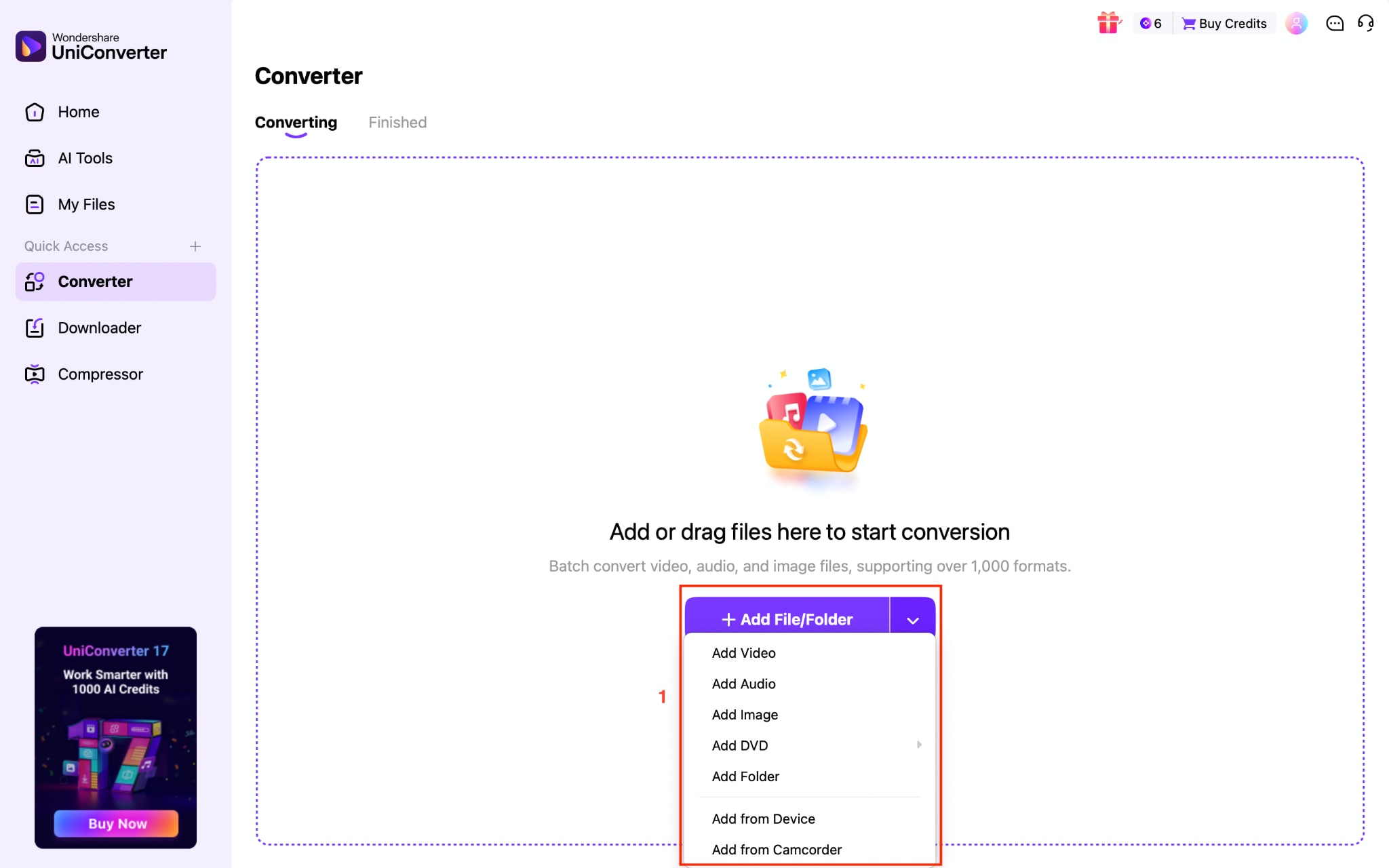
Step 2: Click Add File/Folder to upload a single video or multiple videos.
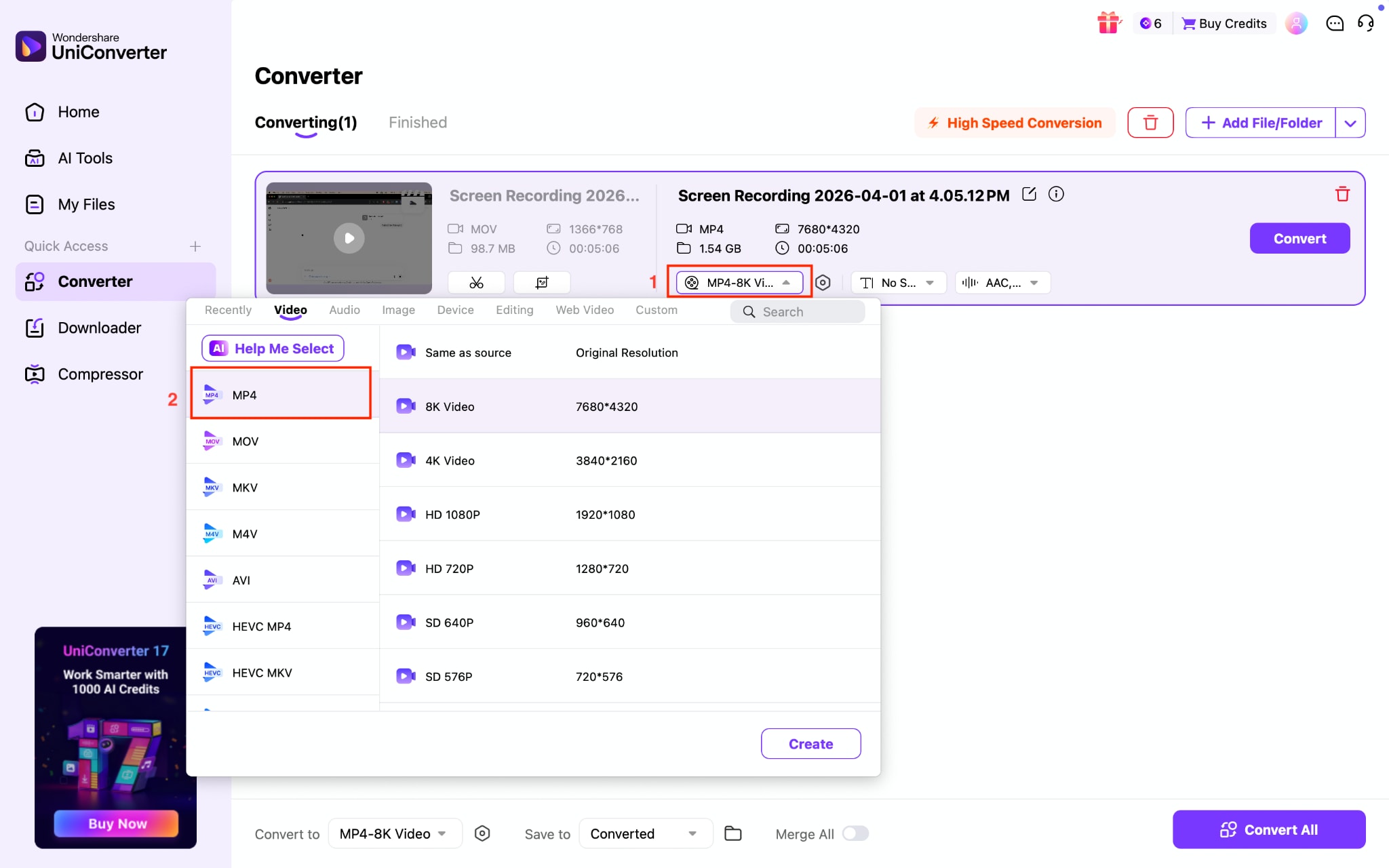
Step 3: After uploading the video, click the drop-down menu and select the format.
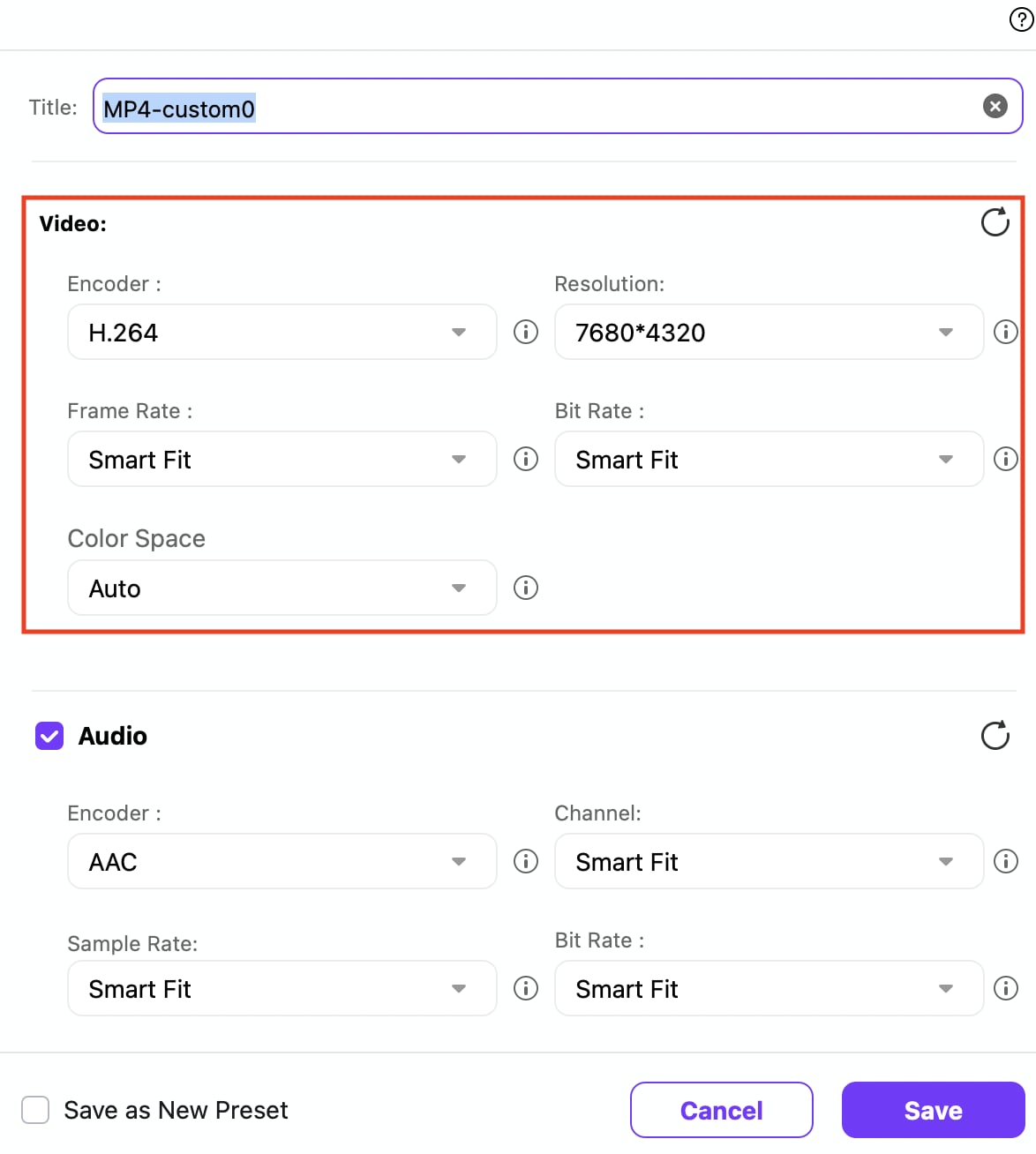
Step 4: For further settings, click the Settings icon next to the converter drop-down and set video settings, such as encoder, resolution, bit rate, and more.
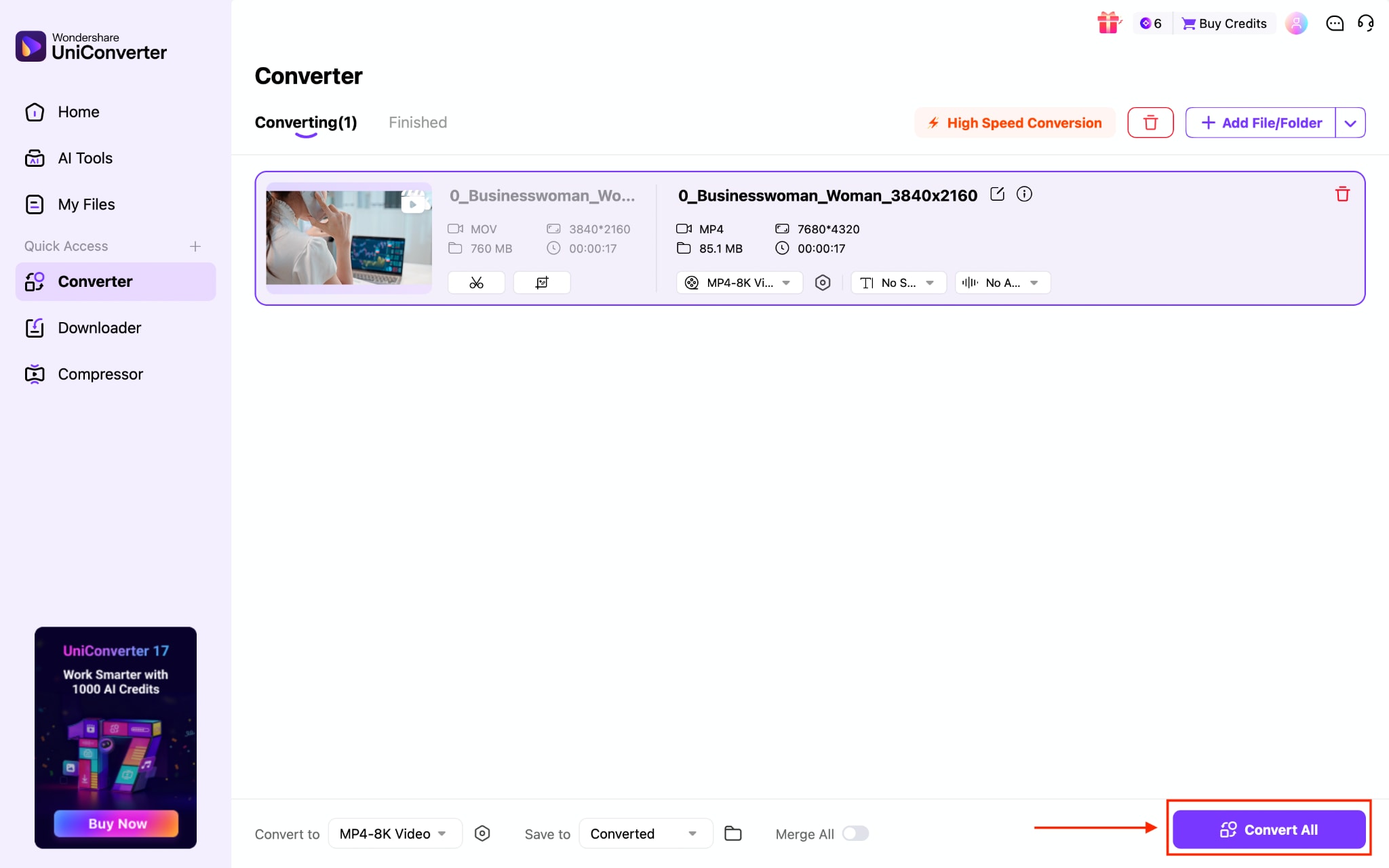
Step 5: Click the Convert All button to save the changes to your system.
Part 6: Tips for Sharing Videos on Google Drive
Sharing videos through Google Drive works best when you follow a few simple practices. These steps help avoid common problems, such as Google Drive videos not sending or uploading, and ensure the recipient can access and play the video without issues.
Use a stable internet connection: Video files are large and require consistent bandwidth. Uploading over an unstable or slow connection can cause interruptions, leading to failed or incomplete uploads. A strong Wi-Fi connection ensures the file uploads fully without errors.
Choose the right video format: Upload your video in MP4 format with H.264 encoding for better compatibility. Google Drive processes this format faster and plays it smoothly across devices, reducing the chances of playback errors after sharing.
Set access permissions correctly: Before sending the video, update the sharing settings to "Anyone with the link" and select Viewer access. This allows the recipient to open the video without requesting permission, which is one of the most common issues with sharing.
Wait for upload and processing: After uploading, Google Drive needs time to process the video for playback. If you share the link immediately, the recipient may see a processing message or face playback issues. Waiting ensures the video is ready to view.
Reduce file size for large videos: If you are figuring out how to send large video files on Google Drive, compressing the video before uploading speeds up the process and makes it more reliable. Smaller files upload quickly and are less likely to fail during transfer.
Use clear file names: Rename your video with a simple and descriptive title before uploading. This makes it easier for recipients to identify the file, especially when sharing multiple videos.
Conclusion
Learning how to send a video on Google Drive comes down to three simple steps: upload your video, create a shareable link, and set the right permissions so others can access it easily. The process works smoothly on both desktop and mobile, but success depends on understanding file size limits, supported formats, and sharing settings.
If your video fails to upload or play, the issue is usually related to storage limits, format compatibility, or incomplete processing. Reducing file size and converting videos to a supported format, such as MP4, can significantly improve upload speed and playback reliability.
Once you follow these steps, you can upload, share, and send large video files on Google Drive without common errors or delays.

