

You click the play button, only to see the message "This video cannot play." This becomes more frustrating when the file has worked in previous instances. You freeze and end up being stuck there, wondering what has gone wrong. Is it the file, the device, or the player? Every issue has a clear and fixable cause.
You need to understand the nitty-gritty details surrounding this issue. There is no need to panic, as you can rectify these errors with ease. Common reasons include unsupported formats, incomplete files, or missing codecs. The primary step here is to understand the cause of the issue and the ways to fix it. In this guide, you will get a detailed procedure to fix this issue.
Quick Answer
If a video cannot play, the most common causes are an unsupported format, missing codec, browser limitation, or a corrupted file. Try opening it in another player first, then re-download or convert it to MP4 (H.264 + AAC) for smoother playback on most devices and browsers.
In this Article
Part 1. Why Does My Video Say "Video Cannot Play" or "This Video File Cannot Be Played"?
"Video Cannot Play" or "This Video File Cannot Be Played" error message typically appears when your device cannot correctly decode the video. There is a chance that your device is not reading the video file correctly. Such an issue can occur due to a problem with the format, codec, or data structure.
- Common scenarios where this issue can show up are as follows:
- A video you received on WhatsApp
- A downloaded video file you open on your Windows PC or Mac
- On a browser while streaming online content
- Unsupported video format on media players or smart TVs
Since this is a compatibility issue, the video is still usable. The primary causes of this issue can be format mismatches or incomplete downloads. As soon as you understand why this error showed up, you will be able to resolve it without much technical skill.
Part 2. What Are the Most Common Reasons a Video File Cannot Be Played?
- Unsupported Video Format: Video files come in many formats, such as MP4, MOV, MKV, and others. Each player or device supports only certain formats and codecs. When the required format is not supported, the video fails to play. This is especially common with files recorded using professional cameras or exported in non-standard formats.
- Unsupported Codec (H.265 / HEVC, AV1, etc.): A codec is used to compress or decode video files. While efficient formats like H.265 offer better quality at smaller sizes, they are not supported by all devices or media players. If the codec is unsupported, the video will not open.
- Corrupt or Incomplete Download: Videos can become damaged during download due to network interruptions, especially when downloading large files. A corrupted or incomplete file often triggers the “video cannot play” error.
- Wrong File Extension: Sometimes the video data is valid, but the file has an incorrect extension. This mismatch confuses the media player and prevents playback. Renaming the file can occasionally resolve this issue.
- Player Compatibility Limitations: Older media players generally do not support modern video standards. As a result, they may show errors even when the video file itself is not damaged.
- Resolution or Bitrate Too High for the Device: High-resolution videos require more processing power due to higher bitrates. If the device cannot handle the load, the video may fail to play.
Part 3. What are the Possible Fixes if a Video Cannot Play?
- Update Graphics Drivers: Outdated graphics drivers on your desktop can mess with the video playback. You can use the Device Manager to update the graphics driver on Windows, and check system settings if you are using a macOS.
- Clear Cache: Often, media players like QuickTime and Windows Media Player can get bogged down with cache and data. Head over to the app settings and clear the unwanted cache and data to resolve the video playback issue.
- Restart the Device: It may sound simple, but a device reboot can often resolve glitches or minor errors that cause the issue.
- Update Media Player: Media players like VLC and QuickTime are great with support for niche codecs, but they need regular updates for newer formats. Check the Microsoft Store or your device's respective App Store for updates.
- Test on Another Player: If updating the video player doesn’t fix the issue, try switching to another player, such as MPC-HC or PotPlayer.
Part 4. How Do I Check If My Video Format or Codec Is Unsupported?
Checking the video format or codec is necessary to understand the root cause of why the video file cannot be played. These simple methods will help you identify unsupported formats or codecs.
Method 1: Try a Different Media Player (Easiest)
Open the video file in another media player. For instance, if the video failed to open in Windows Media Player, try opening it with VLC. Various media players accept varied formats. If the video was played with another media player, it is a player compatibility issue. This is also a good way to verify the file's instability.
Method 2: Check Windows Media Player (Windows)
Open the video file using Windows Media Player and carefully observe the error message. This player gives you a warning about missing codecs or unsupported formats. Knowing the exact error message will help you solve the issue with ease.
Method 3: Use a Codec Information Tool
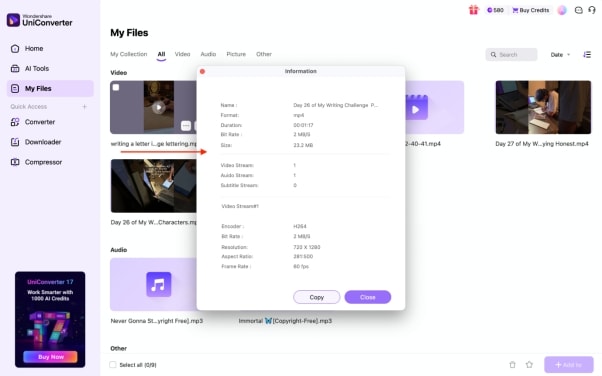
You can use Wondershare UniConverter or any similar tool to understand the codec information. UniConverter shows the video format, codec, bitrate, and other details in one place. This helps you easily identify the root cause of the issue. Furthermore, UniConverter helps you convert video files to supported formats quickly and easily.
To check the video file details, go to "My Files" to see the available video files. Hover the mouse over the video you want to see the details about and click on the "Three-dots" icon. Then click “Media Information” to view details about your video.
Method 4: Check File Properties (Windows/Mac)
On your Windows PC, right-click on the video file and select "Properties." On a Mac, click "Get Info" to view the video's details, such as size and format. Although you will only get limited information here, it will help you understand the video extension and its size.
Part 5. How Can I Fix "This Video File Cannot Be Played" by Converting the Video?
To fix the error, "this video file cannot be played," converting the video to a supported format is the best solution. When you convert a video file, the format and code are adjusted so your device can read it properly. You can use any of the following two methods to complete the video file conversion.
Method 1: Desktop Converter

Having a desktop converter gives you complete control and ownership of the conversion process. Wondershare UniConverter is one of the easiest methods to convert video files on your desktop. This tool helps you convert files without compromising the original video quality.
This is an effective method when there is a problem with the format or codec of your video file. UniConverter supports multiple formats that are smoothly supported across devices. You can also use this tool to batch-convert multiple files simultaneously. Errors related to codecs and formats can be resolved easily offline using Wondershare UniConverter.

All-in-One Multimedia Processing Tool

Method 2: Online Converter
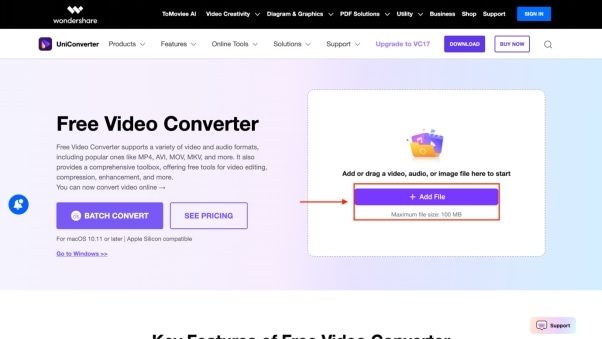
If you prefer not to install any software on your PC, you can use Wondershare UniConverter online to convert small video files. The online version works well with single video files, with a maximum file size of 100 MB. Here is the step-by-step guide to convert from an unsupported format to a supported one online:
Step 1: Open Wondershare Online Free Video Converter in your browser and click “Add File” to upload the video.
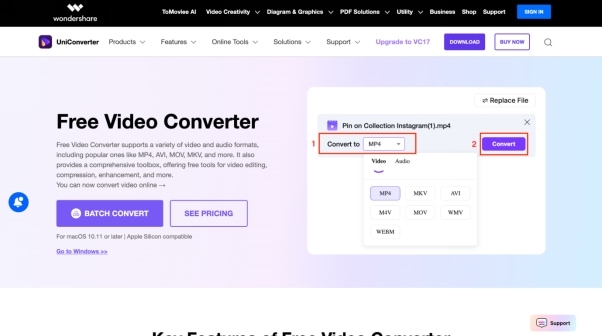
Step 2: Click “Convert to” and choose the format of your video file, and click “Convert.”
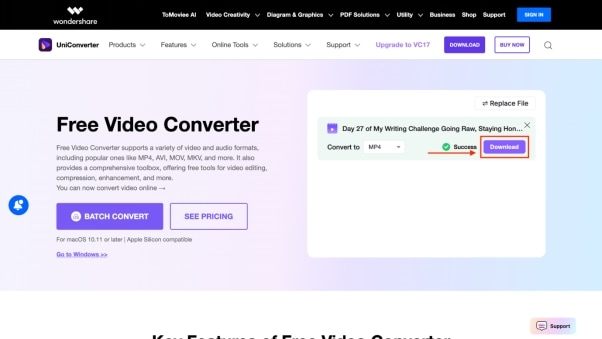
Step 3: Click the “Download” button to save the video and play it smoothly on your device.
Although this method is simple, it is only effective for small video files. High-resolution videos and network instability also affect this method in some cases. The most consistent and reliable method to convert your video is an offline desktop converter.
Part 6. How to Convert an Unplayable Video into a Playable Format Using UniConverter?
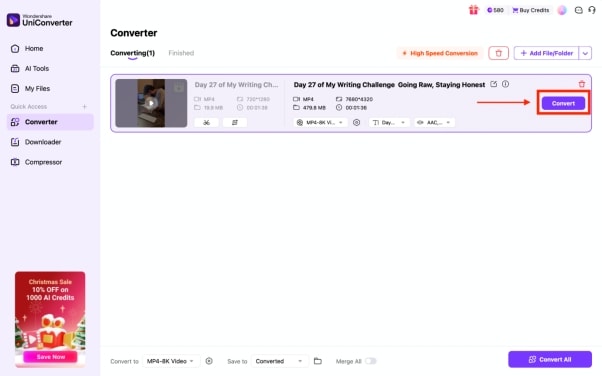
Using UniConverter to convert your unplayable video is a practical solution. You can use this tool offline on your Windows PC or macOS. You do not need technical expertise to use this tool. Below are the steps to convert a video file using UniConverter.
Step 1: On the UniConverter Desktop, click the "Converter" option.
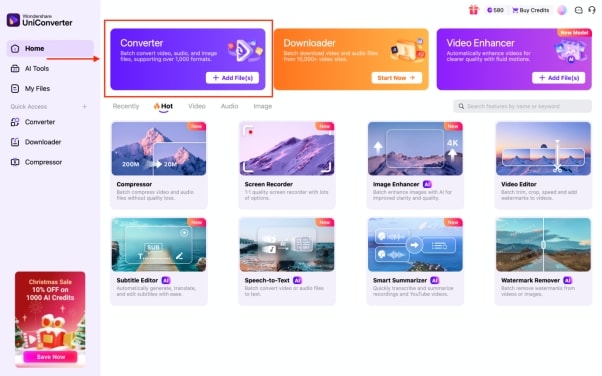
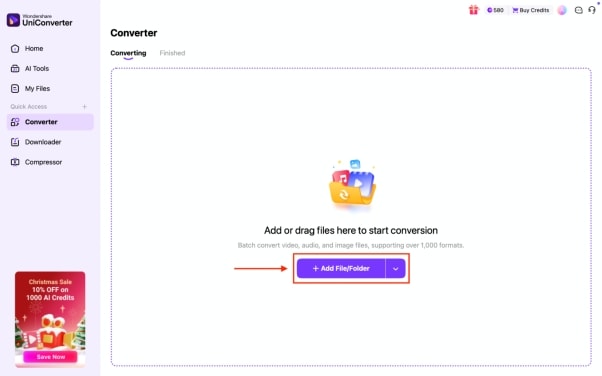
Step 2: Click on "Add Files" to choose the file you want to convert.
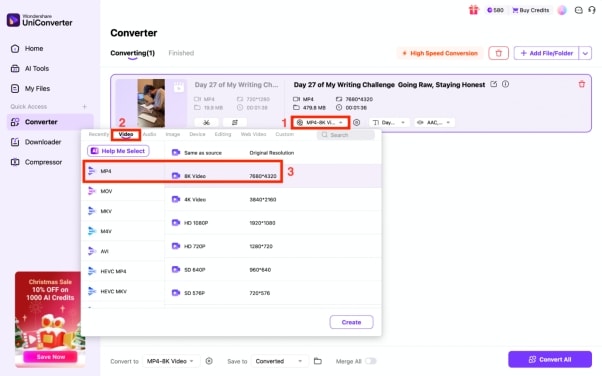
Step 3: Choose your output format and click on the drop-down menu to choose the file format.
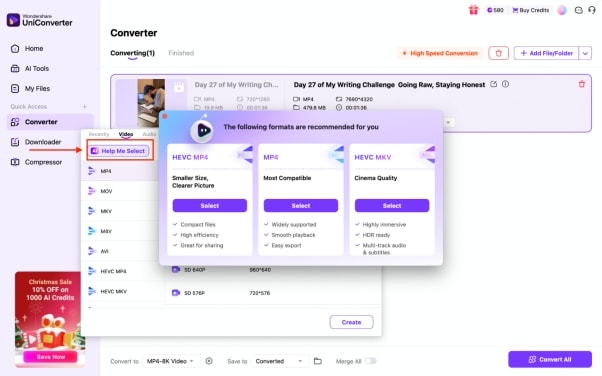
Step 4: You can also click the “AI Help Me Select” option so you can make the right choice in choosing the format.
Step 4: Once everything is done, click the “Convert” button, and the video will be saved to your device.
Common Playback Problems UniConverter Can Help Fix
If your video cannot play, UniConverter is most useful in these common situations:
| Problem | How It Helps | Result |
|---|---|---|
| Unsupported format or codec | Convert the file to MP4 or another widely supported format | Plays more smoothly |
| Browser cannot play the video | Make the file more browser-friendly for easier playback | Fewer playback errors |
| Video works on one device but not another | Choose a more compatible format and resolution | Better cross-device support |
| Multiple videos need fixing | Batch convert several files in one workflow | Saves time |
Best For by Use Case
- Unsupported format or codec: Best for converting HEVC, AV1, MOV, MKV, or other files that do not play smoothly on your device.
- Browser playback errors: Best for videos that show messages like “your browser can’t play this video’s format” and need conversion to a browser-friendly format.
- Windows or Mac playback issues: Best for files that open on one device but fail on another because of codec or player compatibility.
- Android or mobile sharing: Best for turning large or incompatible videos into mobile-friendly MP4 files.
- Batch conversion: Best for users who need to fix multiple unplayable videos at once without major quality loss.
Part 7. What Tips Help Prevent "Video Cannot Play" Errors in the Future?
Why does it say “this video file cannot be played” even when the file looks normal?
This message can appear even when the video file is not visibly damaged. In many cases, the issue comes from an unsupported audio or video codec, a mismatched file container, or metadata that the player cannot read correctly. A file may also seem complete but still be partially corrupted if the transfer was interrupted. Checking the file in another player or converting it to a more universal format can help confirm the cause.
How do I fix “your browser can’t play this video’s format” without downloading another player?
If this error only appears in a browser, first test the video in another browser to see whether the issue is browser-specific. Then clear cache, disable playback-related extensions, and update the browser to the latest version. If the video still fails online but works elsewhere, the format or codec may not be fully supported in web playback, and a browser-friendly version of the file may be needed.
Why do videos in special formats might not play smoothly on older devices?
Some newer formats are more efficient but require stronger hardware support and newer decoding capabilities. Older phones, laptops, TVs, and default media players may struggle to decode these files smoothly, which can lead to lag, black screens, or playback failure. This is especially common when the file has a high bitrate, unusual container, or modern codec that the device does not optimize well.
What should I check first if a video file cannot be played after sending it through WhatsApp, Google Drive, or email?
When a video stops working after being shared, the first things to check are file completeness, file size changes, and whether the receiving app compressed or altered the media. Some platforms may reduce quality, rename the file, or limit playback compatibility depending on the device. It is also helpful to compare the original file with the shared version to see whether the format, size, or playback behavior changed during upload or download.
What is the easiest way to play a video that cannot be played on different devices and browsers?
The easiest long-term approach is to keep one version of the file in a broadly compatible format that works across common systems. This reduces the chance of playback errors when moving the video between browsers, mobile devices, desktop computers, and TVs. If the file is meant to be shared widely, preparing a compatibility-focused version in advance is usually more reliable than troubleshooting each playback issue one by one.
Conclusion
An error message like "Video cannot play" does not necessarily mean your file is lost. These errors may occur due to unsupported formats, codes, or incomplete downloads. Understanding the root cause of the issue and converting the video to a supported format will rectify this error.
With an AI-powered multimedia toolkit, you can resolve such issues with ease. You do not need technical precision or expertise to convert your corrupt video file. By following a few simple steps, you will never see the "video file cannot be played" error message again.
If you want batch processing without sacrificing video quality, download Wondershare UniConverter now.

