

In 2026, efficient multimedia formatting has become essential for everyone, from remote educators to digital creators. Finding a reliable way to adapt your media can save hours of frustrating technical delays. Whether you lean toward instant cloud platforms or powerful desktop software, selecting the right solution impacts your daily workflow significantly. Currently, the Convertio video converter remains one of the most searched online tools for quick format adjustments. This comprehensive guide evaluates the Convertio file converter objectively. We will compare its browser-based convenience against the sheer processing power of robust desktop tools like Wondershare UniConverter across different professional and casual scenarios.
Table of Contents
Part 1. What Is Convertio Video Converter and Who Should Use It?
Understanding the fundamental mechanics of browser-based formatting helps streamline digital tasks. It allows teams to choose the right application for their specific project demands.
What Convertio Is
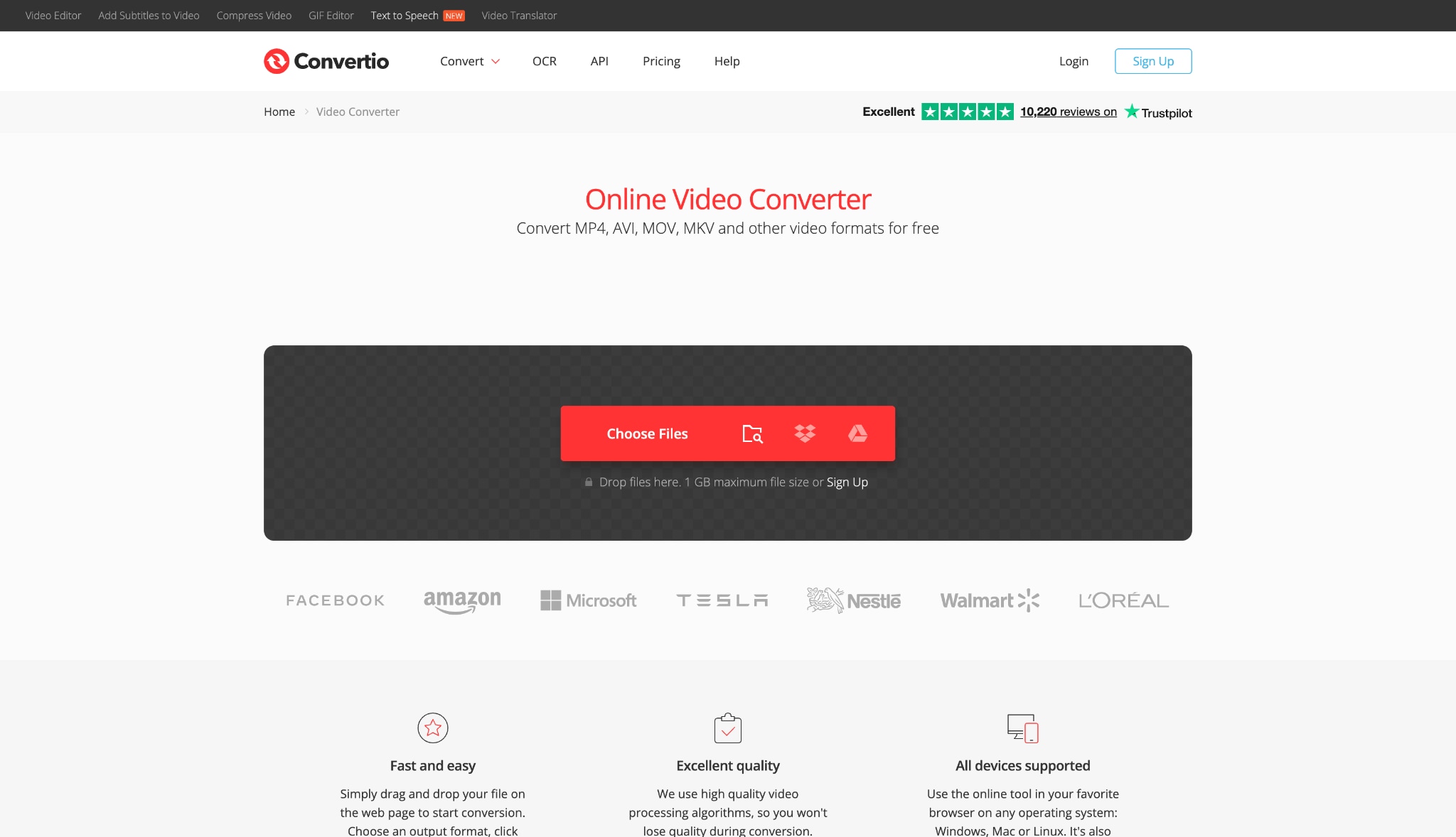
The Convertio video converter functions as a fully web-based media processing platform. Instead of downloading heavy application files, individuals upload their media to a remote server. This server handles the computational heavy lifting required for formatting. Finally, the platform provides a finished digital file for direct download.
How the Browser-Based Converter Works
Operating through standard web browsers makes this tool highly accessible from any modern device. It bypasses the need for complex software installation processes entirely. Users simply navigate to the website and drop their chosen media into the upload area. The backend system then reads the data, applies the requested changes, and holds the file temporarily.
Difference Between Video Conversion and File Conversion
People often use these two terms interchangeably, but they serve entirely different technical purposes. File conversion broadly changes the digital container of a document or archive, like switching a PDF to a Word document. Video conversion specifically manipulates multimedia codecs, requiring significantly more processing power. This intense process encodes moving visual data and synchronized audio tracks simultaneously.
Supported Platforms
Because it runs inside a web browser, this tool remains completely platform-agnostic. It works seamlessly across Windows, macOS, Linux, ChromeOS, and various mobile operating systems. You only need a stable internet connection and an updated browser to access the dashboard. This cross-platform nature helps teams working in mixed hardware environments.
Supported Video, Audio and Document Formats
The platform supports a massive array of digital inputs for everyday tasks. It handles common visual formats like MP4, MOV, and AVI without issue. For audio needs, it easily manages standard extensions like MP3 and WAV. Additionally, it processes various document types, offering a flexible solution for mixed media handling.
When the Convertio File Converter Is Sufficient
A browser-based Convertio file converter shines primarily during lightweight, spontaneous technical tasks. If someone needs to quickly change a single, small media file, this online platform provides a frictionless solution. It works perfectly when installing dedicated software seems unnecessary for a one-off job. You can complete the task in minutes as long as the file size remains small.
Common Use Cases
Social media: Quickly adapting a short smartphone clip into an MP4 for seamless Instagram or TikTok uploads.
School: Formatting a brief presentation video so it plays natively inside classroom software without missing codecs.
Office: Compressing a small update video to attach directly into a company email thread.
Personal videos: Converting an unreadable family video file sent from an older Android device so it plays clearly on an iPhone.
Part 2. Cloud Video Converters vs Desktop Software: Which Is Better in 2026?
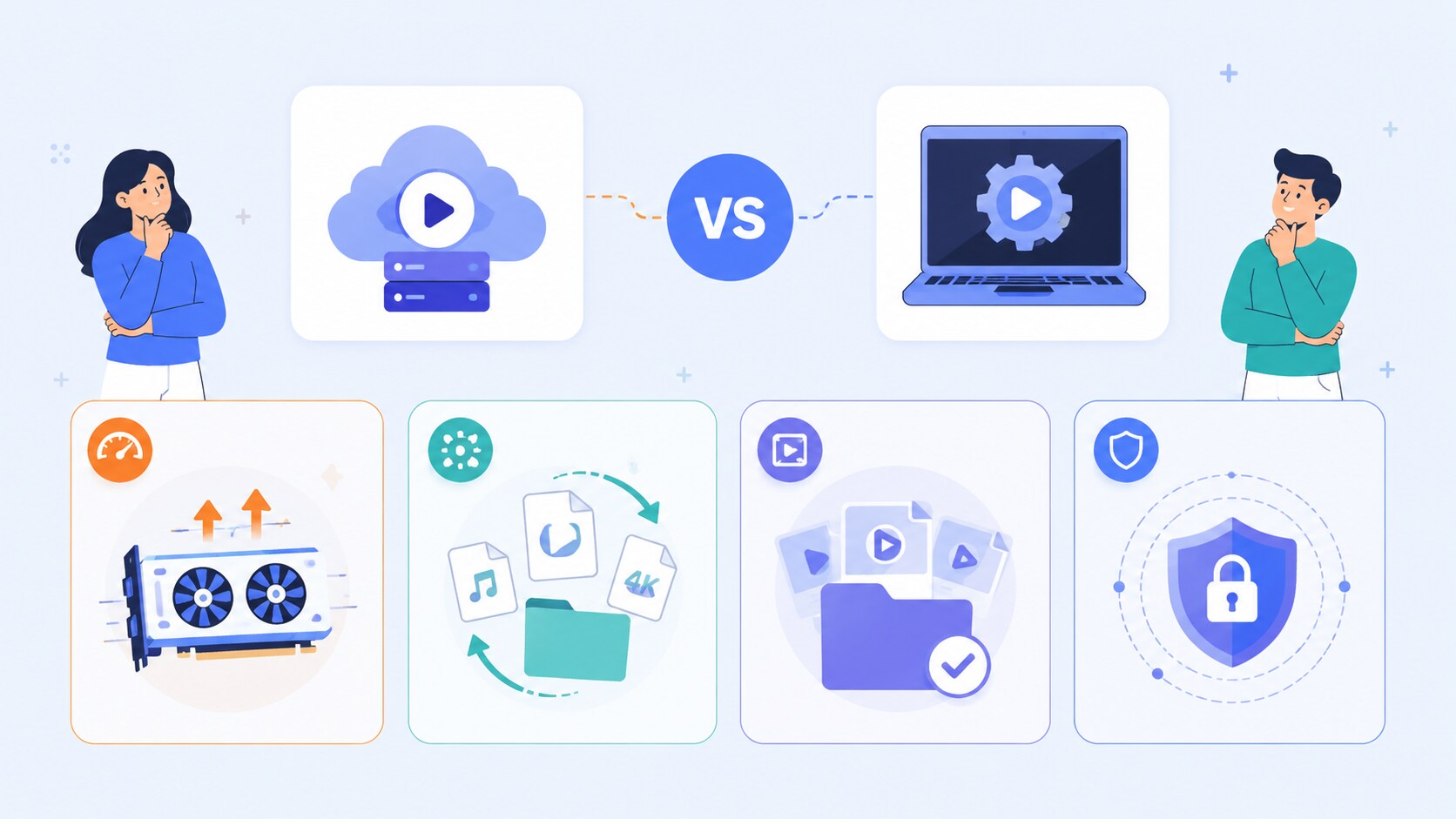
The debate between web-based processing and local computing continues to evolve. Depending on workflow demands, each approach offers distinct operational advantages.
Processing Environment & Hardware Acceleration
Utilizing local GPU and CPU power consistently beats waiting in crowded server queues. Web tools rely entirely on cloud servers, meaning multiple people often share limited processing resources. Desktop software directly harnesses your computer's dedicated graphics card for faster rendering. This native hardware acceleration becomes absolutely critical when processing heavy 4K and 8K workflows efficiently.
Unrestricted Format Versatility
Handling complex, proprietary codecs natively provides a massive advantage for serious creators. Cloud platforms frequently struggle with heavy professional formats like ProRes due to strict upload constraints. Desktop applications process these massive files instantly upon import. You avoid being bottlenecked by a constant, high-speed internet connection during crucial project deadlines.
Advanced Batch Workflow Integration
Time management drastically improves when seamlessly processing dozens of gigabytes simultaneously. Online converters often restrict batch uploads in their free tiers, forcing tedious individual file management. Offline software processes entire folders of media directly on your local drive. This freedom allows you to run batch compress tasks in the background while focusing on other creative work.
Uncompromised Data Privacy
Keeping sensitive, unreleased, or client media files entirely offline ensures maximum data security. Uploading confidential content to third-party cloud servers exposes your data to external retention policies. Desktop tools process everything locally, completely removing the risk of unexpected web breaches. This offline approach remains the only secure option for corporate communications and proprietary content.
Part 3. How Convertio Video Converter Performs in Real-World Usage
Testing the Convertio video converter under practical conditions reveals a clear picture of its capabilities. It highlights where the tool excels and where it begins to struggle.
Upload Experience
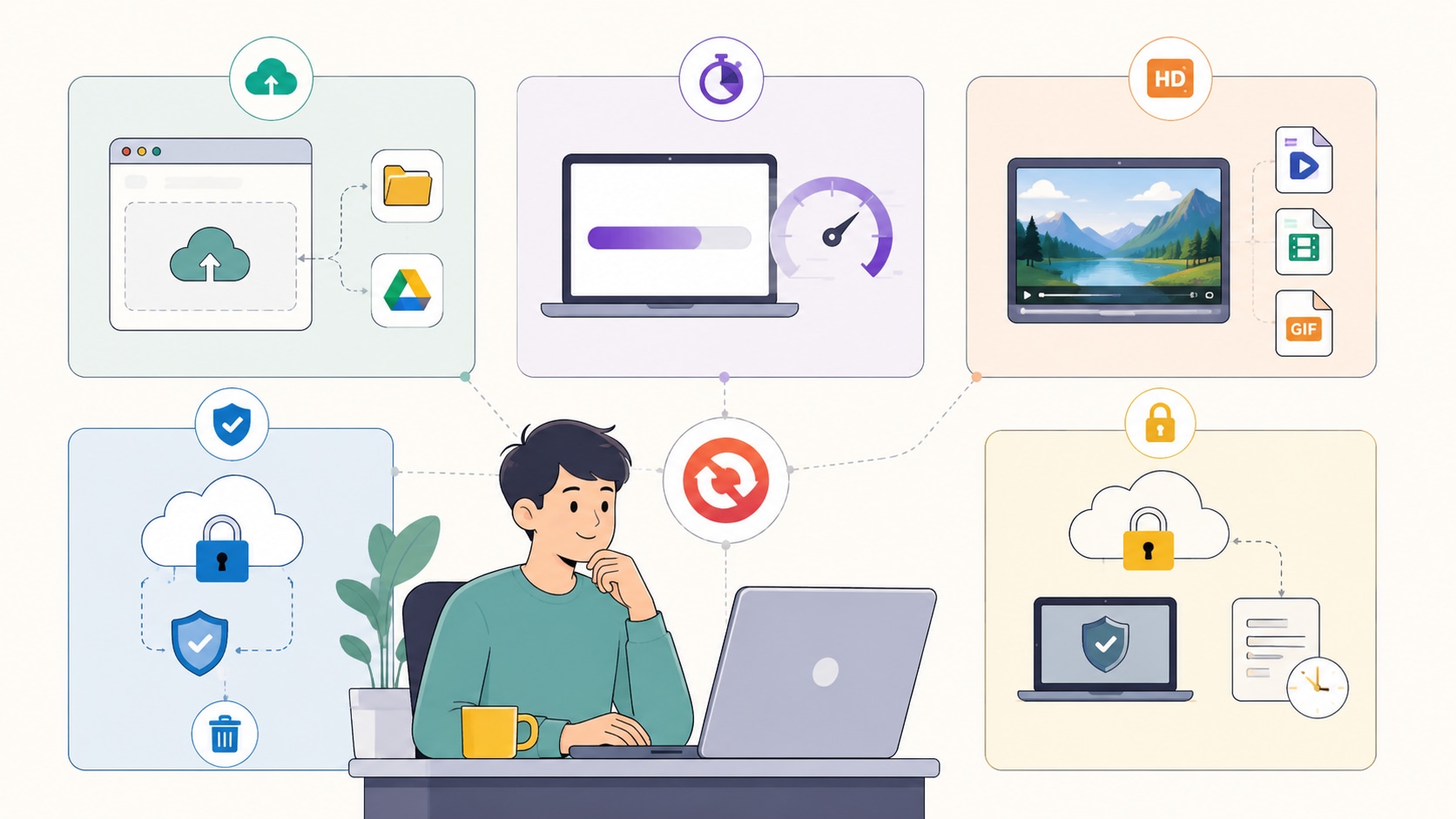
The platform provides a frictionless, drag-and-drop interface directly within your browser. You can seamlessly pull files from local folders or import media directly via integrated Google Drive support. This straightforward processing workflow makes it incredibly accessible for absolute beginners. Anyone can upload, convert, and download without navigating complex software menus or deep settings.
Conversion Speed
Because it operates as a cloud-based tool, processing speed is heavily dictated by your internet bandwidth. Small files usually process almost instantly over a standard broadband connection. However, uploading heavy 4K content or long videos can introduce significant, frustrating delays. Furthermore, the free tier heavily restricts batch uploads, meaning massive libraries will face severe bottlenecks.
Output Quality
The platform excels at basic compression and resolution retention for standard web delivery. It boasts massive codec compatibility, natively supporting essential formats like MKV, WebM, and GIF. However, it lacks the advanced bitrate controls found in professional offline tools. For instance, it cannot match the automated precision of an AI video enhancer for preserving lossless visual fidelity.
Security & Privacy
All active uploads are protected by strict HTTPS encryption during transit. The platform enforces a mandatory 24-hour file deletion policy to ensure basic cloud storage security. While these measures make it safe for everyday casual use, exposing sensitive media always carries a slight inherent risk. Processing files offline via desktop software remains the safest choice for strict NDAs.
Part 4. Quick Comparison: 2026 Conversion Workflows at a Glance
| Tool | Platform | Processing Speed | Offline Privacy | Key Output Formats | Best For | Pricing Model |
| Convertio | Web Browser | Dependent on Internet | No (Cloud-based) | 300+ Web Formats | Quick, small single files | Free tier (with tight limits) |
| Wondershare UniConverter | Windows, macOS | Hardware Accelerated | 100% Offline | 1000+ Pro Formats | High-speed 4K/8K batch tasks | Free trial / Premium |
| HandBrake | Windows, Mac, Linux | Moderate | 100% Offline | MP4, MKV, WebM | Granular open-source tweaking | Completely Free |
| ShanaEncoder | Windows | Fast & Lightweight | 100% Offline | Common Video/Audio | Fast encoding on older systems | Completely Free |
| VLC Media Player | Cross-platform | Slow | 100% Offline | Basic Media Formats | Emergency fallback processing | Completely Free |
| Any Video Converter | Windows, macOS | Moderate | 100% Offline | Extensive Presets | Beginners needing device presets | Free / Premium |
Part 5. Top 5 Convertio Video Converter Alternatives for Seamless Extraction
When cloud limitations interrupt productivity, these dedicated software options provide robust processing power.
1. Wondershare UniConverter (Top Recommendation)
If you require a comprehensive batch video converter toolbox, Wondershare UniConverter stands as our top recommendation. This powerful desktop software bypasses common cloud constraints by utilizing your computer's native hardware. It handles everything from basic format adjustments to massive 8K batches effortlessly. Beyond simple extraction, it offers extensive AI tools to enhance your digital content instantly. For users needing high-speed workflows without risking data privacy on third-party servers, this application provides exceptional value and consistent reliability.


All-in-One Multimedia Processing Tool

Supported Device: Windows 12, macOS 16 (Native Apple Silicon Support).
2. HandBrake (The Open-Source Specialist)
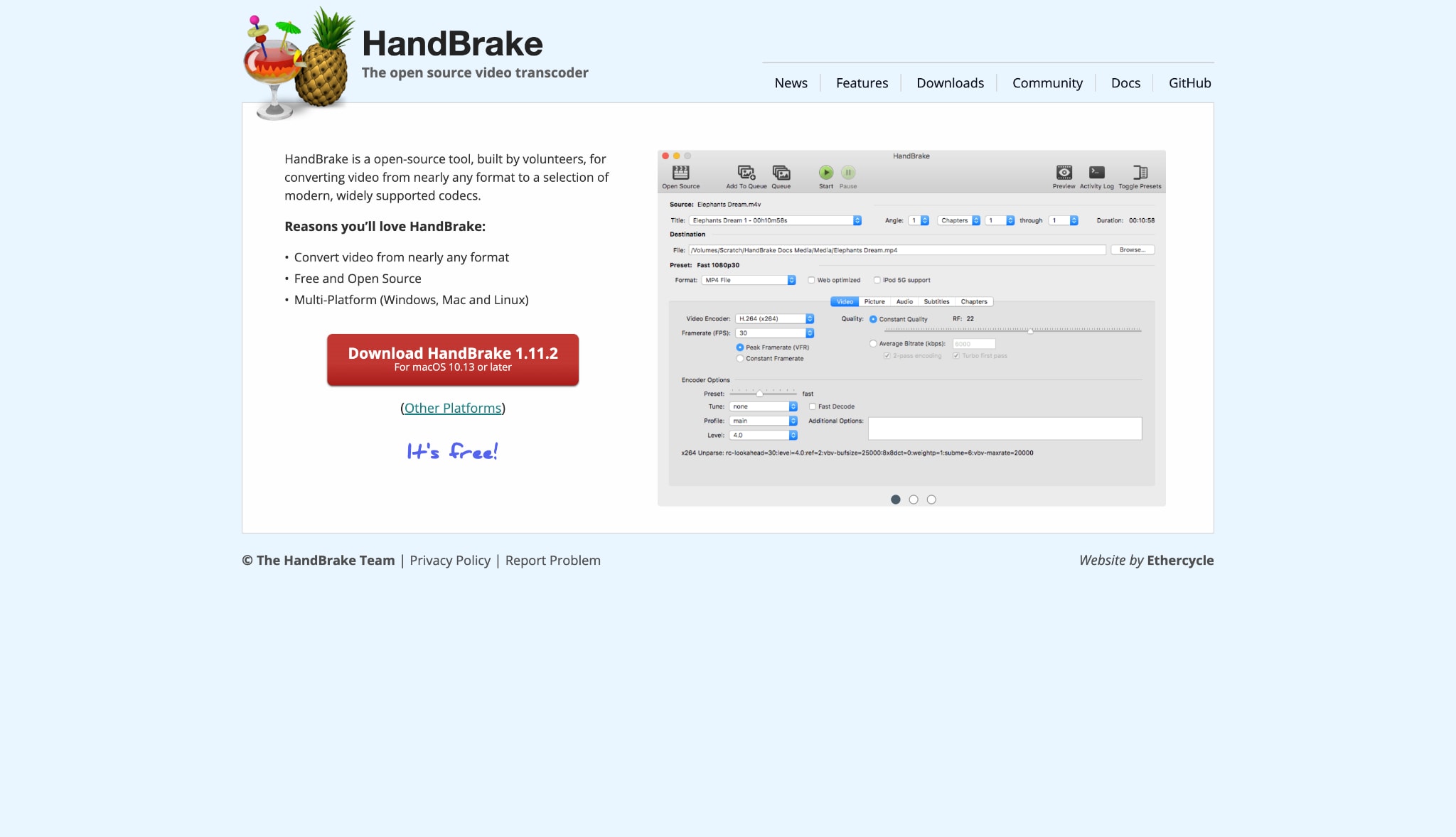
HandBrake serves as a highly respected, open-source transcoder built for individuals who desire granular control over their media files. While it lacks a colorful, modern interface, this software provides exceptional power for compressing and formatting digital video completely free of charge. It excels at local processing, making it a reliable option for tech-savvy users willing to learn its advanced settings.
Supported Device: Windows, macOS, Linux.
3. ShanaEncoder (The Fast Encoder)
ShanaEncoder provides a highly efficient processing environment tailored specifically for high-speed media encoding. Built exclusively for Windows systems, this streamlined tool utilizes minimal computer resources while seamlessly handling large file formats. It manages basic subtitle integrations effortlessly. Ultimately, it delivers a practical solution for straightforward digital adjustments without introducing unnecessary, resource-heavy system bloat to your computer.
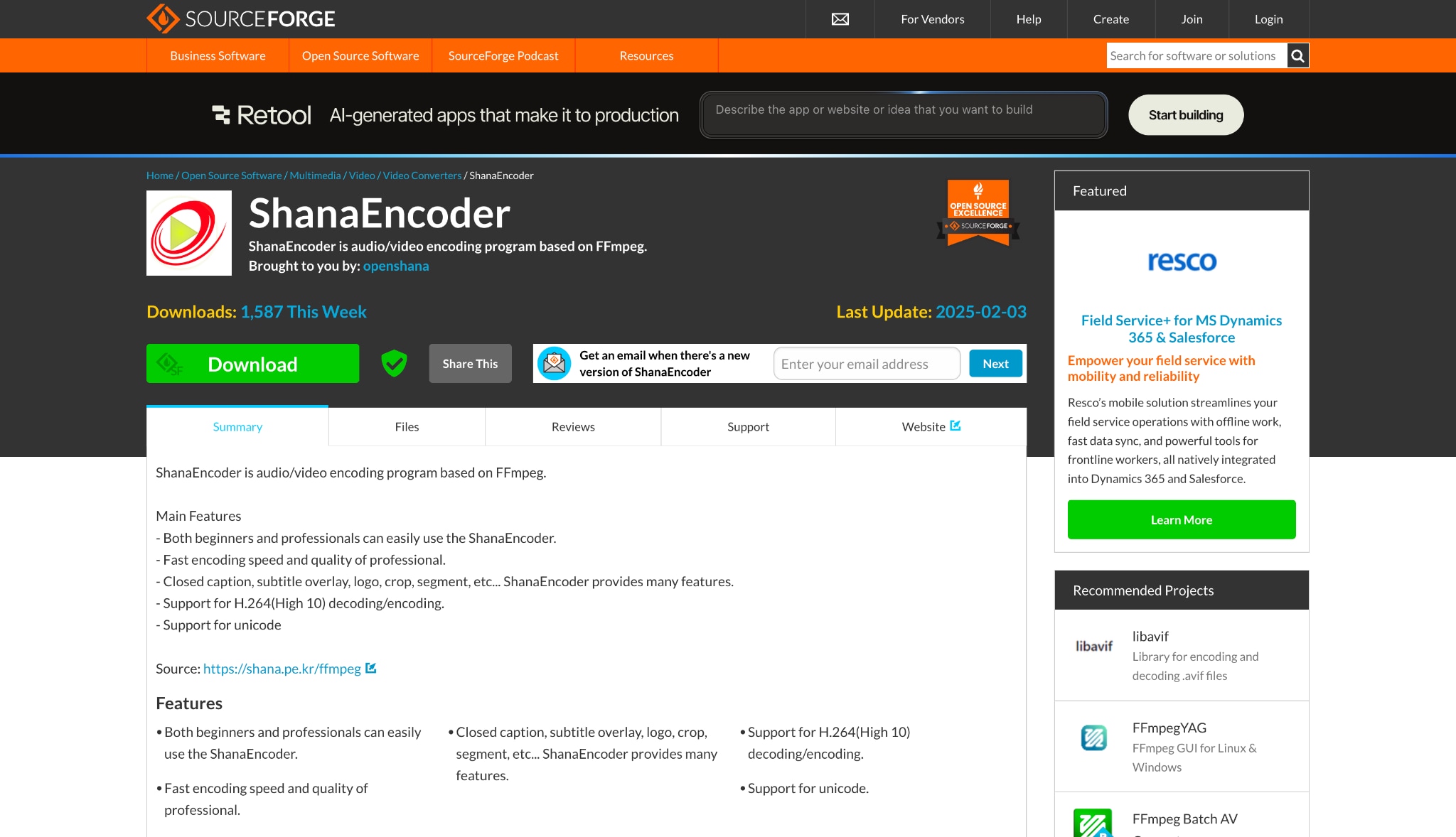
Supported Device: Windows.
4. VLC Media Player (The Best Free Fallback)
Most professionals recognize VLC as an incredibly reliable media player, but it also contains a hidden, built-in conversion engine. While not originally designed as a primary encoding application, it serves as an excellent emergency fallback for formatting corrupted or unreadable files. This completely free program requires zero internet connection to operate safely across multiple operating systems.

Supported Device: Windows, macOS, Linux, iOS, Android.
5. Any Video Converter (The All-Rounder)
Any Video Converter successfully bridges the gap between basic web utilities and complex professional software suites. It provides an accessible layout for standard media formatting tasks while offering helpful extras like simple video trimming features. This software helps beginners process their digital libraries efficiently, though it may run somewhat slower when handling massive high-resolution files.
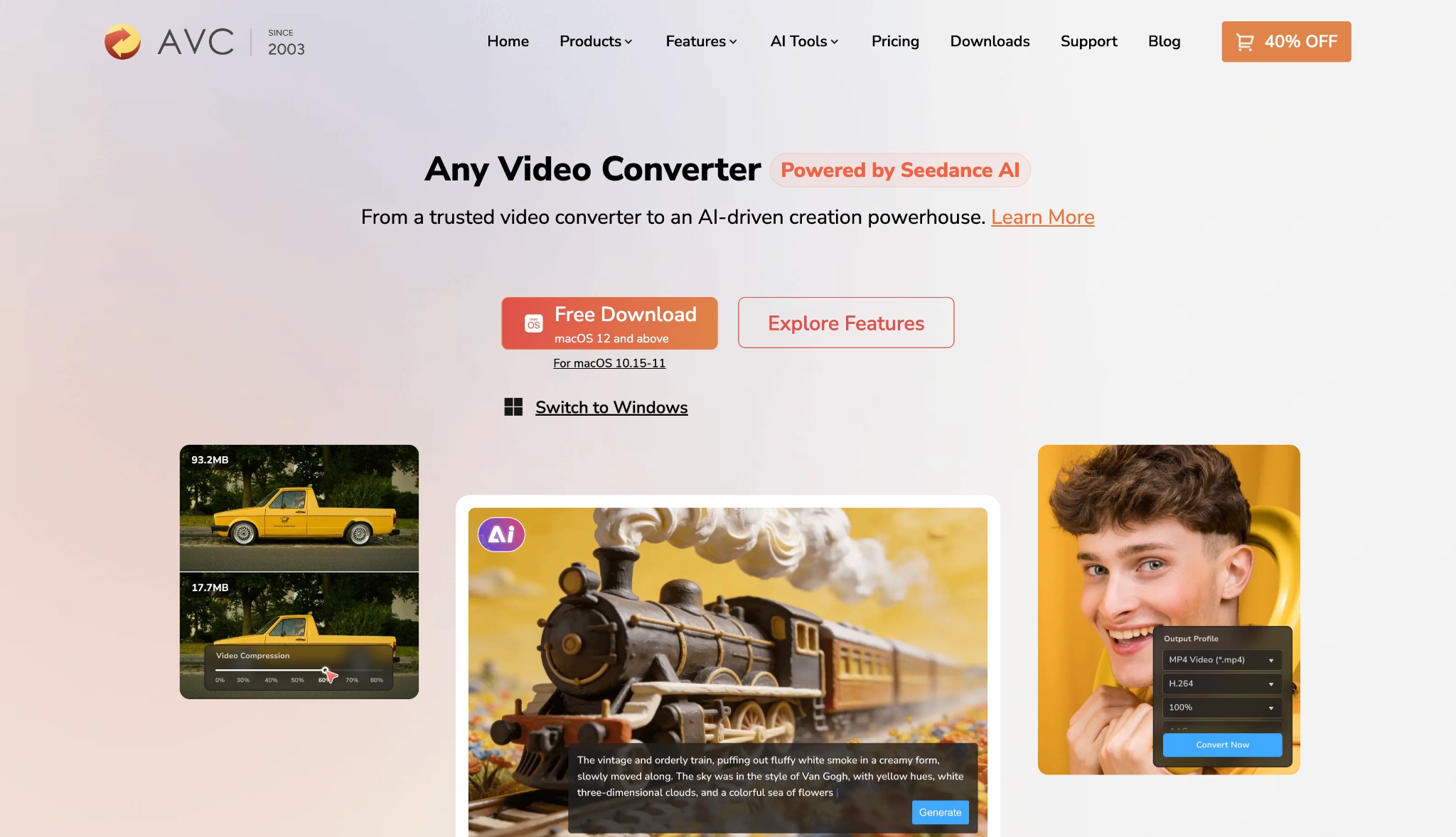
Supported Device: Windows, macOS.
Part 6. Bonus: Step-by-Step Guide to Using Desktop Tool as Your Primary Tool
Transitioning from an online Convertio file converter to a robust desktop application drastically speeds up daily workflows. Below is a streamlined workflow utilizing Wondershare UniConverter.
Step 1: Upload Your Media Files Safely
Open Wondershare on your computer to access the main processing dashboard. Click the purple + Add Files button located in the center of the screen to browse your local storage. Then select the desired video files to instantly add them to the active extraction queue.
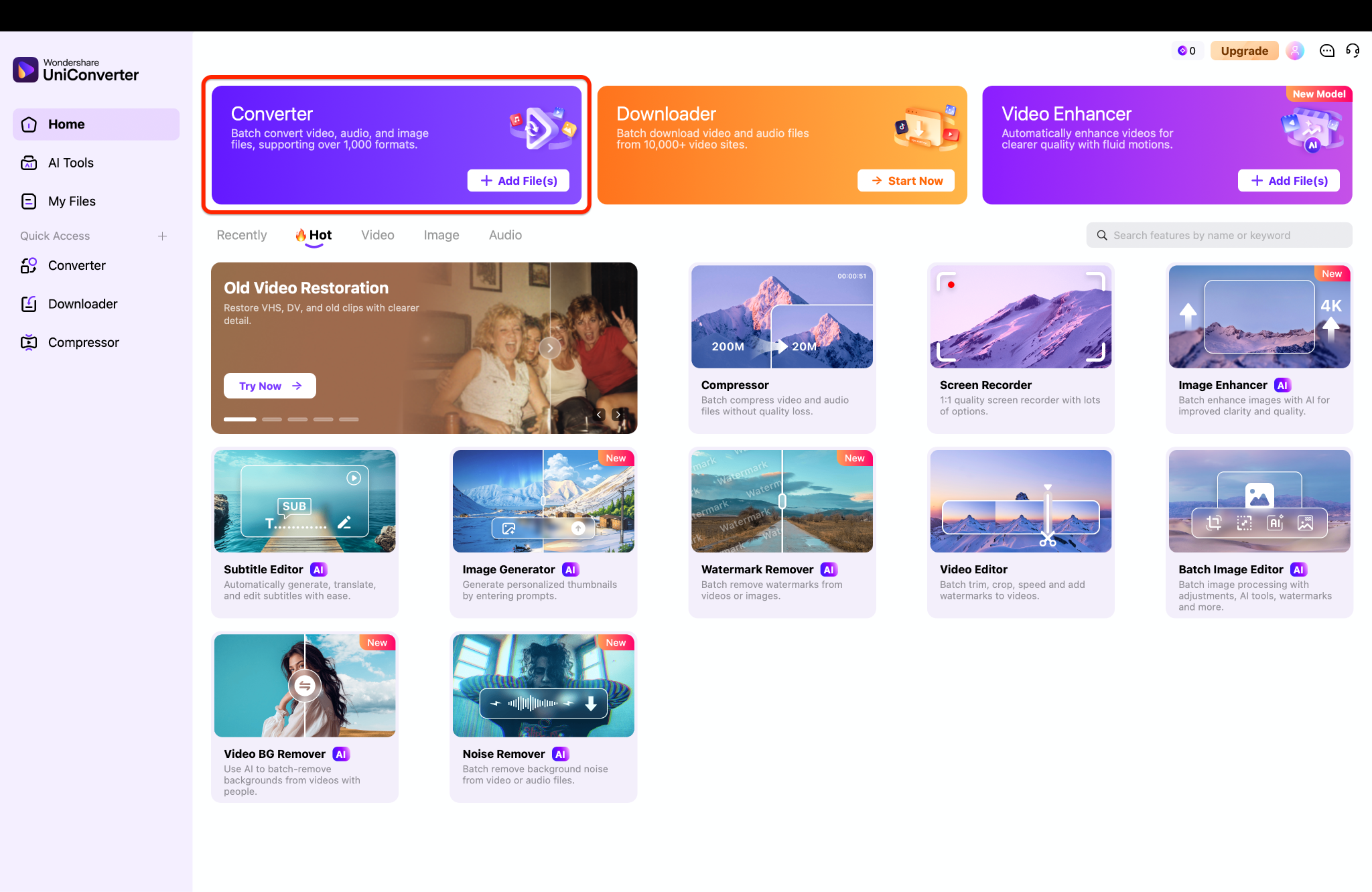
Pro Tip: You can drag and drop entire folders directly into the interface to instantly queue them for rapid batch convert processing.
Step 2: Select Your Preferred Output Format
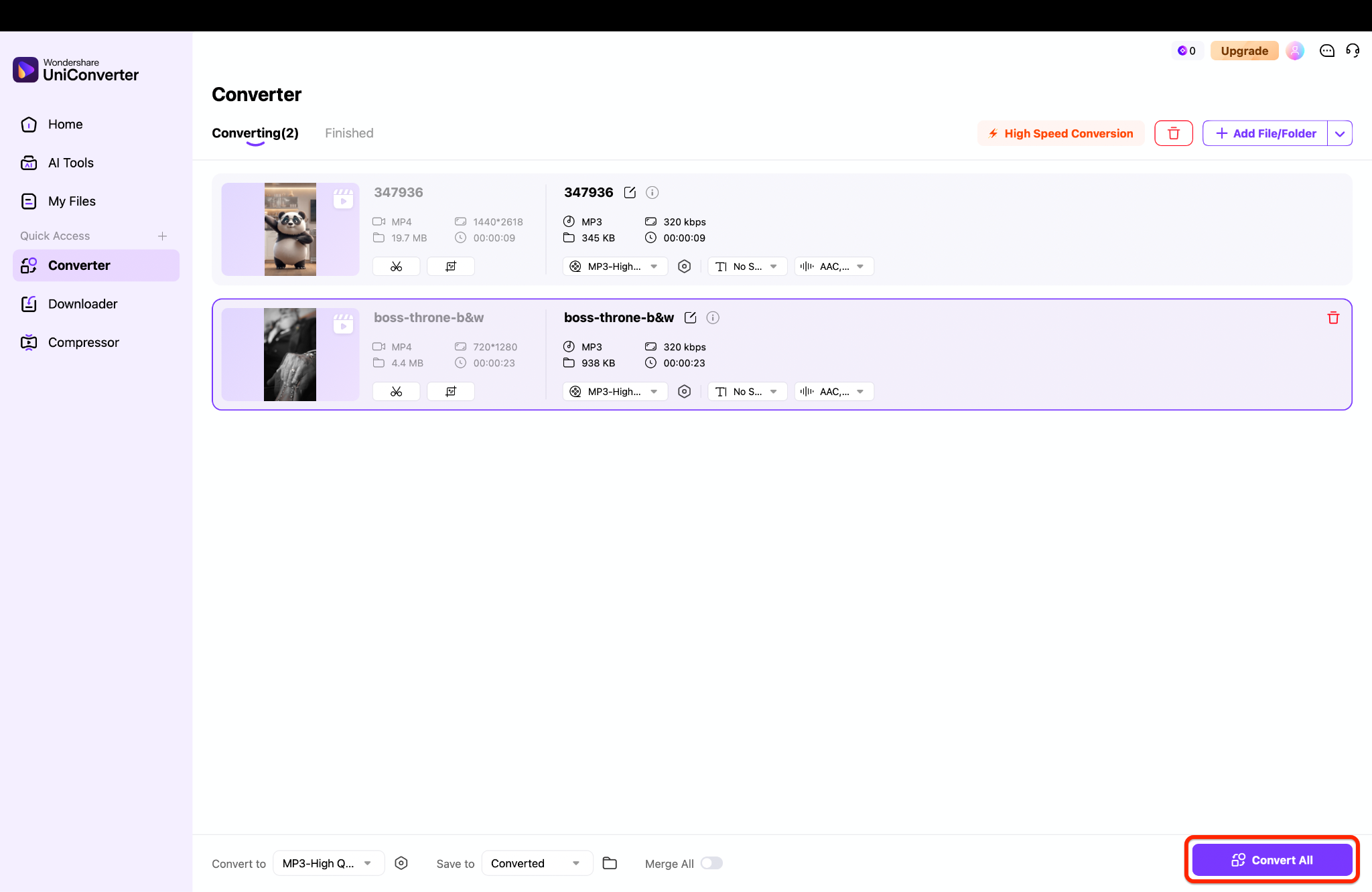
Locate the format menu situated at the bottom of the active application window. Open the dropdown menu and select the video tab to view all available digital codecs. Choose your required extension, such as MP3, and pick the exact quality that fits your current project constraints.
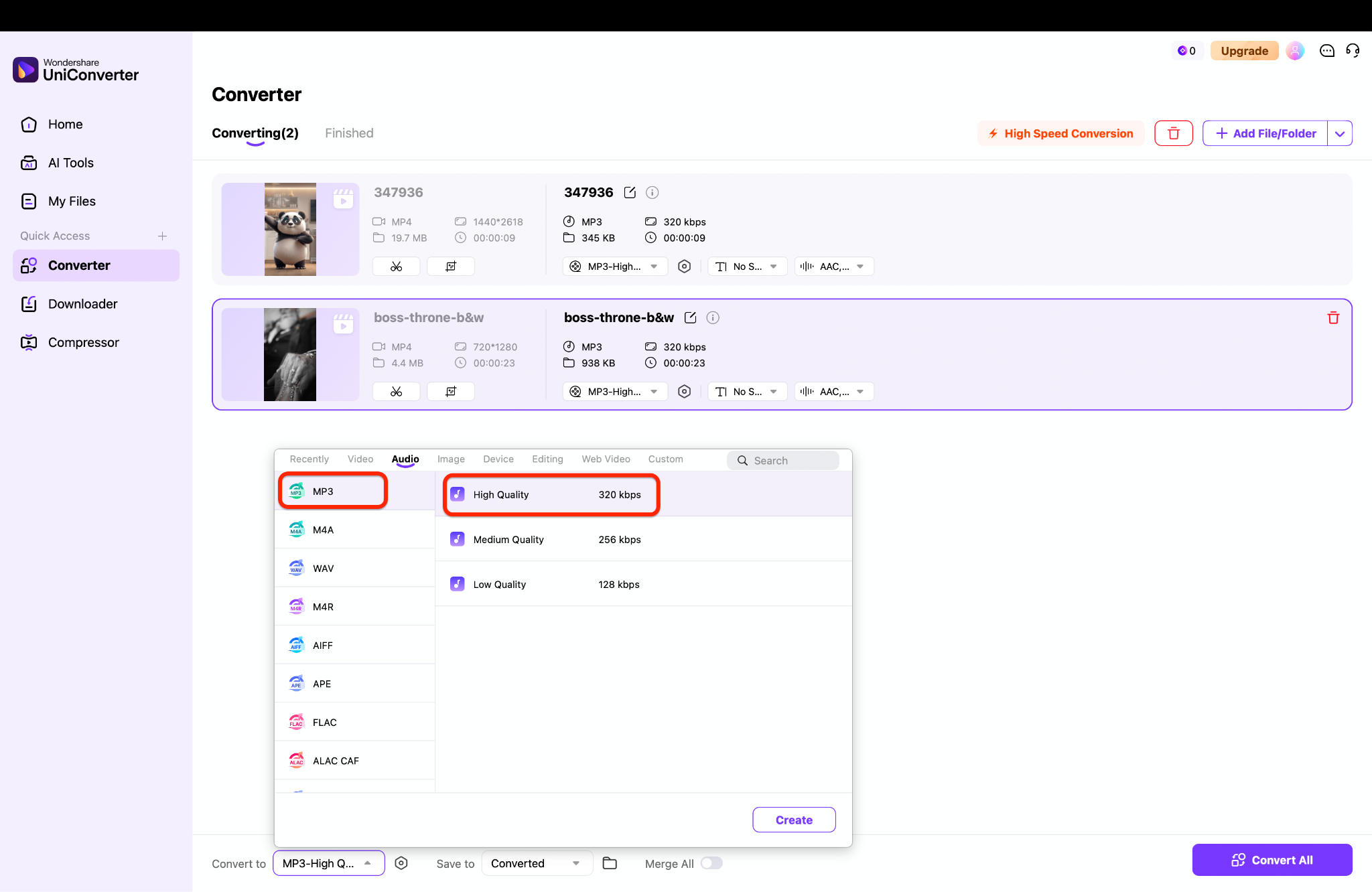
Step 3: Initiate the High-Speed Extraction Process
Review your selected settings in the main queue to ensure everything looks correct before proceeding. Click the Convert All button located in the bottom right corner to start the batch conversion. The software will process your media locally and save it directly to your chosen destination folder.
Part 7. Conclusion
While a web-based Convertio file converter provides an excellent solution for quick, small-scale tasks, true professional reliability demands more robust capabilities. Heavy media workflows require the offline muscle and speed of dedicated desktop software. Relying solely on the Convertio video converter for massive files or confidential client projects often introduces unnecessary upload bottlenecks and security concerns. For seamless, secure, and accelerated media processing, we highly recommend switching to Wondershare UniConverter. It handles batch jobs effortlessly while maintaining pristine quality. Download UniConverter today to transform your digital media tasks into a smooth, professional, and efficient creative workflow.

