

Nothing ruins a great viewing experience quite like visual clutter from unwanted text blocking the screen. Figuring out how to remove subtitles on YouTube usually requires a simple click of the standard closed captions (CC) toggle located at the bottom of the player. However, burned-in (hardcoded) text permanently etched into the video frame demands a completely different approach. This article outlines exactly what viewers can do to clear up their screens. We will cover troubleshooting native platform settings for persistent softcoded text, and explore modern 2026 desktop solutions—like Wondershare UniConverter—that cleanly erase hardcoded text from offline videos without leaving annoying smudges behind.
Table of Contents
Part 1. Understanding the Different Types of YouTube Subtitles Before Removing Them
Before attempting to hide on-screen text, it helps to understand how that text was applied to the video in the first place. Video platforms use different captioning methods, and each requires a specific removal technique. Knowing the difference saves time and prevents frustration
Softcoded vs. Hardcoded Captions
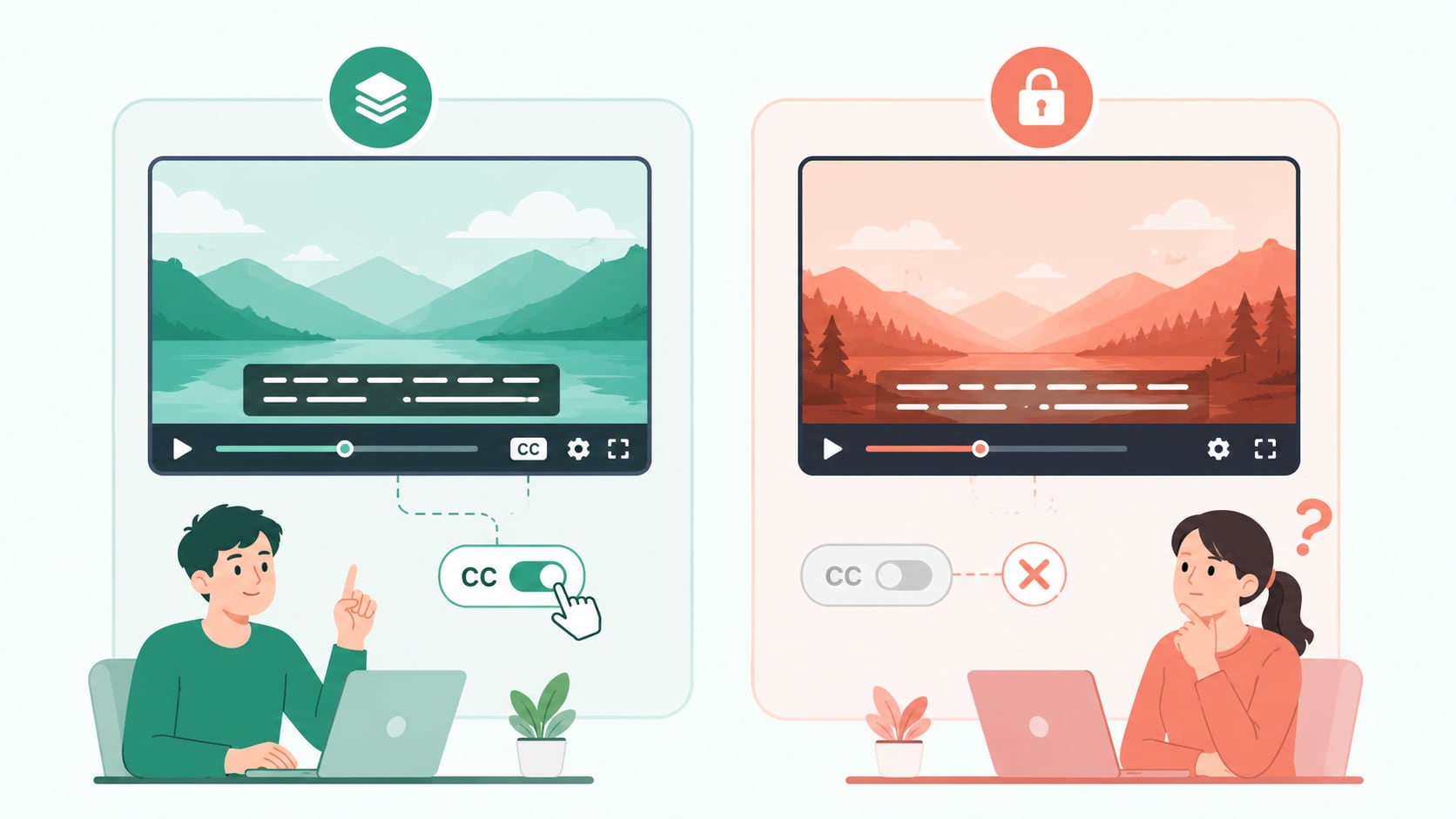
Softcoded captions function as a separate data layer placed over the video. Viewers have full control to toggle these interactive closed captions (CC) on or off at will. Hardcoded captions, conversely, act as open subtitles permanently baked into the video frames by the creator during the initial editing process. Because they form part of the actual image pixels, they cannot be turned off natively.
Auto-Generated vs. Manually Uploaded
YouTube's internal voice recognition software often creates text automatically for videos lacking manual captions. While highly convenient, these auto-generated tracks can occasionally contain grammatical errors or miss nuanced context. Alternatively, creators frequently provide custom SRT (SubRip Subtitle) files uploaded via their dashboard, delivering highly accurate, manually timed text. Both of these fall under the softcoded category.

To make identifying your specific caption format easier, reference this quick comparison breakdown before starting the removal process.
| Subtitle Type | Can Viewer Turn Off? | Editable by Creator? | Permanently Embedded? |
| Auto Captions | Yes | Limited | No |
| Uploaded Captions | Yes | Yes | No |
| Burned-in Subtitles | No | No (requires software) | Yes |
Part 2. Why YouTube Subtitles Won't Turn Off (And How to Fix It)
Many viewers click the "CC" button, expecting clear footage, only to find the text stubbornly reappearing upon refreshing the page. Understanding how to remove subtitles on YouTube when native buttons fail involves checking a few external factors that often override standard platform playback settings.
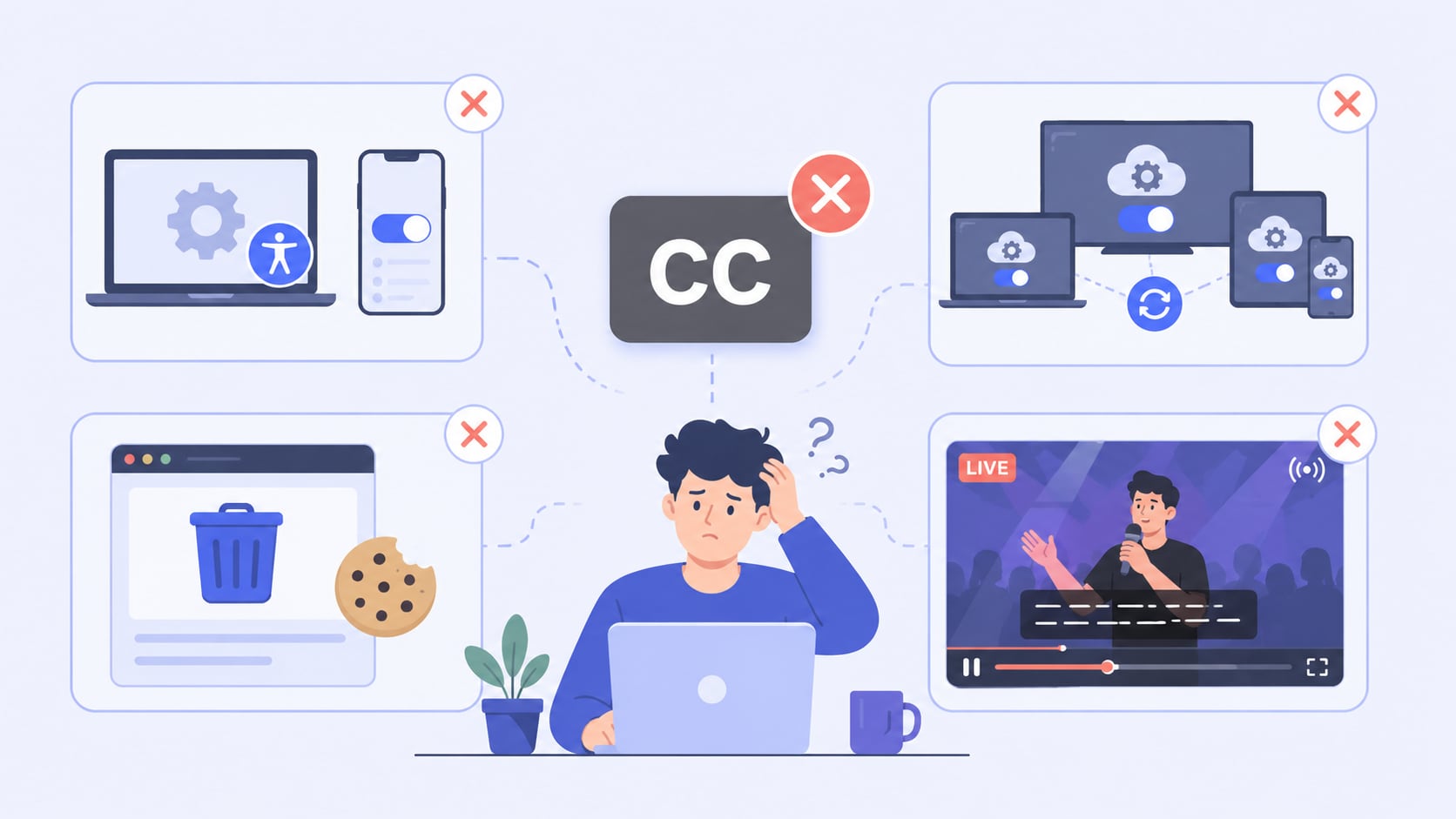
System-Level Overrides: Modern operating systems include built-in accessibility features designed to help deaf or hard-of-hearing users. Tools like Google Chrome's Live Caption or Apple's system-wide accessibility subtitles force text onto the screen regardless of external player settings. Disabling these requires navigating directly into device or browser accessibility menus.
Account Sync Mismatches: Viewing preferences sync across all devices linked to the same Google account. Occasionally, a mobile app setting enforcing captions can conflict with desktop browser preferences. Ensuring captions remain toggled off across all active smart TVs, phones, and tablets usually resolves this desynchronization.
Browser Cache/Cookies: Corrupted temporary internet files sometimes prevent a browser from remembering user preferences. If the "Captions Off" selection refuses to stick after a page reload, clearing the browser cache and cookies forces the platform to load fresh, accurate user data.
Live Streams & Premieres: Real-time broadcast captions behave differently than standard Video on Demand (VOD) uploads. Broadcasters sometimes push captions directly through their streaming software. This temporarily bypasses the viewer's ability to disable the text until the live stream fully converts to a standard video upload later.
Part 3. Comparison: 2026 Subtitle Removers at a Glance
For those dealing with hardcoded text on downloaded files, specialized software offers the best solution. Review the options below to find the perfect match for any hardware setup.
| Tool | Primary Platform | Hardcoded Removal Quality | Key Technology | Best For |
| UniConverter | PC & Mac | High (Lossless option) | AI Subtitle Editor / Background Autofill | Professional-grade processing |
| HitPaw Edimakor | PC & Mac | Medium-High | AI Matte/Smooth Fill | Long-form videos |
| VideoProc | PC & Mac | Basic (Cropping/Blur) | Level-3 Hardware Acceleration | Low-end computers |
| CapCut | iOS & Android | Medium | Pinch-to-zoom / Object Eraser | Quick social media edits |
| AniEraser | iOS & Android | Medium | Swipe-to-mask | Simple mobile touchscreen tasks |
| Media.io | Web Browser | High | Cloud AI Replacement | Zero-installation editing |
| Vmake Labs | Web Browser | Medium-High | Edge-blending Algorithms | Short-form clips (Reels/Shorts) |

All-in-One Multimedia Processing Tool

Part 4. Top 7 Tools to Remove Subtitles from Downloaded YouTube Videos
When native settings cannot hide burned-in text, third-party software steps in. Knowing how to remove subtitles on YouTube videos downloaded for offline use requires selecting the right tool for the job.
I. Powerful Desktop Software for PC & Mac
1. Wondershare UniConverter (Top Recommendation)
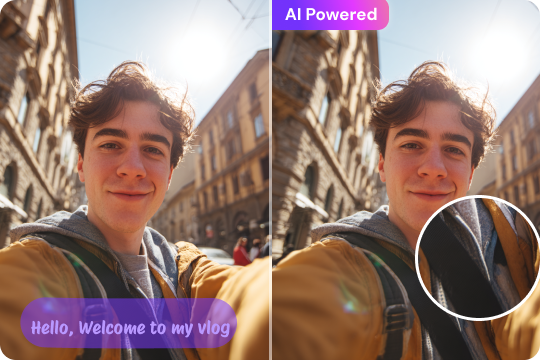
As the premier 2026 desktop choice, Wondershare UniConverter delivers an exceptional AI subtitle remover capable of cleanly erasing text. Instead of simply blurring the area, its advanced algorithm seamlessly reconstructs the background without noticeable lag. Alongside its text removal capabilities, it serves as a complete media toolkit for batch conversion, lossless video compression, and downloading. This powerful combination makes it the ideal solution for maintaining pristine video quality while completely transforming your multimedia processing workflow.
Supported Device: Windows 10/11/12, macOS.
2. HitPaw Edimakor
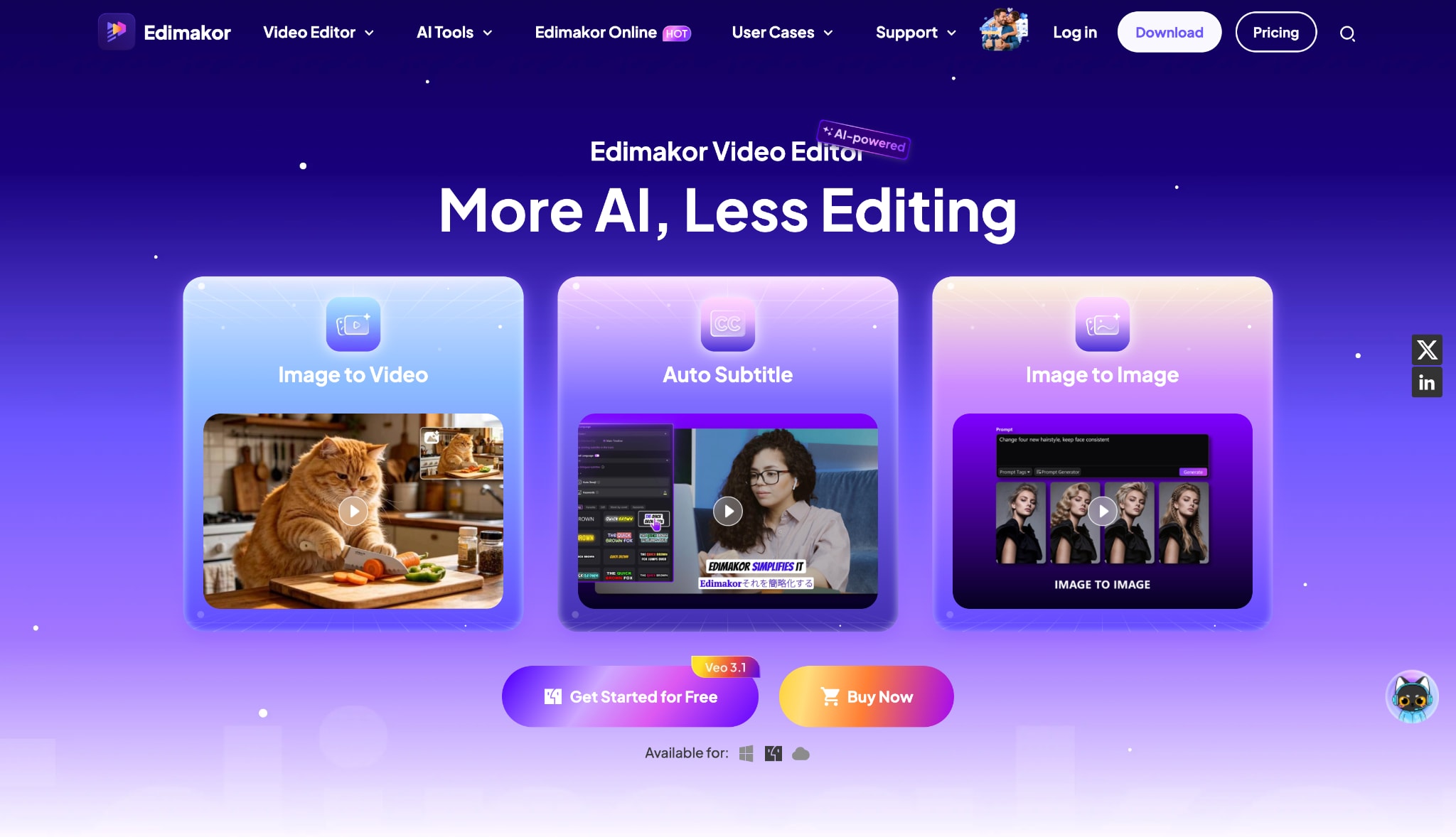
HitPaw stands out for its rock-solid stability when processing long-form video files. It offers multiple AI background fill options, including distinct matte and smooth modes. This allows video editors to carefully match the text removal style to the specific footage. Such flexibility helps maintain excellent visual consistency across lengthy documentaries or daily vlogs without crashing your system.
Supported Device: Windows, macOS.
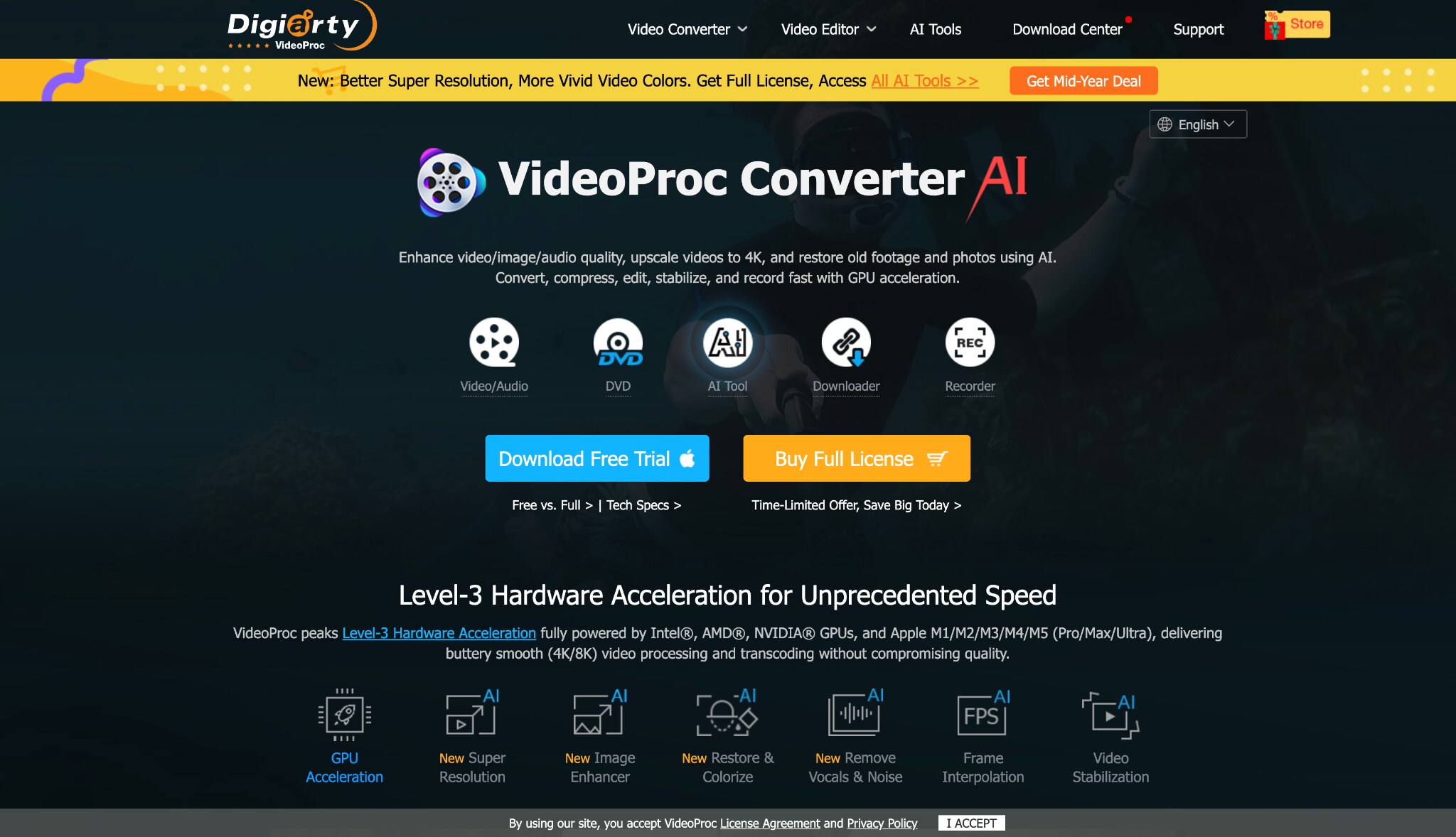
3. VideoProc Converter
Positioned as a highly hardware-friendly choice, VideoProc utilizes Level-3 Hardware Acceleration to rapidly process media files, even on older or slower laptops. Rather than relying on complex AI frame reconstruction, it provides fast, clean cropping or blurring of the lower third of the video. This efficient approach saves significant rendering time for those needing immediate results.
Supported Device: Windows, macOS.
II. Best Mobile Apps for iPhone & Android
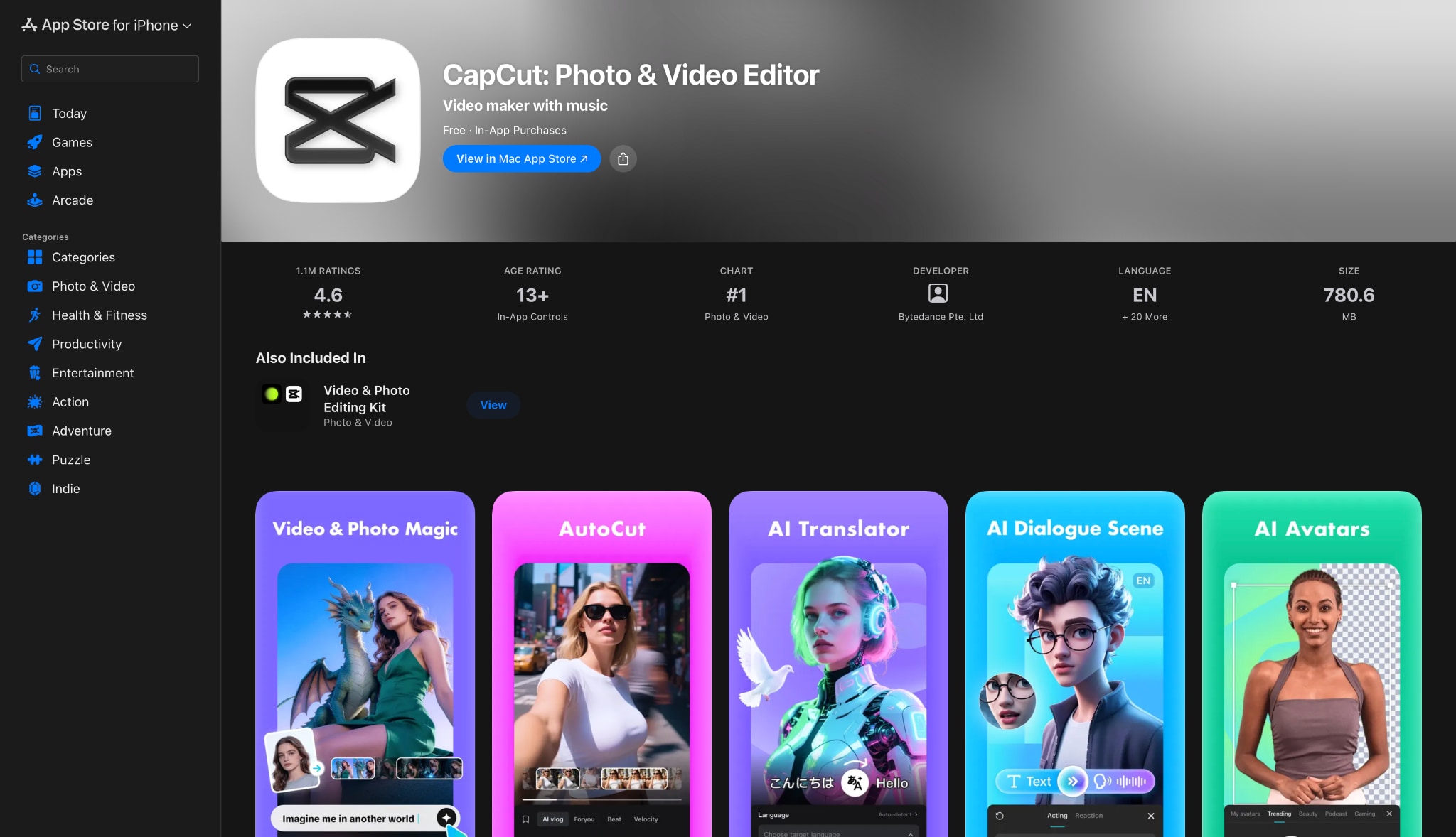
4. CapCut
CapCut dominates the mobile editing space by offering versatile, powerful tools accessible directly on touchscreens. You can employ the built-in object removal tool to quickly erase text, or simply utilize the pinch-to-zoom cropping feature to push unwanted captions completely outside the visible frame. The app remains highly optimized for fast-paced, vertical video workflows designed for modern social media.
Supported Device: iOS, Android.
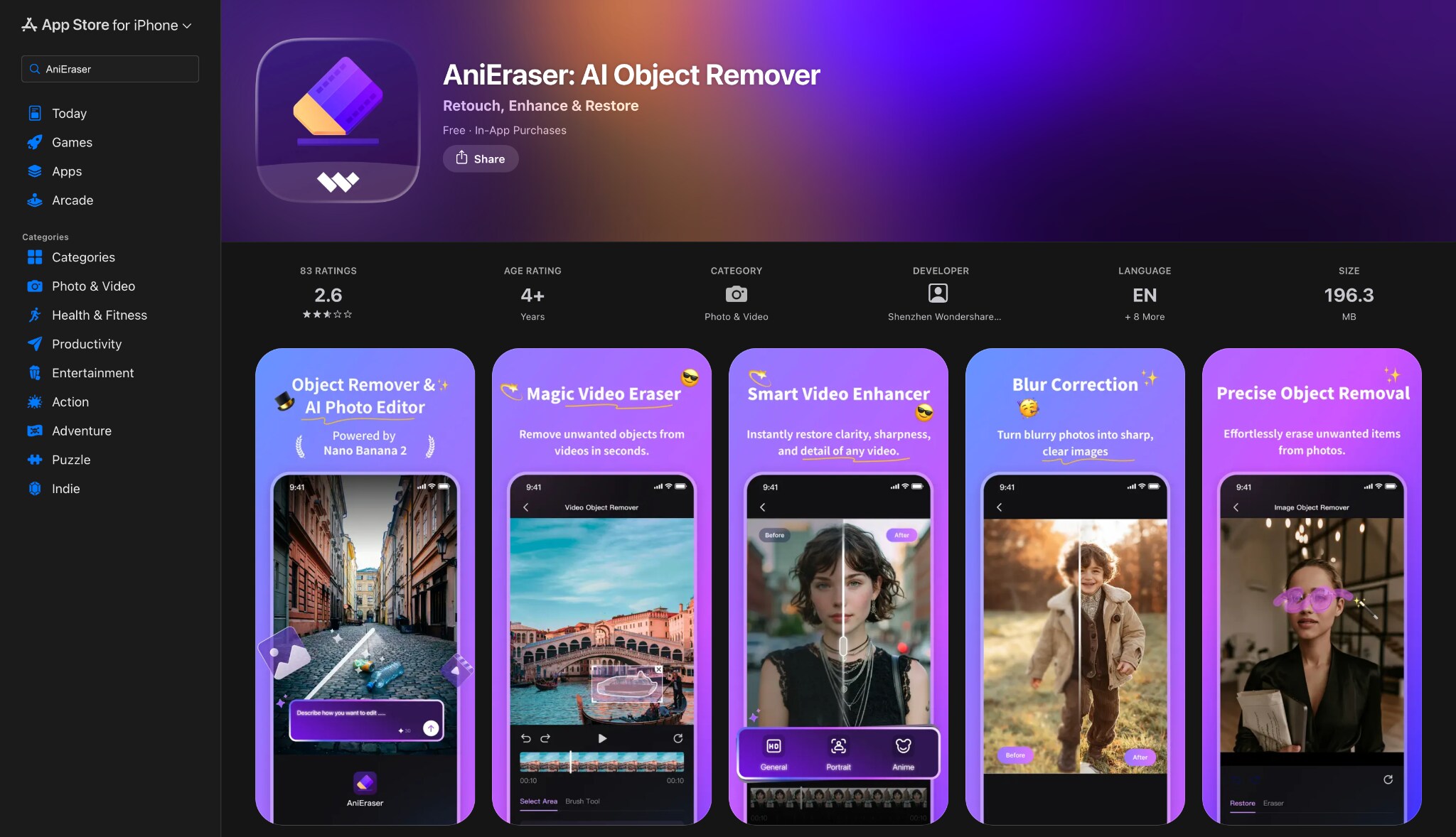
5. AniEraser
AniEraser focuses purely on single-purpose simplicity, completely removing the overwhelming clutter of complex editing timelines. You simply load your downloaded video and swipe a finger directly over the text area to mask and remove it. This straightforward, intuitive approach makes the application incredibly accessible for individuals possessing absolutely zero prior video editing experience or technical knowledge.
Supported Device: iOS, Android.
III. Fast Online Subtitle Removers (No Install Needed)
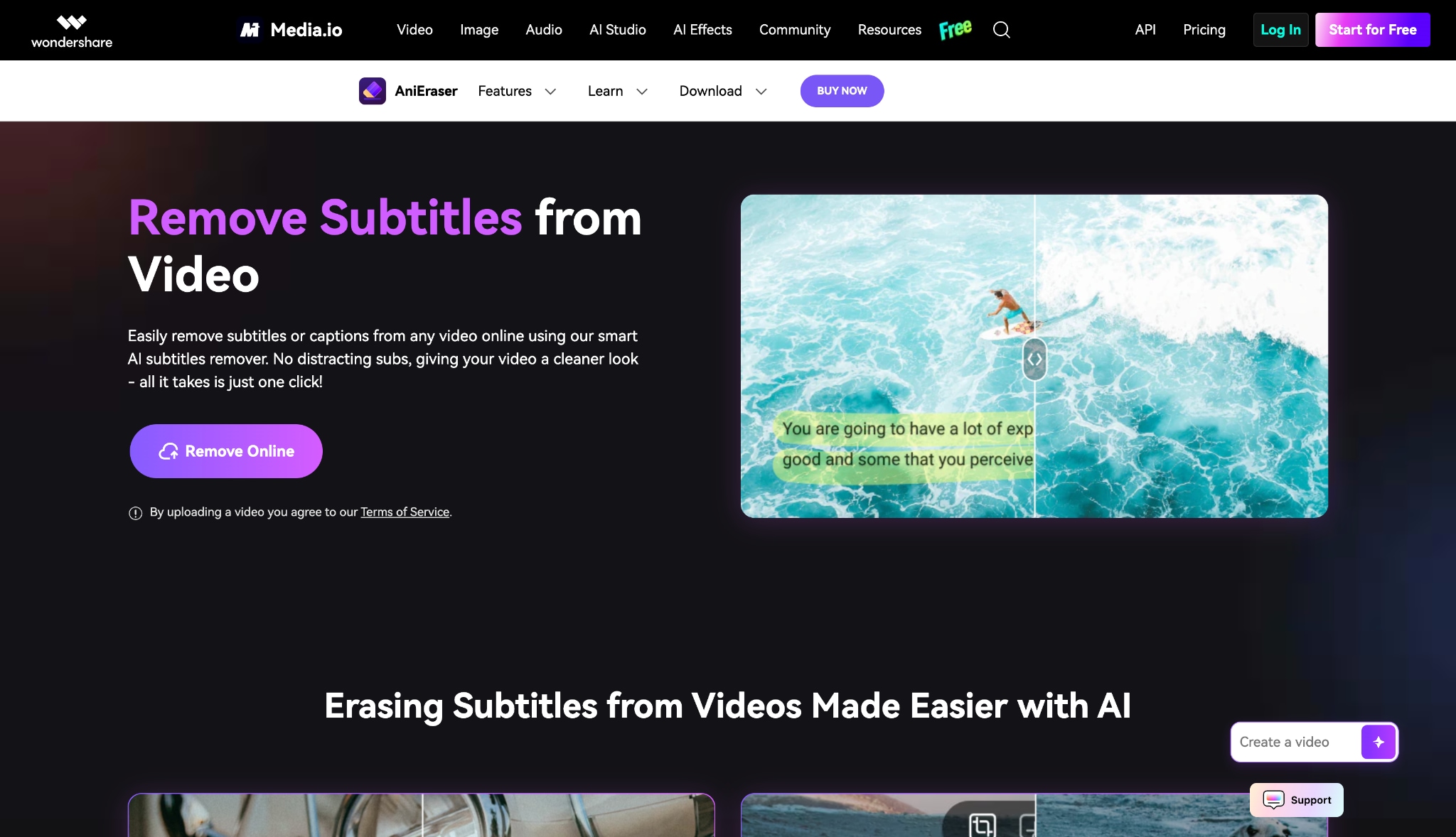
6. Media.io Subtitle Remover
Operating entirely as a highly convenient web application, Media.io requires absolutely no software installation on your device. It utilizes powerful cloud servers to detect and automatically erase text from your uploaded media files. This online option perfectly suits individuals working on borrowed computers, or office devices strictly restricted from safely installing new third-party applications.
Supported Device: Any modern Web Browser.
7. Vmake Labs
Vmake Labs specifically caters to modern short-form content creators working extensively with Shorts or Reels. The platform processes small video files incredibly rapidly. It applies excellent digital edge-blending techniques to ensure the lower third of the video remains visually consistent and natural looking immediately after the hardcoded text removal process finishes rendering in your web browser.
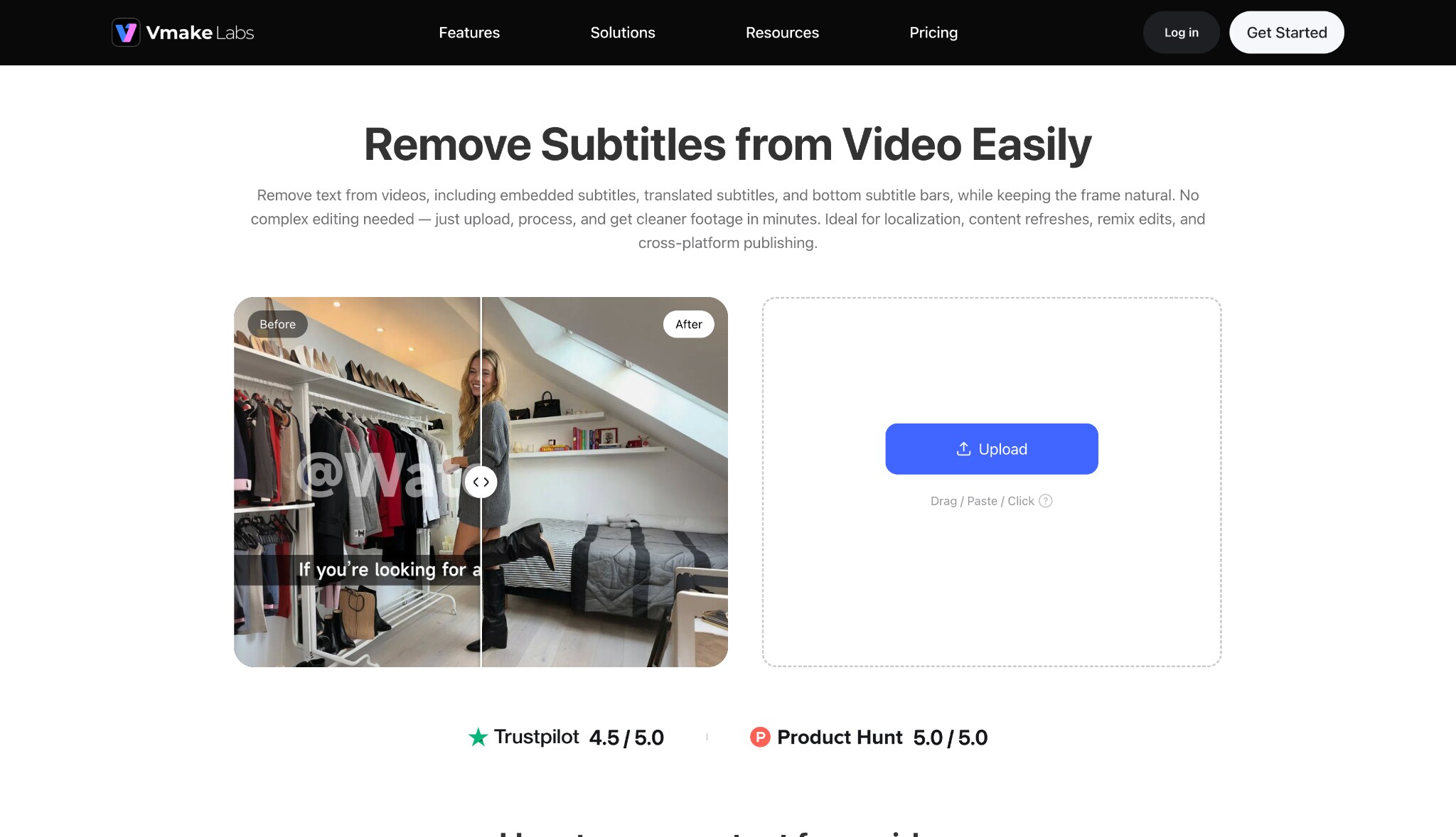
Supported Device: Any modern Web Browser.
Part 5. Bonus: Step-by-Step Guide to Remove Subtitles from Your Video
Learning how to remove subtitles on YouTube downloads is highly straightforward with professional desktop software. Here is the process to achieve clean results using UniConverter.
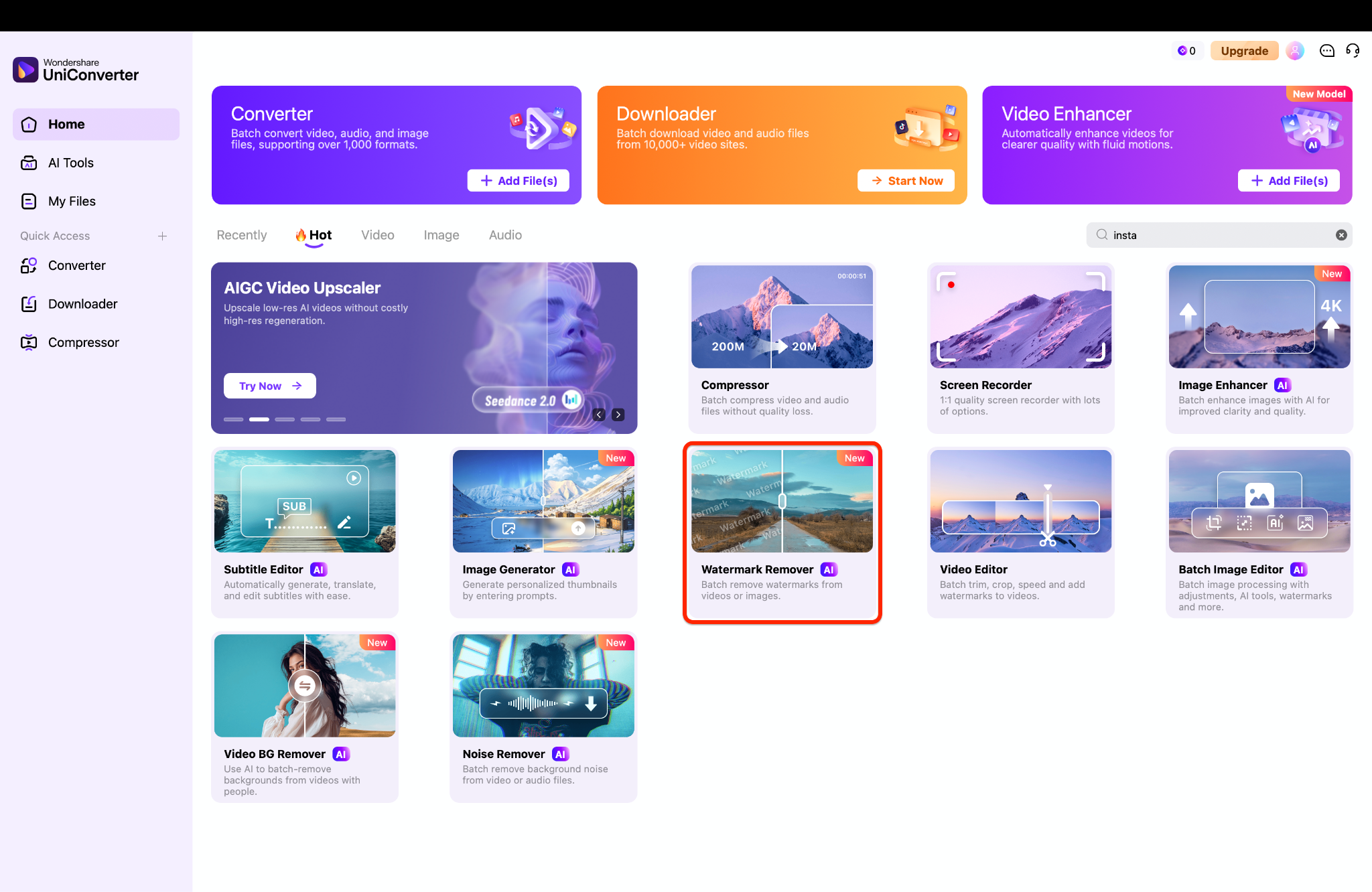
Step 1: Launch the Software and Import Media
Start UniConverter on the computer and navigate directly to the Watermark Remover tool within the main dashboard. Click the center plus icon to load the target video file onto the editing timeline quickly. Relying on this desktop solution works perfectly for processing large media files or handling multiple clips simultaneously.
Step 2: Highlight the Subtitles for Erasure
Drag the adjustable selection box directly over the specific screen area where the burned-in captions appear. Select the appropriate AI processing model from the side menu to match the complexity of the video background. Taking these actions grants greater control over the final output, especially when dealing with repeating text overlays.
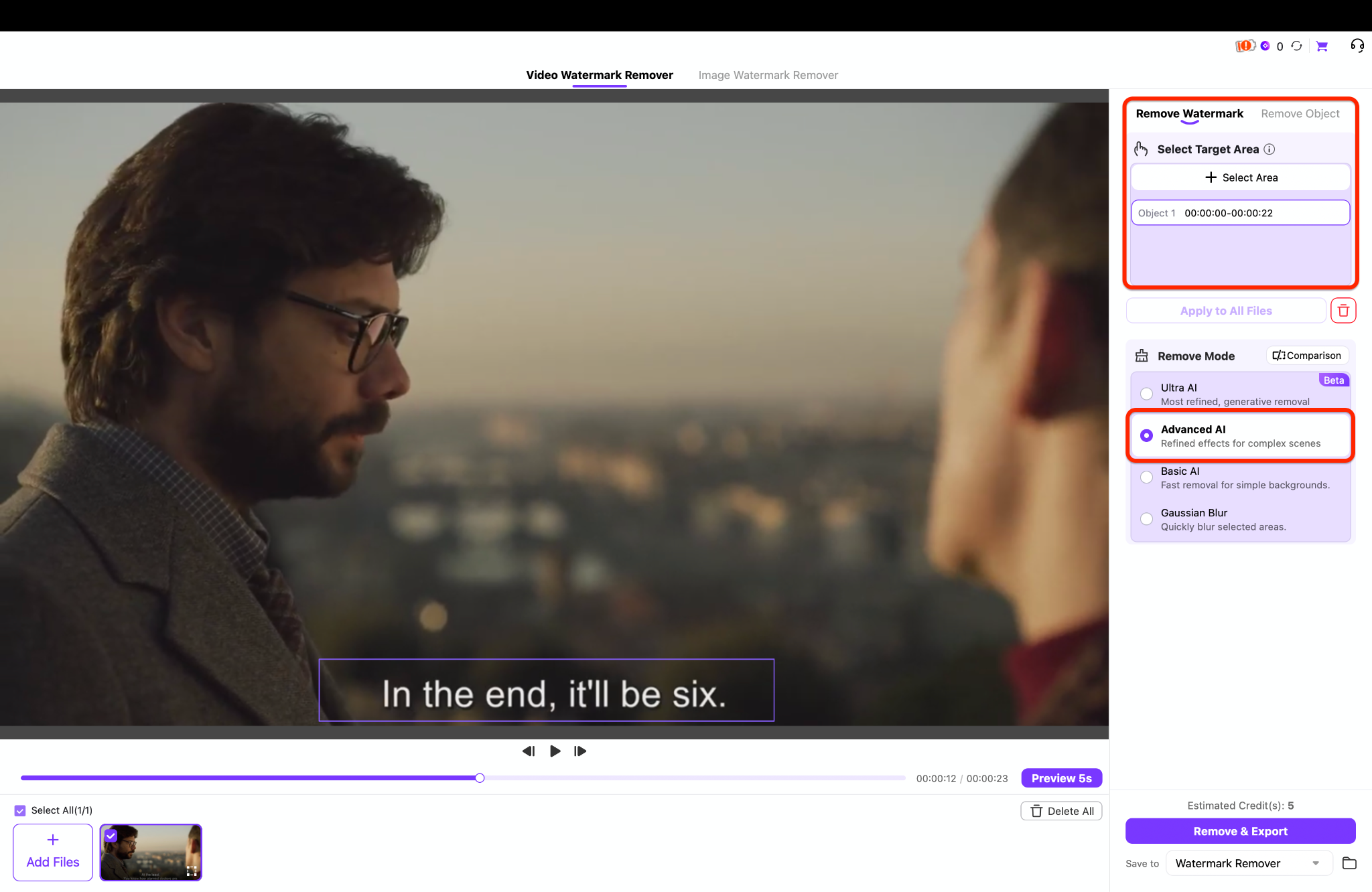
Pro Tip: Extend the selection box slightly past the text edges to provide the AI with extra background pixels for a smoother digital patch.
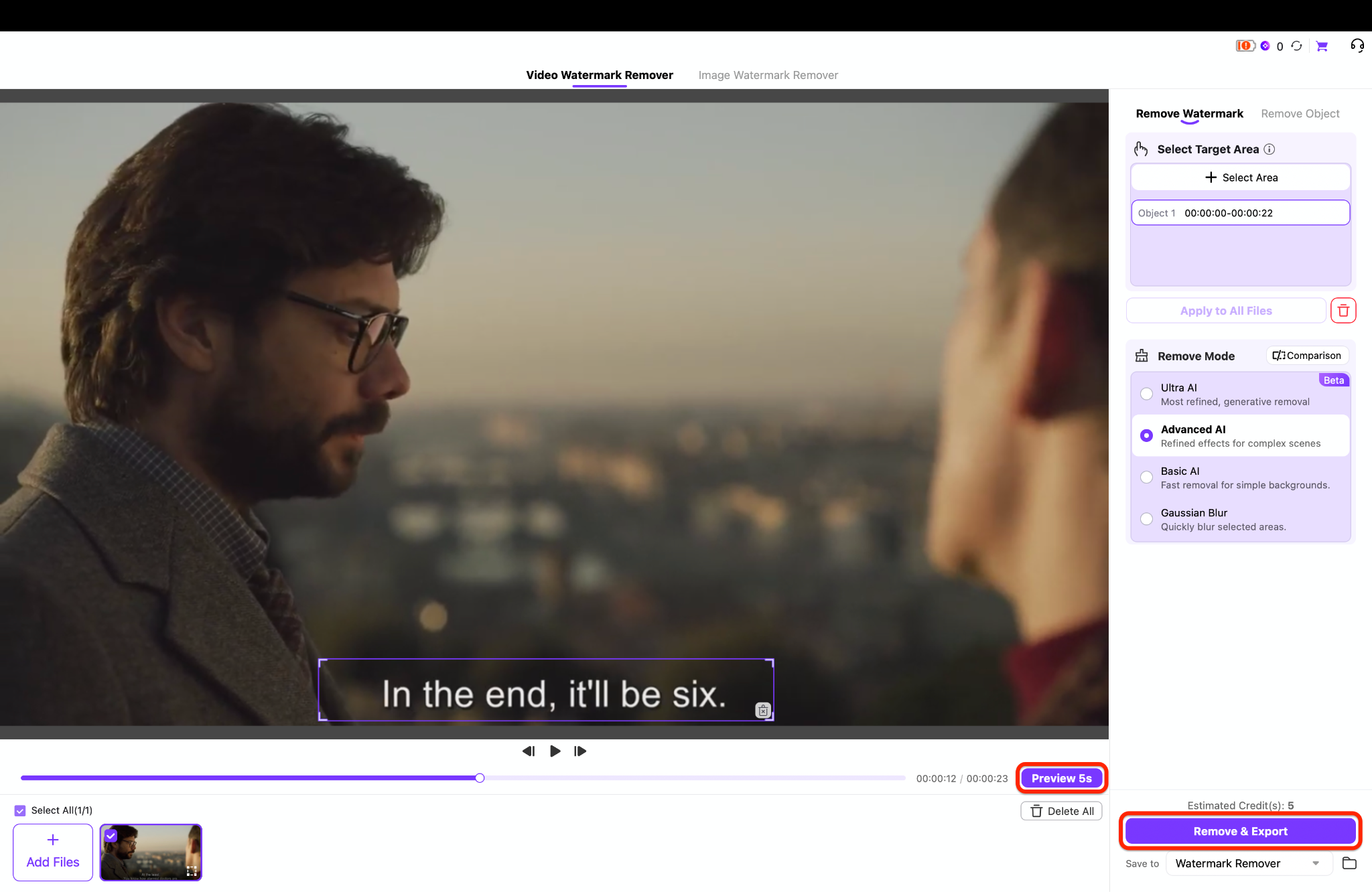
Step 3: Review the Output and Export
Play the real-time preview window to verify that the digital background reconstruction looks completely clean and natural. Tweak the highlighted selection frame if any visual smudging occurs, then choose a preferred output format like MP4. Click the export button to save the polished file, or queue up additional videos for batch processing.
Part 6. Post-Removal Best Practices: Perfecting Your Final Video Quality
After erasing on-screen text, making a few final adjustments ensures the resulting video looks professional and polished for offline playback.

Preventing Export Quality Loss: Matching the original bitrate, frame rate, and resolution during the final export maintains clarity. Choosing lower settings simply to save hard drive space often results in heavy pixelation, especially in areas where AI previously reconstructed the background.
Managing Aspect Ratio Shifts: If the cropping method was chosen over AI erasure, the video aspect ratio likely changed. Centering the remaining footage on the canvas, or adding cinematic letterboxing (black bars on the top and bottom), helps restore a standard 16:9 widescreen presentation for modern monitors.
Attaching Clean, Softcoded Subtitles: Once the burned-in text disappears, some viewers might still require translations. Using a standard text editor to attach a fresh, toggleable .SRT file in a new language solves this issue. This method provides accessible translations without permanently ruining the visual frame again.
Audio Sync Checks: Heavy AI video processing occasionally strains older computer hardware, potentially causing minor delays. Playing the rendered file through a standard media player helps verify that the audio track remains perfectly synced with the visual lip movements before archiving the file.
Part 7. Conclusion
Mastering how to remove subtitles on YouTube significantly improves the overall viewing experience, finally freeing your screen from distracting text blocks. While simply adjusting platform settings easily handles interactive softcoded captions, downloaded videos embedded with burned-in text require reliable software intervention. For anyone seeking professional, lossless processing, UniConverter stands out as the ultimate solution. With its advanced AI background reconstruction and robust suite of built-in features, editing out stubborn captions becomes effortless. Try Wondershare UniConverter today to clean up your favorite offline videos, preserve original image quality, and take complete creative control over your multimedia library.

