


Welcome to the complete guide on M4A vs MP3. If you regularly listen to music or record audio, you likely encounter these two popular formats. Choosing the right one can impact your storage space and listening experience. Understanding the M4A and MP3 difference helps you decide which file type suits your specific devices. Sometimes, you need high fidelity, while other times, maximum compatibility is necessary. In this article, we will compare their features side-by-side. We will also explore the best M4A vs MP3 converter tools available, helping you easily manage your audio files without losing clarity.
Table of Contents
Key Takeaways
[Format Choice Needs] M4A offers better quality at smaller sizes, while MP3 ensures universal compatibility across all devices.
[Quality vs Compatibility] M4A suits Apple ecosystems and storage efficiency, while MP3 works best for cars, Android, and older devices.
[Tool Options] Tools like VLC, CloudConvert, Audacity, and Zamzar support conversion but may lack batch speed or ease of use.
[Efficient Conversion] Wondershare UniConverter enables fast batch conversion with high-quality output and full metadata retention.
Part 1. Understanding the M4A & MP3 Audio Formats
What is M4A?
M4A stands for MPEG-4 Audio. Apple developed this format as a modern successor to the MP3. It is an audio-only container format that usually uses the Advanced Audio Coding (AAC) codec. Sometimes, it uses the Apple Lossless Audio Codec (ALAC) for completely uncompressed sound.
You will primarily find M4A files within the Apple ecosystem. It is the standard format for Apple Music downloads, iOS Voice Memos, and iTunes Store purchases. Because it uses an advanced compression algorithm, M4A audio quality is generally excellent, even at lower bitrates.
What is MP3?
MP3, or MPEG-1 Audio Layer III, is the undisputed king of digital audio formats. Created in the 1990s, it revolutionized how we consume music by shrinking file sizes drastically while maintaining acceptable sound quality.
MP3 is the universal standard for digital audio. Its most significant advantage is its unmatched compatibility. You can play an MP3 file on virtually any media player, smartphone, smart TV, or car stereo hardware ever created over the past two decades.
Part 2. M4A and MP3 difference: A Side-by-Side Comparison
When comparing M4A vs MP3, several technical factors determine which format you should use. Let us break down the core differences.
First, consider the compression methods. MP3 uses a simpler, older compression algorithm. It discards audio frequencies that the human ear struggles to hear. M4A uses AAC compression, which utilizes a more complex and efficient algorithm. This means M4A can retain a wider frequency range.
Next is bitrate efficiency. Because of its advanced codec, an M4A file encoded at 128kbps will sound noticeably better than an MP3 encoded at the same bitrate. The M4A and MP3 difference in efficiency allows you to save space without sacrificing clarity.
Finally, consider DRM (Digital Rights Management). Neither standard MP3 nor standard M4A files enforce DRM by default. However, Apple previously used a variant of M4A (called M4P) to apply copyright protection to iTunes purchases. Today, standard M4A files are DRM-free.
Comparison Table
| Feature | M4A | MP3 |
| Developer | Apple Inc. | Fraunhofer Society |
| Audio Quality | Excellent (Better at lower bitrates) | Good (Requires higher bitrates for high quality) |
| File Size | Smaller (Highly efficient compression) | Slightly larger (Less efficient compression) |
| Compatibility | Limited (Best on Apple devices) | Universal (Works on all devices) |
Part 3. Top 5 M4A vs MP3 Converters (Free & Paid)
Sometimes, you have an M4A file but need universal playback, or vice versa. To solve this, you need a reliable M4A vs MP3 converter. Below, we review the top five tools to help you transition between these formats seamlessly.
1. Wondershare UniConverter
UniConverter is a comprehensive, all-in-one media processing toolbox designed for efficiency. It bridges the gap between Apple formats and universal standards without losing audio fidelity. Whether you need a quick conversion or want to extract audio from video files, this tool handles it effortlessly. You can process heavy batches of files, maintain your metadata, and ensure you get M4A to MP3 high quality output every single time. It is built for professionals and everyday users who value their time and media quality.
Key Features:
Batch Convert: Process dozens of audio and video files simultaneously to save time.
Batch Compress: Reduce large media file sizes quickly without losing perceived quality.
Extensive Format Support: Convert between 1,000+ audio and video formats instantly.
AI tools: Access smart features like vocal removal and noise reduction.
Step-by-Step: How to Convert M4A to MP3 high quality
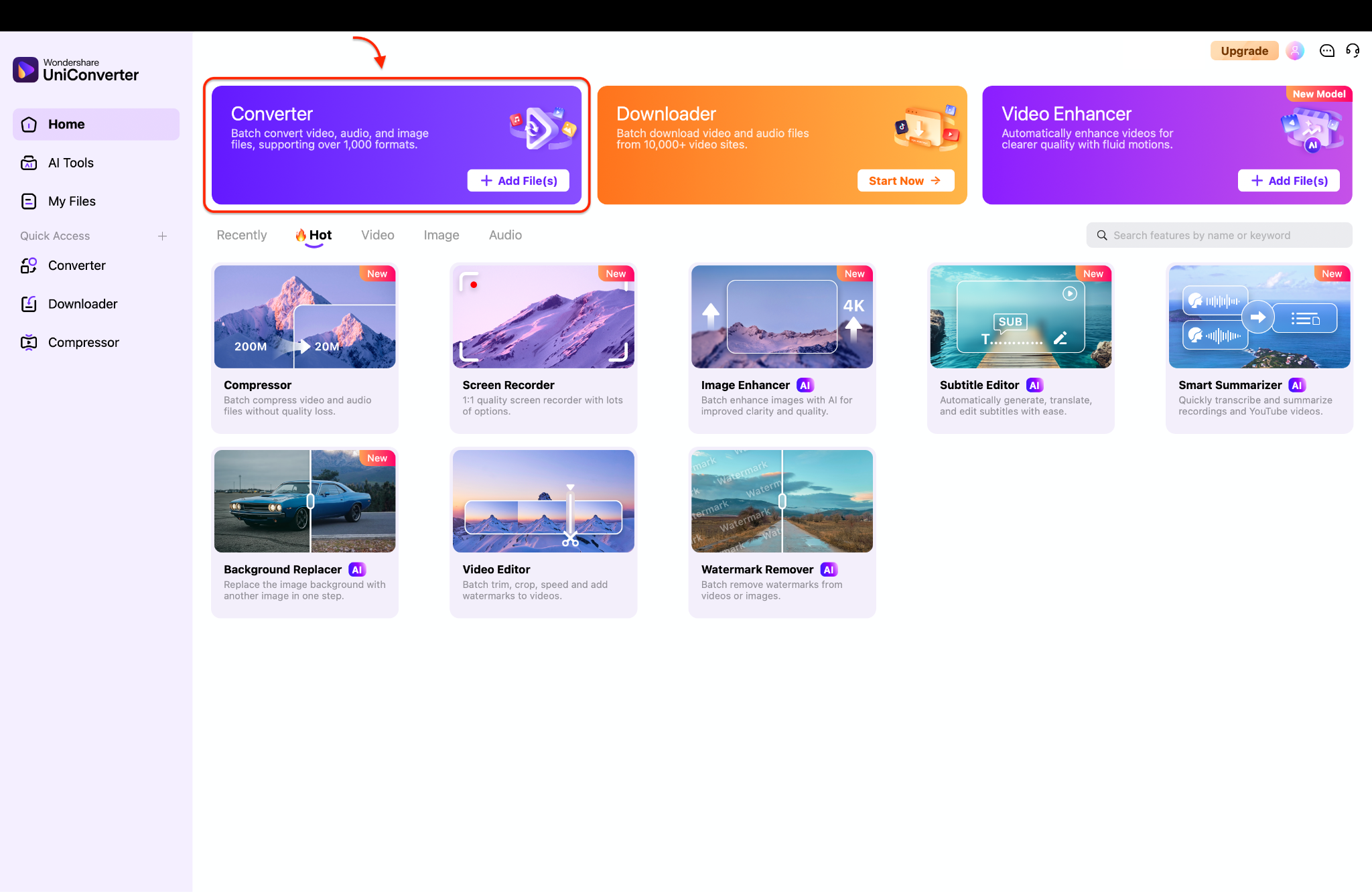
Step 1: Launch UniConverter and Access Converter
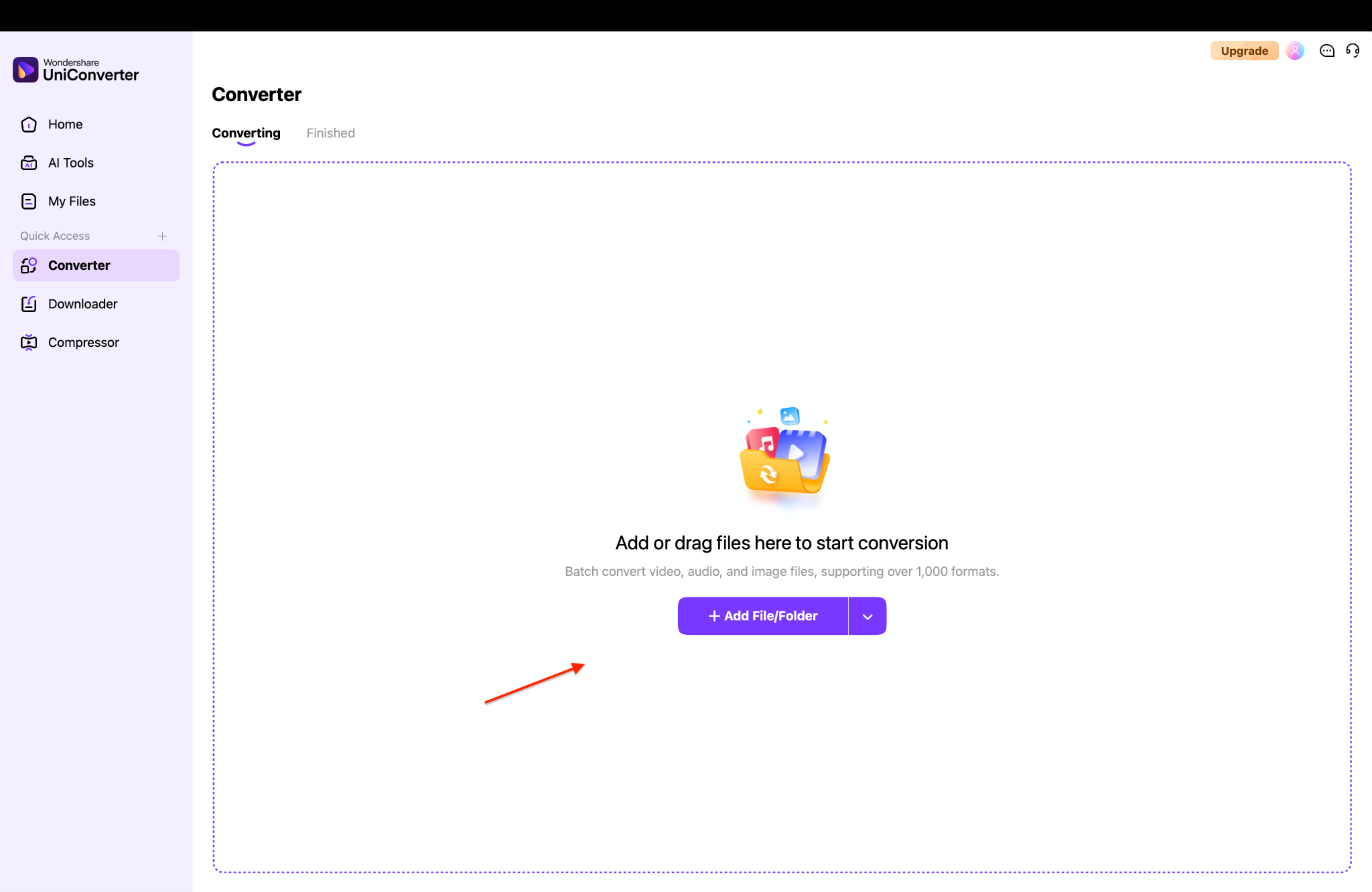
Step 2: Import the M4A audio file or files
Step 3: Apply settings for conversion
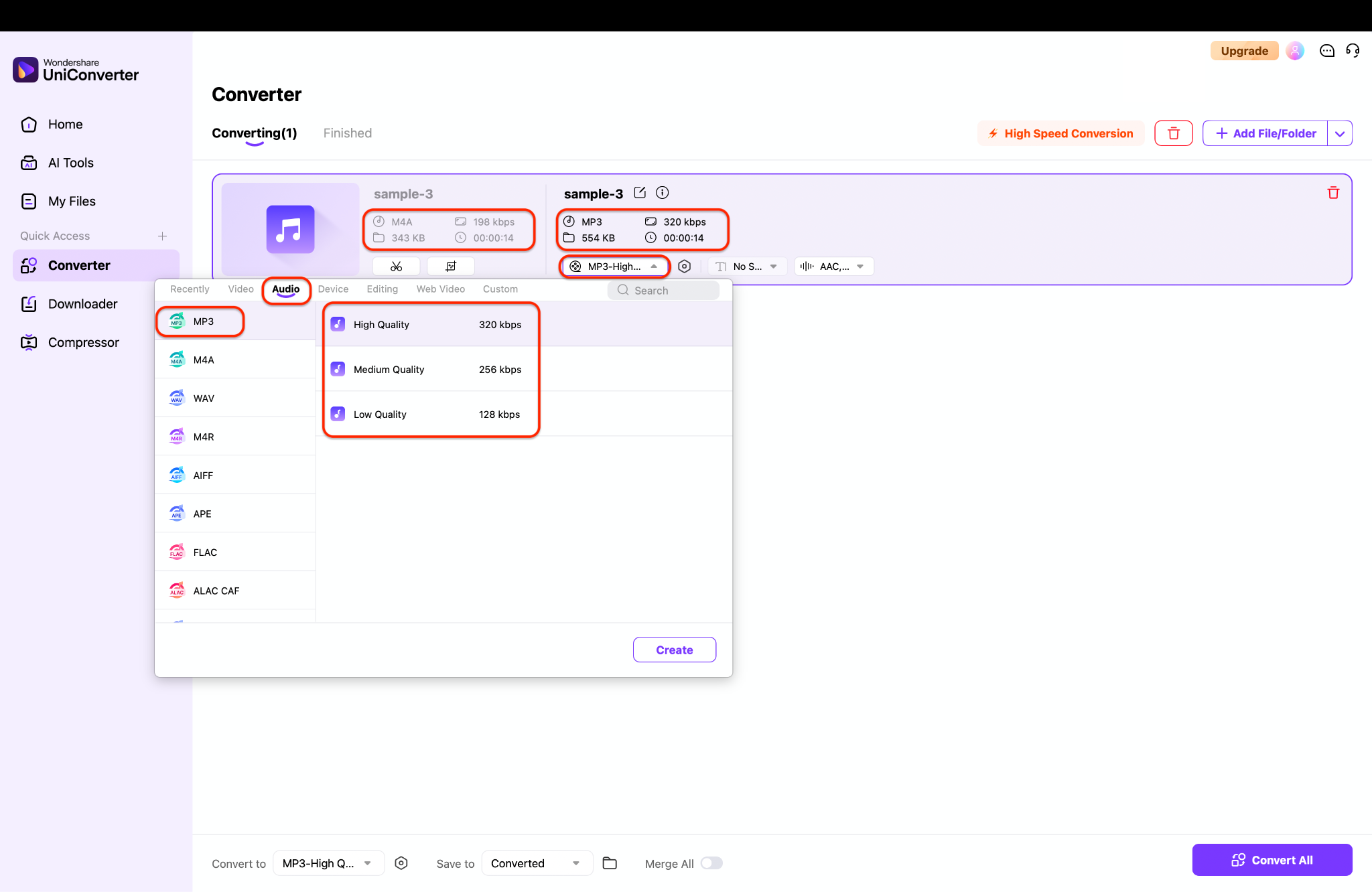
Pro Tip: Always select a bitrate equal to or higher than your original M4A file to prevent any unnecessary loss of audio clarity during the conversion.
Step 4: Export and save
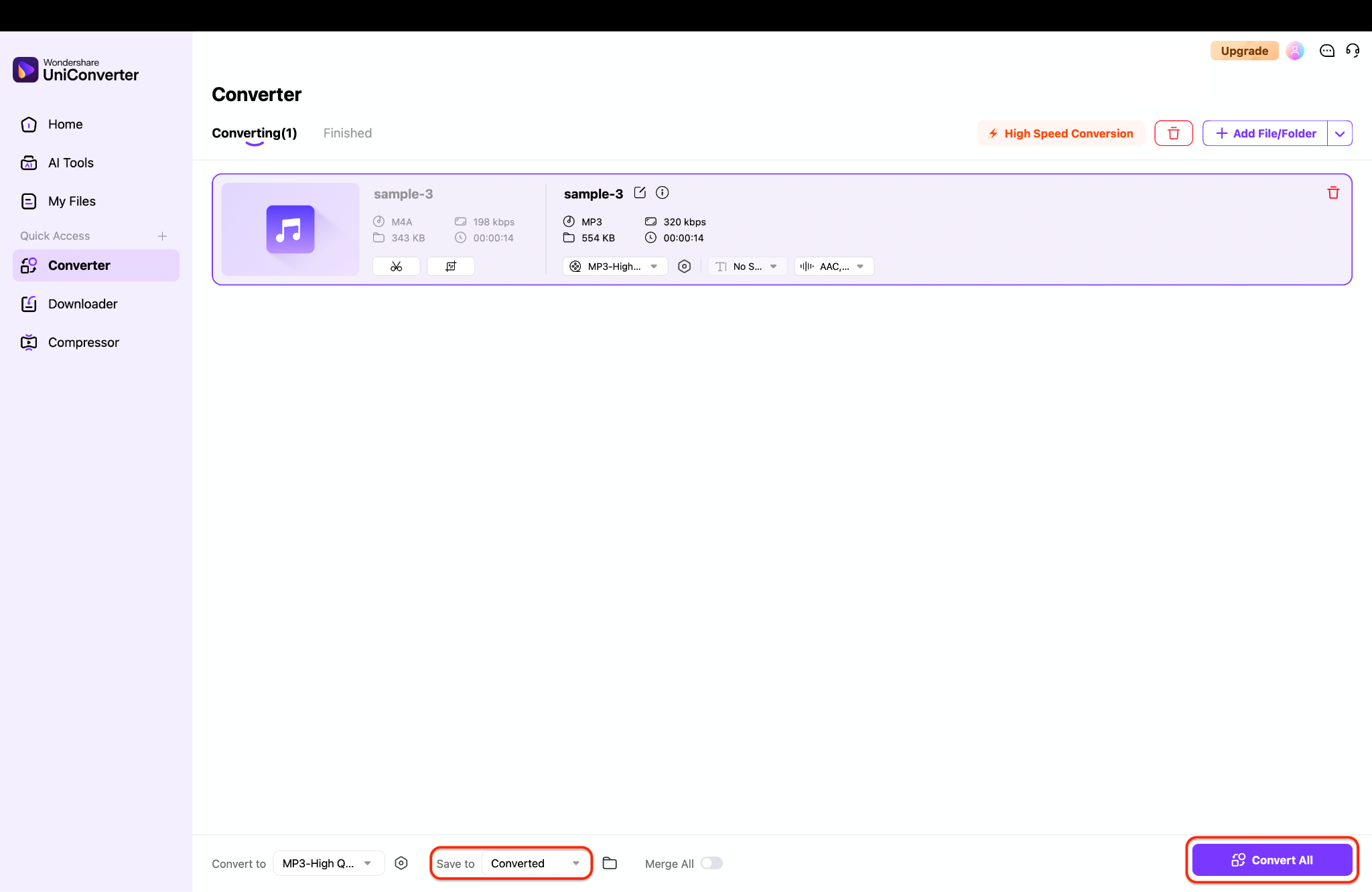

M4A to MP3 & MP3 to M4A Converter
2. VLC Media Player (Best Free/Open-Source Player)
VLC Media Player is a highly versatile, open-source application that goes far beyond simple multimedia playback. While most people recognize it for playing almost any video or audio file natively, it also includes hidden, built-in conversion tools. You can easily switch your media formats completely free of charge. It is a lightweight, reliable option that requires no extra software installations.
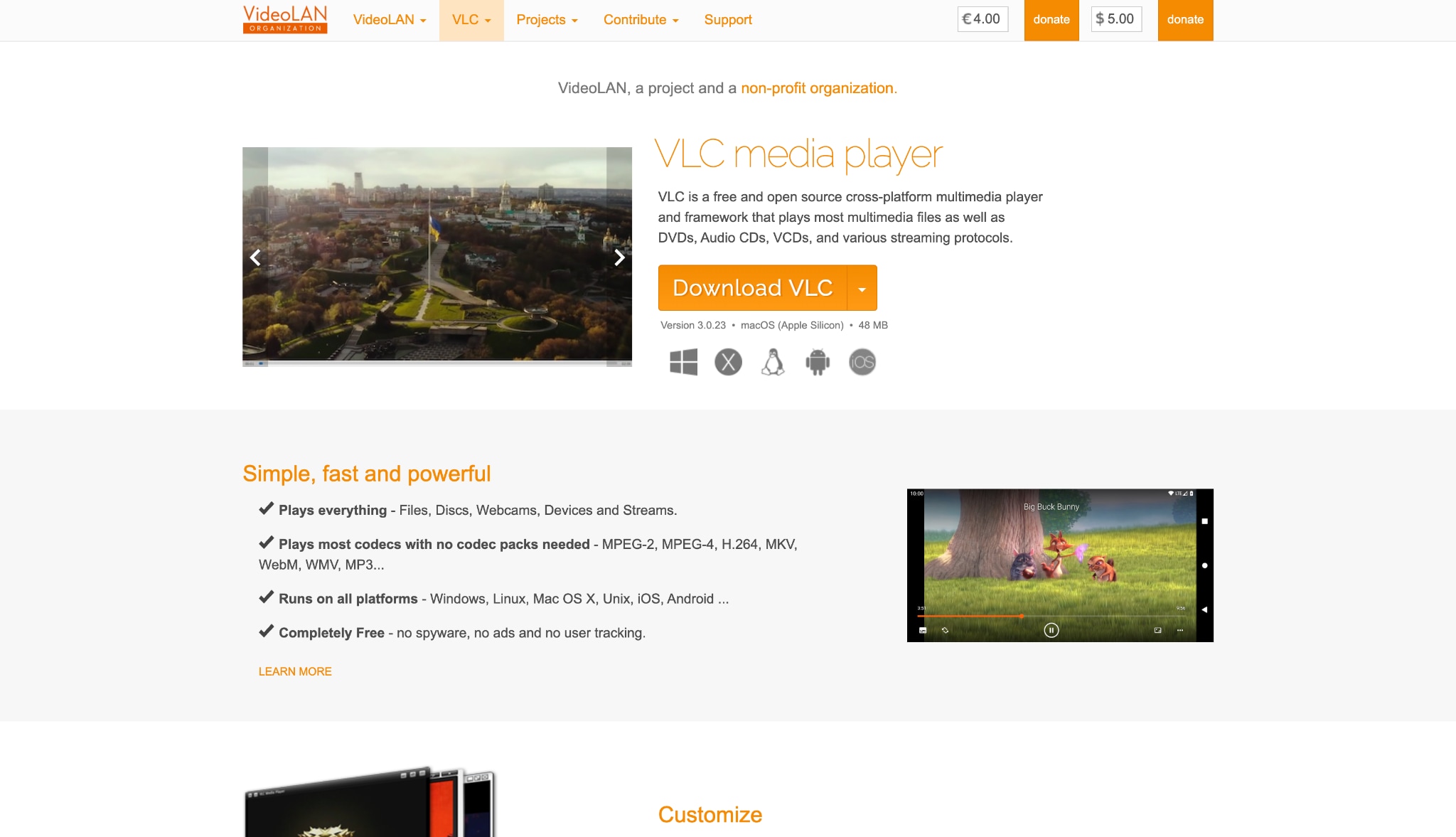
Key Features:
Plays almost any multimedia file natively.
Includes built-in conversion tools for basic audio formats.
Offers customizable audio equalization settings.
Completely free and open-source software.
3. CloudConvert (Best Online-Only Tool)
CloudConvert is an efficient, web-based tool designed for seamless file conversions directly from your internet browser. It operates entirely in the cloud, meaning you never have to download heavy desktop applications. With support for hundreds of formats, it provides excellent output quality and integrates seamlessly with cloud storage platforms like Google Drive to easily streamline your everyday digital media workflow.
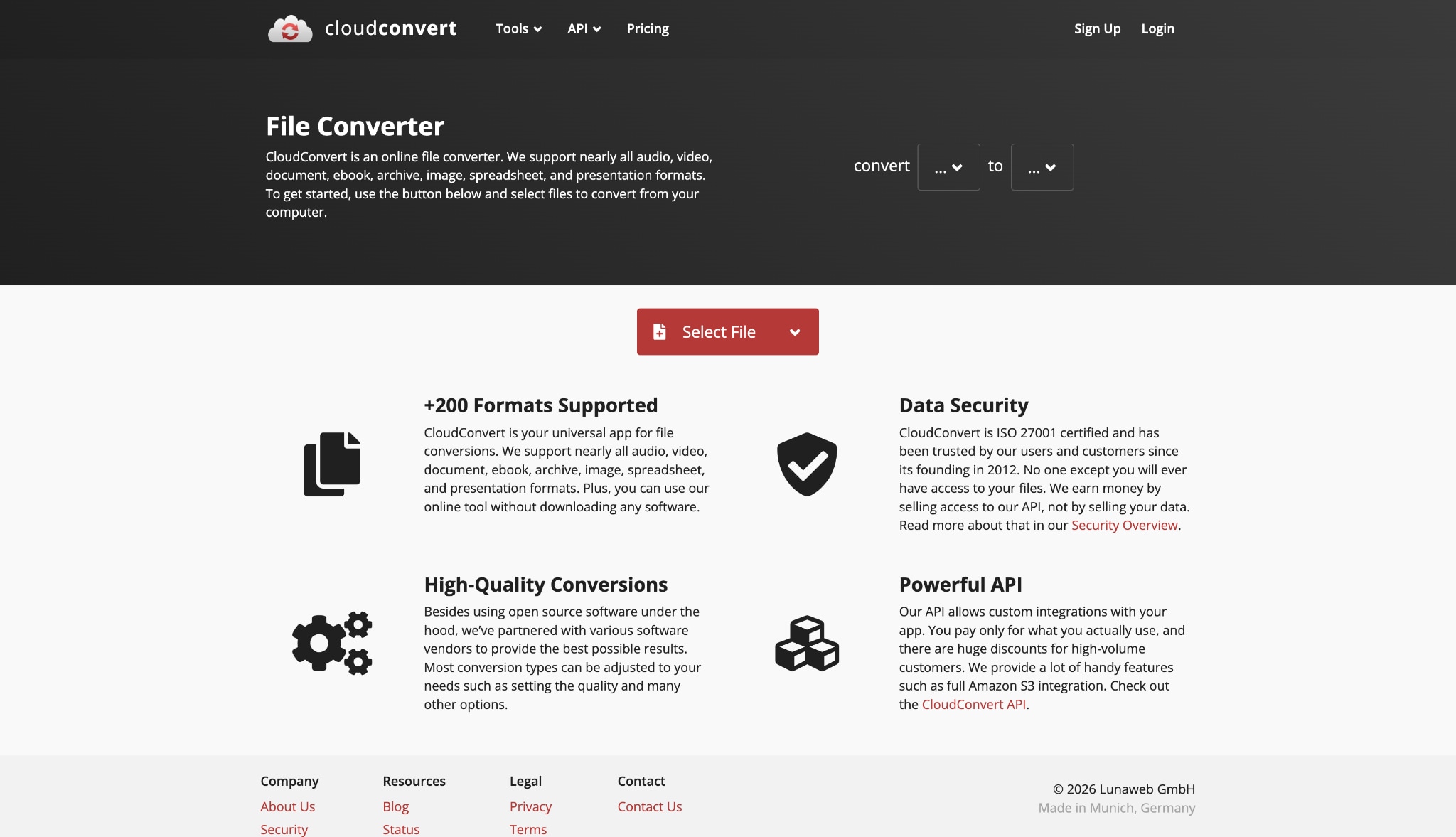
Key Features:
Operates entirely in the cloud with no software installation.
Integrates with Google Drive and Dropbox.
Provides options to trim audio before converting.
Allows custom bitrate and sample rate adjustments.
4. Audacity (Best for Advanced Audio Editors)
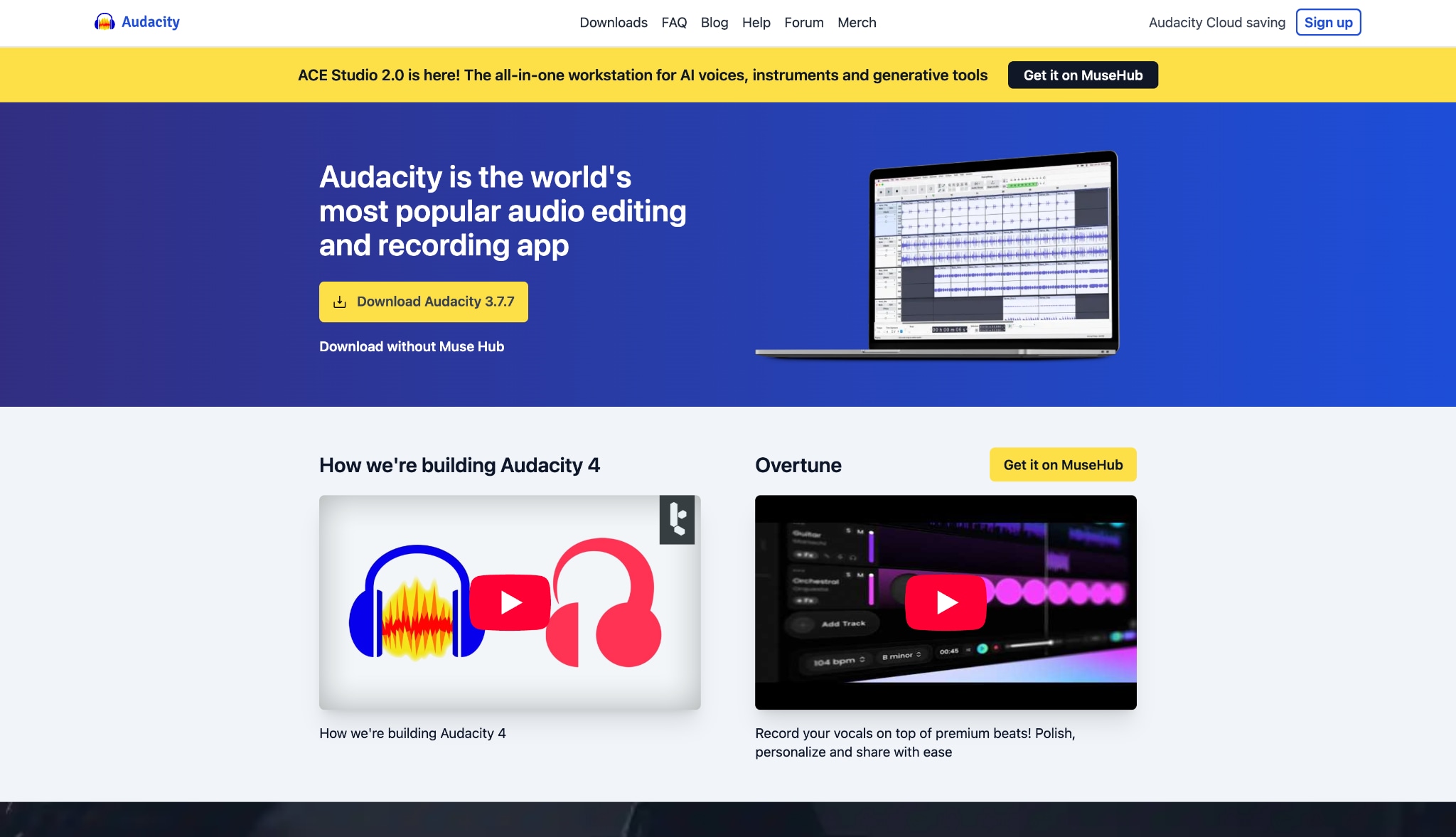
Audacity is a powerful, open-source audio editing software offering deep, precise control over your sound files. Primarily built for multi-track recording and detailed manipulation, it also serves as a highly capable format converter. Podcasters and creators rely on it to cut, clean, and export high-fidelity audio tracks. You can easily manage complex media projects and format conversions entirely for free.
Key Features:
Multi-track audio recording and editing.
Detailed spectrogram view for analyzing frequencies.
Supports third-party plugins for enhanced functionality.
Exports to MP3 and M4A (requires optional FFmpeg library).
5. Zamzar (Best for Quick, Email-based Conversions)
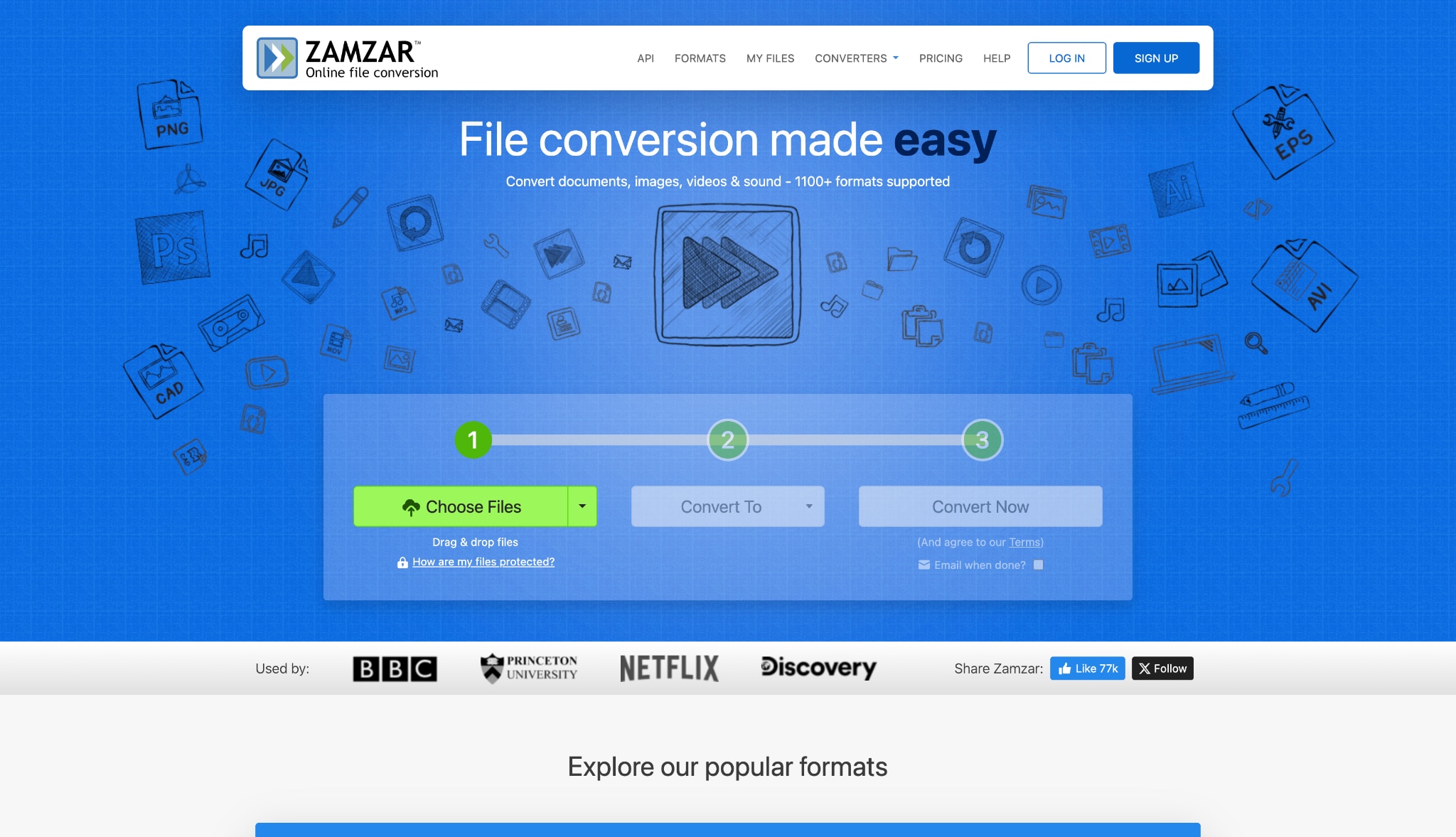
Zamzar is a simple, accessible online converter designed for users needing fast results without any technical hurdles. Operating through a minimalist, three-step web interface, it easily processes media files on dedicated cloud servers. Once your conversion finishes, Zamzar conveniently emails a direct download link straight to your inbox. It is the ideal solution for quick, one-off file changes while working.
Key Features:
Minimalist, three-step conversion interface.
Supports document, video, and audio conversions.
Sends a download link directly to your inbox.
Dedicated servers handle the processing load.
Part 4. At a Glance: Comparing Top 5 Audio Converters
| Tool Name | Starting Price | Platform / Type | Batch Conversion | Custom Bitrate Control | Ease of Use |
| UniConverter | Free trial / Paid | Win & Mac Desktop | Yes | Yes | Very High |
| VLC Media Player | Free | Cross-Platform App | Limited | Yes | Low |
| CloudConvert | Free / Paid tiers | Web-based | Yes | Yes | High |
| Audacity | Free | Cross-Platform App | Yes (via Macros) | Yes | Medium |
| Zamzar | Free / Paid tiers | Web-based | Yes | No | Very High |
Part 5. Real-World Use Cases: Which Should You Choose?
For Content Creators & Podcasters
Use M4A for your raw recordings because it captures vocal nuances better at a highly efficient file size. Once your editing is complete, convert your final master to MP3 for your RSS feed distribution. This ensures all podcast apps can play your episode smoothly.
For Everyday Listening & Commuting
MP3 remains the undisputed king here. If you load music onto a USB drive for your car stereo, older smart TVs, or generic MP3 players, stick to MP3. This helps you avoid frustrating "format not supported" errors while traveling.
For Apple Enthusiasts
M4A is native to the Apple ecosystem. It integrates seamlessly with Apple Music and iTunes. Using this format gives you better M4A audio quality without eating up your precious iPhone or iPad storage space.
For Gamers & Twitch Streamers
MP3 is highly recommended for gamers. When loading background music or sound effects into streaming software like OBS, MP3 ensures broad compatibility. This helps prevent unexpected audio dropouts during a live stream.
For Archiving & Cloud Storage
M4A is highly efficient. The main M4A and MP3 difference here is that M4A retains higher audio fidelity at a smaller file size. If you are backing up a massive music library to Google Drive or an external hard drive, M4A will save you significant storage space.
Part 6. How to Fix Common M4A and MP3 Playback Issues
Even with standard formats, you might run into trouble. Here is how to handle common problems.
Issue 1: "File not supported" on Android or Windows
If your Windows PC or Android phone refuses to play an M4A file, the device likely lacks the proper AAC codec. You have two easy fixes. First, you can download a versatile player like VLC. Second, you can use a reliable M4A vs MP3 converter like UniConverter to change the file to MP3, guaranteeing universal playback.
Issue 2: Audio sounds distorted or "tinny" after conversion
This happens when you convert a low-quality file into another format, or when your bitrate is set too low. Converting a 128kbps MP3 into an M4A will not improve the sound. Always try to start with a high-quality source file. When converting M4A to MP3 high quality, make sure you select a bitrate of 256kbps or 320kbps in your converter settings.
Issue 3: Corrupted file headers
Sometimes a file downloads improperly, breaking the header data. The file exists, but your player cannot read it. You can often fix this by running the file through an audio converter. Processing the file rewrites the header data, making the audio track readable again.
Conclusion
Choosing the right format boils down to your specific needs. The M4A and MP3 difference is clear: M4A offers superior M4A audio quality and compression, making it ideal for the Apple ecosystem and archiving. Meanwhile, MP3 delivers unmatched compatibility for universal playback. When you need to bridge the gap between these two formats, having a reliable M4A vs MP3 converter is essential. We recommend trying Wondershare UniConverter. It provides a highly efficient, user-friendly way to process your files, ensuring you achieve M4A to MP3 high quality conversions effortlessly. Download UniConverter today and streamline your audio workflow.
FAQs
-
1. Is lossless M4A audio quality noticeably better to the average listener?
It can be, but the difference is usually only noticeable on high-end headphones or premium audio systems. On basic earbuds or car speakers, most listeners won’t hear a significant difference compared to high-bitrate MP3. -
2. When comparing M4A vs MP3, which format is better for Android devices and car stereos?
MP3 is the most compatible format. While many modern devices support M4A, older car stereos and generic media players typically work more reliably with MP3 files. -
3. What is the main difference between M4A and MP3 in terms of file size?
M4A uses more efficient compression, so it can achieve similar audio quality as MP3 at a smaller file size, often saving around 15–20% storage space. -
4. How can I convert M4A to MP3 (320kbps) while keeping album art and metadata?
Use a reliable desktop converter that preserves ID3 tags and artwork during conversion. Advanced tools can transfer metadata automatically when converting to high-quality MP3. -
5. Is it safe to use free online M4A to MP3 converters for sensitive audio files?
Not always. Uploading sensitive audio to online services may pose privacy risks. For confidential or personal recordings, it’s safer to use offline software that processes files locally.
