Upload Your Video
Click Add File or drag an MP4 video into the tool. You can also select a sample clip to try the workflow.
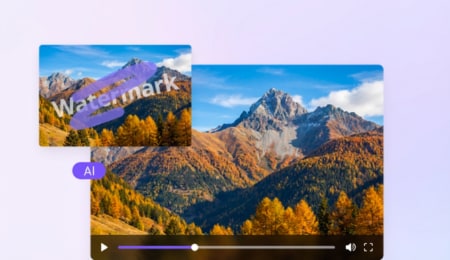
Remove watermarks from your own videos in four simple steps. Wondershare UniConverter's online video watermark remover works right in your browser, so there's nothing to install.
Click Add File or drag an MP4 video into the tool. You can also select a sample clip to try the workflow.
Find the unwanted logo, text, or mark in the video. Adjust Brush Size and paint over the area you want to remove.
Click Watermark Removal and let the tool process the selected area. Review the result once processing finishes.
Check the cleaned clip, then click Download in the result area to save your processed video.
Whether you're refreshing your own content or cleaning up a clip you have permission to edit, select the distracting area and let the online tool work on it.
Brush over a fixed watermark or channel mark to clean up the selected part of your video.
Remove a stationary logo or branding overlay when you have the right to edit the source clip.
Clean up short text labels, on-screen notes, or other fixed words that distract from the scene.
Target unwanted date stamps or small fixed marks without cropping away the full video frame.
Results depend on the video background, motion, and the area selected. For moving objects or embedded subtitles, see the desktop option below.
Start removing a video watermark online without installing an editor or creating an account.
Use the adjustable brush, Undo, Redo, and Reset controls to refine your selection before processing.
Process the selected region rather than covering the entire clip with a crop or solid overlay.
The online tool uses a brush to define the area to erase. Begin with a small Brush Size and paint over the watermark or text, keeping the selection close to the unwanted mark.
Use the playback controls to locate the watermark, then refine your selection with Brush Size, Undo, Redo, or Reset before clicking Watermark Removal. Avoid covering faces or important details. Results depend on background detail and motion.
Cover the visible mark while leaving nearby details outside the selected area.
Use the video progress bar to inspect the fixed overlay before processing.
For simple free MP4 watermark removal, start with the browser tool above. For larger projects, moving objects, or embedded subtitles, explore UniConverter's dedicated desktop AI Eraser workflows.
Swipe sideways to view the full comparison table.
| Feature | Online Video Watermark Remover | UniConverter Desktop AI Eraser |
|---|---|---|
| Best for | Quick cleanup of occasional clips | Larger projects and more complex video editing |
| Getting started | Use directly in a browser; no sign-up or installation | Install UniConverter for Windows or Mac |
| Free access | 3 completely free uses | Feature access and AI credit requirements depend on your plan and selected mode |
| Input files | MP4 videos smaller than 100MB | MP4, MOV, MKV, AVI, and other supported formats; mode-specific limits apply |
| Watermark selection | Brush over the unwanted area | Fixed Area, multiple selections, and different processing modes |
| Advanced cleanup | Best suited to simple, fixed marks | Moving Object tracking, Ultra subtitle recognition, and higher-quality processing options |
| Multiple videos | One clip per editing workflow | Import up to 20 video files in one workflow; review settings for each file |


Yes. You can use the online video watermark remover completely free three times without signing up or installing software. This is a total free-use allowance, not a promise of three new free uses every day.
The online tool accepts MP4 videos smaller than 100MB. For larger files or formats such as MOV, MKV, and AVI, use the UniConverter desktop video watermark remover.
Play the clip to locate the mark. Adjust Brush Size, brush over the watermark, and use Undo, Redo, or Reset if the selection covers too much of the frame. Click Watermark Removal only after checking the selected area.
Yes, the online workflow can be used for common fixed overlays such as logos, watermarks, text labels, and timestamps. Brush over the area you want to remove and inspect the result. Large marks or detailed backgrounds may need more advanced cleanup.
For moving targets, use Moving Object in UniConverter's desktop Video Eraser. For subtitles embedded in the picture, desktop Ultra > Subtitles can identify text within a selected subtitle area and its appearance times. These are desktop features, not capabilities of this free online tool. Explore the desktop watermark editor.
Small, fixed marks on simple backgrounds are usually easier to process than large overlays near faces or detailed textures. Check your brush selection and inspect the result. For more complex clips, see UniConverter's complete watermark removal options.
If you still have the original Filmora project, the most reliable solution is to export it again with an eligible watermark-free Filmora license. For unrelated logos or overlays in footage you own or are permitted to edit, you can try this online video watermark remover.
Only remove watermarks or other elements from videos you own or have permission to edit.


Remove watermarks from videos and images using AI—erase logos, text, objects, people, and more in batches without blur or quality loss. Supports 1,000+ formats.