


When it comes to encoding videos and live streaming, one of the most common debates is CBR vs. VBR. Whether you are uploading content to YouTube, running a live stream, or exporting a project for professional use, you will have to understand the difference between these two codecs. It helps you choose the right bitrate mode for ensuring high video quality, file size, streaming stability, and platform compatibility.
In this article, you will learn every nitty-gritty detail between bitrate CBR vs. VBR in simple terms, and decide on the right option for streaming, video uploads, and professional encoding workflows.
In this article
Part 1. Head-to-Head Comparison: CBR vs. VBR
The table below will provide you with a head-to-head comparison between CBR and VBR codecs.
| Feature | CBR (Constant Bitrate) | VBR (Variable Bitrate) |
| Bitrate Behavior | Maintains a fixed bitrate throughout the entire video | Adjust the bitrate dynamically based on the scene |
| Video Quality | Consistent, but there may be data wastage in simple scenes | Better overall quality as the bitrate increases for complex scenes |
| File Size | Predictable and consistent | Less predictable but more efficient |
| Streaming Stability | Stable for live streaming | Fluctuation can happen, resulting in buffering on a limited bandwidth |
| Bandwidth Usage | Constant bandwidth consumption | Variable bandwidth consumption |
| Best For | Live streaming and broadcasting | On-demand video and high-quality uploads |
| Encoding Speed | Faster and simpler process | Slightly lower due to bitrate adjustments |
| Quality Control | Limited flexibility | Greater control over quality and file size |
Part 2. Detailed Overview: CBR vs. VBR
When comparing CBR vs. VBR, the main difference lies in how the bitrate is allocated during video encoding. You should use CBR when you want a constant bitrate throughout the entire video, while VBR adjusts the bitrate based on the complexity of different scenes. If you are primarily focused on better quality and file size efficiency, VBR is preferred. On the other hand, CBR is preferred when you are focused on stable streaming and predictable bandwidth usage.
What is CBR?
CBR stands for Constant Bitrate, which is an encoding method where the bitrate remains fixed from start to finish. This means that the encoder uses the same amount of data for simple scenes and complex scenes alike.
How does CBR work?
Constant Bitrate (CBR) encoding uses a fixed bitrate that is defined before the encoding process begins. Once selected, this bitrate remains consistent from start to finish, regardless of the video’s complexity. The encoder does not adjust data allocation based on scene changes; it maintains a steady output rate throughout the entire file.
For example, if you set the bitrate to 5 Mbps, the encoder will process every second of the video at exactly 5 Mbps. This means low-motion or static scenes receive the same amount of data as fast-moving, detail-heavy sequences. The primary advantage of this approach is predictable file size and stable bandwidth usage, which makes CBR particularly suitable for live streaming and broadcast environments where consistent data flow is critical.
Pros and Cons of CBR
Constant Bitrate uses a fixed bitrate for the entire video, which ensures stable delivery but reduces flexibility in how data is allocated across scenes.
When to Use CBR?
CBR is best suited for scenarios where a stable and predictable data rate is essential. It is commonly used in live streaming, webinars, virtual events, and broadcast workflows where maintaining consistent bandwidth is more important than optimizing visual quality for each scene.
Because the bitrate remains fixed, CBR helps prevent sudden spikes in data usage that can cause buffering or stream instability. Many streaming platforms and hardware encoders also require or recommend fixed bitrate settings to ensure smooth delivery. If your priority is reliable transmission and steady playback rather than maximum compression efficiency, CBR is the appropriate choice.
What is VBR?
VBR stands for Variable Bitrate, which means that the encoding bitrate dynamically fluctuates as per the complexity of each individual scene. VBR increases the bitrate during fast-moving scenes and reduces the bitrate for simple scenes to optimize the quality.
How does VBR work?
Variable Bitrate (VBR) encoding dynamically adjusts the bitrate based on the complexity of the video content. Instead of maintaining a fixed data rate, the encoder analyzes each scene and allocates more or less data depending on the level of detail, motion, and visual complexity.
For instance, high-action sequences with rapid movement, complex textures, or detailed backgrounds receive a higher bitrate to preserve clarity and reduce compression artifacts. In contrast, static or low-motion scenes use fewer bits since they require less data to maintain quality. This adaptive allocation improves overall compression efficiency, delivering better visual quality at a similar or smaller file size compared to a constant bitrate approach.
Pros and Cons of VBR
Variable Bitrate adjusts the data rate according to scene complexity, improving compression efficiency while making bitrate and file size less predictable.
When to Use VBR?
VBR is ideal when visual quality and compression efficiency are your primary goals. It is widely used for YouTube uploads, film exports, on-demand streaming, and archiving high-quality footage where consistent playback bandwidth is less critical than preserving detail.
Since VBR allocates more data to complex scenes and less to simpler ones, it delivers better overall image quality at a similar or reduced file size compared to CBR. This makes VBR particularly effective for pre-recorded content, where encoding time and bitrate variability are not constraints, and the objective is to achieve optimal quality-to-size balance.
Part 3. Practical CBR vs. VBR Bitrate Settings
Choosing between CBR and VBR is just half the battle. The other half of the battle is selecting the right bitrate setting for the video clip based on its application and purpose. Below is a practical guide to help you choose the right bitrate for your requirements.
Live Streaming Platforms
Use CBR for live streaming. Most streaming servers require consistent bandwidth to maintain stable transmission. A fixed bitrate prevents sudden data spikes, reduces the risk of buffering, and ensures smooth playback during real-time broadcasts.
Video Upload Platforms
Choose VBR for pre-recorded video uploads. VBR allocates more data to complex scenes and reduces bitrate in simpler ones, which improves overall visual quality. This approach delivers better compression efficiency and optimized file sizes without sacrificing detail.
Social Media Platforms
Use VBR when uploading to social platforms such as Instagram, TikTok, and Facebook. These platforms apply aggressive compression after upload. By using VBR, you preserve more detail in the source file, which helps maintain better clarity after platform-level compression.
Part 4. How to Set and Adjust Bitrate Easily with Wondershare Uniconverter?
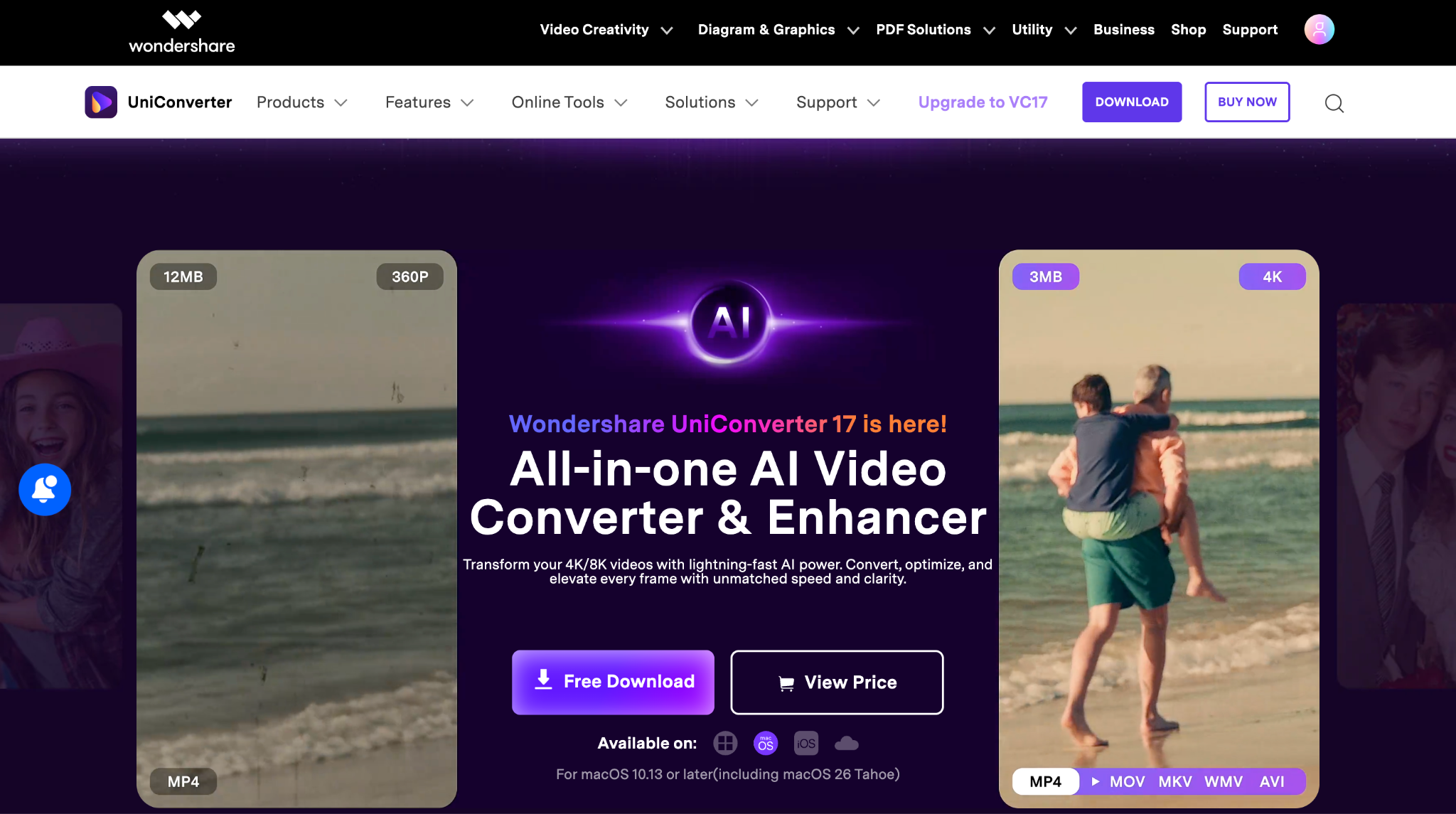
Wondershare UniConverter simplifies video encoding by giving you direct control over essential export settings without exposing you to complicated encoder configurations. If you find videos codec or video format not supported, you can turn to UniConverter for professional and quick solution. You can switch between CBR and VBR based on your delivery requirements, whether you are preparing a file for live streaming or optimizing quality for uploads.
The interface allows you to adjust resolution, frame rate, and bitrate in a clear, structured workflow. This makes UniConverter a practical solution for creators who need efficient compression and precise output control before streaming, publishing, or delivering projects to clients.
Key Features
- Adjust video bitrate to balance quality and file size
- Convert frame rate for smoother playback compatibility or convert to smaller streaming-friendly formats
- Reduce bitrate to compress videos without major quality loss
- Change frame rate to match device playback standards, for faster video uploading, or social media platform requirements
- Batch convert videos with different bitrate settings
How to Adjust Bitrate Using Wondershare UniConverter
Follow these steps to adjust the bitrate using Wondershare UniConverter.
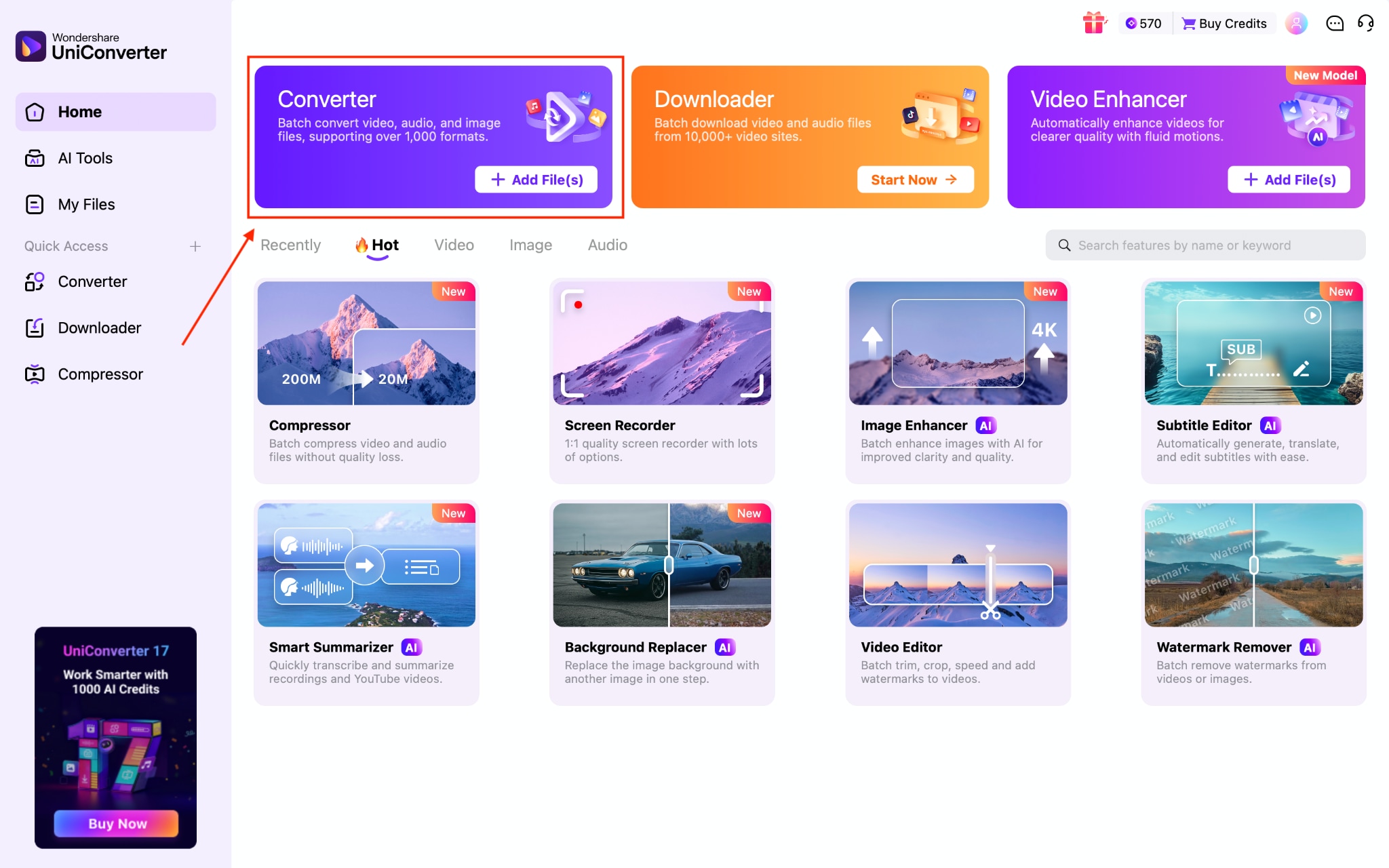
Step 1. Lauch UniConverter
On the Wondershare UniConverter dashboard, click on the “Converter” option.
Step 2. Add files to UniConverter
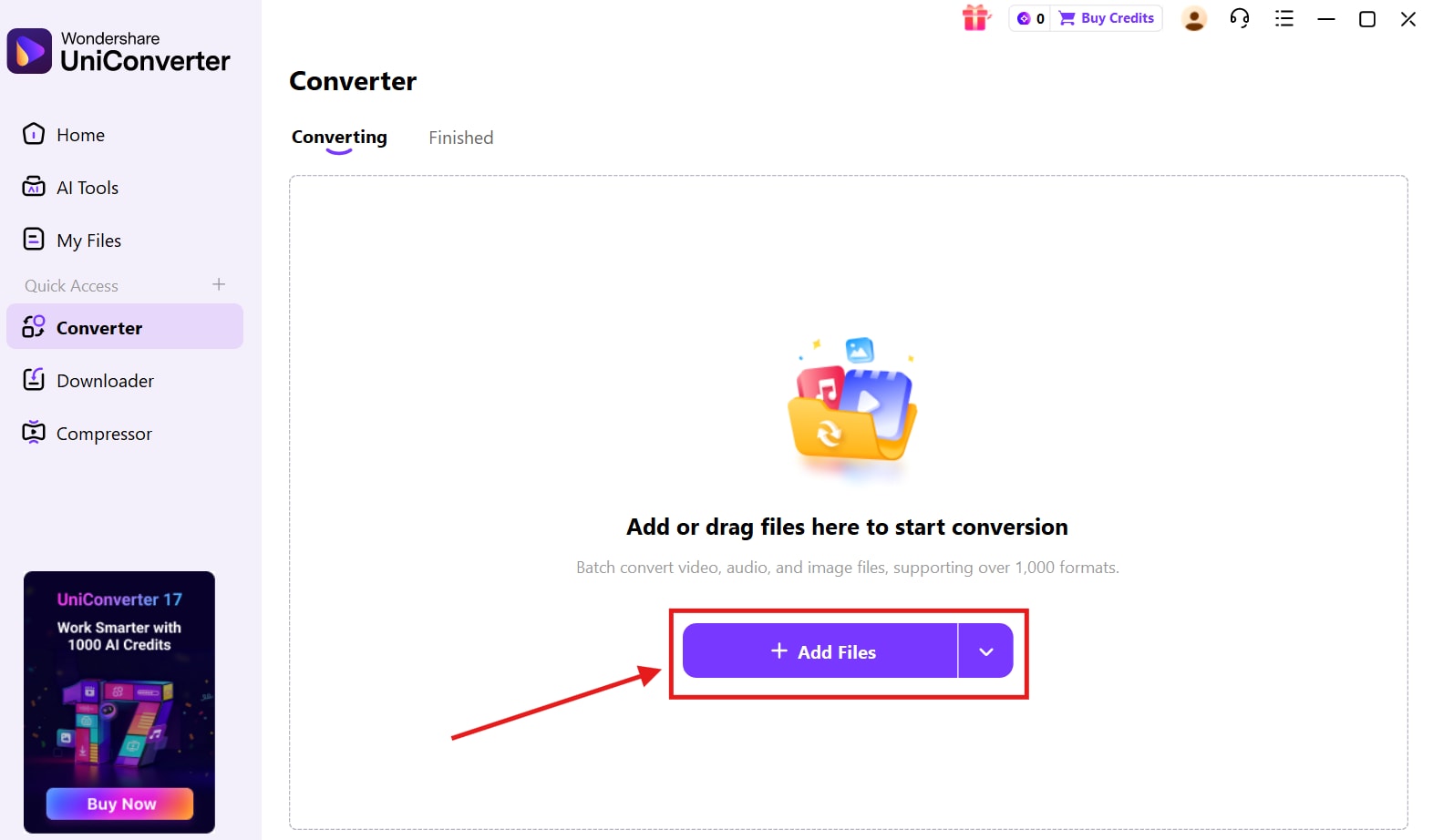
Click on the “Add files” button to upload the video file.
Step 3. Choose Conversion Settings
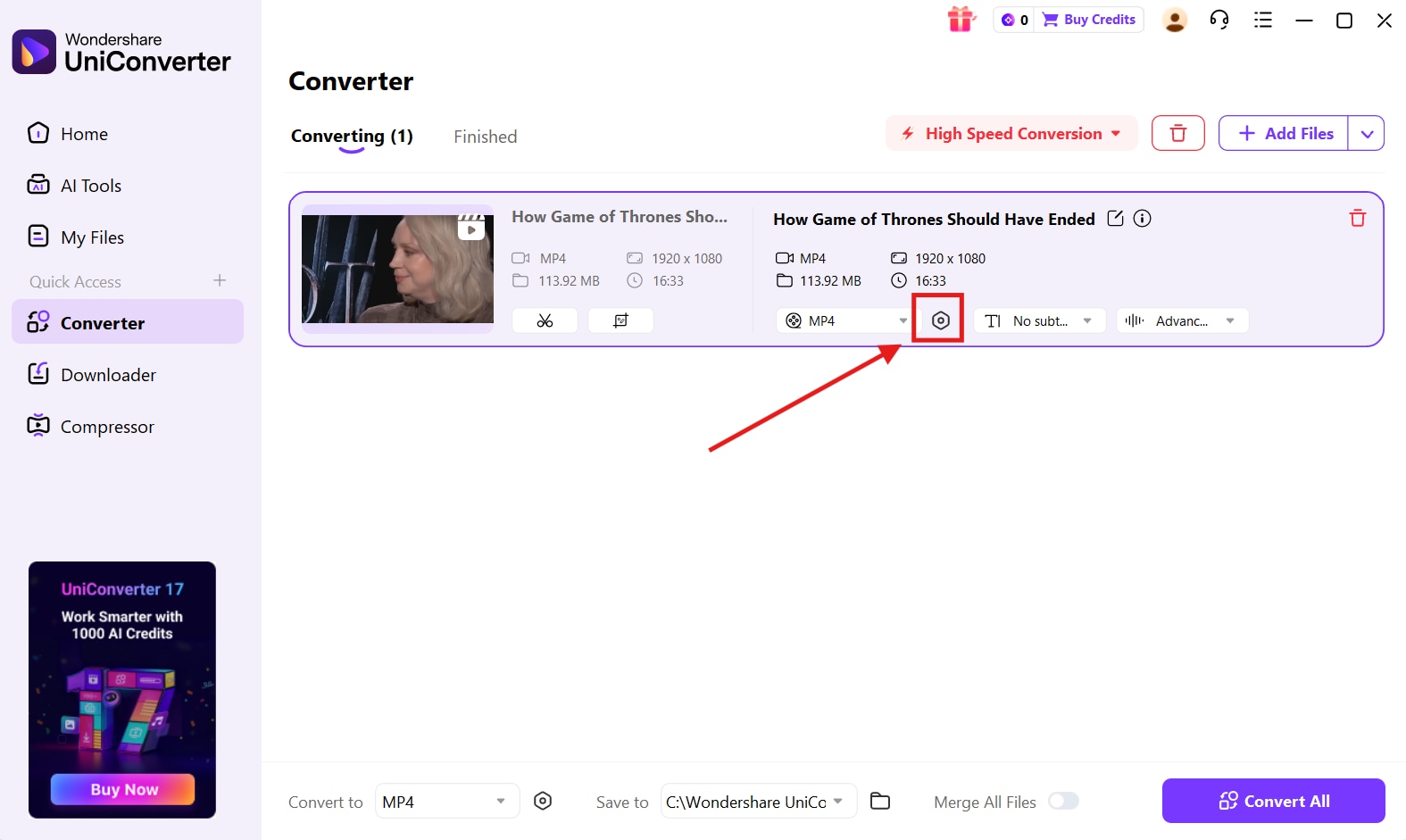
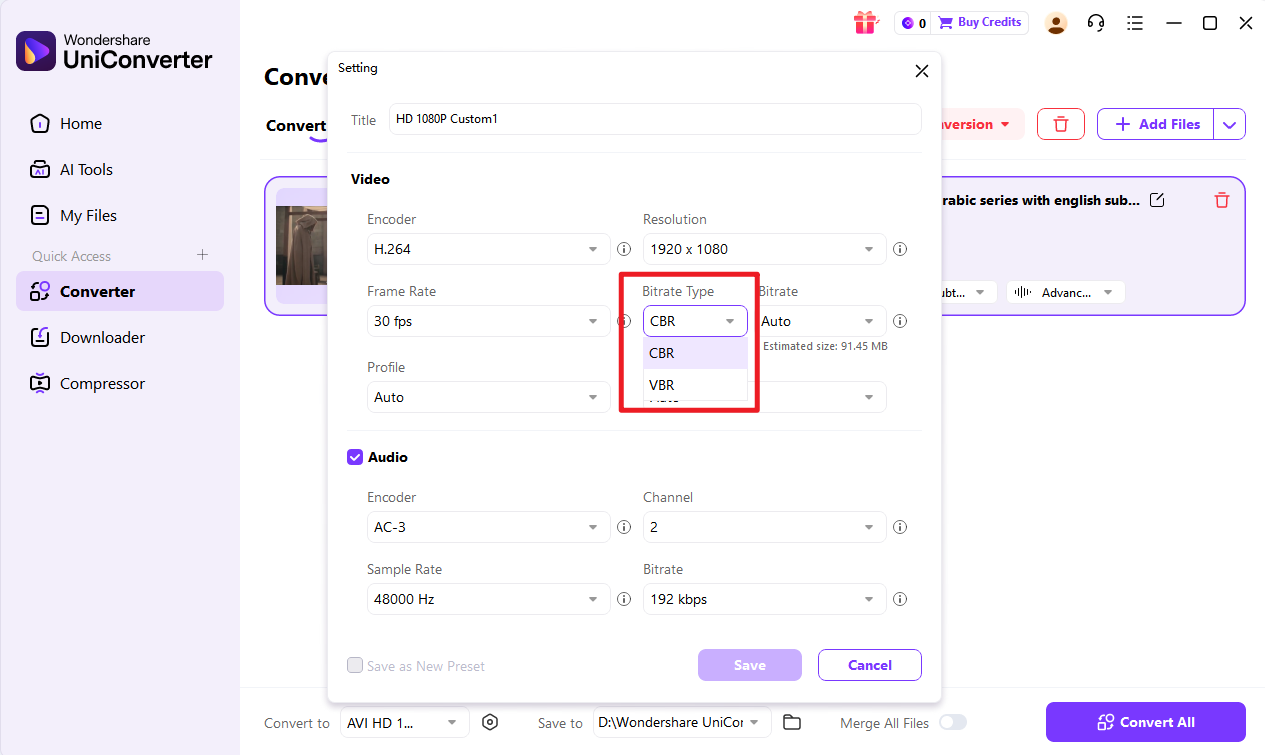
Click on the Gear icon to open the detailed settings to adjust your encoder.
Step 4. Save Conversion Settings
Once you set the encoder details as per your requirements, you can choose cbr or vbr bitrate settings in the 'Video ' part of setting, and then click on the “Save” button.
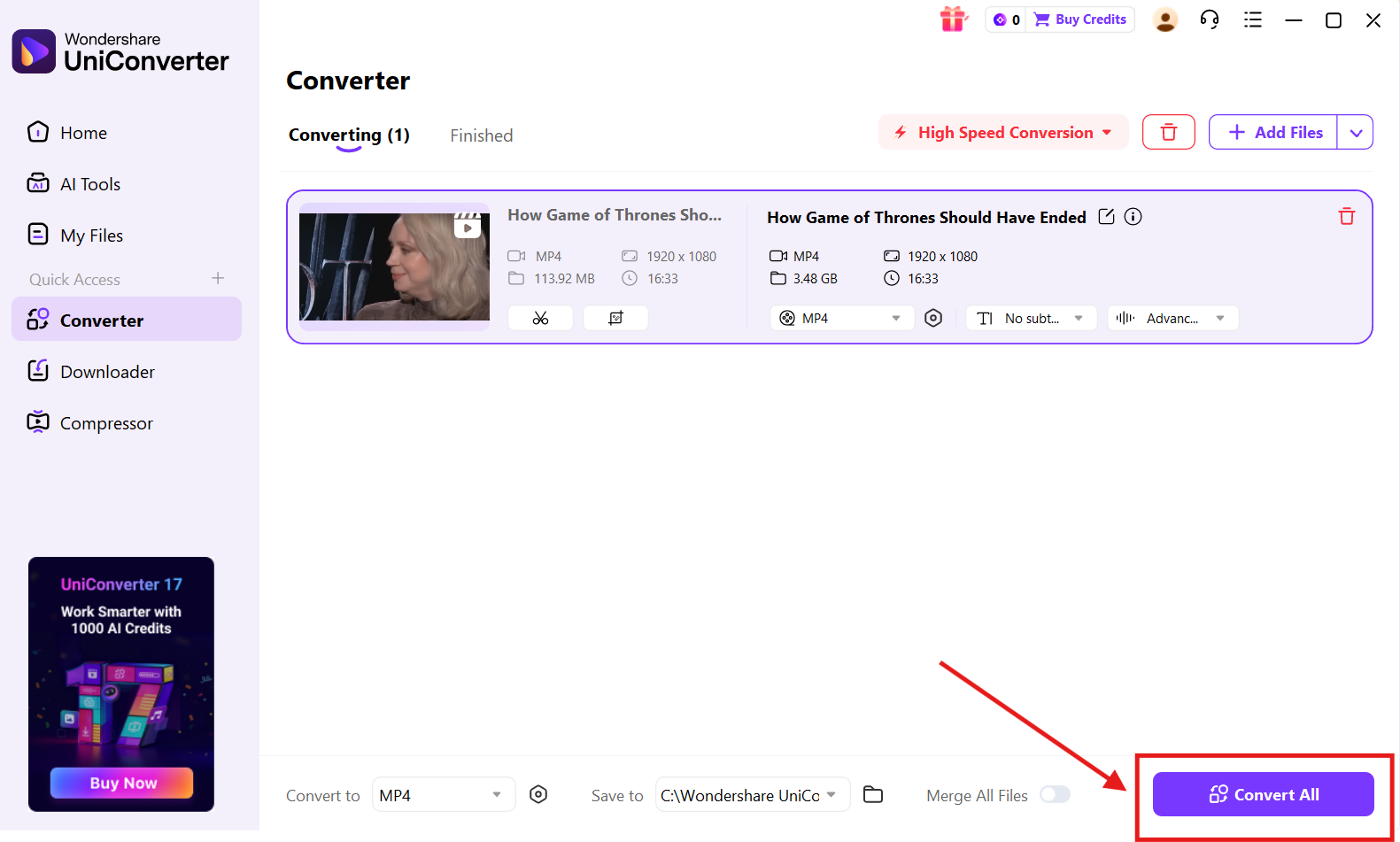
Step 5. Convert All Files
Click on the “Convert All” button to save the converted video file to your device.

Convert CBR to VBR for Better Compression Efficiency
Conclusion
The CBR vs. VBR decision depends on your goal. This includes whether you want a stable predictive streaming with consistent bandwidth usage or focus on better visual quality for uploads and professional exports.
With Wondershare UniConverter, you can easily adjust and change the bitrate for encoding videos precisely as per your requirements. Additionally, you can also use the built-in AI-powered engine to edit your video, audio, and image files on the same dashboard.
Try Wondershare UniConverter today and experience how simple and precise bitrate adjustment can be for your video projects.
FAQs
-
1. Does CBR produce better quality than VBR?
Not necessarily. CBR maintains a constant bitrate throughout the video, while VBR adjusts the bitrate based on scene complexity to optimize overall visual quality. In many cases, VBR can deliver better quality at a smaller file size. -
2. Is VBR good for live streaming?
VBR is generally not recommended for live streaming because its fluctuating bitrate may cause buffering or instability on limited bandwidth connections. CBR is usually preferred for live streams because it provides consistent data flow. -
3. What happens if the bitrate is too low?
If the bitrate is set too low, compression artifacts can appear in the video, causing pixelation, blurring, and loss of detail—especially in fast-moving scenes. -
4. Does bitrate affect audio quality as well?
Yes. Audio bitrate also impacts sound quality. Higher bitrates usually produce clearer and more detailed audio, while very low bitrates may introduce distortion or compression artifacts. -
5. Is CBR required for OBS streaming?
Most streaming platforms recommend using CBR in OBS because it maintains stable bandwidth usage and ensures consistent stream delivery, which helps prevent buffering and connection issues.

