


You tap a video you've been waiting to watch, but instead of playing, a message pops up: "video format not supported." The screen stays blank, and no matter how many times you retry, the file refuses to open. It doesn't matter whether you're on your phone, laptop, or smart TV; the error keeps appearing. Frustration builds as deadlines approach or entertainment plans are unexpectedly paused.
Many users encounter this issue without warning, leaving them unsure what went wrong or how to fix it. Thankfully, there are practical ways to resolve it and get your video playing again. Read the article till the end to know all about the error occurrence and how to resolve it.
In this article
Part 1. Why You See “Video Format Not Supported” Errors
After encountering the message, it’s important to understand what triggers it. When your screen displays a “format is not supported for video” message, the issue usually relates to compatibility between the file and the device or player you’re using. Below are the most common causes behind this error:
Unsupported File Format: Your media player may not recognize certain file types, such as MKV or FLV. If the format isn’t supported by default, the video simply won’t open.
Missing or Incompatible Codec: A video file can use a codec that your device doesn’t have installed. Without the correct codec, the player cannot decode and display the content.
Corrupted Video File: The file may have been damaged during download or transfer. Even small data errors can prevent proper playback.
Outdated Media Player: Older media players may lack support for modern video encoding standards. Updating the software often restores compatibility.
Device Compatibility Limitations: Some devices are designed to handle only specific formats and resolutions. If the file exceeds those limits, playback may fail.
Improper File Conversion: Using incorrect settings during conversion can cause playback issues. The output file may appear normal, but still be unreadable to certain players.

Part 2. Try 10 Fixes to Solve Video Format Not Supported
Understanding the causes is only the first step, but the good news is that this issue is often fixable. If you’re dealing with a “format not supported video” error, there are several practical solutions you can try to restore smooth playback. Mentioned below are some of the useful fixes you can try:
Fix 1: Update Your Media Player and Video Driver
An outdated application or graphics driver can trigger a "not supported video format" error due to missing codec libraries or insufficient decoding support. Updating the media player ensures compatibility with modern encoding standards, such as H.264 and H.265. Likewise, installing the latest GPU driver improves hardware acceleration, decoding efficiency, and support for the system-level multimedia framework. Follow the steps provided below to learn how to update your player and video driver:
Solution 1: Update Media Player
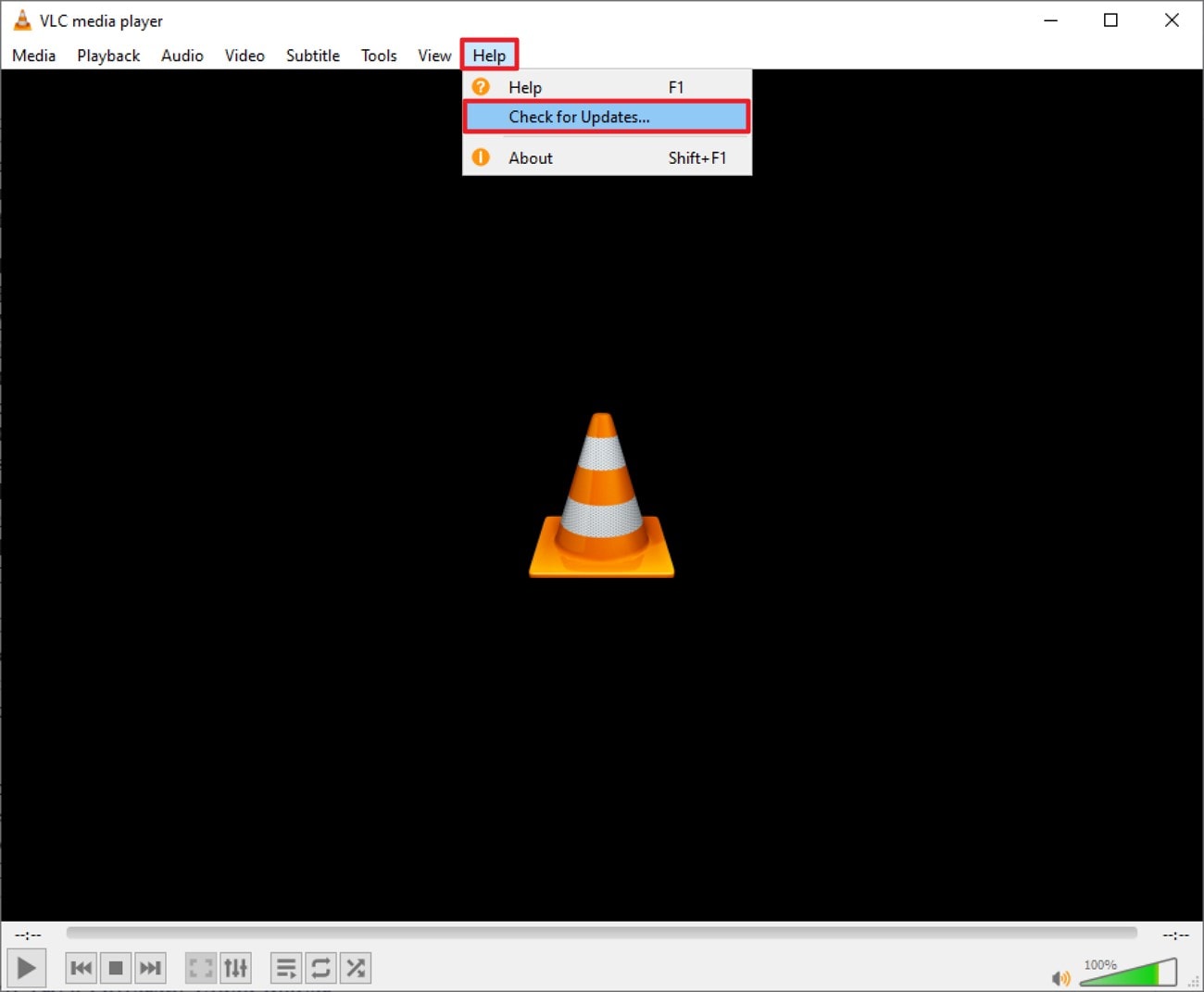
Instructions. Open the media player, such as VLC, and head to the toolbar at the top. Next, click the "Help" option, then choose "Check For Update." Follow the instructions provided on the screen to successfully update the media player.
Solution 2:Update Video Driver
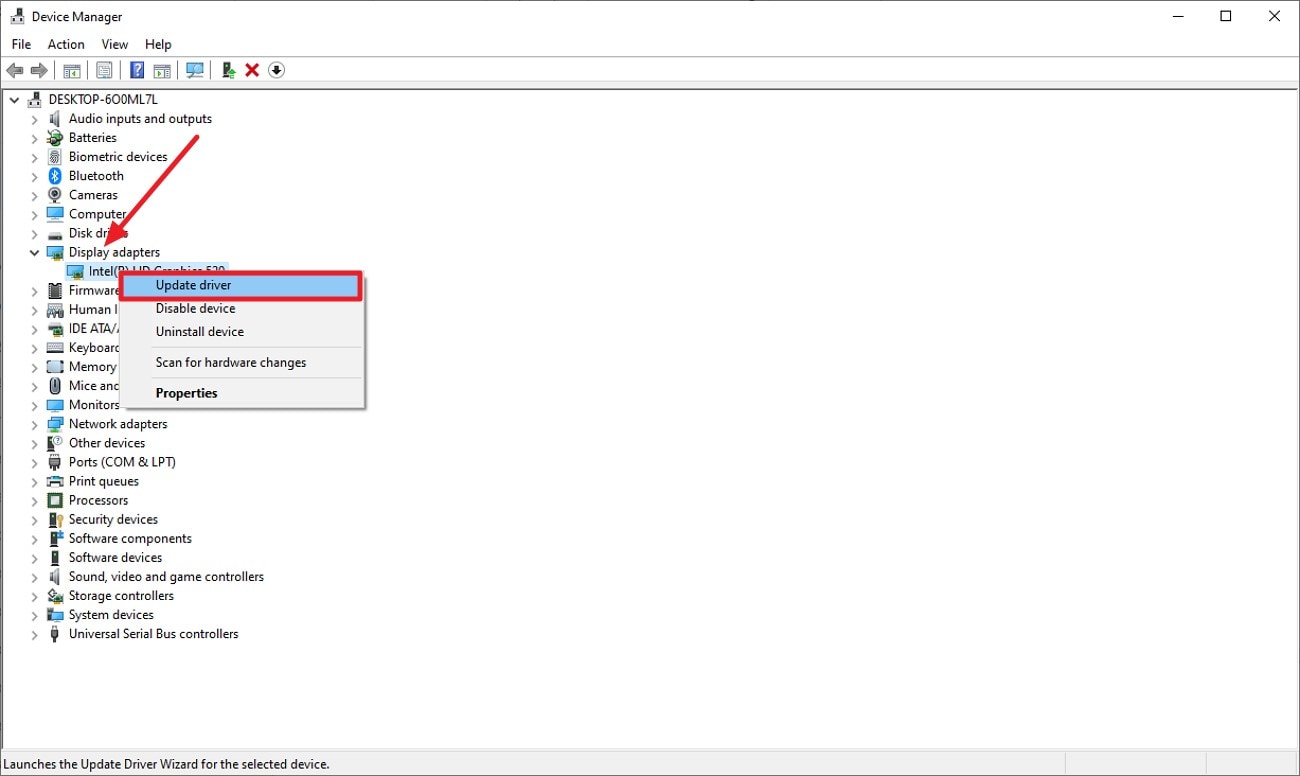
Step 1. expand the Display Adapters
Access your computer’s Device Manager and expand the “Display Adapters” category from the list. Find your current GPU driver, right-click it, and choose “Update Driver” to begin the updating procedure.
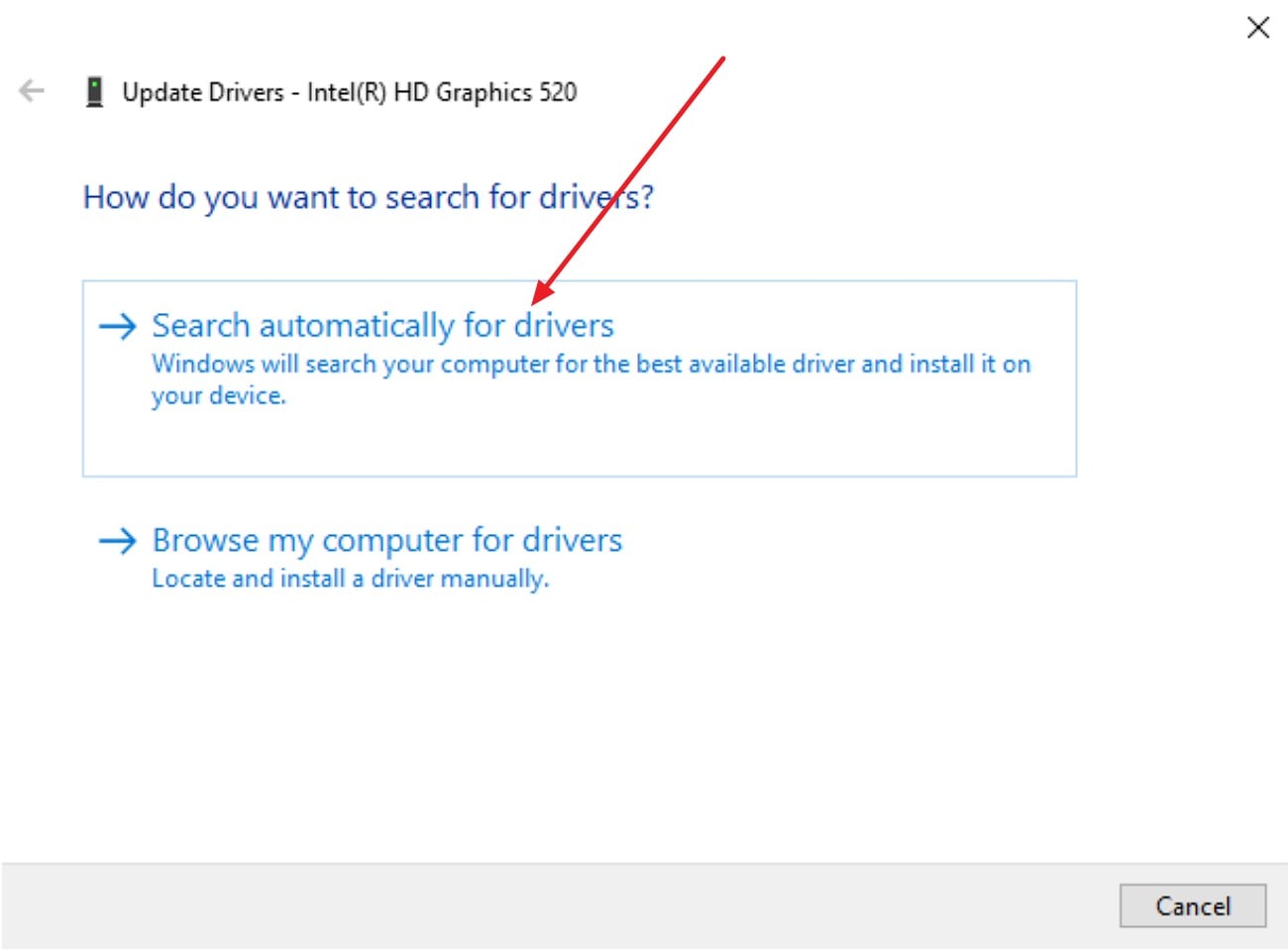
Step 2. Search Automatically for Drivers
In the next dialog box, select "Search Automatically for Drivers" to allow the system to locate, download, and install the most recent graphics driver version available.
Fix 2: Try a Different Video Player
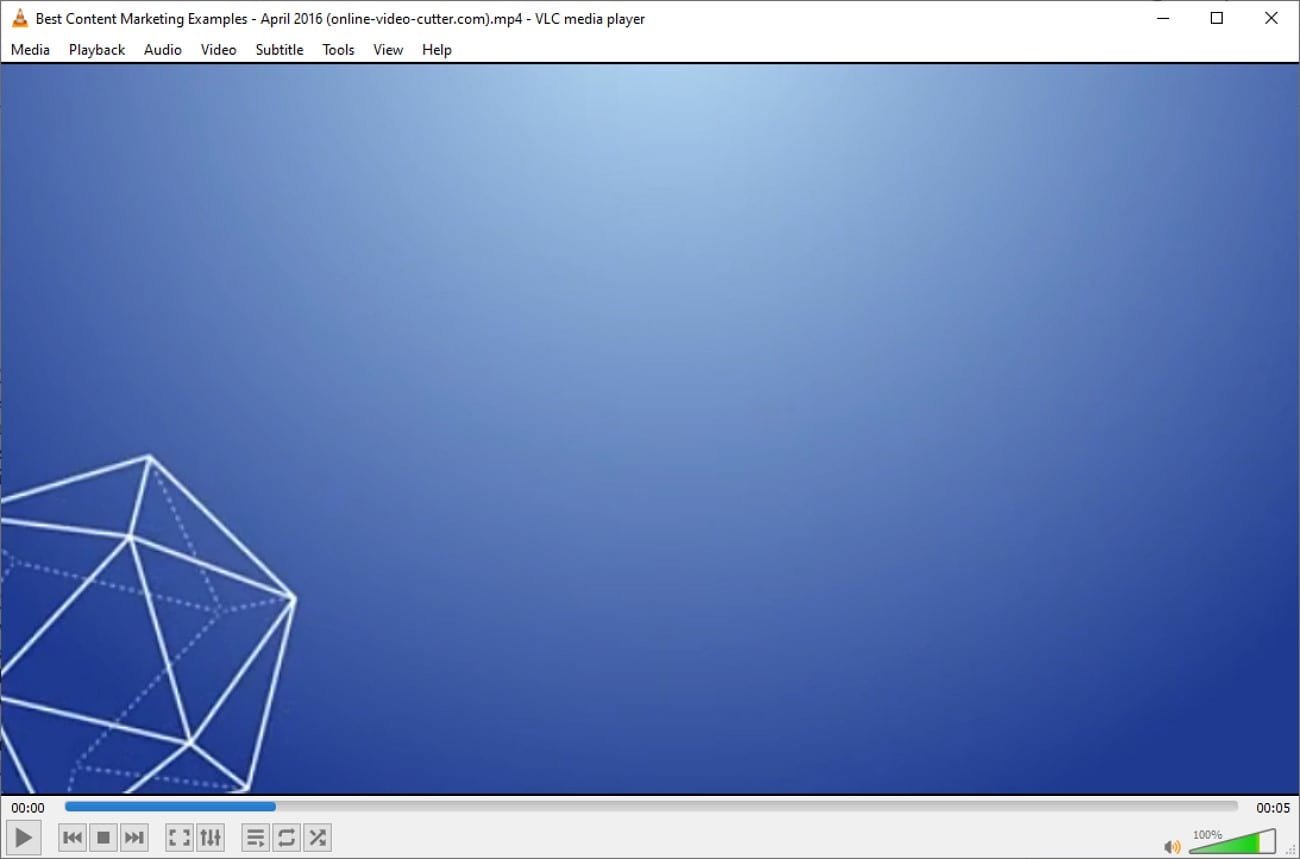
When a “video file not supported” message appears, the limitation may be player-specific rather than file-related. Advanced players, such as VLC media player, include built-in codec packs that support a wide range of containers and encoding formats.
Solution
Switching software can bypass restrictive native players lacking a broad multimedia framework integration.
Fix 3: Install Missing Codecs
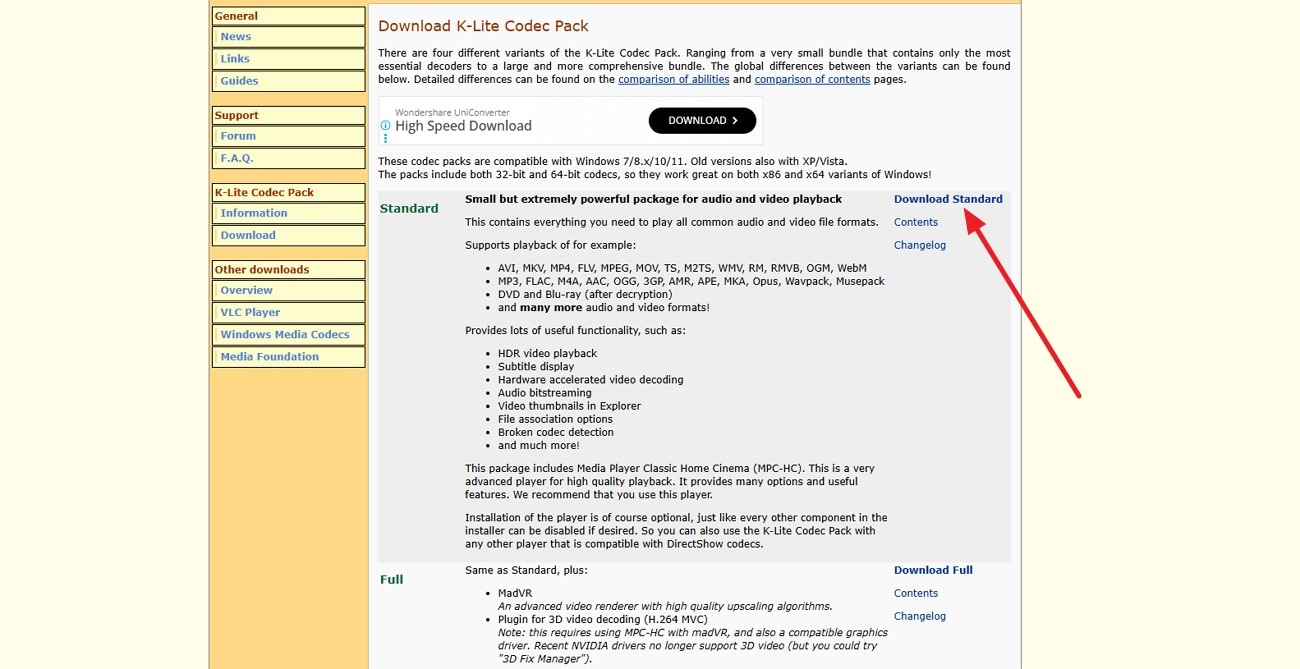
A system displaying an unsupported format video error often lacks the required codec for decoding the file's compression standard. Installing a reliable codec pack, such as K-Lite Codec Pack, expands playback compatibility. Proper codec integration enables the operating system to correctly interpret audio and video streams.
Solution
Follow the instructions provided next to learn how to install the video codec:
Instructions. Access any reliable codec providers on your browser and select the pack according to your needs. Press the “Download” option to successfully download and install the new video codec.
Fix 4: Check Device or TV Compatibility
An unsupported video file issue frequently results from hardware-level format restrictions on smart TVs or mobile chipsets. Many devices only support specific containers, bitrate limits, or resolution thresholds.
Solution
If the player doesn't support this video format, verifying manufacturer specifications helps. To learn how to check the device compatibility of your video, follow the instructions provided below:
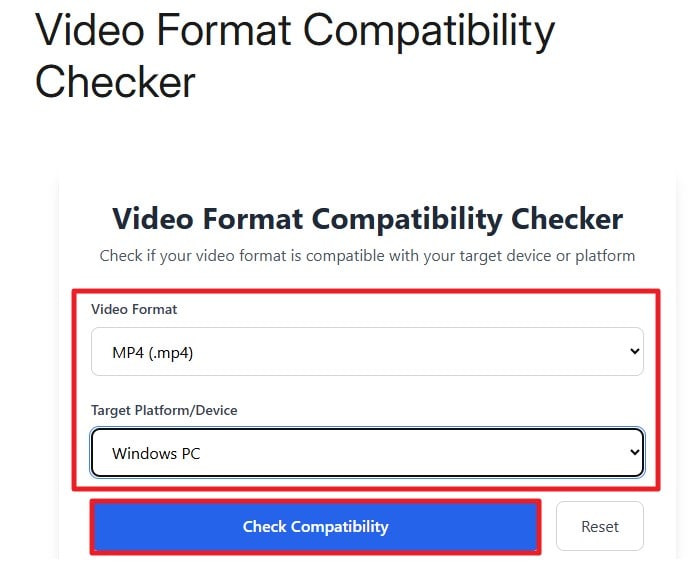
Instructions. Access any video format compatibility checker on your web browser. Now, select the “Format” and “Device” from the drop-down menus. Press the “Check Compatibility" button to check whether the video format will play on your device or not.
Fix 5: Reduce Resolution or File Size
A video may fail to play on certain devices due to high resolution or unsupported encoding settings, resulting in a video format not supported message. This commonly happens when the file’s technical specifications exceed the playback capability of the device or media framework. For this, tools like UniConverter can be used. It provides a built-in video compressor that allows users to reduce resolution (such as 4K to 1080p).
Moreover, the tool allows you to modify the video frame rate for better compatibility. It also integrates a video editor that lets you enhance the overall visuals of your content. You also get the ability to save the compressed files in your desired folder on your system.
Key Features of UniConverter Compressor
- Multiple Format Support: Compress videos of multiple formats, including MP4, MOV, AVI, and MKV, ensuring broader device compatibility.
- Batch Processing: Process several videos at once, reducing time and effort when working with multiple files.
- Bitrate Customization: Adjust video bitrate to decrease file size while preserving acceptable quality for playback.
- Multiple Compression Models: Users get the ability to compress videos according to quality as well as size. Moreover, the AI Compression modes let you automatically compress the video.

Easy Video Compressor for Compatibility Fixes
Step-by-Step Guide To Compress Videos Using UniConverter
Having learned about this tool in detail, let us have a look at the steps for reducing the file size of videos using UniConverter:
Step 1. Access the UniConverter Compressor
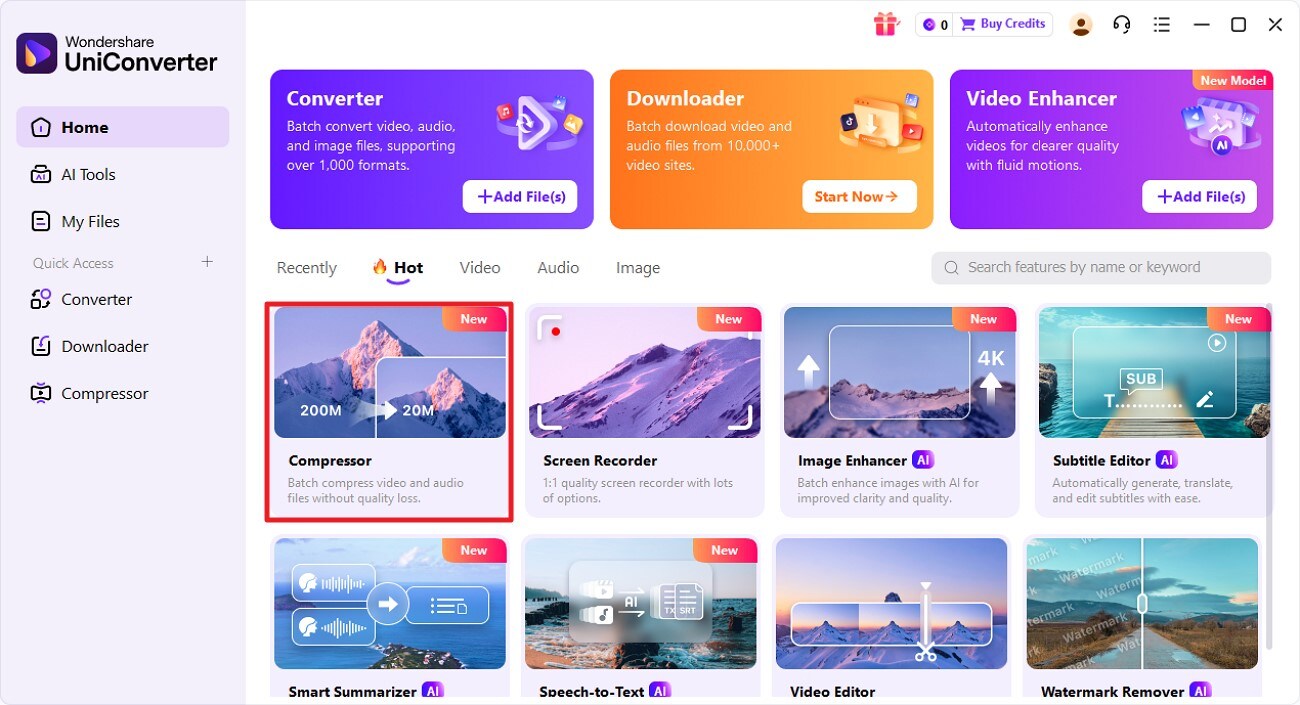
To begin, launch UniConverter on your device and press the "Compressor" option located on the homepage. Next, import the video that you want to compress from your device's storage.
Step 2. Select Compression Models
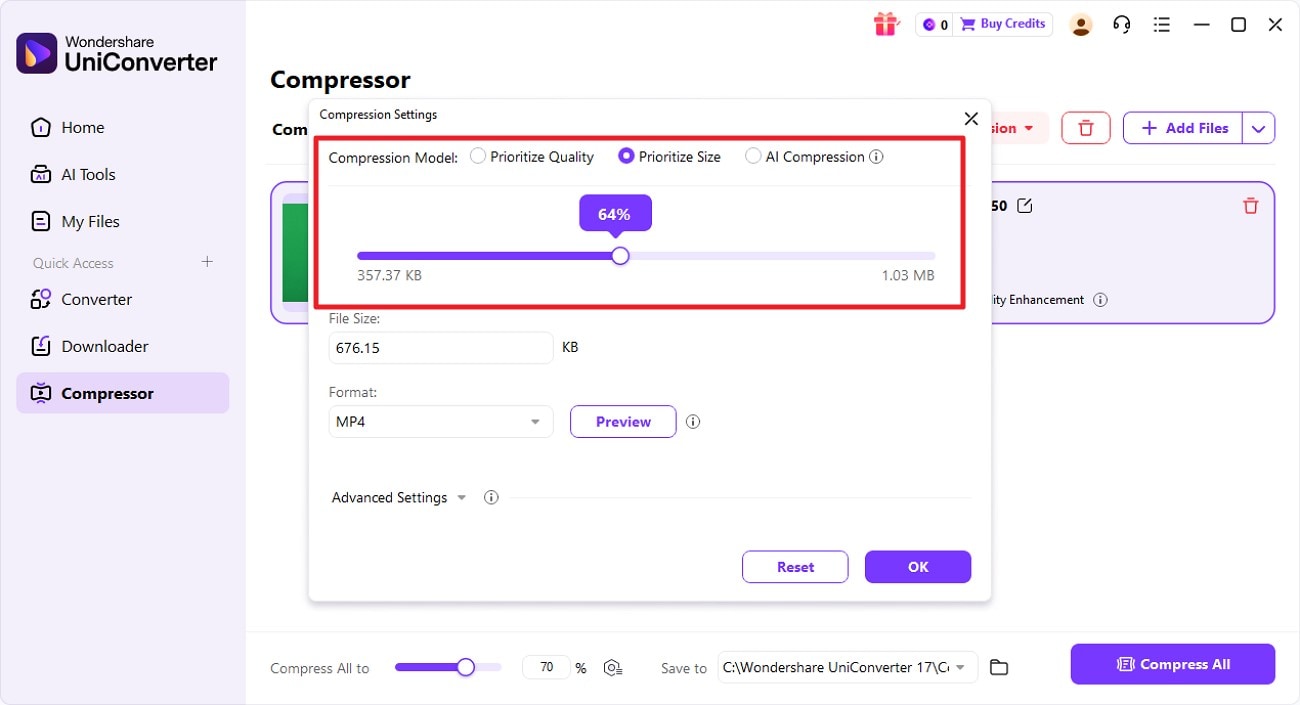
Once the video is compressed, select the Compression Model, such as "Prioritize Quality" or "Prioritize Size." Next, drag the slider located within the interface to select the compression percentage.
Step 3. Configure Advanced Settings
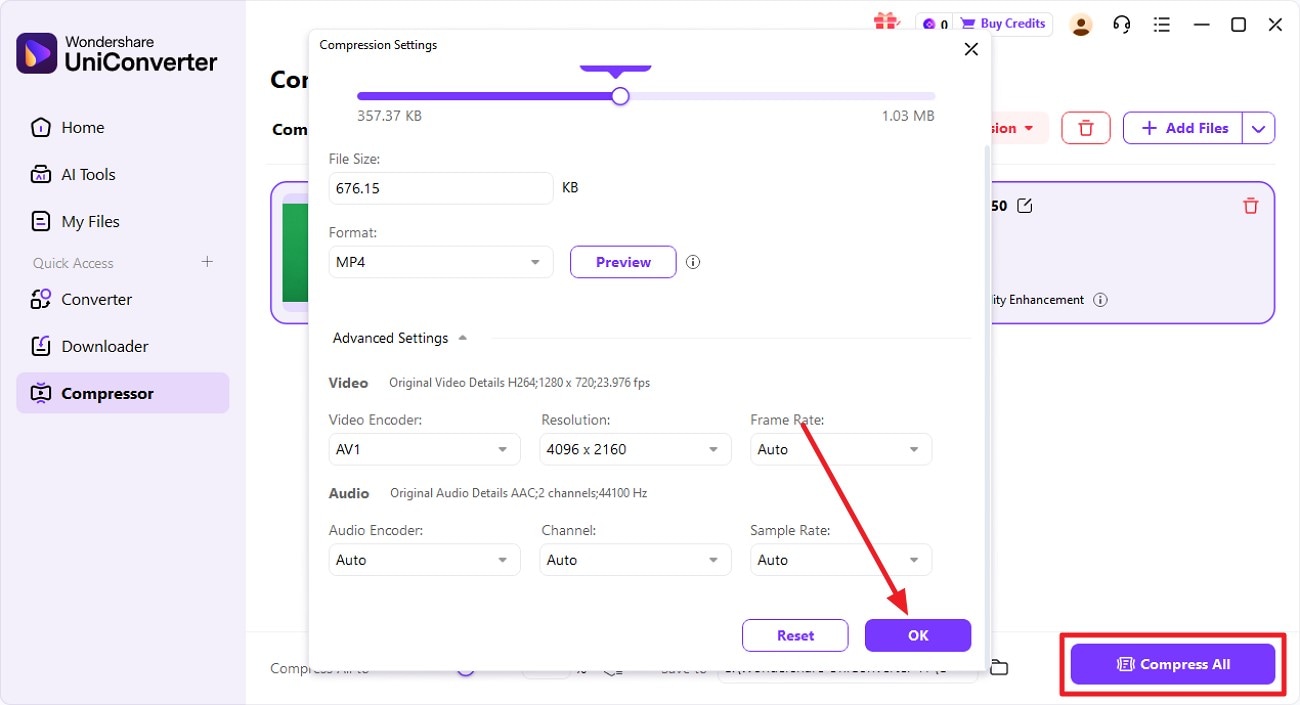
Now, expand the “Advanced Settings” option and configure video and audio encoders. When all the settings are done, hit the “OK” button and press “Compress All” to begin the compression.
Step 4. Acquire the Compressed File
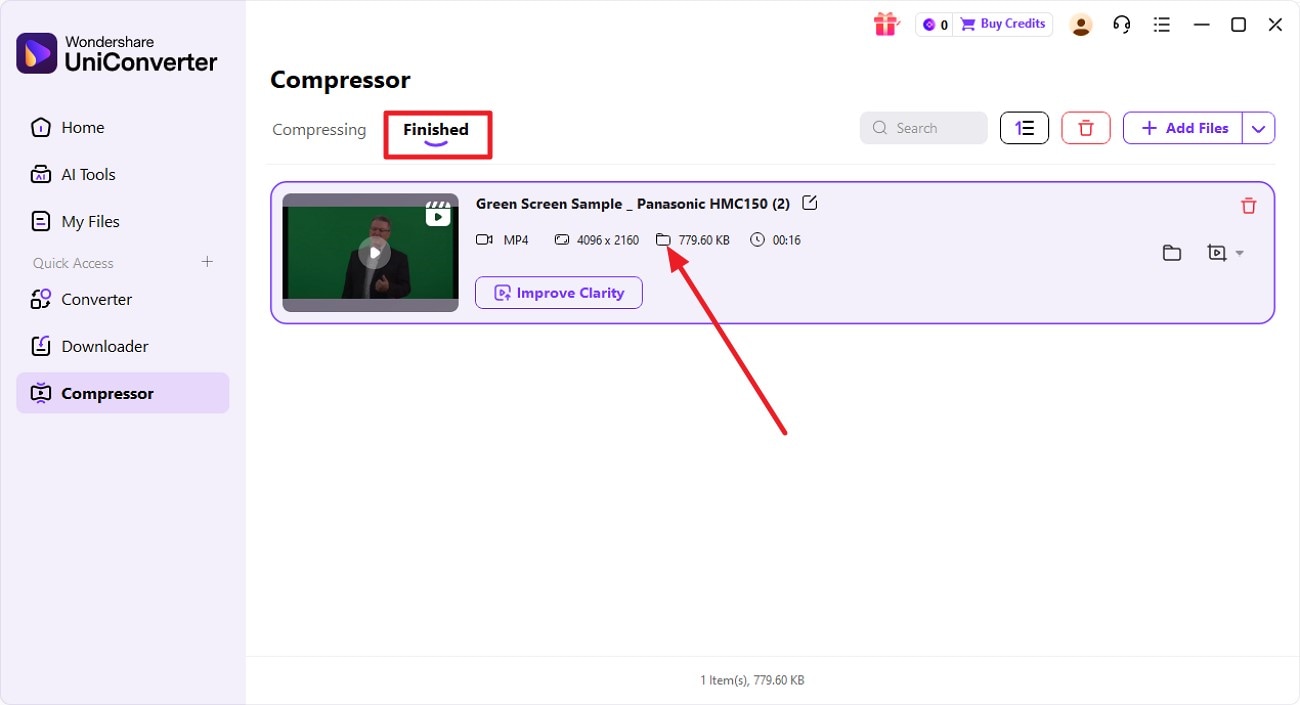
Once the compression is finished, access the compressed file within the “Finished” section of the tool. Open it in your system using the folder icon located.
Fix 6: Re-download or Re-stream the Video
Corrupted or partially downloaded files often trigger an unsupported format video error, preventing playback. Obtaining a fresh copy ensures that all data packets are intact and the file structure is complete. Streaming directly from a reliable source or re-downloading eliminates missing frames, broken headers, or encoding errors that commonly make a video unreadable by the player.
Fix 7: Use YouTube TV-Compatible Formats
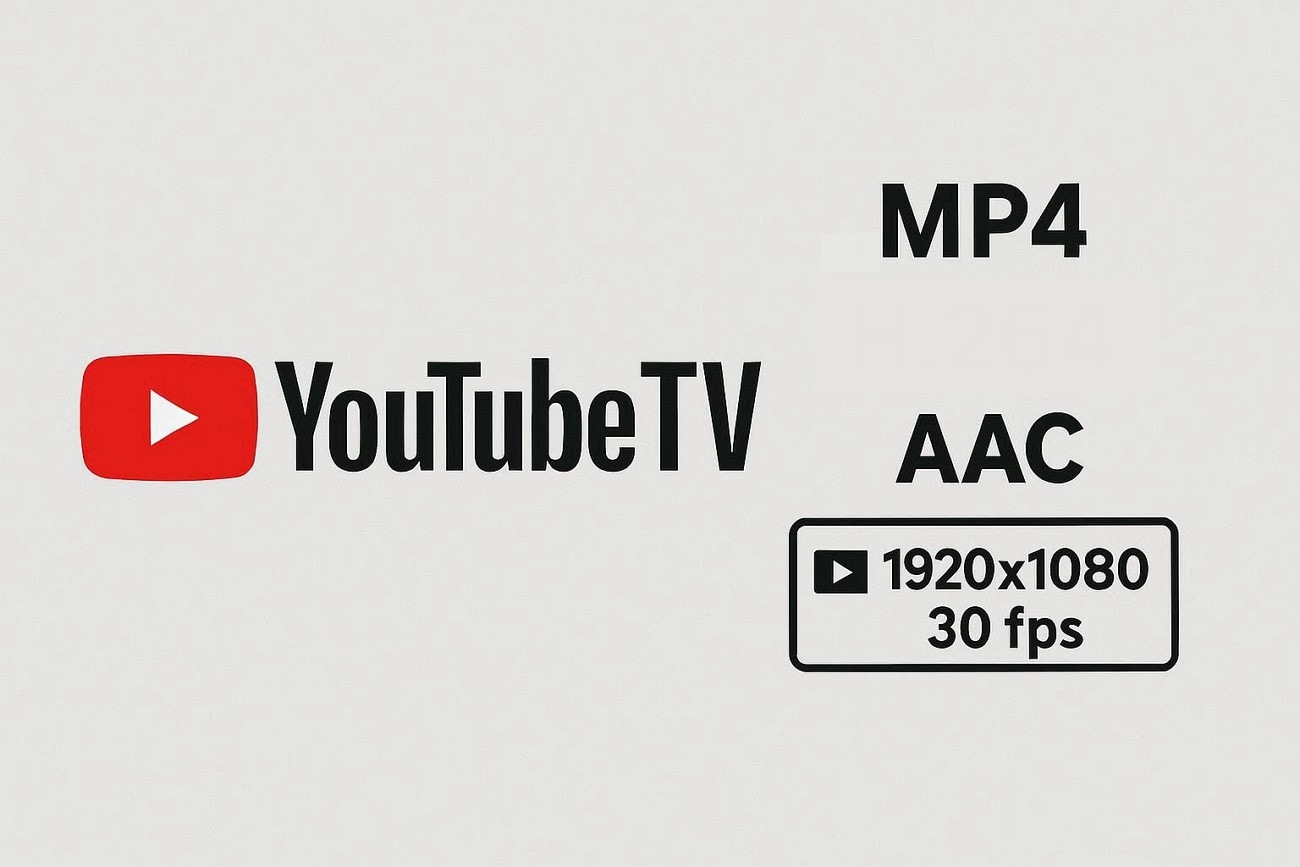
Some videos produce an unsupported video file message on YouTube TV due to incompatible container formats or codecs. YouTube TV primarily supports MP4 with H.264 video and AAC audio, so other encodings may fail. Ensuring videos conform to these technical specifications, including resolution and frame rate limits, helps achieve smooth playback across the platform.
Fix 8: Convert Video to a Supported Format with UniConverter and VLC
Another fix that you can try is to convert the format of your video to resolve the “format not supported video” error. Changing the container or codec to a widely supported option like MP4 with H.264 can resolve compatibility conflicts. Mentioned below are the tools that allow quick format conversion while preserving quality and ensuring smoother playback across devices:
Wondershare UniConverter
UniConverter offers a powerful and flexible video conversion engine designed for broad compatibility and efficiency. It supports conversion between 1,000+ video and audio formats, including MP4, MOV, AVI, MKV, FLV, and WMV. The software allows users to customize output settings such as resolution, bitrate, frame rate, encoder, and audio channels for precise control over quality and file size.
Batch conversion enables multiple files to be processed simultaneously, improving workflow productivity. UniConverter also includes device-optimized presets for smartphones, tablets, gaming consoles, and smart TVs, ensuring correct codec and format selection automatically.
Easy Video Format Converter for Compatibility Fixes
Key Features Offered By UniConverter Format Converter
Encoder Selection Option: Allows users to choose specific video encoders, such as H.264 or H.265, to control compression efficiency, compatibility, and output quality.
Merge Converted Files: Combines multiple video clips into a single file automatically after conversion, maintaining consistent format and encoding settings.
GPU Acceleration: Utilizes hardware acceleration from supported graphics cards to significantly reduce conversion time while maintaining stable performance.
Crop or Trim Before Conversion: Enables users to cut unwanted sections or adjust frame dimensions prior to exporting.
Comprehensive Steps to Convert Video Format with UniConverter
After learning about this incredible video conversion in detail, let us have a look at the step-by-step guide on how to use this tool:
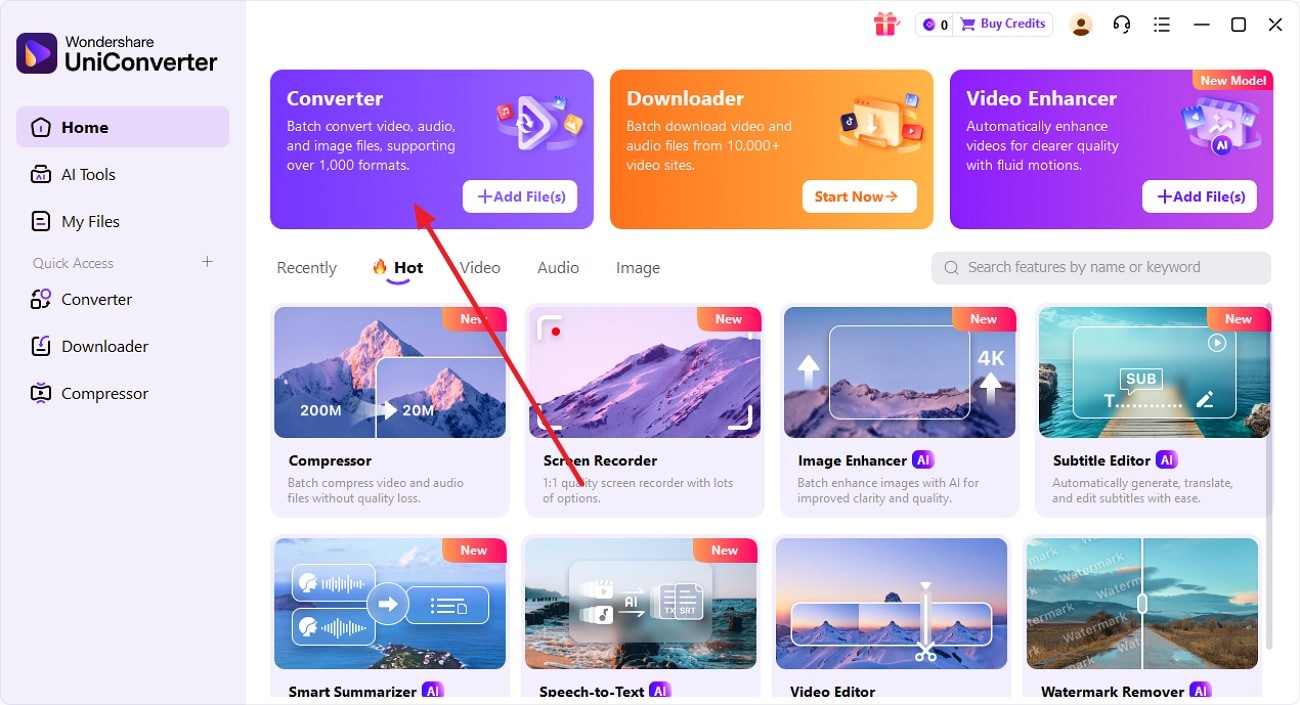
Step 1. Start By Choosing Converter
Once you have launched UniConverter on your device, locate and click the “Converter” tab. Next, press “Add Files” to add your video for format conversion.
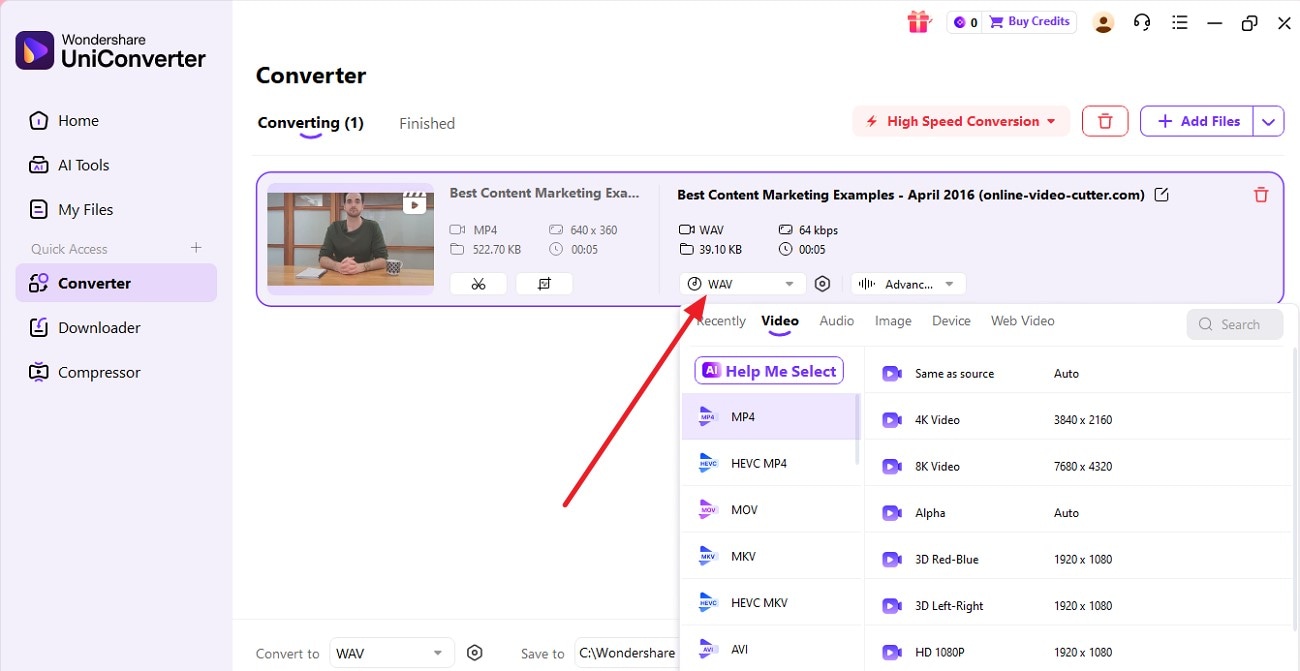
Step 2. Choose the Video Format
In the main interface of the tool, expand the format drop-down menu and select the video format from the options provided by clicking on them.
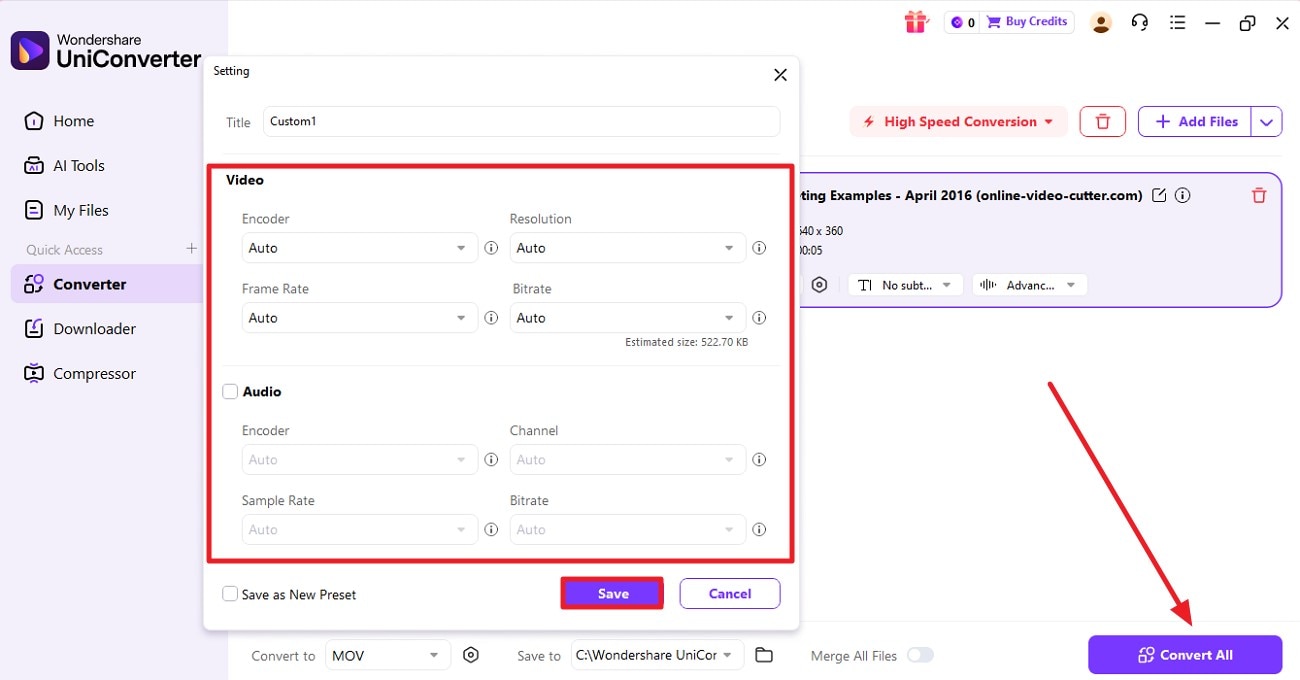
Step 3. Configure Video Audio Codecs
Next, click on the “Settings” cogwheel and configure the “Video” and “Audio” encoders according to your choice. Once done, press the “Save” button to apply the changes. Finally, hit the “Convert All” button at the bottom to start the conversion.
Step 4. Review Converted Files
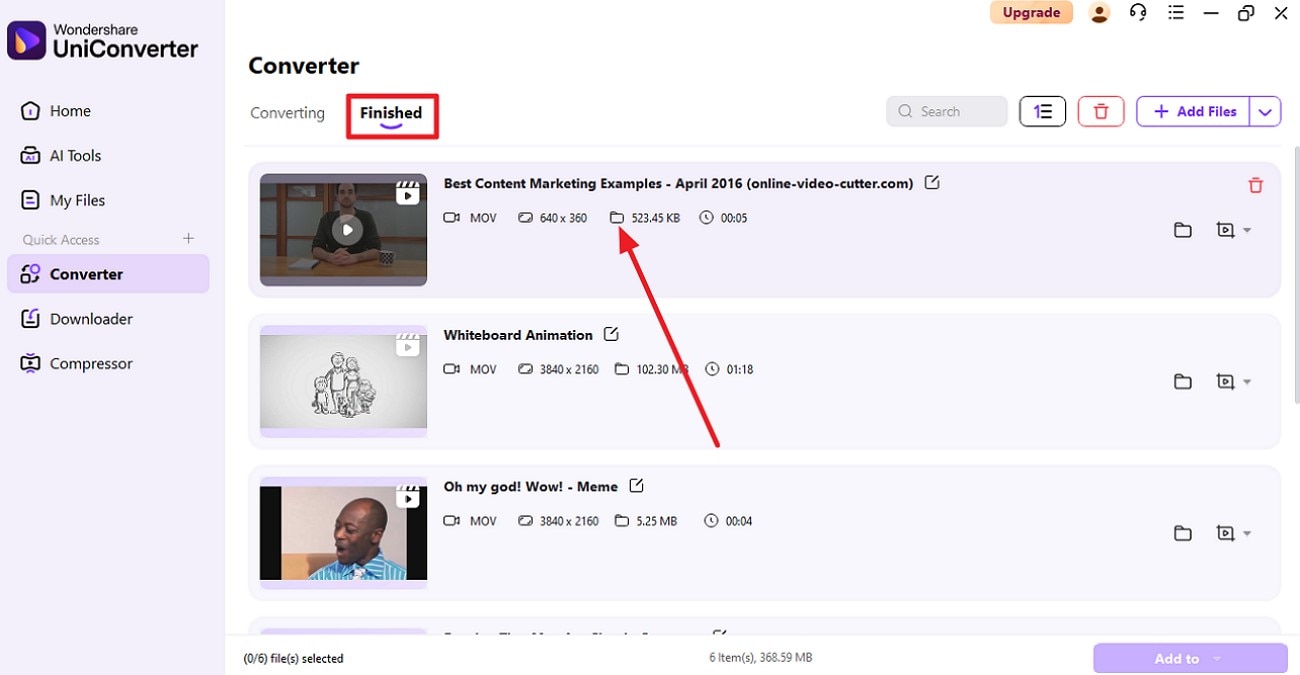
Once the video files are converted, they will appear under the “Finished” section of the tool. Review it by pressing the folder icon next to the thumbnail.
VLC
Another tool that lets you convert video formats easily is VLC media player. Beyond playback, it includes a built-in conversion feature that supports formats such as MP4, AVI, MKV, and MOV. Users can adjust basic encoding settings, including codec and bitrate selection. As a free, open-source program, VLC provides a lightweight solution for straightforward format conversion needs. To learn how to convert the format using VLC, read the steps provided next:
Steps Guide to Convert File Format Using VLC
Step 1. Upload File to VLC
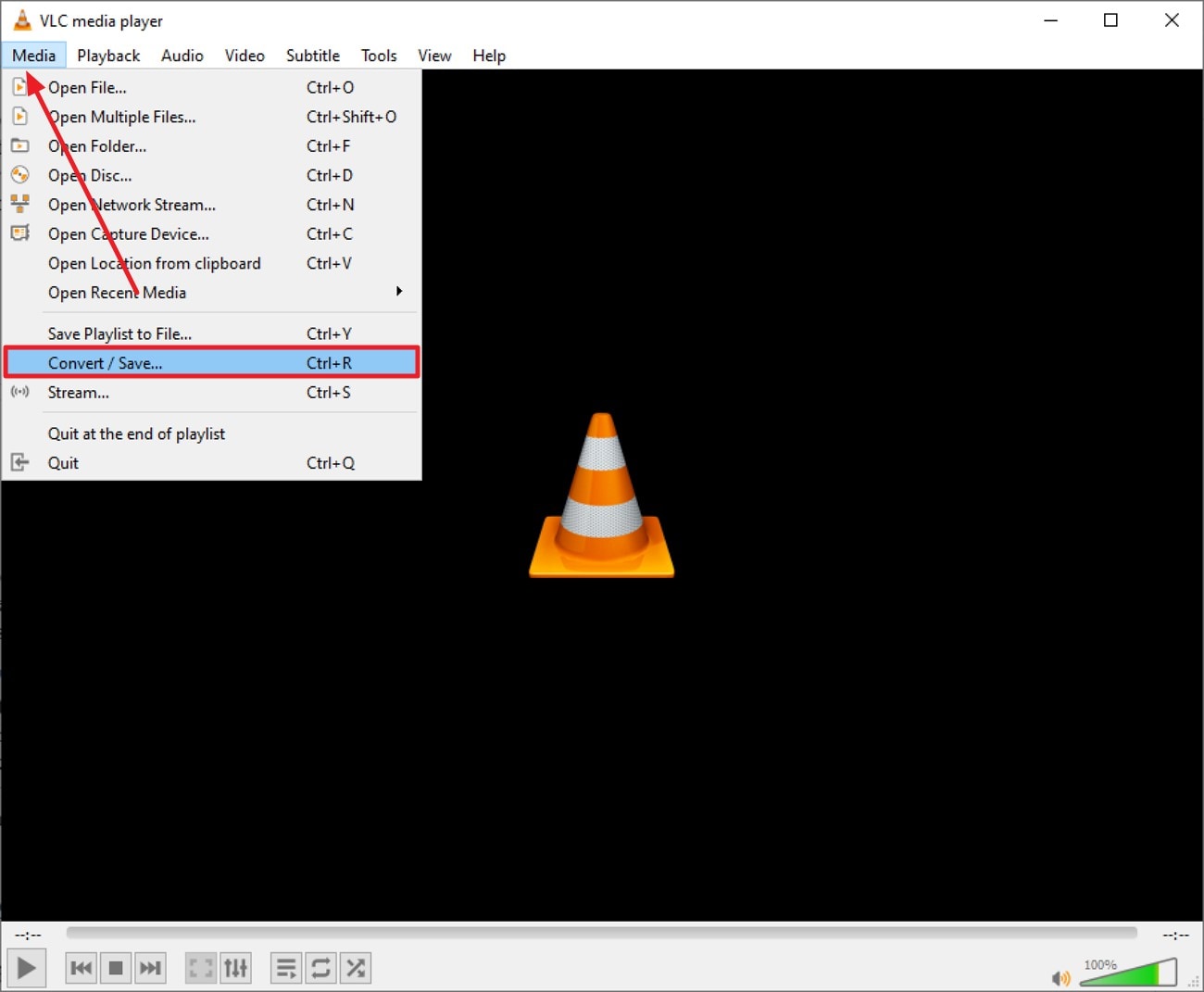
Start by opening the VLC player on your device and clicking on the “Media” option located on the toolbar at the top. From the expanded list, click on the “Convert/Save” option.
Step 2. Browse to Add the File
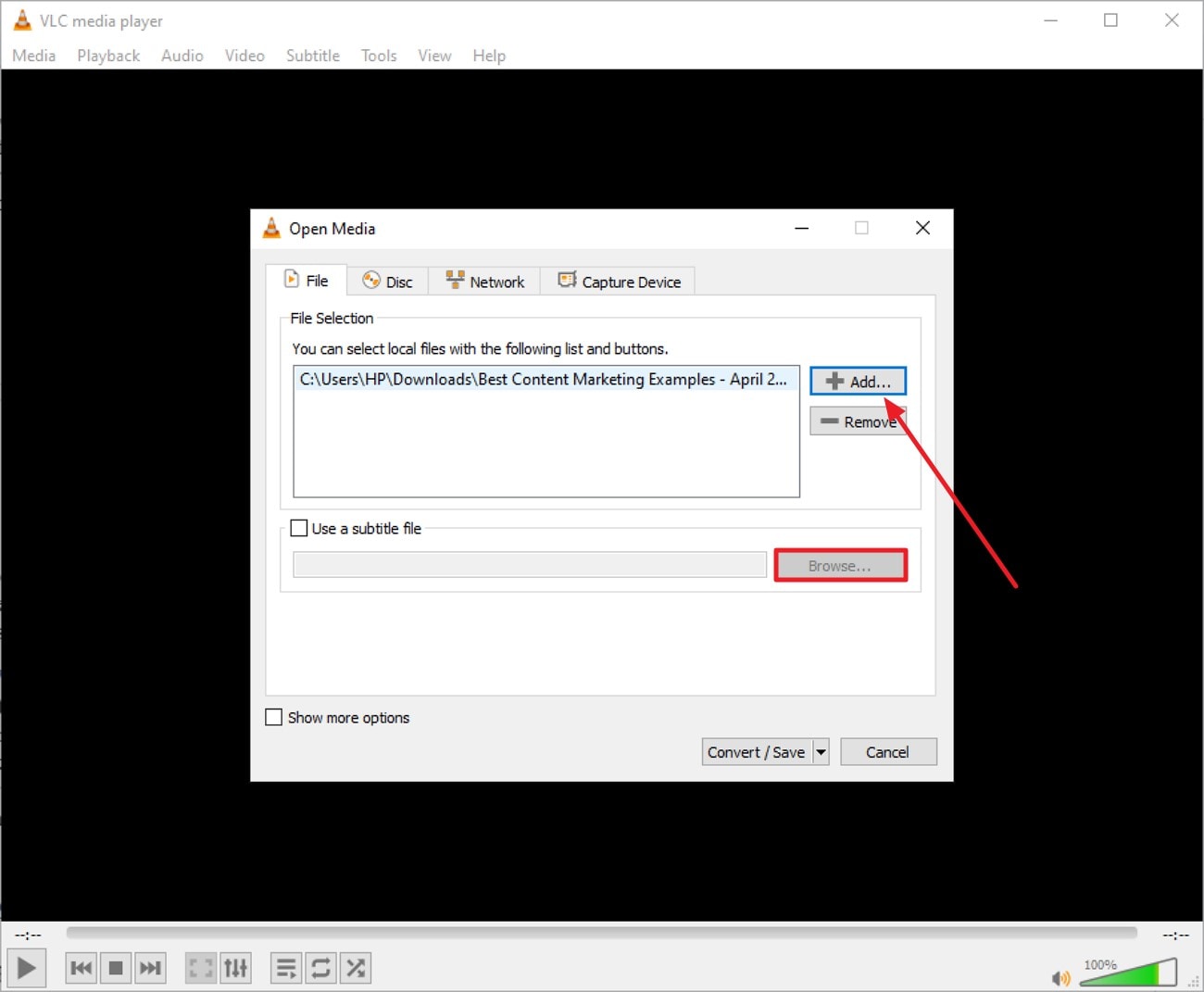
Next, press the “Add” button to import the video that you want to convert.
Step 3. Choose Target Format
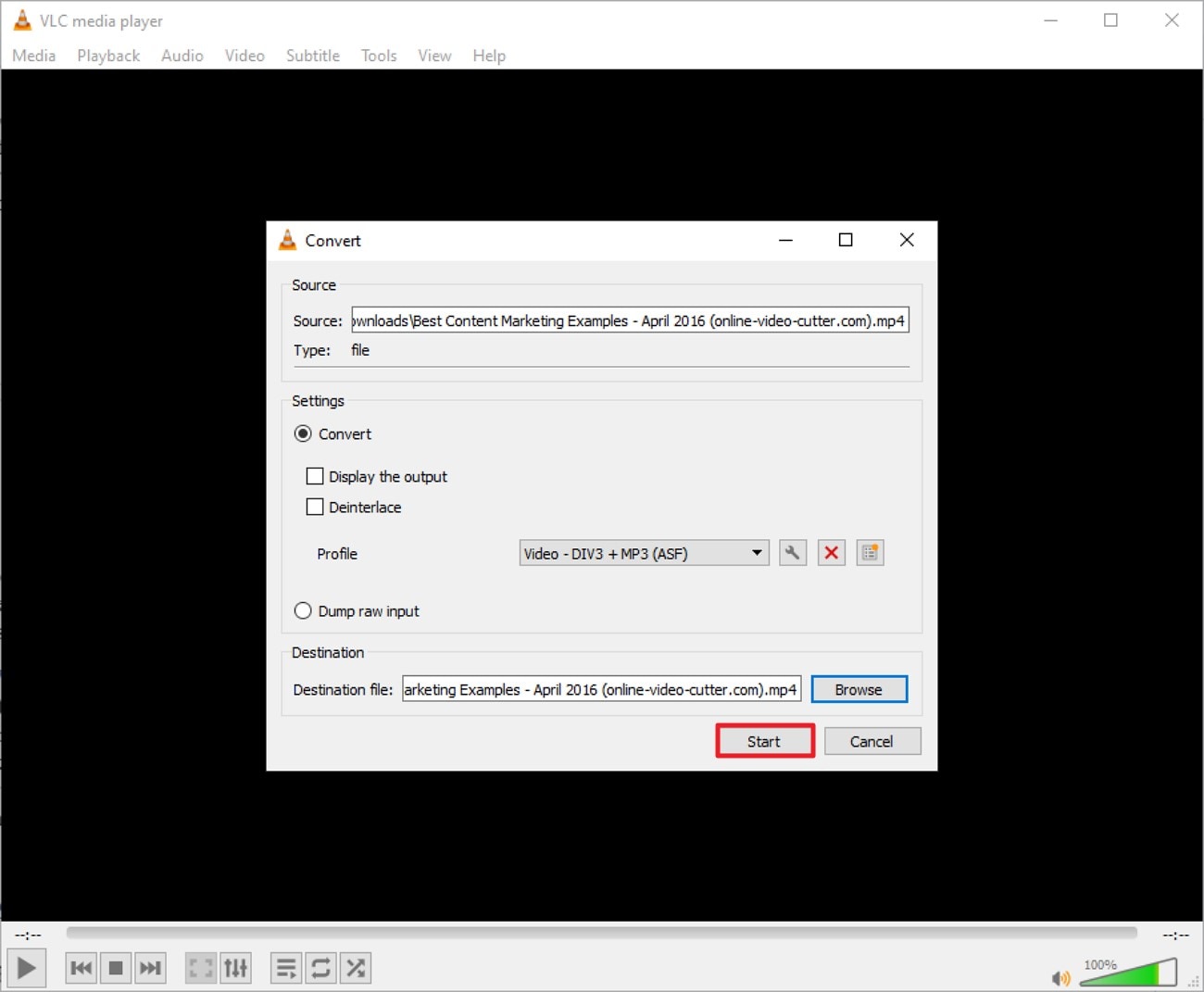
Once the video is added, expand the “Profile” drop-down menu to choose the video format. Click on “Browse” to save the destination folder. Once done, hit the “Start” button to successfully begin the conversion.
Fix 9: Repair a Corrupted Video File -Online Tools
If file corruption is causing the unsupported format video error, using an online repair tool can help restore playback functionality. Web-based services such as CleverFiles offer video repair utilities that rebuild damaged headers and fix structural issues. These tools analyze corrupted data and attempt to reconstruct playable video streams without requiring software installation.
Steps to Repair Corrupted Videos Online
To learn how to perform this fix, read the steps provided next:
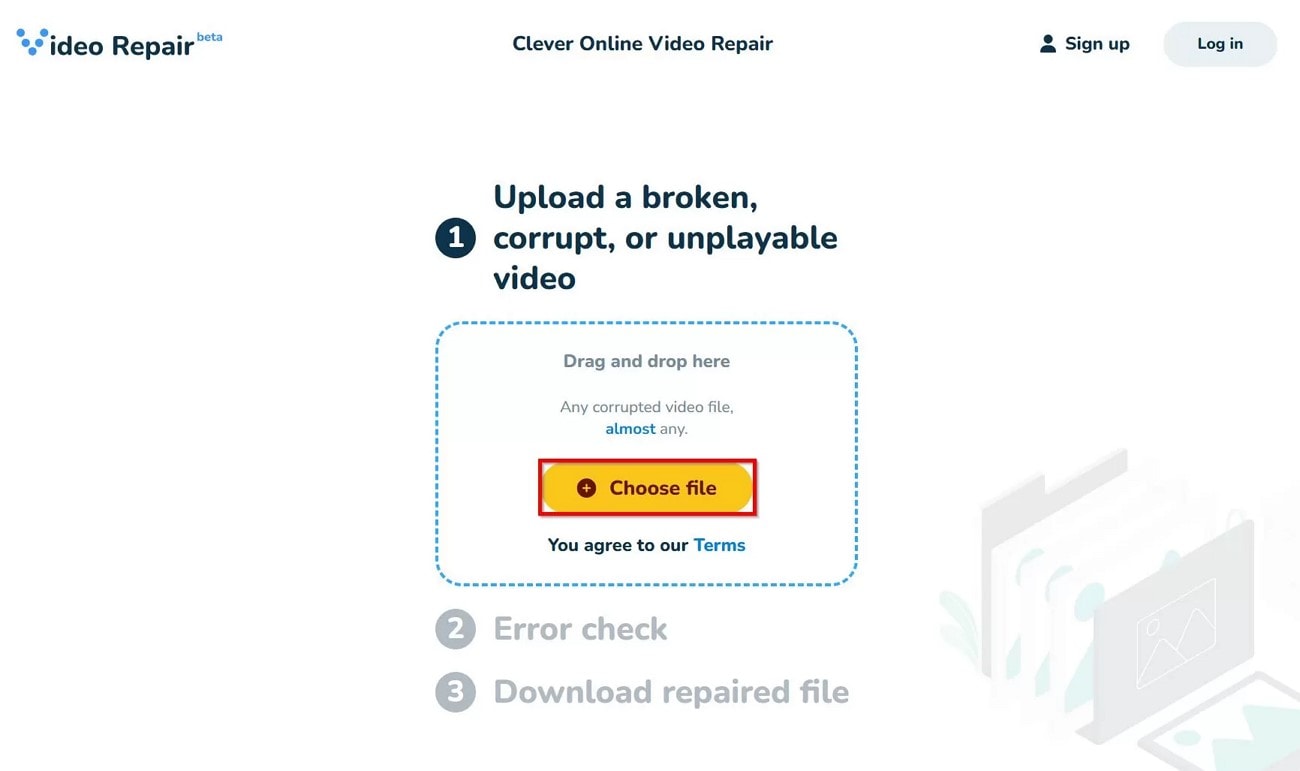
Step 1. Choose Files to Upload
Begin by accessing the tool on your browser and selecting the “Choose Files” option to upload the video. As soon as you upload the video, the tool will begin the repair instantly.
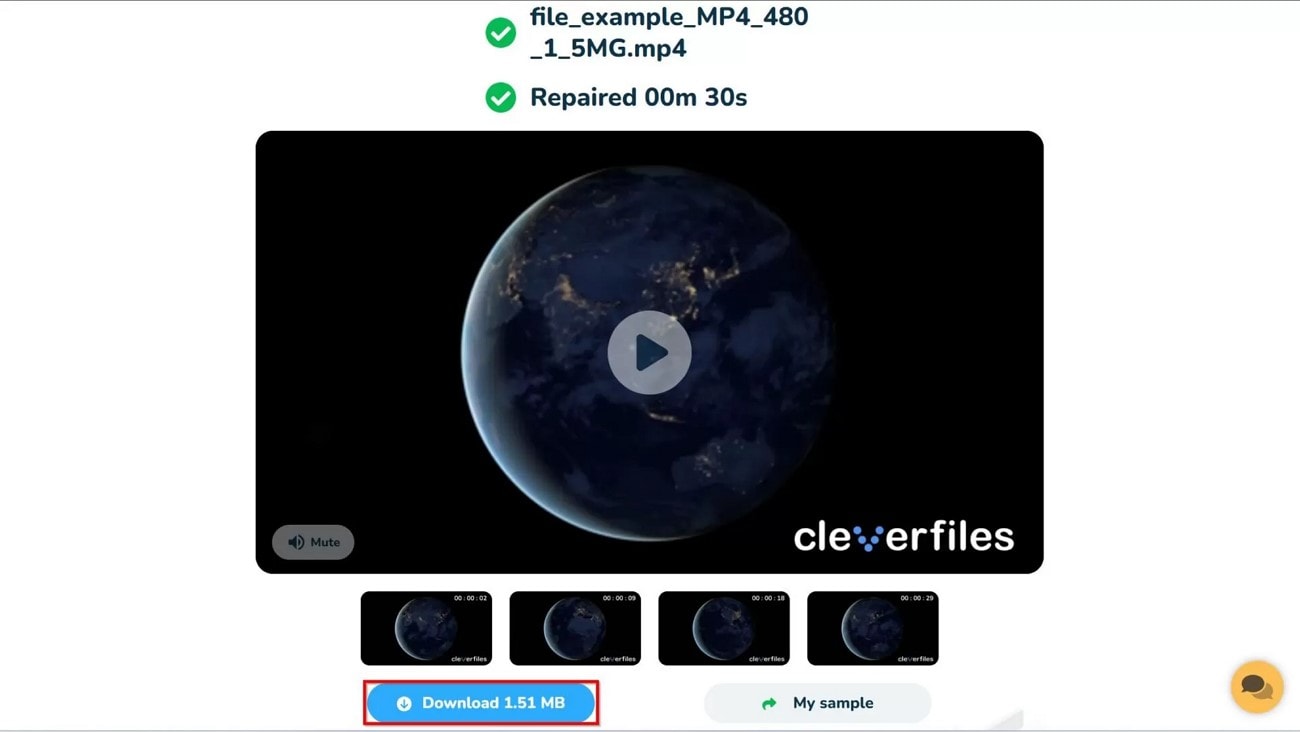
Step 2. Download Repaired Files
Once the repair is done, a video preview will be available. Press the “Download” button to successfully save the video to your computer.
Fix 10: Update Your Operating System/Firmware
Outdated system software can cause a player to display this unsupported video format error because it lacks the necessary multimedia framework or codec updates. Installing the latest OS or device firmware ensures built-in support for modern containers, codecs, and streaming protocols. Regular updates improve hardware acceleration, security, and overall compatibility with current video standards.
How to Locate and Update Your Operating System
Follow the steps below to learn how to update your operating system:
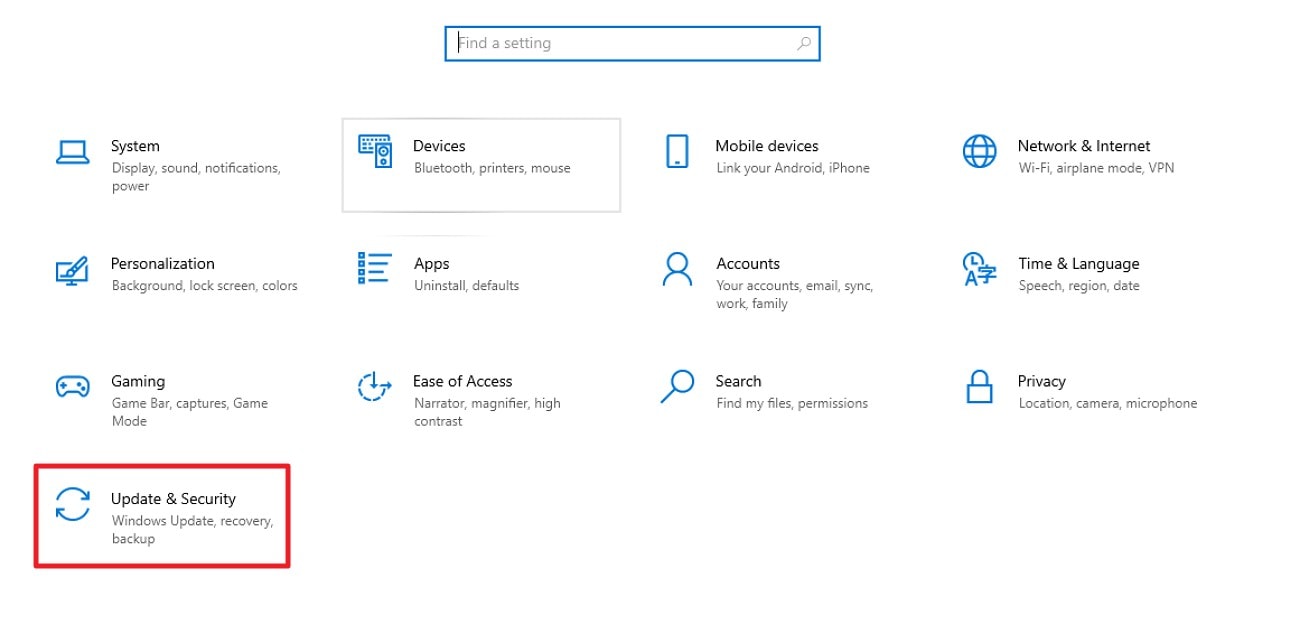
Step 1. Check Update & Security
Launch the “Settings,” navigate and select the “Update & Security” option from the menu.
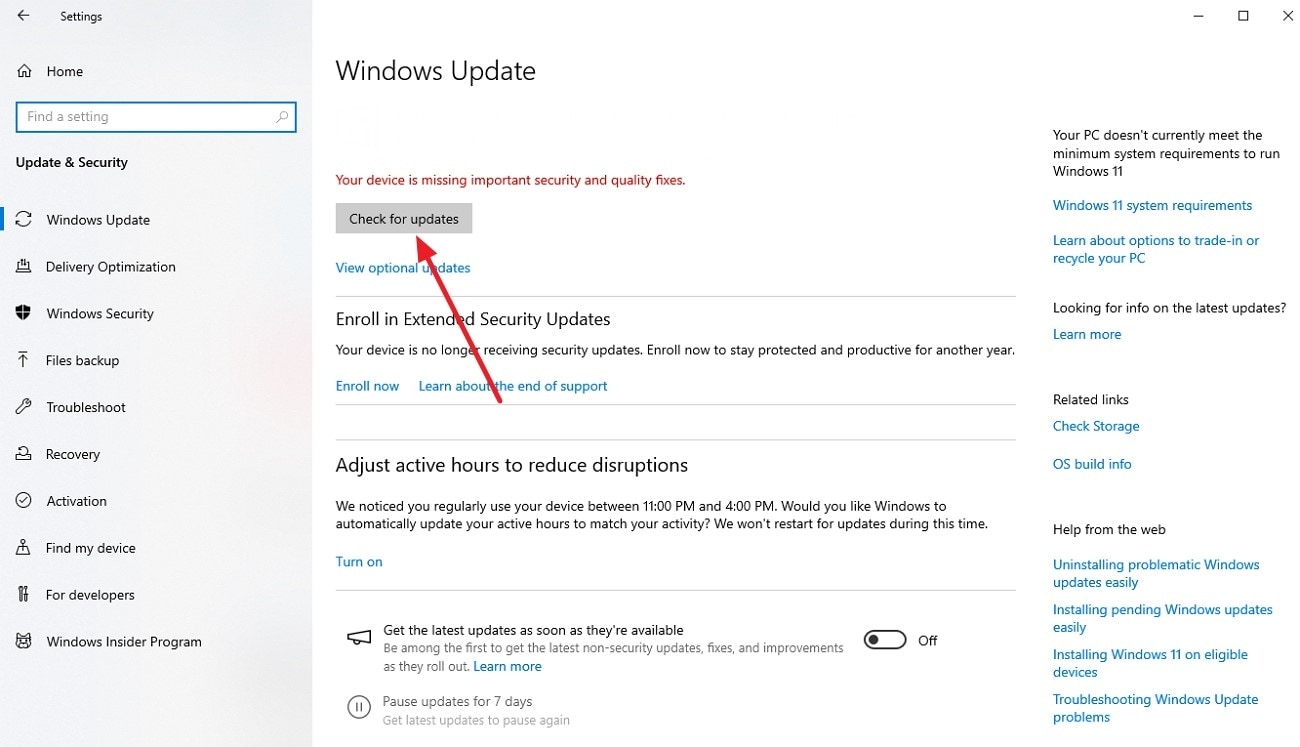
Step 2. Check for Updates
Click the “Check for Updates” button to allow Windows to search for, download, and install any available system updates.
Part 3. Follow 6 Smart Tips for Avoiding Video Format Issues
Once you’ve resolved playback problems, it’s wise to prevent them from recurring. Experiencing a “video format not supported” error repeatedly can be avoided by following practical technical tips. Mentioned below are the tips that ensure your videos remain compatible across devices and media players:
Choose Widely Supported Formats: Use formats like MP4 with H.264 video and AAC audio for maximum compatibility. These formats work across most devices, players, and streaming platforms.
Keep Media Players Updated: Regularly updating your video player ensures it supports the latest codecs and containers. This reduces errors caused by outdated decoding capabilities.
Verify Device Compatibility: Check your device or smart TV specifications before transferring videos. Some resolutions, frame rates, or bitrates may not be supported.
Maintain Proper File Integrity: Avoid incomplete downloads or interrupted transfers to prevent corrupted files. A damaged video often fails to play properly.
Use Reliable Conversion Tools: When converting videos, select trusted software that preserves codec, resolution, and container integrity. Poor conversion can make videos unplayable.
Conclusion
To sum it up, you explored various methods to resolve the “video format not supported” issues. From updating media players and codecs to re-downloading files and checking device compatibility, each approach addresses a specific technical challenge. For an all-in-one solution, Wondershare UniConverter is highly recommended, as it allows efficient video compression, format conversion, and resolution adjustment, ensuring smooth playback across all devices and platforms.
FAQs
-
1. Why does my video show “format not supported video”?
This usually occurs when the video uses a codec or container that your device or media player does not support. Converting the file to a widely supported format can resolve the issue. Tools like Wondershare UniConverter can help convert videos into compatible formats. -
2. Can I fix a “video file not supported” error without downloading new software?
Sometimes updating your media player or operating system can solve compatibility issues. However, if the problem is caused by unsupported codecs, a video conversion tool may still be required to make the file playable. -
3. How do I compress a video to play on devices with limited support?
You can reduce the file size by lowering the resolution, adjusting the bitrate, or using video compression tools. Software such as Wondershare UniConverter allows you to compress videos while maintaining reasonable visual quality. -
4. Will converting the video format affect its quality?
Video conversion can affect quality if the encoding settings are too aggressive. Using reliable software and choosing appropriate bitrate and resolution settings helps preserve visual quality during the conversion process.

