

You might have multiple clips in your download folder, a strict 2-hour deadline, and no editing software installed on your laptop. This is the moment when the Clideo Video Merger comes to mind. It is a single-purpose browser tool tucked inside Clideo's suite of more than 30 video, audio, and image tools, and it lets you merge files into a single file without downloading the tool.
This Clideo Video Merger review breaks down what it does, what it costs, and where it struggles. When it's mandatory to watermark free outcomes and offline capabilities are lacking, its alternative comes into play.
First, let's understand what the Clideo Video Merger is and what formats it supports.
In this Article
- Part 1: What is the Clideo Video Merger & Supported Formats
- Part 2: How Do You Merge Videos with Clideo: Step-by-Step Guide for Beginners
- Part 3: Clideo Video Merger Limitations & How to Resolve Issues
- Part 4: Best Clideo Video Merger Alternatives for Content Creators
- Part 5: Clideo Video Merger vs. Alternatives: 5 Comparison Features To Help You Decide
- Part 6: What Is the Best Video Merger for Different Use Cases
- Part 7: Tips to Use Clideo Video Merger for Maximum Output
- Conclusion
- FAQs
Part 1: What is the Clideo Video Merger & Supported Formats
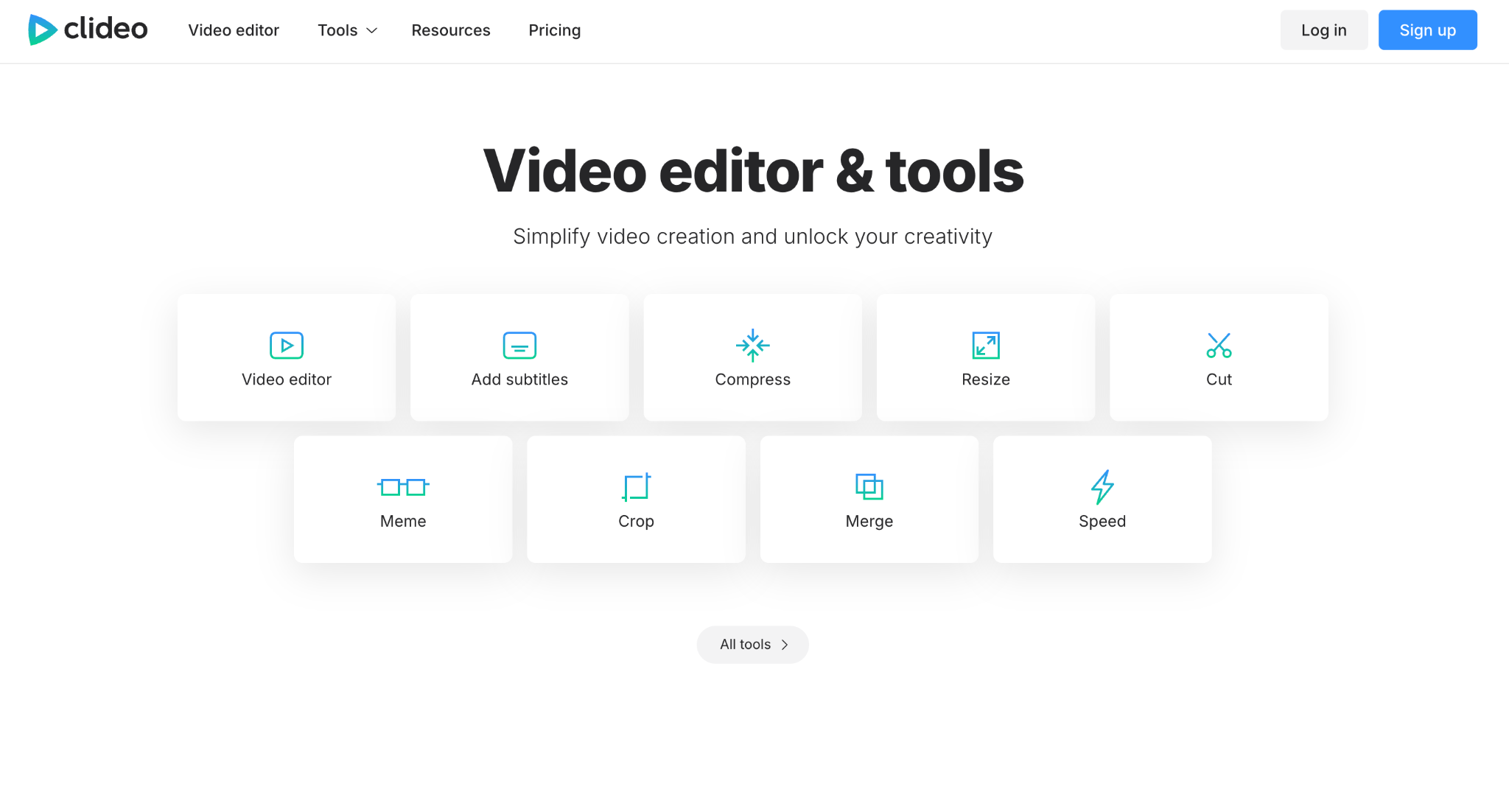
The Clideo Video Merger is a free, browser-based tool that combines multiple video clips, photos, and audio tracks into a single exportable file. You upload your files directly from your device, Google Drive, or Dropbox, then drag them into the order you want. Clideo works entirely in the cloud, so it processes on Clideo's servers rather than your computer's hardware, which is why a phone or an underpowered laptop can still handle the job.
Formats Supported By Clideo Video Merger
The Clideo Video Merger supports nearly all common video formats, including MP4, MOV, AVI, MKV, WMV, MPEG, VOB, 3GP, FLV, WEBM, and MTS. You can mix formats within a single project. If you drop in one MP4 clip and one MOV clip, Clideo automatically converts both to a matching output format, so the merge does not fail or produce broken audio sync. This matters for creators who film across multiple devices, since an iPhone clip in MOV and a screen recording in MP4 often end up in the same project.
Can We Add Music & Still Image to Clideo Video Merger
Yes, the Clideo Video Merger lets you insert both music and images. You can add a background audio track after arranging your clips and then adjust its volume and length so it does not overpower your original audio. Still images work the same way as video clips on the timeline. You set a custom duration for each photo, which is useful for building a quick slideshow-style intro or closing card around your video footage. Clideo Video Merger also includes a simple crossfade transition between clips, so the cuts do not feel abrupt.
Part 2: How Do You Merge Videos with Clideo: Step-by-Step Guide for Beginners
Here is how to merge two videos into one with Clideo Video Merger online:
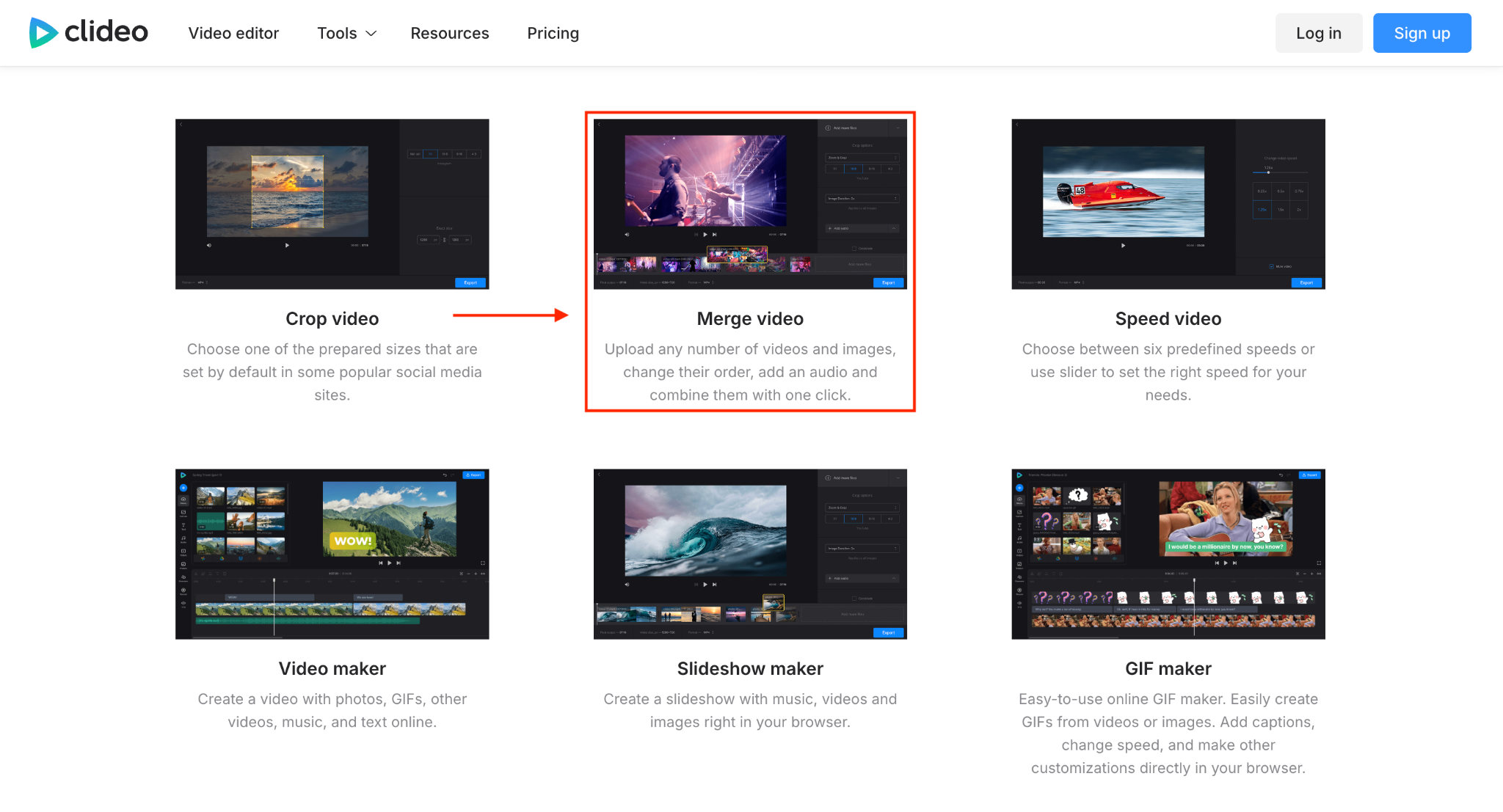
Step 1: On the homepage, click More Tools, then select Merge Video.
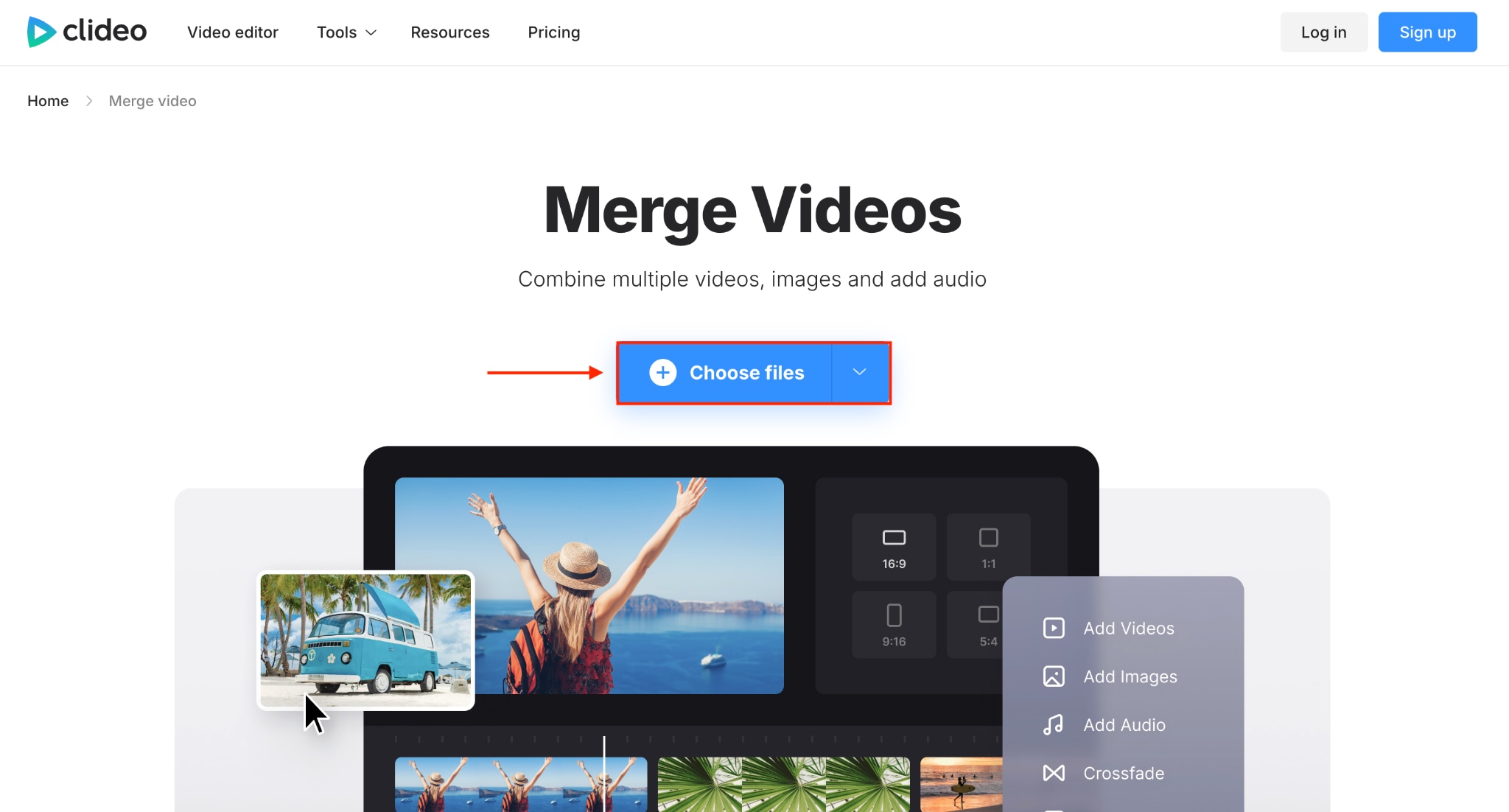
Step 2: Click Choose File, then upload the video.
Step 3: Tap Add more files and upload your second video.
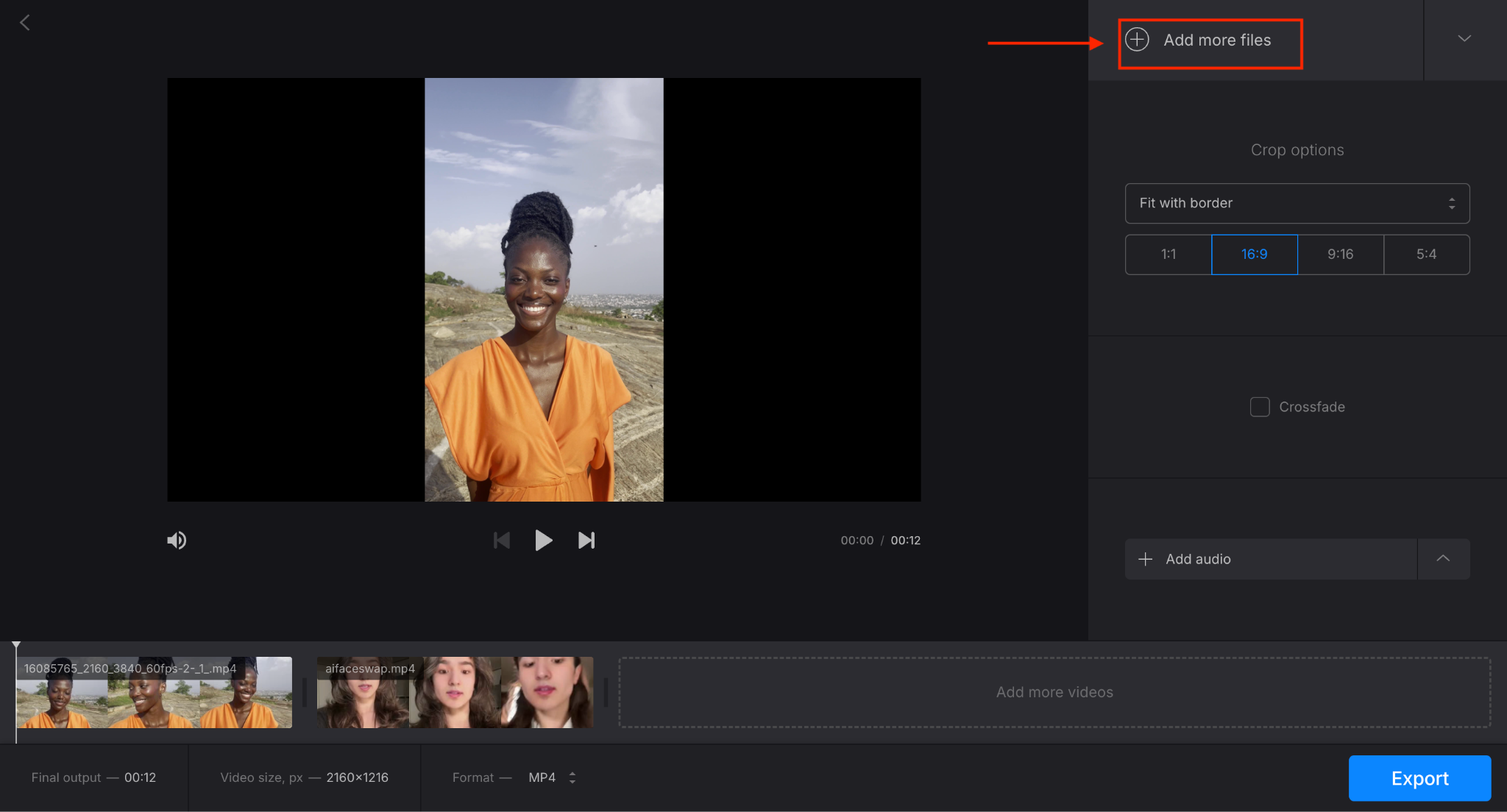
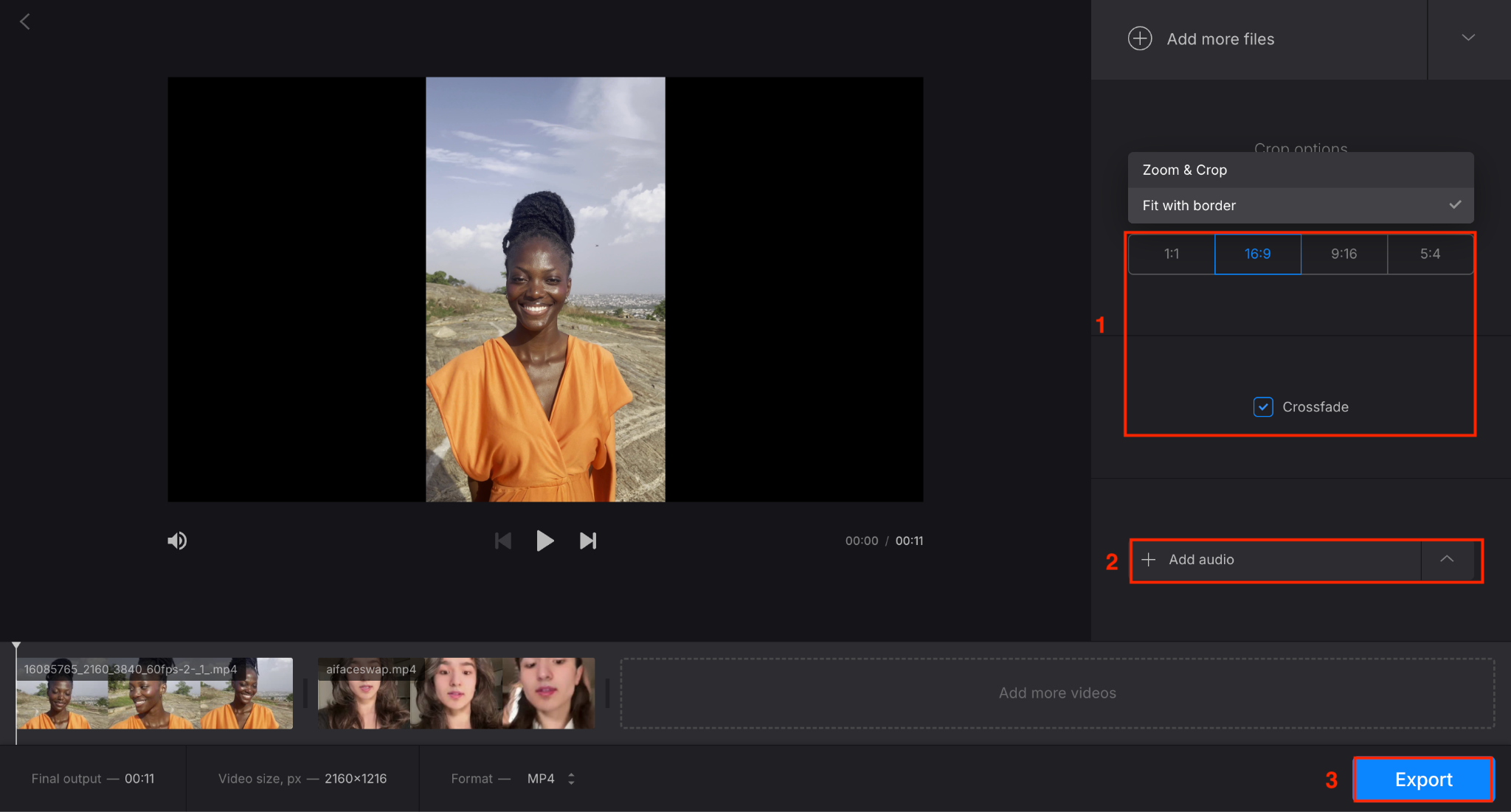
Step 4: Choose the aspect ratio and turn on crossfade. You can also add audio if you want and click the Export button.
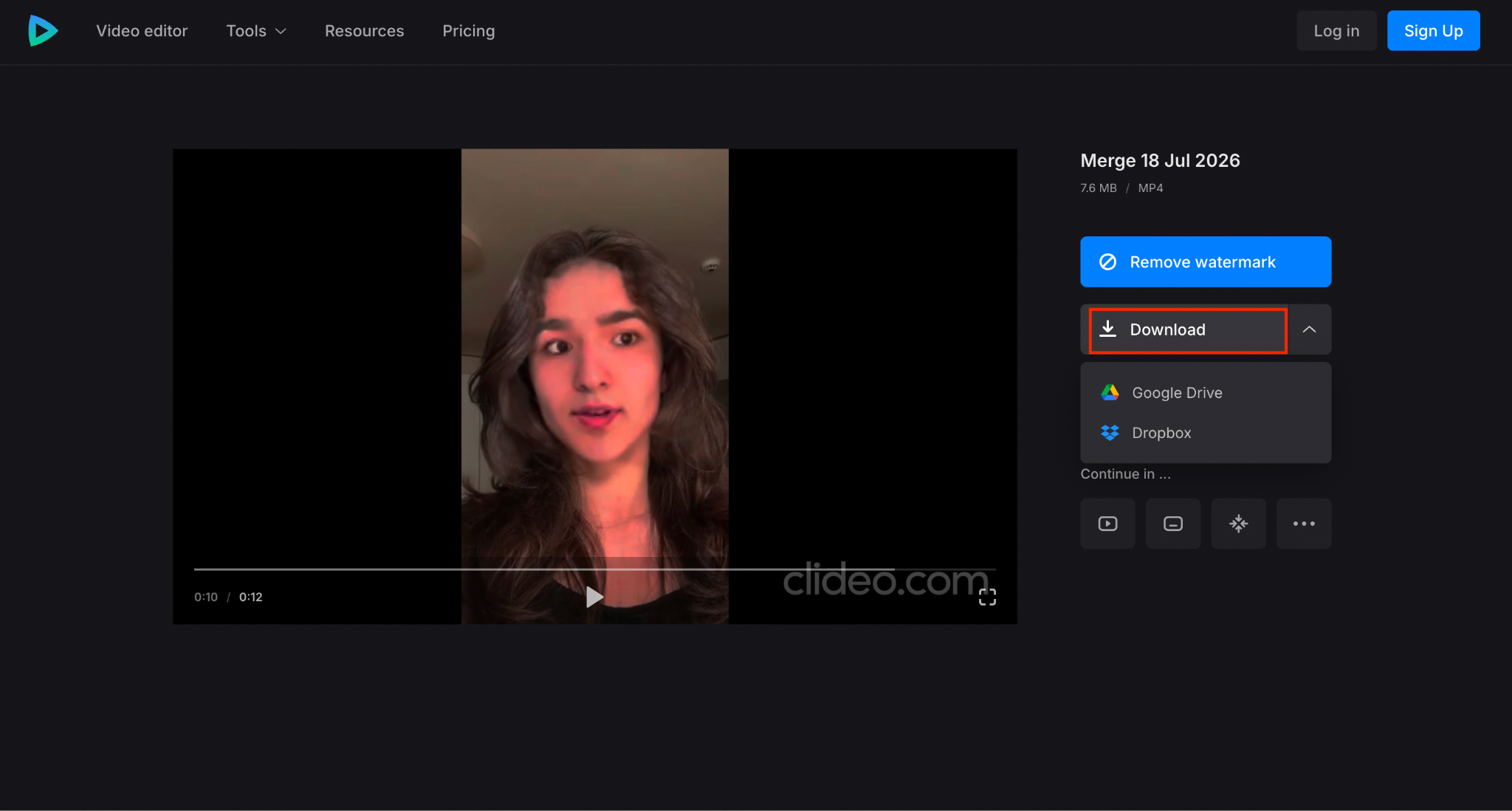
Step 5: Once exporting is done, click the Download button to save the video. You can also edit, add subtitles, and more before downloading.
Part 3: Clideo Video Merger Limitations & How to Resolve Issues
Clideo Video Merger works well for quick, casual merges, but a few limitations become apparent once you start using it for regular content work.
| Limitation | How to Resolve It |
| Watermark on free exports | Upgrade to Clideo Pro to remove the watermark. The free version does not provide an option to hide or remove it. |
| Free exports limited to 720p | Subscribe to Clideo Pro for 1080p and 4K exports if you need higher-quality output. |
| Slower processing during peak hours | Export during off-peak hours or upgrade to Pro, which receives priority processing. |
| 500 MB upload limit on the free plan | Compress your files before uploading, or upgrade to Pro for unlimited upload file size. |
| Requires an internet connection | Use a stable, high-speed connection and avoid uploading large projects over unreliable public Wi-Fi. |
| Closing the browser tab interrupts exports | Keep the browser tab open and your device awake until the export is complete and the download is ready. |
Part 4: Best Clideo Video Merger Alternatives for Content Creators
Clideo works fine for a quick, casual merge, but each tool below solves a specific gap it leaves open, whether that gap is the free-tier watermark, the 720p resolution cap, or the lack of deeper editing features. Here is why each one earns a spot on this list and what it does best.
Wondershare UniConverter
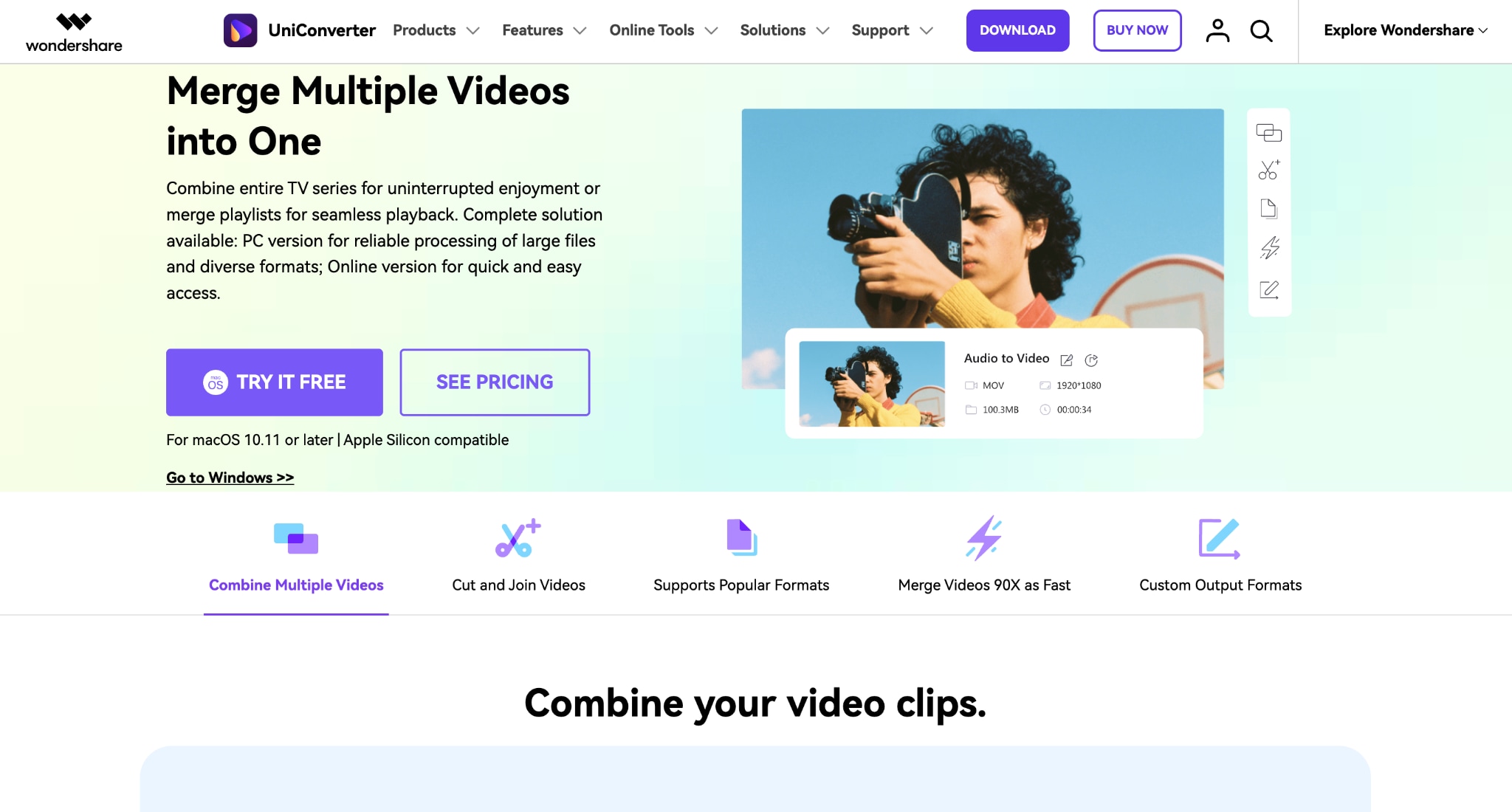


Wondershare UniConverter is a desktop application rather than a browser tool. Offline capability makes UniConverter the better pick when you are merging large 4K files or a batch of clips that would blow past Clideo's 500 MB free limit or even its 100 GB Pro cap. Because it processes locally rather than through a live browser session, an interrupted internet connection never interrupts your export mid-render, unlike Clideo's cloud-based workflow.
Key Features of Wondershare UniConverter
GPU-accelerated merging that uses your computer's own processor for faster rendering on large files
Converts merged output into more than 1,000 video and audio formats.
Trim and merge clips in the same workflow before exporting
Add a personalized watermark, a new background, control noise, and add subtitles.
Online Video Cutter
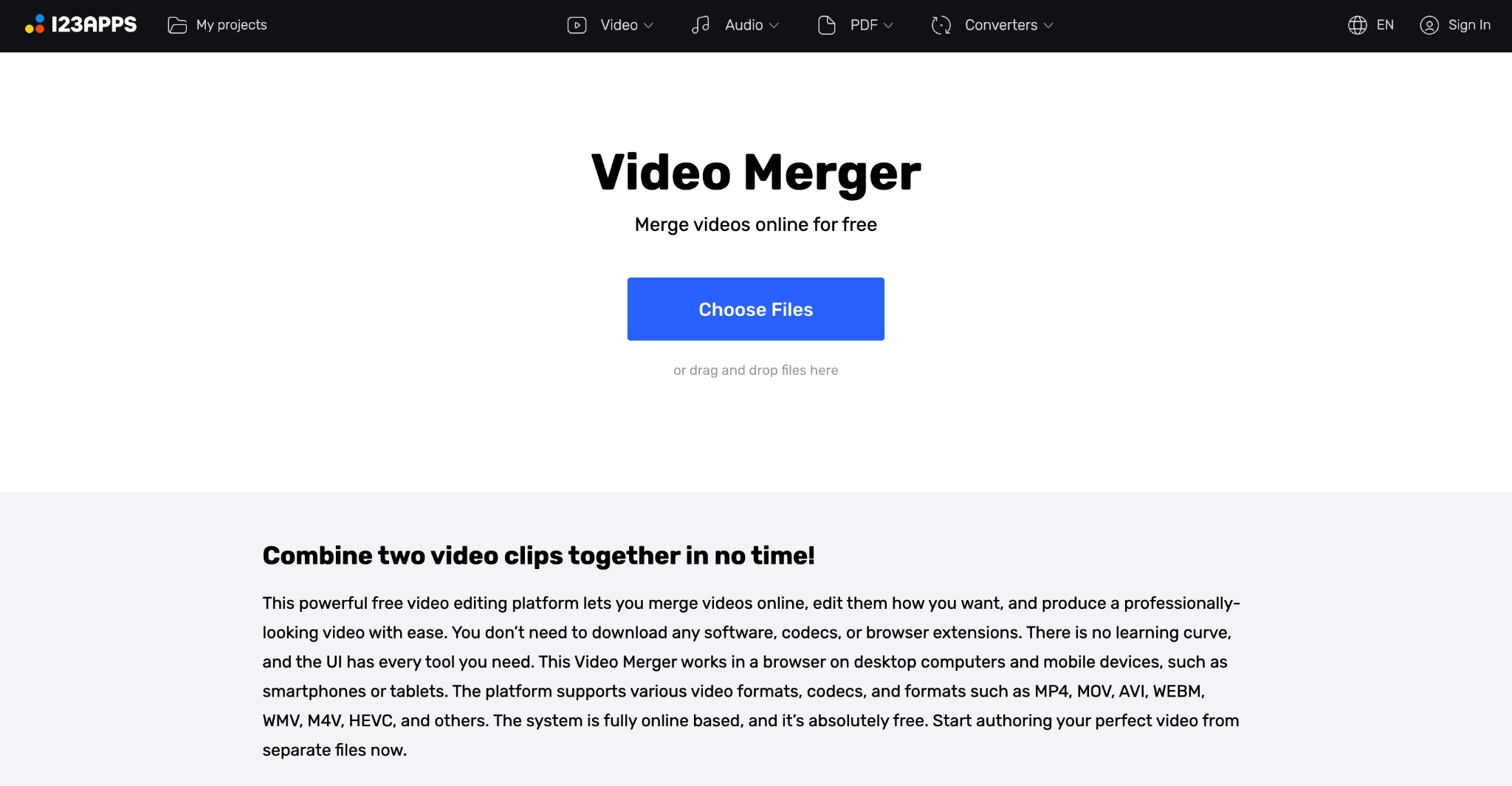
Online Video Cutter skips the watermark problem that trips up Clideo's free tier. You get a clean, unbranded export from the very first merge, without paying for a Pro plan first. That alone makes Online Video Cutter the stronger choice for a one-off project where you cannot justify a subscription. It also includes basic editing tools like trimming, cropping, and rotating in the same browser-based editor, so you can make quick adjustments without switching between multiple apps.
Key Features of Online Video Cutter
No watermark on exports, even on the free plan
Drag-and-drop timeline for reordering clips before export
Support for more than 30 video codecs and container formats
Direct import from Google Drive
Kapwing
Kapwing goes beyond simple merging with a full editing suite, making it the right choice when your project needs more than just clips joined end to end. If you also need auto-generated subtitles, silence removal, or a workspace where a teammate can review the timeline with you, Clideo's single-purpose merger cannot compete. The free plan caps exports at 720p and 1 minute, and it adds a watermark to every export, which is more restrictive than Clideo's free tier in terms of length.
Key Features of Kapwing
AI-powered Smart Cut that automatically removes silences from talking-head footage
Auto-subtitle generation across multiple languages
Real-time collaboration so teammates can edit the same project together
Direct link import from platforms like YouTube and TikTok
Canva
Canva is the better Clideo alternative when your merged video needs to look designed. Clideo has no text, graphic, or branding tools built into its merger, so anything you want layered on top has to be added elsewhere. Canva merges your clips and adds those design elements to the same timeline.
Key Features of Canva
No watermark on video exports, even on the free plan
Drag-and-drop timeline that merges clips alongside text and graphic overlays
Access to a large library of templates and stock media
Brand Kit for keeping fonts, colors, and logos consistent across every video
Clipchamp
Clipchamp beats Clideo's free tier on the two things that matter most for a quick export: resolution and watermarks. Where Clideo caps free exports at 720p and stamps a logo on every file, Clipchamp exports at full 1080p with no watermark at no cost, making it the strongest free option on this list for a creator who isn't ready to pay yet.
Key Features of Clipchamp
Free 1080p exports with no watermark on any plan, including free
AI auto-captions available in multiple languages
Built-in screen recorder alongside the standard clip editor
Deep integration with OneDrive and the wider Microsoft 365 suite
Part 5: Clideo Video Merger vs. Alternatives: 5 Comparison Features to Help You Decide
Choosing the right video merger depends on more than just price. Features like watermark-free exports, output quality, cloud storage support, and whether the tool runs in your browser or requires installation can make a big difference. The table below compares Clideo with five popular alternatives to help you find the best fit for your workflow.
| Feature | Clideo | Wondershare UniConverter | Online Video Cutter | Kapwing | Canva | Clipchamp |
| Free plan watermark | Yes | Yes | No | Yes | No | No |
| Free max resolution | 720p | 1080p | Depends on the source | 720p | 1080p | 1080p |
| Cheapest paid tier | $9/month | $9.9/month | $6/month | $16/month | $144/year | $99.99/month (M365) |
| Cloud import (Drive/Dropbox) | Yes | Yes | Yes | Yes | Yes | Yes |
| Runs without installation | Yes | Yes, it works both offline and online | Yes | Yes | Yes | Yes |
Part 6: What Is the Best Video Merger for Different Use Cases
The best video merger depends on your editing needs. Clideo is a solid choice for quick browser-based video merging, but other tools are better suited for professional editing, watermark-free exports, AI-powered workflows, or branded content creation. Here's a quick guide to help you choose the right tool for your workflow.
| Use Case | Best Tool | Why It Stands Out |
| Quick online video merging | Clideo | Browser-based, easy to use, and requiring no software installation. |
| Professional video editing | Wondershare UniConverter | Supports offline editing, 4K videos, batch processing, and advanced editing features. |
| Free watermark-free exports | Clipchamp | Offers 1080p exports without adding a watermark on the free plan. |
| One-time video projects | Online Video Cutter | Provides clean, watermark-free exports with essential editing tools. |
| AI-powered editing | UniConverter and Kapwing | Includes AI subtitles, Smart Cut, silence removal, and team collaboration. |
| Branded and social media videos | Canva | Combines video merging with templates, graphics, text overlays, and Brand Kit features. |
Part 7: Tips to Use Clideo Video Merger for Maximum Output
You can get the best results with Clideo Video Merger by preparing your files before uploading, choosing the right export settings, and avoiding common mistakes that can slow processing or degrade video quality.
Prepare your source files: Trim unnecessary footage and use clips with the same resolution, frame rate, and aspect ratio. This speeds up processing and creates a cleaner final video.
Preview before exporting: Watch the entire timeline once to check for audio sync issues, abrupt cuts, incorrect transitions, or text placement, then download the final file.
Choose the right export quality: Export at 720p when reviewing drafts. If you need a sharper video for YouTube or client delivery, upgrade to Clideo Pro for 1080p or 4K output.
Keep the browser active: Leave the Clideo tab open until the export finishes. Closing the tab or letting your computer sleep can interrupt the rendering process.
Upload smarter: Compress large videos before uploading or import them directly from Google Drive or Dropbox to reduce upload time and make editing across devices easier.
Conclusion
Clideo Video Merger is a practical choice when you need to combine videos quickly without installing software. Its browser-based workflow, support for multiple file formats, and cloud imports make it convenient for simple projects. However, the free plan's watermark, 720p export limit, upload restrictions, and internet dependency can become obstacles for frequent creators.
If your workflow involves larger files, higher-quality exports, or frequent editing, a desktop solution such as Wondershare UniConverter offers greater flexibility, faster processing, and advanced editing tools, while removing many of Clideo's limitations.

