


Canva is still one of the fastest ways to create thumbnails in 2026, but the real question is whether Canva's Thumbnail Creator actually delivers usable, click-ready results or just basic AI drafts that still need heavy editing.
This Canva review directly evaluates that claim. It breaks down how the thumbnail creator works, how strong its AI outputs are in real workflows, and whether it genuinely replaces manual thumbnail design for creators. You will see Canva’s core features, real user feedback, and four alternatives to judge whether Canva is still worth it in 2026.
Table of Contents
Part 1: What Are the Top 5 Canva Features for Content Creators?
Canva is best known for five core features that handle most day-to-day content creation work: templates, AI-generated thumbnails, Magic Studio, a brand consistency tool, and basic video editing. Let's understand each feature in detail in this Canva review:
| Canva Feature | What it Does | Best for |
| Templates library | Millions of pre-sized templates for posts, thumbnails, and reels | Fast, platform-ready designs |
| Magic Media and AI Thumbnail Maker | Generates images, short videos, and thumbnails from a text prompt | Click-worthy thumbnails and visuals |
| Magic Studio (Design, Write, Switch) | AI that drafts layouts, writes copy, and resizes designs across formats | Turning one idea into many on-brand assets |
| Brand Kit | Stores fonts, colors, and logos for consistent branding | Channel-wide visual consistency |
| Video editor and captions | Trims clips and adds animation, captions, and music | Reels, Shorts, and TikTok edits |
Templates Library: Canva opens with millions of templates already sized for every format, so a creator can pick an Instagram post, a YouTube thumbnail, or a TikTok cover and start editing instead of building a canvas from scratch. The closest template usually needs only a few text, color, and image swaps to feel original.
Magic Media and the Canva Thumbnail Creator: Magic Media is Canva's AI image and video generator, powering the Canva Thumbnail Creator. A creator describes the thumbnail, picks a visual style, and gets several options to drop straight onto the canvas. Generated assets land inside the full editor, so the next step is real design work rather than a dead-end image.
Magic Studio AI suite: Magic Studio bundles Canva's AI under one roof: Magic Design drafts a full layout from a prompt, Magic Write handles captions and copy, and Magic Switch resizes a single design across formats and translates it into 100+ languages. Each tool reads the Brand Kit first, so outputs stay on brand from the first draft.
Brand Kit: Stores fonts, colors, and logos in one place. For a channel that posts daily, this keeps every thumbnail and post visually consistent without resetting styles each time, which is the difference between a recognizable feed and a scattered one.
Video editor and captions: Canva's video editor trims clips, layers music, adds animation, and auto-generates captions, which covers most short-form social videos. It suits Reels and Shorts more than long-form edits, where a dedicated video tool keeps more control.
Part 2: How Do You Create a Thumbnail Using the Canva Thumbnail Creator?
The Canva Thumbnail Creator works in five steps, from the AI prompt to the final download. Here are the steps to create a thumbnail using the Canva Thumbnail Creator:
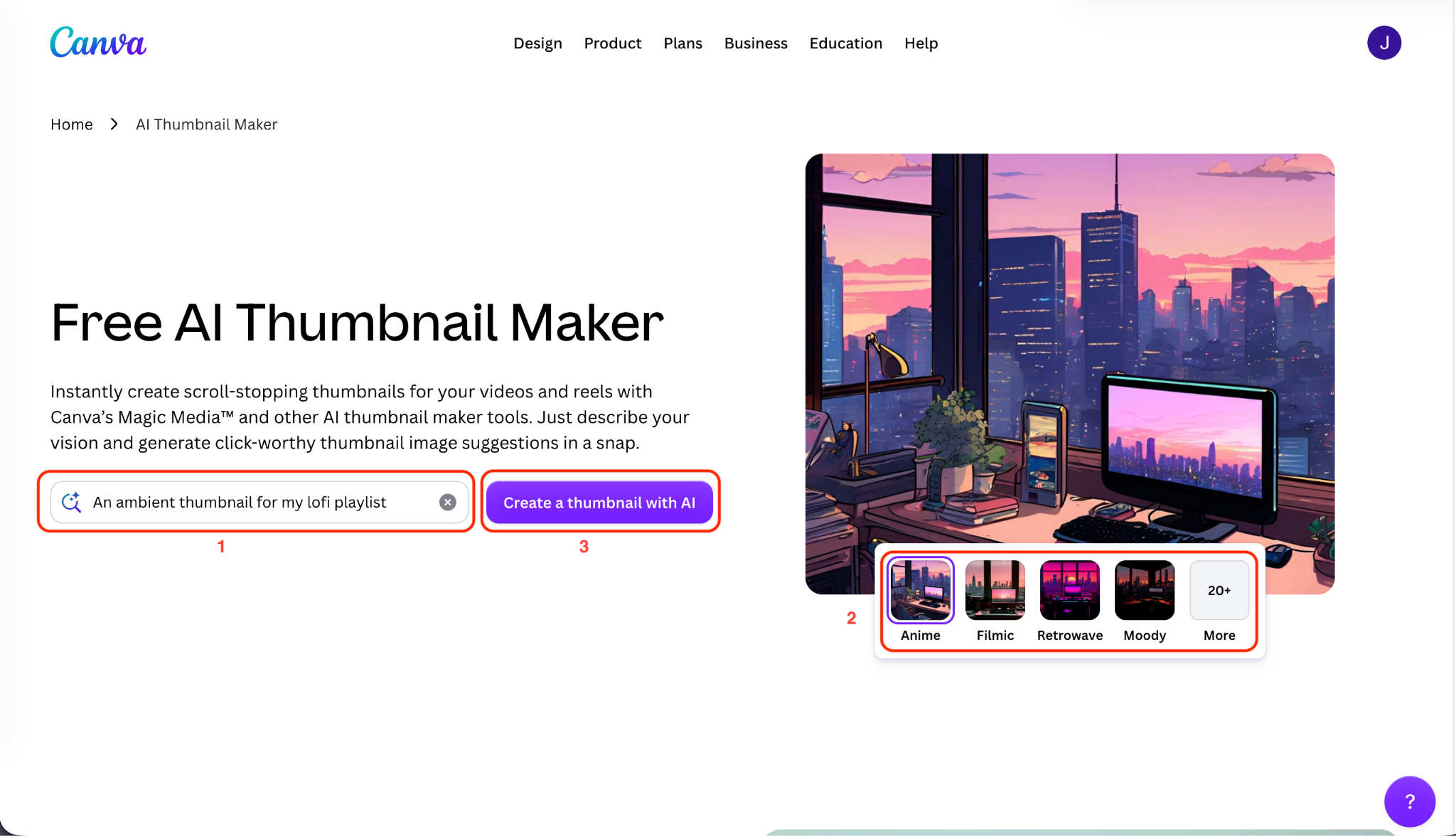
Step 1: Go to Canva's AI Thumbnail Maker page, type a prompt that describes the thumbnail, such as An ambient thumbnail for my lo-fi playlist, pick a style like Anime, Filmic, Retrowave, or Moody, then click “Create a thumbnail with AI.”
Step 2: Canva's Magic Media returns several thumbnail images. Click one to add it to the canvas, or select “Generate again” for fresh variations until the look fits.
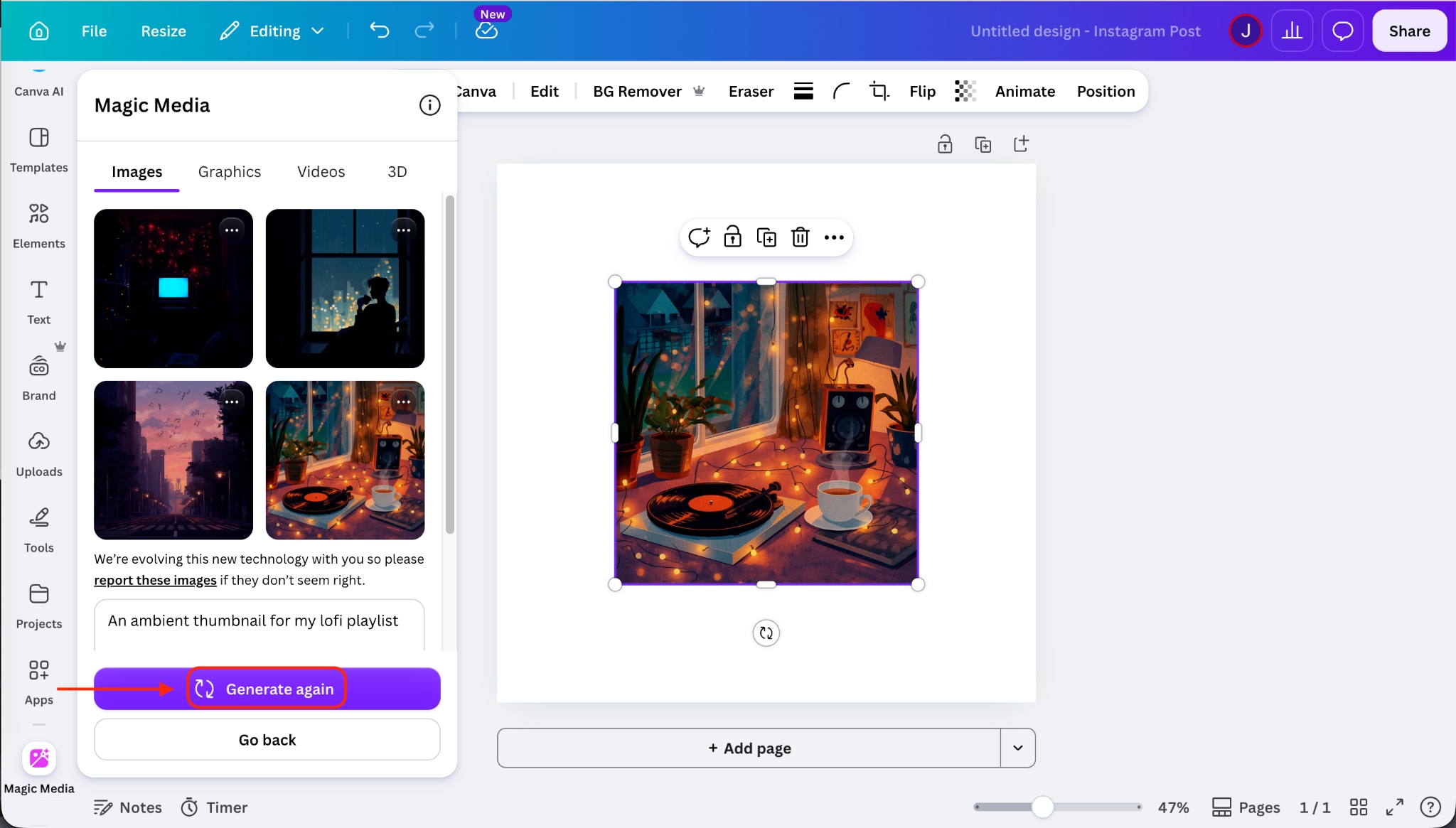
Step 3: Open the Elements panel to drop in shapes, graphics, frames, or photos, and use the toolbar for background removal, cropping, or positioning controls to arrange the layout.
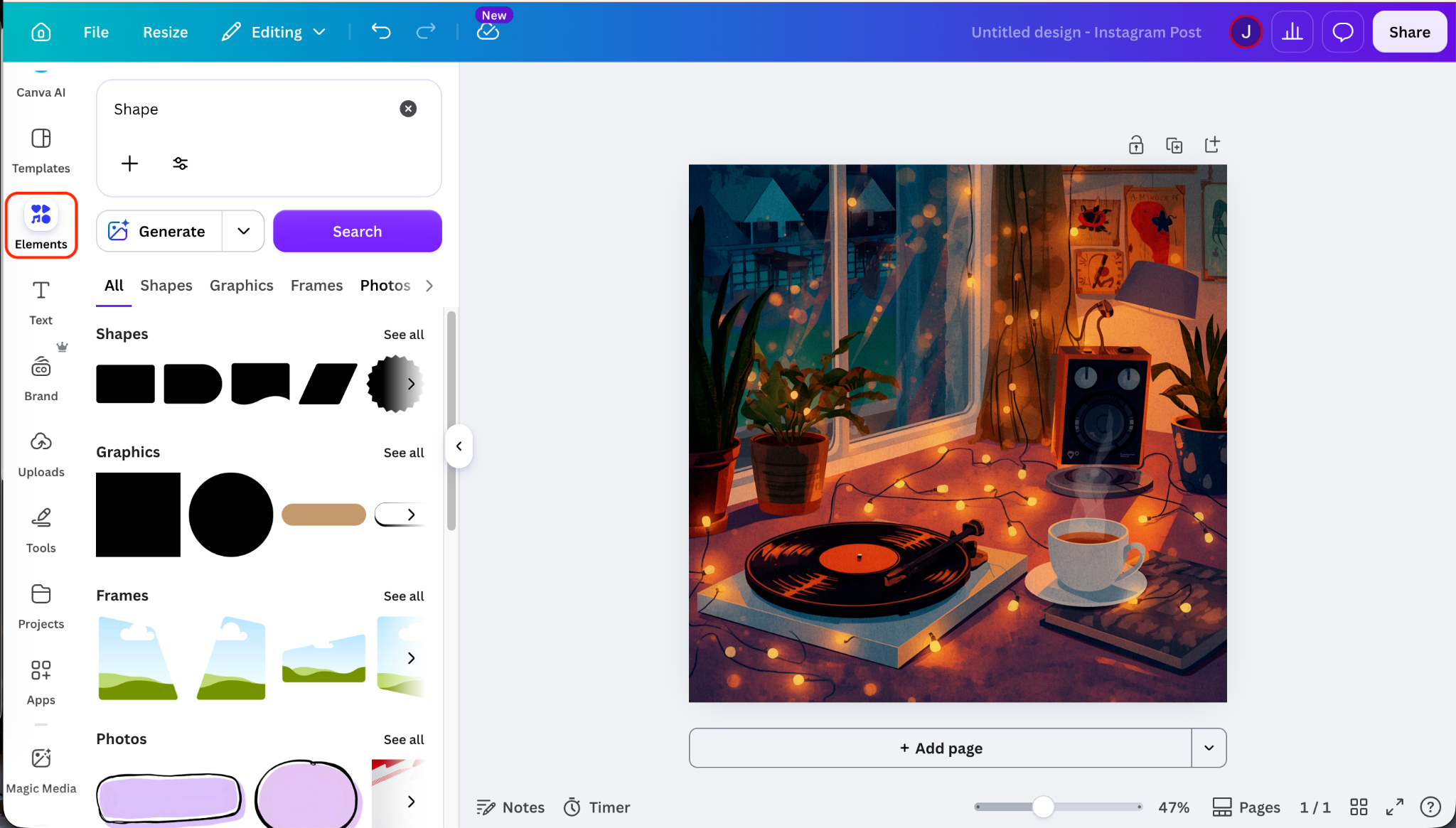
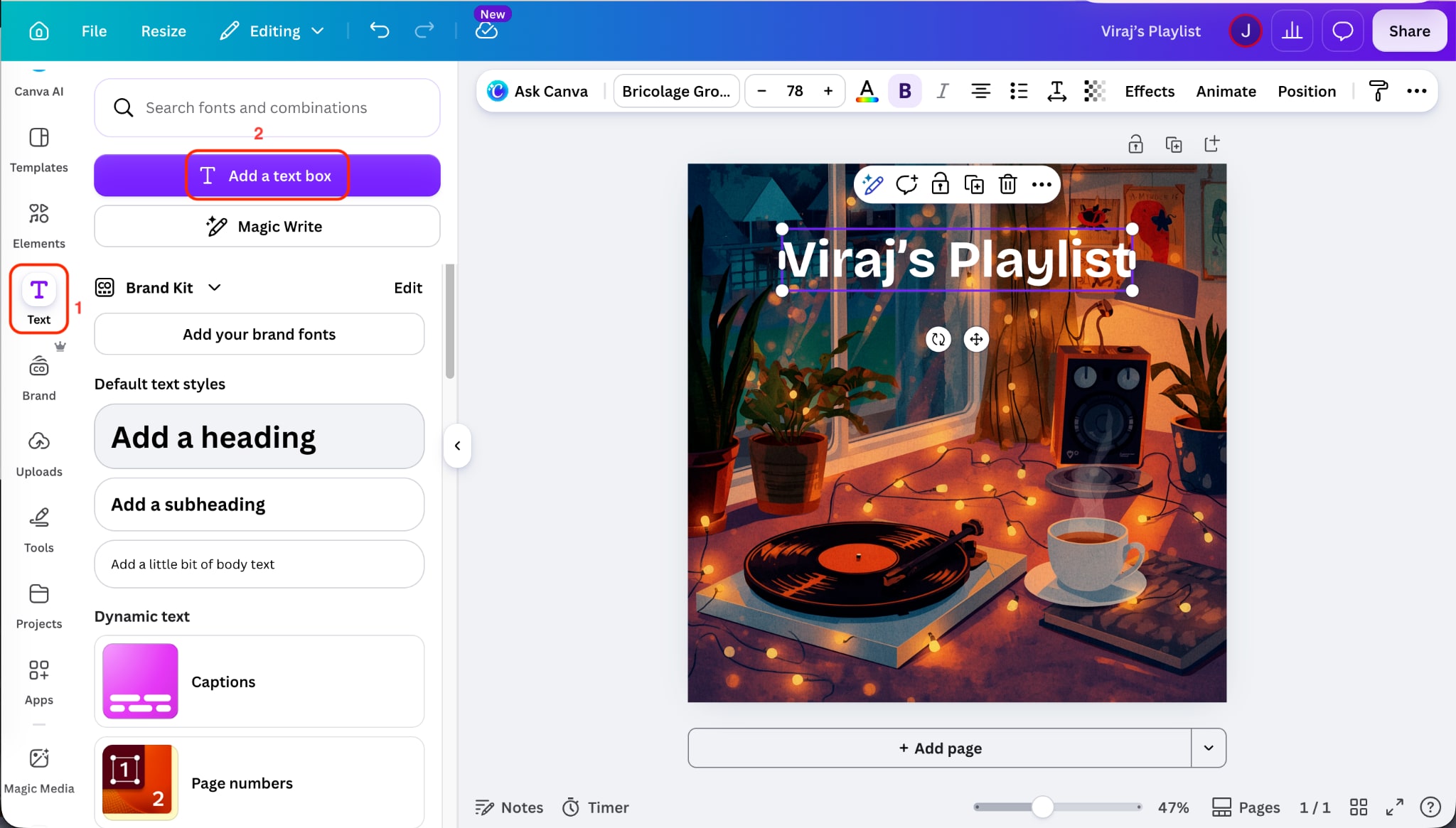
Step 4: Open the “Text panel,” click “Add a text box” or use “Magic Write,” type the title, such as “My Playlist,” then set the font, size, weight, and color.
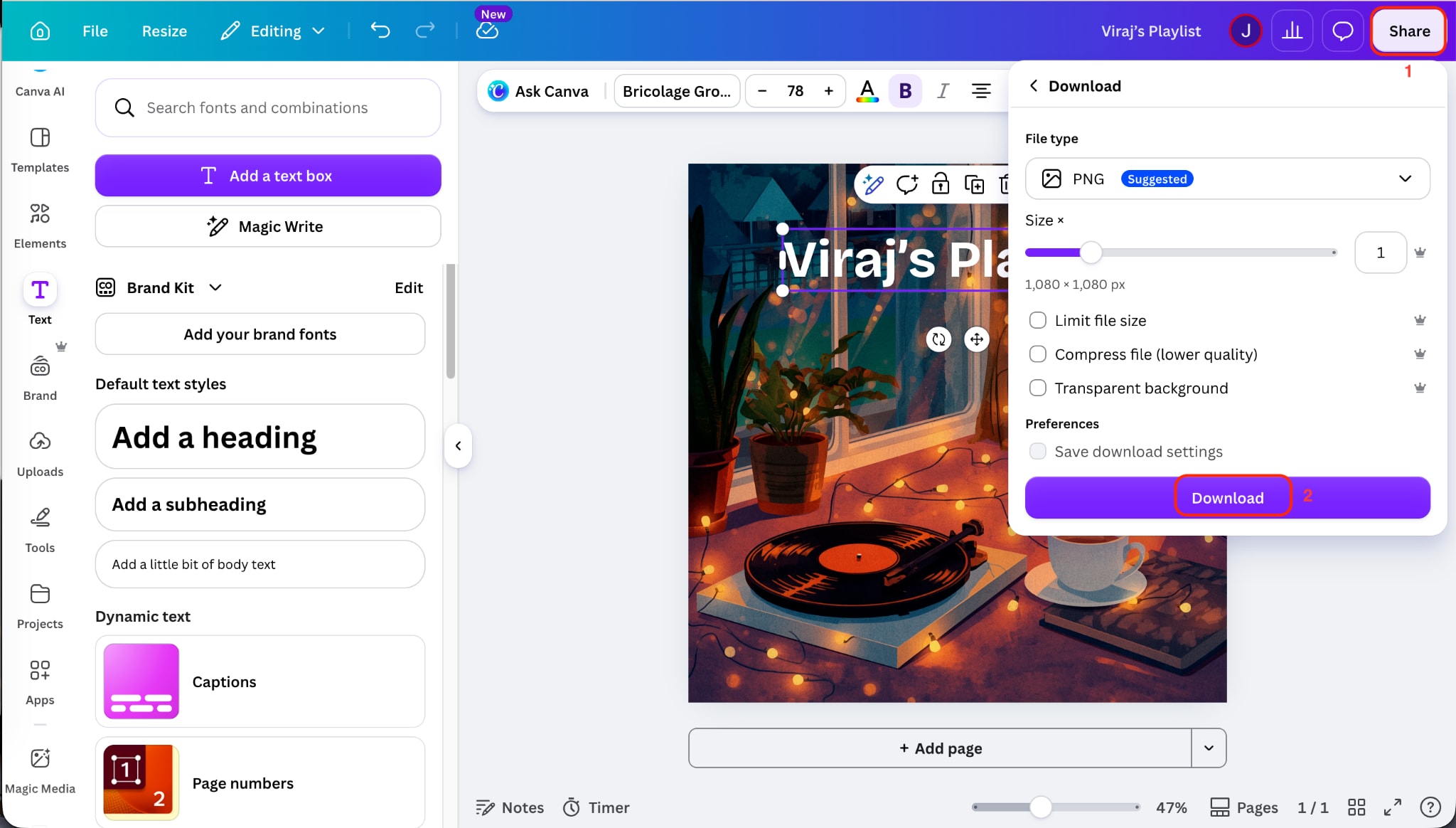
Step 5: Click “Share > Download,” choose PNG, set the size, and click “Download” to save the finished thumbnail.
Part 3: What Do Real Users Say About Canva?
Verified G2 reviewers give a consistent read on where Canva works great and where it frustrates. Their feedback cleanly breaks down into pros and cons.
What Users Like
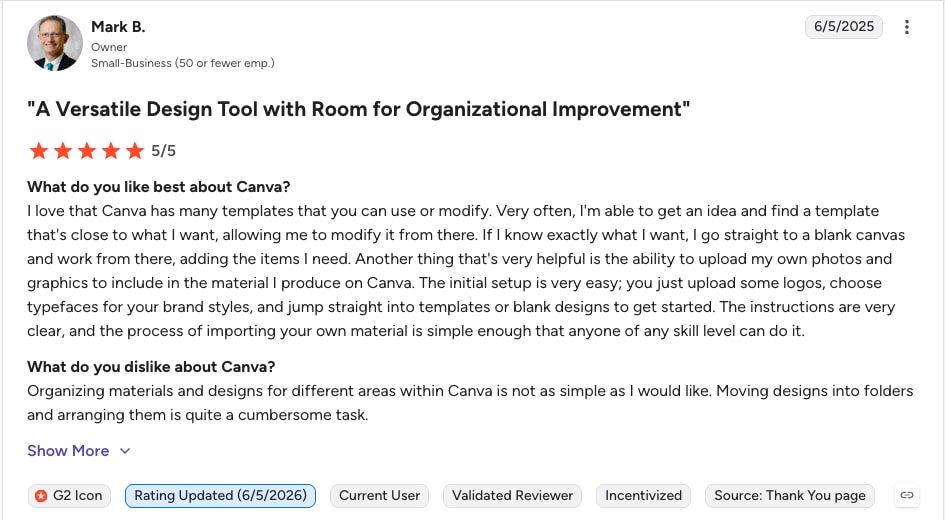
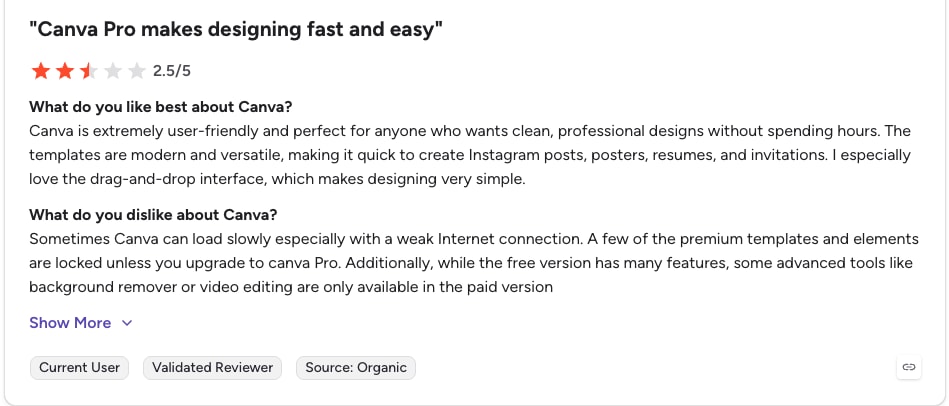
The template range is the most praised feature. One small-business owner notes how easy it is to find a close template, modify it, or start from a blank canvas, and how simple it is to upload logos and set brand styles for any skill level.
Reviewers call the drag-and-drop editor user-friendly and fast, with clean, professional results for Instagram posts, posters, resumes, and invitations without hours of work.
Even critical reviewers credit Canva with strong designs across many websites and social formats, and with designs that stay easy to edit.
What Users Flag
Organizing designs is a common complaint. One reviewer finds moving files into folders and arranging projects across areas cumbersome.
Performance dips on a weak connection, and several premium templates, elements, and tools, such as the background remover and video editing, stay locked behind Canva Pro.
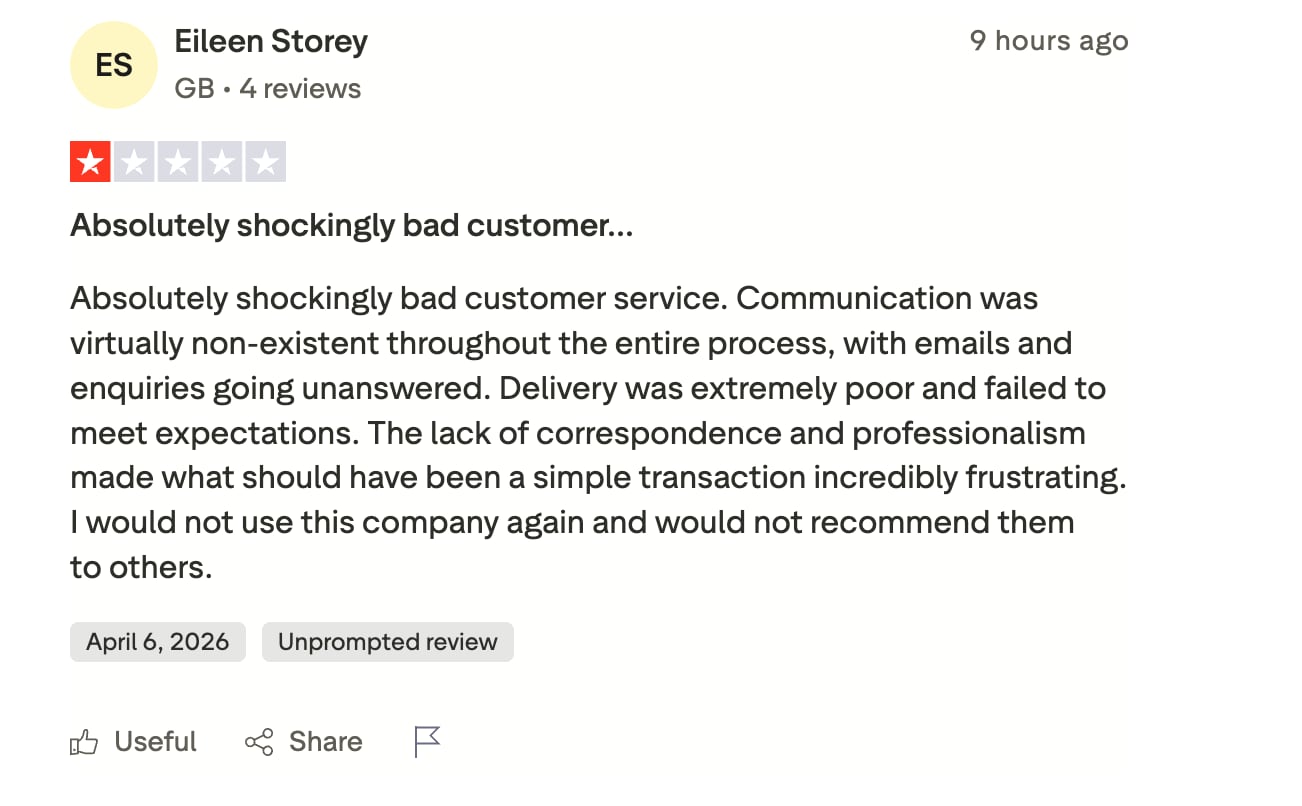
One Trustpilot reviewer complained about customer service and said there is a lack of professionalism.
Part 4: Top 4 Canva Alternatives for Beginners and Professionals [Free & Paid]
Canva covers design and thumbnails well, while a complete content workflow often needs more, from commercially safe AI imagery to the video work behind a thumbnail. These four alternatives each fill a different gap.
Wondershare UniConverter
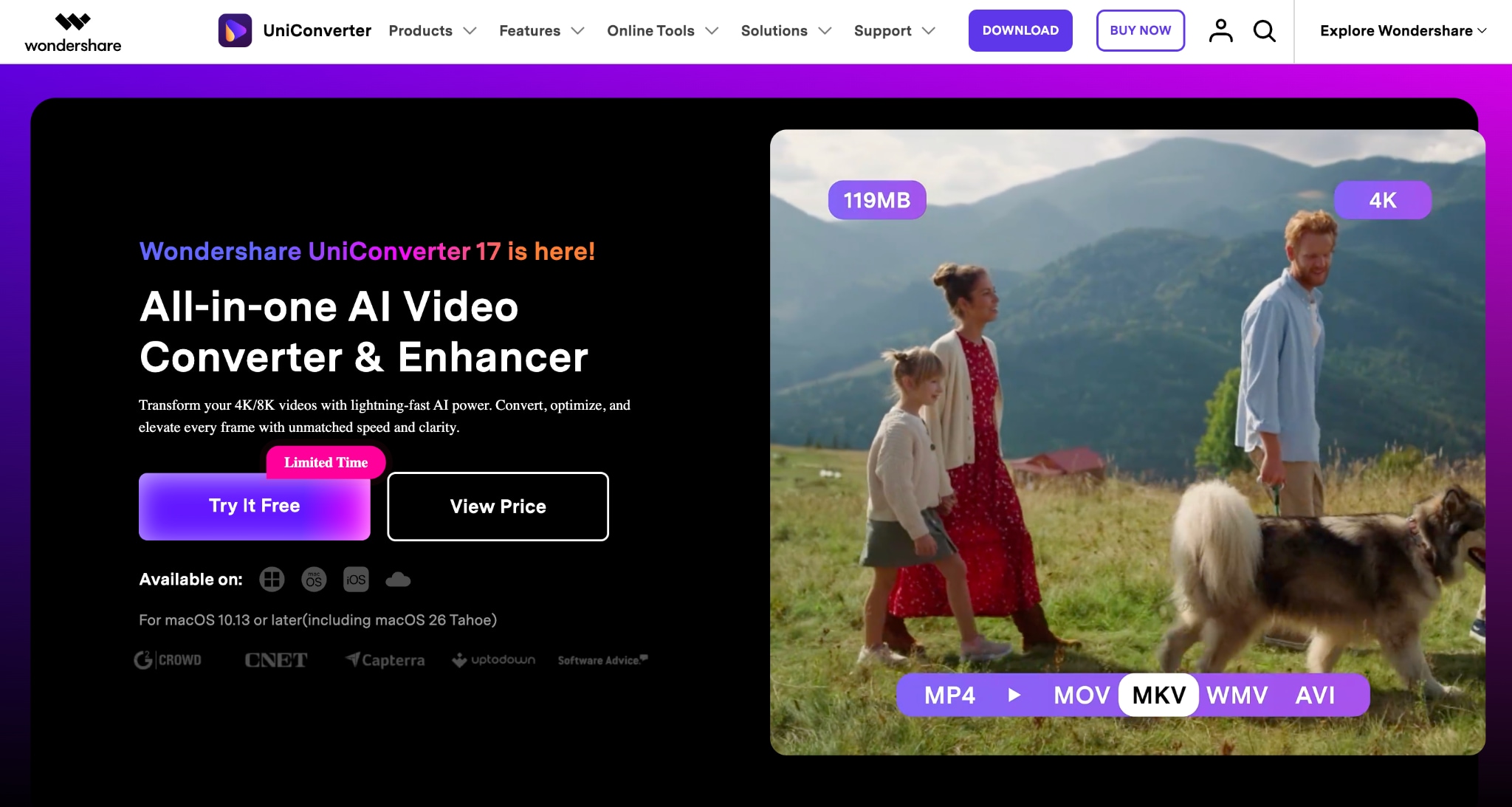

All-in-One Multimedia Processing Tool

Wondershare UniConverter is a desktop AI media toolkit for Windows and Mac. Where Canva focuses on design and thumbnails, UniConverter covers the video side of a creator's workflow through a unified AI tools hub that converts, compresses, upscales, transcribes, and translates footage in one app. For a creator who designs a thumbnail in Canva and then needs to compress, sharpen, or subtitle the video itself, UniConverter handles the heavier media work that browser design tools leave out.
Key Features
Its AI smart compression reads the video, picks the best codec, and cuts file size by up to 90% with no visible quality loss.
With its AI video enhancer, you can upscale footage to 4K or 8K using dedicated Face and Anime models, reduce noise, and boost frame rates to 240 FPS.
AI subtitles and a smart summarizer generate editable bilingual captions in 145+ languages and condense long videos or YouTube links into editable notes.
You get an AI audio suite and image tools, including text-to-speech, speech-to-text with speaker separation, and an Image Enhancer, Background Remover, and Watermark Remover.
Adobe Express
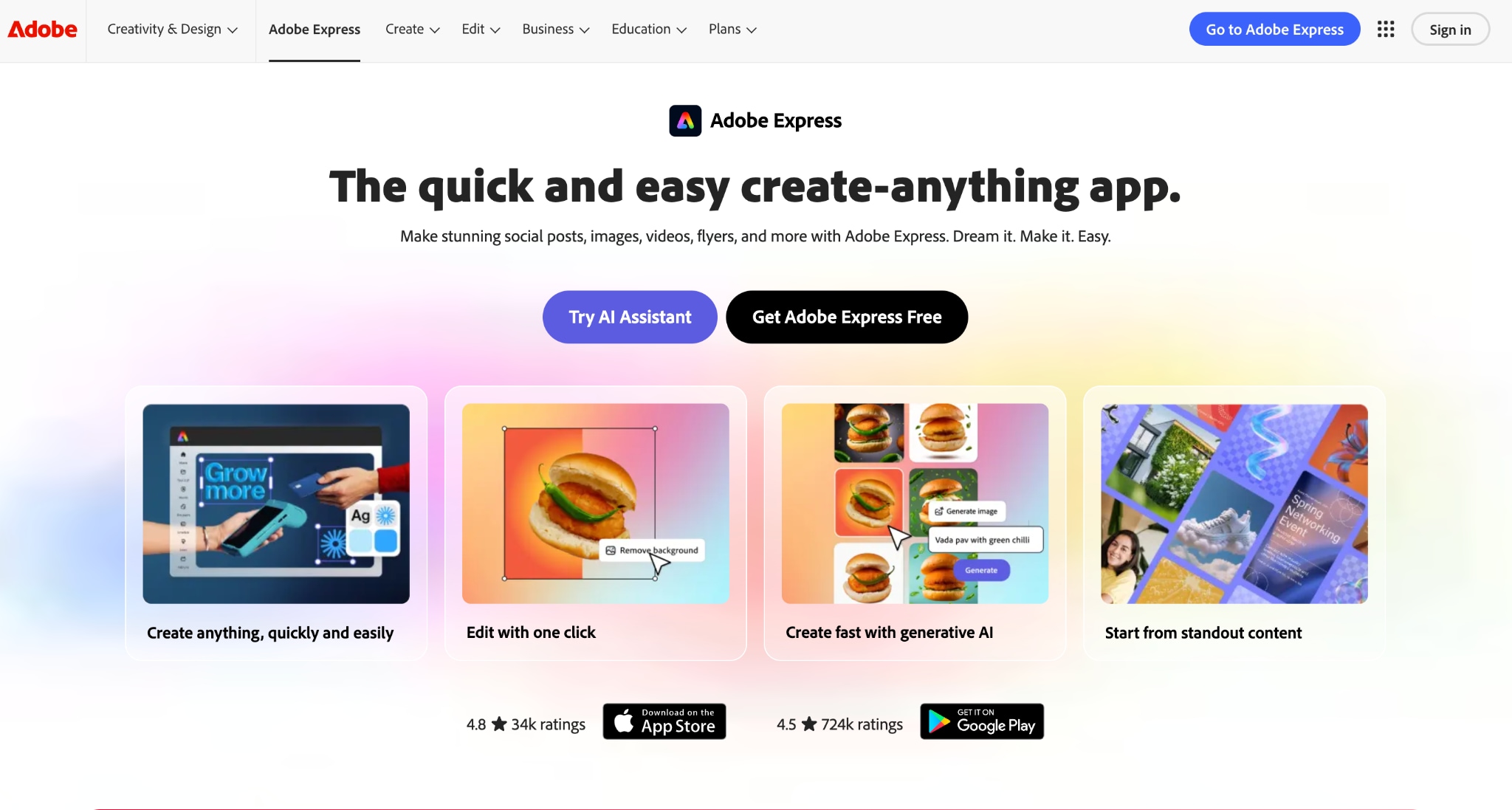
Adobe Express is Adobe's all-in-one design app for web, desktop, and mobile, with Adobe Firefly generative AI built in. It leans toward higher visual quality than most template tools, and Firefly trains on licensed and Adobe Stock content, so generated images stay commercially safe, which matters for brand and client work.
Key Features
Creates images and text effects from prompts in 100+ languages.
Generative Fill, Remove, Expand, and Upscale, plus one-click background removal.
Nearly 200 million assets, around 22,000 fonts, and templates for Instagram, TikTok, and YouTube.
A browser-based multi-track timeline for assembling short clips.
VistaCreate
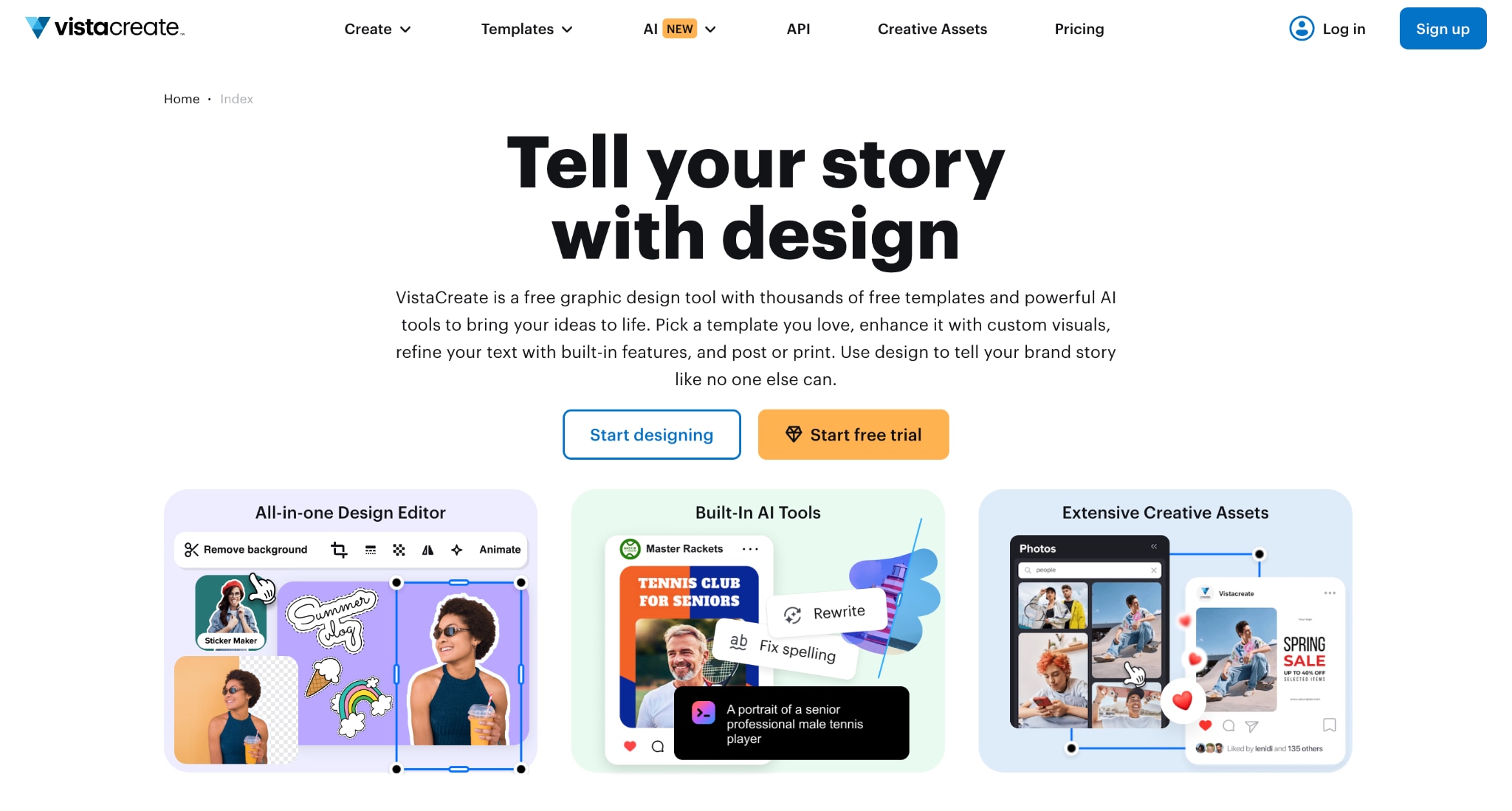
VistaCreate is a graphic design platform built for small businesses, marketers, and social media teams that need professional visuals without a steep learning curve. Formerly known as Crello, the tool offers thousands of templates, a large stock asset library, brand management features, and AI-powered tools, including an Image Generator, Background Remover, and Object Remover. Unlike Canva, VistaCreate focuses on delivering a simpler and more affordable design experience while still covering social posts, ads, presentations, and short-form video content.
Key Features
100,000+ templates and 1M+ free assets, with a 170M+ premium library.
An AI Image Generator, a Background Remover, an Object Remover, and smart resizing.
Auto-animations, a brand kit, and a built-in music library for reels.
A social scheduler with direct posting to Facebook, Instagram, and Pinterest.
Snappa
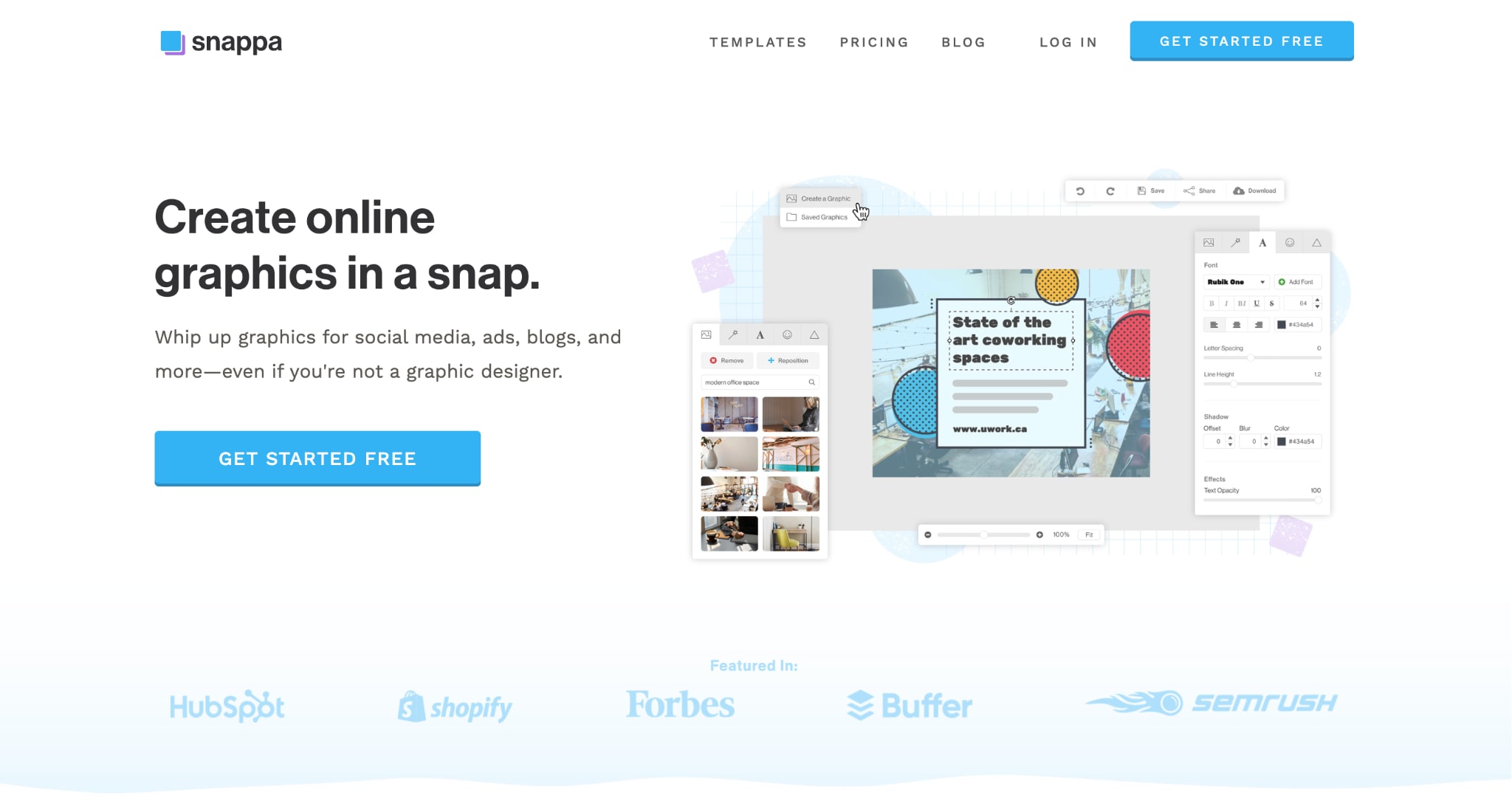
Snappa is a lightweight graphic design tool designed for creators who prioritize speed over advanced editing features. It is especially popular among bloggers, marketers, and YouTubers who need to produce thumbnails, social media graphics, banners, and blog images in minutes. Snappa includes professionally designed templates, more than five million royalty-free stock photos, automatic image resizing, and drag-and-drop editing tools that require virtually no design experience.
Key Features
6,000+ layouts for YouTube thumbnails, Instagram, and ads.
5 million+ stock photos, thousands of vectors, and hundreds of fonts.
One-click background removal, resizing, and transparent backgrounds.
Scheduled social publishing through Buffer, with exports limited to JPG and PNG.
Part 5: Canva vs. Alternatives: A Quick Comparison
This table lines up Canva against the four alternatives on the points that decide most choices:
| Tool | Best for | AI tools | Free plan | Standout |
| Canva | All-in-one design and thumbnails | Magic Studio suite | Yes, basics are free | Template depth, Magic Media |
| Wondershare UniConverter | AI video media toolkit | Compression, enhancer, subtitles, summarizer | Limited trial | Upscale, compress, and translate video |
| Adobe Express | Quality design and safe AI | Firefly image, video, text | Yes, limited | Commercially safe Firefly imagery |
| VistaCreate | Budget social design | AI image gen, background remover | Yes, usable | Low-cost Canva-style option |
| Snappa | Fast thumbnails and graphics | Background remover, resize | Yes, 3 downloads/month | Speed and simplicity |
Part 6: Why Choose UniConverter as a Canva Alternative?
If your work stops at creating thumbnails, social posts, and graphics, Canva is often enough. Its strengths lie in design templates, AI-powered content creation, brand management, and quick visual editing. Features like Magic Media, Magic Studio, and Brand Kit make it easy to create professional-looking assets without design experience.
However, content creation rarely ends with a thumbnail. Once you need to prepare the actual video for publishing, you'll quickly run into tasks that Canva is not built to handle in depth.
Here is where Wondershare UniConverter stands out:
A dedicated video workflow: While Canva focuses on creating visual assets, UniConverter focuses on preparing, optimizing, and managing video files for publishing across platforms.
Handle large video files: If you're uploading to YouTube, sharing client files, or repurposing content for multiple platforms, file conversion and compression become essential parts of the workflow. UniConverter is built specifically for those tasks.
Repurpose content faster: Instead of manually creating subtitles, summaries, transcripts, and translations of your videos, UniConverter automates much of that process, making it useful for creators publishing across multiple languages and channels.
Keep creator workflow in one place: Rather than switching between separate apps for conversion, enhancement, subtitles, recording, and audio tasks, UniConverter combines these functions into a single desktop toolkit.
Complements Canva: Canva helps you create a thumbnail that attracts viewers. UniConverter helps you prepare the video that viewers actually watch. Used together, they cover both the design and video sides of content creation.
Is Canva Worth It in 2026?
From this Canva review, you can understand that Canva remains the fastest way for content creators to design social graphics, and the Canva Thumbnail Creator turns a text prompt into a usable thumbnail in seconds. For pure design and quick visuals, few tools match its template depth and Magic Studio AI. The limits show when the work transitions from a static thumbnail to the video behind it, where compression, upscaling, and subtitles require a dedicated tool.
For that side of the workflow, Wondershare UniConverter pairs AI Smart Compression, 4K and 8K upscaling, and subtitles in 145+ languages in one app. Test Wondershare UniConverter and Canva side-by-side and make your choice.

