
A video can hold the exact expression or movement you missed with the camera shutter. The right method depends on whether you need one quick image, a precisely selected moment, or a folder of frames to review.
Choose the Right Method for Your iPhone
Photos saves the paused frame as a photo in iOS 27. A screenshot captures the current screen, including any controls still visible. For a sequence of consecutive frames, use a tool that exports multiple images.
| What you need | Method | Where it works |
|---|---|---|
| One photo from a video | Save Video Frame as Photo | iOS 27 Photos; the video is opened in Photos. |
| A quick image when the option is missing | Pause and take a screenshot | iPhone; buttons depend on the model. |
| A precise frame or several images | Frame-grabbing app or image-sequence tool | iPhone app or Windows/Mac, depending on the tool. |
Save a Video Frame as a Photo in Photos (iOS 27)
Apple’s iPhone user guide documents a direct way to turn the frame on screen into a separate photo. Start with a video you can open in Photos.
- Open the video in Photos. Open the Photos app on your iPhone and select the video containing the moment you want.
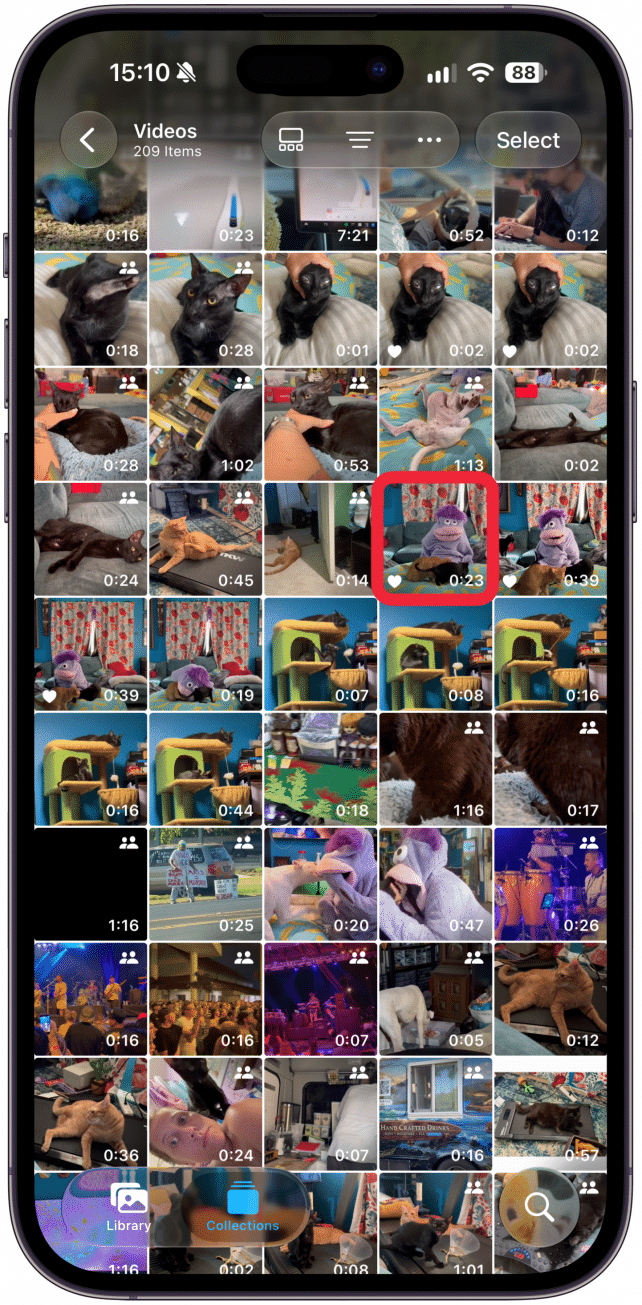
Open the video you want to use in Photos. Image: iPhone Life. - Pause on the frame. Play or scrub through the video, then pause on the frame you want to save.For finer control, tap the edit icon and use the video timeline. This is an optional route to the same save command.
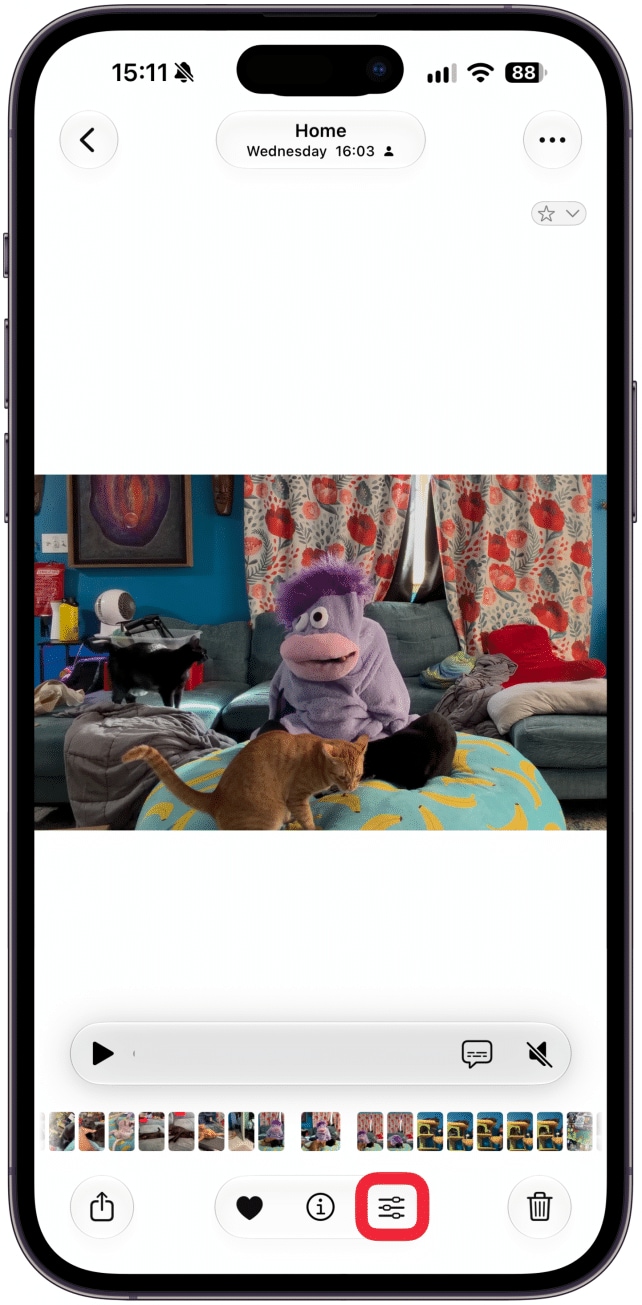
In this example, the edit button opens the video editing controls. Image: iPhone Life. 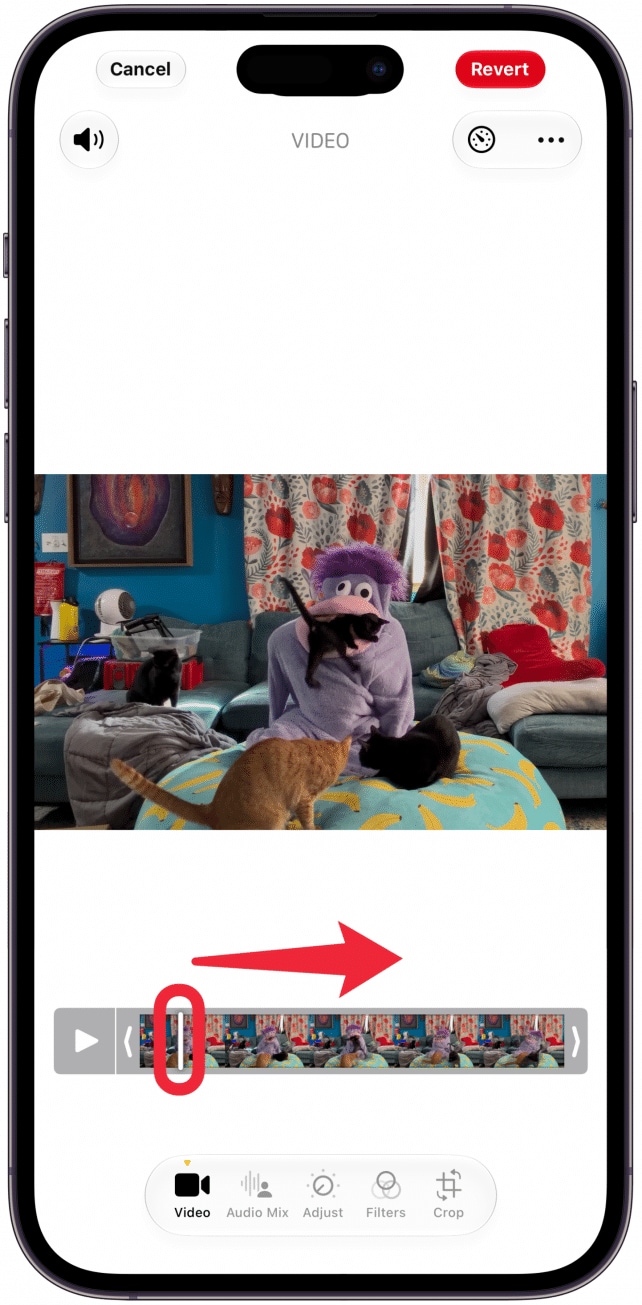
Move the playhead to select the frame you want. Image: iPhone Life. - Open the More menu. Tap the More button, shown as three dots, while viewing the paused video.
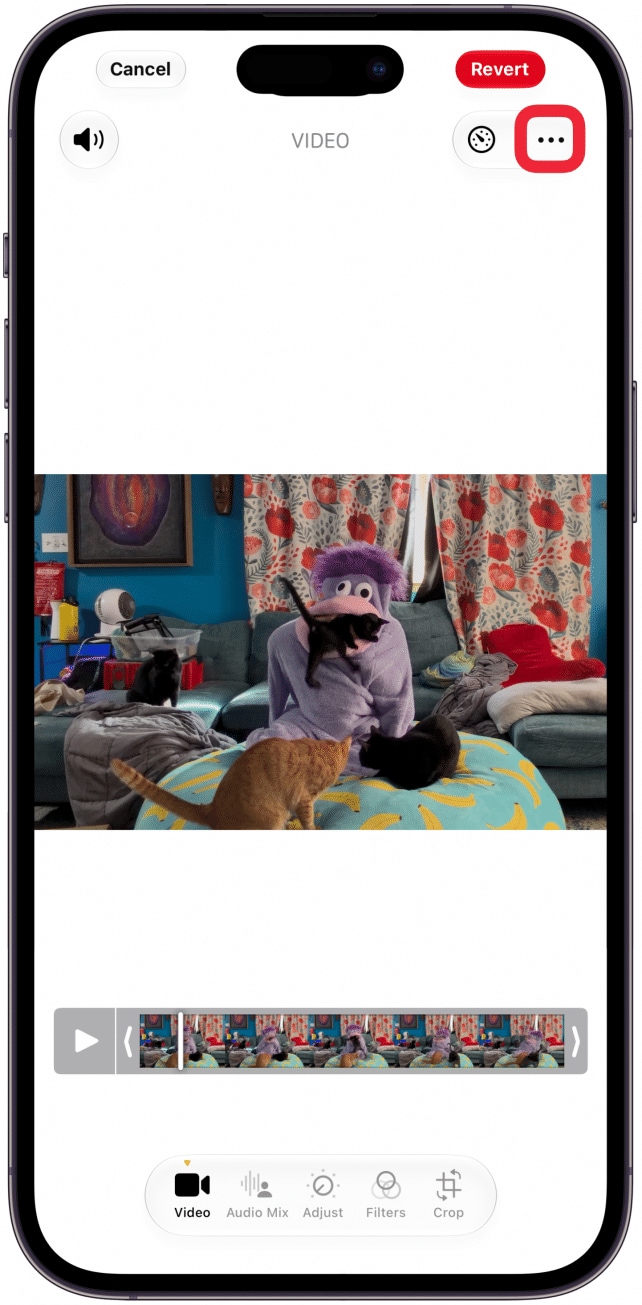
Tap More while viewing your selected frame. This example shows the edit interface. Image: iPhone Life. - Save the video frame. Tap Save Video Frame as Photo. Photos creates a separate photo in your library.
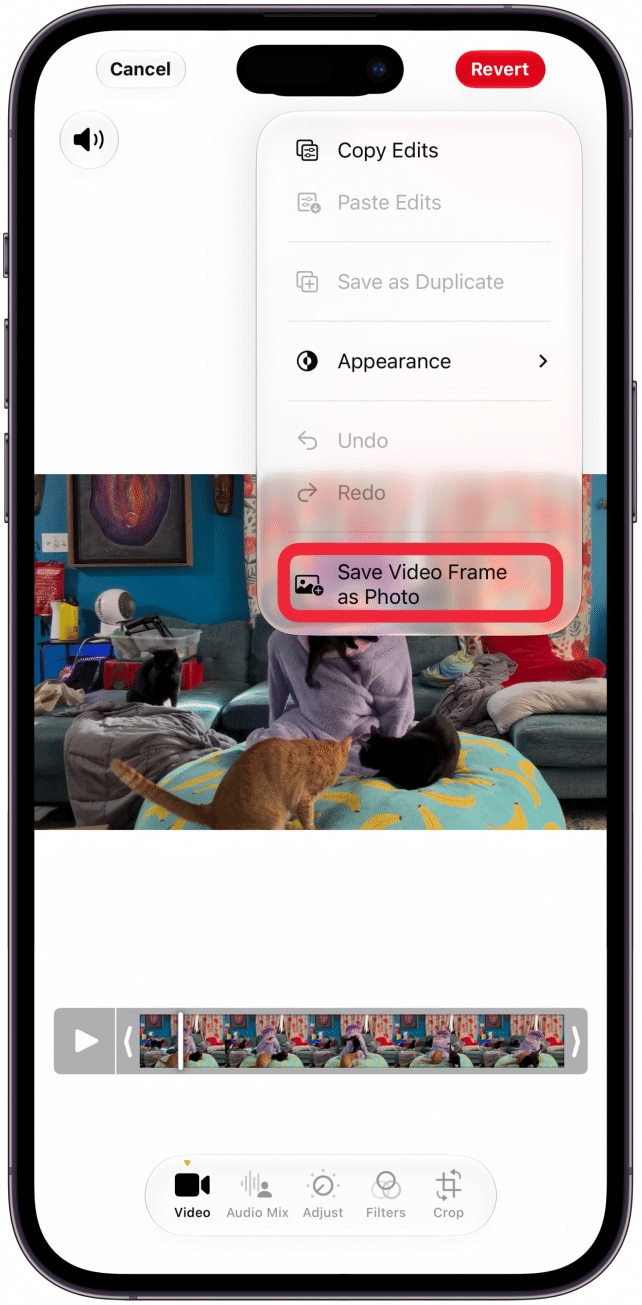
Choose Save Video Frame as Photo from the More menu. Image: iPhone Life. - Find the saved photo. Return to your photo library. When sorted by Added, check the bottom; when sorted by Captured, look next to the original video.
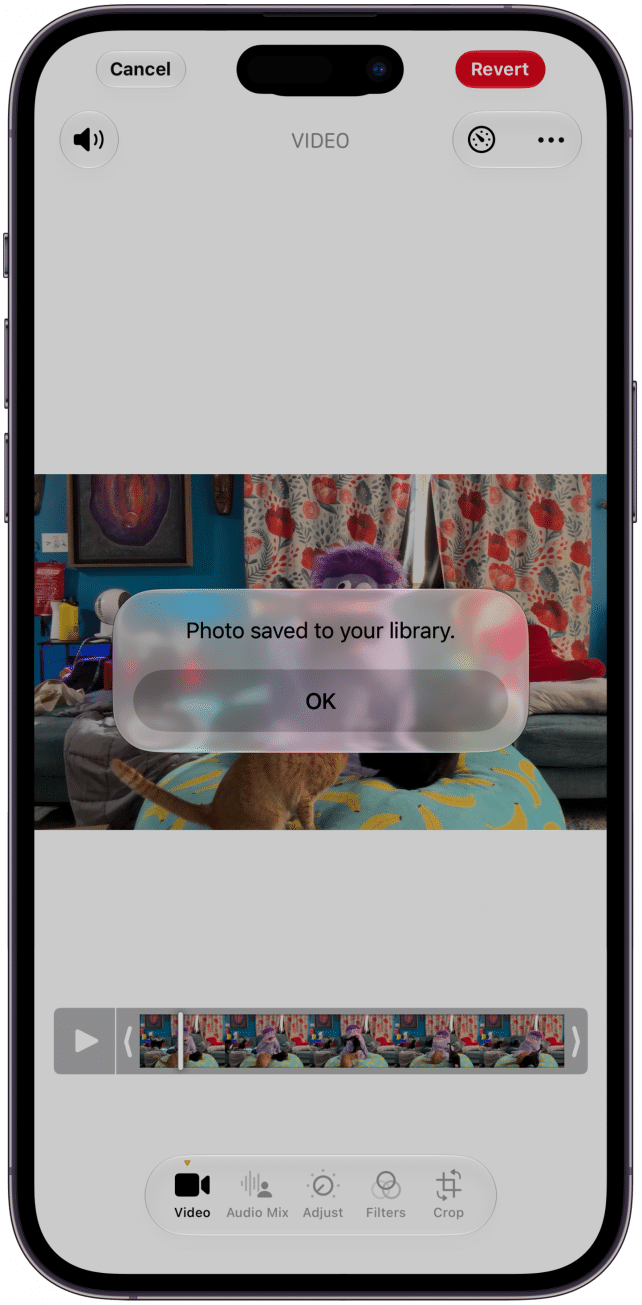
A confirmation indicates that the photo was saved; use the library sort order to locate it. Image: iPhone Life.
Get a Sharp Still From a Video
Move the playhead to a moment where the subject is in focus and motion has settled. If a hand or face looks smeared, select a nearby frame and compare. A still can reveal camera shake, missed focus, or compression already present in the original video.
To check the result, open the saved image and compare its pixel dimensions with the video’s dimensions using the available information panels. A larger output size or a different file extension does not recreate details missing from the source. Apple documents the save action but does not specify one universal exported resolution or HDR outcome for every clip.
Where the Saved Photo Goes
Apple says the new image goes into your photo library. If the library is sorted by Added, look at the bottom; if it is sorted by Captured, look next to the original video. Check the sort order before repeating the export.
Can’t Find “Save Video Frame as Photo”?
The menu is in Apple Photos while an actual video is open. A video that is still inside another app is a different viewing context; first save or import a permitted copy to Photos, then reopen it there.
| What you see | Check | Next action |
|---|---|---|
| No option in More | Are you viewing a video in Photos, paused on a frame? | Open the video in Photos, pause it, and inspect More again. |
| Older iOS | Go to Settings → General → About to check iOS version and model. | See whether your phone supports iOS 27; use the screenshot method if the option is unavailable. |
| Video is in Files or a messaging app | Is an authorized copy already in Photos? | Use the source’s available save or share option to add the video to Photos, then open it there. |
| Video will not open fully | Can Photos load and play it? Check connectivity if it is stored in iCloud. | Allow the item to load, then retry. Loading status alone does not prove why a menu is missing. |
| Photo seems missing | Check the library sort order. | Find it at the bottom for Added, or beside the video for Captured. |
Take a Screenshot From a Video on iPhone
Pause the video on the moment you want. On an iPhone with Face ID, press the side button and volume up together; with Touch ID and a side button, press the side button and Home. Quickly release both. Crop the image if player controls or black borders appear, then save it to Photos. Apple also documents the top-button combination for older Home-button models in its screenshot guide.
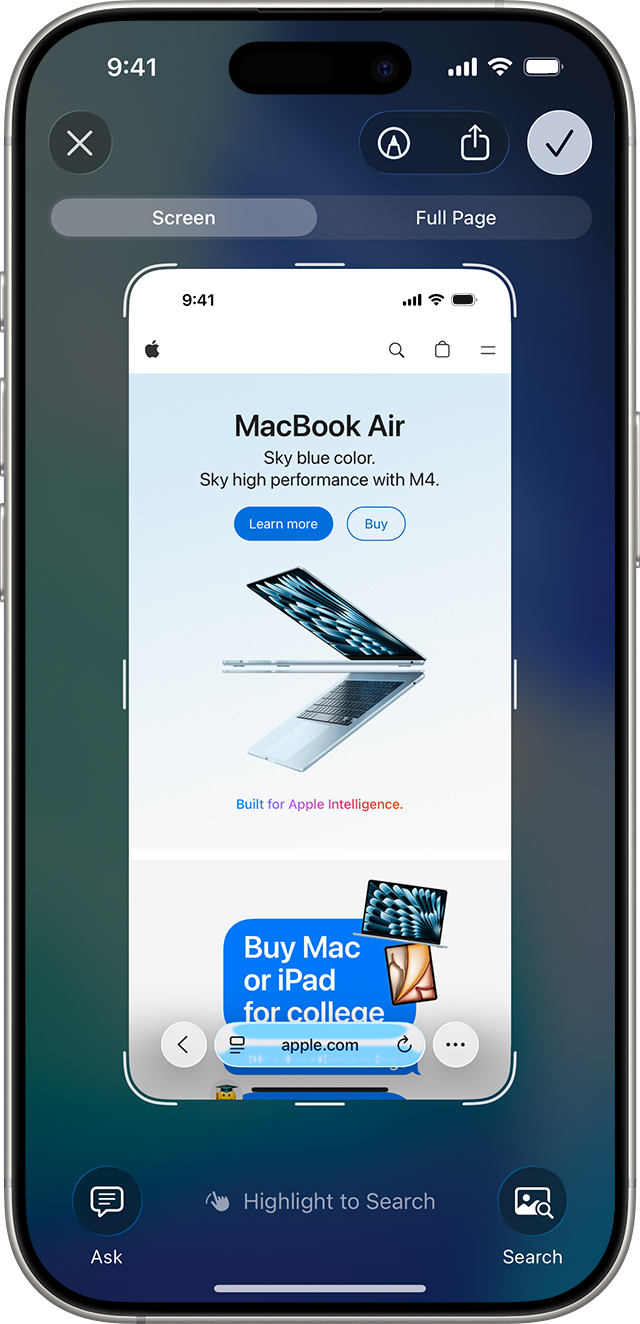
Screenshot pixels reflect what was displayed on the screen; inspect the result if you need a particular size for print or editing.
Extract a Specific Frame or Multiple Frames
For one or two extra moments, return to Photos and repeat the native save action. If you need a run of consecutive stills for motion analysis or editing, an image sequence is a more suitable computer workflow.
Transfer an authorized copy of the iPhone video to a Windows PC or Mac. In Wondershare UniConverter, Converter offers JPG and PNG image-sequence output. This creates multiple image files from the video, so choose this method when you need more than one still.
- Open Converter and add the video. Launch UniConverter on Windows or Mac, select Converter, and use Add Files to import the copy.
- Choose JPG sequence or PNG sequence. Open the output format list, select the Image category, and choose an available sequence format and quality.
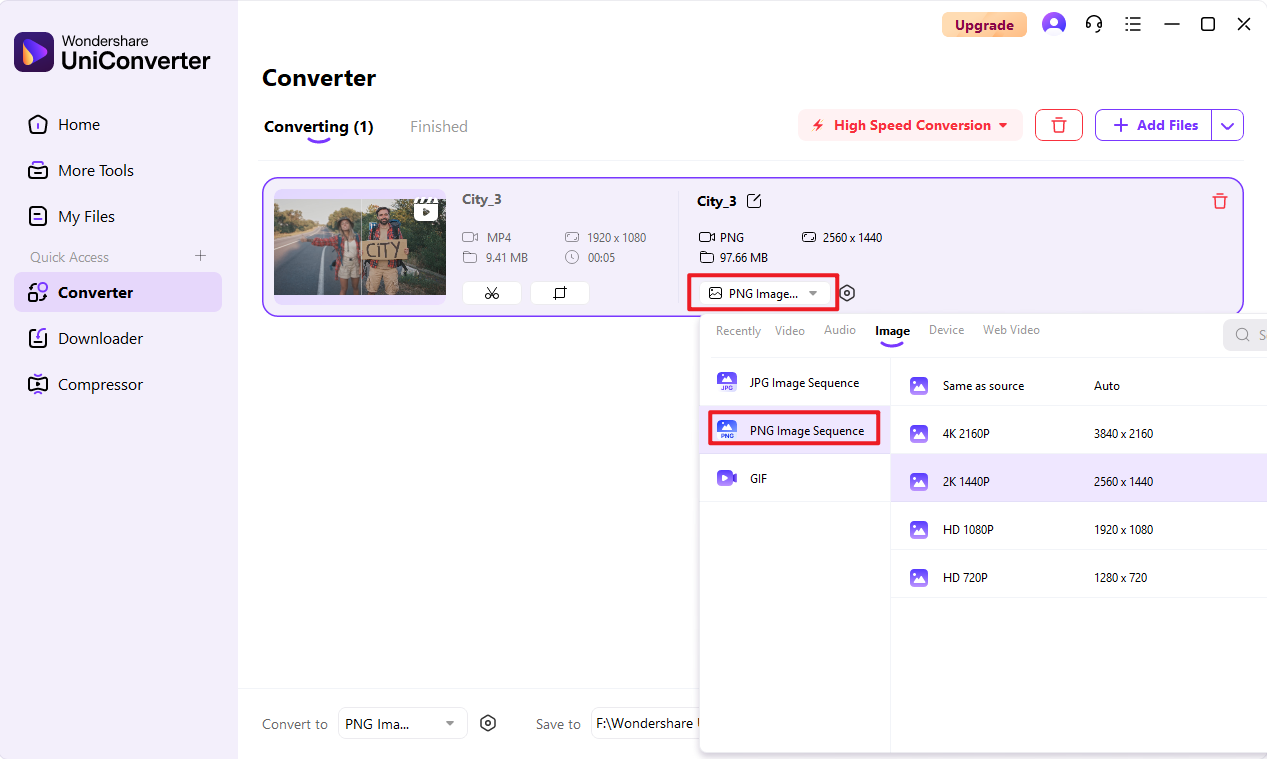
UniConverter’s Windows guide illustrates selecting an image-sequence format. The computer workflow is separate from iPhone Photos. - Convert and inspect the result. Choose Save to, select Convert All, then open Finished and inspect the resulting images.
See the Windows image-sequence guide or Mac image-sequence guide for the full workflow. If you only need one photo, the Photos method above avoids generating a folder of images.
For more on the difference between one still and a sequence, read how to convert video to images and how to make a PNG image sequence.
iPhone Models and iOS Versions That Support Frame Saving
Apple lists iPhone 11 models and later supported models, plus iPhone SE (2nd and 3rd generation), in its iOS 27 compatibility list. A compatible model and an installed iOS 27 release are separate checks: open Settings → General → About to see the model and version, then use Software Update to see available updates.
Apple’s iOS 27 guide describes the native frame-saving command. If your iPhone cannot run that version or the action is unavailable, use a screenshot or an appropriate frame-grabbing app.
FAQs About Taking a Photo From an iPhone Video
-
Can you take a photo from a video on iPhone?
Yes. On iOS 27, open the video in Photos, pause at the desired frame, tap More, and choose Save Video Frame as Photo. You can also capture the displayed frame as a screenshot.
-
How do I save a still from a video without a screenshot?
In the iOS 27 Photos app, open and pause the video, tap More, and select Save Video Frame as Photo. If the option is unavailable, an iPhone frame-grabbing app is another way to extract a still.
-
Does iPhone 11 support saving a video frame as a photo?
Apple lists iPhone 11 among the iPhone models compatible with iOS 27, and Apple documents Save Video Frame as Photo in its iOS 27 guide. Install a compatible iOS 27 release and open the video in Photos to use the documented workflow.
-
Why can’t I find the saved photo?
In Photos, check the library sort order. Apple says a saved video frame appears at the bottom when sorted by Added and next to the original video when sorted by Captured.
-
Why is the image from my iPhone video blurry or darker?
A selected frame can contain motion blur, missed focus, or compression from the source video. Choose a nearby sharper moment and compare the saved photo with the original video; differences in display or sharing can also require separate investigation.
-
Can I take a photo while recording video on iPhone?
In iPhone Camera video mode, the white shutter button can capture a still while recording on supported devices. This creates a photo during recording; it is a different task from extracting a frame afterward.
-
Can I save a frame from a WhatsApp or TikTok video?
If you have permission to save the video and the app provides a way to save it to Photos, open that saved video in Photos and follow the frame-saving steps. Availability of saving controls depends on the source and the app.
-
Can I extract several consecutive frames from an iPhone video?
For a few moments, repeat the frame-saving action. For a sequence, use a verified frame-extraction app or transfer the video to a computer and export an image sequence.
-
Can I save a video frame as a photo on iPad or Mac?
Apple documents Save Video Frame as Photo in iPad Photos. On a Mac, an image-sequence workflow or a compatible video player can provide another way to work with frames; check the selected app’s current controls.
-
Is a video still the same as a Live Photo?
No. A still is a single image, while a Live Photo contains a short moving moment. Saving a video frame as a photo does not itself create a Live Photo.
For the related moving-photo format, see how to turn a video into a Live Photo. A Live Photo and a single extracted still are different outputs.