A happy birthday cat GIF can turn a simple greeting into something more personal. Whether you are messaging a close friend, replying in a group chat, or sharing a birthday post, a quick cat reaction adds warmth or a little humor. From a curious kitten to a dramatic party cat, the right GIF helps your wish feel made for the person receiving it.
If none of the ready-made GIFs feels quite right, you can make one from a video clip you already have. With Wondershare UniConverter, you can choose the part of a video you want to keep, set the Output Size and Frame Rate, and save it as a GIF. In this guide, you'll find birthday cat styles to share, places to find more GIFs, and steps to make your own.
In this article
Part 1. Why Happy Birthday Cat GIFs Are Easy to Share
Cats have a way of making a small moment memorable. A kitten beside a cake feels sweet, a wide-eyed reaction can make a joke land, and a dancing cat brings energy to a birthday post. Because GIFs are quick to watch and easy to send, they work especially well in chats and social feeds when you want your greeting to feel a little more personal.
For a close friend: send a funny or dramatic cat reaction that fits your shared sense of humor.
For family: choose a cute kitten or a simple cake-side greeting for a warm, cheerful message.
For a group celebration: try dancing cats or several cats gathered around one cake to set a festive tone.
Part 2. 7 Happy Birthday Cat GIFs Worth Sharing
There isn't one birthday cat GIF that suits everyone. Pick a style that matches the person you're sending it to—sweet, silly, energetic, or a little dramatic. Here are seven ideas to get you started.
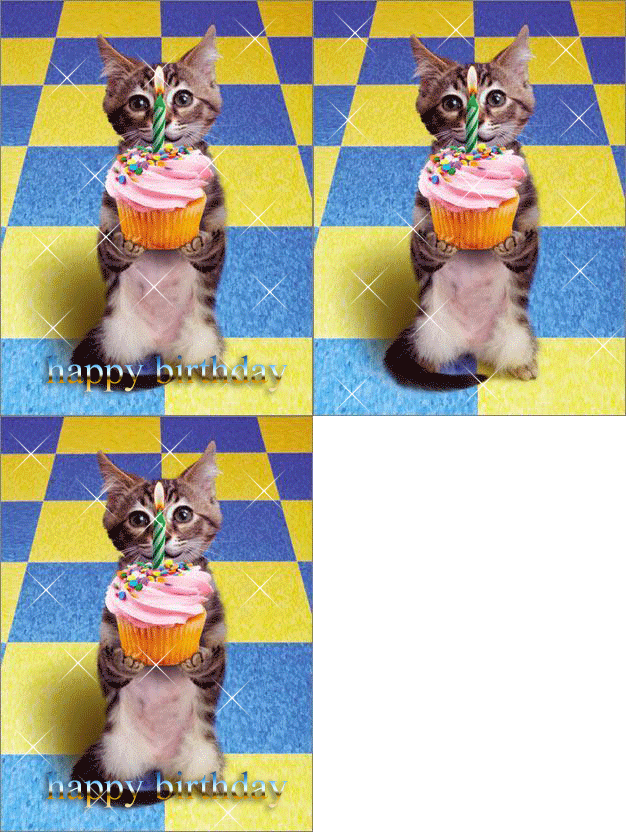
1. Cute Birthday Kitten
A tiny kitten holds a birthday cupcake against a bright, playful backdrop. This sweet design is a lovely choice for a friend or family member who enjoys cute cat greetings.
2. Funny Birthday Cat
A fluffy cat appears beneath a shower of birthday sparkles, with a surprised expression that gives the greeting a playful, over-the-top feel. Send it to a friend who enjoys silly reactions.
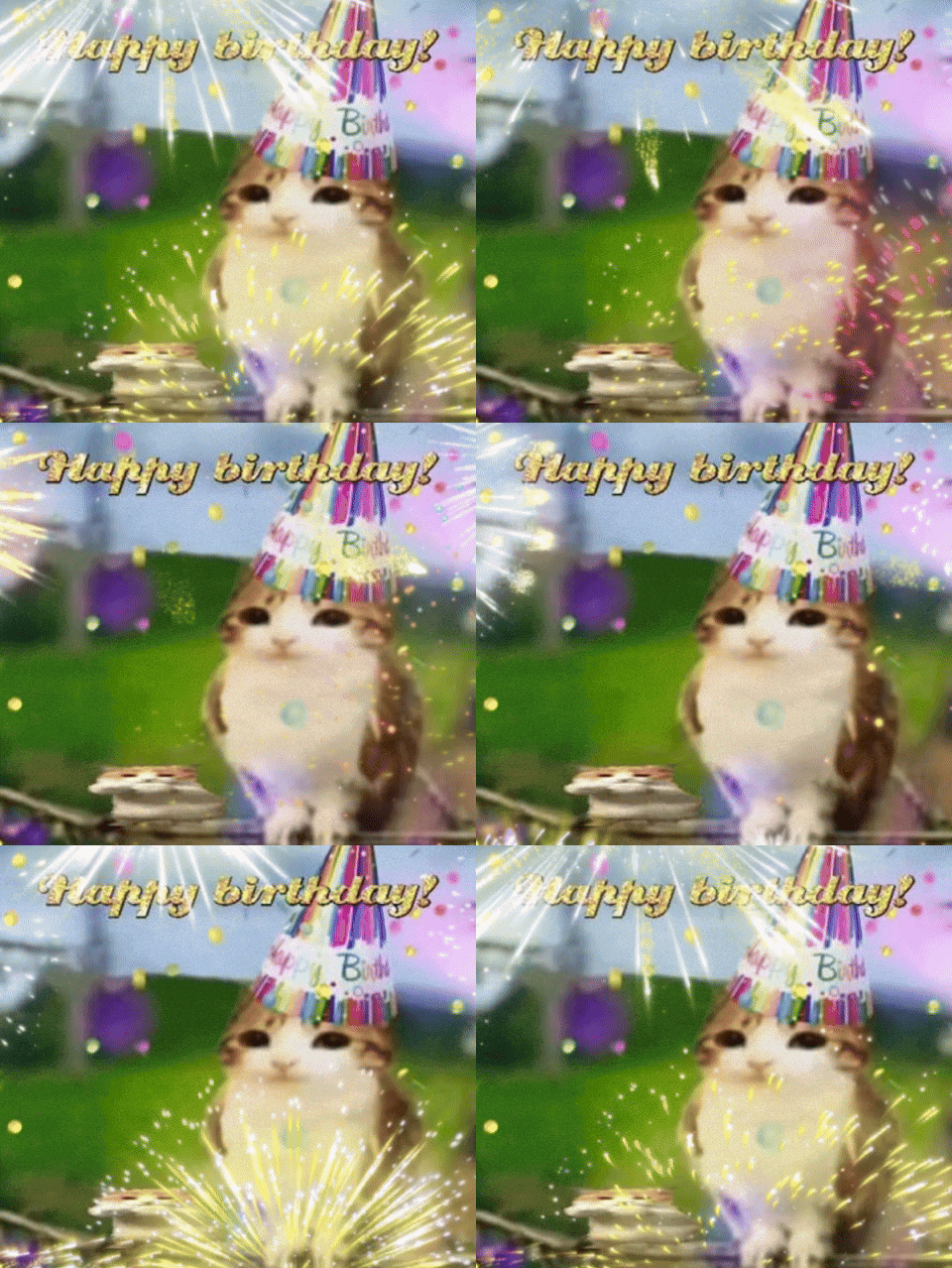
3. Dancing Birthday Cat
A black cat dances with its paws raised at a colorful birthday party. Choose this lively GIF when a plain text message feels a little too quiet.
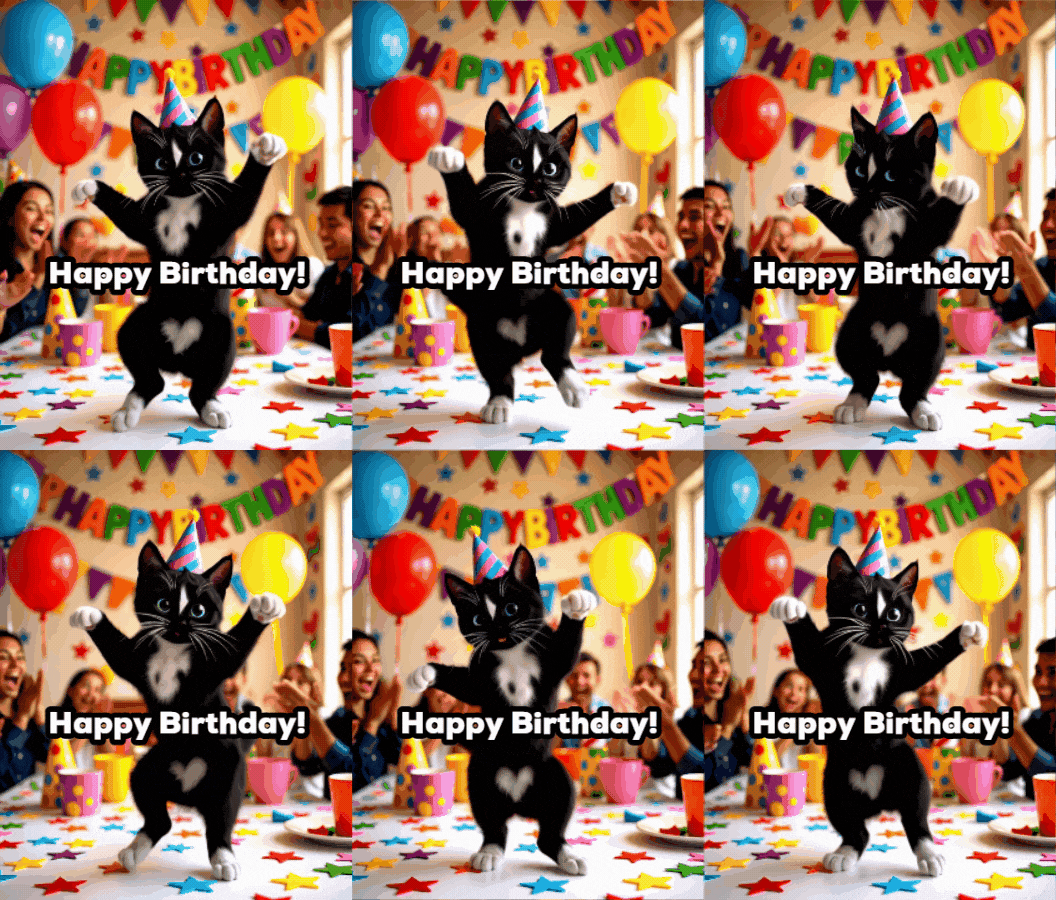
4. Singing Birthday Cat
A row of cats appears beneath a colorful “Happy Birthday to You” greeting, complete with musical notes. The GIF has no sound, but its singing theme makes it a fun visual birthday wish.
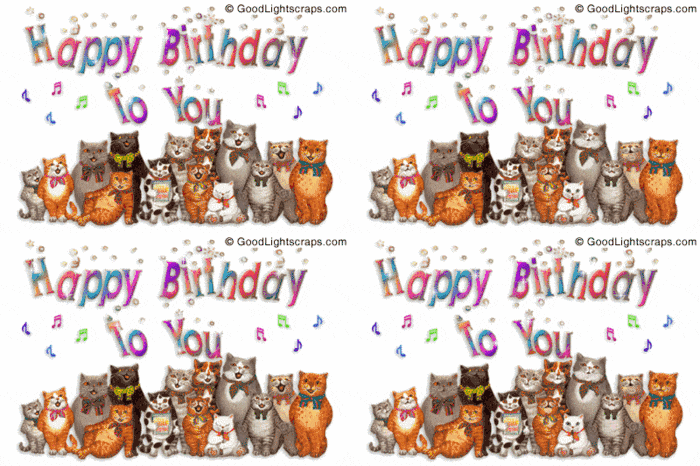
5. Birthday Cats Celebration
Three cats gather around a candlelit birthday cake, giving the image the feel of a shared celebration. It works well for friends, couples, siblings, or anyone celebrating with a group.
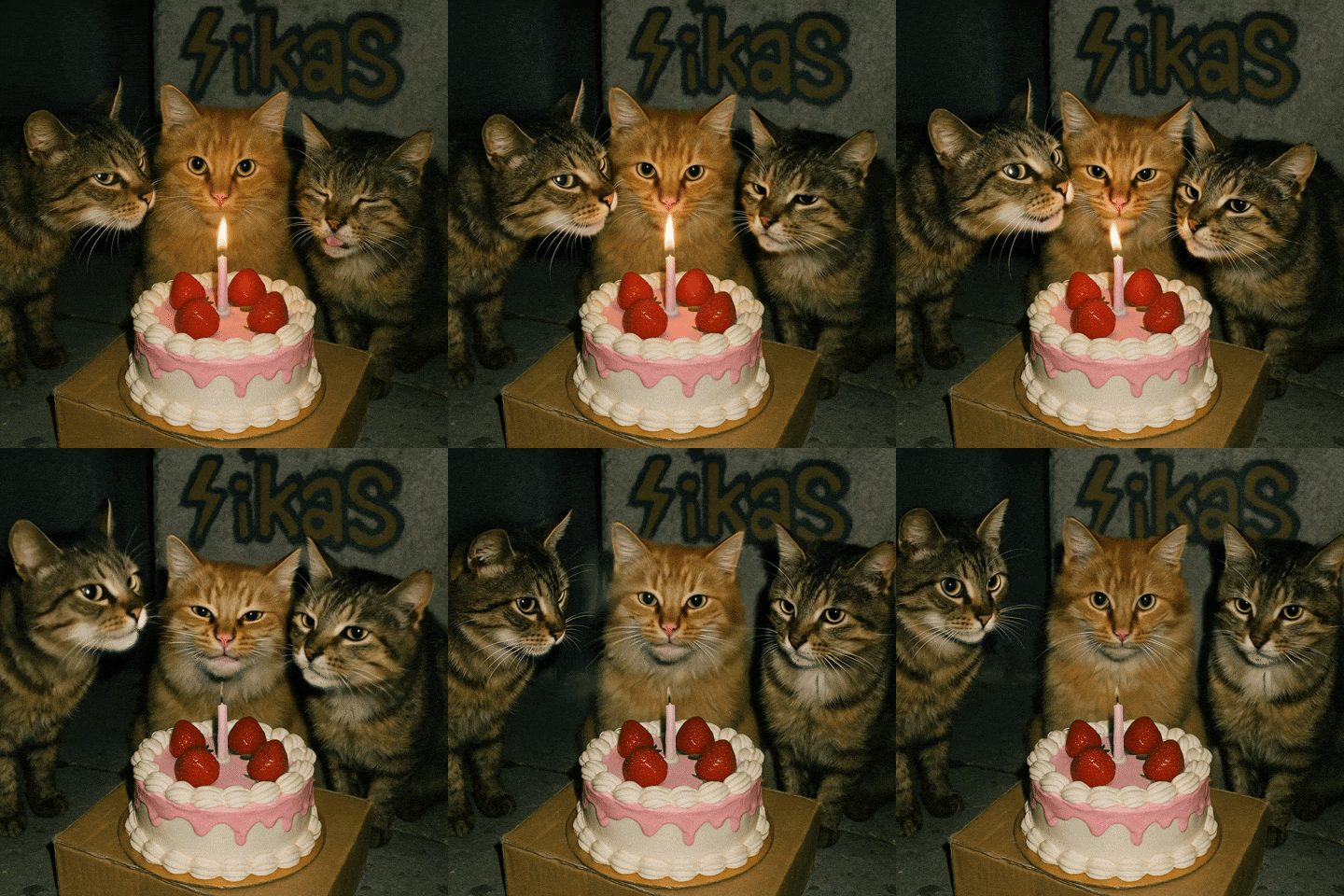
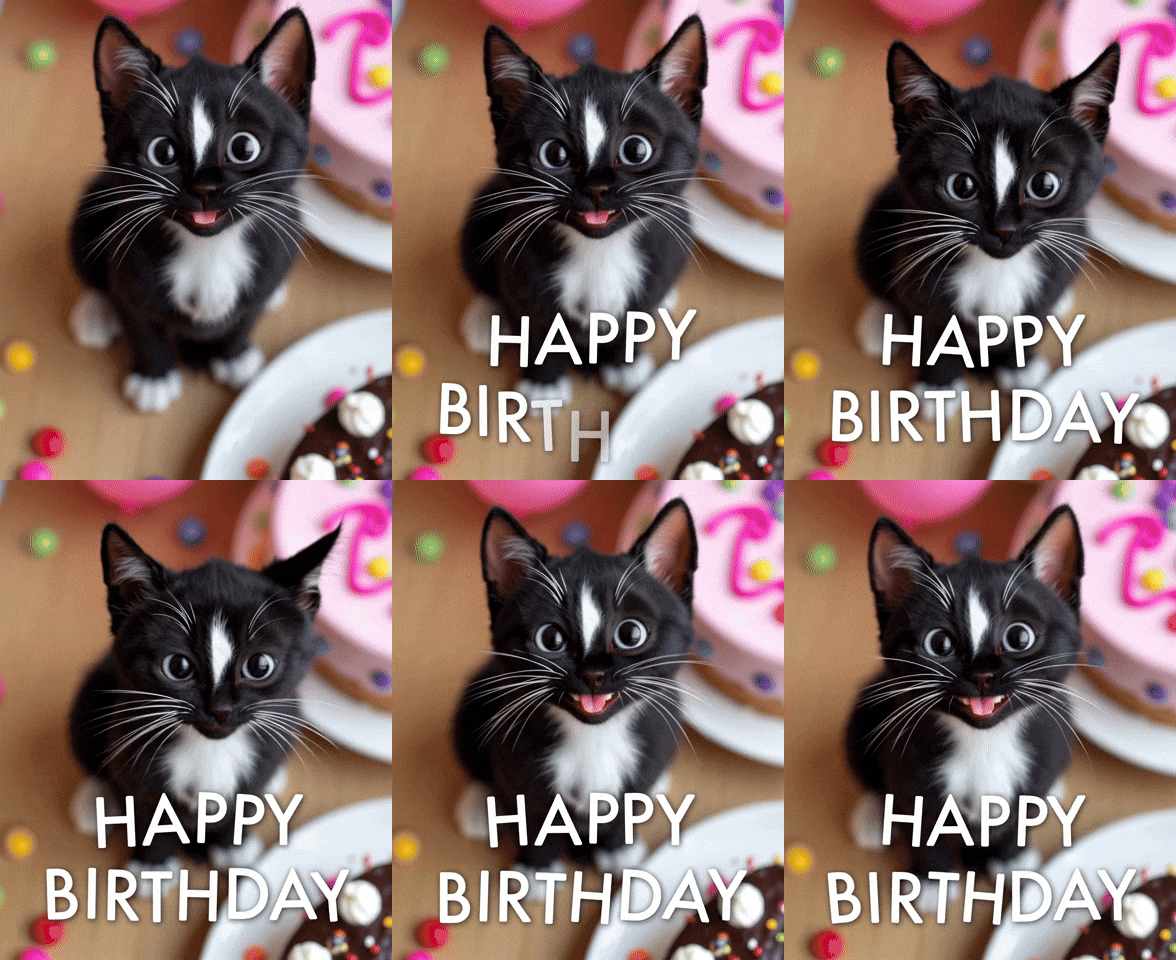
6. Black Cat Birthday
A wide-eyed black-and-white kitten looks straight at the camera beside a plate of birthday treats. The close-up makes a simple reaction GIF to pair with a short birthday message.
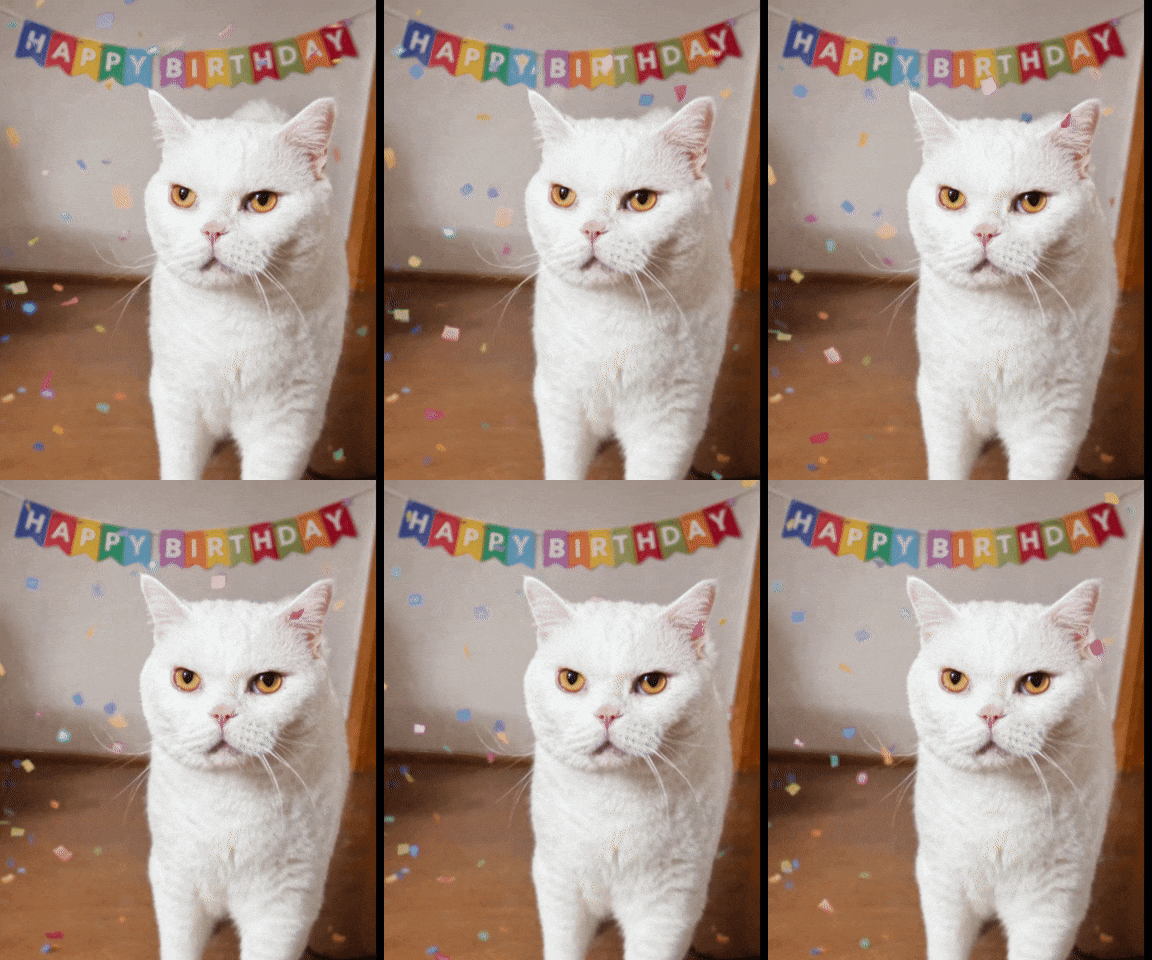
7. Birthday Surprise Cat
A white cat sits beneath a colorful birthday banner with a wonderfully unimpressed expression. It is a playful pick for someone who appreciates dry humor.
Part 3. Where to Find Happy Birthday Cat GIFs
Looking for a ready-made animation? Start with a GIF library or a social platform where people share short reactions and birthday greetings. Try a specific search such as “happy birthday cat GIF,” “funny birthday cat,” or “dancing cat birthday GIF” to narrow the results.
GIPHY: browse reaction GIFs, birthday greetings, and short cat animations.
Tenor: search for GIFs that are commonly shared in chats and messaging apps.
Pinterest: find birthday-card ideas and visual inspiration that may lead you to GIFs or other downloadable assets.
Before you reuse a GIF outside a private message, check where it came from and what the usage terms allow. A GIF appearing in search results is not automatically free to republish on a website or use in commercial content.
Part 4. How to Make Your Own Happy Birthday Cat GIF with UniConverter
A ready-made GIF is quick to send, but a short clip of your own cat, a friend's pet, or a birthday moment can make the greeting feel more personal. Open UniConverter GIF Maker to turn a video segment into a GIF. You can trim the moment you want, adjust the output size and frame rate, and save the result. If you prefer to use still images, Photos to GIF is available in the same window.
Step 1. Open GIF Maker
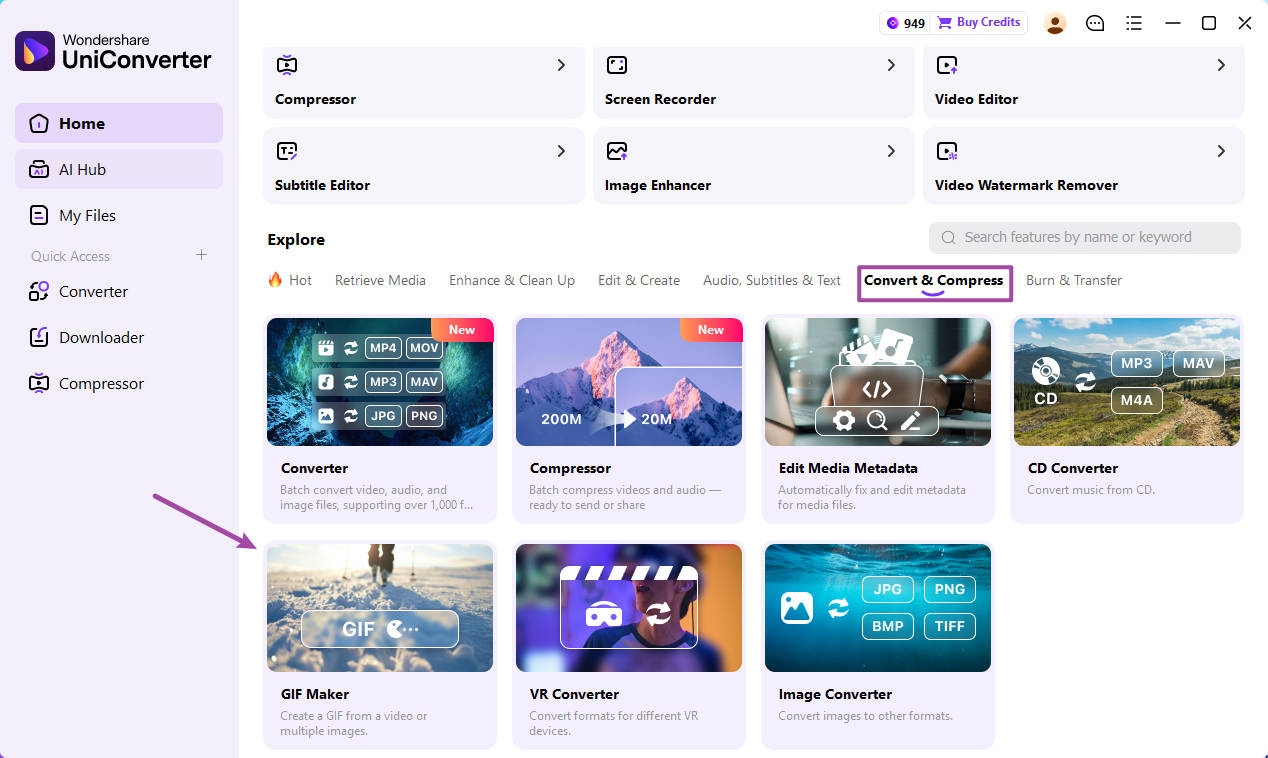
Open UniConverter on your computer. From the Home screen, go to Explore, select Convert & Compress, and choose GIF Maker. The GIF Maker window opens separately, ready for you to start a new project.
Step 2. Choose Video to GIF and Add Your Clip
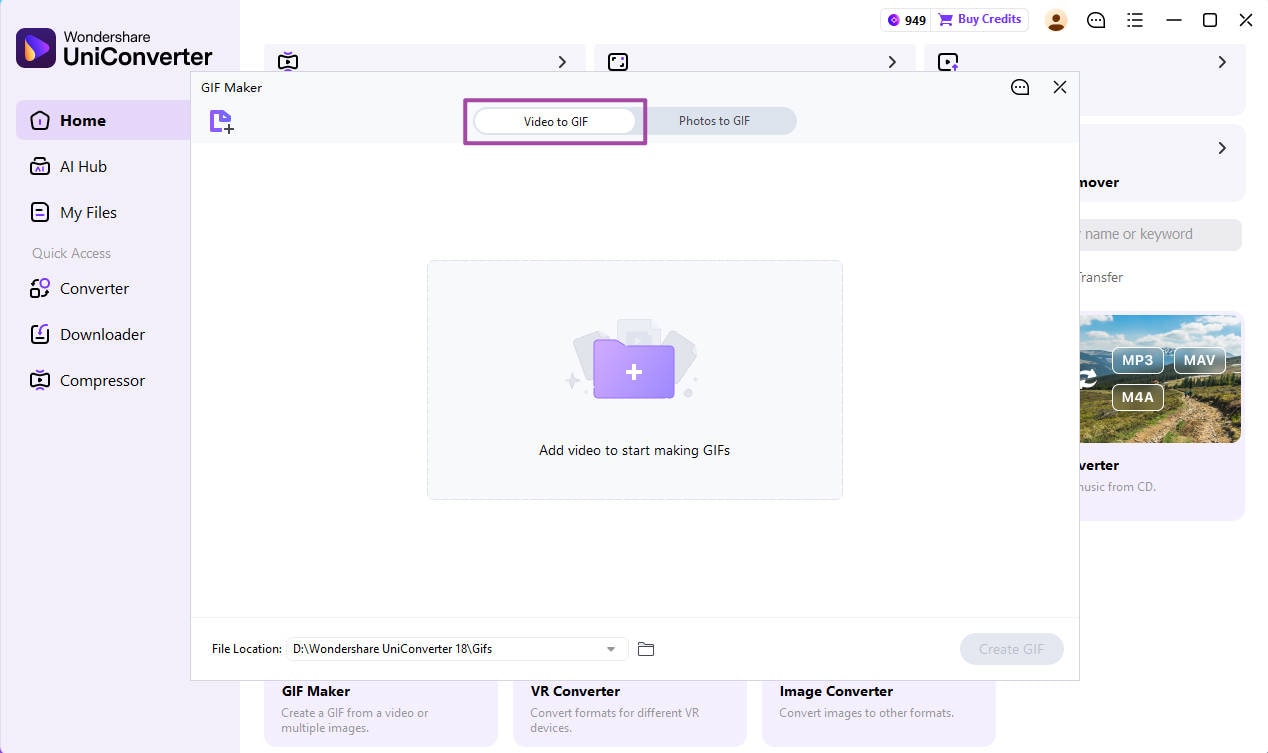
In the GIF Maker window, select Video to GIF, then add the video file you want to use. You can also switch to Photos to GIF if you would rather create an animation from several still images. For this walkthrough, stay with Video to GIF and load your video clip.
Step 3. Select the Clip, Adjust the Output, and Create the GIF
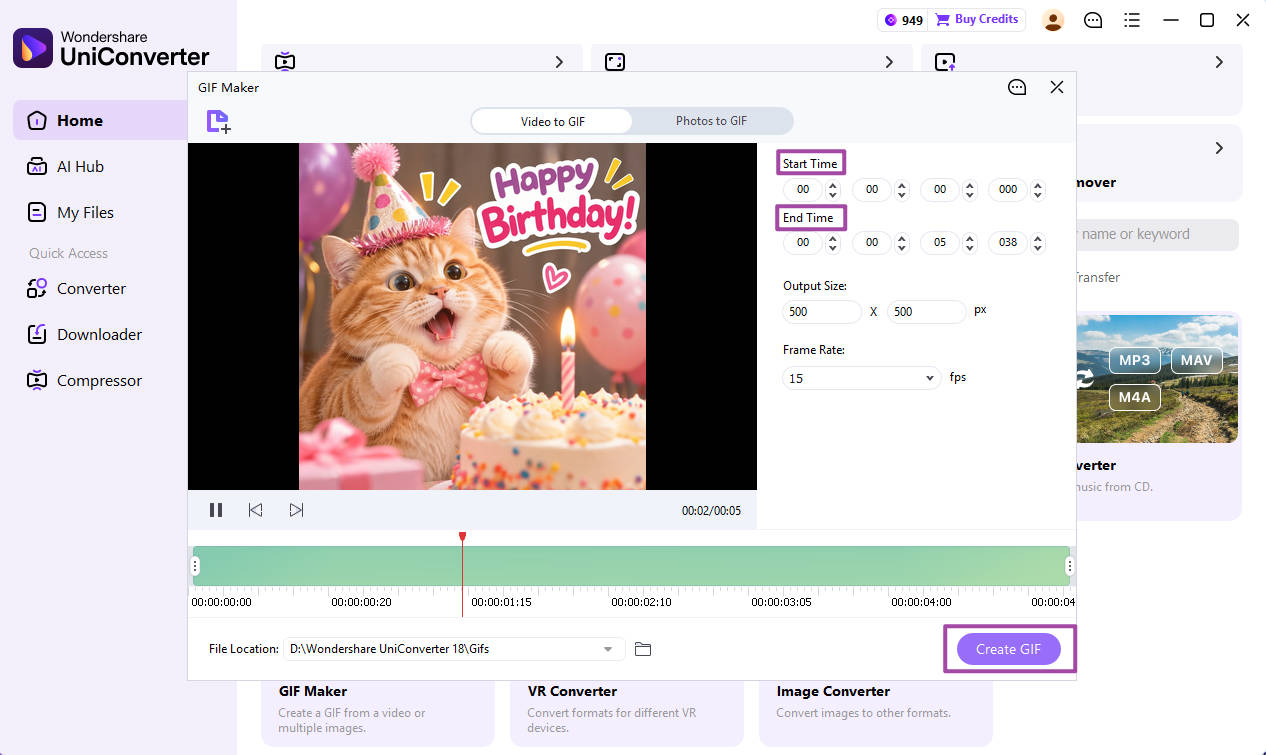
Once your video appears in the preview, set the Start Time and End Time to mark the section you want to keep. Enter the times directly or drag the handles on the timeline. Next, set the Output Size by entering the width and height in pixels, then choose a Frame Rate from the menu. Check the File Location at the bottom of the window, then click Create GIF when your settings are ready.
For example, the clip used here is just over five seconds long, with an Output Size of 500 × 500 px and a Frame Rate of 15 fps. Use these as starting points, not fixed rules. Choose dimensions that suit the video and where you plan to share the GIF, then preview the result before sending it.
Part 5. Tips for Making Birthday GIFs Easy to Share
- Keep the moment short. Trim pauses before or after the main action so the GIF gets to the point quickly.
- Choose a useful output size. A square format can work well in chats and social posts, but match the dimensions to the platform or placement you have in mind.
- Balance frame rate and file size. A higher frame rate can make motion look smoother, but it can also increase the file size. Preview the result before sharing.
- Look for a natural loop. Clips where the movement returns close to its starting position are easier to watch repeatedly.
- Keep text readable. If you add a birthday message in another editor, leave enough space around the subject and avoid covering the cat's face.
FAQs
-
1. How can you turn your own cat video into a birthday GIF?
Start with a video file you own or have permission to use. Open UniConverter Desktop and go to Home > Explore > Convert & Compress > GIF Maker. Choose Video to GIF, add your clip, and mark the section you want with Start Time and End Time. Set the Output Size and Frame Rate, then click Create GIF. For the full desktop workflow, visit UniConverter Video to GIF Converter.
-
2. Which moment in your cat video works best for a looping birthday GIF?
Look for one clear action that reads quickly, such as a blink, head tilt, paw wave, or funny reaction beside a cake. Trim away long pauses and end the clip once the action feels complete. A clip that finishes in a pose close to its opening frame often makes a smoother loop.
-
3. Can you make a happy birthday cat GIF from photos instead of a video?
Yes. Open GIF Maker, switch to Photos to GIF, and add the still images you want to animate. For a smoother sequence, choose photos with similar framing and lighting. Arrange them in an order that tells a small story—for example, a party hat, a cake reveal, and a final birthday greeting.
-
4. What GIF size and frame rate should you use for the platform where you want to share it?
The right settings depend on where you plan to share the GIF. Check the platform's current upload requirements first, then enter the width and height under Output Size and choose a Frame Rate in GIF Maker.
-
5. Can you download a YouTube video with UniConverter and turn it into a GIF?
Yes. If the video link is supported and you have permission to download it, paste the link into UniConverter Downloader and save the video. Then open GIF Maker, select Video to GIF, adjust the clip and output settings, and click Create GIF.
Conclusion
A happy birthday cat GIF can make a greeting feel more personal without adding much effort. Choose a cute kitten for a warm message, a funny reaction for a close friend, or a dancing cat when you want something livelier. If you have a video clip you can use, UniConverter Desktop's GIF Maker lets you select a moment, adjust the Output Size and Frame Rate, and save it as a GIF.
When you are ready to make another kind of GIF or work with other media, explore UniConverter and choose the tool that fits your project.