


YouTube is one of the go-to video platforms for millions of internet users globally. This platform offers a wide range of video content, from educational videos to DIY videos, ASMR videos, motivational videos, music videos, and many more that you can access for free without limitations.
However, if you’re looking to extract an audio clip from a YouTube video, you might find it difficult.
To help you out, we’ve created this comprehensive guide explaining the ultimate ways to convert YouTube to MP3 with VLC open source tool and other powerful YouTube to MP3 converters.
In this article
Here are concise Key Takeaways for this section:
VLC can convert YouTube videos to MP3 using the Network Stream feature, but the process is multi-step and manual.
- You need to extract the video location URL before converting it into MP3 format.
- VLC is free and safe, but not ideal for beginners or bulk conversions.
- The second method (via video location) works well, especially for Mac users.
- For faster, easier, and batch conversion, tools like Wondershare UniConverter provide a more efficient solution.
Part 1: How to convert a YouTube video to MP3 in VLC using Open Network Stream
VLC offers a wide range of features that allow you to perform various editing tasks on your videos, and the “Network Stream” feature is one of them.
The network stream feature in VLC allows you to extract audio clips from your videos without compromising quality.
How to convert YouTube video to MP3 using VLC:
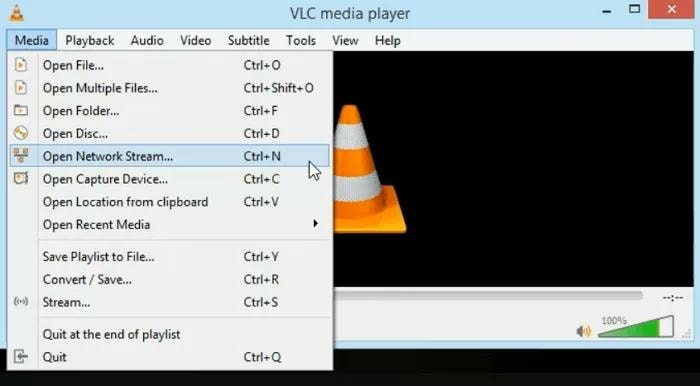
Step 1: Open VLC Media Player on your computer and click on “Media” in the menu bar. Then, select “Open Network Stream.”
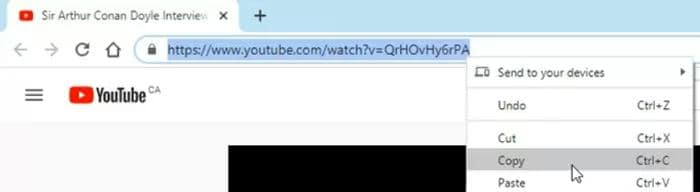
Step 2: Open “YouTube” in your browser and copy the URL of the video that you’d like to extract audio from.
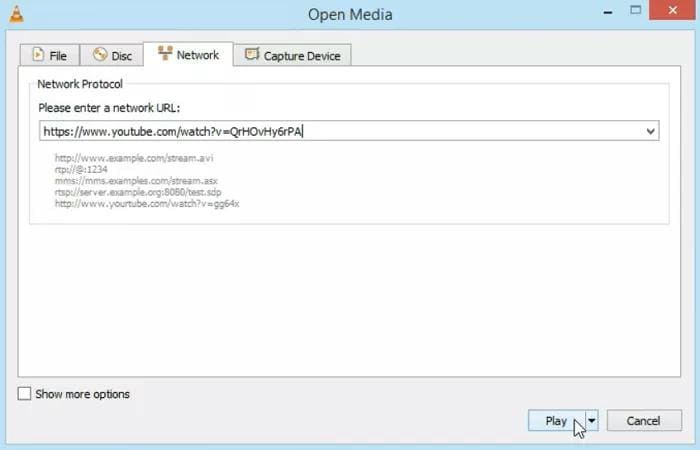
Step 3: Paste the copied URL into the blank field that says “Please enter a network URL.”
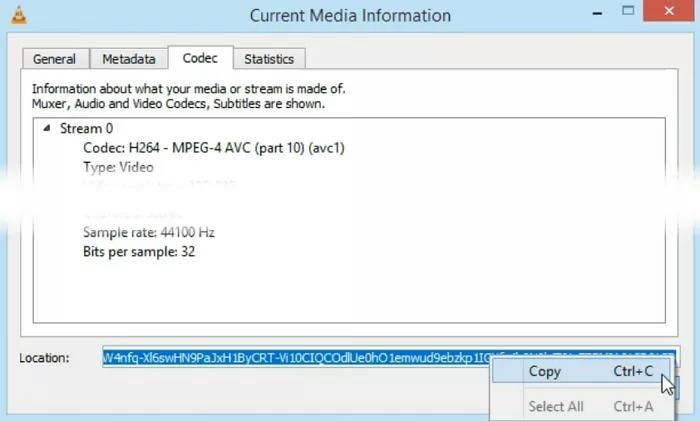
Step 4: Click “Play” at the bottom-right side to start streaming the video. Then, navigate to Tools > Codec Information.
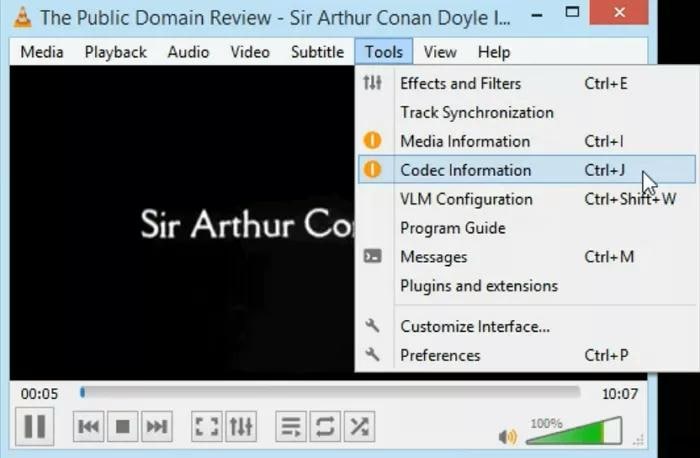
- Copy the “Location URL” from the bottom of the window.
Step 5: Navigate to “Open Network Stream” again using “Step 1” and paste the copied URL into the URL field.
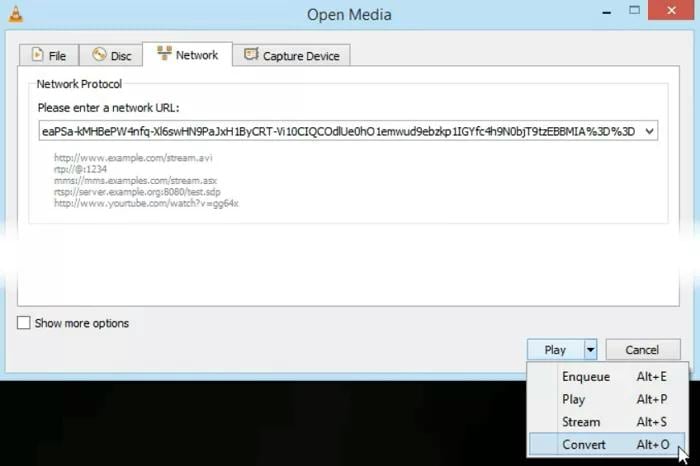
- Click the “Drop-down icon” next to “Play” at the bottom right side and select “Convert.”
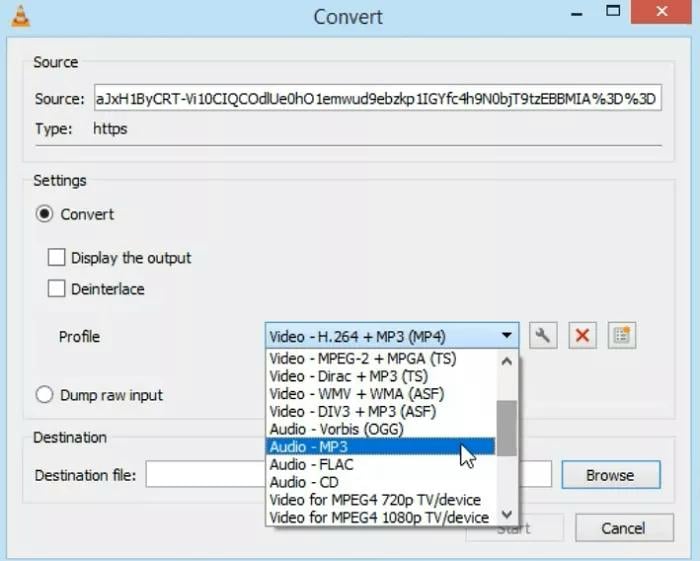
Step 6: In the new window that appears on your screen, navigate to the “Profile” section and select “Audio MP3” format.
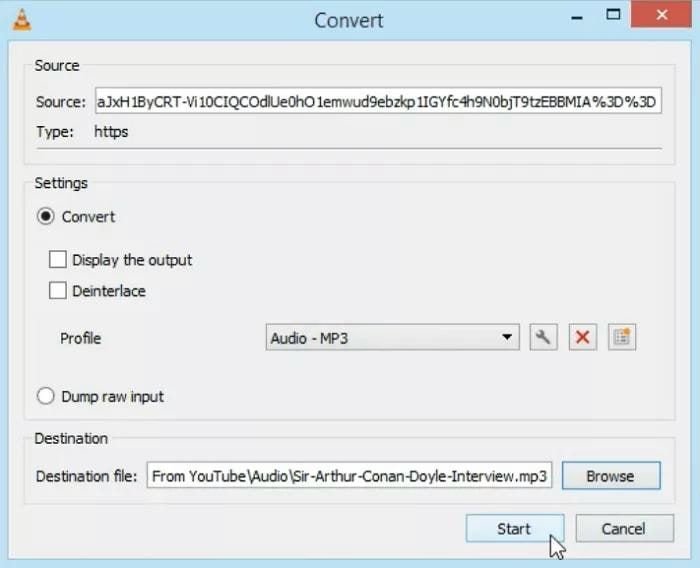
Step 6: Lastly, choose the destination to save the converted MP3 file, then click “Start” at the bottom right corner to start converting the YouTube video to MP3.
Part 2: How to save YouTube audio with VLC by copying the video location URL
Another way to download MP3 from YouTube with VLC is via video location, though you still need to access “Open Network Stream” for this operation. Also, this method is very efficient, especially for Mac users.
Step 1: Open the “VLC media player” on your Mac or PC.
Step 2: Click on “File” from the top bar and select “Open Network” > “Network” (for Mac) or “Open Network Stream” (for Windows)
Step 3: Copy and paste the “YouTube video URL” into the “URL field” and click on “Open.”
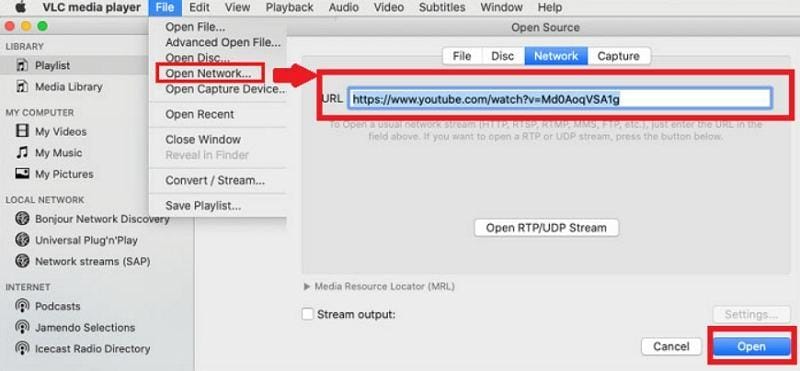
Step 4: Next select “Window” (for Mac) or “Tools” (for Windows) from the top menu. Then, choose “Media Information” and select “General” > “Location” and copy the video’s location address.
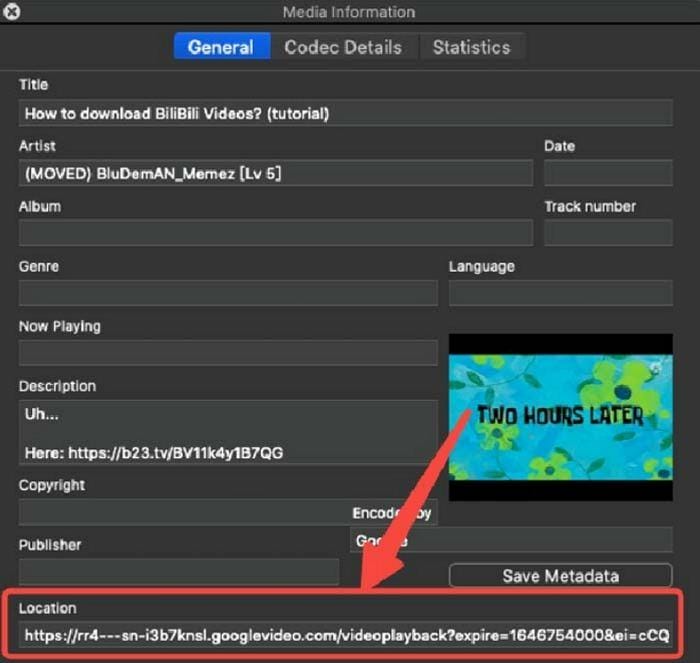
Step 5: Open your web browser and paste the copied URL into the browser. Right-click the video and choose `Save Video As` to save it on your Mac.
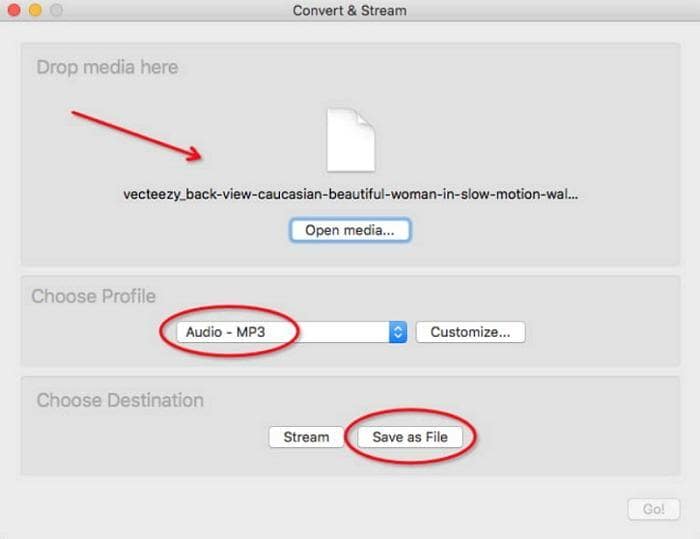
Step 6: Navigate back to “VLC” and choose “File” > “Convert/Stream” (for Mac) or “Media “ > “Convert/Save” (for Windows), and drag and drop the video you just downloaded here. Head to “Choose Profile” and select “Audio - MP3.” Then, click on “Save as File” to save the MP3 version of the YouTube video.
Part 3: Convert YouTube Video to MP3 with One-Click
While VLC offers a free method to convert YouTube videos to MP3, the process requires extra steps and it’s not efficient for converting multiple YouTube videos to MP3. If you’re looking to convert bulk YouTube videos to MP3, you need more reliable software like Wondershare Uniconverter.
Wondershare Uniconverter is a powerful YouTube audio extractor that offers a wide range of tools, including YouTube to MP3 converter. And the best part? It supports other audio formats besides MP3, such as converting YouTube to WAV, FLAC, and many others.
Also, this tool retains the original quality of your audio clip, and you can use it to perform other tasks like video editing, video compression, etc.

All-in-One Video Converter
Here is how to use Uniconverter to convert YouTube videos to MP3:
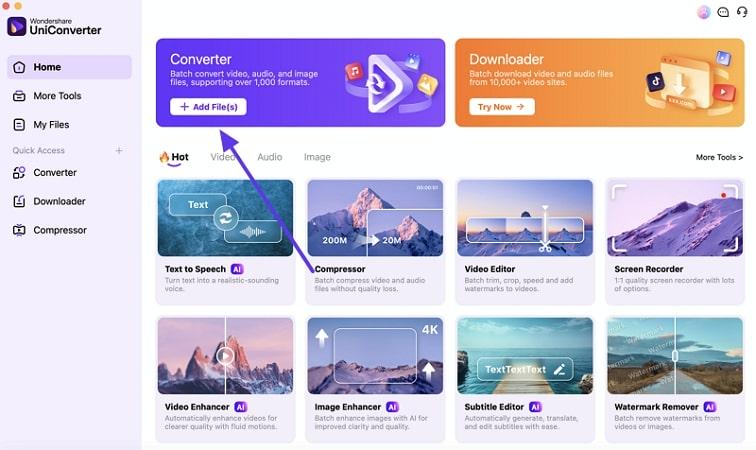
Step 1: Upon downloading the Uniconverter software on your Mac or PC, click on the “+ Add File(s)” button under the “Converter” and import the downloaded YouTube video file that you want to convert to MP3.
Step 2: After importing the video, navigate to the “Video Formats” drop-down menu next to the “Gear icon” and select “MP3” as the desired file format under the “Audio” section.
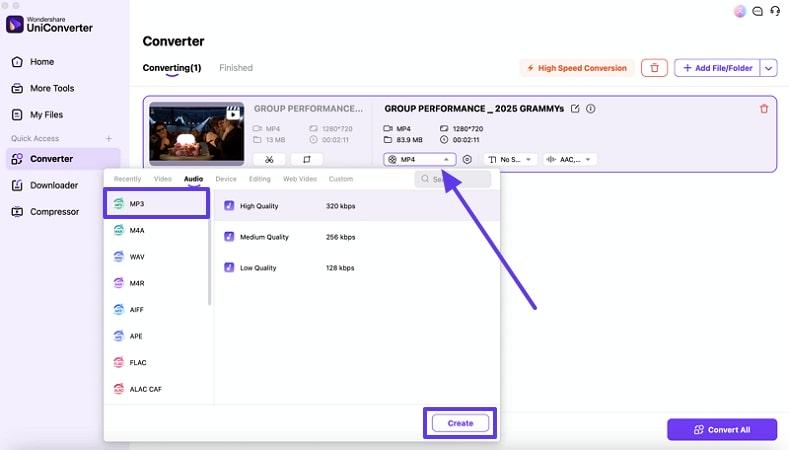
- You can also customize the output quality according to your preference. Then, hit the “Create” button to proceed.
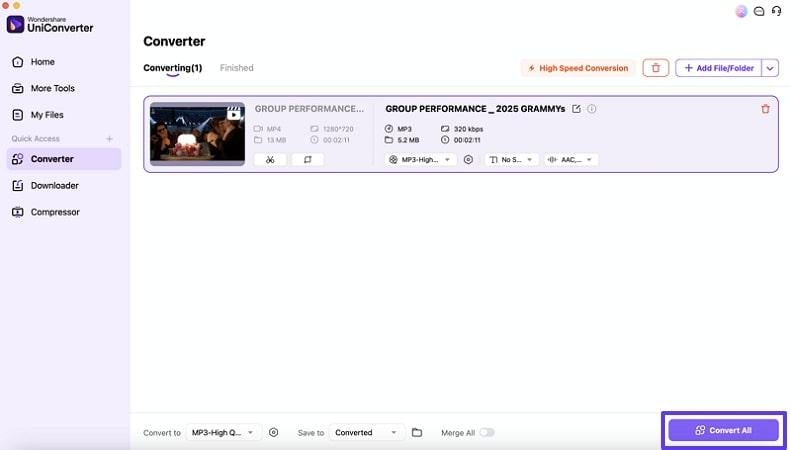
Step 3: Finally, hit the “Convert All” button and wait for the Uniconverter to process the video. Then, save the MP3 file to your computer.
FAQs about VLC YouTube to MP3
-
1. How to convert YouTube to MP3 in VLC?
You can use VLC’s “Open Network Stream” feature to load a video URL and then convert it to MP3 using the Convert/Save option. This method allows basic audio extraction without additional software. -
2. What is the safest YouTube to MP3 converter?
Safe converters are typically well-known desktop tools from trusted developers. They offer stable performance, better privacy protection, and fewer risks compared to unknown online tools. -
3. Can I legally convert a YouTube video to MP3?
Legality depends on YouTube’s terms of service and your local copyright laws. To stay compliant, only convert content you own or have permission to use, or use official offline features where available. -
4. Can I change the audio quality of the MP3 in VLC?
Yes. When selecting the MP3 profile in VLC, you can edit settings such as bitrate, channels, and sample rate to adjust the output quality and file size. -
5. What MP3 bitrate should I choose when converting YouTube to MP3 in VLC?
For basic listening or speech, 128 kbps is usually sufficient. For better music quality, 192 kbps to 320 kbps is recommended, though it will result in larger file sizes.
Conclusion
While the process of converting YouTube to MP3 with VLC involves extracting the video stream and manually converting it, the tool offers a free, secure, and reliable alternative to online converters. However, for users looking for a faster and more efficient method to convert bulk YouTube videos to MP3, the Wondershare Uniconverter software is the best tool for your needs. It ensures high-quality audio when converting YouTube videos to MP3.

