


You've found the perfect GIF. It's hilarious, timely, and captures your reaction perfectly. You paste it into your Discord chat, hit enter, and "Upload failed: File is too large." This frustrating error is the bane of many Discord users. With the standard free Discord GIF size limit capped at a tiny 8MB, most high-quality GIFs you find online won't make the cut. This is where a good GIF compressor for Discord becomes essential. This ultimate 2025 guide will show you exactly how to compress and resize GIFs on any device, so you can share, react, and build your server without limits.
Table of Contents
Part 1. Understanding Discord GIF Requirements
What are Discord's GIF size limits?
- File Size (Chat): The most common barrier.
- Free Users: 8MB
- Nitro Classic Users: 50MB
- Nitro Users: 100MB
- Note: As this guide is for everyone, we will focus on the 8 MB limit, as it's the one most users must overcome with a Discord GIF compressor.
Dimensions for Emojis:
- Static Emojis: 32x32 pixels minimum, but Discord will resize them.
- Animated Emojis: Must be 128x128 pixels.
- Emoji File Size: Regardless of dimensions, all emoji uploads (static or animated) must be under 256KB. This often requires both a GIF resizer Discord tool and a GIF compressor for Discord emoji tool.
Dimensions for Profile Pictures/Avatar:
- Minimum: 128x128 pixels.
- Recommended: You can upload a larger image (like 512x512) and Discord will resize it. Animated avatars require a Nitro subscription.
Why do you need a GIF compressor for Discord?
- To share GIFs from the web without Nitro: The most common reason. You find a 15MB GIF and need to shrink it under 8MB to share in chat.
- To create custom server emojis: This is the most demanding task. You must use a GIF compressor for Discord emoji to get your 128x128 animated GIF under the 256KB limit, which requires aggressive optimization.
- To use a custom animated avatar: If you have Nitro, you can upload an animated GIF as your avatar. However, it still needs to be a reasonable file size to load quickly, so compressing it is good practice.

Easy to Use Discord GIF Resizer
Part 2. How to Compress GIFs for Discord With Online GIF Compressor
For most users, an online tool is the fastest and easiest solution. You don't need to download any software, and the process takes just a few clicks.
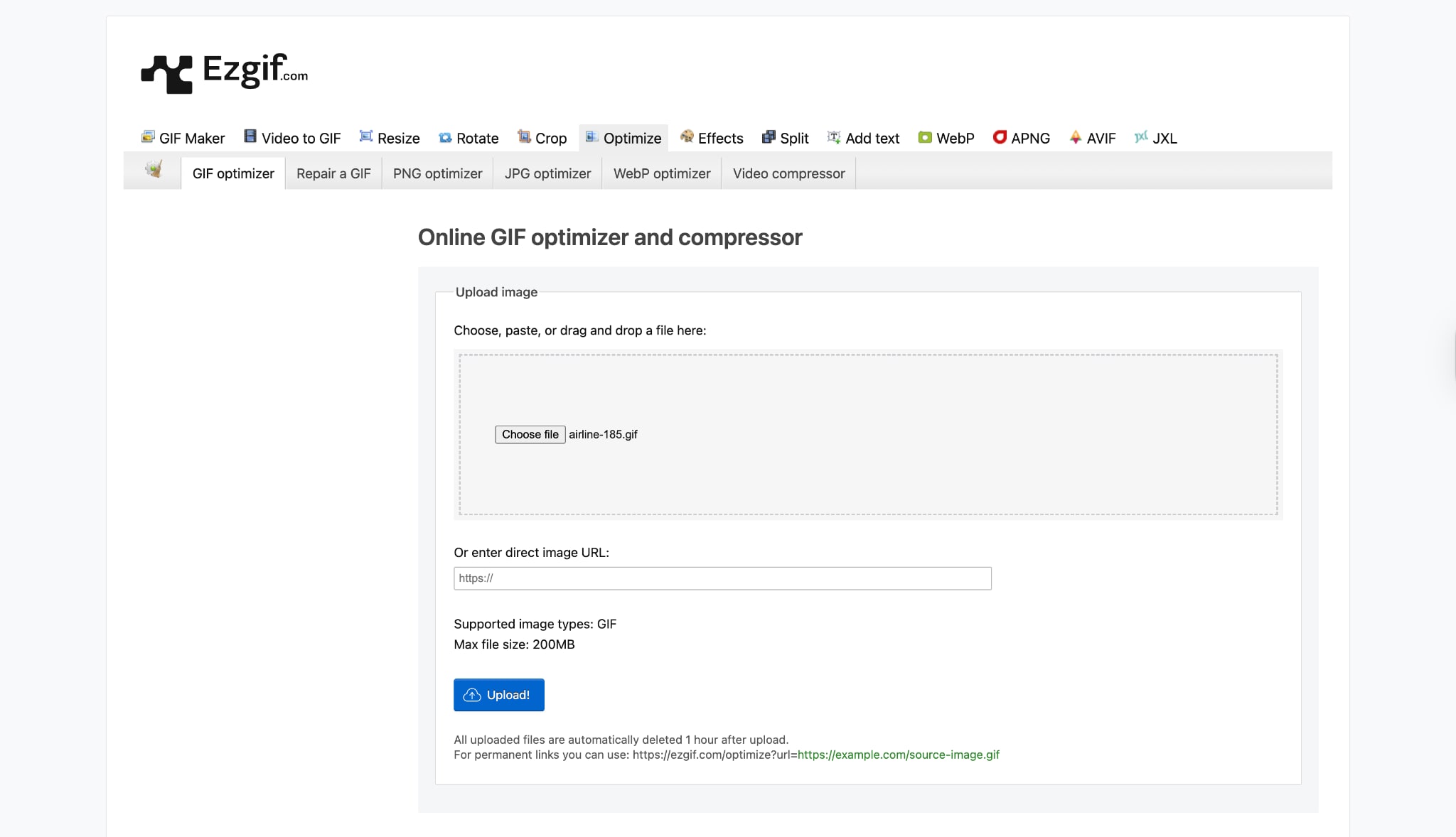
Tool Recommendation: EZGIF.com
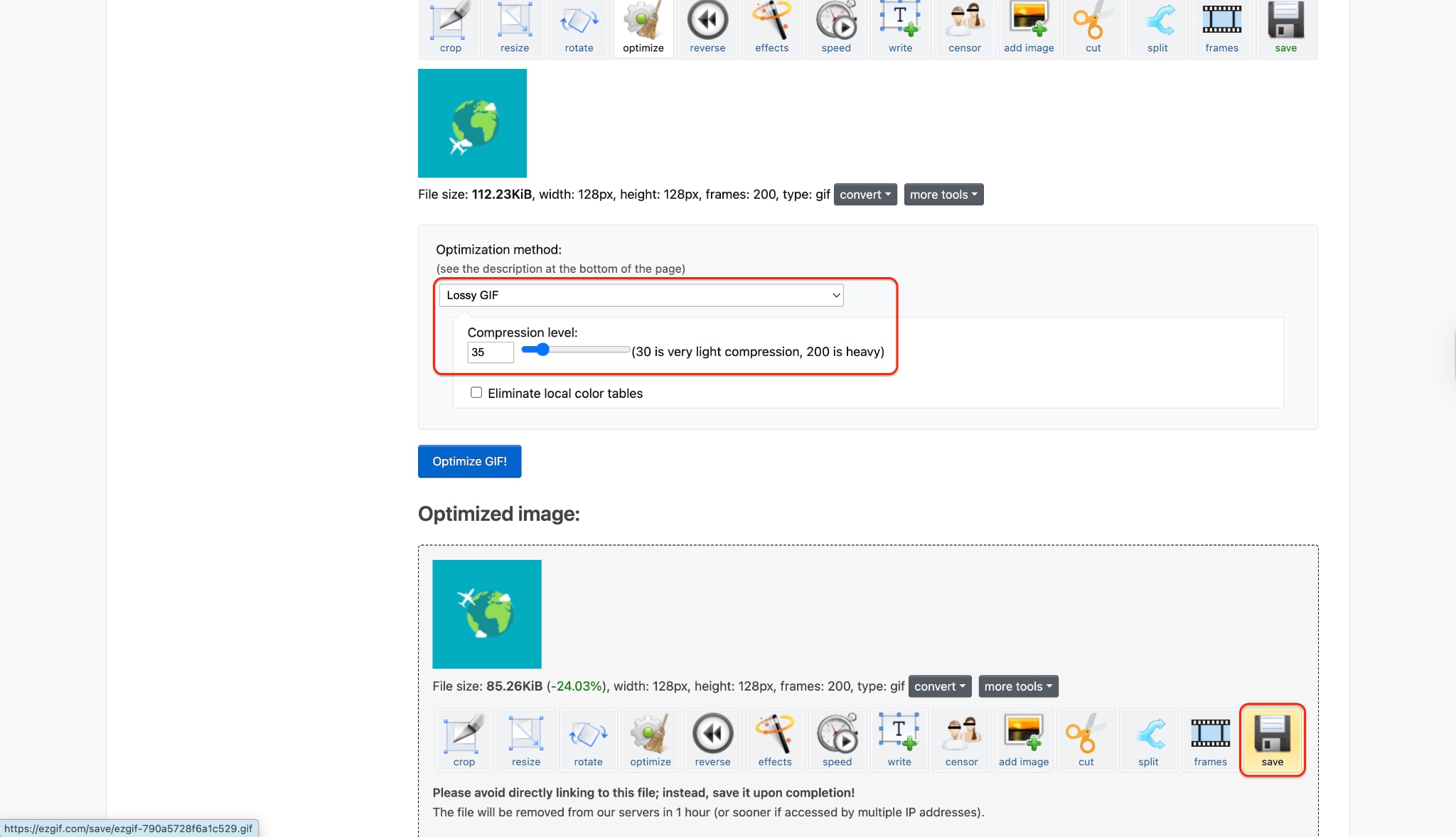
EZGIF.com is a free, browser-based suite of tools that has become the internet's go-to solution for quick GIF edits. It's not just a GIF compressor Discord tool; it's a "Swiss Army knife" for GIFs. You can resize, crop, reverse, add text, and, most importantly, optimize. Its "GIF Optimizer" is incredibly effective at shrinking file sizes by intelligently removing colors or frames, making it perfect for getting under that 8MB or 256KB limit.
Feature Points:
- Make GIFs from images or videos in a few clicks.
- Convert between GIF and other formats like WebP or APNG.
- Crop, resize, or edit GIFs and images quickly.
- Compress GIFs to make them smaller without losing much quality.
- Add text, effects, or captions to your GIFs easily.
Best for: Quick, one-time compressions and resizing without requiring any software installation.
Unique Strength: Multiple optimization methods. You can choose from lossy compression, color reduction, or frame dropping, providing a good balance between quality and file size reduction.
Step-by-Step Guide:
Step 1: Upload Your GIF File
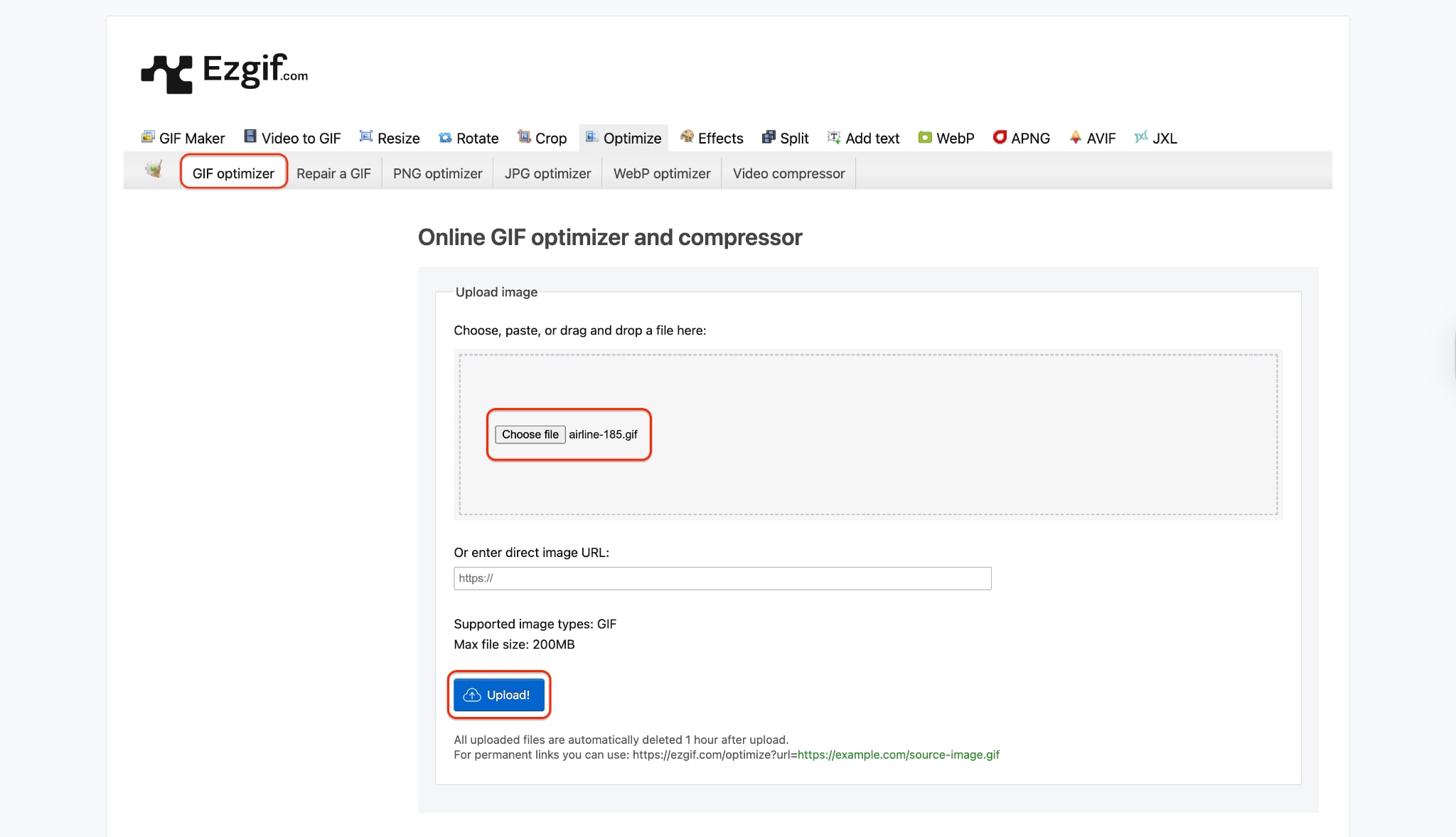
Step 2: Choose Optimization Settings
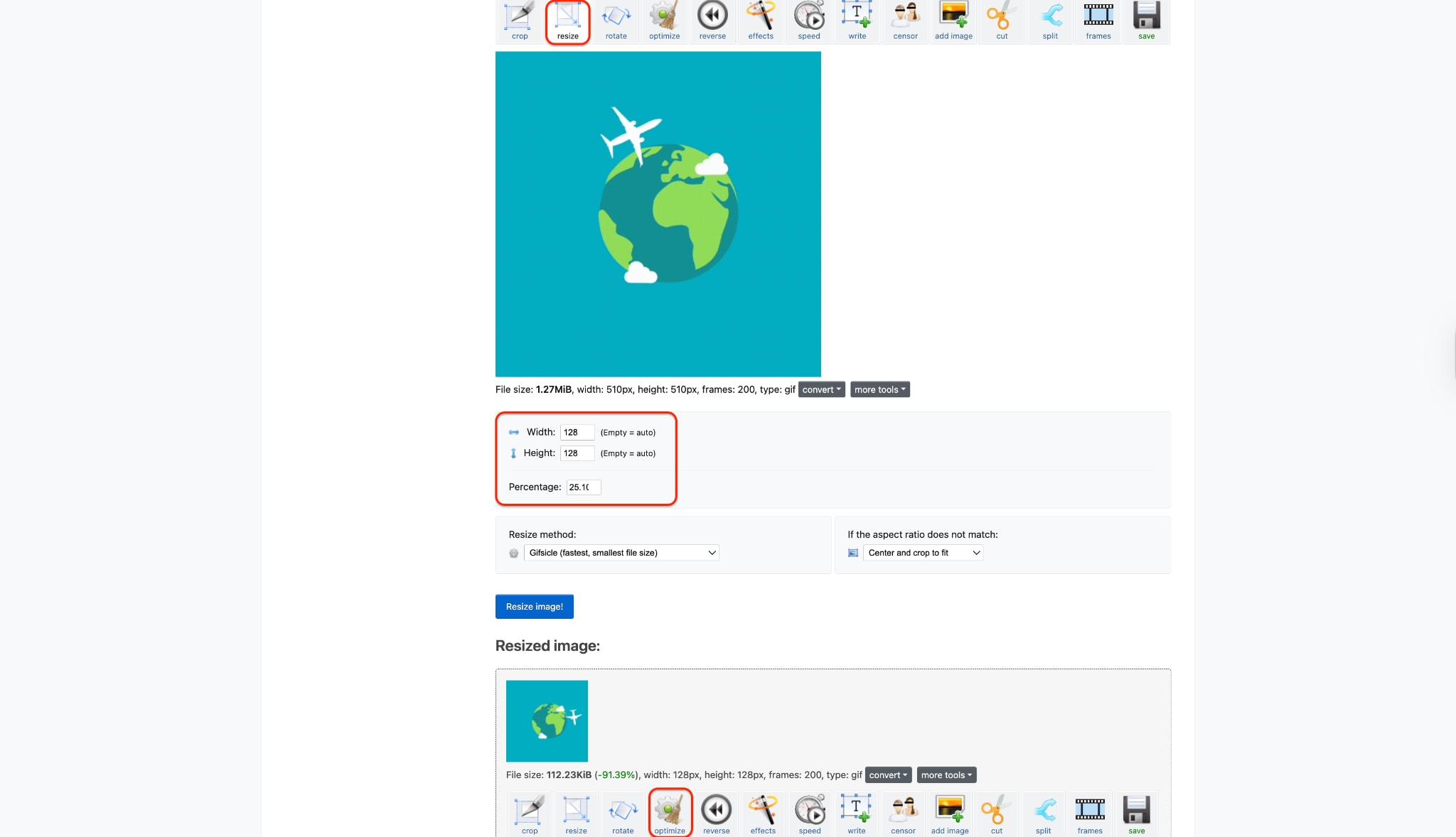
Pro Tip: If you are making a GIF compressor for Discord emoji, use the "Resize" tab first to make it 128x128 before you come back to this optimization step.
Step 3: Optimize and Download the Result
Part 3. How to Compress GIFs for Discord With Desktop Software
When you need more power and precision, desktop software is the ideal solution. You get fine-grained control over every aspect of the compression, which is crucial for tasks like creating the perfect GIF compressor for Discord emoji where every kilobyte matters.
Tool Recommendation: GIMP (GNU Image Manipulation Program)
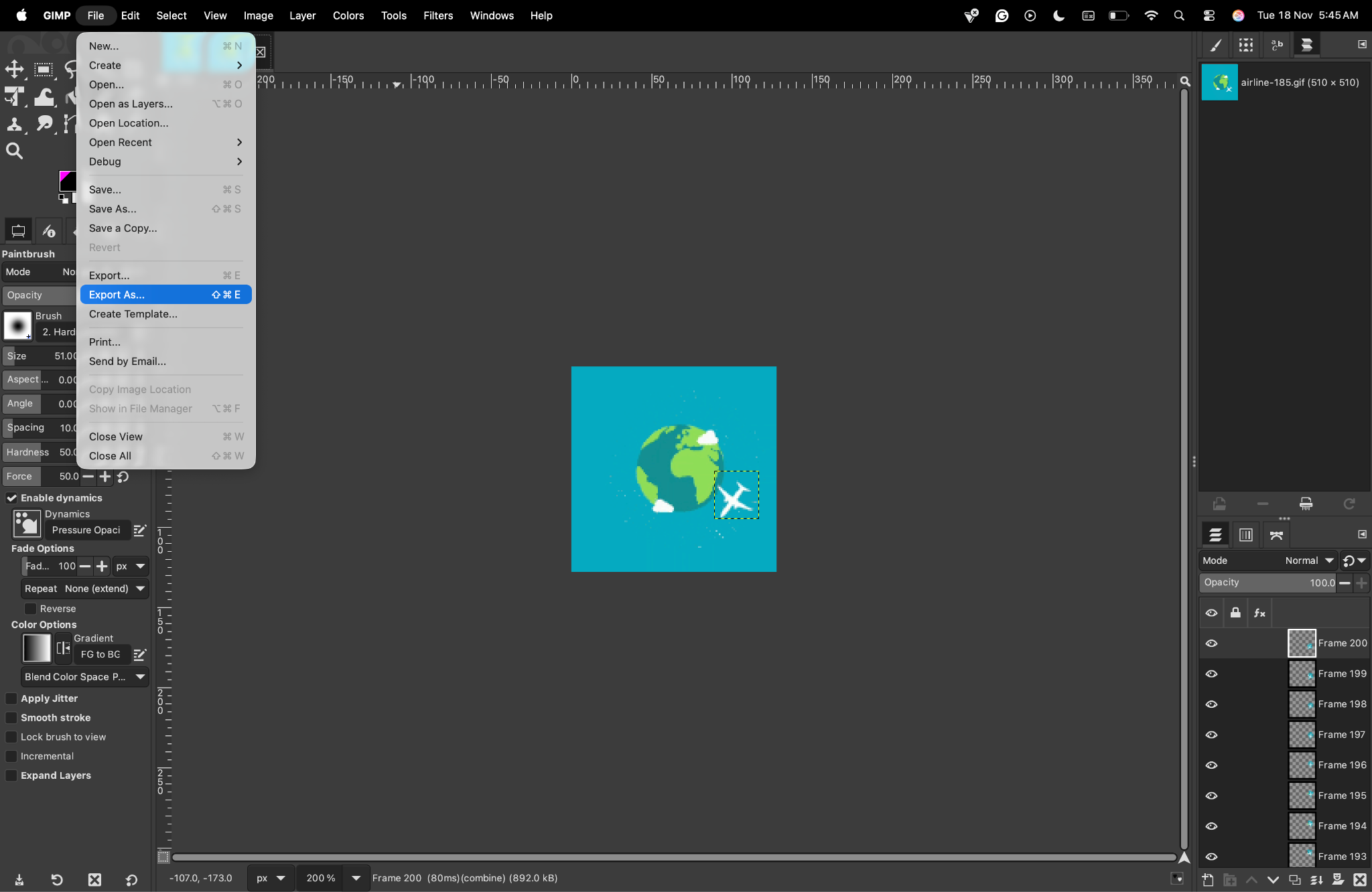
GIMP is a free, open-source, and incredibly powerful image editor often referred to as the "free alternative to Photoshop." While it may seem intimidating to beginners, it offers unparalleled control for optimizing GIFs. It's not a simple GIF compressor Discord tool; it's a professional-grade editor. You can manually delete frames, reduce the color palette, and use advanced filters to shrink file sizes with minimal quality loss.
Feature Points:
- Free and open-source (no fees or ads).
- Cross-platform (Windows, macOS, Linux).
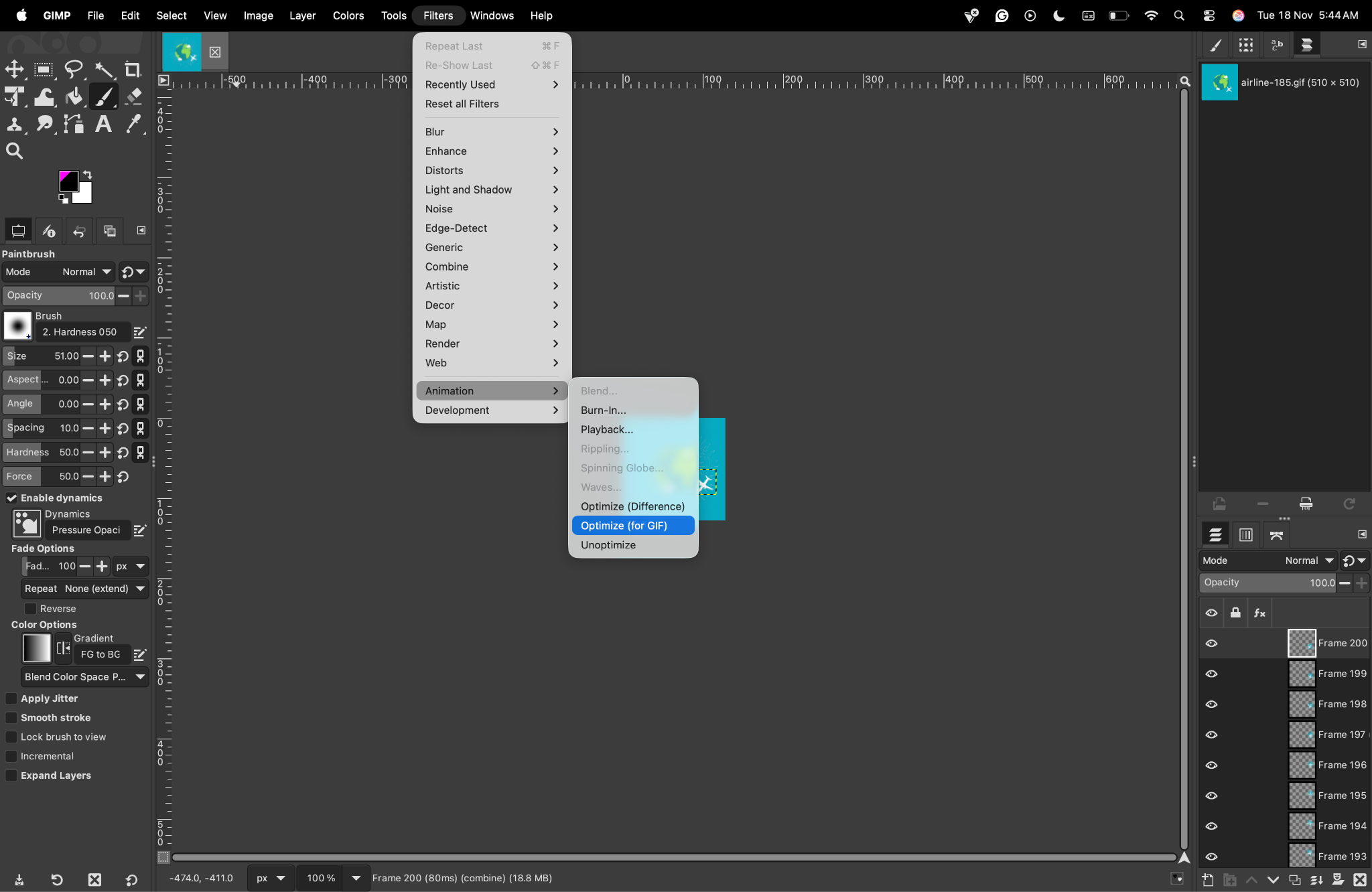
- "Optimize (for GIF)" filter that only saves the changes between frames.
- Granular color indexing (e.g., reducing a GIF from 256 colors to 64).
- Full-frame editing and layer control.
Best for: Users who require maximum compression with optimal quality and are willing to learn a more advanced tool.
Unique Strength: The "Optimize (Difference)" filter. This feature analyzes the GIF and, for each frame, only stores the pixels that change from the previous frame. This can turn an 8MB GIF into a 2MB GIF with almost no visible quality loss.
Step-by-Step Guide:
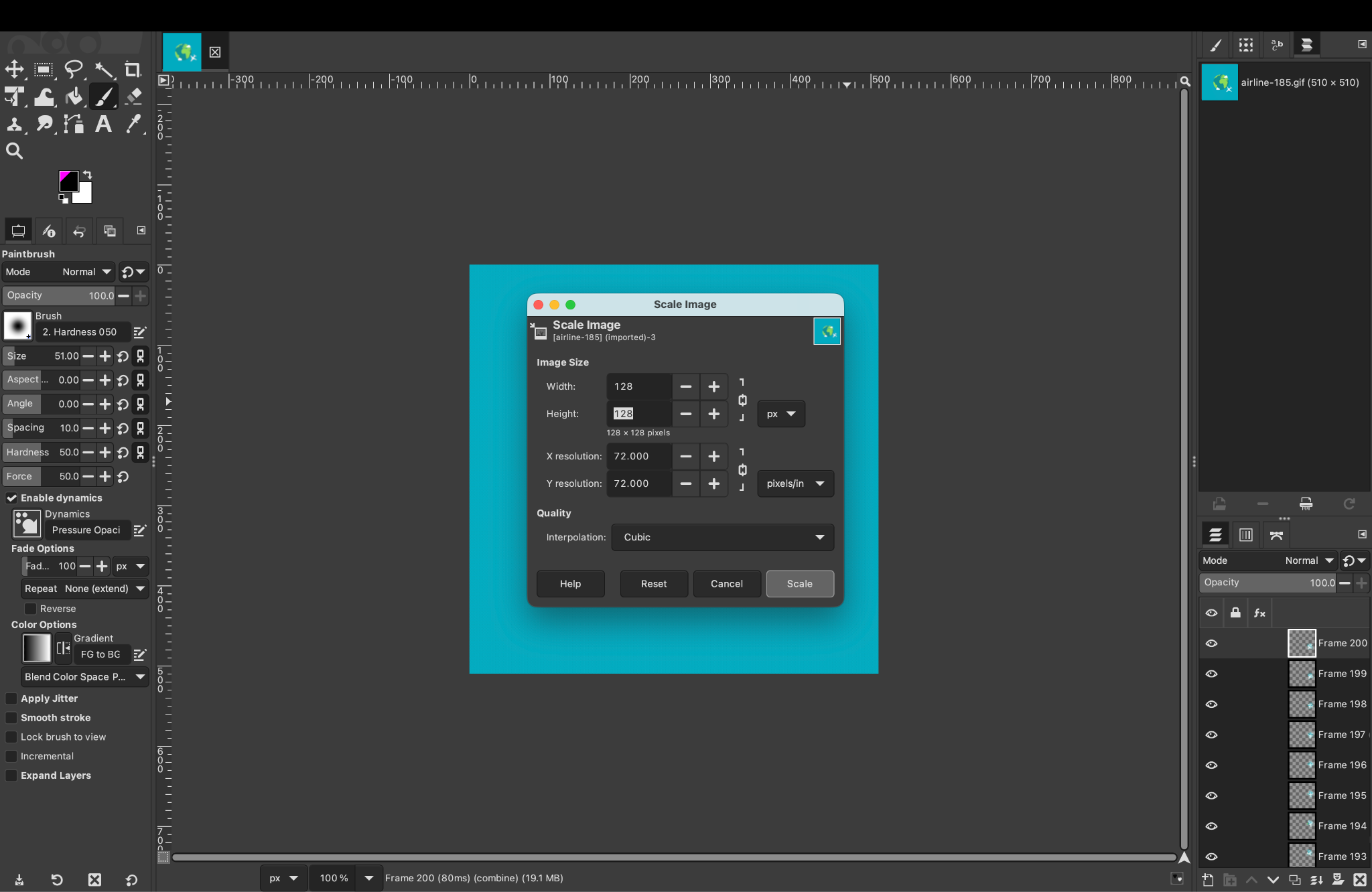
Step 1: Open Your GIF and Resize (If Needed)
Step 2: Apply the "Optimize for GIF" Filter
Step 3: Export the Optimized GIF
Part 4. How to Compress GIFs Using a Dedicated Mobile App
In 2025, many of us live on our phones. You can find a video on TikTok or Reddit, save it, and turn it into a GIF for Discord immediately. A dedicated mobile app is the perfect all-in-one solution.
Tool Recommendation: ImgPlay - GIF Maker
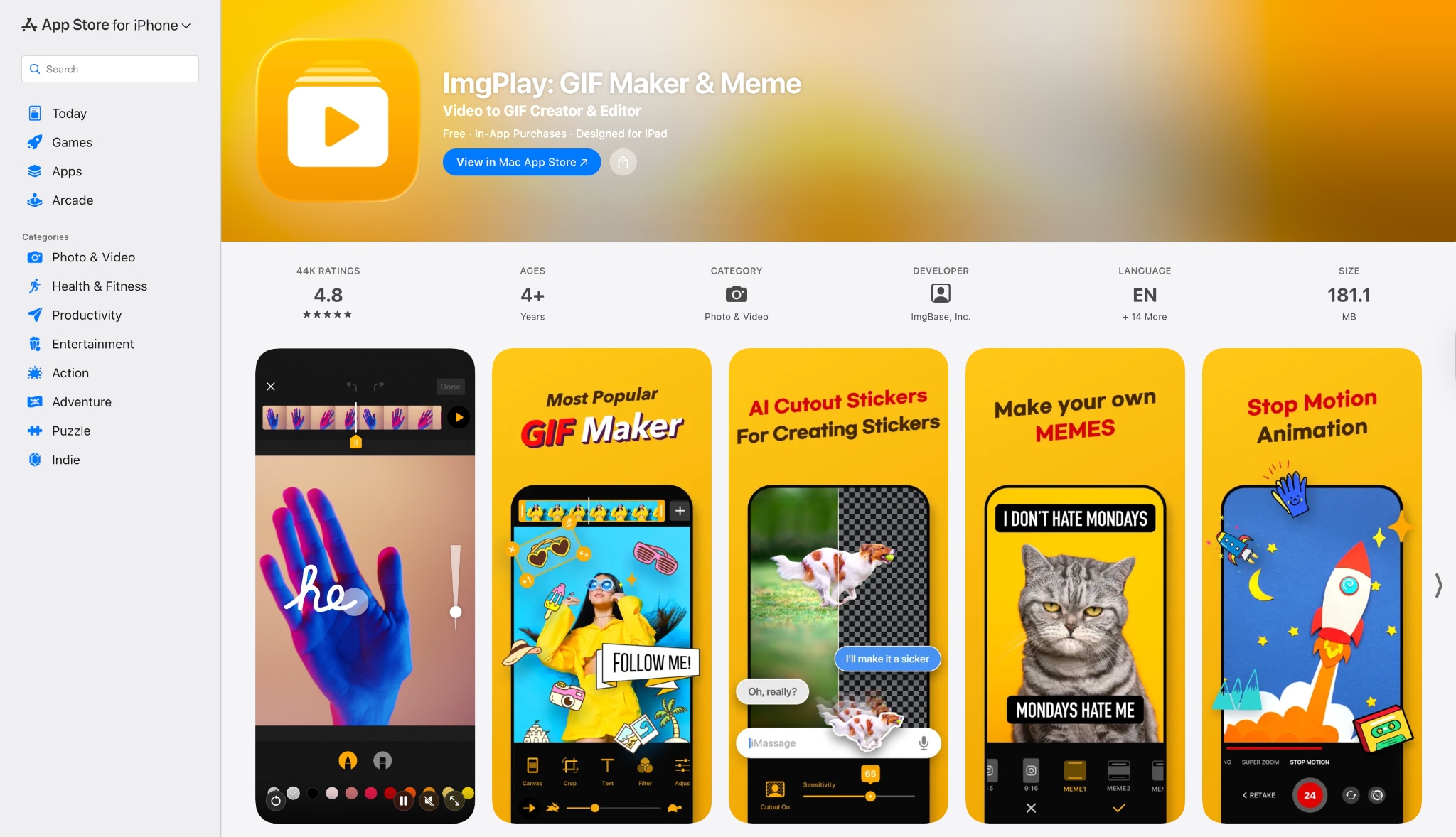
This powerful and popular app (available on both Android and iOS) is a complete mobile GIF studio. It excels at creating high-quality GIFs from videos, photos, or live photos, and critically, gives you precise control over the final file size. It's the perfect GIF compressor for Discord, allowing you to take a video, trim it, and export it directly as a Discord-ready file under 8MB.
Feature Points:
- Make GIFs from your photos, videos, Live Photos, or bursts.
- Add text and stickers for captions or memes.
- Edit with crop, trim, speed, direction, and filters.
- Draw, adjust effects, and change size or format before saving.
- Share or save in GIF, video, or other formats with one tap.
Best for: Mobile-first users who want to create, edit, and compress GIFs on the go.
Unique Strength: Its unique strength is the export screen. Instead of a vague "compress" slider, ImgPlay lets you see an estimated file size in real-time as you adjust the Quality, Frame Rate (FPS), and Resolution, giving you a perfect balance of quality and file size.
Step-by-Step Guide:
Step 1: Load Your GIF or Video
Open the ImgPlay app and tap the '+' icon to start a new project, selecting 'Edit GIF' or 'Video to GIF'. Your phone's gallery will open, allowing you to choose the file (or multiple photos) you want to use. Once loaded, you can trim the clip, add text, or crop it to your liking in the main editor.
Step 2: Access Export Settings and Resize
When you're ready to export, tap the 'Save' or 'Share' button (usually in the top right corner), which opens the 'Save Options' screen. If you're making an emoji, tap on the resolution (e.g., '640p') and change it to a custom size of 128x128. If you're compressing a chat GIF, you can leave the resolution as is or lower it slightly to save space.
Step 3: Compress by Adjusting FPS and Quality
On the same export screen, look for the 'Frame Rate (FPS)' and 'Quality' settings, which are the keys to compression. To dramatically reduce the file size for a Discord GIF, lower the FPS (e.g., from 30 to 15) and set the Quality to 'Medium' or 'Low.' Watch the 'Estimated File Size' at the bottom of the screen, and keep adjusting these two settings until your file is safely under 8MB (for chat) or 256KB (for an emoji) before tapping 'Save.'
Part 5. Bonus: How to Easily Batch Resize GIFs for Discord
You've just started a new Discord server and want to upload 50 custom emojis. The problem? They are all 500x500 pixels. Using the tools above to resize them one by one would be a nightmare. This is where you need a powerful batch GIF resizer for Discord.
Tool Recommendation: Wondershare UniConverter
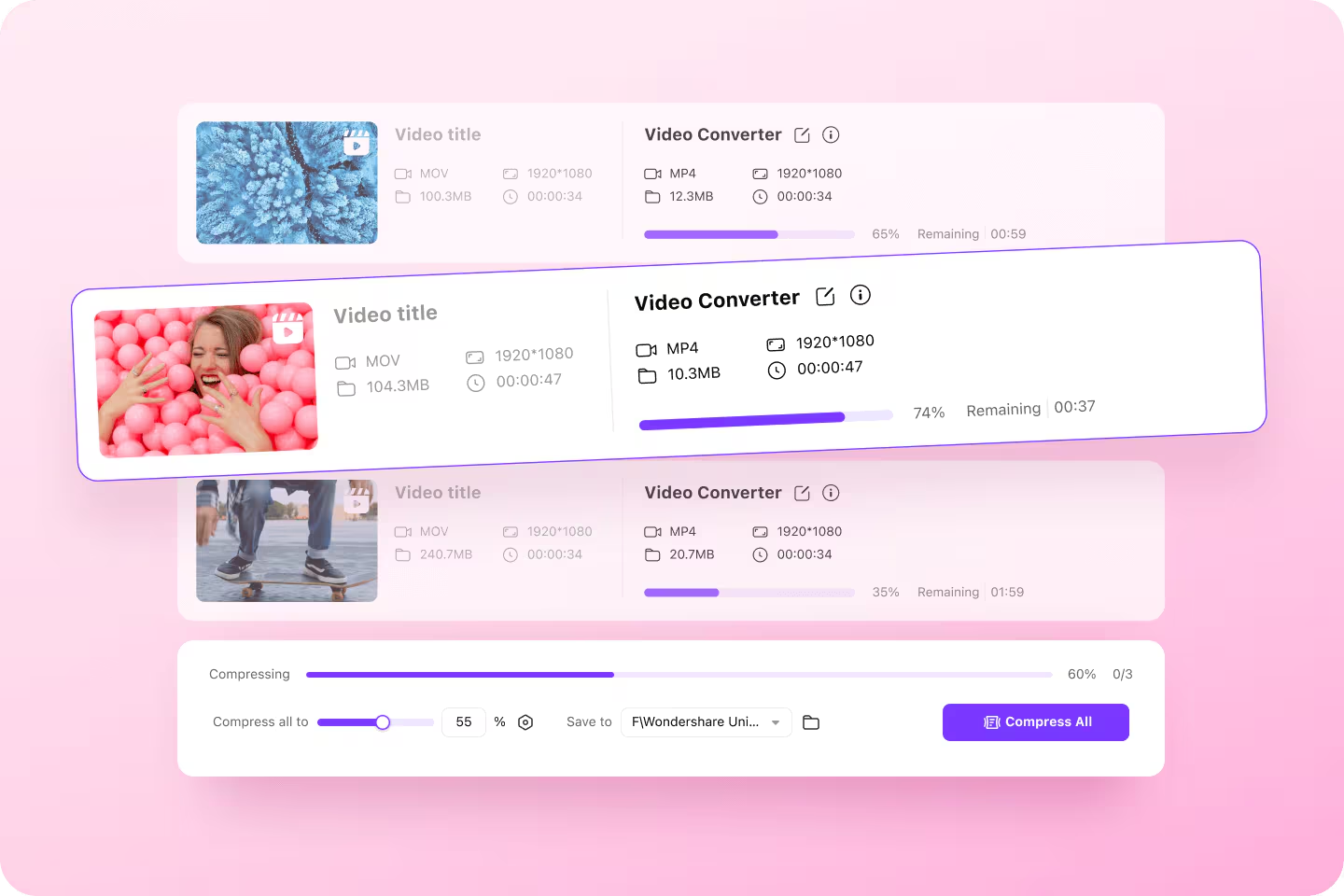
For this specific task, we highly recommend Wondershare UniConverter. While industry-renowned as the ultimate video converter supporting over 1,000 formats with 90x faster conversion speeds, this same powerful engine is ideal for handling GIF collections. By utilizing the main "Converter" interface, you leverage professional high-speed processing to batch resize and optimize hundreds of GIFs for Discord in a single pass. This tool eliminates the nightmare of manual editing, ensuring consistent quality across your entire emoji library instantly. It is the perfect solution for server owners who value efficiency and want to skip the wait.
Step-by-Step Guide using UniConverter:
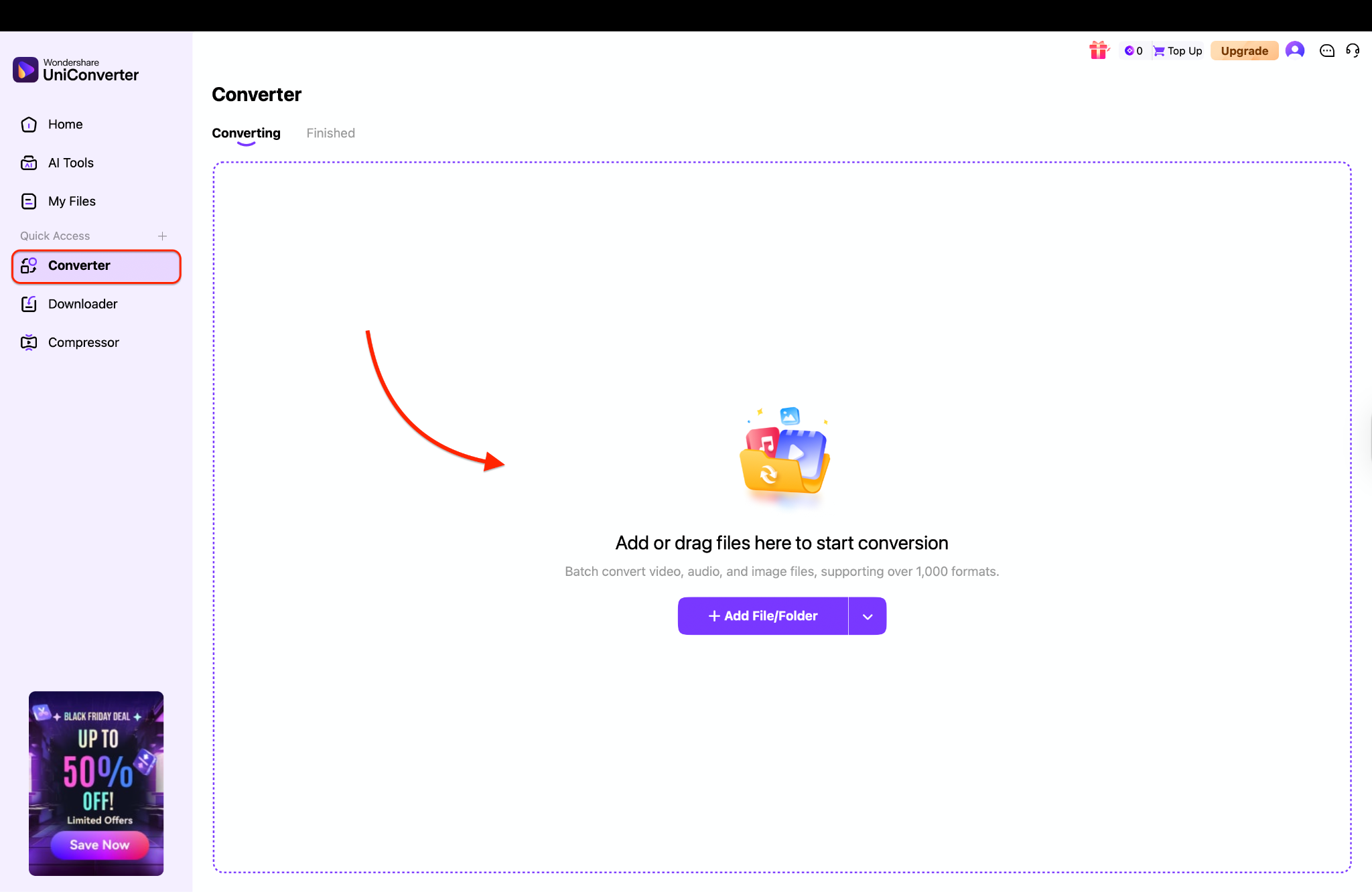
Step 1: Launch the Converter and Load GIFs
Step 2: Select GIF Output and Custom Resolution
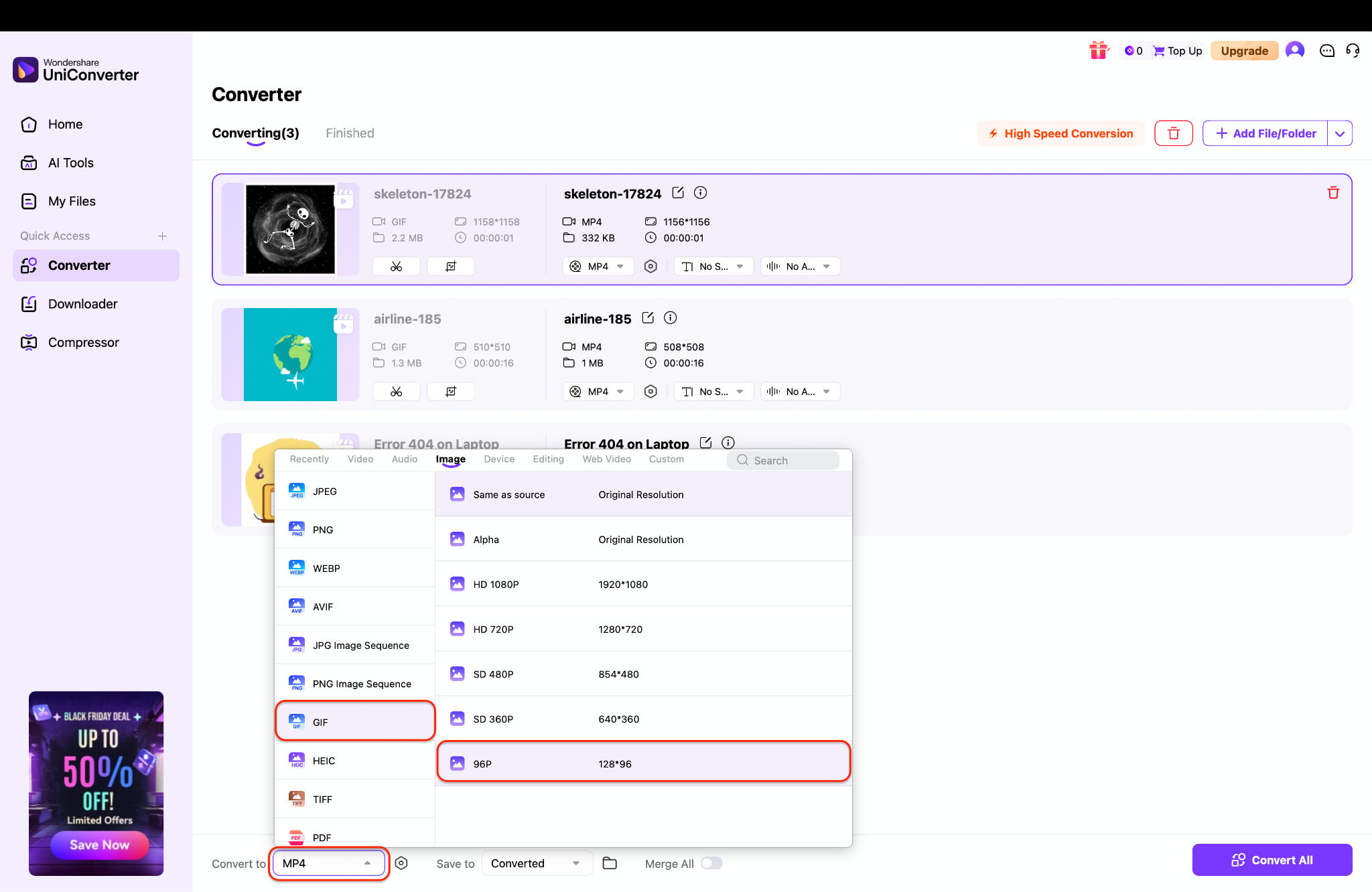
Pro Tip: To ensure your emojis stay under the 256KB limit, click the small "Settings" (gear) icon next to the resolution and lower the Frame Rate to 15 fps before you convert.
Step 3: Convert Batch and Save
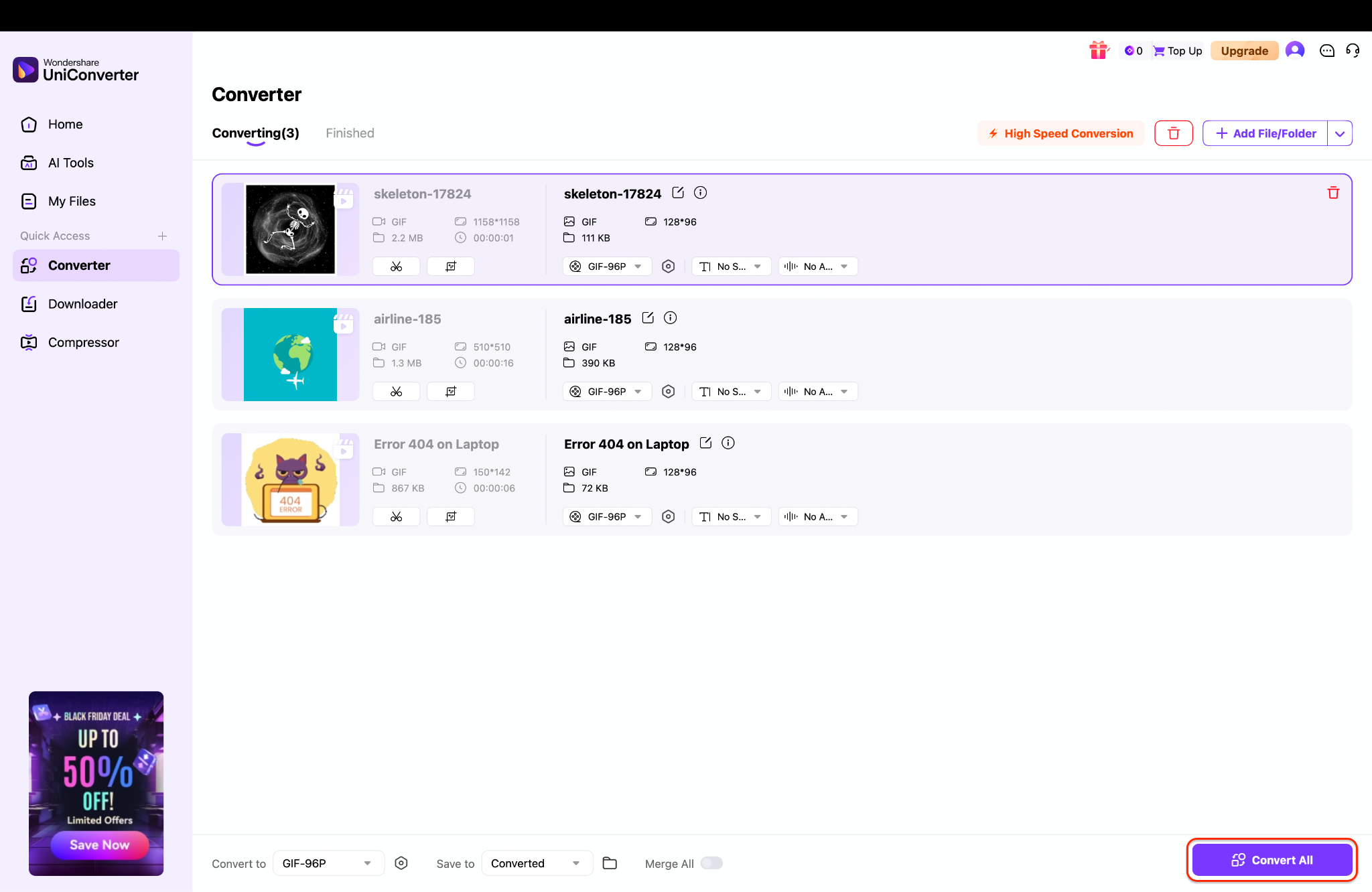
Easy to Use Discord GIF Resizer
Conclusion
While these tools are great for single files, managing an entire emoji library requires a more powerful Discord GIF resizer. This is where Wondershare UniConverter's competence truly shines. Its batch Image Converter streamlines the whole process, letting you resize dozens of GIFs to the perfect 128x128 dimensions in one click. Download UniConverter today to save time and build your perfect Discord server.
FAQs
-
1. What is the main Discord GIF size limit in 2025?
For free users, the limit for posting a GIF in chat is 8MB. For Nitro users, the limit is 100MB. For emojis, the limit is much smaller: 256KB. -
2. How do I make a GIF a Discord emoji?
You must use a GIF resizer Discord tool to resize the dimensions to 128x128 pixels, and then use a GIF compressor for Discord emojis to keep the file size under 256KB. You also need server permissions ("Manage Emojis") to upload them. -
3. Can a Discord GIF compressor really get a 20MB GIF under 8MB?
Yes. Most online compressors can achieve this by using "lossy" compression, which removes visual data. The GIF might look slightly grainier or have fewer colors, but it will be small enough to post. -
4. What's the difference between resizing and compressing?
Resizing changes the dimensions of the GIF (e.g., from 500x500 pixels to 128x128 pixels). This also reduces file size. Compressing reduces the file size (e.g., from 10MB to 8MB) by removing data, such as colors or frames, without changing the dimensions. -
5. Why is my animated GIF static when I upload it to Discord?
This happens for two main reasons.
Emojis: You must have Nitro to use animated server emojis.
Avatars: You must have Nitro to use an animated profile picture.
If you don't have Nitro, all animated avatars and emojis will appear as static images.

