


The new macOS 26 Tahoe features are making waves as Apple unveils what might be its most transformative operating system in years. More than a simple incremental update, Tahoe introduces a breathtaking Liquid Glass design, finally brings native macOS 26 Phone app integration to Mac, and weaves powerful Apple Intelligence tools throughout the system. Critically, this release marks the end of an era: it is the last macOS version for Intel Macs, as it will be a pivotal one for millions who have decided to upgrade.
This comprehensive macOS 26 upgrade guide will explore everything you need to know, from the official release date and system requirements to the frustrating beta issues and performance reviews, helping you decide whether to update now or wait for a more stable release.
Table of Contents:

Part 1. Why MacOS 26 Tahoe is the Successor of MacOS 15 Sequoia?
To understand why Apple jumped from macOS 15 to macOS 26, it helps to look at its naming history. For nearly two decades, macOS releases followed a predictable 10.x pattern, ending with macOS 10.15 Catalina. This changed in 2020 with the landmark release of macOS 11 Big Sur, which not only introduced a major redesign but also shifted the versioning to whole numbers (11, 12, 13, and so on).
In parallel, Apple's marketing team uses an internal numbering system for its annual California-themed releases. macOS 15, known publicly as Sequoia, was the 2024 update. The upcoming macOS 26 Tahoe represents the 2025 release.
So, why the big jump from "15" to "26"? This is likely a strategic marketing decision to signify a monumental leap forward. macOS Tahoe isn't just an iteration; it's a redefinition. It completes the transition to Apple's vision of a deeply integrated, AI-powered ecosystem and, most importantly, draws the line for Intel-based Macs. This isn't just the following OS—it's the next generation.
| Category | Description |
| Old System (Pre-2020) | Followed a 10.x format (e.g., macOS 10.15 Catalina). |
| New System (2020 Onward) | Shifted to whole numbers (e.g., macOS 11 Big Sur, macOS 12 Monterey). |
| Marketing vs. Public Version | The public version (e.g., 15) corresponds to the marketing name (Sequoia), while the internal version number (e.g., 26 for Tahoe) signifies a major generational shift. |
| Significance of "26" | This large jump emphasizes that Tahoe is a foundational update, marking the end of Intel support and the full rollout of Apple Intelligence on the Mac platform. |
Part 2. When is MacOS 26 Tahoe Available to the Public?
Apple follows a reliable annual schedule for its macOS releases, and the macOS 26 release date is expected to align with this tradition. The journey from announcement to public availability happens in three distinct phases.
Developer & Public Beta Availability
The first look at a new macOS is always reserved for developers, followed by a broader release for public beta testers.
Developer Beta
Released on June 9, 2025
Immediately after the WWDC keynote, registered Apple developers can download the first build. It's the earliest and most unstable version, intended solely for testing and updating apps.
macOS 26 Public Beta
Began rolling out in July 2025
Available to anyone in Apple's Beta Software Program. While more stable than the developer beta, it still contains significant macOS 26 beta issues and is not recommended for primary devices.
Official General Release (Expected)
The official, stable version typically arrives in the fall, following Apple's annual iPhone event. While Apple only officially confirms a "Fall 2025" window, industry experts have a more precise prediction.
Official Window: Apple has confirmed the full release is scheduled for Fall 2025, which is standard practice.
Predicted Date: Most predictions point to mid-September 2025, specifically around September 15–16. This timing allows Apple to launch its new iPhones with synergistic software features across its ecosystem.
Part 3. Will MacOS Tahoe 26 Be Available for all Mac Users?
No, not every Mac that can run Sequoia will be able to run Tahoe. The macOS 26 system requirements are stricter, particularly as Apple finalizes its transition away from Intel processors. This is a critical point in our macOS 26 upgrade guide.
Who Can Install macOS Tahoe
Apple Silicon Macs (M1, M2, M3, and M4 series): These Macs are fully supported and are the target hardware for Tahoe. They will receive all features and the best performance. Apple Silicon macOS 26 support is flawless.
Recent Intel Macs: A limited number of recent, high-end Intel-based Macs will be supported. However, this is their final destination. After Tahoe, future macOS releases will be exclusive to Apple silicon. This list typically includes models from around 2019 onward, but some features may be limited.
Who Cannot Install macOS Tahoe
Older Intel Macs: Any Mac that was already cut off with macOS Sonoma or Sequoia will not be able to install Tahoe. This generally includes models such as the pre-2018 MacBook Pro, the pre-2019 iMac, and the 2017 MacBook Air.
Intel Macs with Older GPUs: Tahoe officially drops support for specific Intel integrated GPUs (like Coffee Lake and Ice Lake), making it impossible for those machines to run the new OS, even if the CPU is technically capable.
Key Point: Tahoe is the final macOS version for Intel-based Macs. If you own an Intel-based Mac that qualifies for this update, you should view it as the last major upgrade your machine will receive from Apple. It will provide security updates for a couple of years, but no new versions of macOS will follow. This makes the Intel Macs' last macOS version a bittersweet but essential milestone.
Part 4. What Major Updates to be Expected in MacOS 26 Tahoe?
The excitement around macOS 26 Tahoe is driven by a suite of significant updates that refresh the look, feel, and functionality of the Mac. Here's a breakdown of the most impactful changes.
Liquid Glass Design
Apple is moving beyond the Big Sur redesign with Liquid Glass design, a new aesthetic featuring more translucency, fluid animations, and depth effects. Windows, menus, and the Dock have a frosted, glass-like appearance that subtly changes based on the desktop wallpaper behind them, creating a more cohesive and immersive visual experience.
MacOS 26 Phone app Mac
For the first time, a dedicated Phone app comes to the Mac. This is a massive leap from simple Handoff calls. You can now make and receive calls directly, access your entire iPhone call history, and listen to voicemail with real-time transcription—all without picking up your iPhone. It's the deepest phone integration on Mac ever.
AI-Powered Productivity
Apple Intelligence is now fully integrated. In Notes, this enables macOS 26 Notes audio recording, which can automatically transcribe spoken words into text and generate summaries. In Reminders, you can type "remind me to follow up on the email from Jane about the Tahoe project," and AI will create the task with the correct context.
MacOS 26 AI image tools
The system introduces Image Playground and Genmoji. These tools enable you to generate or edit images using simple text prompts directly within apps like Pages, Keynote, and Messages. You can create custom emojis (Genmoji) for chats or generate stylized illustrations for a presentation, making creative expression more accessible.
MacOS 26 Photos App Updates
The Photos app gets a significant AI boost. It introduces a "Clean Up" tool that can magically remove unwanted objects or people from the background of your pictures. Search is also more powerful, allowing you to find images by describing actions or objects (e.g., "photos of me hiking near a lake at sunset").
Smarter Continuity & Live Activities
Live Activities from your iPhone (such as a food delivery tracker or sports score) will now appear on your Mac's lock screen and in the menu bar, keeping you updated without needing to switch devices. Continuity is smarter, offering more proactive suggestions for handoff between your Mac, iPad, and iPhone.
You can watch a video preview of the top features here:macOS Tahoe: 44 INSANE CHANGES (Hands-On)
Part 5. Possible Issues After Updating MacOS 26 Tahoe
As with any major OS release, especially in beta, there are bugs and drawbacks to be expected. A thorough macOS 26 performance review must acknowledge the early stability issues with macOS 26. Testers of the developer and public beta have reported recurring problems.
Here are the most common macOS 26 Tahoe bugs you should be aware of:
- Slowdowns & Resource Usage
Many beta users have reported sluggish behavior, even on powerful Apple Silicon machines. This includes slow app launch times, the spinning beachball appearing more frequently, and abnormally high CPU usage from background processes like kernel_task and WindowServer. Spotlight indexing can also take hours or even days on Macs with large hard drives, slowing the entire system down during that time.
- Intel GPU & Legacy Support
As mentioned, macOS Tahoe drops support for older Intel GPUs. For users with supported Intel Macs, this transition can still cause graphical glitches, screen flickering, and issues with connecting external displays. The Hackintosh community, in particular, will face significant challenges, as patches and kexts will need to be completely overhauled.
- Third-Party App Breakage
This is one of the most significant hurdles for early adopters. Beta testers report that popular applications, such as Signal and Adobe Lightroom, have visual glitches, unexpected crashes, or fail to launch entirely. Professionals relying on a suite of apps should exercise extreme caution.
- Third-Party App Breakage (Utilities & Plugins)
System-level utilities and plugins are often the first to break. Users have noted that alpha or legacy versions of indispensable tools, such as Bartender 6 (for menu bar organization) and AlDente (for battery management), either perform poorly, cause system instability, or fail to function at all. Audio producers have also reported that many of their AU and VST plugins fail validation in Logic Pro.
Part 6. How to Convert MacOS 26 Tahoe Video for Other Devices?
After you upgrade, you can share more videos, screen recordings, and photos created on your Mac. A common frustration is discovering that these files cannot be played on other devices. macOS uses modern, efficient formats like HEVC (H.265) for video and HEIC for photos, which aren't universally supported.
Here are some specific cases where you might run into trouble:
You airdrop a 4K video from your iPhone to your Mac, edit it, and try to play it on an older Windows PC or smart TV, only to get a "format not supported" error.
You try to upload a batch of beautiful photos from the updated macOS 26 Photos app to a website or cloud service that only accepts JPG.
You create a high-quality screen recording in ProRes for a tutorial, but the file is too large to email and won't play on your colleague's Android phone.
In these situations, a reliable conversion tool is essential. Wondershare UniConverter is an excellent offline solution that supports batch conversion and compression, making it easy to prepare your media for any device or platform.
Simple Steps to Batch Convert Files with UniConverter
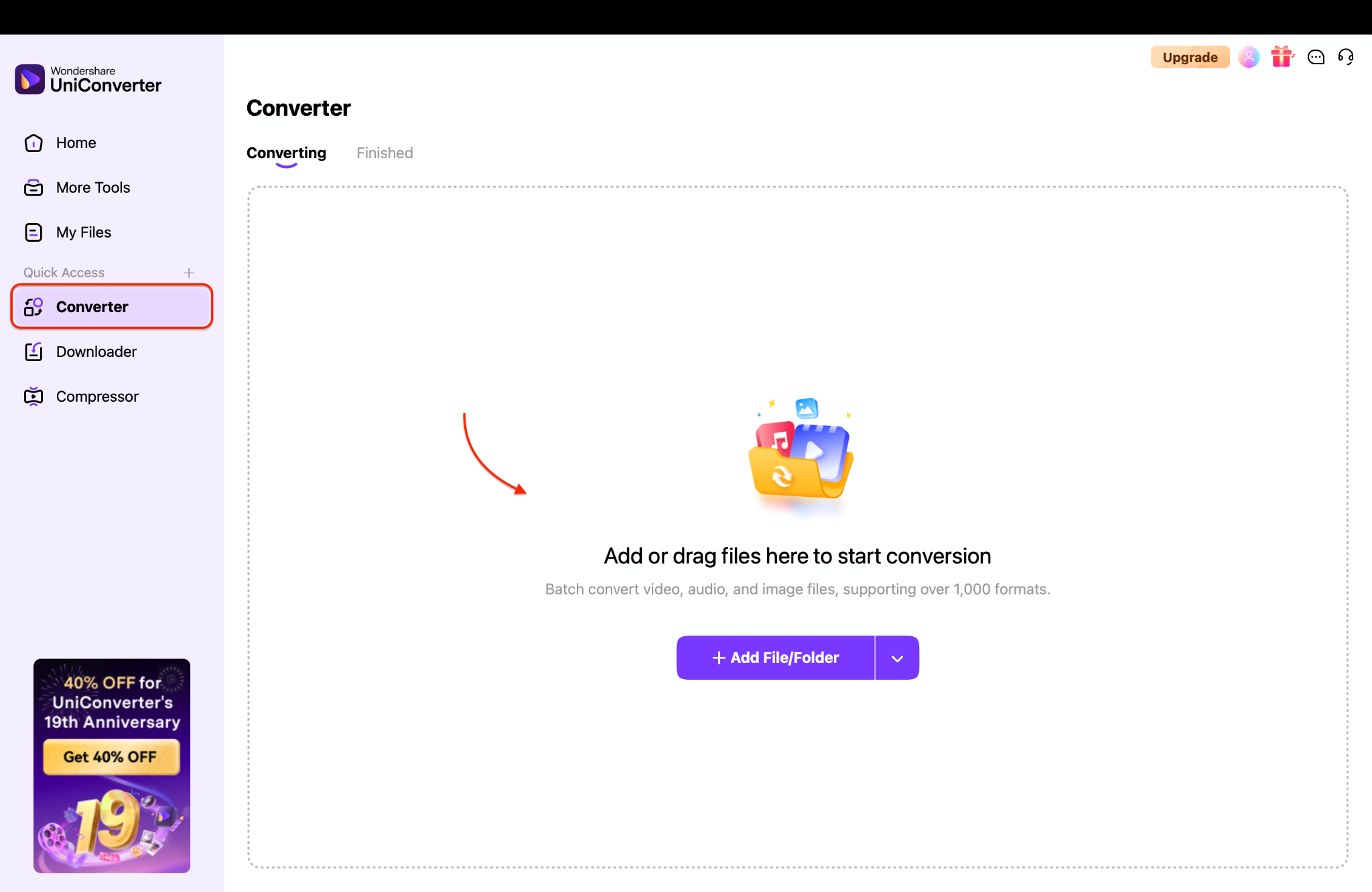
Step 1: Add Your Media Files
Start by launching the UniConverter application on your Mac and heading over to the Converter. You can easily add your files by dragging and dropping them directly into the main converter window. This works for individual videos, photos, and audio recordings. For an even faster workflow, you can add an entire folder at once to prepare all your media for batch conversion in a single go.
Step 2: Select the Output Format and Destination
Next, click on the "Output Format" tab, usually found at the bottom of the interface, to see your options. For maximum compatibility, choose a universal format like MP4 with H.264 as the encoder for video. Before proceeding, remember to also select a destination folder. This is where your newly converted files will be saved, keeping everything organized.
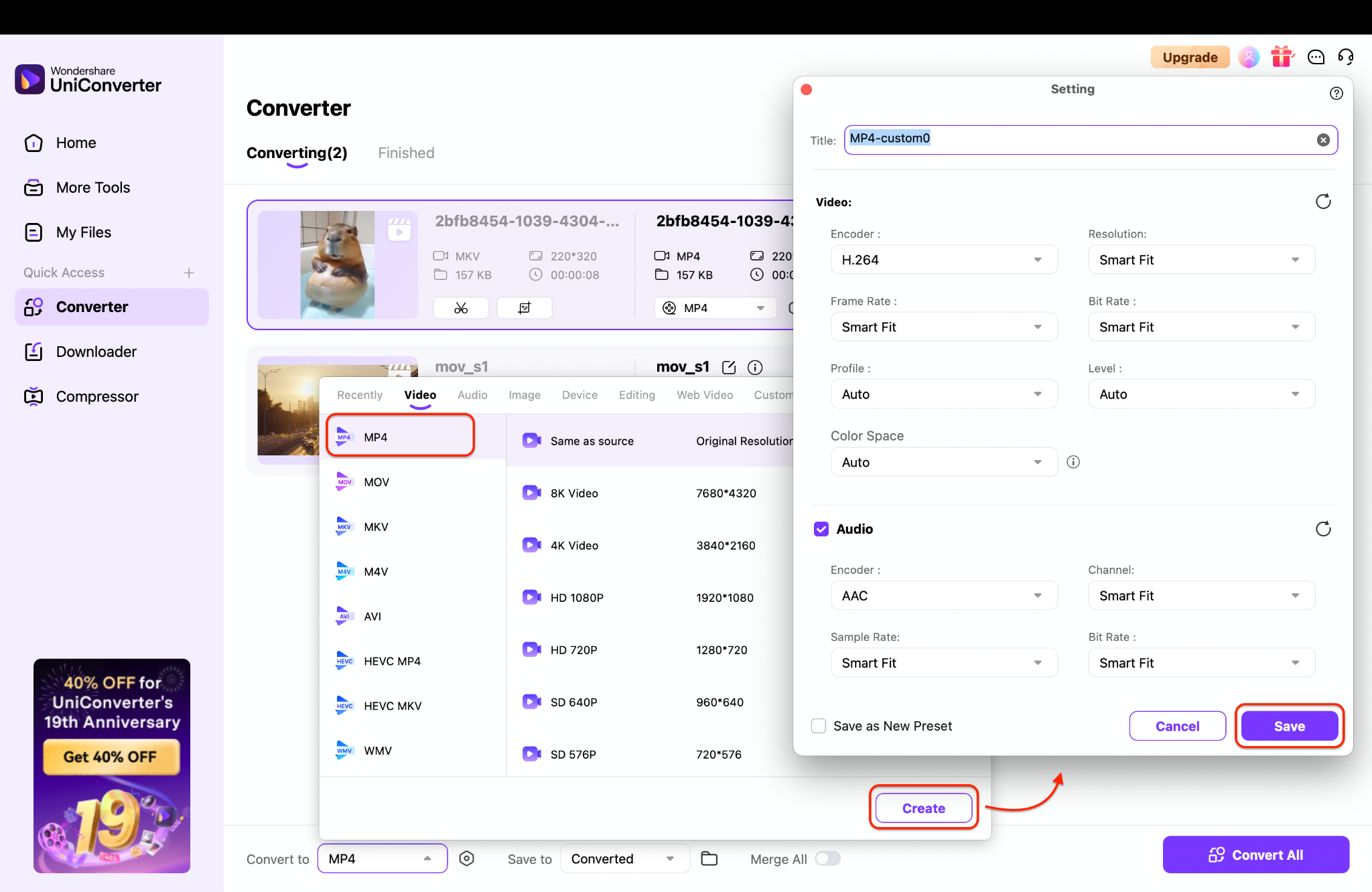
Note: Choose a universal format like JPG for photos, or MP3 for audio if you want to convert photos and videos.
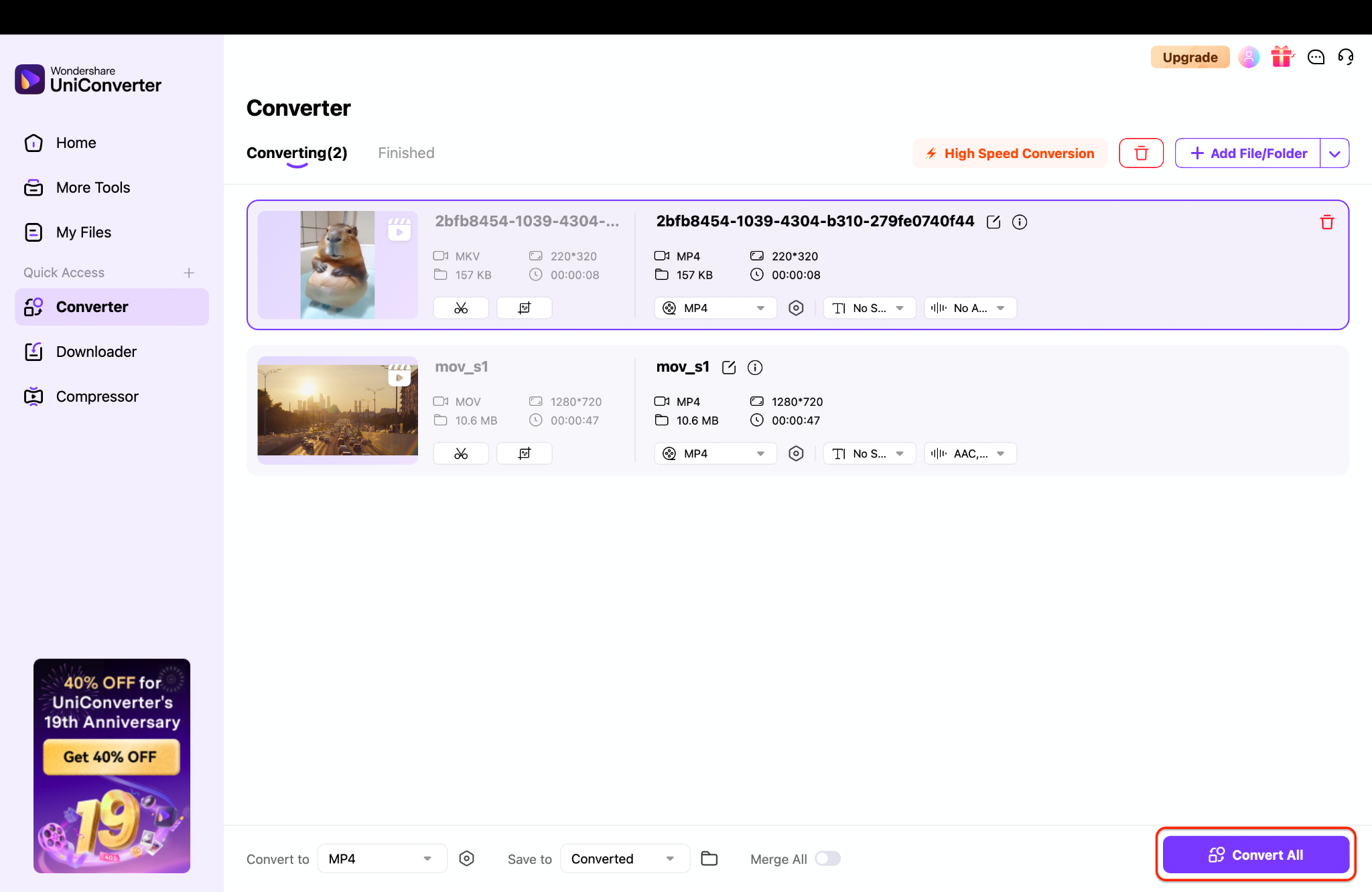
Step 3: Start Converting All
With your settings configured, simply click the "Convert All" button to begin the process. UniConverter will efficiently process all your files in a single batch, saving you significant time. After conversion, if any video files are still too large to share easily, you can use the built-in "Compressor" tool to shrink the file size without a major drop in visual quality.
Part 7. Should I Update to MacOS 26 Tahoe?
This is the ultimate question. The answer depends entirely on who you are, what Mac you use, and what you value most in an operating system. Here's a detailed breakdown to help you make an informed decision.
Users Who Should Update to macOS 26 Tahoe
Apple Silicon Mac Owners (M1, M2, M3)
If you own a Mac with Apple Silicon, you should update without hesitation (though you may want to wait for the 26.1 release for maximum stability). These Macs are specifically designed to run Tahoe, and you'll get the best performance, optimal battery life, and exclusive access to the most advanced AI features.
Early Adopters & Tech Enthusiasts
If your passion is exploring the latest technology, you'll love Tahoe. Getting hands-on with the new Liquid Glass design, the groundbreaking macOS 26 Phone app, and the creative macOS 26 AI image tools is reason enough to jump in.
Users Who Want Stronger Continuity
If you live and breathe within the Apple ecosystem, Tahoe is a game-changer. The improved integration between your iPhone, iPad, and Mac, particularly with the new Phone app and shared Live Activities, will significantly streamline your workflow.
Intel Mac Users on Supported Models
The question of whether to update to macOS 13 is more of a necessity. Since Tahoe is the last macOS version for Intel Macs, updating ensures you get the final set of features and security patches, extending your device's useful life as much as possible before it's left behind.
Users Who Are Not Suggested to Update (Yet)
Mission-Critical / Work-Dependent Users: If your Mac is how you make a living—whether you're a developer, video editor, graphic designer, or business professional—you should wait. Early reports of macOS 26 stability problems, app crashes, and battery drain could jeopardize your projects and deadlines. Wait until at least macOS 26.1 or 26.2, when most of the initial bugs have been ironed out.
Users Running Older Intel Macs
While your Intel Mac might technically be on the supported list, its performance may suffer. Without the optimization of a Neural Engine found in Apple Silicon, AI features will run slower, and the new graphical effects of the Liquid Glass design could tax your older GPU, leading to a sluggish experience.
People Who Rely on Niche or Legacy Apps
If your workflow depends on specific plugins, audio tools, or older software that hasn't been updated in a while, refrain from updating immediately. Check with the app's developer for an official statement on Tahoe compatibility. Upgrading could render your essential tools useless until they are patched.
Casual Users Who Value Stability Over Features
If you are pleased with macOS Sequoia and don't feel a burning need for the new features, there's no harm in waiting. The safest approach is to let the early adopters find the bugs for you. An update in a few months will be a much smoother and safer experience.
Conclusion
The new macOS 26 Tahoe features undeniably represent a bold and exciting future for the Mac, masterfully blending a beautiful Liquid Glass design with genuinely helpful intelligence. The native macOS 26 Phone app, Mac integration, and creative macOS 26 AI image tools promise to enhance daily productivity for many. However, this promising future is currently overshadowed by early macOS 26 beta issues, including bugs, performance issues, and compatibility problems with apps. For Apple Silicon users, the upgrade is a clear win. For Intel owners, it's a necessary final step. If stability is your priority, waiting is the wisest choice.
And as you navigate this new OS, ensure your media works everywhere by using a reliable tool like Wondershare UniConverter to easily batch-convert and compress any video, photo, or audio file for seamless sharing across all your devices.
FAQs
1: What is the official macOS 26 release date?
The official release is slated for Fall 2025. Based on Apple's history, it is widely expected to be available to the public around September 15–16, 2025.
2: Can I use UniConverter to convert macOS 26 videos to MP4 for Windows?
Yes, UniConverter excels at converting macOS-native formats, such as HEVC or ProRes, into universally compatible MP4 files. This ensures your videos play flawlessly on any Windows PC.
3: Does UniConverter also compress large macOS 26 screen recordings?
Absolutely. UniConverter includes a powerful compression tool that can significantly reduce the file size of large screen recordings with minimal quality loss, making them easy to share.
4: Can UniConverter convert HEIC photos from the new Photos app to JPG on macOS 26?
Yes, it can batch-convert hundreds of HEIC photos to the more widely supported JPG or PNG formats. The process is fast, simple, and works entirely offline for your privacy.
5: Should I update my supported Intel Mac to macOS 26 Tahoe immediately?
It's recommended to update to receive the final feature and security set, but consider waiting a few weeks for the 0.1 release. This gives Apple time to fix the initial bugs that may affect performance on Intel hardware more severely.

