


The iPhone 17 camera upgrade is revolutionary, featuring a powerful 48MP telephoto lens and the efficient iPhone 17 HEIF Max format. However, this leap forward creates a significant iPhone 17 photo compatibility gap with the wider tech world. Many users will face the dreaded HEIC file not opening on PC error, iPhone 17 printing problems, and frustrating social media upload failures.
This guide predicts the top 10 issues and provides clear, actionable solutions using Wondershare UniConverter, the essential tool to convert iPhone HEIC to JPG and harness your phone's full power without limits.
Table of Contents:
Part 1. What to Expect in iPhone 17 Camera with 48 MP Lenses
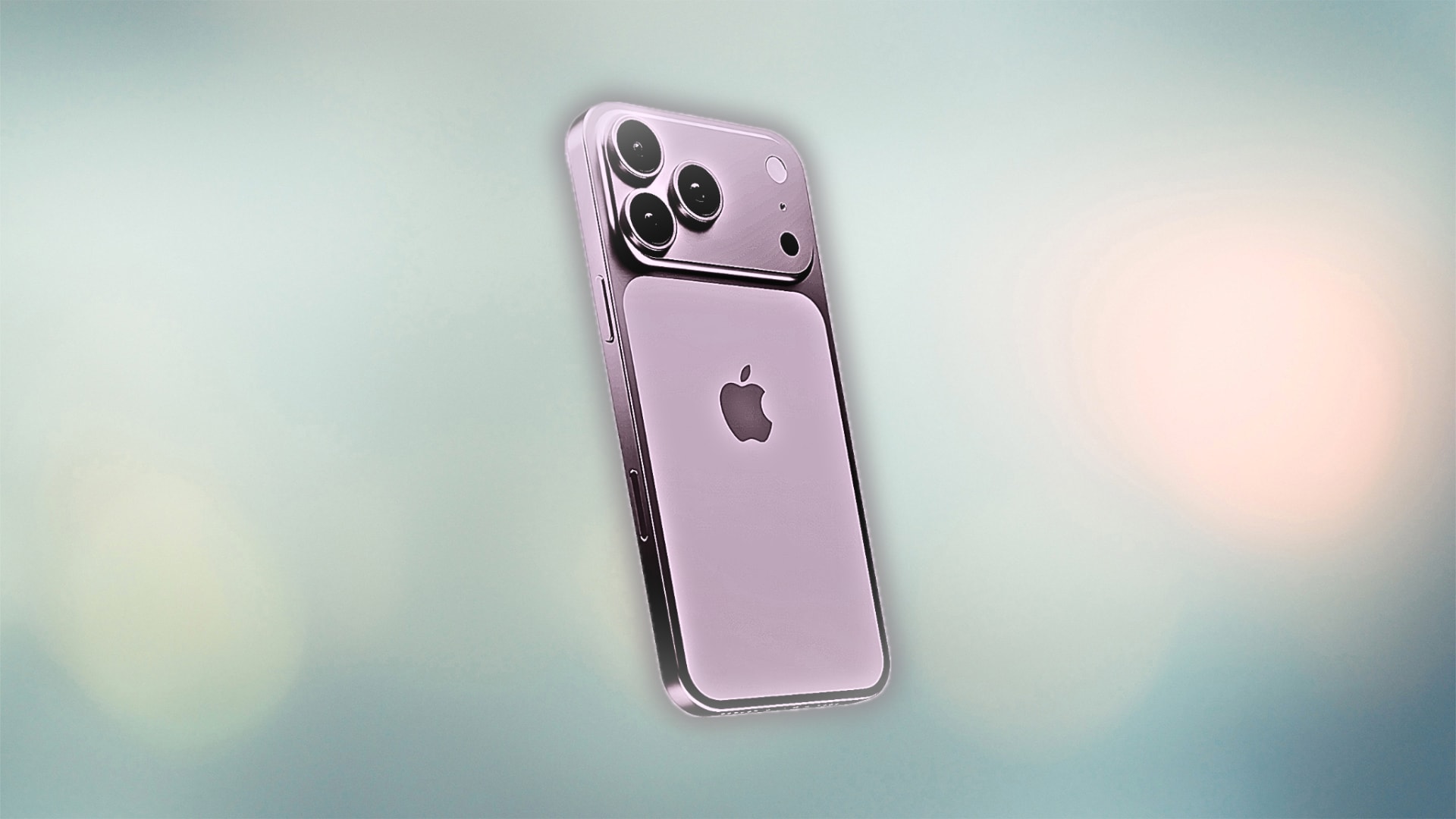
Apple's relentless pursuit of photographic excellence is set to reach a new zenith with the upcoming iPhone 17 camera upgrade. While the iPhone 16 made strides, the 17 is rumored to be a game-changer, particularly for pro-level photographers and videographers. The headline feature? A complete iPhone 17 48 MP photos ecosystem across all rear lenses, including a revolutionary 48 MP telephoto sensor.
This isn't just about more pixels; it's about a fundamental shift in how we capture zoomed-in details. The new telephoto lens, leveraging a periscope-style design, is expected to offer an unprecedented 8x optical zoom, allowing you to get closer to the action without sacrificing an ounce of quality. Imagine capturing the subtle texture of a distant mountain range, the candid emotion on a subject's face from across a field, or the intricate details of an architectural masterpiece—all with stunning, noise-free clarity.
Part 2. Simple Comparison of iPhone 16 and iPhone 17 Camera to be Expected
To truly appreciate the leap forward, let's put the expected specs of the iPhone 17 alongside its predecessor. The focus here is on the telephoto lens, which is receiving the most significant overhaul.
| Metric |
iPhone 16 (Expected) |
iPhone 17 (Predicted) |
The Leap Forward |
| Telephoto Resolution | 12 MP | 48 MP | 4x the detail and resolution for cropping and digital zoom. |
| Optical Zoom Range | 5x | 8x | 60% closer true optical zoom, a massive jump for distant subjects. |
| Sensor Size | Standard | Larger Periscope-type | Significantly better low-light performance and dynamic range. |
| Default Photo Format | HEIF | HEIF Max | More efficient storage for massive 48MP files without quality loss. |
| ProRAW File Size | ~50-75 MB | ~75-100 MB | Larger files offer more editing flexibility but demand proactive storage management. |
This comparison highlights the core of the iPhone 17 camera upgrade: a monumental jump in telephoto lens resolution and capability. The telephoto leap from 12MP to 48MP is the most significant in years, promising to make the iPhone 17 an even more powerful tool for creators. However, the trade-off is clear: larger file sizes and a continued reliance on advanced formats that can create iPhone 17 photo compatibility hurdles.
Part 3. Predicted Issues & Recommended Solutions
The new camera system, while powerful, will inevitably introduce new challenges. Considering Apple's trajectory and the current pain points in its ecosystem, here are the most anticipated issues and proposed solutions.
Issue 1. Windows & PC Users: HEIC/HEIF Incompatibility
Problems for Targeted Users: If you're a Windows user who is excited about the iPhone 17 camera upgrade, you might encounter a frustrating roadblock. The joy of capturing stunning iPhone 17 48 MP photos can quickly turn to frustration when you connect your phone to your PC and discover your photos won't open. This iPhone 17 Windows support issue is a classic problem. Users will face errors like HEIC file not opening on PC, leading to iPhone 17 printing problems when trying to use local printers or retail kiosks that don't support the format. The dreaded message "iPhone HEIC not supported by printer" will become all too common.
Why This Happens: The issue stems from Apple's choice to use HEIC/HEIF (and the new HEIF Max) as the default format for its high-efficiency, high-quality images. While Windows 10 and 11 can install a HEIC extension from the Microsoft Store, it's not native, and many older applications and printing systems remain completely incompatible. This creates a significant iPhone 17 video and photo compatibility gap between Apple and non-Apple ecosystems.
Recommended Solution: Instead of battling with unsupported formats, use Wondershare UniConverter as your go-to tool. It's more than just a converter—it ensures you keep iPhone 17 photo quality for printing while making files universally accessible.
Step-by-Step Guide with UniConverter:
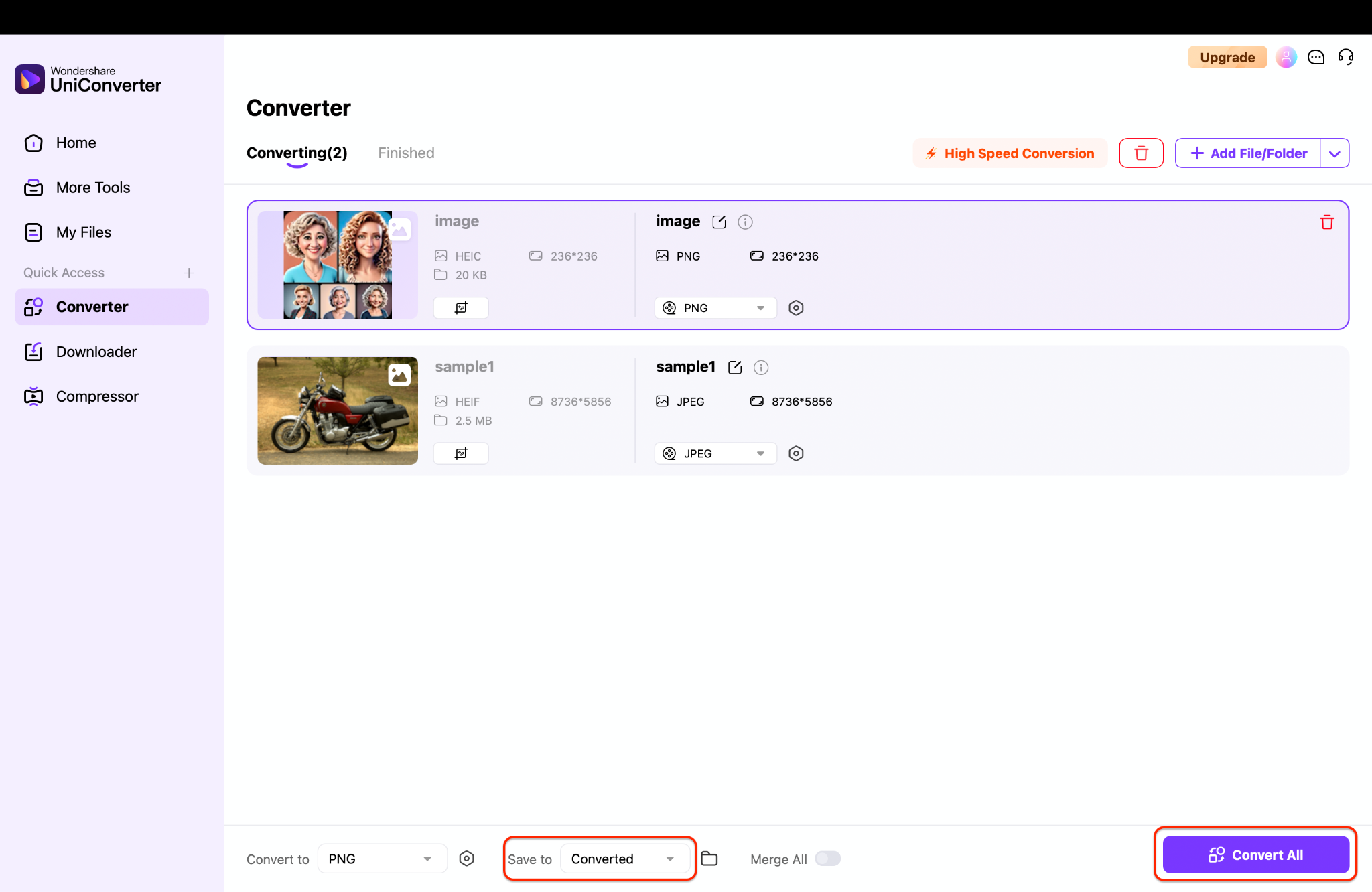
Step 1: Import Your HEICs
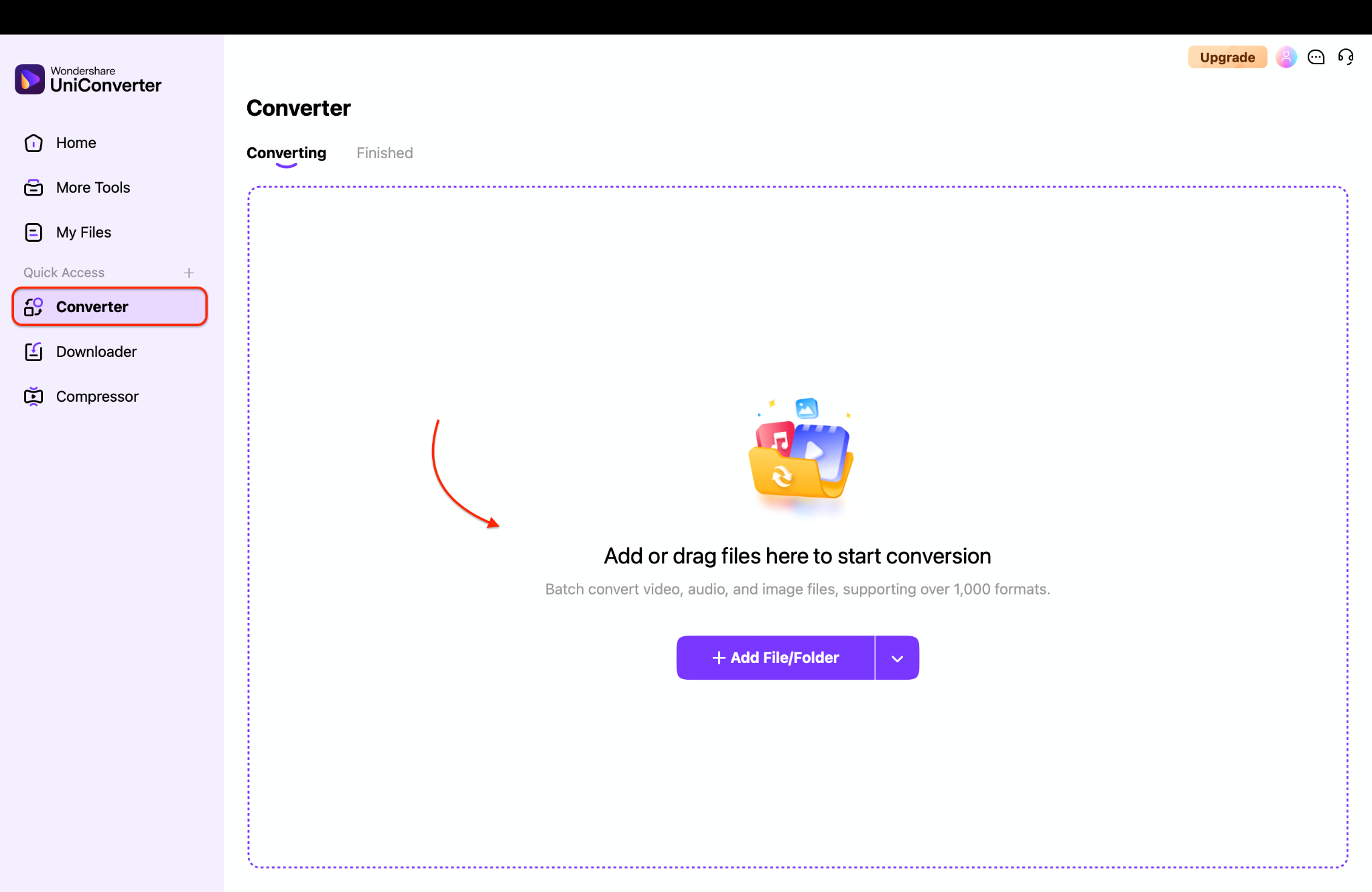
Note: In addition to converting, UniConverter also lets you make quick edits to your photos. You can crop or rotate images and even adjust effects like saturation, brightness, and contrast to fine-tune the look before saving.
Step 2: Choose Your Universal Format
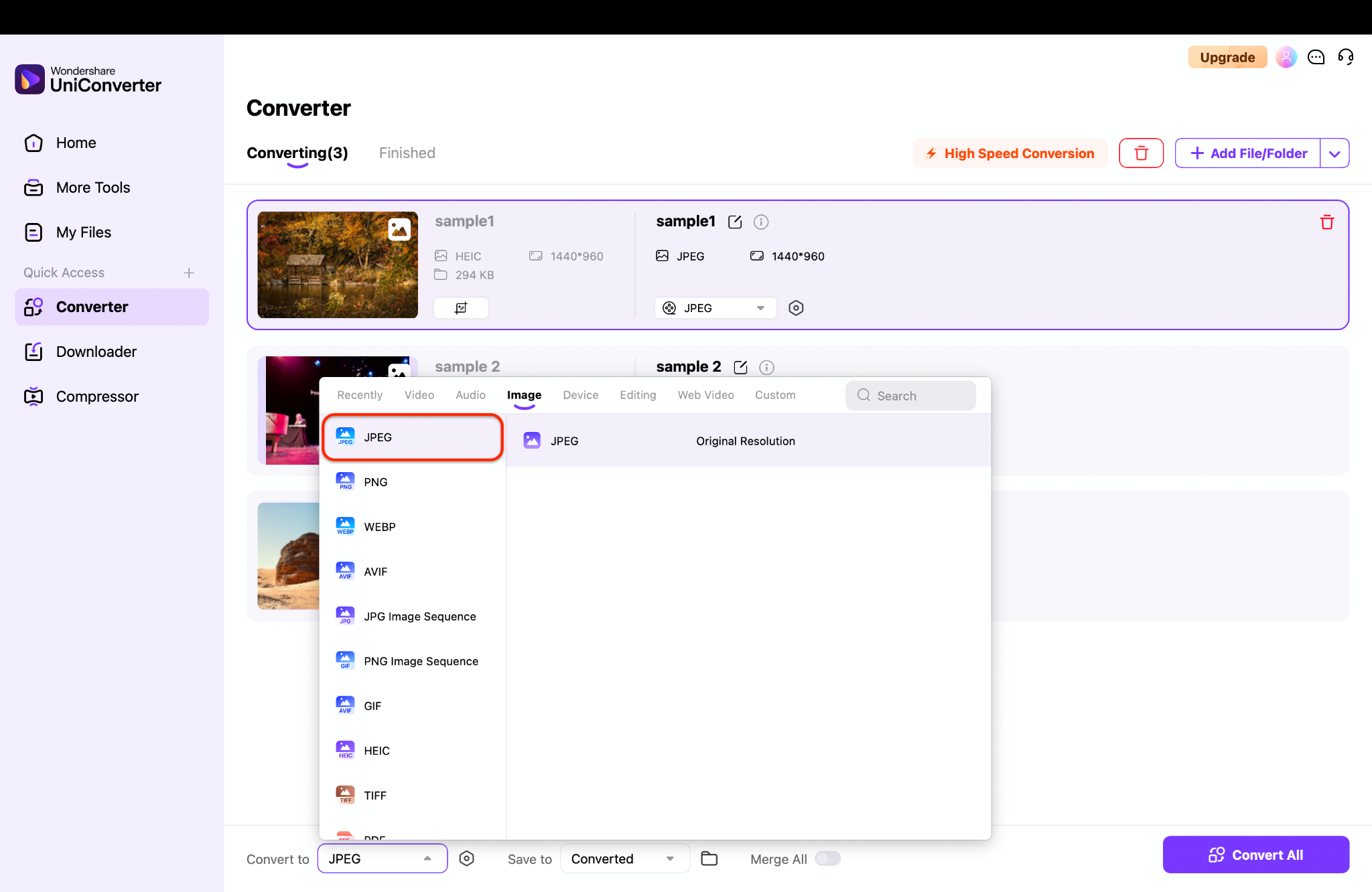
Tip: You can easily customize the image size and quality by clicking the settings icon located right next to the Convert to dropdown menu. This gives you more control over how your final images look and ensures they match your specific needs.
Step 3: Batch Convert and Save
Click Convert All to process every photo at once. Choose a destination folder for your new, universally compatible images by navigating the Save to dropdown menu. Within moments, you've performed a flawless iPhone 17 photo format conversion, creating a set of files ready for anything.
Use Case: A parent takes incredible birthday party shots with the new 8x telephoto lens. At a local print kiosk, they get the "photo kiosk not reading HEIC" error. Instead of leaving disappointed, they use UniConverter on their laptop to quickly convert iPhone HEIC to JPEG for printing. Minutes later, they walk out with stunning, high-quality prints.
Issue 2. Professional Photographers: Oversized ProRAW Files
Targeting: Professional photographers, serious hobbyists, and travelers who need the utmost flexibility in post-processing.
Problems for Targeted Users: The ability to shoot 48MP ProRAW photos is a dream for editing flexibility, but it's also a storage nightmare. A single photo can easily consume 100 MB of space. This quickly leads to complete storage warnings, slow uploads to cloud services, and central iPhone 17 image sharing problems when trying to send files to clients or collaborators via email or messaging apps.
Why This Happens: Apple prioritizes quality and editing data above all else in ProRAW mode. The files contain an immense amount of uncompressed image data, which is fantastic for recovering shadows and highlights in Lightroom but terrible for storage and transfer efficiency. This also exacerbates iPhone 17 photo compatibility issues with many online platforms that have file size limits.
Recommended Solution with UniConverter: UniConverter acts as both a compressor and a converter. You can batch process these massive files to more manageable sizes or convert them to lossless but more compatible formats, solving both storage and compatibility issues in one go.
Step Guide: Compress & Convert Oversized ProRAW / HEIC Files
Step 1: Import Your Massive Files
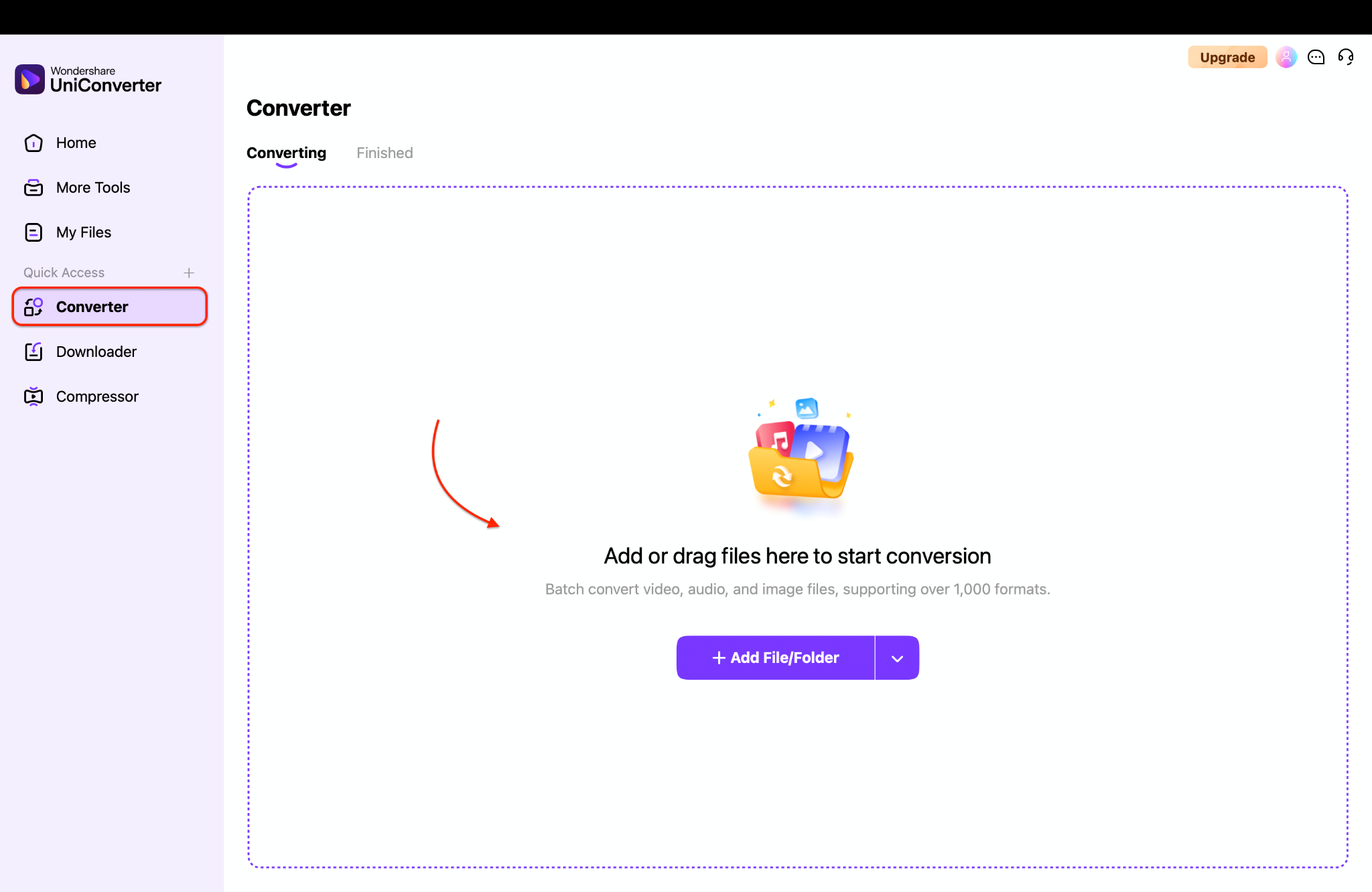
Step 2: Compress and Choose Format
In the Image Converter module, select JPEG (for maximum compatibility) or TIFF (for a lossless editing format) from the Convert to dropdown menu. Now, click on the settings icon (beside the Convert to dropdown menu) and use the Resize quality slider to reduce file size significantly while visually preserving the iPhone 17 48 MP photos quality needed for client delivery.
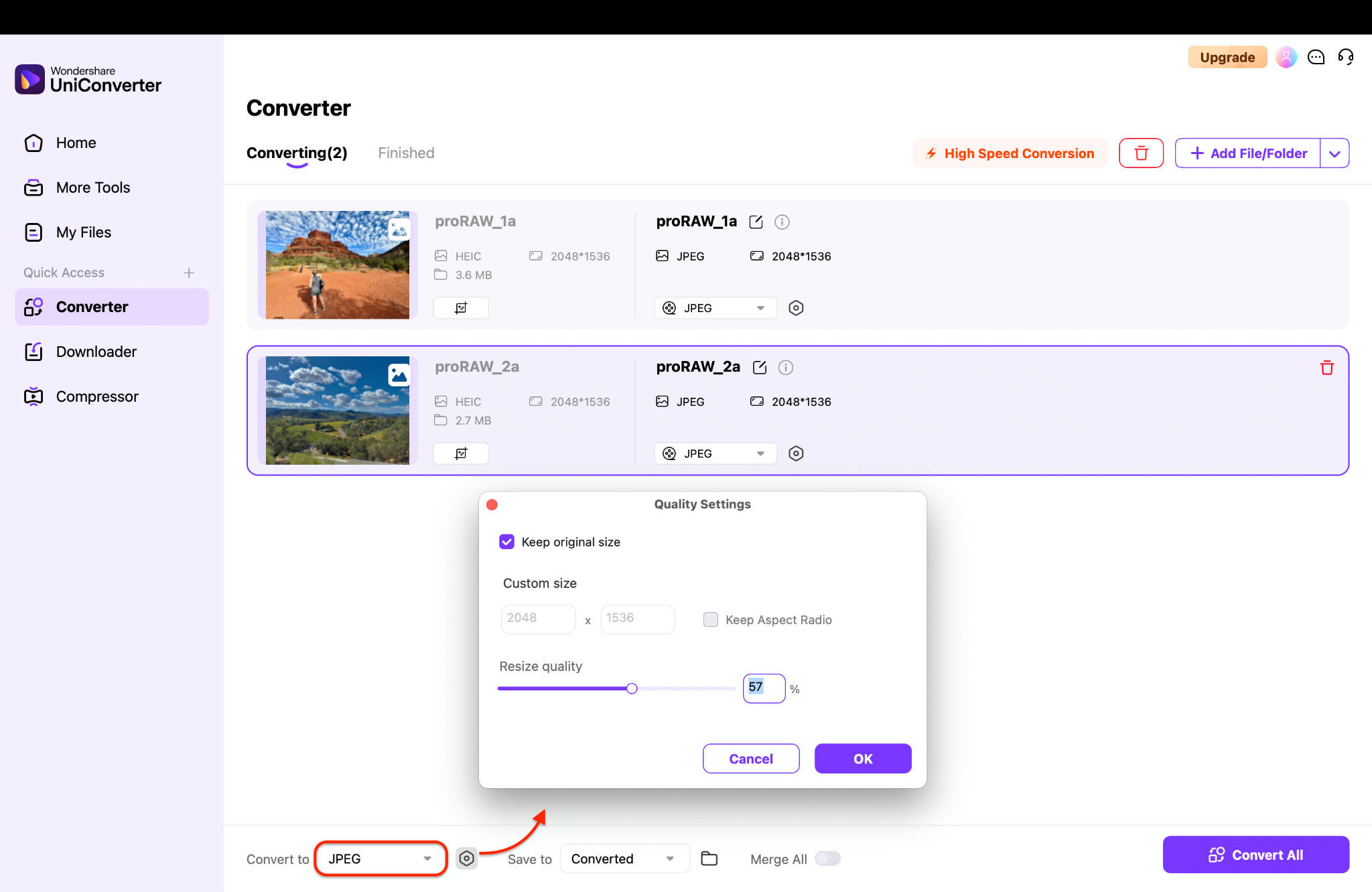
Step 3: Export Efficient Files
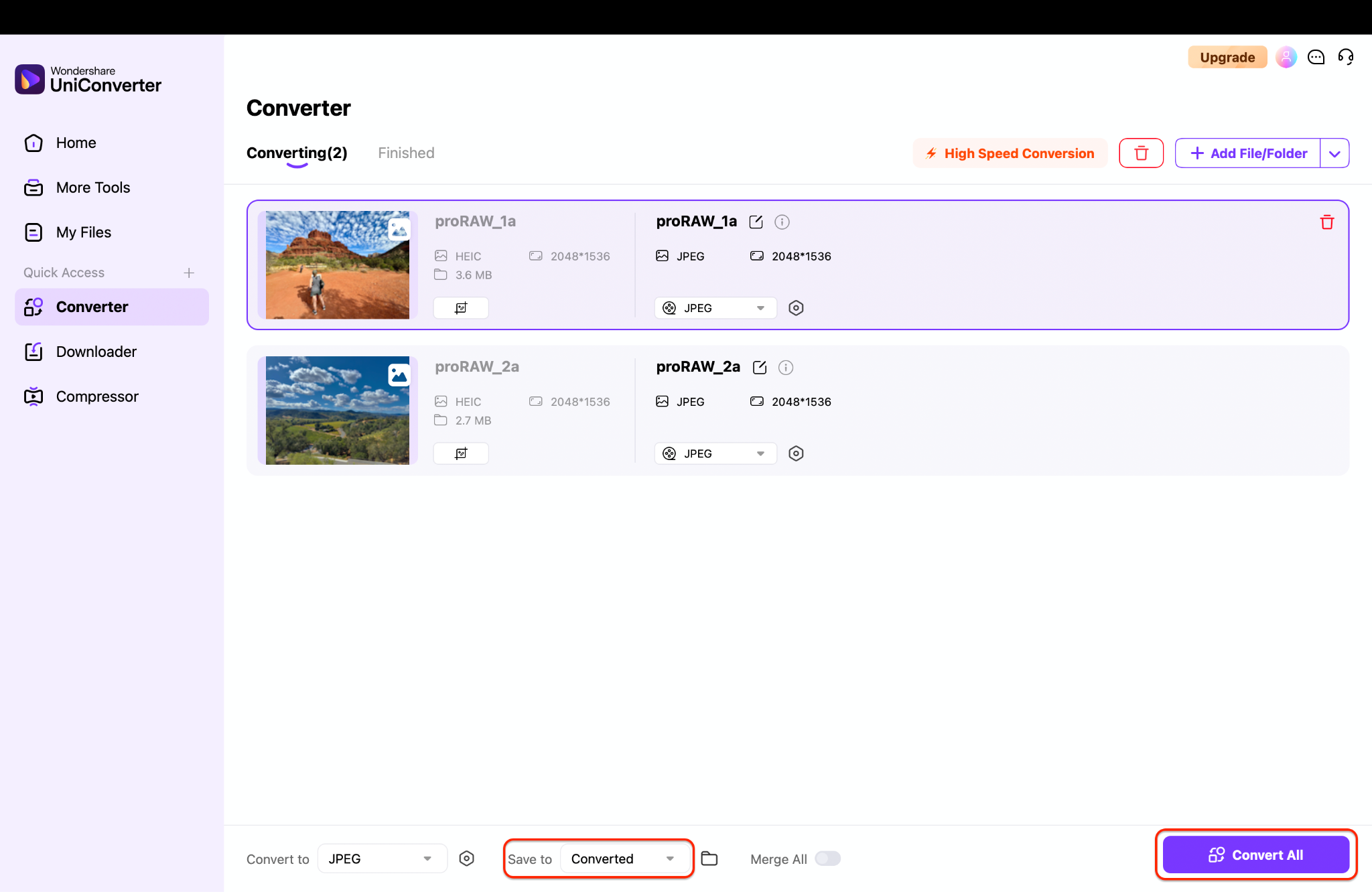
Use Cases:
Photographers: Deliver edited shots to clients without requiring them to download multi-gigabyte folders.
Travelers: Free up space on their laptops and external drives while on the road without deleting original ProRAW files.
Agencies: Streamline their workflow by having photographers submit converted, yet high-quality, proofs for review.
Issue 3. Social Media Creators: Cross-Platform Sharing Challenges
Targeting the social media sharing scene: Content creators on Instagram, TikTok, YouTube, and Pinterest rely on visual quality to stand out.
Problems for Targeted Users: You capture a breathtaking, detailed 48MP shot with the new telephoto lens, perfect for the gram. But when you upload it, the platform's compression algorithm turns it into a soft, blurry, and noisy mess. This iPhone 17 image sharing problem defeats the purpose of the upgrade. Furthermore, some platforms may even struggle with the HEIC container itself, causing upload failures.
Why This Happens: Social media platforms automatically compress uploads to save on bandwidth and storage costs. Their algorithms are often optimized for JPEGs and can mishandle the compression and color data within HEIC files, leading to poor results. The iPhone 17 HEIF Max format, while efficient, is not the native language of these platforms.
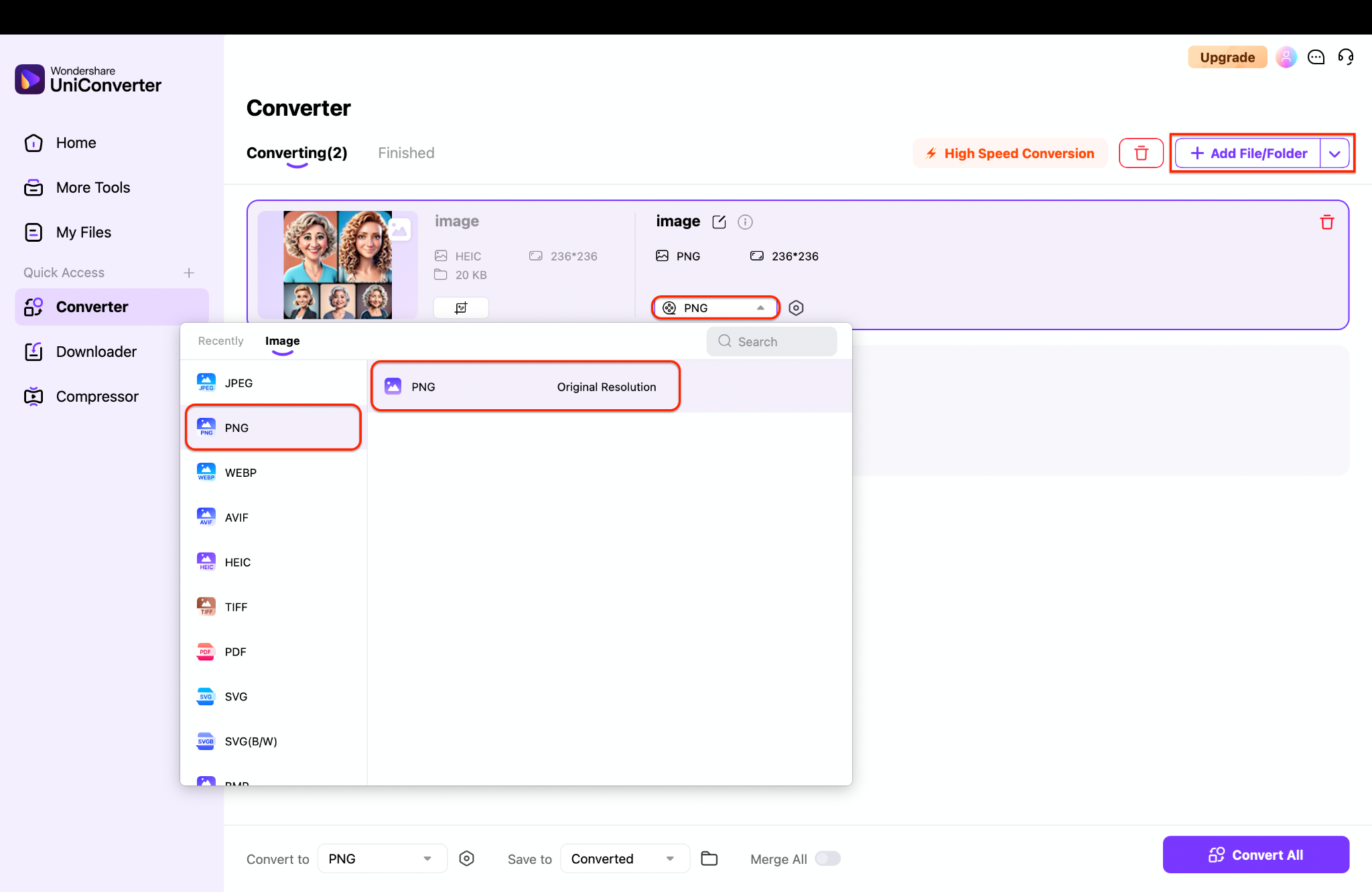
Recommended Solution with UniConverter: The key is to preempt the platform's compression by controlling the conversion yourself. UniConverter lets you convert iPhone HEIC to JPG or PNG at the highest possible quality settings, giving the social platform a file that is already optimized and less likely to be destroyed by further compression.
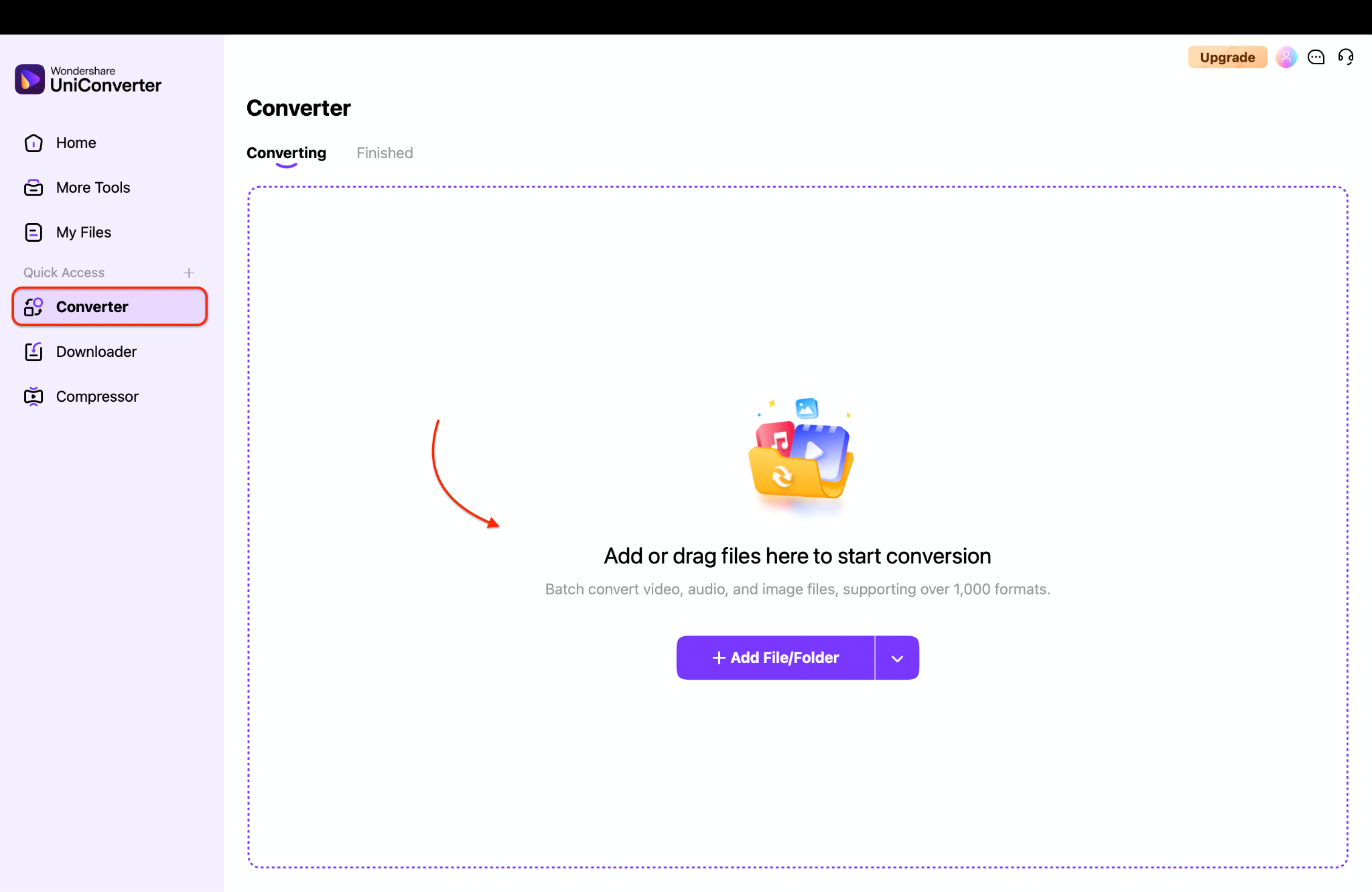
Step-by-Step Guide with UniConverter:
Step 2: Choose PNG for graphics
Use Case: A travel influencer uses the 8x zoom to capture a perfect shot of a rare bird. The HEIC file looks incredible on their phone, but turns into a pixelated mess on Instagram. They use UniConverter to convert HEIC to PNG online (offline, actually, for quality) at the highest quality, preserving fine feather details. Their next upload goes viral thanks to the stunning clarity.
Issue 4. Families & Casual Users: Printing Limitations
Problems for Targeted Users: Home printers, retail kiosks, and online photo printing services often reject HEIC files, preventing users from printing their cherished memories.
Why This Happens: Most consumer-grade printing hardware and software were designed around the JPEG standard and have not been updated to support Apple's newer HEIC format.
Quick-Start Solution
Step 1: Open UniConverter, go to the Converter section, and add your iPhone 17 HEIF Max photos (HEIC).
Step 2: Choose JPEG from the Convert to dropdown menu to make your iPhone HEIC photos printer-friendly.
Step 3: Click Convert All to batch-process your photos and save them in a folder ready for instant printing without kiosk errors.
Use Case: A grandparent wants to print pictures of their grandchildren from the new iPhone 17. They take their phone to a local store, but the kiosk shows a "iPhone HEIC not supported by printer" error. Their tech-savvy child uses UniConverter to quickly prepare the files, allowing them to create beautiful physical albums the same day.
Issue 5. Designers & Content Creators: Editing Software Incompatibility
Problems for Targeted Users: Professional applications like Adobe Photoshop, Affinity Photo, or CorelDRAW may not open HEIC or 48MP ProRAW files correctly, or at all, stalling creative workflows.
Reason: While major software is catching up, plugin conflicts, older versions, and specific workflow tools often lack native support for Apple's latest codecs.
Quick-Start Solution
Step 1: Open UniConverter, go to the Converter section, and add your iPhone HEIC photos.
Step 2: Choose JPG for universal editing or TIFF for a lossless format ideal for professional workflows.
Step 3: Click Convert All to generate files ready for seamless import into your preferred design or editing software.
Use Case: A graphic designer receives product shots from a client taken on an iPhone 17. Their version of Photoshop crashes when trying to open the HEIC files. They batch convert the folder to TIFF using UniConverter, preserving all the editing flexibility, and complete the project on time.
Issue 6. Business Users: Workflow Compatibility Issues
Problem: Corporate systems like email clients (Outlook), Content Management Systems (CMS) for websites, and internal collaboration platforms often block or cannot display HEIC files, causing an iPhone 17 image sharing problem in professional settings.
Reason: Enterprise IT systems are slow to update and prioritize security and universal compatibility over supporting newer, proprietary file formats.
Quick-Start Solution
Step 1: Open UniConverter and use the Converter to import your team's HEIC files, including product shots, campaign images, or executive portraits.
Step 2: Select JPEG as the output format to ensure files are universally compatible with CMS platforms, email newsletters, and business tools.
Step 3: Click Convert All to batch-process the photos offline for security, creating a ready-to-use library without workflow interruptions.
Use Case: A real estate agent uses the iPhone 17's wide-angle lens to capture stunning property photos. Their company's website CMS rejects the HEIC uploads. They use UniConverter to automatically convert all listing photos to JPEG, ensuring they are uploaded and published without delaying a new listing.
Issue 7. Frequent Travelers & Photo Hoarders: Storage Overload
Problem: The combination of 48MP photos and HEIF Max files, while efficient per photo, still leads to massive overall storage consumption, quickly filling up iPhone storage, iCloud, and laptop hard drives during trips.
Reason: Higher resolution and more detail mean more data. While HEIC is efficient, it can't circumvent the laws of physics—more pixels equal larger files.
Quick-Start Solution
Step 1: Offload your iPhone 17 photos onto your laptop to free up device space.
Step 2: Open UniConverter, go to the Converter section, and batch convert your photos into high-quality JPEGs for easy sharing and backup.
Step 3: Keep the original files stored safely on an external or separate drive while using the converted JPEGs as the best way to print iPhone 17 photos and share them without storage overload.
Use Case: A photographer on a month-long safari fills several terabytes with ProRAW shots. They use UniConverter to create a manageable-sized JPEG portfolio to share with sponsors and on social media from the field. At the same time, the raw files are safely archived for deeper editing upon return.
Issue 8. Event Photographers & Journalists: On-the-Deadline Transfer Delays
Problem: In fast-paced environments, the inability to quickly transfer photos to editors on Windows PCs or transmit them over cellular networks due to format and size issues can mean missing a critical deadline.
Reason: The iPhone 17 Windows support issue and the large size of ProRAW/HEIF Max files create a bottleneck in a workflow where every second counts.
Quick-Start Solution
Step 1: Open UniConverter on your laptop, go to the Converter section, and import your iPhone HEIC photos.
Step 2: Select JPEG from the Convert to dropdown menu to create smaller, universally compatible files.
Step 3: Click Convert All to batch-process instantly, making your photos ready for rapid printing, emailing, or uploading on deadline.
Use Case: A photojournalist covers a breaking news event. Their editor, on a tight deadline, uses a Windows PC and is unable to open the HEIC files. The journalist uses UniConverter for a rapid batch conversion and sends the JPEGs via WeTransfer, meeting the deadline with minutes to spare.
Issue 9. E-Commerce Sellers: Product Image Upload Failures
Problem: Sellers using platforms like Shopify, Amazon, or eBay may find their product images taken with the iPhone 17 camera upgrade are rejected upon upload, halting their business operations.
Reason: E-commerce platforms have strict and often outdated file requirements to ensure consistency and compatibility for all users, frequently mandating JPEG or PNG only.
Quick-Start Solution
Step 1: Open UniConverter, go to the Converter section, and import your product photos in HEIC format.
Step 2: Select JPEG from the Convert to dropdown menu to ensure every image meets e-commerce platform requirements.
Step 3: Click Convert All to batch-process hundreds of images at once, creating sharp, upload-ready files without errors.
Use Case: An Amazon seller upgrades to an iPhone 17 for its superior product photography. Their batch upload of new listings fails because Amazon doesn't accept HEIC. They integrate UniConverter into their workflow, converting all images to optimized JPEGs before upload, streamlining their listing process.
Issue 10. Remote Workers: Collaboration Disruptions
Problem: Remote teams using tools like Slack, Microsoft Teams, or Trello find that HEIC files don't generate previews, appear as broken icons, or require downloads to view, disrupting visual collaboration and feedback loops.
Reason: These collaboration tools are built for universal appeal and often rely on the operating system's native capabilities to handle file previews, running into the same iPhone 17 Windows support issue.
Quick-Start Solution
Step 1: Open UniConverter and head to the Converter section to import your shared iPhone 17 HEIF Max photos (HEIC).
Step 2: Select JPEG as the output format to ensure instant previews across chat and project management tools.
Step 3: Click Convert All to batch-process your images, removing collaboration roadblocks and keeping the focus on creativity, not IT issues.
Use Case: A remote design team shares UI mockups taken as screenshots on their iPhone 17. In Slack, the images don't appear, forcing each member to download them. The team lead starts converting screenshots to PNG before sharing, making feedback sessions instantaneous and far more efficient.
Conclusion
The iPhone 17 camera upgrade, with its robust 48MP sensors and advanced iPhone 17 HEIF Max format, is poised to redefine mobile photography. However, this power comes with a complexity that can disrupt workflows, hinder sharing, and prevent printing across the wider, non-Apple technological world. The core challenge of iPhone 17 photo compatibility is real and affects everyone from professionals to casual users.
The common thread through all these predicted issues is the need for a simple, powerful, and reliable bridge between Apple's cutting-edge formats and the universal standards the world still runs on. This is where Wondershare UniConverter proves indispensable. It is more than just a converter; it is a comprehensive toolset that empowers you to harness the full quality of your iPhone 17 48 MP photos without being hamstrung by compatibility limitations. It is the definitive solution to print high-resolution iPhone photos, share them seamlessly, and manage their storage efficiently.
Don't let file formats limit your creativity. Download Wondershare UniConverter today and ensure your iPhone 17's stunning photos are ready for any platform, printer, or project
FAQs
-
1. Why won't my photos from my new iPhone 17 open on my Windows computer?
This is the most common iPhone 17 Windows support issue. It happens because Apple uses the HEIC/HEIF format by default for its efficiency, but Windows doesn't fully support it natively. Your computer doesn't recognize the file type. The solution is to convert iPhone HEIC to JPG using a tool like UniConverter, which creates a universally compatible file. -
2. I want to print high-resolution iPhone photos from my iPhone 17, but my local photo kiosk says the files are unsupported. What can I do?
This frustrating HEIC photo printing issue occurs because most retail printing kiosks and home printers are designed to work with JPEG files. To make iPhone HEIC photos printer-friendly, you need to convert them to JPEG. Using a batch HEIC to JPEG converter online tool like UniConverter is the fastest way to prepare an entire album for printing without losing quality. -
3. What's the difference between HEIC and JPEG for printing from my iPhone 17?
In the debate of iPhone 17 JPEG vs HEIC for printing, the key difference is compatibility, not quality. HEIC offers better compression (smaller files) with similar quality, but JPEG is the universal standard. To guarantee no errors, converting HEIC to JPEG is the most reliable HEIC to JPEG printing solution. With a good converter, you won't perceive any loss in quality in your final prints. -
4. Is there a way to convert my HEIC photos without losing the 48MP quality?
Absolutely. The best HEIC to JPG converter for iPhone will allow you to convert your files without perceptible quality loss. Tools like UniConverter let you set the output quality to 100% when converting to JPEG, ensuring that all the detail from your iPhone 17 48 MP photos is preserved for printing or professional use. -
5. My cloud storage is filling up too fast after the iPhone 17 camera upgrade. What can I do?
The new 48MP photos and ProRAW files are significantly larger. While you can change your iPhone photo format settings to take standard JPEGs, you lose flexibility. A better method is to use a tool like UniConverter to batch compress and convert your photos after essential shoots. This allows you to keep the originals as archives while creating smaller, more manageable files for everyday use and cloud backup.

