


YouTube, a popular video platform, allows you to access any type of video in various languages. However, it gets quite annoying if the documentary that you watch doesn't have appropriate subtitles in the language that you speak. Not only this, but subtitles also provide a better listening experience to those who have a problem listening and also facilitate language learning.
This article will guide you with all the subtitle settings you can access and how to change subtitle language in YouTube on your PC and mobile.
In this article
- Part 1. Setting Options Available for YouTube Subtitles on PC and Mobile
- Part 2. How to Easily Change YouTube Subtitle Language & Settings on PC
- Part 3. How to Easily Change YouTube Subtitle Language & Settings on Mobile
- Part 4. How to Easily Make Bilingual Subtitles and Change Subtitle Position for YouTube Videos
- Part 5. Extended Knowledge: YouTube Supported Subtitle Formats
- Part 6. Conclusion
- Part 7. FAQ
Part 1. Setting Options Available for YouTube Subtitles on PC and Mobile
YouTube offers users a wide range of subtitle customization options, which you can access on your PC and mobile. They can also customize subtitle appearance by adjusting font size, color, background opacity, and style to improve readability, given as such:
Customizable Settings Options of YouTube Subtitles on PC
You can customize the following YouTube caption settings according to your needs and preferences to have a streamlined viewing experience:
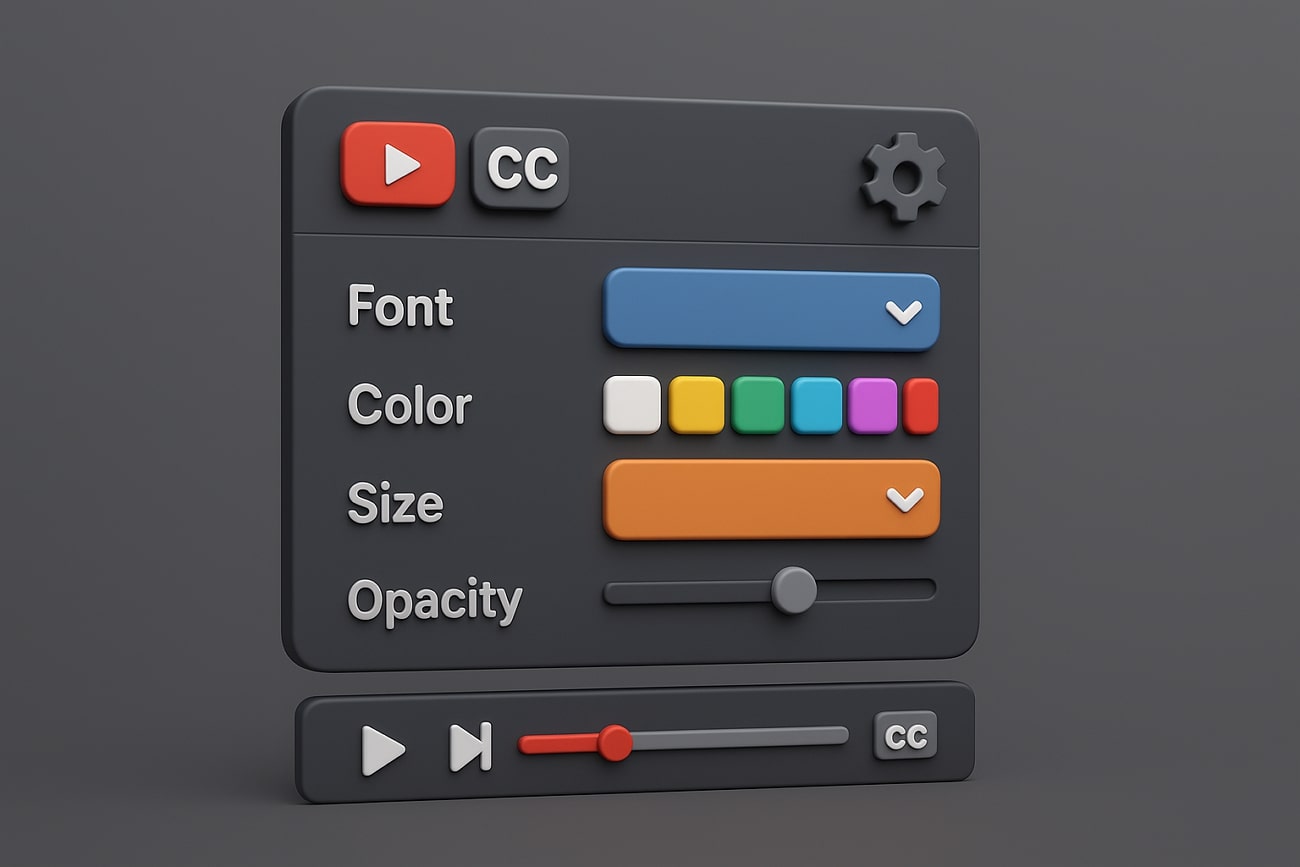
Caption Settings: You can turn on and off the subtitles when playing a video, which is convenient for users according to their taste.
Selection of Languages: There are various subtitle languages users can select or simply enable the auto-translate option to display the subtitles.
Selection of Fonts: The platform permits free selection of the type of subtitle text, like sans-serif, serif, informal, or cursive.
Font Size & Color: YouTube offers subtitle text color from white to blue and also provides font sizes from 50% to 400% range with varying opacities.
Background Color and Opacity: For better visibility of subtitles, set the subtitle color and control the transparency level of the subtitle background color from 0% to 100%.
Window Color & Opacity: It’s easy to change the overall background subtitle box to colors, like cyan, magenta, and more, up to 100% opacity rate.
Character Edge Style: On the streaming website, add an outline or shadow effect to subtitle text edges, such as raised, depressed, or shadowed.
Default Option: Whatever settings you decide for the caption on YouTube will automatically be set for all videos unless changed using the default setting.
Customizable Settings Options of YouTube Subtitles on Mobile
Now, let’s go through the various YouTube subtitle settings you can access on your mobile devices:
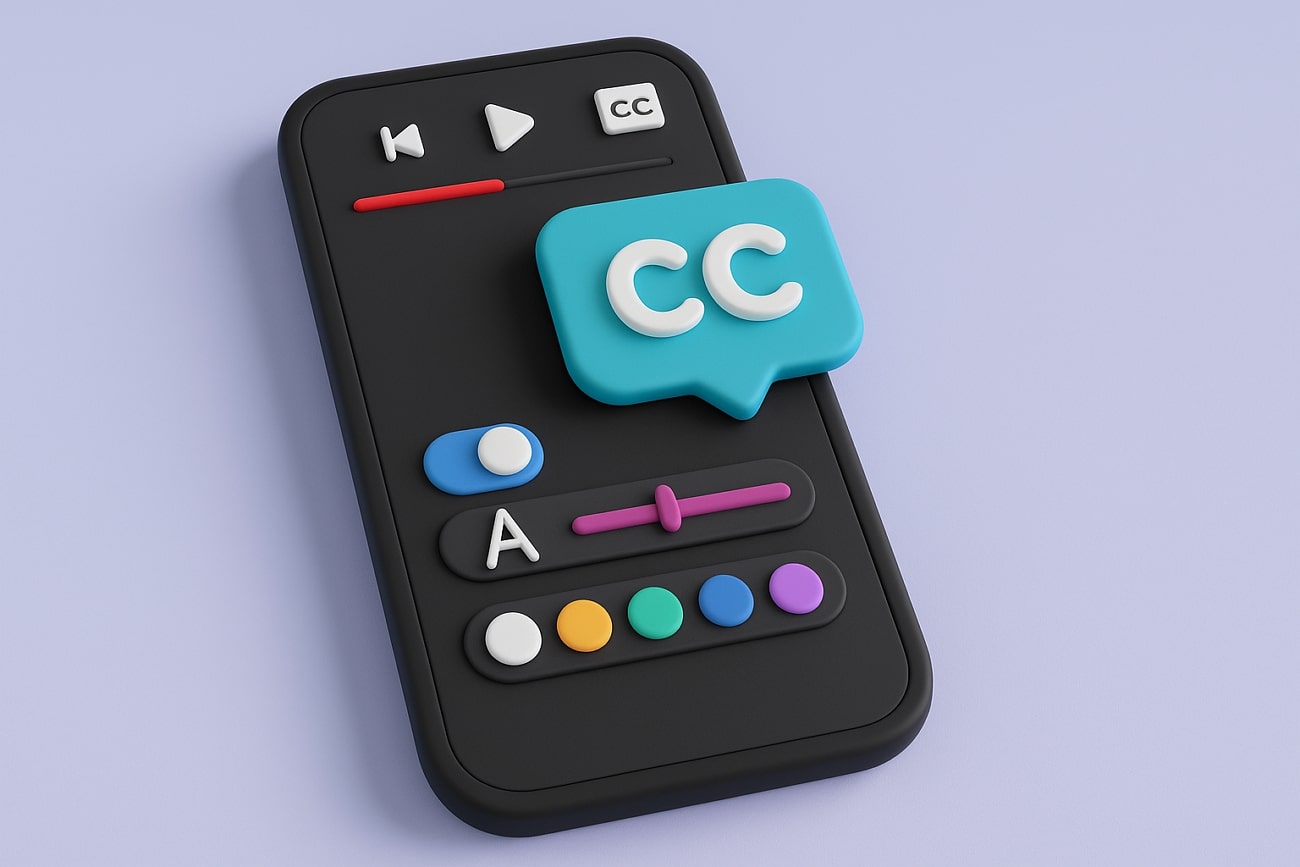
Language Options: With the streaming service, the consumer may select the option of auto-translator or select one of the available subtitle languages to enjoy the highest quality.
Text Customization Options: This platform lets you change the size of subtitle text, its color, and how clear it is.
Caption Style: For a better subtitle style, choose the overall style preset of the captions, like black-and-white, yellow on black, and custom.
Font Family: Features different types of fonts for subtitles within the settings, ranging from serif, sans-serif, small capitals, and more.
Edge Type and Color: Stylize the outline or border of the subtitles with raised, depressed, or drop shadow options, alongside 65+ color options.
Background Color & Opacity: Make the subtitles pop by choosing from a 60+ color range and adjusting the transparency from 25% to 100%.
Caption Window Color and Opacity: Streamers can modify the color of the entire caption window and control the transparency option up to 100%.

Smart YouTube Subtitle Tool
Part 2. How to Easily Change YouTube Subtitle Language & Settings on PC
Users can personalize and learn how to change caption language in YouTube with the help of the following easy steps:
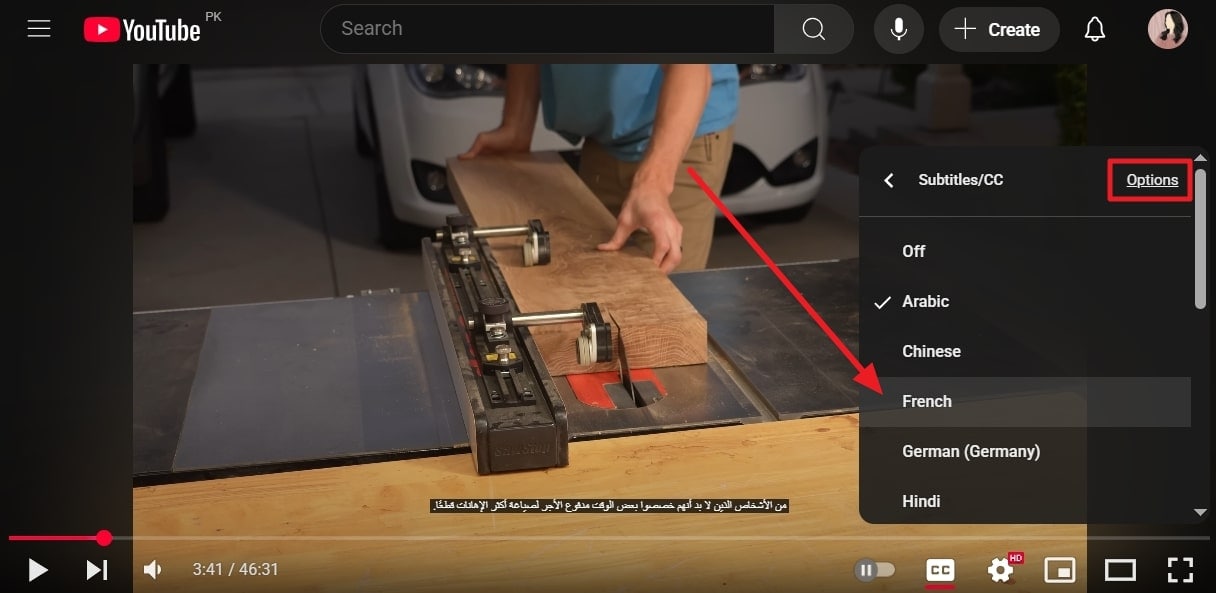
Step 1. Open a desired video on YouTube, click the “CC” icon on the video playback area, and access the “Subtitles/CC” option.
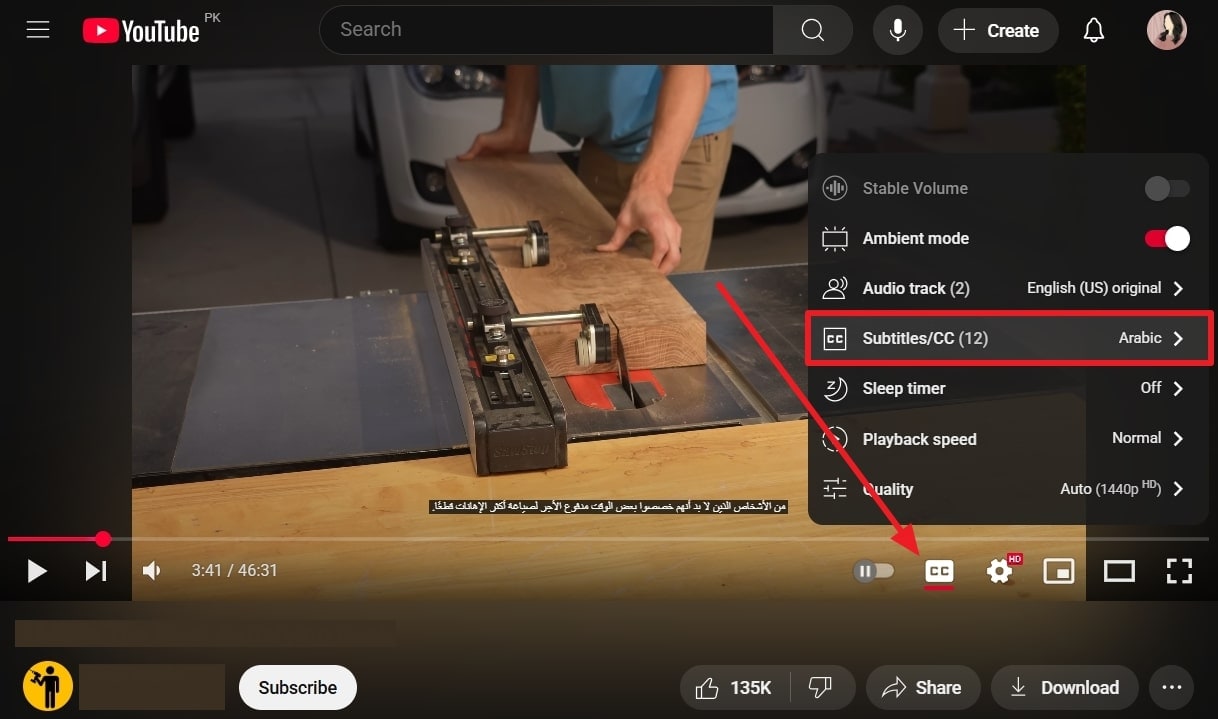
Step 2. From here, you can choose any language you want for the video and hit the “Options” choice to open another set of options.
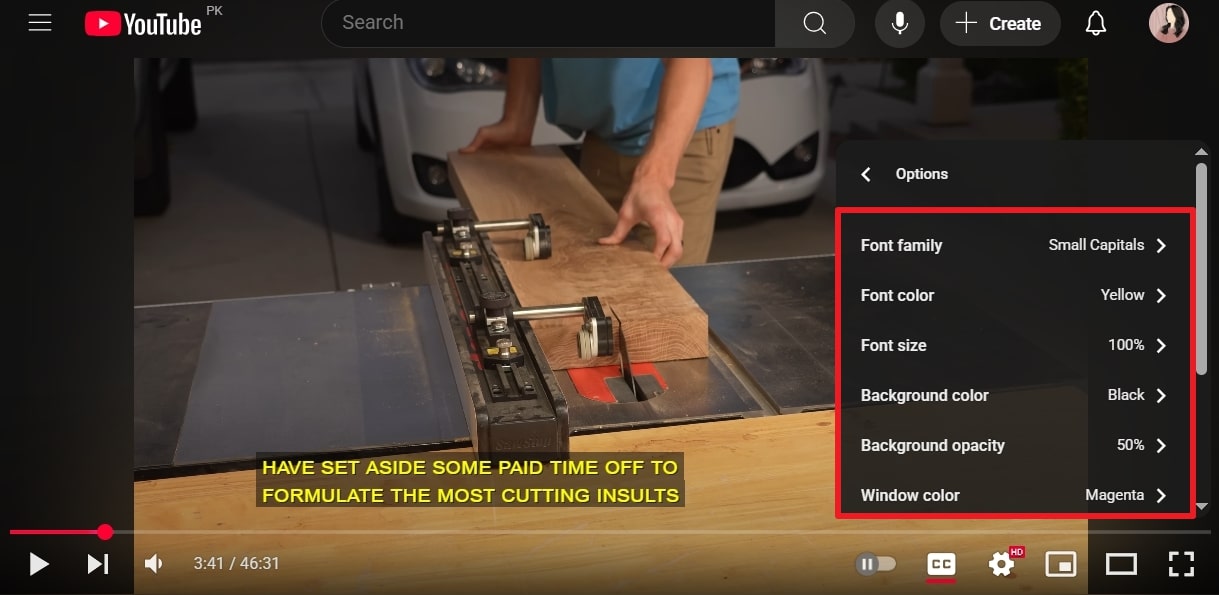
Step 3. Once the “Options” appear, modify the subtitles however you want by changing the “Font Color,” “Background Opacity,” and more.
Part 3. How to Easily Change YouTube Subtitle Language & Settings on Mobile
The process of learn how to change caption language on YouTube mobile is straightforward, and is executed by the given instructions:
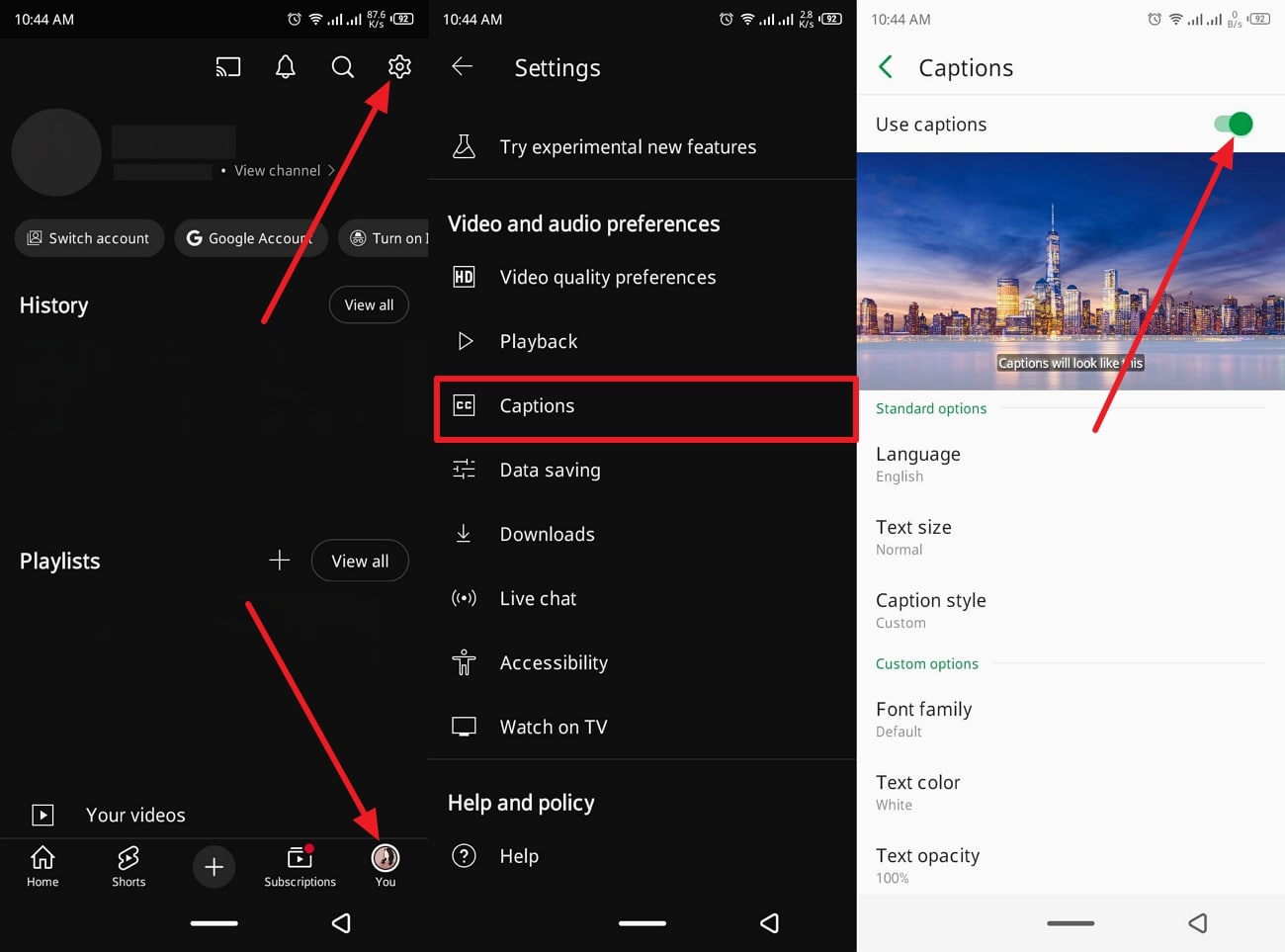
Instructions. Access the YouTube app on your mobile, head to the “Profile” tab, and press the “Settings” icon at the top. After that, scroll down, choose the “Captions” option under the “Video and Audio Preferences,” and enable “Use Captions.” Now, you can change the “Standard Options” and the “Custom Options” settings.
Smart YouTube Subtitle Tool
Part 4. How to Easily Make Bilingual Subtitles and Change Subtitle Position for YouTube Videos
If you are looking for the ultimate subtitle creator and editor, the most recommended software to use is Wondershare UniConverter. It allows users to easily create custom .srt files manually, import local subtitle files, or auto-generate them in over 100 languages. Furthermore, this tool can even extract audio and remove silent sections during auto-generation, thus enhancing the subtitle accuracy even more.
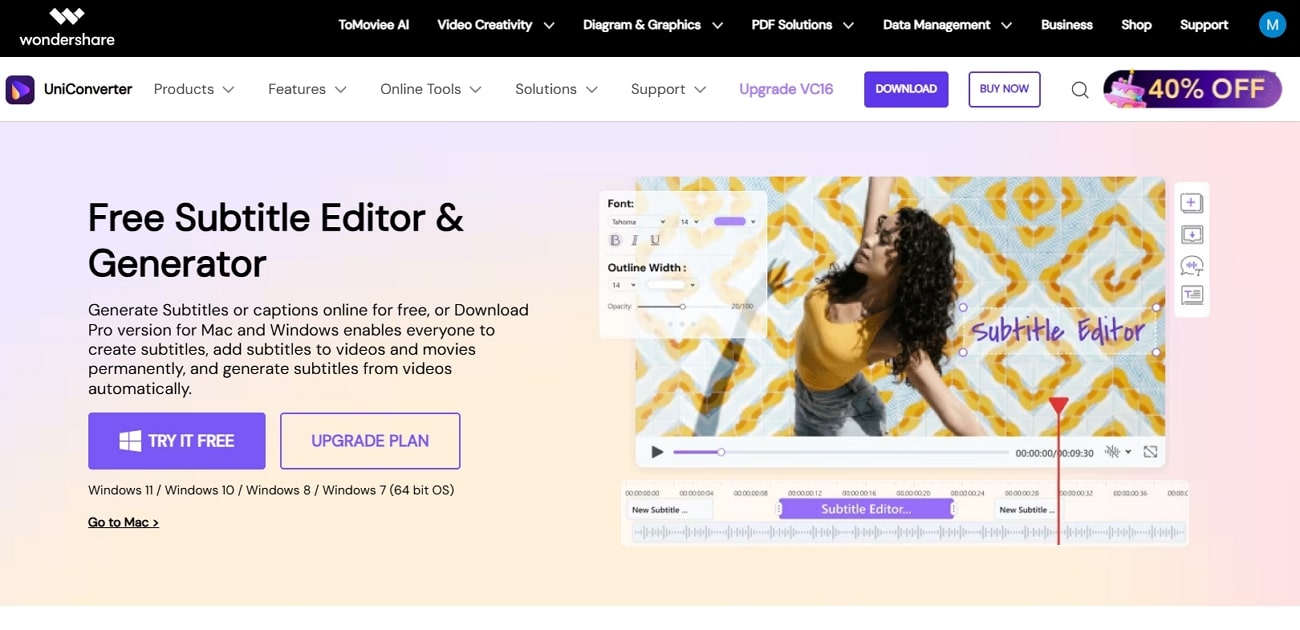
This software is a perfect blend of subtitle style adjustments and batch processing, which offer subtitle positioning and more. Users can access its versatile customization options, extensive supported formats, and video outputs, like MP4, MOV, and others. UniConverter also provides other subtitle options, like audio AI subtitle generation, text to subtitle, and manual subtitle options. It is a notably powerful and efficient tool for creators looking to produce highly tailored subtitles.
Key Features
Supported Subtitle Formats: This tool supports over 18 formats that you can import, such as SRT, AAS, and more, for various lengths of YouTube videos.
Customization of Subtitles: It allows you to customize font family, size, and outline, alongside the addition of subtitle merging and editing.
Real-Time Preview: You can see a live view of the subtitles and check all changes while editing for quick visual feedback.
Automatically Generated Subtitles: With this software, spoken words can be automatically translated into exact text in video via intelligent speech-to-text technology.
Subtitle Conversion: It allows users to save videos with subtitles as separate files, making it simpler to enjoy a smooth experience.
Simple Instructional Guide on How to Create Bilingual Subtitles for YouTube Videos
Users can easily follow these steps and learn how to create or add their subtitles and customize them according to their needs:
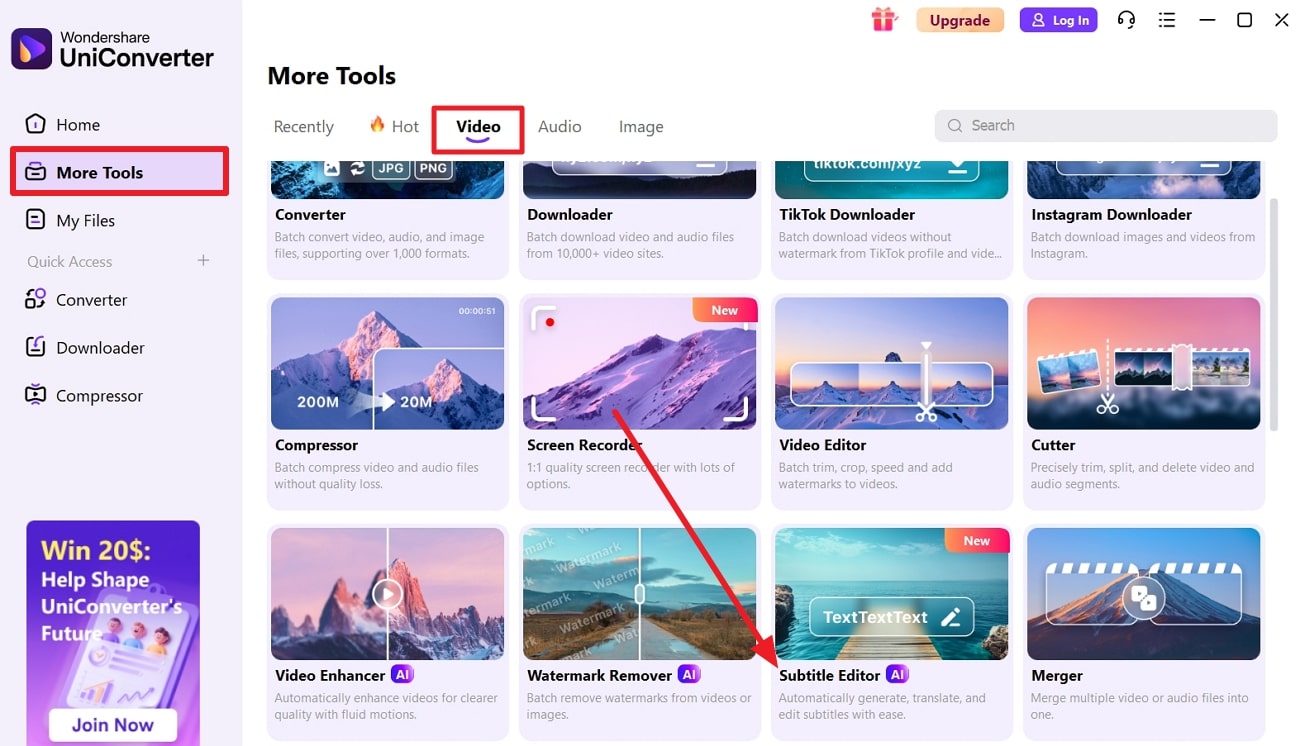
Step 1. Access the Subtitle Editor Feature and Import File
As you navigate into UniConverter, click the “More Tools” tab, and from the “Video” tab, press the “+ Add File(s)” button under the “Subtitle Editor” option.
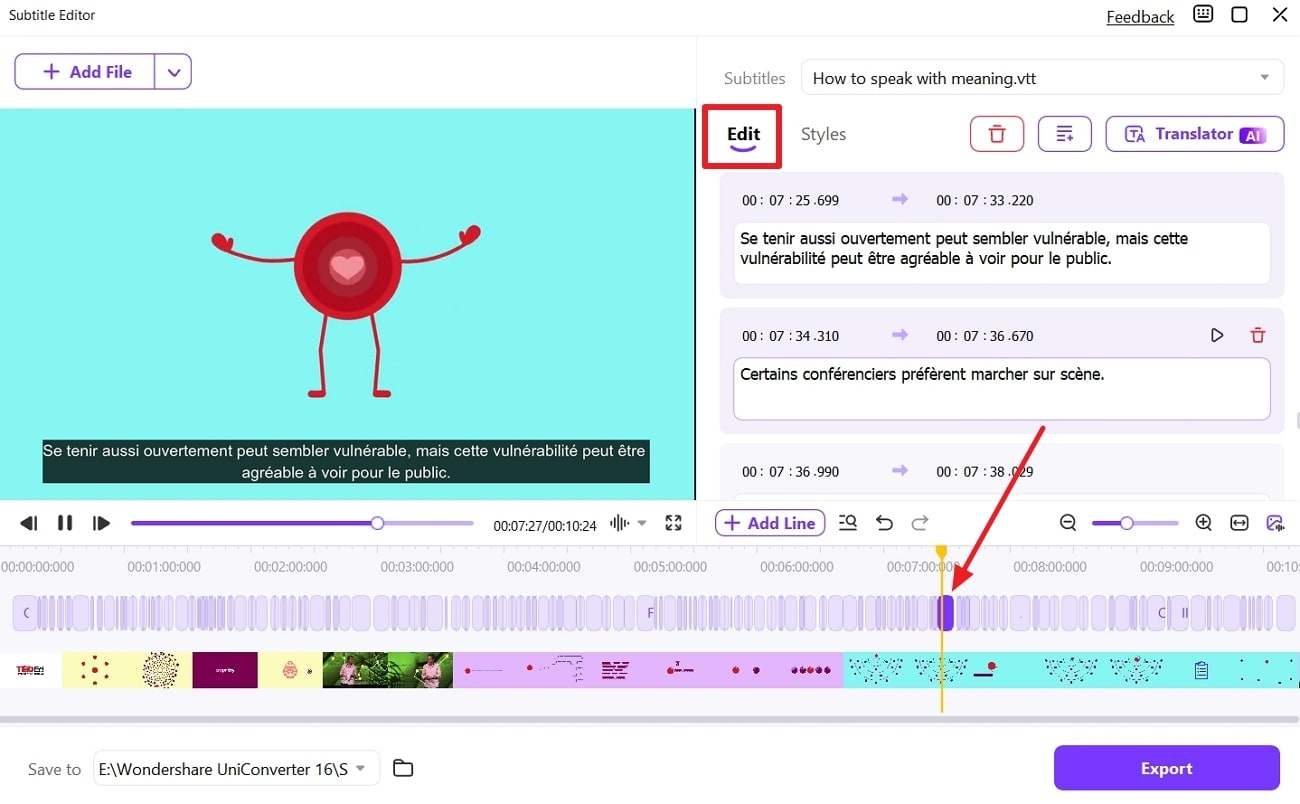
Step 2. Make Editing Changes to Subtitles in Timeline
On the new window, hit the “Import Subtitle File” option, import the desired language subtitle file, and access the “Edit” tab. Make suitable subtitle changes, like changing the words, merging, or adding cards, and more.
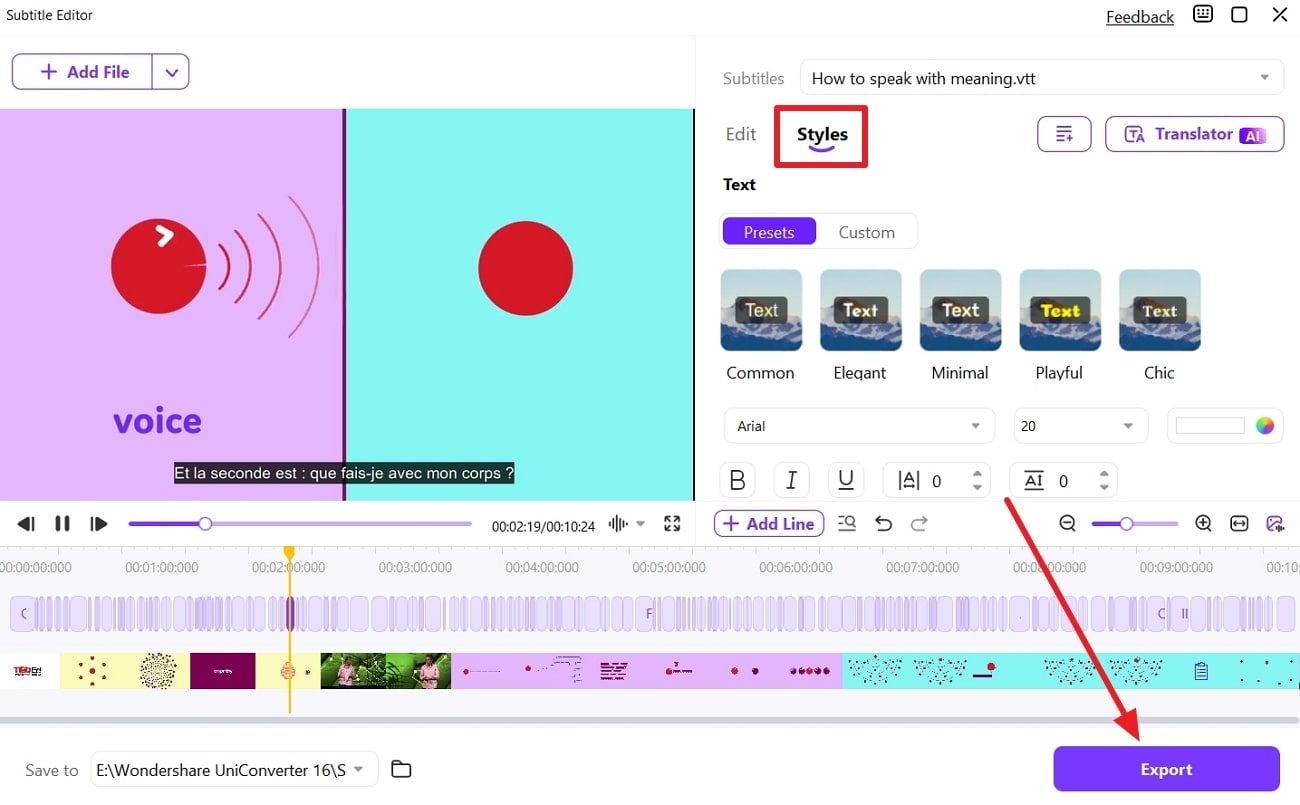
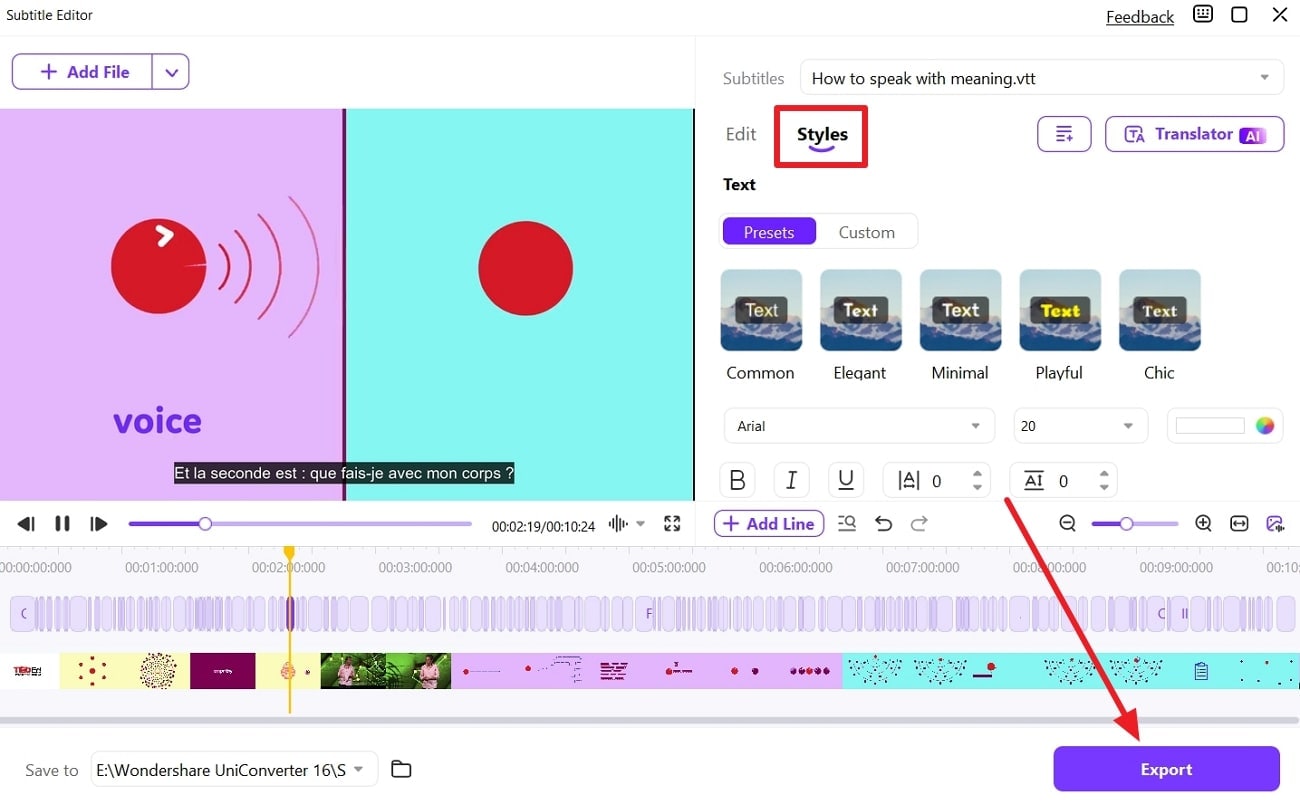
Step 3. Stylize Subtitles and Export Final Video
After that, go to “Style”, and change the “Text,” “Position,” and “Transparency” of the subtitles. When done with that, make suitable formatting changes, hit the “Export” button, and download the file as MP4, SRT, or profile file.
Part 5. Extended Knowledge: YouTube Supported Subtitle Formats
You should learn which type of subtitle formats YouTube supports to ensure flexibility and accessibility. The following are some of the formats you can access in the subtitle settings:
SubRip Subtitle (.srt): The most widely used format is supported by the platform, which is ideal for cross-platform video captions.
WebVTT (.vtt): Another HTML5-friendly format YouTube supports are WebVTT, which lets you stylize and change the position of subtitles.
Scenarist Closed Captions (.scc): This format is used for broadcast-quality closed captions, as it is used for professional workflow, TV, and DVDs.
DFXP/TTML (.dfxp or .ttml): Users can even upload Text Markup Language for rich subtitles, and use it for complex projects and broadcast media.
SAMI (.sami): These are basic timed-text feature subtitle formats used for various multilingual subtitle support.
Conclusion
In summary, this article sheds light on the matter of being able to access subtitles for a YouTube video for a better accessibility and streaming experience. Users learned about the various customization options they can access on the streaming platform. Moreover, this article provided simple step-by-step guides on how to change subtitle language in YouTube. However, the best tool that can help you change and edit subtitles is Wondershare UniConverter.
Smart YouTube Subtitle Tool
Frequently Ask Questions
-
1. How do I enable auto-translate for YouTube subtitles?
Go to the subtitle settings, select “Auto-translate,” and choose the language you want from the dropdown menu. This feature provides subtitles in your selected language even when they are not originally available in the video. -
2. What if my video has no subtitles in my preferred language?
You can rely on YouTube’s auto-translate option, which translates pre-existing subtitles into your preferred language. This lets you watch videos in your language without uploading your own subtitles. -
3. How to change subtitle language on YouTube smart TVs?
Using your remote, open the “Settings” menu, select “Captions or Subtitles,” and choose your preferred language from the list. Most smart TVs include a subtitle feature where you can select any supported subtitle language. -
4. What common issues arise when changing subtitle language on YouTube?
The most common problems include missing subtitles, inaccurate auto-translations, or unavailable languages in video settings. To address these, try tools like UniConverter Subtitle Editor, which provides broader subtitle customization options.

